XR productivity and gaming applications for Linux
JavaScript
780
518 commits
updated Sep 28, 2026


[!TIP] Interested in an XR desktop for Windows, MacOS, or Android? Star the work-in-progress Breezy Box project (watch the demo).
This repo contains a collection of tools to enable virtual desktop environments for gaming and productivity on Linux using supported XR glasses.
There are two installations available. Note: Don't manually install either of these if you're running the Decky plugin on the same machine, as they invalidate each other's installations. This is only temporary.
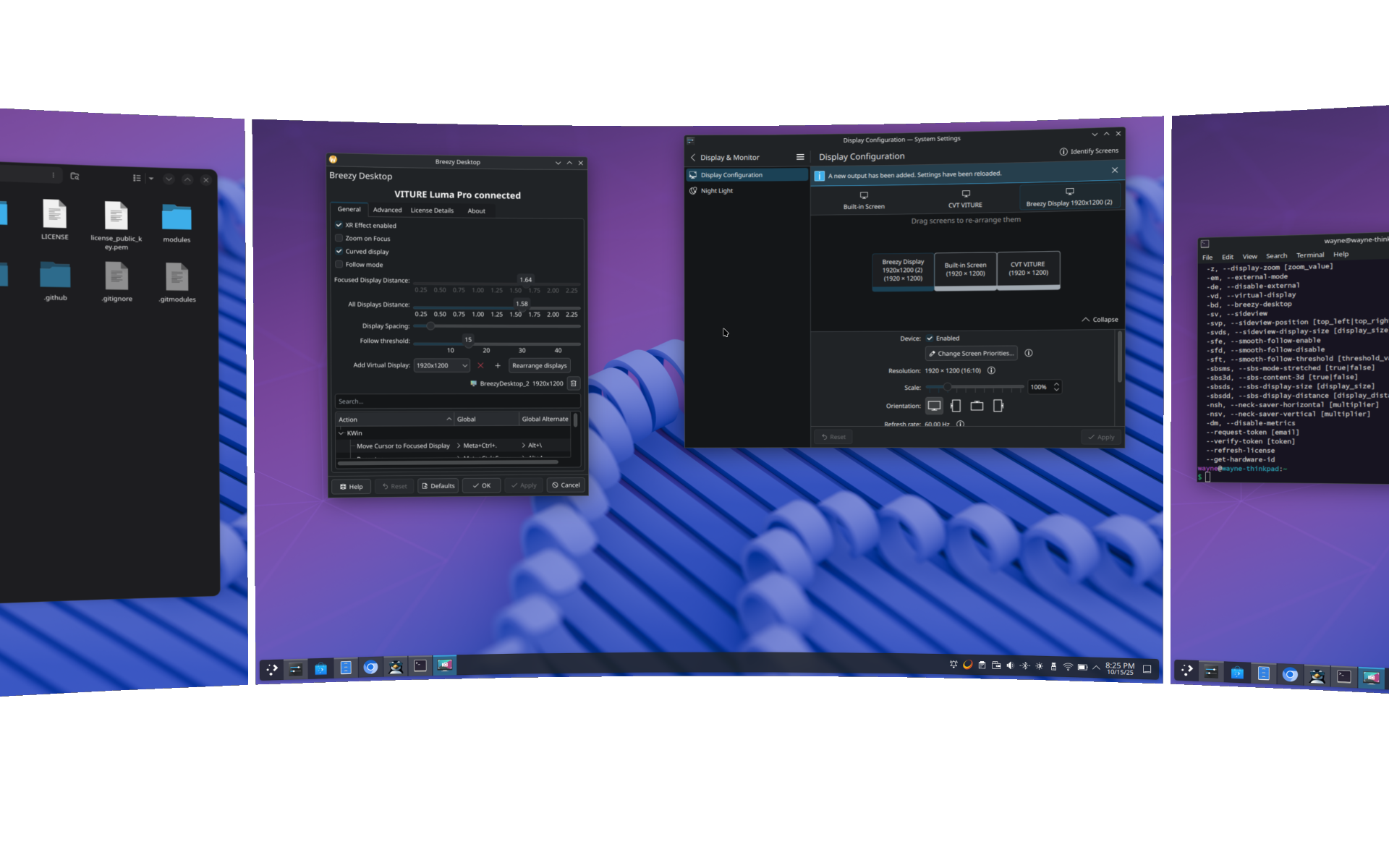
Breezy Desktop is a virtual workspace solution for Linux desktops that use the KDE Plasma 6 or GNOME desktop environments (versions 45 through 51). It supports launching multiple virtual monitors alongside multiple physical monitors.
For the best performance, ensure you have the latest graphics drivers installed for your distro.
Breezy Desktop is only compatible with KDE Plasma 6.
IMPORTANT - Please read carefully through this list before you get started
X11, you won't be able to launch virtual displays. If you're not on SteamOS, look for Wayland options on the login screen.Wayland if you want virtual display features.Panel Settings, set Visibility to always-visible.System Settings / Accessibility, disable the Shake Cursor effect.Note: an AUR installation is also available for non-SteamOS Arch users
To setup Breezy on KDE Plasma using bash, with your glasses unplugged:
chmod +x ~/Downloads/breezy_kwin_setup~/Downloads/breezy_kwin_setupWindowing system is X11 and want to use virtual displays:
Enable Breezy Wayland desktop script
Disable Breezy Wayland desktop scriptSystem Settings app, go to the Desktop Effects tab, find Breezy Desktop and enable it.Breezy KWin is in AUR. To install, run these commands from a terminal with your glasses unplugged:
breezy_kwin_uninstallyay -S breezy-desktop-kwin-gitsystemctl --user enable --now xr-driver.serviceSystem Settings app, go to the Desktop Effects tab, find Breezy Desktop and enable it.After setup, you'll have an application called Breezy Desktop installed. Launch that and follow any instructions. You can also configure keyboard shortcuts for the most common toggle actions. The Breezy Desktop app doesn't have to be running to use the virtual desktop or the keyboard shortcuts once you've configured everything to your liking.
Breezy Desktop has best compatibility with GNOME versions 45 through 51.
IMPORTANT - Please read carefully through this list before you get started
Displays settings dialog and choosing the Join option for multiple displays.GNOME on Xorg, you won't be able to launch virtual displays unless you switch to Wayland.Note: an AUR installation is also available for Arch users
To setup Breezy on GNOME using bash, with your glasses unplugged:
chmod +x ~/Downloads/breezy_gnome_setup)~/Downloads/breezy_gnome_setupBreezy GNOME is in AUR. To install, run these commands from a terminal with your glasses unplugged:
breezy_gnome_uninstallyay -S breezy-desktop-gnome-gitsystemctl --user enable --now xr-driver.serviceAfter setup, you'll have an application called Breezy Desktop installed. Launch that and follow any instructions. You will need to log out and back in at least once to get the GNOME extension working. You can also configure keyboard shortcuts for the most common toggle actions. The Breezy Desktop app doesn't have to be running to use the virtual desktop or the keyboard shortcuts once you've configured everything to your liking.
Breezy Desktop for GNOME and KDE comes with 2 free trial months. Trial access is granted automatically after setup (no token entry required), and you only need to be online once after setup so your device can activate/refresh access.
After the trial period ends, you must have an active Productivity license (Basic or Pro) to keep Productivity features enabled.
Productivity licenses apply to Breezy Desktop (GNOME/KDE). Breezy Vulkan uses a separate Supporter Tier (see below).
Paid plans are currently only available via Ko-fi.
The Basic plan includes everything needed for multi-screen productivity using only device orientation (3DoF). For device position (6DoF) — e.g. for the VITURE Luma Ultra glasses or supplementing with OpenTrack+NeuralNet — see the Productivity Pro plan.
| Payment period | Price | Upgrade window * |
|---|---|---|
| Yearly | $10 USD, recurring | Within 90 days to upgrade to lifetime |
| Lifetime | $25 USD, one-time | — |
* If you pay for a plan and decide to upgrade to a longer-term plan, you may pay the difference within this window.
The Pro plan provides all the same multi-screen productivity features as Basic, plus device position (6DoF) allowing you to lean in and move more naturally about the displays.
| Payment period | Price | Upgrade window * |
|---|---|---|
| Monthly | $2 USD, recurring | Within 7 days to upgrade to yearly |
| Yearly | $20 USD, recurring | Within 90 days to upgrade to lifetime |
| Lifetime | $50 USD, one-time | — |
* If you pay for a plan and decide to upgrade to a longer-term plan, you may pay the difference within this window.
For recurring plans (monthly/yearly), renewals are processed automatically during the renewal window (7 days prior to expiration). Your device does not need to stay online during normal use, but it must go online at least once to refresh your license. If you remain offline past your expiration time, features will pause until the next time you go online and refresh.
To make Breezy widely accessible, Productivity Basic is currently free of charge for qualified individuals using it for non-commercial purposes. Eligible groups include:
If you believe you qualify, please email [email protected]. You may be asked to provide documentation to verify your eligibility.
After your trial ends, purchase (or being granted free eligibility) will result in an email with a verification token. Once you receive that, enter it in the License Details view of the Breezy Desktop application, available from the menu in the top window bar.
If you don't receive a token, you can request one in the License Details view by entering your email address.
For Steam Deck users, the driver is now available via the Decky plugin loader. Just search "xr" in the Decky store to install and use without leaving Gaming Mode. You can now enable or disable the driver and manage other driver settings via the Decky sidebar menu.
You may still opt to do a manual installation using the instructions below if you enter Desktop Mode.
chmod +x ~/Downloads/breezy_vulkan_setup)sudo ~/Downloads/breezy_vulkan_setup)ENABLE_VKBASALT environment variable to 1. You'll either need to set this globally to enable it for all games, or set it as a launch option for individual games (e.g. in Steam's Launch Options field ENABLE_VKBASALT=1 %command%).See XRLinuxDriver's supported devices.
Once installed, you'll want to make sure you've enabled the driver (xr_driver_cli -e) and then you can go into whichever output mode you'd like using (xr_driver_cli -m) where -m is for mouse mode, -j for joystick, -vd for virtual display, and -sv for sideview; note that these two commands can't be combined, they have to be done separately. From there, you should be able to launch any Vulkan game, plug in your glasses (at any point, not just after launching), and see a floating virtual display or a sideview screen (depending on which mode you've chosen).
There's a wait period of 15 seconds after plugging in XREAL glasses where the screen will stay static to allow for the glasses to calibrate. Once ready, the screen will anchor to the space where you are looking.
To see all the configuration options available to you, type xr_driver_cli with no parameters to get the usage statement. There are some things you can't trigger from the script, like re-centering the virtual display or entering SBS mode; you can achieve these things through multi-tap or through the physical buttons on the glasses, respectively.
I've implemented an experimental multi-tap detection feature for screen re-centering (2 taps) and re-calibrating the device (3 taps). To perform a multi-tap, you'll want to give decent taps on the top of the glasses. I tend to do this on the corner, right on top of the hinge. It should be a firm, sharp tap, and wait just a split second to do the second tap, as it needs to detect a slight pause in between (but it also shouldn't take more than a half a second between taps so don't wait too long).
Breezy Vulkan's Supporter Tier features are enhancements to core functionality, offered as a way to reward those who have supported the project. Core features — like Virtual Display mode, VR-Lite mouse/joystick modes, and Follow mode's display positioning/resizing settings — will always remain available to everyone regardless of supporter status. Here's the pricing structure:
| Payment period | Price | Upgrade window * |
|---|---|---|
| Yearly | $10 USD, recurring | Within 90 days to upgrade to lifetime |
| Lifetime | $25 USD, one-time | — |
* If you pay for a plan and decide to upgrade to a longer-term plan, you may pay the difference within this window.
For recurring plans, access renews automatically during the renewal window (7 days prior to expiration). Your device does not need to stay online during normal use, but it must go online at least once to refresh your license. If you remain offline past your expiration time, features will pause until the next time you go online and refresh.
Features currently offered:
If you donate at least $10, you should immediately receive an email (to your Ko-fi email address) with a verification token. If you don't, request it using the config script:
xr_driver_cli --request-token [emailAddress]
Once you have a token, verify it using:
xr_driver_cli --verify-token [token]
xr_driver_cli --refresh-license
To disable the floating screen effect, either disable the driver (xr_driver_cli -d), unplug the glasses, or hit the Home key (you'll need to bind this to your controller, if on Steam Deck).
Rerun the breezy_vulkan_setup script. No need to re-download this script, as it will automatically download the latest installation binary for you.
If you wish to completely remove the installation:
breezy_kwin_uninstall~/.local/bin/breezy_gnome_uninstallyay run the following: pacman -R breezy-desktop-gnome-git, you may also want to uninstall the base driver with pacman -R xr-driver-breezy-gnome-git~/.local/bin/breezy_vulkan_uninstall. This won't uninstall the base driver package, follow the instructions at the end of the uninstallation to do this manually.Your right to privacy and the protection of your personal data are baked into every decision around how your personal data is collected, handled and stored. Your personal data will never be shared, sold, or distributed in any form.
In order to provide you with Supporter Tier features, this application and its backend services have to collect the following pieces of personal information:
Hashing functions are a one-way process that serve to anonymize your personal data by irreversibly changing them. Once hashed, they can never be unhashed or traced back to their original values.
For inquires about data privacy or any related concerns, please contact:
Wayne Heaney - [email protected]
473 followers · starred Feb 2025
1,123 followers · starred Jun 2025
314 followers · starred Feb 2024
560 followers · starred Feb 2024
XR productivity and gaming applications for Linux
JavaScript
780
518 commits
updated Sep 28, 2026
[!TIP] Interested in an XR desktop for Windows, MacOS, or Android? Star the work-in-progress Breezy Box project (watch the demo).
This repo contains a collection of tools to enable virtual desktop environments for gaming and productivity on Linux using supported XR glasses.
There are two installations available. Note: Don't manually install either of these if you're running the Decky plugin on the same machine, as they invalidate each other's installations. This is only temporary.
Breezy Desktop is a virtual workspace solution for Linux desktops that use the KDE Plasma 6 or GNOME desktop environments (versions 45 through 51). It supports launching multiple virtual monitors alongside multiple physical monitors.
For the best performance, ensure you have the latest graphics drivers installed for your distro.
Breezy Desktop is only compatible with KDE Plasma 6.
IMPORTANT - Please read carefully through this list before you get started
X11, you won't be able to launch virtual displays. If you're not on SteamOS, look for Wayland options on the login screen.Wayland if you want virtual display features.Panel Settings, set Visibility to always-visible.System Settings / Accessibility, disable the Shake Cursor effect.Note: an AUR installation is also available for non-SteamOS Arch users
To setup Breezy on KDE Plasma using bash, with your glasses unplugged:
chmod +x ~/Downloads/breezy_kwin_setup~/Downloads/breezy_kwin_setupWindowing system is X11 and want to use virtual displays:
Enable Breezy Wayland desktop script
Disable Breezy Wayland desktop scriptSystem Settings app, go to the Desktop Effects tab, find Breezy Desktop and enable it.Breezy KWin is in AUR. To install, run these commands from a terminal with your glasses unplugged:
breezy_kwin_uninstallyay -S breezy-desktop-kwin-gitsystemctl --user enable --now xr-driver.serviceSystem Settings app, go to the Desktop Effects tab, find Breezy Desktop and enable it.After setup, you'll have an application called Breezy Desktop installed. Launch that and follow any instructions. You can also configure keyboard shortcuts for the most common toggle actions. The Breezy Desktop app doesn't have to be running to use the virtual desktop or the keyboard shortcuts once you've configured everything to your liking.
Breezy Desktop has best compatibility with GNOME versions 45 through 51.
IMPORTANT - Please read carefully through this list before you get started
Displays settings dialog and choosing the Join option for multiple displays.GNOME on Xorg, you won't be able to launch virtual displays unless you switch to Wayland.Note: an AUR installation is also available for Arch users
To setup Breezy on GNOME using bash, with your glasses unplugged:
chmod +x ~/Downloads/breezy_gnome_setup)~/Downloads/breezy_gnome_setupBreezy GNOME is in AUR. To install, run these commands from a terminal with your glasses unplugged:
breezy_gnome_uninstallyay -S breezy-desktop-gnome-gitsystemctl --user enable --now xr-driver.serviceAfter setup, you'll have an application called Breezy Desktop installed. Launch that and follow any instructions. You will need to log out and back in at least once to get the GNOME extension working. You can also configure keyboard shortcuts for the most common toggle actions. The Breezy Desktop app doesn't have to be running to use the virtual desktop or the keyboard shortcuts once you've configured everything to your liking.
Breezy Desktop for GNOME and KDE comes with 2 free trial months. Trial access is granted automatically after setup (no token entry required), and you only need to be online once after setup so your device can activate/refresh access.
After the trial period ends, you must have an active Productivity license (Basic or Pro) to keep Productivity features enabled.
Productivity licenses apply to Breezy Desktop (GNOME/KDE). Breezy Vulkan uses a separate Supporter Tier (see below).
Paid plans are currently only available via Ko-fi.
The Basic plan includes everything needed for multi-screen productivity using only device orientation (3DoF). For device position (6DoF) — e.g. for the VITURE Luma Ultra glasses or supplementing with OpenTrack+NeuralNet — see the Productivity Pro plan.
| Payment period | Price | Upgrade window * |
|---|---|---|
| Yearly | $10 USD, recurring | Within 90 days to upgrade to lifetime |
| Lifetime | $25 USD, one-time | — |
* If you pay for a plan and decide to upgrade to a longer-term plan, you may pay the difference within this window.
The Pro plan provides all the same multi-screen productivity features as Basic, plus device position (6DoF) allowing you to lean in and move more naturally about the displays.
| Payment period | Price | Upgrade window * |
|---|---|---|
| Monthly | $2 USD, recurring | Within 7 days to upgrade to yearly |
| Yearly | $20 USD, recurring | Within 90 days to upgrade to lifetime |
| Lifetime | $50 USD, one-time | — |
* If you pay for a plan and decide to upgrade to a longer-term plan, you may pay the difference within this window.
For recurring plans (monthly/yearly), renewals are processed automatically during the renewal window (7 days prior to expiration). Your device does not need to stay online during normal use, but it must go online at least once to refresh your license. If you remain offline past your expiration time, features will pause until the next time you go online and refresh.
To make Breezy widely accessible, Productivity Basic is currently free of charge for qualified individuals using it for non-commercial purposes. Eligible groups include:
If you believe you qualify, please email [email protected]. You may be asked to provide documentation to verify your eligibility.
After your trial ends, purchase (or being granted free eligibility) will result in an email with a verification token. Once you receive that, enter it in the License Details view of the Breezy Desktop application, available from the menu in the top window bar.
If you don't receive a token, you can request one in the License Details view by entering your email address.
For Steam Deck users, the driver is now available via the Decky plugin loader. Just search "xr" in the Decky store to install and use without leaving Gaming Mode. You can now enable or disable the driver and manage other driver settings via the Decky sidebar menu.
You may still opt to do a manual installation using the instructions below if you enter Desktop Mode.
chmod +x ~/Downloads/breezy_vulkan_setup)sudo ~/Downloads/breezy_vulkan_setup)ENABLE_VKBASALT environment variable to 1. You'll either need to set this globally to enable it for all games, or set it as a launch option for individual games (e.g. in Steam's Launch Options field ENABLE_VKBASALT=1 %command%).See XRLinuxDriver's supported devices.
Once installed, you'll want to make sure you've enabled the driver (xr_driver_cli -e) and then you can go into whichever output mode you'd like using (xr_driver_cli -m) where -m is for mouse mode, -j for joystick, -vd for virtual display, and -sv for sideview; note that these two commands can't be combined, they have to be done separately. From there, you should be able to launch any Vulkan game, plug in your glasses (at any point, not just after launching), and see a floating virtual display or a sideview screen (depending on which mode you've chosen).
There's a wait period of 15 seconds after plugging in XREAL glasses where the screen will stay static to allow for the glasses to calibrate. Once ready, the screen will anchor to the space where you are looking.
To see all the configuration options available to you, type xr_driver_cli with no parameters to get the usage statement. There are some things you can't trigger from the script, like re-centering the virtual display or entering SBS mode; you can achieve these things through multi-tap or through the physical buttons on the glasses, respectively.
I've implemented an experimental multi-tap detection feature for screen re-centering (2 taps) and re-calibrating the device (3 taps). To perform a multi-tap, you'll want to give decent taps on the top of the glasses. I tend to do this on the corner, right on top of the hinge. It should be a firm, sharp tap, and wait just a split second to do the second tap, as it needs to detect a slight pause in between (but it also shouldn't take more than a half a second between taps so don't wait too long).
Breezy Vulkan's Supporter Tier features are enhancements to core functionality, offered as a way to reward those who have supported the project. Core features — like Virtual Display mode, VR-Lite mouse/joystick modes, and Follow mode's display positioning/resizing settings — will always remain available to everyone regardless of supporter status. Here's the pricing structure:
| Payment period | Price | Upgrade window * |
|---|---|---|
| Yearly | $10 USD, recurring | Within 90 days to upgrade to lifetime |
| Lifetime | $25 USD, one-time | — |
* If you pay for a plan and decide to upgrade to a longer-term plan, you may pay the difference within this window.
For recurring plans, access renews automatically during the renewal window (7 days prior to expiration). Your device does not need to stay online during normal use, but it must go online at least once to refresh your license. If you remain offline past your expiration time, features will pause until the next time you go online and refresh.
Features currently offered:
If you donate at least $10, you should immediately receive an email (to your Ko-fi email address) with a verification token. If you don't, request it using the config script:
xr_driver_cli --request-token [emailAddress]
Once you have a token, verify it using:
xr_driver_cli --verify-token [token]
xr_driver_cli --refresh-license
To disable the floating screen effect, either disable the driver (xr_driver_cli -d), unplug the glasses, or hit the Home key (you'll need to bind this to your controller, if on Steam Deck).
Rerun the breezy_vulkan_setup script. No need to re-download this script, as it will automatically download the latest installation binary for you.
If you wish to completely remove the installation:
breezy_kwin_uninstall~/.local/bin/breezy_gnome_uninstallyay run the following: pacman -R breezy-desktop-gnome-git, you may also want to uninstall the base driver with pacman -R xr-driver-breezy-gnome-git~/.local/bin/breezy_vulkan_uninstall. This won't uninstall the base driver package, follow the instructions at the end of the uninstallation to do this manually.Your right to privacy and the protection of your personal data are baked into every decision around how your personal data is collected, handled and stored. Your personal data will never be shared, sold, or distributed in any form.
In order to provide you with Supporter Tier features, this application and its backend services have to collect the following pieces of personal information:
Hashing functions are a one-way process that serve to anonymize your personal data by irreversibly changing them. Once hashed, they can never be unhashed or traced back to their original values.
For inquires about data privacy or any related concerns, please contact:
Wayne Heaney - [email protected]
473 followers · starred Feb 2025
1,123 followers · starred Jun 2025
314 followers · starred Feb 2024
560 followers · starred Feb 2024