Helper app to share only a part of a screen via video conference apps
C#
1,162
133 commits
updated Oct 15, 2026
 Region to Share
A Windows helper app to share only a part of a screen via video conference apps that only support either full screen or single window like e.g. Teams, WebEx, etc.
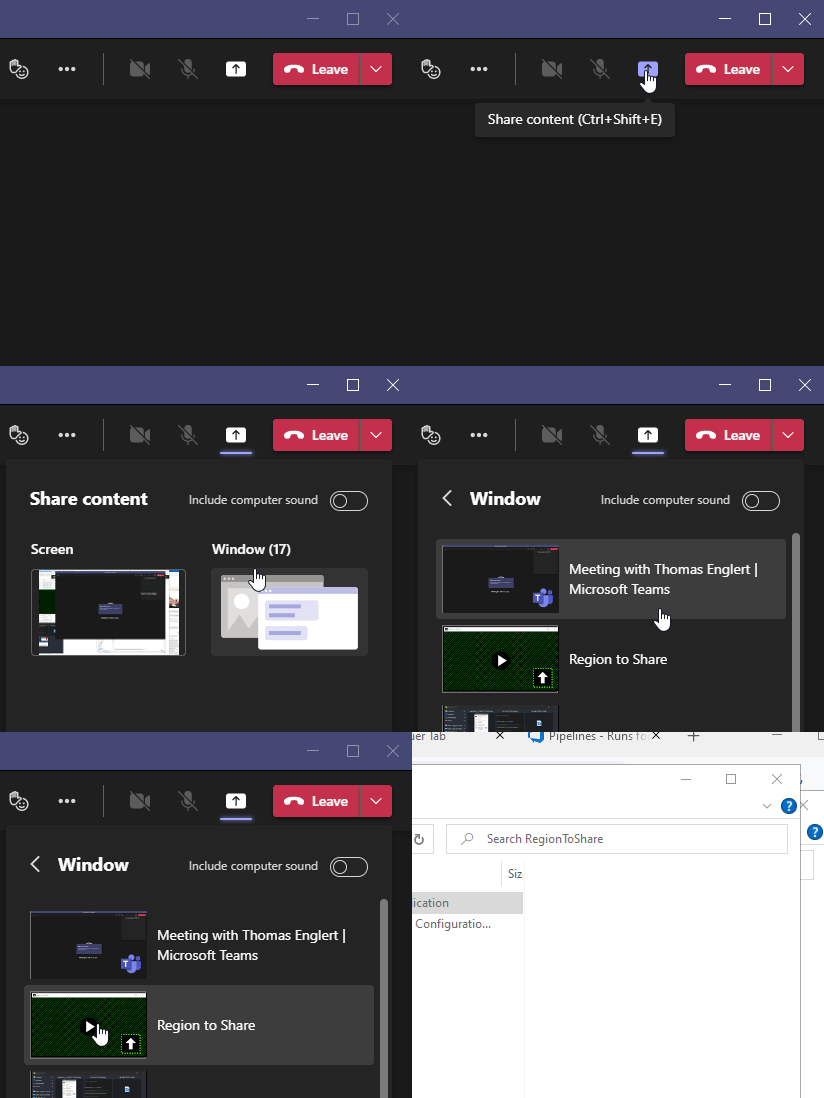
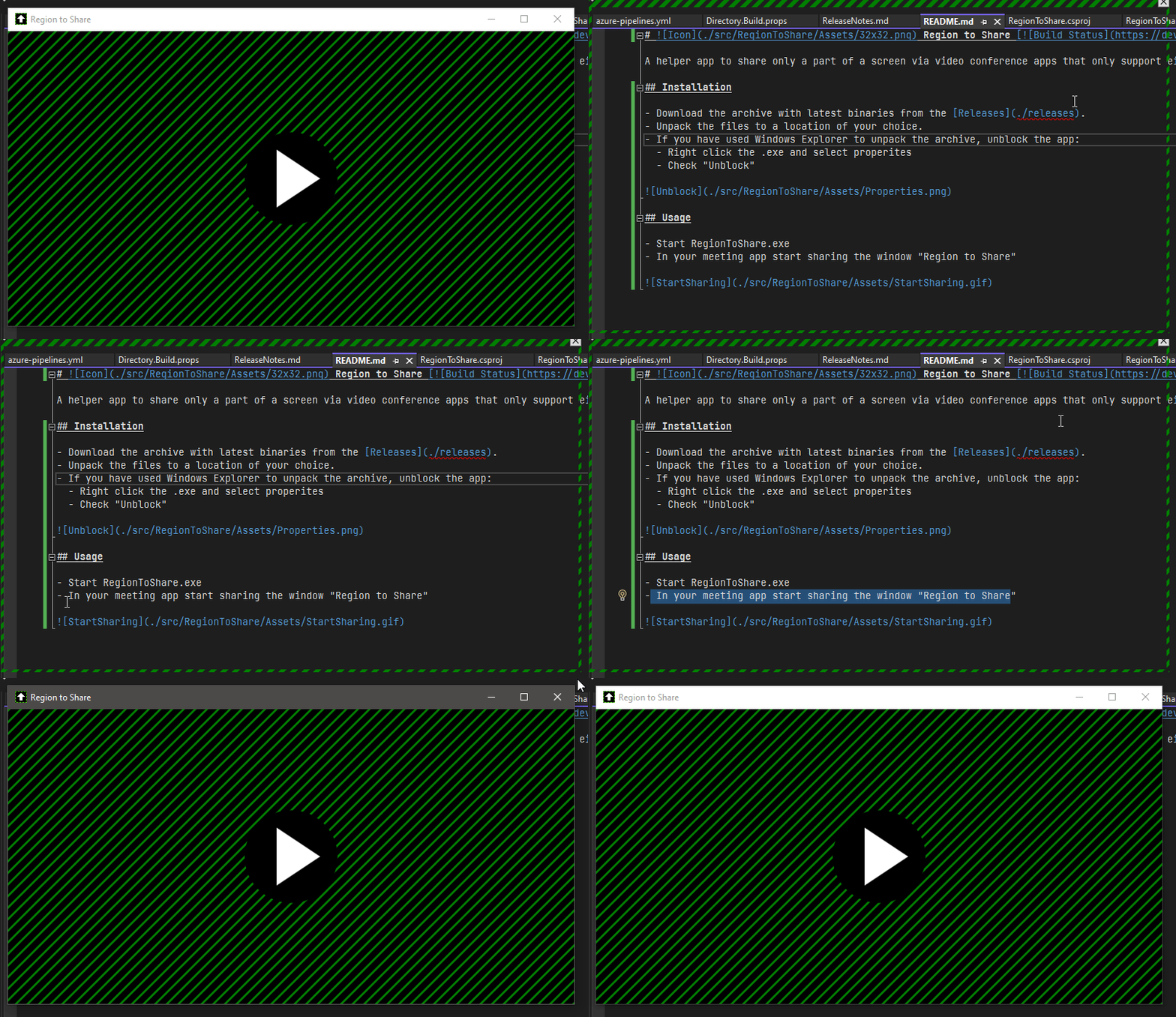
This tool simply mirrors the content of a screen region into a hidden window. In your meeting app you then can just share the content of this hidden window.
Region to Share is not aware of your meeting app nor what the meeting app is doing with the content of the window. It's up to your meeting app whether it properly shares this hidden windows content or not - if it's not working as expected, there is nothing Region to Share can do about this.
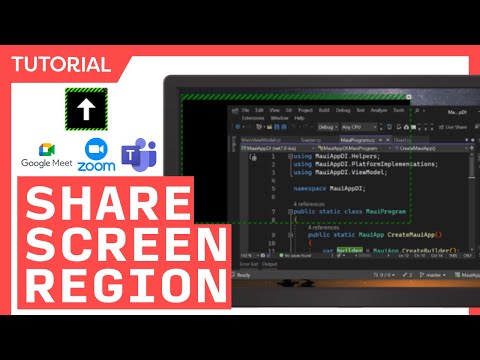
winget install TomEnglert.RegionToShareWatch this great tutorial by James Montemagno
The region frame can be resized by dragging the edges or corners. The size of the region is shown in the toolbar. A set of predefined sizes can be selected from the toolbar. The list of selectable sizes can be changed in the settings.
Pick an aspect ratio (4:3, 5:4, 16:9, 16:10) in the toolbar, or while sharing from the menu button (▾) of the region frame. The width is kept and the height is adjusted; while a ratio is selected, resizing keeps it. Choose "Free" to resize freely again. The list of selectable aspect ratios can be changed in the settings.
Press Win+Ctrl+W to move and resize the active window so it exactly fills the shared region. The hotkey can be changed in the settings.
A double ring around the mouse cursor shows where you are pointing; the inner ring is more transparent than the outer one. Left and right clicks briefly change the color of the ring and play a sound. The highlighter is off by default; once turned on in the settings, it is active all the time, not only while sharing. Color, opacity, size, click colors, sounds and volume can be adjusted in the settings. The ring can be shown on your own screen, in the shared region, or both.
Open the settings with the gear button in the toolbar, or from the menu button of the region frame. Changes apply immediately. The app is available in English and German, and follows the Windows display language by default.
If you like this tool, don't forget to ⭐ it.
363 followers · starred Jun 2026
26 followers · starred Apr 2024
179 followers · starred Feb 2022
10 followers · starred Jul 2024
Helper app to share only a part of a screen via video conference apps
C#
1,162
133 commits
updated Oct 15, 2026
Region to Share
A Windows helper app to share only a part of a screen via video conference apps that only support either full screen or single window like e.g. Teams, WebEx, etc.
This tool simply mirrors the content of a screen region into a hidden window. In your meeting app you then can just share the content of this hidden window.
Region to Share is not aware of your meeting app nor what the meeting app is doing with the content of the window. It's up to your meeting app whether it properly shares this hidden windows content or not - if it's not working as expected, there is nothing Region to Share can do about this.
winget install TomEnglert.RegionToShareWatch this great tutorial by James Montemagno
The region frame can be resized by dragging the edges or corners. The size of the region is shown in the toolbar. A set of predefined sizes can be selected from the toolbar. The list of selectable sizes can be changed in the settings.
Pick an aspect ratio (4:3, 5:4, 16:9, 16:10) in the toolbar, or while sharing from the menu button (▾) of the region frame. The width is kept and the height is adjusted; while a ratio is selected, resizing keeps it. Choose "Free" to resize freely again. The list of selectable aspect ratios can be changed in the settings.
Press Win+Ctrl+W to move and resize the active window so it exactly fills the shared region. The hotkey can be changed in the settings.
A double ring around the mouse cursor shows where you are pointing; the inner ring is more transparent than the outer one. Left and right clicks briefly change the color of the ring and play a sound. The highlighter is off by default; once turned on in the settings, it is active all the time, not only while sharing. Color, opacity, size, click colors, sounds and volume can be adjusted in the settings. The ring can be shown on your own screen, in the shared region, or both.
Open the settings with the gear button in the toolbar, or from the menu button of the region frame. Changes apply immediately. The app is available in English and German, and follows the Windows display language by default.
If you like this tool, don't forget to ⭐ it.
363 followers · starred Jun 2026
26 followers · starred Apr 2024
179 followers · starred Feb 2022
10 followers · starred Jul 2024