Share one window in Zoom/Meet/Teams that follows whatever you're working in. macOS, Windows and Linux (Hyprland).
C#
0
78 commits
updated Oct 11, 2026
macOS / Windows / Linux (Hyprland)
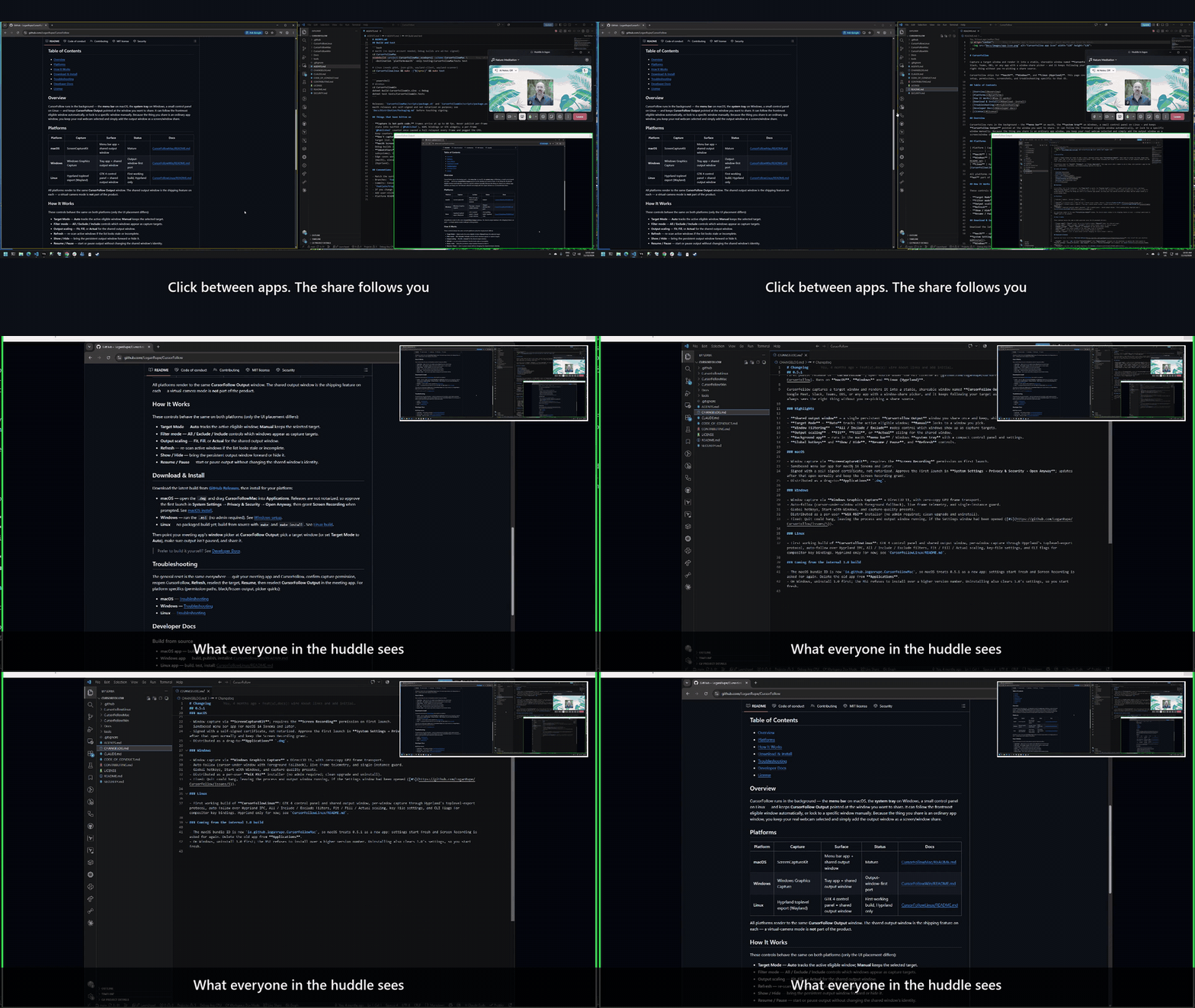
Sharing CursorFollow Output in a Slack huddle on Windows. Click for the full walkthrough (1:39).
Capture a target window and render it into a stable, shareable window named CursorFollow Output. Share that one window from Zoom, Google Meet, Slack, Teams, OBS, or any app with a window-share picker — and it keeps following your target as you switch focus, so your audience always sees the right thing without you re-picking a share source.
CursorFollow ships for macOS, Windows, and Linux (Hyprland). This page covers what's common to all of them; each platform's page has the setup, permissions, screenshots, and troubleshooting specific to that OS.
CursorFollow runs in the background — the menu bar on macOS, the system tray on Windows, a small control panel on Linux — and keeps CursorFollow Output pointed at the window you want to share. It can follow the frontmost eligible window automatically, or lock to a specific window manually. Because the thing you share is an ordinary app window, you keep your real webcam selected and simply add the output window as a screen/window share.
| Platform | Capture | Surface | Status | Docs |
|---|---|---|---|---|
| macOS | ScreenCaptureKit | Menu bar app + shared output window | Mature | CursorFollowMac/README.md |
| Windows | Windows Graphics Capture | Tray app + shared output window | Output-window-first port | CursorFollowWin/README.md |
| Linux | Hyprland toplevel export (Wayland) | GTK 4 control panel + shared output window | First working build, Hyprland only | CursorFollowLinux/README.md |
All platforms render to the same CursorFollow Output window. The shared output window is the shipping feature on each — a virtual-camera mode is not part of the product.
These controls behave the same on both platforms (only the UI placement differs):
Download the latest build from GitHub Releases, then install for your platform:
.dmg and drag CursorFollowMac into Applications. Releases are not notarized, so approve the first launch in System Settings → Privacy & Security → Open Anyway, then grant Screen Recording when prompted. See macOS install..msi (no admin required). See Windows setup.make and make install. See Linux build.Then point your meeting app's window picker at CursorFollow Output: pick a target window (or set Target Mode to Auto), make sure output isn't paused, and share it.
Prefer to build it yourself? See Developer Docs.
The general reset is the same everywhere — quit your meeting app and CursorFollow, confirm capture permission, reopen CursorFollow, Refresh, reselect the target, Resume, then reselect CursorFollow Output in the meeting app. For platform specifics (permission paths, black/frozen output, picker quirks):
GitHub Actions builds the installers (.github/workflows/release.yml):
MARKETING_VERSION in the Xcode project, Version/FileVersion/AssemblyVersion in CursorFollowWin.csproj, VERSION in CursorFollowLinux/Makefile) and move the Unreleased notes in CHANGELOG.md under a ## <version> heading.main, then tag and push: git tag -a v0.5.2 -m "CursorFollow 0.5.2" && git push origin v0.5.2.macOS signing in CI uses the self-signed identity from two repository secrets, MAC_SIGNING_P12 (base64 of the .p12) and MAC_SIGNING_P12_PASSWORD. See Docs/Distribution/Packaging.md. Local builds still work: ./CursorFollowMac/scripts/package.sh and ./CursorFollowWin/scripts/package.ps1.
CursorFollow is released under the MIT License.
Share one window in Zoom/Meet/Teams that follows whatever you're working in. macOS, Windows and Linux (Hyprland).
C#
0
78 commits
updated Oct 11, 2026
macOS / Windows / Linux (Hyprland)
Sharing CursorFollow Output in a Slack huddle on Windows. Click for the full walkthrough (1:39).
Capture a target window and render it into a stable, shareable window named CursorFollow Output. Share that one window from Zoom, Google Meet, Slack, Teams, OBS, or any app with a window-share picker — and it keeps following your target as you switch focus, so your audience always sees the right thing without you re-picking a share source.
CursorFollow ships for macOS, Windows, and Linux (Hyprland). This page covers what's common to all of them; each platform's page has the setup, permissions, screenshots, and troubleshooting specific to that OS.
CursorFollow runs in the background — the menu bar on macOS, the system tray on Windows, a small control panel on Linux — and keeps CursorFollow Output pointed at the window you want to share. It can follow the frontmost eligible window automatically, or lock to a specific window manually. Because the thing you share is an ordinary app window, you keep your real webcam selected and simply add the output window as a screen/window share.
| Platform | Capture | Surface | Status | Docs |
|---|---|---|---|---|
| macOS | ScreenCaptureKit | Menu bar app + shared output window | Mature | CursorFollowMac/README.md |
| Windows | Windows Graphics Capture | Tray app + shared output window | Output-window-first port | CursorFollowWin/README.md |
| Linux | Hyprland toplevel export (Wayland) | GTK 4 control panel + shared output window | First working build, Hyprland only | CursorFollowLinux/README.md |
All platforms render to the same CursorFollow Output window. The shared output window is the shipping feature on each — a virtual-camera mode is not part of the product.
These controls behave the same on both platforms (only the UI placement differs):
Download the latest build from GitHub Releases, then install for your platform:
.dmg and drag CursorFollowMac into Applications. Releases are not notarized, so approve the first launch in System Settings → Privacy & Security → Open Anyway, then grant Screen Recording when prompted. See macOS install..msi (no admin required). See Windows setup.make and make install. See Linux build.Then point your meeting app's window picker at CursorFollow Output: pick a target window (or set Target Mode to Auto), make sure output isn't paused, and share it.
Prefer to build it yourself? See Developer Docs.
The general reset is the same everywhere — quit your meeting app and CursorFollow, confirm capture permission, reopen CursorFollow, Refresh, reselect the target, Resume, then reselect CursorFollow Output in the meeting app. For platform specifics (permission paths, black/frozen output, picker quirks):
GitHub Actions builds the installers (.github/workflows/release.yml):
MARKETING_VERSION in the Xcode project, Version/FileVersion/AssemblyVersion in CursorFollowWin.csproj, VERSION in CursorFollowLinux/Makefile) and move the Unreleased notes in CHANGELOG.md under a ## <version> heading.main, then tag and push: git tag -a v0.5.2 -m "CursorFollow 0.5.2" && git push origin v0.5.2.macOS signing in CI uses the self-signed identity from two repository secrets, MAC_SIGNING_P12 (base64 of the .p12) and MAC_SIGNING_P12_PASSWORD. See Docs/Distribution/Packaging.md. Local builds still work: ./CursorFollowMac/scripts/package.sh and ./CursorFollowWin/scripts/package.ps1.
CursorFollow is released under the MIT License.



