
One command for file conversion: video, audio, images and docs. Wraps ffmpeg, ImageMagick, LibreOffice and pandoc, and runs offline.
Rust
4
193 commits
updated Oct 3, 2026
See what people are saying
README



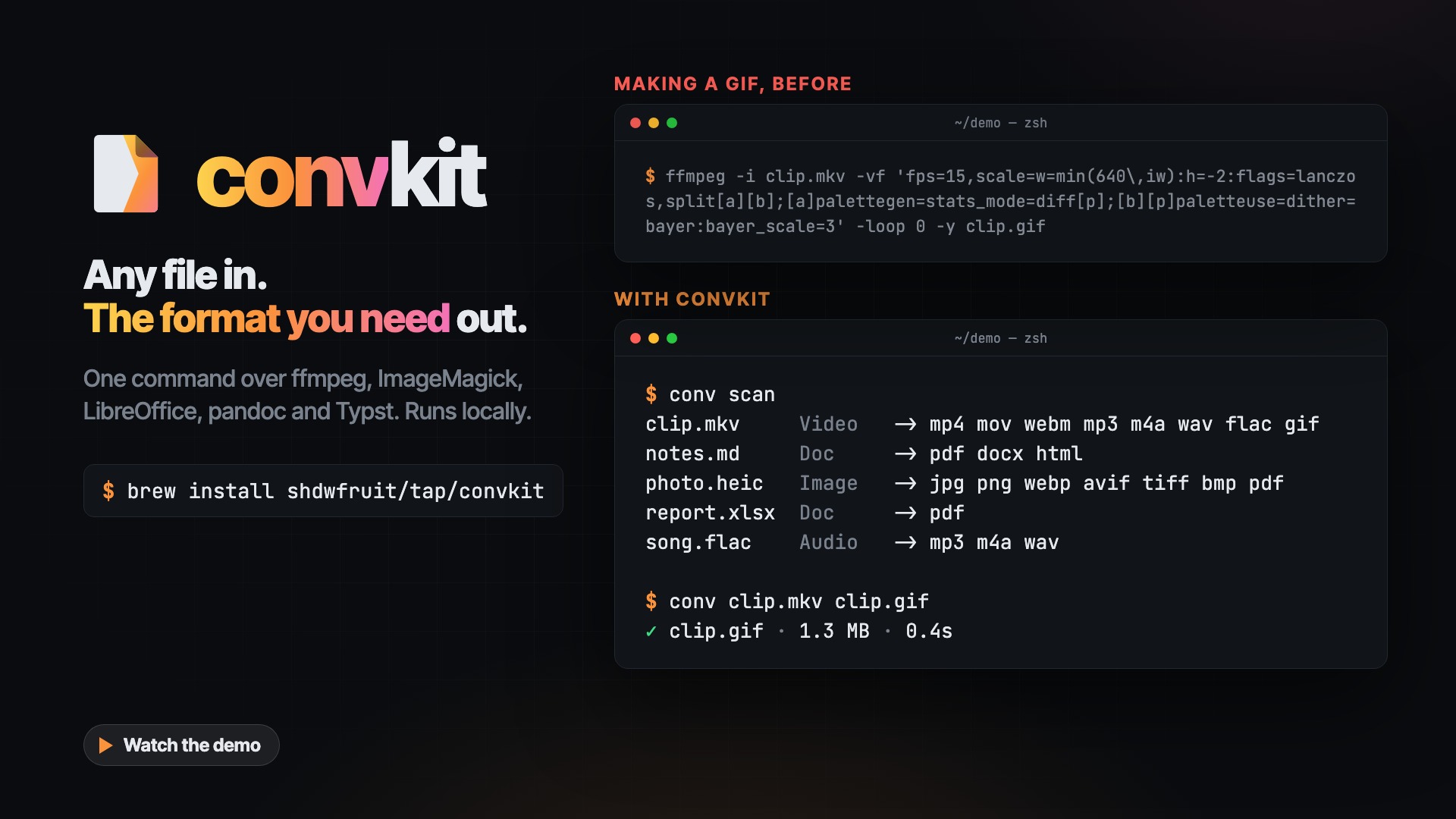
One command for everyday file conversion. conv maps a source format and a
target format onto an expert-tuned invocation of the right backend — ffmpeg,
ImageMagick, LibreOffice, pandoc, or Typst — and runs it locally: 115
conversion pairs across 27 formats (conv capabilities is the source of
truth). Files never leave your machine; only conv install/conv update
ever touch the network.
$ conv clip.mkv clip.mp4
OK clip.mp4 - 55 KB - 0.1s - stream copy, no re-encode
  /home/user/Videos/clip.mp4
When the source codecs already fit the target container, convkit remuxes
instead of re-encoding — lossless, and measured 3.3× faster on a 2-second
clip up to 71.7× on a 60-second 1080p one. On a real terminal OK/FAIL
render as green/red ✓/✗; piped or redirected output (CI, | tee) is
plain ASCII with no escape codes.
Video file too large? Give conv the limit and it compresses the file to fit under it, for an upload cap or an attachment limit:
$ conv clip.mp4 --max-size 5mb
OK clip-5mb.mp4 - 4.97 MB - 24.0s
  /home/user/Videos/clip-5mb.mp4
  note  Sized to 1280x720 at 30 fps, 1.81 Mb/s video, 128 kb/s audio; 2 passes.
conv trades resolution, frame rate and bitrate against each other, so the file looks as good as that size allows rather than losing everything from one of them, and it asks before a limit too tight to look good. More in Size targets.
Install
Prebuilt binaries cover Windows x64, macOS x64/arm64, and Linux x64/arm64:
# Linux / macOS
$ curl --proto '=https' --tlsv1.2 -LsSf \
    https://github.com/shdwfruit/convkit/releases/latest/download/convkit-installer.sh | sh
# Windows
> irm https://github.com/shdwfruit/convkit/releases/latest/download/convkit-installer.ps1 | iex
# Homebrew (macOS / Linux)
$ brew install shdwfruit/tap/convkit
An MSI (convkit-x86_64-pc-windows-msvc.msi) is also attached to each
release. The Windows binaries are not code-signed, so SmartScreen warns on
first run.
# Cargo (any platform, builds from source)
$ cargo install convkit --locked
Building from source — which cargo install does — requires Rust 1.85+ and
a C toolchain on every platform (the HTTPS downloader's ring dependency
compiles C at build time). On Windows that toolchain is the MSVC C++ build
tools rustup already requires, so nothing extra is needed beyond a working
Rust install. From a checkout:
$ git clone https://github.com/shdwfruit/convkit
$ cd convkit
$ cargo install --path crates/conv
convkit performs no encoding itself — see Backends. Running a conversion also prompts to install whichever backend it needs.
Quick start
conv in.mp4 out.gif              # target inferred from output extension
conv in.mp4 .gif                 # same basename, new extension
conv *.heic --to jpg             # batch; globs expanded by conv itself, so this works on Windows too
conv ./photos --to jpg -o ./out  # folder input, non-recursive, outputs redirected
conv a.png b.png out.pdf         # merge two or more images into one PDF
conv scan                        # list the files here and what each can become
conv clip.mp4 --max-size 5mb     # compress a video to fit under 5 MB
A single conversion reports size, elapsed time, and the absolute path the result landed at:
$ conv clip.mp4 clip.gif
OK clip.gif - 492 KB - 0.2s
  /home/user/Videos/clip.gif
A note follows when there is something to know about converting this particular source: a transparent PNG flattened into a JPEG, say, or a GIF made from a long video, which takes a lot of memory. A phone photo converted to JPEG gets none.
$ conv logo.png logo.jpg
OK logo.jpg - 5 KB - 0.0s
  /home/user/Pictures/logo.jpg
  note  Transparency is flattened onto a white background; JPEG has no alpha channel.
--dry-run prints the exact backend command instead of running it — here,
the per-clip palette generation behind convkit's GIF default:
$ conv clip.mp4 clip.gif --dry-run
ffmpeg -i clip.mp4 -vf 'fps=15,scale=w=min(640\,iw):h=-2:flags=lanczos,split[a][b];[a]palettegen=stats_mode=diff[p];[b][p]paletteuse=dither=bayer:bayer_scale=3' -loop 0 -y clip.gif
Multi-step recipes are automatic: md → pdf needs no LaTeX — pandoc renders
to .docx, then LibreOffice renders that to PDF, behind one command:
$ conv sample.md sample.pdf --dry-run
pandoc sample.md --standalone --resource-path . -o sample.convkit-step0.docx
soffice "-env:UserInstallation=<per-run temp profile>" --headless --norestore --convert-to pdf --outdir . sample.convkit-step0.docx
For the image → PDF merge: three or more positionals, where every one but
the last is an image and the last is .pdf, become one multi-page PDF — one
page per input, in argument order; formats can mix. A directory there
expands to its images in natural order (p2 before p10). Two positionals
are always an ordinary pair: conv a.png out.pdf converts one file.
A failure never looks like a success, and carries its own fix — try names
whichever package manager is on PATH (winget/scoop/choco, brew,
apt-get/dnf/pacman):
$ conv report.xlsx report.pdf
FAIL report.xlsx -> pdf
  soffice not found
  try  brew install --cask libreoffice
Exit codes, for scripting: 0 success, 1 conversion failed, 2 usage
error or unsupported pair, 3 a required backend is missing, 4 a batch
partly failed.
Tuning knobs
Three flags override named defaults on image conversions:
--resize <GEOMETRY>— fit within the geometry, aspect preserved:1600x900,1600x(width only),x900(height only), or50%. It never enlarges; see--upscalebelow.--quality <1-100>— lossy image targets (jpg/webp/avif) and image → pdf; the default is 92.--colors <2-256>— palette reduction on raster targets.
A flag that doesn't apply to the requested pair is refused with the reason, never silently ignored:
$ conv in.jpg out.png --quality 80
FAIL in.jpg -> png
  png is lossless; --quality applies to jpg/webp/avif targets and image -> pdf
--fps and --crf override two more named defaults on video and GIF
conversions; --resize above widens to both as well:
--fps <RATE>— cap the frame rate; a source already slower is left unchanged.--crf <N>— constant-quality anchor for the encoder: 0-51 for mp4/mov/mkv, 0-63 for webm; the default is 20. The 0-51 bound is convkit's own, not libx264's, which accepts far more without complaint.
$ conv --fps 24 --resize 1280x720 sample.mkv out.mp4
OK out.mp4 - 62 KB - 0.3s
  /home/user/Videos/out.mp4
  note  Re-encoded rather than stream-copied, because a video knob changes the picture; the copy path cannot filter.
Binding any video or GIF knob gives up convkit's auto-remux stream
copy — ffmpeg refuses a filter alongside -c:v copy, so honouring the
knob means re-encoding — and the note above says so. A cap that does
not actually bind keeps the copy:
$ conv --fps 30 slow24.mp4 slow24.mkv
OK slow24.mkv - 17 KB - 0.2s - stream copy, no re-encode
  /home/user/Videos/slow24.mkv
  note  Source is 24 fps; --fps 30 left it unchanged.
$ conv --resize 4000x clip.mkv clip.mp4
OK clip.mp4 - 768 KB - 0.1s - stream copy, no re-encode
  /home/user/Videos/clip.mp4
  note  Source is 1280x720; --resize 4000x left it unchanged (add --upscale to enlarge).
--resize never enlarges, on image, video and GIF targets alike: a
source already smaller than the geometry keeps its own size, and a
note says so. --upscale lets it enlarge, and conv warns when it
does, with the new size, how many times the source's pixels that is,
and a rough file size, because enlarging adds no detail and makes a
much larger file:
$ conv --resize 1920x --upscale clip.mkv big.mp4
OK big.mp4 - 13.8 MB - 4.6s
  /home/user/Videos/big.mp4
  note  Re-encoded rather than stream-copied, because a video knob changes the picture; the copy path cannot filter.
warning  --resize 1920x --upscale enlarges the 1280x720 source to 1920x1080, about 2.2 times its pixels: enlarging adds no detail, so expect a soft picture and a much larger file, very roughly 1.6 MB to 16 MB.
Past four times the source's pixels (more than doubling each side),
conv asks first, as it does for an extreme --max-size target:
--yes answers yes, and a run that cannot ask (no terminal, --json
or --quiet) converts nothing and exits 2. One question covers a
whole batch, and --dry-run shows the warning without asking.
$ conv --resize 3840x --upscale clip.mkv big4k.mp4
warning  --resize 3840x --upscale enlarges the 1280x720 source to 3840x2160, about 9 times its pixels: enlarging adds no detail, so expect a soft picture and a much larger file, very roughly 6.2 MB to 62 MB.
Convert anyway? [y/N] n
error: large upscale not confirmed for clip.mkv; pass --yes to convert anyway
The file size is a rule of thumb and can be off several-fold either
way. An image's size is read from its header, and only under
--upscale: every input and page the conversion takes, an SVG at the
density it renders at, and the one enlarged most is the one the
warning names and the question is decided on. If a size cannot be
read, conv warns without the numbers and does not ask, unless the
geometry is a percentage, whose ratio is known regardless.
An out-of-range --crf is refused rather than passed through to the
encoder:
$ conv --crf 60 sample.mkv out.mp4
FAIL sample.mkv -> mp4
  --crf 60 is out of range for mp4; libx264 takes 0-51, lower is better
A flag that doesn't apply to the requested pair is refused with the reason, never silently ignored, on video exactly as on images:
$ conv --fps 24 photo.png out.jpg
FAIL photo.png -> jpg
  --fps does not apply to png -> jpg: it tunes video and GIF targets
conv capabilities <format> lists which flags apply to which pair,
and each pair's own defaults:
$ conv capabilities mp4
mp4 (Video)

  as source, converts to:
    mp4 -> mov      [--resize --upscale --fps --crf --max-size]
    mp4 -> mkv      [--resize --upscale --fps --crf --max-size]
    mp4 -> webm     [--crf --resize --upscale --fps --max-size]
    mp4 -> mp3
    mp4 -> m4a
    mp4 -> wav
    mp4 -> flac
    mp4 -> gif      [--resize --upscale --fps]

  as target, accepts: mov mkv webm avi gif
  tuning flags when writing mp4: --resize --upscale --fps --crf --max-size

  defaults: crf 20 (override with --crf)
  note: Subtitle tracks and any audio tracks beyond the first are dropped (--max-size keeps every audio track and every text subtitle).
  note: A looping GIF becomes a single play in MP4; there is no container-level loop flag to carry it over.

  full pair list: conv capabilities; exact command preview: conv <in> <out> --dry-run
Size targets
--max-size makes a video fit a size, for upload limits and attachments:
$ conv clip.mp4 --max-size 10mb
OK clip-10mb.mp4 - 9.99 MB - 23.6s
  /home/user/Videos/clip-10mb.mp4
  note  Sized to 1920x1080 at 30 fps, 3.76 Mb/s video, 128 kb/s audio; 2 passes.
conv picks the resolution, frame rate and bitrates together. Each costs
something, and it takes the combination that costs least in total, so a
tight target trims a little from everything rather than all of one thing:
a 144 fps clip loses frame rate long before it drops to 360p. The size is a
ceiling: 10mb means 10,000,000 bytes, which also fits a limit enforced as
10 MiB. kb, mb and gb are decimal; write kib, mib or gib for
binary units. The targets are mp4, mov, mkv and webm; any other target
refuses the flag by name.
It encodes in two passes and checks the result. If the file comes out over,
conv plans again with a smaller budget and runs both passes again, three
attempts at most. Very detailed footage can stop the encoder short of the
rate it was asked for at a given picture size; when that happens, the retry
also steps down to a smaller picture. A result still over after the last
attempt is kept and flagged, never thrown away, and the exit code stays 0;
a script reads over_target in --json. A file already under the target
is copied rather than re-encoded, or stream-copied into another container
where that container can hold its video (an H.264 mp4 going to webm is
re-encoded). A --resize or --fps limit that would change the file
forces the encode. A file already under the target that is re-encoded
aims at its own size, not the target: an encode cannot add quality the
source lacks, so the result lands within a few percent of the file it came
from rather than growing toward the target.
With one file and no output name, conv keeps the format and adds the size
to the name (clip-10mb.mp4), but only when the output would otherwise
land on the input: with -o to another directory the name is kept. Name an
output, or use --to for a batch, as usual. An output that is the input
itself is refused, even with -y, and so is an existing output in the
input's own format: in a folder of two clips, the shell turns
conv *.mp4 --max-size 8mb into conv a.mp4 b.mp4 --max-size 8mb, which
would replace b.mp4 with a sized copy of a.mp4. A batch needs --to:
conv clip.mov small.mp4 --max-size 25mb   # name the output
conv *.mov --to mp4 --max-size 8mb        # a batch: each file is sized on its own
--resize and --fps become limits it stays within. What they cut is your
choice, so it never makes a target count as too small by itself. --crf
asks for the opposite (a constant quality, whatever the size) and cannot be
combined with --max-size.
If a target is too small to look good, conv says so before encoding, suggests a size that would, and asks:
$ conv clip.mp4 --max-size 1mb
warning  Extreme compression: 1 MB for 20 s of 1080p will look poor (480p, 30 fps).
         For a watchable result, try: conv clip.mp4 --max-size 2mb
Convert anyway? [y/N] n
error: extreme compression not confirmed for clip.mp4; pass --yes to convert anyway, or try --max-size 2mb
Where that line sits, and how it was measured, is in the "Size targets"
section of docs/defaults-calibration.md.
Scripts answer with --yes. Without a terminal to ask, and without
--yes, nothing is converted and the exit code is 2:
$ conv clip.mp4 --max-size 1mb < /dev/null
warning  Extreme compression: 1 MB for 20 s of 1080p will look poor (480p, 30 fps).
         For a watchable result, try: conv clip.mp4 --max-size 2mb
error: extreme compression not confirmed for clip.mp4; pass --yes to convert anyway, or try --max-size 2mb
$ echo $?
2
$ conv clip.mp4 --max-size 1mb --yes
warning  Extreme compression: 1 MB for 20 s of 1080p will look poor (480p, 30 fps).
         For a watchable result, try: conv clip.mp4 --max-size 2mb
OK clip-1mb.mp4 - 973.83 KB - 38.6s
  /home/user/Videos/clip-1mb.mp4
  note  Sized to 854x480 at 30 fps, 251 kb/s video, 128 kb/s audio; 4 passes (1 retry).
The last run needed a retry, which the note counts. A retry never escalates
to extreme compression on its own: without --yes (or a y), an
over-target result is kept and flagged, with a note naming --yes and a
size to try.
--json and --quiet also refuse an extreme conversion without --yes,
even on a terminal. A batch asks once for all its extreme files, and a no
converts none of them.
--dry-run probes the file and prints both passes of the first attempt.
--json adds a sizing object to each result: the choice it made, the
number of attempts, and over_target.
Discovering formats and capabilities
conv capabilities lists every registered pair and the backend(s) behind it:
$ conv capabilities
Video:
  mp4    -> mov    ffmpeg
  mp4    -> mkv    ffmpeg
  mp4    -> webm   ffmpeg
  ...
Document:
  docx   -> pdf     soffice
  md     -> html    pandoc
  ...
conv capabilities <format> shows one format's view — what converts to and
from it, its baked-in defaults, and which tuning flags apply per target:
$ conv capabilities jpg
jpg (Image)

  as source, converts to:
    jpg -> png      [--resize --upscale --colors]
    jpg -> webp     [--resize --upscale --quality --colors]
    ...
  as target, accepts: heic heif png webp avif tiff bmp svg
  tuning flags when writing jpg: --resize --upscale --quality --colors

  defaults: quality 92 (override with --quality)
conv scan answers the same question contextually rather than globally: it
lists the files in a directory (the current one by default) and the formats
each could be converted into.
$ conv scan
README       --
already.jpg  Image   -> png webp avif tiff bmp pdf
archive.zip  --
clip.mp4     Video   -> mov mkv webm mp3 m4a wav flac gif
notes.md     Doc     -> pdf docx html
photo.heic   Image   -> jpg png webp avif tiff bmp pdf
It is a pure lookup on the file extension: nothing is opened, decoded or
probed, and no backend runs, so it stays instant on a large directory. That
also means it reports what convkit supports, not what this machine can
currently run — for that, see conv doctor.
Files convkit does not recognise are listed with -- rather than hidden, so
an unconvertible file is never a silent omission. Only regular files are
listed: a directory is read one level deep, and subdirectories inside it are
neither descended into nor shown. A path that does not exist is reported as
an error rather than described, and exits 2.
Common extension aliases resolve to the same format, so photo.jpeg,
photo.jpe and photo.jfif are all JPEGs, scan.tif is a TIFF, and
page.htm is HTML. A few of those are read-only: ImageMagick has no JFIF
coder, so convkit reads .jfif but writes JPEGs as .jpg, and asking for a
.jfif output says so rather than writing a file whose bytes do not match
its name.
--dry-run prints the real backend command without running the conversion —
it never creates directories, and it probes the input only where the plan
depends on its streams, such as a container change, a GIF target, a video
knob or --max-size. -v/--verbose streams each spawned command and the
backend's full output to stderr as a job runs.
Batch conversion
--to <format> converts many inputs at once — a glob, a list of files, or a
folder (non-recursive). -o/--outdir redirects outputs; -j/--jobs sets
parallelism (default: core count). A batch prints one summary line; per-job
failures still print in full, on stderr:
$ conv ./photos --to jpg -o ./out
OK 2 converted - 0 skipped - 0 failed - 0.1s
  /home/user/out
Existing outputs are never overwritten by default — a collision skips that
one file and reports it; -y/--overwrite opts in. -q/--quiet silences
success output but never a failure or a backend warning.
Backends
convkit dispatches to six binaries, each invoked as a subprocess:
| Backend | Used for | conv install | Pinned version |
|---|---|---|---|
ffmpeg / ffprobe | video, audio, GIF, remux | Yes | 9.0.1 |
magick (ImageMagick) | images, HEIC/HEIF read, images → PDF | No — use your package manager | — |
pandoc | Markdown → HTML/DOCX; parses docx/odt for the PDF fallback | Yes | 3.11 |
typst | PDF engine for the docx/odt → pdf fallback | Yes | 0.15.1 |
soffice (LibreOffice) | Office documents ⇄ PDF | No — manual install, always | — |
Managed versions are pinned per convkit build
(crates/convkit-core/src/manifest.rs), checksum-verified, and cover all
five prebuilt targets. On Windows x64, ffmpeg and ffprobe ship in one
upstream zip, so conv install ffmpeg provisions both; elsewhere they are
two separate downloads that land at the same pinned version.
When LibreOffice is missing, docx → pdf and odt → pdf fall back to
pandoc + Typst — lower fidelity, and the result says so in a warning. That
fallback exists only for those two pairs: xlsx/pptx → pdf and the second
step of md → pdf need LibreOffice specifically. Markdown is one-directional
— md → html and md → docx exist; there is no html/docx → md.
Resolution order
Each backend resolves in this order, first match wins:
--<backend>-path(e.g.--ffmpeg-path /opt/ffmpeg) — one such flag per backendCONVKIT_<BACKEND>(e.g.CONVKIT_FFMPEG=/opt/ffmpeg) — the executable name, uppercased- The managed directory
conv installwrites to (%LOCALAPPDATA%\convkit\binon Windows,$XDG_DATA_HOME/convkit/binor~/.local/share/convkit/binelsewhere) PATH- Well-known install locations (LibreOffice's default Windows/macOS paths)
An override or env var naming a path that doesn't exist is a hard error naming the flag and the bad path — it never silently falls through to the next candidate.
doctor and install
conv doctor reports what's installed, where it resolved from, and how to
fix what isn't:
$ conv doctor
ffmpeg    9.0.1      /opt/homebrew/bin/ffmpeg     (PATH)
ffprobe   9.0.1      /opt/homebrew/bin/ffprobe    (PATH)
magick    7.1.2-30   /opt/homebrew/bin/magick     (PATH)
pandoc    3.10.2     /opt/homebrew/bin/pandoc     (PATH)
soffice   missing    manual install only  |  brew install --cask libreoffice
typst     0.15.1     /opt/homebrew/bin/typst      (PATH)
conv install <backend> downloads and checksum-verifies one managed
backend. A conversion that fails on a missing managed backend offers to
install it and retry (interactive sessions only, never under --json/
--quiet); --yes pre-answers the prompt for scripts, --no-install
always fails with the structured backend_missing error instead. --yes
also answers the other question conv can ask, about an extreme
--max-size target.
Updating convkit
Whichever way convkit was installed, one command updates it:
| Installed with | Update with |
|---|---|
| Homebrew | brew upgrade convkit |
| Cargo | cargo install convkit --locked |
The curl/irm installer | Re-run the same one-liner from Install |
| The Windows MSI | Download and run the newer MSI — it replaces the old install |
conv update prints the right one of these for the copy you are actually
running, alongside its version, so you never have to remember which. Plain
cargo install already replaces an out-of-date copy in place — --force is
only needed to rebuild a version you already have — and brew upgrade
reports "already installed" when there is nothing to do.
If conv --version still reports the old version after an upgrade, you have
two copies on PATH; conv update reports the absolute path of the one that
ran, and which -a conv (where conv on Windows) lists the rest.
Updating backends
conv update brings managed backends to the versions this build of convkit
pins — "up to date" means matching the pin, never "newest upstream."
conv update --check reports state without changing anything and exits
non-zero only when a managed copy is outdated or an update failed.
Copies that resolve from PATH, an env var, or an override are reported as
external and never touched, downgraded, or counted against --check, no
matter how far they sit from the pin. magick and soffice are reported
with the package-manager command that would update them, but conv update
never runs a package manager. It never replaces conv itself either — it
prints the command that would, based on how conv was installed (see
Updating convkit). Installing a newer convkit is what
advances the pinned backend versions.
Machine-readable output
--json works on every command and emits exactly one JSON document: an
"ok" boolean plus one command-specific plural key (results, plans,
backends, pairs, files). A conversion writes every job — success or failure —
into a single "results" array on stdout, so a half-failed batch is still
one parseable document; the exit code signals pass/fail. A success element:
{
  "ok": true, "input": "clip.mp4", "output": "clip.gif",
  "bytes": 504183, "elapsed_ms": 168, "remuxed": false,
  "backends": [{"backend": "ffmpeg", "version": "9.0.1"}],
  "warnings": [],
  "notes": [],
  "backend_output": [{"backend": "ffmpeg", "stderr": "ffmpeg version 9.0.1 ..."}]
}
A failure carries a structured error with a stable code (e.g.
backend_missing), a message, and remediation commands. warnings holds
the notes the human output prints under the path, the same ones a
--dry-run plan carries, so it is empty when nothing applies. backend_output
always holds each step's raw output, tail-capped at 16 KiB; notes is the
small distilled subset worth a person's attention, usually empty on a clean
run. For the full shapes of every command, run it with --json — the binary
is the reference.
Troubleshooting
Debian/Ubuntu: HEIC fails with Unsupported codec. apt-get install imagemagick ships without an HEVC decoder there; install
libheif-plugin-libde265 alongside it. Homebrew and Windows ImageMagick
builds include it already.
Windows: SmartScreen warns on first run. The binaries aren't code-signed yet — see Install.
Scripting around a missing backend. Every backend_missing error's
remediation names both the conv install command (when one exists) and the
manual package-manager command, in plain output and in --json.
Design notes
docs/defaults-calibration.md— every default, measured, with the exact commands to reproduce each figure.docs/design.md— the original design rationale: prior art, why Rust, and the non-goals list. Marked historical: it records where the implementation has since diverged from it.
Contributing
See CONTRIBUTING.md for building, testing and adding a conversion pair. Issues labelled good first issue are a good place to start, and questions go in Discussions.
License
Dual-licensed under MIT or Apache-2.0, your
choice. convkit invokes ffmpeg, ImageMagick, LibreOffice, pandoc, and Typst
as subprocesses; it does not link against, embed, or redistribute any of
them, and each keeps its own license. conv install downloads official
upstream builds straight from their publishers.
Similar repos


One command for file conversion: video, audio, images and docs. Wraps ffmpeg, ImageMagick, LibreOffice and pandoc, and runs offline.
Rust
4
193 commits
updated Oct 3, 2026
See what people are saying
README
One command for everyday file conversion. conv maps a source format and a
target format onto an expert-tuned invocation of the right backend — ffmpeg,
ImageMagick, LibreOffice, pandoc, or Typst — and runs it locally: 115
conversion pairs across 27 formats (conv capabilities is the source of
truth). Files never leave your machine; only conv install/conv update
ever touch the network.
$ conv clip.mkv clip.mp4
OK clip.mp4 - 55 KB - 0.1s - stream copy, no re-encode
  /home/user/Videos/clip.mp4
When the source codecs already fit the target container, convkit remuxes
instead of re-encoding — lossless, and measured 3.3× faster on a 2-second
clip up to 71.7× on a 60-second 1080p one. On a real terminal OK/FAIL
render as green/red ✓/✗; piped or redirected output (CI, | tee) is
plain ASCII with no escape codes.
Video file too large? Give conv the limit and it compresses the file to fit under it, for an upload cap or an attachment limit:
$ conv clip.mp4 --max-size 5mb
OK clip-5mb.mp4 - 4.97 MB - 24.0s
  /home/user/Videos/clip-5mb.mp4
  note  Sized to 1280x720 at 30 fps, 1.81 Mb/s video, 128 kb/s audio; 2 passes.
conv trades resolution, frame rate and bitrate against each other, so the file looks as good as that size allows rather than losing everything from one of them, and it asks before a limit too tight to look good. More in Size targets.
Install
Prebuilt binaries cover Windows x64, macOS x64/arm64, and Linux x64/arm64:
# Linux / macOS
$ curl --proto '=https' --tlsv1.2 -LsSf \
    https://github.com/shdwfruit/convkit/releases/latest/download/convkit-installer.sh | sh
# Windows
> irm https://github.com/shdwfruit/convkit/releases/latest/download/convkit-installer.ps1 | iex
# Homebrew (macOS / Linux)
$ brew install shdwfruit/tap/convkit
An MSI (convkit-x86_64-pc-windows-msvc.msi) is also attached to each
release. The Windows binaries are not code-signed, so SmartScreen warns on
first run.
# Cargo (any platform, builds from source)
$ cargo install convkit --locked
Building from source — which cargo install does — requires Rust 1.85+ and
a C toolchain on every platform (the HTTPS downloader's ring dependency
compiles C at build time). On Windows that toolchain is the MSVC C++ build
tools rustup already requires, so nothing extra is needed beyond a working
Rust install. From a checkout:
$ git clone https://github.com/shdwfruit/convkit
$ cd convkit
$ cargo install --path crates/conv
convkit performs no encoding itself — see Backends. Running a conversion also prompts to install whichever backend it needs.
Quick start
conv in.mp4 out.gif              # target inferred from output extension
conv in.mp4 .gif                 # same basename, new extension
conv *.heic --to jpg             # batch; globs expanded by conv itself, so this works on Windows too
conv ./photos --to jpg -o ./out  # folder input, non-recursive, outputs redirected
conv a.png b.png out.pdf         # merge two or more images into one PDF
conv scan                        # list the files here and what each can become
conv clip.mp4 --max-size 5mb     # compress a video to fit under 5 MB
A single conversion reports size, elapsed time, and the absolute path the result landed at:
$ conv clip.mp4 clip.gif
OK clip.gif - 492 KB - 0.2s
  /home/user/Videos/clip.gif
A note follows when there is something to know about converting this particular source: a transparent PNG flattened into a JPEG, say, or a GIF made from a long video, which takes a lot of memory. A phone photo converted to JPEG gets none.
$ conv logo.png logo.jpg
OK logo.jpg - 5 KB - 0.0s
  /home/user/Pictures/logo.jpg
  note  Transparency is flattened onto a white background; JPEG has no alpha channel.
--dry-run prints the exact backend command instead of running it — here,
the per-clip palette generation behind convkit's GIF default:
$ conv clip.mp4 clip.gif --dry-run
ffmpeg -i clip.mp4 -vf 'fps=15,scale=w=min(640\,iw):h=-2:flags=lanczos,split[a][b];[a]palettegen=stats_mode=diff[p];[b][p]paletteuse=dither=bayer:bayer_scale=3' -loop 0 -y clip.gif
Multi-step recipes are automatic: md → pdf needs no LaTeX — pandoc renders
to .docx, then LibreOffice renders that to PDF, behind one command:
$ conv sample.md sample.pdf --dry-run
pandoc sample.md --standalone --resource-path . -o sample.convkit-step0.docx
soffice "-env:UserInstallation=<per-run temp profile>" --headless --norestore --convert-to pdf --outdir . sample.convkit-step0.docx
For the image → PDF merge: three or more positionals, where every one but
the last is an image and the last is .pdf, become one multi-page PDF — one
page per input, in argument order; formats can mix. A directory there
expands to its images in natural order (p2 before p10). Two positionals
are always an ordinary pair: conv a.png out.pdf converts one file.
A failure never looks like a success, and carries its own fix — try names
whichever package manager is on PATH (winget/scoop/choco, brew,
apt-get/dnf/pacman):
$ conv report.xlsx report.pdf
FAIL report.xlsx -> pdf
  soffice not found
  try  brew install --cask libreoffice
Exit codes, for scripting: 0 success, 1 conversion failed, 2 usage
error or unsupported pair, 3 a required backend is missing, 4 a batch
partly failed.
Tuning knobs
Three flags override named defaults on image conversions:
--resize <GEOMETRY>— fit within the geometry, aspect preserved:1600x900,1600x(width only),x900(height only), or50%. It never enlarges; see--upscalebelow.--quality <1-100>— lossy image targets (jpg/webp/avif) and image → pdf; the default is 92.--colors <2-256>— palette reduction on raster targets.
A flag that doesn't apply to the requested pair is refused with the reason, never silently ignored:
$ conv in.jpg out.png --quality 80
FAIL in.jpg -> png
  png is lossless; --quality applies to jpg/webp/avif targets and image -> pdf
--fps and --crf override two more named defaults on video and GIF
conversions; --resize above widens to both as well:
--fps <RATE>— cap the frame rate; a source already slower is left unchanged.--crf <N>— constant-quality anchor for the encoder: 0-51 for mp4/mov/mkv, 0-63 for webm; the default is 20. The 0-51 bound is convkit's own, not libx264's, which accepts far more without complaint.
$ conv --fps 24 --resize 1280x720 sample.mkv out.mp4
OK out.mp4 - 62 KB - 0.3s
  /home/user/Videos/out.mp4
  note  Re-encoded rather than stream-copied, because a video knob changes the picture; the copy path cannot filter.
Binding any video or GIF knob gives up convkit's auto-remux stream
copy — ffmpeg refuses a filter alongside -c:v copy, so honouring the
knob means re-encoding — and the note above says so. A cap that does
not actually bind keeps the copy:
$ conv --fps 30 slow24.mp4 slow24.mkv
OK slow24.mkv - 17 KB - 0.2s - stream copy, no re-encode
  /home/user/Videos/slow24.mkv
  note  Source is 24 fps; --fps 30 left it unchanged.
$ conv --resize 4000x clip.mkv clip.mp4
OK clip.mp4 - 768 KB - 0.1s - stream copy, no re-encode
  /home/user/Videos/clip.mp4
  note  Source is 1280x720; --resize 4000x left it unchanged (add --upscale to enlarge).
--resize never enlarges, on image, video and GIF targets alike: a
source already smaller than the geometry keeps its own size, and a
note says so. --upscale lets it enlarge, and conv warns when it
does, with the new size, how many times the source's pixels that is,
and a rough file size, because enlarging adds no detail and makes a
much larger file:
$ conv --resize 1920x --upscale clip.mkv big.mp4
OK big.mp4 - 13.8 MB - 4.6s
  /home/user/Videos/big.mp4
  note  Re-encoded rather than stream-copied, because a video knob changes the picture; the copy path cannot filter.
warning  --resize 1920x --upscale enlarges the 1280x720 source to 1920x1080, about 2.2 times its pixels: enlarging adds no detail, so expect a soft picture and a much larger file, very roughly 1.6 MB to 16 MB.
Past four times the source's pixels (more than doubling each side),
conv asks first, as it does for an extreme --max-size target:
--yes answers yes, and a run that cannot ask (no terminal, --json
or --quiet) converts nothing and exits 2. One question covers a
whole batch, and --dry-run shows the warning without asking.
$ conv --resize 3840x --upscale clip.mkv big4k.mp4
warning  --resize 3840x --upscale enlarges the 1280x720 source to 3840x2160, about 9 times its pixels: enlarging adds no detail, so expect a soft picture and a much larger file, very roughly 6.2 MB to 62 MB.
Convert anyway? [y/N] n
error: large upscale not confirmed for clip.mkv; pass --yes to convert anyway
The file size is a rule of thumb and can be off several-fold either
way. An image's size is read from its header, and only under
--upscale: every input and page the conversion takes, an SVG at the
density it renders at, and the one enlarged most is the one the
warning names and the question is decided on. If a size cannot be
read, conv warns without the numbers and does not ask, unless the
geometry is a percentage, whose ratio is known regardless.
An out-of-range --crf is refused rather than passed through to the
encoder:
$ conv --crf 60 sample.mkv out.mp4
FAIL sample.mkv -> mp4
  --crf 60 is out of range for mp4; libx264 takes 0-51, lower is better
A flag that doesn't apply to the requested pair is refused with the reason, never silently ignored, on video exactly as on images:
$ conv --fps 24 photo.png out.jpg
FAIL photo.png -> jpg
  --fps does not apply to png -> jpg: it tunes video and GIF targets
conv capabilities <format> lists which flags apply to which pair,
and each pair's own defaults:
$ conv capabilities mp4
mp4 (Video)

  as source, converts to:
    mp4 -> mov      [--resize --upscale --fps --crf --max-size]
    mp4 -> mkv      [--resize --upscale --fps --crf --max-size]
    mp4 -> webm     [--crf --resize --upscale --fps --max-size]
    mp4 -> mp3
    mp4 -> m4a
    mp4 -> wav
    mp4 -> flac
    mp4 -> gif      [--resize --upscale --fps]

  as target, accepts: mov mkv webm avi gif
  tuning flags when writing mp4: --resize --upscale --fps --crf --max-size

  defaults: crf 20 (override with --crf)
  note: Subtitle tracks and any audio tracks beyond the first are dropped (--max-size keeps every audio track and every text subtitle).
  note: A looping GIF becomes a single play in MP4; there is no container-level loop flag to carry it over.

  full pair list: conv capabilities; exact command preview: conv <in> <out> --dry-run
Size targets
--max-size makes a video fit a size, for upload limits and attachments:
$ conv clip.mp4 --max-size 10mb
OK clip-10mb.mp4 - 9.99 MB - 23.6s
  /home/user/Videos/clip-10mb.mp4
  note  Sized to 1920x1080 at 30 fps, 3.76 Mb/s video, 128 kb/s audio; 2 passes.
conv picks the resolution, frame rate and bitrates together. Each costs
something, and it takes the combination that costs least in total, so a
tight target trims a little from everything rather than all of one thing:
a 144 fps clip loses frame rate long before it drops to 360p. The size is a
ceiling: 10mb means 10,000,000 bytes, which also fits a limit enforced as
10 MiB. kb, mb and gb are decimal; write kib, mib or gib for
binary units. The targets are mp4, mov, mkv and webm; any other target
refuses the flag by name.
It encodes in two passes and checks the result. If the file comes out over,
conv plans again with a smaller budget and runs both passes again, three
attempts at most. Very detailed footage can stop the encoder short of the
rate it was asked for at a given picture size; when that happens, the retry
also steps down to a smaller picture. A result still over after the last
attempt is kept and flagged, never thrown away, and the exit code stays 0;
a script reads over_target in --json. A file already under the target
is copied rather than re-encoded, or stream-copied into another container
where that container can hold its video (an H.264 mp4 going to webm is
re-encoded). A --resize or --fps limit that would change the file
forces the encode. A file already under the target that is re-encoded
aims at its own size, not the target: an encode cannot add quality the
source lacks, so the result lands within a few percent of the file it came
from rather than growing toward the target.
With one file and no output name, conv keeps the format and adds the size
to the name (clip-10mb.mp4), but only when the output would otherwise
land on the input: with -o to another directory the name is kept. Name an
output, or use --to for a batch, as usual. An output that is the input
itself is refused, even with -y, and so is an existing output in the
input's own format: in a folder of two clips, the shell turns
conv *.mp4 --max-size 8mb into conv a.mp4 b.mp4 --max-size 8mb, which
would replace b.mp4 with a sized copy of a.mp4. A batch needs --to:
conv clip.mov small.mp4 --max-size 25mb   # name the output
conv *.mov --to mp4 --max-size 8mb        # a batch: each file is sized on its own
--resize and --fps become limits it stays within. What they cut is your
choice, so it never makes a target count as too small by itself. --crf
asks for the opposite (a constant quality, whatever the size) and cannot be
combined with --max-size.
If a target is too small to look good, conv says so before encoding, suggests a size that would, and asks:
$ conv clip.mp4 --max-size 1mb
warning  Extreme compression: 1 MB for 20 s of 1080p will look poor (480p, 30 fps).
         For a watchable result, try: conv clip.mp4 --max-size 2mb
Convert anyway? [y/N] n
error: extreme compression not confirmed for clip.mp4; pass --yes to convert anyway, or try --max-size 2mb
Where that line sits, and how it was measured, is in the "Size targets"
section of docs/defaults-calibration.md.
Scripts answer with --yes. Without a terminal to ask, and without
--yes, nothing is converted and the exit code is 2:
$ conv clip.mp4 --max-size 1mb < /dev/null
warning  Extreme compression: 1 MB for 20 s of 1080p will look poor (480p, 30 fps).
         For a watchable result, try: conv clip.mp4 --max-size 2mb
error: extreme compression not confirmed for clip.mp4; pass --yes to convert anyway, or try --max-size 2mb
$ echo $?
2
$ conv clip.mp4 --max-size 1mb --yes
warning  Extreme compression: 1 MB for 20 s of 1080p will look poor (480p, 30 fps).
         For a watchable result, try: conv clip.mp4 --max-size 2mb
OK clip-1mb.mp4 - 973.83 KB - 38.6s
  /home/user/Videos/clip-1mb.mp4
  note  Sized to 854x480 at 30 fps, 251 kb/s video, 128 kb/s audio; 4 passes (1 retry).
The last run needed a retry, which the note counts. A retry never escalates
to extreme compression on its own: without --yes (or a y), an
over-target result is kept and flagged, with a note naming --yes and a
size to try.
--json and --quiet also refuse an extreme conversion without --yes,
even on a terminal. A batch asks once for all its extreme files, and a no
converts none of them.
--dry-run probes the file and prints both passes of the first attempt.
--json adds a sizing object to each result: the choice it made, the
number of attempts, and over_target.
Discovering formats and capabilities
conv capabilities lists every registered pair and the backend(s) behind it:
$ conv capabilities
Video:
  mp4    -> mov    ffmpeg
  mp4    -> mkv    ffmpeg
  mp4    -> webm   ffmpeg
  ...
Document:
  docx   -> pdf     soffice
  md     -> html    pandoc
  ...
conv capabilities <format> shows one format's view — what converts to and
from it, its baked-in defaults, and which tuning flags apply per target:
$ conv capabilities jpg
jpg (Image)

  as source, converts to:
    jpg -> png      [--resize --upscale --colors]
    jpg -> webp     [--resize --upscale --quality --colors]
    ...
  as target, accepts: heic heif png webp avif tiff bmp svg
  tuning flags when writing jpg: --resize --upscale --quality --colors

  defaults: quality 92 (override with --quality)
conv scan answers the same question contextually rather than globally: it
lists the files in a directory (the current one by default) and the formats
each could be converted into.
$ conv scan
README       --
already.jpg  Image   -> png webp avif tiff bmp pdf
archive.zip  --
clip.mp4     Video   -> mov mkv webm mp3 m4a wav flac gif
notes.md     Doc     -> pdf docx html
photo.heic   Image   -> jpg png webp avif tiff bmp pdf
It is a pure lookup on the file extension: nothing is opened, decoded or
probed, and no backend runs, so it stays instant on a large directory. That
also means it reports what convkit supports, not what this machine can
currently run — for that, see conv doctor.
Files convkit does not recognise are listed with -- rather than hidden, so
an unconvertible file is never a silent omission. Only regular files are
listed: a directory is read one level deep, and subdirectories inside it are
neither descended into nor shown. A path that does not exist is reported as
an error rather than described, and exits 2.
Common extension aliases resolve to the same format, so photo.jpeg,
photo.jpe and photo.jfif are all JPEGs, scan.tif is a TIFF, and
page.htm is HTML. A few of those are read-only: ImageMagick has no JFIF
coder, so convkit reads .jfif but writes JPEGs as .jpg, and asking for a
.jfif output says so rather than writing a file whose bytes do not match
its name.
--dry-run prints the real backend command without running the conversion —
it never creates directories, and it probes the input only where the plan
depends on its streams, such as a container change, a GIF target, a video
knob or --max-size. -v/--verbose streams each spawned command and the
backend's full output to stderr as a job runs.
Batch conversion
--to <format> converts many inputs at once — a glob, a list of files, or a
folder (non-recursive). -o/--outdir redirects outputs; -j/--jobs sets
parallelism (default: core count). A batch prints one summary line; per-job
failures still print in full, on stderr:
$ conv ./photos --to jpg -o ./out
OK 2 converted - 0 skipped - 0 failed - 0.1s
  /home/user/out
Existing outputs are never overwritten by default — a collision skips that
one file and reports it; -y/--overwrite opts in. -q/--quiet silences
success output but never a failure or a backend warning.
Backends
convkit dispatches to six binaries, each invoked as a subprocess:
| Backend | Used for | conv install | Pinned version |
|---|---|---|---|
ffmpeg / ffprobe | video, audio, GIF, remux | Yes | 9.0.1 |
magick (ImageMagick) | images, HEIC/HEIF read, images → PDF | No — use your package manager | — |
pandoc | Markdown → HTML/DOCX; parses docx/odt for the PDF fallback | Yes | 3.11 |
typst | PDF engine for the docx/odt → pdf fallback | Yes | 0.15.1 |
soffice (LibreOffice) | Office documents ⇄ PDF | No — manual install, always | — |
Managed versions are pinned per convkit build
(crates/convkit-core/src/manifest.rs), checksum-verified, and cover all
five prebuilt targets. On Windows x64, ffmpeg and ffprobe ship in one
upstream zip, so conv install ffmpeg provisions both; elsewhere they are
two separate downloads that land at the same pinned version.
When LibreOffice is missing, docx → pdf and odt → pdf fall back to
pandoc + Typst — lower fidelity, and the result says so in a warning. That
fallback exists only for those two pairs: xlsx/pptx → pdf and the second
step of md → pdf need LibreOffice specifically. Markdown is one-directional
— md → html and md → docx exist; there is no html/docx → md.
Resolution order
Each backend resolves in this order, first match wins:
--<backend>-path(e.g.--ffmpeg-path /opt/ffmpeg) — one such flag per backendCONVKIT_<BACKEND>(e.g.CONVKIT_FFMPEG=/opt/ffmpeg) — the executable name, uppercased- The managed directory
conv installwrites to (%LOCALAPPDATA%\convkit\binon Windows,$XDG_DATA_HOME/convkit/binor~/.local/share/convkit/binelsewhere) PATH- Well-known install locations (LibreOffice's default Windows/macOS paths)
An override or env var naming a path that doesn't exist is a hard error naming the flag and the bad path — it never silently falls through to the next candidate.
doctor and install
conv doctor reports what's installed, where it resolved from, and how to
fix what isn't:
$ conv doctor
ffmpeg    9.0.1      /opt/homebrew/bin/ffmpeg     (PATH)
ffprobe   9.0.1      /opt/homebrew/bin/ffprobe    (PATH)
magick    7.1.2-30   /opt/homebrew/bin/magick     (PATH)
pandoc    3.10.2     /opt/homebrew/bin/pandoc     (PATH)
soffice   missing    manual install only  |  brew install --cask libreoffice
typst     0.15.1     /opt/homebrew/bin/typst      (PATH)
conv install <backend> downloads and checksum-verifies one managed
backend. A conversion that fails on a missing managed backend offers to
install it and retry (interactive sessions only, never under --json/
--quiet); --yes pre-answers the prompt for scripts, --no-install
always fails with the structured backend_missing error instead. --yes
also answers the other question conv can ask, about an extreme
--max-size target.
Updating convkit
Whichever way convkit was installed, one command updates it:
| Installed with | Update with |
|---|---|
| Homebrew | brew upgrade convkit |
| Cargo | cargo install convkit --locked |
The curl/irm installer | Re-run the same one-liner from Install |
| The Windows MSI | Download and run the newer MSI — it replaces the old install |
conv update prints the right one of these for the copy you are actually
running, alongside its version, so you never have to remember which. Plain
cargo install already replaces an out-of-date copy in place — --force is
only needed to rebuild a version you already have — and brew upgrade
reports "already installed" when there is nothing to do.
If conv --version still reports the old version after an upgrade, you have
two copies on PATH; conv update reports the absolute path of the one that
ran, and which -a conv (where conv on Windows) lists the rest.
Updating backends
conv update brings managed backends to the versions this build of convkit
pins — "up to date" means matching the pin, never "newest upstream."
conv update --check reports state without changing anything and exits
non-zero only when a managed copy is outdated or an update failed.
Copies that resolve from PATH, an env var, or an override are reported as
external and never touched, downgraded, or counted against --check, no
matter how far they sit from the pin. magick and soffice are reported
with the package-manager command that would update them, but conv update
never runs a package manager. It never replaces conv itself either — it
prints the command that would, based on how conv was installed (see
Updating convkit). Installing a newer convkit is what
advances the pinned backend versions.
Machine-readable output
--json works on every command and emits exactly one JSON document: an
"ok" boolean plus one command-specific plural key (results, plans,
backends, pairs, files). A conversion writes every job — success or failure —
into a single "results" array on stdout, so a half-failed batch is still
one parseable document; the exit code signals pass/fail. A success element:
{
  "ok": true, "input": "clip.mp4", "output": "clip.gif",
  "bytes": 504183, "elapsed_ms": 168, "remuxed": false,
  "backends": [{"backend": "ffmpeg", "version": "9.0.1"}],
  "warnings": [],
  "notes": [],
  "backend_output": [{"backend": "ffmpeg", "stderr": "ffmpeg version 9.0.1 ..."}]
}
A failure carries a structured error with a stable code (e.g.
backend_missing), a message, and remediation commands. warnings holds
the notes the human output prints under the path, the same ones a
--dry-run plan carries, so it is empty when nothing applies. backend_output
always holds each step's raw output, tail-capped at 16 KiB; notes is the
small distilled subset worth a person's attention, usually empty on a clean
run. For the full shapes of every command, run it with --json — the binary
is the reference.
Troubleshooting
Debian/Ubuntu: HEIC fails with Unsupported codec. apt-get install imagemagick ships without an HEVC decoder there; install
libheif-plugin-libde265 alongside it. Homebrew and Windows ImageMagick
builds include it already.
Windows: SmartScreen warns on first run. The binaries aren't code-signed yet — see Install.
Scripting around a missing backend. Every backend_missing error's
remediation names both the conv install command (when one exists) and the
manual package-manager command, in plain output and in --json.
Design notes
docs/defaults-calibration.md— every default, measured, with the exact commands to reproduce each figure.docs/design.md— the original design rationale: prior art, why Rust, and the non-goals list. Marked historical: it records where the implementation has since diverged from it.
Contributing
See CONTRIBUTING.md for building, testing and adding a conversion pair. Issues labelled good first issue are a good place to start, and questions go in Discussions.
License
Dual-licensed under MIT or Apache-2.0, your
choice. convkit invokes ffmpeg, ImageMagick, LibreOffice, pandoc, and Typst
as subprocesses; it does not link against, embed, or redistribute any of
them, and each keeps its own license. conv install downloads official
upstream builds straight from their publishers.