
Classic Text Editor
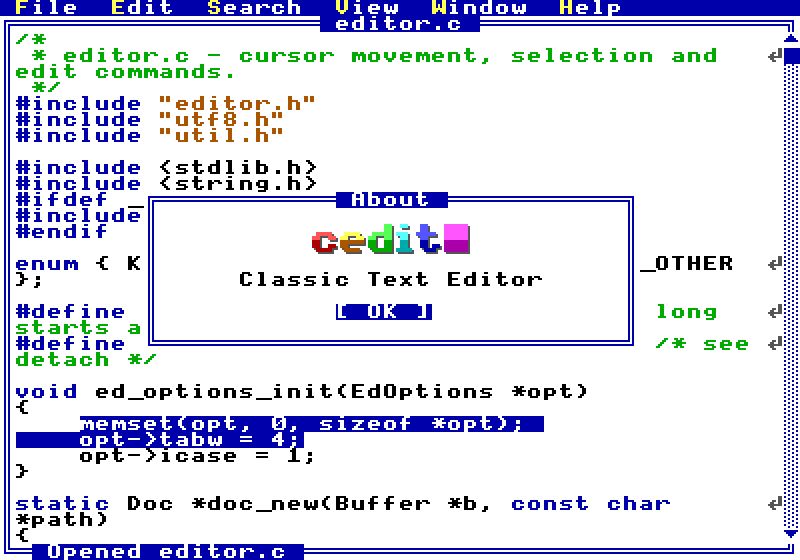
cedit is a small, fast text editor that looks and feels like the text-mode editors of the 80s and 90s.
It borrows from two places:
Ctrl shortcuts.Ready-made builds of each release are on the Releases page:
| File | Runs on |
|---|---|
cedit-linux-x86_64.tar.gz | Linux on 64-bit Intel or AMD, with glibc 2.34 or newer (Ubuntu 22.04, Debian 12, Fedora 35, RHEL 9 and later) |
cedit-linux-arm64.tar.gz | Linux on 64-bit ARM, such as a Raspberry Pi 4 or 5 with a 64-bit system, with glibc 2.34 or newer |
cedit-macos-arm64.tar.gz | Macs with Apple silicon (M1 and later), macOS 11 or newer |
cedit-macos-x86_64.tar.gz | Macs with an Intel processor, macOS 11 or newer |
cedit-windows-x64.zip | Windows 10 and 11, 64-bit |
Each holds a single program file, with nothing to install. On Linux and macOS, unpack it and run it:
tar -xzf cedit-linux-x86_64.tar.gz
./cedit [file]
sudo mv cedit /usr/local/bin/     # optional: run it as cedit from anywhere
On macOS, a download from a browser is blocked the first time, as cedit
isn't signed by Apple; xattr -d com.apple.quarantine cedit allows it.
On Windows, unpack the zip and double-click cedit.exe, or run
cedit.exe [file] from a terminal. If SmartScreen warns of an
unrecognized app, choose More info, then Run anyway.
You need a C compiler, CMake 3.27 or newer, Ninja, and on Linux the X11 and Wayland development files:
| System | Install |
|---|---|
| Debian, Ubuntu | sudo apt install build-essential clang cmake ninja-build libx11-dev libxext-dev libxcursor-dev libxfixes-dev libxi-dev libxrandr-dev libxss-dev libwayland-dev libxkbcommon-dev libegl-dev libdecor-0-dev libdbus-1-dev libibus-1.0-dev |
| Fedora | sudo dnf install clang cmake ninja-build libX11-devel libXext-devel libXcursor-devel libXfixes-devel libXi-devel libXrandr-devel libXScrnSaver-devel wayland-devel libxkbcommon-devel mesa-libEGL-devel libdecor-devel dbus-devel ibus-devel |
| Arch | sudo pacman -S base-devel clang cmake ninja libx11 libxext libxcursor libxfixes libxi libxrandr libxss wayland libxkbcommon libglvnd libdecor dbus libibus |
| macOS | xcode-select --install, then brew install cmake ninja |
Debian 12 and Ubuntu 22.04 ship an older CMake; pipx install cmake gets a
current one.
Then build it, and optionally install it:
cmake --preset release            # configure, once (downloads SDL2)
cmake --build --preset release    # builds build/cedit
ctest --preset release            # runs the tests
sudo cmake --install build        # copies it to /usr/local/bin
For debugging, use the debug preset, or asan for AddressSanitizer and
UBSan, in place of release. They build into build-debug/ and
build-asan/.
The presets build with Ninja, and with clang where it is installed. To use
gcc, configure with cmake --preset release -DCMAKE_C_COMPILER=gcc.
You need Visual Studio 2022 or later (Community, or just the Build Tools) with the Desktop development with C++ workload. (The build downloads SDL2 by itself.)
Either open the cedit folder in Visual Studio and build, or run these in a Developer PowerShell for VS:
cmake --preset release            # configure, once (downloads SDL2)
cmake --build --preset release    # builds build\cedit.exe
ctest --preset release            # runs the tests
The debug and asan presets work there too (asan without UBSan, which
Visual C++ lacks). If the configure step warns of a 32-bit build, use the
x64 Native Tools Command Prompt for VS instead.
cedit [file]
If the file doesn't exist yet, cedit creates it when you first save. You can also drop a file onto the window to open it.
A few keys to get started:
| Keys | Action |
|---|---|
F10 or Alt | Open the menu bar |
F1 | Show every keyboard shortcut |
Ctrl+O / Ctrl+S | Open / save |
Ctrl+F / Ctrl+H | Find / replace |
Ctrl+P | Open a file from the current folder |
Ctrl+\ | Split the window |
Ctrl+- / Ctrl+= | Smaller / larger text |
Ctrl+Q | Quit |
On macOS, Cmd works as Ctrl as well, except where the system's own
application menu answers first.
Settings such as dark mode and text size are changed from the View and Edit
menus, and cedit remembers them, and the window size, in
~/.config/cedit/cedit.conf (on Windows, %APPDATA%\cedit\cedit.conf).
cedit is released under the MIT License.
Classic Text Editor
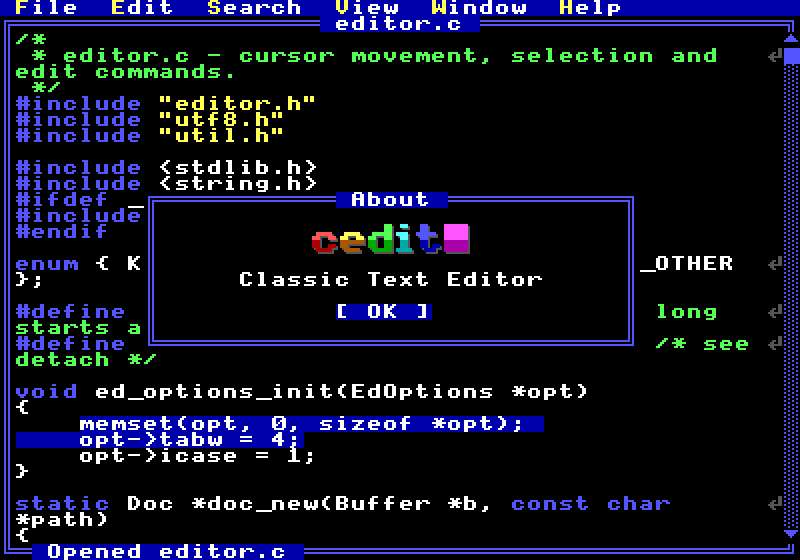
cedit is a small, fast text editor that looks and feels like the text-mode editors of the 80s and 90s.
It borrows from two places:
Ctrl shortcuts.Ready-made builds of each release are on the Releases page:
| File | Runs on |
|---|---|
cedit-linux-x86_64.tar.gz | Linux on 64-bit Intel or AMD, with glibc 2.34 or newer (Ubuntu 22.04, Debian 12, Fedora 35, RHEL 9 and later) |
cedit-linux-arm64.tar.gz | Linux on 64-bit ARM, such as a Raspberry Pi 4 or 5 with a 64-bit system, with glibc 2.34 or newer |
cedit-macos-arm64.tar.gz | Macs with Apple silicon (M1 and later), macOS 11 or newer |
cedit-macos-x86_64.tar.gz | Macs with an Intel processor, macOS 11 or newer |
cedit-windows-x64.zip | Windows 10 and 11, 64-bit |
Each holds a single program file, with nothing to install. On Linux and macOS, unpack it and run it:
tar -xzf cedit-linux-x86_64.tar.gz
./cedit [file]
sudo mv cedit /usr/local/bin/     # optional: run it as cedit from anywhere
On macOS, a download from a browser is blocked the first time, as cedit
isn't signed by Apple; xattr -d com.apple.quarantine cedit allows it.
On Windows, unpack the zip and double-click cedit.exe, or run
cedit.exe [file] from a terminal. If SmartScreen warns of an
unrecognized app, choose More info, then Run anyway.
You need a C compiler, CMake 3.27 or newer, Ninja, and on Linux the X11 and Wayland development files:
| System | Install |
|---|---|
| Debian, Ubuntu | sudo apt install build-essential clang cmake ninja-build libx11-dev libxext-dev libxcursor-dev libxfixes-dev libxi-dev libxrandr-dev libxss-dev libwayland-dev libxkbcommon-dev libegl-dev libdecor-0-dev libdbus-1-dev libibus-1.0-dev |
| Fedora | sudo dnf install clang cmake ninja-build libX11-devel libXext-devel libXcursor-devel libXfixes-devel libXi-devel libXrandr-devel libXScrnSaver-devel wayland-devel libxkbcommon-devel mesa-libEGL-devel libdecor-devel dbus-devel ibus-devel |
| Arch | sudo pacman -S base-devel clang cmake ninja libx11 libxext libxcursor libxfixes libxi libxrandr libxss wayland libxkbcommon libglvnd libdecor dbus libibus |
| macOS | xcode-select --install, then brew install cmake ninja |
Debian 12 and Ubuntu 22.04 ship an older CMake; pipx install cmake gets a
current one.
Then build it, and optionally install it:
cmake --preset release            # configure, once (downloads SDL2)
cmake --build --preset release    # builds build/cedit
ctest --preset release            # runs the tests
sudo cmake --install build        # copies it to /usr/local/bin
For debugging, use the debug preset, or asan for AddressSanitizer and
UBSan, in place of release. They build into build-debug/ and
build-asan/.
The presets build with Ninja, and with clang where it is installed. To use
gcc, configure with cmake --preset release -DCMAKE_C_COMPILER=gcc.
You need Visual Studio 2022 or later (Community, or just the Build Tools) with the Desktop development with C++ workload. (The build downloads SDL2 by itself.)
Either open the cedit folder in Visual Studio and build, or run these in a Developer PowerShell for VS:
cmake --preset release            # configure, once (downloads SDL2)
cmake --build --preset release    # builds build\cedit.exe
ctest --preset release            # runs the tests
The debug and asan presets work there too (asan without UBSan, which
Visual C++ lacks). If the configure step warns of a 32-bit build, use the
x64 Native Tools Command Prompt for VS instead.
cedit [file]
If the file doesn't exist yet, cedit creates it when you first save. You can also drop a file onto the window to open it.
A few keys to get started:
| Keys | Action |
|---|---|
F10 or Alt | Open the menu bar |
F1 | Show every keyboard shortcut |
Ctrl+O / Ctrl+S | Open / save |
Ctrl+F / Ctrl+H | Find / replace |
Ctrl+P | Open a file from the current folder |
Ctrl+\ | Split the window |
Ctrl+- / Ctrl+= | Smaller / larger text |
Ctrl+Q | Quit |
On macOS, Cmd works as Ctrl as well, except where the system's own
application menu answers first.
Settings such as dark mode and text size are changed from the View and Edit
menus, and cedit remembers them, and the window size, in
~/.config/cedit/cedit.conf (on Windows, %APPDATA%\cedit\cedit.conf).
cedit is released under the MIT License.



