
Self-hosted NL-to-SQL analytics — query your database with plain English
Python
17
24 commits
updated Sep 24, 2026
See what people are saying
README
Savvina AI
🤖 Text-to-SQL for self-hosters — ask your database anything in plain English, get SQL and results instantly.




🌐 savvina.ai · 🐳 Docker Hub — backend · 🐳 Docker Hub — frontend
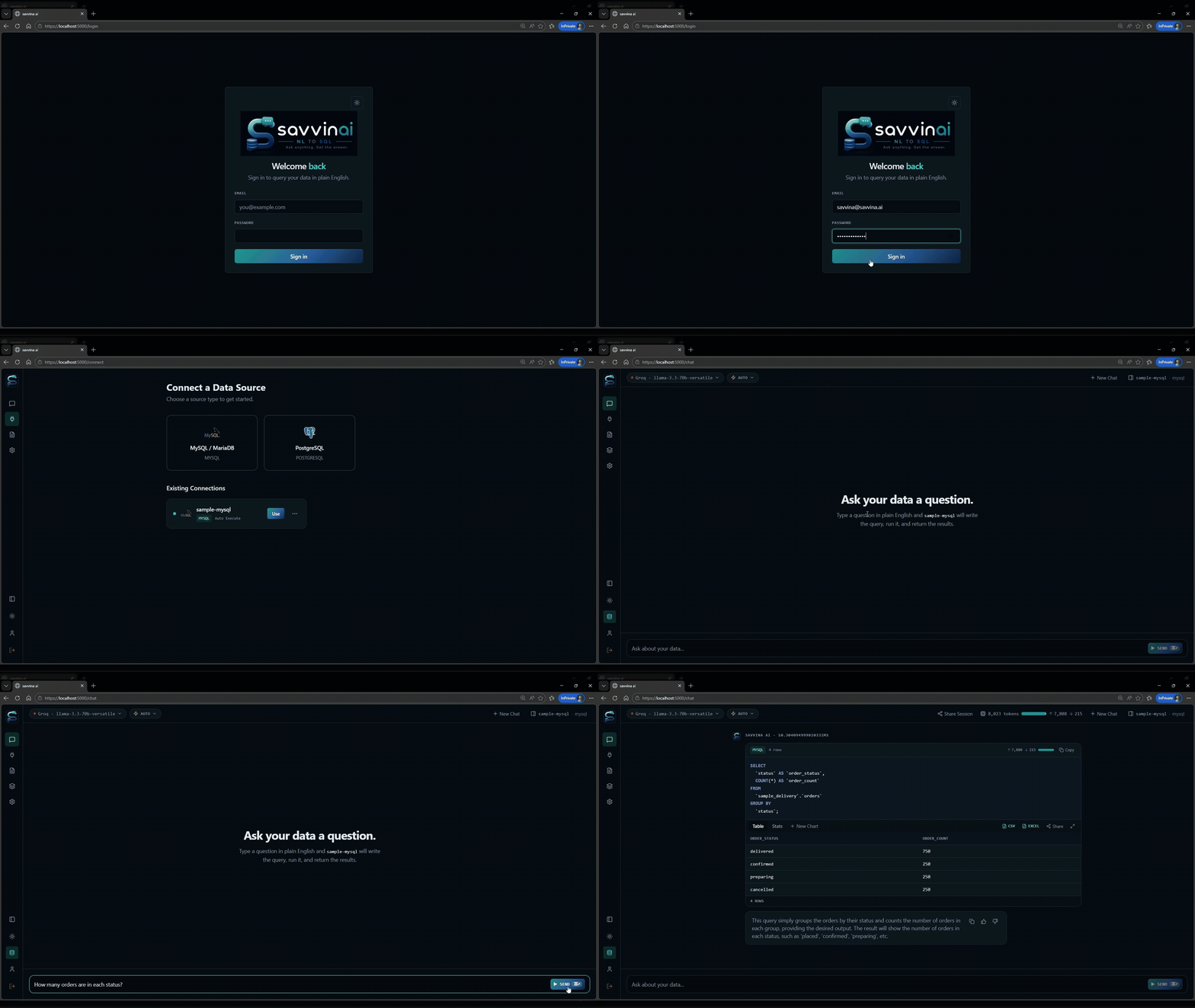
Savvina AI lets you connect to a database, ask questions in natural language, and receive generated SQL queries along with formatted results. It auto-generates a business-language semantic model from your schema, caches frequent queries for speed, and gives you full control over what data reaches the LLM and how queries are executed.
Quick Start (Free — No API Costs)
This Quick Start is for local development only. Production use requires a commercial license — contact savvina.ai to get started.
Prerequisites
- Docker Desktop (includes Compose v2) — or Docker Engine + Compose plugin on a Linux server without Docker Desktop
- 4 GB RAM minimum (8 GB recommended for local Ollama)
See Quickstart → Prerequisites if you need to install Docker first.
1. Clone and configure
git clone https://github.com/savvina-ai/savvina
cd savvina
cp .env.example .env

# WSL / Linux: run containers as you, so mounted volumes stay writable
printf '\nLOCAL_UID=%s\nLOCAL_GID=%s\n' "$(id -u)" "$(id -g)" >> .env
Open .env and set one value — a password for the bundled app database:
APP_DB_PASSWORD=<strong-password> # python -c "import secrets; print(secrets.token_urlsafe(24))"
That's the whole database setup: .env.example already ships COMPOSE_PROFILES=local-db to start the bundled PostgreSQL container, and Compose derives the connection URL from your password. To use an external or managed database instead, comment out COMPOSE_PROFILES and APP_DB_PASSWORD and set DATABASE_URL to your provider's connection string.
Just want to play around, without a database of your own? Add the test-dbs profile as well — it starts two demo databases (PostgreSQL and MySQL) pre-seeded with sample data, so you have something to ask questions about from the first login:
COMPOSE_PROFILES=local-db,test-dbs
Leave the SAMPLE_* passwords in .env empty and they fall back to savvina_demo. You add these as connections in the UI after step 4 — see Using Sample Databases for the ports and credentials.
Encryption and JWT keys are generated for you. On first boot the backend creates
ENCRYPTION_KEYandJWT_SECRET_KEYand persists them to/app/data/secrets.envin the data volume — do not add them to.env. Back upENCRYPTION_KEYafter the first start; losing it makes all stored credentials and API keys permanently unreadable. See Quickstart for bare-metal setups.
2. Get a free LLM API key
Option A — Groq (recommended, no card required): sign up at console.groq.com and create an API key. Free-tier limits vary by model and are enforced per organization — check yours at console.groq.com/settings/limits; general-purpose models are commonly around 1,000 requests/day, with some legacy models allowed much higher.
Option B — Google Gemini (no card required): sign up at aistudio.google.com and create an API key. Free-tier requests/day vary by model (recent Flash/Flash-Lite models have ranged from roughly 20 to 250+ req/day) and change without much notice — check current limits at ai.google.dev/gemini-api/docs/rate-limits or aistudio.google.com.
Keep the key handy — you enter it in step 4. API keys are entered only through the UI and stored encrypted; they are not read from .env.
3. Start the stack
Option A — pre-built images (no compiling): every release publishes multi-arch images (linux/amd64 and linux/arm64, so Apple Silicon, Raspberry Pi and most NAS boxes are covered) to Docker Hub as savvinaai/savvina-backend and savvinaai/savvina-frontend:
docker compose pull
docker compose up --no-build
latest is the newest release. To pin a release, add SAVVINA_IMAGE_TAG=v2.0.0 (any tag from the releases page) to .env before pulling.
Note: with pre-built images the backend runs the code baked into the image, so pinning
SAVVINA_IMAGE_TAGpins the application code, dependencies, and migrations together. Backend hot-reload from your local checkout is a separate opt-in (docker-compose.dev.yaml, see Development Overrides); don't combine it with Option A, or the checkout's code runs against the image's migrations.
Option B — build from source: use this if you have changed the code:
docker compose up --build
Wait for all services to show as healthy — migrations run on every start, so first boot can take a minute or two even with pre-built images, and longer on a first build. Volume permissions are prepared automatically by the init-permissions service.
Both commands run in the foreground, which is what you want on a first start — the logs show migrations running and tell you if something fails. Add -d (after up) to detach instead and get your prompt back:
docker compose up -d --no-build
docker compose logs -f backend   # follow startup
docker compose ps                # check every service reports healthy
4. Open the UI
The stack serves plain HTTP; that is fine for local and LAN use. For anything reachable from the internet, put a TLS-terminating reverse proxy in front (see Deployment → Configure HTTPS).
Navigate to http://localhost:3000
Reaching the UI at any other host or IP (e.g. a LAN address)? Set
CORS_ORIGINSin.envto that exact origin and restart the backend, or login will fail with a 403 — see Quickstart → Step 7 for a worked example. Upgrading from an older, HTTPS-only release? See Upgrading from a TLS-terminating release.
On first boot, create your admin account by entering your name, email, and password. A two-step setup wizard then walks you through connecting a database and configuring an LLM provider — paste the key from step 2 there, or add it later under Settings → LLM Providers with + Add Groq config (or Gemini).
Features
| Feature | Description |
|---|---|
| Natural language to SQL | Ask questions in plain English; get readable SQL and tabular results |
| Multi-LLM support | Claude, OpenAI, Groq, Gemini, Ollama and more — see Supported LLM Providers |
| 2 data sources | PostgreSQL and MySQL / MariaDB — additional sources exist in commercial version |
| Free-tier ready | Works out of the box with Groq or Google Gemini — both offer a free API tier with no card required |
| Local LLM via Ollama | Run entirely offline with Ollama — no data leaves your machine |
| Auto semantic model | LLM-generated business glossary translates cryptic column names into plain language |
| Two-level cache | Exact + semantic similarity caching reduces redundant LLM calls |
| Privacy controls | Per-connection controls over what metadata (sample values, comments, row counts) reaches the LLM |
| Three execution modes | Auto-execute, Review-first, or Generate-only — choose your trust level per connection |
| Read-only safety | All generated SQL is validated before execution; only SELECT statements are permitted |
| Fernet encryption | Database credentials and API keys are always encrypted at rest |
| Extensible adapters | Adding a new data source or LLM provider requires only one new file |
| Report Builder | Assemble query results from chat history into a PDF report; export individual results as CSV, XLSX, or PNG |
| Shared sessions | Share a read-only link to any chat message or full session |
Supported Data Sources
PostgreSQL (asyncpg) and MySQL / MariaDB (aiomysql) — both with full schema introspection, row counts, and column comments.
The adapter interface is documented in docs/development/adding-a-datasource.md.
Supported LLM Providers
Claude, OpenAI, Groq, Gemini, Cerebras, Mistral, Ollama, and any OpenAI-compatible endpoint (HuggingFace, Together.ai, OpenRouter, vLLM, LM Studio, etc.).
See docs/user-guide/06_llm-providers.md for the full provider list, configuration details, and default models.
Using Sample Databases (No Real Database Required)
The test-dbs profile starts two pre-seeded demo databases — PostgreSQL and MySQL — so you can try Savvina AI without connecting to a real data source. Add it to COMPOSE_PROFILES in .env alongside your database mode, then start the stack as in step 3:
COMPOSE_PROFILES=local-db,test-dbs
These are throwaway demo containers bound to localhost, so they fall back to built-in passwords if you leave SAMPLE_POSTGRES_PASSWORD, SAMPLE_MYSQL_PASSWORD, and SAMPLE_MYSQL_ROOT_PASSWORD empty or unset — .env.example ships them empty, which is enough. Set them in .env to override.
Prefer editing
COMPOSE_PROFILESover passing--profileon the command line: the CLI flag replaces the value from.envrather than adding to it, sodocker compose --profile test-dbs upwould silently stop thelocal-dbcontainer from starting.
The sample databases are available on ports 5435 (PostgreSQL, database savvina_test) and 3307 (MySQL, database sample_delivery). Add them from Connections in the left sidebar using user savvina and whichever password applies — your .env override or the savvina_demo default. (SAMPLE_MYSQL_ROOT_PASSWORD is separate and defaults to savvina_demo_root; Savvina doesn't need it.)
See docs/infrastructure/docker.md for full details.
Using Ollama (Local LLM)
Add the local-llm profile to COMPOSE_PROFILES in .env to include the Ollama service, then start the stack as in step 3:
COMPOSE_PROFILES=local-db,local-llm
Pull a model in a separate terminal while the stack is running:
docker exec -it savvina-ollama-1 ollama pull llama3
# or for a code-tuned model:
docker exec -it savvina-ollama-1 ollama pull qwen2.5-coder:7b
In the Savvina AI UI, go to Settings → LLM Providers, click + Add Ollama (Local) config, and select your pulled model.
Configuration
All settings live in .env. See docs/getting-started/02_configuration.md for the full reference.
Commonly adjusted beyond the Quick Start:
| Variable | Purpose |
|---|---|
COMPOSE_PROFILES | Which optional containers start — local-db, test-dbs, local-llm, comma-separated |
DATABASE_URL | Set only when using an external database; otherwise derived from APP_DB_PASSWORD |
APP_PORT | Port the UI is served on (default 3000) |
HF_TOKEN | Avoids anonymous rate-limiting when the build downloads the embedding model |
LOG_LEVEL / LOG_FORMAT | text is easier to read during local development |
Privacy
Savvina AI is designed to give you precise control over what metadata reaches the LLM. No query results are ever sent to the LLM — only the schema description and your natural language question.
Per-connection privacy controls:
- Include sample values — improves accuracy but sends 5 distinct values per column to the LLM
- Include column comments — sends database column description text to the LLM
- Include row counts — sends approximate row counts
- Sensitive column patterns — columns matching patterns like
email,ssn,passwordare auto-excluded from sample values - Excluded schemas / tables / columns — fine-grained exclusion list; these are never mentioned to the LLM
See docs/user-guide/04_privacy-controls.md for full details.
Architecture Overview
Browser (React + Zustand)
        │
        │ HTTP / REST + SSE streaming
        ▼
FastAPI Backend (Python 3.12, async)
   ├── Routers (connections, chat, providers, semantic, settings, auth)
   ├── ChatService ─── QueryCache ──── fastembed / ONNX (local)
   │                └─ ExampleLibrary
   ├── LLM Providers (Claude, OpenAI, Groq, Gemini, Cerebras, Mistral, Ollama, OpenAI-Compatible…)
   ├── DataSource Adapters (PostgreSQL, MySQL)
   ├── SemanticModelGenerator
   └── PostgreSQL (app DB — connections, sessions, cache, examples, users)
        │
        │ asyncpg / aiomysql
        ▼
  User's database (PostgreSQL or MySQL)
See docs/architecture/overview.md for a detailed breakdown.
Documentation
| Section | Description |
|---|---|
| Getting Started | Installation, first-run walkthrough |
| Configuration | All environment variables |
| User Guide — Connecting to Data | How to add and manage connections |
| User Guide — Chatting with Data | How to ask questions and interpret results |
| User Guide — Execution Modes | Auto-execute vs Review-first vs Generate-only |
| User Guide — Privacy Controls | What reaches the LLM and how to restrict it |
| User Guide — Semantic Models | Auto-generated business glossary |
| User Guide — LLM Providers | Configuring and switching providers |
| User Guide — Charts and BI | Charts and BI capabilities |
| API Reference | Full REST API endpoint reference |
| Architecture Overview | Component breakdown and design decisions |
| Data Flow | Request lifecycle from question to results |
| Data Source — PostgreSQL | PostgreSQL-specific configuration and tips |
| Data Source — MySQL | MySQL-specific configuration and tips |
| Adding a Data Source | Extend to any new source |
| Adding an LLM Provider | Plug in any new LLM |
| Testing | Running the backend and frontend test suites |
| User Testing Playbook | Manual QA sessions and sample questions per datasource |
| Deployment | Self-hosted setup reference (development only; production use requires a commercial license) |
| Infrastructure | Docker Compose services explained |
Development
# Backend tests (run inside Docker or with uv)
docker compose run --rm backend pytest tests/ -v
# or, if running locally with venv:
python3 -m venv .venv
.venv/bin/pip install -r backend/requirements-dev.txt
.venv/bin/pytest backend/tests/ -v

# Frontend dev server (hot reload)
cd frontend
npm install
npm run dev   # http://localhost:3000 — proxies /api to localhost:8000

# Frontend tests
npm test

# Lint and format
.venv/bin/ruff check backend/app/ backend/tests/
.venv/bin/ruff format --check backend/app/ backend/tests/
cd frontend && npm run lint && npx tsc --noEmit
License
Community Edition is free for development, testing, and non-commercial use under the Business Source License 1.1. Production or commercial use requires a commercial license. Converts to Apache 2.0 on 2030-06-01.


Similar repos


Languages
Python
63.4%
TypeScript
35.1%
Self-hosted NL-to-SQL analytics — query your database with plain English
Python
17
24 commits
updated Sep 24, 2026
See what people are saying
README
Savvina AI
🤖 Text-to-SQL for self-hosters — ask your database anything in plain English, get SQL and results instantly.
🌐 savvina.ai · 🐳 Docker Hub — backend · 🐳 Docker Hub — frontend
Savvina AI lets you connect to a database, ask questions in natural language, and receive generated SQL queries along with formatted results. It auto-generates a business-language semantic model from your schema, caches frequent queries for speed, and gives you full control over what data reaches the LLM and how queries are executed.
Quick Start (Free — No API Costs)
This Quick Start is for local development only. Production use requires a commercial license — contact savvina.ai to get started.
Prerequisites
- Docker Desktop (includes Compose v2) — or Docker Engine + Compose plugin on a Linux server without Docker Desktop
- 4 GB RAM minimum (8 GB recommended for local Ollama)
See Quickstart → Prerequisites if you need to install Docker first.
1. Clone and configure
git clone https://github.com/savvina-ai/savvina
cd savvina
cp .env.example .env

# WSL / Linux: run containers as you, so mounted volumes stay writable
printf '\nLOCAL_UID=%s\nLOCAL_GID=%s\n' "$(id -u)" "$(id -g)" >> .env
Open .env and set one value — a password for the bundled app database:
APP_DB_PASSWORD=<strong-password> # python -c "import secrets; print(secrets.token_urlsafe(24))"
That's the whole database setup: .env.example already ships COMPOSE_PROFILES=local-db to start the bundled PostgreSQL container, and Compose derives the connection URL from your password. To use an external or managed database instead, comment out COMPOSE_PROFILES and APP_DB_PASSWORD and set DATABASE_URL to your provider's connection string.
Just want to play around, without a database of your own? Add the test-dbs profile as well — it starts two demo databases (PostgreSQL and MySQL) pre-seeded with sample data, so you have something to ask questions about from the first login:
COMPOSE_PROFILES=local-db,test-dbs
Leave the SAMPLE_* passwords in .env empty and they fall back to savvina_demo. You add these as connections in the UI after step 4 — see Using Sample Databases for the ports and credentials.
Encryption and JWT keys are generated for you. On first boot the backend creates
ENCRYPTION_KEYandJWT_SECRET_KEYand persists them to/app/data/secrets.envin the data volume — do not add them to.env. Back upENCRYPTION_KEYafter the first start; losing it makes all stored credentials and API keys permanently unreadable. See Quickstart for bare-metal setups.
2. Get a free LLM API key
Option A — Groq (recommended, no card required): sign up at console.groq.com and create an API key. Free-tier limits vary by model and are enforced per organization — check yours at console.groq.com/settings/limits; general-purpose models are commonly around 1,000 requests/day, with some legacy models allowed much higher.
Option B — Google Gemini (no card required): sign up at aistudio.google.com and create an API key. Free-tier requests/day vary by model (recent Flash/Flash-Lite models have ranged from roughly 20 to 250+ req/day) and change without much notice — check current limits at ai.google.dev/gemini-api/docs/rate-limits or aistudio.google.com.
Keep the key handy — you enter it in step 4. API keys are entered only through the UI and stored encrypted; they are not read from .env.
3. Start the stack
Option A — pre-built images (no compiling): every release publishes multi-arch images (linux/amd64 and linux/arm64, so Apple Silicon, Raspberry Pi and most NAS boxes are covered) to Docker Hub as savvinaai/savvina-backend and savvinaai/savvina-frontend:
docker compose pull
docker compose up --no-build
latest is the newest release. To pin a release, add SAVVINA_IMAGE_TAG=v2.0.0 (any tag from the releases page) to .env before pulling.
Note: with pre-built images the backend runs the code baked into the image, so pinning
SAVVINA_IMAGE_TAGpins the application code, dependencies, and migrations together. Backend hot-reload from your local checkout is a separate opt-in (docker-compose.dev.yaml, see Development Overrides); don't combine it with Option A, or the checkout's code runs against the image's migrations.
Option B — build from source: use this if you have changed the code:
docker compose up --build
Wait for all services to show as healthy — migrations run on every start, so first boot can take a minute or two even with pre-built images, and longer on a first build. Volume permissions are prepared automatically by the init-permissions service.
Both commands run in the foreground, which is what you want on a first start — the logs show migrations running and tell you if something fails. Add -d (after up) to detach instead and get your prompt back:
docker compose up -d --no-build
docker compose logs -f backend   # follow startup
docker compose ps                # check every service reports healthy
4. Open the UI
The stack serves plain HTTP; that is fine for local and LAN use. For anything reachable from the internet, put a TLS-terminating reverse proxy in front (see Deployment → Configure HTTPS).
Navigate to http://localhost:3000
Reaching the UI at any other host or IP (e.g. a LAN address)? Set
CORS_ORIGINSin.envto that exact origin and restart the backend, or login will fail with a 403 — see Quickstart → Step 7 for a worked example. Upgrading from an older, HTTPS-only release? See Upgrading from a TLS-terminating release.
On first boot, create your admin account by entering your name, email, and password. A two-step setup wizard then walks you through connecting a database and configuring an LLM provider — paste the key from step 2 there, or add it later under Settings → LLM Providers with + Add Groq config (or Gemini).
Features
| Feature | Description |
|---|---|
| Natural language to SQL | Ask questions in plain English; get readable SQL and tabular results |
| Multi-LLM support | Claude, OpenAI, Groq, Gemini, Ollama and more — see Supported LLM Providers |
| 2 data sources | PostgreSQL and MySQL / MariaDB — additional sources exist in commercial version |
| Free-tier ready | Works out of the box with Groq or Google Gemini — both offer a free API tier with no card required |
| Local LLM via Ollama | Run entirely offline with Ollama — no data leaves your machine |
| Auto semantic model | LLM-generated business glossary translates cryptic column names into plain language |
| Two-level cache | Exact + semantic similarity caching reduces redundant LLM calls |
| Privacy controls | Per-connection controls over what metadata (sample values, comments, row counts) reaches the LLM |
| Three execution modes | Auto-execute, Review-first, or Generate-only — choose your trust level per connection |
| Read-only safety | All generated SQL is validated before execution; only SELECT statements are permitted |
| Fernet encryption | Database credentials and API keys are always encrypted at rest |
| Extensible adapters | Adding a new data source or LLM provider requires only one new file |
| Report Builder | Assemble query results from chat history into a PDF report; export individual results as CSV, XLSX, or PNG |
| Shared sessions | Share a read-only link to any chat message or full session |
Supported Data Sources
PostgreSQL (asyncpg) and MySQL / MariaDB (aiomysql) — both with full schema introspection, row counts, and column comments.
The adapter interface is documented in docs/development/adding-a-datasource.md.
Supported LLM Providers
Claude, OpenAI, Groq, Gemini, Cerebras, Mistral, Ollama, and any OpenAI-compatible endpoint (HuggingFace, Together.ai, OpenRouter, vLLM, LM Studio, etc.).
See docs/user-guide/06_llm-providers.md for the full provider list, configuration details, and default models.
Using Sample Databases (No Real Database Required)
The test-dbs profile starts two pre-seeded demo databases — PostgreSQL and MySQL — so you can try Savvina AI without connecting to a real data source. Add it to COMPOSE_PROFILES in .env alongside your database mode, then start the stack as in step 3:
COMPOSE_PROFILES=local-db,test-dbs
These are throwaway demo containers bound to localhost, so they fall back to built-in passwords if you leave SAMPLE_POSTGRES_PASSWORD, SAMPLE_MYSQL_PASSWORD, and SAMPLE_MYSQL_ROOT_PASSWORD empty or unset — .env.example ships them empty, which is enough. Set them in .env to override.
Prefer editing
COMPOSE_PROFILESover passing--profileon the command line: the CLI flag replaces the value from.envrather than adding to it, sodocker compose --profile test-dbs upwould silently stop thelocal-dbcontainer from starting.
The sample databases are available on ports 5435 (PostgreSQL, database savvina_test) and 3307 (MySQL, database sample_delivery). Add them from Connections in the left sidebar using user savvina and whichever password applies — your .env override or the savvina_demo default. (SAMPLE_MYSQL_ROOT_PASSWORD is separate and defaults to savvina_demo_root; Savvina doesn't need it.)
See docs/infrastructure/docker.md for full details.
Using Ollama (Local LLM)
Add the local-llm profile to COMPOSE_PROFILES in .env to include the Ollama service, then start the stack as in step 3:
COMPOSE_PROFILES=local-db,local-llm
Pull a model in a separate terminal while the stack is running:
docker exec -it savvina-ollama-1 ollama pull llama3
# or for a code-tuned model:
docker exec -it savvina-ollama-1 ollama pull qwen2.5-coder:7b
In the Savvina AI UI, go to Settings → LLM Providers, click + Add Ollama (Local) config, and select your pulled model.
Configuration
All settings live in .env. See docs/getting-started/02_configuration.md for the full reference.
Commonly adjusted beyond the Quick Start:
| Variable | Purpose |
|---|---|
COMPOSE_PROFILES | Which optional containers start — local-db, test-dbs, local-llm, comma-separated |
DATABASE_URL | Set only when using an external database; otherwise derived from APP_DB_PASSWORD |
APP_PORT | Port the UI is served on (default 3000) |
HF_TOKEN | Avoids anonymous rate-limiting when the build downloads the embedding model |
LOG_LEVEL / LOG_FORMAT | text is easier to read during local development |
Privacy
Savvina AI is designed to give you precise control over what metadata reaches the LLM. No query results are ever sent to the LLM — only the schema description and your natural language question.
Per-connection privacy controls:
- Include sample values — improves accuracy but sends 5 distinct values per column to the LLM
- Include column comments — sends database column description text to the LLM
- Include row counts — sends approximate row counts
- Sensitive column patterns — columns matching patterns like
email,ssn,passwordare auto-excluded from sample values - Excluded schemas / tables / columns — fine-grained exclusion list; these are never mentioned to the LLM
See docs/user-guide/04_privacy-controls.md for full details.
Architecture Overview
Browser (React + Zustand)
        │
        │ HTTP / REST + SSE streaming
        ▼
FastAPI Backend (Python 3.12, async)
   ├── Routers (connections, chat, providers, semantic, settings, auth)
   ├── ChatService ─── QueryCache ──── fastembed / ONNX (local)
   │                └─ ExampleLibrary
   ├── LLM Providers (Claude, OpenAI, Groq, Gemini, Cerebras, Mistral, Ollama, OpenAI-Compatible…)
   ├── DataSource Adapters (PostgreSQL, MySQL)
   ├── SemanticModelGenerator
   └── PostgreSQL (app DB — connections, sessions, cache, examples, users)
        │
        │ asyncpg / aiomysql
        ▼
  User's database (PostgreSQL or MySQL)
See docs/architecture/overview.md for a detailed breakdown.
Documentation
| Section | Description |
|---|---|
| Getting Started | Installation, first-run walkthrough |
| Configuration | All environment variables |
| User Guide — Connecting to Data | How to add and manage connections |
| User Guide — Chatting with Data | How to ask questions and interpret results |
| User Guide — Execution Modes | Auto-execute vs Review-first vs Generate-only |
| User Guide — Privacy Controls | What reaches the LLM and how to restrict it |
| User Guide — Semantic Models | Auto-generated business glossary |
| User Guide — LLM Providers | Configuring and switching providers |
| User Guide — Charts and BI | Charts and BI capabilities |
| API Reference | Full REST API endpoint reference |
| Architecture Overview | Component breakdown and design decisions |
| Data Flow | Request lifecycle from question to results |
| Data Source — PostgreSQL | PostgreSQL-specific configuration and tips |
| Data Source — MySQL | MySQL-specific configuration and tips |
| Adding a Data Source | Extend to any new source |
| Adding an LLM Provider | Plug in any new LLM |
| Testing | Running the backend and frontend test suites |
| User Testing Playbook | Manual QA sessions and sample questions per datasource |
| Deployment | Self-hosted setup reference (development only; production use requires a commercial license) |
| Infrastructure | Docker Compose services explained |
Development
# Backend tests (run inside Docker or with uv)
docker compose run --rm backend pytest tests/ -v
# or, if running locally with venv:
python3 -m venv .venv
.venv/bin/pip install -r backend/requirements-dev.txt
.venv/bin/pytest backend/tests/ -v

# Frontend dev server (hot reload)
cd frontend
npm install
npm run dev   # http://localhost:3000 — proxies /api to localhost:8000

# Frontend tests
npm test

# Lint and format
.venv/bin/ruff check backend/app/ backend/tests/
.venv/bin/ruff format --check backend/app/ backend/tests/
cd frontend && npm run lint && npx tsc --noEmit
License
Community Edition is free for development, testing, and non-commercial use under the Business Source License 1.1. Production or commercial use requires a commercial license. Converts to Apache 2.0 on 2030-06-01.
Similar repos
Languages
Python
63.4%
TypeScript
35.1%