A react-native confirmation code field compatible with iOS, Android and Web
TypeScript
1,229
167 commits
updated Mar 31, 2026

A simple react-native confirmation code field compatible with iOS, Android.
3.8 KB. Easy to use;ref support; | 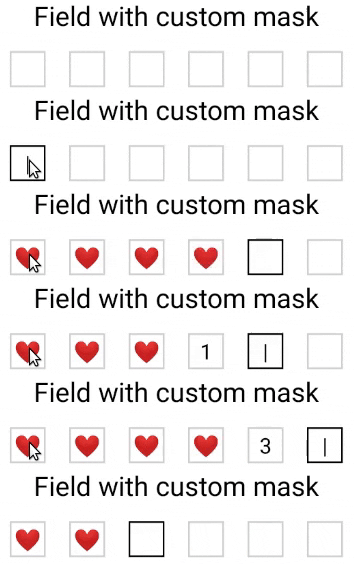 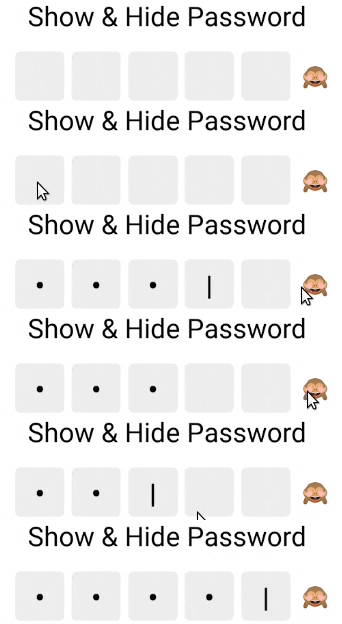 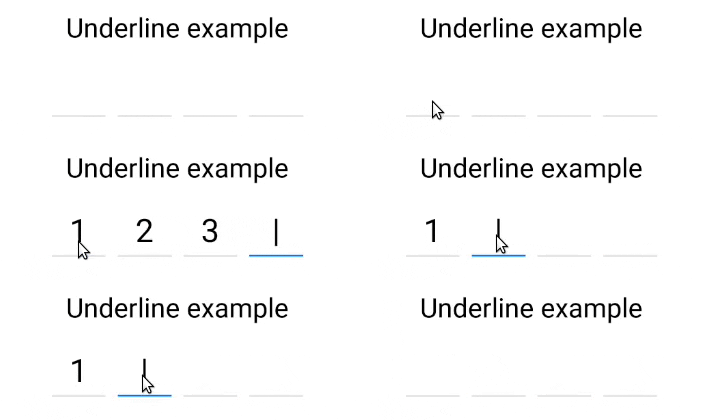 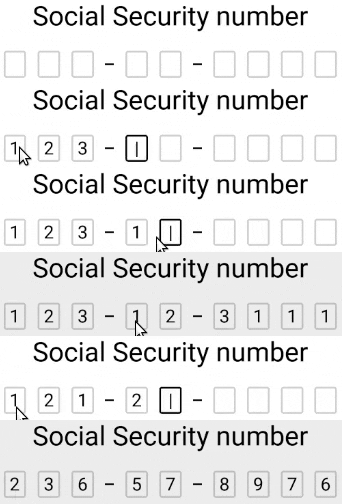 |
yarn add react-native-confirmation-code-field
# ^^^ React 19 required!
# if you want to use it with React 18, use version 8.x.x
I use an invisible <TextInput/> component that will be stretched over <Cell/> components.
JSX structure looks like that:
// Root view (rectangle with a red border on 3d visualization below)
<View style={rootStyle}>
  // Each Cell element is result of a `renderCell` function (gray boxes)
  <Cell>1</Cell>
  <Cell>2</Cell>
  <Cell>3</Cell>
  <Cell>|</Cell>
  <Cell></Cell>
  <Cell></Cell>
  // Invisible Text Input with absolute position (gray rectangle with text '123')
  <TextInput value="123"/>
</View>
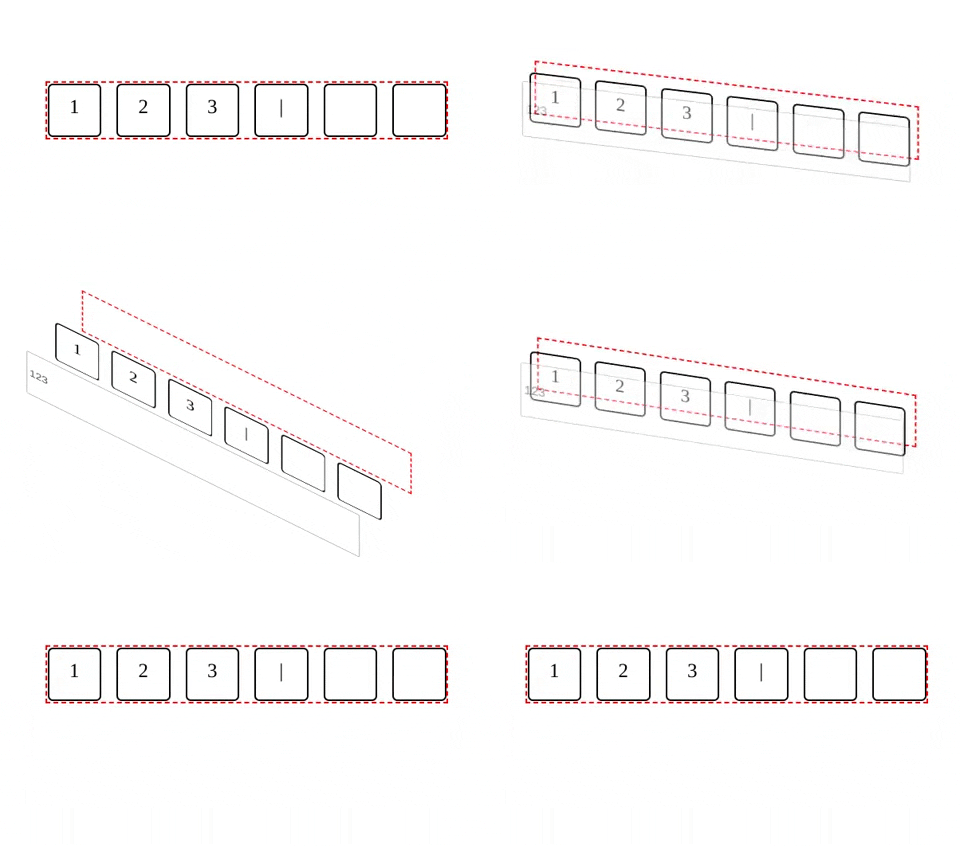
It needs to solve next problems:
<TextInput/>.I took a minimal implementation approach. It mean that this component provides low-level functionality so you can create incredible UI without tears 😭. I recommend you start with creating your own wrapper where you apply all styles and basic configuration.
You can use a ready-made solution out of the box:
import React, {useState} from 'react';
import {SafeAreaView, Text, StyleSheet, Platform} from 'react-native';
import type {TextInputProps} from 'react-native';

import {
  CodeField,
  Cursor,
  useBlurOnFulfill,
  useClearByFocusCell,
} from 'react-native-confirmation-code-field';

const styles = StyleSheet.create({
  root: {flex: 1, padding: 20},
  title: {textAlign: 'center', fontSize: 30},
  codeFieldRoot: {marginTop: 20},
  cell: {
    width: 40,
    height: 40,
    lineHeight: 38,
    fontSize: 24,
    borderWidth: 2,
    borderColor: '#00000030',
    textAlign: 'center',
    color: '#000', // text color
  },
  focusCell: {
    borderColor: '#000',
  },
});

const CELL_COUNT = 6;
const autoComplete = Platform.select<TextInputProps['autoComplete']>({
  android: 'sms-otp',
  default: 'one-time-code',
});

function App() {
  const [value, setValue] = useState('');
  const ref = useBlurOnFulfill({value, cellCount: CELL_COUNT});
  const [props, getCellOnLayoutHandler] = useClearByFocusCell({
    value,
    setValue,
  });

  return (
    <SafeAreaView style={styles.root}>
      <Text style={styles.title}>Verification</Text>
      <CodeField
        ref={ref}
        {...props}
        // Use `caretHidden={false}` when users can't paste a text value, because context menu doesn't appear
        value={value}
        onChangeText={setValue}
        cellCount={CELL_COUNT}
        rootStyle={styles.codeFieldRoot}
        keyboardType="number-pad"
        textContentType="oneTimeCode"
        autoComplete={autoComplete}
        testID="my-code-input"
        renderCell={({index, symbol, isFocused}) => (
          <Text
            key={index}
            style={[styles.cell, isFocused && styles.focusCell]}
            onLayout={getCellOnLayoutHandler(index)}>
            {symbol || (isFocused && <Cursor />)}
          </Text>
        )}
      />
    </SafeAreaView>
  );
};

export default App;
For [email protected] and below use yarn add react-native-confirmation-code-field@6, otherwise use the latest version yarn add react-native-confirmation-code-field
825 followers · starred Sep 2021
138 followers · starred Jan 2023
371 followers · starred Jan 2020
557 followers · starred Mar 2019
A react-native confirmation code field compatible with iOS, Android and Web
TypeScript
1,229
167 commits
updated Mar 31, 2026
A simple react-native confirmation code field compatible with iOS, Android.
3.8 KB. Easy to use;ref support; | |
yarn add react-native-confirmation-code-field
# ^^^ React 19 required!
# if you want to use it with React 18, use version 8.x.x
I use an invisible <TextInput/> component that will be stretched over <Cell/> components.
JSX structure looks like that:
// Root view (rectangle with a red border on 3d visualization below)
<View style={rootStyle}>
  // Each Cell element is result of a `renderCell` function (gray boxes)
  <Cell>1</Cell>
  <Cell>2</Cell>
  <Cell>3</Cell>
  <Cell>|</Cell>
  <Cell></Cell>
  <Cell></Cell>
  // Invisible Text Input with absolute position (gray rectangle with text '123')
  <TextInput value="123"/>
</View>
It needs to solve next problems:
<TextInput/>.I took a minimal implementation approach. It mean that this component provides low-level functionality so you can create incredible UI without tears 😭. I recommend you start with creating your own wrapper where you apply all styles and basic configuration.
You can use a ready-made solution out of the box:
import React, {useState} from 'react';
import {SafeAreaView, Text, StyleSheet, Platform} from 'react-native';
import type {TextInputProps} from 'react-native';

import {
  CodeField,
  Cursor,
  useBlurOnFulfill,
  useClearByFocusCell,
} from 'react-native-confirmation-code-field';

const styles = StyleSheet.create({
  root: {flex: 1, padding: 20},
  title: {textAlign: 'center', fontSize: 30},
  codeFieldRoot: {marginTop: 20},
  cell: {
    width: 40,
    height: 40,
    lineHeight: 38,
    fontSize: 24,
    borderWidth: 2,
    borderColor: '#00000030',
    textAlign: 'center',
    color: '#000', // text color
  },
  focusCell: {
    borderColor: '#000',
  },
});

const CELL_COUNT = 6;
const autoComplete = Platform.select<TextInputProps['autoComplete']>({
  android: 'sms-otp',
  default: 'one-time-code',
});

function App() {
  const [value, setValue] = useState('');
  const ref = useBlurOnFulfill({value, cellCount: CELL_COUNT});
  const [props, getCellOnLayoutHandler] = useClearByFocusCell({
    value,
    setValue,
  });

  return (
    <SafeAreaView style={styles.root}>
      <Text style={styles.title}>Verification</Text>
      <CodeField
        ref={ref}
        {...props}
        // Use `caretHidden={false}` when users can't paste a text value, because context menu doesn't appear
        value={value}
        onChangeText={setValue}
        cellCount={CELL_COUNT}
        rootStyle={styles.codeFieldRoot}
        keyboardType="number-pad"
        textContentType="oneTimeCode"
        autoComplete={autoComplete}
        testID="my-code-input"
        renderCell={({index, symbol, isFocused}) => (
          <Text
            key={index}
            style={[styles.cell, isFocused && styles.focusCell]}
            onLayout={getCellOnLayoutHandler(index)}>
            {symbol || (isFocused && <Cursor />)}
          </Text>
        )}
      />
    </SafeAreaView>
  );
};

export default App;
For [email protected] and below use yarn add react-native-confirmation-code-field@6, otherwise use the latest version yarn add react-native-confirmation-code-field
825 followers · starred Sep 2021
138 followers · starred Jan 2023
371 followers · starred Jan 2020
557 followers · starred Mar 2019



