VideoCAT is a private, self-hosted catalog for videos stored on external hard drives. Built for collections spread across many drives that aren't always connected.
See the code
A private catalog for videos spread across external drives, with a Windows Companion.
English · Español







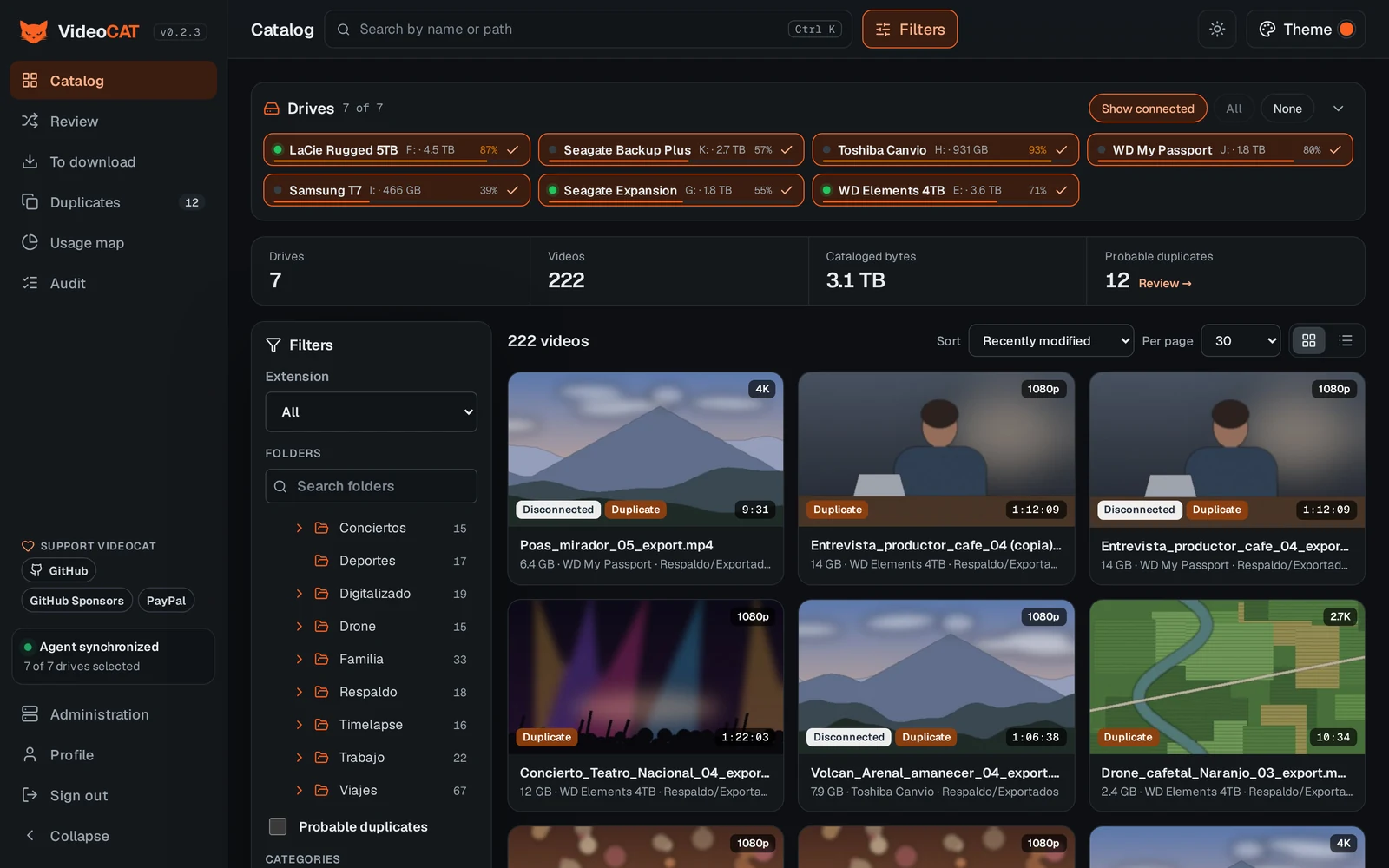
VideoCAT indexes the videos on your external drives — even ones that are rarely plugged in — and lets you search, review, find duplicates, play remotely and free up space from a browser or your phone. Your videos never leave your drives: the server only stores metadata, relative paths and thumbnails.
[!TIP] ⭐ If VideoCAT is useful to you, star it on GitHub: it helps more people with collections on external drives find it.
[!WARNING] VideoCAT can physically delete files on Windows: when you mark a video for deletion, the Companion removes it once the right drive is connected. Before using it with important footage, read Review and safe deletion.
flowchart LR
  browser["Browser or phone"] --> web
  subgraph server_host["Server · Docker Compose"]
    web["web<br/>Nginx + React"] --> api["server<br/>Fastify API"]
    api --> db[("PostgreSQL")]
    api --> thumbs[("Thumbnails")]
  end
  subgraph windows["Windows PC"]
    companion["VideoCAT Companion<br/>tray app"] --> disks[("External drives")]
  end
  companion -- "HTTPS and outbound tunnel" --> api
  browser -. "local actions with token" .-> companion
| Piece | What it does |
|---|---|
| web | Serves the React app and proxies the API and thumbnails. It is the only thing you expose through your reverse proxy. |
| server | API for login, catalog, review, duplicates, audit and the Companion tunnel. Applies database migrations on start. |
| postgres | Catalog database, reachable only on the internal Docker network. |
| Companion | Windows tray app: detects drives, scans with FFmpeg, uploads metadata and thumbnails, processes deletions and copies, and serves remote playback through an outbound tunnel (no open ports). |
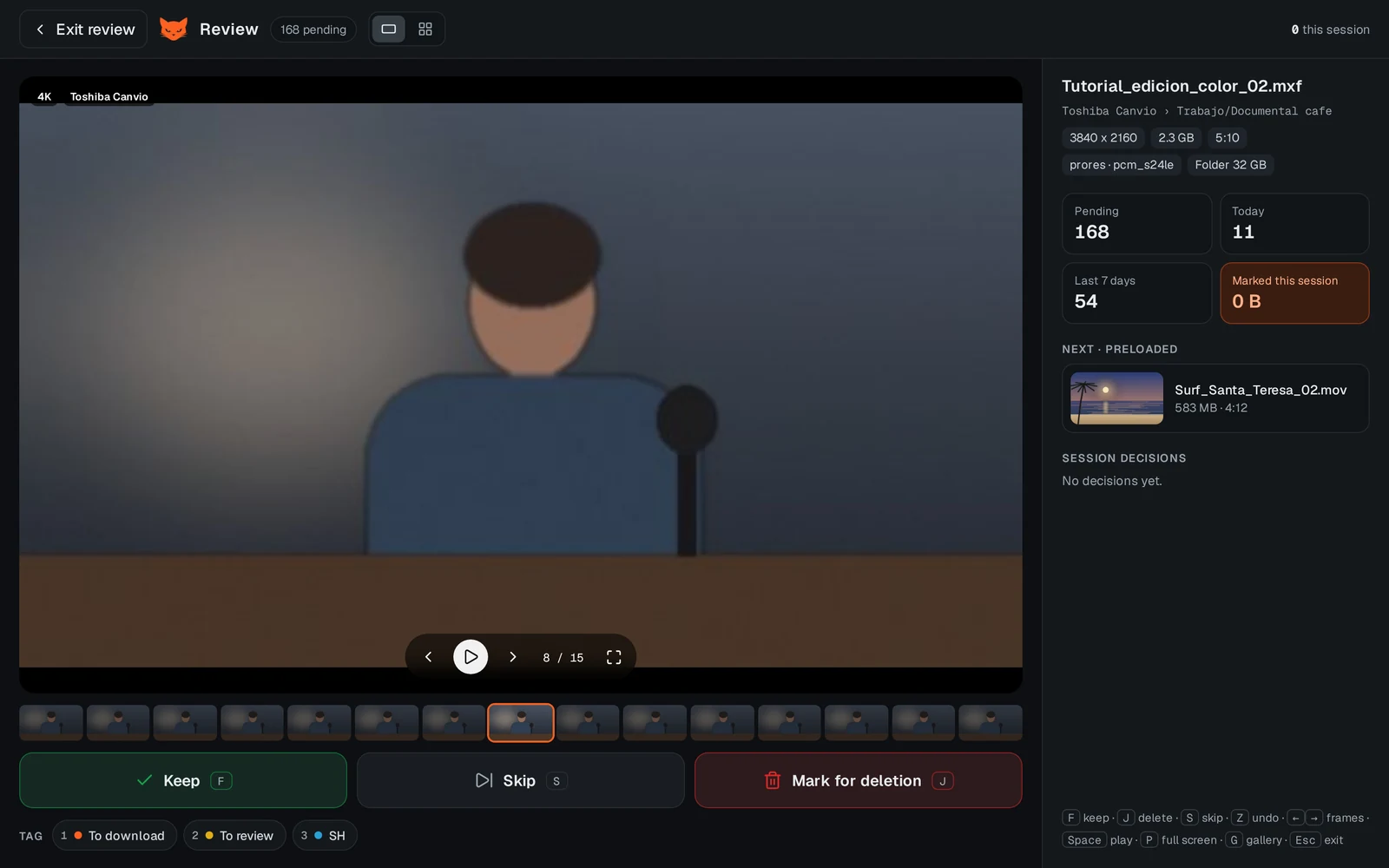
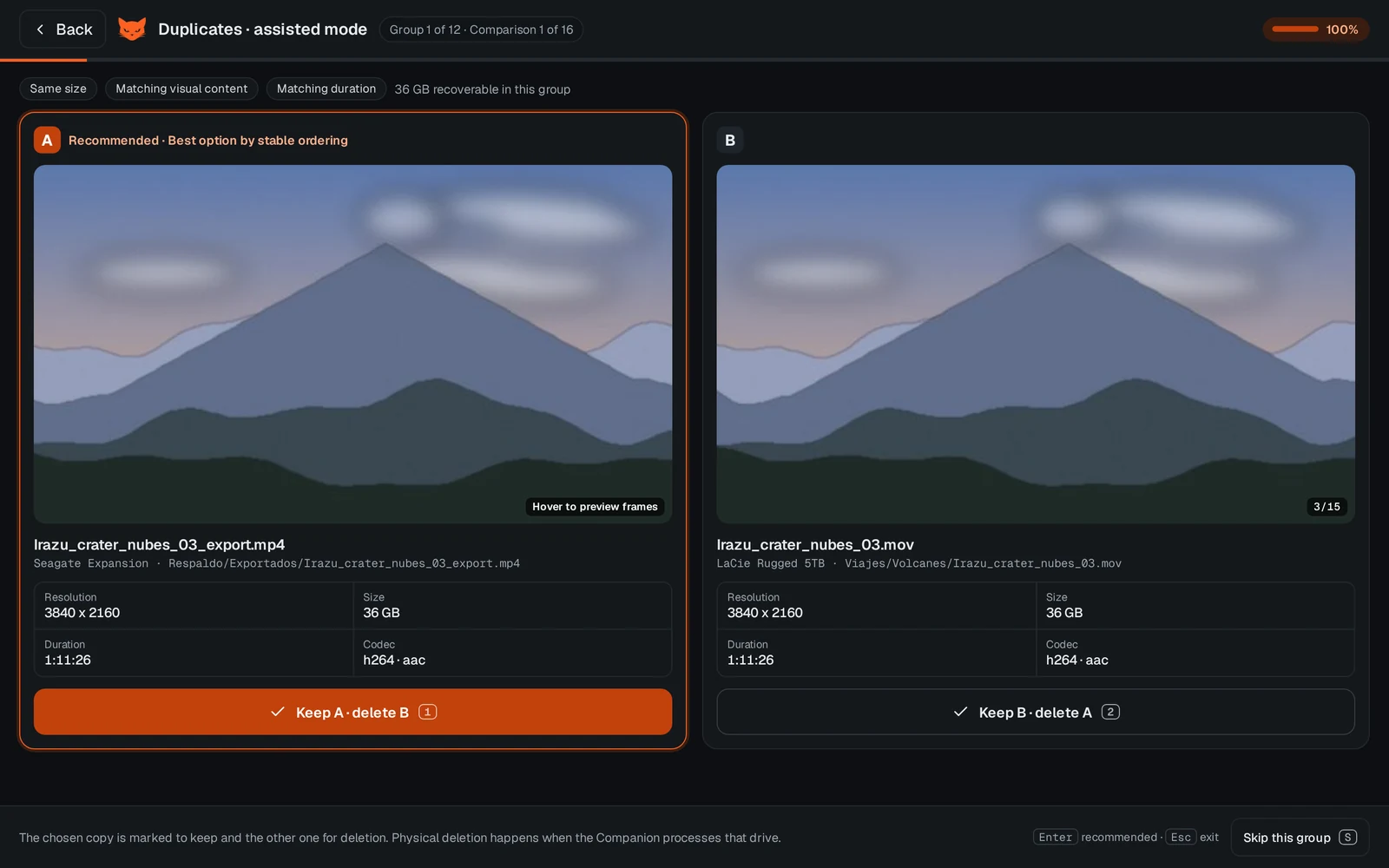
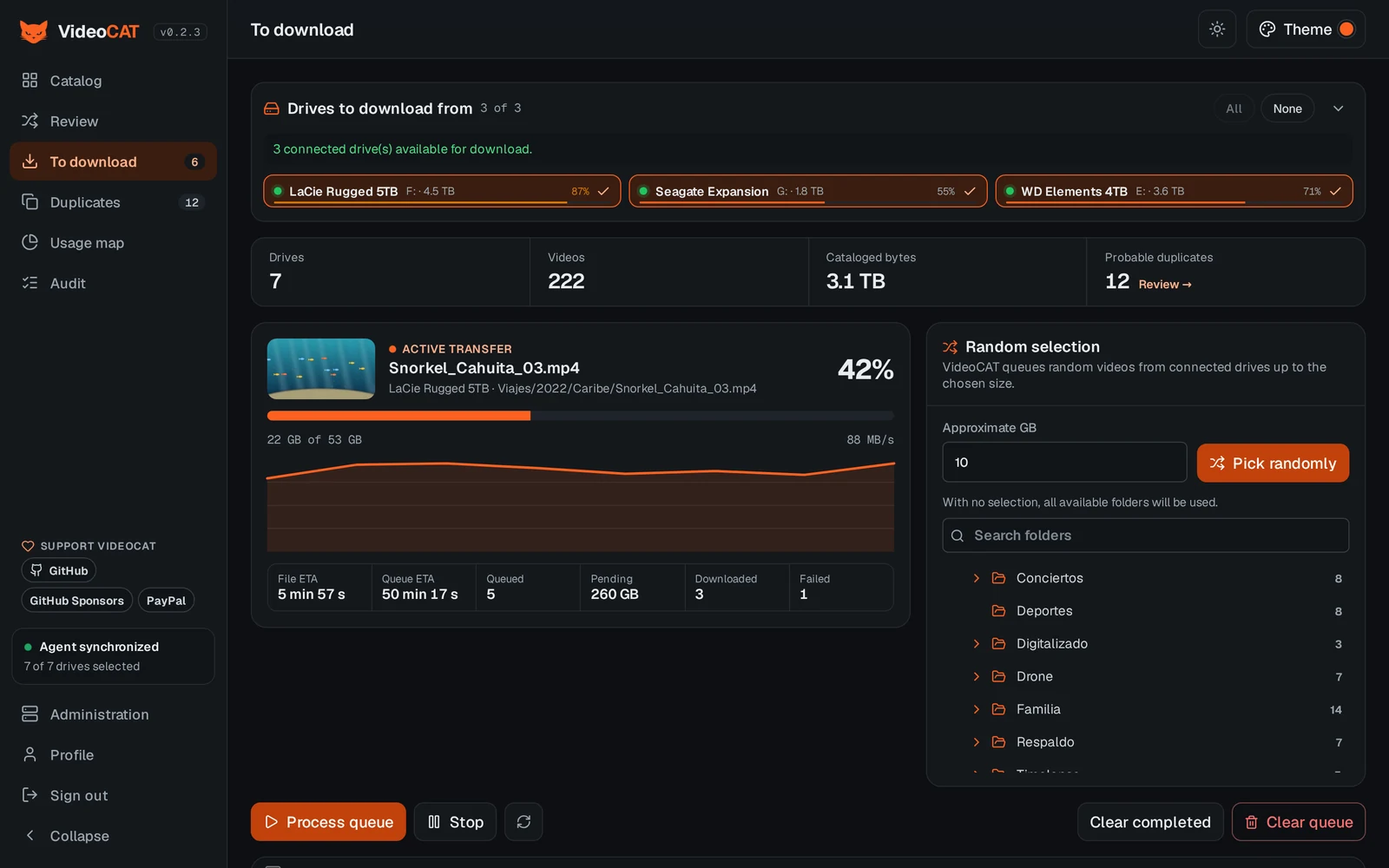
Ctrl K, active filter chips and a detail panel..videocat-disk.json, so they are recognized even when Windows changes the drive letter.testing001) and find files with a similar name on every drive, ignoring case, accents, dots and separators, plus one letter of difference. Optionally, each folder adds keywords that are searched exactly, as whole words of the name (ignoring case and separators: GATO, .gato. or mi_gato_2024 match; gatos or gatito do not). You decide one by one in the same Review session: F group, J ignore./) keeps only the matching blocks, ignoring case and accents, and filters the videos at the last level./catalogo, /review, /duplicados…), also reachable through its English equivalent.| Review | Assisted duplicates |
|---|---|
 |  |
| To download | Usage map |
|---|---|
 | 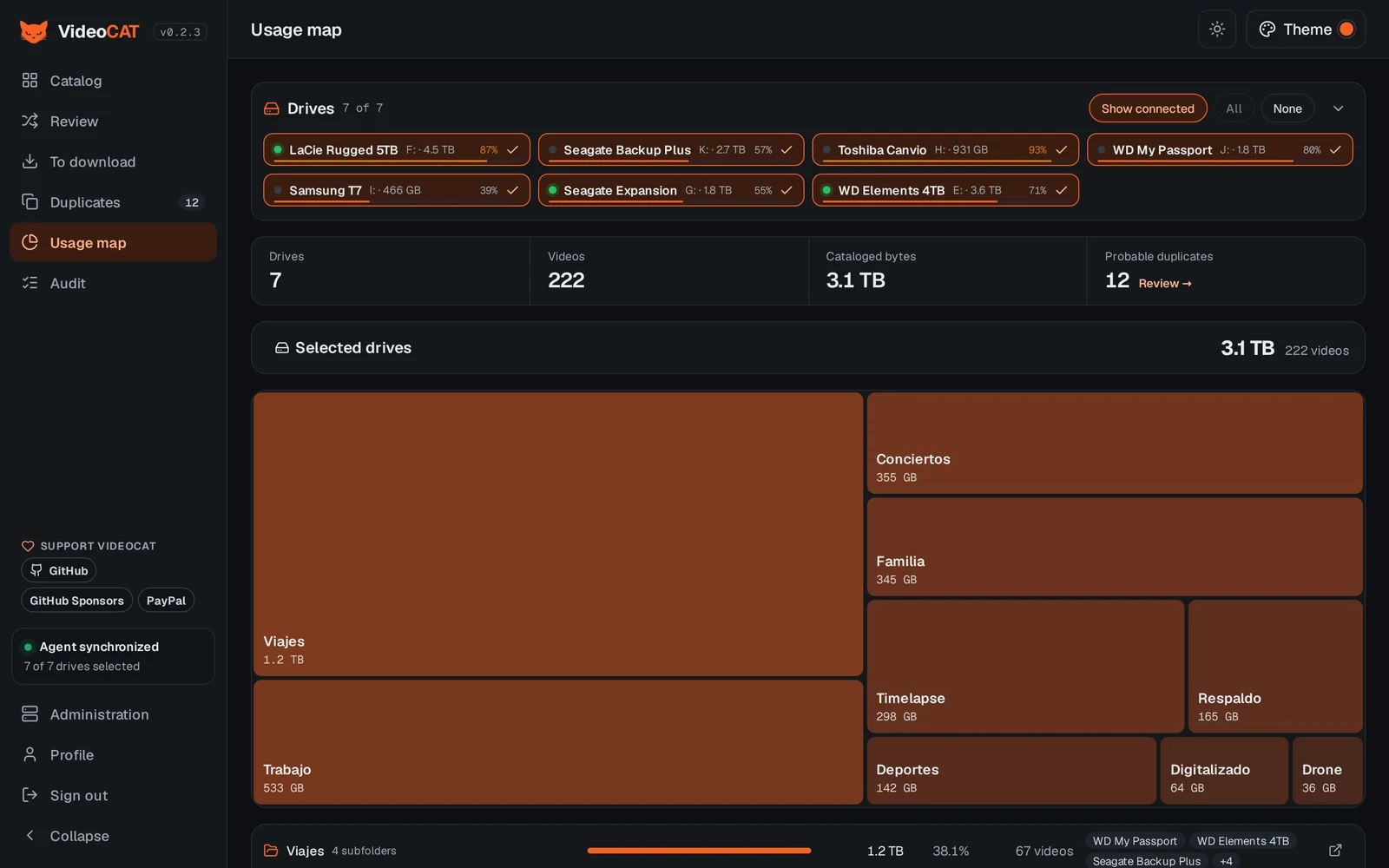 |
| Transfers | Group files |
|---|---|
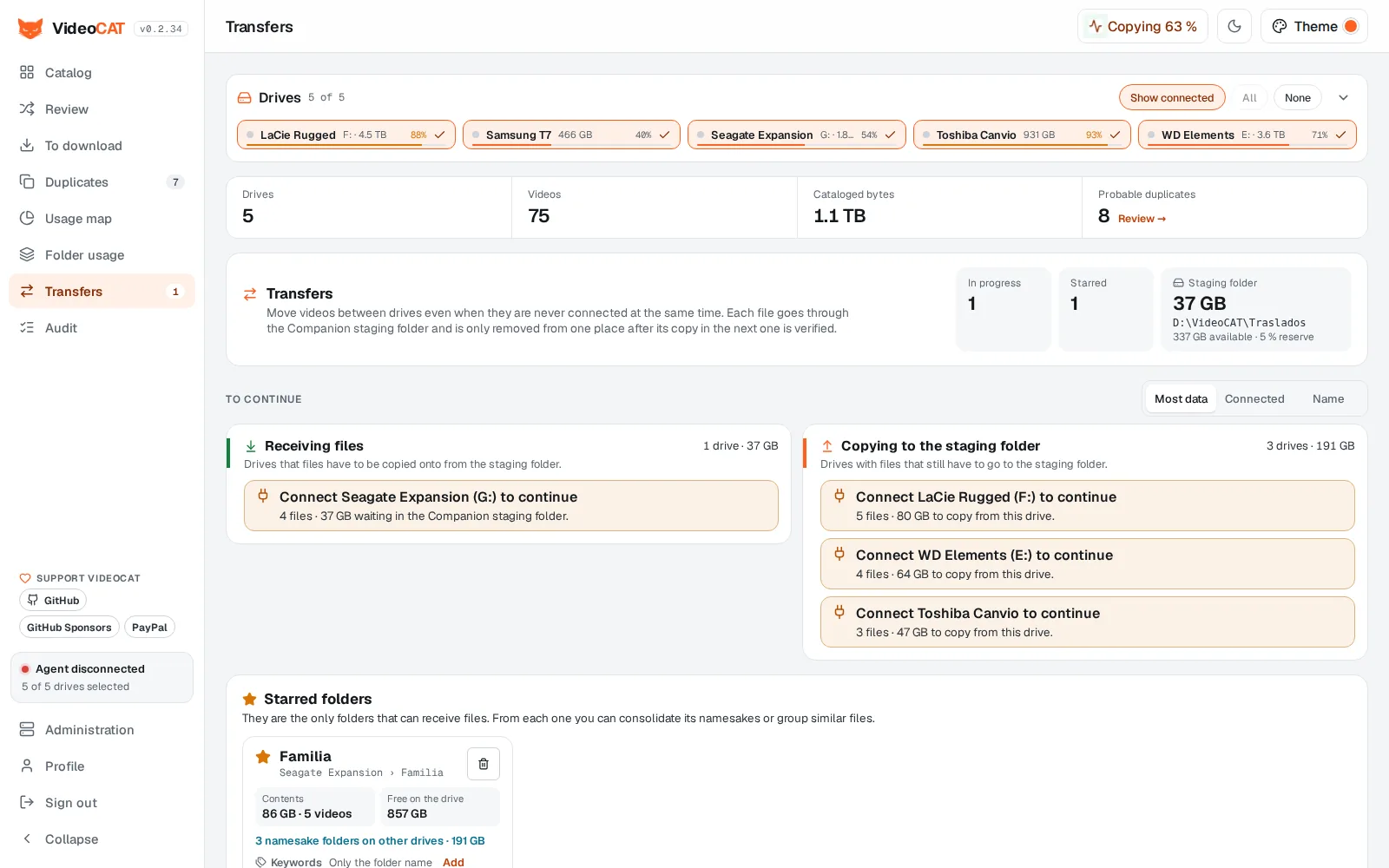 | 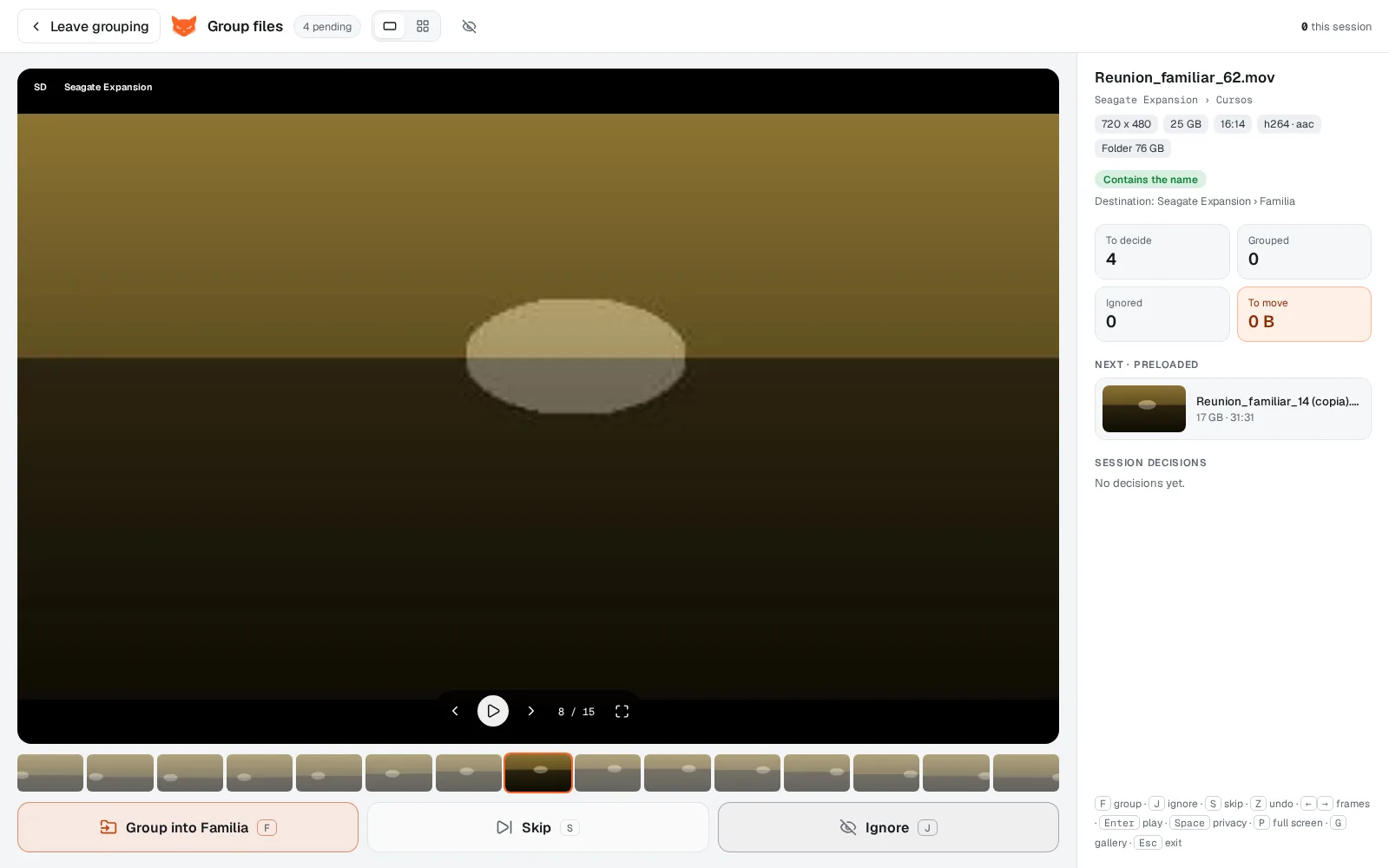 |
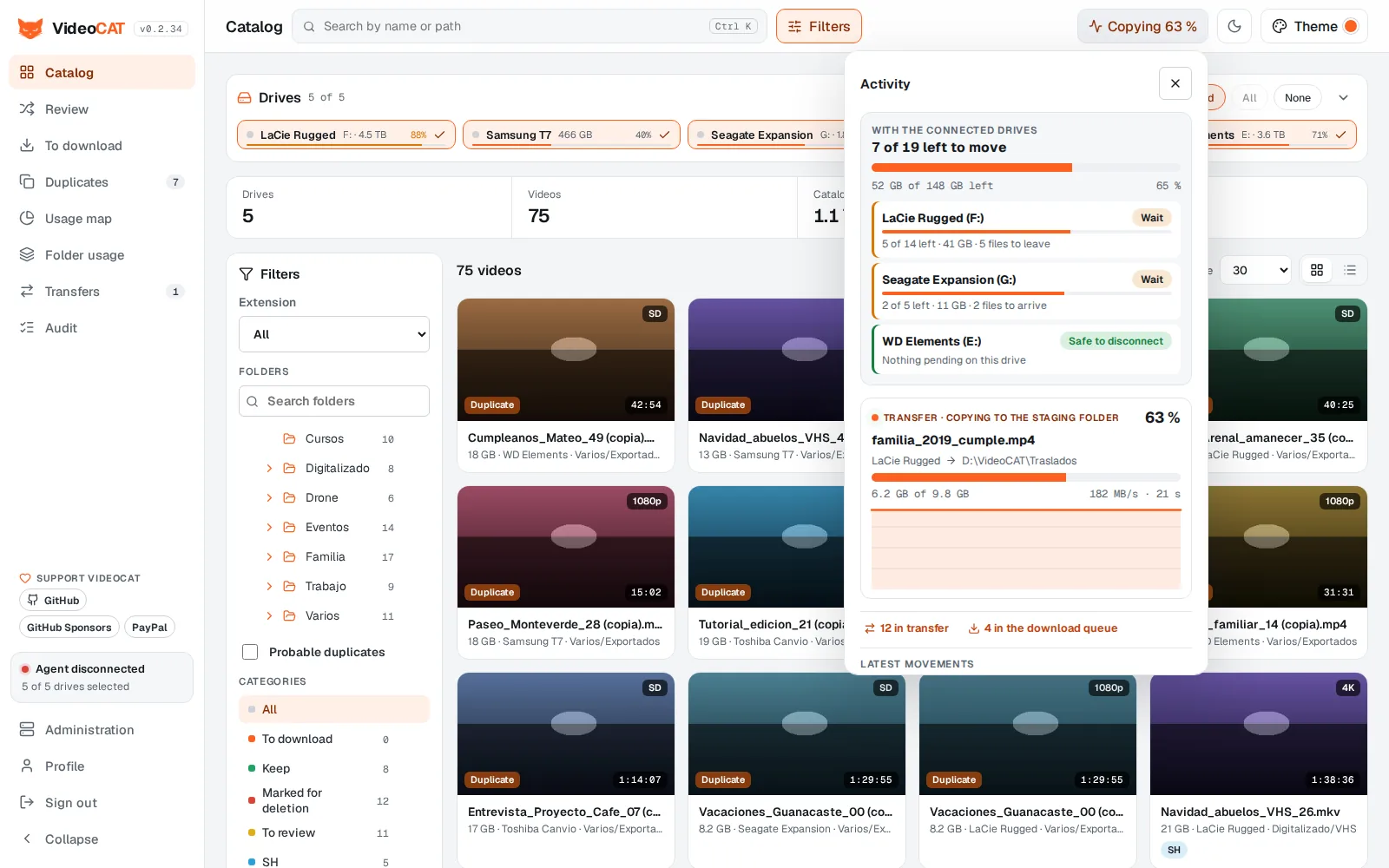
| Folder usage with instant search | Activity with the connected drives |
|---|---|
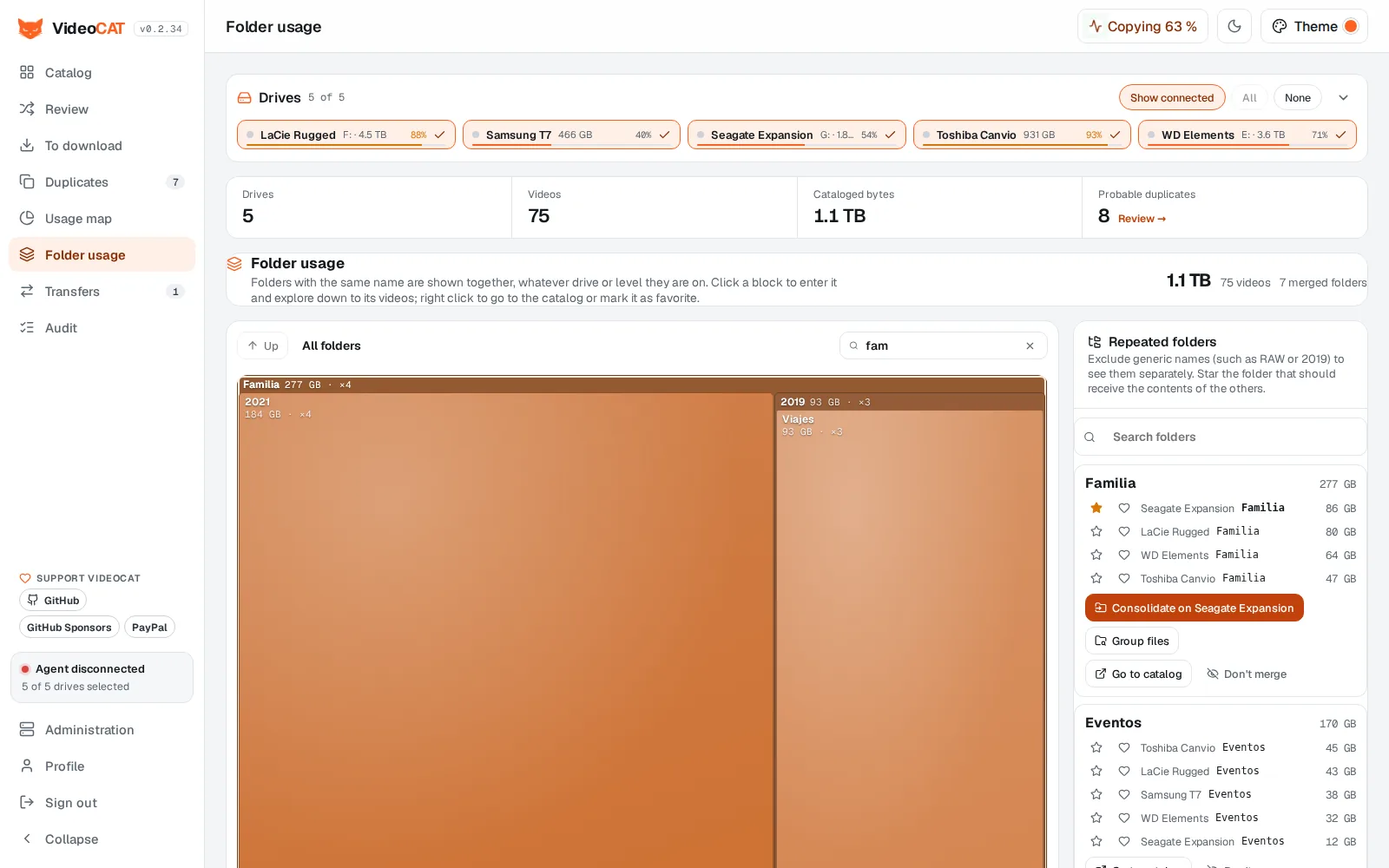 |  |
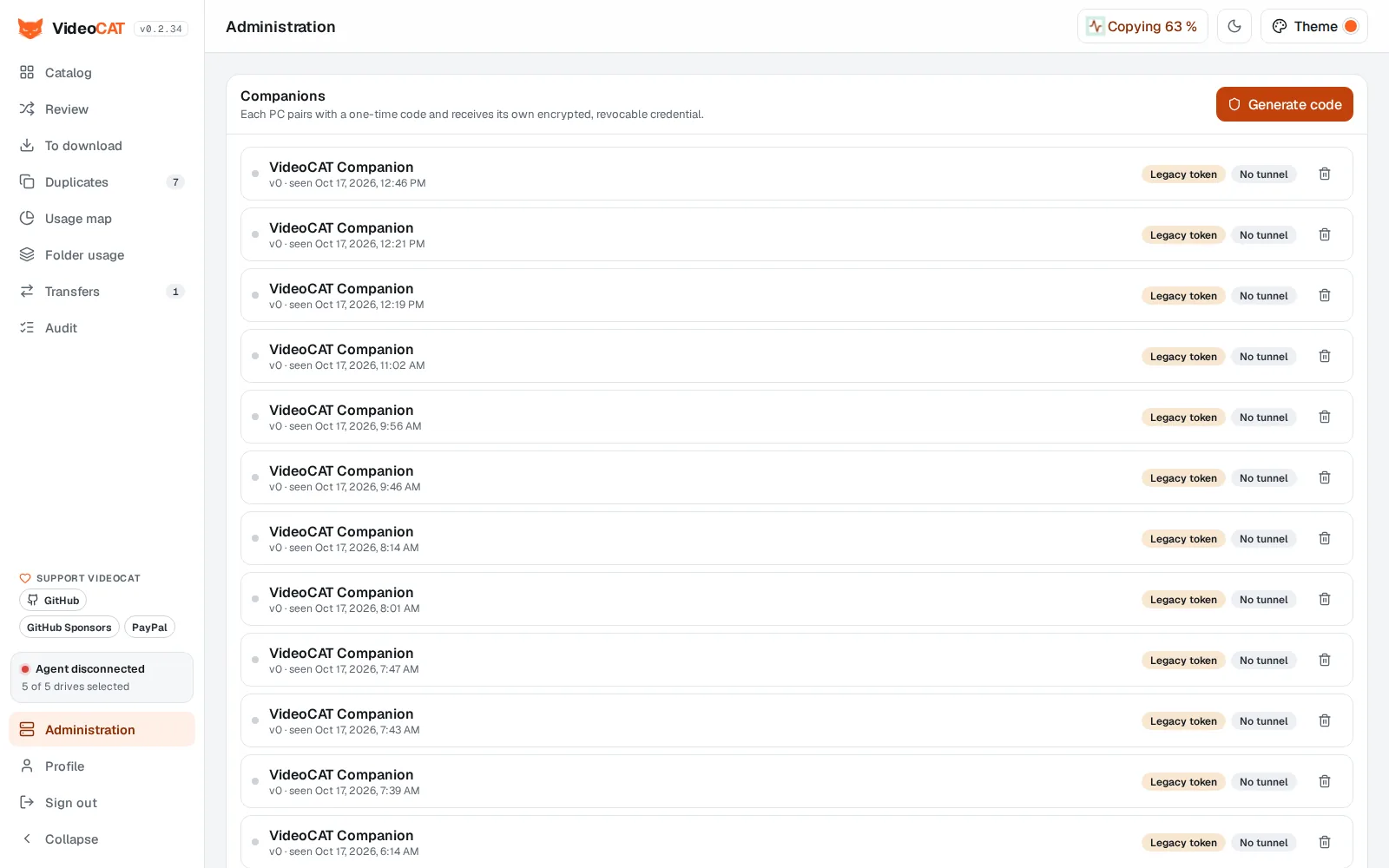
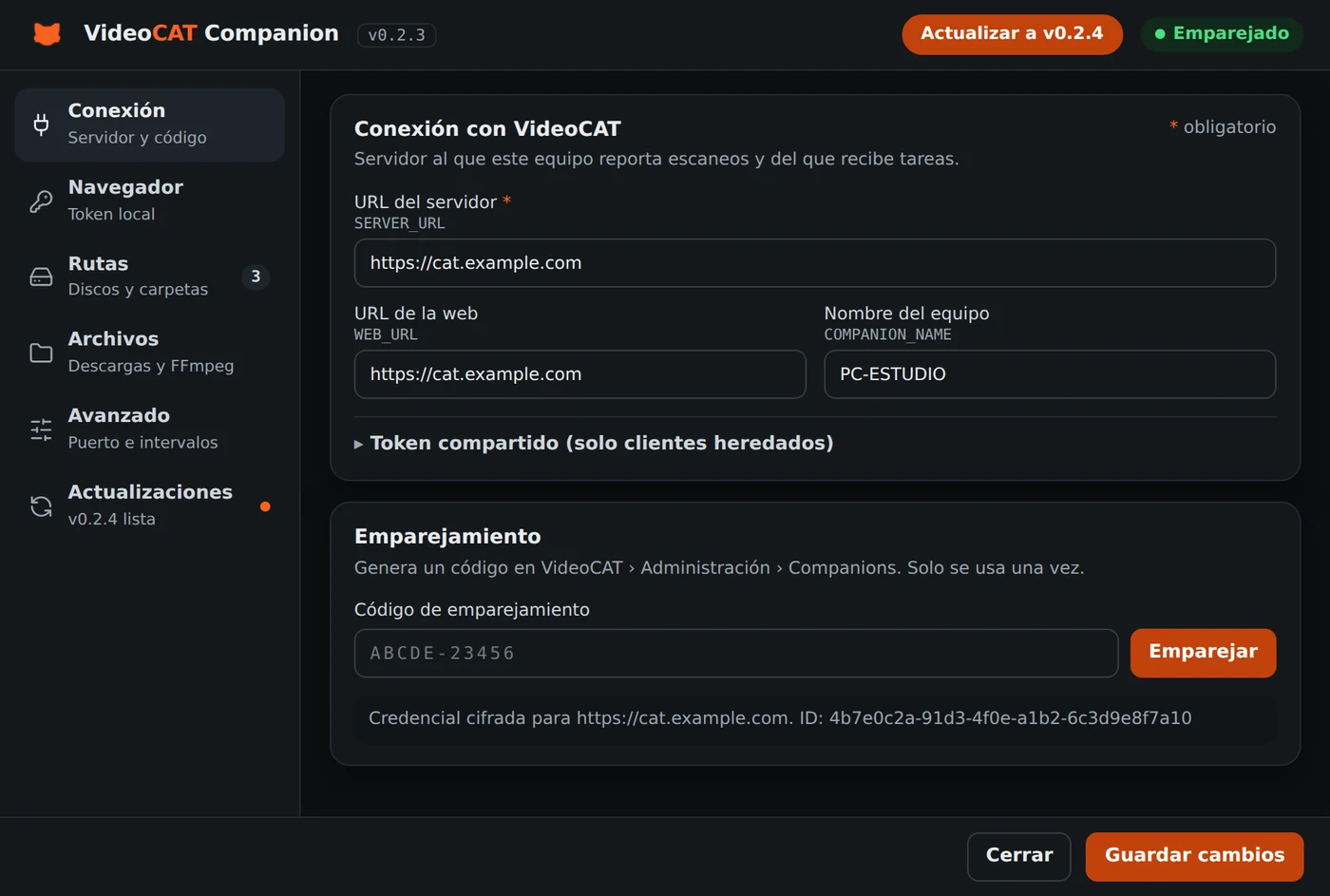
| Administration | Windows Companion |
|---|---|
 |  |
| Sign in · light | Sign in · dark |
|---|---|
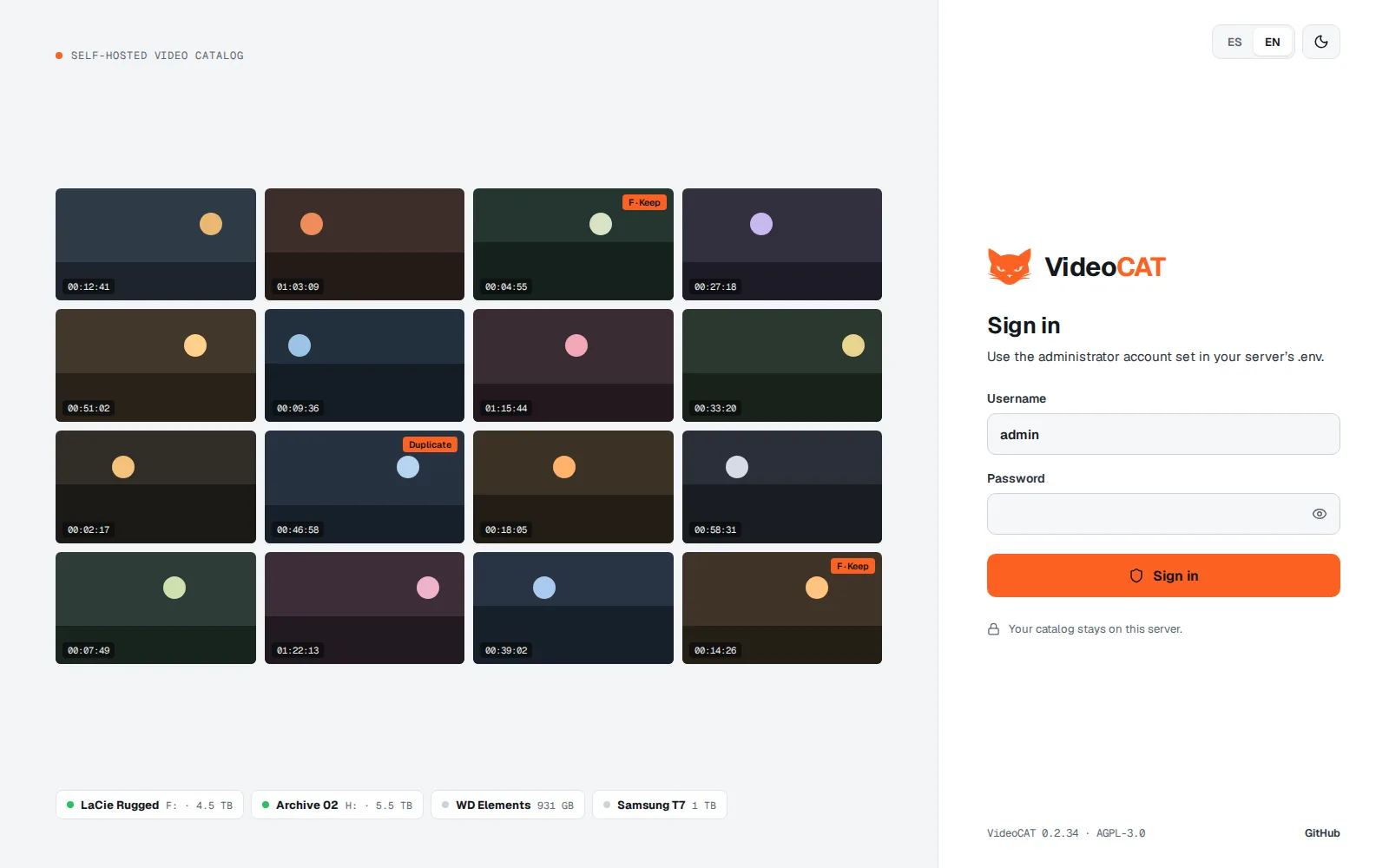 | 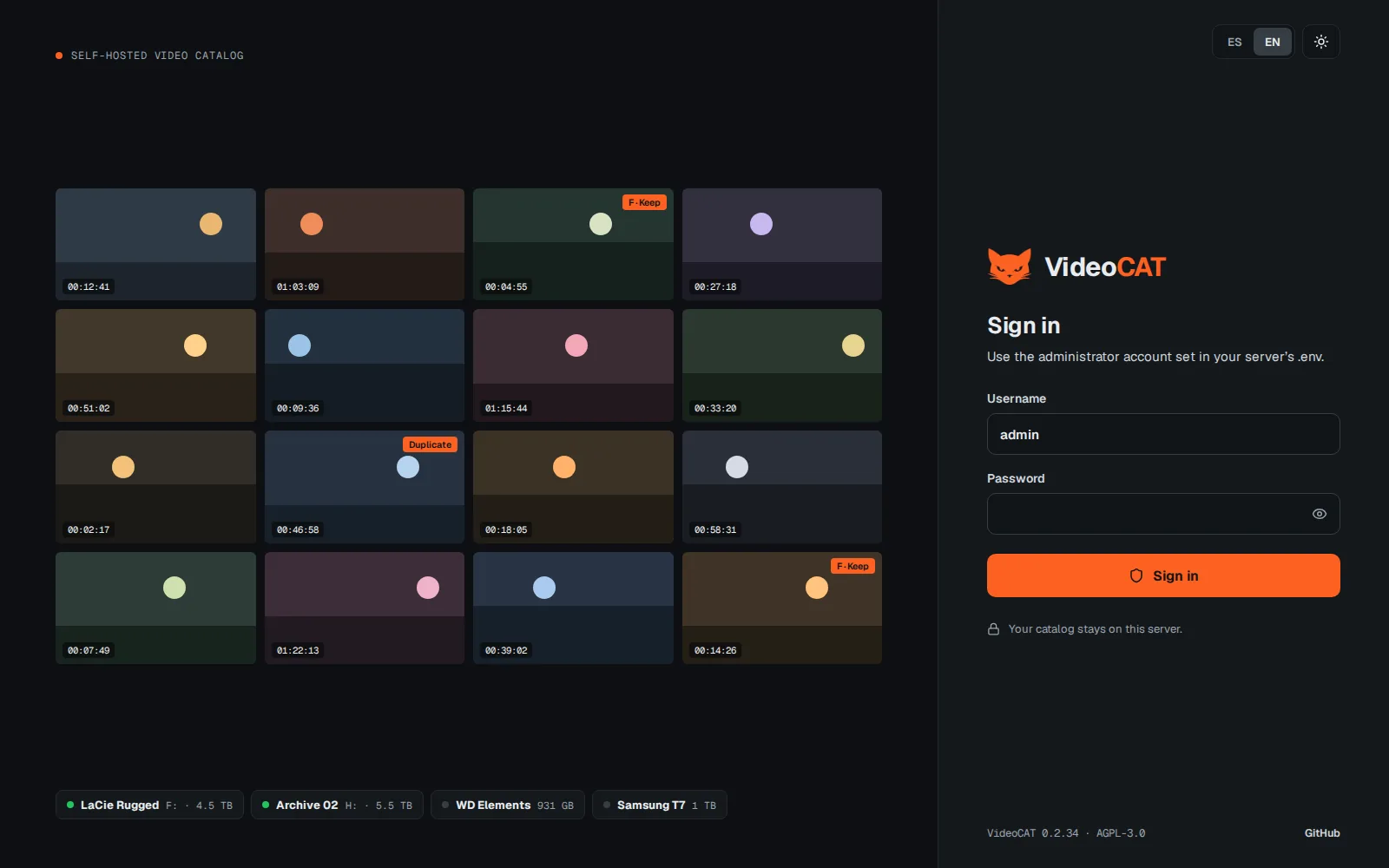 |
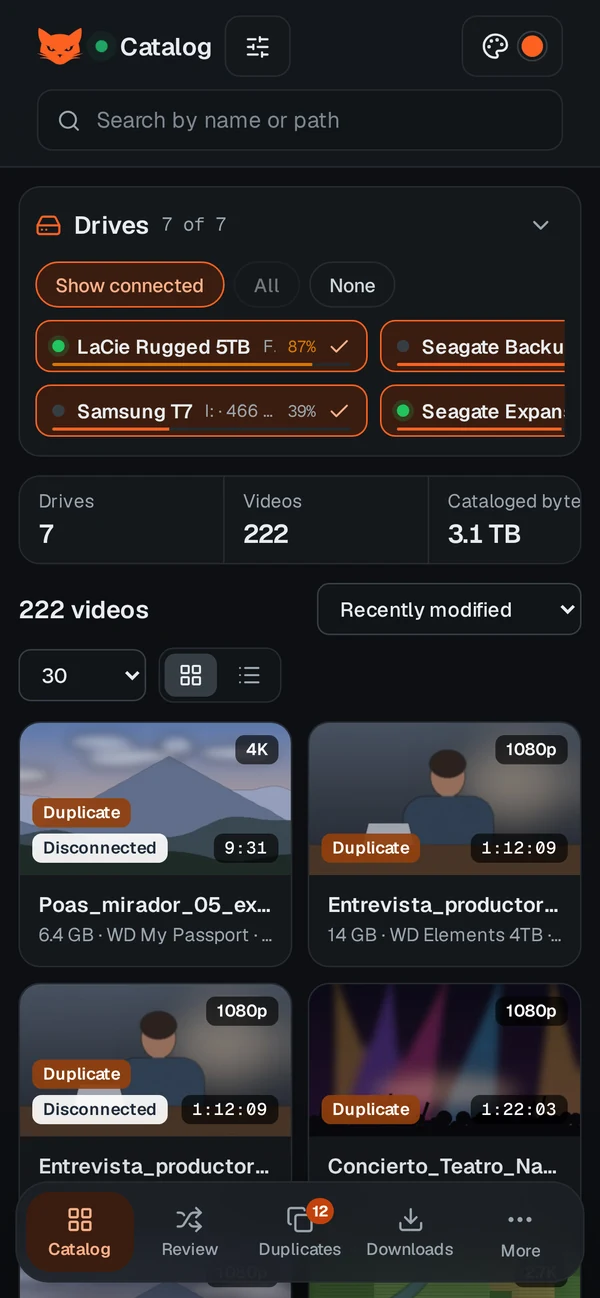
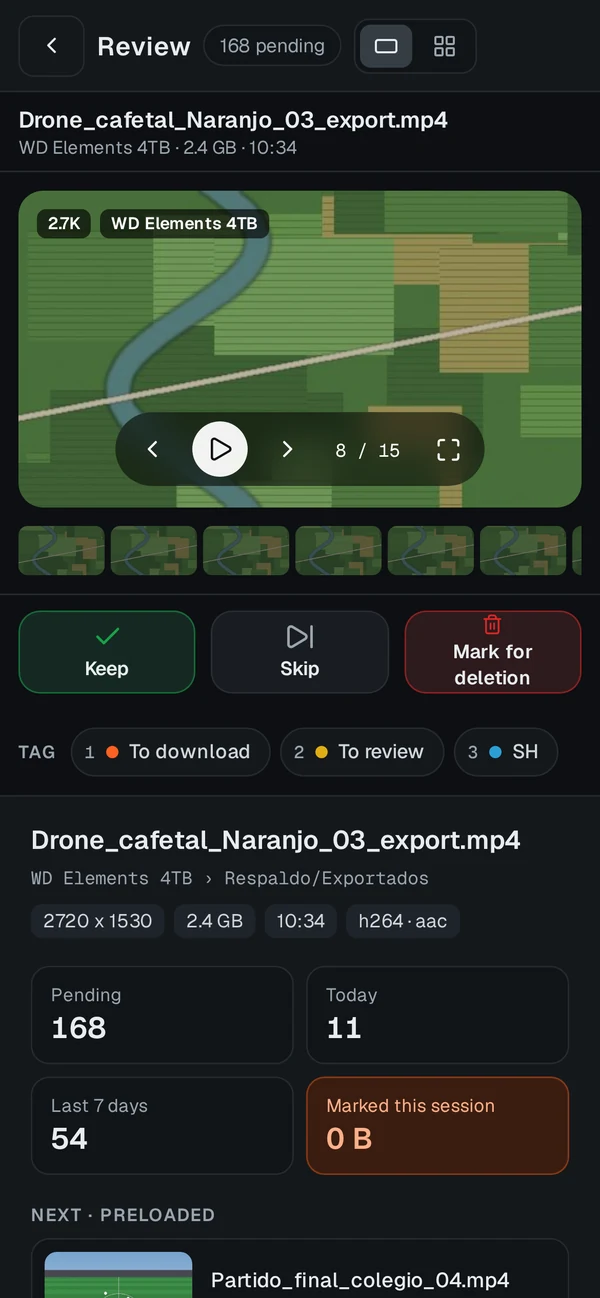
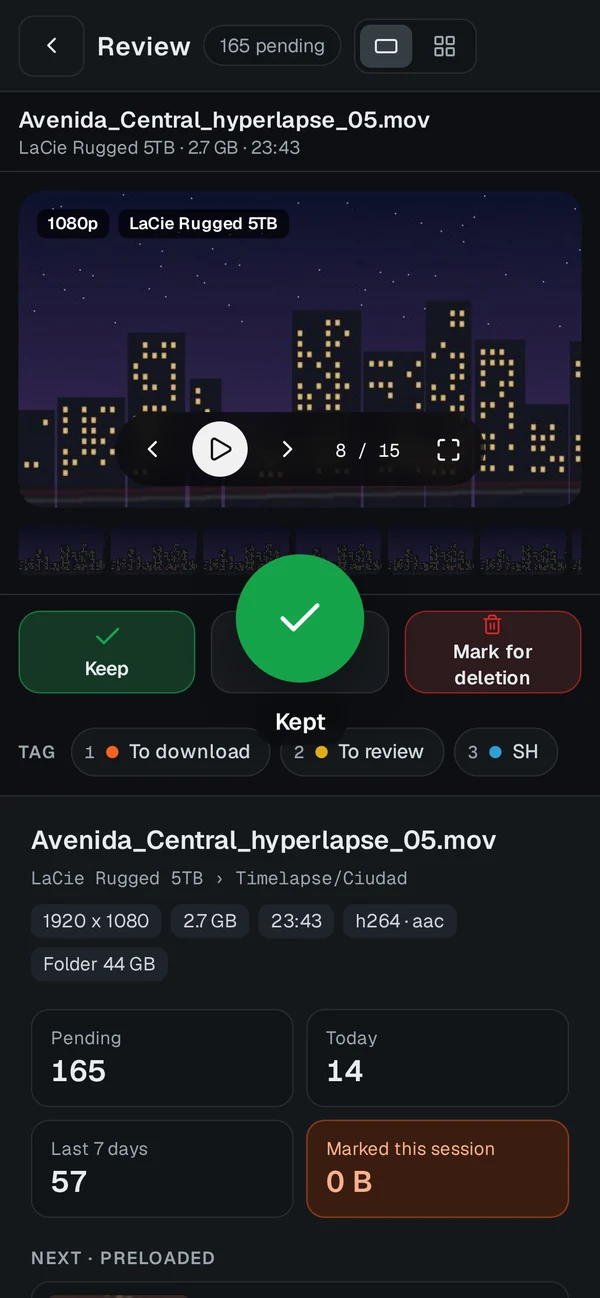
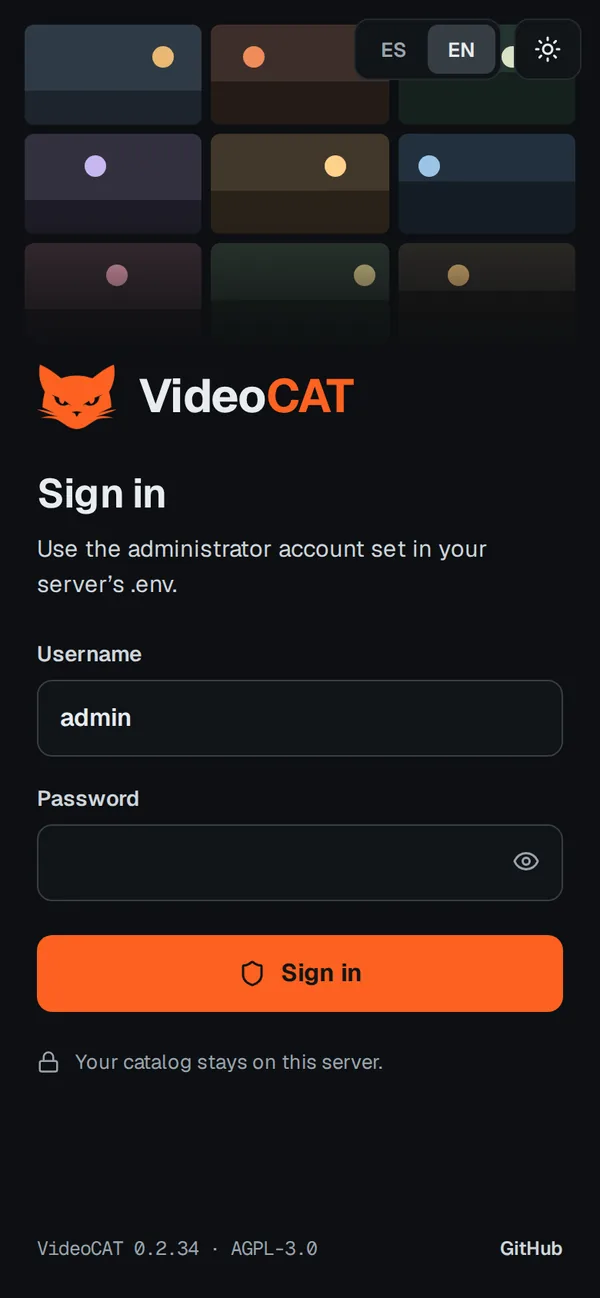
All screenshots use fictional data.
You need Docker with Compose. The installer creates a videocat folder, downloads docker-compose.hub.yml, generates secrets in .env and starts the stack with the official images.
Linux, macOS or WSL:
curl -fsSL https://raw.githubusercontent.com/reiterstahl/videocat/main/install.sh | sh
Windows PowerShell with Docker Desktop:
powershell -ExecutionPolicy Bypass -Command "irm https://raw.githubusercontent.com/reiterstahl/videocat/main/install.ps1 | iex"
Open http://localhost:8081 and sign in as admin with the password the installer prints (it is also stored in videocat/.env).
mkdir videocat && cd videocat
curl -fsSLO https://raw.githubusercontent.com/reiterstahl/videocat/main/docker-compose.hub.yml
curl -fsSL https://raw.githubusercontent.com/reiterstahl/videocat/main/.env.example -o .env
Edit .env and replace every replace-with-… value. Generate each secret with openssl rand -hex 32. For local testing without HTTPS, use WEB_ORIGIN=http://localhost:8081 and COOKIE_SECURE=false. Then:
docker compose -f docker-compose.hub.yml up -d
Official images (amd64 and arm64): reiterstahl/videocat-server and reiterstahl/videocat-web, tagged by version (0.2.35) and latest.
Install FFmpeg, which the Companion uses to read metadata and create thumbnails. It is found automatically when installed with WinGet, Scoop or Chocolatey, or in C:\ffmpeg\bin:
winget install Gyan.FFmpeg
Download and run VideoCAT-Companion-win-Setup.exe, then open it from the Start menu. It lives in the system tray.
In the web app, open Administration › Companions and generate a pairing code.
In the Companion, open Configuración… › Conexión, enter the server URL, paste the code and select Emparejar.
In Configuración… › Navegador, copy the local token and paste it in the web app under Profile › Local Companion. That browser can then open, copy and delete files on this PC.
[!TIP] If you used the portable
.exe(0.2.2 or earlier), close it, install with Setup.exe and delete the portable file: settings and pairing are kept in%APPDATA%\VideoCAT Companion.
The Companion's own windows are in Spanish; the names in parentheses below are their English meaning.
From the Companion's Configuración… › Rutas (Settings › Paths) you can:
.videocat-disk.json file at their root. The marker gives them a stable identity even if the drive letter changes, and lets you choose which inner folders to scan.To create the marker, use the CLI agent (init-disk or wizard) or create the file by hand at the drive root:
{
  "schemaVersion": 1,
  "diskId": "generate-a-uuid-v4",
  "diskName": "WD 6TB Video 01",
  "createdAt": "2026-10-02T00:00:00.000Z",
  "scanRoots": ["."]
}
The first scan uploads metadata and thumbnails. Later scans only process new or changed files.
VideoCAT can be installed from the browser. Profile › VideoCAT app shows the button or the steps for your browser:
[!NOTE] Browsers only install apps over HTTPS (or from
localhost). If you open VideoCAT overhttp://with a LAN IP, publish it with HTTPS behind your reverse proxy first.
The app only stores its own code (interface, styles and icons) on the device so it opens quickly. API responses, thumbnails and videos always come from the server, so no catalog data is left on the device. When you publish a new stack version, the app shows A new version of VideoCAT is available · Update.
If you would rather the Companion not delete on its own, set Borrar los marcados (delete marked files) to Solo a pedido (on request only) in Configuración… › Avanzado.
| Key | Review action |
|---|---|
F | Keep |
J | Mark for deletion |
S | Skip |
Z | Undo the last decision |
1–9 | Toggle a tag |
← → | Previous or next frame |
Enter | Play the frames |
Space | Privacy mode: black screen until another Space, Esc or a click, without taking decisions |
G | Switch between frame and gallery |
P | Full screen |
Esc | Exit |
In Duplicates › Start assisted mode: 1 or ← keeps copy A and marks B for deletion, 2 or → does the opposite, Enter applies the recommendation, S skips the group and Esc exits.
D:\VideoCAT\Transfers. Without it, transfers wait.Guarantees at every step:
name (2).ext.| Key | Action in Group files |
|---|---|
F | Group into the folder |
J | Ignore (not proposed again for that folder) |
S | Skip |
Z | Undo (a grouped file leaves the transfer while it is still pending) |
The player first checks whether the browser supports the container and codecs. For H.264 videos with AAC or MP3 audio in an unsupported container, you can enable a temporary MP4 remux, which copies the streams without re-encoding:
REMOTE_REMUX_ENABLED=true and restart server.VideoCAT does not transcode H.265, AV1 or other codecs, because that would use a lot of CPU. Each session belongs to the user who created it, has duration, idle and concurrency limits, and closes when the player stops or the tunnel drops.
Read-ahead. While a video plays, the server asks the Companion for several chunks at once and keeps the amount chosen in Profile › Playback ahead (8 to 128 MB, 32 MB by default), so a 4K video does not keep loading. It uses that much server memory per playback. If you open VideoCAT through a public domain (for example behind Cloudflare Tunnel), the video leaves and comes back through your internet connection even on the same network: that connection's upload speed is the ceiling.
Chromecast is off by default: enable it in Profile. The Google Cast SDK only loads when you use the button, and the receiver gets a signed, short-lived URL, never your credentials. The Chromecast must be able to reach VideoCAT's domain or IP.
The main .env settings (the full, commented list is in .env.example):
| Variable | Purpose |
|---|---|
POSTGRES_PASSWORD, JWT_SECRET, AGENT_TOKEN | Secrets. Generate each one with openssl rand -hex 32. |
ADMIN_USER, ADMIN_PASSWORD | Web app user. |
WEB_ORIGIN | Exact public URL (for example https://cat.example.com). Writes from any other origin are rejected. |
COOKIE_SECURE | true with HTTPS; false only for local testing. |
TRUST_PROXY, TRUST_PROXY_CIDRS | Trust in the reverse proxy; preferably limited to its CIDRs. |
WEB_BIND_ADDR, WEB_PUBLISHED_PORT | Where the web container is published (default 0.0.0.0:8081). |
PROTECTED_FOLDER_PIN, PROTECTED_FOLDER_PATTERNS | PIN and folder-name fragments to protect (for example Private,Protected). |
VIDEOCAT_VERSION | Image version used by docker-compose.hub.yml (0.2.35 or latest). |
REMOTE_REMUX_ENABLED, REMOTE_STREAM_* | Optional remux and remote playback limits. |
*_RETENTION_DAYS | Retention for errors, actions and scans when cleanup runs from Administration. |
Expose only the web container: it already proxies /api/* and /thumbnails/* to server:4000 and forwards the tunnel WebSocket. Your external proxy must also allow Upgrade on /api/agent/tunnel. Nginx example:
map $http_upgrade $connection_upgrade {
  default upgrade;
  ''      close;
}

server {
  server_name cat.example.com;
  client_max_body_size 25m;

  location / {
    proxy_pass http://127.0.0.1:8081;
    proxy_http_version 1.1;
    proxy_set_header Host $host;
    proxy_set_header X-Real-IP $remote_addr;
    proxy_set_header X-Forwarded-For $proxy_add_x_forwarded_for;
    proxy_set_header X-Forwarded-Host $host;
    proxy_set_header X-Forwarded-Proto $scheme;
    proxy_set_header Upgrade $http_upgrade;
    proxy_set_header Connection $connection_upgrade;
  }
}
With HTTPS, use WEB_ORIGIN=https://cat.example.com, COOKIE_SECURE=true and TRUST_PROXY=true. HTTPS is also required to install VideoCAT as an app.
VIDEOCAT_VERSION (or use latest) and run docker compose -f docker-compose.hub.yml pull && docker compose -f docker-compose.hub.yml up -d. Migrations run on start, and the thumbnails-init service fixes the thumbnail volume's permissions. In Portainer: Pull and redeploy.Release notes for each version are in OPERATIONS.md.
VideoCAT works behind an access gateway such as Cloudflare Access. When that gateway's session expires, the app shows Tu sesión de acceso expiró (your access session expired) with a button to sign in again and come back to the same page. Point the Companion at the server's internal address (for example http://192.168.1.30:8080) or give it a service token, so it does not depend on that sign-in.
scripts/backup.sh (or scripts/backup.ps1) saves the database, the thumbnail volume, checksums and .env. scripts/verify-backup.sh checks a backup and scripts/restore.sh restores it. Keep backups encrypted: they contain private paths and metadata. Details and a restore drill are in OPERATIONS.md.
Your data
PROTECTED_FOLDER_PATTERNS require a PIN in each session and are left out of duplicate detection.Companion
/health without authentication. Opening, copying, deleting and processing queues require COMPANION_TOKEN.Web and API
WEB_ORIGIN.Project
main and every pull request, CI runs a clean install, a dependency audit, type checks, unit and API tests against PostgreSQL, coverage thresholds, the build and Playwright UI tests on desktop and mobile.To report a vulnerability privately, see SECURITY.md.
Everything is edited from Configuración…, organized in pages: Conexión, Navegador, Rutas, Archivos, Avanzado and Actualizaciones (connection, browser, paths, files, advanced and updates). It is stored in %APPDATA%\VideoCAT Companion\.env.
| Variable | Default | Use |
|---|---|---|
SERVER_URL | — | VideoCAT server URL (required). |
WEB_URL | SERVER_URL | URL opened by Abrir VideoCAT. |
COMPANION_NAME | — | Optional name shown in Administration. |
COMPANION_TOKEN | Generated | Token for local actions; paste it in Profile › Local Companion. |
AGENT_TOKEN | — | Shared token, only for legacy unpaired clients. |
COMPANION_DOWNLOAD_DIR | — | Destination folder for To download. |
FFMPEG_PATH, FFPROBE_PATH | Auto-detected | FFmpeg paths when they are not found automatically. |
AGENT_STATE_DIR | %LOCALAPPDATA%\VideoCAT\agent-state | Local scan state. |
COMPANION_PORT | 29429 | Local port (127.0.0.1 only). |
COMPANION_ALLOWED_ORIGINS | — | Web origins allowed to call the local listener. |
COMPANION_AUTO_DELETE_MARKED | true | Delete marked files automatically or only on request. |
COMPANION_REMOTE_REMUX_ENABLED | false | Temporary MP4 remux for remote playback. |
COMPANION_DISK_POLL_MS | 5000 | Drive detection. |
COMPANION_SCAN_POLL_MS | 900000 | Rescan of monitored paths. |
COMPANION_HEARTBEAT_MS | 15000 | Heartbeat to the server. |
COMPANION_DELETE_POLL_MS | 60000 | Check for pending deletions. |
COMPANION_DOWNLOAD_POLL_MS | 60000 | Check of the download queue. |
COMPANION_DOWNLOAD_STALL_MS | 30000 | Time before a copy counts as stalled. |
COMPANION_STAGING_DIR | — | Transfers staging folder; empty disables transfers. Always keeps 5 % of its drive free. |
COMPANION_TRANSFER_POLL_MS | 60000 | How often pending transfers are checked (minimum 15000). |
TRAY_DISK_POLL_MS | 10000 | Drive refresh in the tray menu. |
TRAY_CLICK_ACTION | open | What a click or double click on the icon does: open (open VideoCAT), activity (show activity) or settings (open settings). |
The same agent runs from the command line inside the repository (Node.js 22 or later, 24 LTS recommended, with FFmpeg on PATH). It reads the same settings from apps\agent-windows\.env.
npm install
npm run wizard -w @videocat/agent-windows                       # interactive assistant
npm run init-disk -w @videocat/agent-windows -- --path "E:" --disk-name "WD 6TB Video 01" --scan-root "Videos"
npm run add-root -w @videocat/agent-windows -- --path "E:" --scan-root "Archive/Clients"
npm run scan -w @videocat/agent-windows -- --path "E:" --disk-name "WD 6TB Video 01"
npm run discover -w @videocat/agent-windows                     # lists marked drives
TypeScript monorepo with npm workspaces (Node.js 22 or later):
| Folder | Contents |
|---|---|
apps/server | Fastify API + Prisma + PostgreSQL. |
apps/web | React 18 + Vite app, served by Nginx in production. |
apps/agent-windows | Scan agent and Electron Companion, with the Velopack updater. |
packages/shared | Shared types and helpers. |
tests, e2e | Unit and API tests (node:test) and UI tests (Playwright). |
scripts | Backup, verification and restore. |
npm install
npm run prisma:generate
npm run dev:server   # API on http://localhost:4000 (needs DATABASE_URL and the other variables)
npm run dev:web      # Web app on http://localhost:5173
To run the whole stack built from source: docker compose up -d --build.
Tests:
npm run typecheck
npm test                          # unit, API and coverage thresholds
npx playwright install chromium
E2E_SEED=1 npm run test:e2e       # desktop and mobile
API tests that write to PostgreSQL run with RUN_DB_TESTS=true. E2E_SEED=1 loads the demo catalog and replaces all database content: use it only with a development database. To load only the demo: VIDEOCAT_DEMO_SEED=1 npm run seed:demo -w @videocat/server (it refuses to run with NODE_ENV=production).
Companion: bump version in apps/agent-windows/package.json and push to main. The release-companion.yml workflow builds on Windows, packs with Velopack (Setup.exe, full package and deltas), creates the vX.Y.Z tag and publishes the release with notes, SHA-256, attestation and SBOM. A version that is already tagged is never published again. To start it by hand: gh workflow run release-companion.yml -f publish=true.
Local build without publishing (with dotnet tool install -g vpk --version 1.2.161 to produce Setup.exe):
powershell -ExecutionPolicy Bypass -File .\package-companion.ps1
Docker images (amd64 and arm64; also update VIDEOCAT_VERSION in docker-compose.hub.yml and the installers):
docker buildx build --pull --no-cache-filter base --platform linux/amd64,linux/arm64 -f apps/server/Dockerfile -t reiterstahl/videocat-server:0.2.35 -t reiterstahl/videocat-server:latest --push .
docker buildx build --pull --no-cache-filter runtime --platform linux/amd64,linux/arm64 -f apps/web/Dockerfile --build-arg VITE_VIDEOCAT_VERSION=0.2.35 -t reiterstahl/videocat-web:0.2.35 -t reiterstahl/videocat-web:latest --push .
Verifying the Companion installer:
Get-FileHash .\VideoCAT-Companion-win-Setup.exe -Algorithm SHA256
gh attestation verify .\VideoCAT-Companion-win-Setup.exe -R reiterstahl/videocat
Companion (Authorization: Bearer with the paired credential):
POST /api/agent/register-diskPOST /api/agent/scan/start, POST /api/agent/scan/finishPOST /api/agent/files/batchPOST /api/agent/thumbnails/uploadPOST /api/agent/errors/batchGET /api/agent/tunnel (WebSocket)Web (session):
POST /api/auth/login, POST /api/auth/logoutGET /api/files, GET /api/files/:id, GET /api/facets, GET /api/disksGET /api/review/summary, GET /api/review/next, GET /api/review/recoverable-spaceGET /api/duplicates/by-size, GET /api/duplicates/recommended-disks, POST /api/duplicates/assisted/decisionPOST /api/stream-sessions, GET /api/stream-sessions/:id, DELETE /api/stream-sessions/:id, GET /api/playback/randomPOST /api/companions/pairing-code, GET /api/companionsGET /api/folder-usage, GET /api/folder-usage/treeGET /api/audit/errors, GET /api/audit/actions, GET /api/audit/exportGET /api/admin/disks/overview, GET /api/admin/maintenanceGET /api/profile/security, PATCH /api/profile/securityGET /api/version/latest| Document | Contents |
|---|---|
| OPERATIONS.md | Upgrades, backups, restore and Portainer. |
| SECURITY.md | Security policy and private vulnerability reporting. |
| apps/agent-windows/TRAY.md | Tray Companion details (Spanish). |
| ROADMAP.md | Hardening and reliability plan. |
| REMOTE_STREAMING_PLAN.md | Design of secure remote playback. |
| COMMUNITY_SCRIPTS_PLAN.es.md | Plan to publish VideoCAT on community-scripts (Proxmox VE), in Spanish. |
| UI_REDESIGN_PLAN.md | Phased interface redesign. |
| TRANSFERS_PLAN.es.md | Design and progress of Transfers (consolidate and group), in Spanish. |
| PUBLISHING.md | Checklist for publishing official artifacts. |
VideoCAT is released under the AGPL-3.0-or-later license: you can use, study, modify and distribute the project and derived versions, following its copyleft and attribution obligations.
The official distribution includes optional links to support the original author (GitHub Sponsors). Forks and modified versions may remove or replace them, as long as they comply with the license and keep the required copyright and attribution notices.
VideoCAT is a private, self-hosted catalog for videos stored on external hard drives. Built for collections spread across many drives that aren't always connected.
See the code
A private catalog for videos spread across external drives, with a Windows Companion.
English · Español
VideoCAT indexes the videos on your external drives — even ones that are rarely plugged in — and lets you search, review, find duplicates, play remotely and free up space from a browser or your phone. Your videos never leave your drives: the server only stores metadata, relative paths and thumbnails.
[!TIP] ⭐ If VideoCAT is useful to you, star it on GitHub: it helps more people with collections on external drives find it.
[!WARNING] VideoCAT can physically delete files on Windows: when you mark a video for deletion, the Companion removes it once the right drive is connected. Before using it with important footage, read Review and safe deletion.
flowchart LR
  browser["Browser or phone"] --> web
  subgraph server_host["Server · Docker Compose"]
    web["web<br/>Nginx + React"] --> api["server<br/>Fastify API"]
    api --> db[("PostgreSQL")]
    api --> thumbs[("Thumbnails")]
  end
  subgraph windows["Windows PC"]
    companion["VideoCAT Companion<br/>tray app"] --> disks[("External drives")]
  end
  companion -- "HTTPS and outbound tunnel" --> api
  browser -. "local actions with token" .-> companion
| Piece | What it does |
|---|---|
| web | Serves the React app and proxies the API and thumbnails. It is the only thing you expose through your reverse proxy. |
| server | API for login, catalog, review, duplicates, audit and the Companion tunnel. Applies database migrations on start. |
| postgres | Catalog database, reachable only on the internal Docker network. |
| Companion | Windows tray app: detects drives, scans with FFmpeg, uploads metadata and thumbnails, processes deletions and copies, and serves remote playback through an outbound tunnel (no open ports). |
Ctrl K, active filter chips and a detail panel..videocat-disk.json, so they are recognized even when Windows changes the drive letter.testing001) and find files with a similar name on every drive, ignoring case, accents, dots and separators, plus one letter of difference. Optionally, each folder adds keywords that are searched exactly, as whole words of the name (ignoring case and separators: GATO, .gato. or mi_gato_2024 match; gatos or gatito do not). You decide one by one in the same Review session: F group, J ignore./) keeps only the matching blocks, ignoring case and accents, and filters the videos at the last level./catalogo, /review, /duplicados…), also reachable through its English equivalent.| Review | Assisted duplicates |
|---|---|
| |
| To download | Usage map |
|---|---|
| |
| Transfers | Group files |
|---|---|
| |
| Folder usage with instant search | Activity with the connected drives |
|---|---|
| |
| Administration | Windows Companion |
|---|---|
| |
| Sign in · light | Sign in · dark |
|---|---|
| |
All screenshots use fictional data.
You need Docker with Compose. The installer creates a videocat folder, downloads docker-compose.hub.yml, generates secrets in .env and starts the stack with the official images.
Linux, macOS or WSL:
curl -fsSL https://raw.githubusercontent.com/reiterstahl/videocat/main/install.sh | sh
Windows PowerShell with Docker Desktop:
powershell -ExecutionPolicy Bypass -Command "irm https://raw.githubusercontent.com/reiterstahl/videocat/main/install.ps1 | iex"
Open http://localhost:8081 and sign in as admin with the password the installer prints (it is also stored in videocat/.env).
mkdir videocat && cd videocat
curl -fsSLO https://raw.githubusercontent.com/reiterstahl/videocat/main/docker-compose.hub.yml
curl -fsSL https://raw.githubusercontent.com/reiterstahl/videocat/main/.env.example -o .env
Edit .env and replace every replace-with-… value. Generate each secret with openssl rand -hex 32. For local testing without HTTPS, use WEB_ORIGIN=http://localhost:8081 and COOKIE_SECURE=false. Then:
docker compose -f docker-compose.hub.yml up -d
Official images (amd64 and arm64): reiterstahl/videocat-server and reiterstahl/videocat-web, tagged by version (0.2.35) and latest.
Install FFmpeg, which the Companion uses to read metadata and create thumbnails. It is found automatically when installed with WinGet, Scoop or Chocolatey, or in C:\ffmpeg\bin:
winget install Gyan.FFmpeg
Download and run VideoCAT-Companion-win-Setup.exe, then open it from the Start menu. It lives in the system tray.
In the web app, open Administration › Companions and generate a pairing code.
In the Companion, open Configuración… › Conexión, enter the server URL, paste the code and select Emparejar.
In Configuración… › Navegador, copy the local token and paste it in the web app under Profile › Local Companion. That browser can then open, copy and delete files on this PC.
[!TIP] If you used the portable
.exe(0.2.2 or earlier), close it, install with Setup.exe and delete the portable file: settings and pairing are kept in%APPDATA%\VideoCAT Companion.
The Companion's own windows are in Spanish; the names in parentheses below are their English meaning.
From the Companion's Configuración… › Rutas (Settings › Paths) you can:
.videocat-disk.json file at their root. The marker gives them a stable identity even if the drive letter changes, and lets you choose which inner folders to scan.To create the marker, use the CLI agent (init-disk or wizard) or create the file by hand at the drive root:
{
  "schemaVersion": 1,
  "diskId": "generate-a-uuid-v4",
  "diskName": "WD 6TB Video 01",
  "createdAt": "2026-10-02T00:00:00.000Z",
  "scanRoots": ["."]
}
The first scan uploads metadata and thumbnails. Later scans only process new or changed files.
VideoCAT can be installed from the browser. Profile › VideoCAT app shows the button or the steps for your browser:
[!NOTE] Browsers only install apps over HTTPS (or from
localhost). If you open VideoCAT overhttp://with a LAN IP, publish it with HTTPS behind your reverse proxy first.
The app only stores its own code (interface, styles and icons) on the device so it opens quickly. API responses, thumbnails and videos always come from the server, so no catalog data is left on the device. When you publish a new stack version, the app shows A new version of VideoCAT is available · Update.
If you would rather the Companion not delete on its own, set Borrar los marcados (delete marked files) to Solo a pedido (on request only) in Configuración… › Avanzado.
| Key | Review action |
|---|---|
F | Keep |
J | Mark for deletion |
S | Skip |
Z | Undo the last decision |
1–9 | Toggle a tag |
← → | Previous or next frame |
Enter | Play the frames |
Space | Privacy mode: black screen until another Space, Esc or a click, without taking decisions |
G | Switch between frame and gallery |
P | Full screen |
Esc | Exit |
In Duplicates › Start assisted mode: 1 or ← keeps copy A and marks B for deletion, 2 or → does the opposite, Enter applies the recommendation, S skips the group and Esc exits.
D:\VideoCAT\Transfers. Without it, transfers wait.Guarantees at every step:
name (2).ext.| Key | Action in Group files |
|---|---|
F | Group into the folder |
J | Ignore (not proposed again for that folder) |
S | Skip |
Z | Undo (a grouped file leaves the transfer while it is still pending) |
The player first checks whether the browser supports the container and codecs. For H.264 videos with AAC or MP3 audio in an unsupported container, you can enable a temporary MP4 remux, which copies the streams without re-encoding:
REMOTE_REMUX_ENABLED=true and restart server.VideoCAT does not transcode H.265, AV1 or other codecs, because that would use a lot of CPU. Each session belongs to the user who created it, has duration, idle and concurrency limits, and closes when the player stops or the tunnel drops.
Read-ahead. While a video plays, the server asks the Companion for several chunks at once and keeps the amount chosen in Profile › Playback ahead (8 to 128 MB, 32 MB by default), so a 4K video does not keep loading. It uses that much server memory per playback. If you open VideoCAT through a public domain (for example behind Cloudflare Tunnel), the video leaves and comes back through your internet connection even on the same network: that connection's upload speed is the ceiling.
Chromecast is off by default: enable it in Profile. The Google Cast SDK only loads when you use the button, and the receiver gets a signed, short-lived URL, never your credentials. The Chromecast must be able to reach VideoCAT's domain or IP.
The main .env settings (the full, commented list is in .env.example):
| Variable | Purpose |
|---|---|
POSTGRES_PASSWORD, JWT_SECRET, AGENT_TOKEN | Secrets. Generate each one with openssl rand -hex 32. |
ADMIN_USER, ADMIN_PASSWORD | Web app user. |
WEB_ORIGIN | Exact public URL (for example https://cat.example.com). Writes from any other origin are rejected. |
COOKIE_SECURE | true with HTTPS; false only for local testing. |
TRUST_PROXY, TRUST_PROXY_CIDRS | Trust in the reverse proxy; preferably limited to its CIDRs. |
WEB_BIND_ADDR, WEB_PUBLISHED_PORT | Where the web container is published (default 0.0.0.0:8081). |
PROTECTED_FOLDER_PIN, PROTECTED_FOLDER_PATTERNS | PIN and folder-name fragments to protect (for example Private,Protected). |
VIDEOCAT_VERSION | Image version used by docker-compose.hub.yml (0.2.35 or latest). |
REMOTE_REMUX_ENABLED, REMOTE_STREAM_* | Optional remux and remote playback limits. |
*_RETENTION_DAYS | Retention for errors, actions and scans when cleanup runs from Administration. |
Expose only the web container: it already proxies /api/* and /thumbnails/* to server:4000 and forwards the tunnel WebSocket. Your external proxy must also allow Upgrade on /api/agent/tunnel. Nginx example:
map $http_upgrade $connection_upgrade {
  default upgrade;
  ''      close;
}

server {
  server_name cat.example.com;
  client_max_body_size 25m;

  location / {
    proxy_pass http://127.0.0.1:8081;
    proxy_http_version 1.1;
    proxy_set_header Host $host;
    proxy_set_header X-Real-IP $remote_addr;
    proxy_set_header X-Forwarded-For $proxy_add_x_forwarded_for;
    proxy_set_header X-Forwarded-Host $host;
    proxy_set_header X-Forwarded-Proto $scheme;
    proxy_set_header Upgrade $http_upgrade;
    proxy_set_header Connection $connection_upgrade;
  }
}
With HTTPS, use WEB_ORIGIN=https://cat.example.com, COOKIE_SECURE=true and TRUST_PROXY=true. HTTPS is also required to install VideoCAT as an app.
VIDEOCAT_VERSION (or use latest) and run docker compose -f docker-compose.hub.yml pull && docker compose -f docker-compose.hub.yml up -d. Migrations run on start, and the thumbnails-init service fixes the thumbnail volume's permissions. In Portainer: Pull and redeploy.Release notes for each version are in OPERATIONS.md.
VideoCAT works behind an access gateway such as Cloudflare Access. When that gateway's session expires, the app shows Tu sesión de acceso expiró (your access session expired) with a button to sign in again and come back to the same page. Point the Companion at the server's internal address (for example http://192.168.1.30:8080) or give it a service token, so it does not depend on that sign-in.
scripts/backup.sh (or scripts/backup.ps1) saves the database, the thumbnail volume, checksums and .env. scripts/verify-backup.sh checks a backup and scripts/restore.sh restores it. Keep backups encrypted: they contain private paths and metadata. Details and a restore drill are in OPERATIONS.md.
Your data
PROTECTED_FOLDER_PATTERNS require a PIN in each session and are left out of duplicate detection.Companion
/health without authentication. Opening, copying, deleting and processing queues require COMPANION_TOKEN.Web and API
WEB_ORIGIN.Project
main and every pull request, CI runs a clean install, a dependency audit, type checks, unit and API tests against PostgreSQL, coverage thresholds, the build and Playwright UI tests on desktop and mobile.To report a vulnerability privately, see SECURITY.md.
Everything is edited from Configuración…, organized in pages: Conexión, Navegador, Rutas, Archivos, Avanzado and Actualizaciones (connection, browser, paths, files, advanced and updates). It is stored in %APPDATA%\VideoCAT Companion\.env.
| Variable | Default | Use |
|---|---|---|
SERVER_URL | — | VideoCAT server URL (required). |
WEB_URL | SERVER_URL | URL opened by Abrir VideoCAT. |
COMPANION_NAME | — | Optional name shown in Administration. |
COMPANION_TOKEN | Generated | Token for local actions; paste it in Profile › Local Companion. |
AGENT_TOKEN | — | Shared token, only for legacy unpaired clients. |
COMPANION_DOWNLOAD_DIR | — | Destination folder for To download. |
FFMPEG_PATH, FFPROBE_PATH | Auto-detected | FFmpeg paths when they are not found automatically. |
AGENT_STATE_DIR | %LOCALAPPDATA%\VideoCAT\agent-state | Local scan state. |
COMPANION_PORT | 29429 | Local port (127.0.0.1 only). |
COMPANION_ALLOWED_ORIGINS | — | Web origins allowed to call the local listener. |
COMPANION_AUTO_DELETE_MARKED | true | Delete marked files automatically or only on request. |
COMPANION_REMOTE_REMUX_ENABLED | false | Temporary MP4 remux for remote playback. |
COMPANION_DISK_POLL_MS | 5000 | Drive detection. |
COMPANION_SCAN_POLL_MS | 900000 | Rescan of monitored paths. |
COMPANION_HEARTBEAT_MS | 15000 | Heartbeat to the server. |
COMPANION_DELETE_POLL_MS | 60000 | Check for pending deletions. |
COMPANION_DOWNLOAD_POLL_MS | 60000 | Check of the download queue. |
COMPANION_DOWNLOAD_STALL_MS | 30000 | Time before a copy counts as stalled. |
COMPANION_STAGING_DIR | — | Transfers staging folder; empty disables transfers. Always keeps 5 % of its drive free. |
COMPANION_TRANSFER_POLL_MS | 60000 | How often pending transfers are checked (minimum 15000). |
TRAY_DISK_POLL_MS | 10000 | Drive refresh in the tray menu. |
TRAY_CLICK_ACTION | open | What a click or double click on the icon does: open (open VideoCAT), activity (show activity) or settings (open settings). |
The same agent runs from the command line inside the repository (Node.js 22 or later, 24 LTS recommended, with FFmpeg on PATH). It reads the same settings from apps\agent-windows\.env.
npm install
npm run wizard -w @videocat/agent-windows                       # interactive assistant
npm run init-disk -w @videocat/agent-windows -- --path "E:" --disk-name "WD 6TB Video 01" --scan-root "Videos"
npm run add-root -w @videocat/agent-windows -- --path "E:" --scan-root "Archive/Clients"
npm run scan -w @videocat/agent-windows -- --path "E:" --disk-name "WD 6TB Video 01"
npm run discover -w @videocat/agent-windows                     # lists marked drives
TypeScript monorepo with npm workspaces (Node.js 22 or later):
| Folder | Contents |
|---|---|
apps/server | Fastify API + Prisma + PostgreSQL. |
apps/web | React 18 + Vite app, served by Nginx in production. |
apps/agent-windows | Scan agent and Electron Companion, with the Velopack updater. |
packages/shared | Shared types and helpers. |
tests, e2e | Unit and API tests (node:test) and UI tests (Playwright). |
scripts | Backup, verification and restore. |
npm install
npm run prisma:generate
npm run dev:server   # API on http://localhost:4000 (needs DATABASE_URL and the other variables)
npm run dev:web      # Web app on http://localhost:5173
To run the whole stack built from source: docker compose up -d --build.
Tests:
npm run typecheck
npm test                          # unit, API and coverage thresholds
npx playwright install chromium
E2E_SEED=1 npm run test:e2e       # desktop and mobile
API tests that write to PostgreSQL run with RUN_DB_TESTS=true. E2E_SEED=1 loads the demo catalog and replaces all database content: use it only with a development database. To load only the demo: VIDEOCAT_DEMO_SEED=1 npm run seed:demo -w @videocat/server (it refuses to run with NODE_ENV=production).
Companion: bump version in apps/agent-windows/package.json and push to main. The release-companion.yml workflow builds on Windows, packs with Velopack (Setup.exe, full package and deltas), creates the vX.Y.Z tag and publishes the release with notes, SHA-256, attestation and SBOM. A version that is already tagged is never published again. To start it by hand: gh workflow run release-companion.yml -f publish=true.
Local build without publishing (with dotnet tool install -g vpk --version 1.2.161 to produce Setup.exe):
powershell -ExecutionPolicy Bypass -File .\package-companion.ps1
Docker images (amd64 and arm64; also update VIDEOCAT_VERSION in docker-compose.hub.yml and the installers):
docker buildx build --pull --no-cache-filter base --platform linux/amd64,linux/arm64 -f apps/server/Dockerfile -t reiterstahl/videocat-server:0.2.35 -t reiterstahl/videocat-server:latest --push .
docker buildx build --pull --no-cache-filter runtime --platform linux/amd64,linux/arm64 -f apps/web/Dockerfile --build-arg VITE_VIDEOCAT_VERSION=0.2.35 -t reiterstahl/videocat-web:0.2.35 -t reiterstahl/videocat-web:latest --push .
Verifying the Companion installer:
Get-FileHash .\VideoCAT-Companion-win-Setup.exe -Algorithm SHA256
gh attestation verify .\VideoCAT-Companion-win-Setup.exe -R reiterstahl/videocat
Companion (Authorization: Bearer with the paired credential):
POST /api/agent/register-diskPOST /api/agent/scan/start, POST /api/agent/scan/finishPOST /api/agent/files/batchPOST /api/agent/thumbnails/uploadPOST /api/agent/errors/batchGET /api/agent/tunnel (WebSocket)Web (session):
POST /api/auth/login, POST /api/auth/logoutGET /api/files, GET /api/files/:id, GET /api/facets, GET /api/disksGET /api/review/summary, GET /api/review/next, GET /api/review/recoverable-spaceGET /api/duplicates/by-size, GET /api/duplicates/recommended-disks, POST /api/duplicates/assisted/decisionPOST /api/stream-sessions, GET /api/stream-sessions/:id, DELETE /api/stream-sessions/:id, GET /api/playback/randomPOST /api/companions/pairing-code, GET /api/companionsGET /api/folder-usage, GET /api/folder-usage/treeGET /api/audit/errors, GET /api/audit/actions, GET /api/audit/exportGET /api/admin/disks/overview, GET /api/admin/maintenanceGET /api/profile/security, PATCH /api/profile/securityGET /api/version/latest| Document | Contents |
|---|---|
| OPERATIONS.md | Upgrades, backups, restore and Portainer. |
| SECURITY.md | Security policy and private vulnerability reporting. |
| apps/agent-windows/TRAY.md | Tray Companion details (Spanish). |
| ROADMAP.md | Hardening and reliability plan. |
| REMOTE_STREAMING_PLAN.md | Design of secure remote playback. |
| COMMUNITY_SCRIPTS_PLAN.es.md | Plan to publish VideoCAT on community-scripts (Proxmox VE), in Spanish. |
| UI_REDESIGN_PLAN.md | Phased interface redesign. |
| TRANSFERS_PLAN.es.md | Design and progress of Transfers (consolidate and group), in Spanish. |
| PUBLISHING.md | Checklist for publishing official artifacts. |
VideoCAT is released under the AGPL-3.0-or-later license: you can use, study, modify and distribute the project and derived versions, following its copyleft and attribution obligations.
The official distribution includes optional links to support the original author (GitHub Sponsors). Forks and modified versions may remove or replace them, as long as they comply with the license and keep the required copyright and attribution notices.



