
An automated chess analysis tool that uses computer vision to analyze a chessboard and recommends the best move using the Stockfish chess engine.
C++
1
35 commits
updated Sep 16, 2026
README
♟ Oracle
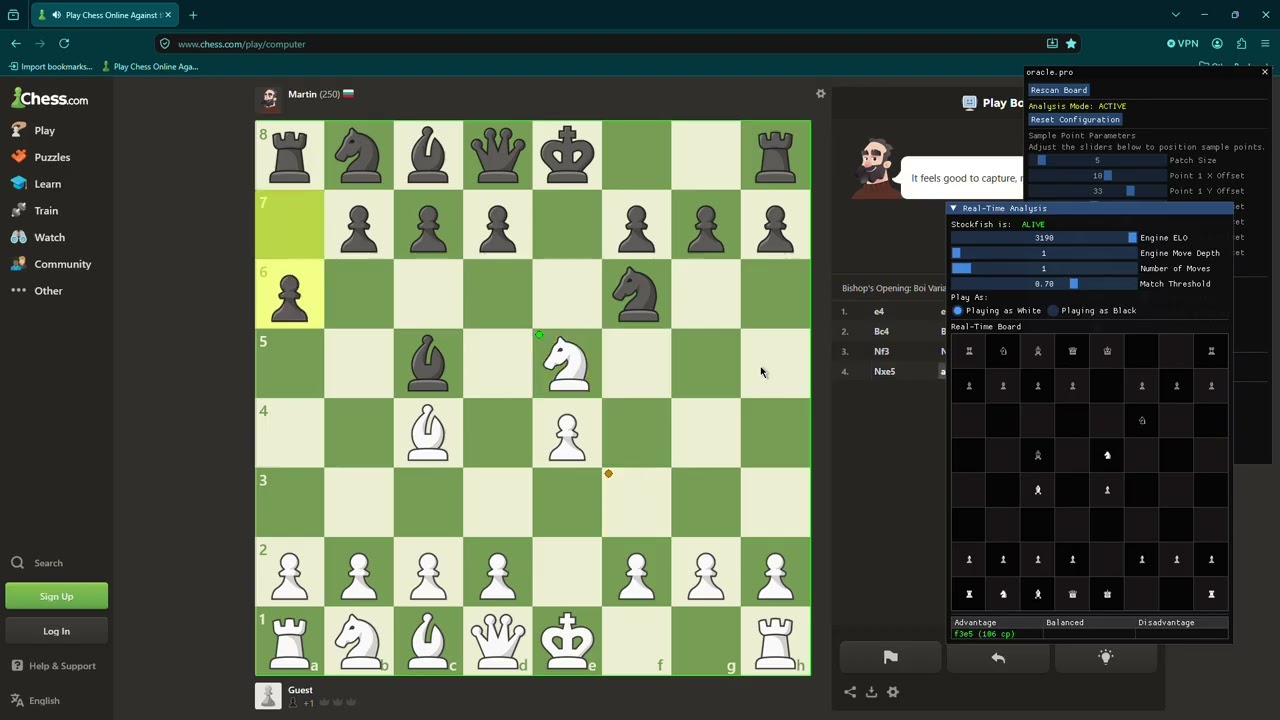
A real-time chess assistant that uses computer vision to detect chessboard positions from your screen and suggests optimal moves powered by Stockfish.
Features • How It Works • Prerequisites • Build • Usage • Architecture • Contributing • Roadmap
Features
- Real-Time Screen Capture - Continuously captures your desktop to detect the chessboard, no browser extension or plugin needed.
- Automatic Board Detection - Uses OpenCV to locate and validate the chessboard grid from a user-guided screenshot.
- Piece Recognition - Identifies pieces using chamfer distance matching against reference images generated during calibration.
- Stockfish Integration - Communicates with a bundled Stockfish engine via the UCI protocol to compute the best moves in real time.
- Transparent Overlay - Renders a DirectX 11 overlay on top of your screen, drawing the detected board rectangle and configuration guides without blocking your view.
- ImGui Control Panel - A fully interactive menu for calibration, analysis tuning, Stockfish settings, and a live board preview with color-coded move suggestions.
- Platform-Independent Board Support - Works with any chess website or desktop application - if you can see the board on your screen, Oracle can detect it.
How It Works
Oracle operates in two phases:
1. Calibration
- Take a screenshot of your desktop (captured internally).
- Click on the top-left square (a8) followed by the square directly to its right (b8) (
Ctrl + LMB) to define the board corners and color reference. - Adjust sample point sliders to fine-tune where each cell is sampled for occupancy detection.
- Adjust crop region sliders to define how pieces are cropped for shape matching.
- Oracle generates reference piece images from the starting position and transitions to analysis mode.
2. Analysis
- A background thread continuously captures frames and scans each cell for occupancy (brightness comparison against reference values).
- Occupied cells are matched against reference piece templates using Canny edge detection + chamfer distance transforms.
- The detected board state is converted to a FEN string and sent to Stockfish.
- Stockfish returns the best moves, which are displayed color-coded in the overlay:
- 🟢 Green - Advantage (positive centipawn score)
- 🟡 Yellow - Balanced (neutral score)
- 🔴 Red - Disadvantage (negative centipawn score)
Prerequisites
| Dependency | Version | Notes |
|---|---|---|
| Visual Studio | 2022 (v143 toolset) | Community edition or higher |
| Windows SDK | 10.0+ | Included with Visual Studio |
| OpenCV | 4.12.0 | Pre-built binaries (opencv_world4120, put in OpenCV directory at the root of the repo) |
| DirectX 11 | - | Ships with Windows SDK |
| Dear ImGui | - | Vendored in Oracle/ImGui/ (no setup needed) |
| Stockfish | - | Bundled in Oracle/stockfish/ (no setup needed) |
| C++ Standard | C++17 | Set in the project configuration |
Building from Source
1. Clone the Repository
git clone https://github.com/rccmb/oracle.git
cd oracle
2. Install OpenCV
Download the pre-built OpenCV 4.12.0 binaries from opencv.org/releases and extract them (e.g., to OpenCV\ directory at the root of the repo).
3. Configure Visual Studio
Open Oracle/Oracle.sln in Visual Studio 2022 and set the following project properties for your active configuration (e.g., Debug | x64):
Include Directories - Project Properties → VC++ Directories → Include Directories:
OpenCV\build\include
Library Directories - Project Properties → Linker → General → Additional Library Directories:
OpenCV\build\x64\vc16\lib
Linker Input - Project Properties → Linker → Input → Additional Dependencies:
opencv_world4120.lib       # Release build
opencv_world4120d.lib      # Debug build
4. Copy Runtime DLLs
Copy the OpenCV DLLs from OpenCV\build\x64\vc16\bin into the output directory (e.g., Oracle/x64/Debug/), or add the bin directory to your system PATH, may or may not be automatically generated so check before.
5. Build
Set the build configuration to x64 and build the solution (Ctrl + Shift + B).
6. Run
Launch from Visual Studio (F5) or run the compiled executable directly. Make sure stockfish/stockfish.exe is accessible relative to the executable's working directory.
Usage
Hotkeys
| Hotkey | Action |
|---|---|
Ctrl + F1 | Toggle the overlay menu on/off |
Numpad + / Numpad - | Alternative toggle for the overlay menu |
Ctrl + LMB | Set board corner clicks (during calibration) |
Step-by-Step
- Launch Oracle - The overlay starts hidden.
- Open the menu - Press
Ctrl + F1. - Take a screenshot - Click the "Take Screenshot" button in the menu.
- Set board corners -
Ctrl + Clickon the top-left square (a8) followed by the square directly to its right (b8). - Detect board - Click "Detect Board" to validate and lock the board region.
- Tune sample points - Adjust patch size and offset sliders, then click "Set Sample Points".
- Tune crop region - Adjust crop sliders, then click "Set Crop Region" to begin analysis.
- View results - The "Real-Time Analysis" window shows the live board and Stockfish's best moves.
- Adjust engine - Use the ELO, depth, and number-of-moves sliders to tune Stockfish behavior.
Project Structure
oracle/
├── Oracle/                        # Main source directory
│   ├── main.cpp                   # Entry point, overlay window, render loop
│   ├── ChessboardDetection.cpp/h  # Board scanning, FEN generation, piece matching
│   ├── StockfishHandler.cpp/h     # UCI protocol, engine lifecycle
│   ├── InitialConfiguration.cpp/h # Calibration: clicks, samples, crop, references
│   ├── Menu.cpp/h                 # ImGui UI: settings, live preview, move display
│   ├── Overlay.cpp/h              # Transparent fullscreen Win32 overlay
│   ├── Direct3D.cpp/h             # D3D11 device, swap chain, render target
│   ├── BoardStateManager.cpp/h    # Board change detection thread
│   ├── Utils.cpp/h                # Screen capture, palette masking, unicode
│   ├── FileHandler.cpp/h          # Reference piece image I/O
│   ├── Globals.cpp/h              # Shared global state
│   ├── Structs.h                  # CLICK and SAMPLE data structures
│   ├── ImGui/                     # Vendored Dear ImGui sources
│   ├── stockfish/                 # Bundled Stockfish engine + sources
│   ├── Oracle.sln                 # Visual Studio solution
│   └── Oracle.vcxproj             # Visual Studio project
└── OpenCV/                        # OpenCV installation (not tracked in git)
For a deep dive into the architecture and module responsibilities, see ARCHITECTURE.md.
Contributing
Contributions are welcome! Please read the Contributing Guide for details on:
- Setting up your development environment
- Code style and conventions
- Submitting pull requests
- Reporting bugs and requesting features
Roadmap
See ROADMAP.md for the planned features and improvements.
License
Creative Commons Attribution-NonCommercial 4.0 International
See LICENSE.md for details.
Acknowledgments
- OpenCV - Computer vision and image processing.
- Stockfish - The strongest open-source chess engine.
- Dear ImGui - Immediate-mode GUI for tools and debug UIs.
- Microsoft DirectX 11 - Hardware-accelerated rendering.
Contributors

35 commits
See what people are saying
Similar repos


Languages
C++
93.1%
C
6.8%
An automated chess analysis tool that uses computer vision to analyze a chessboard and recommends the best move using the Stockfish chess engine.
C++
1
35 commits
updated Sep 16, 2026
README
♟ Oracle
A real-time chess assistant that uses computer vision to detect chessboard positions from your screen and suggests optimal moves powered by Stockfish.
Features • How It Works • Prerequisites • Build • Usage • Architecture • Contributing • Roadmap
Features
- Real-Time Screen Capture - Continuously captures your desktop to detect the chessboard, no browser extension or plugin needed.
- Automatic Board Detection - Uses OpenCV to locate and validate the chessboard grid from a user-guided screenshot.
- Piece Recognition - Identifies pieces using chamfer distance matching against reference images generated during calibration.
- Stockfish Integration - Communicates with a bundled Stockfish engine via the UCI protocol to compute the best moves in real time.
- Transparent Overlay - Renders a DirectX 11 overlay on top of your screen, drawing the detected board rectangle and configuration guides without blocking your view.
- ImGui Control Panel - A fully interactive menu for calibration, analysis tuning, Stockfish settings, and a live board preview with color-coded move suggestions.
- Platform-Independent Board Support - Works with any chess website or desktop application - if you can see the board on your screen, Oracle can detect it.
How It Works
Oracle operates in two phases:
1. Calibration
- Take a screenshot of your desktop (captured internally).
- Click on the top-left square (a8) followed by the square directly to its right (b8) (
Ctrl + LMB) to define the board corners and color reference. - Adjust sample point sliders to fine-tune where each cell is sampled for occupancy detection.
- Adjust crop region sliders to define how pieces are cropped for shape matching.
- Oracle generates reference piece images from the starting position and transitions to analysis mode.
2. Analysis
- A background thread continuously captures frames and scans each cell for occupancy (brightness comparison against reference values).
- Occupied cells are matched against reference piece templates using Canny edge detection + chamfer distance transforms.
- The detected board state is converted to a FEN string and sent to Stockfish.
- Stockfish returns the best moves, which are displayed color-coded in the overlay:
- 🟢 Green - Advantage (positive centipawn score)
- 🟡 Yellow - Balanced (neutral score)
- 🔴 Red - Disadvantage (negative centipawn score)
Prerequisites
| Dependency | Version | Notes |
|---|---|---|
| Visual Studio | 2022 (v143 toolset) | Community edition or higher |
| Windows SDK | 10.0+ | Included with Visual Studio |
| OpenCV | 4.12.0 | Pre-built binaries (opencv_world4120, put in OpenCV directory at the root of the repo) |
| DirectX 11 | - | Ships with Windows SDK |
| Dear ImGui | - | Vendored in Oracle/ImGui/ (no setup needed) |
| Stockfish | - | Bundled in Oracle/stockfish/ (no setup needed) |
| C++ Standard | C++17 | Set in the project configuration |
Building from Source
1. Clone the Repository
git clone https://github.com/rccmb/oracle.git
cd oracle
2. Install OpenCV
Download the pre-built OpenCV 4.12.0 binaries from opencv.org/releases and extract them (e.g., to OpenCV\ directory at the root of the repo).
3. Configure Visual Studio
Open Oracle/Oracle.sln in Visual Studio 2022 and set the following project properties for your active configuration (e.g., Debug | x64):
Include Directories - Project Properties → VC++ Directories → Include Directories:
OpenCV\build\include
Library Directories - Project Properties → Linker → General → Additional Library Directories:
OpenCV\build\x64\vc16\lib
Linker Input - Project Properties → Linker → Input → Additional Dependencies:
opencv_world4120.lib       # Release build
opencv_world4120d.lib      # Debug build
4. Copy Runtime DLLs
Copy the OpenCV DLLs from OpenCV\build\x64\vc16\bin into the output directory (e.g., Oracle/x64/Debug/), or add the bin directory to your system PATH, may or may not be automatically generated so check before.
5. Build
Set the build configuration to x64 and build the solution (Ctrl + Shift + B).
6. Run
Launch from Visual Studio (F5) or run the compiled executable directly. Make sure stockfish/stockfish.exe is accessible relative to the executable's working directory.
Usage
Hotkeys
| Hotkey | Action |
|---|---|
Ctrl + F1 | Toggle the overlay menu on/off |
Numpad + / Numpad - | Alternative toggle for the overlay menu |
Ctrl + LMB | Set board corner clicks (during calibration) |
Step-by-Step
- Launch Oracle - The overlay starts hidden.
- Open the menu - Press
Ctrl + F1. - Take a screenshot - Click the "Take Screenshot" button in the menu.
- Set board corners -
Ctrl + Clickon the top-left square (a8) followed by the square directly to its right (b8). - Detect board - Click "Detect Board" to validate and lock the board region.
- Tune sample points - Adjust patch size and offset sliders, then click "Set Sample Points".
- Tune crop region - Adjust crop sliders, then click "Set Crop Region" to begin analysis.
- View results - The "Real-Time Analysis" window shows the live board and Stockfish's best moves.
- Adjust engine - Use the ELO, depth, and number-of-moves sliders to tune Stockfish behavior.
Project Structure
oracle/
├── Oracle/                        # Main source directory
│   ├── main.cpp                   # Entry point, overlay window, render loop
│   ├── ChessboardDetection.cpp/h  # Board scanning, FEN generation, piece matching
│   ├── StockfishHandler.cpp/h     # UCI protocol, engine lifecycle
│   ├── InitialConfiguration.cpp/h # Calibration: clicks, samples, crop, references
│   ├── Menu.cpp/h                 # ImGui UI: settings, live preview, move display
│   ├── Overlay.cpp/h              # Transparent fullscreen Win32 overlay
│   ├── Direct3D.cpp/h             # D3D11 device, swap chain, render target
│   ├── BoardStateManager.cpp/h    # Board change detection thread
│   ├── Utils.cpp/h                # Screen capture, palette masking, unicode
│   ├── FileHandler.cpp/h          # Reference piece image I/O
│   ├── Globals.cpp/h              # Shared global state
│   ├── Structs.h                  # CLICK and SAMPLE data structures
│   ├── ImGui/                     # Vendored Dear ImGui sources
│   ├── stockfish/                 # Bundled Stockfish engine + sources
│   ├── Oracle.sln                 # Visual Studio solution
│   └── Oracle.vcxproj             # Visual Studio project
└── OpenCV/                        # OpenCV installation (not tracked in git)
For a deep dive into the architecture and module responsibilities, see ARCHITECTURE.md.
Contributing
Contributions are welcome! Please read the Contributing Guide for details on:
- Setting up your development environment
- Code style and conventions
- Submitting pull requests
- Reporting bugs and requesting features
Roadmap
See ROADMAP.md for the planned features and improvements.
License
Creative Commons Attribution-NonCommercial 4.0 International
See LICENSE.md for details.
Acknowledgments
- OpenCV - Computer vision and image processing.
- Stockfish - The strongest open-source chess engine.
- Dear ImGui - Immediate-mode GUI for tools and debug UIs.
- Microsoft DirectX 11 - Hardware-accelerated rendering.
See what people are saying
Similar repos
Contributors
35 commits
Languages
C++
93.1%
C
6.8%