
Small tools in your macOS menu bar: tasks, Google Analytics, Marketplace watches, and how busy a place is right now
Swift
1
130 commits
updated Sep 30, 2026
See what people are saying
README
Perch
Small tools that live in your macOS menu bar.
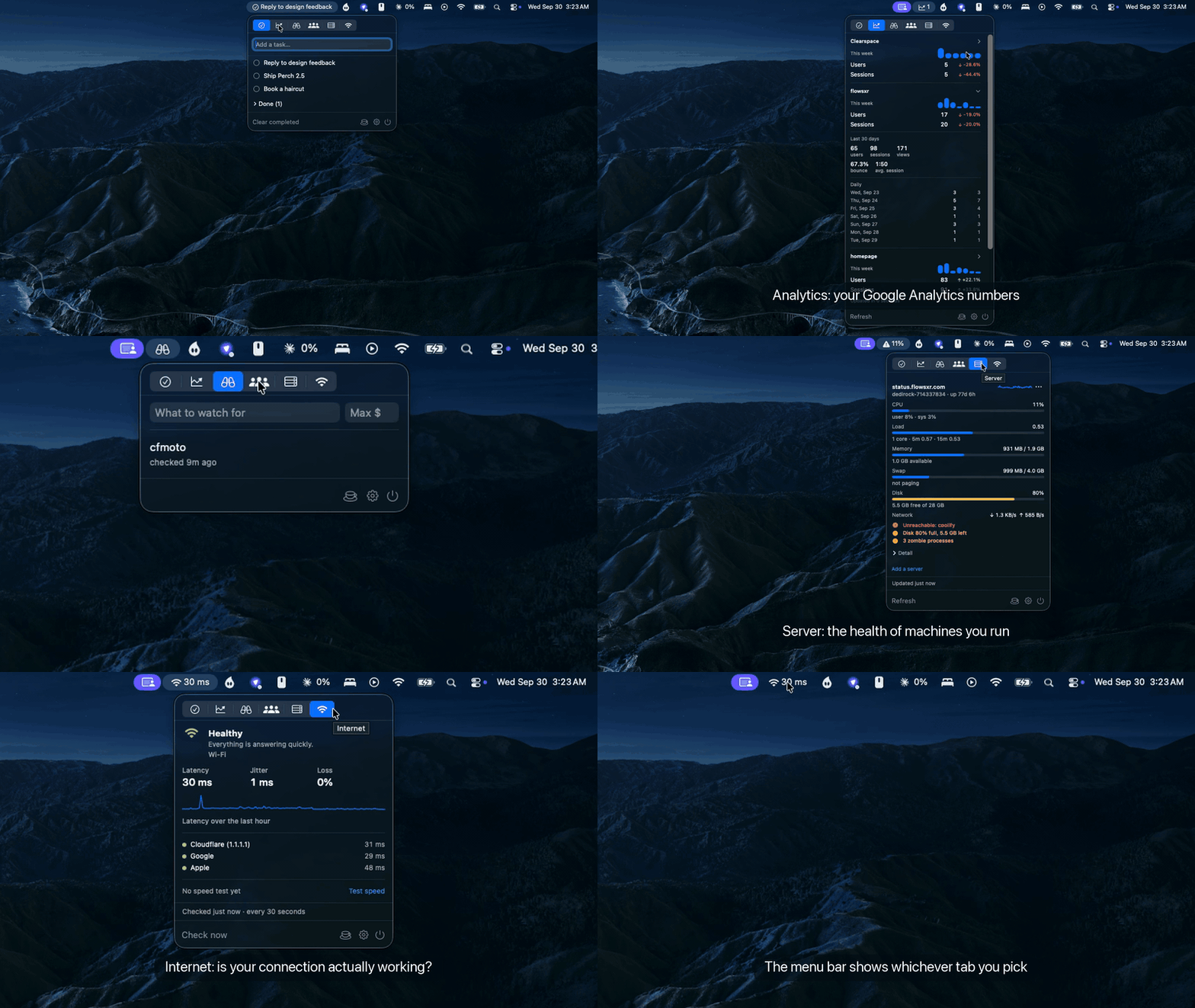
Perch is a host. The tools themselves are plugins: today there's Tasks, a todo list with the current task in the menu bar; Analytics, which puts your Google Analytics numbers a click away; Market, which watches Facebook Marketplace searches; Busy, which shows how busy a place is right now; Server, which watches the health of machines you run; and Internet, which tells you whether your connection is actually working. More can be added without disturbing what's already there.
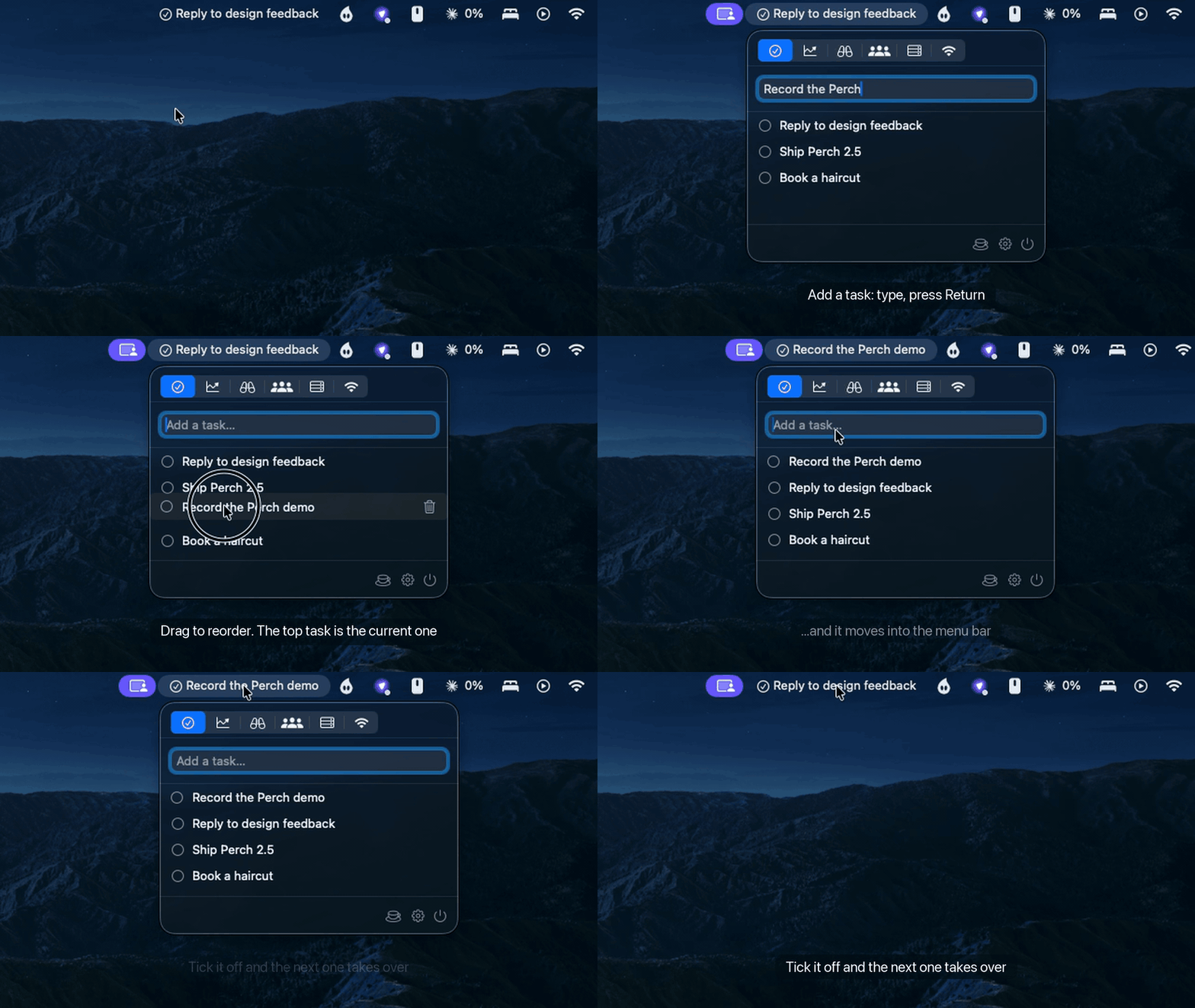
▶ Watch the 47-second demo, with sound
Every plugin is a tab in the same panel, and the menu bar shows whichever tab you picked:
Download
Grab the latest Perch.zip from the Releases page,
unzip it, and drag Perch.app into your Applications folder.
Requires macOS 14 (Sonoma) or later. Apple Silicon and Intel are both supported.
First launch
Releases are signed with a Developer ID certificate and notarized by Apple, so
Perch.app opens with a normal double-click. No Gatekeeper workaround is
needed.
(Releases before v2.2.1 were signed ad hoc and did need right click › Open the first time.)
Plugins
Tasks
- Current task in the menu bar. The first unfinished task is always visible. Complete it and the next one takes its place.
- Quick add. Open the panel, type, press Return.
- Edit in place. Double-click a task to fix its title. Return saves, Escape cancels.
- Reorder by dragging. Whatever you drag to the top becomes your current task.
- Done section. Completed tasks collapse out of the way instead of disappearing. Clear them when you want.
Tasks declares no capabilities: everything it stores stays on your Mac.
Analytics
Your GA4 numbers in the menu bar, without opening a browser or running a script.
- Latest day in the menu bar. Active users for whichever property you mark primary, read from the most recent day GA has — the property's own timezone, not your laptop's.
- A card per property. This week versus last with signed percentages, a sparkline of the week, and the 30-day totals and daily rows one click down.
- Half-hourly, and on open. Refreshes in the background, and again when you open the panel if what's cached has gone stale. Last-fetched numbers are kept on disk, so the panel opens on real data rather than a spinner.
Analytics declares network and credentials: it talks to Google, and it
holds a service-account key. It is the first plugin in Perch to do either.
Busy
How busy a place is right now — Google's live busyness, in the menu bar. Made for picking a gym time.
- Add a place the way you'd search for it. Type "lion gym kesavadasapuram" into the panel; Perch shows the name Google matched.
- Live and usual, side by side. A coloured dot, Google's own words ("A little busy"), the live figure, and what's usual for this hour — so you can see busier-than-usual at a glance.
- Today's shape. The popular-times histogram for the day, with the current hour highlighted. The first place's live figure can sit in the menu bar.
- Every ten minutes, and on open. Refreshes in the background, again when you open the panel if the numbers have gone stale, and keeps the last numbers on disk.
Busy declares network. There is no official API for live busyness, so it
loads the Google search page for each place in a hidden browser and reads the
Popular times box — the same thing you'd see in a browser. It never signs in
to anything. Google changes its page from time to time; when that breaks the
reader, the panel says so rather than showing nothing.
Setting it up
- In the Google Cloud console, create a service account and download a JSON key. Enable the Google Analytics Data API, and the Admin API too if you want Perch to find your properties for you.
- In GA4 Admin › Property Access, add the service account's address
(
…@….iam.gserviceaccount.com) as a Viewer. - In Perch, open Settings › Analytics, choose the key file, then either Discover Properties or add a property by its numeric ID.
Discovery uses whatever name the property carries in GA, which is often the nickname someone typed into the console years ago rather than the domain. The name is editable in Settings; renaming is local and nothing is written back to Google.
The ? button beside Credentials in Settings has these steps with links, for when you need them and this file isn't open.
If you lose the key
Don't back the key file up — make a new one. Google hands a service-account key over exactly once, so a copy in cloud storage is a credential sitting somewhere else you have to defend, in exchange for saving the two minutes below. Everything that took setting up survives the machine anyway: the service account, its access to your properties, and the enabled APIs all live in Google.
- Cloud console › IAM & Admin › Service Accounts › your account › Keys › Add Key › Create new key › JSON.
- On the same screen, delete the old key. If the machine is gone, you wanted that key dead regardless.
- Import the new file in Settings › Analytics.
If you do want a copy, put it in a password manager rather than a file — and never in a folder that might one day become a git repository.
The key goes into your login Keychain. Perch reads the file you pick once and never copies it or keeps a reference to it.
Server
How your servers are doing, in the menu bar. Made for watching a small VPS you would otherwise only check after something broke.
- The things that matter, in order. CPU, load against the core count, memory, swap, disk and network, with anything worth worrying about pulled to the top of the card in orange or red.
- Load judged against the cores. A load average of 4 is idle on eight cores and dire on one, so the bar and the warnings are both relative to the machine.
- Swap rate, not just swap used. A box thrashing swap is slow long before memory shows full, so Server watches pages moving in and out rather than the amount parked there.
- What is actually eating it. Per-container CPU and memory, the busiest processes, and HTTP checks on whatever the agent is configured to watch, one disclosure down.
- Several machines. One card each, and the menu bar icon changes when any of them is unhappy.
Server declares network and credentials: it polls each machine over HTTPS,
and a password for a server behind basic auth is kept in your login Keychain
rather than in Perch's settings file.
The agent
Server does not log in over SSH. Each machine runs a small agent, vpsstat,
which reads that machine's own /proc and container cgroups and serves them as
JSON on /api/now. Perch polls that endpoint every minute.
The agent is a single dependency-free Python file, runs under systemd with a
64 MB memory cap, and costs about 26 MB of RAM and well under 1% of a core. Put
it behind TLS and basic auth (Caddy does both in four lines) and give Perch the
address, for example https://status.example.com.
Perch keeps its own short history, so a card's sparkline covers only what Perch has watched. The agent's own dashboard has the full 24 hours and 30 days; open it from a server's ••• menu.
Internet
Whether the internet is working right now, and how well, without opening a browser to find out.
- A verdict first. Healthy, Fair, Poor or Offline, with one line saying why, and the menu bar icon changes to match.
- Names the likely culprit. A Wi-Fi login page shows up as Sign-in needed and a broken resolver as DNS isn't working, rather than both reading as "offline". Cloudflare is probed by IP address and Google and Apple by name, which is what tells those apart.
- Latency, jitter and loss. Taken over the last five minutes of checks, so
one dropped probe does not flip the verdict. Latency is timed from request
sent to first byte back, so it tracks
pingrather than counting TLS handshakes. - An hour of history. A sparkline of latency, with dropped checks marked in red.
- Speed test on request. Downloads 25 MB from Cloudflare and reports megabits per second. It never runs on its own, and the panel says when the network is metered.
Internet declares network: while enabled it sends three small HTTPS requests
every 30 seconds, and checks again straight away when you change networks.
Settings
Click the gear icon in the panel.
| Pane | What's in it |
|---|---|
| General | Title display and length, launch at login, global hotkey |
| Plugins | Enable or disable each plugin, and see what each one can access |
| Tasks | Per-plugin settings, when a plugin has any |
| Analytics | Service-account key, watched properties, which one is primary |
| Market | City, search radius, how often to check |
| Busy | How often to check |
Your data
Each plugin gets its own directory inside Perch's sandbox container, on your Mac only:
~/Library/Containers/org.ahlab.Perch/Data/Library/Application Support/Perch/Plugins/<plugin-id>/
Tasks stores a plain JSON file there and nothing else. If that file is ever
unreadable, Perch keeps a .bak copy beside it and tells you, rather than
silently starting empty.
Analytics is the exception, and it is the honest illustration of the limit here: macOS grants permissions to an app, not to individual plugins. Because Analytics needs the network, the whole binary carries the network entitlement, including the plugins that would never use it. Perch's Settings window discloses what each plugin does, but disclosure is all it can offer — it cannot sandbox one plugin away from another's permissions. Analytics sends nothing but authenticated requests to Google's own APIs, and stores its key in the Keychain rather than in the container.
Server follows the same rule: it talks only to the addresses you give it, and
each server's password goes to your login Keychain, never to the JSON document
beside it. A password pasted into the address bar as https://user:pass@host
is stripped out before the address is stored.
Keep awake
The cup in the panel's footer keeps your Mac awake when the lid is closed. It
is the same setting as sudo pmset -a disablesleep 1, without the Terminal.
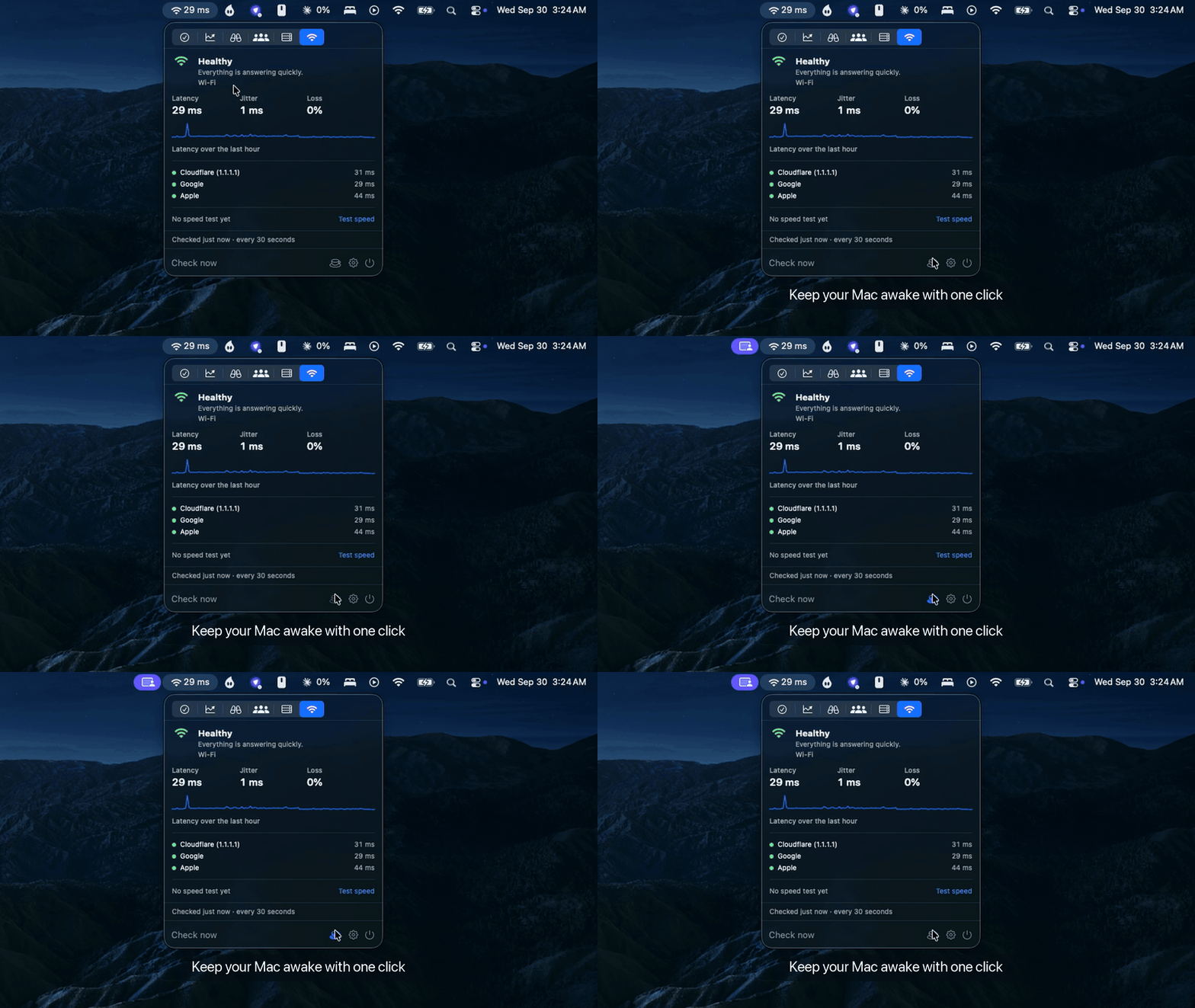
- One approval, once. The setting needs root, so Perch ships a small helper. The first click opens System Settings → Login Items; allow Perch Keep Awake there, click the cup again, and every click after that is instant.
- It stays on until you turn it off, including after you quit Perch or restart. A Mac that stays awake in a bag runs hot and drains its battery, so turn it off when you are done.
- The cup tells the truth. Perch reads the setting from the system each time the panel opens, so it is right even if you changed it from Terminal.
The helper does one thing, accepts requests only from Perch, and exits a few seconds after each use.
Building from source
Perch is a SwiftUI app built around MenuBarExtra. The Xcode project is
generated with XcodeGen, so only
project.yml is tracked in git.
brew install xcodegen
git clone https://github.com/prasanthsasikumar/perch.git
cd perch
xcodegen generate
open Perch.xcodeproj
Run the tests with:
xcodebuild test -project Perch.xcodeproj -scheme Perch -destination 'platform=macOS'
Layout
PerchKit/                The public plugin API. Knows nothing about the host.
Plugins/TasksPlugin/    The Tasks plugin: model, store, views
Plugins/AnalyticsPlugin/ The Analytics plugin: GA4 client, auth, store, views
Plugins/MarketPlugin/    The Market plugin: Marketplace scraping, poller, store, views
Plugins/BusyPlugin/      The Busy plugin: Google popular-times scraping, store, views
Plugins/ServerPlugin/    The Server plugin: vpsstat agent client, alert rules, store, views
PerchKeepAwake/          The companion app that registers the keep-awake helper
PerchHelper/             The root helper behind the keep-awake toggle
Shared/                  What the app, the companion and the helper all compile
Perch/
  PerchApp.swift         MenuBarExtra scene, plugin instantiation
  Host/                  Registry, panel chrome, menu bar label
  Views/                 Settings window
  Support/               Launch at login, hotkey state, title truncation
PerchTests/              Unit tests for the kit, the plugin, and the host
Dependencies are KeyboardShortcuts for the sandbox-safe global hotkey and MenuBarExtraAccess for opening the panel programmatically.
Writing a plugin
PerchKit is the contract. A plugin is a Swift package depending on it, with one
type conforming to PerchPlugin, added to the array in PerchApp.makePlugins().
The API is 0.x and unstable — it will change once a second plugin proves the shape is right. Plugins are compiled in rather than loaded at runtime.
License
MIT. See LICENSE.
Similar repos


Languages
Swift
90.0%
HTML
5.7%
Python
3.3%
JavaScript
1.0%
Small tools in your macOS menu bar: tasks, Google Analytics, Marketplace watches, and how busy a place is right now
Swift
1
130 commits
updated Sep 30, 2026
See what people are saying
README
Perch
Small tools that live in your macOS menu bar.
Perch is a host. The tools themselves are plugins: today there's Tasks, a todo list with the current task in the menu bar; Analytics, which puts your Google Analytics numbers a click away; Market, which watches Facebook Marketplace searches; Busy, which shows how busy a place is right now; Server, which watches the health of machines you run; and Internet, which tells you whether your connection is actually working. More can be added without disturbing what's already there.
▶ Watch the 47-second demo, with sound
Every plugin is a tab in the same panel, and the menu bar shows whichever tab you picked:
Download
Grab the latest Perch.zip from the Releases page,
unzip it, and drag Perch.app into your Applications folder.
Requires macOS 14 (Sonoma) or later. Apple Silicon and Intel are both supported.
First launch
Releases are signed with a Developer ID certificate and notarized by Apple, so
Perch.app opens with a normal double-click. No Gatekeeper workaround is
needed.
(Releases before v2.2.1 were signed ad hoc and did need right click › Open the first time.)
Plugins
Tasks
- Current task in the menu bar. The first unfinished task is always visible. Complete it and the next one takes its place.
- Quick add. Open the panel, type, press Return.
- Edit in place. Double-click a task to fix its title. Return saves, Escape cancels.
- Reorder by dragging. Whatever you drag to the top becomes your current task.
- Done section. Completed tasks collapse out of the way instead of disappearing. Clear them when you want.
Tasks declares no capabilities: everything it stores stays on your Mac.
Analytics
Your GA4 numbers in the menu bar, without opening a browser or running a script.
- Latest day in the menu bar. Active users for whichever property you mark primary, read from the most recent day GA has — the property's own timezone, not your laptop's.
- A card per property. This week versus last with signed percentages, a sparkline of the week, and the 30-day totals and daily rows one click down.
- Half-hourly, and on open. Refreshes in the background, and again when you open the panel if what's cached has gone stale. Last-fetched numbers are kept on disk, so the panel opens on real data rather than a spinner.
Analytics declares network and credentials: it talks to Google, and it
holds a service-account key. It is the first plugin in Perch to do either.
Busy
How busy a place is right now — Google's live busyness, in the menu bar. Made for picking a gym time.
- Add a place the way you'd search for it. Type "lion gym kesavadasapuram" into the panel; Perch shows the name Google matched.
- Live and usual, side by side. A coloured dot, Google's own words ("A little busy"), the live figure, and what's usual for this hour — so you can see busier-than-usual at a glance.
- Today's shape. The popular-times histogram for the day, with the current hour highlighted. The first place's live figure can sit in the menu bar.
- Every ten minutes, and on open. Refreshes in the background, again when you open the panel if the numbers have gone stale, and keeps the last numbers on disk.
Busy declares network. There is no official API for live busyness, so it
loads the Google search page for each place in a hidden browser and reads the
Popular times box — the same thing you'd see in a browser. It never signs in
to anything. Google changes its page from time to time; when that breaks the
reader, the panel says so rather than showing nothing.
Setting it up
- In the Google Cloud console, create a service account and download a JSON key. Enable the Google Analytics Data API, and the Admin API too if you want Perch to find your properties for you.
- In GA4 Admin › Property Access, add the service account's address
(
…@….iam.gserviceaccount.com) as a Viewer. - In Perch, open Settings › Analytics, choose the key file, then either Discover Properties or add a property by its numeric ID.
Discovery uses whatever name the property carries in GA, which is often the nickname someone typed into the console years ago rather than the domain. The name is editable in Settings; renaming is local and nothing is written back to Google.
The ? button beside Credentials in Settings has these steps with links, for when you need them and this file isn't open.
If you lose the key
Don't back the key file up — make a new one. Google hands a service-account key over exactly once, so a copy in cloud storage is a credential sitting somewhere else you have to defend, in exchange for saving the two minutes below. Everything that took setting up survives the machine anyway: the service account, its access to your properties, and the enabled APIs all live in Google.
- Cloud console › IAM & Admin › Service Accounts › your account › Keys › Add Key › Create new key › JSON.
- On the same screen, delete the old key. If the machine is gone, you wanted that key dead regardless.
- Import the new file in Settings › Analytics.
If you do want a copy, put it in a password manager rather than a file — and never in a folder that might one day become a git repository.
The key goes into your login Keychain. Perch reads the file you pick once and never copies it or keeps a reference to it.
Server
How your servers are doing, in the menu bar. Made for watching a small VPS you would otherwise only check after something broke.
- The things that matter, in order. CPU, load against the core count, memory, swap, disk and network, with anything worth worrying about pulled to the top of the card in orange or red.
- Load judged against the cores. A load average of 4 is idle on eight cores and dire on one, so the bar and the warnings are both relative to the machine.
- Swap rate, not just swap used. A box thrashing swap is slow long before memory shows full, so Server watches pages moving in and out rather than the amount parked there.
- What is actually eating it. Per-container CPU and memory, the busiest processes, and HTTP checks on whatever the agent is configured to watch, one disclosure down.
- Several machines. One card each, and the menu bar icon changes when any of them is unhappy.
Server declares network and credentials: it polls each machine over HTTPS,
and a password for a server behind basic auth is kept in your login Keychain
rather than in Perch's settings file.
The agent
Server does not log in over SSH. Each machine runs a small agent, vpsstat,
which reads that machine's own /proc and container cgroups and serves them as
JSON on /api/now. Perch polls that endpoint every minute.
The agent is a single dependency-free Python file, runs under systemd with a
64 MB memory cap, and costs about 26 MB of RAM and well under 1% of a core. Put
it behind TLS and basic auth (Caddy does both in four lines) and give Perch the
address, for example https://status.example.com.
Perch keeps its own short history, so a card's sparkline covers only what Perch has watched. The agent's own dashboard has the full 24 hours and 30 days; open it from a server's ••• menu.
Internet
Whether the internet is working right now, and how well, without opening a browser to find out.
- A verdict first. Healthy, Fair, Poor or Offline, with one line saying why, and the menu bar icon changes to match.
- Names the likely culprit. A Wi-Fi login page shows up as Sign-in needed and a broken resolver as DNS isn't working, rather than both reading as "offline". Cloudflare is probed by IP address and Google and Apple by name, which is what tells those apart.
- Latency, jitter and loss. Taken over the last five minutes of checks, so
one dropped probe does not flip the verdict. Latency is timed from request
sent to first byte back, so it tracks
pingrather than counting TLS handshakes. - An hour of history. A sparkline of latency, with dropped checks marked in red.
- Speed test on request. Downloads 25 MB from Cloudflare and reports megabits per second. It never runs on its own, and the panel says when the network is metered.
Internet declares network: while enabled it sends three small HTTPS requests
every 30 seconds, and checks again straight away when you change networks.
Settings
Click the gear icon in the panel.
| Pane | What's in it |
|---|---|
| General | Title display and length, launch at login, global hotkey |
| Plugins | Enable or disable each plugin, and see what each one can access |
| Tasks | Per-plugin settings, when a plugin has any |
| Analytics | Service-account key, watched properties, which one is primary |
| Market | City, search radius, how often to check |
| Busy | How often to check |
Your data
Each plugin gets its own directory inside Perch's sandbox container, on your Mac only:
~/Library/Containers/org.ahlab.Perch/Data/Library/Application Support/Perch/Plugins/<plugin-id>/
Tasks stores a plain JSON file there and nothing else. If that file is ever
unreadable, Perch keeps a .bak copy beside it and tells you, rather than
silently starting empty.
Analytics is the exception, and it is the honest illustration of the limit here: macOS grants permissions to an app, not to individual plugins. Because Analytics needs the network, the whole binary carries the network entitlement, including the plugins that would never use it. Perch's Settings window discloses what each plugin does, but disclosure is all it can offer — it cannot sandbox one plugin away from another's permissions. Analytics sends nothing but authenticated requests to Google's own APIs, and stores its key in the Keychain rather than in the container.
Server follows the same rule: it talks only to the addresses you give it, and
each server's password goes to your login Keychain, never to the JSON document
beside it. A password pasted into the address bar as https://user:pass@host
is stripped out before the address is stored.
Keep awake
The cup in the panel's footer keeps your Mac awake when the lid is closed. It
is the same setting as sudo pmset -a disablesleep 1, without the Terminal.
- One approval, once. The setting needs root, so Perch ships a small helper. The first click opens System Settings → Login Items; allow Perch Keep Awake there, click the cup again, and every click after that is instant.
- It stays on until you turn it off, including after you quit Perch or restart. A Mac that stays awake in a bag runs hot and drains its battery, so turn it off when you are done.
- The cup tells the truth. Perch reads the setting from the system each time the panel opens, so it is right even if you changed it from Terminal.
The helper does one thing, accepts requests only from Perch, and exits a few seconds after each use.
Building from source
Perch is a SwiftUI app built around MenuBarExtra. The Xcode project is
generated with XcodeGen, so only
project.yml is tracked in git.
brew install xcodegen
git clone https://github.com/prasanthsasikumar/perch.git
cd perch
xcodegen generate
open Perch.xcodeproj
Run the tests with:
xcodebuild test -project Perch.xcodeproj -scheme Perch -destination 'platform=macOS'
Layout
PerchKit/                The public plugin API. Knows nothing about the host.
Plugins/TasksPlugin/    The Tasks plugin: model, store, views
Plugins/AnalyticsPlugin/ The Analytics plugin: GA4 client, auth, store, views
Plugins/MarketPlugin/    The Market plugin: Marketplace scraping, poller, store, views
Plugins/BusyPlugin/      The Busy plugin: Google popular-times scraping, store, views
Plugins/ServerPlugin/    The Server plugin: vpsstat agent client, alert rules, store, views
PerchKeepAwake/          The companion app that registers the keep-awake helper
PerchHelper/             The root helper behind the keep-awake toggle
Shared/                  What the app, the companion and the helper all compile
Perch/
  PerchApp.swift         MenuBarExtra scene, plugin instantiation
  Host/                  Registry, panel chrome, menu bar label
  Views/                 Settings window
  Support/               Launch at login, hotkey state, title truncation
PerchTests/              Unit tests for the kit, the plugin, and the host
Dependencies are KeyboardShortcuts for the sandbox-safe global hotkey and MenuBarExtraAccess for opening the panel programmatically.
Writing a plugin
PerchKit is the contract. A plugin is a Swift package depending on it, with one
type conforming to PerchPlugin, added to the array in PerchApp.makePlugins().
The API is 0.x and unstable — it will change once a second plugin proves the shape is right. Plugins are compiled in rather than loaded at runtime.
License
MIT. See LICENSE.
Similar repos
Languages
Swift
90.0%
HTML
5.7%
Python
3.3%
JavaScript
1.0%