
The Clicker: automatically mute or skip commercials on live TV using an HDMI capture card and network-logo detection.
Python
0
5 commits
updated Sep 19, 2026
See what people are saying (1)
README
The Clicker
Automatically mutes (or fast forwards through) commercial breaks on live or "taped" sports. Works on any broadcast that keeps a network "bug" logo in the corner during programming. This project watches the video feed for a consistent logo and color profile, and fast forwards or mutes during segments that differ significantly from the content you're watching.
AI Disclaimer: This project was heavily vibe coded with Claude Code. It was delightful to be able to go from 0 to "Changes the Way I Watch Sports" in just a few hours. Heads up: this is a hobby project, not a polished appliance. Expect to spend an evening on hardware + calibration, and to tweak a few numbers for your own setup and channels. This README is the practical guide.
TL;DR on how my personal setup works:
- an HDMI splitter sends a copy of the Apple TV's video to a USB capture card on a linux box
- screenshots from the video are checked for the channel's corner logo (present during the game, gone during ads) and/or color profile (lots of hardwood color for basketball games, grass color for football, etc)
- When the logo disappears it mutes my soundbar (live viewing) or skips forward (delayed viewing) until the right profile (logo + color profile) comes back
That's it! I messed around with training a model but found the simple threshold based setup easier to use.
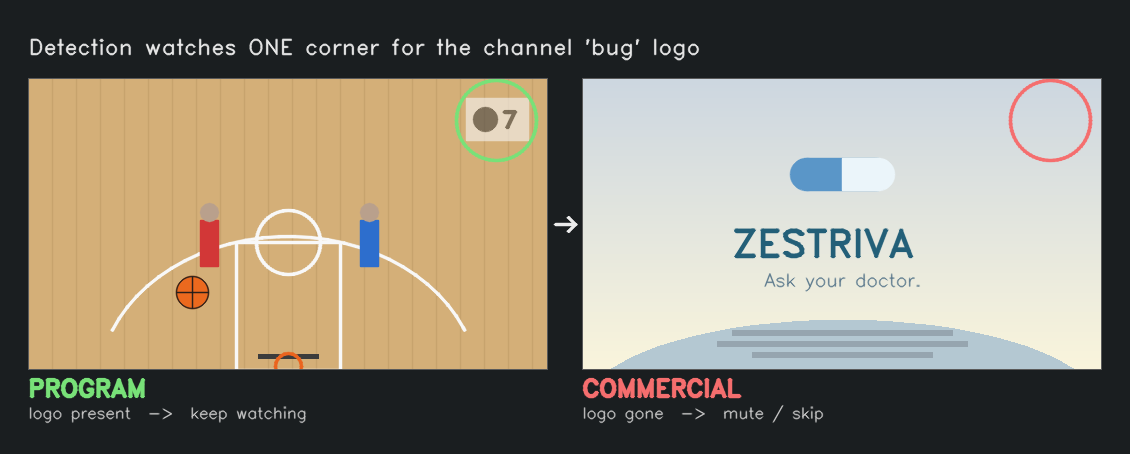
Checks whether that corner logo is present (show) or absent (commercial) and whether the content's color profile matches the game content.
Not on an Apple TV? The only piece that's Apple TV specific is how it takes actions (mute / skip), which lives behind a small PlaybackController interface you can implement for another device. See Using a different playback device.
1. What you need (hardware)
| Part | What it does | Example | Approx. |
|---|---|---|---|
| HDMI splitter (1×2) | Sends the playback device's picture to both your TV and the capture card at once | OREI HD-102 | ~$25 |
| USB 3.0 HDMI capture card | Turns HDMI into a USB webcam style video device the computer can read | Rybozen 4K USB 3.0 capture card | ~$20 |
| A small always on Linux box | Runs the software 24/7 | Raspberry Pi 4/5, a mini PC, or a Proxmox LXC | varies |
| 2× short HDMI cables + 1 USB 3.0 cable | Wiring | - | - |
Any generic "USB 3.0 HDMI capture card" works. They're typically UVC devices Linux recognizes with no driver. The compute box can be anything that runs Python + OpenCV, such as a Raspberry Pi 4/5. I'm using a little Thinkcentre running proxmox.
2. How it's wired
                         ┌─────────────┐
                         │  HDMI 1x2   │  out 1 ─────────► your TV (normal viewing)
   Apple TV ──HDMI──────►│  splitter   │
                         │ (OREI 102)  │  out 2 ─────────► USB capture card
                         └─────────────┘                        │
                                                              USB 3.0
                                                                │
                                                                ▼
                                                       Linux box (this software)
                                                       also needs to reach the
                                                         Apple TV over your network
- Output 1 → TV: what you actually watch. Untouched.
- Output 2 → capture card → computer: the copy the software analyzes.
- The computer also talks to the Apple TV over your LAN (to mute/skip), so it must be on the same network/VLAN as the Apple TV.
3. Install
Works on any Debian family system with systemd. A Raspberry Pi (Raspberry Pi OS), a Debian/Ubuntu machine, or a Proxmox LXC container should work fine.
- Plug the capture card into a USB 3.0 port and confirm the OS sees it:
ls /dev/video* # expect /dev/video0 v4l2-ctl --list-devices - Clone and run the installer as root:
It installs dependencies into a venv, installs asudo git clone https://github.com/michigandrew/the-clicker.git /opt/the-clicker cd /opt/the-clicker sudo bash deploy/setup.shthe-clickersystemd service (starts on boot), and sanity checks the capture device. The dashboard comes up on port 8080.
Prefer to skip systemd and run it by hand?
pip install -r requirements.txtthenpython3 server.py. Pairing, calibration, and the dashboard are identical.
Updating later
Your calibrations (profiles/), Apple TV pairing (credentials.json), and the Python venv/ are all ignored by git, so updating does not touch them. To pull a newer version:
cd /opt/the-clicker
git pull
source venv/bin/activate && pip install -r requirements.txt
sudo systemctl restart the-clicker
Tip: set your Apple TV ID with the APPLE_TV_ID environment variable instead of editing config.py. That keeps config.py unchanged, so git pull never hits a conflict. If you did edit config.py and a pull complains, run git stash, then git pull, then git stash pop and reapply your values.
4. Connect to your Apple TV
The software controls the Apple TV with pyatv over the network.
- Find your Apple TV's ID. On the box (venv active):
Copy theatvremote scanIdentifierfor your Apple TV. - Set it. Either edit
APPLE_TV_IDinconfig.py, or set theAPPLE_TV_IDenvironment variable. - Pair (one time. A PIN appears on the TV):
This savescd /opt/the-clicker && source venv/bin/activate && python3 pair.pycredentials.json(ignored by git since it's machine specific and contains your pairing keys).
Volume control is specific to your setup
My muting works by spamming the Apple TV's volume_down (and volume_up to restore) via pyatv. The defaults (MUTE_STEPS, UNMUTE_STEPS in config.py) are tuned so 10 presses fully mutes and 7 restores a normal level. You'll likely need to mess around with these settings to figure out what works for you.
Using a different playback device
The included control backend is for Apple TV (via pyatv), selected by CONTROLLER_BACKEND="appletv" in config.py. I haven't tried, but I imagine it's possible to drive another device in a similar way (a CEC controlled TV/soundbar, a Roku, a Fire TV, an IR blaster, …):
- In
intervention.py, subclassPlaybackControllerand implement the async methods:connect,disconnect,get_playback_status,mute,unmute,skip_forward,seek_forward. - Register it with a name in
make_controller(), and setCONTROLLER_BACKEND(or theCONTROLLER_BACKENDenv var) to that name.
Notes: get_playback_status is what decides live vs delayed. If your device can't report playback position, return zeros and set PLAYBACK_MODE_OVERRIDE="live" so the engine only ever mutes (a device that can't skip should also implement skip_forward/seek_forward to do nothing and run live/mute only). Calibration, presets, and the dashboard are all unchanged. Only the control backend differs.
5. Calibrate a channel (once per game)
The software needs to learn where each channel's logo sits, and build a color profile for the content you're watching. Do this from the dashboard:
- Start the service and open the dashboard:
http://<box-ip>:8080 - Go to the Setup tab → Check Capture Card (confirm you see a live frame).
- Tune to the channel during the game (not a commercial).
- Grab Snapshot, then draw a box around the network logo in the corner.
- Name it and Save. Three profile types:
- Logo profile: edge + template match on the boxed logo. Best when the logo is crisp.
- Color profile: matches the overall color signature; no box needed. Good when there's no clean logo but the ad break looks visually distinct.
- Combo: both (logo box + full frame color). Most reliable.
Theoretically you should only need to do this once per channel, but I've gotten better results by setting up a new profile for each game because while the network logo may remain the same between games, the colors of jerseys change the color profile.
6. Daily use
- Dashboard (
http://<box-ip>:8080) has three tabs:- Watch: Start / Stop, live timeline of detection confidence, and the current captured frame.
- Tune: sensitivity Presets, threshold tuning, and all settings.
- Setup: profiles, hardware check, create/recalibrate profiles.
- Start picks up the selected channel's profile and begins. Shadow mode detects without touching the TV (great for testing).
- Live vs delayed is detected automatically: live → mute, delayed → skip forward.
Presets (Tune tab)
One click picks how eager the system is to call something a commercial:
- Conservative: never mutes the game; you'll hear a few seconds of ad bleed at break edges. Best when you'd rather not miss a single play.
- Balanced: the safe default.
- Aggressive: near zero ad audio; may clip a few seconds of game at break edges.
Dialing it in
If detection is shaky on a channel, use Tune → Mark Content / Mark Commercial: press start/stop through a stretch of show and of ads, then hit Suggest to get data driven threshold values. This is the fastest way to make a flaky channel reliable.
7. Troubleshooting
| Symptom | Likely cause / fix |
|---|---|
| Capture is black / blank | HDCP on the HDMI feed, or capture card not seated in a USB 3.0 port. |
"Permission denied" / /dev/video0 won't open | Pi / bare metal: run the service as root (the installer's default) or add your user to the video group. Proxmox LXC: apply the host udev rule. |
No /dev/video* at all | Capture card not in a USB 3.0 port (or, in a Proxmox LXC, passthrough not configured). Check lsusb / v4l2-ctl --list-devices. |
| It mutes/unmutes repeatedly ("waffling") | Switch to Conservative, or raise the reentry cooldown in Settings. Recalibrate the channel for a cleaner logo. |
| Mutes the actual game | Conservative preset; recalibrate with a tighter logo box or use a combo profile. |
| Mute doesn't fully silence, or cuts volume too far | Adjust MUTE_STEPS / UNMUTE_STEPS for your soundbar (§4). |
| Can't reach / control the Apple TV | It must be on the same network/VLAN; rerun python3 pair.py if pairing was lost. |
Service controls:
systemctl status the-clicker
systemctl restart the-clicker
journalctl -u the-clicker -f      # live logs. STATE CHANGE lines show detection
8. Under the hood (repo layout)
| File | Responsibility |
|---|---|
server.py | FastAPI web server: dashboard, API, presets, calibration endpoints |
dashboard.html | The single page dashboard UI |
engine.py | The control loop: capture → detect → mute/skip; session state and tuning |
detector.py | Logo/color/combo detection, debounce + hysteresis, break length decay |
calibrate.py | Builds channel profiles from captured frames |
capture.py | Reads frames from the capture card |
intervention.py | PlaybackController interface + the Apple TV (pyatv) backend (mute / unmute / skip) |
config.py | All tunable settings |
pair.py | One time Apple TV pairing |
deploy/setup.sh | Installer + systemd service (Pi / Debian / LXC) |
tests/ | pytest suite (python3 -m pytest tests/) |
Status & caveats
- Built and tuned against one real live TV streaming + Apple TV + soundbar setup. Plan to adjust thresholds, volume steps, and calibrations for your own gear.
- Works on live TV channels that show a persistent corner logo. Content with no logo (or where the logo also vanishes during the show) won't detect well.
- The hardware path (splitter, output compatibility, capture on Linux) depends on your exact gear. Test the capture end to end before counting on it.
License
MIT. Use it, fork it, adapt it to your own gear.
Contributors

5 commits
Similar repos


Languages
Python
69.7%
HTML
27.5%
Shell
2.8%
The Clicker: automatically mute or skip commercials on live TV using an HDMI capture card and network-logo detection.
Python
0
5 commits
updated Sep 19, 2026
See what people are saying (1)
README
The Clicker
Automatically mutes (or fast forwards through) commercial breaks on live or "taped" sports. Works on any broadcast that keeps a network "bug" logo in the corner during programming. This project watches the video feed for a consistent logo and color profile, and fast forwards or mutes during segments that differ significantly from the content you're watching.
AI Disclaimer: This project was heavily vibe coded with Claude Code. It was delightful to be able to go from 0 to "Changes the Way I Watch Sports" in just a few hours. Heads up: this is a hobby project, not a polished appliance. Expect to spend an evening on hardware + calibration, and to tweak a few numbers for your own setup and channels. This README is the practical guide.
TL;DR on how my personal setup works:
- an HDMI splitter sends a copy of the Apple TV's video to a USB capture card on a linux box
- screenshots from the video are checked for the channel's corner logo (present during the game, gone during ads) and/or color profile (lots of hardwood color for basketball games, grass color for football, etc)
- When the logo disappears it mutes my soundbar (live viewing) or skips forward (delayed viewing) until the right profile (logo + color profile) comes back
That's it! I messed around with training a model but found the simple threshold based setup easier to use.
Checks whether that corner logo is present (show) or absent (commercial) and whether the content's color profile matches the game content.
Not on an Apple TV? The only piece that's Apple TV specific is how it takes actions (mute / skip), which lives behind a small PlaybackController interface you can implement for another device. See Using a different playback device.
1. What you need (hardware)
| Part | What it does | Example | Approx. |
|---|---|---|---|
| HDMI splitter (1×2) | Sends the playback device's picture to both your TV and the capture card at once | OREI HD-102 | ~$25 |
| USB 3.0 HDMI capture card | Turns HDMI into a USB webcam style video device the computer can read | Rybozen 4K USB 3.0 capture card | ~$20 |
| A small always on Linux box | Runs the software 24/7 | Raspberry Pi 4/5, a mini PC, or a Proxmox LXC | varies |
| 2× short HDMI cables + 1 USB 3.0 cable | Wiring | - | - |
Any generic "USB 3.0 HDMI capture card" works. They're typically UVC devices Linux recognizes with no driver. The compute box can be anything that runs Python + OpenCV, such as a Raspberry Pi 4/5. I'm using a little Thinkcentre running proxmox.
2. How it's wired
                         ┌─────────────┐
                         │  HDMI 1x2   │  out 1 ─────────► your TV (normal viewing)
   Apple TV ──HDMI──────►│  splitter   │
                         │ (OREI 102)  │  out 2 ─────────► USB capture card
                         └─────────────┘                        │
                                                              USB 3.0
                                                                │
                                                                ▼
                                                       Linux box (this software)
                                                       also needs to reach the
                                                         Apple TV over your network
- Output 1 → TV: what you actually watch. Untouched.
- Output 2 → capture card → computer: the copy the software analyzes.
- The computer also talks to the Apple TV over your LAN (to mute/skip), so it must be on the same network/VLAN as the Apple TV.
3. Install
Works on any Debian family system with systemd. A Raspberry Pi (Raspberry Pi OS), a Debian/Ubuntu machine, or a Proxmox LXC container should work fine.
- Plug the capture card into a USB 3.0 port and confirm the OS sees it:
ls /dev/video* # expect /dev/video0 v4l2-ctl --list-devices - Clone and run the installer as root:
It installs dependencies into a venv, installs asudo git clone https://github.com/michigandrew/the-clicker.git /opt/the-clicker cd /opt/the-clicker sudo bash deploy/setup.shthe-clickersystemd service (starts on boot), and sanity checks the capture device. The dashboard comes up on port 8080.
Prefer to skip systemd and run it by hand?
pip install -r requirements.txtthenpython3 server.py. Pairing, calibration, and the dashboard are identical.
Updating later
Your calibrations (profiles/), Apple TV pairing (credentials.json), and the Python venv/ are all ignored by git, so updating does not touch them. To pull a newer version:
cd /opt/the-clicker
git pull
source venv/bin/activate && pip install -r requirements.txt
sudo systemctl restart the-clicker
Tip: set your Apple TV ID with the APPLE_TV_ID environment variable instead of editing config.py. That keeps config.py unchanged, so git pull never hits a conflict. If you did edit config.py and a pull complains, run git stash, then git pull, then git stash pop and reapply your values.
4. Connect to your Apple TV
The software controls the Apple TV with pyatv over the network.
- Find your Apple TV's ID. On the box (venv active):
Copy theatvremote scanIdentifierfor your Apple TV. - Set it. Either edit
APPLE_TV_IDinconfig.py, or set theAPPLE_TV_IDenvironment variable. - Pair (one time. A PIN appears on the TV):
This savescd /opt/the-clicker && source venv/bin/activate && python3 pair.pycredentials.json(ignored by git since it's machine specific and contains your pairing keys).
Volume control is specific to your setup
My muting works by spamming the Apple TV's volume_down (and volume_up to restore) via pyatv. The defaults (MUTE_STEPS, UNMUTE_STEPS in config.py) are tuned so 10 presses fully mutes and 7 restores a normal level. You'll likely need to mess around with these settings to figure out what works for you.
Using a different playback device
The included control backend is for Apple TV (via pyatv), selected by CONTROLLER_BACKEND="appletv" in config.py. I haven't tried, but I imagine it's possible to drive another device in a similar way (a CEC controlled TV/soundbar, a Roku, a Fire TV, an IR blaster, …):
- In
intervention.py, subclassPlaybackControllerand implement the async methods:connect,disconnect,get_playback_status,mute,unmute,skip_forward,seek_forward. - Register it with a name in
make_controller(), and setCONTROLLER_BACKEND(or theCONTROLLER_BACKENDenv var) to that name.
Notes: get_playback_status is what decides live vs delayed. If your device can't report playback position, return zeros and set PLAYBACK_MODE_OVERRIDE="live" so the engine only ever mutes (a device that can't skip should also implement skip_forward/seek_forward to do nothing and run live/mute only). Calibration, presets, and the dashboard are all unchanged. Only the control backend differs.
5. Calibrate a channel (once per game)
The software needs to learn where each channel's logo sits, and build a color profile for the content you're watching. Do this from the dashboard:
- Start the service and open the dashboard:
http://<box-ip>:8080 - Go to the Setup tab → Check Capture Card (confirm you see a live frame).
- Tune to the channel during the game (not a commercial).
- Grab Snapshot, then draw a box around the network logo in the corner.
- Name it and Save. Three profile types:
- Logo profile: edge + template match on the boxed logo. Best when the logo is crisp.
- Color profile: matches the overall color signature; no box needed. Good when there's no clean logo but the ad break looks visually distinct.
- Combo: both (logo box + full frame color). Most reliable.
Theoretically you should only need to do this once per channel, but I've gotten better results by setting up a new profile for each game because while the network logo may remain the same between games, the colors of jerseys change the color profile.
6. Daily use
- Dashboard (
http://<box-ip>:8080) has three tabs:- Watch: Start / Stop, live timeline of detection confidence, and the current captured frame.
- Tune: sensitivity Presets, threshold tuning, and all settings.
- Setup: profiles, hardware check, create/recalibrate profiles.
- Start picks up the selected channel's profile and begins. Shadow mode detects without touching the TV (great for testing).
- Live vs delayed is detected automatically: live → mute, delayed → skip forward.
Presets (Tune tab)
One click picks how eager the system is to call something a commercial:
- Conservative: never mutes the game; you'll hear a few seconds of ad bleed at break edges. Best when you'd rather not miss a single play.
- Balanced: the safe default.
- Aggressive: near zero ad audio; may clip a few seconds of game at break edges.
Dialing it in
If detection is shaky on a channel, use Tune → Mark Content / Mark Commercial: press start/stop through a stretch of show and of ads, then hit Suggest to get data driven threshold values. This is the fastest way to make a flaky channel reliable.
7. Troubleshooting
| Symptom | Likely cause / fix |
|---|---|
| Capture is black / blank | HDCP on the HDMI feed, or capture card not seated in a USB 3.0 port. |
"Permission denied" / /dev/video0 won't open | Pi / bare metal: run the service as root (the installer's default) or add your user to the video group. Proxmox LXC: apply the host udev rule. |
No /dev/video* at all | Capture card not in a USB 3.0 port (or, in a Proxmox LXC, passthrough not configured). Check lsusb / v4l2-ctl --list-devices. |
| It mutes/unmutes repeatedly ("waffling") | Switch to Conservative, or raise the reentry cooldown in Settings. Recalibrate the channel for a cleaner logo. |
| Mutes the actual game | Conservative preset; recalibrate with a tighter logo box or use a combo profile. |
| Mute doesn't fully silence, or cuts volume too far | Adjust MUTE_STEPS / UNMUTE_STEPS for your soundbar (§4). |
| Can't reach / control the Apple TV | It must be on the same network/VLAN; rerun python3 pair.py if pairing was lost. |
Service controls:
systemctl status the-clicker
systemctl restart the-clicker
journalctl -u the-clicker -f      # live logs. STATE CHANGE lines show detection
8. Under the hood (repo layout)
| File | Responsibility |
|---|---|
server.py | FastAPI web server: dashboard, API, presets, calibration endpoints |
dashboard.html | The single page dashboard UI |
engine.py | The control loop: capture → detect → mute/skip; session state and tuning |
detector.py | Logo/color/combo detection, debounce + hysteresis, break length decay |
calibrate.py | Builds channel profiles from captured frames |
capture.py | Reads frames from the capture card |
intervention.py | PlaybackController interface + the Apple TV (pyatv) backend (mute / unmute / skip) |
config.py | All tunable settings |
pair.py | One time Apple TV pairing |
deploy/setup.sh | Installer + systemd service (Pi / Debian / LXC) |
tests/ | pytest suite (python3 -m pytest tests/) |
Status & caveats
- Built and tuned against one real live TV streaming + Apple TV + soundbar setup. Plan to adjust thresholds, volume steps, and calibrations for your own gear.
- Works on live TV channels that show a persistent corner logo. Content with no logo (or where the logo also vanishes during the show) won't detect well.
- The hardware path (splitter, output compatibility, capture on Linux) depends on your exact gear. Test the capture end to end before counting on it.
License
MIT. Use it, fork it, adapt it to your own gear.
Similar repos
Contributors
5 commits
Languages
Python
69.7%
HTML
27.5%
Shell
2.8%