Free, open-source overlays for Windows: turn any window or region into a live overlay on top of your game, in OBS or in a composition. Calls mode, Smart Notes, Smart Draw and a per-app audio mixer. No injection, no account, no tracking.
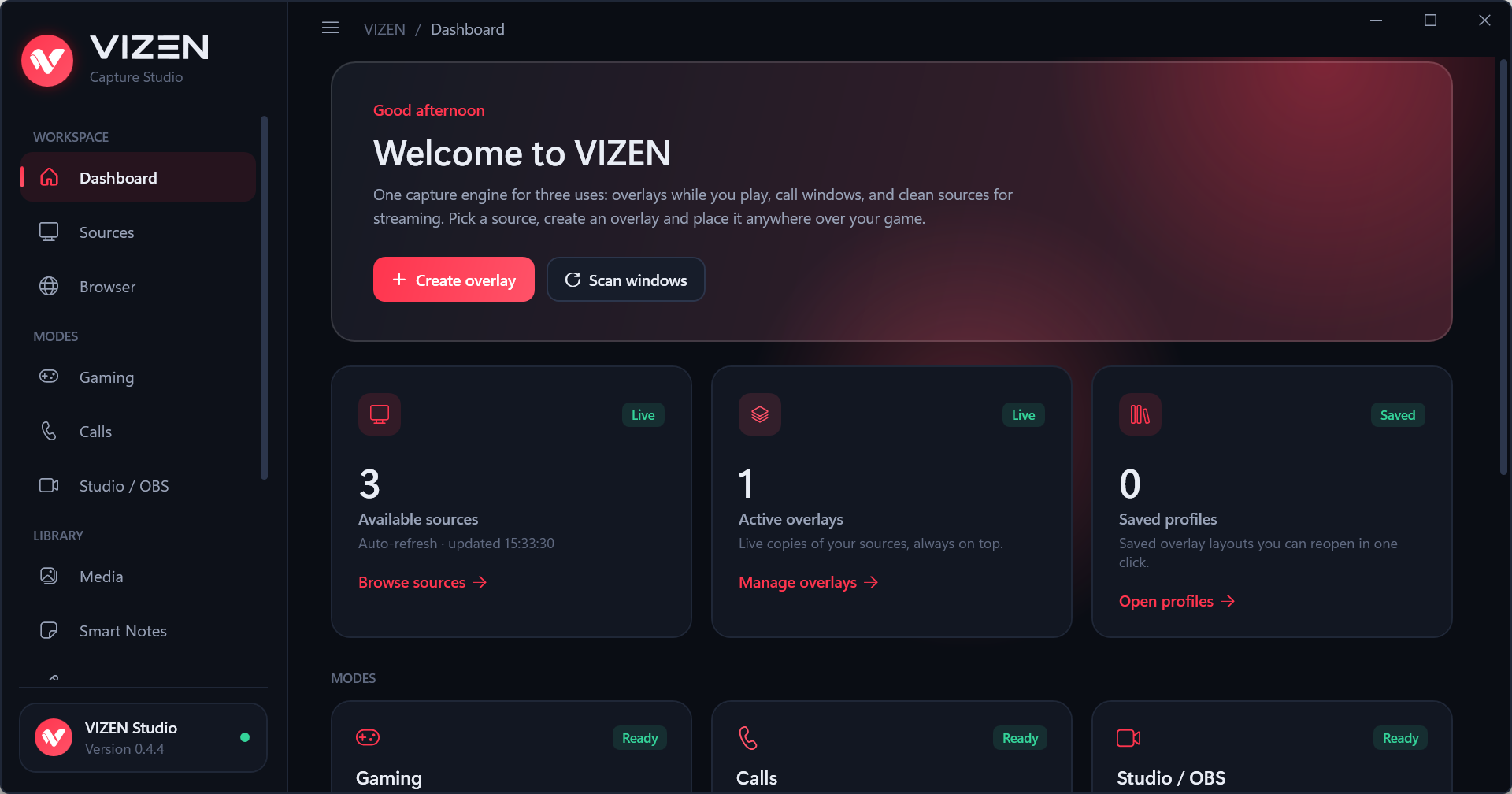
See the codeFree, open-source overlays for Windows. Pick any window (a game, a video call, a live chat, a video, a web page), crop the part you need and keep it on top of your game, in a clean window for OBS, or in a composition. VIZEN also includes Smart Notes, Smart Draw, a Smart Audio Mixer and an optional browser extension that shows every Chrome, Edge or Brave tab on its own.
Website: www.vizen.ro · Contact: [email protected]
| Minimum | Recommended | |
|---|---|---|
| Windows | Windows 10 version 2004 (build 19041) or Windows 11, 64-bit | Windows 11, 64-bit |
| Processor | Intel Core i3-6100 / i3-8130U, AMD Ryzen 3 2200G or newer (4 threads) | Intel Core i5-10400 / i5-8250U, AMD Ryzen 5 3600 / 5500U or newer (8 threads or more) |
| Memory | 8 GB RAM | 16 GB RAM |
| Graphics | DirectX 11 graphics card with hardware acceleration (integrated is fine) | Dedicated graphics card, or a recent integrated one |
| Disk space | 250 MB | 250 MB |
| What to expect | One or two overlays at 720p, 30 fps | Several 1080p sources at 60 fps |
VIZEN-Setup-x64.exe from the Releases page.Settings, notes and profiles are saved in your user folder (%LOCALAPPDATA%\VIZEN). Uninstall from
Settings → Apps → Installed apps.
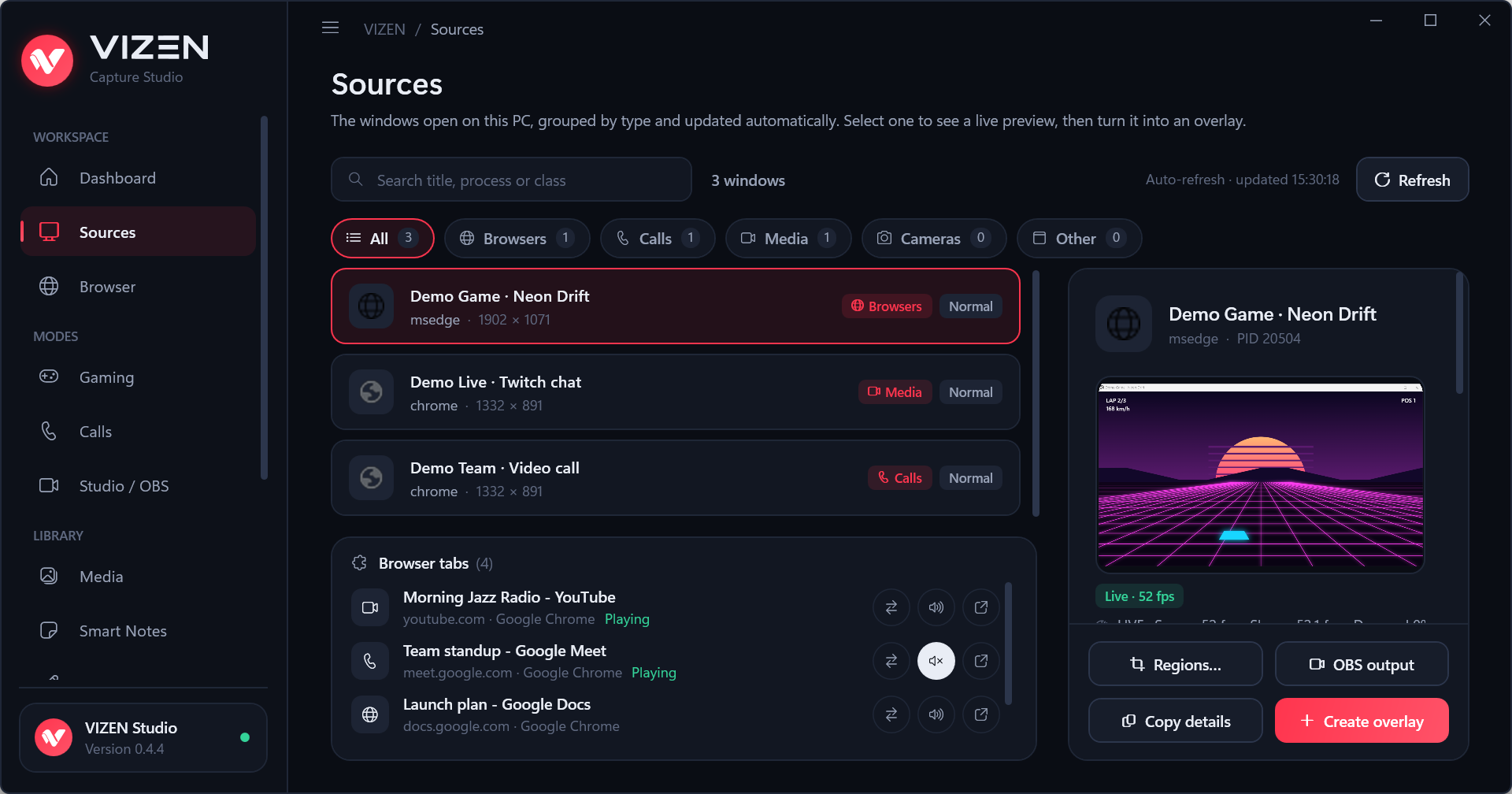
All open windows, refreshed every 3 seconds and grouped by type. Search by title, app or window class. Select a window to see it live, then turn it into an overlay, an OBS output, or open the region editor to crop it. With the browser extension, every browser tab also appears here on its own (see Browser tabs).
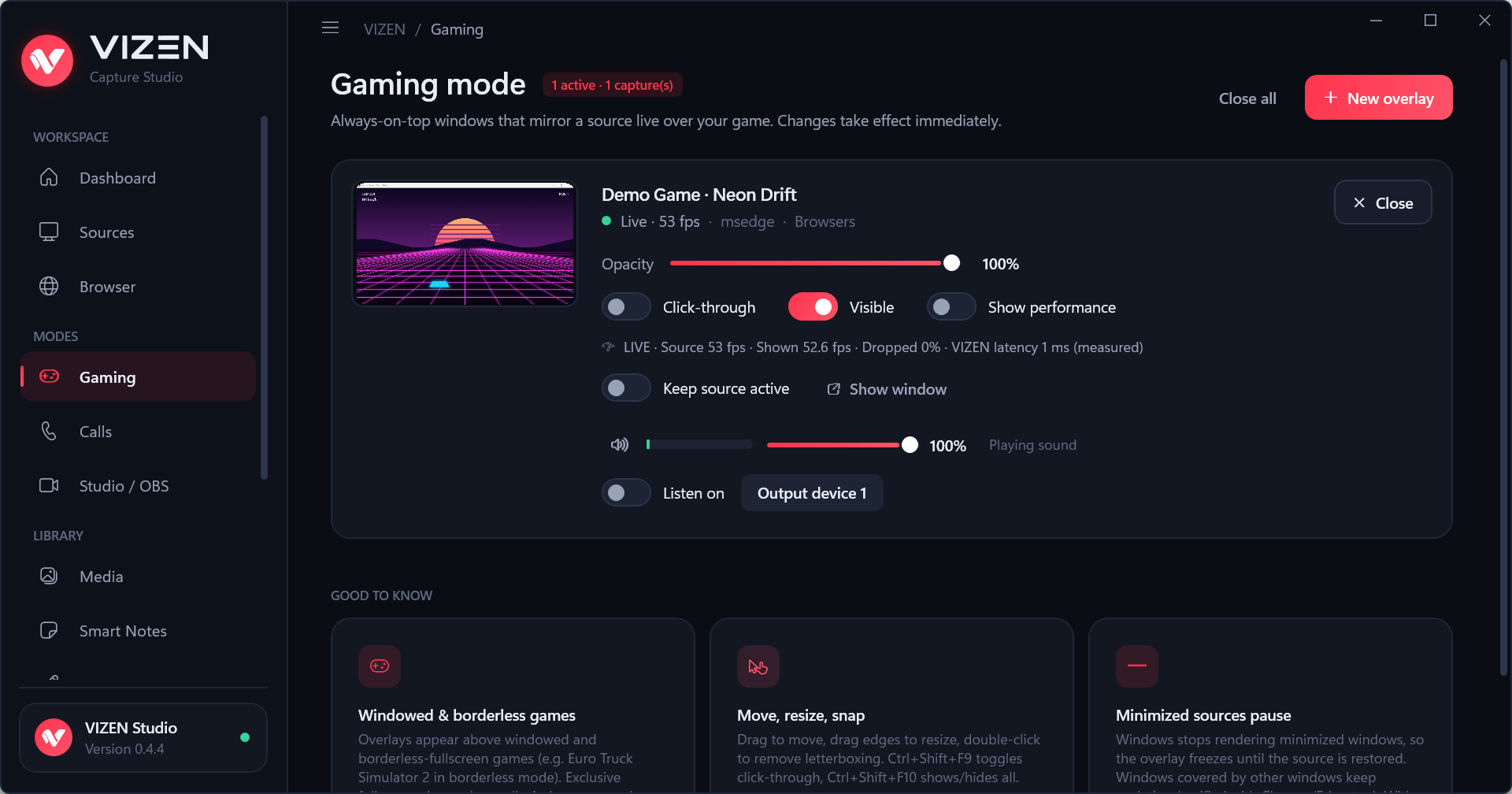
Your open overlays, each with opacity, click-through, visibility and an optional performance readout (measured frames per second, dropped frames and latency). You can also set the volume of the app behind an overlay and listen to it on another audio device.
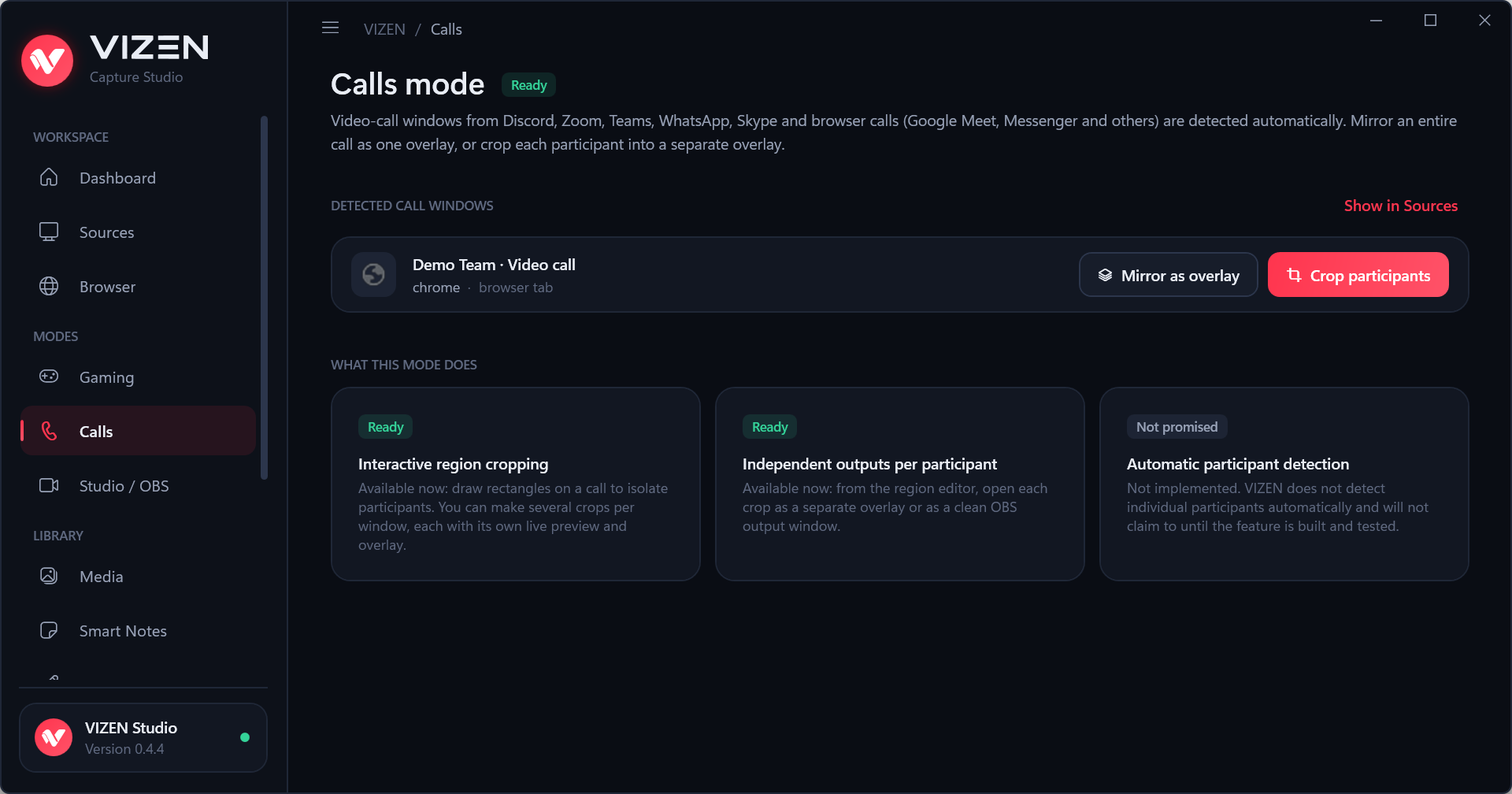
Video calls from Discord, Zoom, Teams, WhatsApp, Skype and browser calls (Google Meet, Messenger and others) are detected automatically. Mirror the whole call as one overlay, or use Crop participants to draw one region per person and give each one its own overlay or OBS window. VIZEN does not detect participants automatically; you choose the regions.
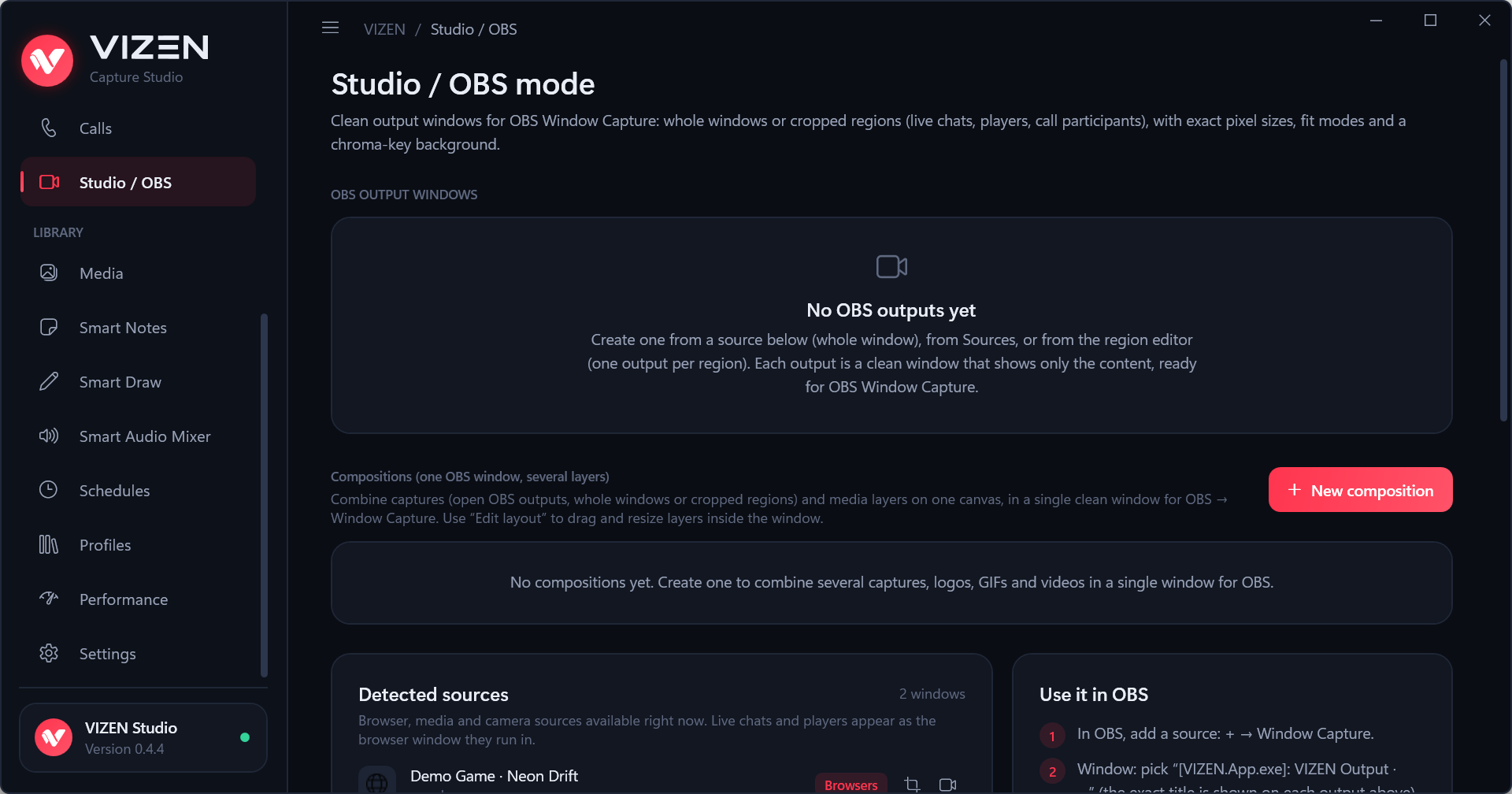
Clean output windows made for OBS Window Capture: a whole window or a cropped region, with an exact pixel size, fit mode and a chroma-key background. Compositions combine several captures, logos, GIFs and videos into one window, so OBS needs only one source.
How to use it in OBS:
[VIZEN.App.exe]: VIZEN Output · ….Open any web page in its own VIZEN window (a YouTube or Twitch chat, an alerts page, a dashboard). It appears in Sources as "VIZEN Browser", so you can crop it, make it an overlay or an OBS output. The built-in browser is Microsoft Edge WebView2 with its own profile.
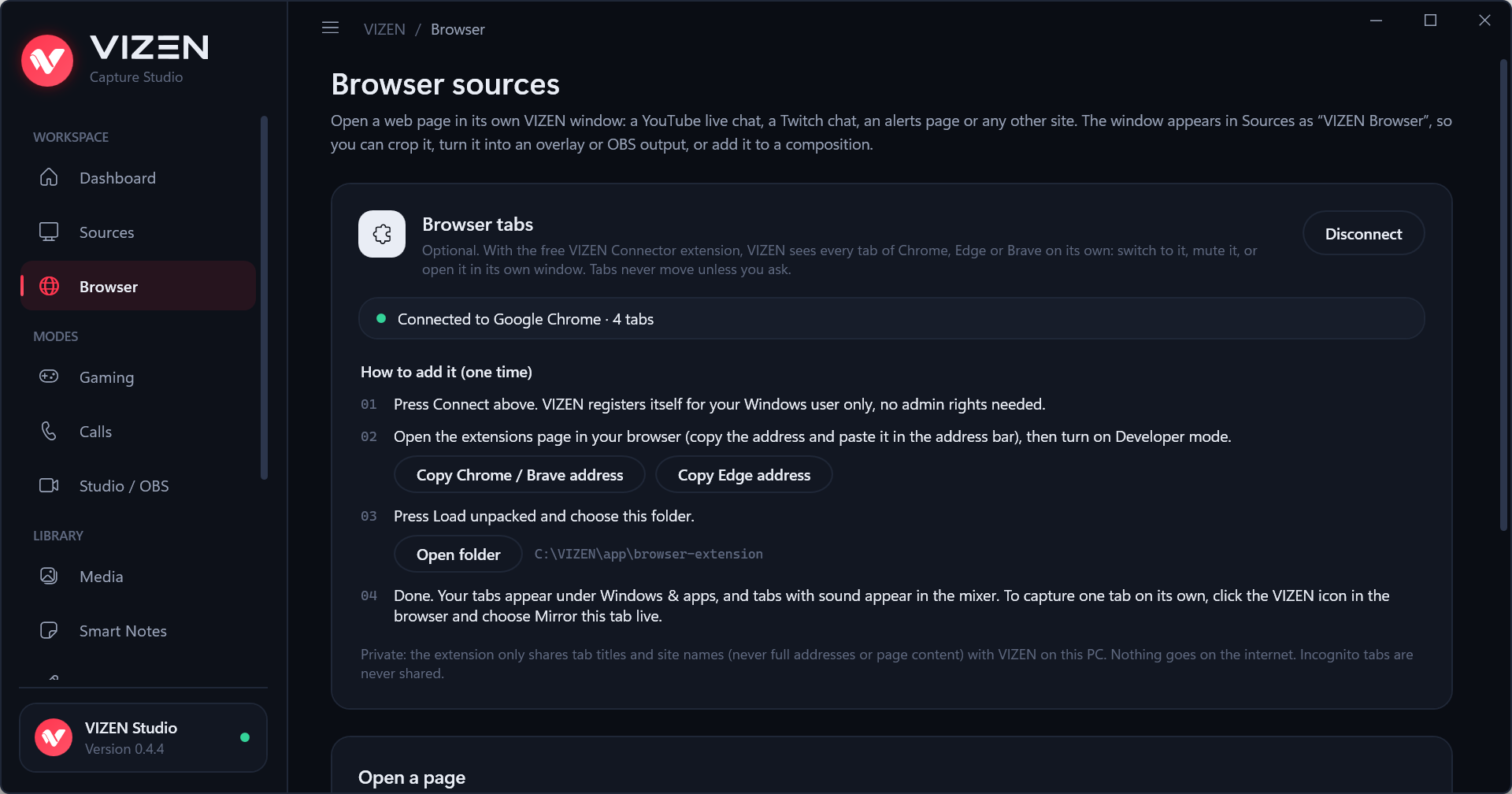
Windows can only capture windows, not tabs. The optional VIZEN Connector extension lets VIZEN see every tab on its own. Get it from
Microsoft Edge Add-ons (Chrome Web
Store: in review; Chrome and Brave can also load it from the browser-extension folder):
Set it up once:
chrome://extensions, turn on Developer mode,
press Load unpacked and choose the folder shown in VIZEN (browser-extension in the VIZEN folder).The extension sends only tab titles and site names (never full addresses or page content) to VIZEN on your PC. Incognito tabs are never shared. Disconnect removes everything VIZEN registered.
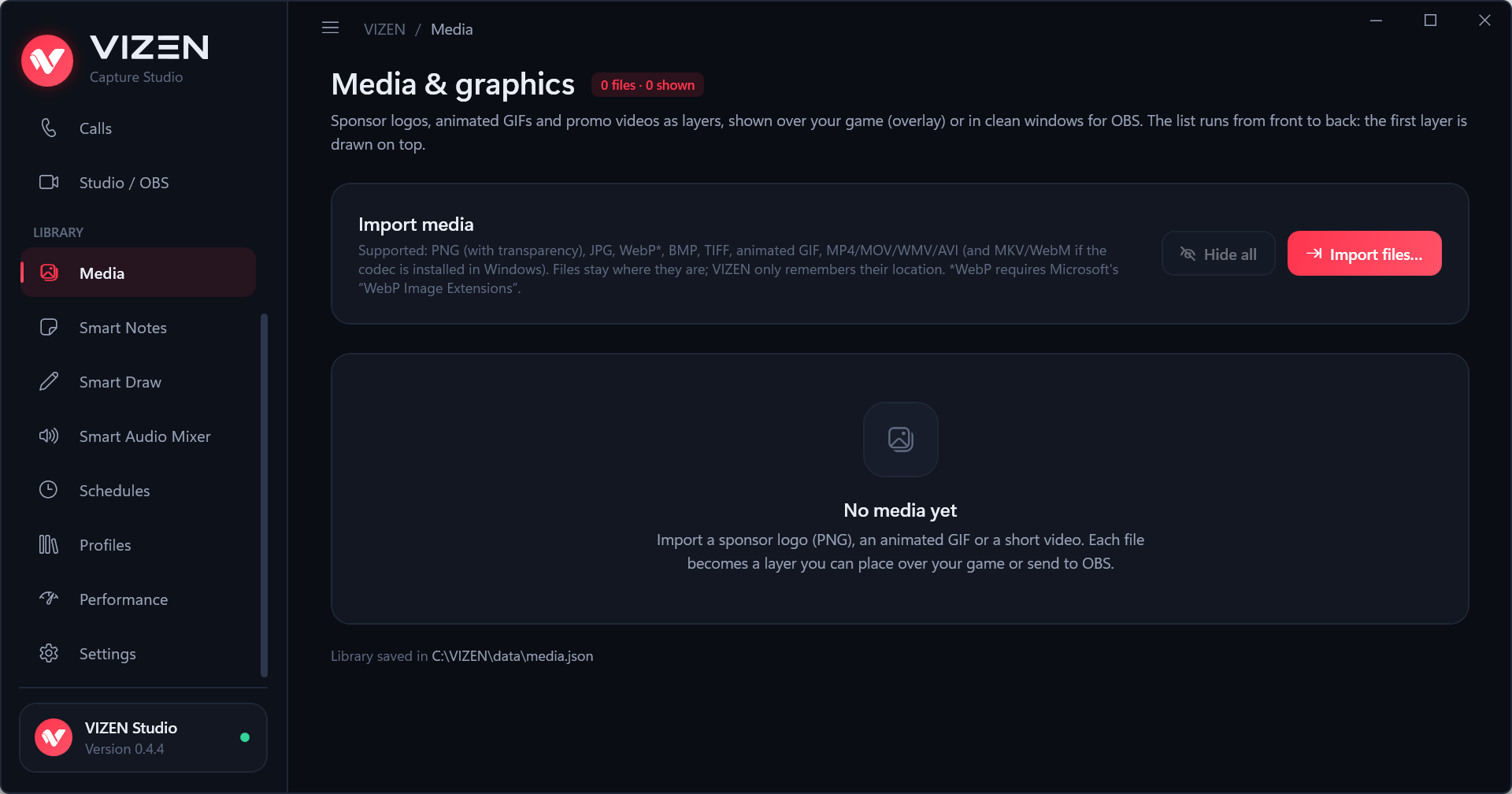
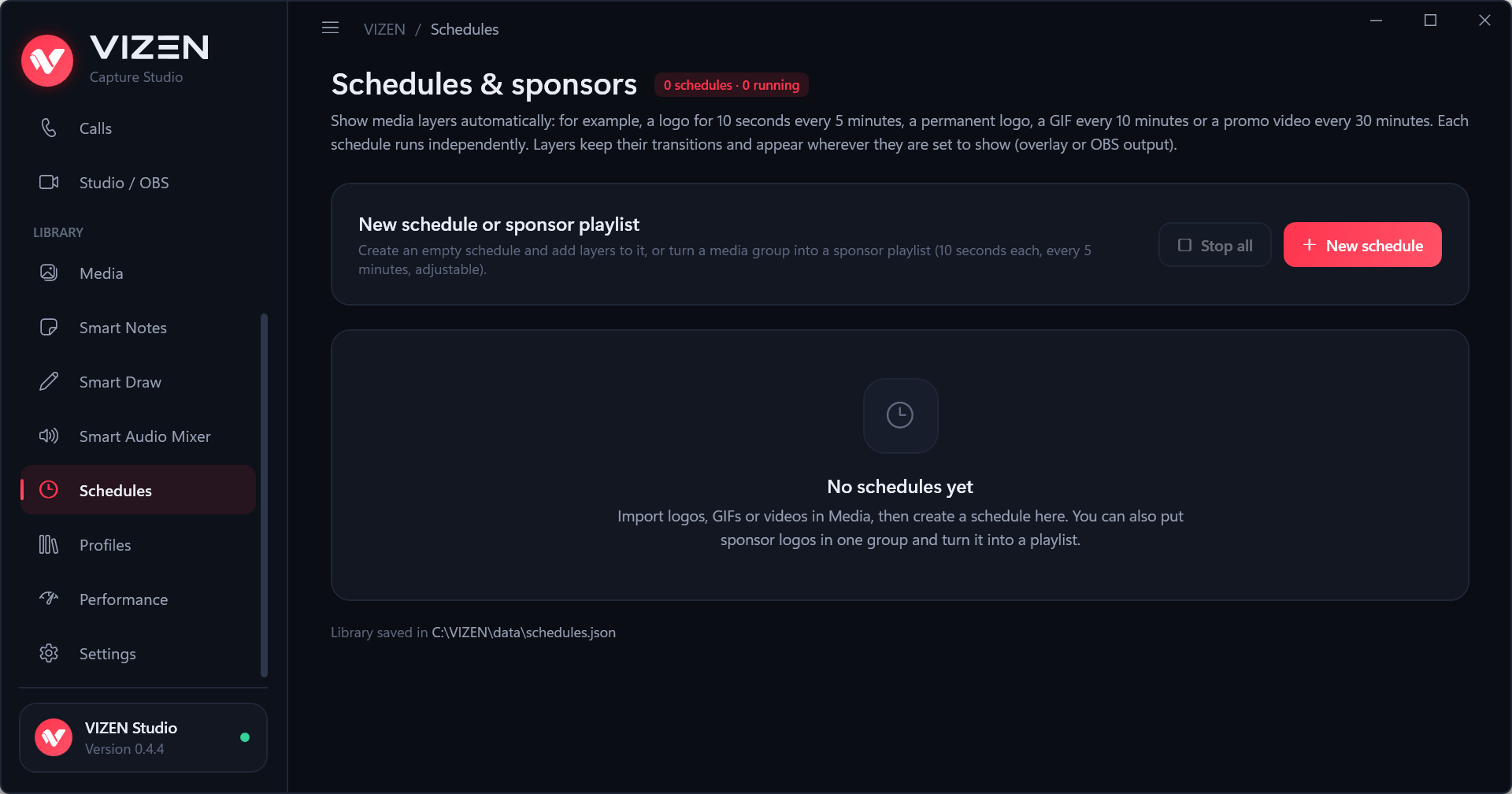
Import sponsor logos (PNG with transparency, JPG, WebP, BMP, TIFF), animated GIFs and short videos (MP4, MOV, WMV, AVI) and show them as layers over your game or in an OBS window. Schedules show them automatically, for example a logo for 10 seconds every 5 minutes, or a sponsor playlist.
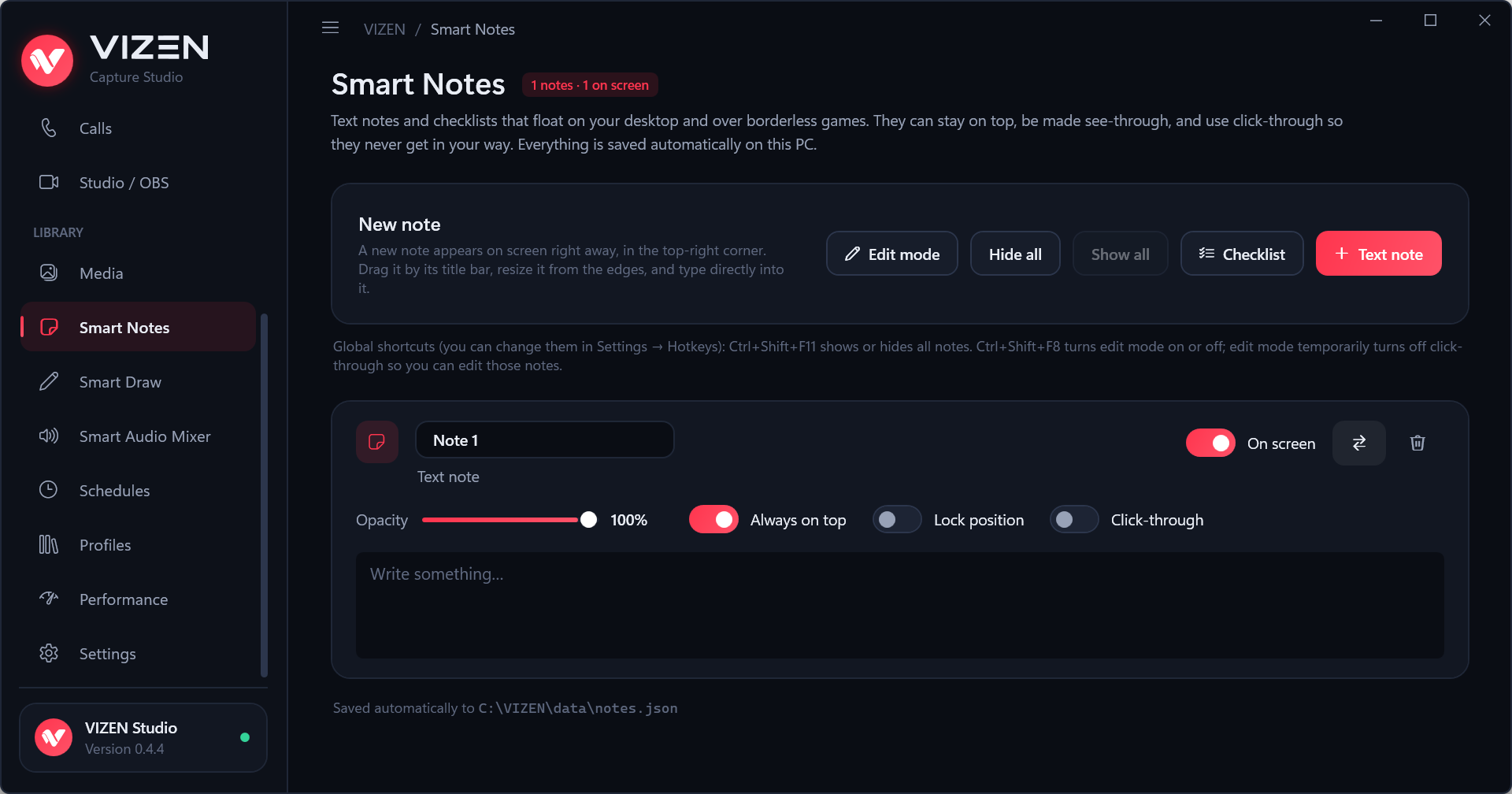
Text notes and checklists that float on your desktop and over borderless games. Each note can stay on top, be see-through, lock its position and be click-through. Ctrl+Shift+F11 shows or hides all notes, Ctrl+Shift+F8 turns edit mode on or off. Notes are saved automatically.
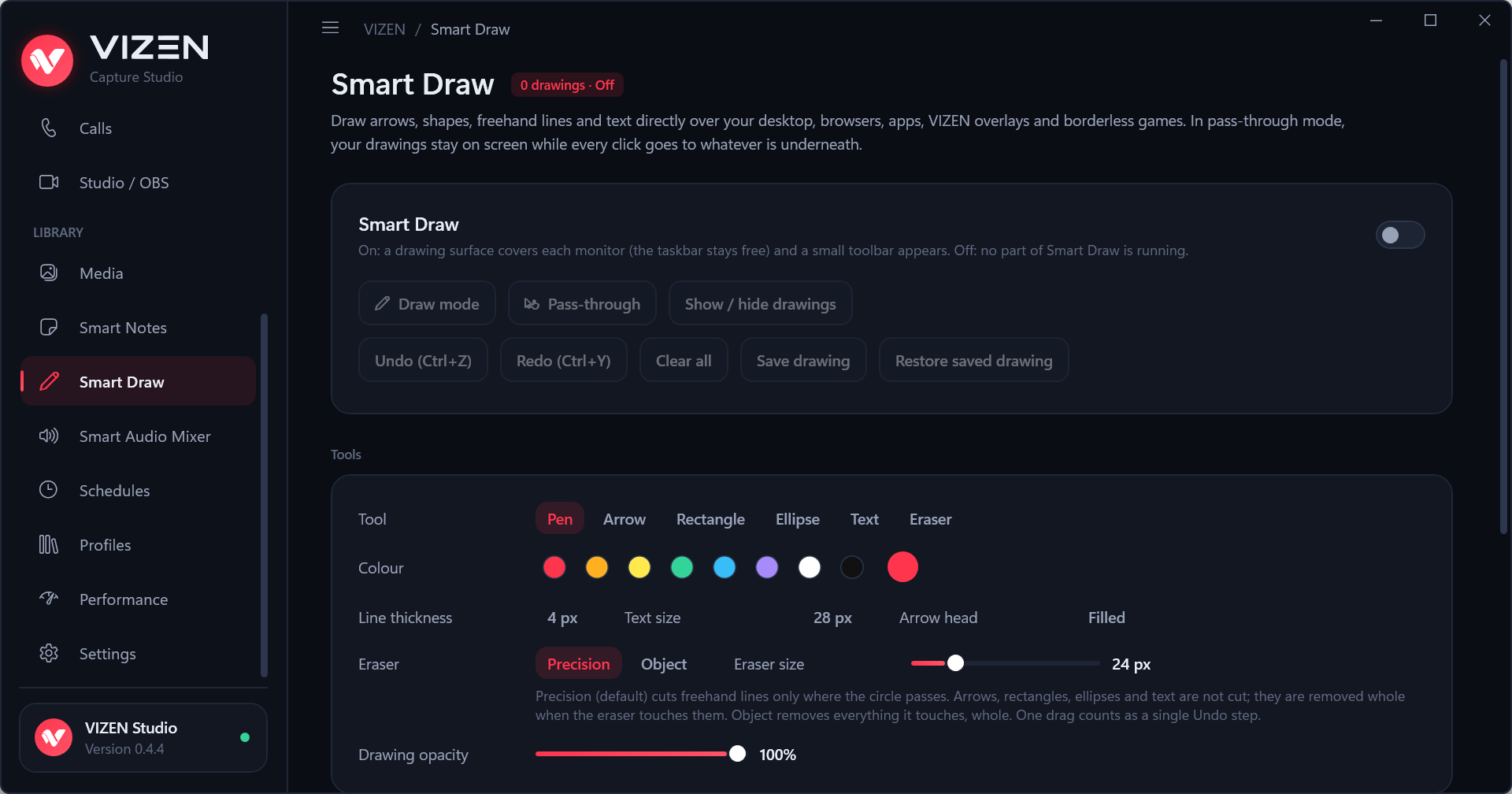
Draw arrows, rectangles, ellipses, freehand lines and text directly over your screen, apps and borderless games.
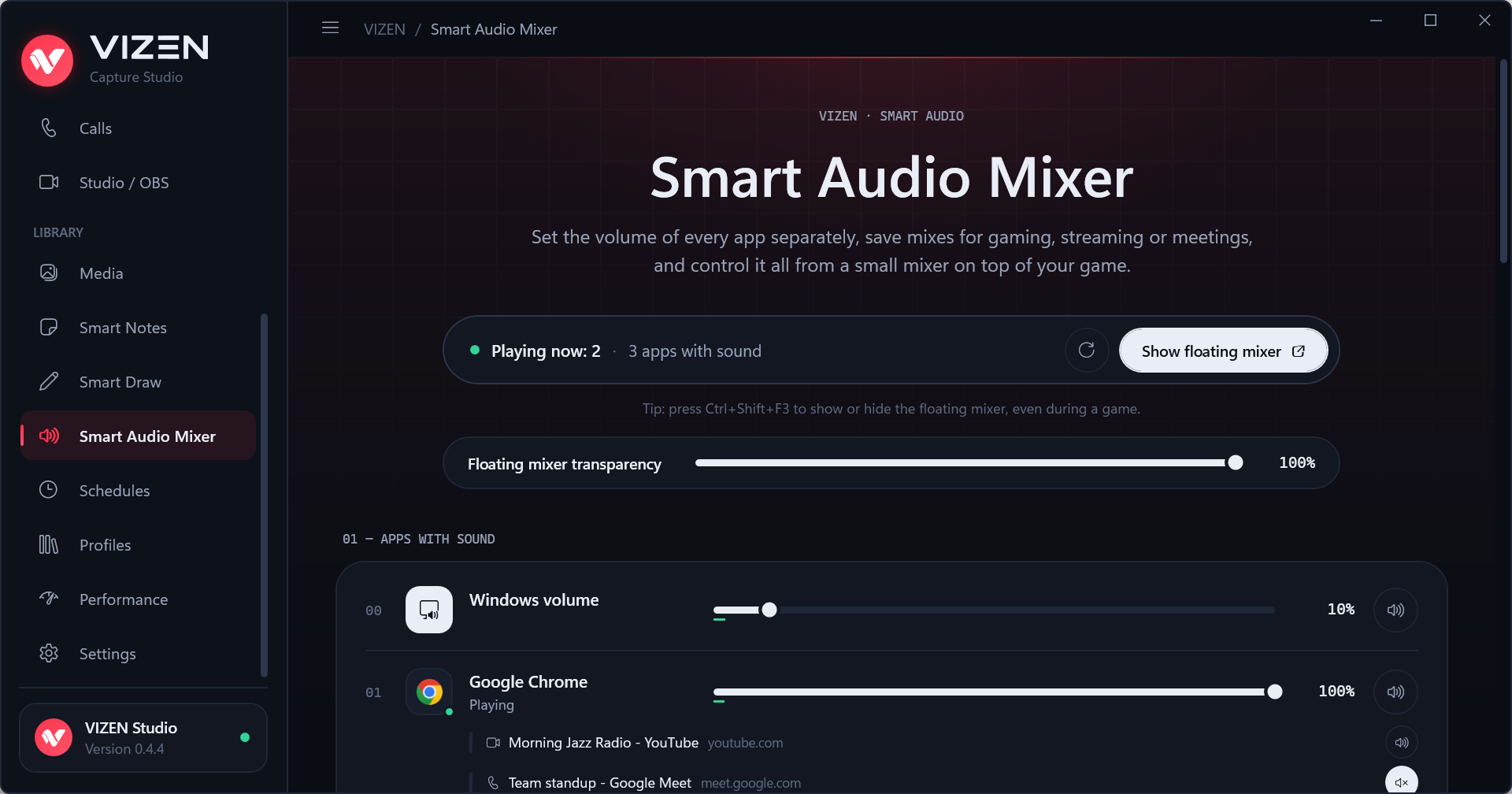
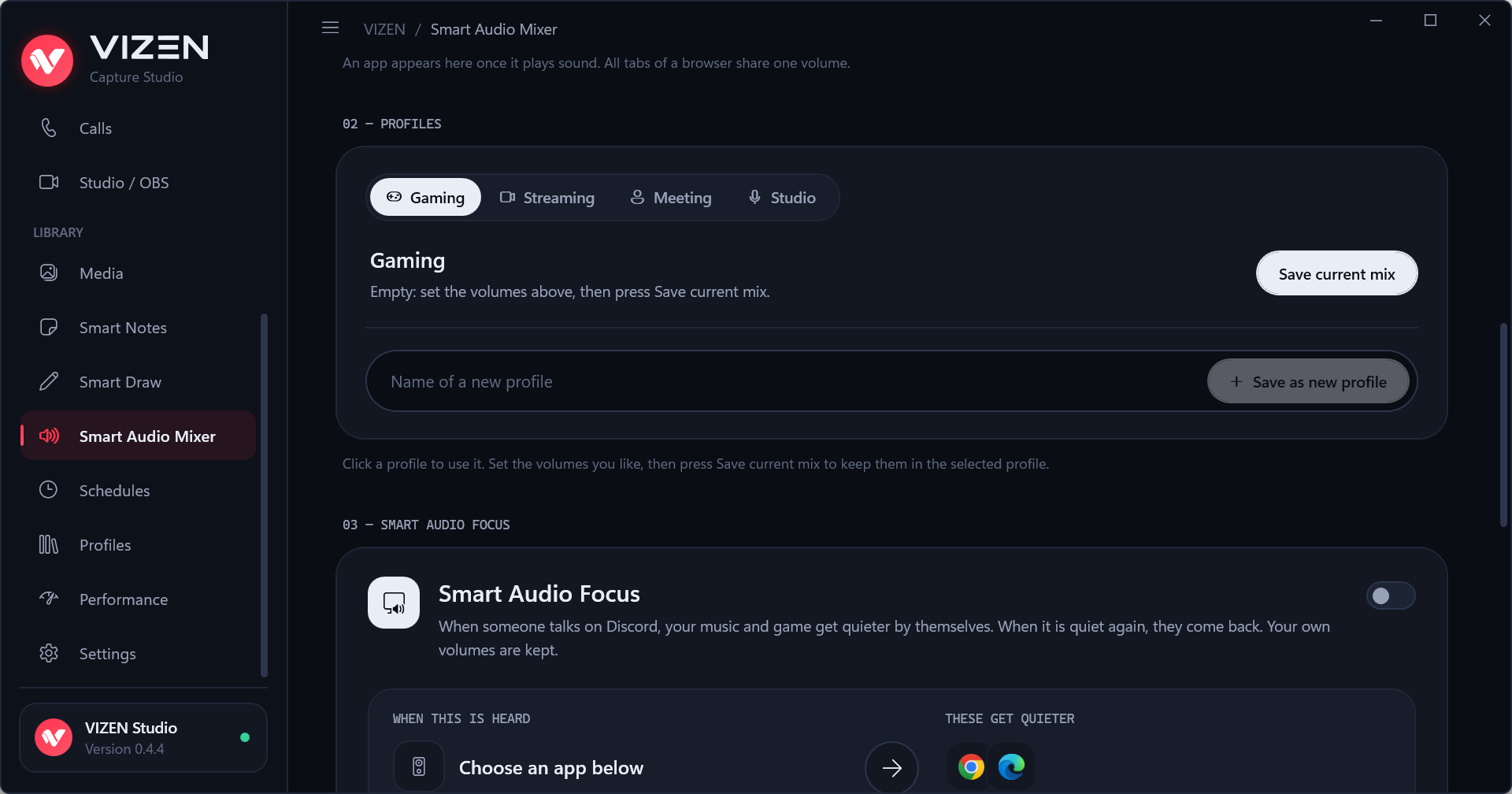
The volume of every app that plays sound, separately, plus the Windows volume (kept in sync with Windows). Save mixes as profiles (Gaming, Streaming, Meeting, Studio or your own) and control everything from a small floating mixer on top of your game (Ctrl+Shift+F3), with adjustable transparency and size.
Smart Audio Focus lowers the apps you choose (music, game) while your priority app (for example Discord) is heard, then brings them back smoothly. It reacts to how loud the sound is, not to words. Your own volumes are kept and restored.
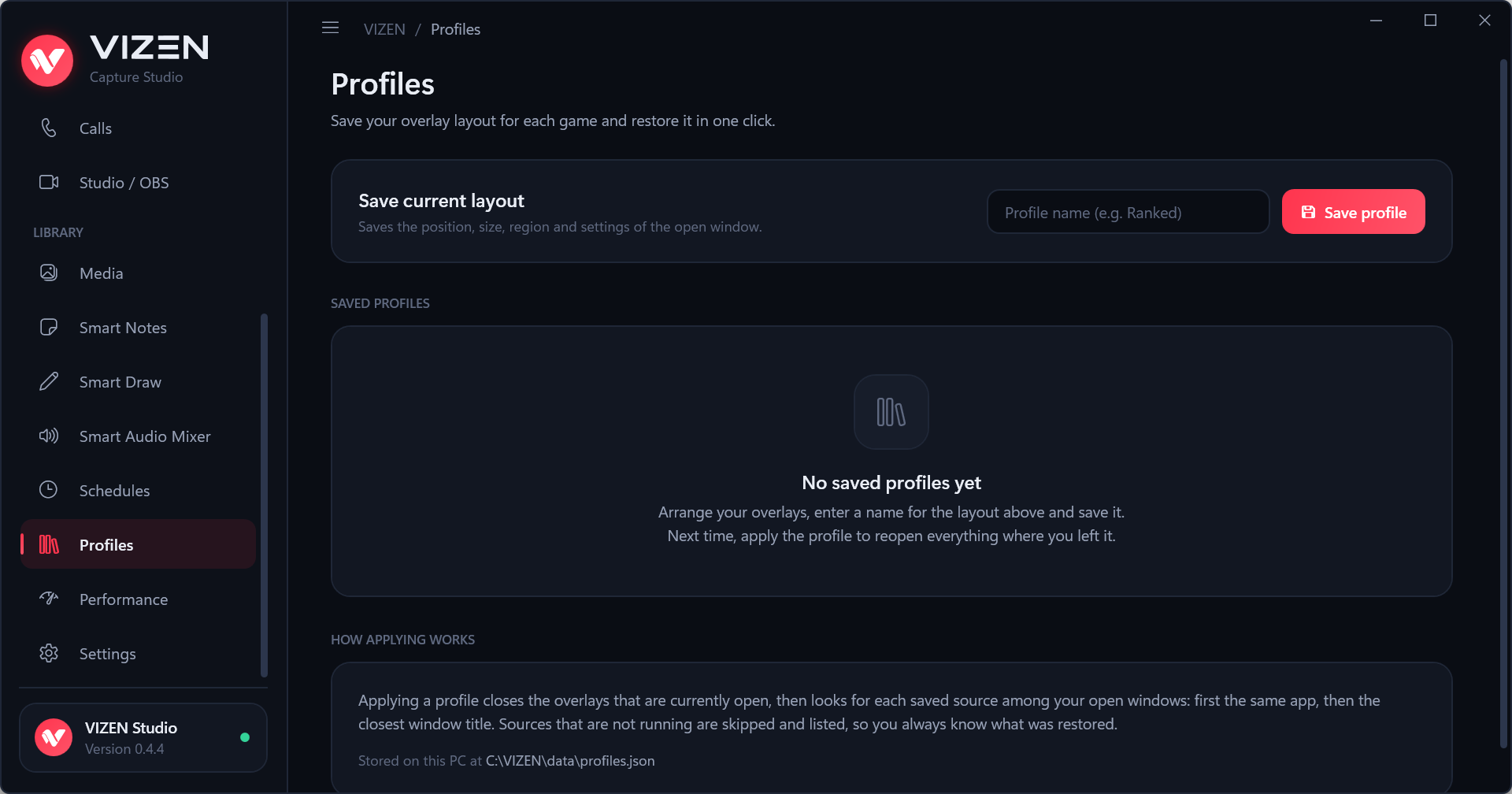
Save the overlays you have open (sources, positions, sizes, settings) under a name, for example one per game, and reopen them all in one click. VIZEN finds each source again by app and window title and tells you which ones are not running.
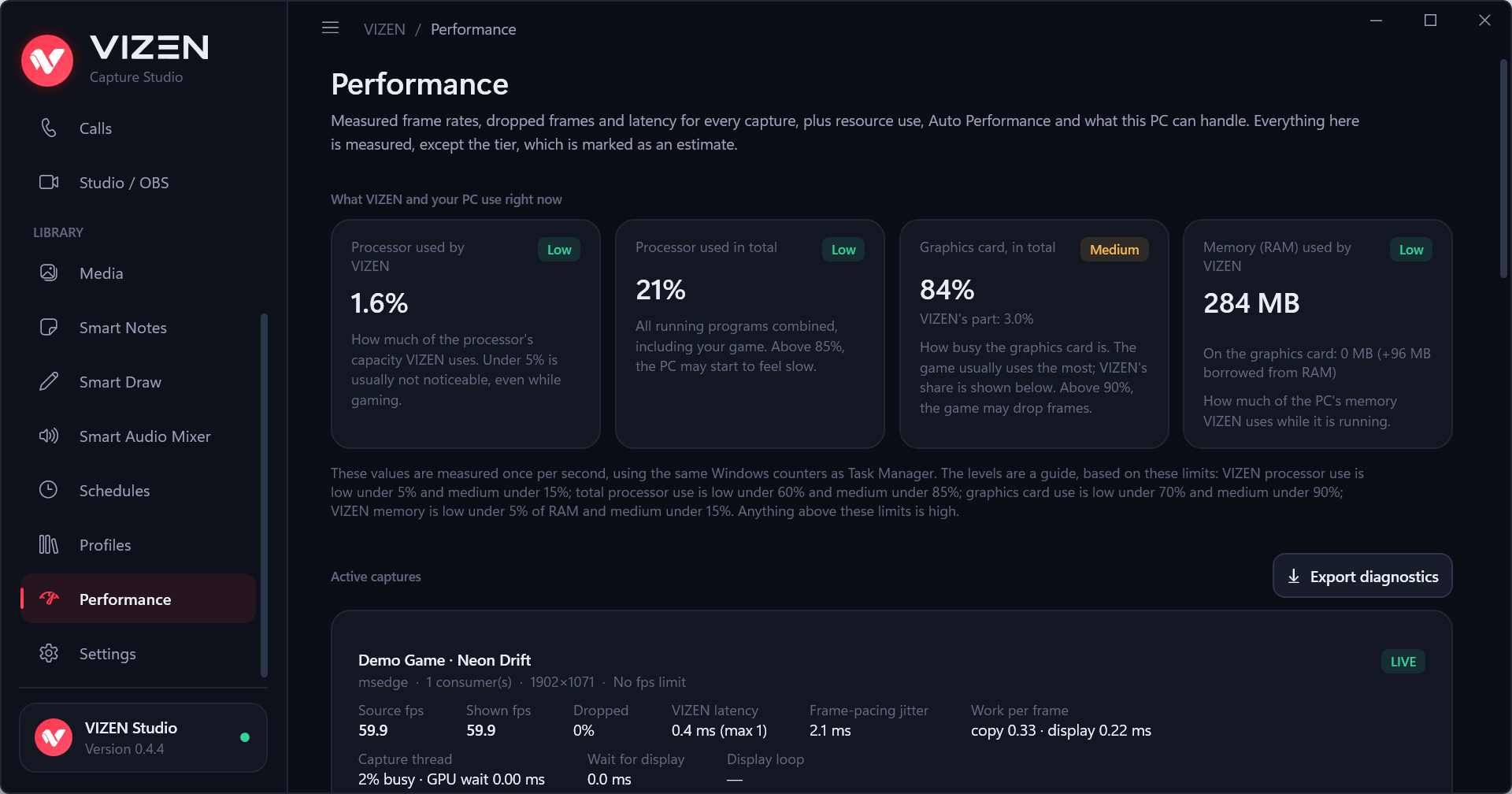
Measured, not guessed: frames per second from the source and on screen, dropped frames, latency and frame pacing for every capture, plus the processor, graphics card and memory VIZEN uses. Auto Performance watches every capture and tells you the likely cause when frames drop. A test-pattern window lets you measure capture quality on your own PC.
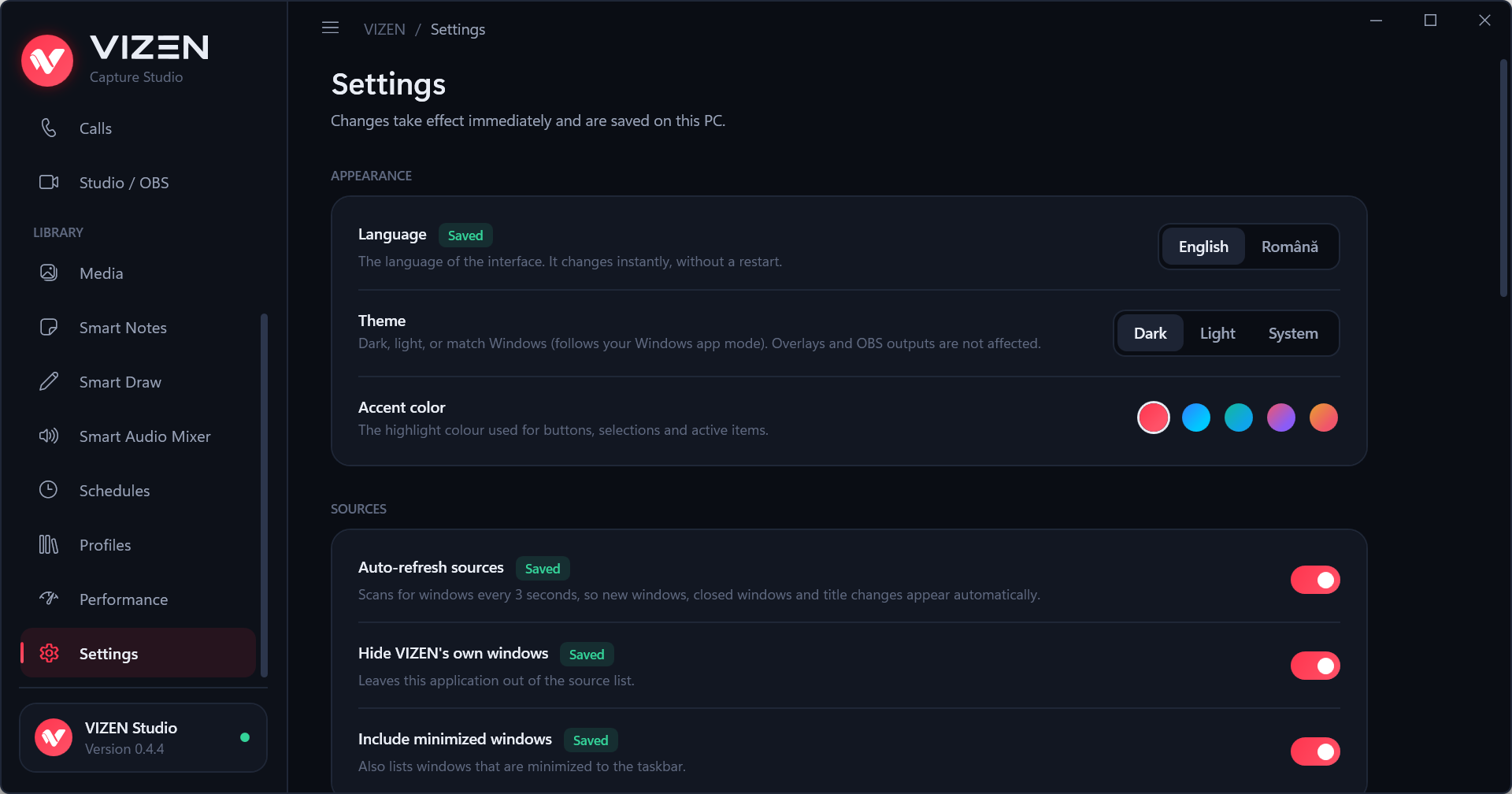
Language, theme and accent colour, source refresh, keyboard shortcuts (all can be changed), launch at sign-in and more. Changes apply immediately.
All shortcuts work while a game is in front and can be changed in Settings → Hotkeys.
| Shortcut | Action |
|---|---|
| Ctrl+Shift+F9 | Overlays: click-through on / off |
| Ctrl+Shift+F10 | Overlays: show / hide all |
| Ctrl+Shift+F11 | Smart Notes: show / hide all |
| Ctrl+Shift+F8 | Smart Notes: edit mode on / off |
| Ctrl+Shift+F7 | Smart Draw: on / off |
| Ctrl+Shift+F6 | Smart Draw: draw / pass-through |
| Ctrl+Shift+F5 | Smart Draw: show / hide drawings |
| Ctrl+Shift+F4 | Smart Draw: clear drawings |
| Ctrl+Shift+F3 | Floating audio mixer: show / hide |
VIZEN's overlays are ordinary always-on-top windows, like the ones Discord, Steam or NVIDIA show. VIZEN:
No one can guarantee how every anti-cheat system decides, because their rules are not public. Details, and the list of Windows APIs VIZEN uses, are in docs/GAME_SAFETY.md.
%LOCALAPPDATA%\VIZEN on your PC.Requirements: Windows 10/11, the .NET 10 SDK.
git clone <this repository>
cd VIZEN
dotnet build VIZEN.App/VIZEN.App.csproj -c Release
dotnet test VIZEN.Tests/VIZEN.Tests.csproj
The app is then in VIZEN.App/bin/Release/net10.0-windows10.0.22621.0/VIZEN.App.exe.
To build the installer, install Inno Setup 6 and run:
powershell -ExecutionPolicy Bypass -File scripts\build-installer.ps1
The installer is written to artifacts/installer/VIZEN-Setup-x64.exe.
Project layout:
| Folder | Contents |
|---|---|
VIZEN.App | The WPF app (.NET 10): capture, overlays, pages, services |
VIZEN.Tests | Unit and integration tests (xUnit) |
browser-extension | The VIZEN Connector extension (Manifest V3) |
installer, scripts | Inno Setup script and build script |
docs | Game safety notes and the screenshots used here |
Copyright (C) 2026 kalinvisuals.
VIZEN is free software: you can redistribute it and/or modify it under the terms of the GNU General Public License as published by the Free Software Foundation, version 3 of the License (GPL-3.0-only). It is distributed in the hope that it will be useful, but WITHOUT ANY WARRANTY; without even the implied warranty of MERCHANTABILITY or FITNESS FOR A PARTICULAR PURPOSE. See LICENSE for the full text.
In short: anyone may use, study, change and share VIZEN, but whoever distributes it, or a program built from its code, must do so under the same license and publish the complete source code.
The name "VIZEN" and the VIZEN logo are not covered by this license: a modified version must not be distributed under the VIZEN name or with the VIZEN logo.
Third-party components keep their own licenses: NAudio (MIT), Microsoft WebView2 SDK (BSD-3-Clause), System.Diagnostics.PerformanceCounter (MIT); tests use xUnit (Apache-2.0).
Free, open-source overlays for Windows: turn any window or region into a live overlay on top of your game, in OBS or in a composition. Calls mode, Smart Notes, Smart Draw and a per-app audio mixer. No injection, no account, no tracking.
See the codeFree, open-source overlays for Windows. Pick any window (a game, a video call, a live chat, a video, a web page), crop the part you need and keep it on top of your game, in a clean window for OBS, or in a composition. VIZEN also includes Smart Notes, Smart Draw, a Smart Audio Mixer and an optional browser extension that shows every Chrome, Edge or Brave tab on its own.
Website: www.vizen.ro · Contact: [email protected]
| Minimum | Recommended | |
|---|---|---|
| Windows | Windows 10 version 2004 (build 19041) or Windows 11, 64-bit | Windows 11, 64-bit |
| Processor | Intel Core i3-6100 / i3-8130U, AMD Ryzen 3 2200G or newer (4 threads) | Intel Core i5-10400 / i5-8250U, AMD Ryzen 5 3600 / 5500U or newer (8 threads or more) |
| Memory | 8 GB RAM | 16 GB RAM |
| Graphics | DirectX 11 graphics card with hardware acceleration (integrated is fine) | Dedicated graphics card, or a recent integrated one |
| Disk space | 250 MB | 250 MB |
| What to expect | One or two overlays at 720p, 30 fps | Several 1080p sources at 60 fps |
VIZEN-Setup-x64.exe from the Releases page.Settings, notes and profiles are saved in your user folder (%LOCALAPPDATA%\VIZEN). Uninstall from
Settings → Apps → Installed apps.
All open windows, refreshed every 3 seconds and grouped by type. Search by title, app or window class. Select a window to see it live, then turn it into an overlay, an OBS output, or open the region editor to crop it. With the browser extension, every browser tab also appears here on its own (see Browser tabs).
Your open overlays, each with opacity, click-through, visibility and an optional performance readout (measured frames per second, dropped frames and latency). You can also set the volume of the app behind an overlay and listen to it on another audio device.
Video calls from Discord, Zoom, Teams, WhatsApp, Skype and browser calls (Google Meet, Messenger and others) are detected automatically. Mirror the whole call as one overlay, or use Crop participants to draw one region per person and give each one its own overlay or OBS window. VIZEN does not detect participants automatically; you choose the regions.
Clean output windows made for OBS Window Capture: a whole window or a cropped region, with an exact pixel size, fit mode and a chroma-key background. Compositions combine several captures, logos, GIFs and videos into one window, so OBS needs only one source.
How to use it in OBS:
[VIZEN.App.exe]: VIZEN Output · ….Open any web page in its own VIZEN window (a YouTube or Twitch chat, an alerts page, a dashboard). It appears in Sources as "VIZEN Browser", so you can crop it, make it an overlay or an OBS output. The built-in browser is Microsoft Edge WebView2 with its own profile.
Windows can only capture windows, not tabs. The optional VIZEN Connector extension lets VIZEN see every tab on its own. Get it from
Microsoft Edge Add-ons (Chrome Web
Store: in review; Chrome and Brave can also load it from the browser-extension folder):
Set it up once:
chrome://extensions, turn on Developer mode,
press Load unpacked and choose the folder shown in VIZEN (browser-extension in the VIZEN folder).The extension sends only tab titles and site names (never full addresses or page content) to VIZEN on your PC. Incognito tabs are never shared. Disconnect removes everything VIZEN registered.
Import sponsor logos (PNG with transparency, JPG, WebP, BMP, TIFF), animated GIFs and short videos (MP4, MOV, WMV, AVI) and show them as layers over your game or in an OBS window. Schedules show them automatically, for example a logo for 10 seconds every 5 minutes, or a sponsor playlist.
Text notes and checklists that float on your desktop and over borderless games. Each note can stay on top, be see-through, lock its position and be click-through. Ctrl+Shift+F11 shows or hides all notes, Ctrl+Shift+F8 turns edit mode on or off. Notes are saved automatically.
Draw arrows, rectangles, ellipses, freehand lines and text directly over your screen, apps and borderless games.
The volume of every app that plays sound, separately, plus the Windows volume (kept in sync with Windows). Save mixes as profiles (Gaming, Streaming, Meeting, Studio or your own) and control everything from a small floating mixer on top of your game (Ctrl+Shift+F3), with adjustable transparency and size.
Smart Audio Focus lowers the apps you choose (music, game) while your priority app (for example Discord) is heard, then brings them back smoothly. It reacts to how loud the sound is, not to words. Your own volumes are kept and restored.
Save the overlays you have open (sources, positions, sizes, settings) under a name, for example one per game, and reopen them all in one click. VIZEN finds each source again by app and window title and tells you which ones are not running.
Measured, not guessed: frames per second from the source and on screen, dropped frames, latency and frame pacing for every capture, plus the processor, graphics card and memory VIZEN uses. Auto Performance watches every capture and tells you the likely cause when frames drop. A test-pattern window lets you measure capture quality on your own PC.
Language, theme and accent colour, source refresh, keyboard shortcuts (all can be changed), launch at sign-in and more. Changes apply immediately.
All shortcuts work while a game is in front and can be changed in Settings → Hotkeys.
| Shortcut | Action |
|---|---|
| Ctrl+Shift+F9 | Overlays: click-through on / off |
| Ctrl+Shift+F10 | Overlays: show / hide all |
| Ctrl+Shift+F11 | Smart Notes: show / hide all |
| Ctrl+Shift+F8 | Smart Notes: edit mode on / off |
| Ctrl+Shift+F7 | Smart Draw: on / off |
| Ctrl+Shift+F6 | Smart Draw: draw / pass-through |
| Ctrl+Shift+F5 | Smart Draw: show / hide drawings |
| Ctrl+Shift+F4 | Smart Draw: clear drawings |
| Ctrl+Shift+F3 | Floating audio mixer: show / hide |
VIZEN's overlays are ordinary always-on-top windows, like the ones Discord, Steam or NVIDIA show. VIZEN:
No one can guarantee how every anti-cheat system decides, because their rules are not public. Details, and the list of Windows APIs VIZEN uses, are in docs/GAME_SAFETY.md.
%LOCALAPPDATA%\VIZEN on your PC.Requirements: Windows 10/11, the .NET 10 SDK.
git clone <this repository>
cd VIZEN
dotnet build VIZEN.App/VIZEN.App.csproj -c Release
dotnet test VIZEN.Tests/VIZEN.Tests.csproj
The app is then in VIZEN.App/bin/Release/net10.0-windows10.0.22621.0/VIZEN.App.exe.
To build the installer, install Inno Setup 6 and run:
powershell -ExecutionPolicy Bypass -File scripts\build-installer.ps1
The installer is written to artifacts/installer/VIZEN-Setup-x64.exe.
Project layout:
| Folder | Contents |
|---|---|
VIZEN.App | The WPF app (.NET 10): capture, overlays, pages, services |
VIZEN.Tests | Unit and integration tests (xUnit) |
browser-extension | The VIZEN Connector extension (Manifest V3) |
installer, scripts | Inno Setup script and build script |
docs | Game safety notes and the screenshots used here |
Copyright (C) 2026 kalinvisuals.
VIZEN is free software: you can redistribute it and/or modify it under the terms of the GNU General Public License as published by the Free Software Foundation, version 3 of the License (GPL-3.0-only). It is distributed in the hope that it will be useful, but WITHOUT ANY WARRANTY; without even the implied warranty of MERCHANTABILITY or FITNESS FOR A PARTICULAR PURPOSE. See LICENSE for the full text.
In short: anyone may use, study, change and share VIZEN, but whoever distributes it, or a program built from its code, must do so under the same license and publish the complete source code.
The name "VIZEN" and the VIZEN logo are not covered by this license: a modified version must not be distributed under the VIZEN name or with the VIZEN logo.
Third-party components keep their own licenses: NAudio (MIT), Microsoft WebView2 SDK (BSD-3-Clause), System.Diagnostics.PerformanceCounter (MIT); tests use xUnit (Apache-2.0).



