All your game clips in one place: browse, watch, mix, trim and analyze clips from SteelSeries GG, NVIDIA, AMD, Xbox Game Bar, OBS and more. Runs entirely on your PC.
See the code

All your game clips in one place.
Browse them by game, watch them, mix their audio, trim them and save copies for Discord.
Works with SteelSeries GG, NVIDIA, AMD, Xbox Game Bar, OBS and more. Runs entirely on your own PC.
Download for Windows · Website · Get started · Privacy · How it works





All screenshots and the demo use a library of made-up games.
| Recorder | What you do |
|---|---|
| SteelSeries GG | Nothing. It's found on its own, with GG's titles, stars, trims and Game/Chat/Mic levels. |
| NVIDIA (ShadowPlay / NVIDIA App) | Add the folder your clips are saved to. |
| AMD (Radeon ReLive / Adrenalin) | Add the folder your clips are saved to. Cliptrove usually suggests it for you. |
| Xbox Game Bar | Add your Videos\Captures folder. |
| OBS Studio | Add your recordings folder. Cliptrove suggests it from OBS's settings. |
| Medal, or any other folder of videos | Add the folder. Games are worked out from folder and file names. |
Open the latest release. Under Assets, click Cliptrove-…-windows.zip to download it.

Documents\Cliptrove.Cliptrove.exe.[!NOTE] Seeing "Windows protected your PC"? Windows shows this for new apps that haven't paid for a code-signing certificate. Click More info, then Run anyway. You only need to do this once. Only download Cliptrove from this page's Releases.
Your browser opens Cliptrove at http://127.0.0.1:48650. This address only works on your own PC.
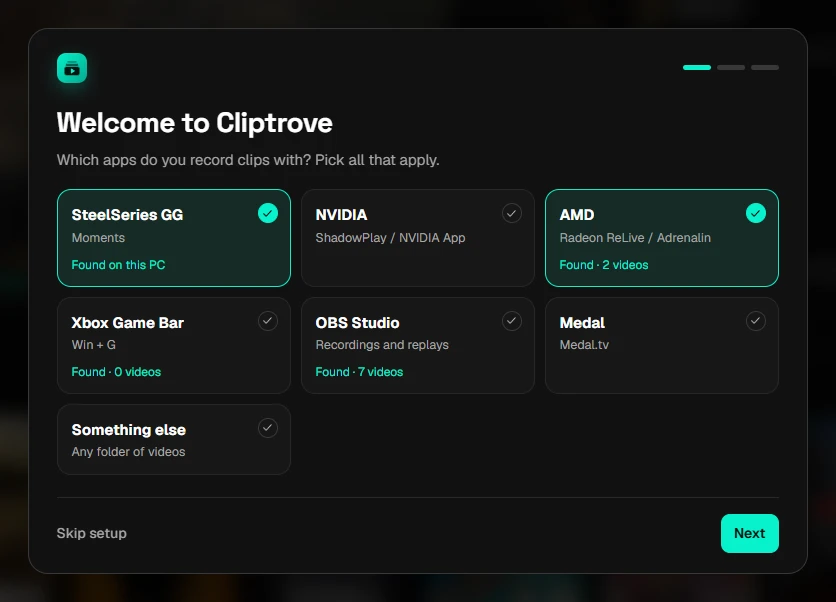
The first time it starts, a short setup asks which apps you record clips with. Apps it finds on your PC are already ticked.
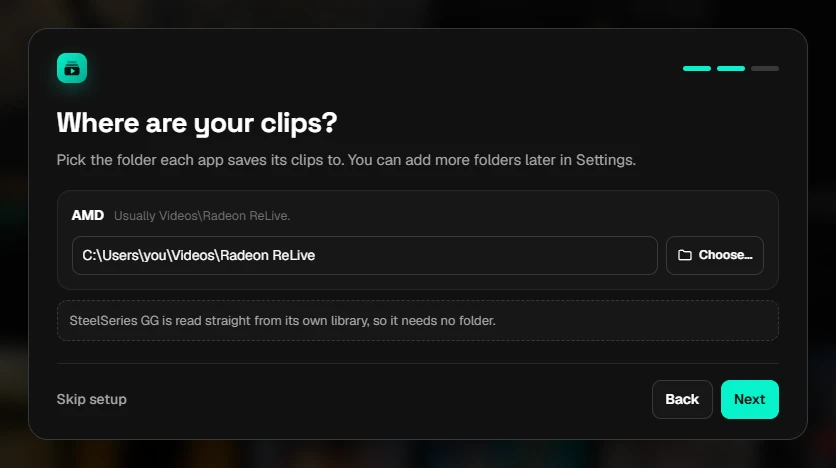
Next, it asks where each app saves its clips. Folders it found are filled in for you. Otherwise, click Choose… and pick the folder. SteelSeries GG needs no folder: Cliptrove reads its library directly.
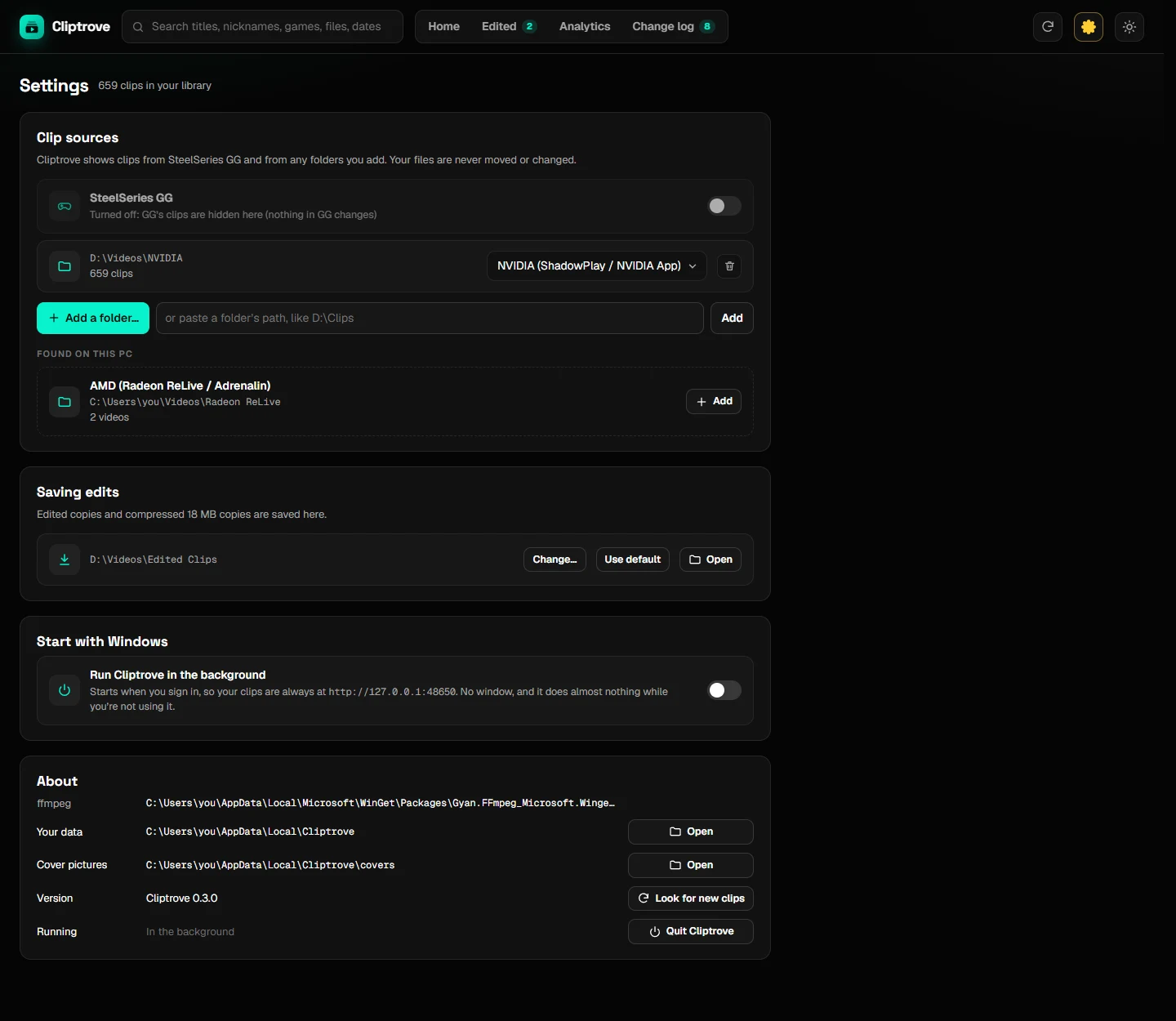
The last step offers Start with Windows and checks for ffmpeg. Setup only appears once. To add or remove folders later, use Settings (the gear icon at the top right).
| Recorder | Usual folder | Where it's set |
|---|---|---|
| NVIDIA | Videos\NVIDIA, or a folder per game in Videos | The NVIDIA overlay (Alt+Z) > Settings |
| AMD | Videos\Radeon ReLive | AMD Software (Adrenalin) > Record & Stream settings |
| Xbox Game Bar | Videos\Captures | Windows Settings > Gaming > Captures |
| OBS | Videos | OBS > Settings > Output > Recording Path |
| Medal | Shown in Medal's settings | Medal > Settings |
The easiest way to check: right-click a clip in your recorder and choose "Show in folder", or "Open file location".
Thumbnails for clips from folders, separate Chat/Mic tracks, playing .mkv files and saving edited copies all need ffmpeg, a free video tool.
Click Start, type PowerShell and open it.
Paste this and press Enter:
winget install Gyan.FFmpeg
Restart Cliptrove: Settings > About > Quit Cliptrove, then open Cliptrove.exe again.
Turn this on in Settings, so Cliptrove runs quietly in the background and http://127.0.0.1:48650 always works. You can bookmark it.

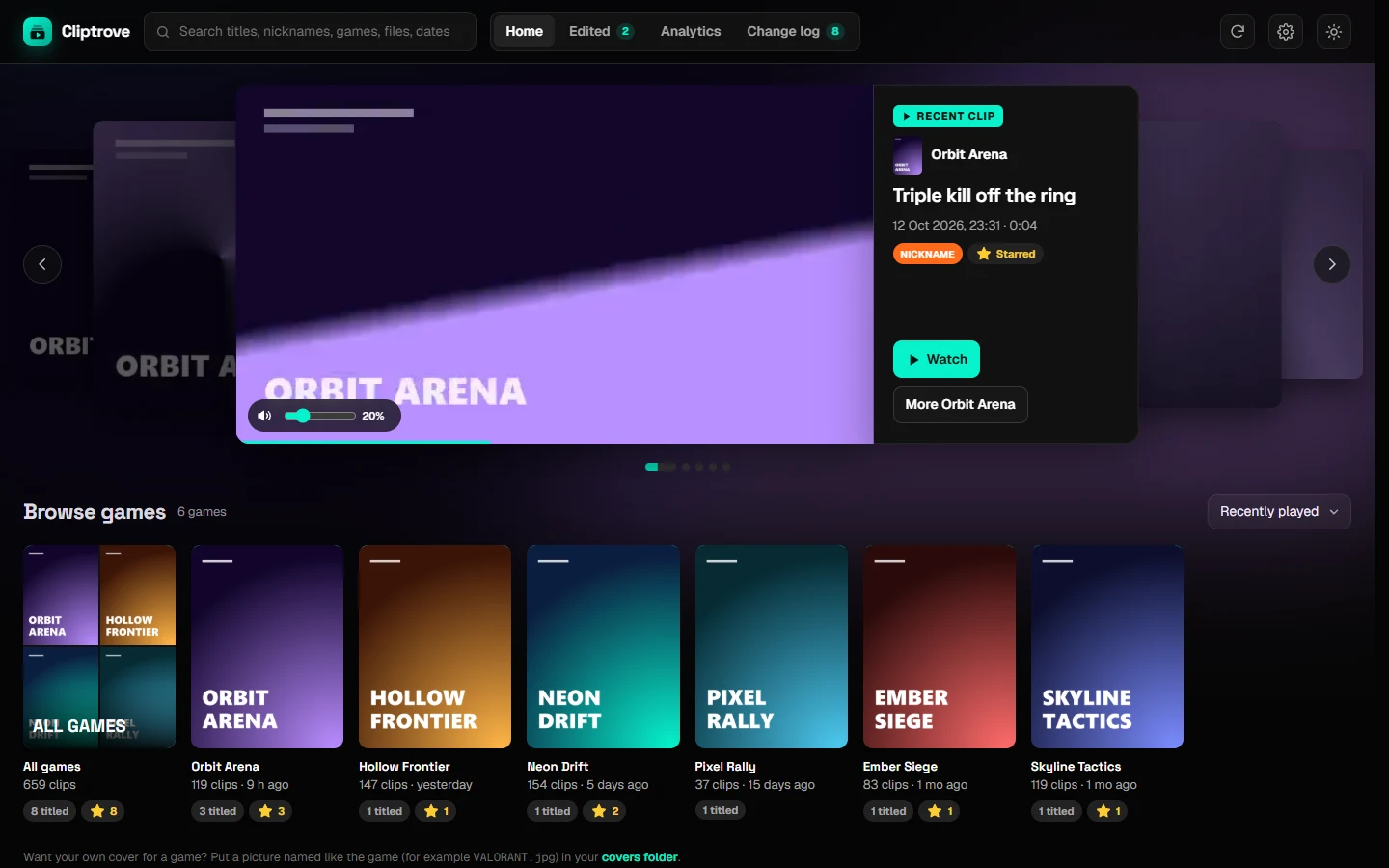
The home page plays your newest clips, with a tile for every game below. Hover over a clip anywhere to preview it.
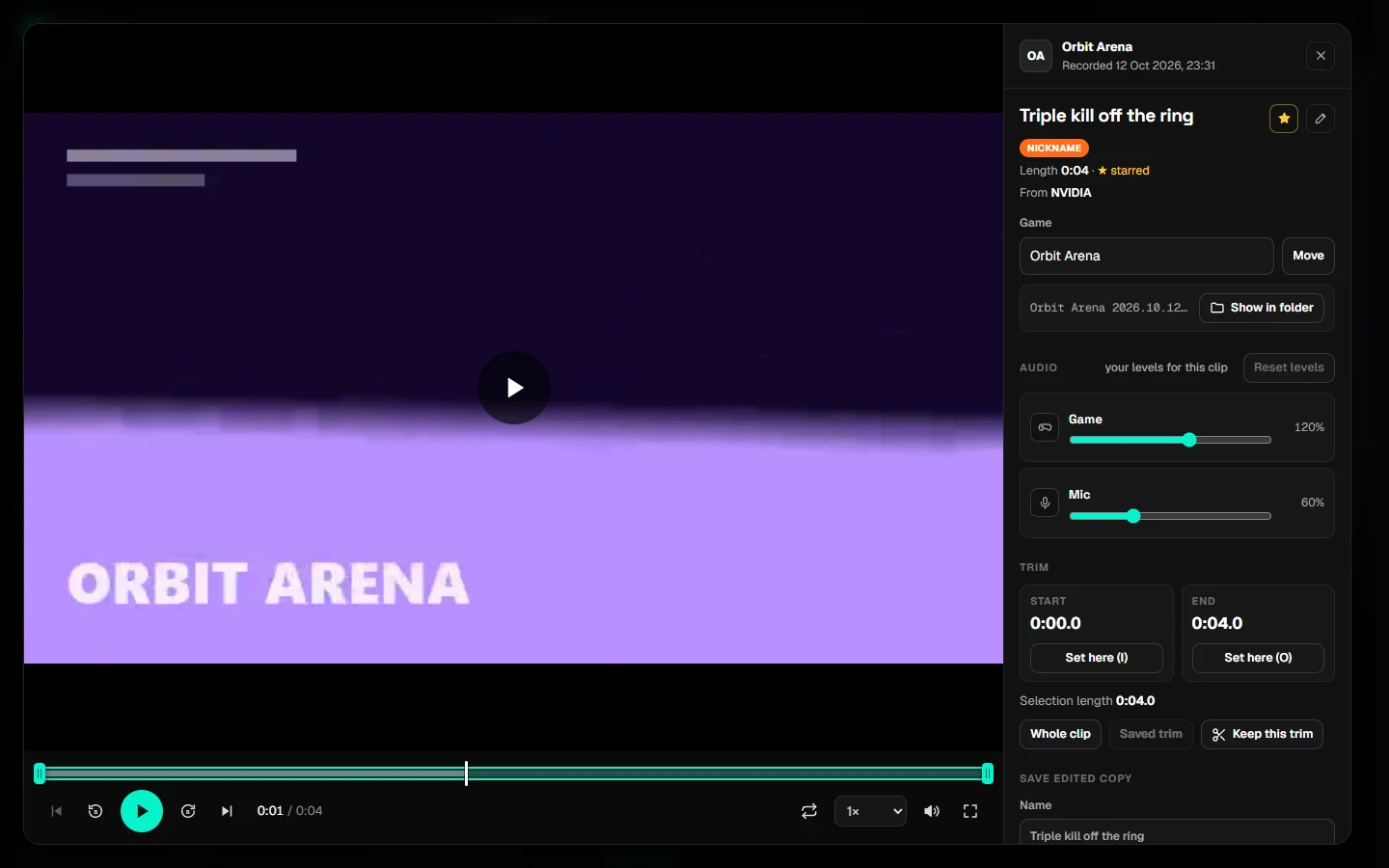
Click any clip to open the player.
| Keys | Does |
|---|---|
| Space / K | Play / pause |
| ← → | Back / forward 5 seconds (with Shift: 1 second) |
| J / L | Back / forward 10 seconds |
| , / . | One frame back / forward |
| I / O | Set the start / end of the selection |
| P / N | Previous / next clip |
| S | Star |
| R | Nickname |
| M / F | Mute / full screen |
| Esc | Close the player |
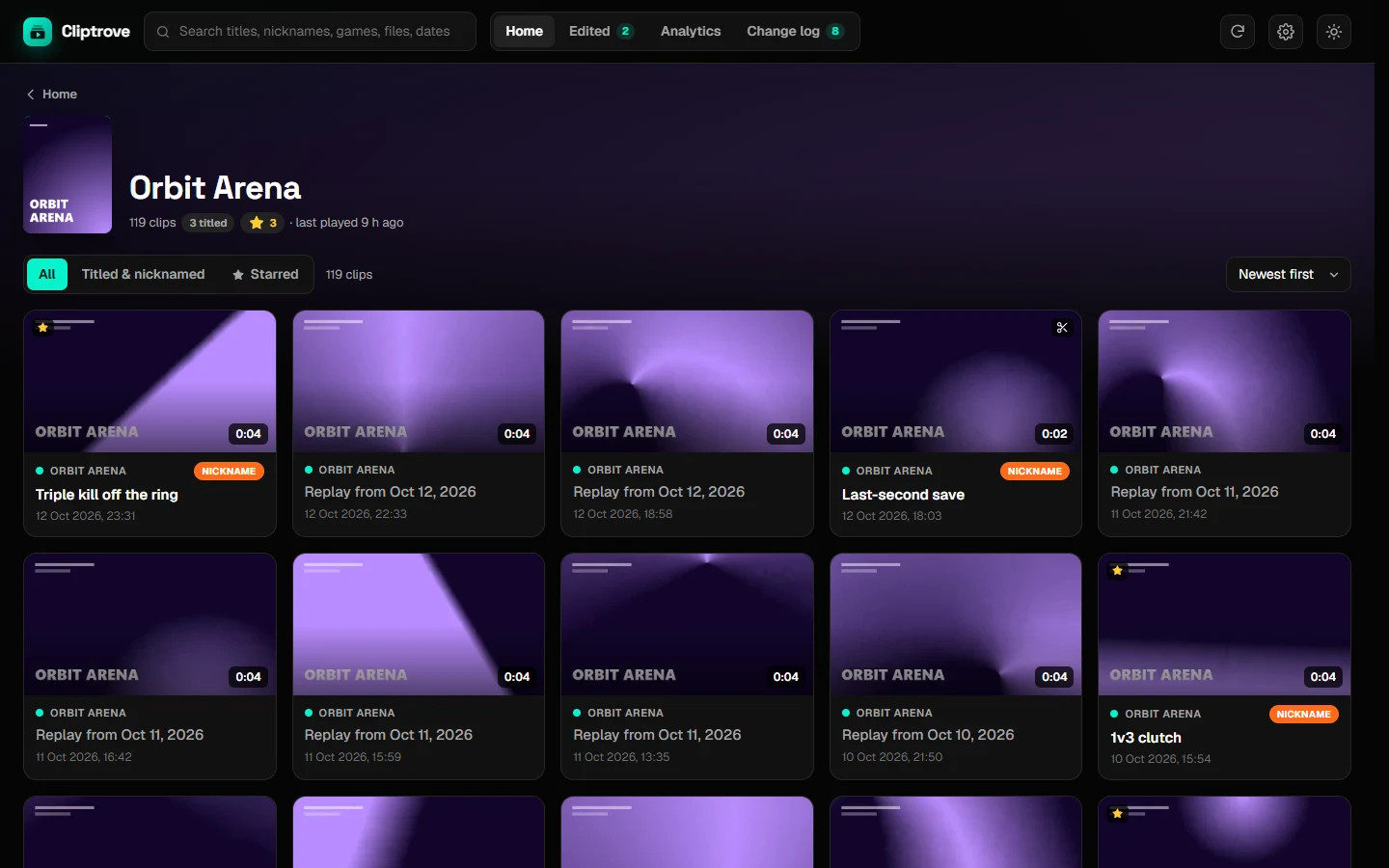
Each game has its own page. You can filter it to titled or starred clips and sort it different ways.
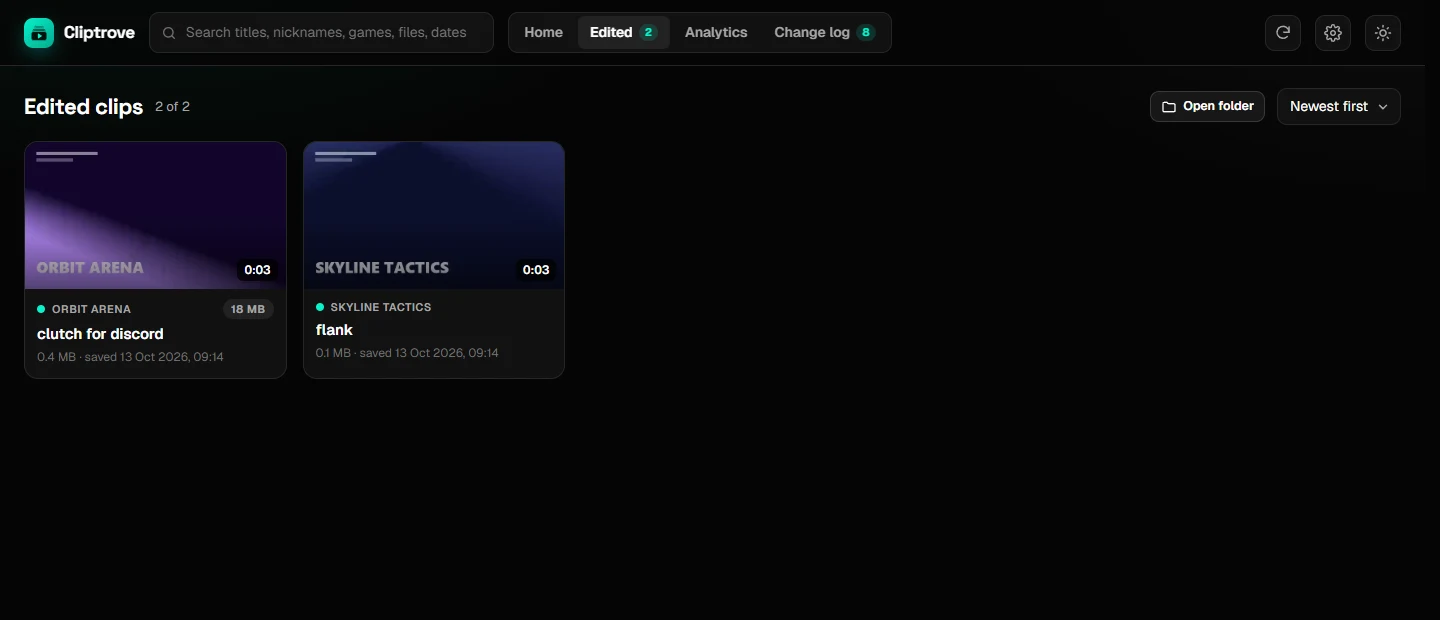
Everything you've saved is in the Edited tab. Editing a copy again overwrites it, unless you untick Overwrite.
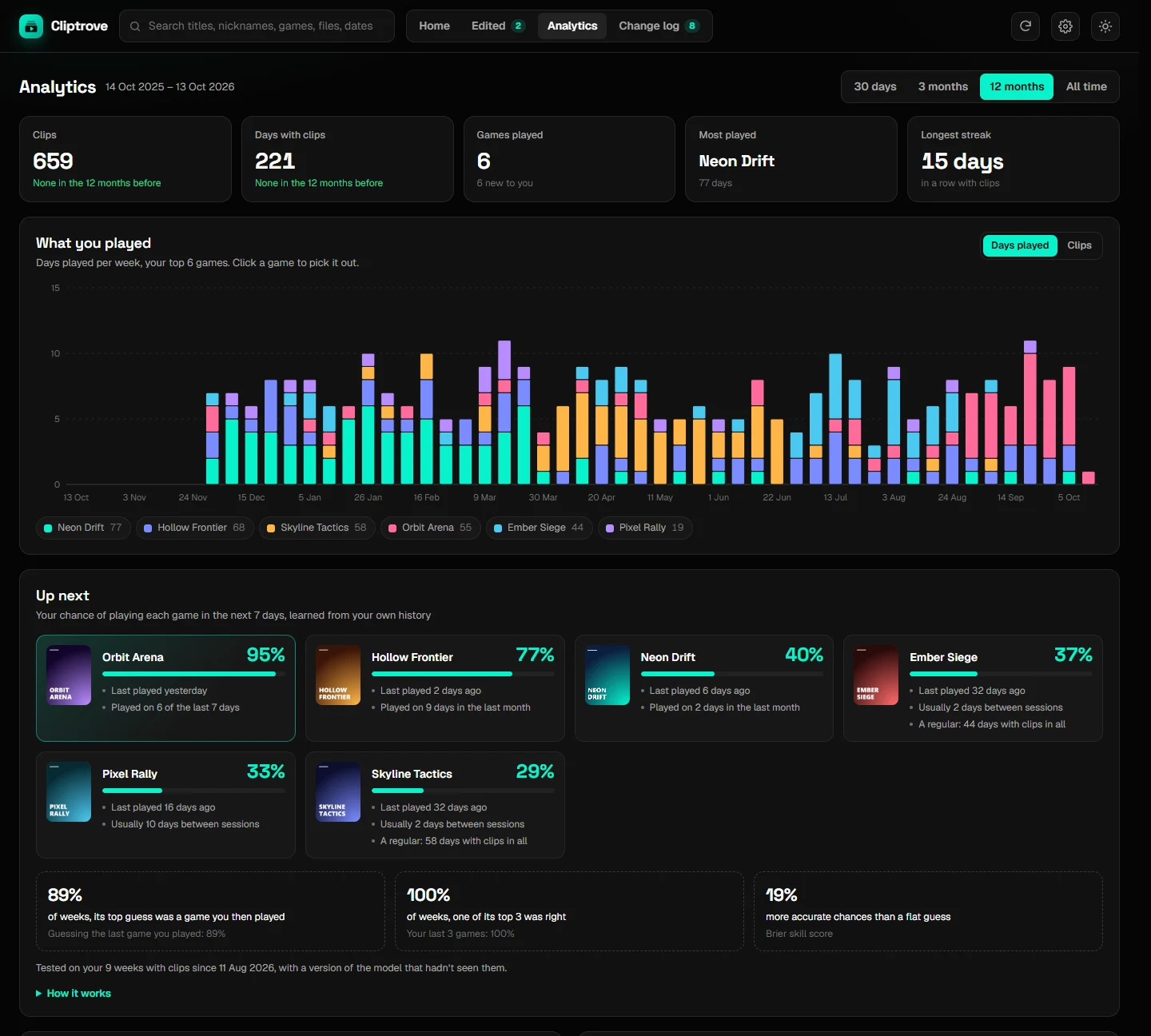
The Analytics tab shows:
"Up next" comes from a small model trained on your own history, on your PC. Next to it, you can see how often it guessed right on your past weeks. How it works explains the model.
Cliptrove.exe.Your settings, nicknames and other data are kept separately, so nothing is lost. If you put the new version in a different folder and use "Start with Windows", turn that switch off and on once.
Turn off Start with Windows, quit Cliptrove, and delete its folder. To also remove your settings and nicknames, delete %LOCALAPPDATA%\Cliptrove. Your clips are never touched. Privacy has the details.
Have a question or an idea? Ask in Discussions. Found a bug? Report it.
Recorders like OBS don't put the game in the file name. Open the clip and type the right game under Game. If it's a recorder Cliptrove should understand better, please open an issue with a few example file names, with anything personal removed.
Install ffmpeg, see step 4. Chat and Mic only appear if your recorder saved them as separate tracks.
Use Chrome or Edge. Firefox can't play clips recorded in HEVC (H.265).
No. Cliptrove only listens on your own PC. Other devices and websites can't reach it. See Privacy.
No. It only reads your clips. New files are only written when you save an edited copy, into the "Edited Clips" folder.
Yes, for personal and other noncommercial use. See License.
Cliptrove is plain Python (standard library only) plus HTML, CSS and JavaScript. To run it from the source code, with Python 3.10 or newer:
git clone https://github.com/Th30utcast/Cliptrove.git
cd Cliptrove
python -m cliptrove
How it works walks through the code. Contributing explains how to help, and Security how to report a problem privately.
Cliptrove is © 2026 Ayman Kandouli and is available under the PolyForm Noncommercial License 1.0.0.
Cliptrove isn't affiliated with SteelSeries, NVIDIA, AMD, Microsoft, OBS, Medal or Valve. Third-party notices has the details.
All your game clips in one place: browse, watch, mix, trim and analyze clips from SteelSeries GG, NVIDIA, AMD, Xbox Game Bar, OBS and more. Runs entirely on your PC.
See the code
All your game clips in one place.
Browse them by game, watch them, mix their audio, trim them and save copies for Discord.
Works with SteelSeries GG, NVIDIA, AMD, Xbox Game Bar, OBS and more. Runs entirely on your own PC.
Download for Windows · Website · Get started · Privacy · How it works
All screenshots and the demo use a library of made-up games.
| Recorder | What you do |
|---|---|
| SteelSeries GG | Nothing. It's found on its own, with GG's titles, stars, trims and Game/Chat/Mic levels. |
| NVIDIA (ShadowPlay / NVIDIA App) | Add the folder your clips are saved to. |
| AMD (Radeon ReLive / Adrenalin) | Add the folder your clips are saved to. Cliptrove usually suggests it for you. |
| Xbox Game Bar | Add your Videos\Captures folder. |
| OBS Studio | Add your recordings folder. Cliptrove suggests it from OBS's settings. |
| Medal, or any other folder of videos | Add the folder. Games are worked out from folder and file names. |
Open the latest release. Under Assets, click Cliptrove-…-windows.zip to download it.
Documents\Cliptrove.Cliptrove.exe.[!NOTE] Seeing "Windows protected your PC"? Windows shows this for new apps that haven't paid for a code-signing certificate. Click More info, then Run anyway. You only need to do this once. Only download Cliptrove from this page's Releases.
Your browser opens Cliptrove at http://127.0.0.1:48650. This address only works on your own PC.
The first time it starts, a short setup asks which apps you record clips with. Apps it finds on your PC are already ticked.
Next, it asks where each app saves its clips. Folders it found are filled in for you. Otherwise, click Choose… and pick the folder. SteelSeries GG needs no folder: Cliptrove reads its library directly.
The last step offers Start with Windows and checks for ffmpeg. Setup only appears once. To add or remove folders later, use Settings (the gear icon at the top right).
| Recorder | Usual folder | Where it's set |
|---|---|---|
| NVIDIA | Videos\NVIDIA, or a folder per game in Videos | The NVIDIA overlay (Alt+Z) > Settings |
| AMD | Videos\Radeon ReLive | AMD Software (Adrenalin) > Record & Stream settings |
| Xbox Game Bar | Videos\Captures | Windows Settings > Gaming > Captures |
| OBS | Videos | OBS > Settings > Output > Recording Path |
| Medal | Shown in Medal's settings | Medal > Settings |
The easiest way to check: right-click a clip in your recorder and choose "Show in folder", or "Open file location".
Thumbnails for clips from folders, separate Chat/Mic tracks, playing .mkv files and saving edited copies all need ffmpeg, a free video tool.
Click Start, type PowerShell and open it.
Paste this and press Enter:
winget install Gyan.FFmpeg
Restart Cliptrove: Settings > About > Quit Cliptrove, then open Cliptrove.exe again.
Turn this on in Settings, so Cliptrove runs quietly in the background and http://127.0.0.1:48650 always works. You can bookmark it.
The home page plays your newest clips, with a tile for every game below. Hover over a clip anywhere to preview it.
Click any clip to open the player.
| Keys | Does |
|---|---|
| Space / K | Play / pause |
| ← → | Back / forward 5 seconds (with Shift: 1 second) |
| J / L | Back / forward 10 seconds |
| , / . | One frame back / forward |
| I / O | Set the start / end of the selection |
| P / N | Previous / next clip |
| S | Star |
| R | Nickname |
| M / F | Mute / full screen |
| Esc | Close the player |
Each game has its own page. You can filter it to titled or starred clips and sort it different ways.
Everything you've saved is in the Edited tab. Editing a copy again overwrites it, unless you untick Overwrite.
The Analytics tab shows:
"Up next" comes from a small model trained on your own history, on your PC. Next to it, you can see how often it guessed right on your past weeks. How it works explains the model.
Cliptrove.exe.Your settings, nicknames and other data are kept separately, so nothing is lost. If you put the new version in a different folder and use "Start with Windows", turn that switch off and on once.
Turn off Start with Windows, quit Cliptrove, and delete its folder. To also remove your settings and nicknames, delete %LOCALAPPDATA%\Cliptrove. Your clips are never touched. Privacy has the details.
Have a question or an idea? Ask in Discussions. Found a bug? Report it.
Recorders like OBS don't put the game in the file name. Open the clip and type the right game under Game. If it's a recorder Cliptrove should understand better, please open an issue with a few example file names, with anything personal removed.
Install ffmpeg, see step 4. Chat and Mic only appear if your recorder saved them as separate tracks.
Use Chrome or Edge. Firefox can't play clips recorded in HEVC (H.265).
No. Cliptrove only listens on your own PC. Other devices and websites can't reach it. See Privacy.
No. It only reads your clips. New files are only written when you save an edited copy, into the "Edited Clips" folder.
Yes, for personal and other noncommercial use. See License.
Cliptrove is plain Python (standard library only) plus HTML, CSS and JavaScript. To run it from the source code, with Python 3.10 or newer:
git clone https://github.com/Th30utcast/Cliptrove.git
cd Cliptrove
python -m cliptrove
How it works walks through the code. Contributing explains how to help, and Security how to report a problem privately.
Cliptrove is © 2026 Ayman Kandouli and is available under the PolyForm Noncommercial License 1.0.0.
Cliptrove isn't affiliated with SteelSeries, NVIDIA, AMD, Microsoft, OBS, Medal or Valve. Third-party notices has the details.



