A cross-platform TUI database management tool written in Go.
Go
4,372
756 commits
updated Oct 12, 2026






A cross-platform TUI database management tool written in Go.
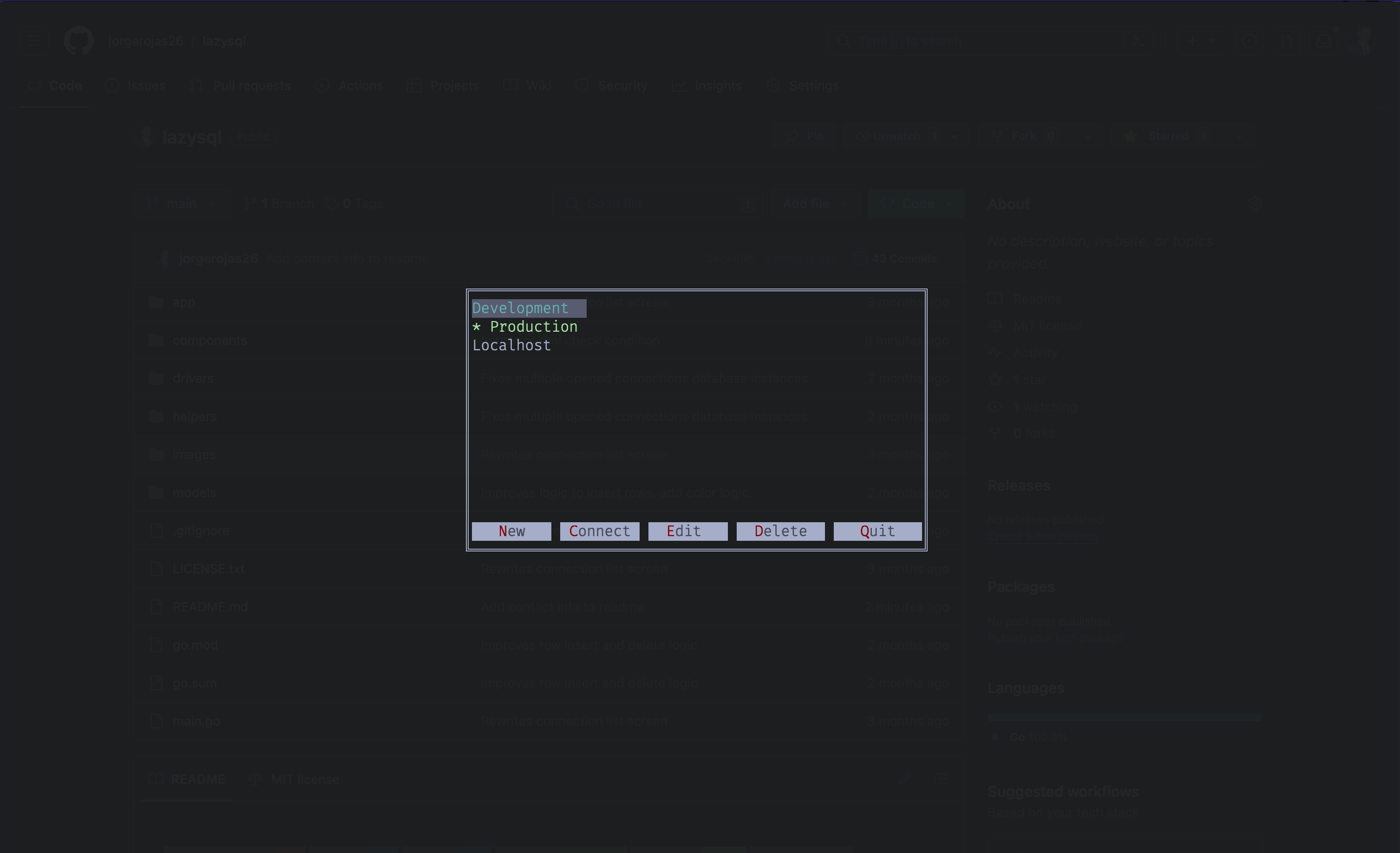
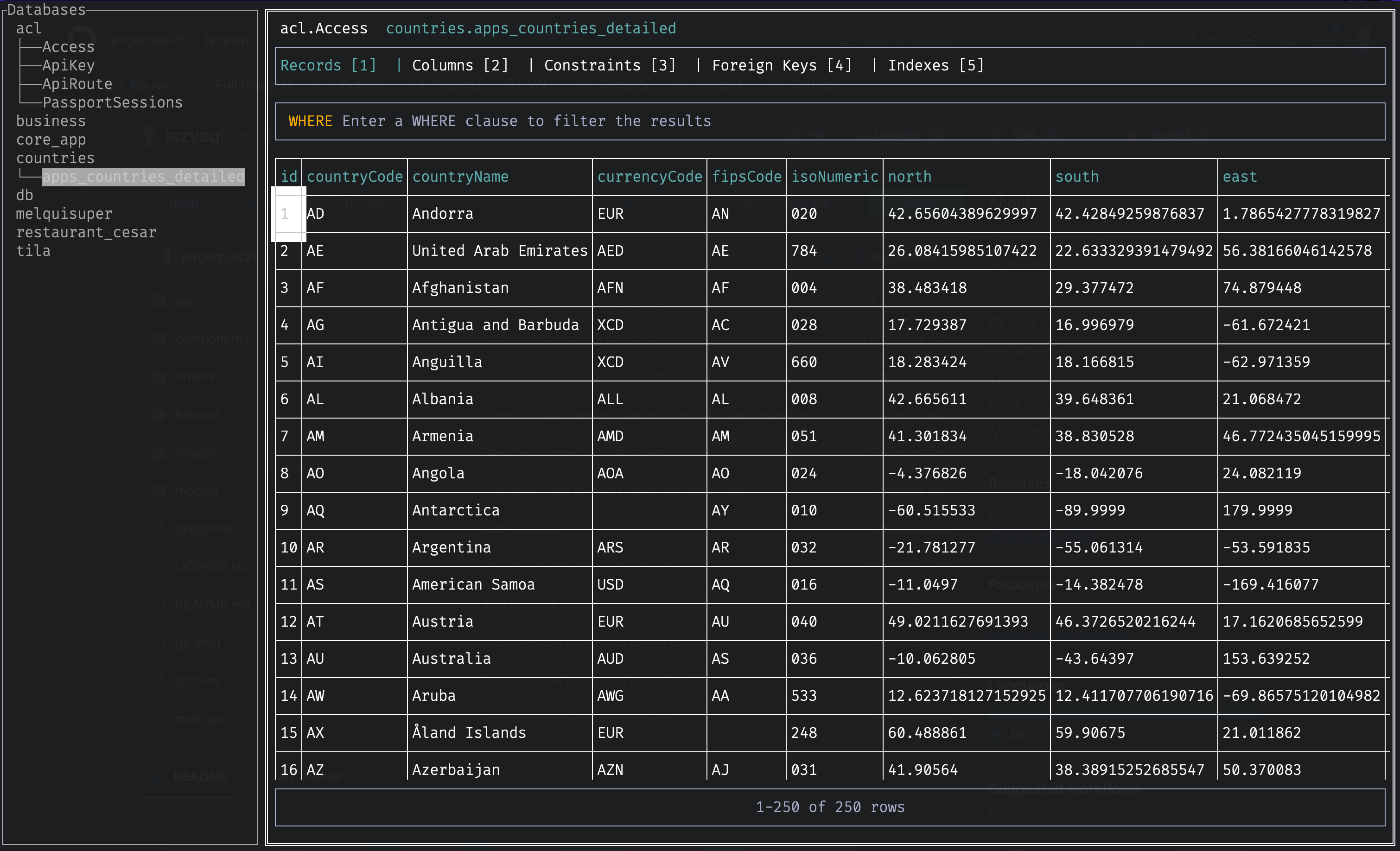
This project is heavily inspired by Lazygit, which I think is the best TUI client for Git.
I wanted to have a tool like that, but for SQL. I didn't find one that fits my needs, so I created one myself.
I live in the terminal, so if you are like me, this tool can become handy for you too.
This is my first Open Source project, also, this is my first Go project. I am not a brilliant programmer. I am just a typical JavaScript developer that wanted to learn a new language, I also wanted a TUI SQL Client, so blanca y en botella, leche! (white and bottled).
This project is in ALPHA stage, please feel free to complain about my spaghetti code.
I use Lazysql daily in my full-time job as a full-stack javascript developer in its current (buggy xD) state. So, the plan is to improve and fix my little boy as a side-project in my free time.

brew install lazysql
go install github.com/jorgerojas26/lazysql@latest
For Windows, macOS or Linux, you can download a binary release here
Arch Linux users can install it from the AUR with:
paru -S lazysql
or
yay -S lazysql
or install it manual with:
git clone https://aur.archlinux.org/lazysql.git
cd lazysql
makepkg -si
Configured official releases disclose minimal anonymous aggregate usage counts
before sending any data. Keep enabled is the default; choose Disable or
use --no-telemetry to opt out. Source builds send nothing. See data collected, opt-out, limitations,
and free self-hosting instructions.
If the XDG_CONFIG_HOME environment variable is set, the configuration file will be located at:
${XDG_CONFIG_HOME}/lazysql/config.tomlIf not, the configuration file will be located at:
%APPDATA%\lazysql\config.toml~/Library/Application Support/lazysql/config.toml~/.config/lazysql/config.tomlThe configuration file is a TOML file and can be used to define multiple connections.
[[database]]
Name = 'Production database'
Provider = 'postgres'
DBName = 'foo'
URL = 'postgres://${user}:urlencodedpassword@localhost:${port}/foo'
ReadOnly = true
Commands = [
  { Command = 'ssh -tt remote-bastion -L ${port}:localhost:5432', WaitForPort = '${port}' },
  { Command = 'whoami', SaveOutputTo = 'user' },
]
[[database]]
Name = 'Development database'
Provider = 'postgres'
DBName = 'foo'
URL = 'postgres://postgres:urlencodedpassword@localhost:5432/foo'
[application]
DefaultPageSize = 300
DisableSidebar = false
SidebarOverlay = false
JSONViewerWordWrap = false
EnterOpensJSONViewer = false
schema_bulk_load_threshold = 200
exact_count_threshold = 50000
exact_count_timeout_ms = 200
max_query_rows = 1000
max_open_connections = 8
max_idle_connections = 8
The ReadOnly field (optional, defaults to false) can be set to true to enable read-only mode for a connection. When enabled, all mutation queries (INSERT, UPDATE, DELETE, DROP, etc.) will be blocked.
Database entries may override the connection pool with max_open_connections and max_idle_connections. Omitted values inherit the application settings; an explicit 0 uses LazySQL's default of 8. Invalid combinations (for example, idle connections greater than open connections) are rejected. SQLite always uses one open and one idle connection (1/1) to preserve in-memory database behavior, ignoring the general pool settings.
The DBName field (optional) controls how the sidebar tree is populated when a connection is opened:
DBName set (e.g. DBName = 'foo'): the tree is pinned to that single database only. This is the default behavior when a connection is created/edited through the in-app connection form, since DBName is auto-filled from whatever database is embedded in the connection URL.DBName empty or omitted: the tree lists every database in the instance that the connecting user has CONNECT privileges on (via GetDatabases()), not just the one in the URL. This is useful when you regularly need to browse or query across multiple databases/catalogs on the same PostgreSQL or MSSQL server — PostgreSQL in particular requires a database to be specified in the connection string even though the same login is often valid for several databases on that instance.To enable multi-database browsing for a connection, either:
DBName line for that connection directly in config.toml, ora to add, e to edit from the connection picker). This overrides the auto-filled DBName and saves the connection with it left empty, without you needing to hand-edit the TOML file. When re-opening an existing connection for editing, the checkbox is automatically pre-checked if it was previously saved this way.Note: this setting only affects which databases populate the sidebar tree. It does not change which database the initial connection is authenticated against — that is still determined entirely by the database in the connection URL (a requirement of the PostgreSQL and MSSQL wire protocols).
The [application] section is used to define some app settings. Not all settings are available yet, this is a work in progress.
| Setting | Default | Description |
|---|---|---|
| DefaultPageSize | 300 | Number of records to fetch per page |
| DisableSidebar | false | Disable the sidebar |
| SidebarOverlay | false | Show sidebar as overlay instead of side panel |
| JSONViewerWordWrap | false | Enable word wrap in JSON viewer |
| EnterOpensJSONViewer | false | Open JSON viewer when pressing Enter on a cell |
| DisableUpdateCheck | false | Disable automatic GitHub release checks (manual checks remain available) |
| exact_count_threshold | 50000 | Automatically run an exact count when an unfiltered estimate is at or below this value (0 = never auto-count an estimate) |
| exact_count_timeout_ms | 200 | Budget for automatic exact counts in milliseconds (0 = disable automatic exact counts; manual # remains available) |
| max_query_rows | 1000 | Maximum rows shown by an interactive SQL-editor result (0 = unlimited) |
| schema_bulk_load_threshold | 200 | Maximum visible tables whose columns are eagerly loaded in bulk (0 = always lazy) |
| max_open_connections | 8 | Maximum open connections for MySQL, PostgreSQL, and MSSQL (0 = use default 8) |
| max_idle_connections | 8 | Maximum idle connections for MySQL, PostgreSQL, and MSSQL (0 = use default 8) |
schema_bulk_load_threshold limits eager autocomplete column loading to small
visible schemas. 0 keeps all columns lazy; larger schemas still expose table
names immediately and fetch a requested table on demand. Cached or in-flight
columns are reused regardless of the threshold.
LazySQL checks the official GitHub repository for a newer stable release in the background, at most once per day after a successful check. A notice appears in the bottom status line without interrupting your work. Development builds do not check for updates. Only release metadata is requested; no database or connection information is sent.
Press F10 anywhere to check for updates or open an available upgrade. The
shortcut can be changed with CheckForUpdates in [keymap.global].
sudo or restarts your active session; restart
manually when ready.Automatic checks can be disabled with DisableUpdateCheck = true under
[application], or by setting LAZYSQL_NO_UPDATE_CHECK=1. Manual checks still work.
Network failures do not prevent startup; manual checks show errors and can be
retried. Closing the upgrade dialog lets you keep working while the download
finishes. Exiting LazySQL cancels an unfinished download and waits for installer
file operations to finish. Your existing binary is left intact if verification
or staging fails.
Colors are set in the [theme] section. Pick a preset and, optionally, override single colors on top of it:
[theme]
Preset = "light"

[theme.Colors]
Border = "#666A7E"
Title = "black"
PrimaryText = "default"
EditorStatusBarBackground = "lightgray"
SQLKeyword = "#005F87"
Presets:
| Preset | Description |
|---|---|
default | The standard lazysql colors, on the terminal's background |
light | GitHub-inspired light palette with a painted background |
dracula | Dracula |
gruvbox-dark | Gruvbox dark |
nord | Nord |
solarized-light | Solarized light |
tokyo-night | Tokyo Night |
catppuccin-mocha | Catppuccin Mocha |
Press Ctrl+T anywhere in lazysql to open the theme picker. Move with the arrow keys, j/k, or Ctrl+N/Ctrl+P to preview each theme across the running application. Press Enter to apply and save the selected preset, or q/Esc to restore the previous theme.
default uses the terminal's background color. All other presets paint their own background.
A color is a name ("red", "dodgerblue", any W3C color name), a hex value ("#RRGGBB"), or "default" for the terminal's own color. Unknown keys, presets and colors are reported when lazysql starts.
Keys for [theme.Colors]:
| Key | Used for |
|---|---|
PrimitiveBackground | Background of all views |
ContrastBackground, MoreContrastBackground | Backgrounds of input fields, buttons and drop-downs |
Border, Title, Graphics | Default border, title and line colors |
PrimaryText | Main text |
SecondaryText | Highlights: selected rows, active tab, key hints, sidebar values |
TertiaryText | Labels and status messages |
InverseText | Borders and text of unfocused views, form fields |
ContrastSecondaryText | Text drawn on SecondaryText (selected rows, active tab) |
SidebarTitleBorder | Separator next to the sidebar field names |
Error | Error messages |
ReadOnly | Read-only markers |
TableChange, TableInsert, TableDelete, TableMarked | Backgrounds of changed, inserted, deleted and marked rows |
EditorSelection | Selected text in the SQL editor |
EditorStatusBarBackground, EditorStatusBarText | SQL editor status bar |
AutocompleteBackground, AutocompleteText, AutocompleteSelected, AutocompleteDescription, AutocompleteSeparator | SQL editor autocomplete popup |
SQLKeyword, SQLString, SQLNumber, SQLComment, SQLFunction, SQLOperator, SQLType, SQLBoolean, SQLParameter | SQL syntax highlighting |
JSONKey, JSONString, JSONBoolean, JSONNull, JSONNumber | JSON viewer |
You can place a .lazysql.toml file in your project directory (next to your .git folder) to override the global configuration for that project. This is useful for defining project-specific database connections or settings.
lazysql searches for .lazysql.toml by walking up from the current working directory. It stops at the git repository root (where .git is found). If no local config is found, the global configuration is used as-is.
Merge behavior:
| Section | Behavior |
|---|---|
[application] | Deep merge — local values override global, unset fields keep global/defaults |
[[database]] | Replace — local connections completely replace global connections |
[keymap.*] | Deep merge — local keybindings override global ones for the same command |
[theme] | Deep merge — a local Preset or color overrides the global one, other colors are kept |
Example .lazysql.toml:
[application]
DefaultPageSize = 500

[[database]]
Name = 'Local development'
Provider = 'postgres'
URL = 'postgres://localhost/myproject_dev'
With this local config, DefaultPageSize overrides the global value, and only the Local development connection is available (global connections are replaced).
Environment variables (${env:VAR_NAME}) work in local config files just like in the global config. Saving connections preserves these placeholders in fields you have not changed, instead of writing the expanded credentials.
Note: Changes made from the UI only update the setting that changed and keep the rest of the target file. Connections you add, edit or delete are saved to the local .lazysql.toml if it defines [[database]], otherwise to the global config file. A theme picked with Ctrl+T is saved to the local .lazysql.toml when one is found, otherwise to the global config file. Comments in a file are not kept when lazysql saves it.
This repository includes a plug-and-play, development-only fixtures for MySQL, PostgreSQL, MSSQL, and SQLite. The fixture is intended for manual testing of records, pagination, filtering, sorting, metadata, Foreign Key Jump, SQL editor results, and CSV exports.
Prerequisites are Docker, Docker Compose v2, and OpenSSL. The stack does not require any host-installed database client.
From the repository root:
./scripts/manual-databases.sh validate
./scripts/manual-databases.sh init
./scripts/manual-databases.sh up
lazysql
init generates a random password and private, git-ignored .env.manual-databases
and .lazysql.toml files. It refuses to overwrite existing local configuration.
Ports bind only to 127.0.0.1. Do not reuse these development credentials elsewhere.
If upgrading from the old fixed-password fixtures, run reset after init to
recreate the volumes with the new password (this deletes all fixture data).
When LazySQL is started from the repository root, the generated .lazysql.toml
is discovered automatically and contains four ready-to-use connections:
| Connection | Provider | Host port | Fixture database |
|---|---|---|---|
| Docker MySQL | mysql | 3307 | lazysql_test |
| Docker PostgreSQL | postgres | 5433 | lazysql_test |
| Docker MSSQL | sqlserver | 14331 | lazysql_test |
| Docker SQLite | sqlite3 | file | testdata/sqlite/lazysql.sqlite3 |
Use the helper script for the lifecycle:
./scripts/manual-databases.sh status  # health and seed status
./scripts/manual-databases.sh down    # stop, preserve data
./scripts/manual-databases.sh reset   # destroy and reseed everything
up builds the small SQLite helper image, initializes the server fixtures, and
waits until all databases contain their seed tables. MySQL and PostgreSQL use
their official image initialization hooks and named volumes; those scripts run
when the volume is empty. MSSQL seeds through a second container and keeps a
seed marker so restarting the stack does not overwrite manual changes. SQLite
is a local file seeded by the helper container and is safe to initialize more
than once. Use reset when a clean fixture is needed.
The fixture uses 1,200 customers, 300 products, 3,000 orders, 9,000 order
items, and 2,400 customer notes. It includes primary/foreign keys, unique
constraints, indexes, nullable columns, dates, numeric and boolean values,
JSON/text values, a view, and provider-specific catalog objects. See
testdata/README.md for the model and
docker-compose.yml for ports and credentials.
The MSSQL image is x86-64-only and the service is explicitly run as
linux/amd64. Docker may emulate it on Apple Silicon; Microsoft does not
support that emulation path, so use a native x86 host or a remote SQL Server if
it fails. If a host port is already in use, change the port in both
docker-compose.yml and .lazysql.toml before starting the stack. The SQLite
URL is relative to the process working directory, so launch LazySQL from the
repository root for that connection.
For a list of keyboard shortcuts press
?
Open the TUI with:
$ lazysql
To launch lazysql with the ability to pick from the saved connections.
$ lazysql [connection_url]
To launch lazysql and connect to database at [connection_url].
$ lazysql --read-only [connection_url]
To launch lazysql in read-only mode.
lazysqln)<Enter>)If you already have a connection set up:
lazysqlj and h for navigation)c or <Enter>)There is currently no way to create a table from the TUI. However you can run the query to create the table as a SQL-Query, inside the SQL Editor.
You can update the tree by pressing R, so you can see your newly created table.
<Ctrl+E> to open the built-in SQL Editor<Ctrl+R> to execute the SQL queryTo switch back to the table-tree press
HAfter executing a
SELECT-query a table will be displayed under the SQL-Editor with the query-result.
To switch focus back to SQL-Editor press/
Records pages are fetched with one page of rows plus a lookahead row. The lookahead makes navigation work without an exact count, so the pagination label has three intentional forms:
843 rows / 1-843 of 843 rows: exact; the database count or an
end-of-page inference proved the total.~4.3M rows: estimated; the database supplied a useful estimate, but it
is not a guarantee.300+ rows: unknown-more; the current page has more rows available and
no exact total is known yet.Press # (ExactCount) in the Records surface to start an exact count. Press
# again while it is running to cancel it; a failed count stays local to the
pagination bar and can be retried with #. Automatic counting never blocks the
first Records page: LazySQL first uses a driver estimate where available and
runs an exact count only when the estimate is at or below
exact_count_threshold (default 50000), or when an estimate is unavailable.
A threshold of 0 disables estimate-driven automatic exact counts; filtered
counts and unavailable estimates still obey the timeout. The automatic count is
bounded by exact_count_timeout_ms (default 200). Set
that timeout to 0 to disable automatic exact counts; estimates still render
and a manual # count remains available. Filtered Records counts are also
bounded by the automatic timeout.
Interactive SQL results stream progressively and default to
max_query_rows = 1000. A positive cap renders at most that many rows and
performs one lookahead read so the UI can say result truncated; 0 means
unlimited. The cap applies only to interactive results, not full exports.
While a SQL-editor result query is active, press Esc to cancel its context and
keep any partial rows already rendered. When no result query is active, Esc
keeps the editor's normal unfocus/editing behavior.
max_query_rows. For SQL results it reexecutes only a conservative,
replay-safe read-only statement; mutating or unknown statements offer the
visible-results option only.Both scopes write through a temporary file. Cancellation, query failure, or a write/rename failure removes the temporary file and leaves an existing destination unchanged.
For local JSONL timings, start LazySQL with --loglevel debug --logfile /path/to/lazysql.jsonl. Logs include operation duration, database identity,
cache/fallback outcome, cancellation/failure, and
event=first_useful_result for Records and SQL-editor results. SQL text,
arguments, row values, credentials, and connection URLs are redacted; no
telemetry is sent.
For the implementation matrix and the no-credentials RTT benchmark harness,
see docs/performance.md.
e or <Enter>jkGg<Enter> to open the tableTo switch back to the table-tree press
H
To switch back to the table pressL
/ to focus the filter inputWHERE-clause to filter the table<Enter> to submit your filterTo remove the filter, focus the filter input (press
/) and press<Esc>.
In a table's Records view, press V (visibility) or click Columns [V]
in the pagination bar. A compact picker lets you choose which columns to show:
At least one column stays visible. The footer shows how many columns are hidden. Choices are remembered across restarts for each connection, database, and table, including schema-qualified table names. New columns are visible by default.
This is display-only: queries still fetch all columns, and editing, primary keys, the row sidebar, row copies, and CSV exports retain the complete data. SQL editor results and metadata views are unaffected.
Preferences are stored under [hidden_columns] in the active configuration file
(the project .lazysql.toml when present, otherwise the global config). The
shortcut can be customized with ColumnVisibility in [keymap.Table].
Columns that belong to a foreign key are underlined in the header, and the values you can follow are underlined too. Cells with pending changes (inserted, edited or deleted rows) are not marked.
1 to switch to the record tab<Enter> to jump to the referenced rowThe referenced table opens in a new tab (or is focused, if it is already open)
with a filter prefilled for the referenced value, so only the matching rows are
shown: WHERE <referenced_column> = '<value>'.
To switch tabs press
[or], to switch back to the table-tree pressH.
Notes:
NULL, EMPTY or DEFAULT have nothing to follow, so
<Enter> does nothing on them.<Enter> follows the relation
instead of opening the JSON viewer, even when EnterOpensJSONViewer is enabled.1 to switch to the record tabo to insert a new row<Ctrl+S> to save the changes1 to switch to the record tabc to edit it inline, then press <Enter> to submite to edit it in your editor, then save and quit the editor<Ctrl+S> to save the changes<Space> to mark it. Repeat for nonadjacent rows (press <Space> again to unmark). For a contiguous range, press v and move up or down: the highlighted selection grows with the cursor. Press <Space> to add that range to your marks, or <Esc> (or v) to cancel it.Y while selecting a range to copy it directly, without committing marks. Otherwise, Y copies marked rows or, with no marks, the current row. Choose SQL (s), Markdown (m), JSON (j), or CSV (c). CSV and Markdown include column headers; JSON is an array of objects. SQL produces an INSERT in a records table, or a standalone VALUES statement in SQL editor results (which have no target table).This works in both records tables and SQL editor results. y is unchanged: it copies marked rows as tab-separated values, or the selected cell when no rows are marked. Marks are cleared when results reload.
E to open the export dialogBatch size (default: 10000): When exporting all records, data is fetched in batches to avoid timeout or memory issues with large tables. Increase for faster exports, decrease if you encounter any errors.
The default file path is
~/Downloads/{database}_{table}_{timestamp}.csv.
E to open the export dialogExport All Results may reexecute the query and may take significant time. Unknown or potentially mutating statements offer visible-results export only. Press
Escduring an export to cancel it; a cancelled or failed export leaves the requested destination unchanged.
Support for multiple RDBMS is a work in progress.
In some cases, mostly when connecting to remote databases, it might be necessary to run a custom command before being able to connect to the database. For example when you can only access the database through a remote bastion, you would probably first need to open an SSH tunnel by running the following command in a separate terminal:
ssh remote-bastion -L 5432:localhost:5432
In order to make it easier to run these commands, lazysql supports running custom commands before connecting to the database. You can define these commands in the configuration file like this:
[[database]]
Name = 'server'
Provider = 'postgres'
DBName = 'foo'
URL = 'postgres://${user}:password@localhost:${port}/foo'
Commands = [
  { Command = 'ssh -tt remote-bastion -L ${port}:localhost:5432', WaitForPort = '${port}' },
  { Command = 'whoami', SaveOutputTo = 'user' },
]
The Command field is required and can contain any command that you would normally run in your terminal.
The WaitForPort field is optional and can be used to wait for a specific port to be open before continuing.
The SaveOutputTo field is optional and can be used to make user-defined variables. The output (stdout) from the command will be saved into the variable, and the variable can be used in the URL or future commands via the ${VARIABLE} syntax.
When you define the ${port} variable in the URL field, lazysql will automatically replace it with a random
free port number. This port number will then be used in the connection URL and is available in the Commands
field so that you can use it to configure the command.
You can even chain commands to, for example, connect to a remote server and then to a postgres container running in a remote k8s cluster:
[[database]]
Name = 'container'
Provider = 'postgres'
DBName = 'foo'
URL = 'postgres://postgres:password@localhost:${port}/foo'
Commands = [
  { Command = 'ssh -tt remote-bastion -L 6443:localhost:6443', WaitForPort = '6443' },
  { Command = 'kubectl port-forward service/postgres ${port}:5432 --kubeconfig /path/to/kube.conf', WaitForPort = '${port}' }
]
You can use environment variables in the configuration file using the ${env:VAR_NAME} syntax. This is useful for keeping sensitive information like passwords out of the configuration file.
[[database]]
Name = 'Production'
Provider = 'postgres'
URL = 'postgres://${env:DB_USER}:${env:DB_PASSWORD}@localhost:5432/mydb'
export DB_USER=admin
export DB_PASSWORD=secret
lazysql
Note: Undefined environment variables will be replaced with an empty string.
You can customize keybindings by adding a [keymap.<Group>] section to your config.toml file. Each entry maps a command name to a key.
[keymap.Home]
SwitchToEditorView = "i"
Quit = "Esc"

[keymap.Tree]
GotoTop = "t"
Search = "Ctrl-F"
For single character keys, use the character directly (e.g., "q", "G", "1", "/"). For special keys, use the tcell key name (e.g., "Enter", "Esc", "Ctrl-S"). Only key names defined in tcell are supported.
Group names are case-insensitive (Home, home, and HOME all work).
Available groups: Home, Connection, Tree, TreeFilter, Table, Editor, Sidebar, QueryPreview, QueryHistory, JSONViewer.
| Default Key | Command | Description |
|---|---|---|
| L | MoveRight | Focus table |
| H | MoveLeft | Focus tree |
| Ctrl-E | SwitchToEditorView | Open SQL editor |
| Ctrl-S | Save | Execute pending changes |
| q | Quit | Quit |
| Backspace | SwitchToConnectionsView | Switch to connections list |
| ? | HelpPopup | Help |
| Ctrl-P | SearchGlobal | Global search |
| Ctrl-_ | ToggleQueryHistory | Toggle query history modal |
| T | ToggleTree | Toggle file tree |
| Default Key | Command | Description |
|---|---|---|
| n | NewConnection | Create a new database connection |
| c | Connect | Connect to database |
| Enter | Connect | Connect to database |
| e | EditConnection | Edit a database connection |
| d | DeleteConnection | Delete a database connection |
| q | Quit | Quit |
| Default Key | Command | Description |
|---|---|---|
| g | GotoTop | Go to top |
| G | GotoBottom | Go to bottom |
| Enter | Execute | Open |
| j | MoveDown | Go down |
| Down | MoveDown | Go down |
| Ctrl-U | PagePrev | Go page up |
| Ctrl-D | PageNext | Go page down |
| k | MoveUp | Go up |
| Up | MoveUp | Go up |
| / | Search | Search |
| n | NextFoundNode | Go to next found node |
| N | PreviousFoundNode | Go to previous found node |
| p | PreviousFoundNode | Go to previous found node |
| P | NextFoundNode | Go to next found node |
| c | TreeCollapseAll | Collapse all |
| e | ExpandAll | Expand all |
| R | Refresh | Refresh tree |
| Default Key | Command | Description |
|---|---|---|
| Esc | UnfocusTreeFilter | Unfocus tree filter |
| Enter | CommitTreeFilter | Commit tree filter search |
| Default Key | Command | Description |
|---|---|---|
| / | Search | Search |
| c | Edit | Change cell |
| d | Delete | Delete row |
| w | GotoNext | Go to next cell |
| b | GotoPrev | Go to previous cell |
| $ | GotoEnd | Go to last cell |
| 0 | GotoStart | Go to first cell |
| Enter | ForeignKeyJump | Jump to the referenced row from a foreign key cell (see Foreign Key Jump) |
| y | Copy | Copy cell value to clipboard (or marked rows if any) |
| Y | CopyRowsAs | Copy marked rows (or current row) as SQL, Markdown, JSON, CSV |
| v | RowRange | Select a live row range; Esc cancels |
| Space | RowSelect | Toggle row or commit visual range |
| o | AppendNewRow | Append new row |
| O | DuplicateRow | Duplicate row |
| J | SortDesc | Sort descending |
| R | Refresh | Refresh the current table |
| # | ExactCount | Calculate or cancel the exact Records count |
| K | SortAsc | Sort ascending |
| C | SetValue | Toggle value menu (NULL, EMPTY, DEFAULT) |
| [ | TabPrev | Switch to previous tab |
| ] | TabNext | Switch to next tab |
| { | TabFirst | Switch to first tab |
| } | TabLast | Switch to last tab |
| X | TabClose | Close tab |
| > | PageNext | Switch to next page |
| < | PagePrev | Switch to previous page |
| 1 | RecordsMenu | Switch to records menu |
| 2 | ColumnsMenu | Switch to columns menu |
| 3 | ConstraintsMenu | Switch to constraints menu |
| 4 | ForeignKeysMenu | Switch to foreign keys menu |
| 5 | IndexesMenu | Switch to indexes menu |
| S | ToggleSidebar | Toggle sidebar |
| s | FocusSidebar | Focus sidebar |
| Z | ShowRowJSONViewer | Toggle JSON viewer for row |
| z | ShowCellJSONViewer | Toggle JSON viewer for cell |
| f | ReverseForeignKeyJump | Pick a table referencing the current row and open it filtered |
| E | ExportCSV | Export to CSV |
| e | OpenCellInExternalEditor | Edit cell in external editor |
Enter(ForeignKeyJump) only applies on the record tab (1) of a table view. It is part of theTablegroup, so it can be remapped like any other keybinding:[keymap.Table] ForeignKeyJump = "Ctrl-G".
| Default Key | Command | Description |
|---|---|---|
| Ctrl-R | Execute | Execute query |
| Esc | CancelQuery | Cancel the active query; otherwise preserve normal editor Escape behavior |
| Ctrl-Space | OpenInExternalEditor | Open in external editor |
Specific editor for lazysql can be set by $SQL_EDITOR.
| Key | Action |
|---|---|
| w | Toggle word wrap |
| y | Copy to clipboard |
| z/Z | Close viewer |
The JSON viewer can be opened by pressing z (cell) or Z (row) on a table cell. If EnterOpensJSONViewer is enabled, pressing Enter on a cell will also open the JSON viewer, unless the cell supports a Foreign Key Jump (which takes precedence).
| Default Key | Command | Description |
|---|---|---|
| s | UnfocusSidebar | Focus table |
| S | ToggleSidebar | Toggle sidebar |
| j | MoveDown | Focus next field |
| k | MoveUp | Focus previous field |
| g | GotoStart | Focus first field |
| G | GotoEnd | Focus last field |
| c | Edit | Edit field |
| Enter | CommitEdit | Add edit to pending changes |
| Esc | DiscardEdit | Discard edit |
| C | SetValue | Toggle value menu (NULL, EMPTY, DEFAULT) |
| y | Copy | Copy value to clipboard |
| Default Key | Command | Description |
|---|---|---|
| Ctrl-S | Save | Execute queries |
| q | Quit | Quit |
| y | Copy | Copy query to clipboard |
| d | Delete | Delete query |
| Default Key | Command | Description |
|---|---|---|
| s | Save | Save query |
| d | Delete | Delete query |
| q | Quit | Quit |
| y | Copy | Copy query to clipboard |
| / | Search | Search |
| Ctrl-_ | ToggleQueryHistory | Toggle query history modal |
| [ | TabPrev | Switch to previous tab |
| ] | TabNext | Switch to next tab |
| Default Key | Command | Description |
|---|---|---|
| Z | ShowRowJSONViewer | Toggle JSON viewer |
| z | ShowCellJSONViewer | Toggle JSON viewer |
| y | Copy | Copy value to clipboard |
| w | ToggleJSONViewerWrap | Toggle word wrap |
The external editor feature (CTRL + Space in SQL Editor, e in Table) uses the following environment variables to determine which editor to use:
$SQL_EDITOR > $EDITOR > $VISUAL > vi$EDITOR > $VISUAL > viEditor commands with flags are supported, e.g. EDITOR="vim -u NONE". GUI editors
should use the flag that blocks until the file is closed (such as --wait for VS
Code or -w for Sublime Text), otherwise lazysql reads the file back before you
finish editing.
This feature is only available on Linux and macOS.
postgres://user:pass@localhost/dbname
pg://user:pass@localhost/dbname?sslmode=disable
mysql://user:pass@localhost/dbname
mysql:/var/run/mysqld/mysqld.sock
sqlserver://user:pass@remote-host.com/dbname
mssql://user:pass@remote-host.com/instance/dbname
ms://user:pass@remote-host.com:port/instance/dbname?keepAlive=10
oracle://user:pass@somehost.com/sid
sap://user:pass@localhost/dbname
file:myfile.sqlite3?loc=auto
/path/to/sqlite/file/test.db
odbc+postgres://user:pass@localhost:port/dbname?option1=
clickhouse://user:pass@localhost:9000/dbname
ch://user:pass@remote-host.com:9440/dbname?secure=true
clickhouse+http://user:pass@localhost:8123/dbname
clickhouse+https://user:pass@remote-host.com:8443/dbname
clickhouse:// (alias ch://) uses the native protocol (port 9000 by default); clickhouse+http:// and clickhouse+https:// use the HTTP interface. Query parameters are passed to clickhouse-go, e.g. ?secure=true for TLS on the native port.ALTER TABLE ... UPDATE/DELETE) and wait for the mutation to finish. They only work on tables that support mutations (such as the MergeTree family), key columns cannot be updated, and ClickHouse primary keys are not unique: every row that shares the primary key values of the edited row is changed. Pending changes are not run in a transaction.create, update and delete logicSee the open issues for a full list of proposed features (and known issues).
We use atotto/clipboard to copy to clipboard.
Platforms:
Contributions, issues, and pull requests are welcome!
Distributed under the MIT License. See LICENSE.txt for more information.
Jorge Rojas - LinkedIn - jorgeluisrojasb@gmail.com
(top 24 of 56)
336 followers · starred Jul 2026
376 followers · starred Jul 2026
448 followers · starred Dec 2025
181 followers · starred Jul 2026
A cross-platform TUI database management tool written in Go.
Go
4,372
756 commits
updated Oct 12, 2026
A cross-platform TUI database management tool written in Go.
This project is heavily inspired by Lazygit, which I think is the best TUI client for Git.
I wanted to have a tool like that, but for SQL. I didn't find one that fits my needs, so I created one myself.
I live in the terminal, so if you are like me, this tool can become handy for you too.
This is my first Open Source project, also, this is my first Go project. I am not a brilliant programmer. I am just a typical JavaScript developer that wanted to learn a new language, I also wanted a TUI SQL Client, so blanca y en botella, leche! (white and bottled).
This project is in ALPHA stage, please feel free to complain about my spaghetti code.
I use Lazysql daily in my full-time job as a full-stack javascript developer in its current (buggy xD) state. So, the plan is to improve and fix my little boy as a side-project in my free time.
brew install lazysql
go install github.com/jorgerojas26/lazysql@latest
For Windows, macOS or Linux, you can download a binary release here
Arch Linux users can install it from the AUR with:
paru -S lazysql
or
yay -S lazysql
or install it manual with:
git clone https://aur.archlinux.org/lazysql.git
cd lazysql
makepkg -si
Configured official releases disclose minimal anonymous aggregate usage counts
before sending any data. Keep enabled is the default; choose Disable or
use --no-telemetry to opt out. Source builds send nothing. See data collected, opt-out, limitations,
and free self-hosting instructions.
If the XDG_CONFIG_HOME environment variable is set, the configuration file will be located at:
${XDG_CONFIG_HOME}/lazysql/config.tomlIf not, the configuration file will be located at:
%APPDATA%\lazysql\config.toml~/Library/Application Support/lazysql/config.toml~/.config/lazysql/config.tomlThe configuration file is a TOML file and can be used to define multiple connections.
[[database]]
Name = 'Production database'
Provider = 'postgres'
DBName = 'foo'
URL = 'postgres://${user}:urlencodedpassword@localhost:${port}/foo'
ReadOnly = true
Commands = [
  { Command = 'ssh -tt remote-bastion -L ${port}:localhost:5432', WaitForPort = '${port}' },
  { Command = 'whoami', SaveOutputTo = 'user' },
]
[[database]]
Name = 'Development database'
Provider = 'postgres'
DBName = 'foo'
URL = 'postgres://postgres:urlencodedpassword@localhost:5432/foo'
[application]
DefaultPageSize = 300
DisableSidebar = false
SidebarOverlay = false
JSONViewerWordWrap = false
EnterOpensJSONViewer = false
schema_bulk_load_threshold = 200
exact_count_threshold = 50000
exact_count_timeout_ms = 200
max_query_rows = 1000
max_open_connections = 8
max_idle_connections = 8
The ReadOnly field (optional, defaults to false) can be set to true to enable read-only mode for a connection. When enabled, all mutation queries (INSERT, UPDATE, DELETE, DROP, etc.) will be blocked.
Database entries may override the connection pool with max_open_connections and max_idle_connections. Omitted values inherit the application settings; an explicit 0 uses LazySQL's default of 8. Invalid combinations (for example, idle connections greater than open connections) are rejected. SQLite always uses one open and one idle connection (1/1) to preserve in-memory database behavior, ignoring the general pool settings.
The DBName field (optional) controls how the sidebar tree is populated when a connection is opened:
DBName set (e.g. DBName = 'foo'): the tree is pinned to that single database only. This is the default behavior when a connection is created/edited through the in-app connection form, since DBName is auto-filled from whatever database is embedded in the connection URL.DBName empty or omitted: the tree lists every database in the instance that the connecting user has CONNECT privileges on (via GetDatabases()), not just the one in the URL. This is useful when you regularly need to browse or query across multiple databases/catalogs on the same PostgreSQL or MSSQL server — PostgreSQL in particular requires a database to be specified in the connection string even though the same login is often valid for several databases on that instance.To enable multi-database browsing for a connection, either:
DBName line for that connection directly in config.toml, ora to add, e to edit from the connection picker). This overrides the auto-filled DBName and saves the connection with it left empty, without you needing to hand-edit the TOML file. When re-opening an existing connection for editing, the checkbox is automatically pre-checked if it was previously saved this way.Note: this setting only affects which databases populate the sidebar tree. It does not change which database the initial connection is authenticated against — that is still determined entirely by the database in the connection URL (a requirement of the PostgreSQL and MSSQL wire protocols).
The [application] section is used to define some app settings. Not all settings are available yet, this is a work in progress.
| Setting | Default | Description |
|---|---|---|
| DefaultPageSize | 300 | Number of records to fetch per page |
| DisableSidebar | false | Disable the sidebar |
| SidebarOverlay | false | Show sidebar as overlay instead of side panel |
| JSONViewerWordWrap | false | Enable word wrap in JSON viewer |
| EnterOpensJSONViewer | false | Open JSON viewer when pressing Enter on a cell |
| DisableUpdateCheck | false | Disable automatic GitHub release checks (manual checks remain available) |
| exact_count_threshold | 50000 | Automatically run an exact count when an unfiltered estimate is at or below this value (0 = never auto-count an estimate) |
| exact_count_timeout_ms | 200 | Budget for automatic exact counts in milliseconds (0 = disable automatic exact counts; manual # remains available) |
| max_query_rows | 1000 | Maximum rows shown by an interactive SQL-editor result (0 = unlimited) |
| schema_bulk_load_threshold | 200 | Maximum visible tables whose columns are eagerly loaded in bulk (0 = always lazy) |
| max_open_connections | 8 | Maximum open connections for MySQL, PostgreSQL, and MSSQL (0 = use default 8) |
| max_idle_connections | 8 | Maximum idle connections for MySQL, PostgreSQL, and MSSQL (0 = use default 8) |
schema_bulk_load_threshold limits eager autocomplete column loading to small
visible schemas. 0 keeps all columns lazy; larger schemas still expose table
names immediately and fetch a requested table on demand. Cached or in-flight
columns are reused regardless of the threshold.
LazySQL checks the official GitHub repository for a newer stable release in the background, at most once per day after a successful check. A notice appears in the bottom status line without interrupting your work. Development builds do not check for updates. Only release metadata is requested; no database or connection information is sent.
Press F10 anywhere to check for updates or open an available upgrade. The
shortcut can be changed with CheckForUpdates in [keymap.global].
sudo or restarts your active session; restart
manually when ready.Automatic checks can be disabled with DisableUpdateCheck = true under
[application], or by setting LAZYSQL_NO_UPDATE_CHECK=1. Manual checks still work.
Network failures do not prevent startup; manual checks show errors and can be
retried. Closing the upgrade dialog lets you keep working while the download
finishes. Exiting LazySQL cancels an unfinished download and waits for installer
file operations to finish. Your existing binary is left intact if verification
or staging fails.
Colors are set in the [theme] section. Pick a preset and, optionally, override single colors on top of it:
[theme]
Preset = "light"

[theme.Colors]
Border = "#666A7E"
Title = "black"
PrimaryText = "default"
EditorStatusBarBackground = "lightgray"
SQLKeyword = "#005F87"
Presets:
| Preset | Description |
|---|---|
default | The standard lazysql colors, on the terminal's background |
light | GitHub-inspired light palette with a painted background |
dracula | Dracula |
gruvbox-dark | Gruvbox dark |
nord | Nord |
solarized-light | Solarized light |
tokyo-night | Tokyo Night |
catppuccin-mocha | Catppuccin Mocha |
Press Ctrl+T anywhere in lazysql to open the theme picker. Move with the arrow keys, j/k, or Ctrl+N/Ctrl+P to preview each theme across the running application. Press Enter to apply and save the selected preset, or q/Esc to restore the previous theme.
default uses the terminal's background color. All other presets paint their own background.
A color is a name ("red", "dodgerblue", any W3C color name), a hex value ("#RRGGBB"), or "default" for the terminal's own color. Unknown keys, presets and colors are reported when lazysql starts.
Keys for [theme.Colors]:
| Key | Used for |
|---|---|
PrimitiveBackground | Background of all views |
ContrastBackground, MoreContrastBackground | Backgrounds of input fields, buttons and drop-downs |
Border, Title, Graphics | Default border, title and line colors |
PrimaryText | Main text |
SecondaryText | Highlights: selected rows, active tab, key hints, sidebar values |
TertiaryText | Labels and status messages |
InverseText | Borders and text of unfocused views, form fields |
ContrastSecondaryText | Text drawn on SecondaryText (selected rows, active tab) |
SidebarTitleBorder | Separator next to the sidebar field names |
Error | Error messages |
ReadOnly | Read-only markers |
TableChange, TableInsert, TableDelete, TableMarked | Backgrounds of changed, inserted, deleted and marked rows |
EditorSelection | Selected text in the SQL editor |
EditorStatusBarBackground, EditorStatusBarText | SQL editor status bar |
AutocompleteBackground, AutocompleteText, AutocompleteSelected, AutocompleteDescription, AutocompleteSeparator | SQL editor autocomplete popup |
SQLKeyword, SQLString, SQLNumber, SQLComment, SQLFunction, SQLOperator, SQLType, SQLBoolean, SQLParameter | SQL syntax highlighting |
JSONKey, JSONString, JSONBoolean, JSONNull, JSONNumber | JSON viewer |
You can place a .lazysql.toml file in your project directory (next to your .git folder) to override the global configuration for that project. This is useful for defining project-specific database connections or settings.
lazysql searches for .lazysql.toml by walking up from the current working directory. It stops at the git repository root (where .git is found). If no local config is found, the global configuration is used as-is.
Merge behavior:
| Section | Behavior |
|---|---|
[application] | Deep merge — local values override global, unset fields keep global/defaults |
[[database]] | Replace — local connections completely replace global connections |
[keymap.*] | Deep merge — local keybindings override global ones for the same command |
[theme] | Deep merge — a local Preset or color overrides the global one, other colors are kept |
Example .lazysql.toml:
[application]
DefaultPageSize = 500

[[database]]
Name = 'Local development'
Provider = 'postgres'
URL = 'postgres://localhost/myproject_dev'
With this local config, DefaultPageSize overrides the global value, and only the Local development connection is available (global connections are replaced).
Environment variables (${env:VAR_NAME}) work in local config files just like in the global config. Saving connections preserves these placeholders in fields you have not changed, instead of writing the expanded credentials.
Note: Changes made from the UI only update the setting that changed and keep the rest of the target file. Connections you add, edit or delete are saved to the local .lazysql.toml if it defines [[database]], otherwise to the global config file. A theme picked with Ctrl+T is saved to the local .lazysql.toml when one is found, otherwise to the global config file. Comments in a file are not kept when lazysql saves it.
This repository includes a plug-and-play, development-only fixtures for MySQL, PostgreSQL, MSSQL, and SQLite. The fixture is intended for manual testing of records, pagination, filtering, sorting, metadata, Foreign Key Jump, SQL editor results, and CSV exports.
Prerequisites are Docker, Docker Compose v2, and OpenSSL. The stack does not require any host-installed database client.
From the repository root:
./scripts/manual-databases.sh validate
./scripts/manual-databases.sh init
./scripts/manual-databases.sh up
lazysql
init generates a random password and private, git-ignored .env.manual-databases
and .lazysql.toml files. It refuses to overwrite existing local configuration.
Ports bind only to 127.0.0.1. Do not reuse these development credentials elsewhere.
If upgrading from the old fixed-password fixtures, run reset after init to
recreate the volumes with the new password (this deletes all fixture data).
When LazySQL is started from the repository root, the generated .lazysql.toml
is discovered automatically and contains four ready-to-use connections:
| Connection | Provider | Host port | Fixture database |
|---|---|---|---|
| Docker MySQL | mysql | 3307 | lazysql_test |
| Docker PostgreSQL | postgres | 5433 | lazysql_test |
| Docker MSSQL | sqlserver | 14331 | lazysql_test |
| Docker SQLite | sqlite3 | file | testdata/sqlite/lazysql.sqlite3 |
Use the helper script for the lifecycle:
./scripts/manual-databases.sh status  # health and seed status
./scripts/manual-databases.sh down    # stop, preserve data
./scripts/manual-databases.sh reset   # destroy and reseed everything
up builds the small SQLite helper image, initializes the server fixtures, and
waits until all databases contain their seed tables. MySQL and PostgreSQL use
their official image initialization hooks and named volumes; those scripts run
when the volume is empty. MSSQL seeds through a second container and keeps a
seed marker so restarting the stack does not overwrite manual changes. SQLite
is a local file seeded by the helper container and is safe to initialize more
than once. Use reset when a clean fixture is needed.
The fixture uses 1,200 customers, 300 products, 3,000 orders, 9,000 order
items, and 2,400 customer notes. It includes primary/foreign keys, unique
constraints, indexes, nullable columns, dates, numeric and boolean values,
JSON/text values, a view, and provider-specific catalog objects. See
testdata/README.md for the model and
docker-compose.yml for ports and credentials.
The MSSQL image is x86-64-only and the service is explicitly run as
linux/amd64. Docker may emulate it on Apple Silicon; Microsoft does not
support that emulation path, so use a native x86 host or a remote SQL Server if
it fails. If a host port is already in use, change the port in both
docker-compose.yml and .lazysql.toml before starting the stack. The SQLite
URL is relative to the process working directory, so launch LazySQL from the
repository root for that connection.
For a list of keyboard shortcuts press
?
Open the TUI with:
$ lazysql
To launch lazysql with the ability to pick from the saved connections.
$ lazysql [connection_url]
To launch lazysql and connect to database at [connection_url].
$ lazysql --read-only [connection_url]
To launch lazysql in read-only mode.
lazysqln)<Enter>)If you already have a connection set up:
lazysqlj and h for navigation)c or <Enter>)There is currently no way to create a table from the TUI. However you can run the query to create the table as a SQL-Query, inside the SQL Editor.
You can update the tree by pressing R, so you can see your newly created table.
<Ctrl+E> to open the built-in SQL Editor<Ctrl+R> to execute the SQL queryTo switch back to the table-tree press
HAfter executing a
SELECT-query a table will be displayed under the SQL-Editor with the query-result.
To switch focus back to SQL-Editor press/
Records pages are fetched with one page of rows plus a lookahead row. The lookahead makes navigation work without an exact count, so the pagination label has three intentional forms:
843 rows / 1-843 of 843 rows: exact; the database count or an
end-of-page inference proved the total.~4.3M rows: estimated; the database supplied a useful estimate, but it
is not a guarantee.300+ rows: unknown-more; the current page has more rows available and
no exact total is known yet.Press # (ExactCount) in the Records surface to start an exact count. Press
# again while it is running to cancel it; a failed count stays local to the
pagination bar and can be retried with #. Automatic counting never blocks the
first Records page: LazySQL first uses a driver estimate where available and
runs an exact count only when the estimate is at or below
exact_count_threshold (default 50000), or when an estimate is unavailable.
A threshold of 0 disables estimate-driven automatic exact counts; filtered
counts and unavailable estimates still obey the timeout. The automatic count is
bounded by exact_count_timeout_ms (default 200). Set
that timeout to 0 to disable automatic exact counts; estimates still render
and a manual # count remains available. Filtered Records counts are also
bounded by the automatic timeout.
Interactive SQL results stream progressively and default to
max_query_rows = 1000. A positive cap renders at most that many rows and
performs one lookahead read so the UI can say result truncated; 0 means
unlimited. The cap applies only to interactive results, not full exports.
While a SQL-editor result query is active, press Esc to cancel its context and
keep any partial rows already rendered. When no result query is active, Esc
keeps the editor's normal unfocus/editing behavior.
max_query_rows. For SQL results it reexecutes only a conservative,
replay-safe read-only statement; mutating or unknown statements offer the
visible-results option only.Both scopes write through a temporary file. Cancellation, query failure, or a write/rename failure removes the temporary file and leaves an existing destination unchanged.
For local JSONL timings, start LazySQL with --loglevel debug --logfile /path/to/lazysql.jsonl. Logs include operation duration, database identity,
cache/fallback outcome, cancellation/failure, and
event=first_useful_result for Records and SQL-editor results. SQL text,
arguments, row values, credentials, and connection URLs are redacted; no
telemetry is sent.
For the implementation matrix and the no-credentials RTT benchmark harness,
see docs/performance.md.
e or <Enter>jkGg<Enter> to open the tableTo switch back to the table-tree press
H
To switch back to the table pressL
/ to focus the filter inputWHERE-clause to filter the table<Enter> to submit your filterTo remove the filter, focus the filter input (press
/) and press<Esc>.
In a table's Records view, press V (visibility) or click Columns [V]
in the pagination bar. A compact picker lets you choose which columns to show:
At least one column stays visible. The footer shows how many columns are hidden. Choices are remembered across restarts for each connection, database, and table, including schema-qualified table names. New columns are visible by default.
This is display-only: queries still fetch all columns, and editing, primary keys, the row sidebar, row copies, and CSV exports retain the complete data. SQL editor results and metadata views are unaffected.
Preferences are stored under [hidden_columns] in the active configuration file
(the project .lazysql.toml when present, otherwise the global config). The
shortcut can be customized with ColumnVisibility in [keymap.Table].
Columns that belong to a foreign key are underlined in the header, and the values you can follow are underlined too. Cells with pending changes (inserted, edited or deleted rows) are not marked.
1 to switch to the record tab<Enter> to jump to the referenced rowThe referenced table opens in a new tab (or is focused, if it is already open)
with a filter prefilled for the referenced value, so only the matching rows are
shown: WHERE <referenced_column> = '<value>'.
To switch tabs press
[or], to switch back to the table-tree pressH.
Notes:
NULL, EMPTY or DEFAULT have nothing to follow, so
<Enter> does nothing on them.<Enter> follows the relation
instead of opening the JSON viewer, even when EnterOpensJSONViewer is enabled.1 to switch to the record tabo to insert a new row<Ctrl+S> to save the changes1 to switch to the record tabc to edit it inline, then press <Enter> to submite to edit it in your editor, then save and quit the editor<Ctrl+S> to save the changes<Space> to mark it. Repeat for nonadjacent rows (press <Space> again to unmark). For a contiguous range, press v and move up or down: the highlighted selection grows with the cursor. Press <Space> to add that range to your marks, or <Esc> (or v) to cancel it.Y while selecting a range to copy it directly, without committing marks. Otherwise, Y copies marked rows or, with no marks, the current row. Choose SQL (s), Markdown (m), JSON (j), or CSV (c). CSV and Markdown include column headers; JSON is an array of objects. SQL produces an INSERT in a records table, or a standalone VALUES statement in SQL editor results (which have no target table).This works in both records tables and SQL editor results. y is unchanged: it copies marked rows as tab-separated values, or the selected cell when no rows are marked. Marks are cleared when results reload.
E to open the export dialogBatch size (default: 10000): When exporting all records, data is fetched in batches to avoid timeout or memory issues with large tables. Increase for faster exports, decrease if you encounter any errors.
The default file path is
~/Downloads/{database}_{table}_{timestamp}.csv.
E to open the export dialogExport All Results may reexecute the query and may take significant time. Unknown or potentially mutating statements offer visible-results export only. Press
Escduring an export to cancel it; a cancelled or failed export leaves the requested destination unchanged.
Support for multiple RDBMS is a work in progress.
In some cases, mostly when connecting to remote databases, it might be necessary to run a custom command before being able to connect to the database. For example when you can only access the database through a remote bastion, you would probably first need to open an SSH tunnel by running the following command in a separate terminal:
ssh remote-bastion -L 5432:localhost:5432
In order to make it easier to run these commands, lazysql supports running custom commands before connecting to the database. You can define these commands in the configuration file like this:
[[database]]
Name = 'server'
Provider = 'postgres'
DBName = 'foo'
URL = 'postgres://${user}:password@localhost:${port}/foo'
Commands = [
  { Command = 'ssh -tt remote-bastion -L ${port}:localhost:5432', WaitForPort = '${port}' },
  { Command = 'whoami', SaveOutputTo = 'user' },
]
The Command field is required and can contain any command that you would normally run in your terminal.
The WaitForPort field is optional and can be used to wait for a specific port to be open before continuing.
The SaveOutputTo field is optional and can be used to make user-defined variables. The output (stdout) from the command will be saved into the variable, and the variable can be used in the URL or future commands via the ${VARIABLE} syntax.
When you define the ${port} variable in the URL field, lazysql will automatically replace it with a random
free port number. This port number will then be used in the connection URL and is available in the Commands
field so that you can use it to configure the command.
You can even chain commands to, for example, connect to a remote server and then to a postgres container running in a remote k8s cluster:
[[database]]
Name = 'container'
Provider = 'postgres'
DBName = 'foo'
URL = 'postgres://postgres:password@localhost:${port}/foo'
Commands = [
  { Command = 'ssh -tt remote-bastion -L 6443:localhost:6443', WaitForPort = '6443' },
  { Command = 'kubectl port-forward service/postgres ${port}:5432 --kubeconfig /path/to/kube.conf', WaitForPort = '${port}' }
]
You can use environment variables in the configuration file using the ${env:VAR_NAME} syntax. This is useful for keeping sensitive information like passwords out of the configuration file.
[[database]]
Name = 'Production'
Provider = 'postgres'
URL = 'postgres://${env:DB_USER}:${env:DB_PASSWORD}@localhost:5432/mydb'
export DB_USER=admin
export DB_PASSWORD=secret
lazysql
Note: Undefined environment variables will be replaced with an empty string.
You can customize keybindings by adding a [keymap.<Group>] section to your config.toml file. Each entry maps a command name to a key.
[keymap.Home]
SwitchToEditorView = "i"
Quit = "Esc"

[keymap.Tree]
GotoTop = "t"
Search = "Ctrl-F"
For single character keys, use the character directly (e.g., "q", "G", "1", "/"). For special keys, use the tcell key name (e.g., "Enter", "Esc", "Ctrl-S"). Only key names defined in tcell are supported.
Group names are case-insensitive (Home, home, and HOME all work).
Available groups: Home, Connection, Tree, TreeFilter, Table, Editor, Sidebar, QueryPreview, QueryHistory, JSONViewer.
| Default Key | Command | Description |
|---|---|---|
| L | MoveRight | Focus table |
| H | MoveLeft | Focus tree |
| Ctrl-E | SwitchToEditorView | Open SQL editor |
| Ctrl-S | Save | Execute pending changes |
| q | Quit | Quit |
| Backspace | SwitchToConnectionsView | Switch to connections list |
| ? | HelpPopup | Help |
| Ctrl-P | SearchGlobal | Global search |
| Ctrl-_ | ToggleQueryHistory | Toggle query history modal |
| T | ToggleTree | Toggle file tree |
| Default Key | Command | Description |
|---|---|---|
| n | NewConnection | Create a new database connection |
| c | Connect | Connect to database |
| Enter | Connect | Connect to database |
| e | EditConnection | Edit a database connection |
| d | DeleteConnection | Delete a database connection |
| q | Quit | Quit |
| Default Key | Command | Description |
|---|---|---|
| g | GotoTop | Go to top |
| G | GotoBottom | Go to bottom |
| Enter | Execute | Open |
| j | MoveDown | Go down |
| Down | MoveDown | Go down |
| Ctrl-U | PagePrev | Go page up |
| Ctrl-D | PageNext | Go page down |
| k | MoveUp | Go up |
| Up | MoveUp | Go up |
| / | Search | Search |
| n | NextFoundNode | Go to next found node |
| N | PreviousFoundNode | Go to previous found node |
| p | PreviousFoundNode | Go to previous found node |
| P | NextFoundNode | Go to next found node |
| c | TreeCollapseAll | Collapse all |
| e | ExpandAll | Expand all |
| R | Refresh | Refresh tree |
| Default Key | Command | Description |
|---|---|---|
| Esc | UnfocusTreeFilter | Unfocus tree filter |
| Enter | CommitTreeFilter | Commit tree filter search |
| Default Key | Command | Description |
|---|---|---|
| / | Search | Search |
| c | Edit | Change cell |
| d | Delete | Delete row |
| w | GotoNext | Go to next cell |
| b | GotoPrev | Go to previous cell |
| $ | GotoEnd | Go to last cell |
| 0 | GotoStart | Go to first cell |
| Enter | ForeignKeyJump | Jump to the referenced row from a foreign key cell (see Foreign Key Jump) |
| y | Copy | Copy cell value to clipboard (or marked rows if any) |
| Y | CopyRowsAs | Copy marked rows (or current row) as SQL, Markdown, JSON, CSV |
| v | RowRange | Select a live row range; Esc cancels |
| Space | RowSelect | Toggle row or commit visual range |
| o | AppendNewRow | Append new row |
| O | DuplicateRow | Duplicate row |
| J | SortDesc | Sort descending |
| R | Refresh | Refresh the current table |
| # | ExactCount | Calculate or cancel the exact Records count |
| K | SortAsc | Sort ascending |
| C | SetValue | Toggle value menu (NULL, EMPTY, DEFAULT) |
| [ | TabPrev | Switch to previous tab |
| ] | TabNext | Switch to next tab |
| { | TabFirst | Switch to first tab |
| } | TabLast | Switch to last tab |
| X | TabClose | Close tab |
| > | PageNext | Switch to next page |
| < | PagePrev | Switch to previous page |
| 1 | RecordsMenu | Switch to records menu |
| 2 | ColumnsMenu | Switch to columns menu |
| 3 | ConstraintsMenu | Switch to constraints menu |
| 4 | ForeignKeysMenu | Switch to foreign keys menu |
| 5 | IndexesMenu | Switch to indexes menu |
| S | ToggleSidebar | Toggle sidebar |
| s | FocusSidebar | Focus sidebar |
| Z | ShowRowJSONViewer | Toggle JSON viewer for row |
| z | ShowCellJSONViewer | Toggle JSON viewer for cell |
| f | ReverseForeignKeyJump | Pick a table referencing the current row and open it filtered |
| E | ExportCSV | Export to CSV |
| e | OpenCellInExternalEditor | Edit cell in external editor |
Enter(ForeignKeyJump) only applies on the record tab (1) of a table view. It is part of theTablegroup, so it can be remapped like any other keybinding:[keymap.Table] ForeignKeyJump = "Ctrl-G".
| Default Key | Command | Description |
|---|---|---|
| Ctrl-R | Execute | Execute query |
| Esc | CancelQuery | Cancel the active query; otherwise preserve normal editor Escape behavior |
| Ctrl-Space | OpenInExternalEditor | Open in external editor |
Specific editor for lazysql can be set by $SQL_EDITOR.
| Key | Action |
|---|---|
| w | Toggle word wrap |
| y | Copy to clipboard |
| z/Z | Close viewer |
The JSON viewer can be opened by pressing z (cell) or Z (row) on a table cell. If EnterOpensJSONViewer is enabled, pressing Enter on a cell will also open the JSON viewer, unless the cell supports a Foreign Key Jump (which takes precedence).
| Default Key | Command | Description |
|---|---|---|
| s | UnfocusSidebar | Focus table |
| S | ToggleSidebar | Toggle sidebar |
| j | MoveDown | Focus next field |
| k | MoveUp | Focus previous field |
| g | GotoStart | Focus first field |
| G | GotoEnd | Focus last field |
| c | Edit | Edit field |
| Enter | CommitEdit | Add edit to pending changes |
| Esc | DiscardEdit | Discard edit |
| C | SetValue | Toggle value menu (NULL, EMPTY, DEFAULT) |
| y | Copy | Copy value to clipboard |
| Default Key | Command | Description |
|---|---|---|
| Ctrl-S | Save | Execute queries |
| q | Quit | Quit |
| y | Copy | Copy query to clipboard |
| d | Delete | Delete query |
| Default Key | Command | Description |
|---|---|---|
| s | Save | Save query |
| d | Delete | Delete query |
| q | Quit | Quit |
| y | Copy | Copy query to clipboard |
| / | Search | Search |
| Ctrl-_ | ToggleQueryHistory | Toggle query history modal |
| [ | TabPrev | Switch to previous tab |
| ] | TabNext | Switch to next tab |
| Default Key | Command | Description |
|---|---|---|
| Z | ShowRowJSONViewer | Toggle JSON viewer |
| z | ShowCellJSONViewer | Toggle JSON viewer |
| y | Copy | Copy value to clipboard |
| w | ToggleJSONViewerWrap | Toggle word wrap |
The external editor feature (CTRL + Space in SQL Editor, e in Table) uses the following environment variables to determine which editor to use:
$SQL_EDITOR > $EDITOR > $VISUAL > vi$EDITOR > $VISUAL > viEditor commands with flags are supported, e.g. EDITOR="vim -u NONE". GUI editors
should use the flag that blocks until the file is closed (such as --wait for VS
Code or -w for Sublime Text), otherwise lazysql reads the file back before you
finish editing.
This feature is only available on Linux and macOS.
postgres://user:pass@localhost/dbname
pg://user:pass@localhost/dbname?sslmode=disable
mysql://user:pass@localhost/dbname
mysql:/var/run/mysqld/mysqld.sock
sqlserver://user:pass@remote-host.com/dbname
mssql://user:pass@remote-host.com/instance/dbname
ms://user:pass@remote-host.com:port/instance/dbname?keepAlive=10
oracle://user:pass@somehost.com/sid
sap://user:pass@localhost/dbname
file:myfile.sqlite3?loc=auto
/path/to/sqlite/file/test.db
odbc+postgres://user:pass@localhost:port/dbname?option1=
clickhouse://user:pass@localhost:9000/dbname
ch://user:pass@remote-host.com:9440/dbname?secure=true
clickhouse+http://user:pass@localhost:8123/dbname
clickhouse+https://user:pass@remote-host.com:8443/dbname
clickhouse:// (alias ch://) uses the native protocol (port 9000 by default); clickhouse+http:// and clickhouse+https:// use the HTTP interface. Query parameters are passed to clickhouse-go, e.g. ?secure=true for TLS on the native port.ALTER TABLE ... UPDATE/DELETE) and wait for the mutation to finish. They only work on tables that support mutations (such as the MergeTree family), key columns cannot be updated, and ClickHouse primary keys are not unique: every row that shares the primary key values of the edited row is changed. Pending changes are not run in a transaction.create, update and delete logicSee the open issues for a full list of proposed features (and known issues).
We use atotto/clipboard to copy to clipboard.
Platforms:
Contributions, issues, and pull requests are welcome!
Distributed under the MIT License. See LICENSE.txt for more information.
Jorge Rojas - LinkedIn - jorgeluisrojasb@gmail.com
(top 24 of 56)
336 followers · starred Jul 2026
376 followers · starred Jul 2026
448 followers · starred Dec 2025
181 followers · starred Jul 2026