
A TablePlus-style database client for the terminal, built with Laravel Zero and Laravel Prompts
PHP
6
199 commits
updated Sep 23, 2026
See what people are saying
README
tql
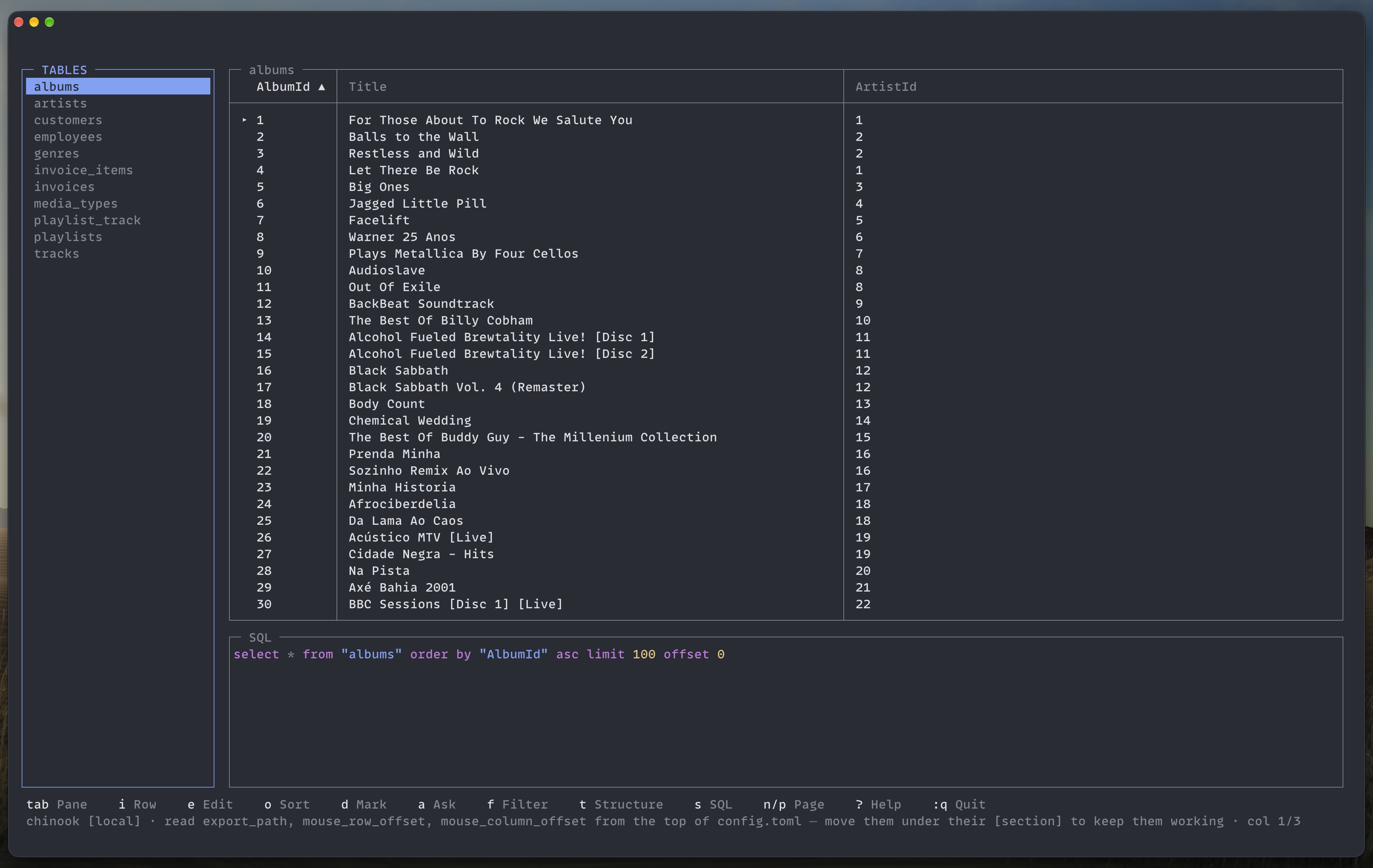
A database client for the terminal, built with Laravel Zero, Laravel Prompts and Laravel MCP.
Why
The database is the part of the job you cannot see. Everything else is in the terminal already — the editor, the logs, the deploy — and then the schema is behind a window you have to go and find, in an application that costs money and knows nothing about the rest of your work.
tql is that window, in the terminal, and it is built around three things a GUI tends not to do:
- It shows you the query. The SQL pane always holds the statement that
produced what is on screen. Click a header to sort and the
order byappears. Filter a column and thewhereappears, with its value bound, never glued in. You learn the language by using the tool. - It is the same engine for you and for an agent. The MCP server and the
interface both call one
QueryRunner, so what your agent can see is what you can see. The agent's side only reads, and every statement either of you runs lands in one shared history. - It makes production look like production. A connection carries a tag and
the tag carries a color, so the screen tells you where you are before you
press
d. Read-only connections refuse every write. Edits and deletions are pending until you type:w.
It is one binary, no configuration required to start, and it opens a SQLite file as happily as a Postgres server behind an SSH tunnel.
Installing
curl -fsSL https://raw.githubusercontent.com/VheissuLabs/tql/main/install.sh | sh
One file, no runtime to install — tql does not need PHP on your machine. The binary carries its own, statically linked, with the three database drivers built in.
The installer picks the build for your platform, puts it somewhere on your PATH
— /usr/local/bin if it can write there, ~/.local/bin if not — and tells you
where it went. TQL_BIN_DIR chooses the directory, TQL_VERSION=v0.4.1 pins a
version. If you would rather read a script before running it, and you should,
it is here.
By hand: the releases carry tql-linux-x86_64, tql-linux-aarch64,
and tql-macos-aarch64, for Apple Silicon.
curl -L -o tql https://github.com/VheissuLabs/tql/releases/latest/download/tql-macos-aarch64
chmod +x tql && mv tql /usr/local/bin/
On first run tql creates ~/.config/tql/ and migrates its own store, so there
is nothing to set up.
Homebrew
brew install vheissulabs/tap/tql
Apple Silicon Macs, and Linux on x86_64 and ARM. It installs the same standalone
binary, so Homebrew does not pull in PHP either. brew upgrade tql moves to a
new release.
Packages
Every release also carries a .deb and an .rpm per architecture, and neither
depends on anything:
sudo dpkg -i tql_*_amd64.deb              # debian, ubuntu
sudo dnf install ./tql-*.x86_64.rpm       # fedora, rhel
How the Homebrew formula is published is in docs/packaging.md.
With PHP, if you would rather
tql.phar is on every release as well, for a machine that already has PHP 8.4
and would rather have an 8MB file than a 35MB one:
php tql.phar
Building it yourself:
php -d phar.readonly=0 tql app:build tql --build-version=dev
./builds/tql --version
Tagging v* builds and publishes everything above from GitHub Actions.
The commands
Running tql with nothing after it opens the connection list, which is how you
will use it nearly all the time. The rest are for the things a full-screen
interface is the wrong shape for.
| Command | What it does |
|---|---|
tql | the interface: pick a connection and browse |
tql open <path-or-dsn> | open a database by path or connection string, saving it |
tql export [connection] [table] | write rows out as re-importable SQL |
tql config | where the config file is; --tidy puts it back in order |
tql mcp:start tql | run the MCP server on stdio, for an agent |
tql open ~/Code/app/database/database.sqlite
tql open "mysql://root@127.0.0.1:3306/shop" --name="Shop" --tag=local
tql open "$DATABASE_URL" --peek          # use it without saving it
open takes a SQLite path or a mysql://, pgsql:// or sqlsrv:// string,
remembers it under --name or the database name, and drops you straight into
it. --tag is what the connection is — production, staging, dev or
local — and decides the color it wears. See
Tags and read only.
export asks for whatever you leave out — connection, database, table and where
to save — so tql export on its own is a four-question wizard, and
tql export prod orders --sql=./orders.sql is a script. See
Exporting.
tql list shows those and nothing else in a released binary — the framework's
own commands are hidden, since tql runs its migrations for itself and a
migrate:fresh typed at the wrong moment would drop your saved connections. A
source checkout also shows the development ones, app:build and test.
Configuring
There is nothing to configure to start. On first run tql writes
~/.config/tql/config.toml with every setting at its default and a comment
above each one, so the file is its own documentation. When a later version adds
a setting it is appended to your file on the next run — your values and your own
comments are left alone — and the status line tells you which ones arrived.
Defaults live in config/tql.php and the file is merged over them, so a setting
you never touch follows the application rather than freezing at the value it had
the day you installed it. A file that cannot be parsed does not stop tql: it
starts on the defaults and says so in the status line.
Everything belongs to a section. A key above the first [section] is read as a
key of no section and quietly does nothing, which is a mistake worth knowing
about — tql notices and tells you.
docs/configuration.md is the same list with more said about each one.
[ui]
| Key | Default | Meaning |
|---|---|---|
sql_position | "top" | where the SQL editor sits: "top" or "bottom" |
sql_always | false | keep the SQL editor on screen instead of only after s |
sql_height | 0 | rows it takes, 0 picks a third of the frame |
row_style | "marker" | how the current row is shown: marker, dim-others, bold, inverse, underline |
top_margin | 1 | blank rows above the frame |
sidebar_width | 24 | width of the tables pane |
modal_ring | true | ring a modal with a border as well as the box itself |
inspect_related | 10 | related rows to load into the row inspector, 0 turns it off |
export_path | "" | where exports go, empty uses the last folder you saved one in |
mouse | true | click, drag and scroll inside tql |
double_click_ms | 400 | how close two clicks must be to open the editor |
mouse_row_offset | 0 | subtract this from reported mouse rows |
mouse_column_offset | 0 | subtract this from reported mouse columns |
mouse_row_offset = 1 is the one to reach for inside a multiplexer whose tab
bar sits above the pane: without it every click lands a row out.
[theme]
Colors are names, not hexes — dim, default, black, red, green,
yellow, blue, magenta, cyan, white, gray — so tql wears the palette
your terminal is already themed with.
| Key | Default | Meaning |
|---|---|---|
border | "dim" | a pane border that is not focused |
focus_border | "cyan" | the border of the pane you are in |
focus_title | "cyan" | its title |
grid | "dim" | column separators and the rule under the header |
cursor | "default" | the block you are on |
selection | "default" | highlighted but not where you are |
edited | "yellow" | a row you have changed, before :w |
deleted | "red" | a row marked for deletion, before :w |
modal_border | "gray" | modal borders, and the ring around them |
modal_focus_border | "cyan" | the same when focused |
modal_title | "white" | modal titles |
modal_focus_title | "cyan" | the same when focused |
grid = "inherit" ties the grid to the pane border, so a focused table tints
all the way through instead of growing a colored outline.
[icons]
The glyph beside a connection name, by driver. The defaults are Nerd Font devicons, written as escapes here because they are private-use codepoints that only a Nerd Font draws — your config file can hold either the escape or the glyph itself.
[icons]
mysql = "\uE704"    # nf-dev-mysql
pgsql = "\uE76E"    # nf-dev-postgresql
sqlite = "\uE7C4"   # nf-dev-sqllite
sqlsrv = "\uF1C0"   # nf-fa-database
default = "\uF1C0"  # anything else
No Nerd Font? Any character works: mysql = "M", or "" for nothing at all.
[ai]
What answers when you press a. Only table and column names are sent — never
rows. See Asking for SQL.
| Key | Default | Meaning |
|---|---|---|
provider | "auto" | auto uses whichever API key is in your environment |
model | "" | empty picks a sensible default for the provider |
timeout | 60 | seconds to wait for an answer |
url | "" | an OpenAI-compatible endpoint instead, such as LM Studio |
key | "" | bearer token for that endpoint, if it wants one |
Tags are deliberately not configurable: production is red in your terminal and
in the next person's screenshot. See Tags and read only.
TLS
SSL mode on a server connection takes disable, prefer, require,
verify-ca or verify-full, and reveals the CA, cert and key fields. Managed
databases usually want require and a CA certificate. Only verify-full
checks the hostname.
Tags and read only
A connection can carry a tag, and the tag decides its color:
| tag | color |
|---|---|
| production | red |
| staging | yellow |
| dev | blue |
| local | green |
The tag colors the driver icon and the tag itself in the connection list, and
the connection name in the status line while you are in it — so the screen
tells you where you are before you press d.
It is a fixed set rather than a configurable one, on purpose: the point of a tag is that production looks the same in your terminal and in someone else's screenshot.
Read only refuses every write on that connection: no edits, no marks, no
:w.
Several databases on one server
MySQL, Postgres and SQL Server connections are a server, not a single database.
Press b to list the databases on that server and switch to one; the tables
pane titles itself with the database you are in.
Leave the Database field empty on a server connection and tql asks on connect, opening the list as soon as it is in.
The switch lasts for the session only — it is never written back to the saved connection, so the connection still opens on its own database next time. It also drops the current filter, sort and any pending edits, since none of them mean anything in another database.
A SQLite connection is one file, so b says as much and does nothing.
Databases behind SSH
A connection can reach its database through an SSH tunnel. Set SSH host on a mysql, postgres or sqlsrv connection and the rest of the fields appear:
| field | what it is |
|---|---|
| SSH host | the machine you can reach, e.g. bastion.example.com |
| SSH port | 22 unless you say otherwise |
| SSH user | the user on that machine |
| SSH key | a key file; empty uses your agent and ~/.ssh/config |
| SSH password | for a bastion that wants one instead of a key |
Press ↵ on SSH key and it lists the private keys it found in ~/.ssh,
so there is no path to remember. The same goes for the SSL certificate fields,
which also look in ~/.postgresql, ~/.mysql, ~/certs, ~/Downloads and
the current directory. type a path… is always the last option.
tql opens ssh -N -L <free port>:<db host>:<db port> and points the driver at
that local port, so the database only ever sees a connection from the machine
you tunnelled through.
It shells out to your own ssh rather than speaking the protocol, which means
your agent, your keys and your ~/.ssh/config all apply — including Host
aliases and jump hosts. A connection you can already make by typing ssh prod
works by putting prod in the SSH host field.
The tunnel is opened once per destination and reused. tql waits for the forwarded port to accept a connection before running anything, so the first query cannot race the tunnel coming up, and if ssh fails it says what ssh said.
A database to try it on
The sample database used in development is Chinook, which is not committed — a database file changes every time you edit a row, and a repository that reports itself modified after every demo is no use.
curl -L -o chinook.db https://github.com/lerocha/chinook-database/raw/master/ChinookDatabase/DataSources/Chinook_Sqlite.sqlite
tql chinook.db
Running it
Running tql with nothing after it opens the connection list. To skip it and
open a SQLite file straight away, point tql at the file:
tql test.sqlite          # same as: tql open test.sqlite
tql ~/Sites/app/db.sqlite
tql test.sqlite --name=scratch   # and call it "scratch" in the list
A connection string works the same way:
tql 'mysql://user:pw@db.example.com:3306/shop'
tql 'postgres://user:pw@host/shop?name=Staging'
mysql, mariadb, pgsql, postgres, postgresql, sqlsrv, mssql and
sqlite schemes are understood. The default port is filled in per driver,
credentials are percent-decoded, and ?name= sets the label shown in the
title bar.
Anything you open is remembered, so you only ever paste a connection string
once. --name= names it in the list; without one it is named after the file, or
database on host. --peek opens without remembering, for a database you are
only glancing at. Re-opening somewhere you already have saved reuses that
connection rather than making a second, and --name= on it is a rename. Names
are unique, so a second database.sqlite becomes database.sqlite (2).
A connection string on the command line goes into your shell history. Paste
it once, then use the connection list, where the password is encrypted at rest.
Prefixing the command with a space keeps it out of history in zsh if
HIST_IGNORE_SPACE is set.
A first argument that exists on disk, contains a /, ends in .sqlite,
.sqlite3 or .db, or looks like a connection string is treated as a path
rather than a command name — a file that exists is never a command name, which
makes the rewrite unambiguous. On first run tql creates ~/.config/tql/
containing tql.sqlite (connections and query history) and key (the
encryption key), both 0600.
Keys
| Key | Action |
|---|---|
tab | switch between the table list and the grid |
↑ ↓ / j k | move the cursor |
← → / h l | move between columns; → from the table list moves to the grid |
↵ | open a table, or edit the selected cell |
i | view the selected value in a modal, read-only |
e | edit the selected value, ctrl+s saves |
E | edit the whole row in a form |
< > | narrow or widen the selected column |
= | reset the column width |
n / p | next or previous page (100 rows) |
r | reload the current table |
o | sort by the column the cursor is on |
N | add a row, in a form |
y / Y | yank this value, or the whole row as an object |
d / u | mark the row for deletion, or clear every mark |
L | follow a link, esc comes back |
b | switch database on this server |
s | open the SQL editor |
: | command line — :q, :tables, :rows, :reload, :sql |
q / esc | quit |
docs/keys.md has the rest: the filter form, the inspector, the
SQL editor, the lists, the connection form, the command line — and how to
rebind any of it with [keys] in the config, which help and the hotkey bar
follow.
Mouse works too: click a table or a row, scroll with the wheel, and drag a column border in the header row to resize it, as you would in a spreadsheet.
Column widths you set are remembered per column name, so several columns keep their sizes at once and survive paging and switching tables.
Structure
t shows the table's structure: every column with its type, which one is the
primary key, which are foreign keys and where they point, what is not null,
what auto-increments, and the defaults — then the indexes.
STRUCTURE  ·  albums

  AlbumId    integer    primary key  ·  not null  ·  auto
  Title      text       not null
  ArtistId   integer    → artists.ArtistId  ·  not null

  indexes
    IFK_AlbumArtistId  (ArtistId)
j/k scroll it, t, q or esc close it.
Following a link
While the cursor is on a foreign key, the status line says where it goes:
L → artists.
With the cursor on a foreign key, L opens the table it points at, filtered to
the row it points to. From anywhere else on the row, L goes the other way:
the tables that reference this one. If more than one does, it offers a list.
esc goes back where you came from, and so does ctrl+o if vim's jumplist is
in your fingers. The stack is as deep as you followed, so a chain of links
unwinds one step at a time.
The jump is an ordinary filter, so the SQL pane shows the where clause that
made it — following a link teaches you the query you would have written.
Filtering rows
f opens a filter bar, TablePlus style: a column, an operator and a value.
┌─ FILTER ───────────────────────────────────────────────────────────┐
│                                                                    │
│  where  city              is               Toronto                 │
│  and    age               is at least      18                      │
│                                                                    │
│  ← → changes it    ↑↓ moves    + adds    - removes    ctrl+s applies│
└────────────────────────────────────────────────────────────────────┘
f opens on the column you are on, with contains, already typing — the
column and operator are guesses, the value never is. ↵ keeps the value and
↵ again applies it; esc steps back into the form to move around.
tab and shift+tab move between the three cells. On the column or operator,
↵ opens a type-to-filter list — start typing to narrow it, arrows to move, ↵ to pick —
and ← → step through the options without opening it. On the value, ↵ types.
+ and - add and remove conditions, o switches the whole bar between and
and or, ctrl+s applies and esc clears.
The list behaves like Laravel Prompts' search, but it is drawn inside the
frame: Prompts' own select and search block the loop and render a frame of
their own, so using one would mean leaving the TUI and flashing the screen.
Operators: is, is not, contains, starts with, ends with, is greater than, is at least, is less than, is at most, is empty, is not empty, is one of (a comma-separated list).
The filter becomes a where clause on the query, so the SQL pane shows exactly
what ran — which is the point. Values are bound, never interpolated, so a
value containing a quote is a value rather than SQL. The pane shows the
statement with the values filled in for reading; that form is never sent to the
database.
Filters are dropped when you change table, since a column that exists in one table usually does not in another.
Sorting
Click a column header, or press o on a column, to sort by it: first click
ascending, second descending, third clears it. The header shows ▲ or ▼, and
the order by appears in the SQL pane — so the sort teaches the clause that
produced it.
Sorting applies to a table, not to query results; those are ordered by whatever your query says.
Seeing the query behind the view
With ui.sql_always on, the SQL pane shows the statement that produced what you
are looking at, and updates as you change table or page:
┌─ SQL ────────────────────────────────────────────┐
│ select * from "tracks" limit 100 offset 100      │
└──────────────────────────────────────────────────┘
Press s and that statement is handed to you to edit — change the limit, add
a where, press ctrl+r, and the grid shows your version.
The pane always mirrors what you are looking at: change table, sort, or page and it rewrites itself to the query that produced the rows on screen, discarding an edit you never ran. While you are typing in it, nothing overwrites you.
Asking for SQL
Press a and ask in plain english. The answer lands in the editor, with the
explanation as -- comments above it, and nothing runs until you press
ctrl+r.
-- Counts how many invoices each customer has. The join matches each invoice to
-- its customer on customer_id, group by makes count() run per customer, and
-- order by puts the busiest first.
--
select c.name, count(i.id) as invoices
from customers c
join invoices i on i.customer_id = c.id
group by c.id, c.name
order by invoices desc
limit 50
The model writes queries; it never runs them. It is asked for exactly one statement, reads only, and is told to use nothing outside the schema — and it still lands in front of you for review rather than in front of your database.
Only table and column names are sent. No row data ever leaves the machine, so asking about a production table does not send its contents anywhere. The table you are looking at is sent first so it survives the size limit.
Press a and a modal opens with a text area. ↵ asks, ⇧↵ starts a new line,
esc cancels. ctrl+s sends it too.
Terminals send the same byte for enter and shift+enter, so shift+enter only arrives as its own key when the terminal is told to send one. In Ghostty:
keybind = shift+enter=csi:13;2u
Alt+enter works without any configuration, if you would rather not set that.
Which model answers
Whatever you have a key for. provider = "auto" picks the first provider the
AI SDK finds a key for, so setting ANTHROPIC_API_KEY or OPENAI_API_KEY is
all it takes:
[ai]
provider = "auto"   # or anthropic, openai, gemini, groq, mistral, deepseek, xai, openrouter, ollama
model = ""          # empty uses a sensible default for that provider
timeout = 60
A local model, with LM Studio
Anything with an OpenAI-compatible API works. LM Studio, start to finish:
-
Install a model in LM Studio — a coding model is the right shape for this;
qwen2.5-coder-7b-instructis a good starting point. -
Open the Developer tab and Start Server. It listens on port 1234 by default and speaks OpenAI's API at
http://localhost:1234/v1. -
Ask it what it is serving, and use that name verbatim:
curl -s http://localhost:1234/v1/models | jq -r '.data[].id' # qwen2.5-coder-7b-instruct -
Put both in
~/.config/tql/config.toml:[ai] url = "http://localhost:1234/v1" model = "qwen2.5-coder-7b-instruct" key = "" # LM Studio does not want one; some gateways do -
Press
ain tql and ask for something.
provider is ignored once url is set — a url points somewhere deliberate, so
it wins over any key in your environment. Nothing leaves your machine in that
setup, and only table and column names were ever being sent anyway.
Ollama is the same shape, on its own port:
[ai]
url = "http://localhost:11434/v1"
model = "qwen2.5-coder"
LM Studio may want a token — it says so in the Developer tab, and it goes in
key. A url with no path gets /v1 added, so http://localhost:1234 and
http://localhost:1234/v1 both work.
A reasoning model such as qwen3 answers in its thinking rather than in the message body, and tql reads the answer out of it either way.
If a says nothing is configured, tql could not find a url or a key. If it
fails at the network, the server is not running or the port is wrong — the
curl above is the quickest way to tell which.
With nothing configured at all, a says what to set rather than failing at the
network.
Enter runs things
Everywhere you type something that then has to happen — a query, a value, a
filter, a question — ↵ does it and ⇧↵ adds a line. ctrl+r and ctrl+s
still work if they are in your fingers.
Shift+enter needs a terminal that sends something distinct for it. In Ghostty:
keybind = shift+enter=csi:13;2u
Alt+enter works without any configuration.
Running SQL
The SQL pane is syntax highlighted — keywords, quoted identifiers, strings, numbers and comments each colored, the same tokeniser approach as the JSON viewer and equally careful never to drop a character while you type.
Press s (or :sql) for the SQL editor, which opens above the results.
ctrl+r runs what you have typed, esc returns to browsing. Results replace
the grid and are read-only, since they have no primary key to write back
through — open a table to edit.
JSON columns
A cell holding JSON opens in a full-width modal when you press i: pretty
printed, with line numbers and syntax highlighting — keys, strings, numbers and
literals each colored. ↑↓ scrolls a line at a time, n/p a page, esc
closes.
Detection is by parsing, not by column type, so JSON stored in a text column
is recognised too.
Inspecting a row
i floats two boxes over the grid: the record itself, and the records related
to it. Folding a box collapses it to its title bar, so the shape of the modal
tells you what is open, and the table stays visible behind.
┌─ RECORD  (3) ───────────────────────────────────────────────┐
│  AlbumId      1                                     integer │
│  Title        For Those About To Rock We Salute     text    │
│  ArtistId     1                                     integer │
└─────────────────────────────────────────────────────────────┘

┌─ RELATED  (2) ──────────────────────────────────────────────┐
│  ▾ artists  (1)                                             │
│      ArtistId  Name                                         │
│      1         AC/DC                                        │
│  ▸ tracks  (10 of 47)                                       │
└─────────────────────────────────────────────────────────────┘
Column, value, then the type as an annotation. Related records stay as collections: one header for the relation, then a line per record.
↵ or space folds whichever box or relation the cursor is on. j/k move,
g/G jump, V selects, y yanks, esc closes. e on a field opens the
editor on that column, not whichever one the grid cursor was on.
Each relation says what it is: belongs to when this row holds the key, has many for the rows pointing back, and has one when a unique key on the other side means there can only be one. A single record reads as fields; a list reads as a table.
A join table is read through, not shown: a film's film_actor rows are a
list of timestamps, so tql shows actors · has many through film_actor with
the actors in it. A join table that carries data of its own — a quantity, a
price — is a table in its own right and is shown as one.
Every column of a related row is shown, laid out to the width you actually have:
the columns that already fit are left alone and what is left over is shared
between the ones that do not, with an … where a value was cut. Nothing is
dropped, so the row you are reading is the row that is there, and i on the row
in its own table opens the whole of it. Widen the terminal and the columns widen
with it.
Relations are found by following foreign keys both ways.
ui.inspect_related caps how many rows are loaded (10 by default, 0 turns it
off); when there are more, the heading says (10 of 47).
I opens just the value under the cursor, for a single enormous blob.
Exporting
From the command line, which is the scriptable way:
tql export                           # asks which connection, then which table
tql export prod orders --limit=1000 --sql=./orders.sql
tql export prod --sql=./prod.sql     # every table, one file
tql export prod --list               # what tables are there
tql export prod --database=shop      # pick the database on a server connection
A connection that names a server rather than a database asks which one first,
or takes --database=; without either it stops and says so rather than
exporting every schema on the box.
Name a connection and it goes straight through; name nothing and it asks three
questions — which connection (most recently used first), which table (the whole
database is the first answer), and where to save it, offering the auto-named
file in the export directory. Answer that last one with a folder and it names
the file for you; --sql skips the question. Piped or with --no-interaction it
never asks — it says what it needed and stops with a non-zero exit.
Save one somewhere else — ~/Downloads, say — and that becomes the folder the
next export is offered in. ui.export_path in the config overrides it, and if
the remembered folder is gone tql falls back to its own.
--sql takes a file or a directory; omit it and the file is named
automatically in the export directory, after the database, the table and the
time — karlm_v2-users-20260922-231302.sql, or karlm_v2-20260922-231302.sql
for the whole thing — since the connection's own name says nothing about what is
in the file. --limit caps rows per table, which is
how you pull a slice of production rather than all of it.
Inside the interface, :export writes what you are looking at to a .sql file of insert
statements. On a table that is every row, read in chunks so a large table does
not go through memory at once; after a query it is the rows you have loaded.
Files land in ~/.config/tql/exports (override with ui.export_path), named
connection-table-YYYYMMDD-HHMMSS.sql. The status line reports the row count,
file size and path.
Data only — no schema. Your migrations own the schema; this is for pulling rows from one database into another.
Editing
Select a cell and press e or ↵. ↵ saves, esc cancels. An empty value
writes NULL. E edits the whole row in a form — see
Editing a row in a form.
Editing requires a single-column primary key, which tql uses to target the
row. Tables without one are read-only, as are connections flagged read_only.
Connections
The first screen lists your saved connections.
| key | what it does |
|---|---|
↵ | open it |
e | edit it in place |
n | add one |
d | mark it for deletion |
u | clear every mark |
:w | write the marked deletions |
Adding and editing happen in a modal over the list, never by dropping out to a
prompt sequence. ↑↓ picks a field, ↵ edits it with a real cursor (arrows,
home, end, backspace, delete, paste), ctrl+s saves and esc cancels. Nothing
is written until you save. The driver is cycled with ← → and only offers
drivers your PHP build actually has.
Adding a row
N opens a form over the grid, one field a line:
┌─ NEW ROW  ·  film ───────────────────────────────────────────────┐
│                                                                  │
│   film_id (integer): auto                                        │
│                                                                  │
│   title (varchar): required                                      │
│                                                                  │
│   rating (varchar): G                                            │
│                                                                  │
│   last_update (timestamp): now()                                 │
│                                                                  │
│   token (text): default gen_random_uuid()                        │
│                                                                  │
│                                                                  │
│  ↑↓ move  ↵ edit  ctrl+n null  ⌫ reset  ctrl+s keep  esc cancel  │
└──────────────────────────────────────────────────────────────────┘
↵ types into a field and ↵ or tab keeps it and moves on; json, and a value
too long for its line, open in the value editor instead. ctrl+s keeps the row
and puts it on top of the grid, where you are already looking, drawn in the
added colour. Nothing has happened until :w.
The form fills in what it can, so you can see it before you keep it:
- A plain default is the field's value —
ratingstarts asG. Change it or leave it. - A time default —
current_timestamp,now(),datetime('now')— starts asnow(), which becomes the time when you keep the row, the way the column writes it. - A key the database will not give out — a schema converted from somewhere that lost its auto increment, a table keyed by hand — is filled with the next number going, because otherwise you are looking up a value the database already knows.
- Anything the database works out itself — an auto-increment key, a sequence, a generated uuid — is left out of the insert and says so, dimmed.
A field that is not null and has nothing to fall back on says required, and
the cursor starts on the first field that is yours to fill in. ctrl+n sets a
field to NULL — an explicit one, written as NULL rather than left to the
default — and ⌫ puts a field back to how it started.
The row is a row like any other once it is kept: e changes one cell of it,
E opens it in the form again, and u drops it. The cursor is visible inside
it — a marked, edited or added row is drawn as one bar, and the cell you are on
is a span of its own inside it.
Editing a row in a form
e edits one value. E opens the whole row in the same form, on the field for
the column you were on, with the row's values in it. ctrl+s keeps only the
fields you changed, as pending edits, and the row goes yellow in the grid.
The primary key is shown but not editable — it is how tql names the row.
esc closes the form. If you changed something it asks first: esc again
throws the changes away, any other key keeps you in the form.
The time
Any date, time or timestamp column takes ctrl+t while editing: it types
the current time into the editor, in the format that column wants — Y-m-d for
a date, H:i:s for a time, Y-m-d H:i:s for a datetime or timestamp — so you
can see it before keeping it. The status line says so while you are in one.
Typing now() does the same thing without the shortcut, wherever it is
typed, since an explicit now() is an instruction rather than a value. That is
how created_at and updated_at get filled in without looking up a format.
It writes UTC, because that is what a database column almost always holds
and a row written in local time is wrong in a way nobody notices for months.
The status line names the zone — ctrl+t now UTC — and [ui] time_zone in the
config changes it:
[ui]
time_zone = "America/Toronto"
u drops it, a reload keeps it, and changing table forgets it. It works on a
table with no primary key, which editing does not: a row that is not in the
table yet is written by position rather than by key.
When something goes wrong
A database refusing a write is the most important thing on the screen, so it takes the screen: the error opens as a modal over whatever you were doing, with the statement it refused on its own line and what to do next under it.
┌─ COULD NOT ADD THE ROW ──────────────────────────────────────┐
│                                                              │
│  SQLSTATE[23000]: Integrity constraint violation: 19 UNIQUE  │
│  constraint failed: people.email                             │
│                                                              │
│  insert into "people" ("name", "email") values (…)           │
│                                                              │
│  The row is still here — fix it and :w again, or u to drop.  │
│                                                              │
│  y copies it    esc closes                                   │
└──────────────────────────────────────────────────────────────┘
The connection name tql invented and the file it opened are taken out — that is
tql talking to itself, not the database talking to you. j/k scroll a long
one, y copies it, any other key closes it. Your pending changes are still
pending: nothing is dropped because a write failed.
Pending changes
Nothing you do to a row reaches the database until you ask for it.
| key | what it does |
|---|---|
e | edit the value; ctrl+s keeps the edit, pending |
E | edit the whole row in a form; ctrl+s keeps it, pending |
| double click | the same, with the mouse |
d | mark the row for deletion, and move down |
u | drop every pending change |
:w | write them all |
Edited rows are highlighted in theme.edited (yellow) and show the value you
typed rather than what is still on disk. Rows marked for deletion are
highlighted in theme.deleted (red). The status line counts both.
Changes are keyed by primary key, so sorting, filtering or reloading keeps them
on the rows you picked, and they are dropped when you change table — a mark
means nothing in a table where that id is a different row. Quitting with
unwritten changes drops them and says so; :q again leaves.
Deleting
d marks the row under the cursor and moves down, so a run of rows is ddd.
Nothing is written yet: marked rows are highlighted in theme.deleted (red by
default), d again unmarks, and u clears every mark.
:w writes them, all in one transaction. Until then the database is untouched.
Marks follow the row, not its position, so sorting or reloading keeps them on
the rows you picked. Quitting with unwritten marks drops them and tells you,
rather than either losing them silently or writing something you did not ask
for — press :q again to leave.
A table with no single-column primary key cannot be deleted from, because there is no safe way to name the row; it says so rather than guessing.
MCP
The MCP server is registered as a local (stdio) server named tql:
php tql mcp:start tql
To use it from Claude Code:
claude mcp add tql -- php /absolute/path/to/tql mcp:start tql
Tools: list connections, list tables, describe a table, and run a query.
Queries through MCP are read-only — only select, show, explain,
describe, pragma and with are accepted, and statements containing a
second statement are rejected. Writes happen in the interface, not through
an agent.
Developing
composer install
php tql
./vendor/bin/pest
The interface is composed of islands: bordered boxes that own a rectangle,
draw their own content and answer hit tests for it. Screen places them and
composes the frame row by row. Adding a pane means adding an island.
docs/developing.md has the rest: where everything lives, how a frame is drawn, the drawing rules that are easy to break, how to add a key, a modal, a command, an MCP tool or a setting, how the interface is tested without a terminal, and the notes on Laravel Zero, Prompts and MCP that this project ran into.
docs/configuration.md is every setting, and
docs/keys.md is every key.
docs/packaging.md covers the binary, the .deb and the
.rpm, the Homebrew tap and the AUR package.
Connection passwords and SSH passwords are encrypted with Laravel's encrypter
using a key at ~/.config/tql/key, 0600. Filter values are always bound,
never interpolated — the SQL pane shows them filled in for reading, and that
string is never what runs.
Contributors

199 commits
Similar repos


Languages
PHP
99.4%
A TablePlus-style database client for the terminal, built with Laravel Zero and Laravel Prompts
PHP
6
199 commits
updated Sep 23, 2026
See what people are saying
README
tql
A database client for the terminal, built with Laravel Zero, Laravel Prompts and Laravel MCP.
Why
The database is the part of the job you cannot see. Everything else is in the terminal already — the editor, the logs, the deploy — and then the schema is behind a window you have to go and find, in an application that costs money and knows nothing about the rest of your work.
tql is that window, in the terminal, and it is built around three things a GUI tends not to do:
- It shows you the query. The SQL pane always holds the statement that
produced what is on screen. Click a header to sort and the
order byappears. Filter a column and thewhereappears, with its value bound, never glued in. You learn the language by using the tool. - It is the same engine for you and for an agent. The MCP server and the
interface both call one
QueryRunner, so what your agent can see is what you can see. The agent's side only reads, and every statement either of you runs lands in one shared history. - It makes production look like production. A connection carries a tag and
the tag carries a color, so the screen tells you where you are before you
press
d. Read-only connections refuse every write. Edits and deletions are pending until you type:w.
It is one binary, no configuration required to start, and it opens a SQLite file as happily as a Postgres server behind an SSH tunnel.
Installing
curl -fsSL https://raw.githubusercontent.com/VheissuLabs/tql/main/install.sh | sh
One file, no runtime to install — tql does not need PHP on your machine. The binary carries its own, statically linked, with the three database drivers built in.
The installer picks the build for your platform, puts it somewhere on your PATH
— /usr/local/bin if it can write there, ~/.local/bin if not — and tells you
where it went. TQL_BIN_DIR chooses the directory, TQL_VERSION=v0.4.1 pins a
version. If you would rather read a script before running it, and you should,
it is here.
By hand: the releases carry tql-linux-x86_64, tql-linux-aarch64,
and tql-macos-aarch64, for Apple Silicon.
curl -L -o tql https://github.com/VheissuLabs/tql/releases/latest/download/tql-macos-aarch64
chmod +x tql && mv tql /usr/local/bin/
On first run tql creates ~/.config/tql/ and migrates its own store, so there
is nothing to set up.
Homebrew
brew install vheissulabs/tap/tql
Apple Silicon Macs, and Linux on x86_64 and ARM. It installs the same standalone
binary, so Homebrew does not pull in PHP either. brew upgrade tql moves to a
new release.
Packages
Every release also carries a .deb and an .rpm per architecture, and neither
depends on anything:
sudo dpkg -i tql_*_amd64.deb              # debian, ubuntu
sudo dnf install ./tql-*.x86_64.rpm       # fedora, rhel
How the Homebrew formula is published is in docs/packaging.md.
With PHP, if you would rather
tql.phar is on every release as well, for a machine that already has PHP 8.4
and would rather have an 8MB file than a 35MB one:
php tql.phar
Building it yourself:
php -d phar.readonly=0 tql app:build tql --build-version=dev
./builds/tql --version
Tagging v* builds and publishes everything above from GitHub Actions.
The commands
Running tql with nothing after it opens the connection list, which is how you
will use it nearly all the time. The rest are for the things a full-screen
interface is the wrong shape for.
| Command | What it does |
|---|---|
tql | the interface: pick a connection and browse |
tql open <path-or-dsn> | open a database by path or connection string, saving it |
tql export [connection] [table] | write rows out as re-importable SQL |
tql config | where the config file is; --tidy puts it back in order |
tql mcp:start tql | run the MCP server on stdio, for an agent |
tql open ~/Code/app/database/database.sqlite
tql open "mysql://root@127.0.0.1:3306/shop" --name="Shop" --tag=local
tql open "$DATABASE_URL" --peek          # use it without saving it
open takes a SQLite path or a mysql://, pgsql:// or sqlsrv:// string,
remembers it under --name or the database name, and drops you straight into
it. --tag is what the connection is — production, staging, dev or
local — and decides the color it wears. See
Tags and read only.
export asks for whatever you leave out — connection, database, table and where
to save — so tql export on its own is a four-question wizard, and
tql export prod orders --sql=./orders.sql is a script. See
Exporting.
tql list shows those and nothing else in a released binary — the framework's
own commands are hidden, since tql runs its migrations for itself and a
migrate:fresh typed at the wrong moment would drop your saved connections. A
source checkout also shows the development ones, app:build and test.
Configuring
There is nothing to configure to start. On first run tql writes
~/.config/tql/config.toml with every setting at its default and a comment
above each one, so the file is its own documentation. When a later version adds
a setting it is appended to your file on the next run — your values and your own
comments are left alone — and the status line tells you which ones arrived.
Defaults live in config/tql.php and the file is merged over them, so a setting
you never touch follows the application rather than freezing at the value it had
the day you installed it. A file that cannot be parsed does not stop tql: it
starts on the defaults and says so in the status line.
Everything belongs to a section. A key above the first [section] is read as a
key of no section and quietly does nothing, which is a mistake worth knowing
about — tql notices and tells you.
docs/configuration.md is the same list with more said about each one.
[ui]
| Key | Default | Meaning |
|---|---|---|
sql_position | "top" | where the SQL editor sits: "top" or "bottom" |
sql_always | false | keep the SQL editor on screen instead of only after s |
sql_height | 0 | rows it takes, 0 picks a third of the frame |
row_style | "marker" | how the current row is shown: marker, dim-others, bold, inverse, underline |
top_margin | 1 | blank rows above the frame |
sidebar_width | 24 | width of the tables pane |
modal_ring | true | ring a modal with a border as well as the box itself |
inspect_related | 10 | related rows to load into the row inspector, 0 turns it off |
export_path | "" | where exports go, empty uses the last folder you saved one in |
mouse | true | click, drag and scroll inside tql |
double_click_ms | 400 | how close two clicks must be to open the editor |
mouse_row_offset | 0 | subtract this from reported mouse rows |
mouse_column_offset | 0 | subtract this from reported mouse columns |
mouse_row_offset = 1 is the one to reach for inside a multiplexer whose tab
bar sits above the pane: without it every click lands a row out.
[theme]
Colors are names, not hexes — dim, default, black, red, green,
yellow, blue, magenta, cyan, white, gray — so tql wears the palette
your terminal is already themed with.
| Key | Default | Meaning |
|---|---|---|
border | "dim" | a pane border that is not focused |
focus_border | "cyan" | the border of the pane you are in |
focus_title | "cyan" | its title |
grid | "dim" | column separators and the rule under the header |
cursor | "default" | the block you are on |
selection | "default" | highlighted but not where you are |
edited | "yellow" | a row you have changed, before :w |
deleted | "red" | a row marked for deletion, before :w |
modal_border | "gray" | modal borders, and the ring around them |
modal_focus_border | "cyan" | the same when focused |
modal_title | "white" | modal titles |
modal_focus_title | "cyan" | the same when focused |
grid = "inherit" ties the grid to the pane border, so a focused table tints
all the way through instead of growing a colored outline.
[icons]
The glyph beside a connection name, by driver. The defaults are Nerd Font devicons, written as escapes here because they are private-use codepoints that only a Nerd Font draws — your config file can hold either the escape or the glyph itself.
[icons]
mysql = "\uE704"    # nf-dev-mysql
pgsql = "\uE76E"    # nf-dev-postgresql
sqlite = "\uE7C4"   # nf-dev-sqllite
sqlsrv = "\uF1C0"   # nf-fa-database
default = "\uF1C0"  # anything else
No Nerd Font? Any character works: mysql = "M", or "" for nothing at all.
[ai]
What answers when you press a. Only table and column names are sent — never
rows. See Asking for SQL.
| Key | Default | Meaning |
|---|---|---|
provider | "auto" | auto uses whichever API key is in your environment |
model | "" | empty picks a sensible default for the provider |
timeout | 60 | seconds to wait for an answer |
url | "" | an OpenAI-compatible endpoint instead, such as LM Studio |
key | "" | bearer token for that endpoint, if it wants one |
Tags are deliberately not configurable: production is red in your terminal and
in the next person's screenshot. See Tags and read only.
TLS
SSL mode on a server connection takes disable, prefer, require,
verify-ca or verify-full, and reveals the CA, cert and key fields. Managed
databases usually want require and a CA certificate. Only verify-full
checks the hostname.
Tags and read only
A connection can carry a tag, and the tag decides its color:
| tag | color |
|---|---|
| production | red |
| staging | yellow |
| dev | blue |
| local | green |
The tag colors the driver icon and the tag itself in the connection list, and
the connection name in the status line while you are in it — so the screen
tells you where you are before you press d.
It is a fixed set rather than a configurable one, on purpose: the point of a tag is that production looks the same in your terminal and in someone else's screenshot.
Read only refuses every write on that connection: no edits, no marks, no
:w.
Several databases on one server
MySQL, Postgres and SQL Server connections are a server, not a single database.
Press b to list the databases on that server and switch to one; the tables
pane titles itself with the database you are in.
Leave the Database field empty on a server connection and tql asks on connect, opening the list as soon as it is in.
The switch lasts for the session only — it is never written back to the saved connection, so the connection still opens on its own database next time. It also drops the current filter, sort and any pending edits, since none of them mean anything in another database.
A SQLite connection is one file, so b says as much and does nothing.
Databases behind SSH
A connection can reach its database through an SSH tunnel. Set SSH host on a mysql, postgres or sqlsrv connection and the rest of the fields appear:
| field | what it is |
|---|---|
| SSH host | the machine you can reach, e.g. bastion.example.com |
| SSH port | 22 unless you say otherwise |
| SSH user | the user on that machine |
| SSH key | a key file; empty uses your agent and ~/.ssh/config |
| SSH password | for a bastion that wants one instead of a key |
Press ↵ on SSH key and it lists the private keys it found in ~/.ssh,
so there is no path to remember. The same goes for the SSL certificate fields,
which also look in ~/.postgresql, ~/.mysql, ~/certs, ~/Downloads and
the current directory. type a path… is always the last option.
tql opens ssh -N -L <free port>:<db host>:<db port> and points the driver at
that local port, so the database only ever sees a connection from the machine
you tunnelled through.
It shells out to your own ssh rather than speaking the protocol, which means
your agent, your keys and your ~/.ssh/config all apply — including Host
aliases and jump hosts. A connection you can already make by typing ssh prod
works by putting prod in the SSH host field.
The tunnel is opened once per destination and reused. tql waits for the forwarded port to accept a connection before running anything, so the first query cannot race the tunnel coming up, and if ssh fails it says what ssh said.
A database to try it on
The sample database used in development is Chinook, which is not committed — a database file changes every time you edit a row, and a repository that reports itself modified after every demo is no use.
curl -L -o chinook.db https://github.com/lerocha/chinook-database/raw/master/ChinookDatabase/DataSources/Chinook_Sqlite.sqlite
tql chinook.db
Running it
Running tql with nothing after it opens the connection list. To skip it and
open a SQLite file straight away, point tql at the file:
tql test.sqlite          # same as: tql open test.sqlite
tql ~/Sites/app/db.sqlite
tql test.sqlite --name=scratch   # and call it "scratch" in the list
A connection string works the same way:
tql 'mysql://user:pw@db.example.com:3306/shop'
tql 'postgres://user:pw@host/shop?name=Staging'
mysql, mariadb, pgsql, postgres, postgresql, sqlsrv, mssql and
sqlite schemes are understood. The default port is filled in per driver,
credentials are percent-decoded, and ?name= sets the label shown in the
title bar.
Anything you open is remembered, so you only ever paste a connection string
once. --name= names it in the list; without one it is named after the file, or
database on host. --peek opens without remembering, for a database you are
only glancing at. Re-opening somewhere you already have saved reuses that
connection rather than making a second, and --name= on it is a rename. Names
are unique, so a second database.sqlite becomes database.sqlite (2).
A connection string on the command line goes into your shell history. Paste
it once, then use the connection list, where the password is encrypted at rest.
Prefixing the command with a space keeps it out of history in zsh if
HIST_IGNORE_SPACE is set.
A first argument that exists on disk, contains a /, ends in .sqlite,
.sqlite3 or .db, or looks like a connection string is treated as a path
rather than a command name — a file that exists is never a command name, which
makes the rewrite unambiguous. On first run tql creates ~/.config/tql/
containing tql.sqlite (connections and query history) and key (the
encryption key), both 0600.
Keys
| Key | Action |
|---|---|
tab | switch between the table list and the grid |
↑ ↓ / j k | move the cursor |
← → / h l | move between columns; → from the table list moves to the grid |
↵ | open a table, or edit the selected cell |
i | view the selected value in a modal, read-only |
e | edit the selected value, ctrl+s saves |
E | edit the whole row in a form |
< > | narrow or widen the selected column |
= | reset the column width |
n / p | next or previous page (100 rows) |
r | reload the current table |
o | sort by the column the cursor is on |
N | add a row, in a form |
y / Y | yank this value, or the whole row as an object |
d / u | mark the row for deletion, or clear every mark |
L | follow a link, esc comes back |
b | switch database on this server |
s | open the SQL editor |
: | command line — :q, :tables, :rows, :reload, :sql |
q / esc | quit |
docs/keys.md has the rest: the filter form, the inspector, the
SQL editor, the lists, the connection form, the command line — and how to
rebind any of it with [keys] in the config, which help and the hotkey bar
follow.
Mouse works too: click a table or a row, scroll with the wheel, and drag a column border in the header row to resize it, as you would in a spreadsheet.
Column widths you set are remembered per column name, so several columns keep their sizes at once and survive paging and switching tables.
Structure
t shows the table's structure: every column with its type, which one is the
primary key, which are foreign keys and where they point, what is not null,
what auto-increments, and the defaults — then the indexes.
STRUCTURE  ·  albums

  AlbumId    integer    primary key  ·  not null  ·  auto
  Title      text       not null
  ArtistId   integer    → artists.ArtistId  ·  not null

  indexes
    IFK_AlbumArtistId  (ArtistId)
j/k scroll it, t, q or esc close it.
Following a link
While the cursor is on a foreign key, the status line says where it goes:
L → artists.
With the cursor on a foreign key, L opens the table it points at, filtered to
the row it points to. From anywhere else on the row, L goes the other way:
the tables that reference this one. If more than one does, it offers a list.
esc goes back where you came from, and so does ctrl+o if vim's jumplist is
in your fingers. The stack is as deep as you followed, so a chain of links
unwinds one step at a time.
The jump is an ordinary filter, so the SQL pane shows the where clause that
made it — following a link teaches you the query you would have written.
Filtering rows
f opens a filter bar, TablePlus style: a column, an operator and a value.
┌─ FILTER ───────────────────────────────────────────────────────────┐
│                                                                    │
│  where  city              is               Toronto                 │
│  and    age               is at least      18                      │
│                                                                    │
│  ← → changes it    ↑↓ moves    + adds    - removes    ctrl+s applies│
└────────────────────────────────────────────────────────────────────┘
f opens on the column you are on, with contains, already typing — the
column and operator are guesses, the value never is. ↵ keeps the value and
↵ again applies it; esc steps back into the form to move around.
tab and shift+tab move between the three cells. On the column or operator,
↵ opens a type-to-filter list — start typing to narrow it, arrows to move, ↵ to pick —
and ← → step through the options without opening it. On the value, ↵ types.
+ and - add and remove conditions, o switches the whole bar between and
and or, ctrl+s applies and esc clears.
The list behaves like Laravel Prompts' search, but it is drawn inside the
frame: Prompts' own select and search block the loop and render a frame of
their own, so using one would mean leaving the TUI and flashing the screen.
Operators: is, is not, contains, starts with, ends with, is greater than, is at least, is less than, is at most, is empty, is not empty, is one of (a comma-separated list).
The filter becomes a where clause on the query, so the SQL pane shows exactly
what ran — which is the point. Values are bound, never interpolated, so a
value containing a quote is a value rather than SQL. The pane shows the
statement with the values filled in for reading; that form is never sent to the
database.
Filters are dropped when you change table, since a column that exists in one table usually does not in another.
Sorting
Click a column header, or press o on a column, to sort by it: first click
ascending, second descending, third clears it. The header shows ▲ or ▼, and
the order by appears in the SQL pane — so the sort teaches the clause that
produced it.
Sorting applies to a table, not to query results; those are ordered by whatever your query says.
Seeing the query behind the view
With ui.sql_always on, the SQL pane shows the statement that produced what you
are looking at, and updates as you change table or page:
┌─ SQL ────────────────────────────────────────────┐
│ select * from "tracks" limit 100 offset 100      │
└──────────────────────────────────────────────────┘
Press s and that statement is handed to you to edit — change the limit, add
a where, press ctrl+r, and the grid shows your version.
The pane always mirrors what you are looking at: change table, sort, or page and it rewrites itself to the query that produced the rows on screen, discarding an edit you never ran. While you are typing in it, nothing overwrites you.
Asking for SQL
Press a and ask in plain english. The answer lands in the editor, with the
explanation as -- comments above it, and nothing runs until you press
ctrl+r.
-- Counts how many invoices each customer has. The join matches each invoice to
-- its customer on customer_id, group by makes count() run per customer, and
-- order by puts the busiest first.
--
select c.name, count(i.id) as invoices
from customers c
join invoices i on i.customer_id = c.id
group by c.id, c.name
order by invoices desc
limit 50
The model writes queries; it never runs them. It is asked for exactly one statement, reads only, and is told to use nothing outside the schema — and it still lands in front of you for review rather than in front of your database.
Only table and column names are sent. No row data ever leaves the machine, so asking about a production table does not send its contents anywhere. The table you are looking at is sent first so it survives the size limit.
Press a and a modal opens with a text area. ↵ asks, ⇧↵ starts a new line,
esc cancels. ctrl+s sends it too.
Terminals send the same byte for enter and shift+enter, so shift+enter only arrives as its own key when the terminal is told to send one. In Ghostty:
keybind = shift+enter=csi:13;2u
Alt+enter works without any configuration, if you would rather not set that.
Which model answers
Whatever you have a key for. provider = "auto" picks the first provider the
AI SDK finds a key for, so setting ANTHROPIC_API_KEY or OPENAI_API_KEY is
all it takes:
[ai]
provider = "auto"   # or anthropic, openai, gemini, groq, mistral, deepseek, xai, openrouter, ollama
model = ""          # empty uses a sensible default for that provider
timeout = 60
A local model, with LM Studio
Anything with an OpenAI-compatible API works. LM Studio, start to finish:
-
Install a model in LM Studio — a coding model is the right shape for this;
qwen2.5-coder-7b-instructis a good starting point. -
Open the Developer tab and Start Server. It listens on port 1234 by default and speaks OpenAI's API at
http://localhost:1234/v1. -
Ask it what it is serving, and use that name verbatim:
curl -s http://localhost:1234/v1/models | jq -r '.data[].id' # qwen2.5-coder-7b-instruct -
Put both in
~/.config/tql/config.toml:[ai] url = "http://localhost:1234/v1" model = "qwen2.5-coder-7b-instruct" key = "" # LM Studio does not want one; some gateways do -
Press
ain tql and ask for something.
provider is ignored once url is set — a url points somewhere deliberate, so
it wins over any key in your environment. Nothing leaves your machine in that
setup, and only table and column names were ever being sent anyway.
Ollama is the same shape, on its own port:
[ai]
url = "http://localhost:11434/v1"
model = "qwen2.5-coder"
LM Studio may want a token — it says so in the Developer tab, and it goes in
key. A url with no path gets /v1 added, so http://localhost:1234 and
http://localhost:1234/v1 both work.
A reasoning model such as qwen3 answers in its thinking rather than in the message body, and tql reads the answer out of it either way.
If a says nothing is configured, tql could not find a url or a key. If it
fails at the network, the server is not running or the port is wrong — the
curl above is the quickest way to tell which.
With nothing configured at all, a says what to set rather than failing at the
network.
Enter runs things
Everywhere you type something that then has to happen — a query, a value, a
filter, a question — ↵ does it and ⇧↵ adds a line. ctrl+r and ctrl+s
still work if they are in your fingers.
Shift+enter needs a terminal that sends something distinct for it. In Ghostty:
keybind = shift+enter=csi:13;2u
Alt+enter works without any configuration.
Running SQL
The SQL pane is syntax highlighted — keywords, quoted identifiers, strings, numbers and comments each colored, the same tokeniser approach as the JSON viewer and equally careful never to drop a character while you type.
Press s (or :sql) for the SQL editor, which opens above the results.
ctrl+r runs what you have typed, esc returns to browsing. Results replace
the grid and are read-only, since they have no primary key to write back
through — open a table to edit.
JSON columns
A cell holding JSON opens in a full-width modal when you press i: pretty
printed, with line numbers and syntax highlighting — keys, strings, numbers and
literals each colored. ↑↓ scrolls a line at a time, n/p a page, esc
closes.
Detection is by parsing, not by column type, so JSON stored in a text column
is recognised too.
Inspecting a row
i floats two boxes over the grid: the record itself, and the records related
to it. Folding a box collapses it to its title bar, so the shape of the modal
tells you what is open, and the table stays visible behind.
┌─ RECORD  (3) ───────────────────────────────────────────────┐
│  AlbumId      1                                     integer │
│  Title        For Those About To Rock We Salute     text    │
│  ArtistId     1                                     integer │
└─────────────────────────────────────────────────────────────┘

┌─ RELATED  (2) ──────────────────────────────────────────────┐
│  ▾ artists  (1)                                             │
│      ArtistId  Name                                         │
│      1         AC/DC                                        │
│  ▸ tracks  (10 of 47)                                       │
└─────────────────────────────────────────────────────────────┘
Column, value, then the type as an annotation. Related records stay as collections: one header for the relation, then a line per record.
↵ or space folds whichever box or relation the cursor is on. j/k move,
g/G jump, V selects, y yanks, esc closes. e on a field opens the
editor on that column, not whichever one the grid cursor was on.
Each relation says what it is: belongs to when this row holds the key, has many for the rows pointing back, and has one when a unique key on the other side means there can only be one. A single record reads as fields; a list reads as a table.
A join table is read through, not shown: a film's film_actor rows are a
list of timestamps, so tql shows actors · has many through film_actor with
the actors in it. A join table that carries data of its own — a quantity, a
price — is a table in its own right and is shown as one.
Every column of a related row is shown, laid out to the width you actually have:
the columns that already fit are left alone and what is left over is shared
between the ones that do not, with an … where a value was cut. Nothing is
dropped, so the row you are reading is the row that is there, and i on the row
in its own table opens the whole of it. Widen the terminal and the columns widen
with it.
Relations are found by following foreign keys both ways.
ui.inspect_related caps how many rows are loaded (10 by default, 0 turns it
off); when there are more, the heading says (10 of 47).
I opens just the value under the cursor, for a single enormous blob.
Exporting
From the command line, which is the scriptable way:
tql export                           # asks which connection, then which table
tql export prod orders --limit=1000 --sql=./orders.sql
tql export prod --sql=./prod.sql     # every table, one file
tql export prod --list               # what tables are there
tql export prod --database=shop      # pick the database on a server connection
A connection that names a server rather than a database asks which one first,
or takes --database=; without either it stops and says so rather than
exporting every schema on the box.
Name a connection and it goes straight through; name nothing and it asks three
questions — which connection (most recently used first), which table (the whole
database is the first answer), and where to save it, offering the auto-named
file in the export directory. Answer that last one with a folder and it names
the file for you; --sql skips the question. Piped or with --no-interaction it
never asks — it says what it needed and stops with a non-zero exit.
Save one somewhere else — ~/Downloads, say — and that becomes the folder the
next export is offered in. ui.export_path in the config overrides it, and if
the remembered folder is gone tql falls back to its own.
--sql takes a file or a directory; omit it and the file is named
automatically in the export directory, after the database, the table and the
time — karlm_v2-users-20260922-231302.sql, or karlm_v2-20260922-231302.sql
for the whole thing — since the connection's own name says nothing about what is
in the file. --limit caps rows per table, which is
how you pull a slice of production rather than all of it.
Inside the interface, :export writes what you are looking at to a .sql file of insert
statements. On a table that is every row, read in chunks so a large table does
not go through memory at once; after a query it is the rows you have loaded.
Files land in ~/.config/tql/exports (override with ui.export_path), named
connection-table-YYYYMMDD-HHMMSS.sql. The status line reports the row count,
file size and path.
Data only — no schema. Your migrations own the schema; this is for pulling rows from one database into another.
Editing
Select a cell and press e or ↵. ↵ saves, esc cancels. An empty value
writes NULL. E edits the whole row in a form — see
Editing a row in a form.
Editing requires a single-column primary key, which tql uses to target the
row. Tables without one are read-only, as are connections flagged read_only.
Connections
The first screen lists your saved connections.
| key | what it does |
|---|---|
↵ | open it |
e | edit it in place |
n | add one |
d | mark it for deletion |
u | clear every mark |
:w | write the marked deletions |
Adding and editing happen in a modal over the list, never by dropping out to a
prompt sequence. ↑↓ picks a field, ↵ edits it with a real cursor (arrows,
home, end, backspace, delete, paste), ctrl+s saves and esc cancels. Nothing
is written until you save. The driver is cycled with ← → and only offers
drivers your PHP build actually has.
Adding a row
N opens a form over the grid, one field a line:
┌─ NEW ROW  ·  film ───────────────────────────────────────────────┐
│                                                                  │
│   film_id (integer): auto                                        │
│                                                                  │
│   title (varchar): required                                      │
│                                                                  │
│   rating (varchar): G                                            │
│                                                                  │
│   last_update (timestamp): now()                                 │
│                                                                  │
│   token (text): default gen_random_uuid()                        │
│                                                                  │
│                                                                  │
│  ↑↓ move  ↵ edit  ctrl+n null  ⌫ reset  ctrl+s keep  esc cancel  │
└──────────────────────────────────────────────────────────────────┘
↵ types into a field and ↵ or tab keeps it and moves on; json, and a value
too long for its line, open in the value editor instead. ctrl+s keeps the row
and puts it on top of the grid, where you are already looking, drawn in the
added colour. Nothing has happened until :w.
The form fills in what it can, so you can see it before you keep it:
- A plain default is the field's value —
ratingstarts asG. Change it or leave it. - A time default —
current_timestamp,now(),datetime('now')— starts asnow(), which becomes the time when you keep the row, the way the column writes it. - A key the database will not give out — a schema converted from somewhere that lost its auto increment, a table keyed by hand — is filled with the next number going, because otherwise you are looking up a value the database already knows.
- Anything the database works out itself — an auto-increment key, a sequence, a generated uuid — is left out of the insert and says so, dimmed.
A field that is not null and has nothing to fall back on says required, and
the cursor starts on the first field that is yours to fill in. ctrl+n sets a
field to NULL — an explicit one, written as NULL rather than left to the
default — and ⌫ puts a field back to how it started.
The row is a row like any other once it is kept: e changes one cell of it,
E opens it in the form again, and u drops it. The cursor is visible inside
it — a marked, edited or added row is drawn as one bar, and the cell you are on
is a span of its own inside it.
Editing a row in a form
e edits one value. E opens the whole row in the same form, on the field for
the column you were on, with the row's values in it. ctrl+s keeps only the
fields you changed, as pending edits, and the row goes yellow in the grid.
The primary key is shown but not editable — it is how tql names the row.
esc closes the form. If you changed something it asks first: esc again
throws the changes away, any other key keeps you in the form.
The time
Any date, time or timestamp column takes ctrl+t while editing: it types
the current time into the editor, in the format that column wants — Y-m-d for
a date, H:i:s for a time, Y-m-d H:i:s for a datetime or timestamp — so you
can see it before keeping it. The status line says so while you are in one.
Typing now() does the same thing without the shortcut, wherever it is
typed, since an explicit now() is an instruction rather than a value. That is
how created_at and updated_at get filled in without looking up a format.
It writes UTC, because that is what a database column almost always holds
and a row written in local time is wrong in a way nobody notices for months.
The status line names the zone — ctrl+t now UTC — and [ui] time_zone in the
config changes it:
[ui]
time_zone = "America/Toronto"
u drops it, a reload keeps it, and changing table forgets it. It works on a
table with no primary key, which editing does not: a row that is not in the
table yet is written by position rather than by key.
When something goes wrong
A database refusing a write is the most important thing on the screen, so it takes the screen: the error opens as a modal over whatever you were doing, with the statement it refused on its own line and what to do next under it.
┌─ COULD NOT ADD THE ROW ──────────────────────────────────────┐
│                                                              │
│  SQLSTATE[23000]: Integrity constraint violation: 19 UNIQUE  │
│  constraint failed: people.email                             │
│                                                              │
│  insert into "people" ("name", "email") values (…)           │
│                                                              │
│  The row is still here — fix it and :w again, or u to drop.  │
│                                                              │
│  y copies it    esc closes                                   │
└──────────────────────────────────────────────────────────────┘
The connection name tql invented and the file it opened are taken out — that is
tql talking to itself, not the database talking to you. j/k scroll a long
one, y copies it, any other key closes it. Your pending changes are still
pending: nothing is dropped because a write failed.
Pending changes
Nothing you do to a row reaches the database until you ask for it.
| key | what it does |
|---|---|
e | edit the value; ctrl+s keeps the edit, pending |
E | edit the whole row in a form; ctrl+s keeps it, pending |
| double click | the same, with the mouse |
d | mark the row for deletion, and move down |
u | drop every pending change |
:w | write them all |
Edited rows are highlighted in theme.edited (yellow) and show the value you
typed rather than what is still on disk. Rows marked for deletion are
highlighted in theme.deleted (red). The status line counts both.
Changes are keyed by primary key, so sorting, filtering or reloading keeps them
on the rows you picked, and they are dropped when you change table — a mark
means nothing in a table where that id is a different row. Quitting with
unwritten changes drops them and says so; :q again leaves.
Deleting
d marks the row under the cursor and moves down, so a run of rows is ddd.
Nothing is written yet: marked rows are highlighted in theme.deleted (red by
default), d again unmarks, and u clears every mark.
:w writes them, all in one transaction. Until then the database is untouched.
Marks follow the row, not its position, so sorting or reloading keeps them on
the rows you picked. Quitting with unwritten marks drops them and tells you,
rather than either losing them silently or writing something you did not ask
for — press :q again to leave.
A table with no single-column primary key cannot be deleted from, because there is no safe way to name the row; it says so rather than guessing.
MCP
The MCP server is registered as a local (stdio) server named tql:
php tql mcp:start tql
To use it from Claude Code:
claude mcp add tql -- php /absolute/path/to/tql mcp:start tql
Tools: list connections, list tables, describe a table, and run a query.
Queries through MCP are read-only — only select, show, explain,
describe, pragma and with are accepted, and statements containing a
second statement are rejected. Writes happen in the interface, not through
an agent.
Developing
composer install
php tql
./vendor/bin/pest
The interface is composed of islands: bordered boxes that own a rectangle,
draw their own content and answer hit tests for it. Screen places them and
composes the frame row by row. Adding a pane means adding an island.
docs/developing.md has the rest: where everything lives, how a frame is drawn, the drawing rules that are easy to break, how to add a key, a modal, a command, an MCP tool or a setting, how the interface is tested without a terminal, and the notes on Laravel Zero, Prompts and MCP that this project ran into.
docs/configuration.md is every setting, and
docs/keys.md is every key.
docs/packaging.md covers the binary, the .deb and the
.rpm, the Homebrew tap and the AUR package.
Connection passwords and SSH passwords are encrypted with Laravel's encrypter
using a key at ~/.config/tql/key, 0600. Filter values are always bound,
never interpolated — the SQL pane shows them filled in for reading, and that
string is never what runs.
Similar repos
Contributors
199 commits
Languages
PHP
99.4%