
See what people are saying (1)
README
Ferrosonic
A terminal Subsonic music client written in Rust: bit-perfect audio, gapless playback, and full desktop integration.
It is a ground-up Rust rewrite of Termsonic (a Go client by SixFoisNeuf), adding PipeWire sample-rate switching, MPRIS2 controls, themes, and mouse support.
Features
Audio
- Bit-perfect output - PipeWire switches the system sample rate to match the source (44.1, 48, 96, 192 kHz and others) and restores it on exit.
- Gapless playback - the next track is pre-buffered into mpv before the current one ends.
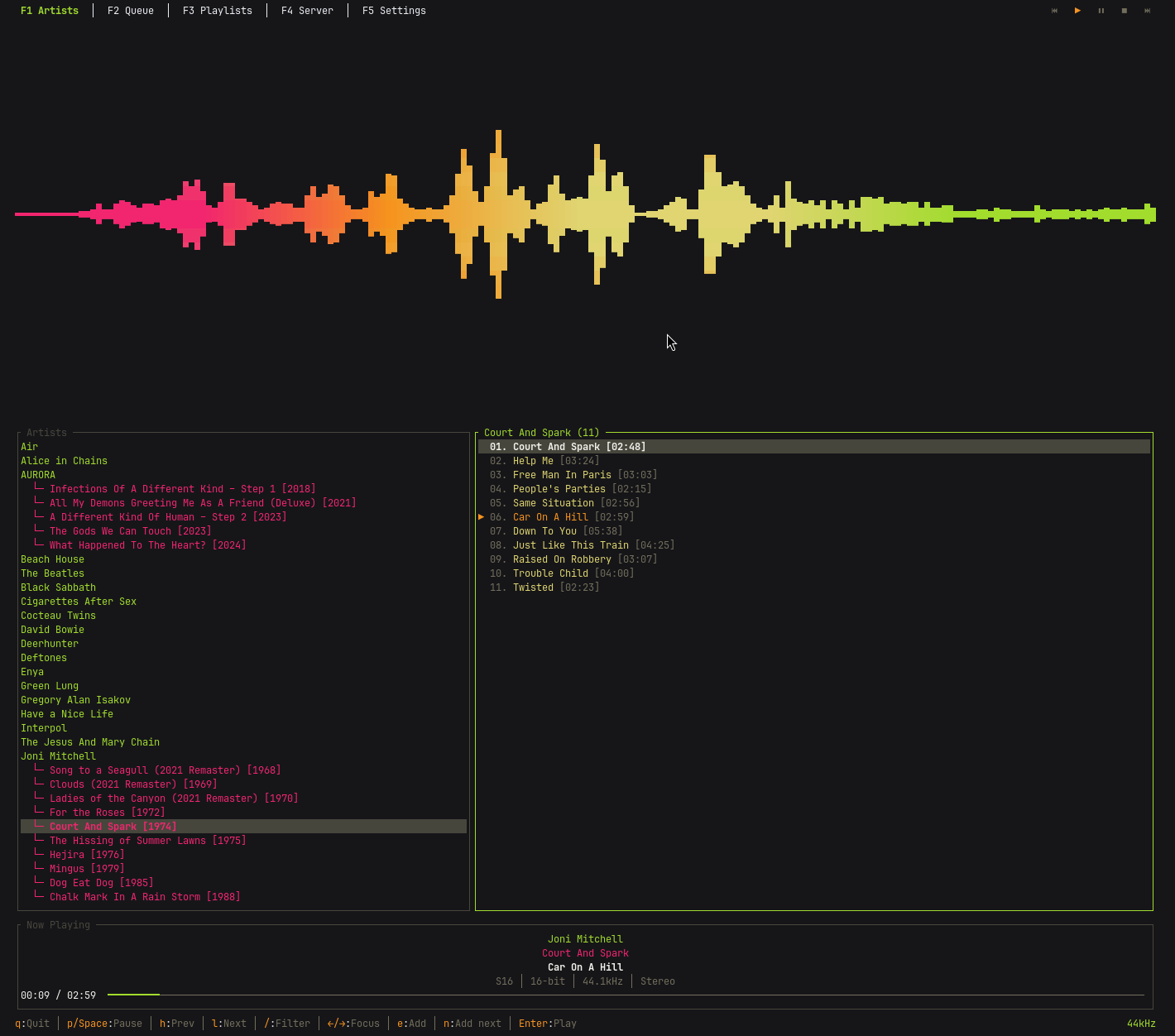
- Quality readout - live sample rate, bit depth, codec, and channel layout.
- Visualizer - built-in cava pane with theme-matched gradient colors.
Library and queue
- Tree browser - expandable artist/album view, with a flat album-list toggle (
v). - Unified search -
/runs one server-sidesearch3across artists, albums, and songs together. - Multi-library - on multi-folder servers,
fscopes the tree, album list, random songs, and search to one music folder; remembered across restarts. - Quick Play - jump straight into your Starred songs or a fresh Random roll, no browsing.
- Stars - favourite tracks with
n(playing) orm(highlighted); shown with a star everywhere. - Shuffle and repeat - shuffle any artist, album, or the whole library; cycle repeat Off/One/All with
r. - Queue - add, remove, reorder, shuffle, and clear history; persists across daemon restarts; save as a server playlist with
s. - Playlists - browse, play, and fully edit server playlists (rename, delete, add/remove/reorder songs).
- Multi-disc albums - correct disc and track numbering.
Desktop integration
- Persistent playback - an optional background daemon keeps music playing after you close the terminal. Details below.
- MPRIS2 - full media-key control (play, pause, stop, next, previous, seek) with push-style
PropertiesChangedupdates. - Notifications - track-change desktop notifications with cover art, fired daemon-side so they appear with the TUI closed (mako, dunst, GNOME, KDE).
- Scrobbling - reports plays via classic
scrobbleplus the OpenSubsonicreportPlaybackextension when the server advertises it (Last.fm / ListenBrainz when linked server-side).
Interface
- 13 themes - Default, Monokai, Dracula, Nord, Gruvbox, Catppuccin, Solarized, Tokyo Night, Rosé Pine, Everforest, Kanagawa, One Dark, Ayu Dark; plus custom TOML themes in
~/.config/ferrosonic/themes/. - Cover art - kitty / iTerm2 / sixel image protocols, with a chafa-enhanced half-block fallback.
- Mouse support - clickable tabs, buttons, lists, and progress-bar seeking.
- Keyboard-driven - Vim-style
j/kalongside arrow keys.
Screenshots
Installation
Dependencies
Ferrosonic requires the following at runtime:
| Dependency | Purpose | Required |
|---|---|---|
| mpv | Audio playback engine (via JSON IPC). 0.38+ recommended; older versions run a playback compatibility path (ferrosonic detects the version and warns). | Yes |
| PipeWire | Automatic sample rate switching for bit-perfect audio | Recommended |
| WirePlumber | PipeWire session manager | Recommended |
| D-Bus | MPRIS2 desktop media controls | Recommended |
| cava | Audio visualizer | Optional |
| chafa | Higher-fidelity cover-art half-blocks (sextants / braille / dithering). Loaded via dlopen at runtime; if absent, ferrosonic falls back to primitive ▀▄ half-blocks. | Optional |
Quick Install
Supports Arch, Fedora, and Debian/Ubuntu. Installs runtime dependencies, downloads the latest precompiled binary, and installs to /usr/local/bin/:
curl -sSf https://raw.githubusercontent.com/jaidaken/ferrosonic/master/install.sh | sh
The install drops a single ferrosonic binary into /usr/local/bin/. It runs as the TUI by default and re-launches itself in the background as the daemon when persistent playback is enabled.
Build from Source
If you prefer to build from source, you'll also need: Rust toolchain, pkg-config, OpenSSL dev headers, and D-Bus dev headers. Then:
git clone https://github.com/jaidaken/ferrosonic.git
cd ferrosonic
cargo build --release
sudo cp target/release/ferrosonic /usr/local/bin/
Usage
# Run with default config (~/.config/ferrosonic/config.toml)
ferrosonic

# Run with a custom config file
ferrosonic -c /path/to/config.toml

# Enable verbose/debug logging
ferrosonic -v

# Force single-process mode (skip the daemon connect/auto-spawn)
ferrosonic --standalone
Persistent playback
By default, ferrosonic connects to a background daemon and auto-spawns one (the same binary re-exec'd with the internal --daemon flag) if it isn't running. Music then keeps playing when you close the terminal. Reopen ferrosonic and you'll see the same queue at the same position.
Turn it off in Settings (F6 → Daemon: Off) for a single-process mode where music stops when the TUI exits. Or use --standalone for a one-off launch without changing the config.
For users who want the daemon at login time, a systemd user unit is shipped under contrib/ferrosonicd.service:
mkdir -p ~/.config/systemd/user
cp contrib/ferrosonicd.service ~/.config/systemd/user/
systemctl --user enable --now ferrosonicd.service
Configuration
Configuration is stored at ~/.config/ferrosonic/config.toml. You can edit it manually or configure the server connection through the application's Server page (F5). When you enter your password on the Server page, ferrosonic saves it to your operating system's keychain by default and keeps it out of config.toml; see Where your password is stored.
BaseURL = "https://your-subsonic-server.com"
Username = "your-username"
Password = "your-password"
Theme = "Default"
Daemon = true
Cava = false
CavaSize = 40
AutoContinue = false
RepeatMode = "Off"
CoverArt = false
CoverArtSize = 16
Scrobble = true
Notifications = true
| Field | Description |
|---|---|
BaseURL | URL of your Subsonic-compatible server (Navidrome, Airsonic, Gonic, etc.) |
Username | Your server username |
Password | Your server password. Used inline only as a last resort; the Server page prefers the OS keychain. |
PasswordKeyring | Set to true automatically when the password lives in the OS keychain; no plaintext is then written to the config. See below. |
PasswordFile | Optional path to a file containing the password (overrides Password and the keychain) |
PasswordEval | Optional command whose output is the password, so no secret sits in the config. Overrides PasswordFile, the keychain, and Password; the FERROSONIC_PASSWORD env var still wins. See below. |
Theme | Color theme name (e.g. Default, Catppuccin, Tokyo Night) |
Daemon | true (default) auto-spawns the background daemon; false runs single-process |
Cava | Enable the cava visualizer pane |
CavaSize | Cava pane height percentage (10-80, step 5) |
AutoContinue | Fetch fresh random songs and keep playing when the queue ends |
RepeatMode | Queue repeat: "Off", "One", or "All" |
CoverArt | Show cover art in the now-playing section (kitty / iTerm2 / sixel terminals) |
CoverArtSize | Cover art pane width in columns (default 16) |
Scrobble | Report plays to the server, default true (classic scrobble + OpenSubsonic reportPlayback) |
Notifications | Desktop track-change notifications with cover art, default true |
Logs are written to ~/.config/ferrosonic/ferrosonic.log (TUI) and ~/.config/ferrosonic/ferrosonicd.log (daemon). The queue is persisted to ~/.config/ferrosonic/queue.json so it survives daemon restarts.
Where your password is stored
When you enter your password on the Server page (F5), ferrosonic stores it in your operating system's keychain (Secret Service / GNOME Keyring / KWallet on Linux, Keychain on macOS) and writes only a PasswordKeyring = true marker to config.toml, never the plaintext. Any password already sitting inline migrates to the keychain the next time you save. This is the default and needs no setup.
On a machine with no usable keychain (a headless box, or no unlocked Secret Service), ferrosonic falls back to writing the password inline to config.toml, which is created with owner-only (0600) permissions, and the Server page tells you this happened. For headless or scripted setups, prefer PasswordEval below.
At startup the password is resolved in this order, first hit wins:
FERROSONIC_PASSWORDenvironment variablePasswordEvalcommandPasswordFilepath- OS keychain (when
PasswordKeyring = true) - inline
Password
If a higher-priority source is configured but fails (command errors, file unreadable, keychain unreachable), ferrosonic clears the password and authentication fails cleanly rather than falling back to a stale credential.
Keeping the password out of the config (PasswordEval)
PasswordEval runs a command and uses its first line of output as the password, so no secret is stored in config.toml. It works with whatever secret tooling you already use (pass, gpg, sops, secret-tool, a keyring CLI, and so on). Two forms:
# String, run via the shell (env vars, ~, and pipes work):
PasswordEval = "pass show navidrome"

# Array, executed directly with no shell (env vars and ~ still expand):
PasswordEval = ["sops", "-d", "~/secrets/navidrome.txt"]
It is resolved at startup. Because the background daemon has no terminal, the command must be non-interactive: use an agent-backed source (gpg-agent or pass with the key already unlocked, sops, secret-tool) rather than anything that pops a passphrase prompt. The command runs with stdin closed and is killed if it does not return within 30 seconds; on any failure ferrosonic clears the password and authentication fails cleanly rather than falling back to a stale credential. The password is never passed as a command argument or environment variable, so it cannot leak through the process table.
Keyboard Shortcuts
Global
| Key | Action |
|---|---|
q | Quit |
p / Space | Toggle play/pause |
l | Next track |
h | Previous track |
n | Star/unstar currently-playing song |
r | Cycle repeat mode (Off → One → All) |
Shift+T | Shuffle the entire library and play |
Ctrl+R | Refresh data from server |
F1 | Library page |
F2 | Queue page |
F3 | Quick Play page |
F4 | Playlists page |
F5 | Server configuration page |
F6 | Settings page |
Library Page (F1)
| Key | Action |
|---|---|
/ | Unified search: typing fires one server-side search3 across artists, albums, and songs |
Enter | Lock the filter in (keeps results, exits input mode) |
Esc | Clear filter and search results |
Up / k | Move selection up |
Down / j | Move selection down |
Left / Right | Switch focus between tree and song list |
Enter | Expand/collapse artist, or play album/song |
Backspace | Return to tree from song list |
e | Add selected item to end of queue |
i | Add selected item as next in queue |
t | Shuffle play all songs by the selected artist or album |
m | Star/unstar highlighted song (songs pane focus only) |
v | Toggle the left pane between the artist tree and the flat album list |
f | Cycle the active library / music folder (All, then each folder); shown in the pane title |
Queue Page (F2)
| Key | Action |
|---|---|
Up / k | Move selection up |
Down / j | Move selection down |
Enter | Play selected song |
d | Remove selected song from queue (advances to next if removing current) |
J (Shift+J) | Move selected song down |
K (Shift+K) | Move selected song up |
t | Shuffle queue (current song stays in place) |
c | Clear played history (remove songs before current) |
s | Save the current queue as a server-side playlist |
m | Star/unstar highlighted song |
Quick Play Page (F3)
| Key | Action |
|---|---|
Tab | Switch focus between song options and song list |
Left / Right | Switch focus between options pane and song list |
Up / k | Move selection up (navigate options or songs) |
Down / j | Move selection down (navigate options or songs) |
Enter | Play selected song (queues all visible songs and starts from selection) |
m | Star/unstar highlighted song |
The Quick Play page has two modes selectable from the options pane: Starred (shows your starred/favourited songs from the server) and Random (a fresh 500-song roll from the library on each visit).
Playlists Page (F4)
| Key | Action |
|---|---|
Tab / Left / Right | Switch focus between playlists and songs |
Up / k | Move selection up |
Down / j | Move selection down |
Enter | Load playlist songs or play selected song |
e | Add selected item to end of queue |
i | Add selected song as next in queue |
t | Shuffle play all songs in selected playlist |
m | Star/unstar highlighted song (songs pane focus only) |
R | Rename the selected playlist (playlists pane) |
D | Delete the selected playlist, with a confirmation prompt (playlists pane) |
d | Remove the highlighted song from the playlist (songs pane) |
J / K | Move the highlighted song down / up to reorder (songs pane) |
a | Add the highlighted song to another playlist via a picker (songs pane) |
Reordering replaces the server playlist's contents in one request, since the
Subsonic API has no in-place move. The a add-to-playlist picker is also
available from the Library, Queue, and Quick Play song panes.
Server Page (F5)
| Key | Action |
|---|---|
Tab | Move between fields |
Enter | Test connection or Save configuration |
Backspace | Delete character in text field |
F-keys still switch pages from the Server page; any unsaved edits are discarded on the way out.
Settings Page (F6)
| Key | Action |
|---|---|
Up / Down | Move between settings |
Left | Previous option |
Right / Enter | Next option |
Settings include theme selection, cava visualizer toggle + size, cover art toggle + size, repeat mode, auto-continue, scrobbling, desktop notifications, and the daemon-mode preference. Changes are saved automatically. The daemon-mode toggle takes effect on the next launch.
Mouse Support
- Click page tabs in the header to switch pages
- Click playback control buttons (Previous, Play, Pause, Stop, Next) in the header
- Click items in lists to select them
- Click the progress bar in the Now Playing widget to seek
Audio Features
Bit-Perfect Playback
Ferrosonic uses PipeWire's pw-metadata to automatically switch the system sample rate to match the source material. When a track at 96kHz starts playing, PipeWire is instructed to output at 96kHz, avoiding unnecessary resampling. The original sample rate is restored when the application exits.
Gapless Playback
The next track in the queue is pre-loaded into MPV's internal playlist before the current track finishes, allowing seamless transitions with no gap or click between songs.
Now Playing Display
The Now Playing widget shows:
- Artist, album, and track title
- Audio quality: format/codec, bit depth, sample rate, and channel layout
- Visual progress bar with elapsed/total time
Themes
Ferrosonic ships multiple built-in themes, as well as support for custom themes. Here are two examples:
| Nord | Gruvbox |
|---|---|
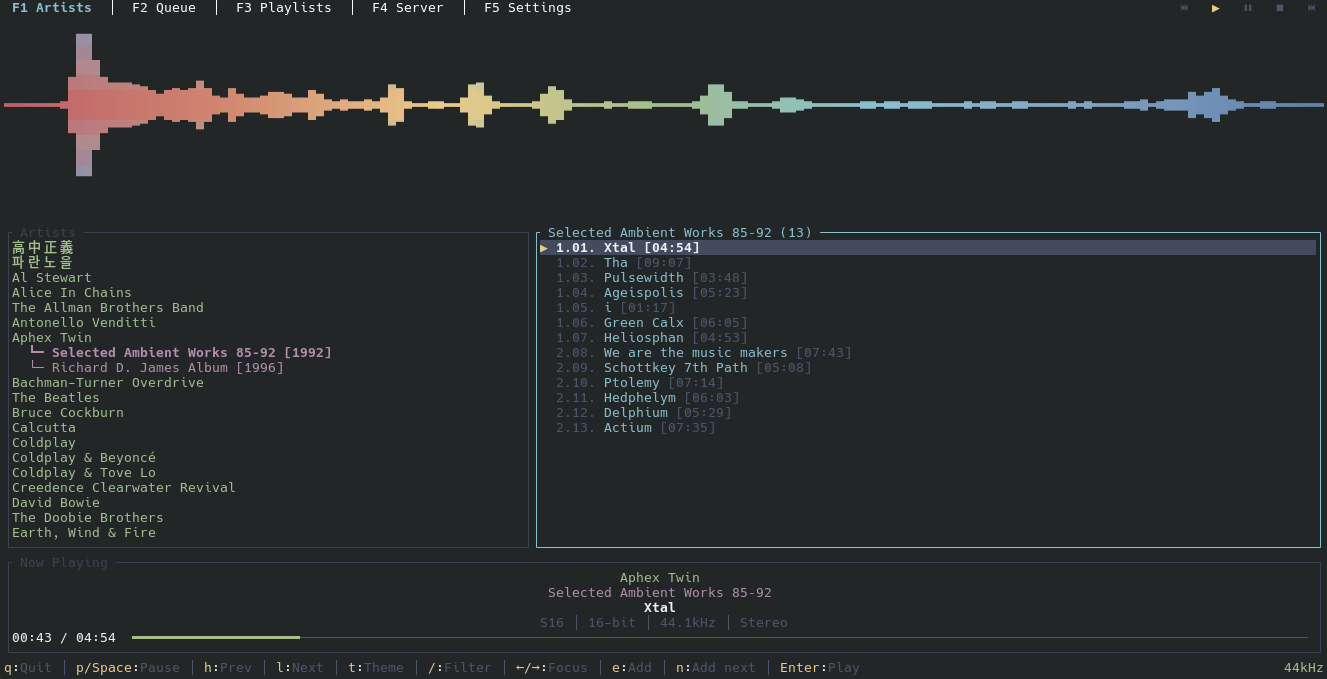 | 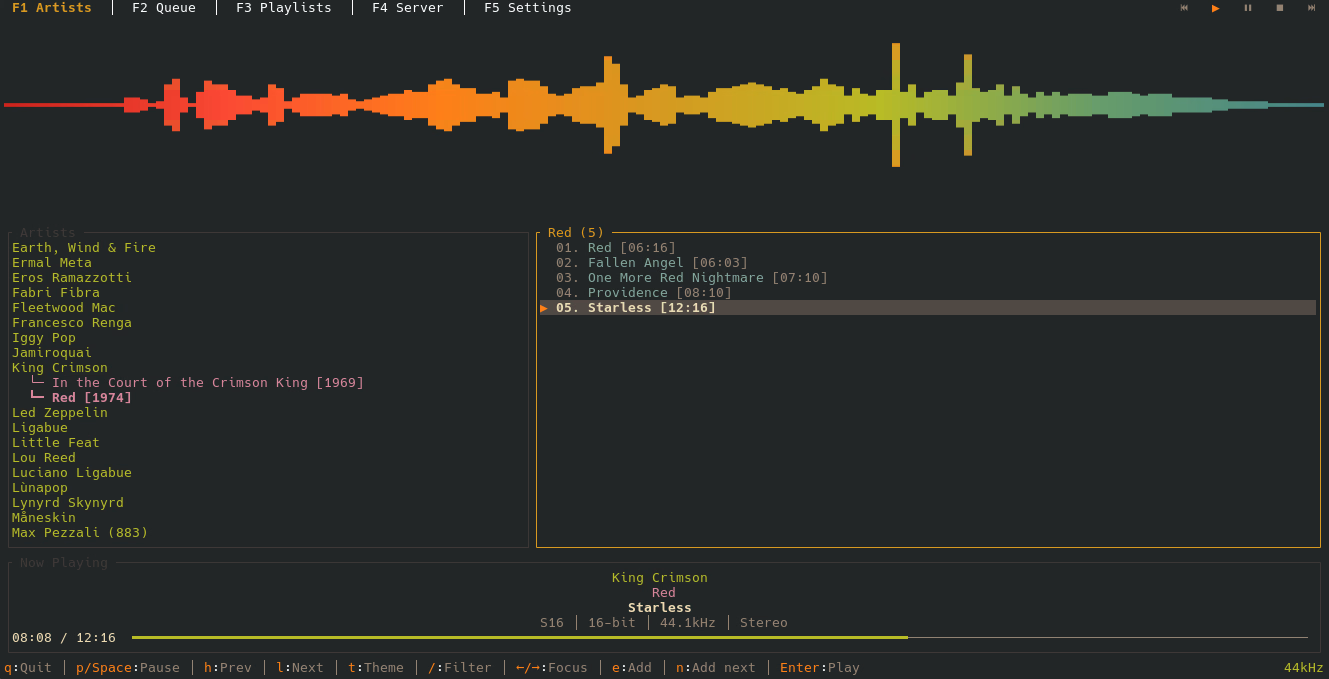 |
To know more about themes, visit the themes documentation.
Compatible Servers
Ferrosonic works with any server implementing the Subsonic API, including:
Testing
The full test suite uses cargo-nextest for parallel execution and
wiremock / a fake-mpv harness for integration tests against the daemon,
audio stack, and Subsonic client without spawning real services. One
optional smoke test runs against real mpv to catch protocol drift.
# Run everything (fast).
cargo nextest run --all-targets

# Or vanilla cargo if you don't have nextest installed.
cargo test --all-targets

# Coverage report (HTML + summary).
cargo install cargo-llvm-cov
cargo llvm-cov --all-features --workspace --html
CI runs fmt, clippy, the full test suite (with real mpv installed),
and a coverage report on every push and pull request. Coverage is
reported as a warning, not a hard gate.
Acknowledgements
Ferrosonic is inspired by Termsonic by SixFoisNeuf, a terminal Subsonic client written in Go. Ferrosonic builds on that concept with a Rust implementation, bit-perfect audio via PipeWire, and additional features.
Contributors


Similar repos


Languages
Rust
99.6%
See what people are saying (1)
README
Ferrosonic
A terminal Subsonic music client written in Rust: bit-perfect audio, gapless playback, and full desktop integration.
It is a ground-up Rust rewrite of Termsonic (a Go client by SixFoisNeuf), adding PipeWire sample-rate switching, MPRIS2 controls, themes, and mouse support.
Features
Audio
- Bit-perfect output - PipeWire switches the system sample rate to match the source (44.1, 48, 96, 192 kHz and others) and restores it on exit.
- Gapless playback - the next track is pre-buffered into mpv before the current one ends.
- Quality readout - live sample rate, bit depth, codec, and channel layout.
- Visualizer - built-in cava pane with theme-matched gradient colors.
Library and queue
- Tree browser - expandable artist/album view, with a flat album-list toggle (
v). - Unified search -
/runs one server-sidesearch3across artists, albums, and songs together. - Multi-library - on multi-folder servers,
fscopes the tree, album list, random songs, and search to one music folder; remembered across restarts. - Quick Play - jump straight into your Starred songs or a fresh Random roll, no browsing.
- Stars - favourite tracks with
n(playing) orm(highlighted); shown with a star everywhere. - Shuffle and repeat - shuffle any artist, album, or the whole library; cycle repeat Off/One/All with
r. - Queue - add, remove, reorder, shuffle, and clear history; persists across daemon restarts; save as a server playlist with
s. - Playlists - browse, play, and fully edit server playlists (rename, delete, add/remove/reorder songs).
- Multi-disc albums - correct disc and track numbering.
Desktop integration
- Persistent playback - an optional background daemon keeps music playing after you close the terminal. Details below.
- MPRIS2 - full media-key control (play, pause, stop, next, previous, seek) with push-style
PropertiesChangedupdates. - Notifications - track-change desktop notifications with cover art, fired daemon-side so they appear with the TUI closed (mako, dunst, GNOME, KDE).
- Scrobbling - reports plays via classic
scrobbleplus the OpenSubsonicreportPlaybackextension when the server advertises it (Last.fm / ListenBrainz when linked server-side).
Interface
- 13 themes - Default, Monokai, Dracula, Nord, Gruvbox, Catppuccin, Solarized, Tokyo Night, Rosé Pine, Everforest, Kanagawa, One Dark, Ayu Dark; plus custom TOML themes in
~/.config/ferrosonic/themes/. - Cover art - kitty / iTerm2 / sixel image protocols, with a chafa-enhanced half-block fallback.
- Mouse support - clickable tabs, buttons, lists, and progress-bar seeking.
- Keyboard-driven - Vim-style
j/kalongside arrow keys.
Screenshots
Installation
Dependencies
Ferrosonic requires the following at runtime:
| Dependency | Purpose | Required |
|---|---|---|
| mpv | Audio playback engine (via JSON IPC). 0.38+ recommended; older versions run a playback compatibility path (ferrosonic detects the version and warns). | Yes |
| PipeWire | Automatic sample rate switching for bit-perfect audio | Recommended |
| WirePlumber | PipeWire session manager | Recommended |
| D-Bus | MPRIS2 desktop media controls | Recommended |
| cava | Audio visualizer | Optional |
| chafa | Higher-fidelity cover-art half-blocks (sextants / braille / dithering). Loaded via dlopen at runtime; if absent, ferrosonic falls back to primitive ▀▄ half-blocks. | Optional |
Quick Install
Supports Arch, Fedora, and Debian/Ubuntu. Installs runtime dependencies, downloads the latest precompiled binary, and installs to /usr/local/bin/:
curl -sSf https://raw.githubusercontent.com/jaidaken/ferrosonic/master/install.sh | sh
The install drops a single ferrosonic binary into /usr/local/bin/. It runs as the TUI by default and re-launches itself in the background as the daemon when persistent playback is enabled.
Build from Source
If you prefer to build from source, you'll also need: Rust toolchain, pkg-config, OpenSSL dev headers, and D-Bus dev headers. Then:
git clone https://github.com/jaidaken/ferrosonic.git
cd ferrosonic
cargo build --release
sudo cp target/release/ferrosonic /usr/local/bin/
Usage
# Run with default config (~/.config/ferrosonic/config.toml)
ferrosonic

# Run with a custom config file
ferrosonic -c /path/to/config.toml

# Enable verbose/debug logging
ferrosonic -v

# Force single-process mode (skip the daemon connect/auto-spawn)
ferrosonic --standalone
Persistent playback
By default, ferrosonic connects to a background daemon and auto-spawns one (the same binary re-exec'd with the internal --daemon flag) if it isn't running. Music then keeps playing when you close the terminal. Reopen ferrosonic and you'll see the same queue at the same position.
Turn it off in Settings (F6 → Daemon: Off) for a single-process mode where music stops when the TUI exits. Or use --standalone for a one-off launch without changing the config.
For users who want the daemon at login time, a systemd user unit is shipped under contrib/ferrosonicd.service:
mkdir -p ~/.config/systemd/user
cp contrib/ferrosonicd.service ~/.config/systemd/user/
systemctl --user enable --now ferrosonicd.service
Configuration
Configuration is stored at ~/.config/ferrosonic/config.toml. You can edit it manually or configure the server connection through the application's Server page (F5). When you enter your password on the Server page, ferrosonic saves it to your operating system's keychain by default and keeps it out of config.toml; see Where your password is stored.
BaseURL = "https://your-subsonic-server.com"
Username = "your-username"
Password = "your-password"
Theme = "Default"
Daemon = true
Cava = false
CavaSize = 40
AutoContinue = false
RepeatMode = "Off"
CoverArt = false
CoverArtSize = 16
Scrobble = true
Notifications = true
| Field | Description |
|---|---|
BaseURL | URL of your Subsonic-compatible server (Navidrome, Airsonic, Gonic, etc.) |
Username | Your server username |
Password | Your server password. Used inline only as a last resort; the Server page prefers the OS keychain. |
PasswordKeyring | Set to true automatically when the password lives in the OS keychain; no plaintext is then written to the config. See below. |
PasswordFile | Optional path to a file containing the password (overrides Password and the keychain) |
PasswordEval | Optional command whose output is the password, so no secret sits in the config. Overrides PasswordFile, the keychain, and Password; the FERROSONIC_PASSWORD env var still wins. See below. |
Theme | Color theme name (e.g. Default, Catppuccin, Tokyo Night) |
Daemon | true (default) auto-spawns the background daemon; false runs single-process |
Cava | Enable the cava visualizer pane |
CavaSize | Cava pane height percentage (10-80, step 5) |
AutoContinue | Fetch fresh random songs and keep playing when the queue ends |
RepeatMode | Queue repeat: "Off", "One", or "All" |
CoverArt | Show cover art in the now-playing section (kitty / iTerm2 / sixel terminals) |
CoverArtSize | Cover art pane width in columns (default 16) |
Scrobble | Report plays to the server, default true (classic scrobble + OpenSubsonic reportPlayback) |
Notifications | Desktop track-change notifications with cover art, default true |
Logs are written to ~/.config/ferrosonic/ferrosonic.log (TUI) and ~/.config/ferrosonic/ferrosonicd.log (daemon). The queue is persisted to ~/.config/ferrosonic/queue.json so it survives daemon restarts.
Where your password is stored
When you enter your password on the Server page (F5), ferrosonic stores it in your operating system's keychain (Secret Service / GNOME Keyring / KWallet on Linux, Keychain on macOS) and writes only a PasswordKeyring = true marker to config.toml, never the plaintext. Any password already sitting inline migrates to the keychain the next time you save. This is the default and needs no setup.
On a machine with no usable keychain (a headless box, or no unlocked Secret Service), ferrosonic falls back to writing the password inline to config.toml, which is created with owner-only (0600) permissions, and the Server page tells you this happened. For headless or scripted setups, prefer PasswordEval below.
At startup the password is resolved in this order, first hit wins:
FERROSONIC_PASSWORDenvironment variablePasswordEvalcommandPasswordFilepath- OS keychain (when
PasswordKeyring = true) - inline
Password
If a higher-priority source is configured but fails (command errors, file unreadable, keychain unreachable), ferrosonic clears the password and authentication fails cleanly rather than falling back to a stale credential.
Keeping the password out of the config (PasswordEval)
PasswordEval runs a command and uses its first line of output as the password, so no secret is stored in config.toml. It works with whatever secret tooling you already use (pass, gpg, sops, secret-tool, a keyring CLI, and so on). Two forms:
# String, run via the shell (env vars, ~, and pipes work):
PasswordEval = "pass show navidrome"

# Array, executed directly with no shell (env vars and ~ still expand):
PasswordEval = ["sops", "-d", "~/secrets/navidrome.txt"]
It is resolved at startup. Because the background daemon has no terminal, the command must be non-interactive: use an agent-backed source (gpg-agent or pass with the key already unlocked, sops, secret-tool) rather than anything that pops a passphrase prompt. The command runs with stdin closed and is killed if it does not return within 30 seconds; on any failure ferrosonic clears the password and authentication fails cleanly rather than falling back to a stale credential. The password is never passed as a command argument or environment variable, so it cannot leak through the process table.
Keyboard Shortcuts
Global
| Key | Action |
|---|---|
q | Quit |
p / Space | Toggle play/pause |
l | Next track |
h | Previous track |
n | Star/unstar currently-playing song |
r | Cycle repeat mode (Off → One → All) |
Shift+T | Shuffle the entire library and play |
Ctrl+R | Refresh data from server |
F1 | Library page |
F2 | Queue page |
F3 | Quick Play page |
F4 | Playlists page |
F5 | Server configuration page |
F6 | Settings page |
Library Page (F1)
| Key | Action |
|---|---|
/ | Unified search: typing fires one server-side search3 across artists, albums, and songs |
Enter | Lock the filter in (keeps results, exits input mode) |
Esc | Clear filter and search results |
Up / k | Move selection up |
Down / j | Move selection down |
Left / Right | Switch focus between tree and song list |
Enter | Expand/collapse artist, or play album/song |
Backspace | Return to tree from song list |
e | Add selected item to end of queue |
i | Add selected item as next in queue |
t | Shuffle play all songs by the selected artist or album |
m | Star/unstar highlighted song (songs pane focus only) |
v | Toggle the left pane between the artist tree and the flat album list |
f | Cycle the active library / music folder (All, then each folder); shown in the pane title |
Queue Page (F2)
| Key | Action |
|---|---|
Up / k | Move selection up |
Down / j | Move selection down |
Enter | Play selected song |
d | Remove selected song from queue (advances to next if removing current) |
J (Shift+J) | Move selected song down |
K (Shift+K) | Move selected song up |
t | Shuffle queue (current song stays in place) |
c | Clear played history (remove songs before current) |
s | Save the current queue as a server-side playlist |
m | Star/unstar highlighted song |
Quick Play Page (F3)
| Key | Action |
|---|---|
Tab | Switch focus between song options and song list |
Left / Right | Switch focus between options pane and song list |
Up / k | Move selection up (navigate options or songs) |
Down / j | Move selection down (navigate options or songs) |
Enter | Play selected song (queues all visible songs and starts from selection) |
m | Star/unstar highlighted song |
The Quick Play page has two modes selectable from the options pane: Starred (shows your starred/favourited songs from the server) and Random (a fresh 500-song roll from the library on each visit).
Playlists Page (F4)
| Key | Action |
|---|---|
Tab / Left / Right | Switch focus between playlists and songs |
Up / k | Move selection up |
Down / j | Move selection down |
Enter | Load playlist songs or play selected song |
e | Add selected item to end of queue |
i | Add selected song as next in queue |
t | Shuffle play all songs in selected playlist |
m | Star/unstar highlighted song (songs pane focus only) |
R | Rename the selected playlist (playlists pane) |
D | Delete the selected playlist, with a confirmation prompt (playlists pane) |
d | Remove the highlighted song from the playlist (songs pane) |
J / K | Move the highlighted song down / up to reorder (songs pane) |
a | Add the highlighted song to another playlist via a picker (songs pane) |
Reordering replaces the server playlist's contents in one request, since the
Subsonic API has no in-place move. The a add-to-playlist picker is also
available from the Library, Queue, and Quick Play song panes.
Server Page (F5)
| Key | Action |
|---|---|
Tab | Move between fields |
Enter | Test connection or Save configuration |
Backspace | Delete character in text field |
F-keys still switch pages from the Server page; any unsaved edits are discarded on the way out.
Settings Page (F6)
| Key | Action |
|---|---|
Up / Down | Move between settings |
Left | Previous option |
Right / Enter | Next option |
Settings include theme selection, cava visualizer toggle + size, cover art toggle + size, repeat mode, auto-continue, scrobbling, desktop notifications, and the daemon-mode preference. Changes are saved automatically. The daemon-mode toggle takes effect on the next launch.
Mouse Support
- Click page tabs in the header to switch pages
- Click playback control buttons (Previous, Play, Pause, Stop, Next) in the header
- Click items in lists to select them
- Click the progress bar in the Now Playing widget to seek
Audio Features
Bit-Perfect Playback
Ferrosonic uses PipeWire's pw-metadata to automatically switch the system sample rate to match the source material. When a track at 96kHz starts playing, PipeWire is instructed to output at 96kHz, avoiding unnecessary resampling. The original sample rate is restored when the application exits.
Gapless Playback
The next track in the queue is pre-loaded into MPV's internal playlist before the current track finishes, allowing seamless transitions with no gap or click between songs.
Now Playing Display
The Now Playing widget shows:
- Artist, album, and track title
- Audio quality: format/codec, bit depth, sample rate, and channel layout
- Visual progress bar with elapsed/total time
Themes
Ferrosonic ships multiple built-in themes, as well as support for custom themes. Here are two examples:
| Nord | Gruvbox |
|---|---|
| |
To know more about themes, visit the themes documentation.
Compatible Servers
Ferrosonic works with any server implementing the Subsonic API, including:
Testing
The full test suite uses cargo-nextest for parallel execution and
wiremock / a fake-mpv harness for integration tests against the daemon,
audio stack, and Subsonic client without spawning real services. One
optional smoke test runs against real mpv to catch protocol drift.
# Run everything (fast).
cargo nextest run --all-targets

# Or vanilla cargo if you don't have nextest installed.
cargo test --all-targets

# Coverage report (HTML + summary).
cargo install cargo-llvm-cov
cargo llvm-cov --all-features --workspace --html
CI runs fmt, clippy, the full test suite (with real mpv installed),
and a coverage report on every push and pull request. Coverage is
reported as a warning, not a hard gate.
Acknowledgements
Ferrosonic is inspired by Termsonic by SixFoisNeuf, a terminal Subsonic client written in Go. Ferrosonic builds on that concept with a Rust implementation, bit-perfect audio via PipeWire, and additional features.
Similar repos
Contributors
Languages
Rust
99.6%