imjp94/UIDesignTool

Intuitive UI design workflow in Godot

GDScript

446

44 commits

updated May 1, 2023

See the code

README

UI Design Tool

Toolbar

Intuitive UI design workflow in Godot.

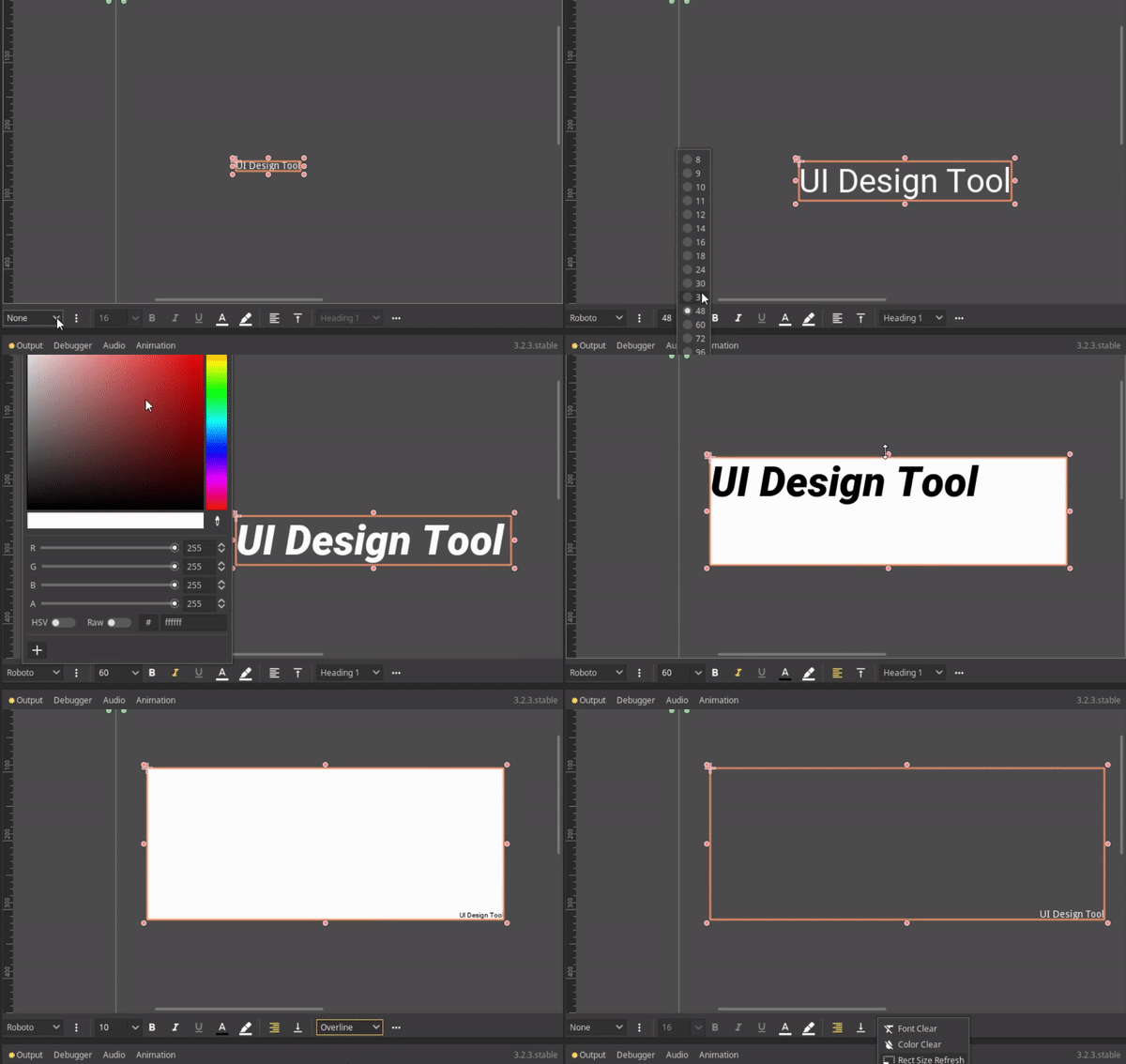
Import/manage font source files and styling UI directly in the editor viewport.

This version is only compatible with Godot 4.x, check out godot3 branch for older version

Features

  • Overlay Text Editor
  • Toolbar(Support batch edit):
    • Font:
      • Import and manage TrueType fonts(.ttf)
      • Font family
      • Font weight
      • Font size
      • Font color
    • Highlight
    • Horizontal/Vertical alignment
    • Font Style/Formatting(Typography hierarchy)
    • Utilities:
      • Clear font
      • Clear color
      • Rect size refresh

For more detail list, check CHANGELOG.md

Installation

  • Install directly from Godot Asset Library

or

  • Download this respository,
    1. Move addons/ui_design_tool to your {project_dir}
    2. Enable it from Project -> Settings -> Plugins

or

Install with gd-plug

plug("imjp94/UIDesignTool")

Usage

Toolbar

Show Overlay Text Editor

Select any Control node will show the toolbar at the bottom of 2D screen viewport, otherwise, it will stay hidden. Select multiple nodes to edit simultaneously.
Overlay Text Editor

Show Overlay Text Editor

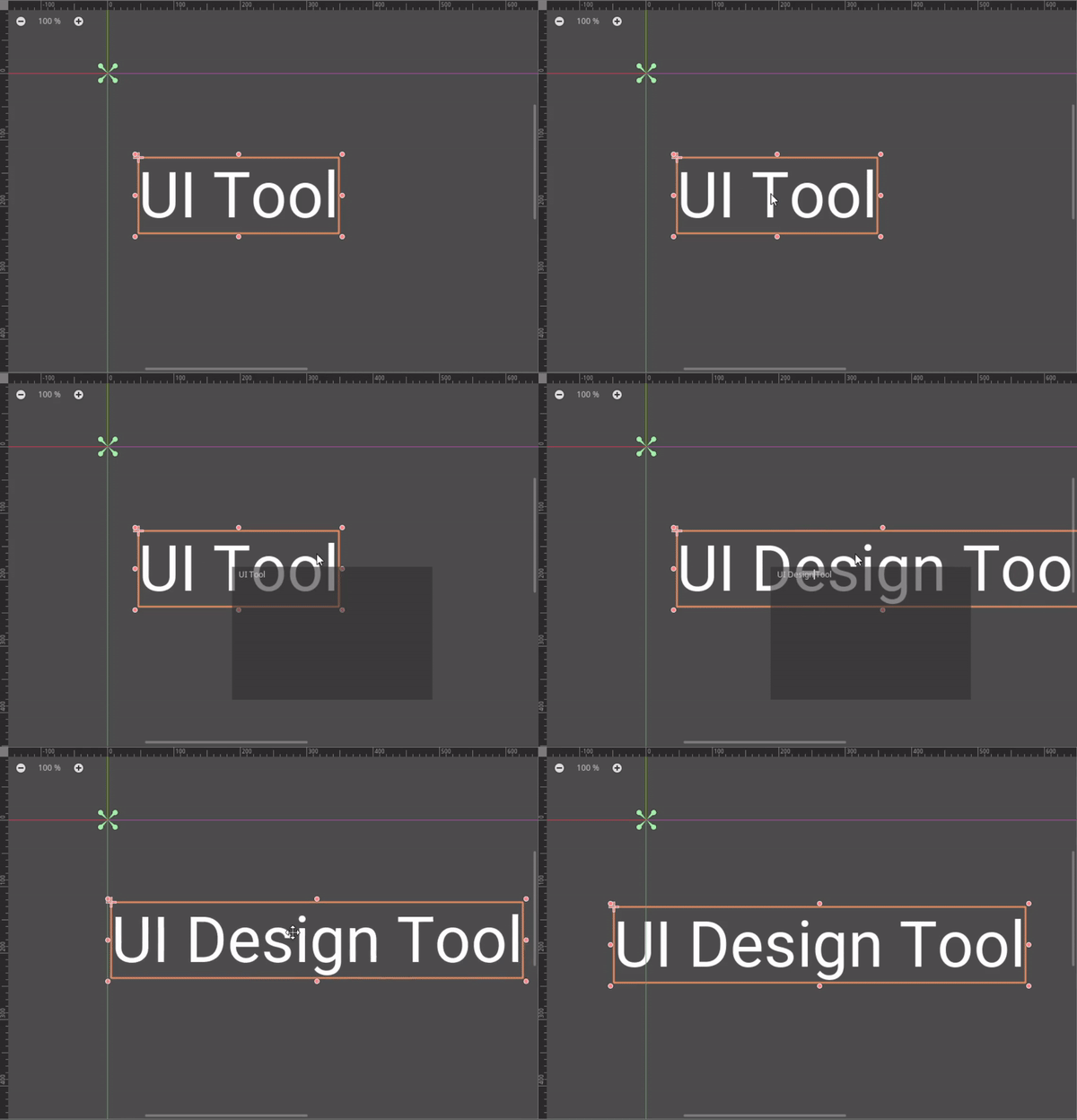
Double click on Control node with text property(Label, Button, RichTextLabel, etc...) will show overlay text editor at mouse position.

Import TrueType Font(.ttf)

Click on Open Font Directory to select the root directory where your font source directories located.

Make sure the selected directory and filenames are structured as below:

  • {root_dir}
    • {font_dir}
      • {font_filename}{- or _}{weight_name}
      • ...
    • ...

Example:

  • fonts/
    • Arial/
      • Arial-Regular.ttf
      • Arial-Bold.ttf
      • Arial-Italic.ttf
      • Arial-BoldItalic.ttf
    • Courier/
      • Courier_Regular.ttf
      • Courier_Bold.ttf
      • Courier_Italic.ttf
      • Courier_BoldItalic.ttf
    • ...

Folder name of the font will be used as the font name in toolbar

Click on Refresh Font Directory to refresh the font list upon any changes made to the font sources.

Supported weight names (non case sensitive)

  • thin
  • extralight
  • light
  • regular
  • medium
  • semibold
  • bold
  • extrabold
  • black
  • extrablack

Supported italic weight names (non case sensitive):

  • thinitalic
  • extralightitalic
  • lightitalic
  • regularitalic/italic
  • mediumitalic
  • semibolditalic
  • bolditalic
  • extrabolditalic
  • blackitalic
  • extrablackitalic
godot

imjp94/UIDesignTool

Intuitive UI design workflow in Godot

GDScript

446

44 commits

updated May 1, 2023

See the code

README

UI Design Tool

Toolbar

Intuitive UI design workflow in Godot.

Import/manage font source files and styling UI directly in the editor viewport.

This version is only compatible with Godot 4.x, check out godot3 branch for older version

Features

  • Overlay Text Editor
  • Toolbar(Support batch edit):
    • Font:
      • Import and manage TrueType fonts(.ttf)
      • Font family
      • Font weight
      • Font size
      • Font color
    • Highlight
    • Horizontal/Vertical alignment
    • Font Style/Formatting(Typography hierarchy)
    • Utilities:
      • Clear font
      • Clear color
      • Rect size refresh

For more detail list, check CHANGELOG.md

Installation

  • Install directly from Godot Asset Library

or

  • Download this respository,
    1. Move addons/ui_design_tool to your {project_dir}
    2. Enable it from Project -> Settings -> Plugins

or

Install with gd-plug

plug("imjp94/UIDesignTool")

Usage

Toolbar

Show Overlay Text Editor

Select any Control node will show the toolbar at the bottom of 2D screen viewport, otherwise, it will stay hidden. Select multiple nodes to edit simultaneously.

Overlay Text Editor

Show Overlay Text Editor

Double click on Control node with text property(Label, Button, RichTextLabel, etc...) will show overlay text editor at mouse position.

Import TrueType Font(.ttf)

Click on Open Font Directory to select the root directory where your font source directories located.

Make sure the selected directory and filenames are structured as below:

  • {root_dir}
    • {font_dir}
      • {font_filename}{- or _}{weight_name}
      • ...
    • ...

Example:

  • fonts/
    • Arial/
      • Arial-Regular.ttf
      • Arial-Bold.ttf
      • Arial-Italic.ttf
      • Arial-BoldItalic.ttf
    • Courier/
      • Courier_Regular.ttf
      • Courier_Bold.ttf
      • Courier_Italic.ttf
      • Courier_BoldItalic.ttf
    • ...

Folder name of the font will be used as the font name in toolbar

Click on Refresh Font Directory to refresh the font list upon any changes made to the font sources.

Supported weight names (non case sensitive)

  • thin
  • extralight
  • light
  • regular
  • medium
  • semibold
  • bold
  • extrabold
  • black
  • extrablack

Supported italic weight names (non case sensitive):

  • thinitalic
  • extralightitalic
  • lightitalic
  • regularitalic/italic
  • mediumitalic
  • semibolditalic
  • bolditalic
  • extrabolditalic
  • blackitalic
  • extrablackitalic
godot

Significant stargazers

Lukas Wirth

679 followers · starred May 2023

Nathan GDQuest

967 followers · starred Sep 2020

Pawel Lampe

67 followers · starred Sep 2020

Meru Patel

58 followers · starred Feb 2022
