Spatial media app for Vision Pro, iPhone, iPad, Apple TV and Mac: 2D→3D photos and video, Photos/Stash/Nextcloud/Jellyfin libraries, object-audio films
Swift
6
812 commits
updated Oct 14, 2026
Convolution is a spatial media app for Apple Vision Pro, iPhone, iPad, Apple TV and Mac. It turns flat photos and videos into spatial 3D on the device, browses the libraries you already have, and plays films with their sound objects placed around you as real spatial sources.
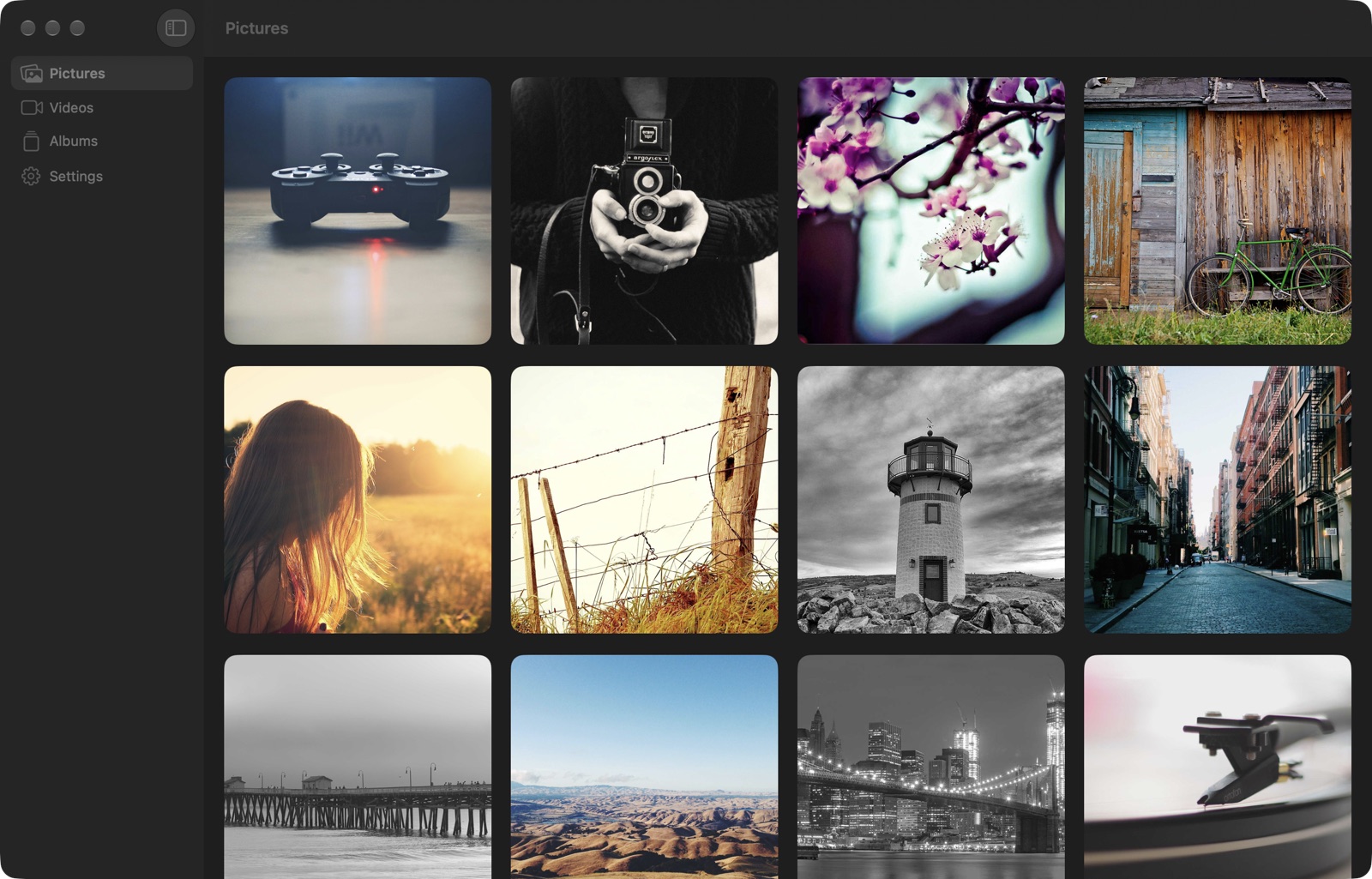
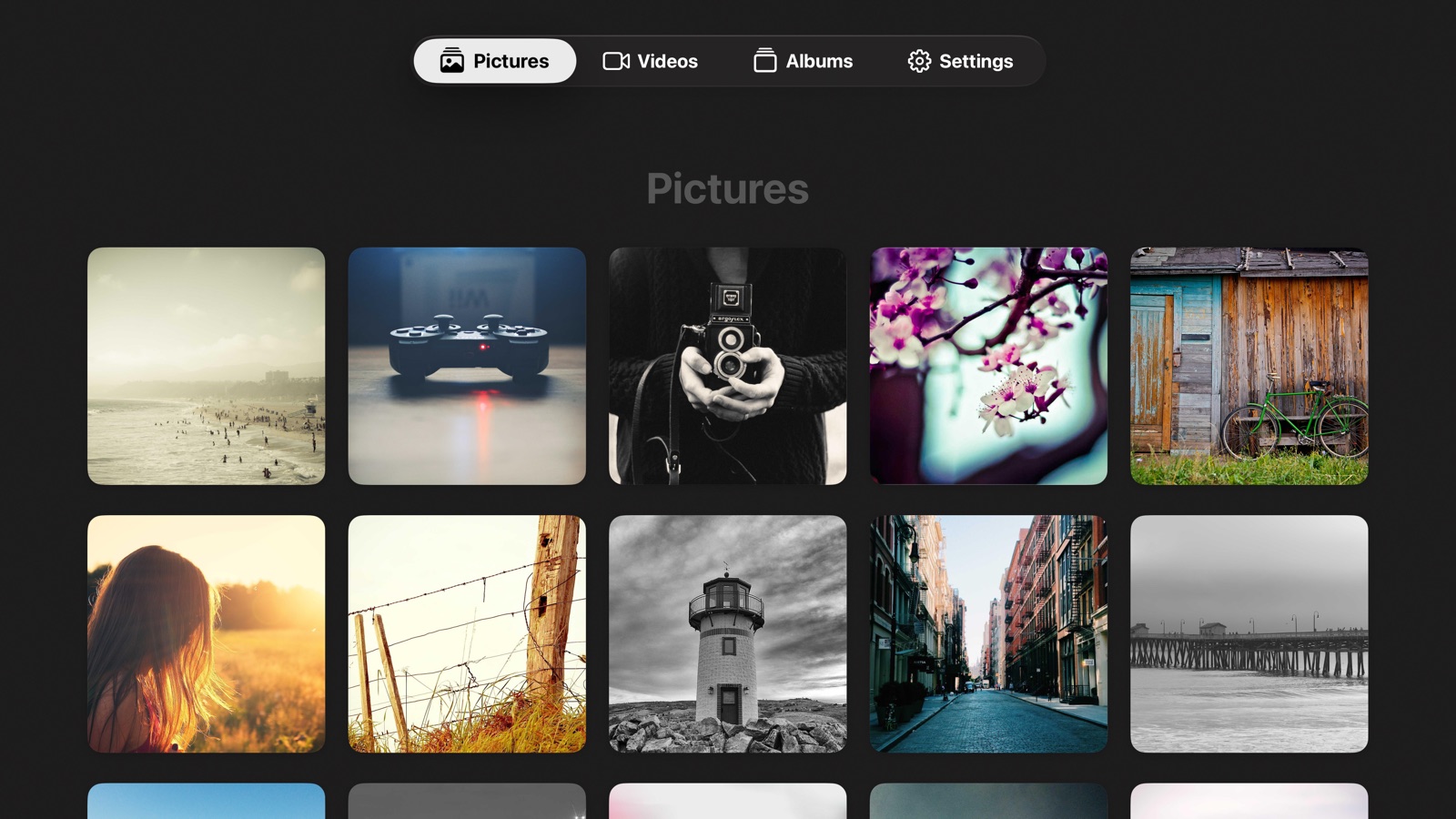
It is one codebase with a single app target and platform-specific scene roots. The media pipeline — browsing, filters, slideshows, playback, adjustments, background removal, caches, settings backup — runs everywhere. What differs is the shell: visionOS gets multiple windows, ornaments and immersive 3D; macOS gets real multiple windows and a sidebar; tvOS gets a focus-driven TV root; iOS and iPadOS get a single-window shell. See Platforms.
Names. Convolution is the shipping name. Hypnos is the internal codename and still appears in the Xcode project, scheme, folders, source types, the
com.illixion.hypnosbundle identifier and thehypnos://URL scheme.
ImagePresentationComponent converts ordinary images into spatial 3D photos, with a one-tap "Restore 3D" prompt for images you viewed in 3D before, an immersive mode, and diorama-style thumbnailsNothing is uploaded: libraries are read on the device, and depth inference runs on the Neural Engine.
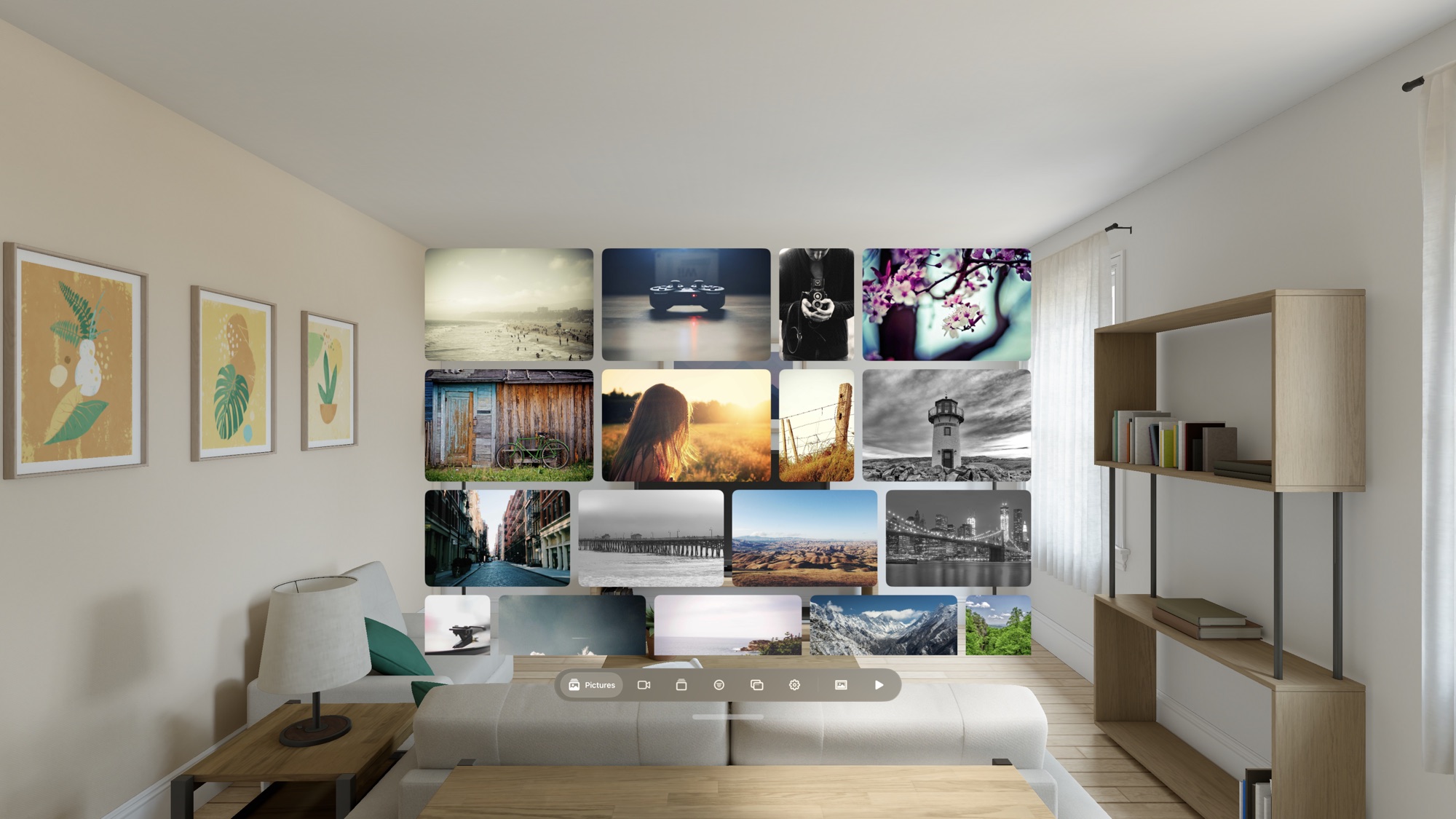
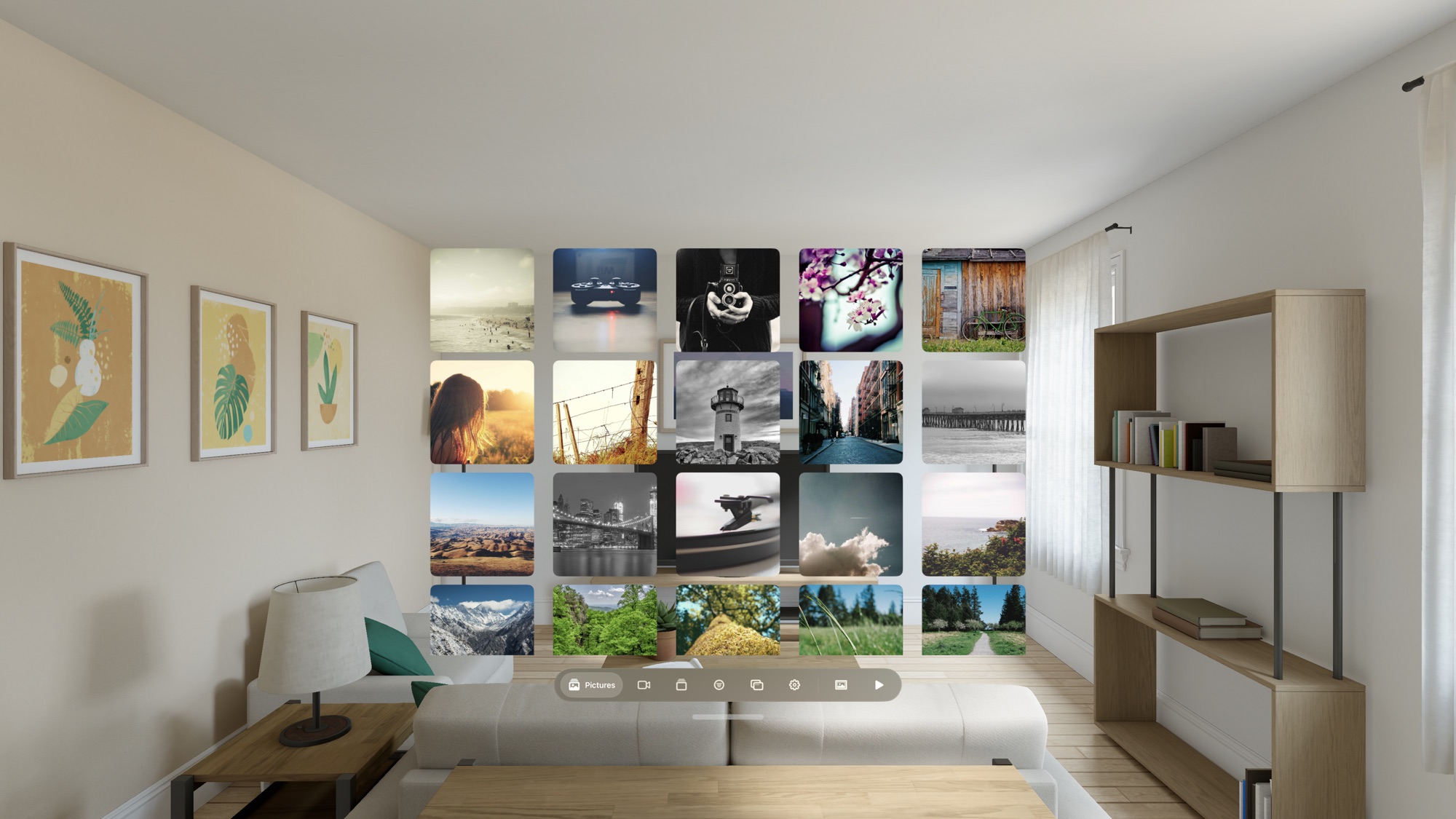
The Apple Vision Pro shots are from the visionOS Simulator, with sample photos from Picsum (Unsplash licence) in the Photos library.
Pictures, original aspect ratio — every image keeps its own shape, packed into rows that fill the window:
Pictures, square cells — the default grid, with the tab bar and slideshow button below it:
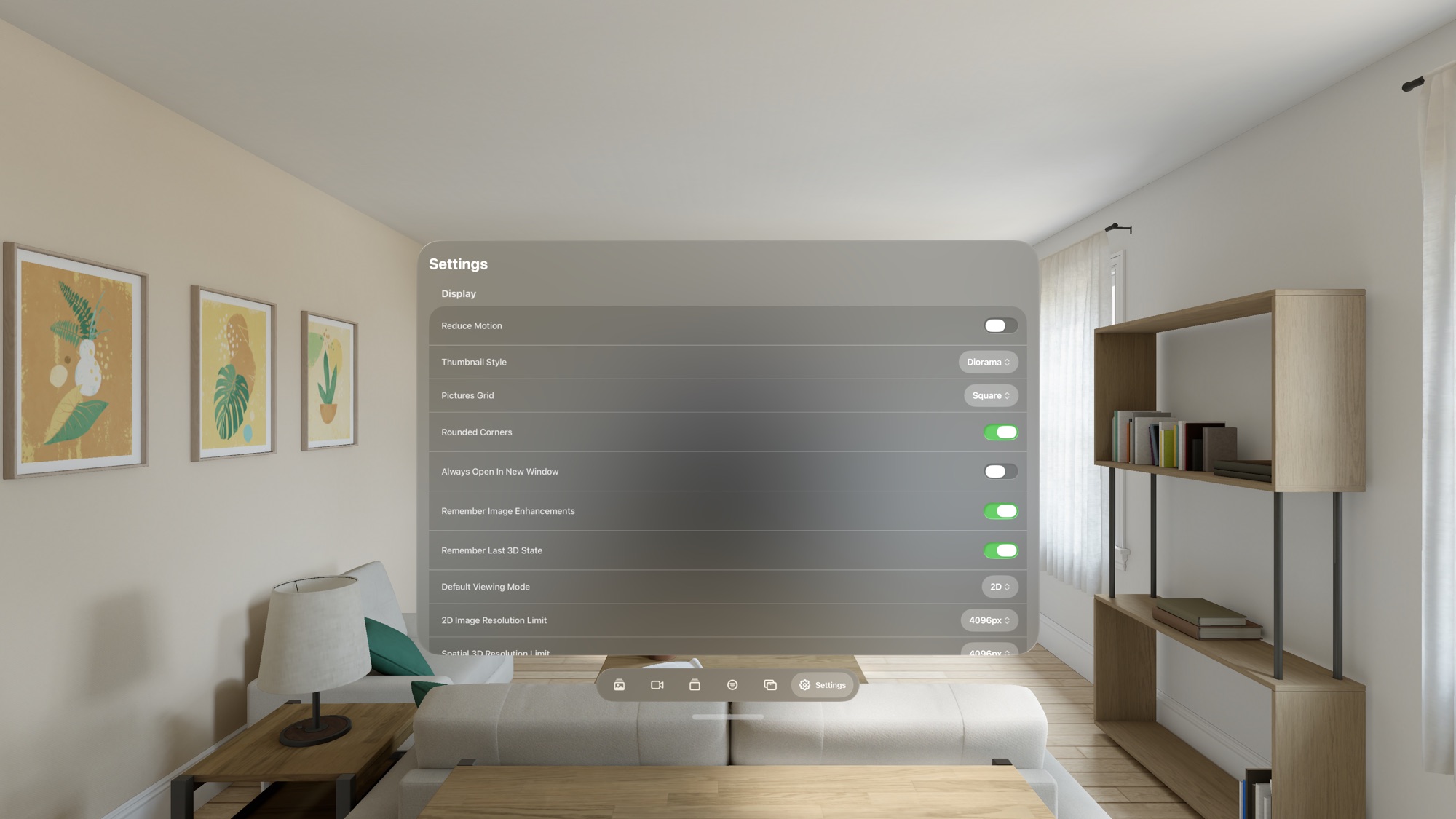
Settings:
The same app on iPhone, Apple TV and Mac, each with its own shell around the shared pipeline (captured in the iOS and tvOS Simulators and a macOS debug build):
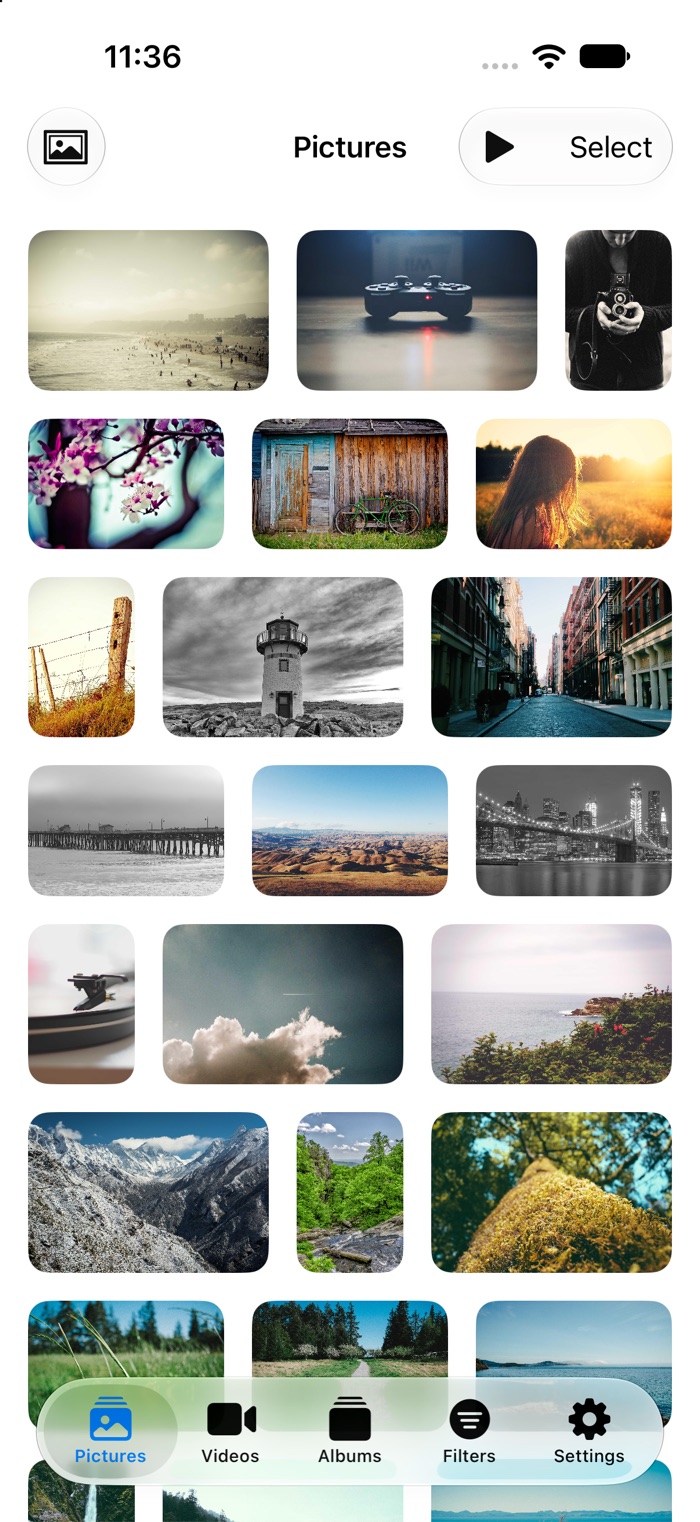 |  |
| iPhone | Mac |
| Feature | visionOS | iOS / iPadOS | tvOS | macOS |
|---|---|---|---|---|
| Photos, Local, Stash and Nextcloud libraries; albums; filters; multi-select | ✓ | ✓ | ✓ | ✓ |
| Jellyfin Library tab | ✓ | ✓ | ✓ | ✓ |
| Photo viewer, adjustments, background removal, slideshows, share/info/edit | ✓ | ✓ | basic viewer | ✓ |
| Video playback, custom transport, A-B loop, transcode fallback | ✓ | ✓ | ✓ | ✓ |
| Object-audio film player | ✓ spatial sources | ✓ AirPods tracking | ✓ head-tracked binaural | ✓ AirPods tracking |
Pinned web pages and hypnos://play handoff | ✓ | ✓ | — | ✓ |
| Settings backup export and import | ✓ | ✓ | — no Files app | ✓ |
| Cache manager and in-app debug console | ✓ | ✓ | ✓ | ✓ |
| Spatial 3D photo conversion and immersive 3D | ✓ | — needs a stereoscopic display | — | — |
| Pseudo-3D and MV-HEVC video with depth models | ✓ | — | — | ✓ |
| Multiple windows | ✓ | — single-window shell | — single-window shell | ✓ real windows and menu bar |
| Windows tab and saved window groups | ✓ | — | — | — |
| Set up from another device (QR code) | sends | sends | receives | sends |
Build from the command line for the platform you need:
# visionOS
xcodebuild -quiet -project Hypnos/Hypnos.xcodeproj -scheme Hypnos \
  -destination 'generic/platform=visionOS' build CODE_SIGNING_ALLOWED=NO

# iOS / iPadOS
xcodebuild -quiet -project Hypnos/Hypnos.xcodeproj -scheme Hypnos \
  -destination 'generic/platform=iOS Simulator' build CODE_SIGNING_ALLOWED=NO

# tvOS
xcodebuild -project Hypnos/Hypnos.xcodeproj -target Hypnos -sdk appletvos \
  SDKROOT=appletvos SUPPORTED_PLATFORMS='appletvos appletvsimulator' \
  TARGETED_DEVICE_FAMILY=3 TVOS_DEPLOYMENT_TARGET=26.2 CODE_SIGNING_ALLOWED=NO \
  SYMROOT=<scratch dir> build

# macOS
xcodebuild -quiet -project Hypnos/Hypnos.xcodeproj -scheme Hypnos \
  -destination 'generic/platform=macOS' build CODE_SIGNING_ALLOWED=NO
Convolution links four sibling packages and one package of its own:
| Package | Products used |
|---|---|
RAVESDK | RAVENet, RAVEUI, RAVEConsole, RAVEMedia, RAVESlideshow, RAVEFilm, RAVEDeviceSetup |
RAVEEngine | RAVEDiagnostics |
DebugTrace | DebugTrace, DebugTraceServer |
vergence | VergenceApple (the stereo 3D pipeline; RAVESDK's RAVEMedia builds on it too) |
Packages/NextcloudMedia (in this repo) | NextcloudMedia |
The four sibling packages are referenced as local Swift packages by relative
path — ../../RAVESDK, ../../RAVEEngine, ../../DebugTrace and ../../vergence, resolved against
the directory holding Hypnos.xcodeproj — not as versioned remote dependencies. So
a clone does not fetch them: check them out as siblings of this repo, which is
what step 1 below does.
The requirement is only that this repo's parent directory also contains
directories named exactly RAVESDK, RAVEEngine, DebugTrace and vergence; this repo's own
directory name does not matter. Get it wrong and Xcode fails at package resolution,
before compiling anything.
Why path references and not versions: the packages and the apps co-evolve continuously — several of these targets arrived in the packages by being lifted out of this app — and a path reference keeps "move this into the package and update its callers" a single atomic edit.
Add the source https://apps.illixion.com/source.json to AltStore or SideStore, or open apps.illixion.com on the device and tap its button, then install Convolution. It updates from there with every release. The same file is attached to every release as Convolution-iOS-unsigned.ipa, and this link always serves the newest one.
Neither store officially supports it, but a community port does: iloader's Vision Pro pull request pairs with the headset over Wi-Fi with the code from Settings → General → Remote Devices, the same pairing Xcode uses, and installs a patched SideStore. It needs no Developer Strap. It is unmerged, and untested with this source. Otherwise, every release carries an unsigned visionOS IPA, Convolution-visionOS-unsigned.ipa (newest): sign it with your own Apple ID, or build from source below.
No prebuilt download yet; build from source below. An Apple TV build signed with a free Apple ID expires after 7 days, and nothing refreshes it for you.
Clone this repository and the four packages into the same parent directory:
git clone https://github.com/illixion/Convolution.git
git clone https://github.com/illixion/RAVESDK.git
git clone https://github.com/illixion/RAVEEngine.git
git clone https://github.com/illixion/DebugTrace.git
git clone https://github.com/illixion/vergence.git
giving you:
some-parent/
├── RAVESDK/
├── RAVEEngine/
├── DebugTrace/
├── vergence/
└── Convolution/
Open the project in Xcode:
cd Convolution
open Hypnos/Hypnos.xcodeproj
Select your development team in Xcode (Project → Signing & Capabilities)
Pick a visionOS, iOS, tvOS or macOS run destination and build and run (Cmd+R)
On first launch a short welcome flow introduces the app and lets you pick sources. With no setup, the app browses your device Photos library and any files in its Local folder.
The Photos library needs no configuration beyond granting access. For Local files, put images in the app's Documents/Photos/ folder and videos in Documents/Videos/ — in the Files app that is On My Apple Vision Pro / iPhone / iPad / Mac → Convolution. Local is always available alongside Photos.
http://192.168.1.100:9999)Once a server is set, the tab bar's library switch on Pictures and Videos offers Stash too. Server-Side Transcoding keeps Stash's HLS transcode in reserve for files the device cannot decode.
Under Settings → Nextcloud, enter the server URL and choose Sign In. Signing in opens your server's own login page, so Convolution never sees your password; the access it receives is listed under Settings → Security on the server, where you can revoke it. Pick a Library Folder to scope what is browsed.
Under Settings → Jellyfin Server, enter the server (for example https://host/jellyfin) and sign in with a user, or paste an API key. The key is enough to browse, but watch-progress sync needs a signed-in user. This powers the Library tab.
For a film's object audio, install the companion plugin on the Jellyfin server — see JellyfinPlugin/README.md. Without it, films play through the Library's ordinary player.
Browse your photos in a grid (square or original aspect ratio, set in Settings → Display → Pictures Grid). Tap an image to open it in the viewer:
Spatial 3D generation needs an Apple Vision Pro; the Simulator falls back to the flat photo.
Browse and play videos. The view mode button in the ornament switches between flat 2D, Convert to 3D (Beta) and, for side-by-side or over-under sources, full immersive Stereoscopic 3D.
Windowed stereoscopic 3D from any flat video, using Core ML monocular depth (Depth Anything V2 Small):
Videos tagged side-by-side or over-under in Stash convert to MV-HEVC and play in a full immersive space.
Custom controls (play/pause, scrubber with buffered range, ±10 s, A-B loop, mute) share one ornament in 2D and 3D, so all chrome stays on the video's depth plane. Window aspect ratio is locked to the video.
Photos albums and smart albums, Stash galleries (and groups for video) and Local folders. Opening one applies it as a filter on Pictures or Videos, with a banner to get back; Local folders are browsed as a tree.
The Jellyfin home: a hero, shelves, detail pages with seasons and episodes, search, and resume. Films with object audio play in the film player; everything else uses the generic player. Progress is written back to the server.
Filter Stash content by title, galleries, performers, studios and tags, by rating or activity count, and sort by date, title, rating or random. Save combinations as presets or default views. Hidden when browsing Local files, which have nothing to filter by.
visionOS only. Lists every open window with Summon and Close, plus Hide All and Close All. Summon recreates the window where you are, which also recovers windows left behind in other rooms. macOS uses its own sidebar, menu bar and Window menu instead.
Display and viewer options, slideshow defaults, the Photos, Local, Stash, Nextcloud and Jellyfin sections, window groups (visionOS), cache manager (presets and per-cache usage), backup export and import (not on Apple TV), and a Developer section: depth model manager, converted-video cache, RoboFrame viewer, debug console and diagnostics.
The app registers a hypnos:// URL scheme. hypnos://play?url=<link> plays a direct video link (MP4 or HLS) in a new window, hypnos://image?id=<id> opens a Stash image, and hypnos://setup carries settings from another device.
A slideshow viewer for a RoboFrame proxy, with WebSocket control, multi-device sync and Home Assistant sensor overlays. Enable it in Settings → Developer → Enable RoboFrame Viewer, which adds a Remote tab with saved profiles. Profiles can also pin an ordinary web page as a panel in your space.
The app follows a SwiftUI architecture:
AppModel — central @Observable state containerPhotoWindowModel and VideoWindowModel — per-window @Observable models, split into extensions by concern; side-effect-free init, side effects in start()ImageSource, VideoSource) behind a LibrarySource choice of Photos, Stash, Local or Nextcloud; a server-agnostic MediaServerLibrary for JellyfinPhotoDisplayView + PhotoOrnamentView — shared by all photo viewer windowsImagePresentationComponent for spatial photos; a Metal path (MetalImageView) for everything elsePseudo3DVideoPlayerView + StereoPump + CoreMLDepthProvider (in RAVEMedia) for real-time windowed 2D→3D video, with all per-frame GPU work off the main threadDepthConverter, DepthCacheStore and DepthCacheReader for the pre-processed pipeline, and DepthConversionManager for background jobs with progressive playbackFilmPlayerView on RAVEFilm for object-audio filmsStereoscopicVideoPlayer + MVHEVCConverter for MV-HEVC immersive videoSlideshowEngine (in RAVESlideshow) and RemoteViewerModel for slideshowsPlatform notes live in CLAUDE.md and .claude/rules/.
The 2026-10-13 edge investigation records the tested scenes, failed approaches, row-stride and lifecycle causes, and what remains unverified.
Pause an AI 3D movie on a troublesome frame with the app's DebugTrace server running, then run:
python3 scripts/compare-stereo-edges.py --out build/edge-comparison/movie-a-rail
This saves both eyes, source, depth and anaglyph for the original renderer, the
experimental disconnected mesh, and its uncovered-pixel mask. manifest.json
marks the set valid only when source/depth hashes, timestamps and disparity
settings match. The script restores the original renderer switches on failure
or completion. It uses the sibling DebugTrace client for authentication.
For direct headset A/Bs, the stereoEdges debug command accepts separated and
holes; both default to false. The experimental renderer is not yet the default.
Its Movie A headset check showed noisy railing outlines. The original renderer's
background edge-fill heuristic also defaults to off after it damaged jacket
outlines; use fill=true only for comparison.
For normal use, download one of Apple's pre-made models in the app. The custom aspect-matched packages below are a developer experiment, not a setup step for viewers. Apple's hosted variants differ in precision, not input shape; the 560×252 package used in the headset check is not in the current download list. We have measured it against 686×308, but have not yet compared it against the stock model with the final edge settings. Generate one locally for that A/B:
uv run scripts/convert-depth-model.py --variant small --aspect-preset cinema22 \
  --out build/models/DepthAnythingV2Small686x308.mlpackage
scripts/push-depth-model.sh build/models/DepthAnythingV2Small686x308.mlpackage
After relaunch/import, select it under Real-Time 3D Depth Model. Presets tv,
cinema22 and cinema239 use 602×336, 686×308 and 700×294 inputs respectively,
each near the default model's pixel count. Compare the same variant/precision
and scene; actual inference time and film quality need device measurements.
For a cheaper widescreen input, use --width 560 --height 252 instead of an
aspect preset. On the Movie A test, its depth stage measured about 25–34 ms versus
40–53 ms for 686×308, with some remaining outline artifacts. A similar pixel
count does not guarantee the same Core ML performance. If a custom shape proves
better than the stock model on real films, publish the validated package once
and add it to the in-app download catalog; viewers should not need Python or a
Mac/PC to generate it.
See LICENSE.txt for licensing information, and THIRD_PARTY_NOTICES.md for third-party components used by the app and the Jellyfin plugin (Cavern, truehdd, Depth Anything V2).
Spatial media app for Vision Pro, iPhone, iPad, Apple TV and Mac: 2D→3D photos and video, Photos/Stash/Nextcloud/Jellyfin libraries, object-audio films
Swift
6
812 commits
updated Oct 14, 2026
Convolution is a spatial media app for Apple Vision Pro, iPhone, iPad, Apple TV and Mac. It turns flat photos and videos into spatial 3D on the device, browses the libraries you already have, and plays films with their sound objects placed around you as real spatial sources.
It is one codebase with a single app target and platform-specific scene roots. The media pipeline — browsing, filters, slideshows, playback, adjustments, background removal, caches, settings backup — runs everywhere. What differs is the shell: visionOS gets multiple windows, ornaments and immersive 3D; macOS gets real multiple windows and a sidebar; tvOS gets a focus-driven TV root; iOS and iPadOS get a single-window shell. See Platforms.
Names. Convolution is the shipping name. Hypnos is the internal codename and still appears in the Xcode project, scheme, folders, source types, the
com.illixion.hypnosbundle identifier and thehypnos://URL scheme.
ImagePresentationComponent converts ordinary images into spatial 3D photos, with a one-tap "Restore 3D" prompt for images you viewed in 3D before, an immersive mode, and diorama-style thumbnailsNothing is uploaded: libraries are read on the device, and depth inference runs on the Neural Engine.
The Apple Vision Pro shots are from the visionOS Simulator, with sample photos from Picsum (Unsplash licence) in the Photos library.
Pictures, original aspect ratio — every image keeps its own shape, packed into rows that fill the window:
Pictures, square cells — the default grid, with the tab bar and slideshow button below it:
Settings:
The same app on iPhone, Apple TV and Mac, each with its own shell around the shared pipeline (captured in the iOS and tvOS Simulators and a macOS debug build):
| |
| iPhone | Mac |
| Feature | visionOS | iOS / iPadOS | tvOS | macOS |
|---|---|---|---|---|
| Photos, Local, Stash and Nextcloud libraries; albums; filters; multi-select | ✓ | ✓ | ✓ | ✓ |
| Jellyfin Library tab | ✓ | ✓ | ✓ | ✓ |
| Photo viewer, adjustments, background removal, slideshows, share/info/edit | ✓ | ✓ | basic viewer | ✓ |
| Video playback, custom transport, A-B loop, transcode fallback | ✓ | ✓ | ✓ | ✓ |
| Object-audio film player | ✓ spatial sources | ✓ AirPods tracking | ✓ head-tracked binaural | ✓ AirPods tracking |
Pinned web pages and hypnos://play handoff | ✓ | ✓ | — | ✓ |
| Settings backup export and import | ✓ | ✓ | — no Files app | ✓ |
| Cache manager and in-app debug console | ✓ | ✓ | ✓ | ✓ |
| Spatial 3D photo conversion and immersive 3D | ✓ | — needs a stereoscopic display | — | — |
| Pseudo-3D and MV-HEVC video with depth models | ✓ | — | — | ✓ |
| Multiple windows | ✓ | — single-window shell | — single-window shell | ✓ real windows and menu bar |
| Windows tab and saved window groups | ✓ | — | — | — |
| Set up from another device (QR code) | sends | sends | receives | sends |
Build from the command line for the platform you need:
# visionOS
xcodebuild -quiet -project Hypnos/Hypnos.xcodeproj -scheme Hypnos \
  -destination 'generic/platform=visionOS' build CODE_SIGNING_ALLOWED=NO

# iOS / iPadOS
xcodebuild -quiet -project Hypnos/Hypnos.xcodeproj -scheme Hypnos \
  -destination 'generic/platform=iOS Simulator' build CODE_SIGNING_ALLOWED=NO

# tvOS
xcodebuild -project Hypnos/Hypnos.xcodeproj -target Hypnos -sdk appletvos \
  SDKROOT=appletvos SUPPORTED_PLATFORMS='appletvos appletvsimulator' \
  TARGETED_DEVICE_FAMILY=3 TVOS_DEPLOYMENT_TARGET=26.2 CODE_SIGNING_ALLOWED=NO \
  SYMROOT=<scratch dir> build

# macOS
xcodebuild -quiet -project Hypnos/Hypnos.xcodeproj -scheme Hypnos \
  -destination 'generic/platform=macOS' build CODE_SIGNING_ALLOWED=NO
Convolution links four sibling packages and one package of its own:
| Package | Products used |
|---|---|
RAVESDK | RAVENet, RAVEUI, RAVEConsole, RAVEMedia, RAVESlideshow, RAVEFilm, RAVEDeviceSetup |
RAVEEngine | RAVEDiagnostics |
DebugTrace | DebugTrace, DebugTraceServer |
vergence | VergenceApple (the stereo 3D pipeline; RAVESDK's RAVEMedia builds on it too) |
Packages/NextcloudMedia (in this repo) | NextcloudMedia |
The four sibling packages are referenced as local Swift packages by relative
path — ../../RAVESDK, ../../RAVEEngine, ../../DebugTrace and ../../vergence, resolved against
the directory holding Hypnos.xcodeproj — not as versioned remote dependencies. So
a clone does not fetch them: check them out as siblings of this repo, which is
what step 1 below does.
The requirement is only that this repo's parent directory also contains
directories named exactly RAVESDK, RAVEEngine, DebugTrace and vergence; this repo's own
directory name does not matter. Get it wrong and Xcode fails at package resolution,
before compiling anything.
Why path references and not versions: the packages and the apps co-evolve continuously — several of these targets arrived in the packages by being lifted out of this app — and a path reference keeps "move this into the package and update its callers" a single atomic edit.
Add the source https://apps.illixion.com/source.json to AltStore or SideStore, or open apps.illixion.com on the device and tap its button, then install Convolution. It updates from there with every release. The same file is attached to every release as Convolution-iOS-unsigned.ipa, and this link always serves the newest one.
Neither store officially supports it, but a community port does: iloader's Vision Pro pull request pairs with the headset over Wi-Fi with the code from Settings → General → Remote Devices, the same pairing Xcode uses, and installs a patched SideStore. It needs no Developer Strap. It is unmerged, and untested with this source. Otherwise, every release carries an unsigned visionOS IPA, Convolution-visionOS-unsigned.ipa (newest): sign it with your own Apple ID, or build from source below.
No prebuilt download yet; build from source below. An Apple TV build signed with a free Apple ID expires after 7 days, and nothing refreshes it for you.
Clone this repository and the four packages into the same parent directory:
git clone https://github.com/illixion/Convolution.git
git clone https://github.com/illixion/RAVESDK.git
git clone https://github.com/illixion/RAVEEngine.git
git clone https://github.com/illixion/DebugTrace.git
git clone https://github.com/illixion/vergence.git
giving you:
some-parent/
├── RAVESDK/
├── RAVEEngine/
├── DebugTrace/
├── vergence/
└── Convolution/
Open the project in Xcode:
cd Convolution
open Hypnos/Hypnos.xcodeproj
Select your development team in Xcode (Project → Signing & Capabilities)
Pick a visionOS, iOS, tvOS or macOS run destination and build and run (Cmd+R)
On first launch a short welcome flow introduces the app and lets you pick sources. With no setup, the app browses your device Photos library and any files in its Local folder.
The Photos library needs no configuration beyond granting access. For Local files, put images in the app's Documents/Photos/ folder and videos in Documents/Videos/ — in the Files app that is On My Apple Vision Pro / iPhone / iPad / Mac → Convolution. Local is always available alongside Photos.
http://192.168.1.100:9999)Once a server is set, the tab bar's library switch on Pictures and Videos offers Stash too. Server-Side Transcoding keeps Stash's HLS transcode in reserve for files the device cannot decode.
Under Settings → Nextcloud, enter the server URL and choose Sign In. Signing in opens your server's own login page, so Convolution never sees your password; the access it receives is listed under Settings → Security on the server, where you can revoke it. Pick a Library Folder to scope what is browsed.
Under Settings → Jellyfin Server, enter the server (for example https://host/jellyfin) and sign in with a user, or paste an API key. The key is enough to browse, but watch-progress sync needs a signed-in user. This powers the Library tab.
For a film's object audio, install the companion plugin on the Jellyfin server — see JellyfinPlugin/README.md. Without it, films play through the Library's ordinary player.
Browse your photos in a grid (square or original aspect ratio, set in Settings → Display → Pictures Grid). Tap an image to open it in the viewer:
Spatial 3D generation needs an Apple Vision Pro; the Simulator falls back to the flat photo.
Browse and play videos. The view mode button in the ornament switches between flat 2D, Convert to 3D (Beta) and, for side-by-side or over-under sources, full immersive Stereoscopic 3D.
Windowed stereoscopic 3D from any flat video, using Core ML monocular depth (Depth Anything V2 Small):
Videos tagged side-by-side or over-under in Stash convert to MV-HEVC and play in a full immersive space.
Custom controls (play/pause, scrubber with buffered range, ±10 s, A-B loop, mute) share one ornament in 2D and 3D, so all chrome stays on the video's depth plane. Window aspect ratio is locked to the video.
Photos albums and smart albums, Stash galleries (and groups for video) and Local folders. Opening one applies it as a filter on Pictures or Videos, with a banner to get back; Local folders are browsed as a tree.
The Jellyfin home: a hero, shelves, detail pages with seasons and episodes, search, and resume. Films with object audio play in the film player; everything else uses the generic player. Progress is written back to the server.
Filter Stash content by title, galleries, performers, studios and tags, by rating or activity count, and sort by date, title, rating or random. Save combinations as presets or default views. Hidden when browsing Local files, which have nothing to filter by.
visionOS only. Lists every open window with Summon and Close, plus Hide All and Close All. Summon recreates the window where you are, which also recovers windows left behind in other rooms. macOS uses its own sidebar, menu bar and Window menu instead.
Display and viewer options, slideshow defaults, the Photos, Local, Stash, Nextcloud and Jellyfin sections, window groups (visionOS), cache manager (presets and per-cache usage), backup export and import (not on Apple TV), and a Developer section: depth model manager, converted-video cache, RoboFrame viewer, debug console and diagnostics.
The app registers a hypnos:// URL scheme. hypnos://play?url=<link> plays a direct video link (MP4 or HLS) in a new window, hypnos://image?id=<id> opens a Stash image, and hypnos://setup carries settings from another device.
A slideshow viewer for a RoboFrame proxy, with WebSocket control, multi-device sync and Home Assistant sensor overlays. Enable it in Settings → Developer → Enable RoboFrame Viewer, which adds a Remote tab with saved profiles. Profiles can also pin an ordinary web page as a panel in your space.
The app follows a SwiftUI architecture:
AppModel — central @Observable state containerPhotoWindowModel and VideoWindowModel — per-window @Observable models, split into extensions by concern; side-effect-free init, side effects in start()ImageSource, VideoSource) behind a LibrarySource choice of Photos, Stash, Local or Nextcloud; a server-agnostic MediaServerLibrary for JellyfinPhotoDisplayView + PhotoOrnamentView — shared by all photo viewer windowsImagePresentationComponent for spatial photos; a Metal path (MetalImageView) for everything elsePseudo3DVideoPlayerView + StereoPump + CoreMLDepthProvider (in RAVEMedia) for real-time windowed 2D→3D video, with all per-frame GPU work off the main threadDepthConverter, DepthCacheStore and DepthCacheReader for the pre-processed pipeline, and DepthConversionManager for background jobs with progressive playbackFilmPlayerView on RAVEFilm for object-audio filmsStereoscopicVideoPlayer + MVHEVCConverter for MV-HEVC immersive videoSlideshowEngine (in RAVESlideshow) and RemoteViewerModel for slideshowsPlatform notes live in CLAUDE.md and .claude/rules/.
The 2026-10-13 edge investigation records the tested scenes, failed approaches, row-stride and lifecycle causes, and what remains unverified.
Pause an AI 3D movie on a troublesome frame with the app's DebugTrace server running, then run:
python3 scripts/compare-stereo-edges.py --out build/edge-comparison/movie-a-rail
This saves both eyes, source, depth and anaglyph for the original renderer, the
experimental disconnected mesh, and its uncovered-pixel mask. manifest.json
marks the set valid only when source/depth hashes, timestamps and disparity
settings match. The script restores the original renderer switches on failure
or completion. It uses the sibling DebugTrace client for authentication.
For direct headset A/Bs, the stereoEdges debug command accepts separated and
holes; both default to false. The experimental renderer is not yet the default.
Its Movie A headset check showed noisy railing outlines. The original renderer's
background edge-fill heuristic also defaults to off after it damaged jacket
outlines; use fill=true only for comparison.
For normal use, download one of Apple's pre-made models in the app. The custom aspect-matched packages below are a developer experiment, not a setup step for viewers. Apple's hosted variants differ in precision, not input shape; the 560×252 package used in the headset check is not in the current download list. We have measured it against 686×308, but have not yet compared it against the stock model with the final edge settings. Generate one locally for that A/B:
uv run scripts/convert-depth-model.py --variant small --aspect-preset cinema22 \
  --out build/models/DepthAnythingV2Small686x308.mlpackage
scripts/push-depth-model.sh build/models/DepthAnythingV2Small686x308.mlpackage
After relaunch/import, select it under Real-Time 3D Depth Model. Presets tv,
cinema22 and cinema239 use 602×336, 686×308 and 700×294 inputs respectively,
each near the default model's pixel count. Compare the same variant/precision
and scene; actual inference time and film quality need device measurements.
For a cheaper widescreen input, use --width 560 --height 252 instead of an
aspect preset. On the Movie A test, its depth stage measured about 25–34 ms versus
40–53 ms for 686×308, with some remaining outline artifacts. A similar pixel
count does not guarantee the same Core ML performance. If a custom shape proves
better than the stock model on real films, publish the validated package once
and add it to the in-app download catalog; viewers should not need Python or a
Mac/PC to generate it.
See LICENSE.txt for licensing information, and THIRD_PARTY_NOTICES.md for third-party components used by the app and the Jellyfin plugin (Cavern, truehdd, Depth Anything V2).



