
Use LLMs and LLM Vision (OCR) to handle paperless-ngx - Document Digitalization powered by AI
Go
2,738
705 commits
updated Oct 7, 2026
README
paperless-gpt







💡 Maintained by Icereed. Proudly supported by BubbleTax.de – automated, BMF-compliant tax reports for Interactive Brokers traders in Germany.
paperless-gpt seamlessly pairs with paperless-ngx to generate AI-powered document titles and tags, saving you hours of manual sorting. While other tools may offer AI chat features, paperless-gpt stands out by supercharging OCR with LLMs-ensuring high accuracy, even with tricky scans. It also connects documents that belong together: a reminder gets linked to the invoice it is about, an amendment to its contract, a letter to the case it cites. If you're craving next-level text extraction and effortless document organization, this is your solution.
https://github.com/user-attachments/assets/bd5d38b9-9309-40b9-93ca-918dfa4f3fd4
☁️ Self-host it or have it hosted
paperless-gpt is free, open source and fully self-hostable. If you're in Germany, Austria or Switzerland and would rather not run it yourself, server.camp offers managed paperless-ngx with paperless-gpt and shares part of that revenue with this project. → Managed hosting
❤️ Support This Project
If paperless-gpt is helping you organize your documents and saving you time, please consider sponsoring its development. Your support helps ensure continued improvements and maintenance!
Key Highlights
-
LLM-Enhanced OCR
Harness Large Language Models (OpenAI or Ollama) for better-than-traditional OCR—turn messy or low-quality scans into context-aware, high-fidelity text. -
Links related documents for you 🔗
Reminders, credit notes, amendments, delivery notes and follow-up letters all cite a number: an invoice, contract, order or case number (Aktenzeichen). paperless-gpt reads that reference, finds the matching document in your archive and fills a paperless-ngx Document Link field, so both documents point at each other. Order, delivery note and invoice end up connected; a contract carries its amendments and termination; every letter citing the same file number lands in one case file, no matter who sent it.Built to be conservative: the model only extracts the reference, paperless-gpt does an exact whole-word lookup, and anything ambiguous is left unlinked rather than guessed. → Use cases and setup
-
Use specialized AI OCR services
- LLM OCR: Use OpenAI or Ollama to extract text from images.
- Google Document AI: Leverage Google's powerful Document AI for OCR tasks.
- Azure Document Intelligence: Use Microsoft's enterprise OCR solution.
- Docling Server: Self-hosted OCR and document conversion service
-
Automatic Title, Tag & Created Date Generation
No more guesswork. Let the AI do the naming and categorizing. You can easily review suggestions and refine them if needed. -
Supports reasoning models in Ollama
Greatly enhance accuracy by using a reasoning model likeqwen3:8b. The perfect tradeoff between privacy and performance! Of course, if you got enough GPUs or NPUs, a bigger model will enhance the experience. -
Automatic Correspondent Generation
Automatically identify and generate correspondents from your documents, making it easier to track and organize your communications. -
Automatic Custom Field Generation
Extract and populate custom fields from your documents. Configure which fields to target and how they should be filled. This feature must be enabled in the settings, and you must select at least one custom field for it to function. Three write modes are available:- Append: This is the safest option: It only adds new fields that do not already exist on the document. It will never overwrite an existing field, even if it's empty.
- Update: Adds new fields and overwrites existing fields with new suggestions. Fields on the document that don't have a new suggestion are left untouched.
- Replace: Deletes all existing custom fields on the document and replaces them entirely with the suggested fields.
Fields of type Document Link are special: instead of filling in text, paperless-gpt resolves the references a document cites to the actual documents in your archive (see Links related documents above).
-
Searchable & Selectable PDFs
Generate PDFs with transparent text layers positioned accurately over each word, making your documents both searchable and selectable while preserving the original appearance. With paperless-ngx 3.0, the searchable PDF can be added as a new version of the same document, so it keeps its ID, tags, custom fields and notes, and the original stays available as the previous version (PDF_UPLOAD_MODE=version, see PDF Upload to paperless-ngx). -
Extensive Customization
- Customizable Prompts via Web UI: Tweak and manage all AI prompts for titles, tags, correspondents, and more directly within the web interface under the "Settings" menu. The application uses a safe
default_promptsandpromptsdirectory structure, ensuring your customizations are persistent. - Tagging: Decide how documents get tagged—manually, automatically, or via OCR-based flows.
- AI Workflows: Give each kind of document its own trigger tag, prompts and processing steps: invoices get a title prompt tuned for invoice numbers, contracts get custom fields, private mail only gets a title. Test a workflow on a real document before saving it; workflows are plain files next to your prompts. → AI Workflows
- PDF Processing: Configure how OCR-enhanced PDFs are handled, with options to save locally or upload to paperless-ngx.
- Customizable Prompts via Web UI: Tweak and manage all AI prompts for titles, tags, correspondents, and more directly within the web interface under the "Settings" menu. The application uses a safe
-
Simple Docker Deployment
A few environment variables, and you're off! Compose it alongside paperless-ngx with minimal fuss. -
Unified Web UI
- Manual Review: Approve or tweak AI's suggestions.
- Auto Processing: Focus only on edge cases while the rest is sorted for you.
- Ad-hoc Document Analysis Perform ad-hoc analysis on a selection of documents using a custom prompt. Gain quick insights, summaries, or extract specific information from multiple documents at once.
Table of Contents
- paperless-gpt
Managed Hosting for Germany, Austria and Switzerland
paperless-gpt is built to be self-hosted and remains free and open source.
If you'd rather use it without operating the infrastructure yourself, server.camp provides managed paperless-ngx hosting with paperless-gpt and the AI components it needs already set up:
- paperless-ngx and paperless-gpt ready to use
- hosting and updates managed for you
- no GPU of your own and no separate AI infrastructure to run
- AI processing in the EU
- aimed at individuals and businesses in Germany, Austria and Switzerland
Fair Hosting
server.camp follows a simple principle: when open source software creates value for their hosting business, the projects behind it should share in that value. A share of the revenue server.camp generates with paperless-gpt goes back to the paperless-gpt project and funds its continued development.
→ Use paperless-gpt as a managed service with server.camp
→ More about managed hosting and Fair Hosting
Prefer to run everything yourself? Great. Continue with Getting Started below.
Getting Started
There are two ways to run paperless-gpt.
Option 1: Managed Hosting
If you're in Germany, Austria or Switzerland and don't want to operate paperless-gpt yourself, server.camp provides a managed paperless-ngx + paperless-gpt environment. → Managed paperless-gpt with server.camp
Option 2: Self-Hosting
paperless-gpt is fully self-hostable and free under the MIT license. Everything below covers running it yourself with Docker Compose or a manual setup.
Prerequisites
- Docker installed.
- A running instance of paperless-ngx — tested against the 2.20.x release series and the 3.0.0 beta (
v3.0.0-beta.rc1). paperless-gpt only uses the stableapi/documents/,api/tags/,api/correspondents/,api/custom_fields/andapi/document_types/endpoints, none of which have documented breaking changes in the v3 migration guide. - Access to an LLM provider:
- OpenAI: An API key with models like
gpt-4oorgpt-3.5-turbo. - Ollama: A running Ollama server with models like
qwen3:8b.
- OpenAI: An API key with models like
Security
paperless-gpt has no built-in authentication. Its web UI and /api/* endpoints are open to anyone who can reach the port — by default it listens on all interfaces (LISTEN_INTERFACE defaults to :8080), so a plain -p 8080:8080 (as in the example below) exposes it to your whole LAN/VPN, not just localhost. Anyone who can reach it can rewrite documents in your connected paperless-ngx instance, trigger LLM/OCR jobs against your API keys, and change settings — with zero credentials required.
Do not expose it directly to the internet or an untrusted network. Put it behind a reverse proxy that adds authentication (e.g. Authelia, Authentik, a Basic Auth layer), restrict it to a VPN/Tailscale network, or otherwise limit who can reach the port.
Prefer not to manage this layer yourself?
For users in Germany, Austria and Switzerland, server.camp provides paperless-gpt as part of a managed paperless-ngx environment, including operation of the surrounding infrastructure. See Managed Hosting.
Installation
Docker Compose
Here's an example docker-compose.yml to spin up paperless-gpt alongside paperless-ngx:
services:
  paperless-ngx:
    image: ghcr.io/paperless-ngx/paperless-ngx:latest
    # ... (your existing paperless-ngx config)

  paperless-gpt:
    # Use one of these image sources:
    image: icereed/paperless-gpt:latest # Docker Hub (upstream)
    # image: ghcr.io/icereed/paperless-gpt:latest  # GitHub Container Registry (upstream)
    # image: ghcr.io/hensing/paperless-gpt:latest  # This fork's GHCR image
    environment:
      PAPERLESS_BASE_URL: "http://paperless-ngx:8000"
      PAPERLESS_API_TOKEN: "your_paperless_api_token"
      PAPERLESS_PUBLIC_URL: "http://paperless.mydomain.com" # Optional
      MANUAL_TAG: "paperless-gpt" # Optional, default: paperless-gpt
      AUTO_TAG: "paperless-gpt-auto" # Optional, default: paperless-gpt-auto
      FAIL_TAG: "paperless-gpt-failed" # Optional, default: paperless-gpt-failed. Applied to documents whose update is rejected by paperless-ngx or whose OCR keeps failing (see OCR_MAX_RETRIES), so they don't get re-processed in a loop. Auto-created at startup.
      # LLM Configuration - Choose one:

      # Option 1: Standard OpenAI
      LLM_PROVIDER: "openai"
      LLM_MODEL: "gpt-4o"
      OPENAI_API_KEY: "your_openai_api_key"

      # Option 2: Mistral
      # LLM_PROVIDER: "mistral"
      # LLM_MODEL: "mistral-large-latest"
      # MISTRAL_API_KEY: "your_mistral_api_key"

      # Option 3: Azure OpenAI
      # LLM_PROVIDER: "openai"
      # LLM_MODEL: "your-deployment-name"
      # OPENAI_API_KEY: "your_azure_api_key"
      # OPENAI_API_TYPE: "azure"
      # OPENAI_BASE_URL: "https://your-resource.openai.azure.com"

      # Option 4: Ollama (Local)
      # LLM_PROVIDER: "ollama"
      # LLM_MODEL: "qwen3:8b"
      # OLLAMA_HOST: "http://host.docker.internal:11434"
      # OLLAMA_CONTEXT_LENGTH: "8192" # Sets Ollama NumCtx (context window)
      # LLM_MAX_TOKENS: "256" # Sets Ollama num_predict (output-token budget)
      # OLLAMA_KEEP_ALIVE: "10m" # Keeps the model loaded between metadata requests
      # OLLAMA_THINK: "false" # true/false, or low/medium/high for supported models
      # OLLAMA_HEADERS: "Authorization=Bearer mytoken" # Optional headers for reverse-proxy auth
      # TOKEN_LIMIT: 1000 # Recommended for smaller models

      # Option 5: Anthropic/Claude
      # LLM_PROVIDER: "anthropic"
      # LLM_MODEL: "claude-sonnet-4-5"
      # ANTHROPIC_API_KEY: "your_anthropic_api_key"

      # Optional LLM Settings
      # LLM_LANGUAGE: "English" # Optional, default: English

      # OCR Configuration - Choose one:
      # Option 1: LLM-based OCR
      OCR_PROVIDER: "llm" # Default OCR provider
      VISION_LLM_PROVIDER: "ollama" # openai, ollama, mistral, or anthropic
      VISION_LLM_MODEL: "minicpm-v" # minicpm-v (ollama) or gpt-4o (openai) or claude-sonnet-4-5 (anthropic/claude)
      OLLAMA_HOST: "http://host.docker.internal:11434" # If using Ollama

      # OCR Processing Mode
      OCR_PROCESS_MODE: "image" # Optional, default: image, other options: pdf, whole_pdf
      PDF_SKIP_EXISTING_OCR: "false" # Optional, skip OCR for PDFs with existing OCR

      # Option 2: Google Document AI
      # OCR_PROVIDER: 'google_docai'       # Use Google Document AI
      # GOOGLE_PROJECT_ID: 'your-project'  # Your GCP project ID
      # GOOGLE_LOCATION: 'us'              # Document AI region
      # GOOGLE_PROCESSOR_ID: 'processor-id' # Your processor ID
      # GOOGLE_APPLICATION_CREDENTIALS: '/app/credentials.json' # Path to service account key

      # Option 3: Azure Document Intelligence
      # OCR_PROVIDER: 'azure'              # Use Azure Document Intelligence
      # AZURE_DOCAI_ENDPOINT: 'your-endpoint' # Your Azure endpoint URL
      # AZURE_DOCAI_KEY: 'your-key'        # Your Azure API key
      # AZURE_DOCAI_MODEL_ID: 'prebuilt-read' # Optional, defaults to prebuilt-read
      # AZURE_DOCAI_TIMEOUT_SECONDS: '120'  # Optional, defaults to 120 seconds
      # AZURE_DOCAI_OUTPUT_CONTENT_FORMAT: 'text' # Optional, defaults to 'text', other valid option is 'markdown'
      # 'markdown' requires the 'prebuilt-layout' model

      # Enhanced OCR Features
      CREATE_LOCAL_HOCR: "false" # Optional, save hOCR files locally
      LOCAL_HOCR_PATH: "/app/hocr" # Optional, path for hOCR files
      CREATE_LOCAL_PDF: "false" # Optional, save enhanced PDFs locally
      LOCAL_PDF_PATH: "/app/pdf" # Optional, path for PDF files
      PDF_UPLOAD: "false" # Optional, upload enhanced PDFs to paperless-ngx
      PDF_UPLOAD_MODE: "new" # Optional: "new" (new document) or "version" (new version of the same document, paperless-ngx 3.0+, recommended)
      PDF_REPLACE: "false" # Optional and DANGEROUS, delete original after upload ("new" mode only)
      PDF_COPY_METADATA: "true" # Optional, copy metadata from original document
      PDF_OCR_TAGGING: "true" # Optional, add tag to processed documents
      PDF_OCR_COMPLETE_TAG: "paperless-gpt-ocr-complete" # Optional, tag name

      # Option 4: Docling Server
      # OCR_PROVIDER: 'docling'              # Use a Docling server
      # DOCLING_URL: 'http://your-docling-server:port' # URL of your Docling instance
      # DOCLING_IMAGE_EXPORT_MODE: "placeholder" # Optional, defaults to "embedded"
      # DOCLING_OCR_PIPELINE: "standard" # Optional, defaults to "vlm"
      # DOCLING_OCR_ENGINE: "easyocr" # Optional, defaults to "easyocr" (only used when `DOCLING_OCR_PIPELINE is set to 'standard')


      AUTO_OCR_TAG: "paperless-gpt-ocr-auto" # Optional, default: paperless-gpt-ocr-auto
      OCR_LIMIT_PAGES: "5" # Optional, default: 5. Set to 0 for no limit.
      OCR_MAX_RETRIES: "3" # Optional, default: 3. Failed OCR attempts per document before it is fail-tagged and removed from the queue. Set to 0 to retry forever.
      LOG_LEVEL: "info" # Optional: debug, warn, error
    volumes:
      - ./prompts:/app/prompts # Mount the prompts directory
      - ./config:/app/config # Mount the config directory (settings made in the UI)
      - ./db:/app/db # Mount the db directory (history for undo, OCR run log)
      # For Google Document AI:
      - ${HOME}/.config/gcloud/application_default_credentials.json:/app/credentials.json
      # For local hOCR and PDF saving:
      - ./hocr:/app/hocr # Only if CREATE_LOCAL_HOCR is true
      - ./pdf:/app/pdf # Only if CREATE_LOCAL_PDF is true
    ports:
      - "8080:8080"
    deploy:
      resources:
        reservations:
          cpus: '0.01'
          memory: 20M
    depends_on:
      - paperless-ngx
Pro Tip: Replace placeholders with real values and read the logs if something looks off.
Manual Setup
- Clone the Repository
git clone https://github.com/icereed/paperless-gpt.git cd paperless-gpt - Create a
promptsDirectorymkdir prompts - Build the Docker Image
docker build -t paperless-gpt . - Run the Container
docker run -d \
  -e PAPERLESS_BASE_URL='http://your_paperless_ngx_url' \
  -e PAPERLESS_API_TOKEN='your_paperless_api_token' \
  -e LLM_PROVIDER='openai' \
  -e LLM_MODEL='gpt-4o' \
  -e OPENAI_API_KEY='your_openai_api_key' \
  -e LLM_LANGUAGE='English' \
  -e VISION_LLM_PROVIDER='ollama' \
  -e VISION_LLM_MODEL='minicpm-v' \
  -e LOG_LEVEL='info' \
  -v $(pwd)/prompts:/app/prompts \
  -v $(pwd)/config:/app/config \
  -v $(pwd)/db:/app/db \
  -p 8080:8080 \
  paperless-gpt
OCR Providers
For detailed provider-specific documentation:
paperless-gpt supports four different OCR providers, each with unique strengths and capabilities:
1. LLM-based OCR (Default)
- Key Features:
- Uses vision-capable LLMs like gpt-4o or MiniCPM-V
- High accuracy with complex layouts and difficult scans
- Context-aware text recognition
- Self-correcting capabilities for OCR errors
- Best For:
- Complex or unusual document layouts
- Poor quality scans
- Documents with mixed languages
- Configuration:
OCR_PROVIDER: "llm"
VISION_LLM_PROVIDER: "openai" # or "ollama"
VISION_LLM_MODEL: "gpt-4o" # or "minicpm-v"
2. Azure Document Intelligence
- Key Features:
- Enterprise-grade OCR solution
- Prebuilt models for common document types
- Layout preservation and table detection
- Fast processing speeds
- Best For:
- Business documents and forms
- High-volume processing
- Documents requiring layout analysis
- Configuration:
OCR_PROVIDER: "azure"
AZURE_DOCAI_ENDPOINT: "https://your-endpoint.cognitiveservices.azure.com/"
AZURE_DOCAI_KEY: "your-key"
AZURE_DOCAI_MODEL_ID: "prebuilt-read" # optional
AZURE_DOCAI_TIMEOUT_SECONDS: "120" # optional
AZURE_DOCAI_OUTPUT_CONTENT_FORMAT:
  "text" # optional, defaults to text, other valid option is 'markdown'
  # 'markdown' requires the 'prebuilt-layout' model
3. Google Document AI
- Key Features:
- Enterprise-grade OCR/HTR solution
- Specialized document processors
- Strong form field detection
- Multi-language support
- High accuracy on structured documents
- Exclusive hOCR generation for creating searchable PDFs with text layers
- Only provider that supports enhanced PDF generation features
- Best For:
- Forms and structured documents
- Documents with tables
- Multi-language documents
- Handwritten text (HTR)
- Configuration:
OCR_PROVIDER: "google_docai"
GOOGLE_PROJECT_ID: "your-project"
GOOGLE_LOCATION: "us"
GOOGLE_PROCESSOR_ID: "processor-id"
CREATE_LOCAL_HOCR: "true" # Optional, for hOCR generation
LOCAL_HOCR_PATH: "/app/hocr" # Optional, default path
CREATE_LOCAL_PDF: "true" # Optional, for applying OCR to PDF
LOCAL_PDF_PATH: "/app/pdf" # Optional, default path
4. Docling Server
- Key Features:
- Self-hosted OCR and document conversion service
- Supports various input and output formats (including text)
- Utilizes multiple OCR engines (EasyOCR, Tesseract, etc.)
- Can be run locally or in a private network
- Best For:
- Users who prefer a self-hosted solution
- Environments where data privacy is paramount
- Processing a wide variety of document types
- Configuration:
OCR_PROVIDER: "docling"
DOCLING_URL: "http://your-docling-server:port"
DOCLING_IMAGE_EXPORT_MODE: "placeholder" # Optional, defaults to "embedded"
DOCLING_OCR_PIPELINE: "standard" # Optional, defaults to "vlm"
DOCLING_OCR_ENGINE: "macocr" # Optional, defaults to "easyocr" (only used when `DOCLING_OCR_PIPELINE is set to 'standard')
OCR Processing Modes
paperless-gpt offers different methods for processing documents, giving you flexibility based on your needs and OCR provider capabilities:
Image Mode (Default)
- How it works: Converts PDF pages to images before processing
- Best for: Compatibility with all OCR providers.
- Configuration:
OCR_PROCESS_MODE: "image"
PDF Mode
- How it works: Processes PDF pages directly without image conversion
- Best for: Preserving PDF features, potentially faster processing and improved accuracy with some providers
- Configuration:
OCR_PROCESS_MODE: "pdf"
Whole PDF Mode
- How it works: Processes the entire PDF document in a single operation
- Best for: Providers that handle multi-page documents efficiently, reduced API calls
- Configuration:
OCR_PROCESS_MODE: "whole_pdf" - Note: Processing large PDFs may cause you to hit the API limit of your OCR provider. If you encounter problems with large documents, consider switching to
pdfmode, which processes pages individually. - Note:
OCR_LIMIT_PAGESdoes not apply in this mode — the whole point ofwhole_pdfis to hand the OCR provider the entire document in one shot, so it always processes every page regardless of that setting. Usepdforimagemode if you need a page cap.
Provider Compatibility
Different OCR providers support different processing modes:
| Provider | Image Mode | PDF Mode | Whole PDF Mode |
|---|---|---|---|
| LLM-based OCR (OpenAI/Ollama) | ✅ | ❌ | ❌ |
| Azure Document Intelligence | ✅ | ❌ | ❌ |
| Google Document AI | ✅ | ✅ | ✅ |
| Mistral OCR | ✅ | ✅ | ✅ |
| Docling Server | ✅ | ✅ | ✅ |
Important: paperless-gpt will validate your configuration at startup and prevent unsupported mode/provider combinations. If you specify an unsupported mode for your provider, the application will fail to start with a clear error message.
Existing OCR Detection
When using PDF or whole PDF modes, you can enable automatic detection of existing OCR:
environment:
  OCR_PROCESS_MODE: "pdf" # or "whole_pdf"
  PDF_SKIP_EXISTING_OCR: "true" # Skip processing if existing OCR is detected in the PDF
Note: Not all OCR providers support all processing modes. Some may work better with certain modes than others. Processing as PDF might use more or fewer API tokens than processing as images, depending on the provider. Results may vary based on document complexity and provider capabilities. It's recommended to experiment with different modes to find what works best for your specific documents and OCR provider.
Enhanced OCR Features
paperless-gpt includes powerful OCR enhancements that go beyond basic text extraction:
Important Note: The PDF text layer generation and hOCR features are currently only supported with Google Document AI as the OCR provider. These features are not available when using LLM-based OCR or Azure Document Intelligence.
PDF Text Layer Generation
- Searchable & Selectable PDFs: Creates PDFs with transparent text overlays accurately positioned over each word in the document
- hOCR Integration: Utilizes hOCR format (HTML-based OCR representation) to maintain precise text positioning
- Document Quality Improvement: Makes documents both searchable and selectable while preserving the original appearance
- Google Document AI Required: These features rely on Google Document AI's ability to generate hOCR data with accurate word positions
Local File Saving
paperless-gpt can save both the hOCR files and enhanced PDFs locally:
environment:
  # Enable local file saving
  CREATE_LOCAL_HOCR: "true" # Save hOCR files locally
  CREATE_LOCAL_PDF: "true" # Save generated PDFs locally
  LOCAL_HOCR_PATH: "/app/hocr" # Path to save hOCR files
  LOCAL_PDF_PATH: "/app/pdf" # Path to save PDF files
volumes:
  # Mount volumes to access the files from your host
  - ./hocr_files:/app/hocr
  - ./pdf_files:/app/pdf
Note: You must mount these directories as volumes in your Docker configuration to access the generated files from your host system.
PDF Upload to paperless-ngx
paperless-gpt can hand the enhanced PDF back to paperless-ngx in one of two ways, chosen with PDF_UPLOAD_MODE:
version(paperless-ngx 3.0+, recommended): the enhanced PDF is added as a new version of the same document through paperless-ngx's document versions API. The document keeps its id, tags, custom fields, notes and storage path, the original file stays available as the previous version, and downloads serve the searchable PDF. Nothing is deleted, soPDF_REPLACEandPDF_COPY_METADATAdo not apply.new(default, any paperless-ngx version): older paperless-ngx releases cannot update an existing document's file, so paperless-gpt uploads the enhanced PDF as a new document, copies some metadata to it, and can optionally delete the original.
environment:
  PDF_UPLOAD: "true"
  PDF_UPLOAD_MODE: "version" # Add the searchable PDF as a new version (paperless-ngx 3.0+)
Note: in
versionmode paperless-ngx runs its normal consumption on the new version. With paperless-ngx's OCR mode set toredo, it would re-OCR the file with Tesseract and use that text for search instead of the text layer paperless-gpt wrote; set the OCR mode toauto(Settings → OCR) so files that already have text are left alone.
In new mode paperless-gpt will:
- Upload the enhanced PDF as a new document
- Copy metadata from the original document to the new one
- Optionally delete the original document
environment:
  # PDF upload configuration
  PDF_UPLOAD: "true" # Upload processed PDFs to paperless-ngx
  PDF_COPY_METADATA: "true" # Copy metadata from original to new document
  PDF_REPLACE: "false" # Whether to delete the original document (use with caution!)
  PDF_OCR_TAGGING: "true" # Add a tag to mark documents as OCR-processed
  PDF_OCR_COMPLETE_TAG: "paperless-gpt-ocr-complete" # Tag used to mark OCR-processed documents
⚠️ WARNING ⚠️
SettingPDF_REPLACE: "true"will delete the original document after uploading the enhanced version. This process cannot be undone and may result in data loss if something goes wrong during the upload or metadata copying process. Use with extreme caution! paperless-gpt only deletes the original once paperless-ngx reports the upload as imported (within about a minute); if it can't confirm that, the original is kept and the run says so.On paperless-ngx 3.0 or newer, use
PDF_UPLOAD_MODE: "version"instead. It gives the same result, one document with a searchable PDF, without deleting anything: the original stays available as the previous version.PDF_REPLACEis ignored in that mode.
Metadata Copying Limitations
This section applies to PDF_UPLOAD_MODE: "new" only. In version mode nothing has to be copied: the searchable PDF becomes a new version of the same document, which keeps its ID, title, tags, correspondent, custom fields, notes and storage path.
When copying metadata from the original document to the new one, paperless-gpt attempts to copy:
- Document title
- Tags (including adding the OCR complete tag)
- Correspondent information
- Created date
However, some metadata cannot be copied due to paperless-ngx API limitations:
- Document ID (new document always gets a new ID)
- Added date (will reflect the current upload date)
- Modified date
- Custom fields that might be added by other paperless-ngx plugins
- Notes and annotations
Safety Features
To prevent accidental creation of incomplete documents, paperless-gpt includes several safety features:
- Page Count Check: If using
OCR_LIMIT_PAGESto process only a subset of pages (for speed or resource reasons), PDF generation will be skipped entirely if fewer pages would be processed than exist in the original document.
environment:
  OCR_LIMIT_PAGES: "5" # Limit OCR to first 5 pages, set to 0 for no limit
-
OCR Complete Tagging: Documents that have been fully processed with OCR can be automatically tagged with a special tag, preventing duplicate processing.
-
Processing Skip: If a document already has the OCR complete tag, processing will be skipped automatically.
Usage Recommendations
For best results with the enhanced OCR features:
-
Initial Testing: On paperless-ngx 3.0+, prefer
PDF_UPLOAD_MODE: "version", which never deletes anything. Withnewmode, start withPDF_REPLACE: "false"until you've confirmed the process works well with your documents. -
Regular Backups: Ensure you have backups of your paperless-ngx database and documents before enabling document replacement.
-
Process Management: For large documents, consider using
OCR_LIMIT_PAGES: "0"to ensure all pages are processed, even though this will take longer. -
Local Copies: Enable local file saving (
CREATE_LOCAL_HOCRandCREATE_LOCAL_PDF) to keep copies of the enhanced files as an extra precaution. -
Tagging Strategy: Use the OCR complete tag (
PDF_OCR_COMPLETE_TAG) to track which documents have already been processed.
Configuration
Environment Variables
Note: When using Ollama, ensure that the Ollama server is running and accessible from the paperless-gpt container.
| Variable | Description | Required | Default |
|---|---|---|---|
PUID | User ID to run the container as. See Running as a Non-Root User. | No | 10001 |
PGID | Group ID to run the container as. See Running as a Non-Root User. | No | 10001 |
PAPERLESS_BASE_URL | URL of your paperless-ngx instance (e.g. http://paperless-ngx:8000). | Yes | |
PAPERLESS_API_TOKEN | API token for paperless-ngx. Generate one in paperless-ngx admin. | Yes | |
PAPERLESS_PUBLIC_URL | Public URL for Paperless (if different from PAPERLESS_BASE_URL). | No | |
MANUAL_TAG | Tag for manual processing. | No | paperless-gpt |
AUTO_TAG | Tag for auto processing. | No | paperless-gpt-auto |
AUTO_TAG_MAX_RETRIES | How many times suggestion generation (title/tags/correspondent/document type) may fail for a document in the auto-tag poll before paperless-gpt gives up: the auto tag is removed and FAIL_TAG applied, so the document stops being retried (and re-billed) every cycle and stops occupying a slot in the poll's page of 25. Counted in memory — a restart resets the count. Set to 0 to keep retrying forever. | No | 3 |
FAIL_TAG | Tag applied to a document when paperless-gpt could not apply the full LLM suggestion. Two cases trigger it: (1) partial success — paperless-ngx rejected one or more fields (e.g. a suggested value a custom field's type cannot accept); paperless-gpt drops the rejected fields, retries the update with the rest, and applies this tag so the user knows the document needs review; (2) hard failure — the update could not be salvaged; paperless-gpt removes the auto tag (to break the processing loop) and applies this tag; (3) repeated OCR failure — OCR processing of the document failed OCR_MAX_RETRIES times in a row; paperless-gpt removes the auto OCR tag and applies this tag. The tag is created automatically in paperless-ngx at startup if it does not exist. | No | paperless-gpt-failed |
AUTO_TAG_COMPLETE | Tag added to documents after auto-processing is complete. Only applied during auto-processing, not manual review. Set to an empty string (AUTO_TAG_COMPLETE="") to disable. When the variable is unset, the default tag is used. The tag is created automatically in paperless-ngx at startup if it does not exist. | No | paperless-gpt-auto-complete |
LLM_PROVIDER | AI backend (openai, ollama, googleai, mistral, or anthropic). | Yes | |
LLM_MODEL | AI model name (e.g., gpt-4o, mistral-large-latest, qwen3:8b, claude-sonnet-4-5). | Yes | |
OPENAI_API_KEY | OpenAI API key (required if using OpenAI). | Cond. | |
MISTRAL_API_KEY | Mistral API key (required if using Mistral). | Cond. | |
MISTRAL_OCR_IMAGE_LIMIT | Max images Mistral OCR extracts per document when OCR_PROVIDER is mistral_ocr. Unset uses the API default. | No | |
MISTRAL_OCR_IMAGE_MIN_SIZE | Min height/width (px) for a region to be extracted as an image rather than transcribed, when OCR_PROVIDER is mistral_ocr. Raise this to stop small boxed fields (e.g. handwritten form entries) from being skipped as images. | No | |
ANTHROPIC_API_KEY | Anthropic API key (required if using Anthropic/Claude). | Cond. | |
OPENAI_API_TYPE | Set to azure to use Azure OpenAI Service. | No | |
OPENAI_BASE_URL | Base URL for OpenAI API. Use it to point to any OpenAI-compatible endpoint (OpenRouter, LM Studio, vLLM, LiteLLM, llama.cpp, Groq, …) — see OpenAI-compatible providers for ready-made configurations. For Azure OpenAI, set to your deployment URL (e.g., https://your-resource.openai.azure.com). | No | |
OPENAI_HEADERS | Comma-separated Key=Value pairs added as HTTP headers to every OpenAI-compatible request (e.g. OPENAI_HEADERS=User-Agent=paperless-gpt/1.0). | No | |
LLM_LANGUAGE | Likely language for documents (e.g. English). Appears in the prompt to help the LLM. | No | English |
LLM_TEMPERATURE | (Ollama metadata only) Sampling temperature for title, tag, and other metadata generation. A non-negative finite value supplies the global setting; invalid, negative, NaN, and Inf values are ignored with a warning. The base fallback is 0. An explicit per-call option still wins. It does not apply to other LLM providers or Vision OCR; use VISION_LLM_TEMPERATURE for supported vision providers. | No | 0 |
LLM_MAX_TOKENS | (Ollama metadata only) Positive integer or -1, mapped to Ollama num_predict as the output-token budget. When unset, paperless-gpt preserves the model/base setting. It is independent of TOKEN_LIMIT and OLLAMA_CONTEXT_LENGTH. | No | Model/base setting |
GOOGLEAI_API_KEY | Google Gemini API key (required if using LLM_PROVIDER=googleai). | Cond. | |
GOOGLEAI_THINKING_BUDGET | (Optional, googleai only) Integer. Controls Gemini "thinking" budget. If unset, model default is used (thinking enabled if supported). Set to 0 to disable thinking (if model supports it). | No | |
OLLAMA_HOST | Ollama server URL (e.g. http://host.docker.internal:11434). | No | |
OLLAMA_KEEP_ALIVE | (Ollama metadata only) Ollama duration such as 10m or 1h, 0 to unload after a request, or -1 to keep the model loaded indefinitely. Keeping models loaded consumes RAM/VRAM. | No | Model/base setting |
OLLAMA_THINK | (Ollama metadata only) true or false, or low, medium, or high for models that support thinking levels. The value is forwarded to the selected Ollama model, which may reject or ignore an unsupported setting or level. Thinking consumes output budget on models that generate a reasoning trace. | No | Model/base setting |
LLM_REQUESTS_PER_MINUTE | Maximum requests per minute for the main LLM. Useful for managing API costs or local LLM load. | No | 120 |
LLM_MAX_RETRIES | Maximum retry attempts for failed main LLM requests. | No | 3 |
LLM_BACKOFF_MAX_WAIT | Maximum wait time between retries for the main LLM (e.g., 30s). | No | 30s |
SUGGESTION_WORKERS | Number of async manual suggestion workers. Keep this at 1 for slow or local LLM backends to avoid concurrent generation overload. | No | 1 |
SUGGESTION_JOB_TIMEOUT_SECONDS | Optional timeout for async manual suggestion jobs. Leave unset to disable; set a bounded value for slow local inference when jobs must not run forever. | No | |
OCR_PROVIDER | OCR provider to use (llm, azure, google_docai, docling, or mistral_ocr). | No | llm |
OCR_PROCESS_MODE | Method for processing documents: image (convert to images first), pdf (process PDF pages directly), or whole_pdf (entire PDF at once). | No | image |
VISION_LLM_PROVIDER | AI backend for LLM OCR (openai, ollama, mistral, or anthropic). Required if OCR_PROVIDER is llm. | Cond. | |
VISION_LLM_MODEL | Model name for LLM OCR (e.g. minicpm-v). Required if OCR_PROVIDER is llm. | Cond. | |
VISION_LLM_REQUESTS_PER_MINUTE | Maximum requests per minute for the Vision LLM. Useful for managing API costs or local LLM load. | No | 120 |
VISION_LLM_MAX_RETRIES | Maximum retry attempts for failed Vision LLM requests. For OCR, only transient errors (HTTP 429/5xx) are retried, per page; 0 disables OCR retries. | No | 3 (suggestions), 8 (OCR) |
VISION_LLM_BACKOFF_MAX_WAIT | Maximum wait time between retries for the Vision LLM (e.g., 30s). | No | 30s (suggestions), 90s (OCR) |
VISION_LLM_MAX_TOKENS | Maximum tokens for Vision LLM OCR output. | No | |
VISION_LLM_TEMPERATURE | Sampling temperature for Vision OCR generation. Lower is more deterministic. Important: For OpenAI GPT-5 it must be explicitly set to 1.0. | No | |
OLLAMA_CONTEXT_LENGTH | (Ollama only) Integer. Sets NumCtx (context window) for the Ollama runner. If unset or 0, the model default is used. | No | |
OLLAMA_TIMEOUT_SECONDS | (Ollama only) Per-request HTTP timeout in seconds for calls to the Ollama server. Prevents a single stalled generation from hanging the background auto-tagging/OCR loop indefinitely. Set to 0 (or negative) to disable the timeout. | No | 300 |
OLLAMA_OCR_TOP_K | (Ollama only) Top-k token sampling for Vision OCR. Lower favors more likely tokens; higher increases diversity. | No | |
OLLAMA_HEADERS | (Ollama only) Comma-separated Key=Value pairs added as HTTP headers to every Ollama request. Useful for authorization when Ollama is behind a reverse proxy (e.g. Authorization=Bearer mytoken). | No | |
AZURE_DOCAI_ENDPOINT | Azure Document Intelligence endpoint. Required if OCR_PROVIDER is azure. | Cond. | |
AZURE_DOCAI_KEY | Azure Document Intelligence API key. Required if OCR_PROVIDER is azure. | Cond. | |
AZURE_DOCAI_MODEL_ID | Azure Document Intelligence model ID. Optional if using azure provider. | No | prebuilt-read |
AZURE_DOCAI_TIMEOUT_SECONDS | Azure Document Intelligence timeout in seconds. | No | 120 |
AZURE_DOCAI_OUTPUT_CONTENT_FORMAT | Azure Document Intelligence output content format. Optional if using azure provider. Defaults to text. 'markdown' is the other option and it requires the 'prebuild-layout' model ID. | No | text |
GOOGLE_PROJECT_ID | Google Cloud project ID. Required if OCR_PROVIDER is google_docai. | Cond. | |
GOOGLE_LOCATION | Google Cloud region (e.g. us, eu). Required if OCR_PROVIDER is google_docai. | Cond. | |
GOOGLE_PROCESSOR_ID | Document AI processor ID. Required if OCR_PROVIDER is google_docai. | Cond. | |
GOOGLE_APPLICATION_CREDENTIALS | Path to the mounted Google service account key. Required if OCR_PROVIDER is google_docai. | Cond. | |
DOCLING_URL | URL of the Docling server instance. Required if OCR_PROVIDER is docling. | Cond. | |
DOCLING_IMAGE_EXPORT_MODE | Mode for image export. Optional; defaults to embedded if unset. | No | embedded |
DOCLING_OCR_PIPELINE | Sets the pipeline type. Optional; defaults to vlm if unset. | No | vlm |
DOCLING_OCR_ENGINE | Sets the ocr engine, if DOCLING_OCR_PIPELINE is set to standard. Optional; defaults to easyocr | No | easyocr |
CREATE_LOCAL_HOCR | Whether to save hOCR files locally. | No | false |
LOCAL_HOCR_PATH | Path where hOCR files will be saved when hOCR generation is enabled. | No | /app/hocr |
CREATE_LOCAL_PDF | Whether to save enhanced PDFs locally. | No | false |
LOCAL_PDF_PATH | Path where PDF files will be saved when PDF generation is enabled. | No | /app/pdf |
PDF_UPLOAD | Whether to upload enhanced PDFs to paperless-ngx. | No | false |
PDF_UPLOAD_MODE | How PDF_UPLOAD hands back the PDF: new uploads a new document (optionally replacing the original); version adds it as a new version of the same document (paperless-ngx 3.0+), keeping id and metadata. PDF_REPLACE is ignored in version mode. | No | new |
PDF_REPLACE | Whether to delete the original document after uploading the enhanced version (DANGEROUS). | No | false |
PDF_COPY_METADATA | Whether to copy metadata from the original document to the uploaded PDF. Only applicable when using PDF_UPLOAD. | No | true |
PDF_OCR_TAGGING | Whether to add a tag to mark documents as OCR-processed. | No | true |
PDF_OCR_COMPLETE_TAG | Tag used to mark documents as OCR-processed. The tag is created automatically in paperless-ngx at startup if it does not exist (when PDF_OCR_TAGGING is enabled). | No | paperless-gpt-ocr-complete |
PDF_SKIP_EXISTING_OCR | Whether to skip OCR processing for PDFs that already have OCR. Works with pdf and whole_pdf processing modes (OCR_PROCESS_MODE). | No | false |
PRESERVE_EXISTING_METADATA | Keep a correspondent or document type that is already set on the document instead of overwriting it with the suggestion. Useful when paperless-ngx' own classifier or manual corrections should stay in charge and the LLM should only fill the gaps. | No | false |
AUTO_OCR_TAG | Tag for automatically processing docs with OCR. | No | paperless-gpt-ocr-auto |
OCR_LIMIT_PAGES | Limit the number of pages for OCR. Set to 0 for no limit. Not applied in whole_pdf mode (see Whole PDF Mode), which always processes the entire document. | No | 5 |
OCR_MAX_RETRIES | How many times OCR processing may fail for a document before paperless-gpt gives up on it: the auto OCR tag is removed and FAIL_TAG applied, so the document stops being retried (and re-billed) every poll cycle. Counted in memory — a restart resets the count. Set to 0 to keep the old retry-forever behavior. | No | 3 |
LOG_LEVEL | Application log level (info, debug, warn, error). | No | info |
LISTEN_INTERFACE | Network interface to listen on. | No | 8080 |
AUTO_GENERATE_TITLE | Generate titles automatically if paperless-gpt-auto is used. | No | true |
AUTO_GENERATE_TAGS | Generate tags automatically if paperless-gpt-auto is used. | No | true |
CREATE_NEW_TAGS | Allow the LLM to suggest new tags that don't exist in paperless-ngx yet. When enabled, new tags will be created automatically in paperless-ngx. | No | false |
AUTO_GENERATE_CORRESPONDENTS | Generate correspondents automatically if paperless-gpt-auto is used. | No | true |
AUTO_GENERATE_DOCUMENT_TYPE | Generate document types automatically if paperless-gpt-auto is used. Only existing document types from paperless-ngx will be used. | No | true |
AUTO_GENERATE_CREATED_DATE | Generate the created dates automatically if paperless-gpt-auto is used. | No | true |
TOKEN_LIMIT | Maximum tokens allowed for prompts/content. Set to 0 to disable limit. Useful for smaller LLMs. | No | |
REMOVE_FROM_CONTENT | Comma-separated list of literal strings removed from document content before it is sent to the LLM for suggestions/analysis. Useful for stripping boilerplate (e.g. scanner watermarks) that confuses the model. | No | |
REMOVE_FROM_CONTENT_REGEX | Semicolon-separated list of regular expressions removed from document content before it is sent to the LLM. Invalid patterns cause a startup error. | No | |
IMAGE_MAX_PIXEL_DIMENSION | Maximum pixels along any side when rendering document pages to images. | No | 10000 |
IMAGE_MAX_TOTAL_PIXELS | Maximum total pixel count (width × height) when rendering document pages to images. | No | 40000000 |
IMAGE_MAX_RENDER_DPI | Maximum DPI used when rendering document pages to images. | No | 600 |
IMAGE_MAX_FILE_BYTES | Maximum JPEG file size in bytes for rendered page images. Images exceeding this are compressed or resized. | No | 10485760 |
CORRESPONDENT_BLACK_LIST | A comma-separated list of names to exclude from the correspondents suggestions. Example: John Doe, Jane Smith. | No | |
CORRESPONDENT_PROMPT_LIMIT | Maximum number of existing correspondents embedded into the correspondent suggestion prompt; names occurring in the document are preferred. 0 (default) sends the full list. Useful for large installations and local LLMs with small context windows. | No | 0 |
[!NOTE]
PDF_UPLOAD,PDF_REPLACE,PDF_COPY_METADATA,OCR_LIMIT_PAGESandOCR_PROCESS_MODEact as defaults.PDF_UPLOAD_MODEis set by the environment only. The OCR Playground can override them per run, and "Save as defaults" in the UI persists tuned values toconfig/settings.json, which then takes precedence for Auto-OCR and future runs. The Active Configuration panel on the Settings page shows each value's effective source (env / saved / default).
Using a Different AI Provider
LLM_PROVIDER accepts openai, ollama, googleai, mistral and
anthropic. That list is shorter than it looks: any service that speaks the
OpenAI chat-completions API works via LLM_PROVIDER=openai plus
OPENAI_BASE_URL, without a code change or a new release.
environment:
  LLM_PROVIDER: "openai"
  OPENAI_BASE_URL: "https://openrouter.ai/api/v1" # any compatible endpoint
  OPENAI_API_KEY: "<that vendor's key>"
  LLM_MODEL: "<a model name that vendor accepts>"
This covers OpenRouter, LM Studio, vLLM, LiteLLM, llama.cpp, Groq, Together, Azure OpenAI and most other hosted or self-hosted gateways.
See OpenAI-compatible providers for
copy-pasteable configurations per service, plus fixes for the common errors
(404 model not found, 413, SSE decode failures, temperature rejections).
[!TIP] For Ollama, prefer the native
LLM_PROVIDER=ollamaover its OpenAI shim — the native path exposesOLLAMA_CONTEXT_LENGTHandOLLAMA_THINK, which the shim does not.
Custom Prompt Templates
paperless-gpt's flexible prompt templates let you shape how AI responds. While you can still manually manage files, the recommended way to customize prompts is through the Settings page in the web UI.
The application uses two directories for management:
default_prompts/: Contains the built-in, default templates. These should not be modified.prompts/: Your working directory. On first run, the default templates are copied here. All edits made in the UI are saved to the files in this directory.prompts/workflows/: One folder per AI workflow, with that workflow's settings and the prompts it changes.
To ensure your custom prompts persist across container restarts, you must mount the prompts directory as a volume in your docker-compose.yml:
volumes:
  # This is crucial to save your custom prompts!
  - ./prompts:/app/prompts
The application reloads the templates instantly after you save them in the UI and also on startup, so no restart is needed to apply changes.
Template Variables
Each template has access to specific variables:
title_prompt.tmpl:
{{.Language}}- Target language (e.g., "English"){{.Content}}- Document content text{{.Title}}- Original document title
tag_prompt.tmpl:
{{.Language}}- Target language{{.AvailableTags}}- List of existing tags in paperless-ngx{{.OriginalTags}}- Document's current tags{{.Title}}- Document title{{.Content}}- Document content text
ocr_prompt.tmpl:
{{.Language}}- Target language{{.Content}}- Text already extracted for the document (e.g. by paperless-ngx's basic OCR), truncated to 8,000 characters. Injected per document so the vision model can use it as a reference; empty if the document has no existing text.
correspondent_prompt.tmpl:
{{.Language}}- Target language{{.AvailableCorrespondents}}- List of existing correspondents{{.BlackList}}- List of blacklisted correspondent names{{.Title}}- Document title{{.Content}}- Document content text
created_date_prompt.tmpl:
{{.Language}}- Target language{{.Content}}- Document content text
custom_field_prompt.tmpl:
{{.DocumentType}}- The name of the document's type in paperless-ngx.{{.CustomFieldsXML}}- An XML string listing the custom fields selected in the settings for processing.{{.Title}}- Document title{{.CreatedDate}}- Document's created date{{.Content}}- Document content text
The templates use Go's text/template syntax. paperless-gpt automatically reloads template changes after UI saves and on startup.
LLM-Based OCR: Compare for Yourself
Click to expand the vanilla OCR vs. AI-powered OCR comparison
Example 1
Image:
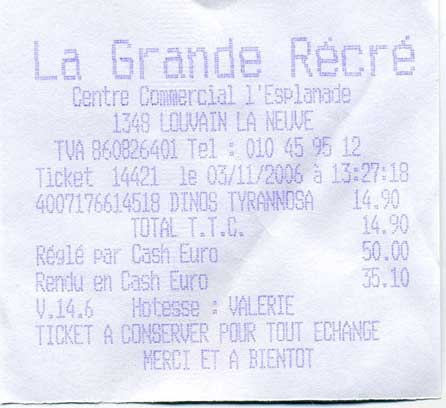
Vanilla Paperless-ngx OCR:
La Grande Recre

Gentre Gommercial 1'Esplanade
1349 LOLNAIN LA NEWWE
TA BERBOGAAL Tel =. 010 45,96 12
Ticket 1440112 03/11/2006 a 13597:
4007176614518. DINOS. TYRAMNESA
TOTAET.T.LES
ReslE par Lask-Euron
Rencu en Cash Euro
V.14.6 -Hotgese = VALERTE
TICKET A-GONGERVER PORR TONT. EEHANGE
HERET ET A BIENTOT
LLM-Powered OCR (OpenAI gpt-4o):
La Grande Récré
Centre Commercial l'Esplanade
1348 LOUVAIN LA NEUVE
TVA 860826401 Tel : 010 45 95 12
Ticket 14421 le 03/11/2006 à 15:27:18
4007176614518 DINOS TYRANNOSA 14.90
TOTAL T.T.C. 14.90
Réglé par Cash Euro 50.00
Rendu en Cash Euro 35.10
V.14.6 Hôtesse : VALERIE
TICKET A CONSERVER POUR TOUT ECHANGE
MERCI ET A BIENTOT
Example 2
Image:
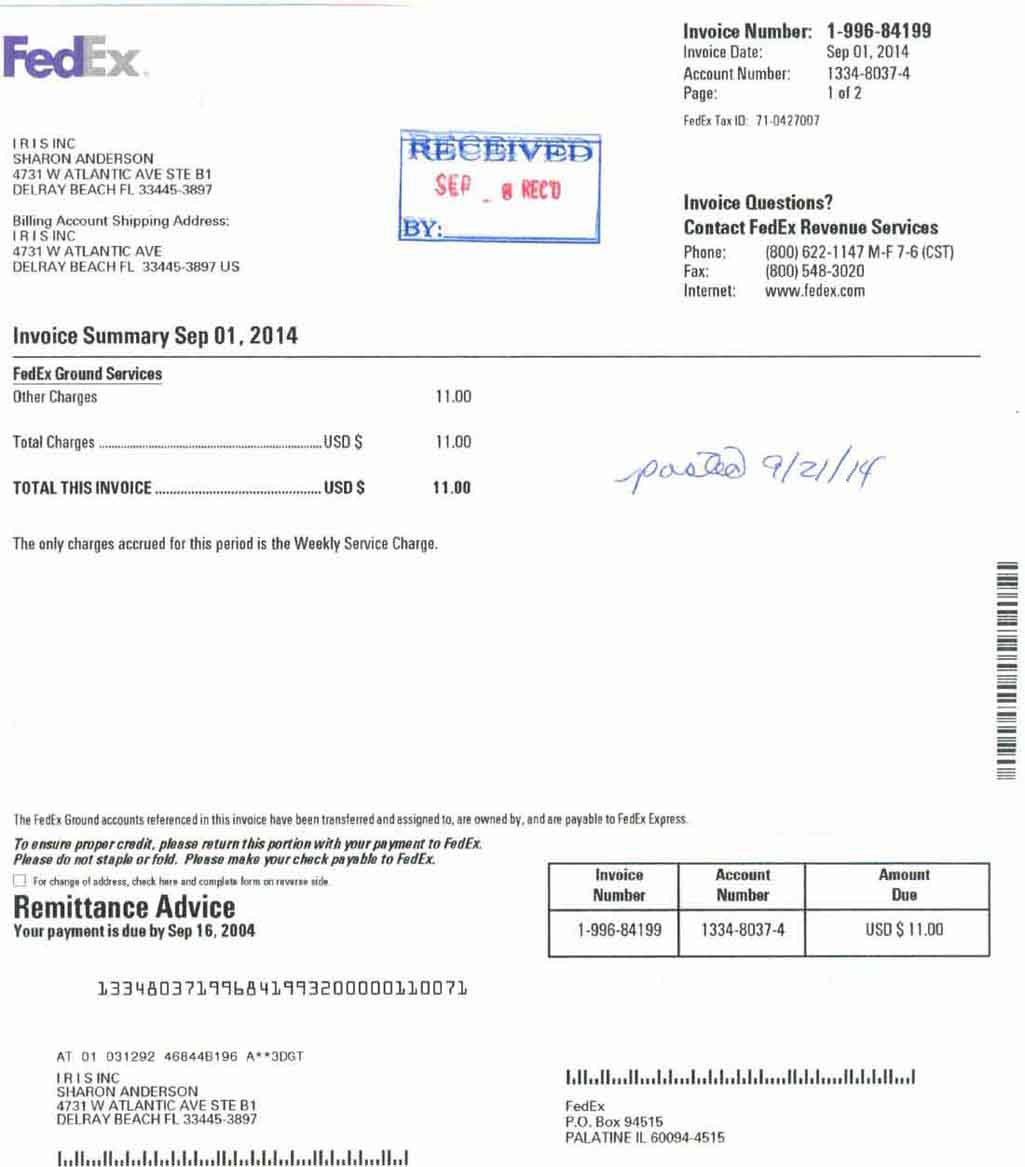
Vanilla Paperless-ngx OCR:
Invoice Number: 1-996-84199

Fed: Invoica Date: Sep01, 2014
Accaunt Number: 1334-8037-4
Page: 1012

Fod£x Tax ID 71.0427007

IRISINC
SHARON ANDERSON
4731 W ATLANTIC AVE STE BI
DELRAY BEACH FL 33445-3897 ’ a
Invoice Questions?

Bing, ‚Account Shipping Address: Contact FedEx Reı

ISINC
4731 W ATLANTIC AVE Phone: (800) 622-1147 M-F 7-6 (CST)
DELRAY BEACH FL 33445-3897 US Fax: (800) 548-3020

Internet: www.fedex.com

Invoice Summary Sep 01, 2014

FodEx Ground Services
Other Charges 11.00
Total Charges 11.00 Da £
>
polo) Fz// /G
TOTAL THIS INVOICE .... usps 11.00 P 2/1 f

‘The only charges accrued for this period is the Weekly Service Charge.

The Fedix Ground aceounts teferencedin his involce have been transteired and assigned 10, are owned by,andare payable to FedEx Express:

To onsurs propor credit, plasa raturn this portion wirh your payment 10 FodEx
‚Please do not staple or fold. Ploase make your chack payablı to FedEx.

[TI For change ol address, hc har and camphat lrm or never ide

Remittance Advice
Your payment is due by Sep 16, 2004

Number Number Dus

1334803719968 41993200000110071

AT 01 0391292 468448196 A**aDGT

IRISINC Illallun elalalssollallansdHilalellund
SHARON ANDERSON

4731 W ATLANTIC AVE STEBI FedEx

DELRAY BEACH FL 334453897 PO. Box 94516

PALATINE IL 60094-4515
LLM-Powered OCR (OpenAI gpt-4o):
FedEx.                                                                                      Invoice Number: 1-996-84199
                                                                                           Invoice Date: Sep 01, 2014
                                                                                           Account Number: 1334-8037-4
                                                                                           Page: 1 of 2
                                                                                           FedEx Tax ID: 71-0427007

I R I S INC
SHARON ANDERSON
4731 W ATLANTIC AVE STE B1
DELRAY BEACH FL 33445-3897
                                                                                           Invoice Questions?
Billing Account Shipping Address:                                                          Contact FedEx Revenue Services
I R I S INC                                                                                Phone: (800) 622-1147 M-F 7-6 (CST)
4731 W ATLANTIC AVE                                                                        Fax: (800) 548-3020
DELRAY BEACH FL 33445-3897 US                                                              Internet: www.fedex.com

Invoice Summary Sep 01, 2014

FedEx Ground Services
Other Charges                                                                 11.00

Total Charges .......................................................... USD $          11.00

TOTAL THIS INVOICE .............................................. USD $                 11.00

The only charges accrued for this period is the Weekly Service Charge.

                                                                                           RECEIVED
                                                                                           SEP _ 8 REC'D
                                                                                           BY: _

                                                                                           posted 9/21/14

The FedEx Ground accounts referenced in this invoice have been transferred and assigned to, are owned by, and are payable to FedEx Express.

To ensure proper credit, please return this portion with your payment to FedEx.
Please do not staple or fold. Please make your check payable to FedEx.

❑ For change of address, check here and complete form on reverse side.

Remittance Advice
Your payment is due by Sep 16, 2004

Invoice
Number
1-996-84199

Account
Number
1334-8037-4

Amount
Due
USD $ 11.00

133480371996841993200000110071

AT 01 031292 468448196 A**3DGT

I R I S INC
SHARON ANDERSON
4731 W ATLANTIC AVE STE B1
DELRAY BEACH FL 33445-3897

FedEx
P.O. Box 94515
Why Does It Matter?
- Traditional OCR often jumbles text from complex or low-quality scans.
- Large Language Models interpret context and correct likely errors, producing results that are more precise and readable.
- You can integrate these cleaned-up texts into your paperless-ngx pipeline for better tagging, searching, and archiving.
How It Works
- Vanilla OCR typically uses classical methods or Tesseract-like engines to extract text, which can result in garbled outputs for complex fonts or poor-quality scans.
- LLM-Powered OCR uses your chosen AI backend—OpenAI or Ollama—to interpret the image's text in a more context-aware manner. This leads to fewer errors and more coherent text.
- Google Document AI and Azure Document Intelligence provide high-accuracy OCR with advanced layout analysis.
- Enhanced PDF Generation combines OCR results with the original document to create searchable PDFs with properly positioned text layers.
Usage
-
Tag Documents
- Add
paperless-gpttag to documents for manual processing - Add
paperless-gpt-autofor automatic processing - Add
paperless-gpt-ocr-autofor automatic OCR processing
- Add
-
Visit Web UI
- Go to
http://localhost:8080(or your host) in your browser - Review documents tagged for processing
- Go to
-
Generate & Apply Suggestions
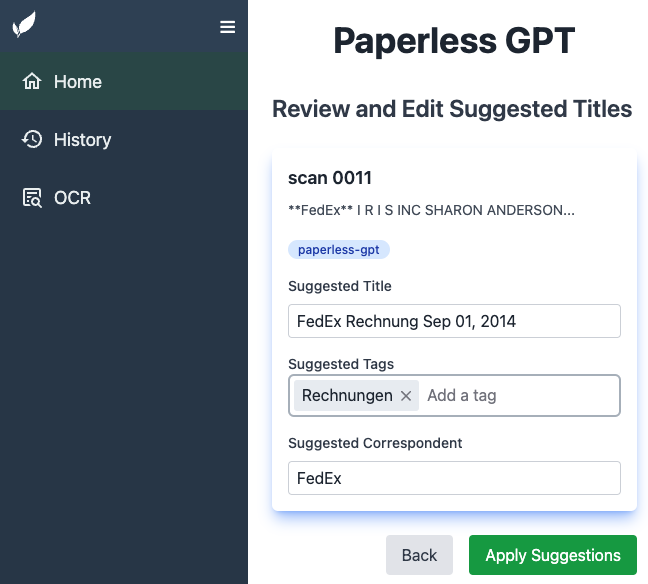
- Click "Generate Suggestions" to see AI-proposed titles/tags/correspondents
- Review and approve or edit suggestions
- Click "Apply" to save changes to paperless-ngx
-
OCR Processing
- Tag documents with appropriate OCR tag to process them
- If enhanced PDF features are enabled, documents will be processed accordingly:
- For local file saving, check the configured directories for output files
- For PDF uploads, new documents will appear in paperless-ngx with copied metadata
- Monitor progress in the Web UI
- Review results and apply changes
Troubleshooting
Working with Local LLMs
When using local LLMs (like those through Ollama), you might need to adjust certain settings to optimize performance:
Token Management
- Use
TOKEN_LIMITenvironment variable to control the maximum number of tokens sent to the LLM - For Ollama, set
OLLAMA_CONTEXT_LENGTHto control the model's context window (NumCtx). This is independent ofTOKEN_LIMITand configures the server-side KV cache size. If unset or 0, the model default is used. Choose a value within the model's supported window (e.g., 8192). - If Ollama is behind a reverse proxy that requires authentication, set
OLLAMA_HEADERSto a comma-separated list ofKey=Valueheader pairs (e.g.Authorization=Bearer mytoken). - Smaller models might truncate content unexpectedly if given too much text
- Start with a conservative limit (e.g., 1000 tokens) and adjust based on your model's capabilities
- Set to
0to disable the limit (use with caution)
Example configuration for smaller models:
environment:
  TOKEN_LIMIT: "2000" # Adjust based on your model's context window
  OLLAMA_CONTEXT_LENGTH: "4096" # Controls Ollama NumCtx (context window); if unset, model default is used
  LLM_PROVIDER: "ollama"
  LLM_MODEL: "qwen3:8b" # Or other local model
Common issues and solutions:
- If you see truncated or incomplete responses, try lowering the
TOKEN_LIMIT - On Ollama, if you hit "context length exceeded" or memory issues, reduce
OLLAMA_CONTEXT_LENGTHor choose a smaller model/context size. - If processing is too limited, gradually increase the limit while monitoring performance
- For models with larger context windows, you can increase the limit or disable it entirely
PDF Processing Issues
- If PDFs aren't being generated, check that
OCR_LIMIT_PAGESisn't set too low compared to your document page count - Ensure volumes are properly mounted if using
CREATE_LOCAL_PDForCREATE_LOCAL_HOCR - When using
PDF_REPLACE: "true", verify you have recent backups of your paperless-ngx data - With
PDF_UPLOAD_MODE: "version", an error saying the document was not found "or paperless-ngx is older than 3.0" means your paperless-ngx has no document versions yet: upgrade it, or usenewmode. The OCR text is written either way. - With
PDF_UPLOAD_MODE: "version", a run that is shown as a warning means paperless-ngx accepted the new version but had not finished importing it within a minute. Check the task in paperless-ngx; running OCR again would add another version.
Custom Field Generation Issues
- Feature Not Working: If custom field suggestions are not being generated even though the feature is enabled, ensure you have selected at least one custom field in the settings. The feature requires at least one field to be selected to know what to process.
- Settings Reset After an Update: The custom field settings are stored in
/app/config/settings.json. Mount./config:/app/configas a volume, otherwise they are lost whenever the container is recreated. paperless-gpt logs a warning at startup, and shows one on the Settings page, when this directory is not persisted.
Running as a Non-Root User
By default, the Docker container runs as a non-root user for enhanced security. You can control the user and group IDs using the PUID and PGID environment variables. This is highly recommended to avoid permission issues when mounting volumes from your host machine.
To find your current user's ID, run id -u. To find your group's ID, run id -g.
Example docker-compose.yml snippet:
services:
  paperless-gpt:
    image: icereed/paperless-gpt:latest
    environment:
      - PUID=10001
      - PGID=10001
      # ... other variables
Container Entrypoint Behavior
The entrypoint behaves differently depending on whether the container runs as root or as a non-root user:
When running as root (default Docker behavior):
- Creates the
paperless-gptuser and group with the specifiedPUID/PGID - Sets up required directories (
/app/config,/app/db,/app/prompts,/home/paperless-gpt) - Drops privileges to the unprivileged user via
su-exec - Starts the Go binary as
PUID:PGID
When running as non-root (e.g. docker run --user, Kubernetes
securityContext.runAsNonRoot: true): the entrypoint detects it is not
running as root, ensures required directories exist (/app/config,
/app/db, /app/prompts), then starts the binary directly — skipping
user/group creation and privilege drop. PUID and PGID are not used;
the binary runs with the container's existing user/group (e.g.
securityContext.runAsUser/runAsGroup in Kubernetes). The /app
directory must be writable by that user for the directories to be
created; any mounted volumes must also be writable by that user.
Contributing
Pull requests and issues are welcome!
- Fork the repo
- Create a branch (
feature/my-awesome-update) - Commit changes (
git commit -m "Improve X") - Open a PR
Check out our contributing guidelines for details.
Support the Project
If paperless-gpt is saving you time and making your document management easier, please consider supporting its continued development:
- GitHub Sponsors: Help fund ongoing development and maintenance
- Share your success stories and use cases
- Star the project on GitHub
- Contribute code, documentation, or bug reports
Your support helps ensure paperless-gpt remains actively maintained and continues to improve!
Support paperless-gpt through Fair Hosting
GitHub Sponsors is the way to support the project directly. If you're looking for managed paperless-gpt hosting in Germany, Austria or Switzerland anyway, choosing our Fair Hosting Partner server.camp supports the project too: server.camp shares part of the revenue it generates with paperless-gpt with the open source project. No referral code or special link is needed.
Maintainer Note
This project is fully open-source and will remain free to use.
It's maintained by Icereed, with partial support from my other project:
👉 BubbleTax.de — automated tax reports for IBKR traders in Germany.
If you're a developer who also trades, check it out. If not – no worries 😊
License
paperless-gpt is licensed under the MIT License. Feel free to adapt and share!
Star History
Disclaimer
This project is not officially affiliated with paperless-ngx. Use at your own risk.
paperless-gpt: The LLM-based companion your doc management has been waiting for. Enjoy effortless, intelligent document titles, tags, and next-level OCR.
Significant stargazers

220 followers · starred Sep 2026

149 followers · starred Mar 2026

12 followers · starred Jan 2025

1,620 followers · starred Jul 2026
Similar repos


Use LLMs and LLM Vision (OCR) to handle paperless-ngx - Document Digitalization powered by AI
Go
2,738
705 commits
updated Oct 7, 2026
README
paperless-gpt
💡 Maintained by Icereed. Proudly supported by BubbleTax.de – automated, BMF-compliant tax reports for Interactive Brokers traders in Germany.
paperless-gpt seamlessly pairs with paperless-ngx to generate AI-powered document titles and tags, saving you hours of manual sorting. While other tools may offer AI chat features, paperless-gpt stands out by supercharging OCR with LLMs-ensuring high accuracy, even with tricky scans. It also connects documents that belong together: a reminder gets linked to the invoice it is about, an amendment to its contract, a letter to the case it cites. If you're craving next-level text extraction and effortless document organization, this is your solution.
https://github.com/user-attachments/assets/bd5d38b9-9309-40b9-93ca-918dfa4f3fd4
☁️ Self-host it or have it hosted
paperless-gpt is free, open source and fully self-hostable. If you're in Germany, Austria or Switzerland and would rather not run it yourself, server.camp offers managed paperless-ngx with paperless-gpt and shares part of that revenue with this project. → Managed hosting
❤️ Support This Project
If paperless-gpt is helping you organize your documents and saving you time, please consider sponsoring its development. Your support helps ensure continued improvements and maintenance!
Key Highlights
-
LLM-Enhanced OCR
Harness Large Language Models (OpenAI or Ollama) for better-than-traditional OCR—turn messy or low-quality scans into context-aware, high-fidelity text. -
Links related documents for you 🔗
Reminders, credit notes, amendments, delivery notes and follow-up letters all cite a number: an invoice, contract, order or case number (Aktenzeichen). paperless-gpt reads that reference, finds the matching document in your archive and fills a paperless-ngx Document Link field, so both documents point at each other. Order, delivery note and invoice end up connected; a contract carries its amendments and termination; every letter citing the same file number lands in one case file, no matter who sent it.Built to be conservative: the model only extracts the reference, paperless-gpt does an exact whole-word lookup, and anything ambiguous is left unlinked rather than guessed. → Use cases and setup
-
Use specialized AI OCR services
- LLM OCR: Use OpenAI or Ollama to extract text from images.
- Google Document AI: Leverage Google's powerful Document AI for OCR tasks.
- Azure Document Intelligence: Use Microsoft's enterprise OCR solution.
- Docling Server: Self-hosted OCR and document conversion service
-
Automatic Title, Tag & Created Date Generation
No more guesswork. Let the AI do the naming and categorizing. You can easily review suggestions and refine them if needed. -
Supports reasoning models in Ollama
Greatly enhance accuracy by using a reasoning model likeqwen3:8b. The perfect tradeoff between privacy and performance! Of course, if you got enough GPUs or NPUs, a bigger model will enhance the experience. -
Automatic Correspondent Generation
Automatically identify and generate correspondents from your documents, making it easier to track and organize your communications. -
Automatic Custom Field Generation
Extract and populate custom fields from your documents. Configure which fields to target and how they should be filled. This feature must be enabled in the settings, and you must select at least one custom field for it to function. Three write modes are available:- Append: This is the safest option: It only adds new fields that do not already exist on the document. It will never overwrite an existing field, even if it's empty.
- Update: Adds new fields and overwrites existing fields with new suggestions. Fields on the document that don't have a new suggestion are left untouched.
- Replace: Deletes all existing custom fields on the document and replaces them entirely with the suggested fields.
Fields of type Document Link are special: instead of filling in text, paperless-gpt resolves the references a document cites to the actual documents in your archive (see Links related documents above).
-
Searchable & Selectable PDFs
Generate PDFs with transparent text layers positioned accurately over each word, making your documents both searchable and selectable while preserving the original appearance. With paperless-ngx 3.0, the searchable PDF can be added as a new version of the same document, so it keeps its ID, tags, custom fields and notes, and the original stays available as the previous version (PDF_UPLOAD_MODE=version, see PDF Upload to paperless-ngx). -
Extensive Customization
- Customizable Prompts via Web UI: Tweak and manage all AI prompts for titles, tags, correspondents, and more directly within the web interface under the "Settings" menu. The application uses a safe
default_promptsandpromptsdirectory structure, ensuring your customizations are persistent. - Tagging: Decide how documents get tagged—manually, automatically, or via OCR-based flows.
- AI Workflows: Give each kind of document its own trigger tag, prompts and processing steps: invoices get a title prompt tuned for invoice numbers, contracts get custom fields, private mail only gets a title. Test a workflow on a real document before saving it; workflows are plain files next to your prompts. → AI Workflows
- PDF Processing: Configure how OCR-enhanced PDFs are handled, with options to save locally or upload to paperless-ngx.
- Customizable Prompts via Web UI: Tweak and manage all AI prompts for titles, tags, correspondents, and more directly within the web interface under the "Settings" menu. The application uses a safe
-
Simple Docker Deployment
A few environment variables, and you're off! Compose it alongside paperless-ngx with minimal fuss. -
Unified Web UI
- Manual Review: Approve or tweak AI's suggestions.
- Auto Processing: Focus only on edge cases while the rest is sorted for you.
- Ad-hoc Document Analysis Perform ad-hoc analysis on a selection of documents using a custom prompt. Gain quick insights, summaries, or extract specific information from multiple documents at once.
Table of Contents
- paperless-gpt
Managed Hosting for Germany, Austria and Switzerland
paperless-gpt is built to be self-hosted and remains free and open source.
If you'd rather use it without operating the infrastructure yourself, server.camp provides managed paperless-ngx hosting with paperless-gpt and the AI components it needs already set up:
- paperless-ngx and paperless-gpt ready to use
- hosting and updates managed for you
- no GPU of your own and no separate AI infrastructure to run
- AI processing in the EU
- aimed at individuals and businesses in Germany, Austria and Switzerland
Fair Hosting
server.camp follows a simple principle: when open source software creates value for their hosting business, the projects behind it should share in that value. A share of the revenue server.camp generates with paperless-gpt goes back to the paperless-gpt project and funds its continued development.
→ Use paperless-gpt as a managed service with server.camp
→ More about managed hosting and Fair Hosting
Prefer to run everything yourself? Great. Continue with Getting Started below.
Getting Started
There are two ways to run paperless-gpt.
Option 1: Managed Hosting
If you're in Germany, Austria or Switzerland and don't want to operate paperless-gpt yourself, server.camp provides a managed paperless-ngx + paperless-gpt environment. → Managed paperless-gpt with server.camp
Option 2: Self-Hosting
paperless-gpt is fully self-hostable and free under the MIT license. Everything below covers running it yourself with Docker Compose or a manual setup.
Prerequisites
- Docker installed.
- A running instance of paperless-ngx — tested against the 2.20.x release series and the 3.0.0 beta (
v3.0.0-beta.rc1). paperless-gpt only uses the stableapi/documents/,api/tags/,api/correspondents/,api/custom_fields/andapi/document_types/endpoints, none of which have documented breaking changes in the v3 migration guide. - Access to an LLM provider:
- OpenAI: An API key with models like
gpt-4oorgpt-3.5-turbo. - Ollama: A running Ollama server with models like
qwen3:8b.
- OpenAI: An API key with models like
Security
paperless-gpt has no built-in authentication. Its web UI and /api/* endpoints are open to anyone who can reach the port — by default it listens on all interfaces (LISTEN_INTERFACE defaults to :8080), so a plain -p 8080:8080 (as in the example below) exposes it to your whole LAN/VPN, not just localhost. Anyone who can reach it can rewrite documents in your connected paperless-ngx instance, trigger LLM/OCR jobs against your API keys, and change settings — with zero credentials required.
Do not expose it directly to the internet or an untrusted network. Put it behind a reverse proxy that adds authentication (e.g. Authelia, Authentik, a Basic Auth layer), restrict it to a VPN/Tailscale network, or otherwise limit who can reach the port.
Prefer not to manage this layer yourself?
For users in Germany, Austria and Switzerland, server.camp provides paperless-gpt as part of a managed paperless-ngx environment, including operation of the surrounding infrastructure. See Managed Hosting.
Installation
Docker Compose
Here's an example docker-compose.yml to spin up paperless-gpt alongside paperless-ngx:
services:
  paperless-ngx:
    image: ghcr.io/paperless-ngx/paperless-ngx:latest
    # ... (your existing paperless-ngx config)

  paperless-gpt:
    # Use one of these image sources:
    image: icereed/paperless-gpt:latest # Docker Hub (upstream)
    # image: ghcr.io/icereed/paperless-gpt:latest  # GitHub Container Registry (upstream)
    # image: ghcr.io/hensing/paperless-gpt:latest  # This fork's GHCR image
    environment:
      PAPERLESS_BASE_URL: "http://paperless-ngx:8000"
      PAPERLESS_API_TOKEN: "your_paperless_api_token"
      PAPERLESS_PUBLIC_URL: "http://paperless.mydomain.com" # Optional
      MANUAL_TAG: "paperless-gpt" # Optional, default: paperless-gpt
      AUTO_TAG: "paperless-gpt-auto" # Optional, default: paperless-gpt-auto
      FAIL_TAG: "paperless-gpt-failed" # Optional, default: paperless-gpt-failed. Applied to documents whose update is rejected by paperless-ngx or whose OCR keeps failing (see OCR_MAX_RETRIES), so they don't get re-processed in a loop. Auto-created at startup.
      # LLM Configuration - Choose one:

      # Option 1: Standard OpenAI
      LLM_PROVIDER: "openai"
      LLM_MODEL: "gpt-4o"
      OPENAI_API_KEY: "your_openai_api_key"

      # Option 2: Mistral
      # LLM_PROVIDER: "mistral"
      # LLM_MODEL: "mistral-large-latest"
      # MISTRAL_API_KEY: "your_mistral_api_key"

      # Option 3: Azure OpenAI
      # LLM_PROVIDER: "openai"
      # LLM_MODEL: "your-deployment-name"
      # OPENAI_API_KEY: "your_azure_api_key"
      # OPENAI_API_TYPE: "azure"
      # OPENAI_BASE_URL: "https://your-resource.openai.azure.com"

      # Option 4: Ollama (Local)
      # LLM_PROVIDER: "ollama"
      # LLM_MODEL: "qwen3:8b"
      # OLLAMA_HOST: "http://host.docker.internal:11434"
      # OLLAMA_CONTEXT_LENGTH: "8192" # Sets Ollama NumCtx (context window)
      # LLM_MAX_TOKENS: "256" # Sets Ollama num_predict (output-token budget)
      # OLLAMA_KEEP_ALIVE: "10m" # Keeps the model loaded between metadata requests
      # OLLAMA_THINK: "false" # true/false, or low/medium/high for supported models
      # OLLAMA_HEADERS: "Authorization=Bearer mytoken" # Optional headers for reverse-proxy auth
      # TOKEN_LIMIT: 1000 # Recommended for smaller models

      # Option 5: Anthropic/Claude
      # LLM_PROVIDER: "anthropic"
      # LLM_MODEL: "claude-sonnet-4-5"
      # ANTHROPIC_API_KEY: "your_anthropic_api_key"

      # Optional LLM Settings
      # LLM_LANGUAGE: "English" # Optional, default: English

      # OCR Configuration - Choose one:
      # Option 1: LLM-based OCR
      OCR_PROVIDER: "llm" # Default OCR provider
      VISION_LLM_PROVIDER: "ollama" # openai, ollama, mistral, or anthropic
      VISION_LLM_MODEL: "minicpm-v" # minicpm-v (ollama) or gpt-4o (openai) or claude-sonnet-4-5 (anthropic/claude)
      OLLAMA_HOST: "http://host.docker.internal:11434" # If using Ollama

      # OCR Processing Mode
      OCR_PROCESS_MODE: "image" # Optional, default: image, other options: pdf, whole_pdf
      PDF_SKIP_EXISTING_OCR: "false" # Optional, skip OCR for PDFs with existing OCR

      # Option 2: Google Document AI
      # OCR_PROVIDER: 'google_docai'       # Use Google Document AI
      # GOOGLE_PROJECT_ID: 'your-project'  # Your GCP project ID
      # GOOGLE_LOCATION: 'us'              # Document AI region
      # GOOGLE_PROCESSOR_ID: 'processor-id' # Your processor ID
      # GOOGLE_APPLICATION_CREDENTIALS: '/app/credentials.json' # Path to service account key

      # Option 3: Azure Document Intelligence
      # OCR_PROVIDER: 'azure'              # Use Azure Document Intelligence
      # AZURE_DOCAI_ENDPOINT: 'your-endpoint' # Your Azure endpoint URL
      # AZURE_DOCAI_KEY: 'your-key'        # Your Azure API key
      # AZURE_DOCAI_MODEL_ID: 'prebuilt-read' # Optional, defaults to prebuilt-read
      # AZURE_DOCAI_TIMEOUT_SECONDS: '120'  # Optional, defaults to 120 seconds
      # AZURE_DOCAI_OUTPUT_CONTENT_FORMAT: 'text' # Optional, defaults to 'text', other valid option is 'markdown'
      # 'markdown' requires the 'prebuilt-layout' model

      # Enhanced OCR Features
      CREATE_LOCAL_HOCR: "false" # Optional, save hOCR files locally
      LOCAL_HOCR_PATH: "/app/hocr" # Optional, path for hOCR files
      CREATE_LOCAL_PDF: "false" # Optional, save enhanced PDFs locally
      LOCAL_PDF_PATH: "/app/pdf" # Optional, path for PDF files
      PDF_UPLOAD: "false" # Optional, upload enhanced PDFs to paperless-ngx
      PDF_UPLOAD_MODE: "new" # Optional: "new" (new document) or "version" (new version of the same document, paperless-ngx 3.0+, recommended)
      PDF_REPLACE: "false" # Optional and DANGEROUS, delete original after upload ("new" mode only)
      PDF_COPY_METADATA: "true" # Optional, copy metadata from original document
      PDF_OCR_TAGGING: "true" # Optional, add tag to processed documents
      PDF_OCR_COMPLETE_TAG: "paperless-gpt-ocr-complete" # Optional, tag name

      # Option 4: Docling Server
      # OCR_PROVIDER: 'docling'              # Use a Docling server
      # DOCLING_URL: 'http://your-docling-server:port' # URL of your Docling instance
      # DOCLING_IMAGE_EXPORT_MODE: "placeholder" # Optional, defaults to "embedded"
      # DOCLING_OCR_PIPELINE: "standard" # Optional, defaults to "vlm"
      # DOCLING_OCR_ENGINE: "easyocr" # Optional, defaults to "easyocr" (only used when `DOCLING_OCR_PIPELINE is set to 'standard')


      AUTO_OCR_TAG: "paperless-gpt-ocr-auto" # Optional, default: paperless-gpt-ocr-auto
      OCR_LIMIT_PAGES: "5" # Optional, default: 5. Set to 0 for no limit.
      OCR_MAX_RETRIES: "3" # Optional, default: 3. Failed OCR attempts per document before it is fail-tagged and removed from the queue. Set to 0 to retry forever.
      LOG_LEVEL: "info" # Optional: debug, warn, error
    volumes:
      - ./prompts:/app/prompts # Mount the prompts directory
      - ./config:/app/config # Mount the config directory (settings made in the UI)
      - ./db:/app/db # Mount the db directory (history for undo, OCR run log)
      # For Google Document AI:
      - ${HOME}/.config/gcloud/application_default_credentials.json:/app/credentials.json
      # For local hOCR and PDF saving:
      - ./hocr:/app/hocr # Only if CREATE_LOCAL_HOCR is true
      - ./pdf:/app/pdf # Only if CREATE_LOCAL_PDF is true
    ports:
      - "8080:8080"
    deploy:
      resources:
        reservations:
          cpus: '0.01'
          memory: 20M
    depends_on:
      - paperless-ngx
Pro Tip: Replace placeholders with real values and read the logs if something looks off.
Manual Setup
- Clone the Repository
git clone https://github.com/icereed/paperless-gpt.git cd paperless-gpt - Create a
promptsDirectorymkdir prompts - Build the Docker Image
docker build -t paperless-gpt . - Run the Container
docker run -d \
  -e PAPERLESS_BASE_URL='http://your_paperless_ngx_url' \
  -e PAPERLESS_API_TOKEN='your_paperless_api_token' \
  -e LLM_PROVIDER='openai' \
  -e LLM_MODEL='gpt-4o' \
  -e OPENAI_API_KEY='your_openai_api_key' \
  -e LLM_LANGUAGE='English' \
  -e VISION_LLM_PROVIDER='ollama' \
  -e VISION_LLM_MODEL='minicpm-v' \
  -e LOG_LEVEL='info' \
  -v $(pwd)/prompts:/app/prompts \
  -v $(pwd)/config:/app/config \
  -v $(pwd)/db:/app/db \
  -p 8080:8080 \
  paperless-gpt
OCR Providers
For detailed provider-specific documentation:
paperless-gpt supports four different OCR providers, each with unique strengths and capabilities:
1. LLM-based OCR (Default)
- Key Features:
- Uses vision-capable LLMs like gpt-4o or MiniCPM-V
- High accuracy with complex layouts and difficult scans
- Context-aware text recognition
- Self-correcting capabilities for OCR errors
- Best For:
- Complex or unusual document layouts
- Poor quality scans
- Documents with mixed languages
- Configuration:
OCR_PROVIDER: "llm"
VISION_LLM_PROVIDER: "openai" # or "ollama"
VISION_LLM_MODEL: "gpt-4o" # or "minicpm-v"
2. Azure Document Intelligence
- Key Features:
- Enterprise-grade OCR solution
- Prebuilt models for common document types
- Layout preservation and table detection
- Fast processing speeds
- Best For:
- Business documents and forms
- High-volume processing
- Documents requiring layout analysis
- Configuration:
OCR_PROVIDER: "azure"
AZURE_DOCAI_ENDPOINT: "https://your-endpoint.cognitiveservices.azure.com/"
AZURE_DOCAI_KEY: "your-key"
AZURE_DOCAI_MODEL_ID: "prebuilt-read" # optional
AZURE_DOCAI_TIMEOUT_SECONDS: "120" # optional
AZURE_DOCAI_OUTPUT_CONTENT_FORMAT:
  "text" # optional, defaults to text, other valid option is 'markdown'
  # 'markdown' requires the 'prebuilt-layout' model
3. Google Document AI
- Key Features:
- Enterprise-grade OCR/HTR solution
- Specialized document processors
- Strong form field detection
- Multi-language support
- High accuracy on structured documents
- Exclusive hOCR generation for creating searchable PDFs with text layers
- Only provider that supports enhanced PDF generation features
- Best For:
- Forms and structured documents
- Documents with tables
- Multi-language documents
- Handwritten text (HTR)
- Configuration:
OCR_PROVIDER: "google_docai"
GOOGLE_PROJECT_ID: "your-project"
GOOGLE_LOCATION: "us"
GOOGLE_PROCESSOR_ID: "processor-id"
CREATE_LOCAL_HOCR: "true" # Optional, for hOCR generation
LOCAL_HOCR_PATH: "/app/hocr" # Optional, default path
CREATE_LOCAL_PDF: "true" # Optional, for applying OCR to PDF
LOCAL_PDF_PATH: "/app/pdf" # Optional, default path
4. Docling Server
- Key Features:
- Self-hosted OCR and document conversion service
- Supports various input and output formats (including text)
- Utilizes multiple OCR engines (EasyOCR, Tesseract, etc.)
- Can be run locally or in a private network
- Best For:
- Users who prefer a self-hosted solution
- Environments where data privacy is paramount
- Processing a wide variety of document types
- Configuration:
OCR_PROVIDER: "docling"
DOCLING_URL: "http://your-docling-server:port"
DOCLING_IMAGE_EXPORT_MODE: "placeholder" # Optional, defaults to "embedded"
DOCLING_OCR_PIPELINE: "standard" # Optional, defaults to "vlm"
DOCLING_OCR_ENGINE: "macocr" # Optional, defaults to "easyocr" (only used when `DOCLING_OCR_PIPELINE is set to 'standard')
OCR Processing Modes
paperless-gpt offers different methods for processing documents, giving you flexibility based on your needs and OCR provider capabilities:
Image Mode (Default)
- How it works: Converts PDF pages to images before processing
- Best for: Compatibility with all OCR providers.
- Configuration:
OCR_PROCESS_MODE: "image"
PDF Mode
- How it works: Processes PDF pages directly without image conversion
- Best for: Preserving PDF features, potentially faster processing and improved accuracy with some providers
- Configuration:
OCR_PROCESS_MODE: "pdf"
Whole PDF Mode
- How it works: Processes the entire PDF document in a single operation
- Best for: Providers that handle multi-page documents efficiently, reduced API calls
- Configuration:
OCR_PROCESS_MODE: "whole_pdf" - Note: Processing large PDFs may cause you to hit the API limit of your OCR provider. If you encounter problems with large documents, consider switching to
pdfmode, which processes pages individually. - Note:
OCR_LIMIT_PAGESdoes not apply in this mode — the whole point ofwhole_pdfis to hand the OCR provider the entire document in one shot, so it always processes every page regardless of that setting. Usepdforimagemode if you need a page cap.
Provider Compatibility
Different OCR providers support different processing modes:
| Provider | Image Mode | PDF Mode | Whole PDF Mode |
|---|---|---|---|
| LLM-based OCR (OpenAI/Ollama) | ✅ | ❌ | ❌ |
| Azure Document Intelligence | ✅ | ❌ | ❌ |
| Google Document AI | ✅ | ✅ | ✅ |
| Mistral OCR | ✅ | ✅ | ✅ |
| Docling Server | ✅ | ✅ | ✅ |
Important: paperless-gpt will validate your configuration at startup and prevent unsupported mode/provider combinations. If you specify an unsupported mode for your provider, the application will fail to start with a clear error message.
Existing OCR Detection
When using PDF or whole PDF modes, you can enable automatic detection of existing OCR:
environment:
  OCR_PROCESS_MODE: "pdf" # or "whole_pdf"
  PDF_SKIP_EXISTING_OCR: "true" # Skip processing if existing OCR is detected in the PDF
Note: Not all OCR providers support all processing modes. Some may work better with certain modes than others. Processing as PDF might use more or fewer API tokens than processing as images, depending on the provider. Results may vary based on document complexity and provider capabilities. It's recommended to experiment with different modes to find what works best for your specific documents and OCR provider.
Enhanced OCR Features
paperless-gpt includes powerful OCR enhancements that go beyond basic text extraction:
Important Note: The PDF text layer generation and hOCR features are currently only supported with Google Document AI as the OCR provider. These features are not available when using LLM-based OCR or Azure Document Intelligence.
PDF Text Layer Generation
- Searchable & Selectable PDFs: Creates PDFs with transparent text overlays accurately positioned over each word in the document
- hOCR Integration: Utilizes hOCR format (HTML-based OCR representation) to maintain precise text positioning
- Document Quality Improvement: Makes documents both searchable and selectable while preserving the original appearance
- Google Document AI Required: These features rely on Google Document AI's ability to generate hOCR data with accurate word positions
Local File Saving
paperless-gpt can save both the hOCR files and enhanced PDFs locally:
environment:
  # Enable local file saving
  CREATE_LOCAL_HOCR: "true" # Save hOCR files locally
  CREATE_LOCAL_PDF: "true" # Save generated PDFs locally
  LOCAL_HOCR_PATH: "/app/hocr" # Path to save hOCR files
  LOCAL_PDF_PATH: "/app/pdf" # Path to save PDF files
volumes:
  # Mount volumes to access the files from your host
  - ./hocr_files:/app/hocr
  - ./pdf_files:/app/pdf
Note: You must mount these directories as volumes in your Docker configuration to access the generated files from your host system.
PDF Upload to paperless-ngx
paperless-gpt can hand the enhanced PDF back to paperless-ngx in one of two ways, chosen with PDF_UPLOAD_MODE:
version(paperless-ngx 3.0+, recommended): the enhanced PDF is added as a new version of the same document through paperless-ngx's document versions API. The document keeps its id, tags, custom fields, notes and storage path, the original file stays available as the previous version, and downloads serve the searchable PDF. Nothing is deleted, soPDF_REPLACEandPDF_COPY_METADATAdo not apply.new(default, any paperless-ngx version): older paperless-ngx releases cannot update an existing document's file, so paperless-gpt uploads the enhanced PDF as a new document, copies some metadata to it, and can optionally delete the original.
environment:
  PDF_UPLOAD: "true"
  PDF_UPLOAD_MODE: "version" # Add the searchable PDF as a new version (paperless-ngx 3.0+)
Note: in
versionmode paperless-ngx runs its normal consumption on the new version. With paperless-ngx's OCR mode set toredo, it would re-OCR the file with Tesseract and use that text for search instead of the text layer paperless-gpt wrote; set the OCR mode toauto(Settings → OCR) so files that already have text are left alone.
In new mode paperless-gpt will:
- Upload the enhanced PDF as a new document
- Copy metadata from the original document to the new one
- Optionally delete the original document
environment:
  # PDF upload configuration
  PDF_UPLOAD: "true" # Upload processed PDFs to paperless-ngx
  PDF_COPY_METADATA: "true" # Copy metadata from original to new document
  PDF_REPLACE: "false" # Whether to delete the original document (use with caution!)
  PDF_OCR_TAGGING: "true" # Add a tag to mark documents as OCR-processed
  PDF_OCR_COMPLETE_TAG: "paperless-gpt-ocr-complete" # Tag used to mark OCR-processed documents
⚠️ WARNING ⚠️
SettingPDF_REPLACE: "true"will delete the original document after uploading the enhanced version. This process cannot be undone and may result in data loss if something goes wrong during the upload or metadata copying process. Use with extreme caution! paperless-gpt only deletes the original once paperless-ngx reports the upload as imported (within about a minute); if it can't confirm that, the original is kept and the run says so.On paperless-ngx 3.0 or newer, use
PDF_UPLOAD_MODE: "version"instead. It gives the same result, one document with a searchable PDF, without deleting anything: the original stays available as the previous version.PDF_REPLACEis ignored in that mode.
Metadata Copying Limitations
This section applies to PDF_UPLOAD_MODE: "new" only. In version mode nothing has to be copied: the searchable PDF becomes a new version of the same document, which keeps its ID, title, tags, correspondent, custom fields, notes and storage path.
When copying metadata from the original document to the new one, paperless-gpt attempts to copy:
- Document title
- Tags (including adding the OCR complete tag)
- Correspondent information
- Created date
However, some metadata cannot be copied due to paperless-ngx API limitations:
- Document ID (new document always gets a new ID)
- Added date (will reflect the current upload date)
- Modified date
- Custom fields that might be added by other paperless-ngx plugins
- Notes and annotations
Safety Features
To prevent accidental creation of incomplete documents, paperless-gpt includes several safety features:
- Page Count Check: If using
OCR_LIMIT_PAGESto process only a subset of pages (for speed or resource reasons), PDF generation will be skipped entirely if fewer pages would be processed than exist in the original document.
environment:
  OCR_LIMIT_PAGES: "5" # Limit OCR to first 5 pages, set to 0 for no limit
-
OCR Complete Tagging: Documents that have been fully processed with OCR can be automatically tagged with a special tag, preventing duplicate processing.
-
Processing Skip: If a document already has the OCR complete tag, processing will be skipped automatically.
Usage Recommendations
For best results with the enhanced OCR features:
-
Initial Testing: On paperless-ngx 3.0+, prefer
PDF_UPLOAD_MODE: "version", which never deletes anything. Withnewmode, start withPDF_REPLACE: "false"until you've confirmed the process works well with your documents. -
Regular Backups: Ensure you have backups of your paperless-ngx database and documents before enabling document replacement.
-
Process Management: For large documents, consider using
OCR_LIMIT_PAGES: "0"to ensure all pages are processed, even though this will take longer. -
Local Copies: Enable local file saving (
CREATE_LOCAL_HOCRandCREATE_LOCAL_PDF) to keep copies of the enhanced files as an extra precaution. -
Tagging Strategy: Use the OCR complete tag (
PDF_OCR_COMPLETE_TAG) to track which documents have already been processed.
Configuration
Environment Variables
Note: When using Ollama, ensure that the Ollama server is running and accessible from the paperless-gpt container.
| Variable | Description | Required | Default |
|---|---|---|---|
PUID | User ID to run the container as. See Running as a Non-Root User. | No | 10001 |
PGID | Group ID to run the container as. See Running as a Non-Root User. | No | 10001 |
PAPERLESS_BASE_URL | URL of your paperless-ngx instance (e.g. http://paperless-ngx:8000). | Yes | |
PAPERLESS_API_TOKEN | API token for paperless-ngx. Generate one in paperless-ngx admin. | Yes | |
PAPERLESS_PUBLIC_URL | Public URL for Paperless (if different from PAPERLESS_BASE_URL). | No | |
MANUAL_TAG | Tag for manual processing. | No | paperless-gpt |
AUTO_TAG | Tag for auto processing. | No | paperless-gpt-auto |
AUTO_TAG_MAX_RETRIES | How many times suggestion generation (title/tags/correspondent/document type) may fail for a document in the auto-tag poll before paperless-gpt gives up: the auto tag is removed and FAIL_TAG applied, so the document stops being retried (and re-billed) every cycle and stops occupying a slot in the poll's page of 25. Counted in memory — a restart resets the count. Set to 0 to keep retrying forever. | No | 3 |
FAIL_TAG | Tag applied to a document when paperless-gpt could not apply the full LLM suggestion. Two cases trigger it: (1) partial success — paperless-ngx rejected one or more fields (e.g. a suggested value a custom field's type cannot accept); paperless-gpt drops the rejected fields, retries the update with the rest, and applies this tag so the user knows the document needs review; (2) hard failure — the update could not be salvaged; paperless-gpt removes the auto tag (to break the processing loop) and applies this tag; (3) repeated OCR failure — OCR processing of the document failed OCR_MAX_RETRIES times in a row; paperless-gpt removes the auto OCR tag and applies this tag. The tag is created automatically in paperless-ngx at startup if it does not exist. | No | paperless-gpt-failed |
AUTO_TAG_COMPLETE | Tag added to documents after auto-processing is complete. Only applied during auto-processing, not manual review. Set to an empty string (AUTO_TAG_COMPLETE="") to disable. When the variable is unset, the default tag is used. The tag is created automatically in paperless-ngx at startup if it does not exist. | No | paperless-gpt-auto-complete |
LLM_PROVIDER | AI backend (openai, ollama, googleai, mistral, or anthropic). | Yes | |
LLM_MODEL | AI model name (e.g., gpt-4o, mistral-large-latest, qwen3:8b, claude-sonnet-4-5). | Yes | |
OPENAI_API_KEY | OpenAI API key (required if using OpenAI). | Cond. | |
MISTRAL_API_KEY | Mistral API key (required if using Mistral). | Cond. | |
MISTRAL_OCR_IMAGE_LIMIT | Max images Mistral OCR extracts per document when OCR_PROVIDER is mistral_ocr. Unset uses the API default. | No | |
MISTRAL_OCR_IMAGE_MIN_SIZE | Min height/width (px) for a region to be extracted as an image rather than transcribed, when OCR_PROVIDER is mistral_ocr. Raise this to stop small boxed fields (e.g. handwritten form entries) from being skipped as images. | No | |
ANTHROPIC_API_KEY | Anthropic API key (required if using Anthropic/Claude). | Cond. | |
OPENAI_API_TYPE | Set to azure to use Azure OpenAI Service. | No | |
OPENAI_BASE_URL | Base URL for OpenAI API. Use it to point to any OpenAI-compatible endpoint (OpenRouter, LM Studio, vLLM, LiteLLM, llama.cpp, Groq, …) — see OpenAI-compatible providers for ready-made configurations. For Azure OpenAI, set to your deployment URL (e.g., https://your-resource.openai.azure.com). | No | |
OPENAI_HEADERS | Comma-separated Key=Value pairs added as HTTP headers to every OpenAI-compatible request (e.g. OPENAI_HEADERS=User-Agent=paperless-gpt/1.0). | No | |
LLM_LANGUAGE | Likely language for documents (e.g. English). Appears in the prompt to help the LLM. | No | English |
LLM_TEMPERATURE | (Ollama metadata only) Sampling temperature for title, tag, and other metadata generation. A non-negative finite value supplies the global setting; invalid, negative, NaN, and Inf values are ignored with a warning. The base fallback is 0. An explicit per-call option still wins. It does not apply to other LLM providers or Vision OCR; use VISION_LLM_TEMPERATURE for supported vision providers. | No | 0 |
LLM_MAX_TOKENS | (Ollama metadata only) Positive integer or -1, mapped to Ollama num_predict as the output-token budget. When unset, paperless-gpt preserves the model/base setting. It is independent of TOKEN_LIMIT and OLLAMA_CONTEXT_LENGTH. | No | Model/base setting |
GOOGLEAI_API_KEY | Google Gemini API key (required if using LLM_PROVIDER=googleai). | Cond. | |
GOOGLEAI_THINKING_BUDGET | (Optional, googleai only) Integer. Controls Gemini "thinking" budget. If unset, model default is used (thinking enabled if supported). Set to 0 to disable thinking (if model supports it). | No | |
OLLAMA_HOST | Ollama server URL (e.g. http://host.docker.internal:11434). | No | |
OLLAMA_KEEP_ALIVE | (Ollama metadata only) Ollama duration such as 10m or 1h, 0 to unload after a request, or -1 to keep the model loaded indefinitely. Keeping models loaded consumes RAM/VRAM. | No | Model/base setting |
OLLAMA_THINK | (Ollama metadata only) true or false, or low, medium, or high for models that support thinking levels. The value is forwarded to the selected Ollama model, which may reject or ignore an unsupported setting or level. Thinking consumes output budget on models that generate a reasoning trace. | No | Model/base setting |
LLM_REQUESTS_PER_MINUTE | Maximum requests per minute for the main LLM. Useful for managing API costs or local LLM load. | No | 120 |
LLM_MAX_RETRIES | Maximum retry attempts for failed main LLM requests. | No | 3 |
LLM_BACKOFF_MAX_WAIT | Maximum wait time between retries for the main LLM (e.g., 30s). | No | 30s |
SUGGESTION_WORKERS | Number of async manual suggestion workers. Keep this at 1 for slow or local LLM backends to avoid concurrent generation overload. | No | 1 |
SUGGESTION_JOB_TIMEOUT_SECONDS | Optional timeout for async manual suggestion jobs. Leave unset to disable; set a bounded value for slow local inference when jobs must not run forever. | No | |
OCR_PROVIDER | OCR provider to use (llm, azure, google_docai, docling, or mistral_ocr). | No | llm |
OCR_PROCESS_MODE | Method for processing documents: image (convert to images first), pdf (process PDF pages directly), or whole_pdf (entire PDF at once). | No | image |
VISION_LLM_PROVIDER | AI backend for LLM OCR (openai, ollama, mistral, or anthropic). Required if OCR_PROVIDER is llm. | Cond. | |
VISION_LLM_MODEL | Model name for LLM OCR (e.g. minicpm-v). Required if OCR_PROVIDER is llm. | Cond. | |
VISION_LLM_REQUESTS_PER_MINUTE | Maximum requests per minute for the Vision LLM. Useful for managing API costs or local LLM load. | No | 120 |
VISION_LLM_MAX_RETRIES | Maximum retry attempts for failed Vision LLM requests. For OCR, only transient errors (HTTP 429/5xx) are retried, per page; 0 disables OCR retries. | No | 3 (suggestions), 8 (OCR) |
VISION_LLM_BACKOFF_MAX_WAIT | Maximum wait time between retries for the Vision LLM (e.g., 30s). | No | 30s (suggestions), 90s (OCR) |
VISION_LLM_MAX_TOKENS | Maximum tokens for Vision LLM OCR output. | No | |
VISION_LLM_TEMPERATURE | Sampling temperature for Vision OCR generation. Lower is more deterministic. Important: For OpenAI GPT-5 it must be explicitly set to 1.0. | No | |
OLLAMA_CONTEXT_LENGTH | (Ollama only) Integer. Sets NumCtx (context window) for the Ollama runner. If unset or 0, the model default is used. | No | |
OLLAMA_TIMEOUT_SECONDS | (Ollama only) Per-request HTTP timeout in seconds for calls to the Ollama server. Prevents a single stalled generation from hanging the background auto-tagging/OCR loop indefinitely. Set to 0 (or negative) to disable the timeout. | No | 300 |
OLLAMA_OCR_TOP_K | (Ollama only) Top-k token sampling for Vision OCR. Lower favors more likely tokens; higher increases diversity. | No | |
OLLAMA_HEADERS | (Ollama only) Comma-separated Key=Value pairs added as HTTP headers to every Ollama request. Useful for authorization when Ollama is behind a reverse proxy (e.g. Authorization=Bearer mytoken). | No | |
AZURE_DOCAI_ENDPOINT | Azure Document Intelligence endpoint. Required if OCR_PROVIDER is azure. | Cond. | |
AZURE_DOCAI_KEY | Azure Document Intelligence API key. Required if OCR_PROVIDER is azure. | Cond. | |
AZURE_DOCAI_MODEL_ID | Azure Document Intelligence model ID. Optional if using azure provider. | No | prebuilt-read |
AZURE_DOCAI_TIMEOUT_SECONDS | Azure Document Intelligence timeout in seconds. | No | 120 |
AZURE_DOCAI_OUTPUT_CONTENT_FORMAT | Azure Document Intelligence output content format. Optional if using azure provider. Defaults to text. 'markdown' is the other option and it requires the 'prebuild-layout' model ID. | No | text |
GOOGLE_PROJECT_ID | Google Cloud project ID. Required if OCR_PROVIDER is google_docai. | Cond. | |
GOOGLE_LOCATION | Google Cloud region (e.g. us, eu). Required if OCR_PROVIDER is google_docai. | Cond. | |
GOOGLE_PROCESSOR_ID | Document AI processor ID. Required if OCR_PROVIDER is google_docai. | Cond. | |
GOOGLE_APPLICATION_CREDENTIALS | Path to the mounted Google service account key. Required if OCR_PROVIDER is google_docai. | Cond. | |
DOCLING_URL | URL of the Docling server instance. Required if OCR_PROVIDER is docling. | Cond. | |
DOCLING_IMAGE_EXPORT_MODE | Mode for image export. Optional; defaults to embedded if unset. | No | embedded |
DOCLING_OCR_PIPELINE | Sets the pipeline type. Optional; defaults to vlm if unset. | No | vlm |
DOCLING_OCR_ENGINE | Sets the ocr engine, if DOCLING_OCR_PIPELINE is set to standard. Optional; defaults to easyocr | No | easyocr |
CREATE_LOCAL_HOCR | Whether to save hOCR files locally. | No | false |
LOCAL_HOCR_PATH | Path where hOCR files will be saved when hOCR generation is enabled. | No | /app/hocr |
CREATE_LOCAL_PDF | Whether to save enhanced PDFs locally. | No | false |
LOCAL_PDF_PATH | Path where PDF files will be saved when PDF generation is enabled. | No | /app/pdf |
PDF_UPLOAD | Whether to upload enhanced PDFs to paperless-ngx. | No | false |
PDF_UPLOAD_MODE | How PDF_UPLOAD hands back the PDF: new uploads a new document (optionally replacing the original); version adds it as a new version of the same document (paperless-ngx 3.0+), keeping id and metadata. PDF_REPLACE is ignored in version mode. | No | new |
PDF_REPLACE | Whether to delete the original document after uploading the enhanced version (DANGEROUS). | No | false |
PDF_COPY_METADATA | Whether to copy metadata from the original document to the uploaded PDF. Only applicable when using PDF_UPLOAD. | No | true |
PDF_OCR_TAGGING | Whether to add a tag to mark documents as OCR-processed. | No | true |
PDF_OCR_COMPLETE_TAG | Tag used to mark documents as OCR-processed. The tag is created automatically in paperless-ngx at startup if it does not exist (when PDF_OCR_TAGGING is enabled). | No | paperless-gpt-ocr-complete |
PDF_SKIP_EXISTING_OCR | Whether to skip OCR processing for PDFs that already have OCR. Works with pdf and whole_pdf processing modes (OCR_PROCESS_MODE). | No | false |
PRESERVE_EXISTING_METADATA | Keep a correspondent or document type that is already set on the document instead of overwriting it with the suggestion. Useful when paperless-ngx' own classifier or manual corrections should stay in charge and the LLM should only fill the gaps. | No | false |
AUTO_OCR_TAG | Tag for automatically processing docs with OCR. | No | paperless-gpt-ocr-auto |
OCR_LIMIT_PAGES | Limit the number of pages for OCR. Set to 0 for no limit. Not applied in whole_pdf mode (see Whole PDF Mode), which always processes the entire document. | No | 5 |
OCR_MAX_RETRIES | How many times OCR processing may fail for a document before paperless-gpt gives up on it: the auto OCR tag is removed and FAIL_TAG applied, so the document stops being retried (and re-billed) every poll cycle. Counted in memory — a restart resets the count. Set to 0 to keep the old retry-forever behavior. | No | 3 |
LOG_LEVEL | Application log level (info, debug, warn, error). | No | info |
LISTEN_INTERFACE | Network interface to listen on. | No | 8080 |
AUTO_GENERATE_TITLE | Generate titles automatically if paperless-gpt-auto is used. | No | true |
AUTO_GENERATE_TAGS | Generate tags automatically if paperless-gpt-auto is used. | No | true |
CREATE_NEW_TAGS | Allow the LLM to suggest new tags that don't exist in paperless-ngx yet. When enabled, new tags will be created automatically in paperless-ngx. | No | false |
AUTO_GENERATE_CORRESPONDENTS | Generate correspondents automatically if paperless-gpt-auto is used. | No | true |
AUTO_GENERATE_DOCUMENT_TYPE | Generate document types automatically if paperless-gpt-auto is used. Only existing document types from paperless-ngx will be used. | No | true |
AUTO_GENERATE_CREATED_DATE | Generate the created dates automatically if paperless-gpt-auto is used. | No | true |
TOKEN_LIMIT | Maximum tokens allowed for prompts/content. Set to 0 to disable limit. Useful for smaller LLMs. | No | |
REMOVE_FROM_CONTENT | Comma-separated list of literal strings removed from document content before it is sent to the LLM for suggestions/analysis. Useful for stripping boilerplate (e.g. scanner watermarks) that confuses the model. | No | |
REMOVE_FROM_CONTENT_REGEX | Semicolon-separated list of regular expressions removed from document content before it is sent to the LLM. Invalid patterns cause a startup error. | No | |
IMAGE_MAX_PIXEL_DIMENSION | Maximum pixels along any side when rendering document pages to images. | No | 10000 |
IMAGE_MAX_TOTAL_PIXELS | Maximum total pixel count (width × height) when rendering document pages to images. | No | 40000000 |
IMAGE_MAX_RENDER_DPI | Maximum DPI used when rendering document pages to images. | No | 600 |
IMAGE_MAX_FILE_BYTES | Maximum JPEG file size in bytes for rendered page images. Images exceeding this are compressed or resized. | No | 10485760 |
CORRESPONDENT_BLACK_LIST | A comma-separated list of names to exclude from the correspondents suggestions. Example: John Doe, Jane Smith. | No | |
CORRESPONDENT_PROMPT_LIMIT | Maximum number of existing correspondents embedded into the correspondent suggestion prompt; names occurring in the document are preferred. 0 (default) sends the full list. Useful for large installations and local LLMs with small context windows. | No | 0 |
[!NOTE]
PDF_UPLOAD,PDF_REPLACE,PDF_COPY_METADATA,OCR_LIMIT_PAGESandOCR_PROCESS_MODEact as defaults.PDF_UPLOAD_MODEis set by the environment only. The OCR Playground can override them per run, and "Save as defaults" in the UI persists tuned values toconfig/settings.json, which then takes precedence for Auto-OCR and future runs. The Active Configuration panel on the Settings page shows each value's effective source (env / saved / default).
Using a Different AI Provider
LLM_PROVIDER accepts openai, ollama, googleai, mistral and
anthropic. That list is shorter than it looks: any service that speaks the
OpenAI chat-completions API works via LLM_PROVIDER=openai plus
OPENAI_BASE_URL, without a code change or a new release.
environment:
  LLM_PROVIDER: "openai"
  OPENAI_BASE_URL: "https://openrouter.ai/api/v1" # any compatible endpoint
  OPENAI_API_KEY: "<that vendor's key>"
  LLM_MODEL: "<a model name that vendor accepts>"
This covers OpenRouter, LM Studio, vLLM, LiteLLM, llama.cpp, Groq, Together, Azure OpenAI and most other hosted or self-hosted gateways.
See OpenAI-compatible providers for
copy-pasteable configurations per service, plus fixes for the common errors
(404 model not found, 413, SSE decode failures, temperature rejections).
[!TIP] For Ollama, prefer the native
LLM_PROVIDER=ollamaover its OpenAI shim — the native path exposesOLLAMA_CONTEXT_LENGTHandOLLAMA_THINK, which the shim does not.
Custom Prompt Templates
paperless-gpt's flexible prompt templates let you shape how AI responds. While you can still manually manage files, the recommended way to customize prompts is through the Settings page in the web UI.
The application uses two directories for management:
default_prompts/: Contains the built-in, default templates. These should not be modified.prompts/: Your working directory. On first run, the default templates are copied here. All edits made in the UI are saved to the files in this directory.prompts/workflows/: One folder per AI workflow, with that workflow's settings and the prompts it changes.
To ensure your custom prompts persist across container restarts, you must mount the prompts directory as a volume in your docker-compose.yml:
volumes:
  # This is crucial to save your custom prompts!
  - ./prompts:/app/prompts
The application reloads the templates instantly after you save them in the UI and also on startup, so no restart is needed to apply changes.
Template Variables
Each template has access to specific variables:
title_prompt.tmpl:
{{.Language}}- Target language (e.g., "English"){{.Content}}- Document content text{{.Title}}- Original document title
tag_prompt.tmpl:
{{.Language}}- Target language{{.AvailableTags}}- List of existing tags in paperless-ngx{{.OriginalTags}}- Document's current tags{{.Title}}- Document title{{.Content}}- Document content text
ocr_prompt.tmpl:
{{.Language}}- Target language{{.Content}}- Text already extracted for the document (e.g. by paperless-ngx's basic OCR), truncated to 8,000 characters. Injected per document so the vision model can use it as a reference; empty if the document has no existing text.
correspondent_prompt.tmpl:
{{.Language}}- Target language{{.AvailableCorrespondents}}- List of existing correspondents{{.BlackList}}- List of blacklisted correspondent names{{.Title}}- Document title{{.Content}}- Document content text
created_date_prompt.tmpl:
{{.Language}}- Target language{{.Content}}- Document content text
custom_field_prompt.tmpl:
{{.DocumentType}}- The name of the document's type in paperless-ngx.{{.CustomFieldsXML}}- An XML string listing the custom fields selected in the settings for processing.{{.Title}}- Document title{{.CreatedDate}}- Document's created date{{.Content}}- Document content text
The templates use Go's text/template syntax. paperless-gpt automatically reloads template changes after UI saves and on startup.
LLM-Based OCR: Compare for Yourself
Click to expand the vanilla OCR vs. AI-powered OCR comparison
Example 1
Image:
Vanilla Paperless-ngx OCR:
La Grande Recre

Gentre Gommercial 1'Esplanade
1349 LOLNAIN LA NEWWE
TA BERBOGAAL Tel =. 010 45,96 12
Ticket 1440112 03/11/2006 a 13597:
4007176614518. DINOS. TYRAMNESA
TOTAET.T.LES
ReslE par Lask-Euron
Rencu en Cash Euro
V.14.6 -Hotgese = VALERTE
TICKET A-GONGERVER PORR TONT. EEHANGE
HERET ET A BIENTOT
LLM-Powered OCR (OpenAI gpt-4o):
La Grande Récré
Centre Commercial l'Esplanade
1348 LOUVAIN LA NEUVE
TVA 860826401 Tel : 010 45 95 12
Ticket 14421 le 03/11/2006 à 15:27:18
4007176614518 DINOS TYRANNOSA 14.90
TOTAL T.T.C. 14.90
Réglé par Cash Euro 50.00
Rendu en Cash Euro 35.10
V.14.6 Hôtesse : VALERIE
TICKET A CONSERVER POUR TOUT ECHANGE
MERCI ET A BIENTOT
Example 2
Image:
Vanilla Paperless-ngx OCR:
Invoice Number: 1-996-84199

Fed: Invoica Date: Sep01, 2014
Accaunt Number: 1334-8037-4
Page: 1012

Fod£x Tax ID 71.0427007

IRISINC
SHARON ANDERSON
4731 W ATLANTIC AVE STE BI
DELRAY BEACH FL 33445-3897 ’ a
Invoice Questions?

Bing, ‚Account Shipping Address: Contact FedEx Reı

ISINC
4731 W ATLANTIC AVE Phone: (800) 622-1147 M-F 7-6 (CST)
DELRAY BEACH FL 33445-3897 US Fax: (800) 548-3020

Internet: www.fedex.com

Invoice Summary Sep 01, 2014

FodEx Ground Services
Other Charges 11.00
Total Charges 11.00 Da £
>
polo) Fz// /G
TOTAL THIS INVOICE .... usps 11.00 P 2/1 f

‘The only charges accrued for this period is the Weekly Service Charge.

The Fedix Ground aceounts teferencedin his involce have been transteired and assigned 10, are owned by,andare payable to FedEx Express:

To onsurs propor credit, plasa raturn this portion wirh your payment 10 FodEx
‚Please do not staple or fold. Ploase make your chack payablı to FedEx.

[TI For change ol address, hc har and camphat lrm or never ide

Remittance Advice
Your payment is due by Sep 16, 2004

Number Number Dus

1334803719968 41993200000110071

AT 01 0391292 468448196 A**aDGT

IRISINC Illallun elalalssollallansdHilalellund
SHARON ANDERSON

4731 W ATLANTIC AVE STEBI FedEx

DELRAY BEACH FL 334453897 PO. Box 94516

PALATINE IL 60094-4515
LLM-Powered OCR (OpenAI gpt-4o):
FedEx.                                                                                      Invoice Number: 1-996-84199
                                                                                           Invoice Date: Sep 01, 2014
                                                                                           Account Number: 1334-8037-4
                                                                                           Page: 1 of 2
                                                                                           FedEx Tax ID: 71-0427007

I R I S INC
SHARON ANDERSON
4731 W ATLANTIC AVE STE B1
DELRAY BEACH FL 33445-3897
                                                                                           Invoice Questions?
Billing Account Shipping Address:                                                          Contact FedEx Revenue Services
I R I S INC                                                                                Phone: (800) 622-1147 M-F 7-6 (CST)
4731 W ATLANTIC AVE                                                                        Fax: (800) 548-3020
DELRAY BEACH FL 33445-3897 US                                                              Internet: www.fedex.com

Invoice Summary Sep 01, 2014

FedEx Ground Services
Other Charges                                                                 11.00

Total Charges .......................................................... USD $          11.00

TOTAL THIS INVOICE .............................................. USD $                 11.00

The only charges accrued for this period is the Weekly Service Charge.

                                                                                           RECEIVED
                                                                                           SEP _ 8 REC'D
                                                                                           BY: _

                                                                                           posted 9/21/14

The FedEx Ground accounts referenced in this invoice have been transferred and assigned to, are owned by, and are payable to FedEx Express.

To ensure proper credit, please return this portion with your payment to FedEx.
Please do not staple or fold. Please make your check payable to FedEx.

❑ For change of address, check here and complete form on reverse side.

Remittance Advice
Your payment is due by Sep 16, 2004

Invoice
Number
1-996-84199

Account
Number
1334-8037-4

Amount
Due
USD $ 11.00

133480371996841993200000110071

AT 01 031292 468448196 A**3DGT

I R I S INC
SHARON ANDERSON
4731 W ATLANTIC AVE STE B1
DELRAY BEACH FL 33445-3897

FedEx
P.O. Box 94515
Why Does It Matter?
- Traditional OCR often jumbles text from complex or low-quality scans.
- Large Language Models interpret context and correct likely errors, producing results that are more precise and readable.
- You can integrate these cleaned-up texts into your paperless-ngx pipeline for better tagging, searching, and archiving.
How It Works
- Vanilla OCR typically uses classical methods or Tesseract-like engines to extract text, which can result in garbled outputs for complex fonts or poor-quality scans.
- LLM-Powered OCR uses your chosen AI backend—OpenAI or Ollama—to interpret the image's text in a more context-aware manner. This leads to fewer errors and more coherent text.
- Google Document AI and Azure Document Intelligence provide high-accuracy OCR with advanced layout analysis.
- Enhanced PDF Generation combines OCR results with the original document to create searchable PDFs with properly positioned text layers.
Usage
-
Tag Documents
- Add
paperless-gpttag to documents for manual processing - Add
paperless-gpt-autofor automatic processing - Add
paperless-gpt-ocr-autofor automatic OCR processing
- Add
-
Visit Web UI
- Go to
http://localhost:8080(or your host) in your browser - Review documents tagged for processing
- Go to
-
Generate & Apply Suggestions
- Click "Generate Suggestions" to see AI-proposed titles/tags/correspondents
- Review and approve or edit suggestions
- Click "Apply" to save changes to paperless-ngx
-
OCR Processing
- Tag documents with appropriate OCR tag to process them
- If enhanced PDF features are enabled, documents will be processed accordingly:
- For local file saving, check the configured directories for output files
- For PDF uploads, new documents will appear in paperless-ngx with copied metadata
- Monitor progress in the Web UI
- Review results and apply changes
Troubleshooting
Working with Local LLMs
When using local LLMs (like those through Ollama), you might need to adjust certain settings to optimize performance:
Token Management
- Use
TOKEN_LIMITenvironment variable to control the maximum number of tokens sent to the LLM - For Ollama, set
OLLAMA_CONTEXT_LENGTHto control the model's context window (NumCtx). This is independent ofTOKEN_LIMITand configures the server-side KV cache size. If unset or 0, the model default is used. Choose a value within the model's supported window (e.g., 8192). - If Ollama is behind a reverse proxy that requires authentication, set
OLLAMA_HEADERSto a comma-separated list ofKey=Valueheader pairs (e.g.Authorization=Bearer mytoken). - Smaller models might truncate content unexpectedly if given too much text
- Start with a conservative limit (e.g., 1000 tokens) and adjust based on your model's capabilities
- Set to
0to disable the limit (use with caution)
Example configuration for smaller models:
environment:
  TOKEN_LIMIT: "2000" # Adjust based on your model's context window
  OLLAMA_CONTEXT_LENGTH: "4096" # Controls Ollama NumCtx (context window); if unset, model default is used
  LLM_PROVIDER: "ollama"
  LLM_MODEL: "qwen3:8b" # Or other local model
Common issues and solutions:
- If you see truncated or incomplete responses, try lowering the
TOKEN_LIMIT - On Ollama, if you hit "context length exceeded" or memory issues, reduce
OLLAMA_CONTEXT_LENGTHor choose a smaller model/context size. - If processing is too limited, gradually increase the limit while monitoring performance
- For models with larger context windows, you can increase the limit or disable it entirely
PDF Processing Issues
- If PDFs aren't being generated, check that
OCR_LIMIT_PAGESisn't set too low compared to your document page count - Ensure volumes are properly mounted if using
CREATE_LOCAL_PDForCREATE_LOCAL_HOCR - When using
PDF_REPLACE: "true", verify you have recent backups of your paperless-ngx data - With
PDF_UPLOAD_MODE: "version", an error saying the document was not found "or paperless-ngx is older than 3.0" means your paperless-ngx has no document versions yet: upgrade it, or usenewmode. The OCR text is written either way. - With
PDF_UPLOAD_MODE: "version", a run that is shown as a warning means paperless-ngx accepted the new version but had not finished importing it within a minute. Check the task in paperless-ngx; running OCR again would add another version.
Custom Field Generation Issues
- Feature Not Working: If custom field suggestions are not being generated even though the feature is enabled, ensure you have selected at least one custom field in the settings. The feature requires at least one field to be selected to know what to process.
- Settings Reset After an Update: The custom field settings are stored in
/app/config/settings.json. Mount./config:/app/configas a volume, otherwise they are lost whenever the container is recreated. paperless-gpt logs a warning at startup, and shows one on the Settings page, when this directory is not persisted.
Running as a Non-Root User
By default, the Docker container runs as a non-root user for enhanced security. You can control the user and group IDs using the PUID and PGID environment variables. This is highly recommended to avoid permission issues when mounting volumes from your host machine.
To find your current user's ID, run id -u. To find your group's ID, run id -g.
Example docker-compose.yml snippet:
services:
  paperless-gpt:
    image: icereed/paperless-gpt:latest
    environment:
      - PUID=10001
      - PGID=10001
      # ... other variables
Container Entrypoint Behavior
The entrypoint behaves differently depending on whether the container runs as root or as a non-root user:
When running as root (default Docker behavior):
- Creates the
paperless-gptuser and group with the specifiedPUID/PGID - Sets up required directories (
/app/config,/app/db,/app/prompts,/home/paperless-gpt) - Drops privileges to the unprivileged user via
su-exec - Starts the Go binary as
PUID:PGID
When running as non-root (e.g. docker run --user, Kubernetes
securityContext.runAsNonRoot: true): the entrypoint detects it is not
running as root, ensures required directories exist (/app/config,
/app/db, /app/prompts), then starts the binary directly — skipping
user/group creation and privilege drop. PUID and PGID are not used;
the binary runs with the container's existing user/group (e.g.
securityContext.runAsUser/runAsGroup in Kubernetes). The /app
directory must be writable by that user for the directories to be
created; any mounted volumes must also be writable by that user.
Contributing
Pull requests and issues are welcome!
- Fork the repo
- Create a branch (
feature/my-awesome-update) - Commit changes (
git commit -m "Improve X") - Open a PR
Check out our contributing guidelines for details.
Support the Project
If paperless-gpt is saving you time and making your document management easier, please consider supporting its continued development:
- GitHub Sponsors: Help fund ongoing development and maintenance
- Share your success stories and use cases
- Star the project on GitHub
- Contribute code, documentation, or bug reports
Your support helps ensure paperless-gpt remains actively maintained and continues to improve!
Support paperless-gpt through Fair Hosting
GitHub Sponsors is the way to support the project directly. If you're looking for managed paperless-gpt hosting in Germany, Austria or Switzerland anyway, choosing our Fair Hosting Partner server.camp supports the project too: server.camp shares part of the revenue it generates with paperless-gpt with the open source project. No referral code or special link is needed.
Maintainer Note
This project is fully open-source and will remain free to use.
It's maintained by Icereed, with partial support from my other project:
👉 BubbleTax.de — automated tax reports for IBKR traders in Germany.
If you're a developer who also trades, check it out. If not – no worries 😊
License
paperless-gpt is licensed under the MIT License. Feel free to adapt and share!
Star History
Disclaimer
This project is not officially affiliated with paperless-ngx. Use at your own risk.
paperless-gpt: The LLM-based companion your doc management has been waiting for. Enjoy effortless, intelligent document titles, tags, and next-level OCR.
Significant stargazers
220 followers · starred Sep 2026
149 followers · starred Mar 2026
12 followers · starred Jan 2025
1,620 followers · starred Jul 2026