A macOS menu bar app that explains selected text in a small overlay, using a local Ollama model by default.
Swift
2
5 commits
updated Oct 17, 2026




A macOS menu bar app that explains, translates, or answers questions about selected text.
Answers appear in a small overlay, from a local Ollama model by default.
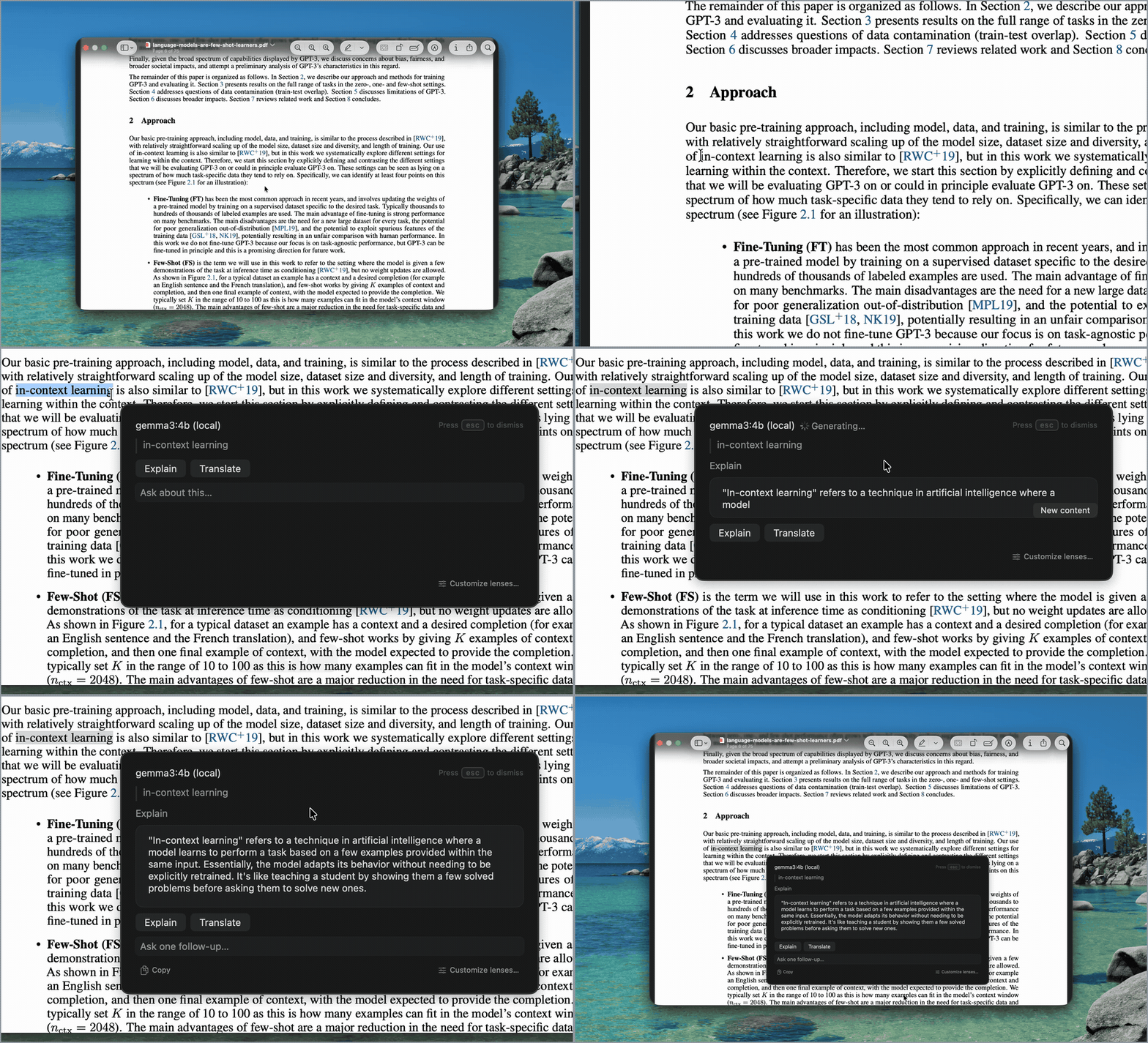
Get the unsigned preview DMG from the latest release.
[!IMPORTANT] This preview is unsigned, so macOS may block it the first time you open it. Follow the installation guide to approve it and finish setup.
Requirements:
Prefer to build it yourself? See Run from source.
Releases are built by GitHub Actions from the tagged source. Run these in the folder with the downloaded files.
Compare the checksum:
shasum -a 256 -c SeeThis-*.dmg.sha256
Check the build attestation, which ties the DMG to this repository and the workflow run that built it. This needs the GitHub CLI. Releases from 0.1.1 on include one; 0.1.0 has only the checksum.
gh attestation verify SeeThis-*.dmg --repo hoodies-gent/see-this-macos
The default shortcut is Command + D. If another app already uses it, change it in Settings → General → Trigger Shortcut.
Two ways to ask:
SeeThis reads selected text through macOS Accessibility or a temporary Copy fallback that restores the previous pasteboard. It does not capture the screen, use OCR, or persist selections, attached file text, questions, or answers.
Explanations go to your Ollama model, which runs locally unless you use one of Ollama's cloud models. In that case Ollama sends your text to its servers, and SeeThis cannot tell. Installing a model from the Models page makes Ollama download it from the Ollama library. DeepL is optional (a DeepL API Free key), stores its key in Keychain, and sends text only after separate configuration and authorization.
Requirements:
Debug builds use ad hoc signing by default, so macOS may ask you to grant Accessibility access again after a rebuild. To keep the permission stable, create your own Code Signing certificate named SeeThis Local Development and copy Config/Local.xcconfig.example to Config/Local.xcconfig.
Then:
SeeThis.xcodeproj in Xcode.SeeThis scheme.SeeThis is an early, text-only proof of concept. It tries to read your selection through Accessibility and falls back to Copy, so it can work wherever you can select text, but results vary by app and document. Its complete reading flow is currently validated with academic PDFs that contain selectable text in Zotero desktop. The current Accessibility architecture is not packaged for Mac App Store distribution.
Run the unit tests with:
xcodebuild test -quiet \
  -project SeeThis.xcodeproj \
  -scheme SeeThis \
  -destination 'platform=macOS' \
  -only-testing:SeeThisTests
A macOS menu bar app that explains selected text in a small overlay, using a local Ollama model by default.
Swift
2
5 commits
updated Oct 17, 2026
A macOS menu bar app that explains, translates, or answers questions about selected text.
Answers appear in a small overlay, from a local Ollama model by default.
Get the unsigned preview DMG from the latest release.
[!IMPORTANT] This preview is unsigned, so macOS may block it the first time you open it. Follow the installation guide to approve it and finish setup.
Requirements:
Prefer to build it yourself? See Run from source.
Releases are built by GitHub Actions from the tagged source. Run these in the folder with the downloaded files.
Compare the checksum:
shasum -a 256 -c SeeThis-*.dmg.sha256
Check the build attestation, which ties the DMG to this repository and the workflow run that built it. This needs the GitHub CLI. Releases from 0.1.1 on include one; 0.1.0 has only the checksum.
gh attestation verify SeeThis-*.dmg --repo hoodies-gent/see-this-macos
The default shortcut is Command + D. If another app already uses it, change it in Settings → General → Trigger Shortcut.
Two ways to ask:
SeeThis reads selected text through macOS Accessibility or a temporary Copy fallback that restores the previous pasteboard. It does not capture the screen, use OCR, or persist selections, attached file text, questions, or answers.
Explanations go to your Ollama model, which runs locally unless you use one of Ollama's cloud models. In that case Ollama sends your text to its servers, and SeeThis cannot tell. Installing a model from the Models page makes Ollama download it from the Ollama library. DeepL is optional (a DeepL API Free key), stores its key in Keychain, and sends text only after separate configuration and authorization.
Requirements:
Debug builds use ad hoc signing by default, so macOS may ask you to grant Accessibility access again after a rebuild. To keep the permission stable, create your own Code Signing certificate named SeeThis Local Development and copy Config/Local.xcconfig.example to Config/Local.xcconfig.
Then:
SeeThis.xcodeproj in Xcode.SeeThis scheme.SeeThis is an early, text-only proof of concept. It tries to read your selection through Accessibility and falls back to Copy, so it can work wherever you can select text, but results vary by app and document. Its complete reading flow is currently validated with academic PDFs that contain selectable text in Zotero desktop. The current Accessibility architecture is not packaged for Mac App Store distribution.
Run the unit tests with:
xcodebuild test -quiet \
  -project SeeThis.xcodeproj \
  -scheme SeeThis \
  -destination 'platform=macOS' \
  -only-testing:SeeThisTests



