This unofficial extension integrates Draw.io (also known as diagrams.net) into VS Code.
TypeScript
9,495
430 commits
updated Oct 18, 2026

This unofficial extension integrates Draw.io (also known as diagrams.net) into VS Code.
Mentioned in the official diagrams.net blog.
.drawio, .dio, .drawio.svg or .drawio.png files in the Draw.io editor.
*.drawio, *.drawio.svg or *.drawio.png file and open it..drawio.svg are valid .svg files that can be embedded in Github readme files! No export needed..drawio.png are valid .png files! No export needed. You should use .svg though whenever possible - they look much better!Draw.io: Convert To... command..drawio files are plain XML: they diff cleanly in git, and AI assistants can read, edit and review diagram changes like any other code.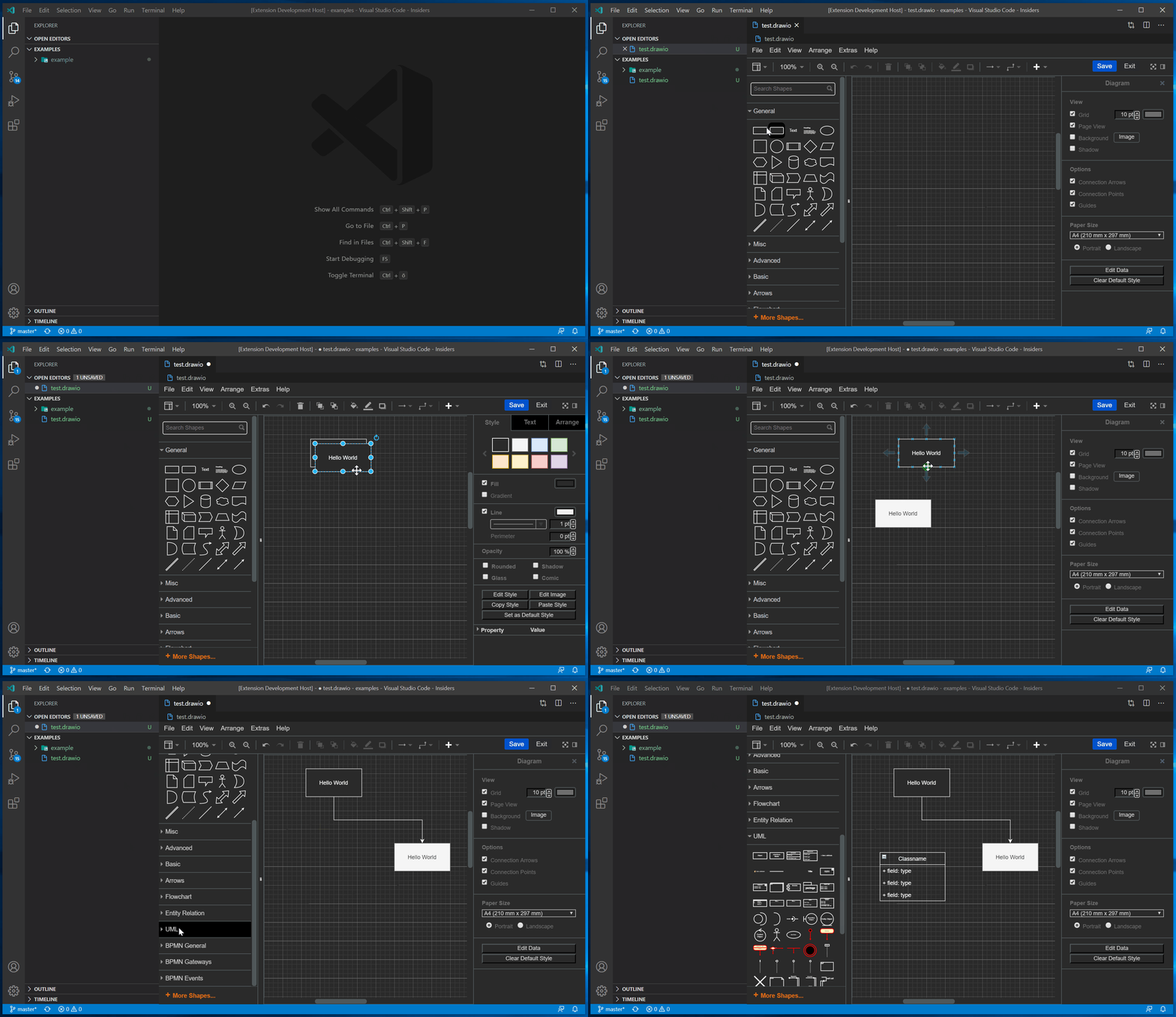
You can directly edit and save .drawio.svg and .drawio.png files.
These files are perfectly valid svg/png-images that contain an embedded Draw.io diagram.
Whenever you edit such a file, the svg/png part of that file is kept up to date.
The logo of this extension is such a .drawio.png file that has been created with the extension itself!
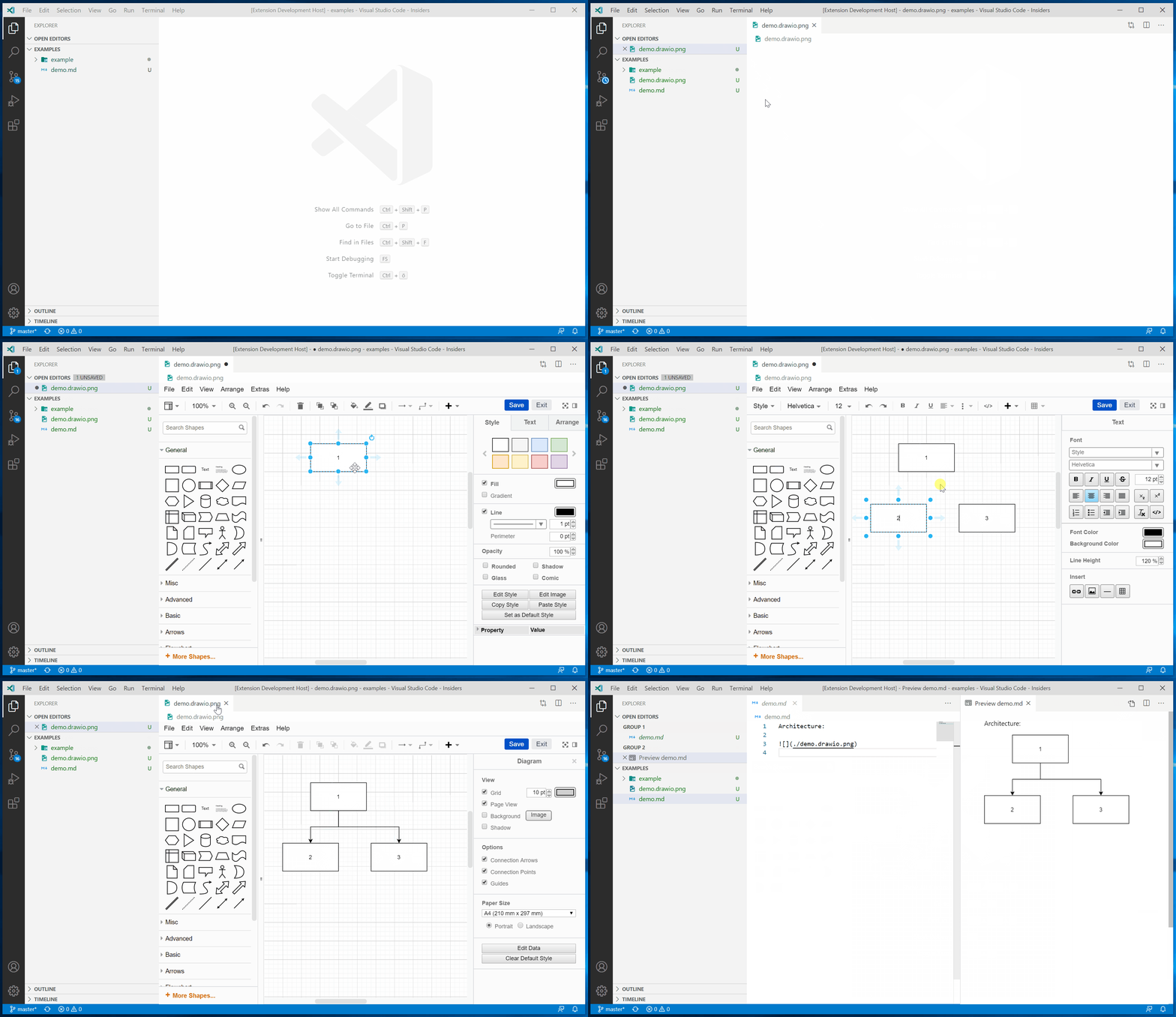
If you want readable diffs, for your reviewers and your AI tools alike, prefer .drawio over .drawio.png diagrams.
With version 1.0 of this extension, extensive support for VS Code Liveshare has been added. You can now edit or present your Draw.io diagrams remotely, while seeing each participant's cursor and selection! This can be used for discussing, reviewing or brainstorming diagrams. With Draw.io's freehand drawing tool and integrated LaTeX support, this extension becomes an advanced whiteboard solution that can be used for remote code interviews!
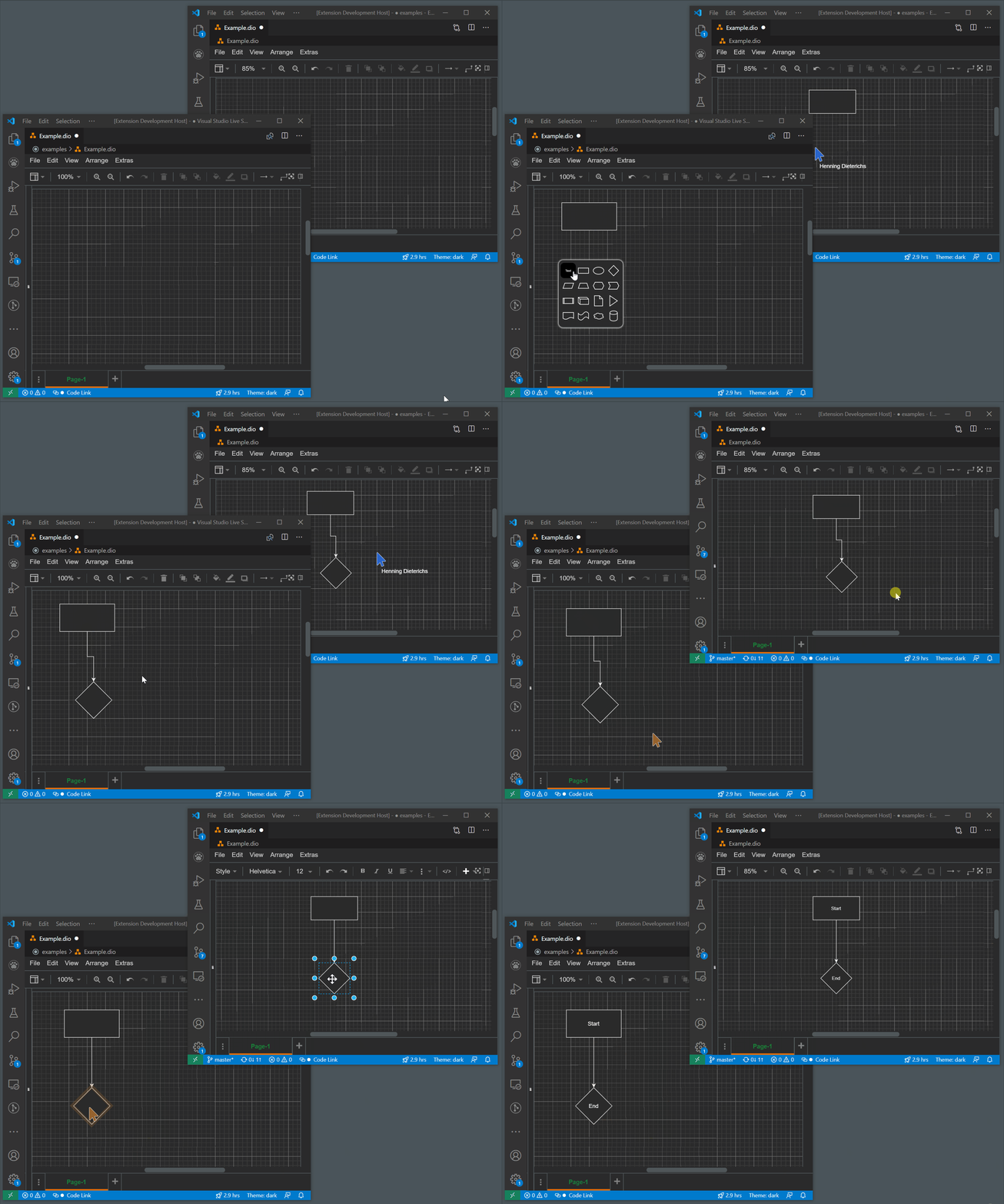
Internally, this extension synchronizes Draw.io diagrams with text documents. These text documents are shared by Liveshare. As Liveshare has no understanding of the text, modification conflicts might occur on simultaneous modifications.
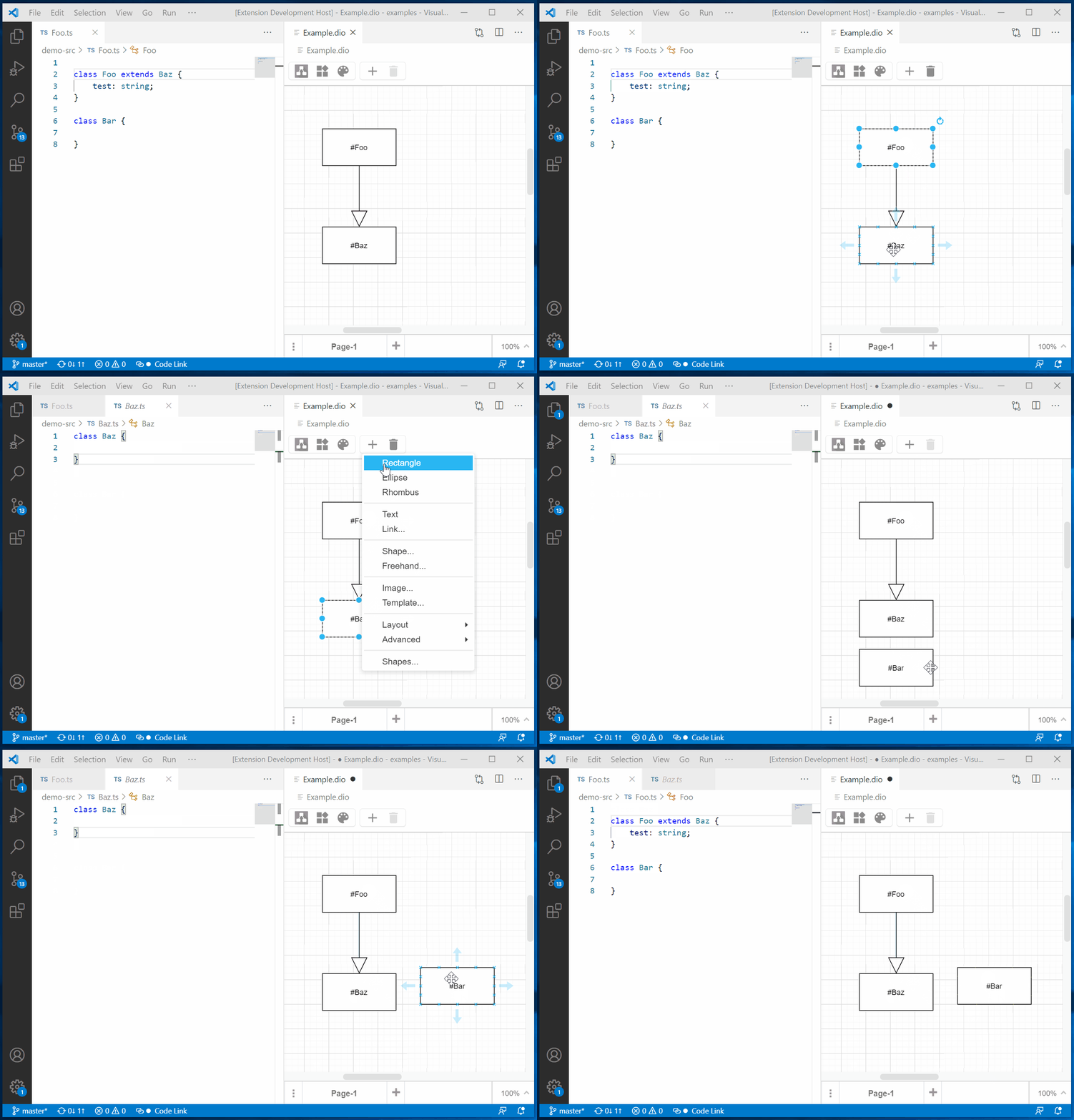
In the status bar, you can enable or disable the code link feature.
If it is enabled and you double click on a node whose label starts with #,
you will perform a workspace search for a symbol matching the rest of the label.
If you have a node labeled #MyClass and a class of name MyClass, you will jump to its source if you double click the node!
Please note that you have to open at least one file of the project that contains the symbol. Otherwise, VS Code will not consider this project when searching for symbols. This file itself does not have to contain the symbol though.
Thanks to my latest github sponsors, this feature is open source and freely available now.
TIP: If you open the draw.io editor to the right side (i.e. the second editor column) and navigate to a symbol, the diagram will stay visible.
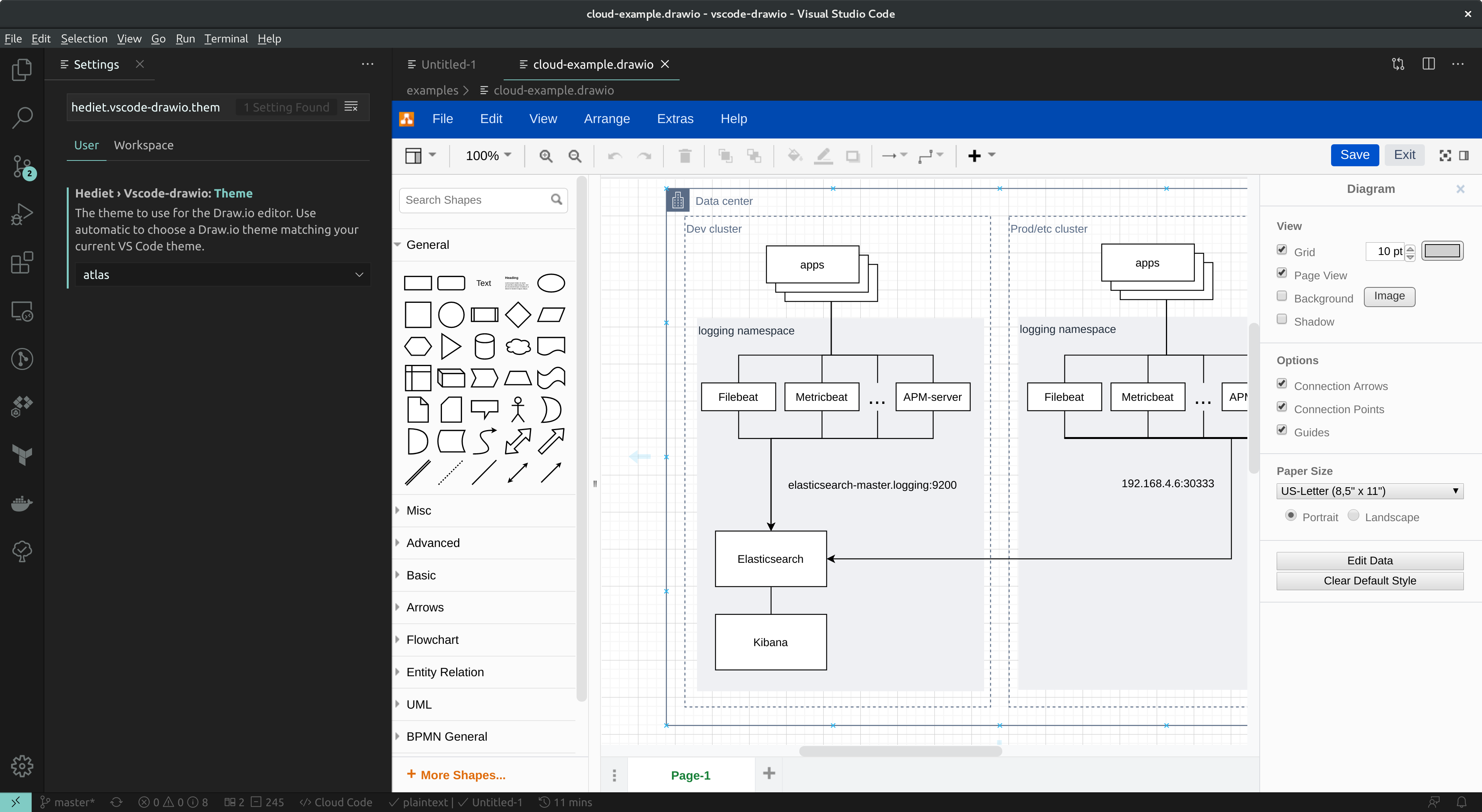
Theme "atlas"
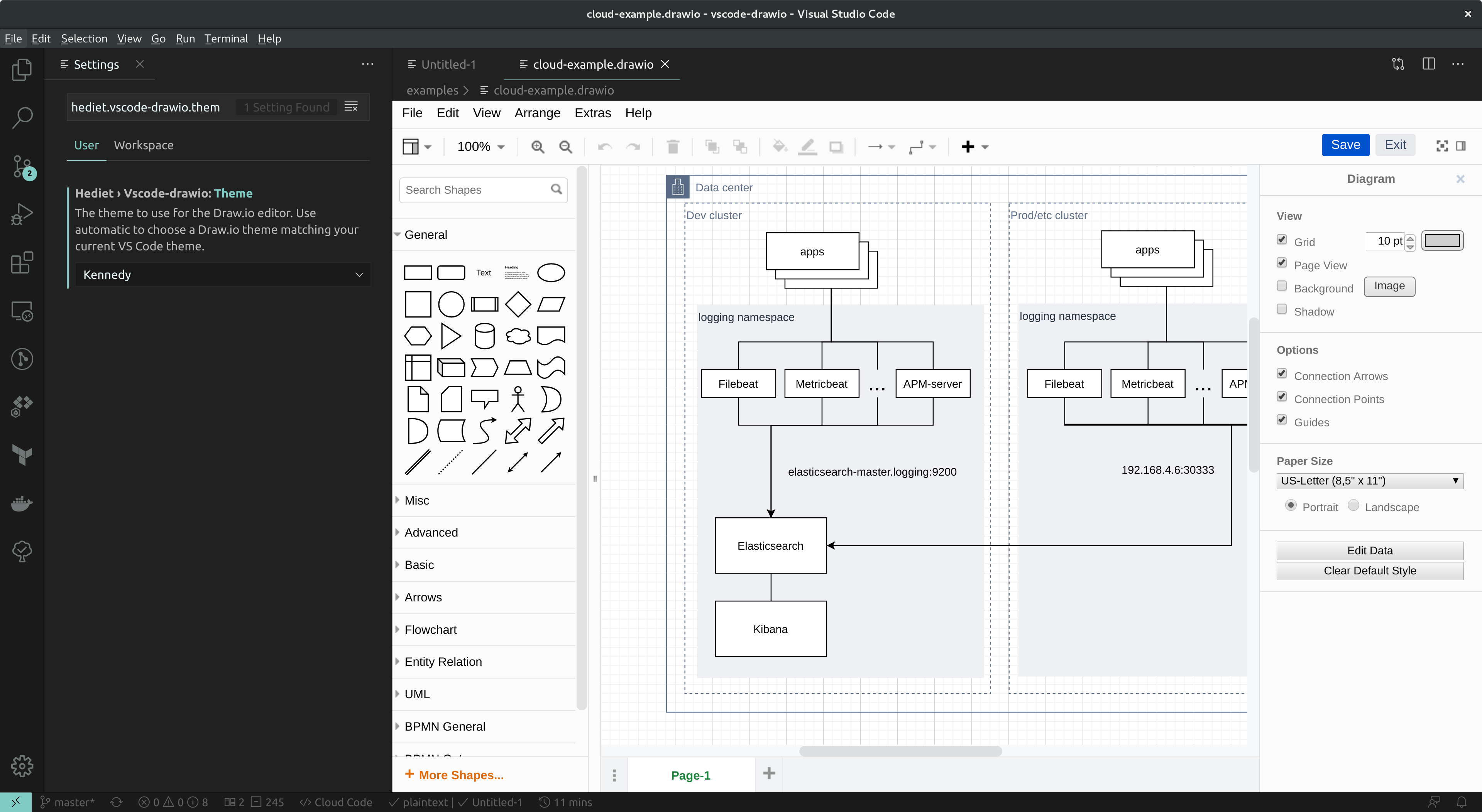
Theme "Kennedy"
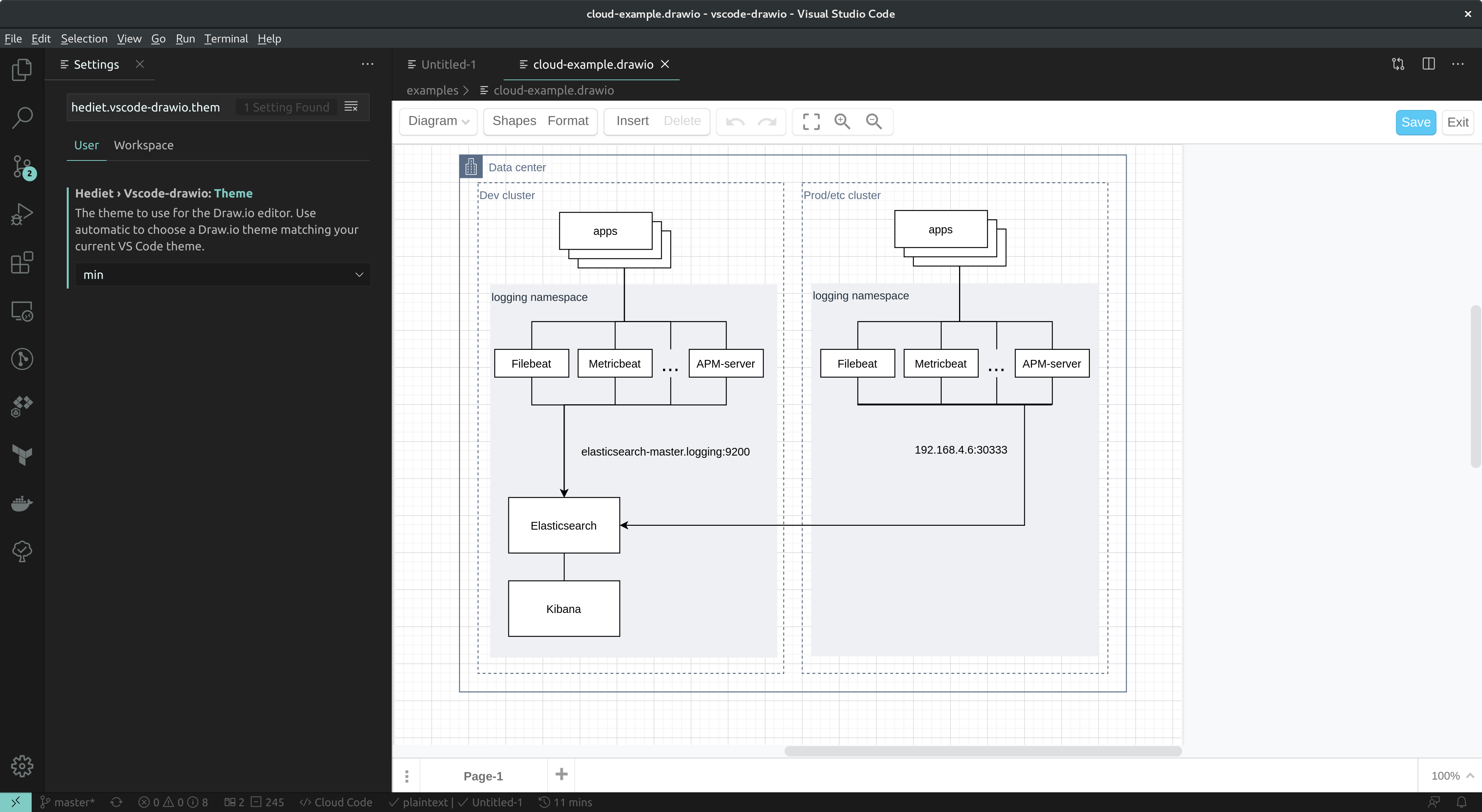
Theme "min"
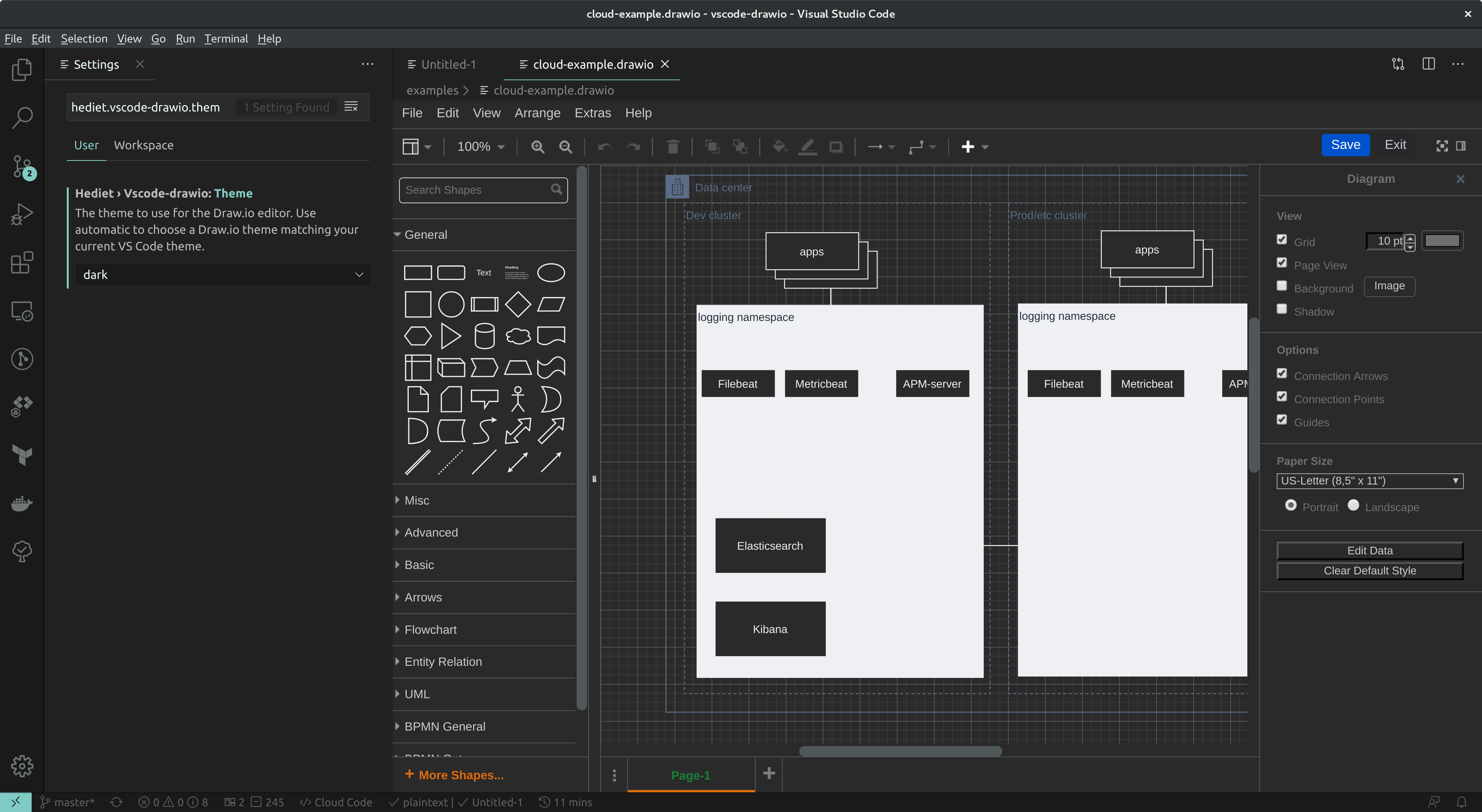
Theme "dark"
.svg Files With The Draw.io EditorBy default, this extension only handles *.drawio.svg files.
Add this to your VS Code settings.json file if you want to associate it with .svg files:
"workbench.editorAssociations": {
    "*.svg": "hediet.vscode-drawio-text",
}
You won't be able to edit arbitrary SVG files though - only those that have been created with Draw.io or this extension!
.drawio.svg FilesBy default, .drawio.svg files are saved with light colors, whatever theme the editor uses.
Set hediet.vscode-drawio.svgAppearance to auto to make them adapt to the color scheme of the page that shows them, for example a README on GitHub in dark mode, or to dark to always save them with dark colors.
The setting applies the next time a diagram is saved. Add it to the workspace settings so that everyone on a team saves the same file.
VS Code Insiders ships an experimental WYSIWYG Markdown editor (View: Reopen Editor With... > Markdown Editor).
In that editor, every fenced code block tagged drawio is replaced by a live, resizable Draw.io editor:
```drawio
<mxfile>...</mxfile>
```
Edits are written straight back into the fenced block, so the Markdown file stays the single source of truth and undo/redo, dirty state and hot exit keep working.
The block attributes of the inline editor are honored: locked makes a block read-only and height=N fixes its height, e.g. ```drawio locked height=300.
The Markdown editor's own lock toggle also puts the diagrams into read-only mode.
Notes:
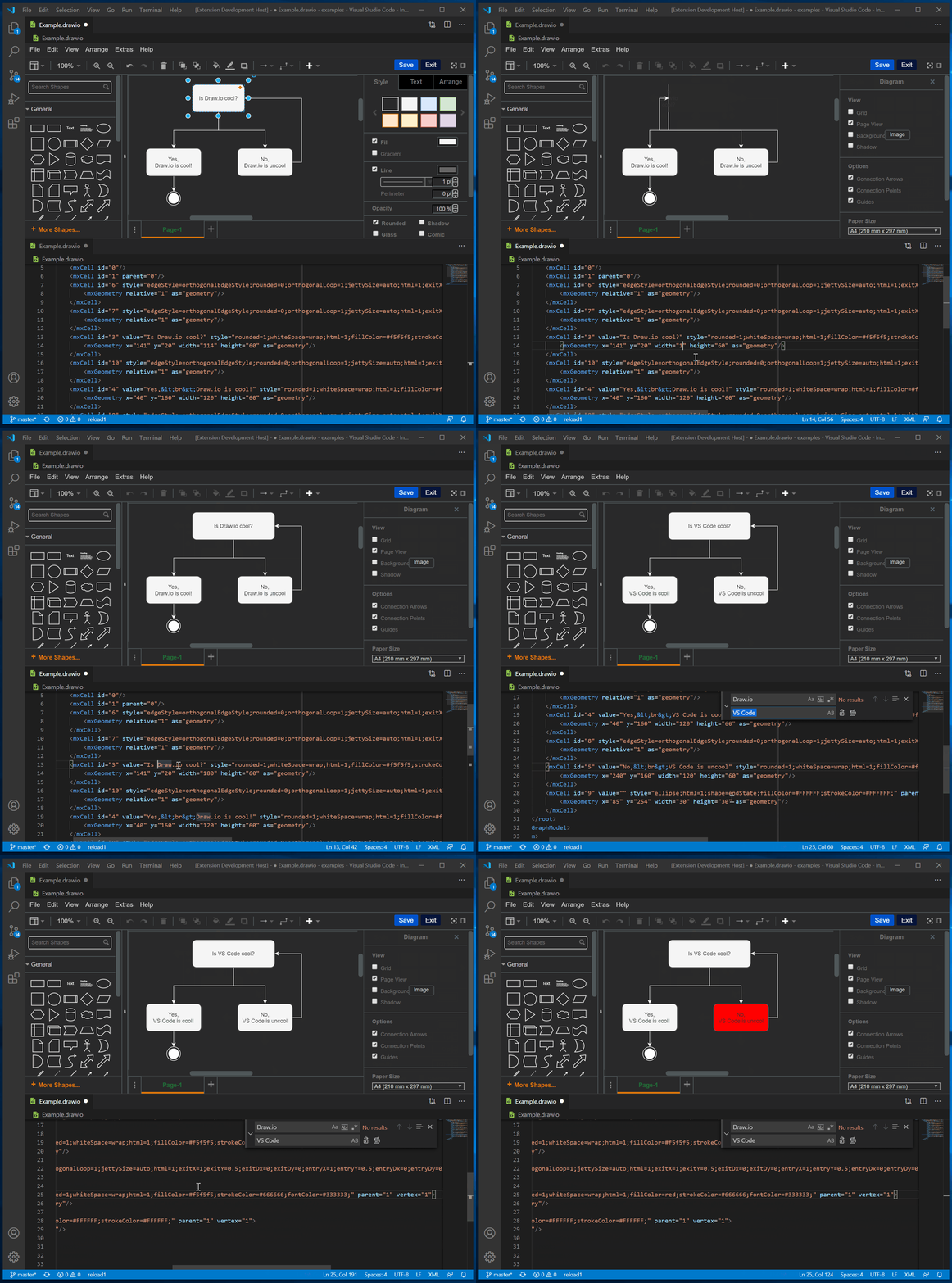
You can open the same *.drawio file with the Draw.io editor and as xml file.
They are synchronized, so you can switch between them as you like it.
This is super practical if you want to use find/replace to rename text or other features of VS Code to speed up your diagram creation/edit process.
Use the View: Reopen Editor With... command to toggle between the text or the Draw.io editor. You can open multiple editors for the same file.
This does not make much sense for SVG files though, as the draw.io diagram is stored in its metadata.
The same goes for AI assistants: the file is a visual diagram for you and plain text for your agent. When an agent edits the XML, the change shows up in the open diagram right away, and in a pull request it can read the diff of a diagram (an added node, a changed connection, a new label) and act on it just like it would on code.
(top 24 of 92)
1,992 followers · starred May 2020
1,062 followers · starred May 2020
32,377 followers · starred May 2020
217 followers · starred May 2020
This unofficial extension integrates Draw.io (also known as diagrams.net) into VS Code.
TypeScript
9,495
430 commits
updated Oct 18, 2026
This unofficial extension integrates Draw.io (also known as diagrams.net) into VS Code.
Mentioned in the official diagrams.net blog.
.drawio, .dio, .drawio.svg or .drawio.png files in the Draw.io editor.
*.drawio, *.drawio.svg or *.drawio.png file and open it..drawio.svg are valid .svg files that can be embedded in Github readme files! No export needed..drawio.png are valid .png files! No export needed. You should use .svg though whenever possible - they look much better!Draw.io: Convert To... command..drawio files are plain XML: they diff cleanly in git, and AI assistants can read, edit and review diagram changes like any other code.
You can directly edit and save .drawio.svg and .drawio.png files.
These files are perfectly valid svg/png-images that contain an embedded Draw.io diagram.
Whenever you edit such a file, the svg/png part of that file is kept up to date.
The logo of this extension is such a .drawio.png file that has been created with the extension itself!
If you want readable diffs, for your reviewers and your AI tools alike, prefer .drawio over .drawio.png diagrams.
With version 1.0 of this extension, extensive support for VS Code Liveshare has been added. You can now edit or present your Draw.io diagrams remotely, while seeing each participant's cursor and selection! This can be used for discussing, reviewing or brainstorming diagrams. With Draw.io's freehand drawing tool and integrated LaTeX support, this extension becomes an advanced whiteboard solution that can be used for remote code interviews!
Internally, this extension synchronizes Draw.io diagrams with text documents. These text documents are shared by Liveshare. As Liveshare has no understanding of the text, modification conflicts might occur on simultaneous modifications.
In the status bar, you can enable or disable the code link feature.
If it is enabled and you double click on a node whose label starts with #,
you will perform a workspace search for a symbol matching the rest of the label.
If you have a node labeled #MyClass and a class of name MyClass, you will jump to its source if you double click the node!
Please note that you have to open at least one file of the project that contains the symbol. Otherwise, VS Code will not consider this project when searching for symbols. This file itself does not have to contain the symbol though.
Thanks to my latest github sponsors, this feature is open source and freely available now.
TIP: If you open the draw.io editor to the right side (i.e. the second editor column) and navigate to a symbol, the diagram will stay visible.
Theme "atlas"
Theme "Kennedy"
Theme "min"
Theme "dark"
.svg Files With The Draw.io EditorBy default, this extension only handles *.drawio.svg files.
Add this to your VS Code settings.json file if you want to associate it with .svg files:
"workbench.editorAssociations": {
    "*.svg": "hediet.vscode-drawio-text",
}
You won't be able to edit arbitrary SVG files though - only those that have been created with Draw.io or this extension!
.drawio.svg FilesBy default, .drawio.svg files are saved with light colors, whatever theme the editor uses.
Set hediet.vscode-drawio.svgAppearance to auto to make them adapt to the color scheme of the page that shows them, for example a README on GitHub in dark mode, or to dark to always save them with dark colors.
The setting applies the next time a diagram is saved. Add it to the workspace settings so that everyone on a team saves the same file.
VS Code Insiders ships an experimental WYSIWYG Markdown editor (View: Reopen Editor With... > Markdown Editor).
In that editor, every fenced code block tagged drawio is replaced by a live, resizable Draw.io editor:
```drawio
<mxfile>...</mxfile>
```
Edits are written straight back into the fenced block, so the Markdown file stays the single source of truth and undo/redo, dirty state and hot exit keep working.
The block attributes of the inline editor are honored: locked makes a block read-only and height=N fixes its height, e.g. ```drawio locked height=300.
The Markdown editor's own lock toggle also puts the diagrams into read-only mode.
Notes:
You can open the same *.drawio file with the Draw.io editor and as xml file.
They are synchronized, so you can switch between them as you like it.
This is super practical if you want to use find/replace to rename text or other features of VS Code to speed up your diagram creation/edit process.
Use the View: Reopen Editor With... command to toggle between the text or the Draw.io editor. You can open multiple editors for the same file.
This does not make much sense for SVG files though, as the draw.io diagram is stored in its metadata.
The same goes for AI assistants: the file is a visual diagram for you and plain text for your agent. When an agent edits the XML, the change shows up in the open diagram right away, and in a pull request it can read the diff of a diagram (an added node, a changed connection, a new label) and act on it just like it would on code.
(top 24 of 92)
1,992 followers · starred May 2020
1,062 followers · starred May 2020
32,377 followers · starred May 2020
217 followers · starred May 2020



