Create your software architecture models and diagrams in Go.
Go
467
1,269 commits
updated Oct 12, 2026








Model provides a way to describe software architecture models using diagrams as code. This approach provides many benefit over the use of graphical tools, in particular:
The Model DSL is implemented in Go and follows the C4 Model to describe the software architecture. Using Go to implement the DSL makes it possible to leverage Go packages to share and version models. It also allows for extending or customizing the DSL by writing simple Go functions.
The C4 (Context, Containers, Components and Code) model provides a clean and simple set of constructs (software elements, deployment nodes and views) that can be learned in minutes. The C4 model is very flexible and only focuses on a few key concepts making it possible to express many different styles of architectures while still adding value.
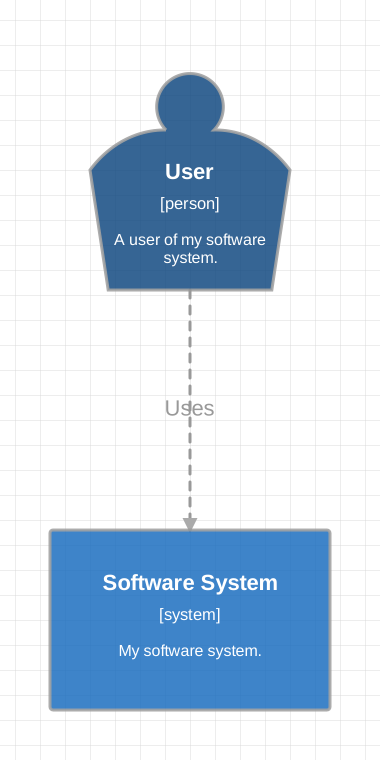
Here is a complete design describing a simple architecture model composed of a user and a software system:
package design

import . "goa.design/model/dsl"

var _ = Design("Getting Started", "This is a model of my software system.", func() {
    var System = SoftwareSystem("Software System", "My software system.", func() {
        Tag("system")
    })

    Person("User", "A user of my software system.", func() {
        Uses(System, "Uses")
        Tag("person")
    })

    Views(func() {
        SystemContextView(System, "SystemContext", "An example of a System Context diagram.", func() {
            AddAll()
            AutoLayout(RankLeftRight)
        })
        Styles(func() {
            ElementStyle("system", func() {
                Background("#1168bd")
                Color("#ffffff")
            })
            ElementStyle("person", func() {
                Shape(ShapePerson)
                Background("#08427b")
                Color("#ffffff")
            })
        })
    })
})
This code creates a model containing two elements, a relationship, a single
view and some styling information. Running the mdl tool (see installation
instructions below) renders the following diagram:
Additional examples can be found in the examples directory.
Model requires Go version 1.23 or greater. Assuming
a working installation of Go, the mdl and stz tools can be installed
using:
go install goa.design/model/cmd/mdl
go install goa.design/model/cmd/stz
Model includes two command line tools supporting two different workflows:
The mdl tool serves a graphical editor that makes it possible to
position the elements and relationships in each view defined in the design.
The graphical editor saves the rendered views as SVG files in a directory
specified when running the tool. mdl can also generate a JSON
representation of the model.
The stz tool uploads the software architecture described in the DSL
to the Structurizr service. This service renders
the model and includes a visual editor to rearrange the results (the tool
takes care of keeping any change made graphically on the next upload).
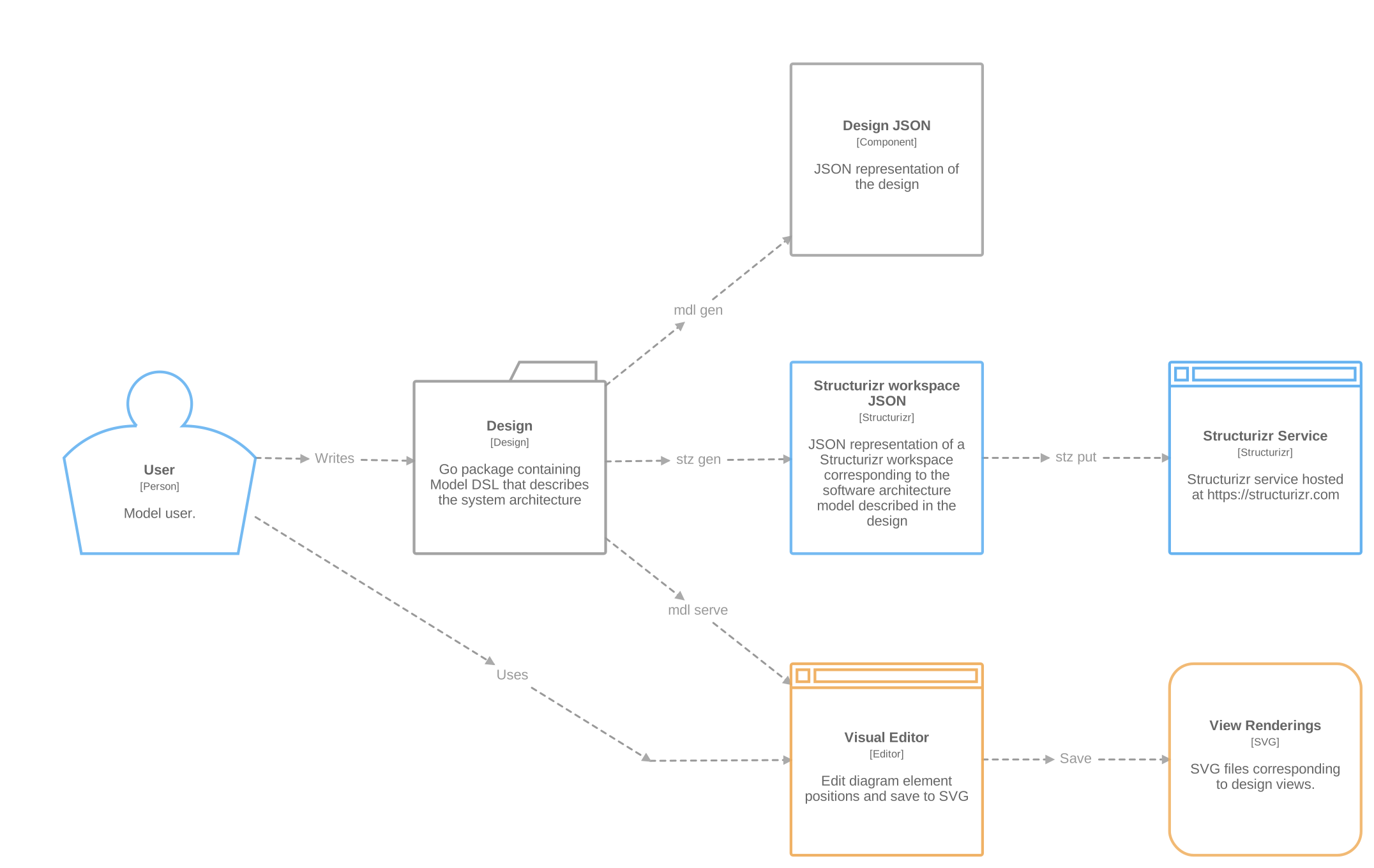
Diagram source code: model.go
Model also provides a Goa plugin so that the design of APIs and microservices written in Goa can be augmented with a description of the corresponding software architecture.
mdlThe mdl serve command starts a local HTTP server that serves an interactive
graphical editor with advanced layout and editing capabilities. The command takes the Go import path to the package containing the
DSL as argument. The path to the directory used to save the SVG files can be
provided via the -dir flag, by default the editor creates a gen folder
under the current path. For example:
mdl serve goa.design/model/examples/basic/model -dir gen
Watching: /home/raphael/go/src/goa.design/model/examples/basic/model
mdl v1.16.10, editor started. Open http://localhost:8080 in your browser.
Modifying and saving the DSL while the editor is running causes it to automatically update and reflect the latest changes making it convenient to work on the model while editing the view layouts.
The graphical editor provides a rich set of interactive features:
The mdl gen command generates the JSON representation of a design, it accepts
the Go import path to the package containing the design DSL as argument. For
example the following command generates the JSON for the basic example
mdl gen goa.design/model/examples/basic/model -out design.json
The generated file design.json contains a JSON representation of the
Design struct.
mdl includes a Cursor Agent Skill that teaches coding agents how to edit,
render, and review Model diagrams while preserving C4 ownership and boundary
semantics. Run this command from the root of a repository that contains Model
DSL:
mdl skill install
The command detects supported coding-agent executables and existing project configuration directories, then installs the skill for each detected agent:
.agents/skills/editing-model-diagrams/SKILL.md.claude/skills/editing-model-diagrams/SKILL.mdCursor and Codex both discover the standard .agents/skills location, so one
copy serves both without duplicate skill entries. If neither supported location
can be detected, mdl uses .agents/skills as the portable fallback. An
unchanged skill installed by an earlier release under .cursor/skills is
removed after the shared copy is written. Re-running the command is safe when
installed copies are unchanged. If any current or legacy copy contains local
changes, mdl preserves every location without writing and reports the
conflict; use -force only to replace those local changes explicitly.
stzAlternatively, the stz tool generates a file containing a
JSON representation of a Structurize service workspace
that corresponds to the design described in the DSL. The tool can then upload
the workspace to the Structurizr service. The tool
can also retrieve the JSON representation of a workspace from the service.
This example uploads a workspace corresponding to the DSL defined in the Go
package goa.design/model/examples/basic:
stz gen goa.design/model/examples/basic/model
stz put workspace.json -id ID -key KEY -secret SECRET
In this example ID is the Structurizr service workspace ID, KEY the
Structurizr service API key and SECRET the corresponding secret.
The example below retrieves the JSON representation of a workspace from Structurizr:
stz get -id ID -key KEY -secret SECRET -out workspace.json
This package can also be used as a Goa plugin by including the DSL package in the Goa design:
package design

import . "goa.design/goa/v3/dsl"
import "goa.design/model/dsl"

// ... DSL describing API, services and architecture model
Running goa gen creates both a design.json and a workspace.json file in
the gen folder. The workspace.json file follows the
structurizr JSON schema and can be
uploaded to the Structurizr service for example using the stz tool included
in this repo.
The mdl package RunDSL method runs the DSL and produces data structures that contain all the information needed to render the views it defines.
The stz package RunDSL method runs the DSL and produces a data structure that can be serialized into JSON and uploaded to the Structurizr service.
The stz package also contains a client library for the Structurizr service APIs.
Here is a complete example that uploads the design described in a DSL to the Structurizr service:
package main

import (
    "fmt"
    "os"

    . "goa.design/model/dsl"
    "goa.design/model/stz"
)

// DSL that describes software architecture model.
var _ = Design("Getting Started", "This is a model of my software system.", func() {
    var System = SoftwareSystem("Software System", "My software system.", func() {
        Tag("system")
    })

    Person("User", "A user of my software system.", func() {
        Uses(System, "Uses")
        Tag("person")
    })

    Views(func() {
        SystemContextView(System, "SystemContext", "An example of a System Context diagram.", func() {
            AddAll()
            AutoLayout(RankLeftRight)
        })
        Styles(func() {
            ElementStyle("system", func() {
                Background("#1168bd")
                Color("#ffffff")
            })
            ElementStyle("person", func() {
                Shape(ShapePerson)
                Background("#08427b")
                Color("#ffffff")
            })
        })
    })
})

// Executes the DSL and uploads the corresponding workspace to Structurizr.
func main() {
    // Run the model DSL
    w, err := stz.RunDSL()
    if err != nil {
        fmt.Fprintf(os.Stderr, "invalid design: %s", err.Error())
        os.Exit(1)
    }

    // Upload the design to the Structurizr service.
    // The API key and secret must be set in the STRUCTURIZR_KEY and
    // STRUCTURIZR_SECRET environment variables respectively. The
    // workspace ID must be set in STRUCTURIZR_WORKSPACE_ID.
    var (
        key    = os.Getenv("STRUCTURIZR_KEY")
        secret = os.Getenv("STRUCTURIZR_SECRET")
        wid    = os.Getenv("STRUCTURIZR_WORKSPACE_ID")
    )
    if key == "" || secret == "" || wid == "" {
        fmt.Fprintln(os.Stderr, "missing STRUCTURIZR_KEY, STRUCTURIZR_SECRET or STRUCTURIZR_WORKSPACE_ID environment variable.")
        os.Exit(1)
    }
    c := stz.NewClient(key, secret)
    if err := c.Put(wid, w); err != nil {
        fmt.Fprintf(os.Stderr, "failed to store workspace: %s\n", err.Error())
        os.Exit(1)
    }
}
The following rules apply to all elements and views declared in a model:
Note that uniqueness of names is enforced by combining the evaluated definitions for a given element. For example if a model contained:
var Person1 = Person("User", "A user", func() {
    Uses("System 1", "Uses")
})
var Person2 = Person("User", "The same user again", func() {
    Uses("System 2", "Uses")
})
Then the final model would only define a single person named "User" with
the description "The same user again" and both relationships. This makes it
possible to import shared models and "edit" existing elements, for example to
add new relationships.
Some DSL functions such as Uses, Delivers, InteractsWith, Add and
Link accept references to elements as argument. The references can be done
either through a variable (which holds the element being referred to) or by
the path of the element. The path of an element is constructured by appending
the parent element names separated by slashes (/) and the name of the
element. For example the path of the component 'C' in the container 'CO' and
software system 'S' is 'S/CO/C'. The path can be relative when the reference
is made within a scoped function, for example when adding an element to a
view that is scoped to a parent element.
The DSL package documentation lists all the DSL keywords and their usage.
The file DSL.md illustrates the complete syntax in one design.
The graphical editor is started using the mdl serve command. This command
accepts the import path to the Go package containing the model DSL. The
editor makes it possible to position the elements and their relationships in
each view.
The editor makes it possible to select a view described in the DSL and to position its elements and relationships graphically. Multiple elements can be selected by either dragging over the selection or by using SHIFT + CLICK. Selecting multiple elements automatically selects the relationships between these elements as well.
New vertices can be created on relationship lines using ALT + CLICK (Option + Click on Mac), existing vertices can be deleted with BACKSPACE or DELETE. See the table below for a complete list of editor shortcuts.
The Save View button causes the editor to create a SVG rendering of the
currently edited view in the target directory (specified via the -dir
flag). The SVG encodes the positions of all the elements and relationships as
well so that restarting the editor using the same target directory
automatically restores the element positions.
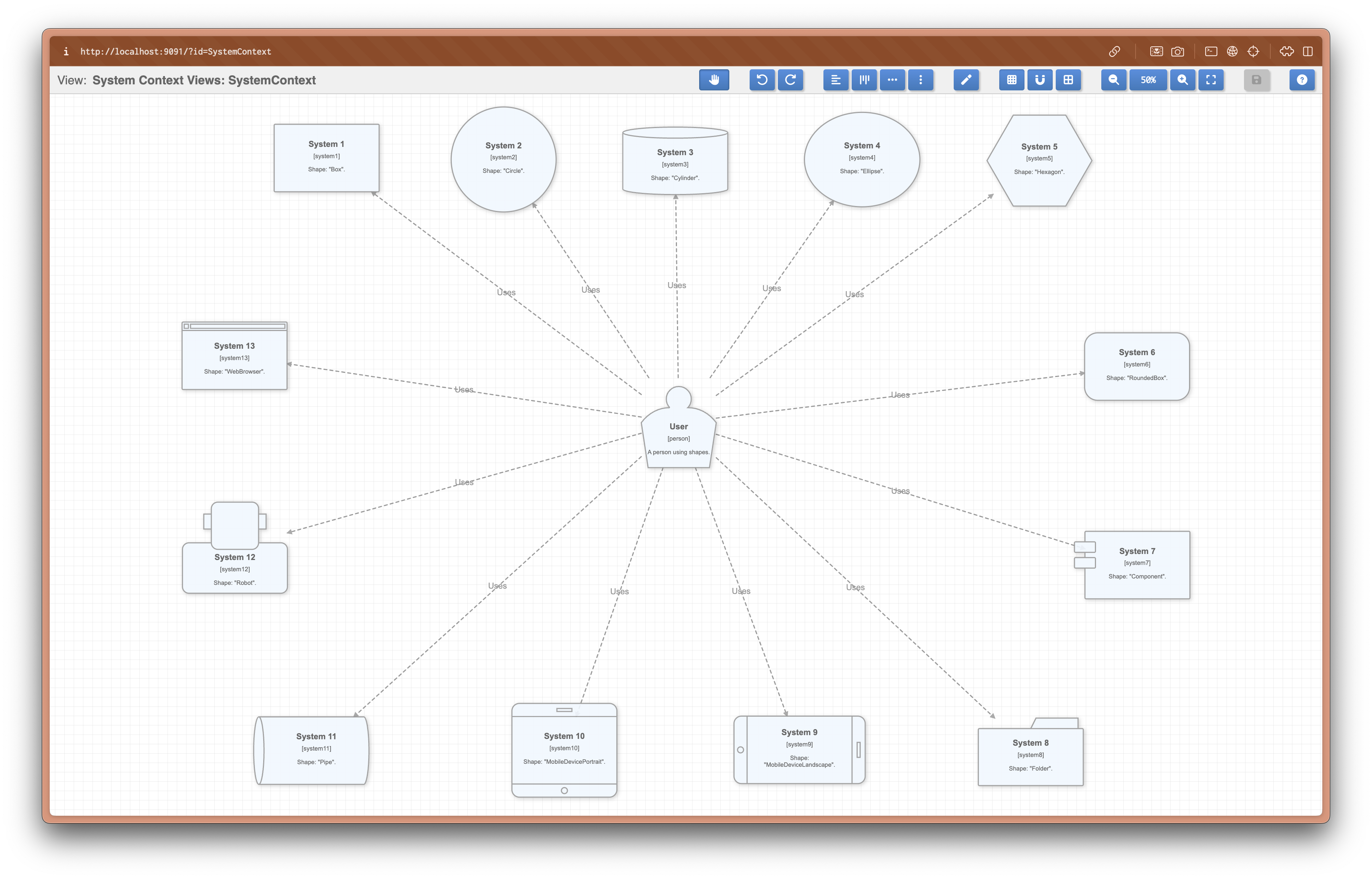
Diagram source code: model.go
The editor supports a number of keyboard shortcuts listed below. On Mac, use CMD instead of CTRL for all shortcuts:
| Category | Shortcut | Effect |
|---|---|---|
| Help | ?, SHIFT + F1 | Show keyboard shortcuts |
| File | CTRL + S | Save SVG |
| History | CTRL + Z | Undo |
| History | CTRL + SHIFT + Z, CTRL + Y | Redo |
| Relationship editing | ALT + CLICK | Add relationship vertex (Option + Click on Mac) |
| Relationship editing | ALT + SHIFT + CLICK | Add label anchor relationship vertex (Option + Shift + Click on Mac) |
| Relationship editing | DELETE, BACKSPACE | Remove relationship vertex |
| Zoom | CTRL + =, CTRL + wheel | Zoom in |
| Zoom | CTRL + -, CTRL + wheel | Zoom out |
| Zoom | CTRL + 9 | Zoom - fit |
| Zoom | CTRL + 0 | Zoom 100% |
| Zoom | CTRL + HOME | Reset diagram position to top-left |
| Select | CTRL + A | Select all |
| Select | ESC | Deselect |
| Move | UP | Move up (grid increment) |
| Move | SHIFT + UP | Move up (fine - 1 pixel) |
| Move | DOWN | Move down (grid increment) |
| Move | SHIFT + DOWN | Move down (fine - 1 pixel) |
| Move | RIGHT | Move right (grid increment) |
| Move | SHIFT + RIGHT | Move right (fine - 1 pixel) |
| Move | LEFT | Move left (grid increment) |
| Move | SHIFT + LEFT | Move left (fine - 1 pixel) |
| View | T | Toggle between pan and select mode |
| View | SHIFT + drag | Invert drag mode (pan becomes select, select becomes pan) |
| Alignment | CTRL + SHIFT + H | Align selected elements horizontally |
| Alignment | CTRL + SHIFT + A | Align selected elements vertically |
| Alignment | CTRL + ALT + H | Distribute selected elements horizontally |
| Alignment | CTRL + ALT + V | Distribute selected elements vertically |
| Layout | CTRL + L | Auto layout all elements |
| Grid | CTRL + G | Toggle grid visibility |
| Grid | CTRL + SHIFT + G | Toggle snap to grid |
| Grid | CTRL + ALT + G | Snap all elements to grid |
While functional, the editor isn't considered feature complete yet. Here is the list of features that will be added in the future:
Refer to the examples directory for working examples.
Overall
Maintained
Code review
Go module
Latest release
Releases this year
156 followers · starred Oct 2020
206 followers · starred Jun 2023
40 followers · starred Nov 2023
8 followers · starred Jun 2024
Create your software architecture models and diagrams in Go.
Go
467
1,269 commits
updated Oct 12, 2026
Model provides a way to describe software architecture models using diagrams as code. This approach provides many benefit over the use of graphical tools, in particular:
The Model DSL is implemented in Go and follows the C4 Model to describe the software architecture. Using Go to implement the DSL makes it possible to leverage Go packages to share and version models. It also allows for extending or customizing the DSL by writing simple Go functions.
The C4 (Context, Containers, Components and Code) model provides a clean and simple set of constructs (software elements, deployment nodes and views) that can be learned in minutes. The C4 model is very flexible and only focuses on a few key concepts making it possible to express many different styles of architectures while still adding value.
Here is a complete design describing a simple architecture model composed of a user and a software system:
package design

import . "goa.design/model/dsl"

var _ = Design("Getting Started", "This is a model of my software system.", func() {
    var System = SoftwareSystem("Software System", "My software system.", func() {
        Tag("system")
    })

    Person("User", "A user of my software system.", func() {
        Uses(System, "Uses")
        Tag("person")
    })

    Views(func() {
        SystemContextView(System, "SystemContext", "An example of a System Context diagram.", func() {
            AddAll()
            AutoLayout(RankLeftRight)
        })
        Styles(func() {
            ElementStyle("system", func() {
                Background("#1168bd")
                Color("#ffffff")
            })
            ElementStyle("person", func() {
                Shape(ShapePerson)
                Background("#08427b")
                Color("#ffffff")
            })
        })
    })
})
This code creates a model containing two elements, a relationship, a single
view and some styling information. Running the mdl tool (see installation
instructions below) renders the following diagram:
Additional examples can be found in the examples directory.
Model requires Go version 1.23 or greater. Assuming
a working installation of Go, the mdl and stz tools can be installed
using:
go install goa.design/model/cmd/mdl
go install goa.design/model/cmd/stz
Model includes two command line tools supporting two different workflows:
The mdl tool serves a graphical editor that makes it possible to
position the elements and relationships in each view defined in the design.
The graphical editor saves the rendered views as SVG files in a directory
specified when running the tool. mdl can also generate a JSON
representation of the model.
The stz tool uploads the software architecture described in the DSL
to the Structurizr service. This service renders
the model and includes a visual editor to rearrange the results (the tool
takes care of keeping any change made graphically on the next upload).
Diagram source code: model.go
Model also provides a Goa plugin so that the design of APIs and microservices written in Goa can be augmented with a description of the corresponding software architecture.
mdlThe mdl serve command starts a local HTTP server that serves an interactive
graphical editor with advanced layout and editing capabilities. The command takes the Go import path to the package containing the
DSL as argument. The path to the directory used to save the SVG files can be
provided via the -dir flag, by default the editor creates a gen folder
under the current path. For example:
mdl serve goa.design/model/examples/basic/model -dir gen
Watching: /home/raphael/go/src/goa.design/model/examples/basic/model
mdl v1.16.10, editor started. Open http://localhost:8080 in your browser.
Modifying and saving the DSL while the editor is running causes it to automatically update and reflect the latest changes making it convenient to work on the model while editing the view layouts.
The graphical editor provides a rich set of interactive features:
The mdl gen command generates the JSON representation of a design, it accepts
the Go import path to the package containing the design DSL as argument. For
example the following command generates the JSON for the basic example
mdl gen goa.design/model/examples/basic/model -out design.json
The generated file design.json contains a JSON representation of the
Design struct.
mdl includes a Cursor Agent Skill that teaches coding agents how to edit,
render, and review Model diagrams while preserving C4 ownership and boundary
semantics. Run this command from the root of a repository that contains Model
DSL:
mdl skill install
The command detects supported coding-agent executables and existing project configuration directories, then installs the skill for each detected agent:
.agents/skills/editing-model-diagrams/SKILL.md.claude/skills/editing-model-diagrams/SKILL.mdCursor and Codex both discover the standard .agents/skills location, so one
copy serves both without duplicate skill entries. If neither supported location
can be detected, mdl uses .agents/skills as the portable fallback. An
unchanged skill installed by an earlier release under .cursor/skills is
removed after the shared copy is written. Re-running the command is safe when
installed copies are unchanged. If any current or legacy copy contains local
changes, mdl preserves every location without writing and reports the
conflict; use -force only to replace those local changes explicitly.
stzAlternatively, the stz tool generates a file containing a
JSON representation of a Structurize service workspace
that corresponds to the design described in the DSL. The tool can then upload
the workspace to the Structurizr service. The tool
can also retrieve the JSON representation of a workspace from the service.
This example uploads a workspace corresponding to the DSL defined in the Go
package goa.design/model/examples/basic:
stz gen goa.design/model/examples/basic/model
stz put workspace.json -id ID -key KEY -secret SECRET
In this example ID is the Structurizr service workspace ID, KEY the
Structurizr service API key and SECRET the corresponding secret.
The example below retrieves the JSON representation of a workspace from Structurizr:
stz get -id ID -key KEY -secret SECRET -out workspace.json
This package can also be used as a Goa plugin by including the DSL package in the Goa design:
package design

import . "goa.design/goa/v3/dsl"
import "goa.design/model/dsl"

// ... DSL describing API, services and architecture model
Running goa gen creates both a design.json and a workspace.json file in
the gen folder. The workspace.json file follows the
structurizr JSON schema and can be
uploaded to the Structurizr service for example using the stz tool included
in this repo.
The mdl package RunDSL method runs the DSL and produces data structures that contain all the information needed to render the views it defines.
The stz package RunDSL method runs the DSL and produces a data structure that can be serialized into JSON and uploaded to the Structurizr service.
The stz package also contains a client library for the Structurizr service APIs.
Here is a complete example that uploads the design described in a DSL to the Structurizr service:
package main

import (
    "fmt"
    "os"

    . "goa.design/model/dsl"
    "goa.design/model/stz"
)

// DSL that describes software architecture model.
var _ = Design("Getting Started", "This is a model of my software system.", func() {
    var System = SoftwareSystem("Software System", "My software system.", func() {
        Tag("system")
    })

    Person("User", "A user of my software system.", func() {
        Uses(System, "Uses")
        Tag("person")
    })

    Views(func() {
        SystemContextView(System, "SystemContext", "An example of a System Context diagram.", func() {
            AddAll()
            AutoLayout(RankLeftRight)
        })
        Styles(func() {
            ElementStyle("system", func() {
                Background("#1168bd")
                Color("#ffffff")
            })
            ElementStyle("person", func() {
                Shape(ShapePerson)
                Background("#08427b")
                Color("#ffffff")
            })
        })
    })
})

// Executes the DSL and uploads the corresponding workspace to Structurizr.
func main() {
    // Run the model DSL
    w, err := stz.RunDSL()
    if err != nil {
        fmt.Fprintf(os.Stderr, "invalid design: %s", err.Error())
        os.Exit(1)
    }

    // Upload the design to the Structurizr service.
    // The API key and secret must be set in the STRUCTURIZR_KEY and
    // STRUCTURIZR_SECRET environment variables respectively. The
    // workspace ID must be set in STRUCTURIZR_WORKSPACE_ID.
    var (
        key    = os.Getenv("STRUCTURIZR_KEY")
        secret = os.Getenv("STRUCTURIZR_SECRET")
        wid    = os.Getenv("STRUCTURIZR_WORKSPACE_ID")
    )
    if key == "" || secret == "" || wid == "" {
        fmt.Fprintln(os.Stderr, "missing STRUCTURIZR_KEY, STRUCTURIZR_SECRET or STRUCTURIZR_WORKSPACE_ID environment variable.")
        os.Exit(1)
    }
    c := stz.NewClient(key, secret)
    if err := c.Put(wid, w); err != nil {
        fmt.Fprintf(os.Stderr, "failed to store workspace: %s\n", err.Error())
        os.Exit(1)
    }
}
The following rules apply to all elements and views declared in a model:
Note that uniqueness of names is enforced by combining the evaluated definitions for a given element. For example if a model contained:
var Person1 = Person("User", "A user", func() {
    Uses("System 1", "Uses")
})
var Person2 = Person("User", "The same user again", func() {
    Uses("System 2", "Uses")
})
Then the final model would only define a single person named "User" with
the description "The same user again" and both relationships. This makes it
possible to import shared models and "edit" existing elements, for example to
add new relationships.
Some DSL functions such as Uses, Delivers, InteractsWith, Add and
Link accept references to elements as argument. The references can be done
either through a variable (which holds the element being referred to) or by
the path of the element. The path of an element is constructured by appending
the parent element names separated by slashes (/) and the name of the
element. For example the path of the component 'C' in the container 'CO' and
software system 'S' is 'S/CO/C'. The path can be relative when the reference
is made within a scoped function, for example when adding an element to a
view that is scoped to a parent element.
The DSL package documentation lists all the DSL keywords and their usage.
The file DSL.md illustrates the complete syntax in one design.
The graphical editor is started using the mdl serve command. This command
accepts the import path to the Go package containing the model DSL. The
editor makes it possible to position the elements and their relationships in
each view.
The editor makes it possible to select a view described in the DSL and to position its elements and relationships graphically. Multiple elements can be selected by either dragging over the selection or by using SHIFT + CLICK. Selecting multiple elements automatically selects the relationships between these elements as well.
New vertices can be created on relationship lines using ALT + CLICK (Option + Click on Mac), existing vertices can be deleted with BACKSPACE or DELETE. See the table below for a complete list of editor shortcuts.
The Save View button causes the editor to create a SVG rendering of the
currently edited view in the target directory (specified via the -dir
flag). The SVG encodes the positions of all the elements and relationships as
well so that restarting the editor using the same target directory
automatically restores the element positions.
Diagram source code: model.go
The editor supports a number of keyboard shortcuts listed below. On Mac, use CMD instead of CTRL for all shortcuts:
| Category | Shortcut | Effect |
|---|---|---|
| Help | ?, SHIFT + F1 | Show keyboard shortcuts |
| File | CTRL + S | Save SVG |
| History | CTRL + Z | Undo |
| History | CTRL + SHIFT + Z, CTRL + Y | Redo |
| Relationship editing | ALT + CLICK | Add relationship vertex (Option + Click on Mac) |
| Relationship editing | ALT + SHIFT + CLICK | Add label anchor relationship vertex (Option + Shift + Click on Mac) |
| Relationship editing | DELETE, BACKSPACE | Remove relationship vertex |
| Zoom | CTRL + =, CTRL + wheel | Zoom in |
| Zoom | CTRL + -, CTRL + wheel | Zoom out |
| Zoom | CTRL + 9 | Zoom - fit |
| Zoom | CTRL + 0 | Zoom 100% |
| Zoom | CTRL + HOME | Reset diagram position to top-left |
| Select | CTRL + A | Select all |
| Select | ESC | Deselect |
| Move | UP | Move up (grid increment) |
| Move | SHIFT + UP | Move up (fine - 1 pixel) |
| Move | DOWN | Move down (grid increment) |
| Move | SHIFT + DOWN | Move down (fine - 1 pixel) |
| Move | RIGHT | Move right (grid increment) |
| Move | SHIFT + RIGHT | Move right (fine - 1 pixel) |
| Move | LEFT | Move left (grid increment) |
| Move | SHIFT + LEFT | Move left (fine - 1 pixel) |
| View | T | Toggle between pan and select mode |
| View | SHIFT + drag | Invert drag mode (pan becomes select, select becomes pan) |
| Alignment | CTRL + SHIFT + H | Align selected elements horizontally |
| Alignment | CTRL + SHIFT + A | Align selected elements vertically |
| Alignment | CTRL + ALT + H | Distribute selected elements horizontally |
| Alignment | CTRL + ALT + V | Distribute selected elements vertically |
| Layout | CTRL + L | Auto layout all elements |
| Grid | CTRL + G | Toggle grid visibility |
| Grid | CTRL + SHIFT + G | Toggle snap to grid |
| Grid | CTRL + ALT + G | Snap all elements to grid |
While functional, the editor isn't considered feature complete yet. Here is the list of features that will be added in the future:
Refer to the examples directory for working examples.
Overall
Maintained
Code review
Go module
Latest release
Releases this year
156 followers · starred Oct 2020
206 followers · starred Jun 2023
40 followers · starred Nov 2023
8 followers · starred Jun 2024



