Snappy, batteries-included terminal file manager.
See the code elio
elioSnappy, batteries-included terminal file manager.
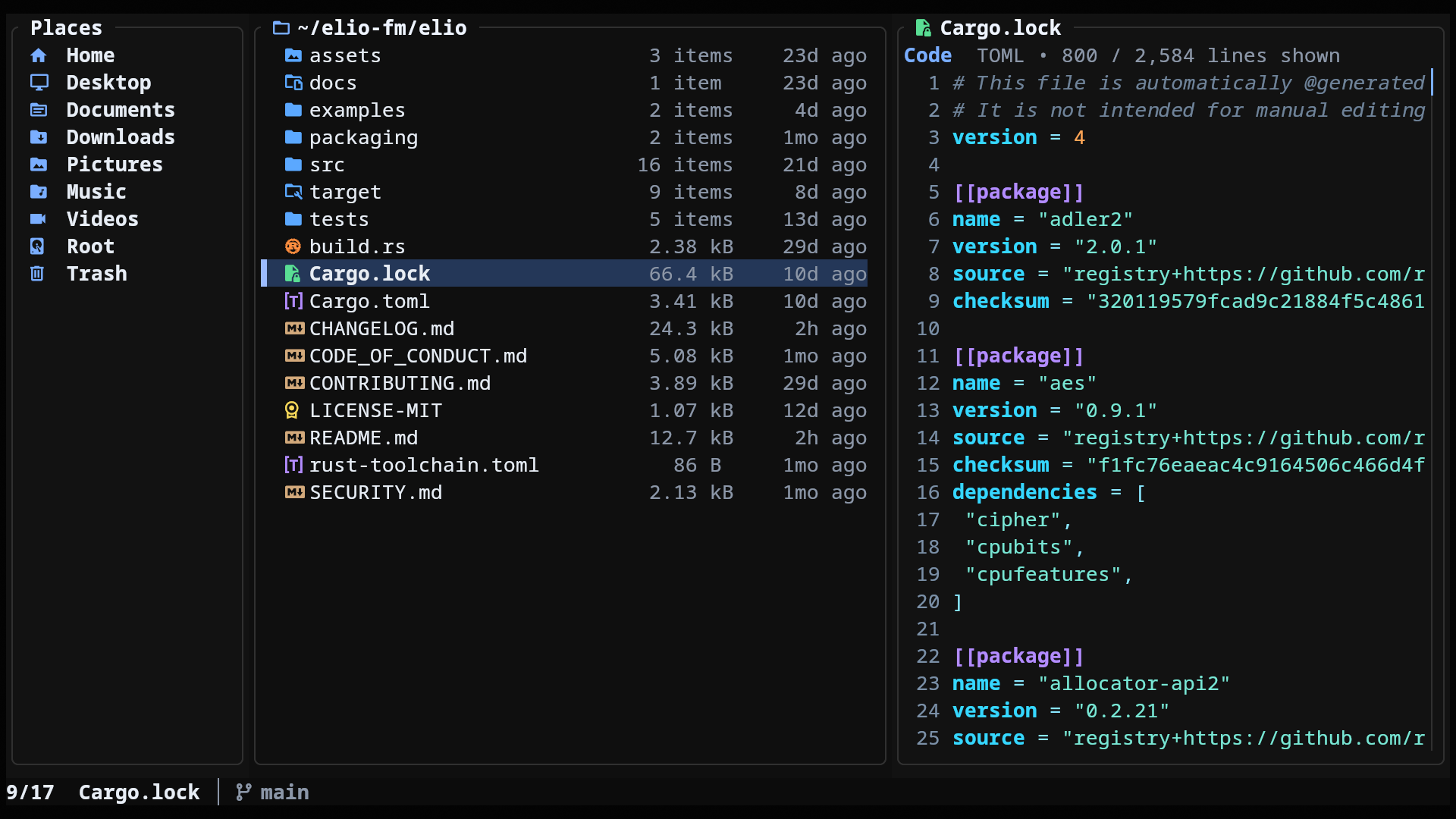
v, zoom the grid with Ctrl++ / Ctrl+-theme.tomlInstall from the AUR with your preferred AUR helper:
paru -S elio
Enable the COPR repository and install with dnf:
sudo dnf copr enable miguelregueiro/elio
sudo dnf install elio
Configure the official apt repository and install with apt:
curl -fsSL https://elio-fm.github.io/elio-apt/install.sh | sudo sh
sudo apt install elio
Manual repository setup is available in elio-apt. To install without adding a repository, download the .deb package from the latest release.
The apt repository currently publishes amd64 and arm64 packages.
Install from Homebrew:
brew install elio
Install the FreeBSD package:
pkg install elio
Run from main with Nix flakes:
nix run github:elio-fm/elio/main
Or install from main in your Nix profile:
nix profile add github:elio-fm/elio/main
Install from crates.io:
cargo install elio
elio starts in your current working directory by default. Pass a file or directory path to open it instead.
[!TIP] Recommended: use a Nerd Font in your terminal so icons display correctly.
| Terminal | Protocol | Status |
|---|---|---|
| Kitty | Kitty Graphics Protocol | ✓ Auto-detected |
| Ghostty | Kitty Graphics Protocol | ✓ Auto-detected |
| Rio | Kitty Graphics Protocol | ✓ Auto-detected |
| Warp | Kitty direct-placement protocol | ✓ Auto-detected |
| Konsole | Kitty direct-placement protocol | ✓ Auto-detected |
| WezTerm | iTerm2 Inline Protocol | ✓ Auto-detected |
| iTerm2 | iTerm2 Inline Protocol | ✓ Auto-detected |
| foot | Sixel | ✓ Auto-detected |
| Windows Terminal | Sixel | ✓ Auto-detected |
| Alacritty | — | Not supported |
| Other | Kitty Graphics Protocol | Set ELIO_IMAGE_PREVIEWS=1 to enable |
elio previews many file types:
See the preview docs: https://elio-fm.github.io/docs/previews/
elio works out of the box. Optional tools unlock richer previews:
poppler for PDFsffmpeg / ffprobe for media metadata and thumbnailsresvg for SVG previewsSee the optional tools docs: https://elio-fm.github.io/docs/optional-tools/
elio works over SSH. For the best experience, use a supported terminal and install optional tools on the remote host.
Opening files with terminal apps works normally inside SSH sessions. Desktop apps may open files on the remote host or do nothing useful.
elio can leave your shell in the directory you were browsing when you quit:
elio shell install
Restart your shell, then run elio normally. Press q to quit and move your shell to elio's final directory, or Q to quit without changing directories.
See the shell integration docs for uninstall steps, supported shells, and manual setup: https://elio-fm.github.io/docs/shell-integration/
You can make elio your file chooser on Linux and FreeBSD:
elio portal enable
This sets elio as the file chooser for your current desktop environment or window manager. Use elio portal disable to restore the previous file chooser, or elio portal status to check the current configuration.
See the file chooser docs for setup details and supported behavior: https://elio-fm.github.io/docs/file-chooser/
elio reads configuration from:
| Platform | Config file |
|---|---|
| Linux / BSD | ~/.config/elio/config.toml or $XDG_CONFIG_HOME/elio/config.toml |
| macOS | ~/.config/elio/config.toml or ~/Library/Application Support/elio/config.toml |
| Windows | %APPDATA%\elio\config.toml |
Use elio --config FILE to load configuration from a custom path instead of the default location.
See examples/config.toml for an annotated example, or the configuration docs:
https://elio-fm.github.io/docs/configuration/
Themes override elio’s defaults, so you only need to set what you want to change.
| Platform | Theme file |
|---|---|
| Linux / BSD | ~/.config/elio/theme.toml or $XDG_CONFIG_HOME/elio/theme.toml |
| macOS | ~/.config/elio/theme.toml or ~/Library/Application Support/elio/theme.toml |
| Windows | %APPDATA%\elio\theme.toml |
Use elio --theme FILE to load a theme from a custom path instead of the default location.
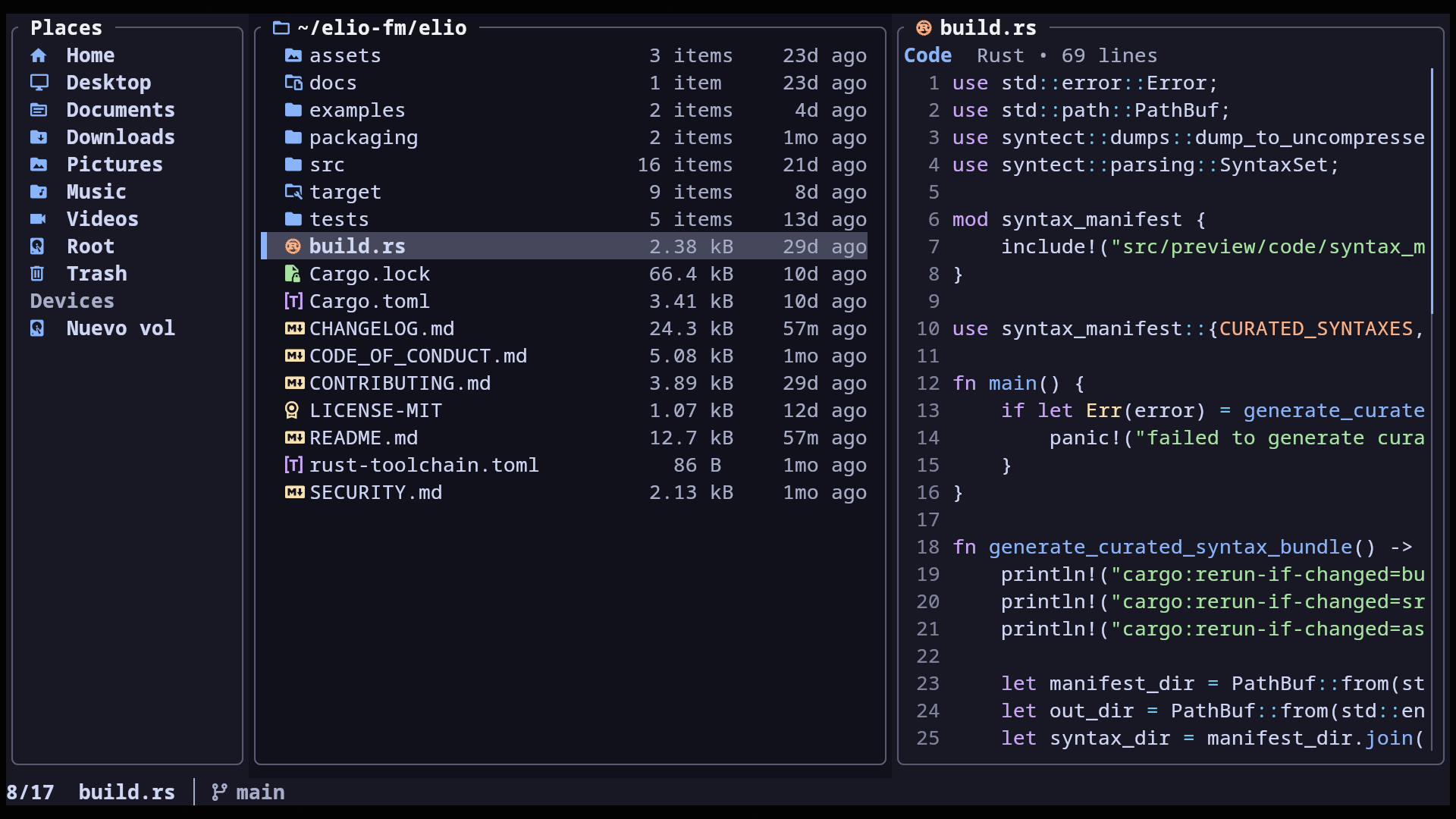
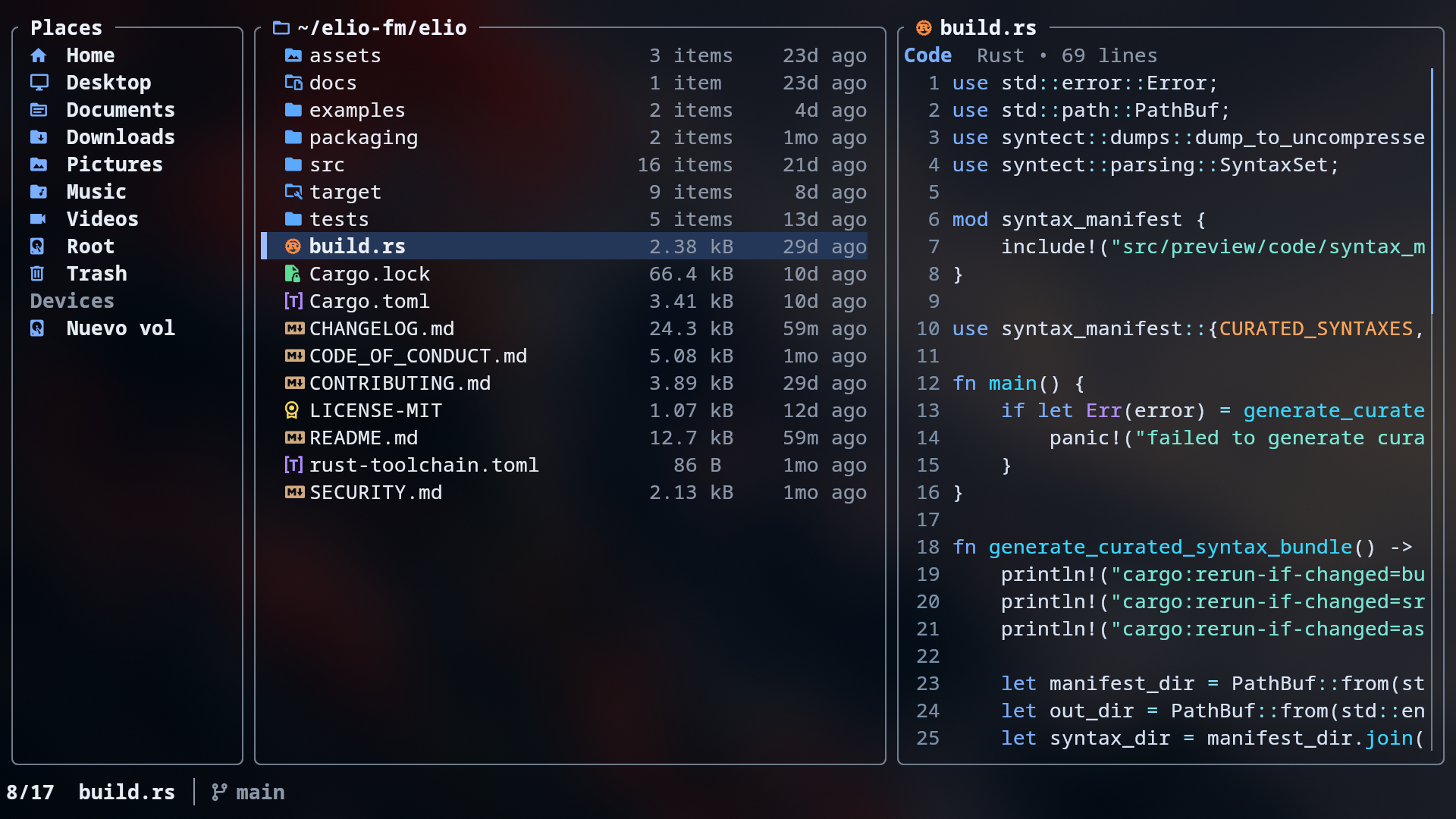
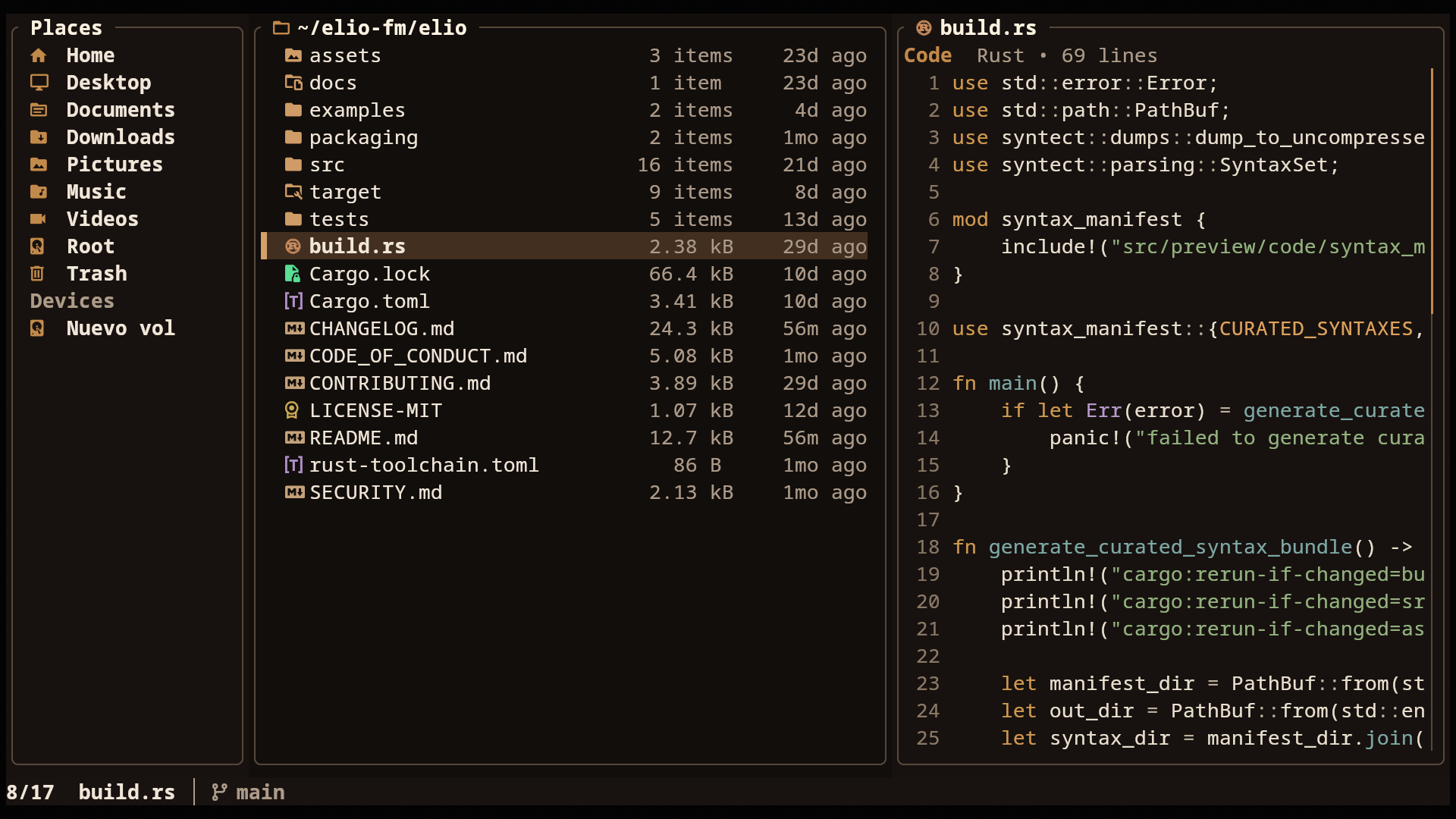
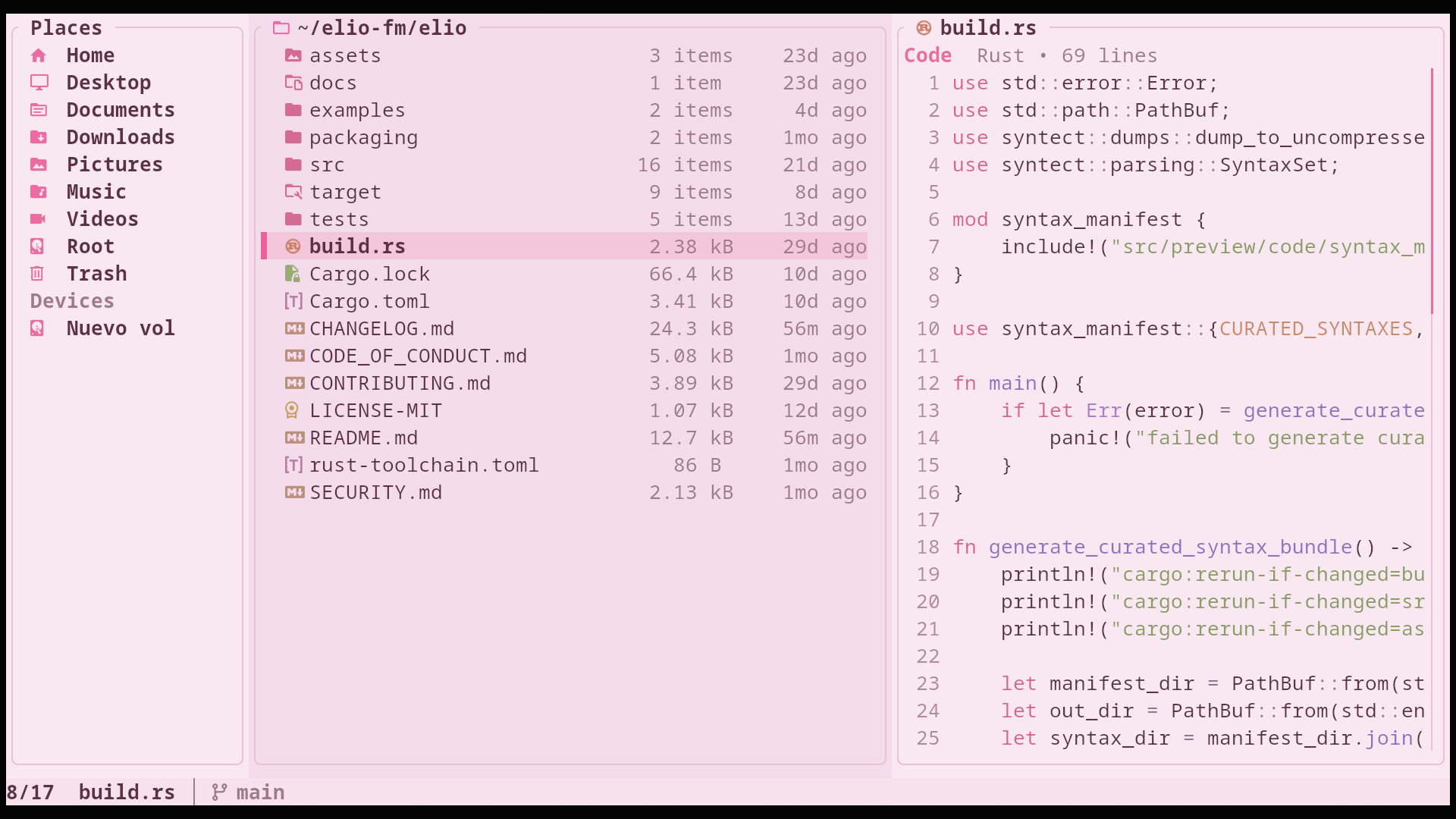
A few example themes:
| Catppuccin Mocha | Transparent |
|---|---|
|
|
| Amber Dusk | Blush Light |
|---|---|
|
|
See assets/themes/default/theme.toml for the full default theme and examples/themes/ for all bundled themes.
Theme docs: https://elio-fm.github.io/docs/themes/
? in elio to see current bindings, including overridesKeys marked with * are configurable in [keys] in config.toml. Configurable actions accept one key, a list, or an empty list to unbind the action. See the configuration docs for full key syntax:
https://elio-fm.github.io/docs/configuration/
| Key | Action |
|---|---|
k / ↑ * | Move up |
j / ↓ * | Move down |
h / ← / Backspace * | Go to parent directory |
l / → * | Enter folder |
Enter * | Enter folder / open file or selection |
g * | Go To menu (g top, d downloads, h home, c config folder, t trash; configurable in [goto]) |
Home * | Jump to first item |
G / End * | Jump to last item |
PageUp / PageDown * | Page up / down |
Tab / Shift+Tab * | Cycle places |
Alt+← / Alt+→ * | Back / forward in history |
| Key | Action |
|---|---|
f * | Fuzzy-find folders in the current tree |
Ctrl+F * | Fuzzy-find files in the current tree |
Tab (in Fuzzy Find) | Switch files/folders without clearing your query |
Alt+D * | Find duplicate files by content |
z * | Jump with zoxide directory history |
| Key | Action |
|---|---|
o * | Open focused item or selection with the system default application |
O * | Open With chooser |
! * | Open shell in current folder |
a * | Create file or folder |
d / Del * | Trash; permanently delete if already in trash |
D / Shift+Del * | Delete permanently |
r / F2 * | Rename / bulk rename |
R / Shift+F2 * | Rename in editor |
r * (in Trash) | Restore from trash |
| Key | Action |
|---|---|
v * | Toggle grid / list view |
Ctrl++ / Ctrl+- | Grid zoom in / out |
. * | Show / hide dotfiles |
s * | Cycle sort (Name → Modified → Size) |
| Key | Action |
|---|---|
Shift+K / Shift+↑ * | Step page (PDF, comic, EPUB) or scroll preview up |
Shift+J / Shift+↓ * | Step page (PDF, comic, EPUB) or scroll preview down |
Shift+H / Shift+← * | Scroll preview left |
Shift+L / Shift+→ * | Scroll preview right |
V * | Show / hide preview pane |
P * | Fullscreen preview |
| Key | Action |
|---|---|
Space * | Toggle selection |
Ctrl+A * | Select all |
y * | Yank (copy) |
x * | Cut |
p * | Paste |
- * | Create absolute symlink from yanked items |
_ * | Create relative symlink from yanked items |
c * | Copy path details to clipboard |
| Action | Description |
|---|---|
| Click | Select item |
| Double-click | Open item |
| Scroll | Scroll browser or preview |
Shift+Scroll | Scroll preview sideways |
| Key | Action |
|---|---|
? | Open help overlay |
Esc | Cancel / clear selection / close overlay |
q * | Quit |
Q * | Quit without changing the shell directory |
(top 24 of 30)
5,496 followers · starred Jun 2026
1,089 followers · starred Jul 2026
1,367 followers · starred Jun 2026
130 followers · starred Jun 2026
Snappy, batteries-included terminal file manager.
See the code elioSnappy, batteries-included terminal file manager.
v, zoom the grid with Ctrl++ / Ctrl+-theme.tomlInstall from the AUR with your preferred AUR helper:
paru -S elio
Enable the COPR repository and install with dnf:
sudo dnf copr enable miguelregueiro/elio
sudo dnf install elio
Configure the official apt repository and install with apt:
curl -fsSL https://elio-fm.github.io/elio-apt/install.sh | sudo sh
sudo apt install elio
Manual repository setup is available in elio-apt. To install without adding a repository, download the .deb package from the latest release.
The apt repository currently publishes amd64 and arm64 packages.
Install from Homebrew:
brew install elio
Install the FreeBSD package:
pkg install elio
Run from main with Nix flakes:
nix run github:elio-fm/elio/main
Or install from main in your Nix profile:
nix profile add github:elio-fm/elio/main
Install from crates.io:
cargo install elio
elio starts in your current working directory by default. Pass a file or directory path to open it instead.
[!TIP] Recommended: use a Nerd Font in your terminal so icons display correctly.
| Terminal | Protocol | Status |
|---|---|---|
| Kitty | Kitty Graphics Protocol | ✓ Auto-detected |
| Ghostty | Kitty Graphics Protocol | ✓ Auto-detected |
| Rio | Kitty Graphics Protocol | ✓ Auto-detected |
| Warp | Kitty direct-placement protocol | ✓ Auto-detected |
| Konsole | Kitty direct-placement protocol | ✓ Auto-detected |
| WezTerm | iTerm2 Inline Protocol | ✓ Auto-detected |
| iTerm2 | iTerm2 Inline Protocol | ✓ Auto-detected |
| foot | Sixel | ✓ Auto-detected |
| Windows Terminal | Sixel | ✓ Auto-detected |
| Alacritty | — | Not supported |
| Other | Kitty Graphics Protocol | Set ELIO_IMAGE_PREVIEWS=1 to enable |
elio previews many file types:
See the preview docs: https://elio-fm.github.io/docs/previews/
elio works out of the box. Optional tools unlock richer previews:
poppler for PDFsffmpeg / ffprobe for media metadata and thumbnailsresvg for SVG previewsSee the optional tools docs: https://elio-fm.github.io/docs/optional-tools/
elio works over SSH. For the best experience, use a supported terminal and install optional tools on the remote host.
Opening files with terminal apps works normally inside SSH sessions. Desktop apps may open files on the remote host or do nothing useful.
elio can leave your shell in the directory you were browsing when you quit:
elio shell install
Restart your shell, then run elio normally. Press q to quit and move your shell to elio's final directory, or Q to quit without changing directories.
See the shell integration docs for uninstall steps, supported shells, and manual setup: https://elio-fm.github.io/docs/shell-integration/
You can make elio your file chooser on Linux and FreeBSD:
elio portal enable
This sets elio as the file chooser for your current desktop environment or window manager. Use elio portal disable to restore the previous file chooser, or elio portal status to check the current configuration.
See the file chooser docs for setup details and supported behavior: https://elio-fm.github.io/docs/file-chooser/
elio reads configuration from:
| Platform | Config file |
|---|---|
| Linux / BSD | ~/.config/elio/config.toml or $XDG_CONFIG_HOME/elio/config.toml |
| macOS | ~/.config/elio/config.toml or ~/Library/Application Support/elio/config.toml |
| Windows | %APPDATA%\elio\config.toml |
Use elio --config FILE to load configuration from a custom path instead of the default location.
See examples/config.toml for an annotated example, or the configuration docs:
https://elio-fm.github.io/docs/configuration/
Themes override elio’s defaults, so you only need to set what you want to change.
| Platform | Theme file |
|---|---|
| Linux / BSD | ~/.config/elio/theme.toml or $XDG_CONFIG_HOME/elio/theme.toml |
| macOS | ~/.config/elio/theme.toml or ~/Library/Application Support/elio/theme.toml |
| Windows | %APPDATA%\elio\theme.toml |
Use elio --theme FILE to load a theme from a custom path instead of the default location.
A few example themes:
| Catppuccin Mocha | Transparent |
|---|---|
|
|
| Amber Dusk | Blush Light |
|---|---|
|
|
See assets/themes/default/theme.toml for the full default theme and examples/themes/ for all bundled themes.
Theme docs: https://elio-fm.github.io/docs/themes/
? in elio to see current bindings, including overridesKeys marked with * are configurable in [keys] in config.toml. Configurable actions accept one key, a list, or an empty list to unbind the action. See the configuration docs for full key syntax:
https://elio-fm.github.io/docs/configuration/
| Key | Action |
|---|---|
k / ↑ * | Move up |
j / ↓ * | Move down |
h / ← / Backspace * | Go to parent directory |
l / → * | Enter folder |
Enter * | Enter folder / open file or selection |
g * | Go To menu (g top, d downloads, h home, c config folder, t trash; configurable in [goto]) |
Home * | Jump to first item |
G / End * | Jump to last item |
PageUp / PageDown * | Page up / down |
Tab / Shift+Tab * | Cycle places |
Alt+← / Alt+→ * | Back / forward in history |
| Key | Action |
|---|---|
f * | Fuzzy-find folders in the current tree |
Ctrl+F * | Fuzzy-find files in the current tree |
Tab (in Fuzzy Find) | Switch files/folders without clearing your query |
Alt+D * | Find duplicate files by content |
z * | Jump with zoxide directory history |
| Key | Action |
|---|---|
o * | Open focused item or selection with the system default application |
O * | Open With chooser |
! * | Open shell in current folder |
a * | Create file or folder |
d / Del * | Trash; permanently delete if already in trash |
D / Shift+Del * | Delete permanently |
r / F2 * | Rename / bulk rename |
R / Shift+F2 * | Rename in editor |
r * (in Trash) | Restore from trash |
| Key | Action |
|---|---|
v * | Toggle grid / list view |
Ctrl++ / Ctrl+- | Grid zoom in / out |
. * | Show / hide dotfiles |
s * | Cycle sort (Name → Modified → Size) |
| Key | Action |
|---|---|
Shift+K / Shift+↑ * | Step page (PDF, comic, EPUB) or scroll preview up |
Shift+J / Shift+↓ * | Step page (PDF, comic, EPUB) or scroll preview down |
Shift+H / Shift+← * | Scroll preview left |
Shift+L / Shift+→ * | Scroll preview right |
V * | Show / hide preview pane |
P * | Fullscreen preview |
| Key | Action |
|---|---|
Space * | Toggle selection |
Ctrl+A * | Select all |
y * | Yank (copy) |
x * | Cut |
p * | Paste |
- * | Create absolute symlink from yanked items |
_ * | Create relative symlink from yanked items |
c * | Copy path details to clipboard |
| Action | Description |
|---|---|
| Click | Select item |
| Double-click | Open item |
| Scroll | Scroll browser or preview |
Shift+Scroll | Scroll preview sideways |
| Key | Action |
|---|---|
? | Open help overlay |
Esc | Cancel / clear selection / close overlay |
q * | Quit |
Q * | Quit without changing the shell directory |
(top 24 of 30)
5,496 followers · starred Jun 2026
1,089 followers · starred Jul 2026
1,367 followers · starred Jun 2026
130 followers · starred Jun 2026