A Zotero plugin for syncing items and notes into Notion
See the code


Notero is a Zotero plugin for syncing items and notes into Notion. To use it:
Concept by @arhoff 👩🏻🔬 | Built with 💜 by @dvanoni
The Notero plugin watches for Zotero items being added to or modified within any collections that you specify in the Notero preferences. Whenever an item is added or modified, Notero does a few things:
notion tag to the Zotero item.In addition to providing a convenient way to open a Notion page from Zotero, the link attachment also serves as a reference for Notero so that it can update the corresponding Notion page for a given Zotero item.
By default, Notero will sync items in your monitored collections whenever they are modified. You can disable this functionality by unchecking the Sync when items are modified option in the Notero preferences.
You can also sync items from the collection or item context menus (right-click):
[!NOTE] To prevent the "sync on modify" functionality from saving to Notion multiple times, Notero does not notify Zotero when the tag and link attachment are added to an item. This means they may not appear in Zotero immediately, and you may need to navigate to a different item and back to make them appear.
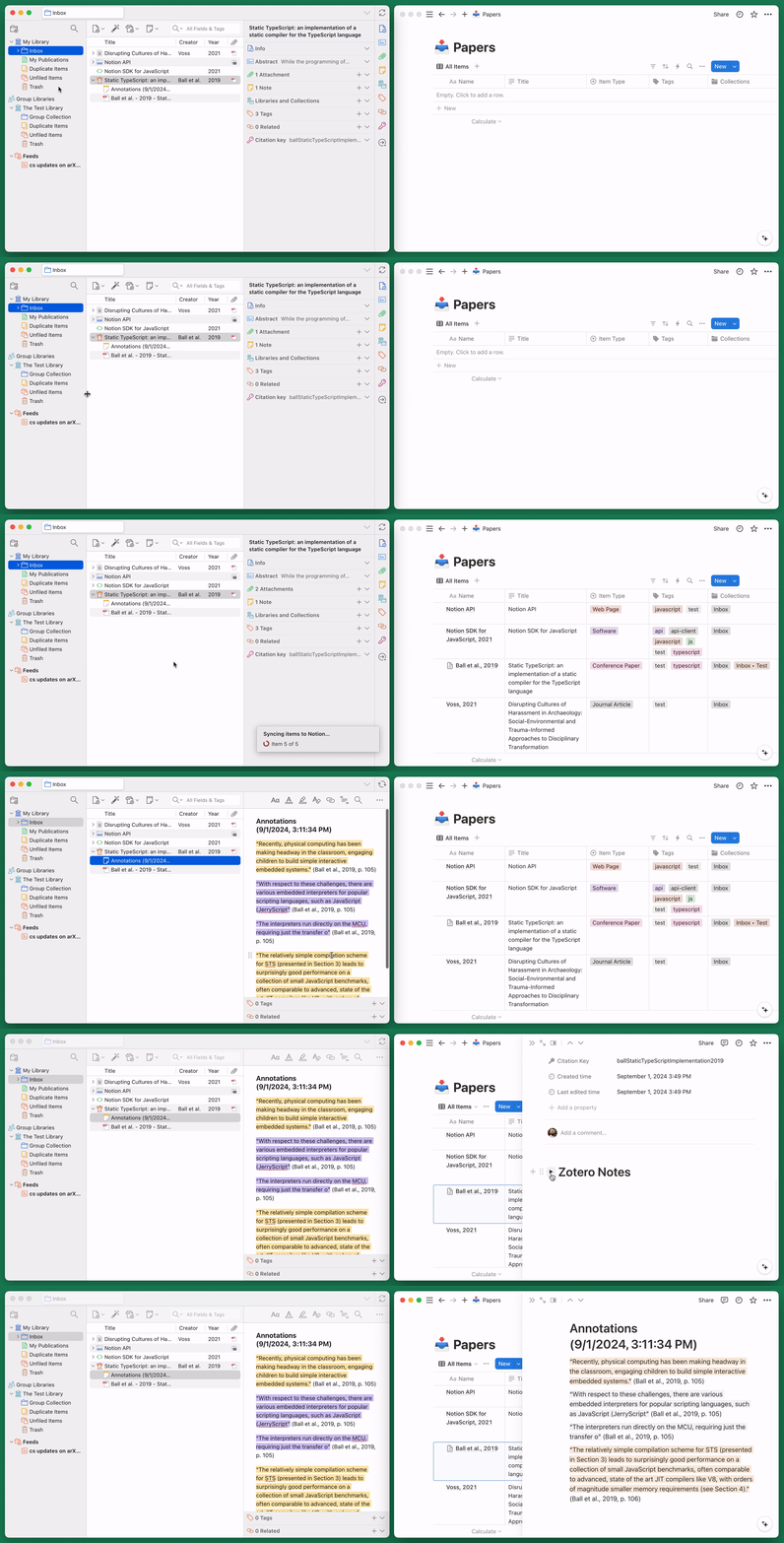
Zotero notes associated with an item can be synced into Notion as content of the corresponding page for that item. As with regular items, you can manually sync notes using the Sync to Notion option in the context menu.
Automatic syncing of notes can be enabled via the Sync notes option in the Notero preferences. When enabled, notes will automatically sync whenever they are modified. Additionally, when a regular item is synced, all of its notes will also sync if they have not already.
To sync annotations (notes and highlights) from a PDF, you'll first need to extract them into a Zotero note:
Using Notero involves installing the plugin in Zotero and connecting it to a Notion database. Detailed setup instructions are below.
[!IMPORTANT]
.xpi file.
.xpi file from the Assets section of the
latest release page..xpi file by either:
[!NOTE]
Before version 1.0.0, Notero required you to create your own Notion internal integration and manually set the integration secret in the Notero preferences. This is no longer necessary as Notero now uses a public integration with an authentication flow provided by Notion.
If you previously set up Notero with an internal integration, you can click the Upgrade Connection button in the Notero preferences to switch to the public integration as described below. Once complete, you can delete your internal integration from the Notion integrations page.
If you choose not to use the template database during the Notion connection process, you will need to create your own database. See examples below that you can duplicate into your workspace, or create one from scratch with properties described in the database properties section below.
To give Notero access to your database, follow these steps:
Notero can sync data for the properties listed below. The only property required by Notero is one with the Title property type. The other properties are optional, so you can use only the ones that suit your needs.
The Title property can be named something other than Name as long as it
does not conflict with any of the other property names. The name and type of
the other properties must be configured exactly as specified here. Note that
property names are case-sensitive, so the capitalization must match exactly.
Support for customizing properties is planned for the future; see issue #355.
| Property Name | Property Type | Notes |
|---|---|---|
Name | Title | Format configurable via the Notion Page Title option in Notero preferences |
Abstract | Text | |
Authors | Text | |
Citation Key | Text | Requires Better BibTeX |
Collections | Multi-select | |
Date | Text | |
Date Added | Date | |
Date Modified | Date | |
DOI | URL | |
Editors | Text | |
Extra | Text | |
File Path | Text | |
Full Citation | Text | Format based on the Zotero setting for Export → Quick Copy → Item Format |
In-Text Citation | Text | Format based on the Zotero setting for Export → Quick Copy → Item Format |
Item Type | Select | |
Place | Text | |
Proceedings Title | Text | |
Publication | Text | |
Series Title | Text | |
Short Title | Text | |
Tags | Multi-select | |
Title | Text | |
URL | URL | |
Year | Number | |
Zotero URI | URL | Opens items in web library if signed in to Zotero |
For more visual guides of setting up and using Notero, see the following resources made by wonderful members of the community.
[!NOTE] Some aspects of these resources may be outdated, so be sure to refer to this README for the latest information.
If you'd like to share how you use Notero and want to be listed here, please feel free to submit a PR or contact me!
Bidirectional sync between Notion and Zotero, while desirable, falls outside the scope of this plugin. Implementing this functionality would require developing a separate hosted service that could both listen for Notion webhooks and interact with the Zotero API to propagate changes. While technically feasible as a standalone project, this capability is not part of Notero's functionality.
There currently isn't a good way to sync files or link to local files due to the following limitations with Notion:
http: and https: URLs, so it's not possible to link
directly to the file using a file: URL.For now, the best workarounds are:
File Path property to point you to the location of the local file.Zotero URI property and then open the file from there.To sync multiple items that are already in a monitored collection, you can do so from the collection or item context menus. See the Syncing Items section above.
If you receive the following error:
APIResponseError: Could not find database with ID: xxxxxxxx-xxxx-xxxx-xxxx-xxxxxxxxxxxx
This most likely means you have not given Notero access to your Notion database. Ensure you follow the steps in the Configure Notion Database section. Clicking the ••• button in the top-right corner of your database should show a connection for the Notero integration.
If you receive the following error:
APIResponseError: Can't update a page that is archived. You must unarchive the page before updating.
This can happen when Notero tries to sync an item that already had a Notion page created for it from a previous sync, but that page has since been deleted. (Note that deleting a Notion page moves it into the trash, and the Notion API refers to this as "archived.")
As described in the How Notero Works section, Notero
associates Zotero items with Notion pages through a link named Notion attached
to the item. To resolve the issue, delete this link attachment on the offending
item(s) and then perform the sync again.
If you receive the following error:
APIResponseError: property is not a property that exists
This can happen if you previously synced items into one Notion database and then change your Notero preferences to specify a different database. Notero may be trying to update pages in the old database instead of creating pages in the new database, and this error can occur if different properties were configured in the different databases.
To solve this, you should delete the old database in Notion and then permanently delete it from the Trash in Notion.
We provide some example Notion databases that have been configured with all the properties synced by Notero.
Once you've opened one of the examples, click the Duplicate button in the top-right corner of the page to duplicate it into your Notion workspace.
An empty database that contains only the properties synced by Notero. Useful if you want to start from scratch and customize it yourself.
A database with multiple views and some sample entries. See below for descriptions of how you can use the different views.
DOI or URL property.
Extra
field in Zotero.Zotero URI property to view/edit the entry in Zotero or to
export the bibliography entry in a different citation style.Related References property
(e.g., articles in the same special issue, book chapters in the same edited
book, studies and commentary that respond to or extend other works).Notero was scaffolded with generator-zotero-plugin and uses build scripts heavily inspired by zotero-plugin. Many thanks to @retorquere for creating these.
Notero uses Vite+, a unified toolchain for dependency management, linting,
formatting, testing, and task orchestration. The plugin build still runs through
the project's existing esbuild scripts. You'll need to install the vp CLI
before getting started. See the Vite+ website for installation
instructions.
The steps below are based on the Zotero Plugin Development documentation and should allow you to build and run Notero yourself.
To avoid any potential damage to your default Zotero profile, you can create a new profile for development purposes.
Create a file named zotero.config.json that will contain the config
options used to start Zotero.
See zotero.config.example.json for an
example file that has descriptions of all available config options.
Install dependencies:
vp install
Build Notero and start Zotero with the plugin installed:
vp run start
Alternatively, you can start your desired beta or dev version of Zotero:
vp run start:beta
vp run start:dev
The start script performs a number of steps:
scripts/build.mts to build the plugin into the build directory
and watch for changes, rebuilding when necessary.zotero.config.json and install the plugin as temporary, reloading when
the plugin is rebuilt.logFile if specified in
zotero.config.json.Releases are performed via GitHub Actions. The
release workflow defines the following jobs:
release-pleaseThis job uses the release-please action to create release PRs when new
user-facing commits are pushed to the main branch. A release PR will bump the
package version and update the changelog. When the PR is merged, this job then
creates a new version tag and GitHub release.
publish-artifactsThis job runs when a new release is created by the release-please job. It
builds the .xpi file and publishes it to the release. It also generates an
updated manifest file and publishes it to the release release.
8,400 followers · starred Apr 2026
560 followers · starred Nov 2021
27 followers · starred Jul 2024
96 followers · starred Jan 2024
A Zotero plugin for syncing items and notes into Notion
See the code
Notero is a Zotero plugin for syncing items and notes into Notion. To use it:
Concept by @arhoff 👩🏻🔬 | Built with 💜 by @dvanoni
The Notero plugin watches for Zotero items being added to or modified within any collections that you specify in the Notero preferences. Whenever an item is added or modified, Notero does a few things:
notion tag to the Zotero item.In addition to providing a convenient way to open a Notion page from Zotero, the link attachment also serves as a reference for Notero so that it can update the corresponding Notion page for a given Zotero item.
By default, Notero will sync items in your monitored collections whenever they are modified. You can disable this functionality by unchecking the Sync when items are modified option in the Notero preferences.
You can also sync items from the collection or item context menus (right-click):
[!NOTE] To prevent the "sync on modify" functionality from saving to Notion multiple times, Notero does not notify Zotero when the tag and link attachment are added to an item. This means they may not appear in Zotero immediately, and you may need to navigate to a different item and back to make them appear.
Zotero notes associated with an item can be synced into Notion as content of the corresponding page for that item. As with regular items, you can manually sync notes using the Sync to Notion option in the context menu.
Automatic syncing of notes can be enabled via the Sync notes option in the Notero preferences. When enabled, notes will automatically sync whenever they are modified. Additionally, when a regular item is synced, all of its notes will also sync if they have not already.
To sync annotations (notes and highlights) from a PDF, you'll first need to extract them into a Zotero note:
Using Notero involves installing the plugin in Zotero and connecting it to a Notion database. Detailed setup instructions are below.
[!IMPORTANT]
.xpi file.
.xpi file from the Assets section of the
latest release page..xpi file by either:
[!NOTE]
Before version 1.0.0, Notero required you to create your own Notion internal integration and manually set the integration secret in the Notero preferences. This is no longer necessary as Notero now uses a public integration with an authentication flow provided by Notion.
If you previously set up Notero with an internal integration, you can click the Upgrade Connection button in the Notero preferences to switch to the public integration as described below. Once complete, you can delete your internal integration from the Notion integrations page.
If you choose not to use the template database during the Notion connection process, you will need to create your own database. See examples below that you can duplicate into your workspace, or create one from scratch with properties described in the database properties section below.
To give Notero access to your database, follow these steps:
Notero can sync data for the properties listed below. The only property required by Notero is one with the Title property type. The other properties are optional, so you can use only the ones that suit your needs.
The Title property can be named something other than Name as long as it
does not conflict with any of the other property names. The name and type of
the other properties must be configured exactly as specified here. Note that
property names are case-sensitive, so the capitalization must match exactly.
Support for customizing properties is planned for the future; see issue #355.
| Property Name | Property Type | Notes |
|---|---|---|
Name | Title | Format configurable via the Notion Page Title option in Notero preferences |
Abstract | Text | |
Authors | Text | |
Citation Key | Text | Requires Better BibTeX |
Collections | Multi-select | |
Date | Text | |
Date Added | Date | |
Date Modified | Date | |
DOI | URL | |
Editors | Text | |
Extra | Text | |
File Path | Text | |
Full Citation | Text | Format based on the Zotero setting for Export → Quick Copy → Item Format |
In-Text Citation | Text | Format based on the Zotero setting for Export → Quick Copy → Item Format |
Item Type | Select | |
Place | Text | |
Proceedings Title | Text | |
Publication | Text | |
Series Title | Text | |
Short Title | Text | |
Tags | Multi-select | |
Title | Text | |
URL | URL | |
Year | Number | |
Zotero URI | URL | Opens items in web library if signed in to Zotero |
For more visual guides of setting up and using Notero, see the following resources made by wonderful members of the community.
[!NOTE] Some aspects of these resources may be outdated, so be sure to refer to this README for the latest information.
If you'd like to share how you use Notero and want to be listed here, please feel free to submit a PR or contact me!
Bidirectional sync between Notion and Zotero, while desirable, falls outside the scope of this plugin. Implementing this functionality would require developing a separate hosted service that could both listen for Notion webhooks and interact with the Zotero API to propagate changes. While technically feasible as a standalone project, this capability is not part of Notero's functionality.
There currently isn't a good way to sync files or link to local files due to the following limitations with Notion:
http: and https: URLs, so it's not possible to link
directly to the file using a file: URL.For now, the best workarounds are:
File Path property to point you to the location of the local file.Zotero URI property and then open the file from there.To sync multiple items that are already in a monitored collection, you can do so from the collection or item context menus. See the Syncing Items section above.
If you receive the following error:
APIResponseError: Could not find database with ID: xxxxxxxx-xxxx-xxxx-xxxx-xxxxxxxxxxxx
This most likely means you have not given Notero access to your Notion database. Ensure you follow the steps in the Configure Notion Database section. Clicking the ••• button in the top-right corner of your database should show a connection for the Notero integration.
If you receive the following error:
APIResponseError: Can't update a page that is archived. You must unarchive the page before updating.
This can happen when Notero tries to sync an item that already had a Notion page created for it from a previous sync, but that page has since been deleted. (Note that deleting a Notion page moves it into the trash, and the Notion API refers to this as "archived.")
As described in the How Notero Works section, Notero
associates Zotero items with Notion pages through a link named Notion attached
to the item. To resolve the issue, delete this link attachment on the offending
item(s) and then perform the sync again.
If you receive the following error:
APIResponseError: property is not a property that exists
This can happen if you previously synced items into one Notion database and then change your Notero preferences to specify a different database. Notero may be trying to update pages in the old database instead of creating pages in the new database, and this error can occur if different properties were configured in the different databases.
To solve this, you should delete the old database in Notion and then permanently delete it from the Trash in Notion.
We provide some example Notion databases that have been configured with all the properties synced by Notero.
Once you've opened one of the examples, click the Duplicate button in the top-right corner of the page to duplicate it into your Notion workspace.
An empty database that contains only the properties synced by Notero. Useful if you want to start from scratch and customize it yourself.
A database with multiple views and some sample entries. See below for descriptions of how you can use the different views.
DOI or URL property.
Extra
field in Zotero.Zotero URI property to view/edit the entry in Zotero or to
export the bibliography entry in a different citation style.Related References property
(e.g., articles in the same special issue, book chapters in the same edited
book, studies and commentary that respond to or extend other works).Notero was scaffolded with generator-zotero-plugin and uses build scripts heavily inspired by zotero-plugin. Many thanks to @retorquere for creating these.
Notero uses Vite+, a unified toolchain for dependency management, linting,
formatting, testing, and task orchestration. The plugin build still runs through
the project's existing esbuild scripts. You'll need to install the vp CLI
before getting started. See the Vite+ website for installation
instructions.
The steps below are based on the Zotero Plugin Development documentation and should allow you to build and run Notero yourself.
To avoid any potential damage to your default Zotero profile, you can create a new profile for development purposes.
Create a file named zotero.config.json that will contain the config
options used to start Zotero.
See zotero.config.example.json for an
example file that has descriptions of all available config options.
Install dependencies:
vp install
Build Notero and start Zotero with the plugin installed:
vp run start
Alternatively, you can start your desired beta or dev version of Zotero:
vp run start:beta
vp run start:dev
The start script performs a number of steps:
scripts/build.mts to build the plugin into the build directory
and watch for changes, rebuilding when necessary.zotero.config.json and install the plugin as temporary, reloading when
the plugin is rebuilt.logFile if specified in
zotero.config.json.Releases are performed via GitHub Actions. The
release workflow defines the following jobs:
release-pleaseThis job uses the release-please action to create release PRs when new
user-facing commits are pushed to the main branch. A release PR will bump the
package version and update the changelog. When the PR is merged, this job then
creates a new version tag and GitHub release.
publish-artifactsThis job runs when a new release is created by the release-please job. It
builds the .xpi file and publishes it to the release. It also generates an
updated manifest file and publishes it to the release release.
8,400 followers · starred Apr 2026
560 followers · starred Nov 2021
27 followers · starred Jul 2024
96 followers · starred Jan 2024