The safest, simplest way to manage Hermes from your Mac. Pure SSH. No gateways, no exposed ports, no browser layer.
See the codeNative macOS companion for Hermes Agent, directly on this Mac or over SSH.
It turns the daily Hermes loop into something you can actually live in on a Mac: sessions, workflows, Kanban, workspace files, usage, skills, cron jobs, and a real terminal in one focused window.
If Hermes is already part of how you work, the app should feel immediately legible. Same host. Same files. Same profiles. Same source of truth.
No browser wrapper. No gateway API. No daemon on the host. No local mirror. No extra sync layer slowly drifting away from the machine that actually matters.
That restraint is the point of the app.
Hermes Desktop does not invent a softer second version of Hermes. It gives the real machine-first workflow a calm, fast, native Mac surface while keeping the model visible. You always know which host you are on, which Hermes profile is active, which path the app is using, and where the work is happening.
|
|
|
|
|
|
|
|
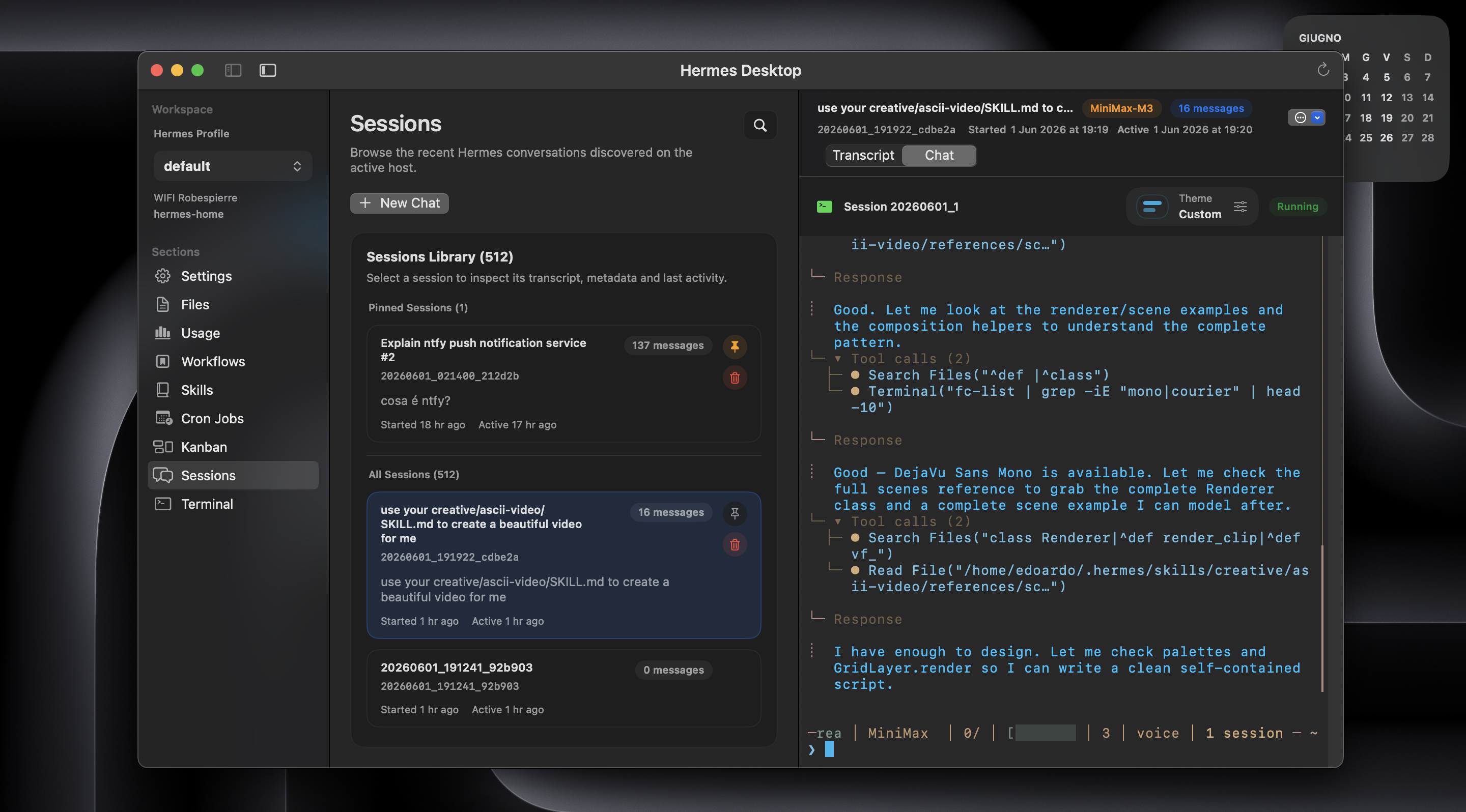
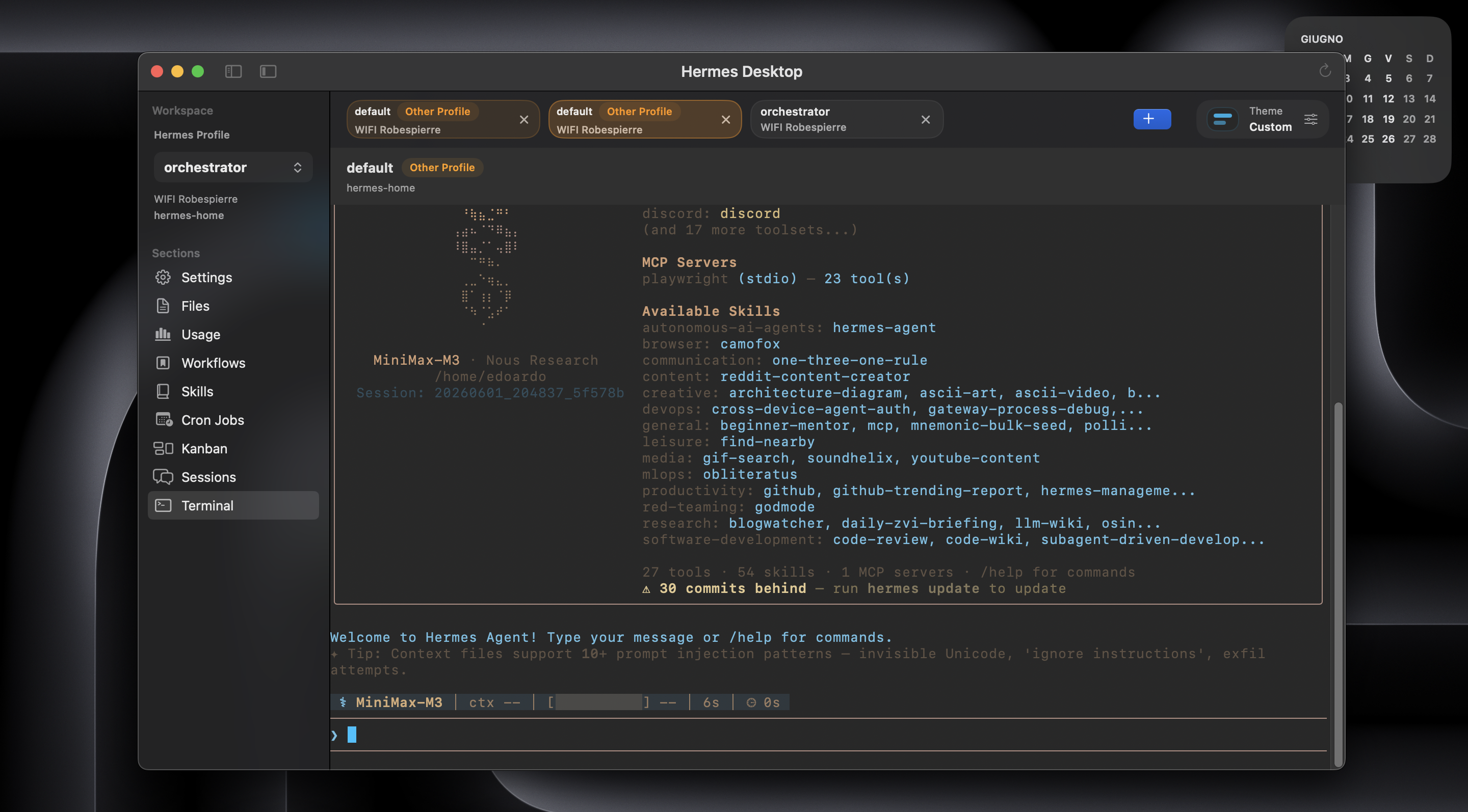
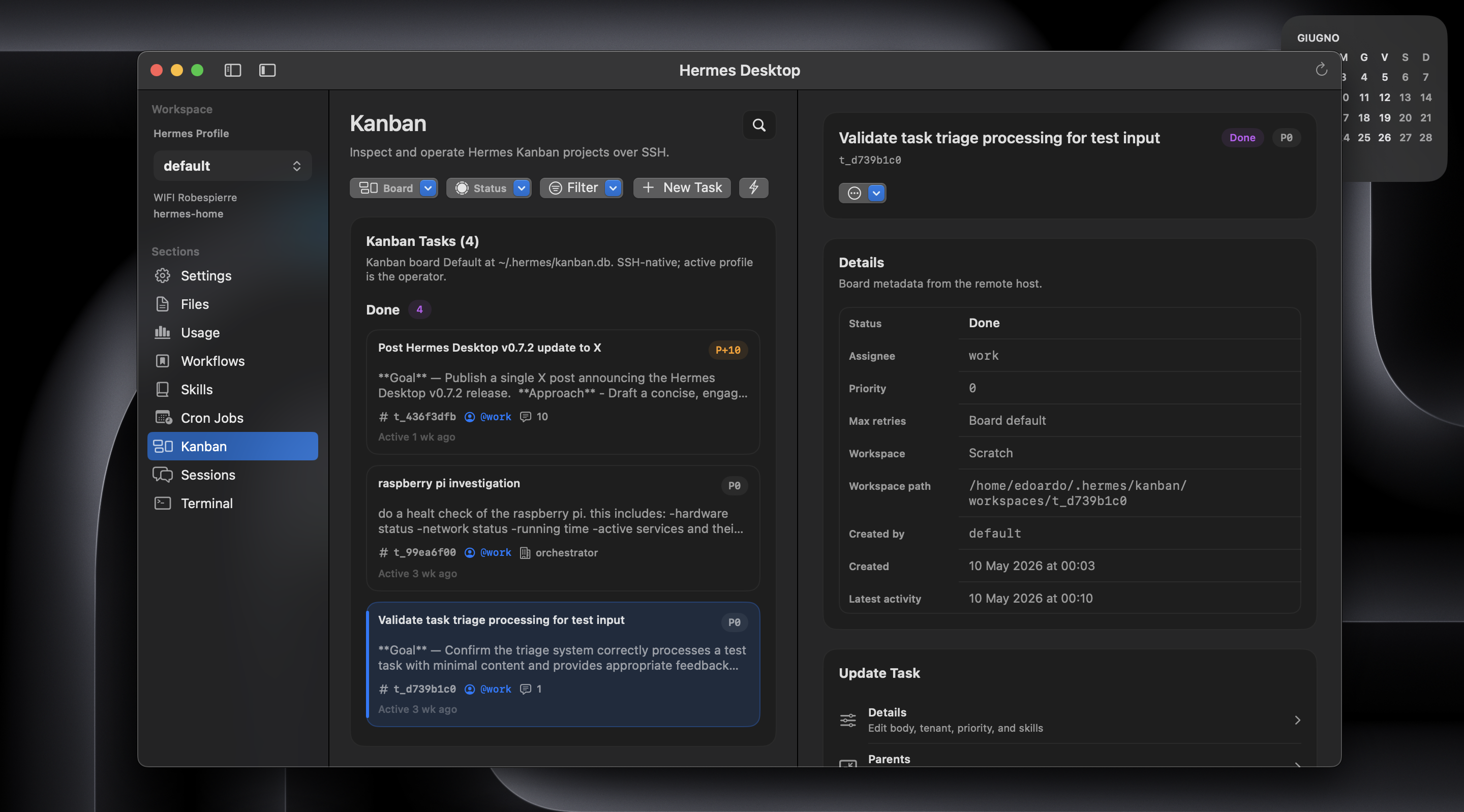
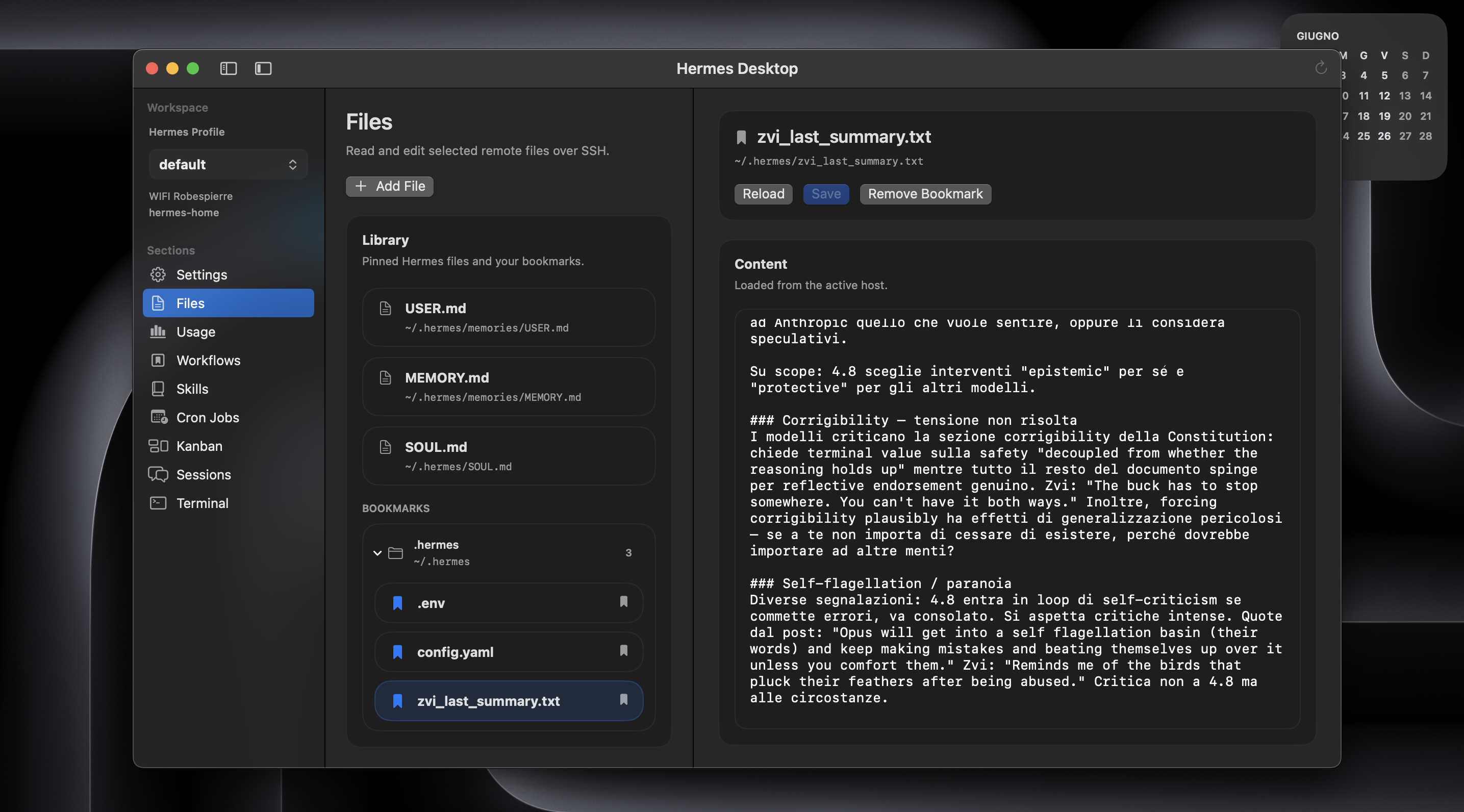
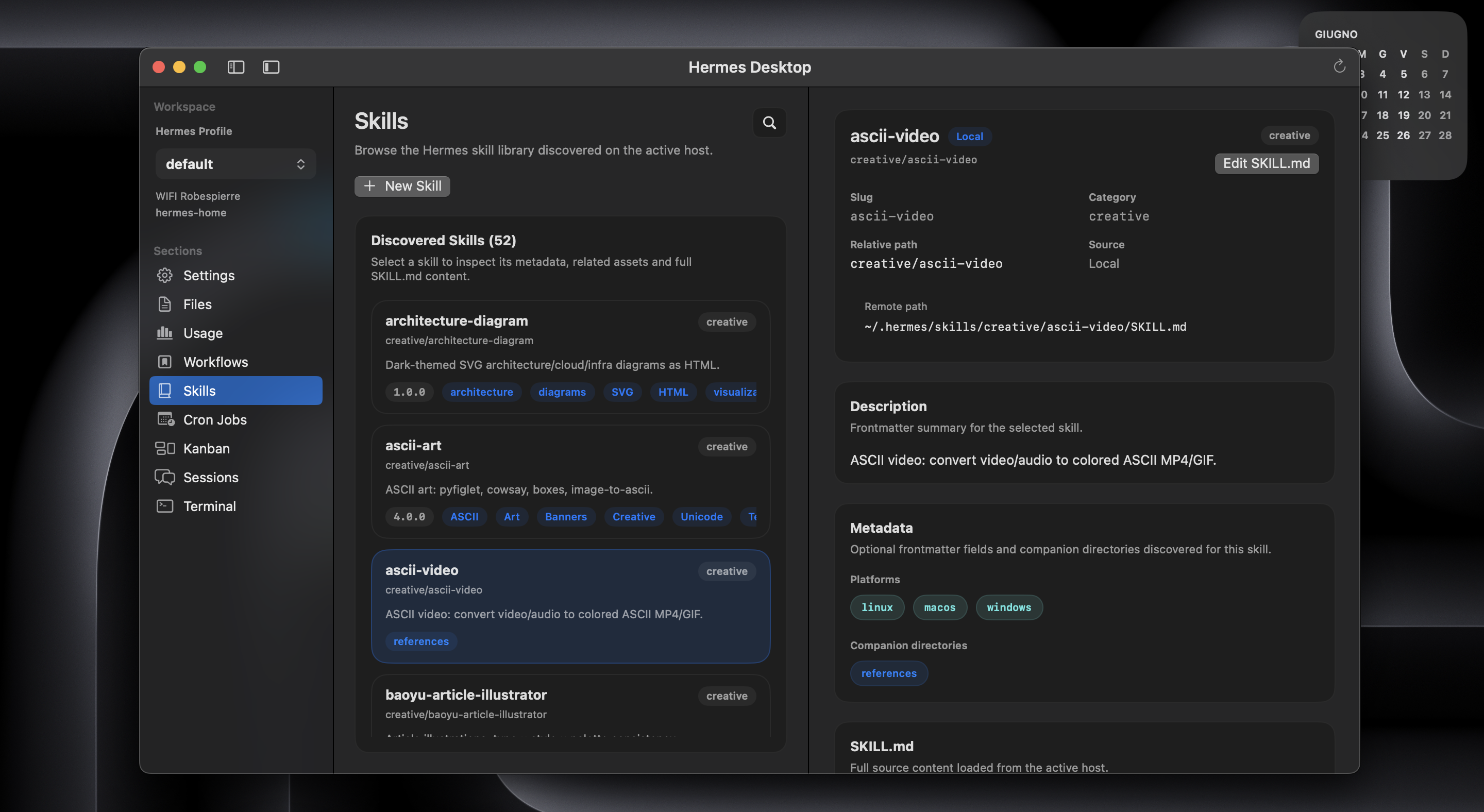
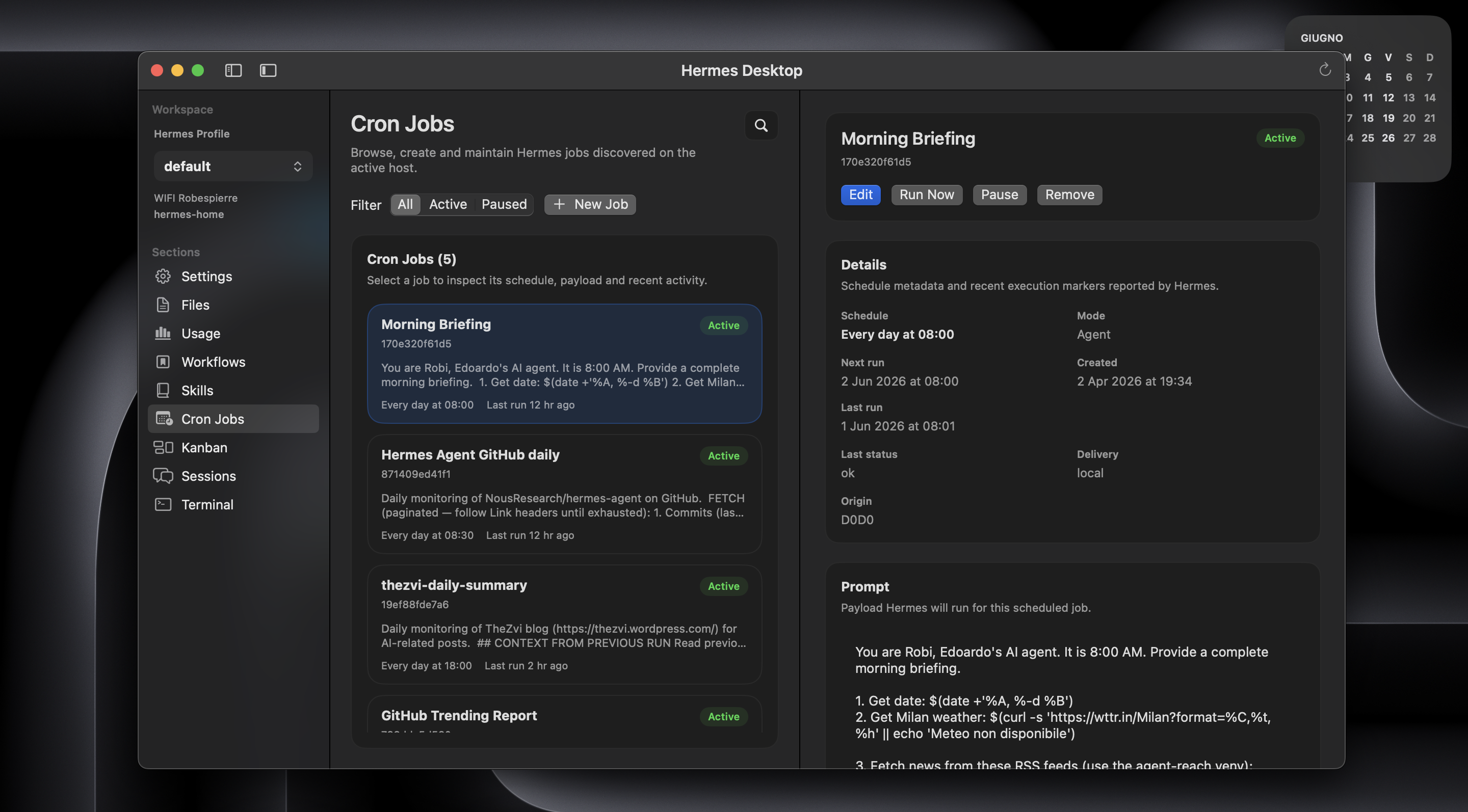
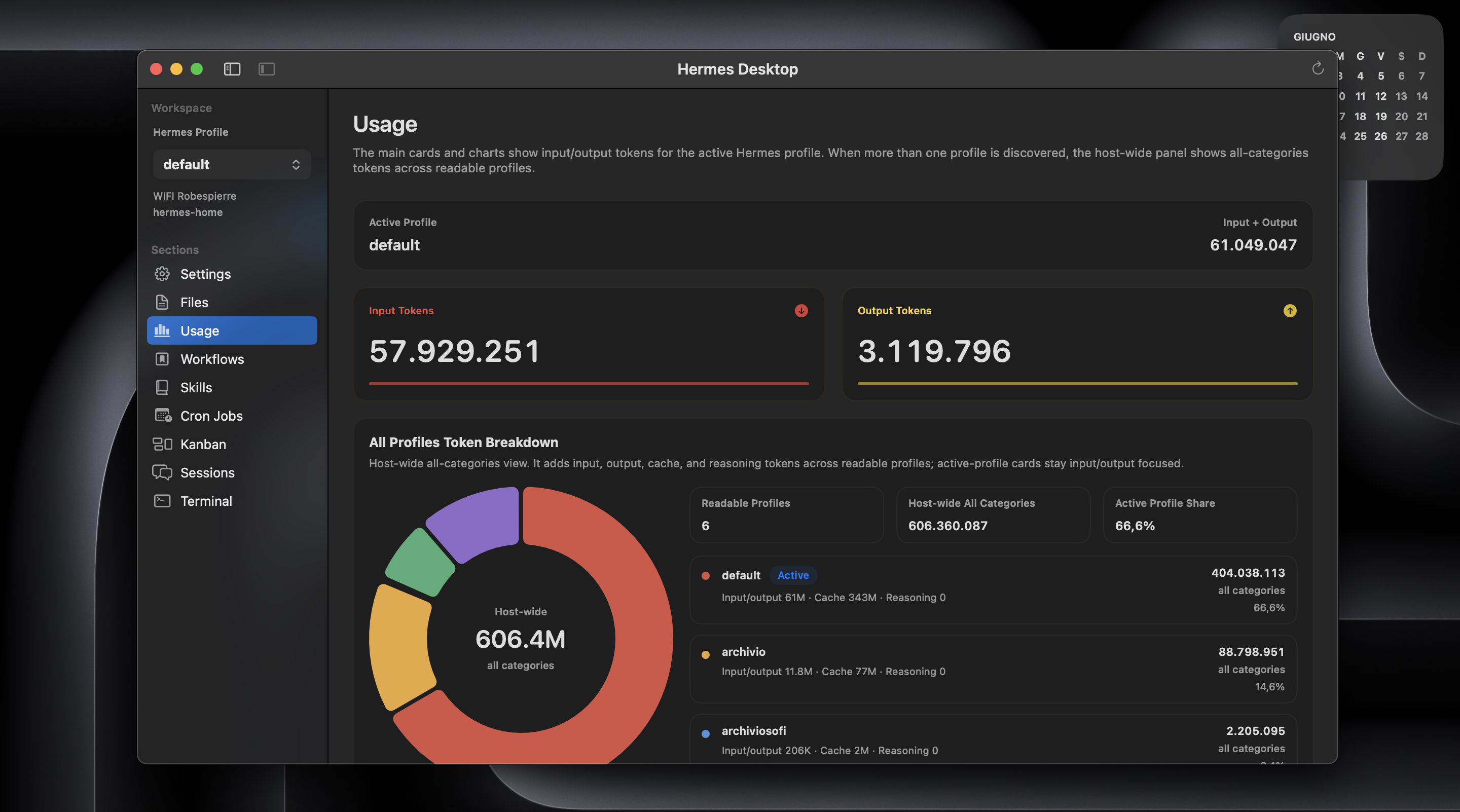
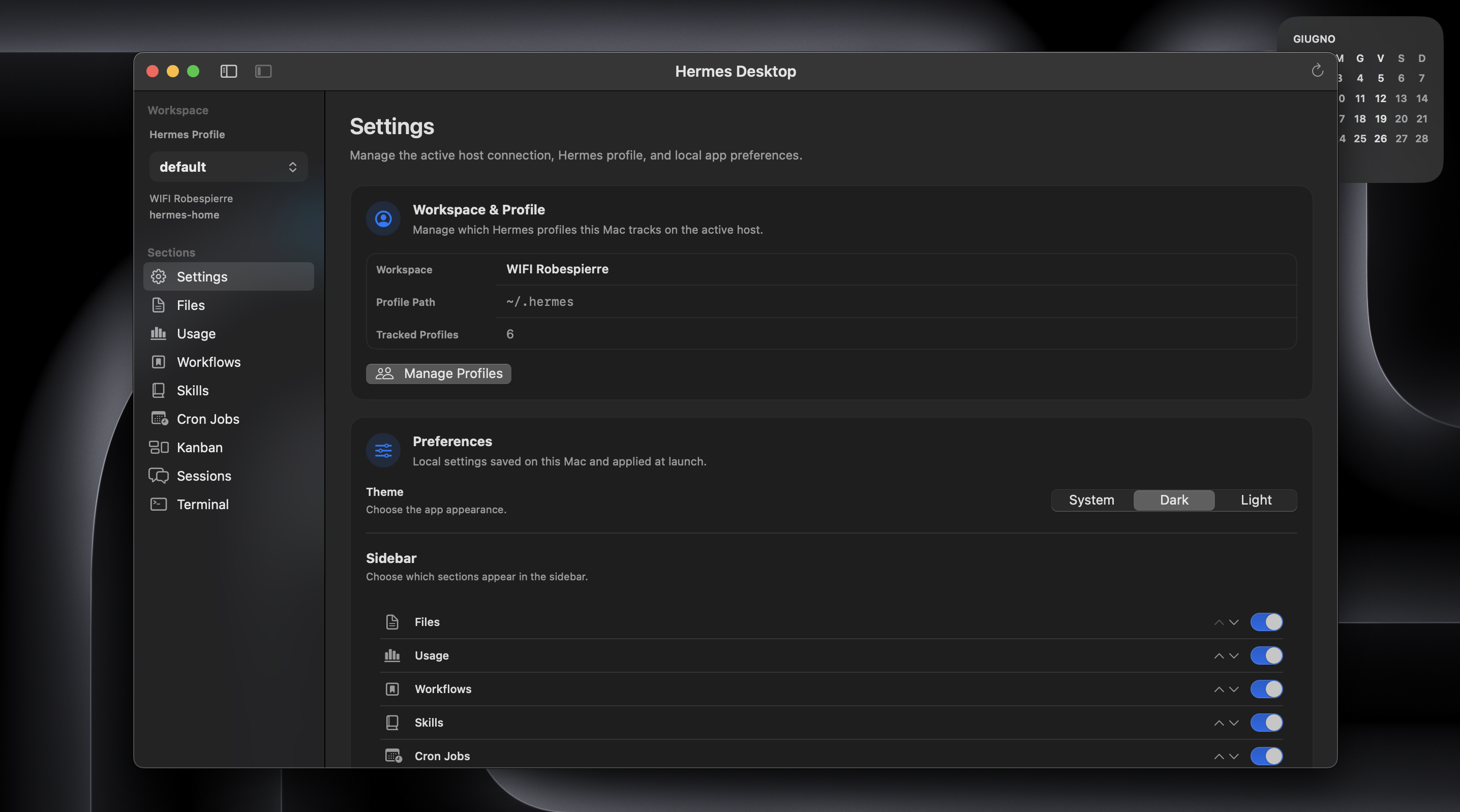
Eight previewed views from the app: sessions, terminal, Kanban, files, skills, cron jobs, usage, and settings.
Hermes Desktop is for people who want a native Mac workbench for the Hermes host they already use, without adding another layer to trust.
Use direct-local mode when Hermes is installed on this Mac. Use SSH mode for a Raspberry Pi, another Mac, a VPS, or a remote server.
The app runs the same service commands either locally or over SSH. Sessions come from the real session store. Kanban comes from the upstream Hermes Kanban home. Cron jobs come from the real scheduler state. Files and skills are edited in place with conflict checks before save.
That restraint has a practical advantage: Hermes Desktop can remain useful when higher-level surfaces are unavailable. If a dashboard, gateway, or agent configuration breaks, the app still has the direct machine path: inspect the real Hermes state, edit the relevant files, open a terminal, and repair the system from the place where the state actually lives.
Hermes also has an official web dashboard. The two tools are complementary.
Use the dashboard when you want a browser-based management surface for the installation: configuration, API keys, logs, sessions, analytics, cron jobs, skills, and web chat.
Use Hermes Desktop when you want to work directly with Hermes from your Mac: sessions, workflows, Kanban, files, editable skills, usage, cron jobs, and a real terminal without adding another backend around Hermes.
The boundary is simple: browser for administration, Mac app for direct Hermes work.
Setup is intentionally lightweight. Before you install, make sure you have:
python3 available on the machine where Hermes runs~/.hermes, a named profile, or a configured
custom Hermes homeFor SSH connections, you additionally need SSH access, an accepted host key, non-interactive authentication, and a working network route.
For Sessions Chat, Terminal resume, and workflow launch, the hermes CLI needs
to be available through the app's prepared shell PATH.
For the native Kanban workspace, the host needs a Hermes Agent build with upstream Kanban support. Newer Kanban features appear automatically when the host exposes them.
For an SSH connection, the simple rule is: if this works in Terminal from this Mac without asking for a password or host key confirmation, the app is usually ready too:
ssh your-host
HermesDesktop.app.zip from the
latest GitHub Release.HermesDesktop.app.HermesDesktop.app into Applications and replace the old copy if
macOS asks.HermesDesktop.app, choose Open, then confirm
Open. This remains the normal first-launch path on supported macOS
versions.Hermes Desktop is currently ad-hoc signed and not notarized by Apple. macOS may show a first-launch warning saying Apple cannot verify it for malware. That is expected for this distribution model and does not mean macOS found malware in Hermes Desktop.
If macOS shows the usual unidentified-developer warning:
Done, not Move to Bin.HermesDesktop.app and choose Open.System Settings > Privacy & Security and click
Open Anyway.On some Macs running macOS 26.5.1 (build 25F80), Gatekeeper may instead say
that Hermes Desktop "is damaged and can't be opened" and may not offer
Open Anyway. The additional steps below are only for that macOS version and
build when that exact alert appears.
First, verify that the zip came from the official GitHub Release. Run:
shasum -a 256 ~/Downloads/HermesDesktop.app.zip
Compare the result with HermesDesktop.app.zip.sha256 attached to the same
release. Do not continue if the values differ. After extracting the verified
zip and moving HermesDesktop.app to Applications, remove the browser
quarantine from this app only, then open it:
xattr -dr com.apple.quarantine "/Applications/HermesDesktop.app"
open "/Applications/HermesDesktop.app"
These commands do not disable Gatekeeper globally and do not require sudo.
They remove the download quarantine only from the verified Hermes Desktop app.
The free alternative with the clearest trust path is to inspect the source and build Hermes Desktop locally. A local build does not inherit browser download quarantine:
git clone https://github.com/dodo-reach/hermes-desktop.git
cd hermes-desktop
./scripts/build-macos-app.sh
open "dist/HermesDesktop.app"
Do not disable Gatekeeper or run sudo commands to install Hermes Desktop.
For the exact distribution and verification details, read docs/distribution.md. If you prefer not to trust the release zip, build from source instead.
Open the app, go to Connections, create a profile, choose This Mac or
SSH Host, then test the connection.
Choose This Mac. No SSH alias, host, user, or port is required. Hermes
Desktop launches local commands with the current macOS user's permissions and
works against that account's real Hermes files, profiles, Cron jobs, Kanban
data, sessions, and CLI.
Local mode is explicit. It is never inferred from an incomplete SSH profile,
and it is distinct from an SSH profile targeting localhost.
Choose SSH Host, then connect with an SSH alias or host details directly.
An SSH alias is the cleanest path for most people. It is the short name you already use in Terminal:
ssh hermes-home
That name usually comes from ~/.ssh/config:
Host hermes-home
  HostName vps.example.com
  User alex
In the app:
SSH alias to hermes-homeHost, User, and Port empty unless you want explicit overridesIf you normally connect with:
ssh alex@vps.example.com
then in the app:
Host or IP: vps.example.comUser: alexPort: 22 or your real SSH portHermes Desktop can target multiple profiles in either local or SSH mode.
Hermes profile empty to use ~/.hermes; the app still discovers
other profiles available through the active connectionHermes profile to researcher to use
~/.hermes/profiles/researcherThe profile is not just a label. It flows through the app: Sessions, Workflows, Cron Jobs, Kanban, Files, Usage, Skills, and Terminal all stay aligned with the selected connection and profile.
Test checksTest is a preflight. In local mode it verifies that Hermes Desktop can launch
commands and find python3 as the current macOS user. In SSH mode it checks
reachability, non-interactive authentication, and python3 in the remote SSH
environment.
Feature-specific requirements, such as the hermes CLI path and Kanban
support, are checked when those sections actually run.
Hermes Desktop is intentionally focused. It is not trying to become a cloud workspace, a remote IDE, or a generic SFTP client.
It gives the real Hermes workflow a native workbench:
Sessions
Searches and reads the real session store, including transcript content.
You can pin important sessions, resume a session in the embedded TUI chat
or in Terminal, and keep the session history close while you work.Workflows
Saves reusable prompt presets on your Mac, scoped to the active
connection/profile,
with optional skill selections. Running one opens a fresh Terminal tab and
seeds the first Hermes turn without adding any shadow state.Kanban
Opens the upstream Hermes Kanban workspace from the active machine. Board
management, task editing, triage flows, comments, dependencies, run history,
and recovery actions appear when the Hermes installation supports them.Files
Edits canonical Hermes files and selected text files with conflict checks
before save.Cron Jobs
Browses and manages the real Hermes scheduler state, including create, edit,
pause, resume, run-now, and delete actions.Usage
Shows token totals, top sessions, top models, recent trends, and profile
breakdowns when available.Skills
Discovers real SKILL.md files, reads skill metadata, and lets you create
or edit skills anchored to the active Hermes skills store.Terminal
Opens a real local or SSH shell inside the app, with tabs, theme presets,
font controls, background-image transparency, and enough room for
multi-profile, multi-agent work.Hermes Desktop does not replace the terminal surfaces Hermes already gives you. It lets you choose the right one for the job.
Chat in Sessions when you want the real Hermes TUI embedded in the
app, already scoped to the active connection and Hermes profile. The Chat
view is a hosted hermes --tui session — there is no separate Desktop
conversation layer in front of it.Transcript in Sessions when you want to inspect persisted history from
the host without starting or resuming a live TUI.Terminal for heavier work where you want shell control,
command approvals, long-running output, or manual review close at hand.hermes --tui in any terminal when you want the same Hermes TUI outside
the desktop layout.All of these paths still run Hermes on the selected machine. The choice is about surface area, not about creating a second source of truth.
If you are evaluating whether to trust Hermes Desktop, start here:
./scripts/build-macos-app.sh if you prefer
the clearest trust path available in this repo todayCurrent public releases include a SHA-256 checksum and a small JSON manifest
for HermesDesktop.app.zip.
After downloading:
shasum -a 256 HermesDesktop.app.zip
After installing:
codesign --verify --deep --strict /Applications/HermesDesktop.app
To verify a release zip against the published manifest from a repo checkout:
./scripts/verify-release.sh \
  /path/to/HermesDesktop.app.zip \
  /path/to/HermesDesktop.app.zip.manifest.json
Checksums are a useful integrity check, not a trust model. They tell you whether your download matches the published release asset. They do not replace source review, local builds, or understanding the current distribution model.
For cautious users, building from source is the clearest trust path available in this repo today. For local development, it is also the supported path for producing the app bundle directly:
./scripts/build-macos-app.sh
Then open:
dist/HermesDesktop.app
To run the release-support test suite:
./scripts/run-tests.sh
To create the GitHub Releases archive:
./scripts/package-github-release.sh
For release-candidate packaging, you can stamp an explicit version:
HERMES_VERSION=1.2.3 ./scripts/package-github-release.sh
Release artifacts:
dist/HermesDesktop.app.zipdist/HermesDesktop.app.zip.sha256dist/HermesDesktop.app.zip.manifest.jsonThat is the right question, and you should not rely on reassurance alone.
Hermes Desktop is open source, runs directly against Hermes on this Mac or over SSH to the host you choose, does not require a gateway API or helper service, and stores only a small amount of app state on your Mac. The built-in update check calls GitHub Releases for the latest Hermes Desktop app version only; it does not update Hermes Agent and does not send your connection, profile, file, session, or Kanban content.
The current public build is ad-hoc signed and not notarized by Apple, so macOS may show a first-launch warning. On some Macs running macOS 26.5.1 (build 25F80), Gatekeeper may show a stronger "damaged" alert; follow the version-specific, checksum-first instructions above. Cautious users should read SECURITY.md, read docs/distribution.md, and consider building from source.
On the machine where Hermes runs.
Sessions, Kanban, cron jobs, files, skills, and usage are read from the active connection and profile. In direct-local mode those are your current macOS account's real Hermes files on this Mac. In SSH mode they remain on the remote host. Hermes Desktop does not maintain a synchronized mirror of Hermes state.
Some local app preferences and connection details are stored under
~/Library/Application Support/HermesDesktop. That includes connection
profiles, pinned sessions, bookmarked files, workflow presets, sidebar order,
and appearance preferences such as terminal font/theme and optional background
image assets. The current local state is documented in SECURITY.md.
Only for an SSH Host connection. Direct-local This Mac connections do not
require SSH.
For SSH hosts, the app uses the same SSH path your Mac already uses, but in a non-interactive way. If Terminal still needs password entry, host key confirmation, or other interactive setup for that target, the app will usually hit the same wall.
It runs the real Hermes TUI through the active local or SSH connection, hosted
inside the Sessions view of the app.
Starting a new chat launches hermes --tui in an embedded TUI terminal.
Resuming a session launches hermes --tui --resume <session-id>, with the
selected Hermes profile preserved when one is active.
The important detail is that Chat is a hosted hermes --tui surface, not a
separate Desktop conversation backend. Sessions still reads persisted
transcripts from the active Hermes store, which remains the source of truth.
No.
It lets you browse directories on the active Hermes machine and bookmark selected text files next to the canonical Hermes files. It is still a focused Hermes workspace, not a full file manager, SFTP client, or IDE. Text files up to 10 MB are editable.
Hermes Desktop will not blindly overwrite it.
Before saving an edited workspace file or skill, the app checks whether the file on the active Hermes machine still matches the version you opened. If it changed, save is blocked and your unsaved edits stay intact until you reload intentionally.
Most of the original roadmap is now shipped.
Hermes Desktop has reached the shape it was aiming for: a calm, capable native macOS workspace for the real Hermes workflow, anchored to the machine where Hermes runs as the source of truth.
From here, the work is not about adding novelty for its own sake. It is about:
Anything larger than that should be justified by Hermes itself, not added just because it is technically possible.
579 followers · starred Jun 2026
166 followers · starred May 2026
618 followers · starred Apr 2026
1,426 followers · starred May 2026
The safest, simplest way to manage Hermes from your Mac. Pure SSH. No gateways, no exposed ports, no browser layer.
See the codeNative macOS companion for Hermes Agent, directly on this Mac or over SSH.
It turns the daily Hermes loop into something you can actually live in on a Mac: sessions, workflows, Kanban, workspace files, usage, skills, cron jobs, and a real terminal in one focused window.
If Hermes is already part of how you work, the app should feel immediately legible. Same host. Same files. Same profiles. Same source of truth.
No browser wrapper. No gateway API. No daemon on the host. No local mirror. No extra sync layer slowly drifting away from the machine that actually matters.
That restraint is the point of the app.
Hermes Desktop does not invent a softer second version of Hermes. It gives the real machine-first workflow a calm, fast, native Mac surface while keeping the model visible. You always know which host you are on, which Hermes profile is active, which path the app is using, and where the work is happening.
|
|
|
|
|
|
|
|
|
|
|
|
Eight previewed views from the app: sessions, terminal, Kanban, files, skills, cron jobs, usage, and settings.
Hermes Desktop is for people who want a native Mac workbench for the Hermes host they already use, without adding another layer to trust.
Use direct-local mode when Hermes is installed on this Mac. Use SSH mode for a Raspberry Pi, another Mac, a VPS, or a remote server.
The app runs the same service commands either locally or over SSH. Sessions come from the real session store. Kanban comes from the upstream Hermes Kanban home. Cron jobs come from the real scheduler state. Files and skills are edited in place with conflict checks before save.
That restraint has a practical advantage: Hermes Desktop can remain useful when higher-level surfaces are unavailable. If a dashboard, gateway, or agent configuration breaks, the app still has the direct machine path: inspect the real Hermes state, edit the relevant files, open a terminal, and repair the system from the place where the state actually lives.
Hermes also has an official web dashboard. The two tools are complementary.
Use the dashboard when you want a browser-based management surface for the installation: configuration, API keys, logs, sessions, analytics, cron jobs, skills, and web chat.
Use Hermes Desktop when you want to work directly with Hermes from your Mac: sessions, workflows, Kanban, files, editable skills, usage, cron jobs, and a real terminal without adding another backend around Hermes.
The boundary is simple: browser for administration, Mac app for direct Hermes work.
Setup is intentionally lightweight. Before you install, make sure you have:
python3 available on the machine where Hermes runs~/.hermes, a named profile, or a configured
custom Hermes homeFor SSH connections, you additionally need SSH access, an accepted host key, non-interactive authentication, and a working network route.
For Sessions Chat, Terminal resume, and workflow launch, the hermes CLI needs
to be available through the app's prepared shell PATH.
For the native Kanban workspace, the host needs a Hermes Agent build with upstream Kanban support. Newer Kanban features appear automatically when the host exposes them.
For an SSH connection, the simple rule is: if this works in Terminal from this Mac without asking for a password or host key confirmation, the app is usually ready too:
ssh your-host
HermesDesktop.app.zip from the
latest GitHub Release.HermesDesktop.app.HermesDesktop.app into Applications and replace the old copy if
macOS asks.HermesDesktop.app, choose Open, then confirm
Open. This remains the normal first-launch path on supported macOS
versions.Hermes Desktop is currently ad-hoc signed and not notarized by Apple. macOS may show a first-launch warning saying Apple cannot verify it for malware. That is expected for this distribution model and does not mean macOS found malware in Hermes Desktop.
If macOS shows the usual unidentified-developer warning:
Done, not Move to Bin.HermesDesktop.app and choose Open.System Settings > Privacy & Security and click
Open Anyway.On some Macs running macOS 26.5.1 (build 25F80), Gatekeeper may instead say
that Hermes Desktop "is damaged and can't be opened" and may not offer
Open Anyway. The additional steps below are only for that macOS version and
build when that exact alert appears.
First, verify that the zip came from the official GitHub Release. Run:
shasum -a 256 ~/Downloads/HermesDesktop.app.zip
Compare the result with HermesDesktop.app.zip.sha256 attached to the same
release. Do not continue if the values differ. After extracting the verified
zip and moving HermesDesktop.app to Applications, remove the browser
quarantine from this app only, then open it:
xattr -dr com.apple.quarantine "/Applications/HermesDesktop.app"
open "/Applications/HermesDesktop.app"
These commands do not disable Gatekeeper globally and do not require sudo.
They remove the download quarantine only from the verified Hermes Desktop app.
The free alternative with the clearest trust path is to inspect the source and build Hermes Desktop locally. A local build does not inherit browser download quarantine:
git clone https://github.com/dodo-reach/hermes-desktop.git
cd hermes-desktop
./scripts/build-macos-app.sh
open "dist/HermesDesktop.app"
Do not disable Gatekeeper or run sudo commands to install Hermes Desktop.
For the exact distribution and verification details, read docs/distribution.md. If you prefer not to trust the release zip, build from source instead.
Open the app, go to Connections, create a profile, choose This Mac or
SSH Host, then test the connection.
Choose This Mac. No SSH alias, host, user, or port is required. Hermes
Desktop launches local commands with the current macOS user's permissions and
works against that account's real Hermes files, profiles, Cron jobs, Kanban
data, sessions, and CLI.
Local mode is explicit. It is never inferred from an incomplete SSH profile,
and it is distinct from an SSH profile targeting localhost.
Choose SSH Host, then connect with an SSH alias or host details directly.
An SSH alias is the cleanest path for most people. It is the short name you already use in Terminal:
ssh hermes-home
That name usually comes from ~/.ssh/config:
Host hermes-home
  HostName vps.example.com
  User alex
In the app:
SSH alias to hermes-homeHost, User, and Port empty unless you want explicit overridesIf you normally connect with:
ssh alex@vps.example.com
then in the app:
Host or IP: vps.example.comUser: alexPort: 22 or your real SSH portHermes Desktop can target multiple profiles in either local or SSH mode.
Hermes profile empty to use ~/.hermes; the app still discovers
other profiles available through the active connectionHermes profile to researcher to use
~/.hermes/profiles/researcherThe profile is not just a label. It flows through the app: Sessions, Workflows, Cron Jobs, Kanban, Files, Usage, Skills, and Terminal all stay aligned with the selected connection and profile.
Test checksTest is a preflight. In local mode it verifies that Hermes Desktop can launch
commands and find python3 as the current macOS user. In SSH mode it checks
reachability, non-interactive authentication, and python3 in the remote SSH
environment.
Feature-specific requirements, such as the hermes CLI path and Kanban
support, are checked when those sections actually run.
Hermes Desktop is intentionally focused. It is not trying to become a cloud workspace, a remote IDE, or a generic SFTP client.
It gives the real Hermes workflow a native workbench:
Sessions
Searches and reads the real session store, including transcript content.
You can pin important sessions, resume a session in the embedded TUI chat
or in Terminal, and keep the session history close while you work.Workflows
Saves reusable prompt presets on your Mac, scoped to the active
connection/profile,
with optional skill selections. Running one opens a fresh Terminal tab and
seeds the first Hermes turn without adding any shadow state.Kanban
Opens the upstream Hermes Kanban workspace from the active machine. Board
management, task editing, triage flows, comments, dependencies, run history,
and recovery actions appear when the Hermes installation supports them.Files
Edits canonical Hermes files and selected text files with conflict checks
before save.Cron Jobs
Browses and manages the real Hermes scheduler state, including create, edit,
pause, resume, run-now, and delete actions.Usage
Shows token totals, top sessions, top models, recent trends, and profile
breakdowns when available.Skills
Discovers real SKILL.md files, reads skill metadata, and lets you create
or edit skills anchored to the active Hermes skills store.Terminal
Opens a real local or SSH shell inside the app, with tabs, theme presets,
font controls, background-image transparency, and enough room for
multi-profile, multi-agent work.Hermes Desktop does not replace the terminal surfaces Hermes already gives you. It lets you choose the right one for the job.
Chat in Sessions when you want the real Hermes TUI embedded in the
app, already scoped to the active connection and Hermes profile. The Chat
view is a hosted hermes --tui session — there is no separate Desktop
conversation layer in front of it.Transcript in Sessions when you want to inspect persisted history from
the host without starting or resuming a live TUI.Terminal for heavier work where you want shell control,
command approvals, long-running output, or manual review close at hand.hermes --tui in any terminal when you want the same Hermes TUI outside
the desktop layout.All of these paths still run Hermes on the selected machine. The choice is about surface area, not about creating a second source of truth.
If you are evaluating whether to trust Hermes Desktop, start here:
./scripts/build-macos-app.sh if you prefer
the clearest trust path available in this repo todayCurrent public releases include a SHA-256 checksum and a small JSON manifest
for HermesDesktop.app.zip.
After downloading:
shasum -a 256 HermesDesktop.app.zip
After installing:
codesign --verify --deep --strict /Applications/HermesDesktop.app
To verify a release zip against the published manifest from a repo checkout:
./scripts/verify-release.sh \
  /path/to/HermesDesktop.app.zip \
  /path/to/HermesDesktop.app.zip.manifest.json
Checksums are a useful integrity check, not a trust model. They tell you whether your download matches the published release asset. They do not replace source review, local builds, or understanding the current distribution model.
For cautious users, building from source is the clearest trust path available in this repo today. For local development, it is also the supported path for producing the app bundle directly:
./scripts/build-macos-app.sh
Then open:
dist/HermesDesktop.app
To run the release-support test suite:
./scripts/run-tests.sh
To create the GitHub Releases archive:
./scripts/package-github-release.sh
For release-candidate packaging, you can stamp an explicit version:
HERMES_VERSION=1.2.3 ./scripts/package-github-release.sh
Release artifacts:
dist/HermesDesktop.app.zipdist/HermesDesktop.app.zip.sha256dist/HermesDesktop.app.zip.manifest.jsonThat is the right question, and you should not rely on reassurance alone.
Hermes Desktop is open source, runs directly against Hermes on this Mac or over SSH to the host you choose, does not require a gateway API or helper service, and stores only a small amount of app state on your Mac. The built-in update check calls GitHub Releases for the latest Hermes Desktop app version only; it does not update Hermes Agent and does not send your connection, profile, file, session, or Kanban content.
The current public build is ad-hoc signed and not notarized by Apple, so macOS may show a first-launch warning. On some Macs running macOS 26.5.1 (build 25F80), Gatekeeper may show a stronger "damaged" alert; follow the version-specific, checksum-first instructions above. Cautious users should read SECURITY.md, read docs/distribution.md, and consider building from source.
On the machine where Hermes runs.
Sessions, Kanban, cron jobs, files, skills, and usage are read from the active connection and profile. In direct-local mode those are your current macOS account's real Hermes files on this Mac. In SSH mode they remain on the remote host. Hermes Desktop does not maintain a synchronized mirror of Hermes state.
Some local app preferences and connection details are stored under
~/Library/Application Support/HermesDesktop. That includes connection
profiles, pinned sessions, bookmarked files, workflow presets, sidebar order,
and appearance preferences such as terminal font/theme and optional background
image assets. The current local state is documented in SECURITY.md.
Only for an SSH Host connection. Direct-local This Mac connections do not
require SSH.
For SSH hosts, the app uses the same SSH path your Mac already uses, but in a non-interactive way. If Terminal still needs password entry, host key confirmation, or other interactive setup for that target, the app will usually hit the same wall.
It runs the real Hermes TUI through the active local or SSH connection, hosted
inside the Sessions view of the app.
Starting a new chat launches hermes --tui in an embedded TUI terminal.
Resuming a session launches hermes --tui --resume <session-id>, with the
selected Hermes profile preserved when one is active.
The important detail is that Chat is a hosted hermes --tui surface, not a
separate Desktop conversation backend. Sessions still reads persisted
transcripts from the active Hermes store, which remains the source of truth.
No.
It lets you browse directories on the active Hermes machine and bookmark selected text files next to the canonical Hermes files. It is still a focused Hermes workspace, not a full file manager, SFTP client, or IDE. Text files up to 10 MB are editable.
Hermes Desktop will not blindly overwrite it.
Before saving an edited workspace file or skill, the app checks whether the file on the active Hermes machine still matches the version you opened. If it changed, save is blocked and your unsaved edits stay intact until you reload intentionally.
Most of the original roadmap is now shipped.
Hermes Desktop has reached the shape it was aiming for: a calm, capable native macOS workspace for the real Hermes workflow, anchored to the machine where Hermes runs as the source of truth.
From here, the work is not about adding novelty for its own sake. It is about:
Anything larger than that should be justified by Hermes itself, not added just because it is technically possible.
579 followers · starred Jun 2026
166 followers · starred May 2026
618 followers · starred Apr 2026
1,426 followers · starred May 2026