
A tray icon and desktop alerts for systemd services and custom health checks
Go
24
246 commits
updated Oct 5, 2026
See what people are saying
README
Mr. Montray is watching your services
Montray is a lightweight tray-icon monitoring utility for systemd services and anything else you can check from the command line, on both local and remote machines.
Project history
I use Syncthing to sync important data across multiple machines. It works so well that, after setting it up, I just got used to it working all the time. And then one day I noticed that apparently some stuff didn't get synced. So I checked around, and found out that the Syncthing systemd service got broken a couple weeks ago for some reason, without me noticing it, and so nothing was synced during this time. Reconciling that data wasn't fun.
What's even more annoying is that an incident like a systemd service failure totally should have been communicated to me somehow, and yet I didn't know about it until I noticed side effects.
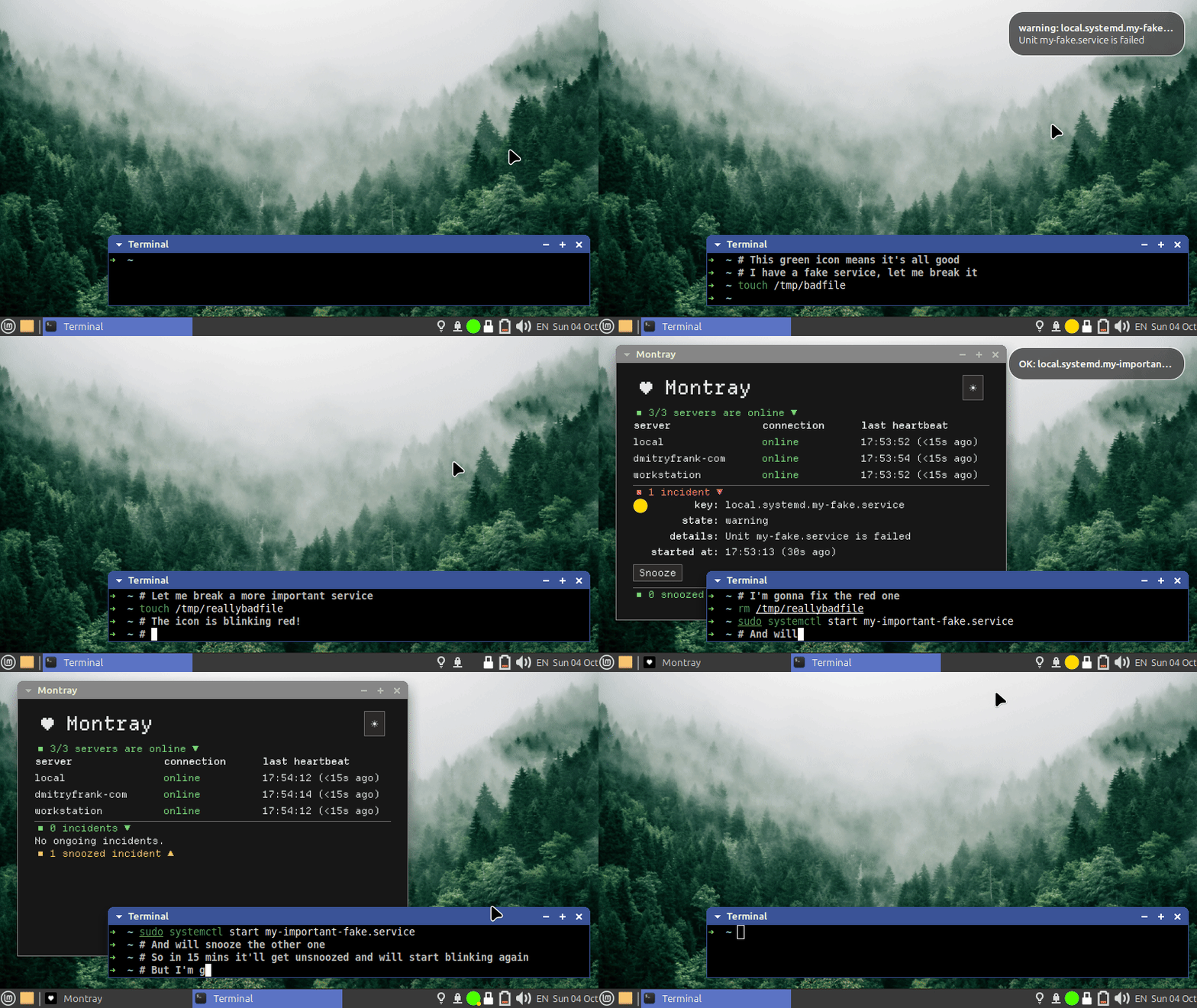
It wasn't the first time when I got frustrated about the OS being too silent about failures like that (both locally and on the servers), and so after this Syncthing incident, I finally resolved to fix it. I didn't want some enterprisey monitoring for this simple task: I just wanted a simple icon, always present in tray: green means it's all good, blinking yellow/red means something's broken. That's it.
So the first idea was to make it a sort of "systemd monitoring". However, I soon realized that I actually want to reuse the same tray icon for monitoring other things; a trivial example is to just check if we're not running out of disk space. Most desktop environments do perform this check for us, but when it comes to the servers, we're on our own; and it happened to me more than once in the past that a server runs out of disk space and it takes a while to find that out and fix. So now Montray also supports running arbitrary command periodically, and alert on an unsuccessful exit code. This way, we can implement monitoring of literally anything that can be checked from the command line.
Overview
This project has two main parts:
montray-server, a background service written in Go: runs on a machine, checks its health, and serves the current incidents via simple read-only WebSocket API;montray-ui, a desktop app written in Rust + Slint: connects to one or moremontray-servers, receives data from them, shows a tray icon, sends desktop notifications, and provides a native GUI.
So montray-server is a server (which can run locally too), and montray-ui is a
client which runs on e.g. a laptop. If we have a laptop and two servers, a
typical setup looks like this:
flowchart LR
    subgraph laptop["Laptop"]
        localServer["montray-server"] --> desktop["montray-ui"]
    end

    subgraph server1["Server 1"]
        server1Monitor["montray-server"]
    end

    subgraph server2["Server 2"]
        server2Monitor["montray-server"]
    end

    server1Monitor --> desktop
    server2Monitor --> desktop
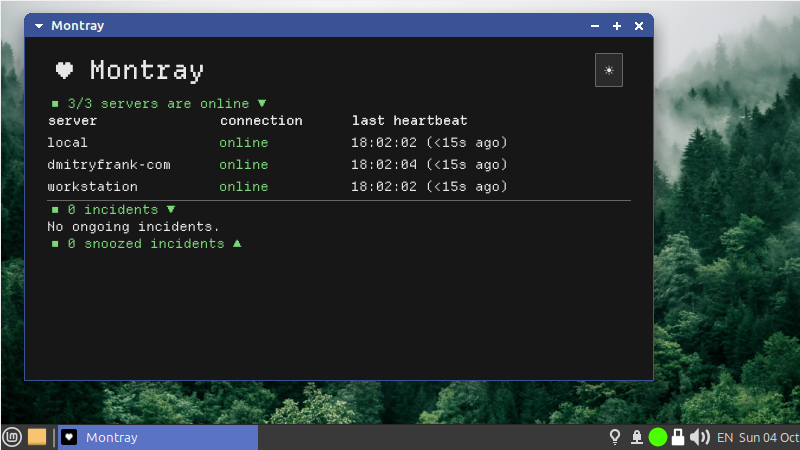
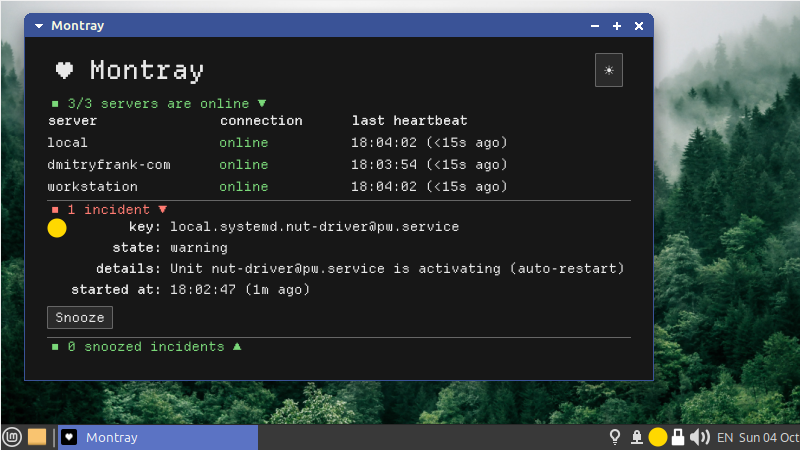
Montray Server reports incidents, each of them has:
- A key, like
systemd.my-serviceorfree-space.exec-result - A state:
warningorerror
These incidents are generated according to the Montray Server configuration. For details, see Configuring Montray Server.
Montray UI combines these incidents. For each incident, it also prefixes the
keys with the ID for that particular server, such as my-server (which you
specify in the Montray UI config), so the key becomes
my-server.systemd.myservice.
For details, see Configuring Montray UI.
If an incident happens and we want to just acknowledge it but worry about it later, we can snooze it in the UI, so the icon stops being annoying but it'll get unsnoozed again later.
The tray icon shows the worst current non-snoozed state:
- Gray: the initial state isn't known yet;
- Green: everything is OK;
- Magenta blinking: Montray UI itself has an internal connection or tunnel error;
- Yellow blinking: at least one warning;
- Red blinking: at least one error.
Installation Quick Start (Linux)
Monitoring local machine
The easiest way to install both montray-server and montray-ui to monitor local
machine health is as follows:
First, download the latest prebuilt binaries from GitHub,
like montray-server-x.y.z_linux_amd64.tar.gz and
montray-ui-x.y.z_linux_amd64.tar.gz, and unpack them. You'll get two binaries:
montray-server and montray-ui.
Then:
# Set up the monitoring service and start it. This also installs montray-server
# under /usr/local/bin when not already there.
sudo ./montray-server setup

# Install the desktop application system-wide:
sudo install -m 755 montray-ui /usr/local/bin/montray-ui

# Let the desktop application create its default config, autostart entry,
# and application launcher:
montray-ui setup

# Start the desktop application (Montray Server is already running):
montray-ui
You should now see a tray icon, and if you click on it, you'll see the UI. When you reboot, it will start automatically.
Monitoring remote machines
If you have e.g. a personal server which you also want to monitor using the
same interface on your desktop, then on each such remote machine follow the
same steps as above, but only for montray-server (no need to install montray-ui
on the servers).
Having montray-server running on your server, we need to point our local
Montray UI (montray-ui) to it. By default, Montray Server only listens on
127.0.0.1, so we can't reach it directly from a laptop.
Presumably you have ssh access to your server with public key authentication
(i.e. you can ssh there without a password), so the easiest way forward here is
to establish an ssh tunnel, and Montray UI has convenient support for it:
open the config file ~/.config/montray-ui/montray-ui.yml, and add one
more entry to the wsClient.servers array, like that (adjusting at least your
server hostname and username). There is no addr in this entry: for a
structured SSH tunnel, Montray UI automatically allocates an available port
on 127.0.0.1. You may still set an explicit loopback addr with a port of
your choice when a fixed local forwarding port is useful.
    - id: myserver # Arbitrary but unique ID for this server.
      tunnel:
        ssh:
          host: myserver.com  # TODO: your actual server hostname
          user: myuser        # TODO: your actual ssh user
          port: 22            # Change if using non-default ssh port
          remoteServerAddr: 127.0.0.1:41990 # Montray Server listening port
And restart Montray UI (montray-ui) by right-clicking the tray icon and
selecting "Restart and reload configuration." Open the UI and verify that the
list of servers now includes your newly added remote server as well.
SSH tunnel is not the only way to access remote servers; Montray UI also supports TLS and bearer token authentication. For details, see docs on Security.
Configuration
The default config (which sudo montray-server setup writes to
/etc/montray-server.yml) is
as follows: if any systemd service is failing, it's a warning (the tray icon
will be blinking yellow). If there's less than 100 MiB of free space in the
root partition, it's an error (the tray icon will be blinking red). Otherwise,
it's all good (the tray icon is green).
The config includes comments and examples, so take a look and experiment with
it; and also check the Configuring Montray Server
docs. For
instance, I like to explicitly list services I particularly care about, such as
Syncthing, and configure any state other than active as an error rather than
a warning. That includes services stopped manually - if it was manually stopped
for some reason, I want to be annoyed by the blinking icon until the service is
running again. And I have some more custom exec checks as well.
Don't forget to restart the Montray Server systemd service to apply the changes:
sudo systemctl restart montray-server.service
Non-Linux OS support
So far Montray was only tested on Linux. Nevertheless, the client
(montray-ui) should work on Windows and MacOS as well, so you can run it
there and monitor your remote Linux servers, but not so much the local machine.
Even montray-server can technically run on non-Linux, but obviously systemd is
irrelevant there, and then the only useful check there is exec: just polling
some script periodically, so we lose the out-of-the-box system-wide system
service monitoring, and thus the usefulness is limited. Would be cool to
implement systemd-like checks for Windows and MacOS, but I don't use these so
hard to test. PRs are welcome.
Development
Building
You need Go 1.26 and Rust 1.92 or newer.
On Ubuntu, install the native dependencies used to build and run
montray-ui:
sudo apt-get install -y gcc libfontconfig-dev libxkbcommon-x11-0
gcc compiles native Rust dependencies, libfontconfig-dev provides the
Fontconfig development files required by Slint's font stack, and
libxkbcommon-x11-0 is loaded by Slint/winit when the application runs under
X11.
Having that, to build both montray-server and montray-ui:
make
To build only one of them:
make montray-server
make montray-ui
To build a debug binary for Montray UI (for a faster build, comparing to release):
make montray-ui-debug
To install built binaries under /usr/local/bin:
sudo make install-montray-server
sudo make install-montray-ui
The legacy Go client (serving local web ui) is not part of the default build.
Building it with make montray-ui-legacy additionally requires
libgtk-3-dev and libayatana-appindicator3-dev on Ubuntu.
Running tests
The test suite uses the same Go and Rust build requirements described above.
It also requires a current Node.js LTS release for the
legacy client's JavaScript tests. Because go test ./... compiles the legacy
GTK client, its native dependencies are required on Ubuntu too:
sudo apt-get install -y libgtk-3-dev libayatana-appindicator3-dev
Then:
make test
To run only the montray-ui Rust tests:
cargo test --manifest-path cmd/montray-ui/Cargo.toml
Two native window-geometry tests are ignored by the regular suite because they require a real X11 session and window manager. A headless environment cannot accurately test window positioning, maximizing, hiding, and restoring. Run them explicitly, as separate commands:
cargo test --manifest-path cmd/montray-ui/Cargo.toml native_startup_restores_geometry_and_maximized_state -- --ignored
cargo test --manifest-path cmd/montray-ui/Cargo.toml native_hide_show_preserves_normal_geometry_while_maximized -- --ignored
They must run separately because Slint's GUI platform can be initialized only once per test process. Running both together would make the second test fail for a platform-initialization reason rather than a geometry problem.
Screenshots
Documentation
Similar repos


A tray icon and desktop alerts for systemd services and custom health checks
Go
24
246 commits
updated Oct 5, 2026
See what people are saying
README
Mr. Montray is watching your services
Montray is a lightweight tray-icon monitoring utility for systemd services and anything else you can check from the command line, on both local and remote machines.
Project history
I use Syncthing to sync important data across multiple machines. It works so well that, after setting it up, I just got used to it working all the time. And then one day I noticed that apparently some stuff didn't get synced. So I checked around, and found out that the Syncthing systemd service got broken a couple weeks ago for some reason, without me noticing it, and so nothing was synced during this time. Reconciling that data wasn't fun.
What's even more annoying is that an incident like a systemd service failure totally should have been communicated to me somehow, and yet I didn't know about it until I noticed side effects.
It wasn't the first time when I got frustrated about the OS being too silent about failures like that (both locally and on the servers), and so after this Syncthing incident, I finally resolved to fix it. I didn't want some enterprisey monitoring for this simple task: I just wanted a simple icon, always present in tray: green means it's all good, blinking yellow/red means something's broken. That's it.
So the first idea was to make it a sort of "systemd monitoring". However, I soon realized that I actually want to reuse the same tray icon for monitoring other things; a trivial example is to just check if we're not running out of disk space. Most desktop environments do perform this check for us, but when it comes to the servers, we're on our own; and it happened to me more than once in the past that a server runs out of disk space and it takes a while to find that out and fix. So now Montray also supports running arbitrary command periodically, and alert on an unsuccessful exit code. This way, we can implement monitoring of literally anything that can be checked from the command line.
Overview
This project has two main parts:
montray-server, a background service written in Go: runs on a machine, checks its health, and serves the current incidents via simple read-only WebSocket API;montray-ui, a desktop app written in Rust + Slint: connects to one or moremontray-servers, receives data from them, shows a tray icon, sends desktop notifications, and provides a native GUI.
So montray-server is a server (which can run locally too), and montray-ui is a
client which runs on e.g. a laptop. If we have a laptop and two servers, a
typical setup looks like this:
flowchart LR
    subgraph laptop["Laptop"]
        localServer["montray-server"] --> desktop["montray-ui"]
    end

    subgraph server1["Server 1"]
        server1Monitor["montray-server"]
    end

    subgraph server2["Server 2"]
        server2Monitor["montray-server"]
    end

    server1Monitor --> desktop
    server2Monitor --> desktop
Montray Server reports incidents, each of them has:
- A key, like
systemd.my-serviceorfree-space.exec-result - A state:
warningorerror
These incidents are generated according to the Montray Server configuration. For details, see Configuring Montray Server.
Montray UI combines these incidents. For each incident, it also prefixes the
keys with the ID for that particular server, such as my-server (which you
specify in the Montray UI config), so the key becomes
my-server.systemd.myservice.
For details, see Configuring Montray UI.
If an incident happens and we want to just acknowledge it but worry about it later, we can snooze it in the UI, so the icon stops being annoying but it'll get unsnoozed again later.
The tray icon shows the worst current non-snoozed state:
- Gray: the initial state isn't known yet;
- Green: everything is OK;
- Magenta blinking: Montray UI itself has an internal connection or tunnel error;
- Yellow blinking: at least one warning;
- Red blinking: at least one error.
Installation Quick Start (Linux)
Monitoring local machine
The easiest way to install both montray-server and montray-ui to monitor local
machine health is as follows:
First, download the latest prebuilt binaries from GitHub,
like montray-server-x.y.z_linux_amd64.tar.gz and
montray-ui-x.y.z_linux_amd64.tar.gz, and unpack them. You'll get two binaries:
montray-server and montray-ui.
Then:
# Set up the monitoring service and start it. This also installs montray-server
# under /usr/local/bin when not already there.
sudo ./montray-server setup

# Install the desktop application system-wide:
sudo install -m 755 montray-ui /usr/local/bin/montray-ui

# Let the desktop application create its default config, autostart entry,
# and application launcher:
montray-ui setup

# Start the desktop application (Montray Server is already running):
montray-ui
You should now see a tray icon, and if you click on it, you'll see the UI. When you reboot, it will start automatically.
Monitoring remote machines
If you have e.g. a personal server which you also want to monitor using the
same interface on your desktop, then on each such remote machine follow the
same steps as above, but only for montray-server (no need to install montray-ui
on the servers).
Having montray-server running on your server, we need to point our local
Montray UI (montray-ui) to it. By default, Montray Server only listens on
127.0.0.1, so we can't reach it directly from a laptop.
Presumably you have ssh access to your server with public key authentication
(i.e. you can ssh there without a password), so the easiest way forward here is
to establish an ssh tunnel, and Montray UI has convenient support for it:
open the config file ~/.config/montray-ui/montray-ui.yml, and add one
more entry to the wsClient.servers array, like that (adjusting at least your
server hostname and username). There is no addr in this entry: for a
structured SSH tunnel, Montray UI automatically allocates an available port
on 127.0.0.1. You may still set an explicit loopback addr with a port of
your choice when a fixed local forwarding port is useful.
    - id: myserver # Arbitrary but unique ID for this server.
      tunnel:
        ssh:
          host: myserver.com  # TODO: your actual server hostname
          user: myuser        # TODO: your actual ssh user
          port: 22            # Change if using non-default ssh port
          remoteServerAddr: 127.0.0.1:41990 # Montray Server listening port
And restart Montray UI (montray-ui) by right-clicking the tray icon and
selecting "Restart and reload configuration." Open the UI and verify that the
list of servers now includes your newly added remote server as well.
SSH tunnel is not the only way to access remote servers; Montray UI also supports TLS and bearer token authentication. For details, see docs on Security.
Configuration
The default config (which sudo montray-server setup writes to
/etc/montray-server.yml) is
as follows: if any systemd service is failing, it's a warning (the tray icon
will be blinking yellow). If there's less than 100 MiB of free space in the
root partition, it's an error (the tray icon will be blinking red). Otherwise,
it's all good (the tray icon is green).
The config includes comments and examples, so take a look and experiment with
it; and also check the Configuring Montray Server
docs. For
instance, I like to explicitly list services I particularly care about, such as
Syncthing, and configure any state other than active as an error rather than
a warning. That includes services stopped manually - if it was manually stopped
for some reason, I want to be annoyed by the blinking icon until the service is
running again. And I have some more custom exec checks as well.
Don't forget to restart the Montray Server systemd service to apply the changes:
sudo systemctl restart montray-server.service
Non-Linux OS support
So far Montray was only tested on Linux. Nevertheless, the client
(montray-ui) should work on Windows and MacOS as well, so you can run it
there and monitor your remote Linux servers, but not so much the local machine.
Even montray-server can technically run on non-Linux, but obviously systemd is
irrelevant there, and then the only useful check there is exec: just polling
some script periodically, so we lose the out-of-the-box system-wide system
service monitoring, and thus the usefulness is limited. Would be cool to
implement systemd-like checks for Windows and MacOS, but I don't use these so
hard to test. PRs are welcome.
Development
Building
You need Go 1.26 and Rust 1.92 or newer.
On Ubuntu, install the native dependencies used to build and run
montray-ui:
sudo apt-get install -y gcc libfontconfig-dev libxkbcommon-x11-0
gcc compiles native Rust dependencies, libfontconfig-dev provides the
Fontconfig development files required by Slint's font stack, and
libxkbcommon-x11-0 is loaded by Slint/winit when the application runs under
X11.
Having that, to build both montray-server and montray-ui:
make
To build only one of them:
make montray-server
make montray-ui
To build a debug binary for Montray UI (for a faster build, comparing to release):
make montray-ui-debug
To install built binaries under /usr/local/bin:
sudo make install-montray-server
sudo make install-montray-ui
The legacy Go client (serving local web ui) is not part of the default build.
Building it with make montray-ui-legacy additionally requires
libgtk-3-dev and libayatana-appindicator3-dev on Ubuntu.
Running tests
The test suite uses the same Go and Rust build requirements described above.
It also requires a current Node.js LTS release for the
legacy client's JavaScript tests. Because go test ./... compiles the legacy
GTK client, its native dependencies are required on Ubuntu too:
sudo apt-get install -y libgtk-3-dev libayatana-appindicator3-dev
Then:
make test
To run only the montray-ui Rust tests:
cargo test --manifest-path cmd/montray-ui/Cargo.toml
Two native window-geometry tests are ignored by the regular suite because they require a real X11 session and window manager. A headless environment cannot accurately test window positioning, maximizing, hiding, and restoring. Run them explicitly, as separate commands:
cargo test --manifest-path cmd/montray-ui/Cargo.toml native_startup_restores_geometry_and_maximized_state -- --ignored
cargo test --manifest-path cmd/montray-ui/Cargo.toml native_hide_show_preserves_normal_geometry_while_maximized -- --ignored
They must run separately because Slint's GUI platform can be initialized only once per test process. Running both together would make the second test fail for a platform-initialization reason rather than a geometry problem.
Screenshots