
Lens extension: your Kubernetes cluster as a live 3D datacenter — nodes as racks, pods as blades
TypeScript
0
3 commits
updated Oct 7, 2026
See what people are saying
README
Lens Racks
See your Kubernetes cluster as a live 3D datacenter, right inside Lens.
Features
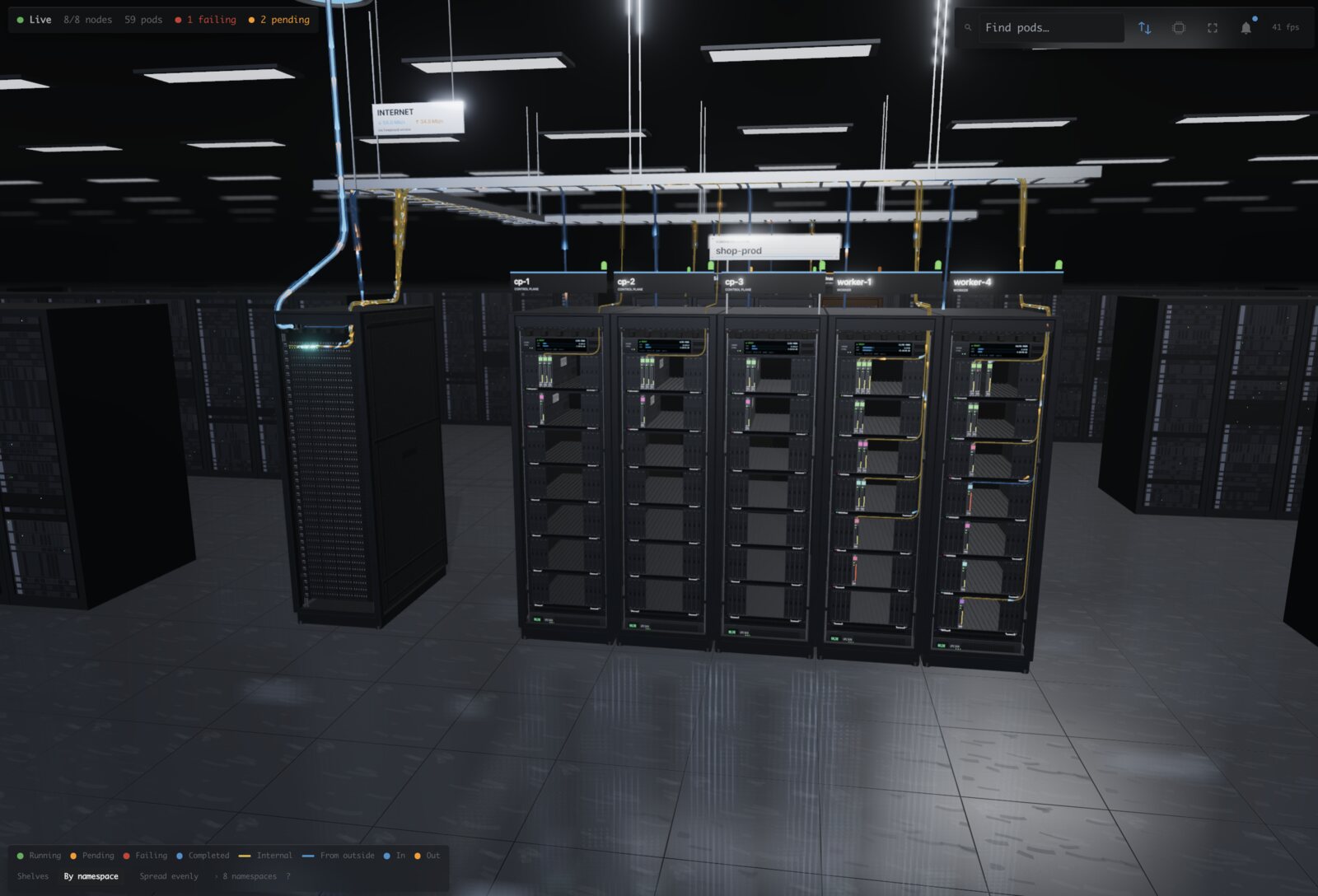
- Nodes are racks. Each rack shows its node's name, status, CPU and memory.
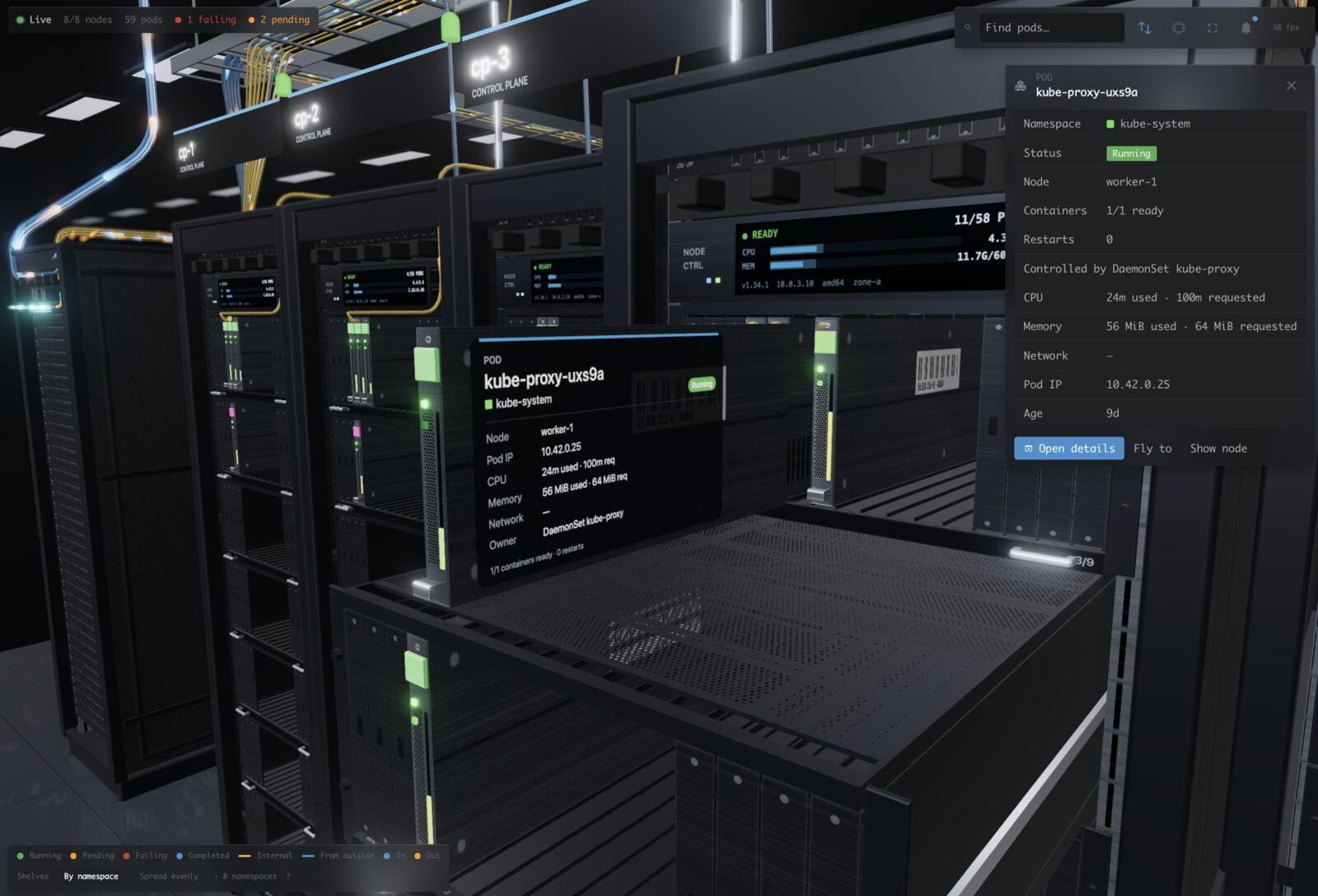
- Pods are blades. Each blade shows its pod's status, load and namespace colour.
- Shelves group pods. Pods sit together by namespace, and empty bays show free capacity.
- Everything is live. Pods slide in and out, and lights change as the cluster changes.
- Open things up. Click a rack, shelf or pod to pull it out and see its details.
- See the network. Fibres link each Service to its pods, and light pulses show real traffic.
- See the internet. An uplink shows the traffic coming in and going out of the cluster.
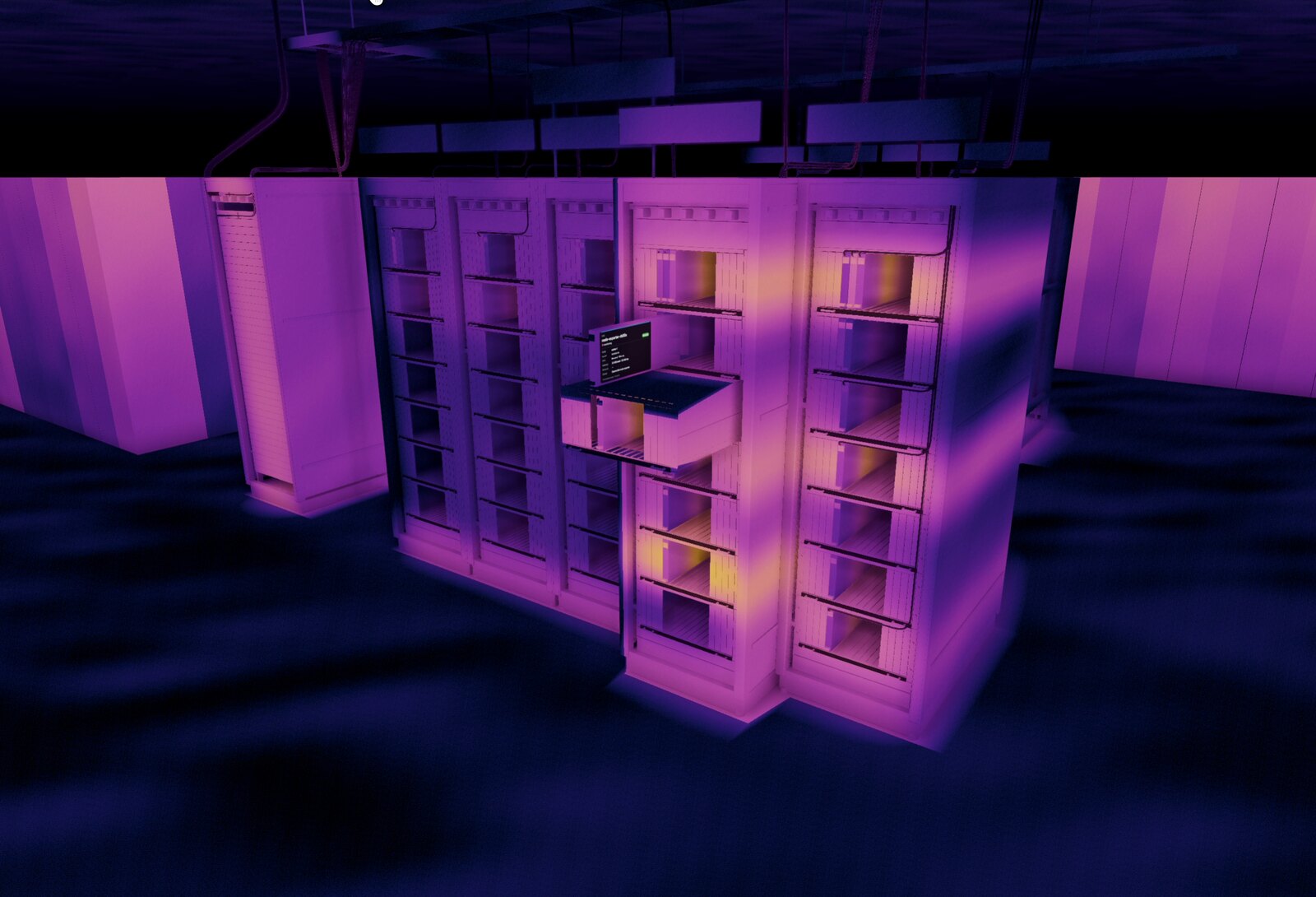
- Thermal view. See where your cluster runs hot, like through a thermal camera.
- Find anything. Search pods by name, namespace, owner or node.
- Feels like Lens. It follows your Lens theme, light or dark.
Safe to use
- Nothing is installed in your cluster.
- Lens Racks only reads from the cluster. It never changes anything.
- CPU and memory use come from metrics-server, if your cluster has it.
- Network traffic comes from Prometheus, or from the nodes' own statistics.
- If you can't read something, Lens Racks simply leaves it out.
Install
Open Lens Racks in Lens and click Install there. The link offers Lens for download when it is not installed yet.
Usage
- Open a connected cluster in the navigator and click Rack View.
- Or run Rack View: Open for this cluster from the command palette.
- Drag to orbit, right-drag to pan, and scroll to zoom.
- Click to select, and double-click to fly to something.
- Press H to see the whole cluster, and Esc to put things back.
What changed in each version is in CHANGELOG.md.
Similar repos


Lens extension: your Kubernetes cluster as a live 3D datacenter — nodes as racks, pods as blades
TypeScript
0
3 commits
updated Oct 7, 2026
See what people are saying
README
Lens Racks
See your Kubernetes cluster as a live 3D datacenter, right inside Lens.
Features
- Nodes are racks. Each rack shows its node's name, status, CPU and memory.
- Pods are blades. Each blade shows its pod's status, load and namespace colour.
- Shelves group pods. Pods sit together by namespace, and empty bays show free capacity.
- Everything is live. Pods slide in and out, and lights change as the cluster changes.
- Open things up. Click a rack, shelf or pod to pull it out and see its details.
- See the network. Fibres link each Service to its pods, and light pulses show real traffic.
- See the internet. An uplink shows the traffic coming in and going out of the cluster.
- Thermal view. See where your cluster runs hot, like through a thermal camera.
- Find anything. Search pods by name, namespace, owner or node.
- Feels like Lens. It follows your Lens theme, light or dark.
Safe to use
- Nothing is installed in your cluster.
- Lens Racks only reads from the cluster. It never changes anything.
- CPU and memory use come from metrics-server, if your cluster has it.
- Network traffic comes from Prometheus, or from the nodes' own statistics.
- If you can't read something, Lens Racks simply leaves it out.
Install
Open Lens Racks in Lens and click Install there. The link offers Lens for download when it is not installed yet.
Usage
- Open a connected cluster in the navigator and click Rack View.
- Or run Rack View: Open for this cluster from the command palette.
- Drag to orbit, right-drag to pan, and scroll to zoom.
- Click to select, and double-click to fly to something.
- Press H to see the whole cluster, and Esc to put things back.
What changed in each version is in CHANGELOG.md.