
See what people are saying
README
Babelfish 🐟
"Speak to your chess engine"
Babelfish is a chess analysis tool that uses Stockfish via MCP (Model Context Protocol) to provide context-rich analysis of chess positions and games. It bridges the gap between powerful chess engines and language models, making chess analysis more accessible and conversational.
Features
- 📊 Position Analysis - Deep analysis of chess positions using Stockfish
- 🎯 Move Suggestions - Get the best moves with explanations
- 📚 Game Analysis - Analyze complete games move by move
- 🗣️ Human-Readable Explanations - Convert engine output into natural language
- 🔌 MCP Integration - Works seamlessly with Claude Desktop and other MCP clients
Installation
This project uses uv for dependency management:
# Clone the repository
git clone <repository-url>
cd babelfish

# Install dependencies
uv sync

# Install Stockfish engine
# Ubuntu/Debian:
sudo apt install stockfish

# macOS:
brew install stockfish

# Windows:
# Download from https://stockfishchess.org/download/
Usage
Web Interface (Recommended)
The most user-friendly way to use Babelfish is through its web interface. This provides an intuitive chat-based interface for chess analysis.
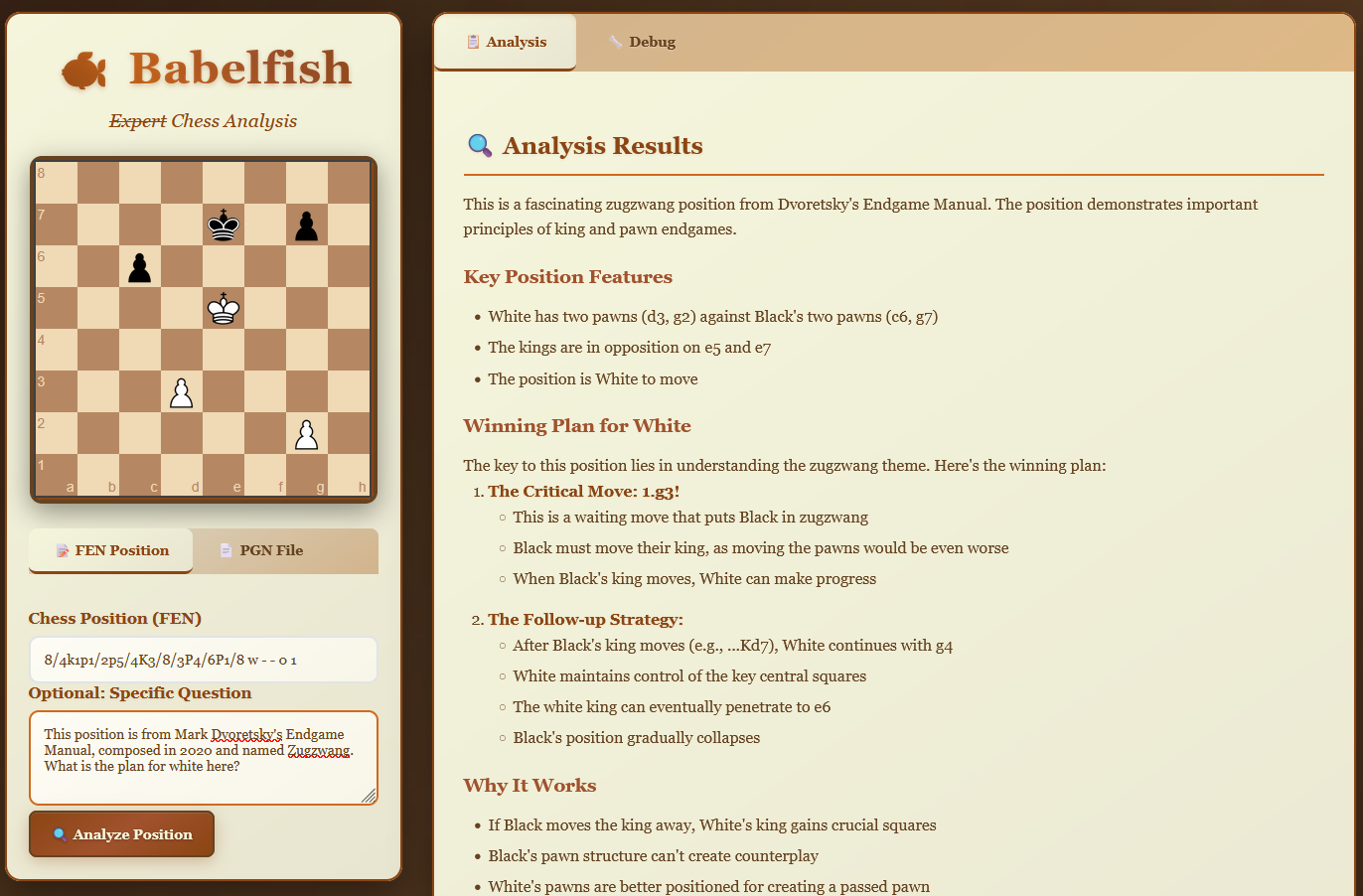
Quick Start
-
Set up your OpenRouter API key:
export OPENROUTER_API_KEY="your-api-key-here" -
Start the web interface:
uv run python start_web.py -
Open your browser and go to
http://localhost:5000
Model Recommendations and Costs
⚠️ Important Cost Warning: Using OpenRouter models incurs costs based on token usage. Monitor your usage to avoid unexpected charges.
Recommended Model: Based on testing, openai/o1 provides the best chess analysis quality, offering superior positional understanding and tactical insights compared to other models.
Alternative Models: You can also try:
anthropic/claude-3.5-sonnet- Good balance of cost and qualityopenai/gpt-4o- Strong general performancemeta-llama/llama-3.1-70b-instruct- More cost-effective option
Features
- Interactive Chat Interface: Ask questions about positions in natural language
- Visual Chess Board: See positions and moves clearly displayed
- Real-time Analysis: Get instant feedback on positions and moves
- Game Analysis: Upload PGN files or input move sequences
- Multiple Model Support: Choose from various AI models via OpenRouter
Example Usage
Once the web interface is running, you can:
- Analyze a position: "What's the best move in this position: rnbqkbnr/pppp1ppp/8/4p3/4P3/8/PPPP1PPP/RNBQKBNR w KQkq e6 0 2"
- Evaluate moves: "Is Nf3 a good move here?"
- Get strategic advice: "What's the plan for White in this position?"
- Analyze games: Paste PGN notation or describe a game sequence
Standalone Demo
Run the demo to test the chess analyzer:
python main.py
MCP Server Mode
Start the MCP server for integration with other tools:
python main.py --mcp
Claude Desktop Integration
Standard Setup (Same System)
To use Babelfish with Claude Desktop in stdio mode on the same system:
-
Install Stockfish (see installation section above)
-
Configure Claude Desktop by adding this to your
claude_desktop_config.json:
{
  "mcpServers": {
    "babelfish": {
      "command": "uv",
      "args": ["run", "python", "main.py", "--mcp"],
      "cwd": "/path/to/your/babelfish"
    }
  }
}
Note: Replace /path/to/your/babelfish with the actual path to your babelfish directory.
WSL + Windows Setup
To run Babelfish in WSL while using Claude Desktop on Windows:
-
Install Stockfish in WSL (see installation section above)
-
Configure Claude Desktop on Windows by adding this to your
claude_desktop_config.json:
{
  "mcpServers": {
    "babelfish": {
      "command": "wsl",
      "args": ["-d", "Ubuntu", "bash", "-c", "cd ~/babelfish && uv run python main.py --mcp"],
      "cwd": "C:\\"
    }
  }
}
Important Notes for WSL Setup:
- Replace
Ubuntuwith your WSL distribution name if different (check withwsl -lin Windows PowerShell) - Replace
~/babelfishwith the actual path to your babelfish directory in WSL - Make sure WSL is set up and your distribution is running
- Ensure
uvand all dependencies are installed in the WSL environment, not Windows
Alternative WSL Configuration (if you have a specific WSL distribution):
{
  "mcpServers": {
    "babelfish": {
      "command": "wsl.exe",
      "args": ["--distribution", "Ubuntu-22.04", "--exec", "bash", "-c", "cd ~/babelfish && uv run python main.py --mcp"]
    }
  }
}
-
Configuration File Locations:
- macOS:
~/Library/Application Support/Claude/claude_desktop_config.json - Windows:
%APPDATA%\Claude\claude_desktop_config.json - Linux:
~/.config/Claude/claude_desktop_config.json
- macOS:
-
Restart Claude Desktop after adding the configuration.
-
Verify Installation - You should see the Babelfish tools available in Claude Desktop:
analyze_position- Analyze a chess positionanalyze_game- Analyze a complete gameexplain_position- Get human-readable position explanations
Example Usage in Claude Desktop
Once configured, you can ask Claude to analyze chess positions:
"Can you analyze this chess position: rnbqkbnr/pppp1ppp/8/4p3/4P3/8/PPPP1PPP/RNBQKBNR w KQkq e6 0 2"
Or analyze complete games:
"Please analyze this game: 1.e4 e5 2.Nf3 Nc6 3.Bb5 a6 4.Ba4 Nf6"
Available MCP Tools
analyze_position
Analyzes a chess position using the Stockfish engine.
Parameters:
fen(required): Chess position in FEN notationdepth(optional): Analysis depth (default: 15)
analyze_game
Analyzes a complete chess game move by move.
Parameters:
moves(required): Array of moves in standard algebraic notation
explain_position
Provides human-readable explanations of chess positions.
Parameters:
fen(required): Chess position in FEN notation
Requirements
- Python 3.8+
- Stockfish chess engine installed on your system
- uv package manager
Troubleshooting
"Stockfish not found" error
Make sure Stockfish is installed and accessible from your PATH:
# Test if Stockfish is available
stockfish
If not available, install using your system's package manager or download from stockfishchess.org.
MCP Server not connecting
- Verify the path in your
claude_desktop_config.jsonis correct - Make sure you can run
uv run python main.py --mcpfrom the command line - Check Claude Desktop logs for error messages
- Restart Claude Desktop after configuration changes
WSL-specific troubleshooting
WSL Distribution Issues
# Check available WSL distributions
wsl -l -v

# Make sure your distribution is running
wsl -d Ubuntu

# Test the command from Windows PowerShell
wsl -d Ubuntu bash -c "cd ~/babelfish && uv run python main.py --mcp"
Path and Permission Issues
# In WSL, verify the project path exists
ls -la ~/babelfish/

# Make sure uv is installed in WSL
which uv

# Test stockfish in WSL
which stockfish
stockfish
Common WSL Setup Issues
- WSL not installed: Install WSL2 from Microsoft Store or PowerShell:
wsl --install - Distribution not running: Start it with
wsl -d Ubuntu(replace Ubuntu with your distro) - uv not found in WSL: Install uv in WSL environment, not Windows
- Permission errors: Ensure the WSL user has access to the babelfish directory
- Stockfish not available: Install stockfish in WSL:
sudo apt install stockfish
Testing the WSL Integration
From Windows Command Prompt or PowerShell:
# Test if WSL can access the project
wsl ls ~/babelfish/

# Test if the command works
wsl -d Ubuntu bash -c "cd ~/babelfish && python main.py"
Contributing
Contributions are welcome! Please feel free to submit issues and pull requests.
License
This project is open source. Please check the LICENSE file for details.
Contributors

47 commits
Similar repos


Languages
Python
72.1%
HTML
27.9%
See what people are saying
README
Babelfish 🐟
"Speak to your chess engine"
Babelfish is a chess analysis tool that uses Stockfish via MCP (Model Context Protocol) to provide context-rich analysis of chess positions and games. It bridges the gap between powerful chess engines and language models, making chess analysis more accessible and conversational.
Features
- 📊 Position Analysis - Deep analysis of chess positions using Stockfish
- 🎯 Move Suggestions - Get the best moves with explanations
- 📚 Game Analysis - Analyze complete games move by move
- 🗣️ Human-Readable Explanations - Convert engine output into natural language
- 🔌 MCP Integration - Works seamlessly with Claude Desktop and other MCP clients
Installation
This project uses uv for dependency management:
# Clone the repository
git clone <repository-url>
cd babelfish

# Install dependencies
uv sync

# Install Stockfish engine
# Ubuntu/Debian:
sudo apt install stockfish

# macOS:
brew install stockfish

# Windows:
# Download from https://stockfishchess.org/download/
Usage
Web Interface (Recommended)
The most user-friendly way to use Babelfish is through its web interface. This provides an intuitive chat-based interface for chess analysis.
Quick Start
-
Set up your OpenRouter API key:
export OPENROUTER_API_KEY="your-api-key-here" -
Start the web interface:
uv run python start_web.py -
Open your browser and go to
http://localhost:5000
Model Recommendations and Costs
⚠️ Important Cost Warning: Using OpenRouter models incurs costs based on token usage. Monitor your usage to avoid unexpected charges.
Recommended Model: Based on testing, openai/o1 provides the best chess analysis quality, offering superior positional understanding and tactical insights compared to other models.
Alternative Models: You can also try:
anthropic/claude-3.5-sonnet- Good balance of cost and qualityopenai/gpt-4o- Strong general performancemeta-llama/llama-3.1-70b-instruct- More cost-effective option
Features
- Interactive Chat Interface: Ask questions about positions in natural language
- Visual Chess Board: See positions and moves clearly displayed
- Real-time Analysis: Get instant feedback on positions and moves
- Game Analysis: Upload PGN files or input move sequences
- Multiple Model Support: Choose from various AI models via OpenRouter
Example Usage
Once the web interface is running, you can:
- Analyze a position: "What's the best move in this position: rnbqkbnr/pppp1ppp/8/4p3/4P3/8/PPPP1PPP/RNBQKBNR w KQkq e6 0 2"
- Evaluate moves: "Is Nf3 a good move here?"
- Get strategic advice: "What's the plan for White in this position?"
- Analyze games: Paste PGN notation or describe a game sequence
Standalone Demo
Run the demo to test the chess analyzer:
python main.py
MCP Server Mode
Start the MCP server for integration with other tools:
python main.py --mcp
Claude Desktop Integration
Standard Setup (Same System)
To use Babelfish with Claude Desktop in stdio mode on the same system:
-
Install Stockfish (see installation section above)
-
Configure Claude Desktop by adding this to your
claude_desktop_config.json:
{
  "mcpServers": {
    "babelfish": {
      "command": "uv",
      "args": ["run", "python", "main.py", "--mcp"],
      "cwd": "/path/to/your/babelfish"
    }
  }
}
Note: Replace /path/to/your/babelfish with the actual path to your babelfish directory.
WSL + Windows Setup
To run Babelfish in WSL while using Claude Desktop on Windows:
-
Install Stockfish in WSL (see installation section above)
-
Configure Claude Desktop on Windows by adding this to your
claude_desktop_config.json:
{
  "mcpServers": {
    "babelfish": {
      "command": "wsl",
      "args": ["-d", "Ubuntu", "bash", "-c", "cd ~/babelfish && uv run python main.py --mcp"],
      "cwd": "C:\\"
    }
  }
}
Important Notes for WSL Setup:
- Replace
Ubuntuwith your WSL distribution name if different (check withwsl -lin Windows PowerShell) - Replace
~/babelfishwith the actual path to your babelfish directory in WSL - Make sure WSL is set up and your distribution is running
- Ensure
uvand all dependencies are installed in the WSL environment, not Windows
Alternative WSL Configuration (if you have a specific WSL distribution):
{
  "mcpServers": {
    "babelfish": {
      "command": "wsl.exe",
      "args": ["--distribution", "Ubuntu-22.04", "--exec", "bash", "-c", "cd ~/babelfish && uv run python main.py --mcp"]
    }
  }
}
-
Configuration File Locations:
- macOS:
~/Library/Application Support/Claude/claude_desktop_config.json - Windows:
%APPDATA%\Claude\claude_desktop_config.json - Linux:
~/.config/Claude/claude_desktop_config.json
- macOS:
-
Restart Claude Desktop after adding the configuration.
-
Verify Installation - You should see the Babelfish tools available in Claude Desktop:
analyze_position- Analyze a chess positionanalyze_game- Analyze a complete gameexplain_position- Get human-readable position explanations
Example Usage in Claude Desktop
Once configured, you can ask Claude to analyze chess positions:
"Can you analyze this chess position: rnbqkbnr/pppp1ppp/8/4p3/4P3/8/PPPP1PPP/RNBQKBNR w KQkq e6 0 2"
Or analyze complete games:
"Please analyze this game: 1.e4 e5 2.Nf3 Nc6 3.Bb5 a6 4.Ba4 Nf6"
Available MCP Tools
analyze_position
Analyzes a chess position using the Stockfish engine.
Parameters:
fen(required): Chess position in FEN notationdepth(optional): Analysis depth (default: 15)
analyze_game
Analyzes a complete chess game move by move.
Parameters:
moves(required): Array of moves in standard algebraic notation
explain_position
Provides human-readable explanations of chess positions.
Parameters:
fen(required): Chess position in FEN notation
Requirements
- Python 3.8+
- Stockfish chess engine installed on your system
- uv package manager
Troubleshooting
"Stockfish not found" error
Make sure Stockfish is installed and accessible from your PATH:
# Test if Stockfish is available
stockfish
If not available, install using your system's package manager or download from stockfishchess.org.
MCP Server not connecting
- Verify the path in your
claude_desktop_config.jsonis correct - Make sure you can run
uv run python main.py --mcpfrom the command line - Check Claude Desktop logs for error messages
- Restart Claude Desktop after configuration changes
WSL-specific troubleshooting
WSL Distribution Issues
# Check available WSL distributions
wsl -l -v

# Make sure your distribution is running
wsl -d Ubuntu

# Test the command from Windows PowerShell
wsl -d Ubuntu bash -c "cd ~/babelfish && uv run python main.py --mcp"
Path and Permission Issues
# In WSL, verify the project path exists
ls -la ~/babelfish/

# Make sure uv is installed in WSL
which uv

# Test stockfish in WSL
which stockfish
stockfish
Common WSL Setup Issues
- WSL not installed: Install WSL2 from Microsoft Store or PowerShell:
wsl --install - Distribution not running: Start it with
wsl -d Ubuntu(replace Ubuntu with your distro) - uv not found in WSL: Install uv in WSL environment, not Windows
- Permission errors: Ensure the WSL user has access to the babelfish directory
- Stockfish not available: Install stockfish in WSL:
sudo apt install stockfish
Testing the WSL Integration
From Windows Command Prompt or PowerShell:
# Test if WSL can access the project
wsl ls ~/babelfish/

# Test if the command works
wsl -d Ubuntu bash -c "cd ~/babelfish && python main.py"
Contributing
Contributions are welcome! Please feel free to submit issues and pull requests.
License
This project is open source. Please check the LICENSE file for details.
Similar repos
Contributors
47 commits
Languages
Python
72.1%
HTML
27.9%