
👾 A virtual pet for VS Code / Cursor / OpenAI dots
TypeScript
219
29 commits
updated Sep 30, 2026
See what people are saying
README
Codachi

Codachi brings cute, animated monster pets to your workspace.
Watch them hatch from eggs, run around while you code, and evolve as they gain experience from your coding activity.




Screenshots
Panel Mode


Explorer Mode

Features
- Hatch random pets with original designs and animations.
- Gain XP by writing more code.
- When enough XP is gained, your monster will level up!
- Choose between Panel mode or Explorer mode to display your pet.
Getting Started
Codachi-Inspired Codex Pets
We have a few Codachi-inspired pet designs for Codex and ChatGPT in media/dot/.
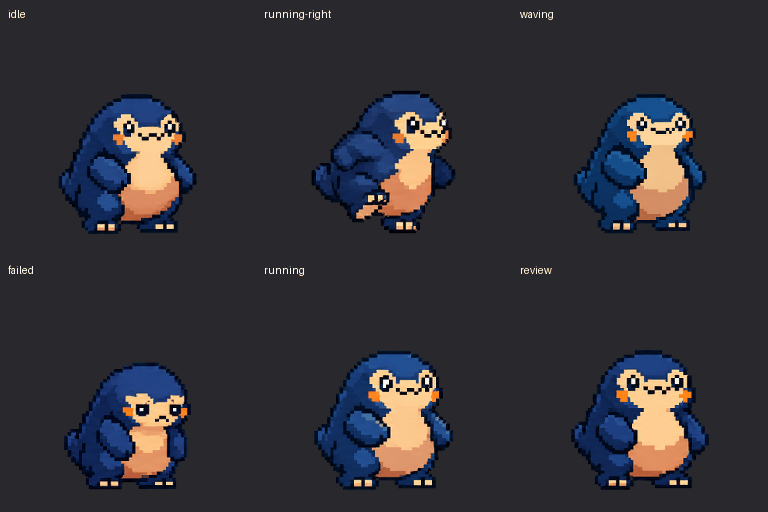
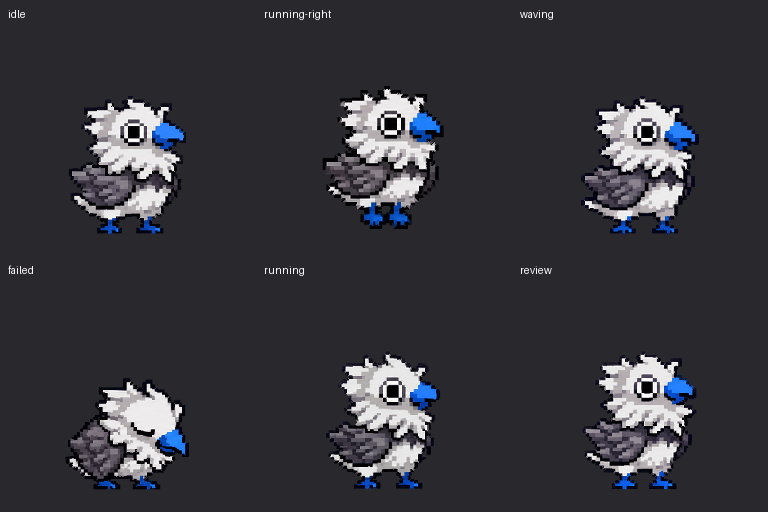
The GIFs above are previews. Use the original transparent PNG sprite sheets in media/dot/ to set up your pet:
- Blue monster:
m1d1-dot-sprites.png - Bird:
m51d-dot-sprites.png
To use a design, download its PNG and provide it to your custom-pet setup workflow. In the ChatGPT desktop app, start from Settings > Pets > Create pet and provide the sprite sheet with a request such as:
Set up this existing sprite sheet as my custom pet. Preserve the supplied artwork and animation frames.
Once setup finishes, return to Settings > Pets, select Refresh, and choose your pet. Enter /pet to show it.
Both supplied sheets are 1536 × 2288 pixels. The documented web Upload pet format is 1536 × 1872, so these originals need format adaptation before that upload workflow; direct import of these sheets has not been verified.
In Codex CLI, use /pets to choose a compatible installed pet in a supported terminal.
Official pet setup and terminal requirements:
https://learn.chatgpt.com/docs/pets
Panel Mode (Default)
Launch VS Code Quick Open (Ctrl + Shift + P), paste the following command, and press Enter.
Codachi: Show Panel
This will show the Codachi panel. Your pet will wander around here.
Explorer Mode
To use Explorer mode instead, run:
Codachi: Open Explorer View
Your pet will now appear in the Explorer panel. This keeps your pet visible while you work.
Spawning a New Pet
To spawn a new pet, hit Ctrl + Shift + P, paste the following command, and press Enter:
Codachi: New Pet
Your pet will appear (inside an egg). Start typing to hatch your pet.
Your pet will gain XP as you code in either mode.
Switching Between Modes
You can switch between Panel and Explorer modes in two ways:
-
Via Settings:
- Open VS Code Settings (
Ctrl+,) - Search for "codachi.position"
- Select either "panel" or "explorer"
- Open VS Code Settings (
-
Via Commands:
- Use
Codachi: Show Panelto switch to Panel mode - Use
Codachi: Open Explorer Viewto switch to Explorer mode
- Use
Enabling the XP Bar
By default, the XP bar is hidden. To enable it:
- Open VS Code Settings (
Ctrl+,) - Search for
codachi.showXP - Check the box to enable the XP bar
The XP counter will appear in the top left corner of your Codachi view, showing your current XP and the total XP needed to reach the next level.
Significant stargazers

519 followers · starred Apr 2025

35 followers · starred Sep 2025
Similar repos


Languages
TypeScript
98.4%
JavaScript
1.1%
👾 A virtual pet for VS Code / Cursor / OpenAI dots
TypeScript
219
29 commits
updated Sep 30, 2026
See what people are saying
README
Codachi
Codachi brings cute, animated monster pets to your workspace.
Watch them hatch from eggs, run around while you code, and evolve as they gain experience from your coding activity.
Screenshots
Panel Mode
Explorer Mode
Features
- Hatch random pets with original designs and animations.
- Gain XP by writing more code.
- When enough XP is gained, your monster will level up!
- Choose between Panel mode or Explorer mode to display your pet.
Getting Started
Codachi-Inspired Codex Pets
We have a few Codachi-inspired pet designs for Codex and ChatGPT in media/dot/.
The GIFs above are previews. Use the original transparent PNG sprite sheets in media/dot/ to set up your pet:
- Blue monster:
m1d1-dot-sprites.png - Bird:
m51d-dot-sprites.png
To use a design, download its PNG and provide it to your custom-pet setup workflow. In the ChatGPT desktop app, start from Settings > Pets > Create pet and provide the sprite sheet with a request such as:
Set up this existing sprite sheet as my custom pet. Preserve the supplied artwork and animation frames.
Once setup finishes, return to Settings > Pets, select Refresh, and choose your pet. Enter /pet to show it.
Both supplied sheets are 1536 × 2288 pixels. The documented web Upload pet format is 1536 × 1872, so these originals need format adaptation before that upload workflow; direct import of these sheets has not been verified.
In Codex CLI, use /pets to choose a compatible installed pet in a supported terminal.
Official pet setup and terminal requirements:
https://learn.chatgpt.com/docs/pets
Panel Mode (Default)
Launch VS Code Quick Open (Ctrl + Shift + P), paste the following command, and press Enter.
Codachi: Show Panel
This will show the Codachi panel. Your pet will wander around here.
Explorer Mode
To use Explorer mode instead, run:
Codachi: Open Explorer View
Your pet will now appear in the Explorer panel. This keeps your pet visible while you work.
Spawning a New Pet
To spawn a new pet, hit Ctrl + Shift + P, paste the following command, and press Enter:
Codachi: New Pet
Your pet will appear (inside an egg). Start typing to hatch your pet.
Your pet will gain XP as you code in either mode.
Switching Between Modes
You can switch between Panel and Explorer modes in two ways:
-
Via Settings:
- Open VS Code Settings (
Ctrl+,) - Search for "codachi.position"
- Select either "panel" or "explorer"
- Open VS Code Settings (
-
Via Commands:
- Use
Codachi: Show Panelto switch to Panel mode - Use
Codachi: Open Explorer Viewto switch to Explorer mode
- Use
Enabling the XP Bar
By default, the XP bar is hidden. To enable it:
- Open VS Code Settings (
Ctrl+,) - Search for
codachi.showXP - Check the box to enable the XP bar
The XP counter will appear in the top left corner of your Codachi view, showing your current XP and the total XP needed to reach the next level.
Similar repos
Significant stargazers
519 followers · starred Apr 2025
35 followers · starred Sep 2025
Languages
TypeScript
98.4%
JavaScript
1.1%