
Aqua Enterprise scanner as a plug-in vulnerability scanner in the Harbor registry
36
stars
99
commits
Go
primary language
Oct 4, 2024
updated
README




Harbor Scanner Adapter for Aqua Enterprise
NOTE: This adapter is only required if you want Harbor to use Aqua Enterprise for its image scanning feature. If your objective is to use Aqua Enterprise to provide its own analysis reports against images stored in Harbor, that can be achieved without deploying this adapter.
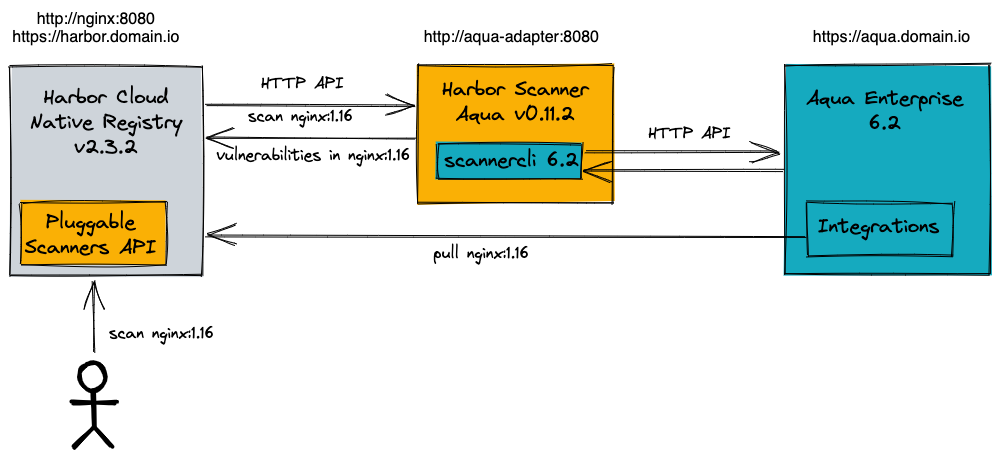
The Harbor Scanner Adapter for Aqua Enterprise is a service that translates the Harbor scanning API into scannercli
commands and allows Harbor to use Aqua Enterprise ad hoc scanning for providing vulnerability reports on images stored
in Harbor registry as part of its vulnerability scan feature.
The adapter service implements the Pluggable Scanners API v1.0 and communicates with the Aqua API server to fulfil the contract required by Harbor scanning API. This contract is based on OS and application vulnerabilities, which implies that Harbor scanning API and Harbor Portal are only capable of handling and displaying OS and application vulnerabilities.
NOTE: To see the whole report generated by the Aqua scanner, including detected malware and sensitive data, you have to navigate from Harbor Portal to Aqua Management Console. Similarly, Harbor does not have support for displaying or enforcing Aqua's image assurance policies. You will need to use the Aqua Management Console to view and configure these policies.
TOC
Requirements
-
Harbor >= 1.10
-
This adapter service requires Aqua Enterprise >= 4.5 deployment to operate. The adapter can be deployed before the Aqua Enterprise installation, but the Aqua Management Console URL and credentials must be known to configure the adapter with the environment variables.
-
The adapter service also requires the
scannercliexecutable binary, in version matching the Aqua Enterprise, to be mounted at/usr/local/bin/scannercli. The provided Helm chart mounts thescannercliexecutable automatically by pulling theregistry.aquasec.com/scanner:$AQUA_VERSIONimage from Aqua Registry and running it as an init container. The init container's command is configured to copy the executable from the container's filesystem to an emptyDir volume, which is shared with the main container. This makes thescannercliexecutable available to the main container at/usr/local/bin/scannercli.NOTE: Make sure that you provide valid Aqua Registry credentials received from Aqua Security as Helm values in order to create the corresponding image pull secret.
If you're not using Kubernetes to run the adapter service, you have to download the
scannercliexecutable from the Aqua downloads page manually and mount it at/usr/local/bin/scannercli. See Aqua Scanner Executable Binary for more details on manual download. -
It is highly recommended to create a new user in the Aqua Management Console with credentials dedicated to the Harbor adapter, e.g.
harbor_scanner. The adapter does not need full access to Aqua: theScannerrole is the only permission required for thescannercliexecutable binary which is run by the adapter service on each scan request. Therefore, create yourharbor_scanneruser and assign it only theScannerrole.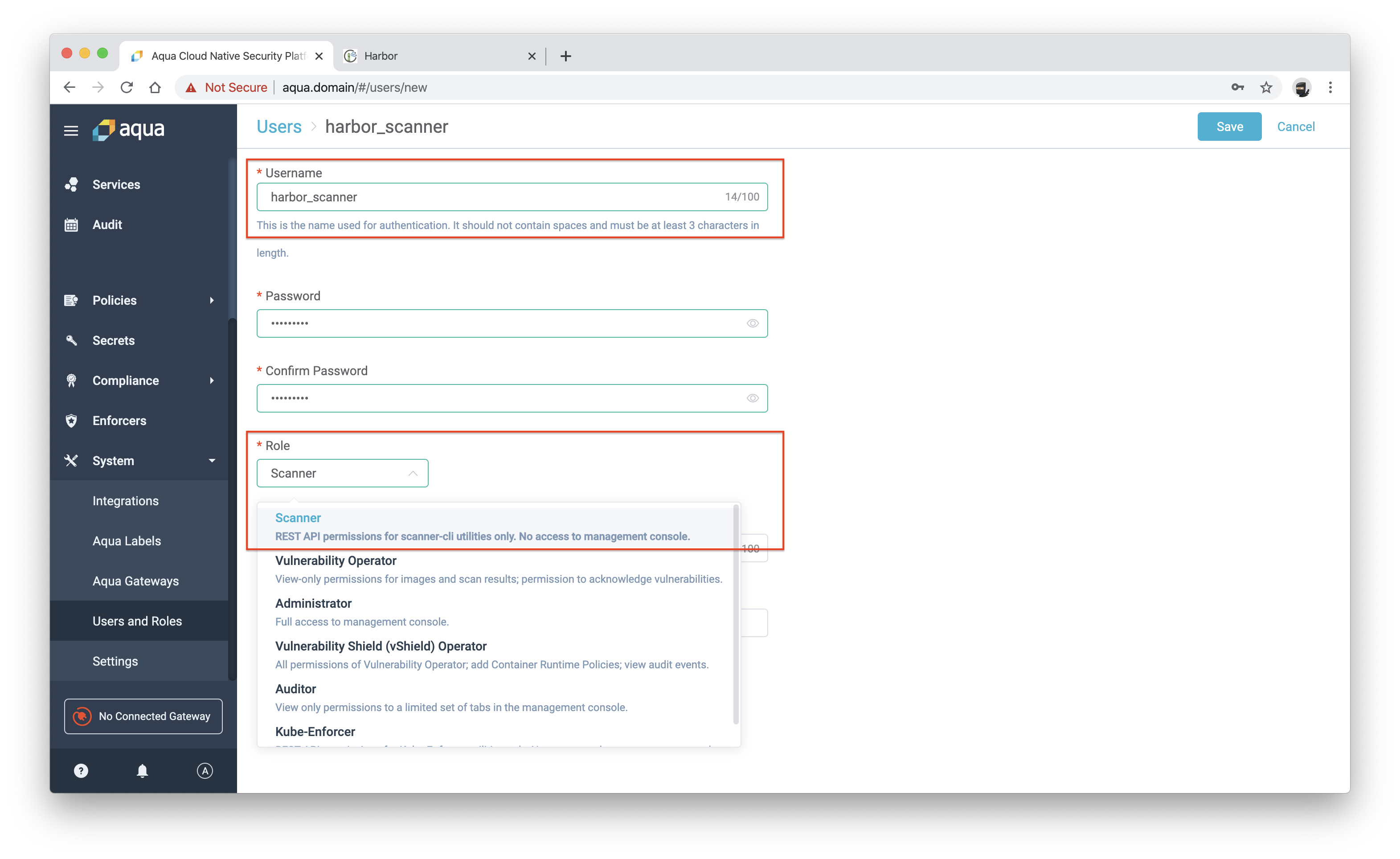
-
It is also highly recommended to create a new user in Harbor for the Aqua Enterprise scanner, with permission only to pull images from Harbor, e.g.
aqua_scanner. Please remember to add this user as a member of the project in Harbor that you intend to scan the images from.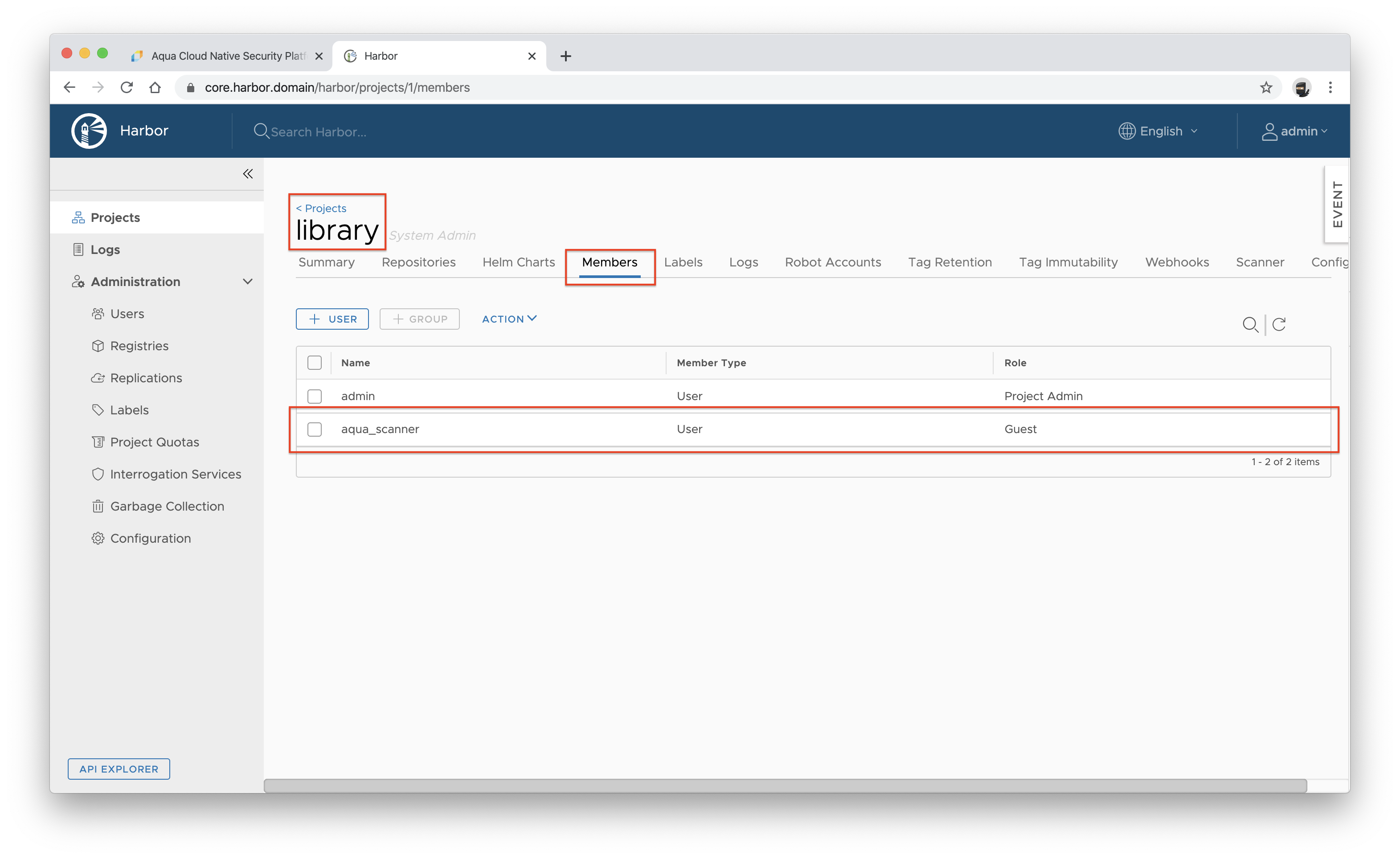
-
Finally, add a new Harbor registry integration in Aqua Management Console and use the credentials of the user created in the previous step. Please note that the value of the Registry Name field corresponds to the
SCANNER_AQUA_REGISTRYconfiguration variable.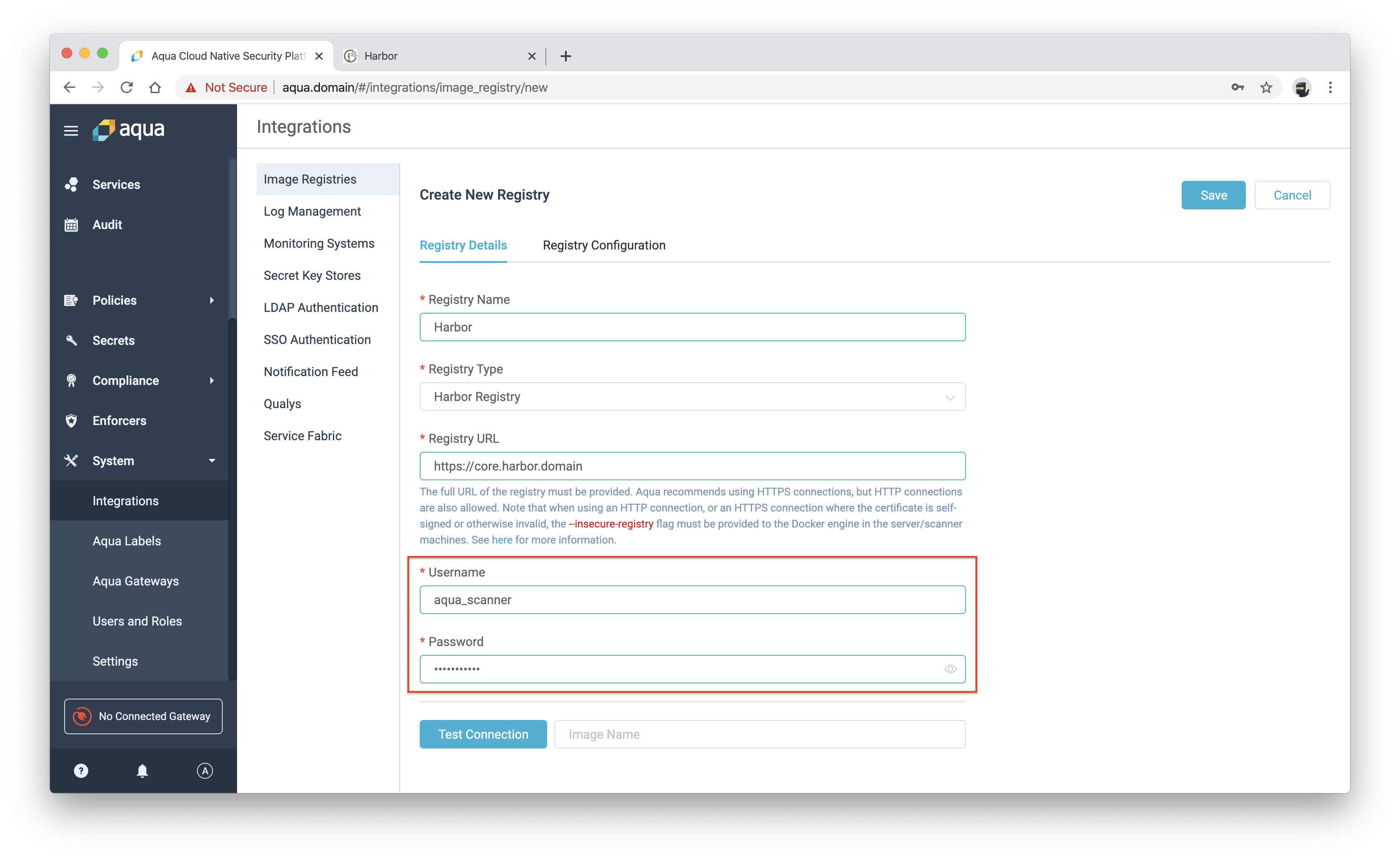
How does it work?
In essence, a scan request payload sent by Harbor to the adapter:
{
  "registry": {
    "url": "https://core.harbor.domain",
    "authorization": "Basic BASE64_ENCODED_CREDENTIALS"
  },
  "artifact": {
    "repository": "library/mongo",
    "tag": "3.4-xenial",
    "digest": "sha256:6c3c624b58dbbcd3c0dd82b4c53f04194d1247c6eebdaab7c610cf7d66709b3b",
    "mime_type": "application/vnd.docker.distribution.manifest.v2+json"
  }
}
is translated to the following scannercli command:
$ scannercli scan \
    --checkonly \
    --dockerless \
    --user=$SCANNER_AQUA_USERNAME \
    --password=$SCANNER_AQUA_PASSWORD \
    --host=$SCANNER_AQUA_HOST \
    --registry=$SCANNER_AQUA_REGISTRY \
    --robot-username=$HARBOR_ROBOT_ACCOUNT_NAME \
    --robot-password=$HARBOR_ROBOT_ACCOUNT_PASSWORD \
    --no-verify=$SCANNER_CLI_NO_VERIFY \
    --show-negligible=$SCANNER_CLI_SHOW_NEGLIGIBLE \
    --jsonfile /var/lib/scanner/reports/aqua_scan_report_0123456789.json \
    library/mongo@sha256:6c3c624b58dbbcd3c0dd82b4c53f04194d1247c6eebdaab7c610cf7d66709b3b
Finally, the output report is transformed to Harbor's model and displayed in the Harbor interface.
NOTE: The
SCANNER_AQUA_USE_IMAGE_TAGenv determines whether the image tag (library/mongo:3.4-xenial) or digest (library/mongo@sha256:6c3c624b58dbbcd3c0dd82b4c53f04194d1247c6eebdaab7c610cf7d66709b3b) is used as the image identifier passed to thescannerclicommand.
NOTE: Harbor version >= 2.0 && version < 2.3 no longer set the
tagproperty in the scan request. Thus, theSCANNER_AQUA_USE_IMAGE_TAGenv must be set tofalse.
Deployment
Harbor can be installed as a Docker service or deployed with high availability via Helm. This section describes how to perform a new installation of the adapter service in both cases.
It's also possible to deploy Harbor on Docker (outside the Kubernetes environment) to work with Aqua Enterprise on Kubernetes, and you should be able to figure it out based on the following instructions.
Docker
This section shows how to install the adapter service by extending the Docker Compose file
created by the Harbor >= 1.10 installer in the $HARBOR_HOME directory. We assume that the internal
TLS communication between Harbor components is enabled and internal certificate files are
stored in the $HARBOR_PKI_DIR directory. The default Harbor data volume path is referred to as $HARBOR_DATA. We also
assume that you installed Aqua Enterprise >= 4.5, and the Aqua Management Console is accessible at
https://aqua-console:8443, and you have valid credentials with permission to scan container images.
-
Export environment variables that are used throughout the installation scripts.
Review and adapt the values to reflect your installation paths and credentials.
export HARBOR_HOME="/opt/harbor"
export HARBOR_DATA="/data"
export HARBOR_PKI_DIR="/etc/harbor/pki/internal"

export AQUA_VERSION="6.5"
export AQUA_CONSOLE_HOST="https://aqua-console:8443"
export AQUA_CONSOLE_USERNAME=<your username>
export AQUA_CONSOLE_PASSWORD=<your password>

export HARBOR_SCANNER_AQUA_VERSION="0.14.0"
export AQUA_REGISTRY_USERNAME=<your username> export AQUA_REGISTRY_PASSWORD=<your password> -
Create the config and data directories for the adapter service.
mkdir -p $HARBOR_HOME/common/config/aqua-adapter mkdir -p $HARBOR_DATA/aqua-adapter/reports mkdir -p $HARBOR_DATA/aqua-adapter/opt -
Download the
scannercliexecutable binary.- You can download the binary from the docs page and save it to
$HARBOR_HOME/common/config/aqua-adapter/scannercli. - Alternatively you can use the
registry.aquasec.com/scanner:$AQUA_VERSIONimage to copy thescannerclibinary from the container's file system.echo $AQUA_REGISTRY_PASSWORD | docker login registry.aquasec.com \ --username $AQUA_REGISTRY_USERNAME --password-stdindocker run --rm --entrypoint "" \ --volume $HARBOR_HOME/common/config/aqua-adapter:/out registry.aquasec.com/scanner:$AQUA_VERSION \ cp /opt/aquasec/scannercli /out
- You can download the binary from the docs page and save it to
-
Generate certificate files.
NOTE: Self signed certificates without SAN were deprecated in Go, therefore you must add the SAN extension to your certificate files. The DNS name in SAN extension should be the same as CN field.
-
Generate a private key.
openssl genrsa -out $HARBOR_PKI_DIR/aqua_adapter.key 4096 -
Generate a certificate signing request (CSR).
Adapt the values in the
-subjoption to reflect your organization.openssl req -sha512 -new \ -subj "/C=CN/ST=Beijing/L=Beijing/O=example/OU=Personal/CN=aqua-adapter" \ -key $HARBOR_PKI_DIR/aqua_adapter.key \ -out $HARBOR_PKI_DIR/aqua_adapter.csr -
Generate an x509 v3 extension file.
You must create this file so that you can generate a certificate for adapter service host that complies with the Subject Alternative Name (SAN) and x509 v3 extension requirements.
cat << EOF > $HARBOR_PKI_DIR/aqua_adapter_v3.ext authorityKeyIdentifier=keyid,issuer basicConstraints=CA:FALSE keyUsage = digitalSignature, nonRepudiation, keyEncipherment, dataEncipherment extendedKeyUsage = serverAuth subjectAltName = @alt_names [alt_names] DNS.1=aqua-adapter EOF -
Use the
aqua_adapter_v3.extfile to generate a certificate for adapter service host.NOTE: The certificate must be signed by the internal Harbor CA.
openssl x509 -req -sha512 -days 365 \
  -extfile $HARBOR_PKI_DIR/aqua_adapter_v3.ext \
  -CA $HARBOR_PKI_DIR/harbor_internal_ca.crt \
  -CAkey $HARBOR_PKI_DIR/harbor_internal_ca.key \
  -CAcreateserial \
  -in $HARBOR_PKI_DIR/aqua_adapter.csr \
  -out $HARBOR_PKI_DIR/aqua_adapter.crt
-
-
Create the
envfile to configure the adapter service:cat << EOF > $HARBOR_HOME/common/config/aqua-adapter/env SCANNER_LOG_LEVEL=info SCANNER_API_ADDR=:8443 SCANNER_API_TLS_KEY=/etc/pki/aqua_adapter.key SCANNER_API_TLS_CERTIFICATE=/etc/pki/aqua_adapter.crt SCANNER_AQUA_HOST=$AQUA_CONSOLE_HOST SCANNER_AQUA_USERNAME=$AQUA_CONSOLE_USERNAME SCANNER_AQUA_PASSWORD=$AQUA_CONSOLE_PASSWORD SCANNER_AQUA_REGISTRY=Harbor SCANNER_AQUA_USE_IMAGE_TAG=false SCANNER_AQUA_REPORTS_DIR=/var/lib/scanner/reports SCANNER_REDIS_URL=redis://redis:6379 EOF -
Create
docker-compose.override.ymlfile in the$HARBOR_HOMEdirectory to install the adapter service:cat << EOF > $HARBOR_HOME/docker-compose.override.yml version: '2.3' services: aqua-adapter: networks: - harbor container_name: aqua-adapter image: docker.io/aquasec/harbor-scanner-aqua:$HARBOR_SCANNER_AQUA_VERSION restart: always cap_drop: - ALL depends_on: - redis env_file: $HARBOR_HOME/common/config/aqua-adapter/env volumes: - type: bind source: $HARBOR_HOME/common/config/aqua-adapter/scannercli target: /usr/local/bin/scannercli - type: bind source: $HARBOR_PKI_DIR/aqua_adapter.key target: /etc/pki/aqua_adapter.key - type: bind source: $HARBOR_PKI_DIR/aqua_adapter.crt target: /etc/pki/aqua_adapter.crt - type: bind source: $HARBOR_DATA/aqua-adapter/reports target: /var/lib/scanner/reports - type: bind source: $HARBOR_DATA/aqua-adapter/opt target: /opt/aquascans logging: driver: "syslog" options: syslog-address: "tcp://127.0.0.1:1514" tag: "aqua-scanner" EOF -
For some Docker drivers you must explicitly set ownership of config files and data directories to user and group which runs the adapter process, i.e.
1000:1000:chown 1000:1000 $HARBOR_HOME/common/config/aqua-adapter/scannercli chown 1000:1000 $HARBOR_PKI_DIR/aqua_adapter.key chown 1000:1000 $HARBOR_PKI_DIR/aqua_adapter.crt chown 1000:1000 $HARBOR_DATA/aqua-adapter/reports chown 1000:1000 $HARBOR_DATA/aqua-adapter/opt -
Start the adapter service:
cd $HARBOR_HOME
docker-compose up --detach
The adapter service will be accessible at https://aqua-adapter:8443 from within the
harborDocker network.
Kubernetes
I assume that you installed Aqua Enterprise >= 4.5 with Aqua Security Helm charts in the
aquanamespace, and the Aqua Management Console is accessible at http://aqua-console-svc.aqua:8080 from within the cluster.
-
Export environment variables that are used throughout the installation scripts.
Review and adapt the values to reflect your installation paths and credentials.
export AQUA_VERSION="6.5" export AQUA_CONSOLE_HOST="http://aqua-console-svc.aqua:8080" export AQUA_CONSOLE_USERNAME=<your username> export AQUA_CONSOLE_PASSWORD=<your password> export AQUA_REGISTRY_USERNAME=<your username> export AQUA_REGISTRY_PASSWORD=<your password> -
Install the
harbor-scanner-aquachart:helm repo add aqua https://aquasecurity.github.io/helm-charts/ helm repo updatehelm install harbor-scanner-aqua aqua/harbor-scanner-aqua \ --namespace harbor \ --set aqua.version=$AQUA_VERSION \ --set aqua.registry.server=registry.aquasec.com \ --set aqua.registry.username=$AQUA_REGISTRY_USERNAME \ --set aqua.registry.password=$AQUA_REGISTRY_PASSWORD \ --set scanner.aqua.host=$AQUA_CONSOLE_HOST \ --set scanner.aqua.username=$AQUA_CONSOLE_USERNAME \ --set scanner.aqua.password=$AQUA_CONSOLE_PASSWORDThe scanner service should be accessible at http://harbor-scanner-aqua.harbor:8080 from within the cluster.
OpenShift Container Platform
Similar to the way that RBAC resources control user access, administrators can use Security Context Constraints (SCCs) to control permissions for pods. These permissions include actions that a pod can perform and what resources it can access. You can use SCCs to define a set of conditions that a pod must run with in order to be accepted into the system.
In particular, SCCs allow an administrator to control:
- The container user ID
- The allocation of an fsGroup that owns the pod's volumes
The harbor-scanner-aqua’s Helm chart deployment template:
- Runs the underlying pod with a dedicated service account (named after a Helm release)
- Requires that the pod's containers run as user with ID
1000 - Requires that fsGroup that owns the pod's volumes has ID
1000
Therefore, the harbor-scanner-aqua deployment will be accepted by OpenShift Container Platform only when a service account is granted access to a SCC that:
- Allows container user with ID
1000 - Allows fsGroup with ID
1000
For example, if the scanner adapter installed as the Helm release called harbor-scanner-aqua in the harbor namespace,
the following command has to be run by the administrator to accept the pods:
$ oc adm policy add-scc-to-user <scc name> system:serviceaccount:harbor:harbor-scanner-aqua
where <scc name> is one of the predefined SCCs or a custom SCC created by the administrator.
Configuring Harbor Scanner
-
Log in to the Harbor interface with an account that has Harbor system administrator privileges.
-
Expand Administration, and select Interrogation Services.
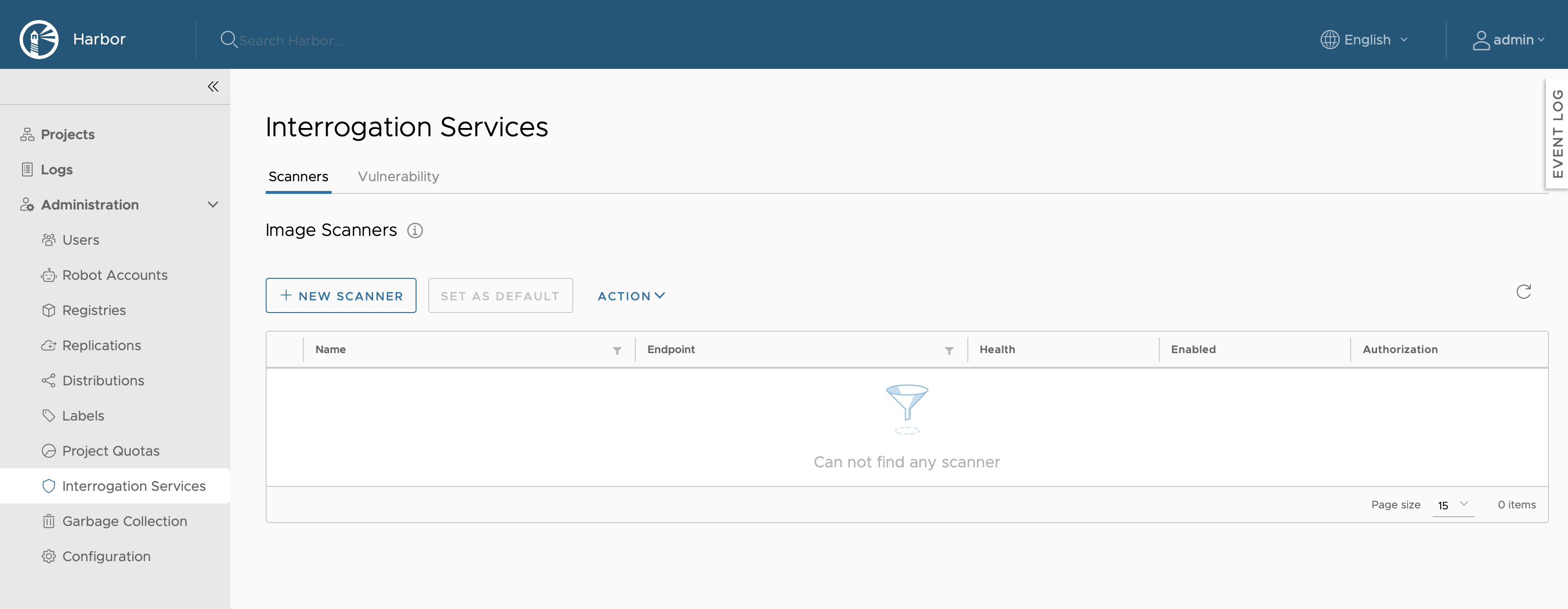
-
Click the NEW SCANNER button.
-
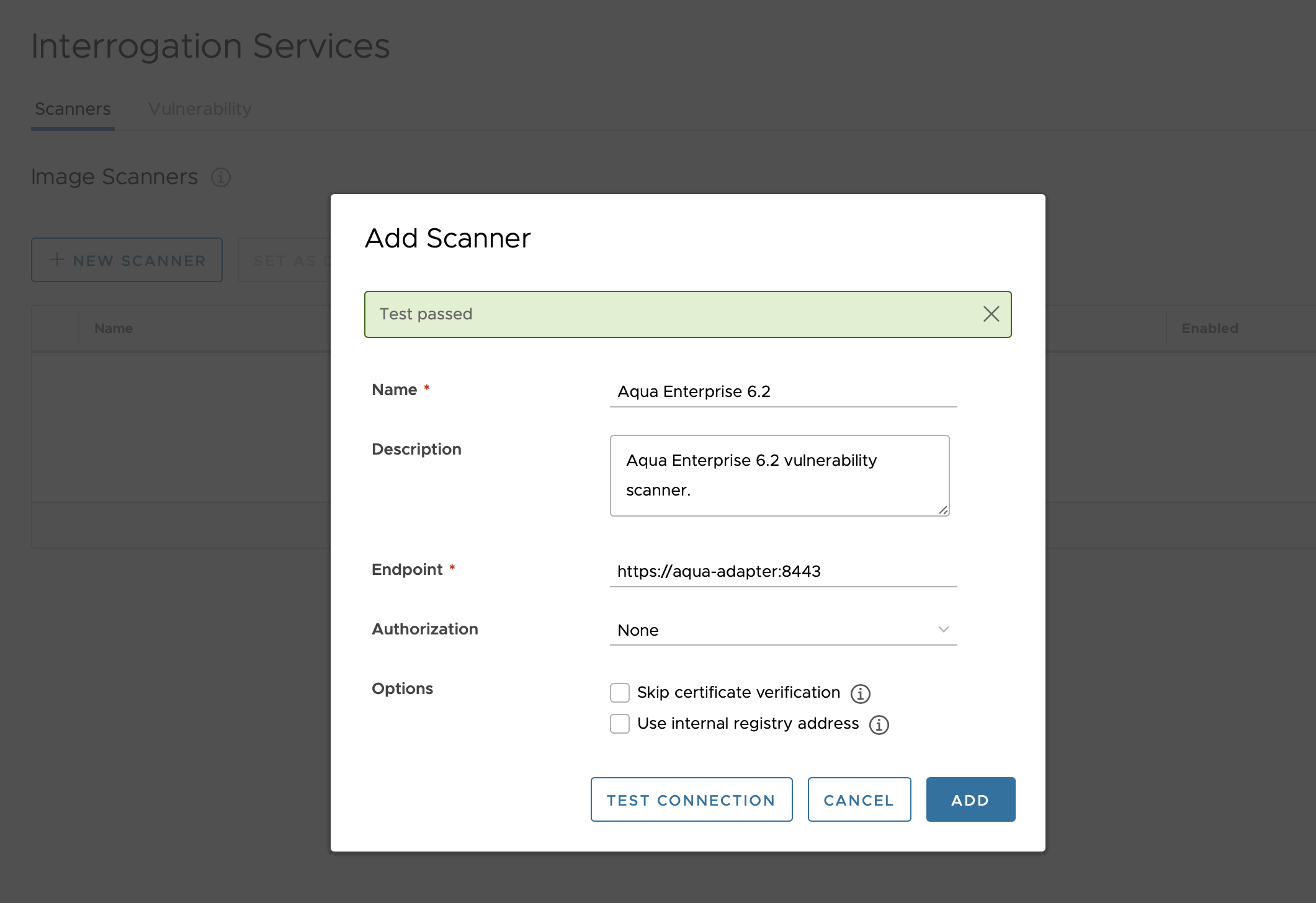
Enter the information to identify the scanner.
-
A unique name for this scanner instance to display in the Harbor interface, e.g. Aqua Enterprise 6.5.
-
The API endpoint URL of the adapter service.
NOTE: For the adapter deployed on Kubernetes the default URL is http://harbor-scanner-aqua.harbor:8080, whereas for Docker, it's https://aqua-adapter:8443.
-
-
Click TEST CONNECTION to make sure that Harbor can connect successfully to the adapter service.
NOTE: When you click the TEST CONNECTION button Harbor only pings the adapter service. It does not validate connection to the Aqua Management Console, which is configured with
SCANNER_AQUA_USERNAME,SCANNER_AQUA_PASSWORD, andSCANNER_AQUA_HOSTenvironment variables. If the connection to the Aqua Management Console is misconfigured you will see an error message in the scan logs accessible from the Harbor interface. -
If everything is fine click ADD to save the configuration and connect Harbor to the adapter service.
-
If you configured multiple scanners, you can designate the Aqua Enterprise scanner as the default one by selecting it and clicking SET AS DEFAULT.
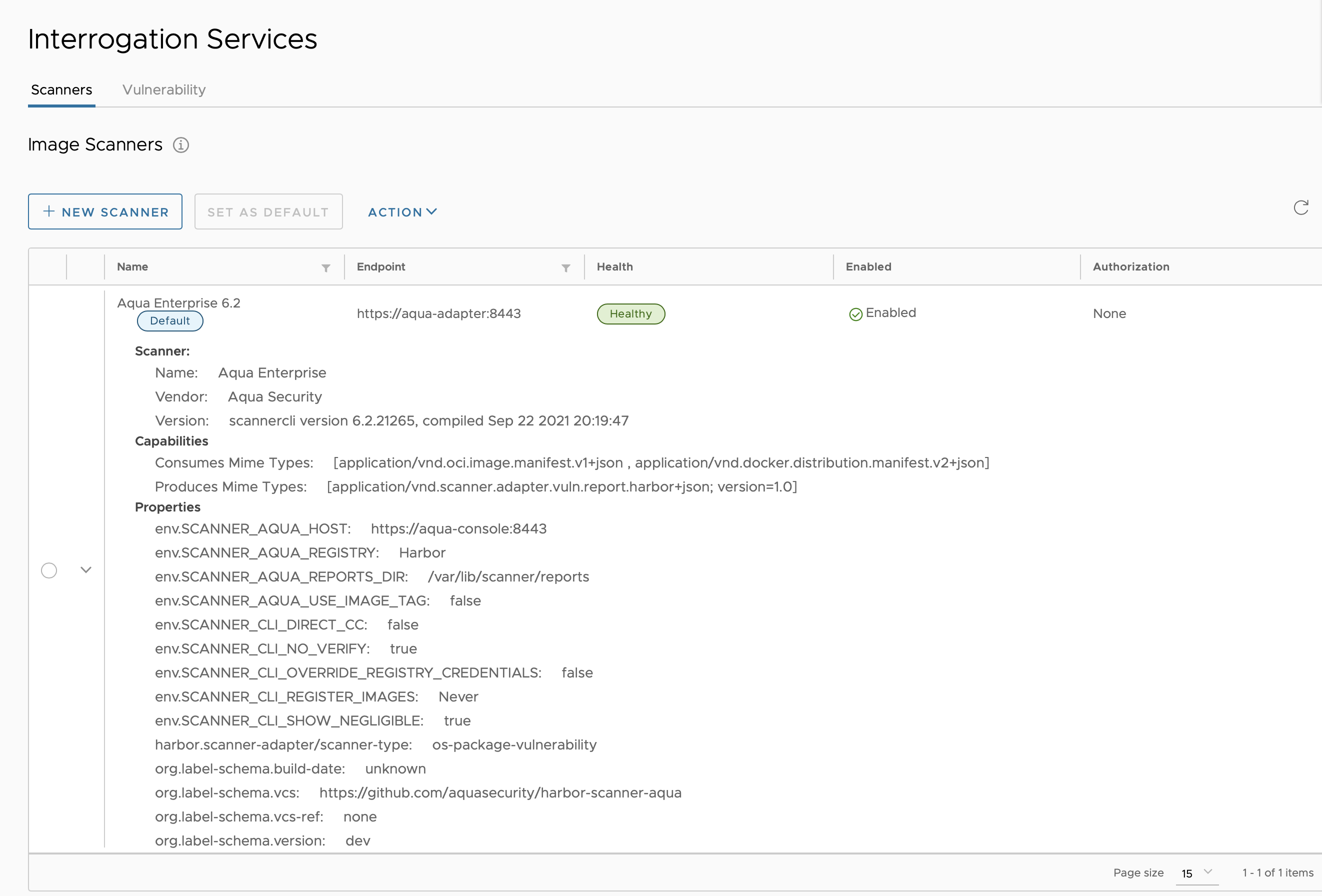 Make sure the Default label is displayed next to the Aqua scanner's name.
Configuration
Configuration of the adapter is done via environment variables at startup.
| Name | Default | Description |
|---|---|---|
SCANNER_LOG_LEVEL | info | The log level of trace, debug, info, warn, warning, error, fatal or panic. The standard logger logs entries with that level or anything above it. |
SCANNER_API_ADDR | :8080 | Binding address for the API HTTP server |
SCANNER_API_TLS_CERTIFICATE | The absolute path to the x509 certificate file | |
SCANNER_API_TLS_KEY | The absolute path to the x509 private key file | |
SCANNER_API_READ_TIMEOUT | 15s | The maximum duration for reading the entire request, including the body |
SCANNER_API_WRITE_TIMEOUT | 15s | The maximum duration before timing out writes of the response |
SCANNER_API_IDLE_TIMEOUT | 60s | The maximum amount of time to wait for the next request when keep-alives are enabled |
SCANNER_AQUA_USERNAME | N/A | Aqua management console username (required) |
SCANNER_AQUA_PASSWORD | N/A | Aqua management console password (required) |
SCANNER_AQUA_HOST | http://csp-console-svc.aqua:8080 | Aqua management console address |
SCANNER_AQUA_REGISTRY | Harbor | The name of the Harbor registry configured in Aqua management console |
SCANNER_AQUA_REPORTS_DIR | /var/lib/scanner/reports | Directory to save temporary scan reports |
SCANNER_AQUA_USE_IMAGE_TAG | false | The flag to determine whether the image tag or digest is used in the image reference passed to scannercli |
SCANNER_CLI_NO_VERIFY | false | The flag passed to scannercli to skip verifying TLS certificates |
SCANNER_CLI_SHOW_NEGLIGIBLE | true | The flag passed to scannercli to show negligible/unknown severity vulnerabilities |
SCANNER_CLI_OVERRIDE_REGISTRY_CREDENTIALS | false | The flag to enable passing --robot-username and --robot-password flags to the scannercli executable binary |
SCANNER_CLI_DIRECT_CC | false | The flag passed to scannercli to contact CyberCenter directly (rather than through the Aqua server) |
SCANNER_CLI_REGISTER_IMAGES | Never | The flag to determine whether images are registered in Aqua management console: Never - skips registration; Compliant - registers only compliant images; Always - registers compliant and non-compliant images. |
SCANNER_STORE_REDIS_NAMESPACE | harbor.scanner.aqua:store | The namespace for keys in the Redis store |
SCANNER_STORE_REDIS_SCAN_JOB_TTL | 1h | The time to live for persisting scan jobs and associated scan reports |
SCANNER_REDIS_URL | redis://harbor-harbor-redis:6379 | The Redis server URI. The URI supports schemas to connect to a standalone Redis server, i.e. redis://:password@standalone_host:port/db-number and Redis Sentinel deployment, i.e. redis+sentinel://:password@sentinel_host1:port1,sentinel_host2:port2/monitor-name/db-number. |
SCANNER_REDIS_POOL_MAX_ACTIVE | 5 | The max number of connections allocated by the pool for the Redis store |
SCANNER_REDIS_POOL_MAX_IDLE | 5 | The max number of idle connections in the pool for the Redis store |
SCANNER_REDIS_POOL_IDLE_TIMEOUT | 5m | The duration after which idle connections to the Redis server are closed. If the value is zero, then idle connections are not closed. |
SCANNER_REDIS_POOL_CONNECTION_TIMEOUT | 1s | The timeout for connecting to the Redis server |
SCANNER_REDIS_POOL_READ_TIMEOUT | 1s | The timeout for reading a single Redis command reply |
SCANNER_REDIS_POOL_WRITE_TIMEOUT | 1s | The timeout for writing a single Redis command |
Troubleshooting
Error: Failed getting image manifest: 412 Precondition Failed
Currently, there's a limitation of scannercli in Aqua Enterprise versions < 4.6.20181 (4.6 update 16) which do not
accept Harbor robot account credentials passed by a Harbor scan job to the adapter service. This effectively means that
the Aqua Enterprise scanner is using the credentials provided in Aqua Management Console under the
Integrations / Image Registries section. However, these credentials do not have enough permissions to bypass the
deployment security checker when it's enabled in the Harbor project configuration. In other words, the deployment
security checker prevents the Aqua Enterprise scanner from pulling an image, which it needs to be able to do in order
to scan it.
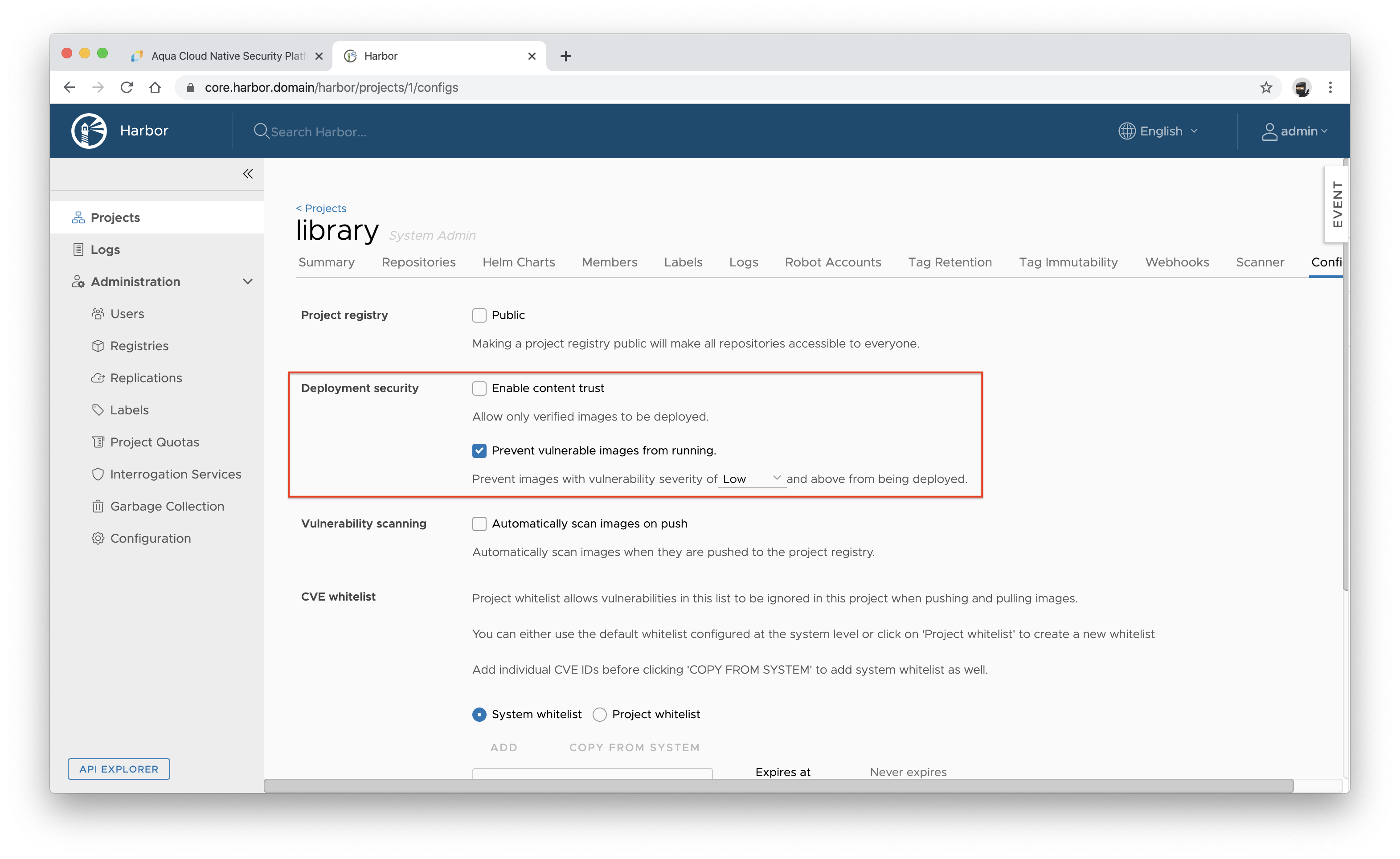
The available solution depends on the version of your Aqua Enterprise deployment. In scannercli version >= 4.6.20181 (4.6 update 16)
we've introduced new --robot-username and --robot-password flags to respect credentials provided by Harbor.
- For Aqua Enterprise version < 4.6.20181 (4.6 update 16) you can only disable deployment security checks in the Harbor interface under the project configuration.
- For Aqua Enterprise version >= 4.6.20181 (4.6 update 16) set the value of the
SCANNER_CLI_OVERRIDE_REGISTRY_CREDENTIALSenv totrue.
Error: Failed scanning image: image was not found in registry
For Harbor version >= 2.0 && version < 2.3, which do not set the tag property in a scan request anymore, the value of the
SCANNER_AQUA_USE_IMAGE_TAG env must be set to false. This informs the adapter service to use digest rather than tag
as the image identifier.
Error: Failed scanning image: no such registry
Make sure the value of the SCANNER_AQUA_REGISTRY env is the same as the Registry Name entered in Aqua Management
Console.
Scans are not displayed in the CI/CD Scans page
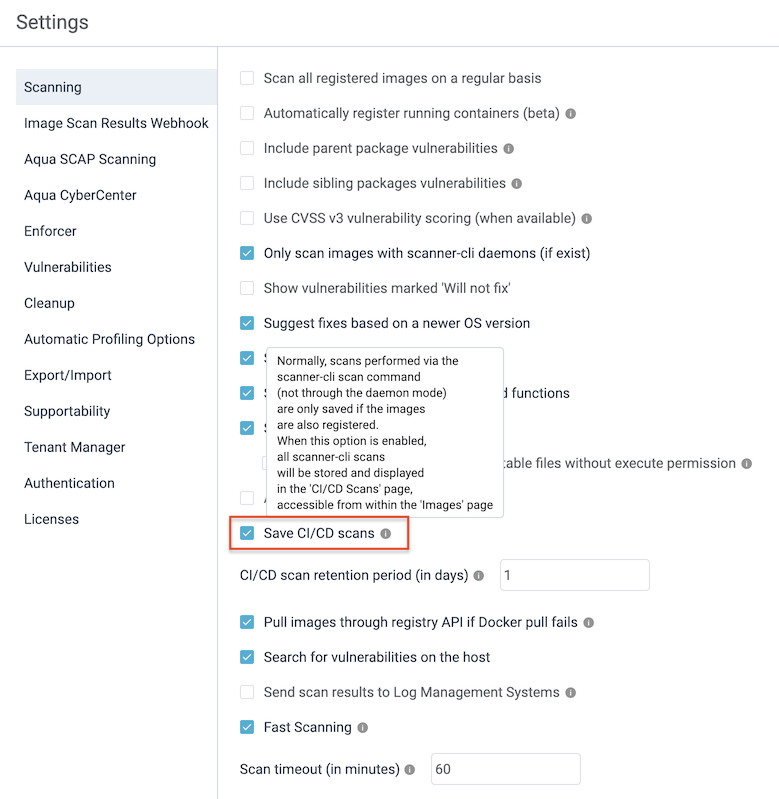
Normally, scans performed via the scannercli scan command (not through the daemon mode) are only saved if the images
are also registered in Aqua Enterprise. To store and display all scannercli scans in the CI/CD Scans page,
accessible from within the Images page, enable the Save CI/CD scans option in the Aqua Management Console.
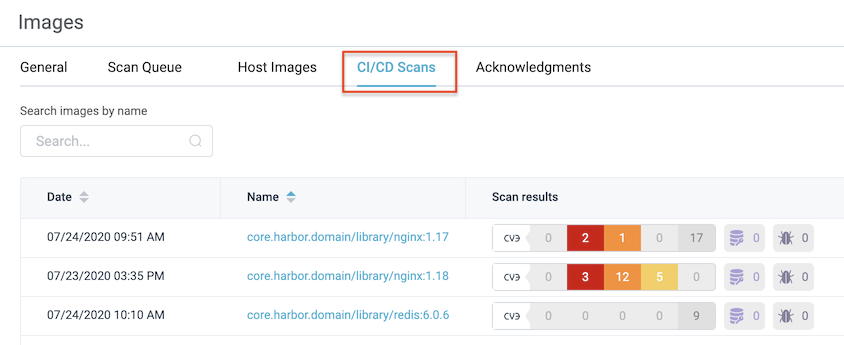
Now, even if the images stored in Harbor were not registered in Aqua Enterprise, you'd see them in the CI/CD Scans page.
Contributing
Please read CONTRIBUTING.md for information about setting up your development environment, and the contribution workflow that we expect.
Contributors


Similar repos


Languages
Go
86.9%
Shell
9.6%
Smarty
2.6%
Aqua Enterprise scanner as a plug-in vulnerability scanner in the Harbor registry
36
stars
99
commits
Go
primary language
Oct 4, 2024
updated
README
Harbor Scanner Adapter for Aqua Enterprise
NOTE: This adapter is only required if you want Harbor to use Aqua Enterprise for its image scanning feature. If your objective is to use Aqua Enterprise to provide its own analysis reports against images stored in Harbor, that can be achieved without deploying this adapter.
The Harbor Scanner Adapter for Aqua Enterprise is a service that translates the Harbor scanning API into scannercli
commands and allows Harbor to use Aqua Enterprise ad hoc scanning for providing vulnerability reports on images stored
in Harbor registry as part of its vulnerability scan feature.
The adapter service implements the Pluggable Scanners API v1.0 and communicates with the Aqua API server to fulfil the contract required by Harbor scanning API. This contract is based on OS and application vulnerabilities, which implies that Harbor scanning API and Harbor Portal are only capable of handling and displaying OS and application vulnerabilities.
NOTE: To see the whole report generated by the Aqua scanner, including detected malware and sensitive data, you have to navigate from Harbor Portal to Aqua Management Console. Similarly, Harbor does not have support for displaying or enforcing Aqua's image assurance policies. You will need to use the Aqua Management Console to view and configure these policies.
TOC
Requirements
-
Harbor >= 1.10
-
This adapter service requires Aqua Enterprise >= 4.5 deployment to operate. The adapter can be deployed before the Aqua Enterprise installation, but the Aqua Management Console URL and credentials must be known to configure the adapter with the environment variables.
-
The adapter service also requires the
scannercliexecutable binary, in version matching the Aqua Enterprise, to be mounted at/usr/local/bin/scannercli. The provided Helm chart mounts thescannercliexecutable automatically by pulling theregistry.aquasec.com/scanner:$AQUA_VERSIONimage from Aqua Registry and running it as an init container. The init container's command is configured to copy the executable from the container's filesystem to an emptyDir volume, which is shared with the main container. This makes thescannercliexecutable available to the main container at/usr/local/bin/scannercli.NOTE: Make sure that you provide valid Aqua Registry credentials received from Aqua Security as Helm values in order to create the corresponding image pull secret.
If you're not using Kubernetes to run the adapter service, you have to download the
scannercliexecutable from the Aqua downloads page manually and mount it at/usr/local/bin/scannercli. See Aqua Scanner Executable Binary for more details on manual download. -
It is highly recommended to create a new user in the Aqua Management Console with credentials dedicated to the Harbor adapter, e.g.
harbor_scanner. The adapter does not need full access to Aqua: theScannerrole is the only permission required for thescannercliexecutable binary which is run by the adapter service on each scan request. Therefore, create yourharbor_scanneruser and assign it only theScannerrole. -
It is also highly recommended to create a new user in Harbor for the Aqua Enterprise scanner, with permission only to pull images from Harbor, e.g.
aqua_scanner. Please remember to add this user as a member of the project in Harbor that you intend to scan the images from. -
Finally, add a new Harbor registry integration in Aqua Management Console and use the credentials of the user created in the previous step. Please note that the value of the Registry Name field corresponds to the
SCANNER_AQUA_REGISTRYconfiguration variable.
How does it work?
In essence, a scan request payload sent by Harbor to the adapter:
{
  "registry": {
    "url": "https://core.harbor.domain",
    "authorization": "Basic BASE64_ENCODED_CREDENTIALS"
  },
  "artifact": {
    "repository": "library/mongo",
    "tag": "3.4-xenial",
    "digest": "sha256:6c3c624b58dbbcd3c0dd82b4c53f04194d1247c6eebdaab7c610cf7d66709b3b",
    "mime_type": "application/vnd.docker.distribution.manifest.v2+json"
  }
}
is translated to the following scannercli command:
$ scannercli scan \
    --checkonly \
    --dockerless \
    --user=$SCANNER_AQUA_USERNAME \
    --password=$SCANNER_AQUA_PASSWORD \
    --host=$SCANNER_AQUA_HOST \
    --registry=$SCANNER_AQUA_REGISTRY \
    --robot-username=$HARBOR_ROBOT_ACCOUNT_NAME \
    --robot-password=$HARBOR_ROBOT_ACCOUNT_PASSWORD \
    --no-verify=$SCANNER_CLI_NO_VERIFY \
    --show-negligible=$SCANNER_CLI_SHOW_NEGLIGIBLE \
    --jsonfile /var/lib/scanner/reports/aqua_scan_report_0123456789.json \
    library/mongo@sha256:6c3c624b58dbbcd3c0dd82b4c53f04194d1247c6eebdaab7c610cf7d66709b3b
Finally, the output report is transformed to Harbor's model and displayed in the Harbor interface.
NOTE: The
SCANNER_AQUA_USE_IMAGE_TAGenv determines whether the image tag (library/mongo:3.4-xenial) or digest (library/mongo@sha256:6c3c624b58dbbcd3c0dd82b4c53f04194d1247c6eebdaab7c610cf7d66709b3b) is used as the image identifier passed to thescannerclicommand.
NOTE: Harbor version >= 2.0 && version < 2.3 no longer set the
tagproperty in the scan request. Thus, theSCANNER_AQUA_USE_IMAGE_TAGenv must be set tofalse.
Deployment
Harbor can be installed as a Docker service or deployed with high availability via Helm. This section describes how to perform a new installation of the adapter service in both cases.
It's also possible to deploy Harbor on Docker (outside the Kubernetes environment) to work with Aqua Enterprise on Kubernetes, and you should be able to figure it out based on the following instructions.
Docker
This section shows how to install the adapter service by extending the Docker Compose file
created by the Harbor >= 1.10 installer in the $HARBOR_HOME directory. We assume that the internal
TLS communication between Harbor components is enabled and internal certificate files are
stored in the $HARBOR_PKI_DIR directory. The default Harbor data volume path is referred to as $HARBOR_DATA. We also
assume that you installed Aqua Enterprise >= 4.5, and the Aqua Management Console is accessible at
https://aqua-console:8443, and you have valid credentials with permission to scan container images.
-
Export environment variables that are used throughout the installation scripts.
Review and adapt the values to reflect your installation paths and credentials.
export HARBOR_HOME="/opt/harbor"
export HARBOR_DATA="/data"
export HARBOR_PKI_DIR="/etc/harbor/pki/internal"

export AQUA_VERSION="6.5"
export AQUA_CONSOLE_HOST="https://aqua-console:8443"
export AQUA_CONSOLE_USERNAME=<your username>
export AQUA_CONSOLE_PASSWORD=<your password>

export HARBOR_SCANNER_AQUA_VERSION="0.14.0"
export AQUA_REGISTRY_USERNAME=<your username> export AQUA_REGISTRY_PASSWORD=<your password> -
Create the config and data directories for the adapter service.
mkdir -p $HARBOR_HOME/common/config/aqua-adapter mkdir -p $HARBOR_DATA/aqua-adapter/reports mkdir -p $HARBOR_DATA/aqua-adapter/opt -
Download the
scannercliexecutable binary.- You can download the binary from the docs page and save it to
$HARBOR_HOME/common/config/aqua-adapter/scannercli. - Alternatively you can use the
registry.aquasec.com/scanner:$AQUA_VERSIONimage to copy thescannerclibinary from the container's file system.echo $AQUA_REGISTRY_PASSWORD | docker login registry.aquasec.com \ --username $AQUA_REGISTRY_USERNAME --password-stdindocker run --rm --entrypoint "" \ --volume $HARBOR_HOME/common/config/aqua-adapter:/out registry.aquasec.com/scanner:$AQUA_VERSION \ cp /opt/aquasec/scannercli /out
- You can download the binary from the docs page and save it to
-
Generate certificate files.
NOTE: Self signed certificates without SAN were deprecated in Go, therefore you must add the SAN extension to your certificate files. The DNS name in SAN extension should be the same as CN field.
-
Generate a private key.
openssl genrsa -out $HARBOR_PKI_DIR/aqua_adapter.key 4096 -
Generate a certificate signing request (CSR).
Adapt the values in the
-subjoption to reflect your organization.openssl req -sha512 -new \ -subj "/C=CN/ST=Beijing/L=Beijing/O=example/OU=Personal/CN=aqua-adapter" \ -key $HARBOR_PKI_DIR/aqua_adapter.key \ -out $HARBOR_PKI_DIR/aqua_adapter.csr -
Generate an x509 v3 extension file.
You must create this file so that you can generate a certificate for adapter service host that complies with the Subject Alternative Name (SAN) and x509 v3 extension requirements.
cat << EOF > $HARBOR_PKI_DIR/aqua_adapter_v3.ext authorityKeyIdentifier=keyid,issuer basicConstraints=CA:FALSE keyUsage = digitalSignature, nonRepudiation, keyEncipherment, dataEncipherment extendedKeyUsage = serverAuth subjectAltName = @alt_names [alt_names] DNS.1=aqua-adapter EOF -
Use the
aqua_adapter_v3.extfile to generate a certificate for adapter service host.NOTE: The certificate must be signed by the internal Harbor CA.
openssl x509 -req -sha512 -days 365 \
  -extfile $HARBOR_PKI_DIR/aqua_adapter_v3.ext \
  -CA $HARBOR_PKI_DIR/harbor_internal_ca.crt \
  -CAkey $HARBOR_PKI_DIR/harbor_internal_ca.key \
  -CAcreateserial \
  -in $HARBOR_PKI_DIR/aqua_adapter.csr \
  -out $HARBOR_PKI_DIR/aqua_adapter.crt
-
-
Create the
envfile to configure the adapter service:cat << EOF > $HARBOR_HOME/common/config/aqua-adapter/env SCANNER_LOG_LEVEL=info SCANNER_API_ADDR=:8443 SCANNER_API_TLS_KEY=/etc/pki/aqua_adapter.key SCANNER_API_TLS_CERTIFICATE=/etc/pki/aqua_adapter.crt SCANNER_AQUA_HOST=$AQUA_CONSOLE_HOST SCANNER_AQUA_USERNAME=$AQUA_CONSOLE_USERNAME SCANNER_AQUA_PASSWORD=$AQUA_CONSOLE_PASSWORD SCANNER_AQUA_REGISTRY=Harbor SCANNER_AQUA_USE_IMAGE_TAG=false SCANNER_AQUA_REPORTS_DIR=/var/lib/scanner/reports SCANNER_REDIS_URL=redis://redis:6379 EOF -
Create
docker-compose.override.ymlfile in the$HARBOR_HOMEdirectory to install the adapter service:cat << EOF > $HARBOR_HOME/docker-compose.override.yml version: '2.3' services: aqua-adapter: networks: - harbor container_name: aqua-adapter image: docker.io/aquasec/harbor-scanner-aqua:$HARBOR_SCANNER_AQUA_VERSION restart: always cap_drop: - ALL depends_on: - redis env_file: $HARBOR_HOME/common/config/aqua-adapter/env volumes: - type: bind source: $HARBOR_HOME/common/config/aqua-adapter/scannercli target: /usr/local/bin/scannercli - type: bind source: $HARBOR_PKI_DIR/aqua_adapter.key target: /etc/pki/aqua_adapter.key - type: bind source: $HARBOR_PKI_DIR/aqua_adapter.crt target: /etc/pki/aqua_adapter.crt - type: bind source: $HARBOR_DATA/aqua-adapter/reports target: /var/lib/scanner/reports - type: bind source: $HARBOR_DATA/aqua-adapter/opt target: /opt/aquascans logging: driver: "syslog" options: syslog-address: "tcp://127.0.0.1:1514" tag: "aqua-scanner" EOF -
For some Docker drivers you must explicitly set ownership of config files and data directories to user and group which runs the adapter process, i.e.
1000:1000:chown 1000:1000 $HARBOR_HOME/common/config/aqua-adapter/scannercli chown 1000:1000 $HARBOR_PKI_DIR/aqua_adapter.key chown 1000:1000 $HARBOR_PKI_DIR/aqua_adapter.crt chown 1000:1000 $HARBOR_DATA/aqua-adapter/reports chown 1000:1000 $HARBOR_DATA/aqua-adapter/opt -
Start the adapter service:
cd $HARBOR_HOME
docker-compose up --detach
The adapter service will be accessible at https://aqua-adapter:8443 from within the
harborDocker network.
Kubernetes
I assume that you installed Aqua Enterprise >= 4.5 with Aqua Security Helm charts in the
aquanamespace, and the Aqua Management Console is accessible at http://aqua-console-svc.aqua:8080 from within the cluster.
-
Export environment variables that are used throughout the installation scripts.
Review and adapt the values to reflect your installation paths and credentials.
export AQUA_VERSION="6.5" export AQUA_CONSOLE_HOST="http://aqua-console-svc.aqua:8080" export AQUA_CONSOLE_USERNAME=<your username> export AQUA_CONSOLE_PASSWORD=<your password> export AQUA_REGISTRY_USERNAME=<your username> export AQUA_REGISTRY_PASSWORD=<your password> -
Install the
harbor-scanner-aquachart:helm repo add aqua https://aquasecurity.github.io/helm-charts/ helm repo updatehelm install harbor-scanner-aqua aqua/harbor-scanner-aqua \ --namespace harbor \ --set aqua.version=$AQUA_VERSION \ --set aqua.registry.server=registry.aquasec.com \ --set aqua.registry.username=$AQUA_REGISTRY_USERNAME \ --set aqua.registry.password=$AQUA_REGISTRY_PASSWORD \ --set scanner.aqua.host=$AQUA_CONSOLE_HOST \ --set scanner.aqua.username=$AQUA_CONSOLE_USERNAME \ --set scanner.aqua.password=$AQUA_CONSOLE_PASSWORDThe scanner service should be accessible at http://harbor-scanner-aqua.harbor:8080 from within the cluster.
OpenShift Container Platform
Similar to the way that RBAC resources control user access, administrators can use Security Context Constraints (SCCs) to control permissions for pods. These permissions include actions that a pod can perform and what resources it can access. You can use SCCs to define a set of conditions that a pod must run with in order to be accepted into the system.
In particular, SCCs allow an administrator to control:
- The container user ID
- The allocation of an fsGroup that owns the pod's volumes
The harbor-scanner-aqua’s Helm chart deployment template:
- Runs the underlying pod with a dedicated service account (named after a Helm release)
- Requires that the pod's containers run as user with ID
1000 - Requires that fsGroup that owns the pod's volumes has ID
1000
Therefore, the harbor-scanner-aqua deployment will be accepted by OpenShift Container Platform only when a service account is granted access to a SCC that:
- Allows container user with ID
1000 - Allows fsGroup with ID
1000
For example, if the scanner adapter installed as the Helm release called harbor-scanner-aqua in the harbor namespace,
the following command has to be run by the administrator to accept the pods:
$ oc adm policy add-scc-to-user <scc name> system:serviceaccount:harbor:harbor-scanner-aqua
where <scc name> is one of the predefined SCCs or a custom SCC created by the administrator.
Configuring Harbor Scanner
-
Log in to the Harbor interface with an account that has Harbor system administrator privileges.
-
Expand Administration, and select Interrogation Services.
-
Click the NEW SCANNER button.
-
Enter the information to identify the scanner.
-
A unique name for this scanner instance to display in the Harbor interface, e.g. Aqua Enterprise 6.5.
-
The API endpoint URL of the adapter service.
NOTE: For the adapter deployed on Kubernetes the default URL is http://harbor-scanner-aqua.harbor:8080, whereas for Docker, it's https://aqua-adapter:8443.
-
-
Click TEST CONNECTION to make sure that Harbor can connect successfully to the adapter service.
NOTE: When you click the TEST CONNECTION button Harbor only pings the adapter service. It does not validate connection to the Aqua Management Console, which is configured with
SCANNER_AQUA_USERNAME,SCANNER_AQUA_PASSWORD, andSCANNER_AQUA_HOSTenvironment variables. If the connection to the Aqua Management Console is misconfigured you will see an error message in the scan logs accessible from the Harbor interface. -
If everything is fine click ADD to save the configuration and connect Harbor to the adapter service.
-
If you configured multiple scanners, you can designate the Aqua Enterprise scanner as the default one by selecting it and clicking SET AS DEFAULT.
Make sure the Default label is displayed next to the Aqua scanner's name.
Configuration
Configuration of the adapter is done via environment variables at startup.
| Name | Default | Description |
|---|---|---|
SCANNER_LOG_LEVEL | info | The log level of trace, debug, info, warn, warning, error, fatal or panic. The standard logger logs entries with that level or anything above it. |
SCANNER_API_ADDR | :8080 | Binding address for the API HTTP server |
SCANNER_API_TLS_CERTIFICATE | The absolute path to the x509 certificate file | |
SCANNER_API_TLS_KEY | The absolute path to the x509 private key file | |
SCANNER_API_READ_TIMEOUT | 15s | The maximum duration for reading the entire request, including the body |
SCANNER_API_WRITE_TIMEOUT | 15s | The maximum duration before timing out writes of the response |
SCANNER_API_IDLE_TIMEOUT | 60s | The maximum amount of time to wait for the next request when keep-alives are enabled |
SCANNER_AQUA_USERNAME | N/A | Aqua management console username (required) |
SCANNER_AQUA_PASSWORD | N/A | Aqua management console password (required) |
SCANNER_AQUA_HOST | http://csp-console-svc.aqua:8080 | Aqua management console address |
SCANNER_AQUA_REGISTRY | Harbor | The name of the Harbor registry configured in Aqua management console |
SCANNER_AQUA_REPORTS_DIR | /var/lib/scanner/reports | Directory to save temporary scan reports |
SCANNER_AQUA_USE_IMAGE_TAG | false | The flag to determine whether the image tag or digest is used in the image reference passed to scannercli |
SCANNER_CLI_NO_VERIFY | false | The flag passed to scannercli to skip verifying TLS certificates |
SCANNER_CLI_SHOW_NEGLIGIBLE | true | The flag passed to scannercli to show negligible/unknown severity vulnerabilities |
SCANNER_CLI_OVERRIDE_REGISTRY_CREDENTIALS | false | The flag to enable passing --robot-username and --robot-password flags to the scannercli executable binary |
SCANNER_CLI_DIRECT_CC | false | The flag passed to scannercli to contact CyberCenter directly (rather than through the Aqua server) |
SCANNER_CLI_REGISTER_IMAGES | Never | The flag to determine whether images are registered in Aqua management console: Never - skips registration; Compliant - registers only compliant images; Always - registers compliant and non-compliant images. |
SCANNER_STORE_REDIS_NAMESPACE | harbor.scanner.aqua:store | The namespace for keys in the Redis store |
SCANNER_STORE_REDIS_SCAN_JOB_TTL | 1h | The time to live for persisting scan jobs and associated scan reports |
SCANNER_REDIS_URL | redis://harbor-harbor-redis:6379 | The Redis server URI. The URI supports schemas to connect to a standalone Redis server, i.e. redis://:password@standalone_host:port/db-number and Redis Sentinel deployment, i.e. redis+sentinel://:password@sentinel_host1:port1,sentinel_host2:port2/monitor-name/db-number. |
SCANNER_REDIS_POOL_MAX_ACTIVE | 5 | The max number of connections allocated by the pool for the Redis store |
SCANNER_REDIS_POOL_MAX_IDLE | 5 | The max number of idle connections in the pool for the Redis store |
SCANNER_REDIS_POOL_IDLE_TIMEOUT | 5m | The duration after which idle connections to the Redis server are closed. If the value is zero, then idle connections are not closed. |
SCANNER_REDIS_POOL_CONNECTION_TIMEOUT | 1s | The timeout for connecting to the Redis server |
SCANNER_REDIS_POOL_READ_TIMEOUT | 1s | The timeout for reading a single Redis command reply |
SCANNER_REDIS_POOL_WRITE_TIMEOUT | 1s | The timeout for writing a single Redis command |
Troubleshooting
Error: Failed getting image manifest: 412 Precondition Failed
Currently, there's a limitation of scannercli in Aqua Enterprise versions < 4.6.20181 (4.6 update 16) which do not
accept Harbor robot account credentials passed by a Harbor scan job to the adapter service. This effectively means that
the Aqua Enterprise scanner is using the credentials provided in Aqua Management Console under the
Integrations / Image Registries section. However, these credentials do not have enough permissions to bypass the
deployment security checker when it's enabled in the Harbor project configuration. In other words, the deployment
security checker prevents the Aqua Enterprise scanner from pulling an image, which it needs to be able to do in order
to scan it.
The available solution depends on the version of your Aqua Enterprise deployment. In scannercli version >= 4.6.20181 (4.6 update 16)
we've introduced new --robot-username and --robot-password flags to respect credentials provided by Harbor.
- For Aqua Enterprise version < 4.6.20181 (4.6 update 16) you can only disable deployment security checks in the Harbor interface under the project configuration.
- For Aqua Enterprise version >= 4.6.20181 (4.6 update 16) set the value of the
SCANNER_CLI_OVERRIDE_REGISTRY_CREDENTIALSenv totrue.
Error: Failed scanning image: image was not found in registry
For Harbor version >= 2.0 && version < 2.3, which do not set the tag property in a scan request anymore, the value of the
SCANNER_AQUA_USE_IMAGE_TAG env must be set to false. This informs the adapter service to use digest rather than tag
as the image identifier.
Error: Failed scanning image: no such registry
Make sure the value of the SCANNER_AQUA_REGISTRY env is the same as the Registry Name entered in Aqua Management
Console.
Scans are not displayed in the CI/CD Scans page
Normally, scans performed via the scannercli scan command (not through the daemon mode) are only saved if the images
are also registered in Aqua Enterprise. To store and display all scannercli scans in the CI/CD Scans page,
accessible from within the Images page, enable the Save CI/CD scans option in the Aqua Management Console.
Now, even if the images stored in Harbor were not registered in Aqua Enterprise, you'd see them in the CI/CD Scans page.
Contributing
Please read CONTRIBUTING.md for information about setting up your development environment, and the contribution workflow that we expect.
Similar repos
Contributors
Languages
Go
86.9%
Shell
9.6%
Smarty
2.6%