A small Mac menu bar app that checks every MCP server your AI agents use: broken, slow, waiting for a sign-in, or set up differently.
See the code

-6b8e6b)

A small Mac menu bar app that checks every MCP server your AI agents use, and tells you which ones are broken, slow, waiting for a sign-in, or set up differently from one agent to the next.
MCP (Model Context Protocol) servers are the small programs that give agents like Claude Code, Cursor or Codex their extra tools. mcpock finds them in your agents' config files, starts each one the way the agent would, and checks that it answers.
When you use more than one agent, the same MCP server ends up in five config files, each written a little differently. One day a tool quietly stops working in one agent and not the others, and you only notice when a task fails halfway. The agent rarely says why.
mcpock gives you one place to look. It never changes your configs: it reads them, checks every server, and shows you what needs attention and why, so you (or your agent) can fix it.
Finds your servers automatically. It knows the config files of the common agents and also scans the usual config folders for anything written in a standard MCP format. The same server in several agents shows as one row.
Checks each one. It starts a local server (or calls a remote one), does the MCP handshake, asks for its tool list, then closes it. Every 1 minute to 4 hours, or only when you click Refresh.
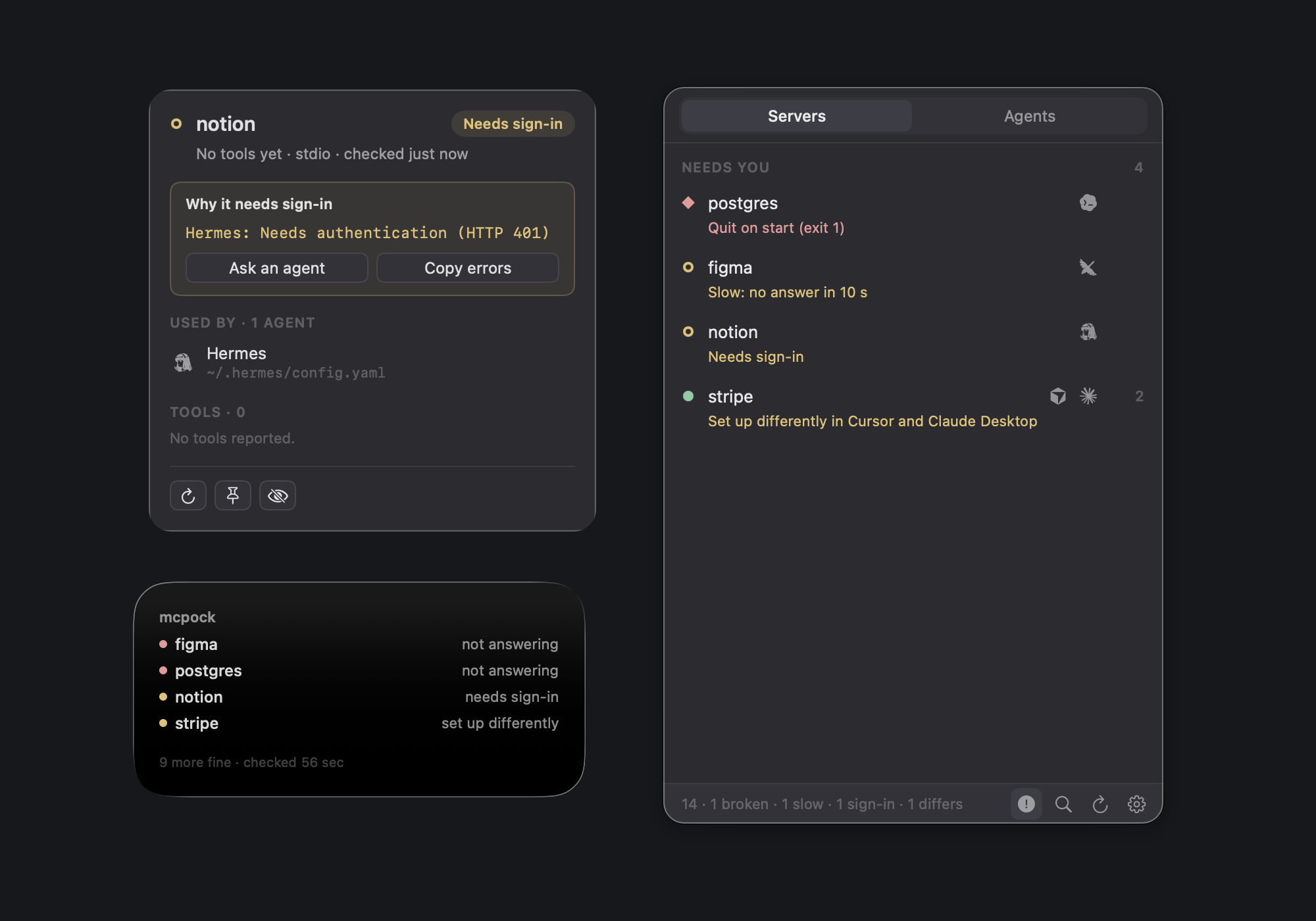
Shows health as a shape, not only a colour:
| Shape | Means |
|---|---|
| Filled dot (green) | Fine: it started and listed its tools |
| Ring (amber) | Slow (no answer in 10 s) or needs sign-in (HTTP 401/403) |
| Ring (grey) | Still checking |
| Diamond (red) | Broken: could not start, quit on start, or refused the handshake |
| Dash (grey) | Paused by you, or runs inside its own app and can't be checked from outside |
Spots servers set up differently. When one agent launches a different
command or address than the others (often an old path), the row says so, and
Compare shows each agent's version side by side. The same runtime in
another folder (npx here, an agent's own ~/.agent/node/bin/npx there) is not a
difference. If the agents are
meant to differ, choose Mark as intended on the card (or Mark as
Intended in the right-click menu).
Problems first. The list starts with Needs you, then your pinned servers, then everything else. One toggle in the footer shows only problems.
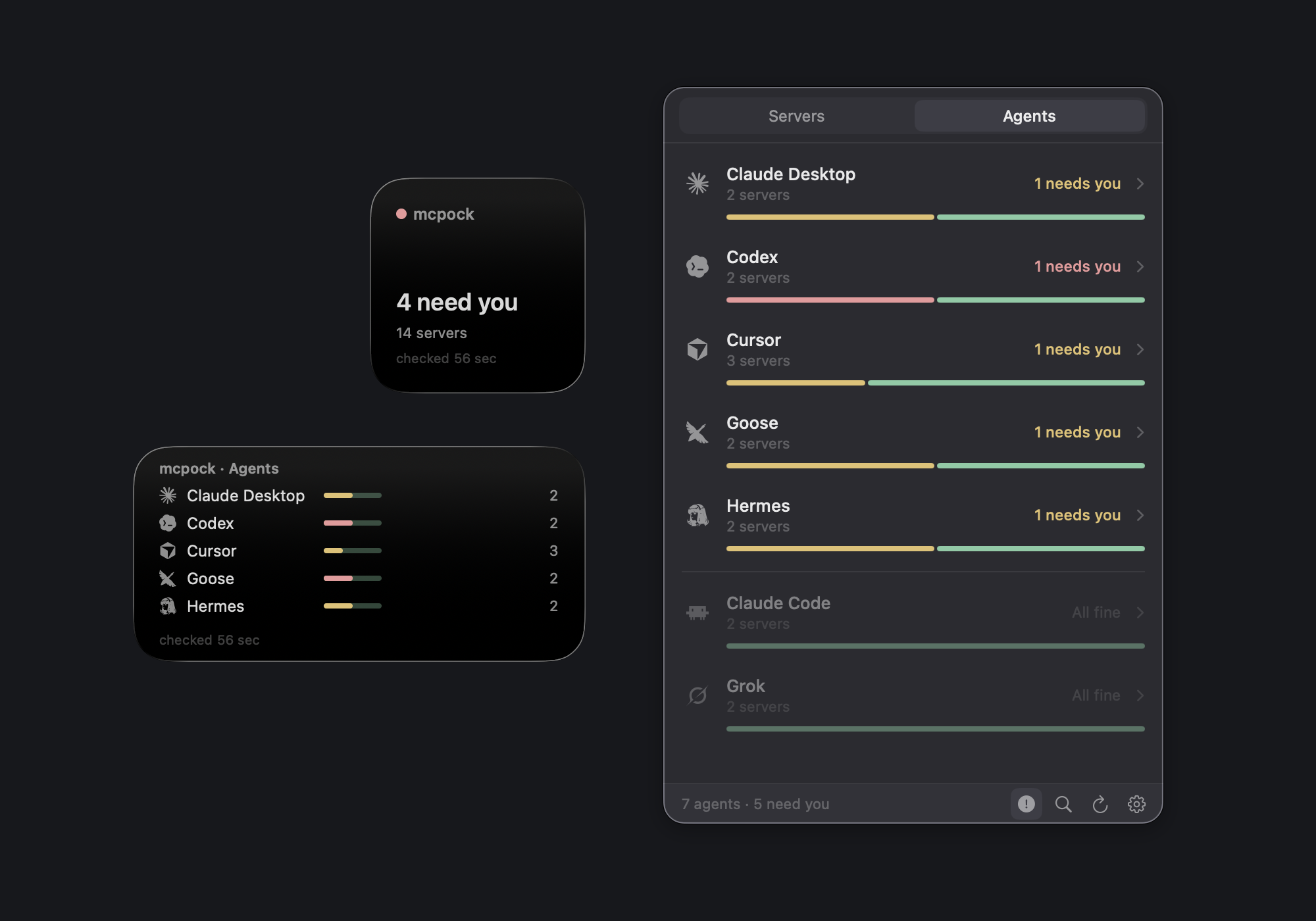
Agents tab. The panel opens here: one row per agent with a small health bar that grows in after each check. Open an agent to see its servers (the first 5, +N more for the rest; servers that need you always show) and its config file. With the problems toggle on, agents with nothing wrong stay listed below, faded.
Usage counts. Next to each server under an agent: how many times that agent called it in the last 7 days, 30 days or all time (Settings > General > Usage, or Off). Read from the agent's own history on your Mac: Claude Code, Grok, Cursor and Hermes today. A dash means that agent keeps no record mcpock can read yet.
Detail card. Click a row: the full error (with Ask an agent and Copy errors), which agents use the server and where their config lives, its tools (name and short description; +N more lists them all), and Check again, Pin and Hide. While a server is re-checked, its row shows a small spinning mark.
Quiet menu bar icon. Plain when all is fine, a small ring when something is slow or needs a look, a small diamond when something is broken. No numbers, no blinking, no notifications.
Keyboard friendly. Control-Option-M opens and closes the panel from any app (turn it off in Settings > General). Arrow keys move, Return opens the card, Escape closes, Cmd-F searches servers, agents and tool names, Cmd-R checks the selected row again (or every server), Cmd-C copies the selected row's error (or its details).
Desktop widgets. Status (small), Problems and Agents (medium): right-click the desktop, Edit Widgets…, search mcpock. They update after each check.
Glass theme. Apple's Liquid Glass for the panel, the card and Settings, following light/dark and your Clear/Tinted setting. On macOS 27 the panel is its own see-through window, so the glass shows your real desktop.
Settings: appearance (System, Dark, Light, Glass), how often to check, Open at Login, pin / show / hide each server, the list of agents found, export of all errors (Markdown or JSON), and Connect for your agents.
Lets your agents ask it. A small read-only MCP server ships inside the app, so you can say "check my mcpock" to an agent instead of pasting errors.
mcpock.dmg from the Releases page.Needs macOS 26 or later on Apple Silicon.
First launch, good to know:
mcpock includes mcpock-mcp, a small MCP server your agents can call. It only
reads the status file mcpock writes after each check
(~/Library/Application Support/mcpock/status.json); it never starts a server
and never changes anything.
The easy way: Settings > Connect > Copy for Claude, then paste into
Claude Code. The prompt walks Claude through finding your agent configs,
backing each one up, adding mcpock where it's missing (in each file's own
format) and testing it.
By hand: Settings > Connect has a copy button per agent with the right snippet. For Claude Code:
claude mcp add --scope user mcpock -- /Applications/mcpock.app/Contents/Helpers/mcpock-mcp
For agents that use mcpServers JSON (Claude Desktop, Cursor, Windsurf, Cline
and most others):
{
  "mcpServers": {
    "mcpock": {
      "command": "/Applications/mcpock.app/Contents/Helpers/mcpock-mcp",
      "args": []
    }
  }
}
Then ask your agent to "check my mcpock". The tools it gets:
| Tool | Answers |
|---|---|
mcpock_status | Counts: how many servers are fine, broken, slow, need a sign-in or are set up differently, and when mcpock last checked |
mcpock_problems | Every server that needs attention, with the reason, the agents and the config files involved |
mcpock_server | Everything about one server, by name |
All three are read-only. Secrets are masked (see below). If mcpock isn't running, hasn't checked yet, or its results are old, the answer says so.
Try it from Terminal:
printf '%s\n' \
  '{"jsonrpc":"2.0","id":1,"method":"initialize","params":{"protocolVersion":"2025-06-18","capabilities":{},"clientInfo":{"name":"check","version":"1"}}}' \
  '{"jsonrpc":"2.0","id":2,"method":"tools/list"}' \
  | /Applications/mcpock.app/Contents/Helpers/mcpock-mcp
mcpock reads these files directly. Anything else that writes one of the
standard formats (JSON mcpServers, servers or mcp; TOML
[mcp_servers.*]; YAML extensions: or mcp_servers:) in ~/.config,
~/Library/Application Support or a hidden folder in your home folder is found
by the scan, with no code change.
| Agent | Config file | Format |
|---|---|---|
| Claude Code | ~/.claude.json (global and per-project servers), and .mcp.json files the scan finds | JSON |
| Claude Desktop | ~/Library/Application Support/Claude/claude_desktop_config.json | JSON |
| Cursor | ~/.cursor/mcp.json | JSON |
| Windsurf | ~/.codeium/windsurf/mcp_config.json | JSON |
| Cline | ~/Library/Application Support/Code/User/globalStorage/saoudrizwan.claude-dev/settings/cline_mcp_settings.json | JSON |
| Continue | ~/.continue/config.json | JSON |
| VS Code | ~/Library/Application Support/Code/User/mcp.json (servers) | JSON |
| Codex | ~/.codex/config.toml | TOML |
| Grok | ~/.grok/config.toml | TOML |
| Goose | ~/.config/goose/config.yaml (extensions:) | YAML |
| Hermes | ~/.hermes/config.yaml (mcp_servers:) | YAML |
| Kimi Code | ~/.kimi-code/mcp.json | JSON |
| MiniMax | ~/.minimax/mcp.json | JSON |
| OpenCode | ~/.config/opencode/opencode.json (mcp) | JSON |
| aka | Asked from aka's local helper (127.0.0.1:6464) while aka runs | API |
| Tinycast | ~/Library/Preferences/com.tinycast.app.plist (mcpServers) | Settings |
Notes: servers turned off with enabled: false are skipped. Servers marked
"builtin": true (they run inside their own app) are shown
but never started. aka keeps its servers in its own database, so mcpock
asks aka's local helper for the list and starts each server the way aka does;
because aka launches servers its own way, it never counts toward "set up
differently". Tinycast keeps its servers in its own settings and their
keys and sign-ins in its own Keychain items, which mcpock never reads: a
Tinycast server that needs one shows as managed by its app, the others are
checked like any other. Thirty agents have their real logo in the app; others show two
letters.
~/Library/Application Support/mcpock/usage.json. Never a message, an argument or a result.
Settings > General > Usage > Off stops the reading.You need macOS 26+, Xcode 26+ and XcodeGen
(brew install xcodegen).
git clone https://github.com/aka-kika/mcpock.git
cd mcpock
xcodegen generate
xcodebuild -scheme mcpock -configuration Debug \
  -derivedDataPath build \
  -destination 'platform=macOS,arch=arm64' build
open build/Build/Products/Debug/mcpock.app
Debug builds sign with an Apple Development identity (team in project.yml),
which keeps macOS folder permissions across rebuilds. Without that certificate,
add CODE_SIGN_IDENTITY=- CODE_SIGNING_REQUIRED=NO to the xcodebuild line
(that is what CI does).
./scripts/ci.sh # xcodegen generate + build + test, same as GitHub Actions
592 unit tests at v1.10.1, and the build keeps zero warnings. They cover the probes against real child processes and a real local HTTP server, process cleanup, every config format, discovery and the scan's safety rules, grouping, "set up differently", secret masking, the status file and the helper's answers, and the panel's wording and layout.
AgentRegistry (known paths) plus ConfigScanner (a shallow,
size-capped scan of the usual config folders) plus AkaSource. A file counts
only when it has at least one server with a command or a url, which keeps
unrelated JSON out. TOML and YAML are read by small built-in parsers.HealthMonitor probes every server in parallel off the main
thread. stdio servers get newline-delimited JSON-RPC (initialize,
tools/list) and are then stopped along with their child processes. HTTP
servers get the same over streamable HTTP (session id replayed) or legacy SSE.
Identical setups are probed once. A single timeout shows as slow, a second one
or a hard failure as broken, and failing servers back off to hourly checks.MenuBarExtra panel of fixed size, with the detail card and tools
window as child panels beside it that never take focus.status.json and status.md;
the bundled mcpock-mcp (stdio, read-only) answers from that file.The full module map, the flow of one refresh, and the rules that must not regress are in docs/ARCHITECTURE.md.
mcpock/                 The app
  MCPockApp.swift       Entry point: the menu bar item and panel
  Models/               Server config, health, groups
  Services/             Discovery, probes, process runner, texts, status file
  Theme/                Colours, fonts, appearance
  Views/                Panel, rows, detail card, Agents tab, Settings
  Assets.xcassets/      App icon, agent logos, About links
mcpock-mcp/             The read-only MCP helper (main.swift)
Shared/                 Code compiled into both app and helper
mcpockTests/            Unit tests
project.yml             XcodeGen spec (source of truth for the Xcode project)
scripts/ci.sh           Local CI: generate, build, test
scripts/release.sh      Release build, Developer ID signing, notarized DMG
scripts/appcast.sh      Sparkle's signed update feed (appcast.xml) from a folder of release DMGs
docs/                   Architecture, release notes, third-party credits
If it writes a standard format into a scanned folder, it already works. Add a
row to AgentRegistry.known for a clean name or a path outside the scan; add a
ConfigShape and a parser for a new format; add a logo as an
agent-<name>.imageset plus a logoNames entry. Details in
docs/ARCHITECTURE.md §7.
scripts/release.sh builds Release, signs with a Developer ID identity and
hardened runtime, notarizes and staples the app and the DMG, and writes
dist/mcpock.dmg. One-time setup, storing an app-specific password in your
keychain:
xcrun notarytool store-credentials my-notary \
  --apple-id "you@example.com" --team-id <TEAMID> \
  --password "<app-specific password from appleid.apple.com>"
MCPOCK_NOTARY_PROFILE=my-notary MCPOCK_SIGN_IDENTITY=<identity hash> ./scripts/release.sh
Without those two variables the script uses the maintainer's own profile and identity.
macOS asks for permission to open a folder. One of your servers runs from Documents, Desktop or Downloads, and mcpock has to start it there. Allow it once; it sticks. mcpock's own scan never looks in those folders.
A server shows broken. What now?
Click it. The card shows the real error: "command not found" (the program isn't
installed, or isn't on the PATH mcpock uses: it adds /opt/homebrew/bin,
/usr/local/bin and ~/.local/bin; use a full path in the config if needed),
"quit on start" with the server's own error text (often a missing API key), or
no answer in 10 seconds. Copy the error, fix it in the agent's config, then
Check again.
It says "Needs sign-in". The server answered with HTTP 401 or 403. Sign in through your agent, or add the token header to the config. mcpock never signs in for you, so this state doesn't turn red.
What does "set up differently" mean? The same server name launches a different command, script or address in one agent than in the others. Sometimes that's intended; often it is an old path. Compare on the card shows each version (secret values hidden).
If it's intended (say each agent has its own key and its own small launcher script), click Mark as intended in the card's yellow box, or right-click the row and choose Mark as Intended. The row stops counting as a problem, but mcpock keeps checking it and still shows real errors. mcpock remembers how the agents were set up at that moment (a short fingerprint of each command or address, never keys or env values), agent by agent. If an agent's setup changes later, or a new agent sets it up another way, the note comes back on its own for that agent; an agent you remove keeps the mark quiet. The card then shows a quiet "Marked as intended" line; Undo there, or Unmark as Intended in the right-click menu, takes it back.
A login page or an app opens every time mcpock checks. Starting that server has a side effect. Right-click it and choose Pause: mcpock won't start it again until you resume it.
The grey dash?
Either you paused the server, or it runs inside its own app (marked
"builtin": true) and can't be checked from outside. Neither
counts as a problem.
I added a server and it doesn't show. Click Refresh in the footer: it looks for configs again and checks everything. The timer only re-checks servers it already knows.
My agent says mcpock isn't running or hasn't checked yet. Open the panel once: mcpock starts checking on the first click, and writes the status file after that.
Hidden servers? Still checked, just not listed. Change it in Settings > Servers.
mcpock's interface was shaped by studying these open-source Mac apps, found and kept with reshelf (site), the author's app for collecting repos. Thank you to their authors:
In-app updates run on Sparkle (MIT), mcpock's one code dependency.
Agent logos come from LobeHub Icons (MIT) and, for Zed, Warp, JetBrains and Raycast, Simple Icons (CC0). They are trademarks of their owners; mcpock is not affiliated with or endorsed by any of them. Details and license texts: docs/THIRD-PARTY.md.
Issues and pull requests are welcome. See CONTRIBUTING.md.
MIT. See LICENSE.
Made by Kika · akakika.com · X @akakikaaa · GitHub aka-kika
A small Mac menu bar app that checks every MCP server your AI agents use: broken, slow, waiting for a sign-in, or set up differently.
See the code
A small Mac menu bar app that checks every MCP server your AI agents use, and tells you which ones are broken, slow, waiting for a sign-in, or set up differently from one agent to the next.
MCP (Model Context Protocol) servers are the small programs that give agents like Claude Code, Cursor or Codex their extra tools. mcpock finds them in your agents' config files, starts each one the way the agent would, and checks that it answers.
When you use more than one agent, the same MCP server ends up in five config files, each written a little differently. One day a tool quietly stops working in one agent and not the others, and you only notice when a task fails halfway. The agent rarely says why.
mcpock gives you one place to look. It never changes your configs: it reads them, checks every server, and shows you what needs attention and why, so you (or your agent) can fix it.
Finds your servers automatically. It knows the config files of the common agents and also scans the usual config folders for anything written in a standard MCP format. The same server in several agents shows as one row.
Checks each one. It starts a local server (or calls a remote one), does the MCP handshake, asks for its tool list, then closes it. Every 1 minute to 4 hours, or only when you click Refresh.
Shows health as a shape, not only a colour:
| Shape | Means |
|---|---|
| Filled dot (green) | Fine: it started and listed its tools |
| Ring (amber) | Slow (no answer in 10 s) or needs sign-in (HTTP 401/403) |
| Ring (grey) | Still checking |
| Diamond (red) | Broken: could not start, quit on start, or refused the handshake |
| Dash (grey) | Paused by you, or runs inside its own app and can't be checked from outside |
Spots servers set up differently. When one agent launches a different
command or address than the others (often an old path), the row says so, and
Compare shows each agent's version side by side. The same runtime in
another folder (npx here, an agent's own ~/.agent/node/bin/npx there) is not a
difference. If the agents are
meant to differ, choose Mark as intended on the card (or Mark as
Intended in the right-click menu).
Problems first. The list starts with Needs you, then your pinned servers, then everything else. One toggle in the footer shows only problems.
Agents tab. The panel opens here: one row per agent with a small health bar that grows in after each check. Open an agent to see its servers (the first 5, +N more for the rest; servers that need you always show) and its config file. With the problems toggle on, agents with nothing wrong stay listed below, faded.
Usage counts. Next to each server under an agent: how many times that agent called it in the last 7 days, 30 days or all time (Settings > General > Usage, or Off). Read from the agent's own history on your Mac: Claude Code, Grok, Cursor and Hermes today. A dash means that agent keeps no record mcpock can read yet.
Detail card. Click a row: the full error (with Ask an agent and Copy errors), which agents use the server and where their config lives, its tools (name and short description; +N more lists them all), and Check again, Pin and Hide. While a server is re-checked, its row shows a small spinning mark.
Quiet menu bar icon. Plain when all is fine, a small ring when something is slow or needs a look, a small diamond when something is broken. No numbers, no blinking, no notifications.
Keyboard friendly. Control-Option-M opens and closes the panel from any app (turn it off in Settings > General). Arrow keys move, Return opens the card, Escape closes, Cmd-F searches servers, agents and tool names, Cmd-R checks the selected row again (or every server), Cmd-C copies the selected row's error (or its details).
Desktop widgets. Status (small), Problems and Agents (medium): right-click the desktop, Edit Widgets…, search mcpock. They update after each check.
Glass theme. Apple's Liquid Glass for the panel, the card and Settings, following light/dark and your Clear/Tinted setting. On macOS 27 the panel is its own see-through window, so the glass shows your real desktop.
Settings: appearance (System, Dark, Light, Glass), how often to check, Open at Login, pin / show / hide each server, the list of agents found, export of all errors (Markdown or JSON), and Connect for your agents.
Lets your agents ask it. A small read-only MCP server ships inside the app, so you can say "check my mcpock" to an agent instead of pasting errors.
mcpock.dmg from the Releases page.Needs macOS 26 or later on Apple Silicon.
First launch, good to know:
mcpock includes mcpock-mcp, a small MCP server your agents can call. It only
reads the status file mcpock writes after each check
(~/Library/Application Support/mcpock/status.json); it never starts a server
and never changes anything.
The easy way: Settings > Connect > Copy for Claude, then paste into
Claude Code. The prompt walks Claude through finding your agent configs,
backing each one up, adding mcpock where it's missing (in each file's own
format) and testing it.
By hand: Settings > Connect has a copy button per agent with the right snippet. For Claude Code:
claude mcp add --scope user mcpock -- /Applications/mcpock.app/Contents/Helpers/mcpock-mcp
For agents that use mcpServers JSON (Claude Desktop, Cursor, Windsurf, Cline
and most others):
{
  "mcpServers": {
    "mcpock": {
      "command": "/Applications/mcpock.app/Contents/Helpers/mcpock-mcp",
      "args": []
    }
  }
}
Then ask your agent to "check my mcpock". The tools it gets:
| Tool | Answers |
|---|---|
mcpock_status | Counts: how many servers are fine, broken, slow, need a sign-in or are set up differently, and when mcpock last checked |
mcpock_problems | Every server that needs attention, with the reason, the agents and the config files involved |
mcpock_server | Everything about one server, by name |
All three are read-only. Secrets are masked (see below). If mcpock isn't running, hasn't checked yet, or its results are old, the answer says so.
Try it from Terminal:
printf '%s\n' \
  '{"jsonrpc":"2.0","id":1,"method":"initialize","params":{"protocolVersion":"2025-06-18","capabilities":{},"clientInfo":{"name":"check","version":"1"}}}' \
  '{"jsonrpc":"2.0","id":2,"method":"tools/list"}' \
  | /Applications/mcpock.app/Contents/Helpers/mcpock-mcp
mcpock reads these files directly. Anything else that writes one of the
standard formats (JSON mcpServers, servers or mcp; TOML
[mcp_servers.*]; YAML extensions: or mcp_servers:) in ~/.config,
~/Library/Application Support or a hidden folder in your home folder is found
by the scan, with no code change.
| Agent | Config file | Format |
|---|---|---|
| Claude Code | ~/.claude.json (global and per-project servers), and .mcp.json files the scan finds | JSON |
| Claude Desktop | ~/Library/Application Support/Claude/claude_desktop_config.json | JSON |
| Cursor | ~/.cursor/mcp.json | JSON |
| Windsurf | ~/.codeium/windsurf/mcp_config.json | JSON |
| Cline | ~/Library/Application Support/Code/User/globalStorage/saoudrizwan.claude-dev/settings/cline_mcp_settings.json | JSON |
| Continue | ~/.continue/config.json | JSON |
| VS Code | ~/Library/Application Support/Code/User/mcp.json (servers) | JSON |
| Codex | ~/.codex/config.toml | TOML |
| Grok | ~/.grok/config.toml | TOML |
| Goose | ~/.config/goose/config.yaml (extensions:) | YAML |
| Hermes | ~/.hermes/config.yaml (mcp_servers:) | YAML |
| Kimi Code | ~/.kimi-code/mcp.json | JSON |
| MiniMax | ~/.minimax/mcp.json | JSON |
| OpenCode | ~/.config/opencode/opencode.json (mcp) | JSON |
| aka | Asked from aka's local helper (127.0.0.1:6464) while aka runs | API |
| Tinycast | ~/Library/Preferences/com.tinycast.app.plist (mcpServers) | Settings |
Notes: servers turned off with enabled: false are skipped. Servers marked
"builtin": true (they run inside their own app) are shown
but never started. aka keeps its servers in its own database, so mcpock
asks aka's local helper for the list and starts each server the way aka does;
because aka launches servers its own way, it never counts toward "set up
differently". Tinycast keeps its servers in its own settings and their
keys and sign-ins in its own Keychain items, which mcpock never reads: a
Tinycast server that needs one shows as managed by its app, the others are
checked like any other. Thirty agents have their real logo in the app; others show two
letters.
~/Library/Application Support/mcpock/usage.json. Never a message, an argument or a result.
Settings > General > Usage > Off stops the reading.You need macOS 26+, Xcode 26+ and XcodeGen
(brew install xcodegen).
git clone https://github.com/aka-kika/mcpock.git
cd mcpock
xcodegen generate
xcodebuild -scheme mcpock -configuration Debug \
  -derivedDataPath build \
  -destination 'platform=macOS,arch=arm64' build
open build/Build/Products/Debug/mcpock.app
Debug builds sign with an Apple Development identity (team in project.yml),
which keeps macOS folder permissions across rebuilds. Without that certificate,
add CODE_SIGN_IDENTITY=- CODE_SIGNING_REQUIRED=NO to the xcodebuild line
(that is what CI does).
./scripts/ci.sh # xcodegen generate + build + test, same as GitHub Actions
592 unit tests at v1.10.1, and the build keeps zero warnings. They cover the probes against real child processes and a real local HTTP server, process cleanup, every config format, discovery and the scan's safety rules, grouping, "set up differently", secret masking, the status file and the helper's answers, and the panel's wording and layout.
AgentRegistry (known paths) plus ConfigScanner (a shallow,
size-capped scan of the usual config folders) plus AkaSource. A file counts
only when it has at least one server with a command or a url, which keeps
unrelated JSON out. TOML and YAML are read by small built-in parsers.HealthMonitor probes every server in parallel off the main
thread. stdio servers get newline-delimited JSON-RPC (initialize,
tools/list) and are then stopped along with their child processes. HTTP
servers get the same over streamable HTTP (session id replayed) or legacy SSE.
Identical setups are probed once. A single timeout shows as slow, a second one
or a hard failure as broken, and failing servers back off to hourly checks.MenuBarExtra panel of fixed size, with the detail card and tools
window as child panels beside it that never take focus.status.json and status.md;
the bundled mcpock-mcp (stdio, read-only) answers from that file.The full module map, the flow of one refresh, and the rules that must not regress are in docs/ARCHITECTURE.md.
mcpock/                 The app
  MCPockApp.swift       Entry point: the menu bar item and panel
  Models/               Server config, health, groups
  Services/             Discovery, probes, process runner, texts, status file
  Theme/                Colours, fonts, appearance
  Views/                Panel, rows, detail card, Agents tab, Settings
  Assets.xcassets/      App icon, agent logos, About links
mcpock-mcp/             The read-only MCP helper (main.swift)
Shared/                 Code compiled into both app and helper
mcpockTests/            Unit tests
project.yml             XcodeGen spec (source of truth for the Xcode project)
scripts/ci.sh           Local CI: generate, build, test
scripts/release.sh      Release build, Developer ID signing, notarized DMG
scripts/appcast.sh      Sparkle's signed update feed (appcast.xml) from a folder of release DMGs
docs/                   Architecture, release notes, third-party credits
If it writes a standard format into a scanned folder, it already works. Add a
row to AgentRegistry.known for a clean name or a path outside the scan; add a
ConfigShape and a parser for a new format; add a logo as an
agent-<name>.imageset plus a logoNames entry. Details in
docs/ARCHITECTURE.md §7.
scripts/release.sh builds Release, signs with a Developer ID identity and
hardened runtime, notarizes and staples the app and the DMG, and writes
dist/mcpock.dmg. One-time setup, storing an app-specific password in your
keychain:
xcrun notarytool store-credentials my-notary \
  --apple-id "you@example.com" --team-id <TEAMID> \
  --password "<app-specific password from appleid.apple.com>"
MCPOCK_NOTARY_PROFILE=my-notary MCPOCK_SIGN_IDENTITY=<identity hash> ./scripts/release.sh
Without those two variables the script uses the maintainer's own profile and identity.
macOS asks for permission to open a folder. One of your servers runs from Documents, Desktop or Downloads, and mcpock has to start it there. Allow it once; it sticks. mcpock's own scan never looks in those folders.
A server shows broken. What now?
Click it. The card shows the real error: "command not found" (the program isn't
installed, or isn't on the PATH mcpock uses: it adds /opt/homebrew/bin,
/usr/local/bin and ~/.local/bin; use a full path in the config if needed),
"quit on start" with the server's own error text (often a missing API key), or
no answer in 10 seconds. Copy the error, fix it in the agent's config, then
Check again.
It says "Needs sign-in". The server answered with HTTP 401 or 403. Sign in through your agent, or add the token header to the config. mcpock never signs in for you, so this state doesn't turn red.
What does "set up differently" mean? The same server name launches a different command, script or address in one agent than in the others. Sometimes that's intended; often it is an old path. Compare on the card shows each version (secret values hidden).
If it's intended (say each agent has its own key and its own small launcher script), click Mark as intended in the card's yellow box, or right-click the row and choose Mark as Intended. The row stops counting as a problem, but mcpock keeps checking it and still shows real errors. mcpock remembers how the agents were set up at that moment (a short fingerprint of each command or address, never keys or env values), agent by agent. If an agent's setup changes later, or a new agent sets it up another way, the note comes back on its own for that agent; an agent you remove keeps the mark quiet. The card then shows a quiet "Marked as intended" line; Undo there, or Unmark as Intended in the right-click menu, takes it back.
A login page or an app opens every time mcpock checks. Starting that server has a side effect. Right-click it and choose Pause: mcpock won't start it again until you resume it.
The grey dash?
Either you paused the server, or it runs inside its own app (marked
"builtin": true) and can't be checked from outside. Neither
counts as a problem.
I added a server and it doesn't show. Click Refresh in the footer: it looks for configs again and checks everything. The timer only re-checks servers it already knows.
My agent says mcpock isn't running or hasn't checked yet. Open the panel once: mcpock starts checking on the first click, and writes the status file after that.
Hidden servers? Still checked, just not listed. Change it in Settings > Servers.
mcpock's interface was shaped by studying these open-source Mac apps, found and kept with reshelf (site), the author's app for collecting repos. Thank you to their authors:
In-app updates run on Sparkle (MIT), mcpock's one code dependency.
Agent logos come from LobeHub Icons (MIT) and, for Zed, Warp, JetBrains and Raycast, Simple Icons (CC0). They are trademarks of their owners; mcpock is not affiliated with or endorsed by any of them. Details and license texts: docs/THIRD-PARTY.md.
Issues and pull requests are welcome. See CONTRIBUTING.md.
MIT. See LICENSE.
Made by Kika · akakika.com · X @akakikaaa · GitHub aka-kika



