
Digital Wellbeing for Linux — Screen Time Tracking, Daily App Limits & Focus Mode (GNOME Wayland & X11)
Dart
15
39 commits
updated Sep 30, 2026
See what people are saying
README
ScreenGuard — Digital Wellbeing for Linux 🛡️
Modern Screen Time Tracking, Daily App Limits & Focus Mode for Wayland & X11.
ScreenGuard is an open-source, privacy-first desktop application built in Flutter for Linux. It brings active Android-style Digital Wellbeing, Daily App Limit Lockouts, and Focus Mode Pomodoro Session Blocking directly to the Linux desktop.
Desktop Environment & Display Server Support
- X11 Desktops: Fully supported out-of-the-box across ALL X11 desktop environments (GNOME X11, KDE X11, XFCE, MATE, Cinnamon, LXQt, i3, Openbox, etc.).
- Wayland Desktops: Currently supported natively on GNOME Wayland (Fedora, Ubuntu, Debian, Arch GNOME) via the native ScreenGuard GNOME Shell Extension. (Support for KDE Plasma Wayland and Hyprland/Sway is planned for upcoming releases).
Important for X11 Testing: X11 window tracking and active window minimization are currently in active community testing. When filing an issue or bug report regarding X11, please attach screenshot or video proof along with your Desktop Environment name & version so the issue can be reproduced and resolved quickly.
AI Transparency & Development Disclosure
In the spirit of open-source transparency and clear attribution, here is the exact breakdown of how AI tooling was utilized during the development of ScreenGuard:
- Tooling & Models Used: Assisted using Google's Antigravity (AGY) developer tools (free tier only), primarily utilizing lightweight Flash-tier models (Gemini Flash 3.5 early in development, moving to Gemini Flash 3.6 & 3.7).
- Architecture & System Design: Manual — The application architecture, multi-process daemon model, SQLite schema, D-Bus interfaces, and Flutter Material 3 UI/UX were designed and structured manually.
- Core Codebase & Implementation: Manual — All application logic (Flutter UI, background tracking daemon, GNOME Shell extension in GJS, X11 EWMH integration, and Pomodoro state machine) was written and developed by the author.
- Debugging & System Troubleshooting: AI-Assisted — Used as a pair-programming assistant for diagnosing distro-specific Linux edge cases (e.g., SQLite dynamic loader fallback, Dart AOT stripping in
makepkg, PulseAudio stream routing, andsystemduser preset overrides). - Packaging & CI/CD Automation: AI-Generated / Tool-Assisted — Used to generate and automate distribution pipelines, specifically the signed custom Arch Linux repository setup (created as an interim solution due to AUR new user registration freeze), along with NFPM configs and Copr RPM spec files.
- Documentation: AI-Assisted — Assisted in drafting, organizing, and formatting documentation, README structure, and release notes.
Key Features
1. Digital Wellbeing Dashboard
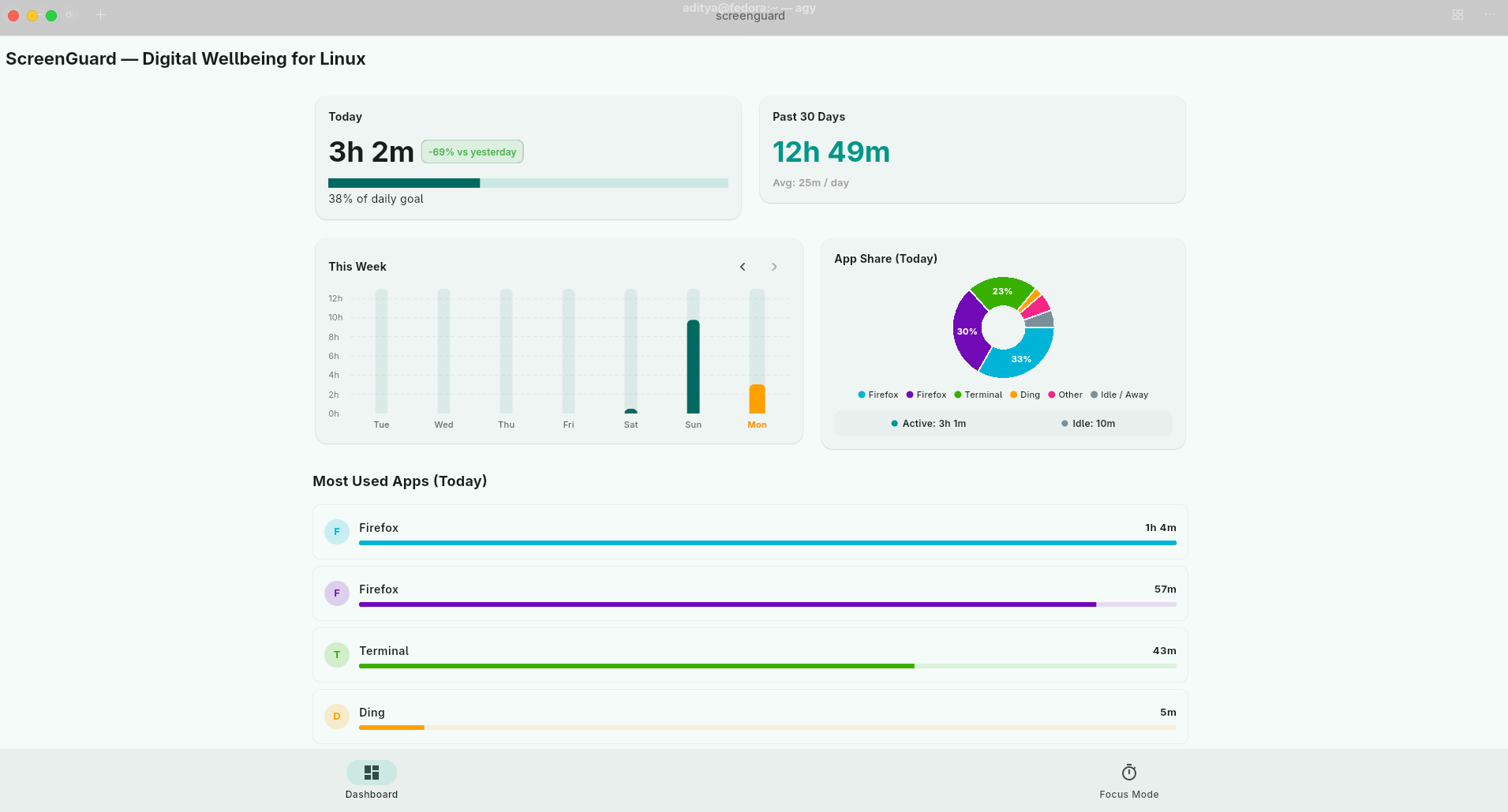
- Hero Overview Cards: Instantly view Today's active screen time alongside past 30-Day cumulative totals and daily averages.
- Interactive Weekly Bar Chart: Visualizes screen time for each day of the week with human-friendly tooltips (
45m,1h 27m). - App Share Donut Chart: Proportional breakdown of app usage with color-coded legends.
- Per-Day App Breakdown: Shows every tracked application ordered by usage time with custom progress bars.
2. Week-by-Week Navigation & History Slider
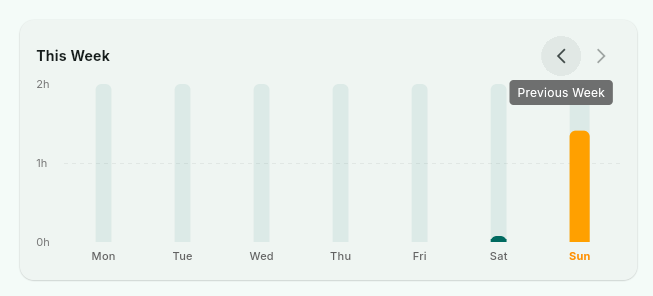
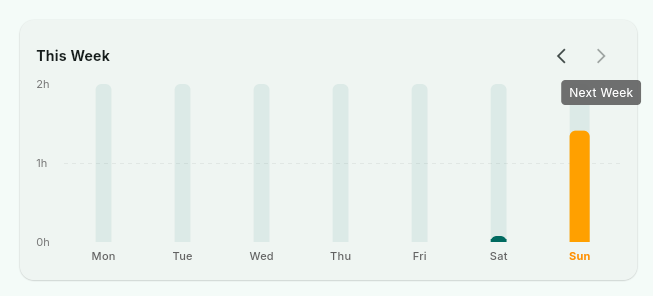
- Multi-Week History: Slide back week by week (
</>) to view previous weeks. - Interactive Day Inspector: Tap any bar in the chart to load that specific day's app breakdown (e.g.
Most Used Apps (Wednesday, Aug 12)).
3. Daily App Time Limits & Lockout Screen
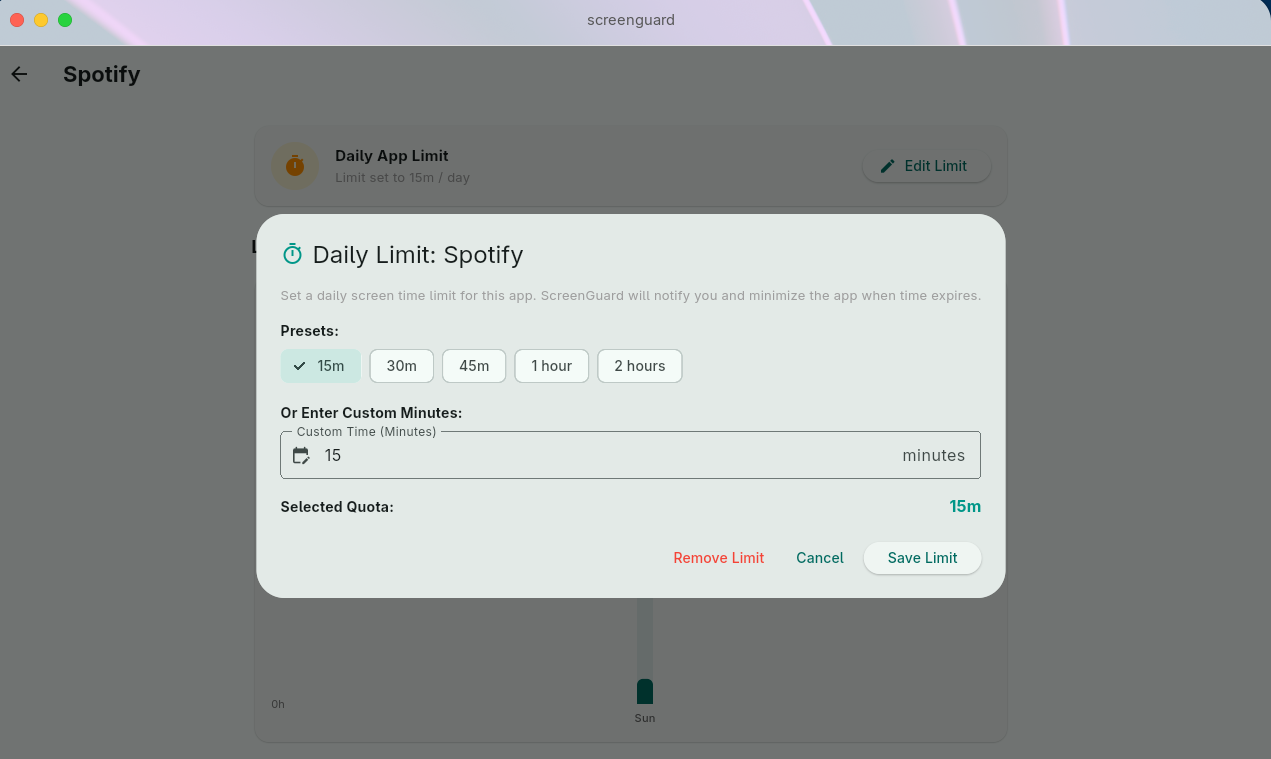
- Custom & Preset Quotas: Set daily limits per application using preset buttons (30m, 1h, 2h, 4h) or enter custom minute values.
- 90% Warning Threshold: Desktop notification alerts you when you reach 90% of your allotted app limit.
- 100% Time's Up Lockout Screen: When the daily limit is reached, ScreenGuard minimizes the active window and triggers a dedicated lockout overlay screen with options:
- Add 15 Minutes (Temporary extension)
- Edit Limit
- Back to Dashboard
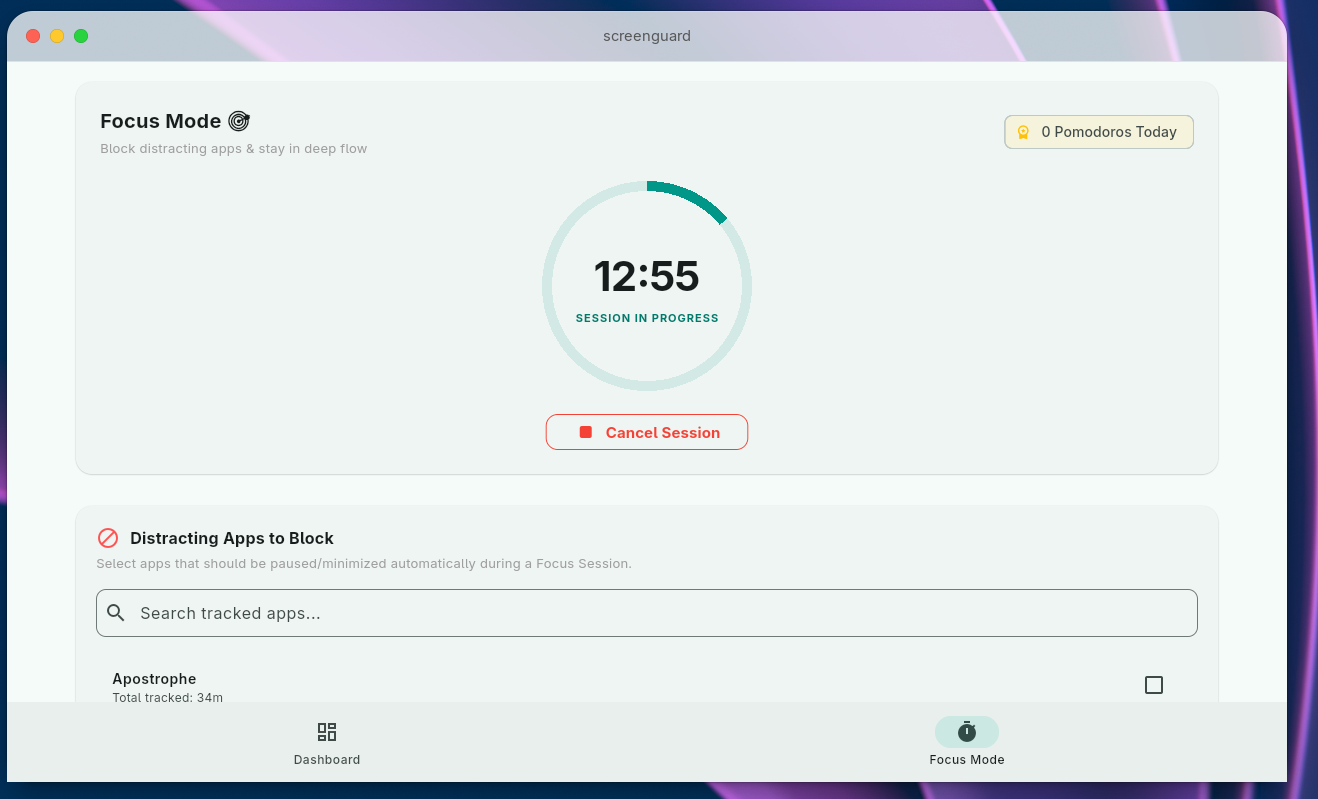
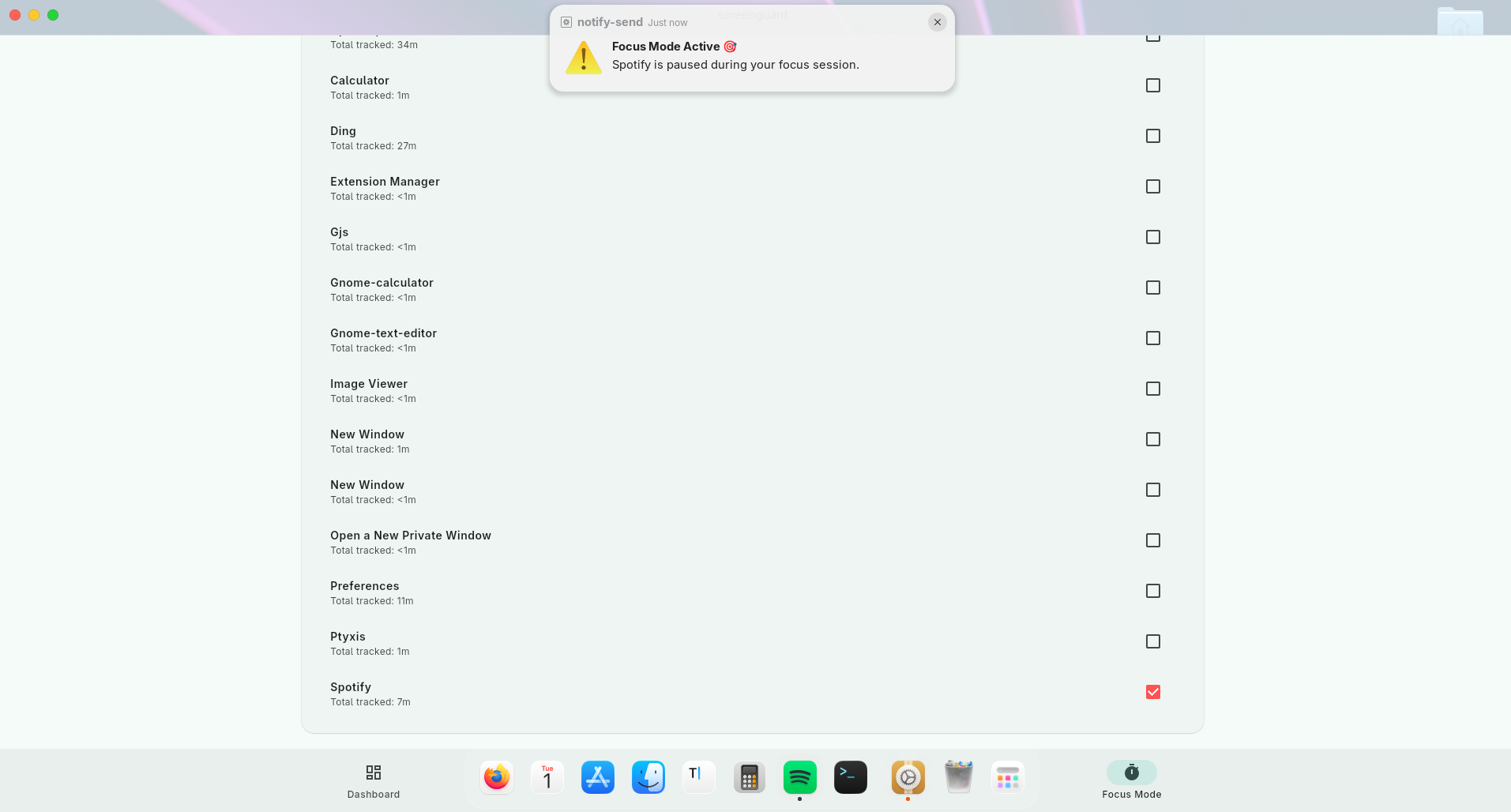
4. Focus Mode (Pomodoro Timer & Distraction Blocker)
- Animated Pomodoro Timer: Preset sessions (
15m,25m,45m,60m) with live circular countdown ring. - Distraction Blocker: Select distracting apps from a searchable checklist. During an active focus session, ScreenGuard automatically minimizes blocked apps if opened.
- Focus Statistics: Tracks completed focus sessions per day.
5. 100% Private & Local Storage
- Session logs are stored locally in SQLite (
~/.local/share/screenguard/usage.db) in WAL journal mode. - No data ever leaves your computer. No cloud accounts, telemetry, or third-party tracking.
Architecture
graph TD
    A[ScreenGuard Flutter GUI] -->|SQLite WAL| DB[(usage.db)]
    B[screenguard-daemon] -->|SQLite WAL| DB
    B -->|Poll active window| C{Display Server}
    C -->|Wayland GNOME| D[GNOME Shell Extension D-Bus]
    C -->|X11 Desktop| E[X11 EWMH xprop / xdotool]
    B -->|Enforce Limits & Focus| F[Desktop Notification / Minimize Window]
- GUI App: Built using Flutter & Material 3.
- Daemon (
screenguard-daemon): Lightweight background service compiling to a single native binary. - Extension (
screenguard@screenguard.app): Native GNOME Shell Extension exporting active window title/class over D-Bus (org.gnome.Shell.Extensions.ScreenGuard). - X11 Backend: Standard EWMH
_NET_ACTIVE_WINDOWquery viaxpropand window minimization viaxdotool.
Installation
Choose your Linux distribution below. Simply copy and paste the commands into your terminal.
Ubuntu / Debian / Zorin OS / Linux Mint / Pop!_OS
Option A — APT repository (recommended, receives updates):
sudo wget -O /usr/share/keyrings/screenguard.asc https://adityakrishnan005-a11y.github.io/ScreenGuard/apt/key.asc
echo "deb [signed-by=/usr/share/keyrings/screenguard.asc] https://adityakrishnan005-a11y.github.io/ScreenGuard/apt apt main" | sudo tee /etc/apt/sources.list.d/screenguard.list
sudo apt update && sudo apt install screenguard
Option B — standalone .deb:
wget https://github.com/adityakrishnan005-a11y/ScreenGuard/releases/download/v0.1.0/screenguard_0.1.0_amd64.deb && sudo apt install ./screenguard_0.1.0_amd64.deb -y
Fedora / RHEL / Rocky Linux (Copr)
sudo dnf copr enable the-amibivert/screenguard
sudo dnf install screenguard
Arch Linux / Manjaro (custom repository)
The AUR package is coming soon (AUR account registration is temporarily suspended). Until then, use our signed custom repository:
# 1. Import & locally trust the signing key
curl -fsSL https://adityakrishnan005-a11y.github.io/ScreenGuard/arch/key.asc -o /tmp/screenguard.asc
sudo pacman-key --add /tmp/screenguard.asc
sudo pacman-key --lsign-key 5E851C89E39A8FD573BF40EAEC671823CA28A37E

# 2. Append the repository to /etc/pacman.conf:
#    [screenguard]
#    Server = https://adityakrishnan005-a11y.github.io/ScreenGuard/arch/$arch
#    SigLevel = Required DatabaseRequired TrustedOnly

# 3. Install
sudo pacman -Sy && sudo pacman -S screenguard
Getting Started
- Launch ScreenGuard from your applications menu (or run
screenguardin a terminal). - Start the tracking daemon (runs in the background and auto-starts on login):
systemctl --user enable --now screenguard systemctl --user status screenguard # verify it is active - GNOME Wayland — enable the Shell extension so ScreenGuard can read the active window:
gnome-extensions enable screenguard@screenguard.app- On Debian/Ubuntu/Fedora the package post-install step enables AT-SPI accessibility and copies the extension for you.
- On Arch, run
sudo /usr/share/screenguard/enable_fedora_a11y.shonce, then enable the extension.
- Open the dashboard to set daily app limits and start a Focus Mode session.
X11 sessions (KDE X11, XFCE, etc.): tracking works out-of-the-box via
xprop/xdotool(installxdotool,xorg-xprop, and optionallyxprintidlefor idle detection). Native Wayland on non-GNOME compositors is not yet supported — use an X11 session there.
Data & Privacy
- All session data is stored locally in a SQLite database at
~/.local/share/screenguard/usage.db(WAL mode). - No cloud sync, no accounts, no telemetry. Your screen-time data never leaves your machine.
Building from Source (Developers)
If you prefer to clone the repository and build the binaries yourself:
# 1. Clone the repository
git clone https://github.com/adityakrishnan005-a11y/ScreenGuard.git
cd ScreenGuard

# 2. Install dependencies & build release bundle
flutter pub get
flutter build linux --release

# 3. Compile the background tracking daemon
dart compile exe bin/daemon.dart -o build/linux/x64/release/bundle/screenguard-daemon

# 4. (Optional) Create .deb and .rpm packages
nfpm package -f packaging/nfpm.deb.yaml -t dist/screenguard_0.1.0_amd64.deb
nfpm package -f packaging/nfpm.rpm.yaml -t dist/screenguard-0.1.0-1.x86_64.rpm
Roadmap & Future Enhancements
I am actively working on expanding ScreenGuard! Here is what is currently planned for upcoming releases:
- Browser Extension (Web Tracking): Track active browser tabs (YouTube, Reddit, Docs) separately instead of grouping all browsing under one browser app.
- Categorized App Group Limits: Group multiple apps under a shared limit (e.g. limit all "Social Media" apps to 1h/day combined).
- KDE Plasma & Hyprland / Sway Support: Native Wayland protocols (
wlr-foreign-toplevel-management) for non-GNOME Wayland compositors. - Data Export: Export your historical screen time data to CSV or JSON formats for custom analysis.
- Weekly Digest Reports: Generate automated PDF or Markdown summaries of weekly productivity trends.
- Strict Mode: Optional hard lockouts that prevent adding extra extension time once a daily limit is reached.
FAQ
Tracking shows "unknown" on GNOME / Wayland?
Ensure the ScreenGuard GNOME Shell extension is enabled (gnome-extensions enable screenguard@screenguard.app) and toolkit-accessibility is on. For sandboxed Flatpak apps, AT-SPI access must be granted — the Debian/Ubuntu/Fedora post-install script does this automatically, but if you installed via a method that skips post-install (e.g. Arch) or use user Flatpaks, re-run sudo /usr/share/screenguard/enable_fedora_a11y.sh.
Nothing is tracked on KDE Plasma Wayland / Sway / Hyprland?
Native Wayland tracking is currently only available on GNOME Wayland. For KDE and other compositors, log into an X11 session (e.g. Plasma X11), where ScreenGuard tracks via xprop/xdotool.
The daemon isn't running.
Check systemctl --user status screenguard. If inactive, run systemctl --user enable --now screenguard. Note it requires an active graphical session (graphical-session.target), so it only starts once you're logged in.
How do I reset or move my data?
Stop the daemon (systemctl --user stop screenguard), then delete ~/.local/share/screenguard/usage.db* and relaunch to start fresh.
How do I update ScreenGuard? Use your package manager — APT, DNF (Copr), and the Arch repo all deliver updates. Or download the latest release asset from the releases page.
Where do I report bugs? Open a GitHub Issue. For X11 problems, please attach a screenshot/video and your desktop environment + version so we can reproduce it.
Contributing
Contributions are warmly welcomed! ScreenGuard is built by and for the Linux community.
Whether you want to:
- Report a bug or suggest a feature via GitHub Issues (for X11 issue reports, please attach screenshot or video proof along with your DE name and version).
- Help package ScreenGuard for Flathub (Flatpak), Snapcraft, or Gentoo.
- Translate ScreenGuard into new languages.
- Submit Code / PRs: Check out open issues and submit a Pull Request!
How to Contribute
- Fork the repository.
- Create a new feature branch (
git checkout -b feature/amazing-feature). - Commit your changes (
git commit -m 'Add amazing feature'). - Push to the branch (
git push origin feature/amazing-feature). - Open a Pull Request!
License & Author
ScreenGuard is created and maintained by Aditya Krishnan (aditya.krishnan005@gmail.com).
Distributed under the GNU General Public License v3.0 (GPLv3).
Similar repos


Languages
Dart
76.3%
Shell
7.0%
CMake
6.7%
C++
4.2%
JavaScript
3.2%
Python
1.9%
Digital Wellbeing for Linux — Screen Time Tracking, Daily App Limits & Focus Mode (GNOME Wayland & X11)
Dart
15
39 commits
updated Sep 30, 2026
See what people are saying
README
ScreenGuard — Digital Wellbeing for Linux 🛡️
Modern Screen Time Tracking, Daily App Limits & Focus Mode for Wayland & X11.
ScreenGuard is an open-source, privacy-first desktop application built in Flutter for Linux. It brings active Android-style Digital Wellbeing, Daily App Limit Lockouts, and Focus Mode Pomodoro Session Blocking directly to the Linux desktop.
Desktop Environment & Display Server Support
- X11 Desktops: Fully supported out-of-the-box across ALL X11 desktop environments (GNOME X11, KDE X11, XFCE, MATE, Cinnamon, LXQt, i3, Openbox, etc.).
- Wayland Desktops: Currently supported natively on GNOME Wayland (Fedora, Ubuntu, Debian, Arch GNOME) via the native ScreenGuard GNOME Shell Extension. (Support for KDE Plasma Wayland and Hyprland/Sway is planned for upcoming releases).
Important for X11 Testing: X11 window tracking and active window minimization are currently in active community testing. When filing an issue or bug report regarding X11, please attach screenshot or video proof along with your Desktop Environment name & version so the issue can be reproduced and resolved quickly.
AI Transparency & Development Disclosure
In the spirit of open-source transparency and clear attribution, here is the exact breakdown of how AI tooling was utilized during the development of ScreenGuard:
- Tooling & Models Used: Assisted using Google's Antigravity (AGY) developer tools (free tier only), primarily utilizing lightweight Flash-tier models (Gemini Flash 3.5 early in development, moving to Gemini Flash 3.6 & 3.7).
- Architecture & System Design: Manual — The application architecture, multi-process daemon model, SQLite schema, D-Bus interfaces, and Flutter Material 3 UI/UX were designed and structured manually.
- Core Codebase & Implementation: Manual — All application logic (Flutter UI, background tracking daemon, GNOME Shell extension in GJS, X11 EWMH integration, and Pomodoro state machine) was written and developed by the author.
- Debugging & System Troubleshooting: AI-Assisted — Used as a pair-programming assistant for diagnosing distro-specific Linux edge cases (e.g., SQLite dynamic loader fallback, Dart AOT stripping in
makepkg, PulseAudio stream routing, andsystemduser preset overrides). - Packaging & CI/CD Automation: AI-Generated / Tool-Assisted — Used to generate and automate distribution pipelines, specifically the signed custom Arch Linux repository setup (created as an interim solution due to AUR new user registration freeze), along with NFPM configs and Copr RPM spec files.
- Documentation: AI-Assisted — Assisted in drafting, organizing, and formatting documentation, README structure, and release notes.
Key Features
1. Digital Wellbeing Dashboard
- Hero Overview Cards: Instantly view Today's active screen time alongside past 30-Day cumulative totals and daily averages.
- Interactive Weekly Bar Chart: Visualizes screen time for each day of the week with human-friendly tooltips (
45m,1h 27m). - App Share Donut Chart: Proportional breakdown of app usage with color-coded legends.
- Per-Day App Breakdown: Shows every tracked application ordered by usage time with custom progress bars.
2. Week-by-Week Navigation & History Slider
- Multi-Week History: Slide back week by week (
</>) to view previous weeks. - Interactive Day Inspector: Tap any bar in the chart to load that specific day's app breakdown (e.g.
Most Used Apps (Wednesday, Aug 12)).
3. Daily App Time Limits & Lockout Screen
- Custom & Preset Quotas: Set daily limits per application using preset buttons (30m, 1h, 2h, 4h) or enter custom minute values.
- 90% Warning Threshold: Desktop notification alerts you when you reach 90% of your allotted app limit.
- 100% Time's Up Lockout Screen: When the daily limit is reached, ScreenGuard minimizes the active window and triggers a dedicated lockout overlay screen with options:
- Add 15 Minutes (Temporary extension)
- Edit Limit
- Back to Dashboard
4. Focus Mode (Pomodoro Timer & Distraction Blocker)
- Animated Pomodoro Timer: Preset sessions (
15m,25m,45m,60m) with live circular countdown ring. - Distraction Blocker: Select distracting apps from a searchable checklist. During an active focus session, ScreenGuard automatically minimizes blocked apps if opened.
- Focus Statistics: Tracks completed focus sessions per day.
5. 100% Private & Local Storage
- Session logs are stored locally in SQLite (
~/.local/share/screenguard/usage.db) in WAL journal mode. - No data ever leaves your computer. No cloud accounts, telemetry, or third-party tracking.
Architecture
graph TD
    A[ScreenGuard Flutter GUI] -->|SQLite WAL| DB[(usage.db)]
    B[screenguard-daemon] -->|SQLite WAL| DB
    B -->|Poll active window| C{Display Server}
    C -->|Wayland GNOME| D[GNOME Shell Extension D-Bus]
    C -->|X11 Desktop| E[X11 EWMH xprop / xdotool]
    B -->|Enforce Limits & Focus| F[Desktop Notification / Minimize Window]
- GUI App: Built using Flutter & Material 3.
- Daemon (
screenguard-daemon): Lightweight background service compiling to a single native binary. - Extension (
screenguard@screenguard.app): Native GNOME Shell Extension exporting active window title/class over D-Bus (org.gnome.Shell.Extensions.ScreenGuard). - X11 Backend: Standard EWMH
_NET_ACTIVE_WINDOWquery viaxpropand window minimization viaxdotool.
Installation
Choose your Linux distribution below. Simply copy and paste the commands into your terminal.
Ubuntu / Debian / Zorin OS / Linux Mint / Pop!_OS
Option A — APT repository (recommended, receives updates):
sudo wget -O /usr/share/keyrings/screenguard.asc https://adityakrishnan005-a11y.github.io/ScreenGuard/apt/key.asc
echo "deb [signed-by=/usr/share/keyrings/screenguard.asc] https://adityakrishnan005-a11y.github.io/ScreenGuard/apt apt main" | sudo tee /etc/apt/sources.list.d/screenguard.list
sudo apt update && sudo apt install screenguard
Option B — standalone .deb:
wget https://github.com/adityakrishnan005-a11y/ScreenGuard/releases/download/v0.1.0/screenguard_0.1.0_amd64.deb && sudo apt install ./screenguard_0.1.0_amd64.deb -y
Fedora / RHEL / Rocky Linux (Copr)
sudo dnf copr enable the-amibivert/screenguard
sudo dnf install screenguard
Arch Linux / Manjaro (custom repository)
The AUR package is coming soon (AUR account registration is temporarily suspended). Until then, use our signed custom repository:
# 1. Import & locally trust the signing key
curl -fsSL https://adityakrishnan005-a11y.github.io/ScreenGuard/arch/key.asc -o /tmp/screenguard.asc
sudo pacman-key --add /tmp/screenguard.asc
sudo pacman-key --lsign-key 5E851C89E39A8FD573BF40EAEC671823CA28A37E

# 2. Append the repository to /etc/pacman.conf:
#    [screenguard]
#    Server = https://adityakrishnan005-a11y.github.io/ScreenGuard/arch/$arch
#    SigLevel = Required DatabaseRequired TrustedOnly

# 3. Install
sudo pacman -Sy && sudo pacman -S screenguard
Getting Started
- Launch ScreenGuard from your applications menu (or run
screenguardin a terminal). - Start the tracking daemon (runs in the background and auto-starts on login):
systemctl --user enable --now screenguard systemctl --user status screenguard # verify it is active - GNOME Wayland — enable the Shell extension so ScreenGuard can read the active window:
gnome-extensions enable screenguard@screenguard.app- On Debian/Ubuntu/Fedora the package post-install step enables AT-SPI accessibility and copies the extension for you.
- On Arch, run
sudo /usr/share/screenguard/enable_fedora_a11y.shonce, then enable the extension.
- Open the dashboard to set daily app limits and start a Focus Mode session.
X11 sessions (KDE X11, XFCE, etc.): tracking works out-of-the-box via
xprop/xdotool(installxdotool,xorg-xprop, and optionallyxprintidlefor idle detection). Native Wayland on non-GNOME compositors is not yet supported — use an X11 session there.
Data & Privacy
- All session data is stored locally in a SQLite database at
~/.local/share/screenguard/usage.db(WAL mode). - No cloud sync, no accounts, no telemetry. Your screen-time data never leaves your machine.
Building from Source (Developers)
If you prefer to clone the repository and build the binaries yourself:
# 1. Clone the repository
git clone https://github.com/adityakrishnan005-a11y/ScreenGuard.git
cd ScreenGuard

# 2. Install dependencies & build release bundle
flutter pub get
flutter build linux --release

# 3. Compile the background tracking daemon
dart compile exe bin/daemon.dart -o build/linux/x64/release/bundle/screenguard-daemon

# 4. (Optional) Create .deb and .rpm packages
nfpm package -f packaging/nfpm.deb.yaml -t dist/screenguard_0.1.0_amd64.deb
nfpm package -f packaging/nfpm.rpm.yaml -t dist/screenguard-0.1.0-1.x86_64.rpm
Roadmap & Future Enhancements
I am actively working on expanding ScreenGuard! Here is what is currently planned for upcoming releases:
- Browser Extension (Web Tracking): Track active browser tabs (YouTube, Reddit, Docs) separately instead of grouping all browsing under one browser app.
- Categorized App Group Limits: Group multiple apps under a shared limit (e.g. limit all "Social Media" apps to 1h/day combined).
- KDE Plasma & Hyprland / Sway Support: Native Wayland protocols (
wlr-foreign-toplevel-management) for non-GNOME Wayland compositors. - Data Export: Export your historical screen time data to CSV or JSON formats for custom analysis.
- Weekly Digest Reports: Generate automated PDF or Markdown summaries of weekly productivity trends.
- Strict Mode: Optional hard lockouts that prevent adding extra extension time once a daily limit is reached.
FAQ
Tracking shows "unknown" on GNOME / Wayland?
Ensure the ScreenGuard GNOME Shell extension is enabled (gnome-extensions enable screenguard@screenguard.app) and toolkit-accessibility is on. For sandboxed Flatpak apps, AT-SPI access must be granted — the Debian/Ubuntu/Fedora post-install script does this automatically, but if you installed via a method that skips post-install (e.g. Arch) or use user Flatpaks, re-run sudo /usr/share/screenguard/enable_fedora_a11y.sh.
Nothing is tracked on KDE Plasma Wayland / Sway / Hyprland?
Native Wayland tracking is currently only available on GNOME Wayland. For KDE and other compositors, log into an X11 session (e.g. Plasma X11), where ScreenGuard tracks via xprop/xdotool.
The daemon isn't running.
Check systemctl --user status screenguard. If inactive, run systemctl --user enable --now screenguard. Note it requires an active graphical session (graphical-session.target), so it only starts once you're logged in.
How do I reset or move my data?
Stop the daemon (systemctl --user stop screenguard), then delete ~/.local/share/screenguard/usage.db* and relaunch to start fresh.
How do I update ScreenGuard? Use your package manager — APT, DNF (Copr), and the Arch repo all deliver updates. Or download the latest release asset from the releases page.
Where do I report bugs? Open a GitHub Issue. For X11 problems, please attach a screenshot/video and your desktop environment + version so we can reproduce it.
Contributing
Contributions are warmly welcomed! ScreenGuard is built by and for the Linux community.
Whether you want to:
- Report a bug or suggest a feature via GitHub Issues (for X11 issue reports, please attach screenshot or video proof along with your DE name and version).
- Help package ScreenGuard for Flathub (Flatpak), Snapcraft, or Gentoo.
- Translate ScreenGuard into new languages.
- Submit Code / PRs: Check out open issues and submit a Pull Request!
How to Contribute
- Fork the repository.
- Create a new feature branch (
git checkout -b feature/amazing-feature). - Commit your changes (
git commit -m 'Add amazing feature'). - Push to the branch (
git push origin feature/amazing-feature). - Open a Pull Request!
License & Author
ScreenGuard is created and maintained by Aditya Krishnan (aditya.krishnan005@gmail.com).
Distributed under the GNU General Public License v3.0 (GPLv3).
Similar repos
Languages
Dart
76.3%
Shell
7.0%
CMake
6.7%
C++
4.2%
JavaScript
3.2%
Python
1.9%