
A live bird collage card for your Home Assistant dashboard.
31
stars
3,075
commits
JavaScript
primary language
Sep 2, 2026
updated
README
HABirdDashboard
Bird Card: a live bird collage for Home Assistant, fed by BirdNET-Go.


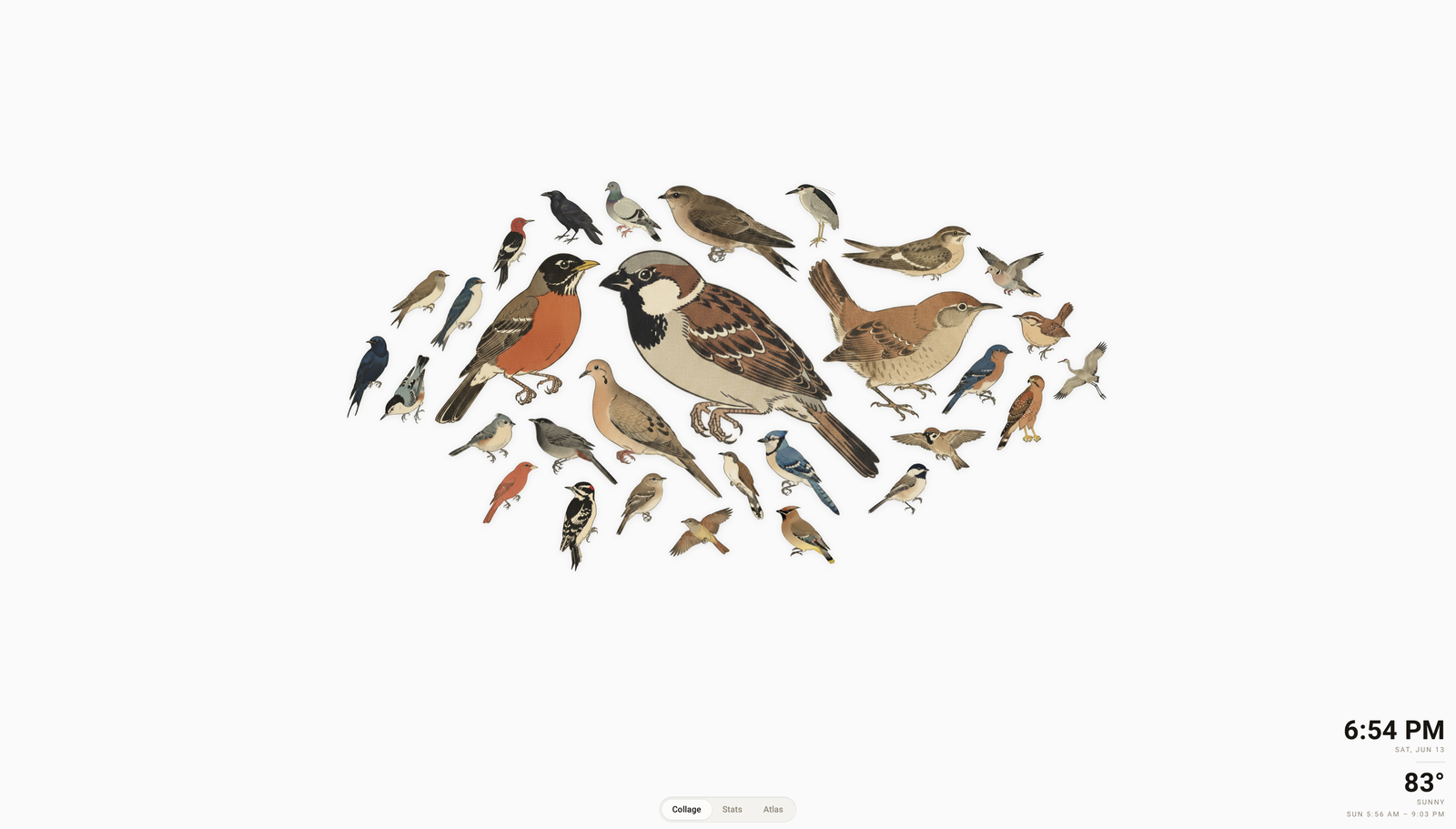
The idea in one paragraph: your Home Assistant machine can identify every bird outside your window by sound alone. A free app called BirdNET-Go listens to any microphone - including the one already in your doorbell or security camera - and names each species it hears using Cornell's BirdNET model. Bird Card turns that stream of detections into the living collage above: every species you've heard appears as a woodblock-print style illustration (kachō-e, the Japanese bird-and-flower tradition), sized by how often it calls, packed together by its actual silhouette so wings cradle tails. Birds the AI heard clearly sit perched; faint, uncertain ones fly past. Tap any bird for its recordings, description, and stats.
No bird knowledge needed, no extra hardware if you own a camera with a mic, and nothing to maintain: the card installs like any other HACS card, finds BirdNET-Go on its own, gets weather and theme from Home Assistant, and fetches each bird's artwork on demand. You do need the BirdNET-Go app running - this card is the display, not the detector - and Step 1 below covers installing it from scratch.
Bird Card began life as a fork of AvianVisitors (a BirdNET-Pi project for a dedicated Raspberry Pi) and is now maintained as an independent project. The illustrations and the silhouette-masking collage layout are AvianVisitors' work, used and adapted with attribution under CC-BY-NC-SA; everything else - the data layer, the confidence-based poses, the Home Assistant card - was built here for Home Assistant + BirdNET-Go.
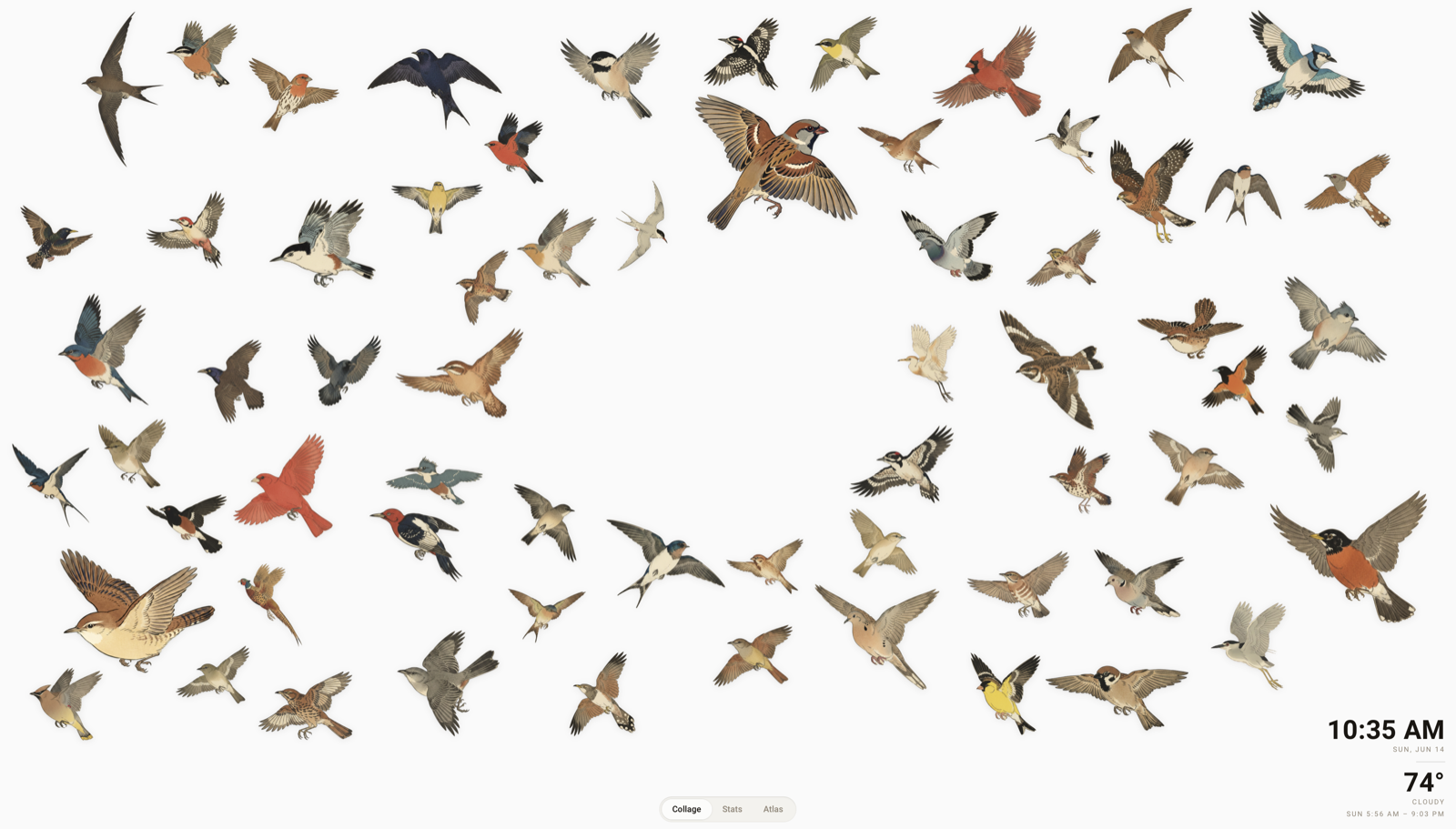
The collage comes in two shapes: the default cluster (the image at the top of this page) packs one dense, centred flock, while ring (just above) scatters the birds across the whole frame around an open centre, echoing the original AvianVisitors poster. Shown here on a wall display with the optional clock and weather - and equally at home pushed to a Samsung Frame TV.
What you get
- The collage - every species heard in the selected window (1H / 12H / 24H / 7D / ALL), nested by silhouette masks with no overlaps, area scaled to call count. Hover for counts, click a bird for its detail card. Pick its shape: a packed cluster (one dense, centred flock - the default) or an open ring (the flock scattered around an empty centre, poster-style).
- Sitting or flying - a species shows its perched illustration when its best detection confidence in the window is ≥ 90% (configurable), and its flight pose otherwise. A clear, close bird has settled in; a faint maybe is just passing through. Birds visibly "land" when a confident detection arrives.
- Clock + weather in the collage (optional) - togglable in the card settings. The block sits in a corner of the collage and the bird-packing treats it as one of the flock: grow enough birds and they nest around the numerals. Weather comes from your HA weather integration, in your HA units, with sunrise/sunset from HA's sun - no tokens, no API keys.
- Species names (optional) - a line of names along the bottom of the collage, common and/or scientific at any size, so a bird you don't recognise can be looked up (tap a name for its details). Also lists any species the library has no artwork for yet.
- Stats - an editorial detection timeline plus by-period counts, top species, and the newest additions to your life list.
- Atlas - a field-guide card grid of every species ever heard, with playback of the latest recording and client-rendered spectrograms.
- Detail modals - per-species recording history with scrubbable spectrograms, Wikipedia descriptions, rarity, and links out to Wikipedia and eBird, plus an optional reference call (from Xeno-Canto) to compare against your own recordings. A tap can open the details, play the call, or both.
- 2,521 illustrations - 1,283 species (North American + European / eBird region DE + Australian / eBird region AU), a perched pose and, for anything that flies, a flight pose, lazy-loaded per detected species (no bulk download). A regeneration pipeline builds sets for other regions.
- Light/dark follows your Home Assistant theme. Data refreshes every 30 seconds (paused while the tab is hidden). Fully responsive - the collage re-packs itself for any screen or orientation.
See it in action
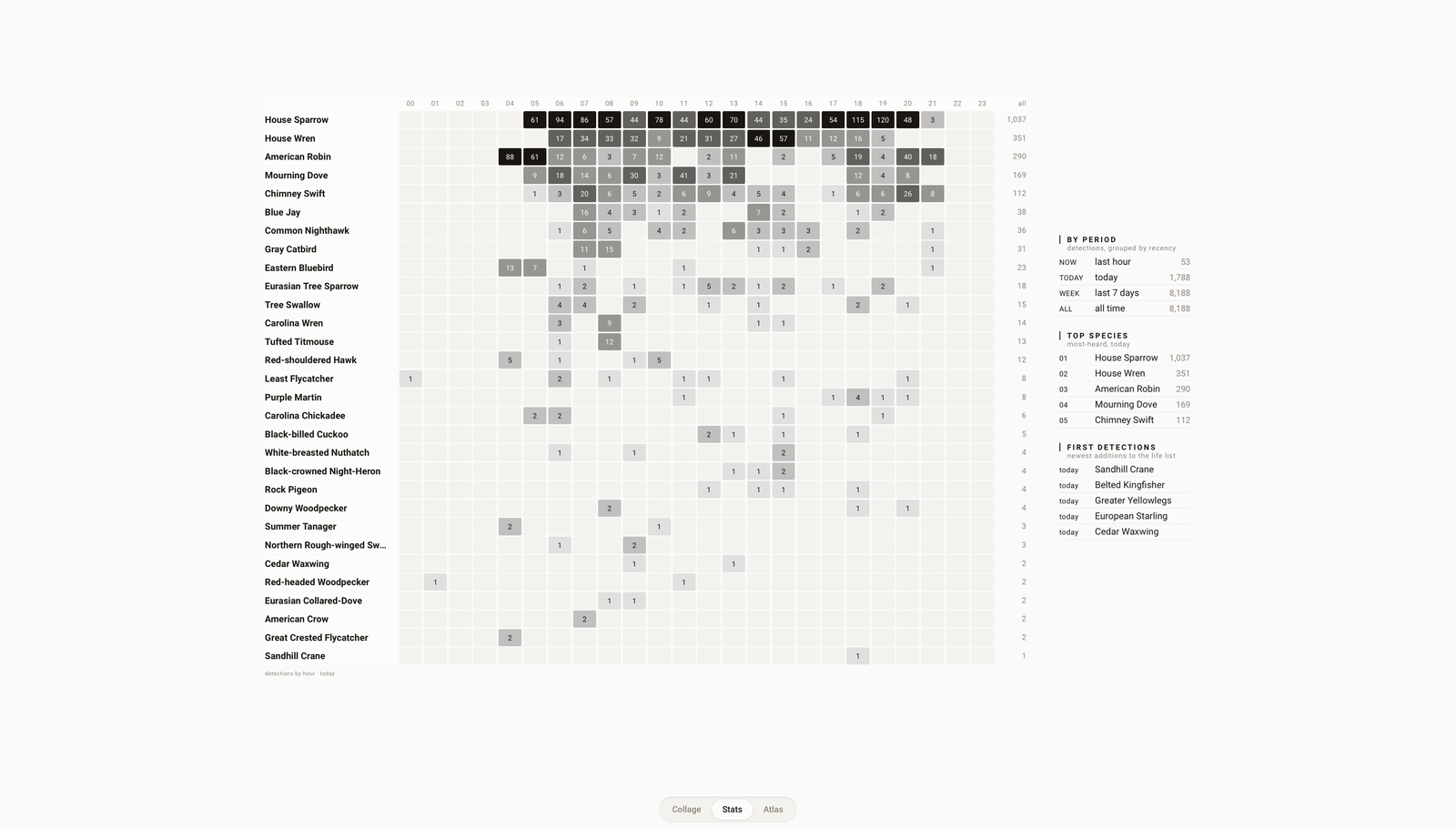 | 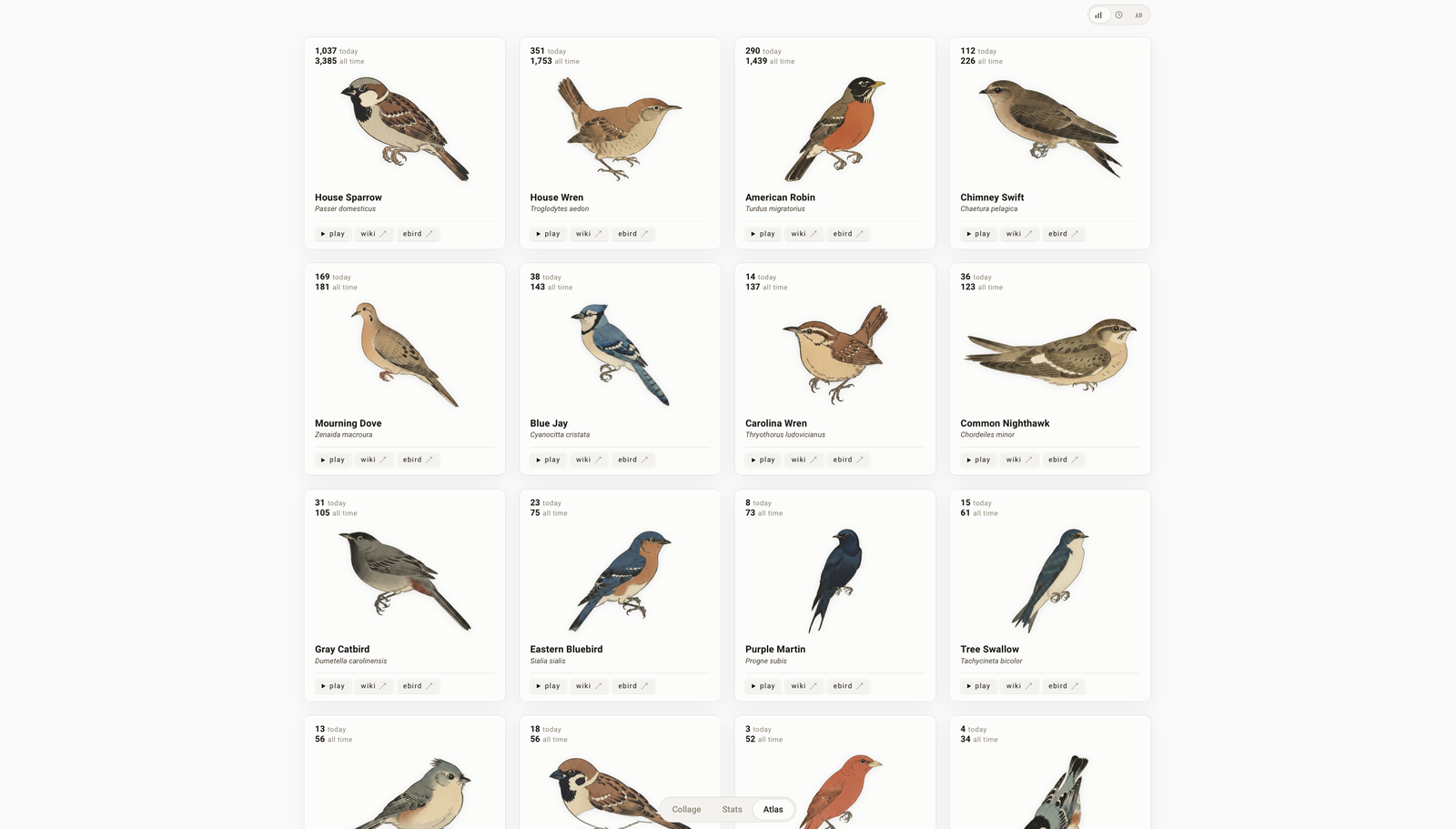 |
| Stats — an hourly activity heatmap, by-period counts, and top species | Atlas — a field-guide grid of every species heard |
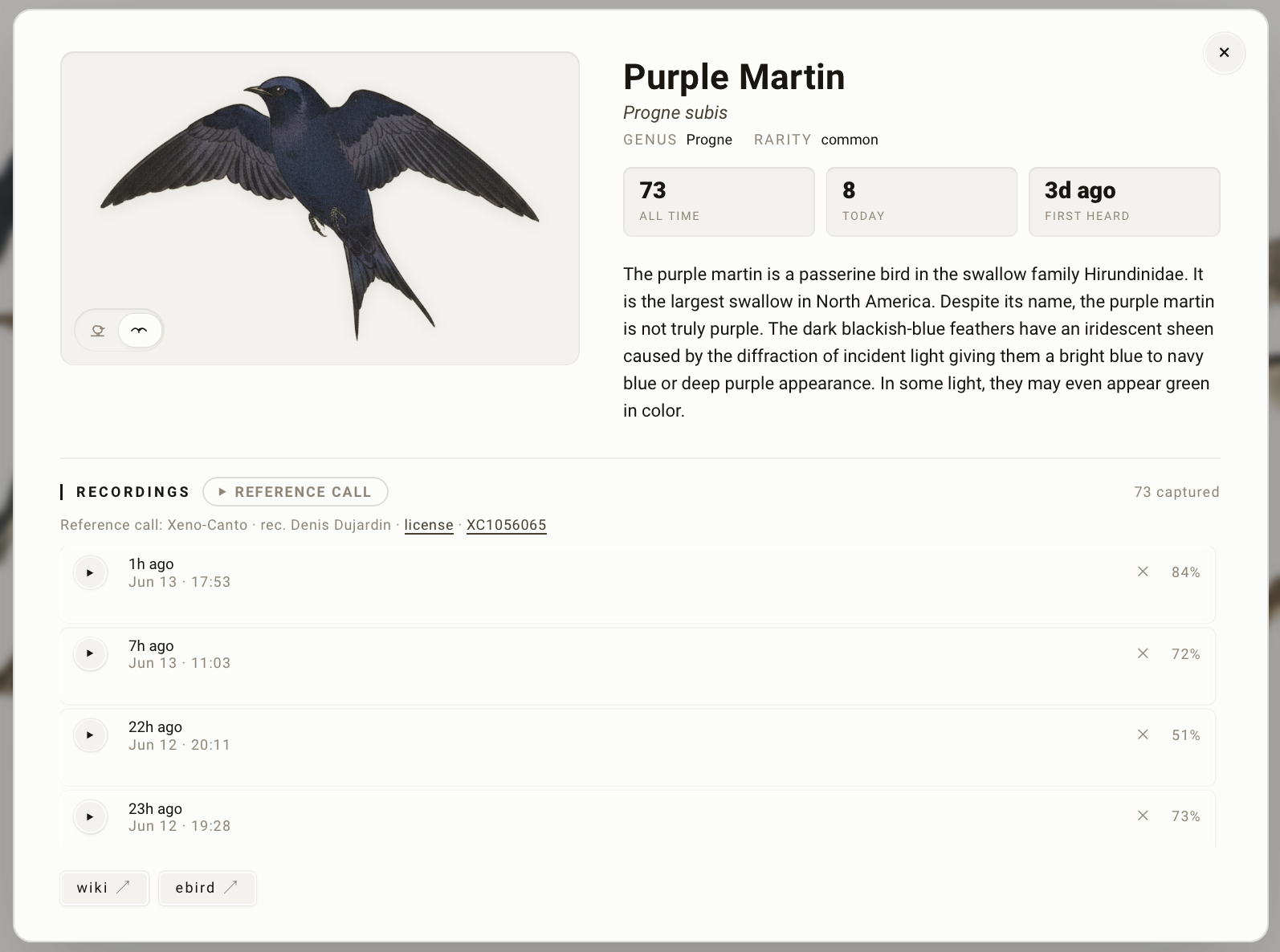 | 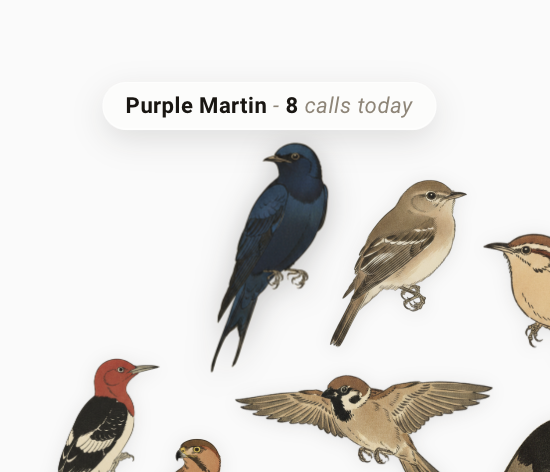 |
| Detail — recordings, description, and a Xeno-Canto reference call to compare against your own | Hover and Click — any bird shows its name, today's count, and plays its reference call |
What you need
- Home Assistant OS or Supervised - apps (formerly add-ons) only exist on these install types. Container/Core installs can still use the card; run BirdNET-Go yourself (e.g. in Docker) and skip to Step 3.
- Something that can hear birds. If you already have an outdoor camera with a microphone - a doorbell, a security cam, an NVR - you're done: BirdNET-Go listens to RTSP streams, so the camera you own becomes the bird mic for free (Step 2 has the details). Otherwise a cheap USB lavalier mic in a window works great.
- About 10 minutes.
The whole setup is: install the BirdNET-Go app (the thing that listens and identifies) → confirm it's detecting → install the card → add it to a dashboard. Step by step:
Step 1 — Install the BirdNET-Go app
BirdNET-Go isn't in the built-in app store; it comes from alexbelgium's well-known community repository, which you add once:
-
Click this to add the repository to your HA instance:

Or by hand: Settings → Apps (called Add-ons before 2025) → ⋮ menu (top-right) → Repositories → paste
https://github.com/alexbelgium/hassio-addons→ Add → Close. -
Back in the app store, search for BirdNET-Go (refresh the page if it doesn't show up yet - it's under "Alexbelgium's Hass.io Add-ons").
-
Open it and click Install. It's a large image; give it a few minutes.
-
On the app's Configuration tab, set
TZto your timezone (this matters - the dashboard's time windows follow it), then Save. -
On the Info tab, click Start, and watch the Log tab until it settles.
Step 2 — Get BirdNET-Go detecting
-
Open the BirdNET-Go web UI at
http://<your-ha-host>:8080(there's also an Open Web UI button on the app page). -
In BirdNET-Go's Settings, set your latitude/longitude so it knows which species are plausible.
-
Give it ears - either works, and you can mix several:
An outdoor camera you already own (recommended). Doorbell and security cameras have microphones, and BirdNET-Go listens to RTSP streams directly - no new hardware. In BirdNET-Go's audio settings add an RTSP stream per camera: give it a name (it becomes that mic's device name in HA, e.g. "Door Bell") and the camera's RTSP URL. Two things to check on the camera side: audio recording must be enabled in the camera's own settings, and use the low-resolution sub stream
- BirdNET-Go only wants the audio, no point pulling main-stream video.
For Reolink cameras behind an NVR the URL template is:
rtsp://admin:PASSWORD@NVR.IP.ADDRESS:554/h264Preview_01_sub(
_01_is the camera's channel number on the NVR -_02_,_03_... for the rest; standalone Reolink cameras use the camera's own IP.) Other brands publish similar RTSP paths - search " RTSP URL".Or a USB microphone plugged into the HA machine - pick it as the audio capture device.
-
Wait for a bird (or play birdsong from your phone near the mic) and confirm detections appear on BirdNET-Go's own dashboard.
Tuning detections - defaults are conservative; a starting point that has worked well in practice is Settings → Analysis: Confidence Threshold 0.8, with Dynamic Threshold enabled, Trigger 0.9 and Minimum 0.7. (Dynamic threshold temporarily lowers the bar for a species right after a high-confidence detection of it, so the quieter follow-up calls of a bird that's clearly present still get logged without letting random noise in.) It pairs nicely with this card's sit/fly rule - confident detections perch, borderline ones fly past.
Don't move on until BirdNET-Go is detecting - this card is only a prettier window onto that data.
Step 3 — Install the card
With HACS (recommended): click this to open the repository directly in your HACS:

Or by hand:
- In HACS: ⋮ menu (top-right) → Custom repositories, add
https://github.com/adamoberley/HABirdDashboardwith type Dashboard. - Search HACS for Bird Card and Download it.
- Reload your browser when prompted.
Without HACS: download
dist/habird-card.js into /config/www/ (Samba or
the Terminal & SSH app), then **Settings → Dashboards → ⋮ → Resources →
- Add resource**, URL
/local/habird-card.js, type JavaScript module.
Step 4 — Add the card to a dashboard
- Edit any dashboard → + Add card → search Bird Card.
- The visual editor has everything: BirdNET-Go URL (leave empty for the stock app on the same host), the sit/fly confidence slider, what a tap on a bird does, and toggles for the clock, weather, corner, and cursor hiding. (Light/dark follows Home Assistant automatically.)
For a full-screen view (the way it's meant to be seen): create a new
dashboard or view, set the view's layout to Panel (single card), and
put the card there - it fills the screen edge to edge. Name it "Birds",
icon mdi:bird.
That's it. The collage fills in as birds are heard; if BirdNET-Go already has history, it shows up immediately.
Card options
All editable in the visual editor; YAML equivalents:
type: custom:habird-card
view: collage                # collage | stats | atlas - what this card shows
view_selector: true          # false hides the switcher (single-view cards;
                             #   put a collage card, a stats card and an
                             #   atlas card on one dashboard if you like)
title: ""                    # empty = no title; set any text for a heading
                             #   (birds pack around it, clock-style)
names: off                   # species-name strip along the bottom of the
                             #   collage: off | common | scientific | both
names_size: 13               # font size of that strip, in px
window: "24"                 # time window in hours, or "all" - the card has
                             #   no on-screen picker; this is the window
background: transparent      # transparent (blend with dashboard) | paper
paper_color: ""              # background: paper - light-mode page colour (hex); "" = theme default
paper_color_dark: ""         # background: paper - dark-mode page colour (hex); "" = theme default
paper_texture: 0             # background: paper - faint paper grain (0 = off, ~0.06 = subtle washi)
font: system                 # system (HA's font) | serif (the original look)
language: ""                 # UI language override, e.g. "da" - empty = follow
                             #   each user's HA language (see Languages below)
birdnet_url: ""              # empty = this host, port 8080 (the stock app)
data_source: auto            # auto | api | ha (see Data sources below)
history_days: 10             # ha-source span; bounded by recorder retention
sit_confidence: 0.90         # perched at/above, flying below
collage_fill: 0.5            # screen fill 0.1-1.0 (0.5 = half, 1.0 = full; busier = wider)
size_contrast: 0.5           # how much bigger your most-heard birds are (0.2-0.8; lower = more even)
collage_shape: cluster       # cluster (one filled flock) | ring (birds scattered around an open centre)
collage_hole: 0.5            # ring only: open-centre size 0.1-0.7 (bigger = a wider void)
collage_flow: cw             # ring only: bank birds along the circle (a wheeling flock) - cw | ccw | off
collage_flow_strength: 1     # ring flow strength 0-1 (1 = full head-to-tail wheel; lower = gentler bank)
collage_spacing: 0           # gap between birds 0-1 (0 = tightest/default, higher = airier; never overlap)
tap_action: both             # both (open details + play call, default) |
                             #   info (details only) | call (reference call only)
xeno_canto_key: ""           # free key from xeno-canto.org/account; enables the
                             #   reference-call feature below (empty = off)
audio_boost: 24              # recording playback boost in dB, 0-48 (0 = off) - for quiet mics
clock: true                  # time + date in a corner of the collage
weather: true                # conditions + sunrise/sunset from HA
weather_entity: ""           # empty = first weather.* entity found
corner: bottom-right         # where the clock/weather block lives
hide_cursor: false           # hide the pointer after 8s idle (wall displays)
image_base: ""               # empty = artwork from CDN (see below)
visits_sensors: []           # feeder-camera sensors - blends per-species
                             #   "visits" next to the audio "calls"
                             #   (see Blending feeder visits below)
The card follows Home Assistant's light/dark theme automatically, and its height tracks HA's card sizing - neither is a configurable option.
Languages: the card's own UI (headings, tooltips, stats, modals) follows
each user's Home Assistant profile language automatically - nothing to
configure. Shipped translations: English, Danish, Dutch, Finnish, French,
German, Italian, Norwegian, Polish, Portuguese, Spanish, and Swedish; any
string a translation lacks falls back to English, and regional variants
degrade sensibly (de-AT uses de; en-GB stays English but keeps British
time/date formatting). Bird names come from BirdNET-Go in its own locale and
are not affected. Force a language with the language: option (or
AV_CONFIG.language on the standalone page). Adding a new language is a
single file - see the translator guide.
Species names (names, default off): a line of names along the bottom
of the collage listing every species in the current window, most-heard
first - common names, scientific names, or both, at the size you set with
names_size. It's a legend for the birds you don't recognise (tap a name
to open that bird's details; hovering one lights up its illustration), and
the birds pack above it the same way they pack around the clock. It is also
the one place on the collage where a species the library has no artwork
for yet still shows up - normally such a bird counts everywhere but is
simply not drawn. There is deliberately no "missing artwork" badge, because
that isn't an open-ended situation: see Missing artwork for your
area? - your station's species list is
finite, so one pass of the art pipeline closes every gap for good.
Weather reads your Home Assistant weather integration directly through
the card's own connection - no access token, in your HA units, with
sunrise/sunset from HA's sun.sun. If HA has no weather entity, the card
quietly falls back to BirdNET-Go's built-in weather (yr.no).
Bird details open in place: clicking any bird - in the collage, the
stats lists, or the atlas - pops its detail card (recordings, description,
stats) over the current view. The card's layout is responsive to its own
box via container queries, so a narrow column card gets the compact
layouts even on a wide desktop. By default a tap also plays the bird's
reference call (tap_action: both); set info for details-only (the
classic behavior), or call for sound only.
Reference calls (optional): drop a free Xeno-Canto
API key into xeno_canto_key and a reference call button appears in each
bird's detail card - a clean example call/song for the species (fetched from
Xeno-Canto, credited to the recordist) to compare against the recordings your
own station actually caught. This is distinct from BirdNET-Go's captures: it's
what the bird is "supposed" to sound like. Without a key the feature stays
hidden and tap_action: call/both simply open the details.
Artwork lazy-loads per species from a CDN view of this repo
(jsDelivr) - only birds you've actually heard are ever fetched, one PNG
each, cached by the browser. For a fully offline install, copy
avian/assets/ to /config/www/habird-art/ and set
image_base: /local/habird-art/.
Missing artwork for your area?
The bundled library covers 1,283 species (North American + European / eBird region DE + Australian / eBird region AU), so other regions may still have gaps. (Plain photos are deliberately not used as a stand-in - they'd break the kachō-e style and have no silhouette masks for the collage packing.)
The good news: your list is finite, and you can see it in advance.
BirdNET-Go doesn't hear an open-ended set of birds. It can only ever report
a species that is on its label list and passes the range filter for your
configured location and threshold - and that filtered list is what its
Species page shows (and exports as CSV), whether or not each bird has
been heard yet. So a "mysterious new species with no picture" is not
something to plan around: generate illustrations for that whole list once
and every bird your station can ever report has one. The list only changes
if you move the station, loosen the range-filter threshold, or BirdNET-Go
ships a new model - and then it's the same one-off pass for the handful of
additions. (Two caveats: the model's list includes non-bird labels -
frogs, insects such as crickets and cicadas, bats, mammals, and a few
mechanical ones like engine and siren. The bundled library illustrates a
lot of these already, especially for eBird region AU, and the pipeline
draws them like anything else; the purely mechanical labels never will
be. Add whatever you don't want to BirdNET-Go's excluded species. And
any species the range filter doesn't list can
still slip through as a low-confidence misidentification; it will count and
be listed by name, but that's a false positive to flag, not a gap to fill.)
Turn on the species-name strip (names) to see any such
gap by name in the meantime - unillustrated species are still listed there.
Two remedies, neither needs code changes:
🤖 Easiest: let an agent do it. Open this repo in an AI coding agent (Claude Code, Cursor, …) and tell it: "Follow AGENTS.md to generate bird illustrations for my birds."
AGENTS.mdwalks it through downloading your BirdNET-Go species list, the whole render → cutout → masks → card build, and getting them into your dashboard. The manual steps are below.
-
Generate illustrations for exactly YOUR birds. The art pipeline (the same one that made the bundled library - see
avian/scripts/README.mdfor prompts, references and per-species tuning) can read your station's life list straight from BirdNET-Go and render only those species, in the matching style with proper masks:pip install -r avian/scripts/requirements.txt export GEMINI_API_KEY='your-key' python3 avian/scripts/pregen.py --from-birdnet http://homeassistant.local:8080 python3 avian/scripts/cutout.py python3 avian/scripts/build_masks.py # rebuilds the collage silhouette masks python3 avian/scripts/build_dirs.py # optional: flight headings for the ring "flow" layout node homeassistant/card/build.js # bakes the masks (+ dirs) into the cardThe masks are what the collage packs against, so a new bird only appears in the collage once
build_masks.pyhas run;build_dirs.pyis only needed for the ring flow layout (it banks in-flight birds along the circle). Both writehomeassistant/www/masks.js, which the card build inlines.Host the PNGs at
/config/www/habird-art/(setimage_base) and add the rebuiltdist/habird-card.jsas your dashboard resource. -
Send them here. Pull requests to this repo that add species PNGs (and regenerated masks) are very welcome - every merged region makes the CDN cover the next person's backyard out of the box. Or just open an issue with your eBird region code.
Data sources
The card can feed from two places:
- BirdNET-Go's REST API (the default, and the most capable): full all-time history, exact counts, and audio - the atlas play buttons and the recordings in each species' detail modal come from here.
- Home Assistant's history of the BirdNET-Go MQTT sensors. Enable
MQTT in BirdNET-Go's integration settings (the alexbelgium app can
auto-configure HA's broker) and each microphone appears in HA as a
device with Scientific Name / Last Species / Confidence sensors.
Those sensors only hold the latest detection, but HA's recorder keeps
their history - the card rebuilds the full detection stream (time,
species, confidence per detection) from it through its own HA
connection. No extra URL, no port, no token. The trade-offs: audio
clips can't travel over MQTT (play buttons show "no audio"), and the
life list / ALL window reach back only as far as your recorder
retention (default ~10 days;
history_dayscaps the query).
Enabling MQTT (recommended)
MQTT is worth the five minutes even when the API works: detections push to the card instantly (instead of waiting for the refresh timer), the data keeps flowing anywhere the API can't be reached, and every microphone becomes a real HA device you can use in automations (announce rare birds, light up a lamp for an owl...).
Zero-YAML path (alexbelgium add-on): as of the add-on's Jan 2026
update, switching on mqtt_auto_config (BirdNET-Go's web UI →
Configuration tab) alone does the whole job - it wires up HA's broker
credentials and turns on BirdNET-Go's native Home Assistant MQTT
discovery, publishing each microphone as a proper HA device with retained
state (_species / _confidence / _scientific_name / _sound_level
sensors, correctly showing unavailable if that mic's source drops). Flip
it on, restart the app, and skip straight to step 4 below to verify - the
card finds the discovered sensors automatically, nothing to set here or in
the card's YAML.
Not using the add-on, or wiring MQTT up by hand? The manual steps below still work exactly as before:
- Broker: install the official Mosquitto broker app (Settings → Apps - it's in the official catalog, no custom repository needed) and start it. HA will then offer the discovered MQTT integration under Settings → Devices & Services - add it.
- Wire BirdNET-Go to the broker - easiest way: on the BirdNET-Go
app's Configuration tab, switch on
mqtt_auto_config, save, and restart the app. It injects HA's broker address and credentials into BirdNET-Go for you. (Manual alternative: BirdNET-Go web UI → Settings → Integrations → MQTT: enable it, set the broker tomqtt://<your-HA-IP>:1883- e.g.mqtt://192.168.1.2:1883- with an HA username + password and topicbirdnet. Use the real IP: container hostnames likecore-mosquittooften don't resolve from inside the BirdNET-Go app.) - Turn on Home Assistant discovery: in BirdNET-Go's web UI →
Settings → Integrations → MQTT, enable the Home Assistant
(auto-discovery) option. This is a separate toggle from MQTT itself,
off by default - and it's the one that creates the per-microphone
device with the Scientific Name / Last Species / Confidence
sensors this card uses. (Already on if you used
mqtt_auto_configabove - this step is only needed for the manual broker setup.) - Verify: Settings → Devices & Services → MQTT should show a "BirdNET-Go " device whose sensors update on each detection. The card picks them up automatically - nothing to configure on the card side.
data_source: auto (the default) uses the API and falls back to MQTT
history automatically whenever the API isn't reachable from your browser -
so if the direct connection is blocked, the collage keeps working and
quietly upgrades itself once the API is reachable again. Force one or the
other with api / ha. Multiple microphones are auto-discovered and
summed; to pin specific ones, list their scientific-name sensors in YAML:
ha_sensors:
  - sensor.birdnet_go_door_bell_scientific_name
  - sensor.birdnet_go_garden_scientific_name
Blending feeder visits (camera + microphone)
If a camera watches your feeder and an automation identifies each visitor (e.g. LLM Vision, Frigate + a classifier, or anything else), the card can blend those sightings with what the microphone hears - per species, in the same time window:
- the collage hover pill reads
12 calls · 3 visits today, - each visited species' atlas card gains a
visitsline under its call counts, and - the detail modal gains a
visitsstat next to all time / first heard.
Publish each sighting the same way BirdNET-Go publishes a detection: a
sensor trio per camera - ..._scientific_name (required; update it on
every sighting), ..._confidence and ..._last_species (both optional
but nice) - then list the scientific-name sensors on the card:
visits_sensors:
  - sensor.feeder_cam_scientific_name
(Also in the visual editor, under Connection & data.) The card
rebuilds the sensors' history through its own HA connection - same
mechanism as the MQTT data source, so it works with any data_source and
reaches back as far as your recorder retention. Sensors listed here are
excluded from microphone auto-discovery (and from an explicit
ha_sensors list), so a sighting is never double-counted as a call. If your automation only knows common names,
publish those into the scientific-name sensor - visits match on either
name. Species that were only seen, never heard, don't join the collage;
visits annotate the birds your station knows.
A template sensor works fine as the trio - e.g. from an LLM Vision automation's response:
mqtt:
  sensor:
    - name: "Feeder Cam Scientific Name"
      state_topic: "feedercam/species_sci"
      force_update: true
    - name: "Feeder Cam Last Species"
      state_topic: "feedercam/species"
      force_update: true
    - name: "Feeder Cam Confidence"
      state_topic: "feedercam/confidence"
      force_update: true
force_update: true matters: visits are counted from the sensors' HA
history, and the recorder only writes a row when a state changes. Without
it, the same species visiting twice in a row leaves no second row - the
repeat visit is silently lost.
Wall-mounted displays
Turn on clock and weather in the card settings and put the card on a panel-view dashboard - that's the whole setup. The block sits quietly in whichever corner you pick, styled like the rest of the page (serif numerals over small letterspaced captions, following light/dark), and the bird-packing treats it as one of the flock: when enough birds show up to reach that corner, they nest around the numerals with the same silhouette-mask spacing they use against each other.
hide_cursor makes the pointer disappear after 8 seconds idle - useful for kiosk browsers (Fully Kiosk, WallPanel, or HA's own kiosk-mode dashboards) that park the mouse mid-screen.
Display it on a Samsung Frame TV (optional app)
Art Mode on a Samsung The Frame TV looks far better for this collage than a browser tab or an HDMI input - but Art Mode only displays uploaded images, not a live web page. The bundled Bird Frame app (a Home Assistant app, formerly "add-on") bridges that gap: it renders the collage headlessly on an interval and pushes it to the Frame as art, replacing the previous upload each time, so the TV's art library never fills up with duplicates.
It's an optional companion. The card itself runs anywhere; the app needs Home Assistant OS / Supervised (where apps exist) and a Frame TV.
Install — this same repo doubles as an app repository:
-
Add the app repository:
Or by hand: Settings → Apps (called Add-ons before 2025) → ⋮ (top-right) → Repositories → paste this repo's URL → Add.
-
Install Bird Frame (Samsung Frame TV) from the store and Start it.
-
Accept the "Allow connection?" prompt on the TV (once, per TV).
Usually no configuration is needed: it auto-discovers BirdNET-Go and reads each Frame's IP from your Samsung TV integration (multiple Frames are found automatically). Put the TV in Art Mode and your birds appear within one interval.
Tuning it for the wall. The Frame render has its own settings, independent
of your dashboard card - set them in the app's options (theme, time window,
collage fill, collage shape - cluster or ring - clock/weather, caption on/off,
interval). A Bird Frame panel
in the HA sidebar has a Render & push now button and a live preview, so
you can change a setting and see the result instantly instead of waiting for the
interval (restarting the app also pushes immediately). Full setup and option
docs: addons/birdframe/DOCS.md.
Note: this is a separate install from the HACS card - the card is a frontend resource (HACS), the Bird Frame app is a Supervisor app. Same repo URL, added in both places. The core
samsungtvintegration can't upload art itself, so the app talks to the TV directly; it just borrows the IP that integration found.
How it maps onto BirdNET-Go
The card reads BirdNET-Go's API v2 (public routes, CORS-open by default):
| Dashboard data | BirdNET-Go endpoint |
|---|---|
| Life list / ALL window / 7D window | /api/v2/analytics/species/summary |
| 1H / 12H / 24H rolling windows | /api/v2/analytics/species/daily for today (+ yesterday), summing the hourly_counts buckets that intersect the window |
| Daily + hourly charts | /api/v2/analytics/time/daily, /api/v2/analytics/species/diversity, /api/v2/analytics/time/distribution/hourly |
| Per-species recordings list | /api/v2/detections?queryType=search |
| Audio playback + spectrograms | /api/v2/audio/:id (spectrograms rendered client-side from the audio) |
| Species descriptions | Wikipedia REST API, fetched directly |
The 1H/12H windows are hour-bucket precise (the daily summary aggregates per hour), so the window edge can be fuzzy by up to an hour - invisible in a collage sized by relative counts.
Alternative: standalone webpage install
Before it was a card, this dashboard was a static page served from
/config/www - that still works, and suits setups that want a plain URL
(/local/habird/index.html) for an iframe or external kiosk browser:
git clone https://github.com/adamoberley/HABirdDashboard.git /tmp/habird
/tmp/habird/homeassistant/install.sh     # copies page + artwork (~1.1GB)
rm -rf /tmp/habird
Configure via /config/www/habird/config.js (BirdNET-Go URL, sit
confidence, and wall: {...} for clock/weather - same features as the
card; weather defaults to BirdNET-Go's built-in support, or set
wall.haToken to use HA's; collageShape: 'ring' + collageHole switch on the
ring layout). Add it with a Webpage dashboard pointing at
/local/habird/index.html, and dress up a specific display with URL params:
?wall / ?corner=top-left for the clock block, ?ring / ?hole=0.5 for the
ring layout, ?names (or ?names=scientific / ?names=both) plus
?names_size=18 for the species-name strip. Each has a config.js equivalent
(AV_CONFIG.names, AV_CONFIG.namesSize); the URL param wins, so one shared
config.js can drive several displays that differ only in how they're dressed.
Troubleshooting
- Some birds have no picture. The most common question, and usually
not a bug: the bundled library covers 1,283 species (North American +
European / eBird region DE + Australian / eBird region AU), so detections
outside it simply have no illustration yet
(the bird still counts everywhere - it just isn't drawn in the
collage; turn on
namesto see it listed by name). Three checks, then the fix:- Is it just certain species? That's coverage, not breakage - see Missing artwork for your area? to generate matching art for exactly your station's birds, or open an artwork request with your eBird region code. Your station's possible species are a fixed, known list (BirdNET-Go's Species page), so this is a one-time fix, not an ongoing one. If the nameless "species" is a cricket, frog, bat or engine, that's one of the model's non-bird labels - many of those are illustrated too (see the AU set), the mechanical ones never will be. Exclude it in BirdNET-Go if you don't want to see it.
- Is it ALL species? The artwork loads from a CDN
(
cdn.jsdelivr.net), so the browser viewing the dashboard needs internet access - on an isolated/offline network, host the art locally and point theimage_baseoption at it (see Card options). - Did you set
image_baseyourself? Re-check the path serves PNGs at<image_base>/illustrations/<slug>.png.
- The direct API connection doesn't work (with MQTT enabled the card
still shows birds via history, but audio stays unavailable). Check, in
order: (1) the BirdNET-Go app's Configuration → Network section in
HA - the
8080port must be exposed (not blank/disabled); (2) openhttp://<the-host-in-your-address-bar>:8080in a new tab - the card derives its default URL from the host you're browsing HA on, so if that tab fails, setbirdnet_urlto a URL that works (e.g.http://192.168.1.50:8080); (3) if you browse HA over https://, the browser blocks the plain-http API (mixed content) - leavebirdnet_urlempty and the card routes through HA ingress instead (next item). - Nabu Casa / HTTPS remote access. There is no direct BirdNET-Go URL
that works remotely - the tunnel only carries HA itself, and browsers
block an
https://page from calling a plain-httpLAN address. The card handles this automatically: on an HTTPS page it discovers the app's HA ingress endpoint and routes the full API (audio included) through it. Ingress discovery needs an admin HA user and the defaultbirdnet_url(leave it empty); if it can't be set up, data still flows via the MQTT sensors - only audio playback is lost. - The "not it?" flag fails. The pill shows a short reason:
no pathmeans the card couldn't reach HA ingress (writes need it - check you're an admin user);err 401/403/405means BirdNET-Go refused - the browser console ([bird-card] ...) carries the detail. - Counts look shifted by a day. Make sure the BirdNET-Go app's
TZoption matches your actual timezone - the card aligns its rolling windows with BirdNET-Go's local dates. - Nothing loads / console shows CORS errors. BirdNET-Go allows all
origins by default. If you've restricted
allowedoriginsin its security settings, add your HA origin (e.g.http://homeassistant.local:8123). - BirdNET-Go auth. Only public BirdNET-Go routes are used for reading, so the card works even with the BirdNET-Go app's authentication enabled.
Repo layout
dist/
└── habird-card.js   # the custom card (generated - what HACS installs)
homeassistant/
├── card/build.js    # builds dist/habird-card.js from the www sources
├── install.sh       # standalone-page install (copies page + artwork)
└── www/             # source of truth: the app as a static page
    ├── index.html
    ├── config.js    # standalone-page settings
    ├── apt.js       # collage app + BirdNET-Go adapter (masks embedded)
    ├── styles.css
    └── favicon.png
avian/
├── assets/          # 2,521 bundled illustrations + photo-cutout fallbacks
└── scripts/         # generate -> cutout -> masks pipeline (Gemini + BiRefNet)
addons/
└── birdframe/       # optional app: push the collage to a Samsung Frame TV
docs/                # screenshot
hacs.json            # HACS metadata (frontend card)
repository.yaml      # Apps-store metadata (makes this repo an app repo too)
After editing anything in homeassistant/www/, regenerate the card with
node homeassistant/card/build.js and commit dist/habird-card.js.
Credits & license
This project stands on excellent prior work, and the credit lines below are load-bearing, not polite:
- AvianVisitors by
Teddy Warner - the kachō-e illustration library
(
avian/assets/), the generation pipeline (avian/scripts/), the silhouette-mask collage layout, and the visual design originate there. This repo adapts them (Home Assistant card packaging, BirdNET-Go data layer, confidence-based poses, and the changes described in the commit history) under the terms below. - BirdNET-Go by Tomi P. Hakala - the detection engine this card displays - packaged for Home Assistant by alexbelgium.
- BirdNET (Cornell Lab of Ornithology / Chemnitz University of Technology) - the bird-identification model underneath it all.
License: CC-BY-NC-SA-4.0 (see LICENSE), carried forward from AvianVisitors / BirdNET-Pi under share-alike. The whole repo - artwork and code - is non-commercial use only, and anything built on it must keep this license and these credits.
Contributors
(top 30 of 60)


See what people are saying
Similar repos


Languages
JavaScript
75.7%
CSS
12.4%
Python
8.9%
HTML
2.6%
A live bird collage card for your Home Assistant dashboard.
31
stars
3,075
commits
JavaScript
primary language
Sep 2, 2026
updated
README
HABirdDashboard
Bird Card: a live bird collage for Home Assistant, fed by BirdNET-Go.
The idea in one paragraph: your Home Assistant machine can identify every bird outside your window by sound alone. A free app called BirdNET-Go listens to any microphone - including the one already in your doorbell or security camera - and names each species it hears using Cornell's BirdNET model. Bird Card turns that stream of detections into the living collage above: every species you've heard appears as a woodblock-print style illustration (kachō-e, the Japanese bird-and-flower tradition), sized by how often it calls, packed together by its actual silhouette so wings cradle tails. Birds the AI heard clearly sit perched; faint, uncertain ones fly past. Tap any bird for its recordings, description, and stats.
No bird knowledge needed, no extra hardware if you own a camera with a mic, and nothing to maintain: the card installs like any other HACS card, finds BirdNET-Go on its own, gets weather and theme from Home Assistant, and fetches each bird's artwork on demand. You do need the BirdNET-Go app running - this card is the display, not the detector - and Step 1 below covers installing it from scratch.
Bird Card began life as a fork of AvianVisitors (a BirdNET-Pi project for a dedicated Raspberry Pi) and is now maintained as an independent project. The illustrations and the silhouette-masking collage layout are AvianVisitors' work, used and adapted with attribution under CC-BY-NC-SA; everything else - the data layer, the confidence-based poses, the Home Assistant card - was built here for Home Assistant + BirdNET-Go.
The collage comes in two shapes: the default cluster (the image at the top of this page) packs one dense, centred flock, while ring (just above) scatters the birds across the whole frame around an open centre, echoing the original AvianVisitors poster. Shown here on a wall display with the optional clock and weather - and equally at home pushed to a Samsung Frame TV.
What you get
- The collage - every species heard in the selected window (1H / 12H / 24H / 7D / ALL), nested by silhouette masks with no overlaps, area scaled to call count. Hover for counts, click a bird for its detail card. Pick its shape: a packed cluster (one dense, centred flock - the default) or an open ring (the flock scattered around an empty centre, poster-style).
- Sitting or flying - a species shows its perched illustration when its best detection confidence in the window is ≥ 90% (configurable), and its flight pose otherwise. A clear, close bird has settled in; a faint maybe is just passing through. Birds visibly "land" when a confident detection arrives.
- Clock + weather in the collage (optional) - togglable in the card settings. The block sits in a corner of the collage and the bird-packing treats it as one of the flock: grow enough birds and they nest around the numerals. Weather comes from your HA weather integration, in your HA units, with sunrise/sunset from HA's sun - no tokens, no API keys.
- Species names (optional) - a line of names along the bottom of the collage, common and/or scientific at any size, so a bird you don't recognise can be looked up (tap a name for its details). Also lists any species the library has no artwork for yet.
- Stats - an editorial detection timeline plus by-period counts, top species, and the newest additions to your life list.
- Atlas - a field-guide card grid of every species ever heard, with playback of the latest recording and client-rendered spectrograms.
- Detail modals - per-species recording history with scrubbable spectrograms, Wikipedia descriptions, rarity, and links out to Wikipedia and eBird, plus an optional reference call (from Xeno-Canto) to compare against your own recordings. A tap can open the details, play the call, or both.
- 2,521 illustrations - 1,283 species (North American + European / eBird region DE + Australian / eBird region AU), a perched pose and, for anything that flies, a flight pose, lazy-loaded per detected species (no bulk download). A regeneration pipeline builds sets for other regions.
- Light/dark follows your Home Assistant theme. Data refreshes every 30 seconds (paused while the tab is hidden). Fully responsive - the collage re-packs itself for any screen or orientation.
See it in action
| |
| Stats — an hourly activity heatmap, by-period counts, and top species | Atlas — a field-guide grid of every species heard |
| |
| Detail — recordings, description, and a Xeno-Canto reference call to compare against your own | Hover and Click — any bird shows its name, today's count, and plays its reference call |
What you need
- Home Assistant OS or Supervised - apps (formerly add-ons) only exist on these install types. Container/Core installs can still use the card; run BirdNET-Go yourself (e.g. in Docker) and skip to Step 3.
- Something that can hear birds. If you already have an outdoor camera with a microphone - a doorbell, a security cam, an NVR - you're done: BirdNET-Go listens to RTSP streams, so the camera you own becomes the bird mic for free (Step 2 has the details). Otherwise a cheap USB lavalier mic in a window works great.
- About 10 minutes.
The whole setup is: install the BirdNET-Go app (the thing that listens and identifies) → confirm it's detecting → install the card → add it to a dashboard. Step by step:
Step 1 — Install the BirdNET-Go app
BirdNET-Go isn't in the built-in app store; it comes from alexbelgium's well-known community repository, which you add once:
-
Click this to add the repository to your HA instance:
Or by hand: Settings → Apps (called Add-ons before 2025) → ⋮ menu (top-right) → Repositories → paste
https://github.com/alexbelgium/hassio-addons→ Add → Close. -
Back in the app store, search for BirdNET-Go (refresh the page if it doesn't show up yet - it's under "Alexbelgium's Hass.io Add-ons").
-
Open it and click Install. It's a large image; give it a few minutes.
-
On the app's Configuration tab, set
TZto your timezone (this matters - the dashboard's time windows follow it), then Save. -
On the Info tab, click Start, and watch the Log tab until it settles.
Step 2 — Get BirdNET-Go detecting
-
Open the BirdNET-Go web UI at
http://<your-ha-host>:8080(there's also an Open Web UI button on the app page). -
In BirdNET-Go's Settings, set your latitude/longitude so it knows which species are plausible.
-
Give it ears - either works, and you can mix several:
An outdoor camera you already own (recommended). Doorbell and security cameras have microphones, and BirdNET-Go listens to RTSP streams directly - no new hardware. In BirdNET-Go's audio settings add an RTSP stream per camera: give it a name (it becomes that mic's device name in HA, e.g. "Door Bell") and the camera's RTSP URL. Two things to check on the camera side: audio recording must be enabled in the camera's own settings, and use the low-resolution sub stream
- BirdNET-Go only wants the audio, no point pulling main-stream video.
For Reolink cameras behind an NVR the URL template is:
rtsp://admin:PASSWORD@NVR.IP.ADDRESS:554/h264Preview_01_sub(
_01_is the camera's channel number on the NVR -_02_,_03_... for the rest; standalone Reolink cameras use the camera's own IP.) Other brands publish similar RTSP paths - search " RTSP URL".Or a USB microphone plugged into the HA machine - pick it as the audio capture device.
-
Wait for a bird (or play birdsong from your phone near the mic) and confirm detections appear on BirdNET-Go's own dashboard.
Tuning detections - defaults are conservative; a starting point that has worked well in practice is Settings → Analysis: Confidence Threshold 0.8, with Dynamic Threshold enabled, Trigger 0.9 and Minimum 0.7. (Dynamic threshold temporarily lowers the bar for a species right after a high-confidence detection of it, so the quieter follow-up calls of a bird that's clearly present still get logged without letting random noise in.) It pairs nicely with this card's sit/fly rule - confident detections perch, borderline ones fly past.
Don't move on until BirdNET-Go is detecting - this card is only a prettier window onto that data.
Step 3 — Install the card
With HACS (recommended): click this to open the repository directly in your HACS:
Or by hand:
- In HACS: ⋮ menu (top-right) → Custom repositories, add
https://github.com/adamoberley/HABirdDashboardwith type Dashboard. - Search HACS for Bird Card and Download it.
- Reload your browser when prompted.
Without HACS: download
dist/habird-card.js into /config/www/ (Samba or
the Terminal & SSH app), then **Settings → Dashboards → ⋮ → Resources →
- Add resource**, URL
/local/habird-card.js, type JavaScript module.
Step 4 — Add the card to a dashboard
- Edit any dashboard → + Add card → search Bird Card.
- The visual editor has everything: BirdNET-Go URL (leave empty for the stock app on the same host), the sit/fly confidence slider, what a tap on a bird does, and toggles for the clock, weather, corner, and cursor hiding. (Light/dark follows Home Assistant automatically.)
For a full-screen view (the way it's meant to be seen): create a new
dashboard or view, set the view's layout to Panel (single card), and
put the card there - it fills the screen edge to edge. Name it "Birds",
icon mdi:bird.
That's it. The collage fills in as birds are heard; if BirdNET-Go already has history, it shows up immediately.
Card options
All editable in the visual editor; YAML equivalents:
type: custom:habird-card
view: collage                # collage | stats | atlas - what this card shows
view_selector: true          # false hides the switcher (single-view cards;
                             #   put a collage card, a stats card and an
                             #   atlas card on one dashboard if you like)
title: ""                    # empty = no title; set any text for a heading
                             #   (birds pack around it, clock-style)
names: off                   # species-name strip along the bottom of the
                             #   collage: off | common | scientific | both
names_size: 13               # font size of that strip, in px
window: "24"                 # time window in hours, or "all" - the card has
                             #   no on-screen picker; this is the window
background: transparent      # transparent (blend with dashboard) | paper
paper_color: ""              # background: paper - light-mode page colour (hex); "" = theme default
paper_color_dark: ""         # background: paper - dark-mode page colour (hex); "" = theme default
paper_texture: 0             # background: paper - faint paper grain (0 = off, ~0.06 = subtle washi)
font: system                 # system (HA's font) | serif (the original look)
language: ""                 # UI language override, e.g. "da" - empty = follow
                             #   each user's HA language (see Languages below)
birdnet_url: ""              # empty = this host, port 8080 (the stock app)
data_source: auto            # auto | api | ha (see Data sources below)
history_days: 10             # ha-source span; bounded by recorder retention
sit_confidence: 0.90         # perched at/above, flying below
collage_fill: 0.5            # screen fill 0.1-1.0 (0.5 = half, 1.0 = full; busier = wider)
size_contrast: 0.5           # how much bigger your most-heard birds are (0.2-0.8; lower = more even)
collage_shape: cluster       # cluster (one filled flock) | ring (birds scattered around an open centre)
collage_hole: 0.5            # ring only: open-centre size 0.1-0.7 (bigger = a wider void)
collage_flow: cw             # ring only: bank birds along the circle (a wheeling flock) - cw | ccw | off
collage_flow_strength: 1     # ring flow strength 0-1 (1 = full head-to-tail wheel; lower = gentler bank)
collage_spacing: 0           # gap between birds 0-1 (0 = tightest/default, higher = airier; never overlap)
tap_action: both             # both (open details + play call, default) |
                             #   info (details only) | call (reference call only)
xeno_canto_key: ""           # free key from xeno-canto.org/account; enables the
                             #   reference-call feature below (empty = off)
audio_boost: 24              # recording playback boost in dB, 0-48 (0 = off) - for quiet mics
clock: true                  # time + date in a corner of the collage
weather: true                # conditions + sunrise/sunset from HA
weather_entity: ""           # empty = first weather.* entity found
corner: bottom-right         # where the clock/weather block lives
hide_cursor: false           # hide the pointer after 8s idle (wall displays)
image_base: ""               # empty = artwork from CDN (see below)
visits_sensors: []           # feeder-camera sensors - blends per-species
                             #   "visits" next to the audio "calls"
                             #   (see Blending feeder visits below)
The card follows Home Assistant's light/dark theme automatically, and its height tracks HA's card sizing - neither is a configurable option.
Languages: the card's own UI (headings, tooltips, stats, modals) follows
each user's Home Assistant profile language automatically - nothing to
configure. Shipped translations: English, Danish, Dutch, Finnish, French,
German, Italian, Norwegian, Polish, Portuguese, Spanish, and Swedish; any
string a translation lacks falls back to English, and regional variants
degrade sensibly (de-AT uses de; en-GB stays English but keeps British
time/date formatting). Bird names come from BirdNET-Go in its own locale and
are not affected. Force a language with the language: option (or
AV_CONFIG.language on the standalone page). Adding a new language is a
single file - see the translator guide.
Species names (names, default off): a line of names along the bottom
of the collage listing every species in the current window, most-heard
first - common names, scientific names, or both, at the size you set with
names_size. It's a legend for the birds you don't recognise (tap a name
to open that bird's details; hovering one lights up its illustration), and
the birds pack above it the same way they pack around the clock. It is also
the one place on the collage where a species the library has no artwork
for yet still shows up - normally such a bird counts everywhere but is
simply not drawn. There is deliberately no "missing artwork" badge, because
that isn't an open-ended situation: see Missing artwork for your
area? - your station's species list is
finite, so one pass of the art pipeline closes every gap for good.
Weather reads your Home Assistant weather integration directly through
the card's own connection - no access token, in your HA units, with
sunrise/sunset from HA's sun.sun. If HA has no weather entity, the card
quietly falls back to BirdNET-Go's built-in weather (yr.no).
Bird details open in place: clicking any bird - in the collage, the
stats lists, or the atlas - pops its detail card (recordings, description,
stats) over the current view. The card's layout is responsive to its own
box via container queries, so a narrow column card gets the compact
layouts even on a wide desktop. By default a tap also plays the bird's
reference call (tap_action: both); set info for details-only (the
classic behavior), or call for sound only.
Reference calls (optional): drop a free Xeno-Canto
API key into xeno_canto_key and a reference call button appears in each
bird's detail card - a clean example call/song for the species (fetched from
Xeno-Canto, credited to the recordist) to compare against the recordings your
own station actually caught. This is distinct from BirdNET-Go's captures: it's
what the bird is "supposed" to sound like. Without a key the feature stays
hidden and tap_action: call/both simply open the details.
Artwork lazy-loads per species from a CDN view of this repo
(jsDelivr) - only birds you've actually heard are ever fetched, one PNG
each, cached by the browser. For a fully offline install, copy
avian/assets/ to /config/www/habird-art/ and set
image_base: /local/habird-art/.
Missing artwork for your area?
The bundled library covers 1,283 species (North American + European / eBird region DE + Australian / eBird region AU), so other regions may still have gaps. (Plain photos are deliberately not used as a stand-in - they'd break the kachō-e style and have no silhouette masks for the collage packing.)
The good news: your list is finite, and you can see it in advance.
BirdNET-Go doesn't hear an open-ended set of birds. It can only ever report
a species that is on its label list and passes the range filter for your
configured location and threshold - and that filtered list is what its
Species page shows (and exports as CSV), whether or not each bird has
been heard yet. So a "mysterious new species with no picture" is not
something to plan around: generate illustrations for that whole list once
and every bird your station can ever report has one. The list only changes
if you move the station, loosen the range-filter threshold, or BirdNET-Go
ships a new model - and then it's the same one-off pass for the handful of
additions. (Two caveats: the model's list includes non-bird labels -
frogs, insects such as crickets and cicadas, bats, mammals, and a few
mechanical ones like engine and siren. The bundled library illustrates a
lot of these already, especially for eBird region AU, and the pipeline
draws them like anything else; the purely mechanical labels never will
be. Add whatever you don't want to BirdNET-Go's excluded species. And
any species the range filter doesn't list can
still slip through as a low-confidence misidentification; it will count and
be listed by name, but that's a false positive to flag, not a gap to fill.)
Turn on the species-name strip (names) to see any such
gap by name in the meantime - unillustrated species are still listed there.
Two remedies, neither needs code changes:
🤖 Easiest: let an agent do it. Open this repo in an AI coding agent (Claude Code, Cursor, …) and tell it: "Follow AGENTS.md to generate bird illustrations for my birds."
AGENTS.mdwalks it through downloading your BirdNET-Go species list, the whole render → cutout → masks → card build, and getting them into your dashboard. The manual steps are below.
-
Generate illustrations for exactly YOUR birds. The art pipeline (the same one that made the bundled library - see
avian/scripts/README.mdfor prompts, references and per-species tuning) can read your station's life list straight from BirdNET-Go and render only those species, in the matching style with proper masks:pip install -r avian/scripts/requirements.txt export GEMINI_API_KEY='your-key' python3 avian/scripts/pregen.py --from-birdnet http://homeassistant.local:8080 python3 avian/scripts/cutout.py python3 avian/scripts/build_masks.py # rebuilds the collage silhouette masks python3 avian/scripts/build_dirs.py # optional: flight headings for the ring "flow" layout node homeassistant/card/build.js # bakes the masks (+ dirs) into the cardThe masks are what the collage packs against, so a new bird only appears in the collage once
build_masks.pyhas run;build_dirs.pyis only needed for the ring flow layout (it banks in-flight birds along the circle). Both writehomeassistant/www/masks.js, which the card build inlines.Host the PNGs at
/config/www/habird-art/(setimage_base) and add the rebuiltdist/habird-card.jsas your dashboard resource. -
Send them here. Pull requests to this repo that add species PNGs (and regenerated masks) are very welcome - every merged region makes the CDN cover the next person's backyard out of the box. Or just open an issue with your eBird region code.
Data sources
The card can feed from two places:
- BirdNET-Go's REST API (the default, and the most capable): full all-time history, exact counts, and audio - the atlas play buttons and the recordings in each species' detail modal come from here.
- Home Assistant's history of the BirdNET-Go MQTT sensors. Enable
MQTT in BirdNET-Go's integration settings (the alexbelgium app can
auto-configure HA's broker) and each microphone appears in HA as a
device with Scientific Name / Last Species / Confidence sensors.
Those sensors only hold the latest detection, but HA's recorder keeps
their history - the card rebuilds the full detection stream (time,
species, confidence per detection) from it through its own HA
connection. No extra URL, no port, no token. The trade-offs: audio
clips can't travel over MQTT (play buttons show "no audio"), and the
life list / ALL window reach back only as far as your recorder
retention (default ~10 days;
history_dayscaps the query).
Enabling MQTT (recommended)
MQTT is worth the five minutes even when the API works: detections push to the card instantly (instead of waiting for the refresh timer), the data keeps flowing anywhere the API can't be reached, and every microphone becomes a real HA device you can use in automations (announce rare birds, light up a lamp for an owl...).
Zero-YAML path (alexbelgium add-on): as of the add-on's Jan 2026
update, switching on mqtt_auto_config (BirdNET-Go's web UI →
Configuration tab) alone does the whole job - it wires up HA's broker
credentials and turns on BirdNET-Go's native Home Assistant MQTT
discovery, publishing each microphone as a proper HA device with retained
state (_species / _confidence / _scientific_name / _sound_level
sensors, correctly showing unavailable if that mic's source drops). Flip
it on, restart the app, and skip straight to step 4 below to verify - the
card finds the discovered sensors automatically, nothing to set here or in
the card's YAML.
Not using the add-on, or wiring MQTT up by hand? The manual steps below still work exactly as before:
- Broker: install the official Mosquitto broker app (Settings → Apps - it's in the official catalog, no custom repository needed) and start it. HA will then offer the discovered MQTT integration under Settings → Devices & Services - add it.
- Wire BirdNET-Go to the broker - easiest way: on the BirdNET-Go
app's Configuration tab, switch on
mqtt_auto_config, save, and restart the app. It injects HA's broker address and credentials into BirdNET-Go for you. (Manual alternative: BirdNET-Go web UI → Settings → Integrations → MQTT: enable it, set the broker tomqtt://<your-HA-IP>:1883- e.g.mqtt://192.168.1.2:1883- with an HA username + password and topicbirdnet. Use the real IP: container hostnames likecore-mosquittooften don't resolve from inside the BirdNET-Go app.) - Turn on Home Assistant discovery: in BirdNET-Go's web UI →
Settings → Integrations → MQTT, enable the Home Assistant
(auto-discovery) option. This is a separate toggle from MQTT itself,
off by default - and it's the one that creates the per-microphone
device with the Scientific Name / Last Species / Confidence
sensors this card uses. (Already on if you used
mqtt_auto_configabove - this step is only needed for the manual broker setup.) - Verify: Settings → Devices & Services → MQTT should show a "BirdNET-Go " device whose sensors update on each detection. The card picks them up automatically - nothing to configure on the card side.
data_source: auto (the default) uses the API and falls back to MQTT
history automatically whenever the API isn't reachable from your browser -
so if the direct connection is blocked, the collage keeps working and
quietly upgrades itself once the API is reachable again. Force one or the
other with api / ha. Multiple microphones are auto-discovered and
summed; to pin specific ones, list their scientific-name sensors in YAML:
ha_sensors:
  - sensor.birdnet_go_door_bell_scientific_name
  - sensor.birdnet_go_garden_scientific_name
Blending feeder visits (camera + microphone)
If a camera watches your feeder and an automation identifies each visitor (e.g. LLM Vision, Frigate + a classifier, or anything else), the card can blend those sightings with what the microphone hears - per species, in the same time window:
- the collage hover pill reads
12 calls · 3 visits today, - each visited species' atlas card gains a
visitsline under its call counts, and - the detail modal gains a
visitsstat next to all time / first heard.
Publish each sighting the same way BirdNET-Go publishes a detection: a
sensor trio per camera - ..._scientific_name (required; update it on
every sighting), ..._confidence and ..._last_species (both optional
but nice) - then list the scientific-name sensors on the card:
visits_sensors:
  - sensor.feeder_cam_scientific_name
(Also in the visual editor, under Connection & data.) The card
rebuilds the sensors' history through its own HA connection - same
mechanism as the MQTT data source, so it works with any data_source and
reaches back as far as your recorder retention. Sensors listed here are
excluded from microphone auto-discovery (and from an explicit
ha_sensors list), so a sighting is never double-counted as a call. If your automation only knows common names,
publish those into the scientific-name sensor - visits match on either
name. Species that were only seen, never heard, don't join the collage;
visits annotate the birds your station knows.
A template sensor works fine as the trio - e.g. from an LLM Vision automation's response:
mqtt:
  sensor:
    - name: "Feeder Cam Scientific Name"
      state_topic: "feedercam/species_sci"
      force_update: true
    - name: "Feeder Cam Last Species"
      state_topic: "feedercam/species"
      force_update: true
    - name: "Feeder Cam Confidence"
      state_topic: "feedercam/confidence"
      force_update: true
force_update: true matters: visits are counted from the sensors' HA
history, and the recorder only writes a row when a state changes. Without
it, the same species visiting twice in a row leaves no second row - the
repeat visit is silently lost.
Wall-mounted displays
Turn on clock and weather in the card settings and put the card on a panel-view dashboard - that's the whole setup. The block sits quietly in whichever corner you pick, styled like the rest of the page (serif numerals over small letterspaced captions, following light/dark), and the bird-packing treats it as one of the flock: when enough birds show up to reach that corner, they nest around the numerals with the same silhouette-mask spacing they use against each other.
hide_cursor makes the pointer disappear after 8 seconds idle - useful for kiosk browsers (Fully Kiosk, WallPanel, or HA's own kiosk-mode dashboards) that park the mouse mid-screen.
Display it on a Samsung Frame TV (optional app)
Art Mode on a Samsung The Frame TV looks far better for this collage than a browser tab or an HDMI input - but Art Mode only displays uploaded images, not a live web page. The bundled Bird Frame app (a Home Assistant app, formerly "add-on") bridges that gap: it renders the collage headlessly on an interval and pushes it to the Frame as art, replacing the previous upload each time, so the TV's art library never fills up with duplicates.
It's an optional companion. The card itself runs anywhere; the app needs Home Assistant OS / Supervised (where apps exist) and a Frame TV.
Install — this same repo doubles as an app repository:
-
Add the app repository:
Or by hand: Settings → Apps (called Add-ons before 2025) → ⋮ (top-right) → Repositories → paste this repo's URL → Add.
-
Install Bird Frame (Samsung Frame TV) from the store and Start it.
-
Accept the "Allow connection?" prompt on the TV (once, per TV).
Usually no configuration is needed: it auto-discovers BirdNET-Go and reads each Frame's IP from your Samsung TV integration (multiple Frames are found automatically). Put the TV in Art Mode and your birds appear within one interval.
Tuning it for the wall. The Frame render has its own settings, independent
of your dashboard card - set them in the app's options (theme, time window,
collage fill, collage shape - cluster or ring - clock/weather, caption on/off,
interval). A Bird Frame panel
in the HA sidebar has a Render & push now button and a live preview, so
you can change a setting and see the result instantly instead of waiting for the
interval (restarting the app also pushes immediately). Full setup and option
docs: addons/birdframe/DOCS.md.
Note: this is a separate install from the HACS card - the card is a frontend resource (HACS), the Bird Frame app is a Supervisor app. Same repo URL, added in both places. The core
samsungtvintegration can't upload art itself, so the app talks to the TV directly; it just borrows the IP that integration found.
How it maps onto BirdNET-Go
The card reads BirdNET-Go's API v2 (public routes, CORS-open by default):
| Dashboard data | BirdNET-Go endpoint |
|---|---|
| Life list / ALL window / 7D window | /api/v2/analytics/species/summary |
| 1H / 12H / 24H rolling windows | /api/v2/analytics/species/daily for today (+ yesterday), summing the hourly_counts buckets that intersect the window |
| Daily + hourly charts | /api/v2/analytics/time/daily, /api/v2/analytics/species/diversity, /api/v2/analytics/time/distribution/hourly |
| Per-species recordings list | /api/v2/detections?queryType=search |
| Audio playback + spectrograms | /api/v2/audio/:id (spectrograms rendered client-side from the audio) |
| Species descriptions | Wikipedia REST API, fetched directly |
The 1H/12H windows are hour-bucket precise (the daily summary aggregates per hour), so the window edge can be fuzzy by up to an hour - invisible in a collage sized by relative counts.
Alternative: standalone webpage install
Before it was a card, this dashboard was a static page served from
/config/www - that still works, and suits setups that want a plain URL
(/local/habird/index.html) for an iframe or external kiosk browser:
git clone https://github.com/adamoberley/HABirdDashboard.git /tmp/habird
/tmp/habird/homeassistant/install.sh     # copies page + artwork (~1.1GB)
rm -rf /tmp/habird
Configure via /config/www/habird/config.js (BirdNET-Go URL, sit
confidence, and wall: {...} for clock/weather - same features as the
card; weather defaults to BirdNET-Go's built-in support, or set
wall.haToken to use HA's; collageShape: 'ring' + collageHole switch on the
ring layout). Add it with a Webpage dashboard pointing at
/local/habird/index.html, and dress up a specific display with URL params:
?wall / ?corner=top-left for the clock block, ?ring / ?hole=0.5 for the
ring layout, ?names (or ?names=scientific / ?names=both) plus
?names_size=18 for the species-name strip. Each has a config.js equivalent
(AV_CONFIG.names, AV_CONFIG.namesSize); the URL param wins, so one shared
config.js can drive several displays that differ only in how they're dressed.
Troubleshooting
- Some birds have no picture. The most common question, and usually
not a bug: the bundled library covers 1,283 species (North American +
European / eBird region DE + Australian / eBird region AU), so detections
outside it simply have no illustration yet
(the bird still counts everywhere - it just isn't drawn in the
collage; turn on
namesto see it listed by name). Three checks, then the fix:- Is it just certain species? That's coverage, not breakage - see Missing artwork for your area? to generate matching art for exactly your station's birds, or open an artwork request with your eBird region code. Your station's possible species are a fixed, known list (BirdNET-Go's Species page), so this is a one-time fix, not an ongoing one. If the nameless "species" is a cricket, frog, bat or engine, that's one of the model's non-bird labels - many of those are illustrated too (see the AU set), the mechanical ones never will be. Exclude it in BirdNET-Go if you don't want to see it.
- Is it ALL species? The artwork loads from a CDN
(
cdn.jsdelivr.net), so the browser viewing the dashboard needs internet access - on an isolated/offline network, host the art locally and point theimage_baseoption at it (see Card options). - Did you set
image_baseyourself? Re-check the path serves PNGs at<image_base>/illustrations/<slug>.png.
- The direct API connection doesn't work (with MQTT enabled the card
still shows birds via history, but audio stays unavailable). Check, in
order: (1) the BirdNET-Go app's Configuration → Network section in
HA - the
8080port must be exposed (not blank/disabled); (2) openhttp://<the-host-in-your-address-bar>:8080in a new tab - the card derives its default URL from the host you're browsing HA on, so if that tab fails, setbirdnet_urlto a URL that works (e.g.http://192.168.1.50:8080); (3) if you browse HA over https://, the browser blocks the plain-http API (mixed content) - leavebirdnet_urlempty and the card routes through HA ingress instead (next item). - Nabu Casa / HTTPS remote access. There is no direct BirdNET-Go URL
that works remotely - the tunnel only carries HA itself, and browsers
block an
https://page from calling a plain-httpLAN address. The card handles this automatically: on an HTTPS page it discovers the app's HA ingress endpoint and routes the full API (audio included) through it. Ingress discovery needs an admin HA user and the defaultbirdnet_url(leave it empty); if it can't be set up, data still flows via the MQTT sensors - only audio playback is lost. - The "not it?" flag fails. The pill shows a short reason:
no pathmeans the card couldn't reach HA ingress (writes need it - check you're an admin user);err 401/403/405means BirdNET-Go refused - the browser console ([bird-card] ...) carries the detail. - Counts look shifted by a day. Make sure the BirdNET-Go app's
TZoption matches your actual timezone - the card aligns its rolling windows with BirdNET-Go's local dates. - Nothing loads / console shows CORS errors. BirdNET-Go allows all
origins by default. If you've restricted
allowedoriginsin its security settings, add your HA origin (e.g.http://homeassistant.local:8123). - BirdNET-Go auth. Only public BirdNET-Go routes are used for reading, so the card works even with the BirdNET-Go app's authentication enabled.
Repo layout
dist/
└── habird-card.js   # the custom card (generated - what HACS installs)
homeassistant/
├── card/build.js    # builds dist/habird-card.js from the www sources
├── install.sh       # standalone-page install (copies page + artwork)
└── www/             # source of truth: the app as a static page
    ├── index.html
    ├── config.js    # standalone-page settings
    ├── apt.js       # collage app + BirdNET-Go adapter (masks embedded)
    ├── styles.css
    └── favicon.png
avian/
├── assets/          # 2,521 bundled illustrations + photo-cutout fallbacks
└── scripts/         # generate -> cutout -> masks pipeline (Gemini + BiRefNet)
addons/
└── birdframe/       # optional app: push the collage to a Samsung Frame TV
docs/                # screenshot
hacs.json            # HACS metadata (frontend card)
repository.yaml      # Apps-store metadata (makes this repo an app repo too)
After editing anything in homeassistant/www/, regenerate the card with
node homeassistant/card/build.js and commit dist/habird-card.js.
Credits & license
This project stands on excellent prior work, and the credit lines below are load-bearing, not polite:
- AvianVisitors by
Teddy Warner - the kachō-e illustration library
(
avian/assets/), the generation pipeline (avian/scripts/), the silhouette-mask collage layout, and the visual design originate there. This repo adapts them (Home Assistant card packaging, BirdNET-Go data layer, confidence-based poses, and the changes described in the commit history) under the terms below. - BirdNET-Go by Tomi P. Hakala - the detection engine this card displays - packaged for Home Assistant by alexbelgium.
- BirdNET (Cornell Lab of Ornithology / Chemnitz University of Technology) - the bird-identification model underneath it all.
License: CC-BY-NC-SA-4.0 (see LICENSE), carried forward from AvianVisitors / BirdNET-Pi under share-alike. The whole repo - artwork and code - is non-commercial use only, and anything built on it must keep this license and these credits.
See what people are saying
Similar repos
Contributors
(top 30 of 60)
Languages
JavaScript
75.7%
CSS
12.4%
Python
8.9%
HTML
2.6%