Fast disk-usage explorer for Linux: sunburst chart, keyboard-driven table, and text/CSV/JSON reports. Accurate like du, safe cleanup, 10 languages.
Rust
4
228 commits
updated Oct 12, 2026
A fast disk-usage explorer for Linux. SpaceScan scans any drive, mount point or folder and shows where the space went, as an interactive sunburst chart or as an ncdu-style table you can drive from the keyboard. It also writes plain-text, CSV or JSON reports from the command line.
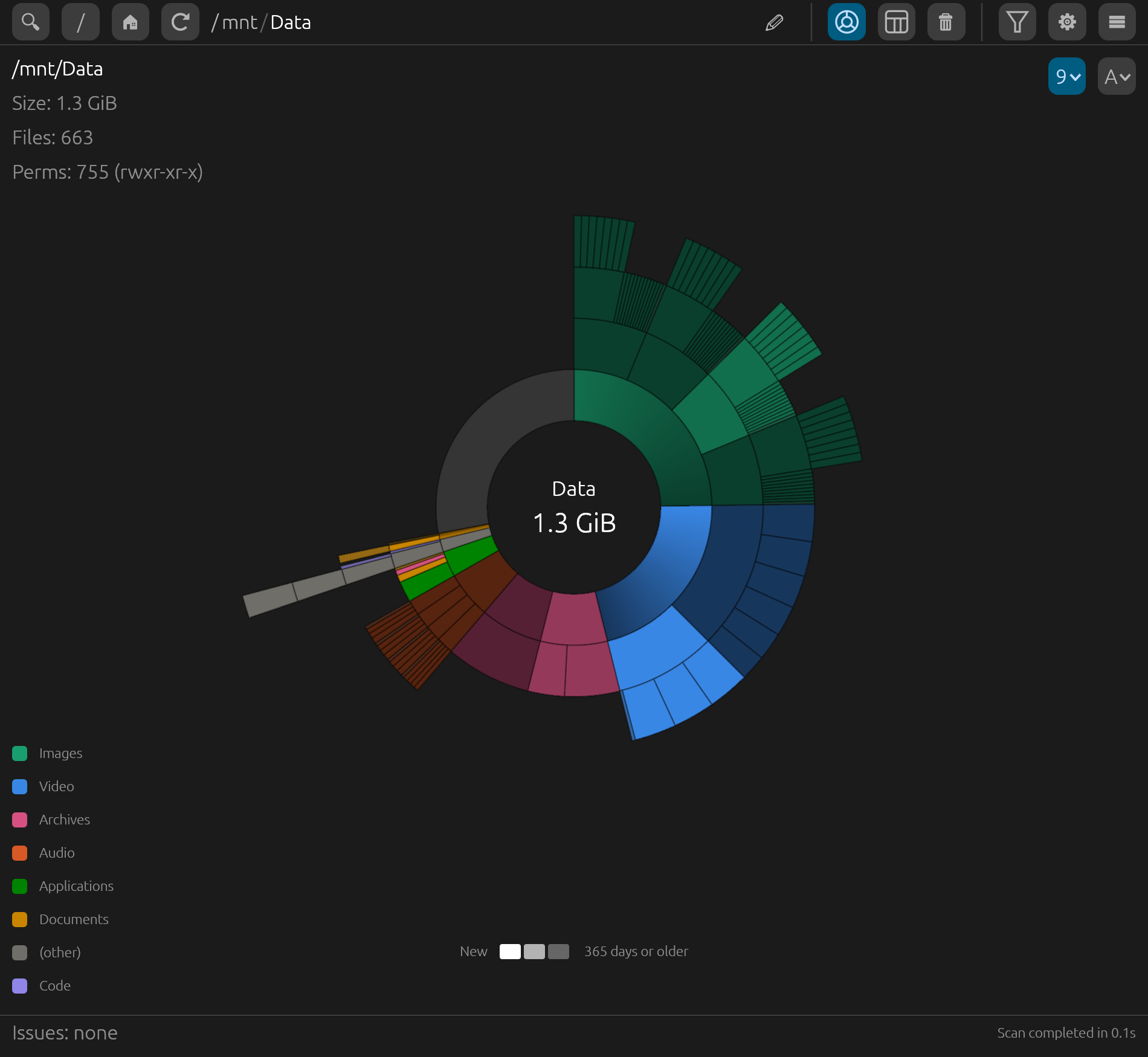
Sunburst chart. Each ring is one folder level; slices are sized by the space they use, and the drive's free space is shown too. Click a slice to zoom in, click the center to go back up. Ctrl+scroll enlarges the chart and dragging pans it, to reach very thin slices.
Colors that mean something. A slice takes the color of the file category using most of it (video, audio, images, code…), and gets darker the longer its files have been on the disk. A color-blind-safe palette is one click away in the settings.
Hover details: size, file count, owner, permissions, dates, and the newest and oldest file inside a folder.
Summary table. Keyboard-driven, like ncdu: sort by size, name, file
count, modified or changed time, or permissions; show, hide and reorder
columns; jump to a name; mark several rows. A flat list shows the
largest (or newest, or any sort) files from all subfolders at once.
Press ? for all shortcuts.
Breakdown by category and file extension for the folder you're viewing: click a category or extension to show only those files (Ctrl+click picks several extensions).
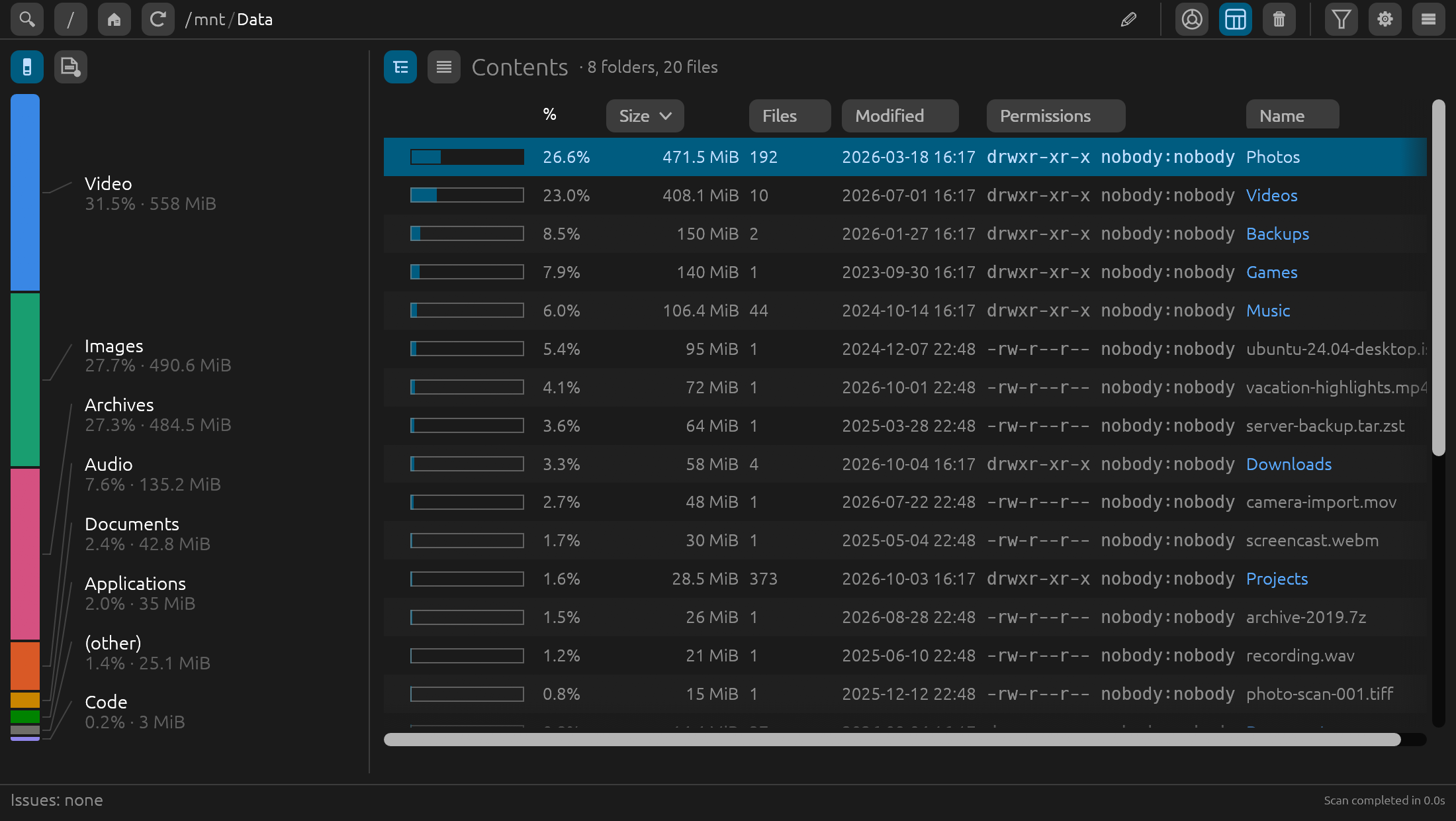
Measure by bytes or by number of files. Switch the whole app (chart, table, shares and colors) to count files instead of space, to find the folders full of tiny files.
Accurate numbers. Sizes are real disk usage, like du: sparse files
count what they actually use and hard-linked files count once. Switch to
apparent size for network or FUSE drives that don't report disk usage.
Live results. The chart and table fill in while the scan runs, with a progress bar when scanning a whole drive; Esc cancels.
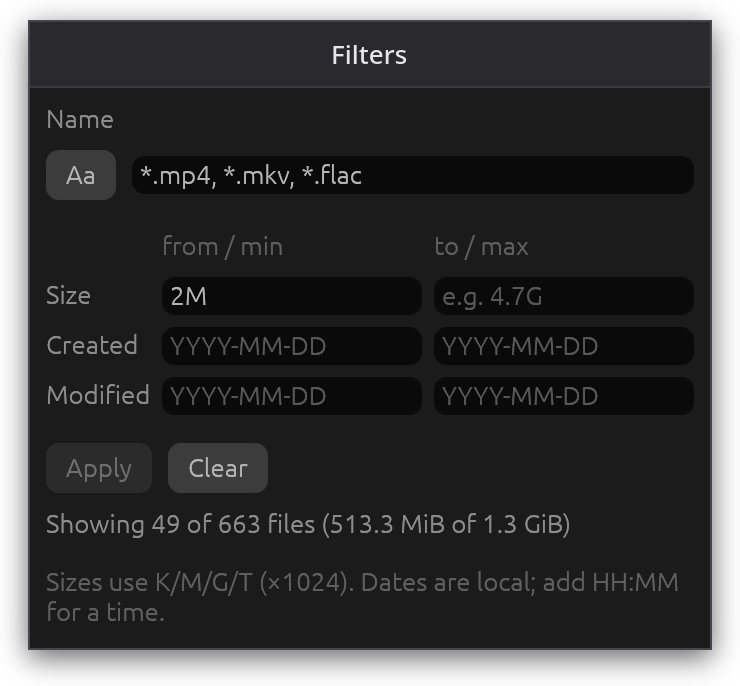
Filters by name pattern (*.iso, *.[mkv,mp4]), size range and
created or modified dates.
Safe cleanup. Move to the trash or delete permanently, always with a confirmation. SpaceScan refuses to delete anything that is or contains a mounted filesystem.
Copy and move. Ctrl+C / Ctrl+X and Ctrl+V between folders, or to and from your file manager through the system clipboard.
Command-line reports of a folder's contents, all its files, or its file extensions, as text, CSV or JSON (see below).
Handles large and awkward trees: millions of files, very deep folders,
paths longer than PATH_MAX, unreadable folders (listed as issues, not
errors), and names in any script.
In ten languages: English, Spanish, French, German, Italian, Portuguese, Russian, Japanese, Chinese and Korean; more can be added with a plain text file (see below).
Accessible: usable from the keyboard alone, and the main controls are named for screen readers.
xdg-desktop-portal for the folder picker. Without it you can still type
a path into the path bar.Download SpaceScan-x86_64.AppImage from the
Releases page, make it
executable and run it:
chmod +x SpaceScan-x86_64.AppImage
./SpaceScan-x86_64.AppImage
To add it to the application menu (under Utilities), follow AGENT_INSTALL.md; its steps also work for an AI agent installing SpaceScan for you.
It runs on most distributions from 2018 on (glibc 2.28 or newer). Every release is built from the tagged source in this repository.
git clone https://github.com/a-kurczyn/spacescan.git
cd spacescan
cargo install --path .
This builds an optimized binary and installs it to ~/.cargo/bin/spacescan.
To build without installing, run cargo build --release; the binary is
target/release/spacescan.
Start spacescan, or spacescan PATH to scan a folder right away. Then pick
where to scan:
/ scans the whole system, 🏠 scans your home folder,The toolbar switches between the chart and the summary table, sorts chart slices by size or by name, and opens the filters and settings. The ☰ menu (or F10) also holds the keyboard shortcuts, a bug-report link and About.
In the chart, right-click a slice to zoom, rescan, open, hide, move to the trash or delete it. In the table, the main keys are:
| Key | Action |
|---|---|
| ⬆ ⬇ PgUp PgDn Home End | Move the cursor |
| ➡ / Enter | Open the folder (Enter opens a file with its default app) |
| ⬅ / Backspace | Parent folder |
/ | Jump to a name |
l | Flat list of files from all subfolders, or back to folders |
s n f m c a | Sort by size / name / files / modified / changed / permissions (access) |
| Space | Mark a row |
T / D | Move to the trash / delete permanently (asks first) |
| Ctrl+C / Ctrl+X, Ctrl+V | Copy / cut, then paste into the folder shown (asks on name clashes) |
r | Rescan this folder |
? | All keyboard shortcuts |
| F10 | Main menu |
| Ctrl+Q | Quit (asks first while a copy or move is running) |
spacescan COMMAND PATH [OPTIONS]

Commands:
  list   the folders and files directly in PATH, with their totals
  flat   every file under PATH, in all its subfolders
  exts   file extensions under PATH, with their sizes and file counts

Options:
  --format txt|csv|json    output format (default: txt)
  --sort size|files|name|modified|changed
                           order of list and flat (default: size; files: list only)
  --by bytes|files         order of exts (default: bytes)
  --reverse                reverse the order
  --limit N                flat: only the first N files
  --apparent-size          count file lengths instead of disk space used
  -h, --help               show this help
  -V, --version            show the version
For example, the 20 biggest files in your Downloads folder, or a spreadsheet of what's in your home folder:
spacescan flat ~/Downloads --limit 20
spacescan list ~ --format csv > home.csv
Reports go to standard output and problems to standard error. Sizes in CSV and JSON are in bytes, and times are local ISO 8601. The exit code is 0 on success (unreadable subfolders are reported but don't fail the run), 1 if the folder can't be read, and 2 for a mistake on the command line. Reports never open a window and never change your settings.
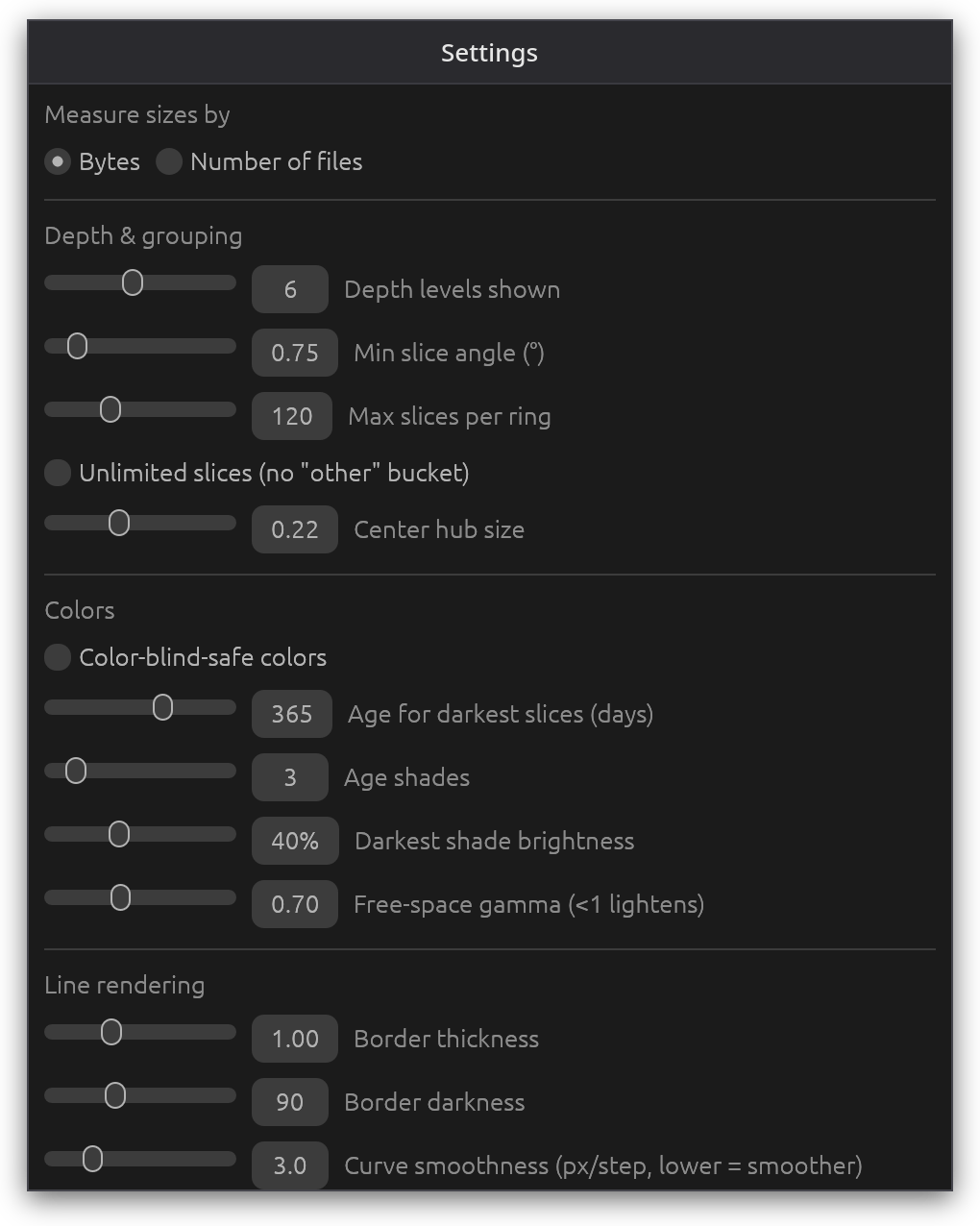
Settings are saved to ~/.config/spacescan/settings.json and can be changed
in the ⚙ panel: chart depth, minimum slice angle, slices per ring, colors
and age shades, line rendering, table columns and sort order, measuring by
bytes or files, apparent-size mode and language.
The categories and their extensions are in
~/.config/spacescan/categories.json, written with the defaults on first
start. Edit it to move an extension to another category or add your own;
it's read again at every scan. Extensions in no category count as "Other".
Copy lang/en.lang to ~/.config/spacescan/lang/<code>.lang (for example
nl.lang), set the first line to # name: <language name>, and translate
the right-hand side of each line. It appears in Settings › Language. Any
line you leave out shows in English. A file there with the code of a
built-in language (for example fr.lang) changes just the lines it
contains. New translations and corrections are welcome as suggestions in an
issue.
Ideas, suggestions and bug reports are welcome: please open an issue. Pull requests are welcome too; for anything bigger than a small fix, please open an issue first. See CONTRIBUTING.md.
Find SpaceScan useful? If you'd like to support development, feel free to buy me a coffee or a slice of pizza, we both know how much fuel they provide! ☕🍕
SpaceScan is developed with the help of AI coding tools; every change is reviewed by the maintainer.
Copyright (C) 2026 Alejandro Kurczyn
SpaceScan is free software: you can redistribute it and/or modify it under the terms of the GNU General Public License as published by the Free Software Foundation, version 3 of the License only. See LICENSE.
Fast disk-usage explorer for Linux: sunburst chart, keyboard-driven table, and text/CSV/JSON reports. Accurate like du, safe cleanup, 10 languages.
Rust
4
228 commits
updated Oct 12, 2026
A fast disk-usage explorer for Linux. SpaceScan scans any drive, mount point or folder and shows where the space went, as an interactive sunburst chart or as an ncdu-style table you can drive from the keyboard. It also writes plain-text, CSV or JSON reports from the command line.
Sunburst chart. Each ring is one folder level; slices are sized by the space they use, and the drive's free space is shown too. Click a slice to zoom in, click the center to go back up. Ctrl+scroll enlarges the chart and dragging pans it, to reach very thin slices.
Colors that mean something. A slice takes the color of the file category using most of it (video, audio, images, code…), and gets darker the longer its files have been on the disk. A color-blind-safe palette is one click away in the settings.
Hover details: size, file count, owner, permissions, dates, and the newest and oldest file inside a folder.
Summary table. Keyboard-driven, like ncdu: sort by size, name, file
count, modified or changed time, or permissions; show, hide and reorder
columns; jump to a name; mark several rows. A flat list shows the
largest (or newest, or any sort) files from all subfolders at once.
Press ? for all shortcuts.
Breakdown by category and file extension for the folder you're viewing: click a category or extension to show only those files (Ctrl+click picks several extensions).
Measure by bytes or by number of files. Switch the whole app (chart, table, shares and colors) to count files instead of space, to find the folders full of tiny files.
Accurate numbers. Sizes are real disk usage, like du: sparse files
count what they actually use and hard-linked files count once. Switch to
apparent size for network or FUSE drives that don't report disk usage.
Live results. The chart and table fill in while the scan runs, with a progress bar when scanning a whole drive; Esc cancels.
Filters by name pattern (*.iso, *.[mkv,mp4]), size range and
created or modified dates.
Safe cleanup. Move to the trash or delete permanently, always with a confirmation. SpaceScan refuses to delete anything that is or contains a mounted filesystem.
Copy and move. Ctrl+C / Ctrl+X and Ctrl+V between folders, or to and from your file manager through the system clipboard.
Command-line reports of a folder's contents, all its files, or its file extensions, as text, CSV or JSON (see below).
Handles large and awkward trees: millions of files, very deep folders,
paths longer than PATH_MAX, unreadable folders (listed as issues, not
errors), and names in any script.
In ten languages: English, Spanish, French, German, Italian, Portuguese, Russian, Japanese, Chinese and Korean; more can be added with a plain text file (see below).
Accessible: usable from the keyboard alone, and the main controls are named for screen readers.
xdg-desktop-portal for the folder picker. Without it you can still type
a path into the path bar.Download SpaceScan-x86_64.AppImage from the
Releases page, make it
executable and run it:
chmod +x SpaceScan-x86_64.AppImage
./SpaceScan-x86_64.AppImage
To add it to the application menu (under Utilities), follow AGENT_INSTALL.md; its steps also work for an AI agent installing SpaceScan for you.
It runs on most distributions from 2018 on (glibc 2.28 or newer). Every release is built from the tagged source in this repository.
git clone https://github.com/a-kurczyn/spacescan.git
cd spacescan
cargo install --path .
This builds an optimized binary and installs it to ~/.cargo/bin/spacescan.
To build without installing, run cargo build --release; the binary is
target/release/spacescan.
Start spacescan, or spacescan PATH to scan a folder right away. Then pick
where to scan:
/ scans the whole system, 🏠 scans your home folder,The toolbar switches between the chart and the summary table, sorts chart slices by size or by name, and opens the filters and settings. The ☰ menu (or F10) also holds the keyboard shortcuts, a bug-report link and About.
In the chart, right-click a slice to zoom, rescan, open, hide, move to the trash or delete it. In the table, the main keys are:
| Key | Action |
|---|---|
| ⬆ ⬇ PgUp PgDn Home End | Move the cursor |
| ➡ / Enter | Open the folder (Enter opens a file with its default app) |
| ⬅ / Backspace | Parent folder |
/ | Jump to a name |
l | Flat list of files from all subfolders, or back to folders |
s n f m c a | Sort by size / name / files / modified / changed / permissions (access) |
| Space | Mark a row |
T / D | Move to the trash / delete permanently (asks first) |
| Ctrl+C / Ctrl+X, Ctrl+V | Copy / cut, then paste into the folder shown (asks on name clashes) |
r | Rescan this folder |
? | All keyboard shortcuts |
| F10 | Main menu |
| Ctrl+Q | Quit (asks first while a copy or move is running) |
spacescan COMMAND PATH [OPTIONS]

Commands:
  list   the folders and files directly in PATH, with their totals
  flat   every file under PATH, in all its subfolders
  exts   file extensions under PATH, with their sizes and file counts

Options:
  --format txt|csv|json    output format (default: txt)
  --sort size|files|name|modified|changed
                           order of list and flat (default: size; files: list only)
  --by bytes|files         order of exts (default: bytes)
  --reverse                reverse the order
  --limit N                flat: only the first N files
  --apparent-size          count file lengths instead of disk space used
  -h, --help               show this help
  -V, --version            show the version
For example, the 20 biggest files in your Downloads folder, or a spreadsheet of what's in your home folder:
spacescan flat ~/Downloads --limit 20
spacescan list ~ --format csv > home.csv
Reports go to standard output and problems to standard error. Sizes in CSV and JSON are in bytes, and times are local ISO 8601. The exit code is 0 on success (unreadable subfolders are reported but don't fail the run), 1 if the folder can't be read, and 2 for a mistake on the command line. Reports never open a window and never change your settings.
Settings are saved to ~/.config/spacescan/settings.json and can be changed
in the ⚙ panel: chart depth, minimum slice angle, slices per ring, colors
and age shades, line rendering, table columns and sort order, measuring by
bytes or files, apparent-size mode and language.
The categories and their extensions are in
~/.config/spacescan/categories.json, written with the defaults on first
start. Edit it to move an extension to another category or add your own;
it's read again at every scan. Extensions in no category count as "Other".
Copy lang/en.lang to ~/.config/spacescan/lang/<code>.lang (for example
nl.lang), set the first line to # name: <language name>, and translate
the right-hand side of each line. It appears in Settings › Language. Any
line you leave out shows in English. A file there with the code of a
built-in language (for example fr.lang) changes just the lines it
contains. New translations and corrections are welcome as suggestions in an
issue.
Ideas, suggestions and bug reports are welcome: please open an issue. Pull requests are welcome too; for anything bigger than a small fix, please open an issue first. See CONTRIBUTING.md.
Find SpaceScan useful? If you'd like to support development, feel free to buy me a coffee or a slice of pizza, we both know how much fuel they provide! ☕🍕
SpaceScan is developed with the help of AI coding tools; every change is reviewed by the maintainer.
Copyright (C) 2026 Alejandro Kurczyn
SpaceScan is free software: you can redistribute it and/or modify it under the terms of the GNU General Public License as published by the Free Software Foundation, version 3 of the License only. See LICENSE.



