A Compendium Information Guide for UMG and Slate in Unreal Engine.
1,048
63 commits
updated Mar 27, 2026
Localized via GitLocalize (Please read the FAQ page about becoming a translator!)
0.7.0
Sub-Page Links
1.0 Introduction
2.0 Performance & Design Considerations
2.1 CPU Considerations
2.1.1 Performance regarding Animations
2.1.2 Performance regarding Widget Components
2.2 GPU Considerations
3.0 Slate & UMG in Unreal
4.0 Slate
4.1 Slate Widget Casting & Storing
4.2 Slate Units & DPI Scaling
4.3 Slate Users
4.4 Widget Layout
4.5 On Paint
4.6 Widget Ticking
4.7 Widget Hierarchy
4.8 Invalidation
4.9 Slate Attributes and Events
4.10 Slate Widget Examples(Slate Test Suite/Starship)
4.11 Helpful Console Commands for Slate
5.0 UMG (Unreal Motion Graphics)
5.1 User Widget Hierarchy
5.2 User Widget Animation
5.3 User Widget Events
6.0 Common Widgets
7.0 Common Widget Functionality
8.0 UMG in relation to Levels/Worlds
8.1 HUD Actors
8.1.1 HUD Drawing
8.1.2 HUD HitBoxes
8.2 Widget Components
8.2.1 Widget Interaction Components
8.2.2 How Widget Components are Rendered
9.0 Development & Debug Tools for UMG/Slate
9.1 Debug Console Commands
9.2 Widget Reflector
9.3 Slate Console Debugger
10.0 Input Framework of Unreal Engine(relating to UMG/Slate)
10.1 Input Flow of Unreal Engine
10.2 Input Components
10.3 Input Event Types
10.4 Input Modes
11.0 Unreal's Focusing System
11.1 Navigation Grid Explanation
11.2 Navigation Genesis
12.0 Split Screen
12.1 Game Layer Manager
12.2 Viewport Layout
12.3 Local Players
12.3.1 Gamepad ID(Controller ID)
13.0 Important File Names
This compendium is intended to teach the basics of UMG & Slate and to provide a base understanding of how to work with Unreal Engine’s UI framework. PLEASE let me know if there is anything about this document that can be improved upon because this is meant to help the community!
Please refer to the FAQ Page(also linked at the top of the document) if you have further questions regarding the document(or anything relating to the document).
There is also a sample project that is used in relation to this compendium linked here:
Unreal Engine template project for the UMG/Slate Compendium
An important note about skill level in programming and how its used in this document: usually when somebody refers to a concept as “high level” they mean its very complicated and requires a high skill level or a lot of experience, BUT in programming its flipped; where a “high level” concept is actually extremely easy to use and is a simple concept with little to no experience and the more “low level” it gets, the more complicated the concept becomes and requires a larger amount of experience. For example; Blueprint is a “high level” coding language, C++ is a “low level” coding language.
GeeksForGeeks has a great and simple article explaining the difference:
https://www.geeksforgeeks.org/difference-between-high-level-and-low-level-languages/
An important note about the two types of Unreal Engine:
- Launcher Version: The version of the engine that you would download from the Epic Games Launcher; the engine is exposed to view but is not able to be modified, and is not able to submit code changes to Epic via GitHub.
- Source Code Version: The version of the engine that you would clone/download from GitHub; this gives full modifiable access to Unreal Engine as well as being able to submit code changes to Epic via GitHub Pull Request's for them to integrate into Unreal Engine’s future releases.
All pictures of the editor in this document are from the launcher version of the engine.
What this compendium covers:
It is NOT intended to teach beginners how to use Unreal Engine in general, just this specific aspect of the engine which encompasses a lot of the engine.
This compendium requires you to have a basic understanding of these areas of Unreal Engine:
This compendium will contain information that is taken from official documentation but is intended to shed light on what some of the official documentation means BUT it is not a redefinition of something that is already explained.
At the bottom of the document is a list of helpful links and files for you to refer back to
(you can reach them easily using the External Links Page link at the top of the file).
Epic's Official Documentation on Performance and Optimization Guidelines for Slate & UMG
UMG & Slate are extremely performant frameworks for both the rendering (GPU) and computation (CPU) aspects. But both aspects should be considered when building out you're UI to have the best experience for the User.
This is not a "how to improve performance" guide, these are considerations to be aware of when building your application with UMG/Slate and possible avenues to help improve performance.
UI Complexity is usually in relation to the number of active and visible widgets (so offscreen widgets don’t tick and should not run functionality if not on screen). A common technical design with UI is to be reactive to gameplay code(it is also suggested if you're game isn't UI dependent) but not to drive the gameplay code so it is performant and reusable, normally its fine for the UI to be the entry point for executing the gameplay code but then it should listen to how the gameplay code responded and to react to it.
Slate/UMG use the concept of Invalidation and caching rather than constantly polling the data. The reason for this is because sometimes polling is either not performant or functionally incorrect(for example when using multi-threaded code). Typically performant UI in Unreal is intended to be event based. UMG has Property Binds but they should not be used because they will be updated every frame which is significantly more taxing on the CPU than using an event based framework.
| CPU Technical Design Scenario |
|---|
| In an RTS you need to have a UI marker for seeing where to place a squad of soldiers in the world, the player selects a valid spot in the world for where to place the UI marker and then the troops will move to it. |
| Good Example | Bad Example |
|---|---|
| A player manager object creates the UI marker widget and manages where to move the troops. The world position that is chosen by the player is fed into the UI marker’s widget(from the player manager object) and the widget itself handles positioning itself in screen space. | The player picks a world position and feeds that directly to the UI marker, the UI marker then directly tells the troops where to move to and handles their movement. |
Invalidating the desired size of multiple widgets by animating a large amount of widgets can have downstream effects of spending a lot of CPU time re-calculating the Widget Layout.
Why should I use volatile?
Honestly it's not the answer everytime, what happens when you animate a UMG widget or change its visual state it will invalidate the widget for this frame and re-cache its new state until it is invalided again later on. Setting it to volatile will not invalidate or cache the widget, it goes through a separate code path for volatile widgets which is a case-by-case basis of improving performance. Some avenues to use volatile for is by turning it on for a period of time and then turning it off when you no longer need it to be volatile.
Widget Components are great for prototyping and for in world VR/AR UI. They are not great when trying to have the UI be within the world while still respecting screen size, logic controlling layout, etc.
Typically its good to use widget component if you have available texture budget because each widget component is really a static mesh plane with a render target texture applied to its material slot zero.
Each widget component will create the UMG widget object and then render it out to a texture to show it in the world.
It is recommended to not use Widget Components heavily(excluding VR/AR) due to texture memory use.
An alternative(which is more complicated) is to create a custom Slate Widget to handle rendering multiple "Widgets" at once you can do this using
SMeshWidget which is 1 draw call per widget but it requires competent technical art skills to be able to draw multiple widget elements as 1 texture.
What is a SMeshWidget?
It is a widget that has rendering capability of 1 draw call, it was used in Paragon to draw each status bar and icon on screen.
It is extremely powerful but also requires a good understanding of how to draw these elements in code which is why you don't see it oftenly used,
this is intended to not be exclusive to just textures or particles but can be used with 3D models/meshes or anything you want to render.
Nick Darnell actually put together an example of using SMeshWidget to draw particles in UE4:
Carey Hickling gave an Unreal Fest talk "Optimizing and Building UI for AAA Games" and talks about the Pros/Cons of SMeshWidget:
YouTube Link
For another possible avenue, recommend taking a look at Epic's Lyra example project and at the indicator system, related files in that project:
SActorCanvas.h/.cppIndicatorLayer.h/.cppIActorIndicatorWidget.h/.cppIndicatorDescription.h/.cppIndicatorLibrary.h./cppLyraIndicatorManagerComponent.h/.cppMost of the general GPU considerations you would have to worry about are the same when working in 3D space, such as:
If your framework is built out properly, GPU optimization wouldn’t be an issue when it comes to Slate/UMG due to it using some of Unreal’s 3D rendering features to unify some of the work.
An important gotcha with Unreal Engine is that it does not have a robust method of swapping between different textures depending on platform type.
For example; switching from Mobile to PC, you will have to build those systems out yourself so that unused textures are not cooked, loaded,
referenced, or even stored on the hard disk on the platform that you do not want them to be on.
Unreal Engine uses Slate; its custom UI Programming Framework. It is used
for both game and non-game applications using Slate Widgets.
Some examples include:
Slate is entirely used only within C++ using declarative syntax and is NOT derived from the UObject hierarchy.
Pros of Slate:
Cons of Slate:
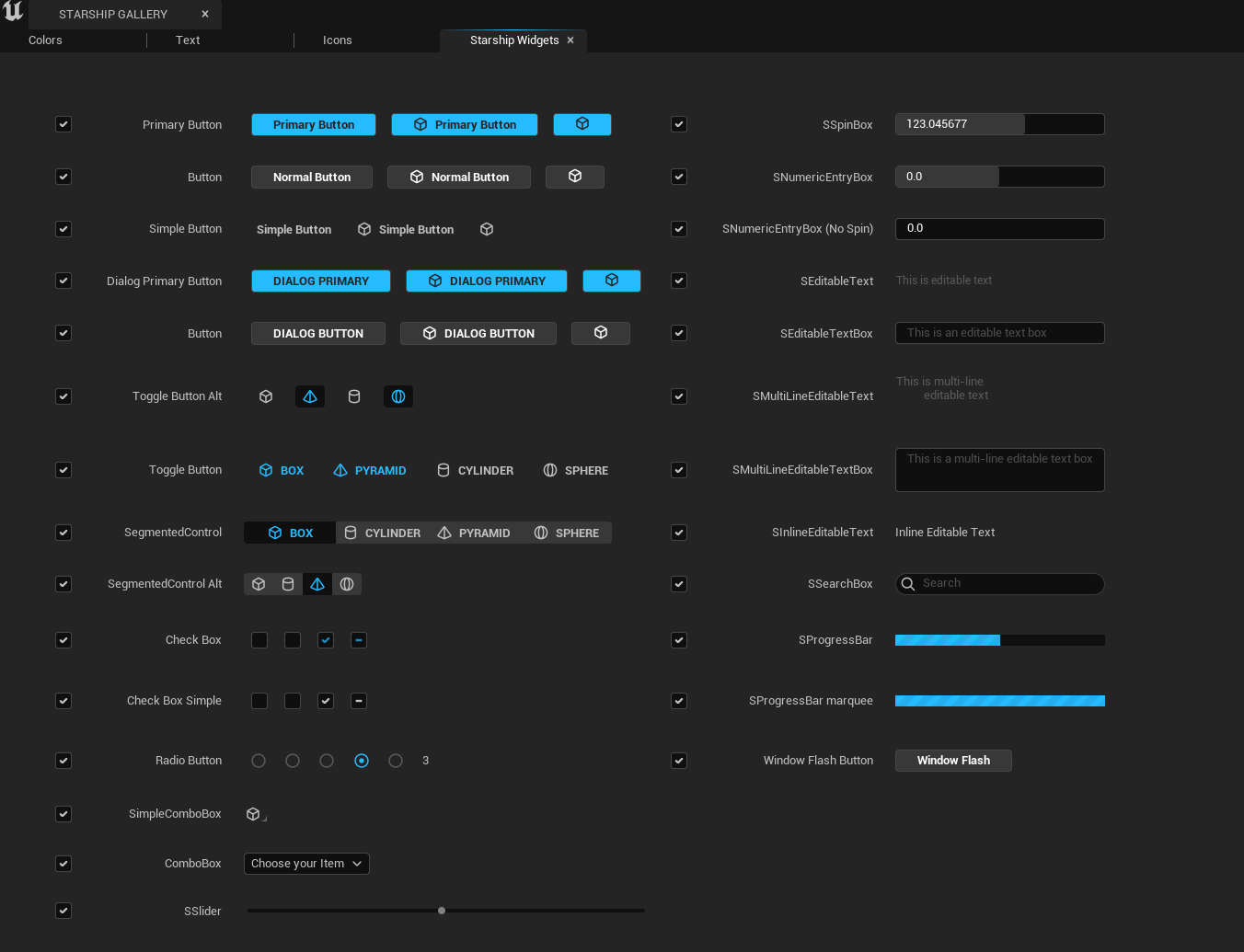
Slate Test Suite (In UE5 its called Starship Gallery)
UMG (Unreal Motion Graphics) is derived from the UObject hierarchy but aren't Actor’s and
is used to create & display Slate Widgets (basically a Unreal Engine friendly wrapper for Slate to work with Blueprint).
Pros of UMG:
Cons of UMG:
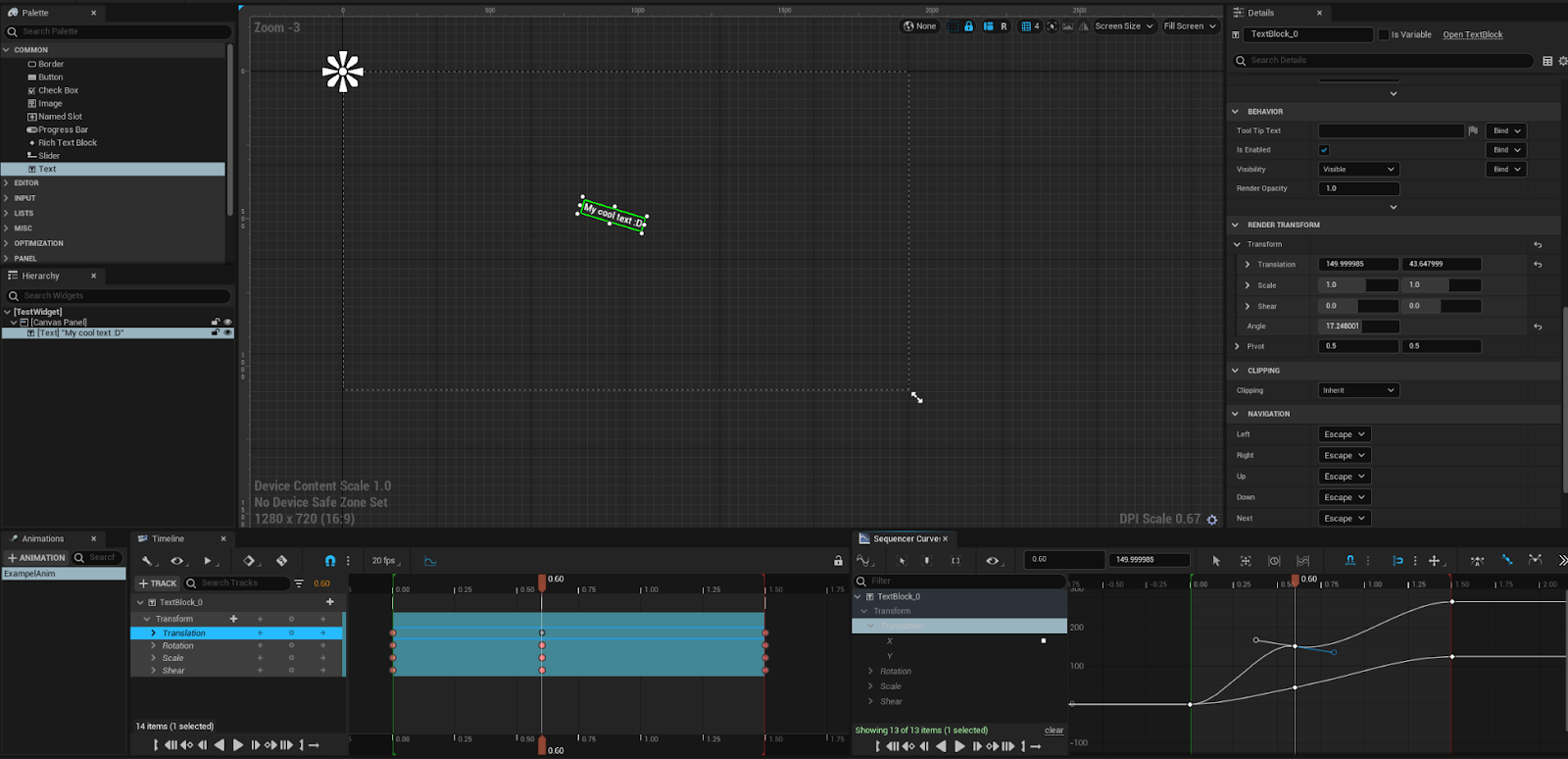
The Slate Framework has two core parts:
Since Slate Widgets are NOT derived from UObject, that means you can’t use Unreal’s object casting system to get specific Slate
types as well as not being able to take advantage of UObject's garbage collection.
Instead Slate uses Unreal's Shared Pointers(also known as Smart Pointers) Framework for its memory management of Widgets.
There are three shared pointer template types:
TSharedRef: Non-nullable, reference counted, non-intrusive authoritative smart pointer.TSharedPtr: Reference counted, non-intrusive authoritative smart pointer.TWeakPtr: Reference counted, non-intrusive weak pointer reference.An important note is that when all reference counts are gone for a shared reference; the object will be deleted and a limitation is that it will only call the default destructor so custom destructors with parameters are not usable.
Using shared pointers allows you to assume ownership of these slate widgets without having to call delete on them.
I recommend taking a look at Epic's Documentation on Smart Pointers
An important note that when casting Slate Widget's it is totally fine to use standard casting such as
static_castandconst_cast, but I do recommend using Unreal's templated cast versions listed below to save time.
There are also helper classes and functions to make life easier regarding using Unreal's Shared Pointers framework and this includes working with Slate.
MakeShareable: Used to initialize shared pointers from C++ pointers.
TSharedPtr<FMyCustomCalculator> calculator = MakeShareable(new FMyCustomCalculator());
TSharedFromThis: Used with custom C++ classes as something you inherit from to allow it to be used with Unreal's Shared Pointers framework.
/** Special class to handle custom calculations */
class FMyCustomCalculator : public TSharedFromThis<FMyCustomCalculator>
{
public:
  FMyCustomCalculator()
  { }
  // ...
};
StaticCastSharedRef: Static cast utility function, typically used to downcast to a derived type when getting a smart reference.
void MyFunction(FMySubCalculator& CalculatorItem)
{
  TWeakPtr<FMyCustomCalculator> calculator = StaticCastSharedRef<FMyCustomCalculator>(CalculatorItem.AsShared());
  // ...
}
ConstCastSharedRef: Converts a const reference to mutable smart reference.
void MyFunction(TSharedRef<const FMyCustomCalculator> CalculatorItem)
{
  TSharedRef<FMyCustomCalculator> calculator = ConstCastSharedRef<FMyCustomCalculator>(CalculatorItem);
  // ...
}
StaticCastSharedPtr: Dynamic cast utility function, typically used to downcast to a derived type. This is what you would use instead of static_cast(its not a requirement but it requires less typing).
void MyFunction(TWeakPtr<FMyCustomCalculator> CalculatorItem)
{
  TSharedPtr<FMyCustomCalculator> calculator = StaticCastSharedPtr<FMyCustomCalculator>(CalculatorItem.Pin());
  // ...
}
ConstCastSharedPtr: Converts a const smart pointer to mutable smart pointer. This is what you would use instead of const_cast<>(its not a requirement but it requires less typing).
void MyFunction(TSharedPtr<const FMyCustomCalculator> CalculatorItem)
{
  TWeakPtr<FMyCustomCalculator> calculator = ConstCastSharedPtr<FMyCustomCalculator>(CalculatorItem);
  // ...
}
For more information please refer to these files:
Engine/Source/Runtime/Core/Public/Templates/SharedPointerTesting.inlEngine/Source/Runtime/Core/Public/Templates/SharedPointer.hWhy do we use Slate Units and DPI Scaling? Primarily to solve the problem of text, it does not automatically scale based on DPI. That is something software developers and game developers have always had to implement to solve the problem of different resolutions. You can read more about text in the text section of the compendium: Text Widget Overview
Epic themselves admits it’s not perfect but it works well for most-all use cases.
Epic's AnswerHub explaining Slate Units
Slate Users are classes that represent that a local individual input-providing user (for example; in split screen co-op with 3 players then there are 3 Slate Users, but in an online game with 32 players and no split screen then the only local player is the only Slate User on this device). Each Platform’s SDK will tell the Slate Application to register (create) a new Slate User when a new connection is added (for example when a new controller is plugged in). When a new connection is added, a new Slate User is created but not when a connection is removed to account for a controller disconnecting accidentally (to keep the settings for that controller just in case they reconnect). When a connection is removed, that Slate User is just not updated. The Slate User instance keeps track of the widget that the user is currently focusing on, and controls the cursor/has pointer information to account for gestures (this is only for the first Slate User because you can’t plug in multiple mouses and if you are… why?).
You can access the Slate User via 2 primary ways:
ULocalPlayer object which you can get from any Player Controller.An important thing to note is that Local Player’s can exist before the Player Controller is spawned (there’s functions in Player Controllers for when their Local Player is set that you can override), and Local Player’s exist between levels instead of per level like Player Controllers since they are UObjects and not Actors.
// The way you get the local player is dependent on your own needs
// This is meant to be an example,
// NOT INTENDED FOR FINAL/RELEASE CODE
ULocalPlayer* localPlayer = nullptr;
if(UWorld* const world = GetWorld())
{
    if(APlayerController* const pc = world->GetFirstPlayerController())
    {
        localPlayer = pc->GetLocalPlayer();
    }
}
// Valid check the local player pointer
if(!IsValid(localPlayer))
{
    // If its not valid then exit the function
    return;
}
// Make sure Slate is initialized and working properly
if(FSlateApplication::IsInitialized())
{
    // This function will return the Slate User that this local player is tied to
    FSlateApplication::Get().GetUser(localPlayer->GetControllerId());
}
Code example for how to get the Slate User using the player controller's local player object
The way a Slate Widgets layout is calculated is done in two passes (listed in order of execution):
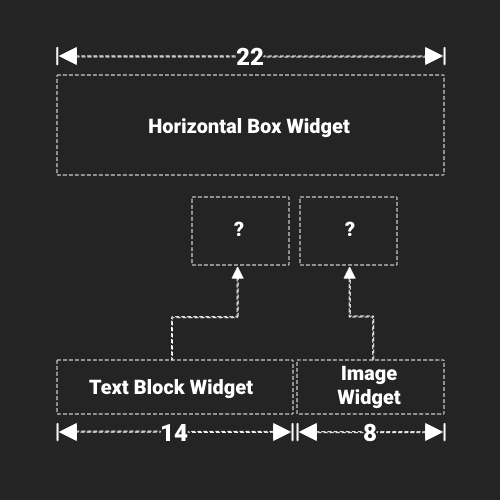
Example of Desired Size for a Horizontal Box with Textblock and Image widget's
For the desired size example we have a horizontal box holding a text block and an image widget. In this case we compute the desired size for the text block (which is measured by the string that is displaying) and the image widget (which is measured based on the image data that is shown). Then the horizontal box is computed by combining the text block and image widget’s(we are assuming that the text block is 14 slate units and the image widget is 8 slate units) desired sizes, so for this example 14 slate units + 8 slate units = 22 Slate Units.
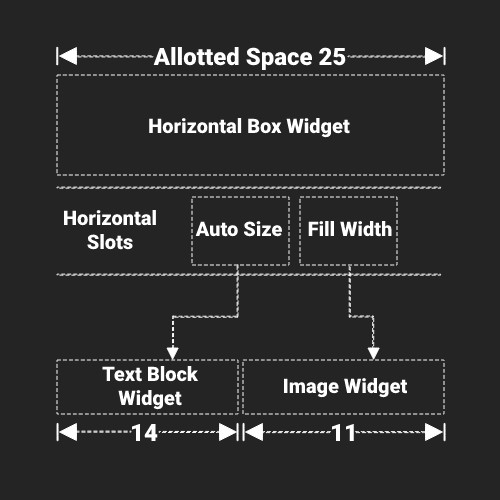
Example of Arranged Children using Allotted Size for a Horizontal Box with Textblock and Image widget’s
For the arranged children example the horizontal box was allotted 25 slate units by its parent widget (not shown to keep things simple). The first horizontal box slot indicates that it wants the desired size of the child which is 14 slate units from the text block, while the second slot wants to fill the available width which is 11 slate units remaining for the image widget.
Drawing Slate is the process where Slate will iterate over all visible widgets and create a list of Draw Elements to send to the rendering system, this list is created every frame.
This occurs in an On Paint function where it will do two things:
Slate Widget's(which also means UMG widget's) themselves do not tick, they do not have tick components and do not have tick groups. The order that Slate Widget's tick occurs is during the Paint pass with these calls originating from the Slate Application, so that a widget's tick function will only be called when it is on screen and being rendered:
FSlateApplication::TickFSlateApplication::TickAndDrawWidgets...SWidget::PaintSWidget::OnPaint...SObjectWidget::TickUUserWidget::NativeTick(this is when Blueprint will receive tick too)The concept of the Widget Hierarchy is done using child slots, which are optional objects that can be tied to a Slate Widget (because some Widgets are not designed to have children such as the Image widget(Leaf Widget)) but requires the slot to be custom build for tracking each widgets child such as how the Button widget(Compound Widget) only accepts 1 child widget meanwhile an Overlay widget can have multiple child widgets.
Widgets usually come in 3 main types:
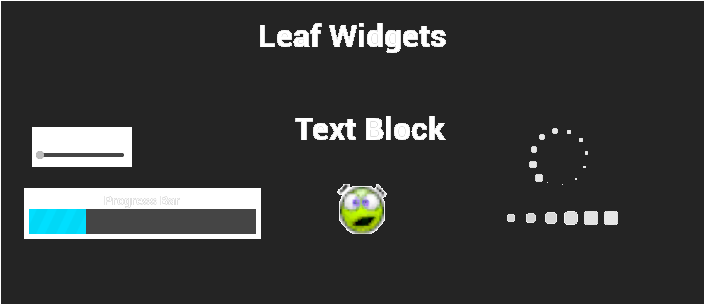
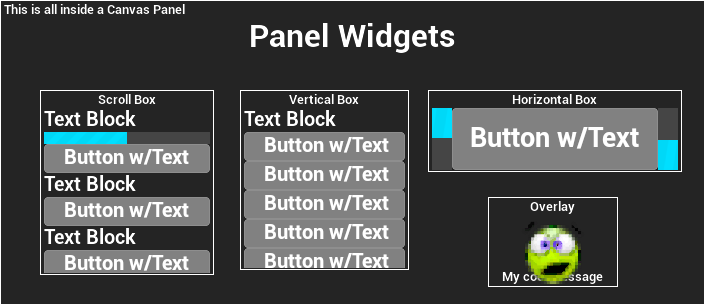
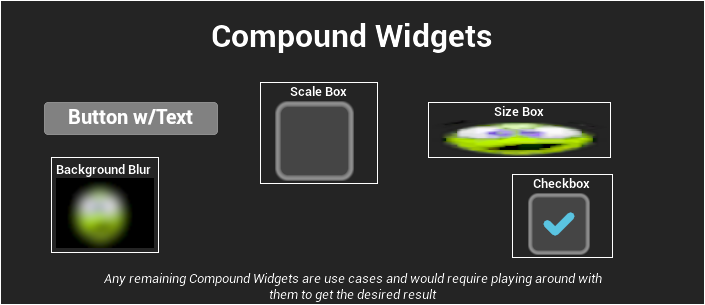
The key elements of any Slate Widget (also known as an SWidget, where every Slate Widget is prefixed with a capital ‘S’ in C++) are a mix of functions and values:
Epic's Official Documentation on Invalidation with Slate & UMG
To avoid having to calculate the desired size of the widget every frame (which can tax the CPU if it’s happening to a lot of Widgets at once), Widgets have the concept of caching their desired size, but at runtime if the size of the widget changes (either through an animation or through game code) then it will Invalidate the widget to tell Slate that this widget needs to recalculate its Desired Size and then Rearrange the Layout that widget is in (or has). This is an optimization to avoid polling for each widget's desired size every frame when it doesn’t need to recalculate it.
There are different types of invalidation reasons that you can specify when invalidating a widget located in InvalidateWidgetReason.h:
Slate(and through Slate; UMG) support the usage of Attribute's for binding properties/functions/lambdas to a widget's property(s). Widget Attributes are only updated if the widget is visible/not collapsed, so setting its visibility to hidden will cause it not to update.
Attributes are particularly useful with widget styling where you can specify the different visual styles of widgets across the project as general theme. Which improves productivity across the project for both engineering and art teams.
TAttribute: Base attribute type of Unreal Engine, do not use for member properties in SWidget's.
TAttribute to change state of an SWidget then you need to override ComputeVolatility(this is not needed for TSlateAttribute & TSlateManagedAttribute).TSlateAttribute: Should be used with SWidget member properties, allows the property to work with Slate's invalidation system and is more performant for Slate specific code while keeping attributes safe across the engine.
TAttribute, this inherits from FSlateAttributeBase/TSlateMemberAttribute.TSlateManagedAttribute instead.TSlateManagedAttribute: Should be used with SWidget member properties that are inside arrays OR other moving data structures.
TAttribute, this inherits from FSlateAttributeBase/TSlateMemberAttribute.
TAttributeshave a high memory overhead and are not cache friendly. So use at your own discretion.- All slate attributes are saved inside
SlateAttributeMetaDatafor easy access in each SWidget.
When declaring event and attribute macros inside an SWidget you need to have them be between two other macros:
SLATE_BEGIN_ARGS OR SLATE_USER_ARGS: The difference is that SLATE_USER_ARGS requires the user to have all widget implementation within the source file,
so the header can only hold declaration information where all handlers are essentially truly private and can be inlined(so less boilerplate code).SLATE_END_ARGSUsing these macros allows the widget authors to add support for widget construction via SNew and SAssignNew.
Attributes in Slate also have specific macros that must be used when declaring them and must be used if you want to expose these properties when creating a Slate Widget at runtime.
SLATE_ATTRIBUTE:
SLATE_ARGUMENT:
SLATE_ARGUMENT_DEFAULT: Same as SLATE_ARGUMENT but also supports default values, syntax: SLATE_ARGUMENT_DEFAULT(float, WheelScrollMultiplier) = 1.0f;SLATE_STYLE_ARGUMENT: Same as SLATE_ARGUMENT but they can only be used with types that inherit from FSlateWidgetStyle for a widget's visual styling purposes.Here is an example where we're making a custom button widget using these macros.
class SMyButtonWidget : public SMyParentWidget
{
    SLATE_DECLARE_WIDGET(SMyButtonWidget, SMyParentWidget)
public:

    /** Setup default values for these arguments, underscore is to avoid shadowing of member names */
    SLATE_BEGIN_ARGS( SMyButtonWidget )
        : _Style(&FCoreStyle::Get().GetWidgetStyle< FButtonStyle >( "Button" ))
        , _AdditionalPadding(FMargine(4.0f, 2.0f))
        , _CanBounce(true)
    { }

    /** Scaling for after the button is customized */
    SLATE_ARGUMENT_DEFAULT( float, CustomizedScaling ) = 1.0f;

    /** Visual style of the button */
    SLATE_STYLE_ARGUMENT( FButtonStyle, Style )

    /** Additional padding for what this button needs to display its visuals. */
    SLATE_ATTRIBUTE( FMargin, AdditionalPadding )

    /** For knowing if the button should be able to bounce when clicked. */
    SLATE_ARGUMENT( bool, CanBounce )

    SLATE_END_ARGS()

    /**
	 * Construct this widget
	 *
	 * @param	InArgs	The declaration data for this widget
	 */
	void Construct( const FArguments& InArgs )
	{
	    // Order does not matter here but to get the property we need the underscore infront of the value we're getting.
	    bCanBounce = InArgs._CanBounce;
	    Style = InArgs._Style;
	    AdditionalPadding = InArgs._AdditionalPadding;
	    CustomizedScaling = InArgs._CustomizedScaling;
	}

private:

    /** Scaling for after the button is customized */
    float CustomizedScaling;

    /** Style resource for this custom button. */
    const FButtonStyle* Style;

    /** Additional padding for what this button needs to display its visuals. */
	TSlateAttribute<FMargin> AdditionalPadding;

    /** Flag to know if this button can be bounced when clicked. */
    TSlateAttribute<bool> bCanBounce;
}
Slate Events are basically delegates in SWidgets for binding on widget creation, you would declare your delegate in C++ with this macro in the Arguments range macro declaration.
SLATE_EVENT: Adds event handler support for this widget with a specific member variable, this exposes delegates for binding on creation. Expects that the widget has a delegate of the EventDelegateType that is named the same as the event's name that was inputted in.Here is an example widget that is using the event macro for when it is hovered.
class SMyWidget : public SMyParentWidget
{
    SLATE_DECLARE_WIDGET(SMyWidget, SMyParentWidget)
public:

    SLATE_USER_ARGS( SMyWidget )
    { }

    /** Called when this widget is hovered. */
    SLATE_EVENT( FSimpleDelegate, OnHovered)

    SLATE_END_ARGS()

private:

    /** Called when this widget is hovered. */
    FSimpleDelegate OnHovered; // FSimpleDelegate is within the engine BTW
}
The Slate Widget Examples (also known as Slate Test Suite if using UE4/ Starship Suite if using UE5) is a collection of Slate built examples such as radio buttons, responsive grid, color wheel, etc.
In 5.3 its location was changed to have to access only through Unreal Insight's Somebody was kind enough to share a quick tutorial of how to easily access it here: https://hyaniner.com/en/blog/slate-test-suite-location-changed-UE5.3-20240122/
You can access the test suite within the Unreal Editor by going to:
Window>Developer Tools>Debug ToolsTools/Debug/Debug Tools 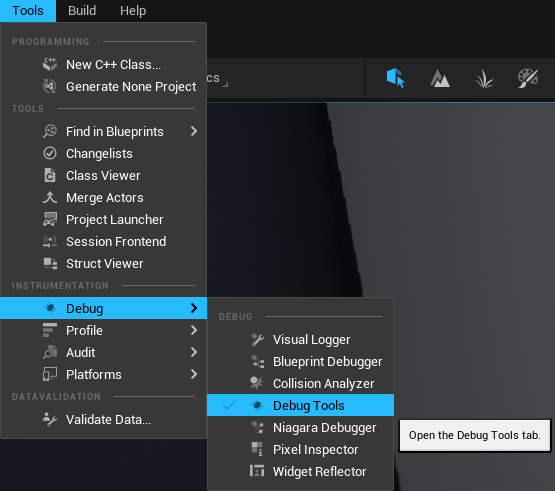
Test Suite 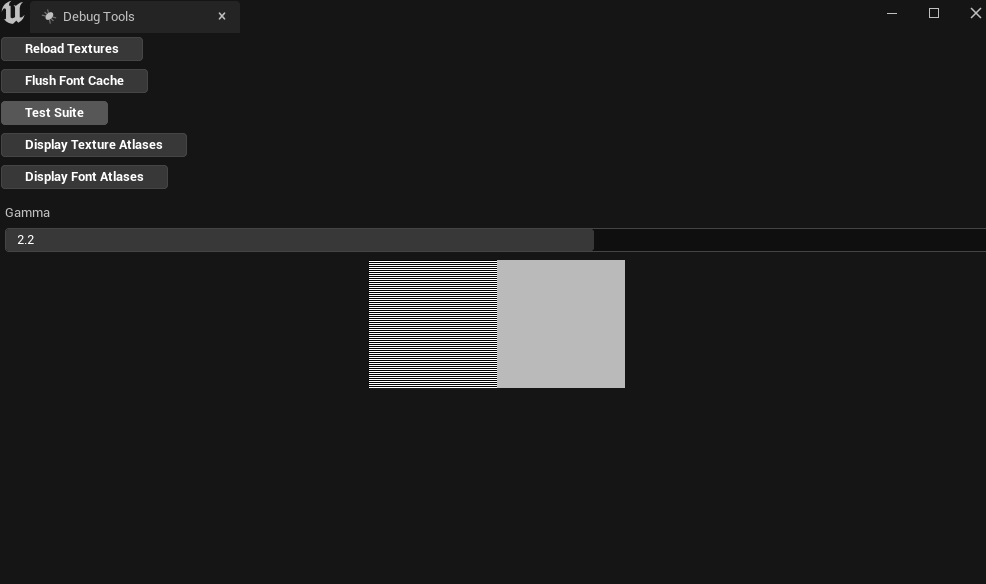
You can also run the Test Suite as its own application without the Unreal Editor open if you have the source code version of the engine
and build the Test Suite program(which will create the executable in [EnginePath]/Engine/Binaries/Win64/).
[EnginePath]/Engine/Source/Runtime/AppFramework/Public/Widgets/Testing/STestSuite.h[EnginePath]/Engine/Source/Runtime/AppFramework/Private/Widgets/Testing/STestSuite.cpp[EnginePath]/Engine/Source/Runtime/AppFramework/Public/Widgets/Testing/SStarshipSuite.h[EnginePath]/Engine/Source/Runtime/AppFramework/Private/Widgets/Testing/SStarshipSuite.cpp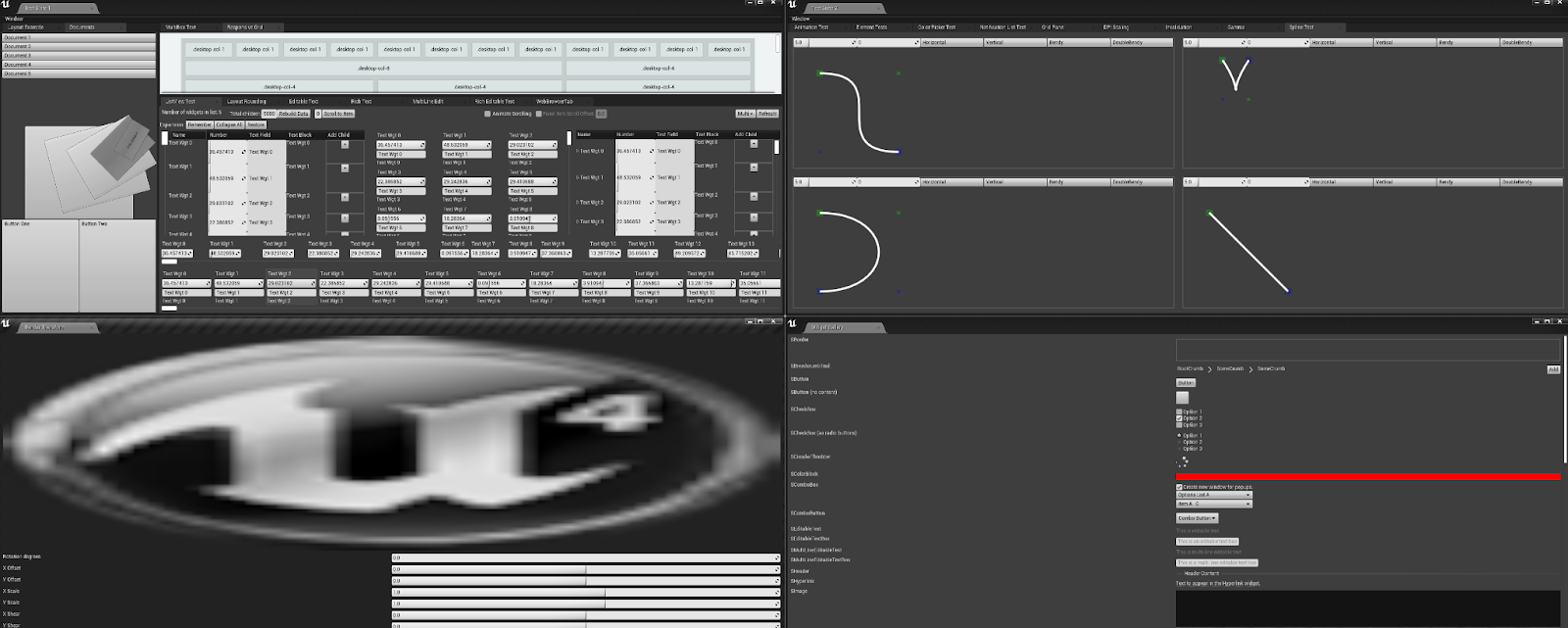
Test Suite from UE4, currently the UE4 version of the test suite is more feature rich than Starship Suite in UE5.
For debug console commands please navigate to Debug Console Commands of the Development & Debug Tools for UMG/Slate section.
Slate.GlobalScrollAmount [float value] (default = 32.0): The amount used for scrolling for each click of the mouse wheel(in Slate Units).The UMG framework are UObject’s that have to be tied to a specific Player Controller known as the Owning Player(to account for split screen), if nothing is inputted for the owning player then it will automatically be connected to the first local player in the level.
The hierarchy of UMG’s object types is laid out below:
User Widgets are built out of Widgets except how a User Widget does not require a root widget, basically like how Actors are built out of multiple Actor Components and require a root Actor Component(known as Root Component).
User Widgets cannot inherit their Widget Hierarchy like how Actors do with Components but they can inherit class functionality (so making a User Widget abstract will allow for other classes to inherit from it or creating the class in C++ will allow for inheritance).
Each User Widget is the root UWidget by design, so a User Widget can have no widgets inside it and is by default a Compound Widget that can only have 1 child,
but that child can have other children under it and causes the cascading effect of child widgets within each User Widget's Tree Hierarchy.
| Designer/Hierarchy Editor View | Runtime Result |
|---|---|
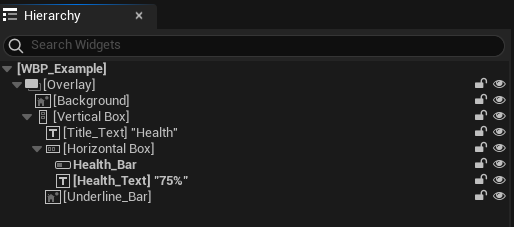 Health_Bar and Health_Text are bold because they have their Is Variable flag enabled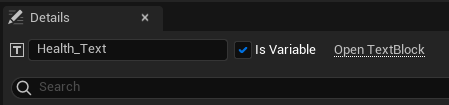 | 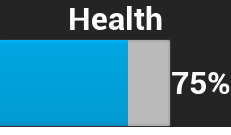 |
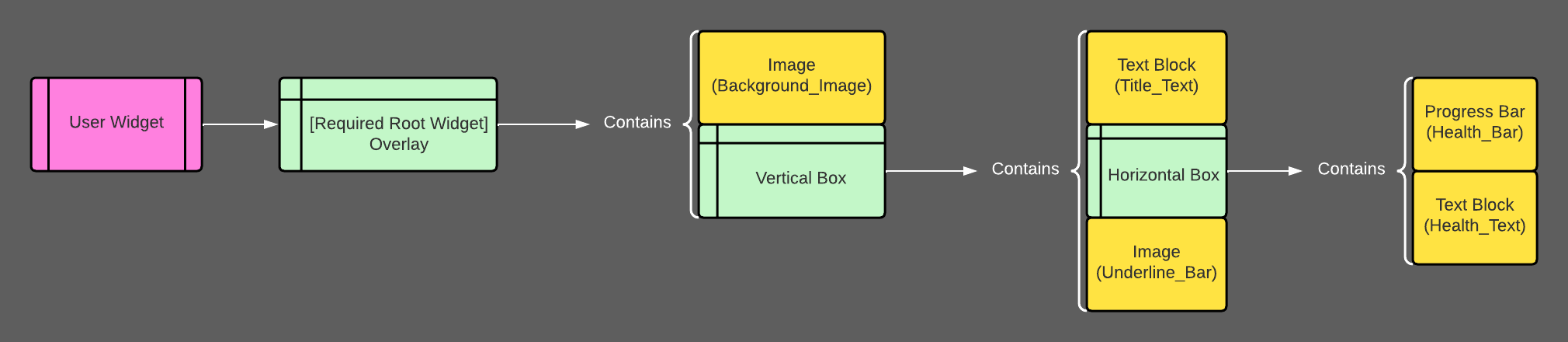 Example of that hierarchy as a diagram
Every User Widget is able to create custom animations using the widgets within that User Widget via Sequencer. You can create these animations inside the Widget Designer and you’re able to modify things relating to that widget specifically such as render transform, widget visibility, etc. You can also modify properties of widgets such as material parameters, runtime values within the widget, etc.
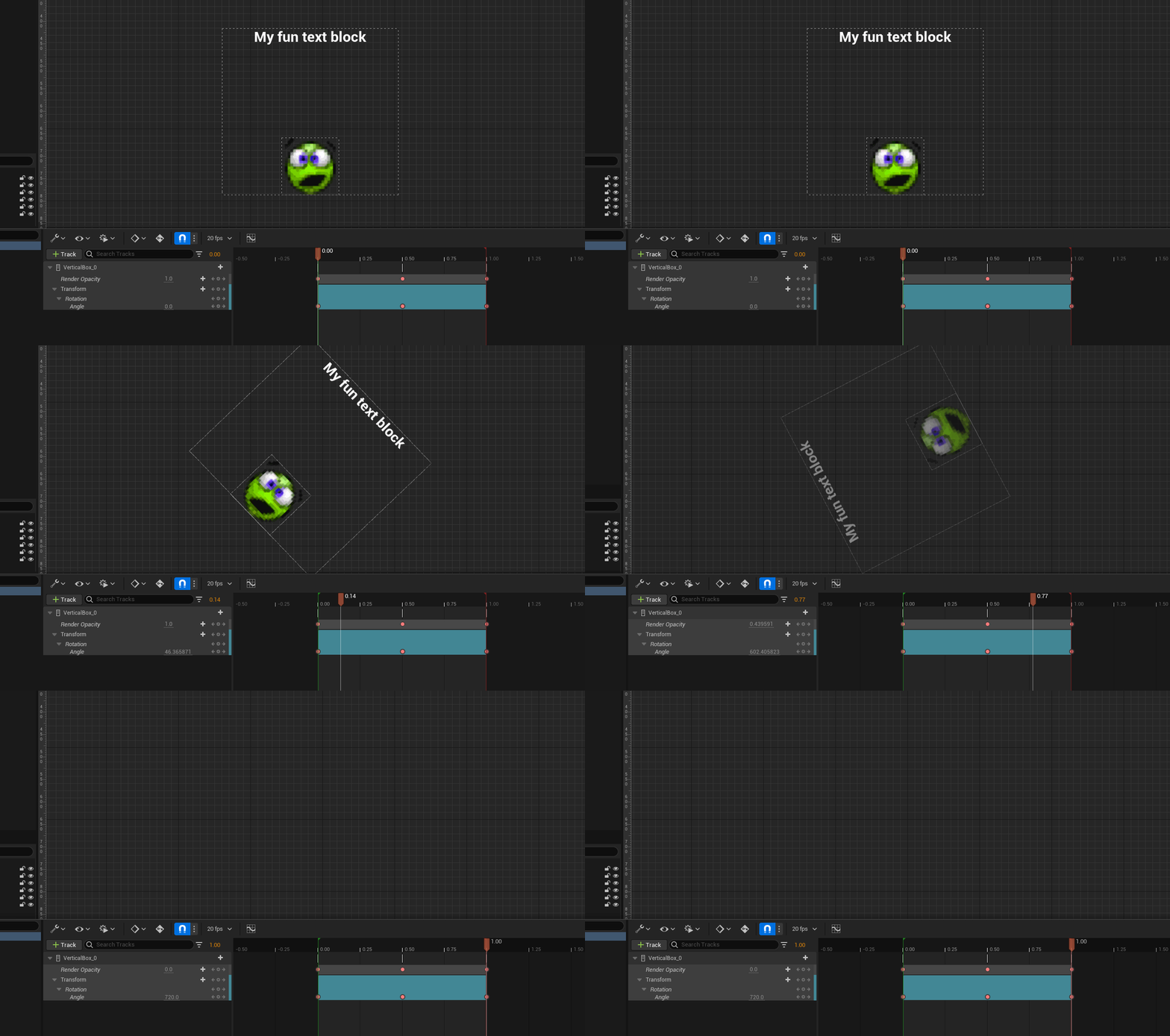
Example of the animation designer in UMG
If a User Widgets Tick Frequency is set to Never instead of Auto in the class defaults then it will never run animation’s because for an animation to play at all, the user widget needs to be able to tick that animation and if the user widgets ability to tick is turned off(by setting its tick frequency to never) then it will not tick the animation object.
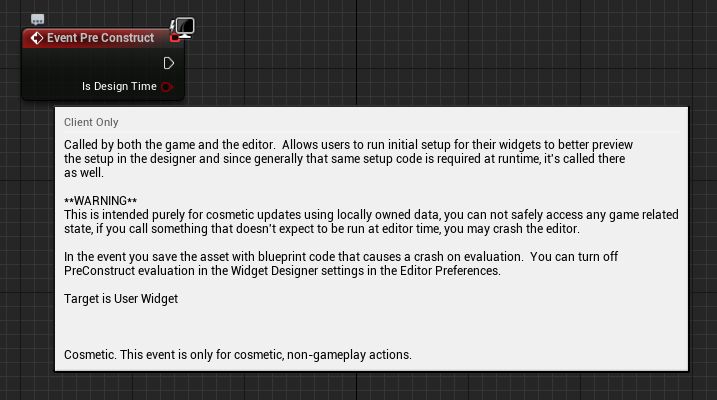
Every user widget has built in events that you can implement and add your own functionality from;
virtual void UUserWidget::NativePreConstruct()
{
    // Call BP version
    PreConstruct(IsDesignTime());
}
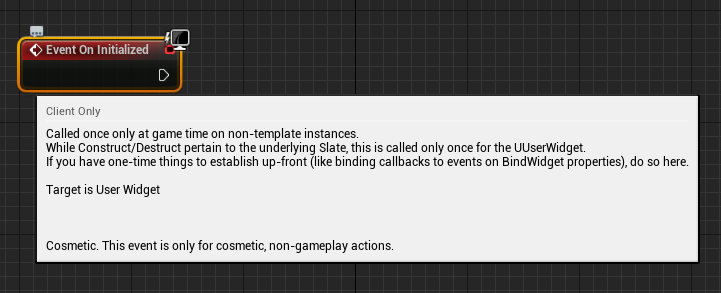
virtual void UUserWidget::NativeOnInitialized()
{
    // Bind any input delegates that may be on this widget to its owning player controller
    if(APlayerController* PC = GetOwningPlayer())
    {
    	UInputDelegateBinding::BindInputDelegates(GetClass(), PC->InputComponent, this);
    }

    OnInitialized();
}
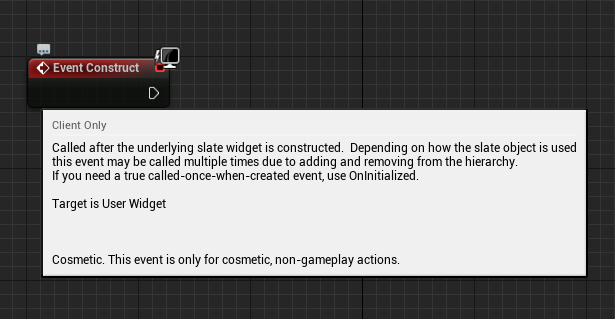
virtual void UUserWidget::NativeConstruct()
{
    // Call BP version
    Construct();
    UpdateCanTick();
}
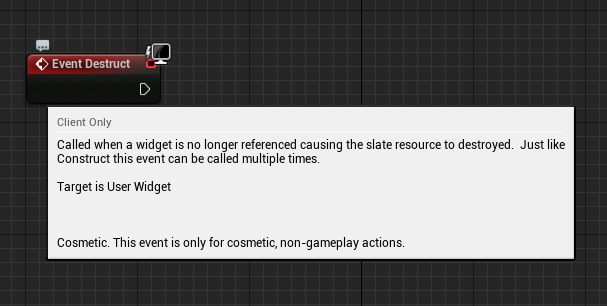
virtual void UUserWidget::NativeDestruct()
{
    StopListeningForAllInputActions();
    // Call BP version
    Destruct();
}
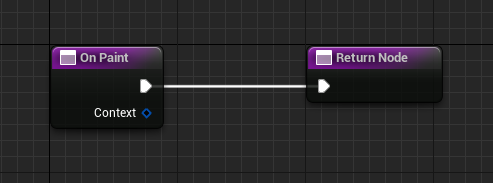
virtual int32 UUserWidget::NativePaint(const FPaintArgs& Args, const FGeometry& AllottedGeometry, const FSlateRect& MyCullingRect, FSlateWindowElementList& OutDrawElements, int32 LayerId, const FWidgetStyle& InWidgetStyle, bool bParentEnabled ) const
{
    // If BP implemented the function
    if ( bHasScriptImplementedPaint )
    {
    	FPaintContext Context(AllottedGeometry, MyCullingRect, OutDrawElements, LayerId, InWidgetStyle, bParentEnabled);
    	// Call BP version
    	OnPaint( Context );

    	return FMath::Max(LayerId, Context.MaxLayer);
    }

    return LayerId;
}
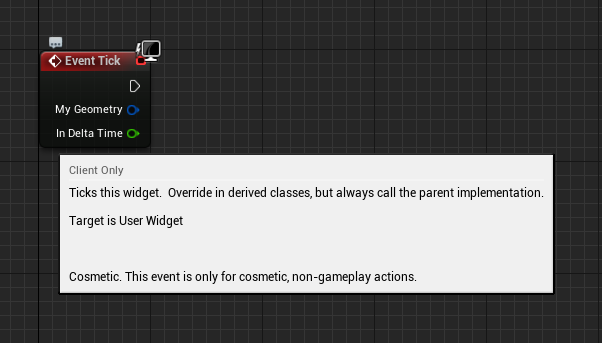
virtual void UUserWidget::NativeTick(const FGeometry& MyGeometry, float InDeltaTime)
{
    //...

    // If BP implemented the function in the event graph
    if (bHasScriptImplementedTick)
    {
        // Call BP version
    	Tick(MyGeometry, InDeltaTime);
    }
}
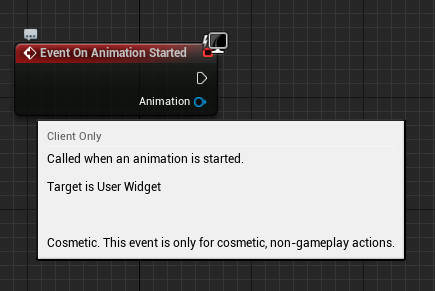
virtual void UUserWidget::OnAnimationStartedPlaying(UUMGSequencePlayer& Player)
{
    // Call BP version
    OnAnimationStarted(Player.GetAnimation());

    BroadcastAnimationStateChange(Player, EWidgetAnimationEvent::Started);
}
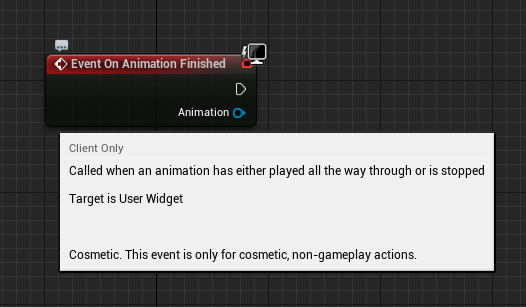
virtual void UUserWidget::OnAnimationFinishedPlaying(UUMGSequencePlayer& Player)
{
    // This event is called directly by the sequence player when the animation finishes.

    // Call BP version
    OnAnimationFinished(Player.GetAnimation());

    BroadcastAnimationStateChange(Player, EWidgetAnimationEvent::Finished);

    if ( Player.GetPlaybackStatus() == EMovieScenePlayerStatus::Stopped )
    {
    	StoppedSequencePlayers.Add(&Player);

    	if (AnimationTickManager)
    	{
    		AnimationTickManager->AddLatentAction(FMovieSceneSequenceLatentActionDelegate::CreateUObject(this, &UUserWidget::ClearStoppedSequencePlayers));
    	}
    }

    UpdateCanTick();
}
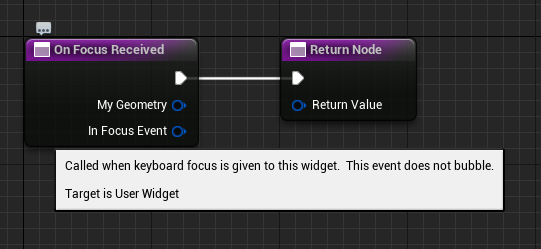
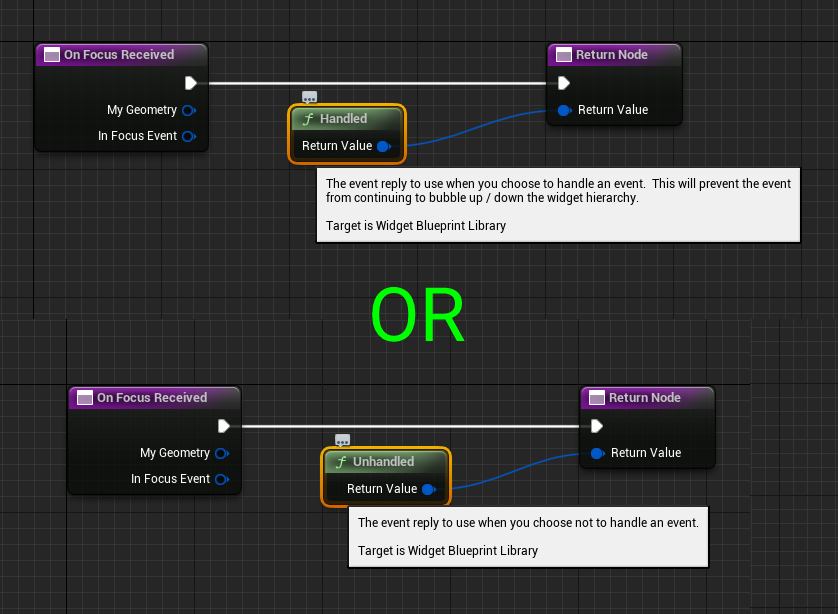
virtual FReply UUserWidget::NativeOnFocusReceived( const FGeometry& InGeometry, const FFocusEvent& InFocusEvent )
{
    // Call BP version and return what BP returns
    return OnFocusReceived( InGeometry, InFocusEvent ).NativeReply;
}
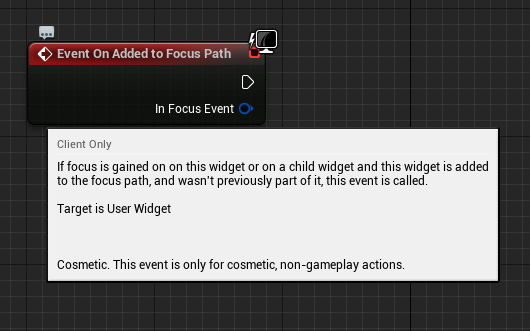
virtual void UUserWidget::NativeOnAddedToFocusPath(const FFocusEvent& InFocusEvent)
{
    // Call BP version
    OnAddedToFocusPath(InFocusEvent);
}
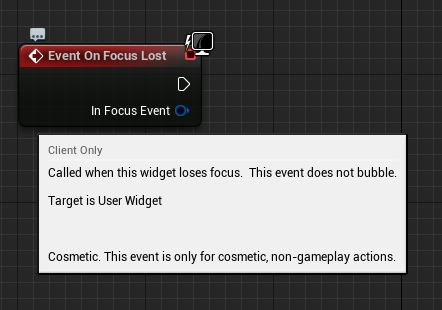
virtual void UUserWidget::NativeOnFocusLost( const FFocusEvent& InFocusEvent )
{
    // Call BP version
    OnFocusLost( InFocusEvent );
}
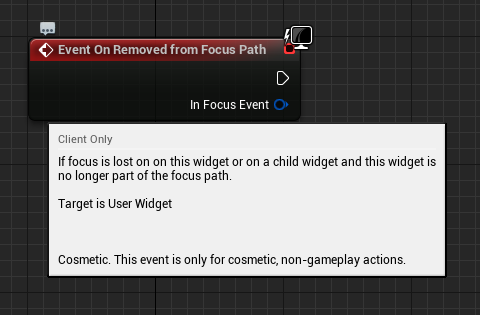
virtual void UUserWidget::NativeOnRemovedFromFocusPath(const FFocusEvent& InFocusEvent)
{
    // Call BP version
    OnRemovedFromFocusPath(InFocusEvent);
}
More detailed explanations of these widgets was split into multiple pages to make it easier to learn and understand:
There is a large amount of commonly used widgets in Unreal Engine, at its basic core elements.
Most/All of your UI that used UMG/Slate will probably be built from a combination of these widgets:

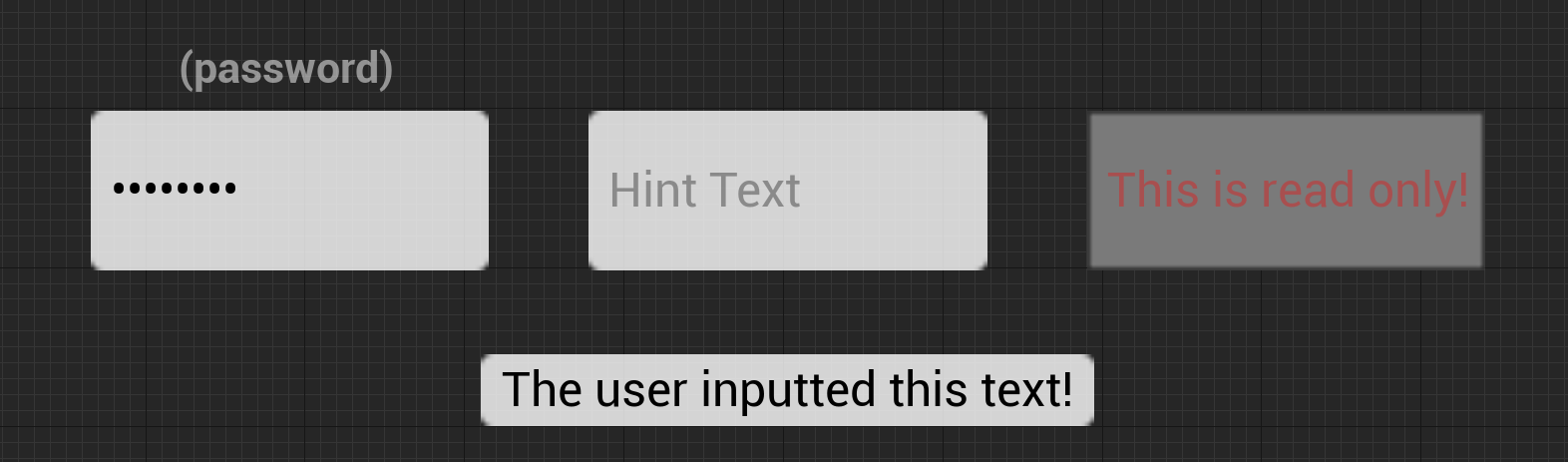
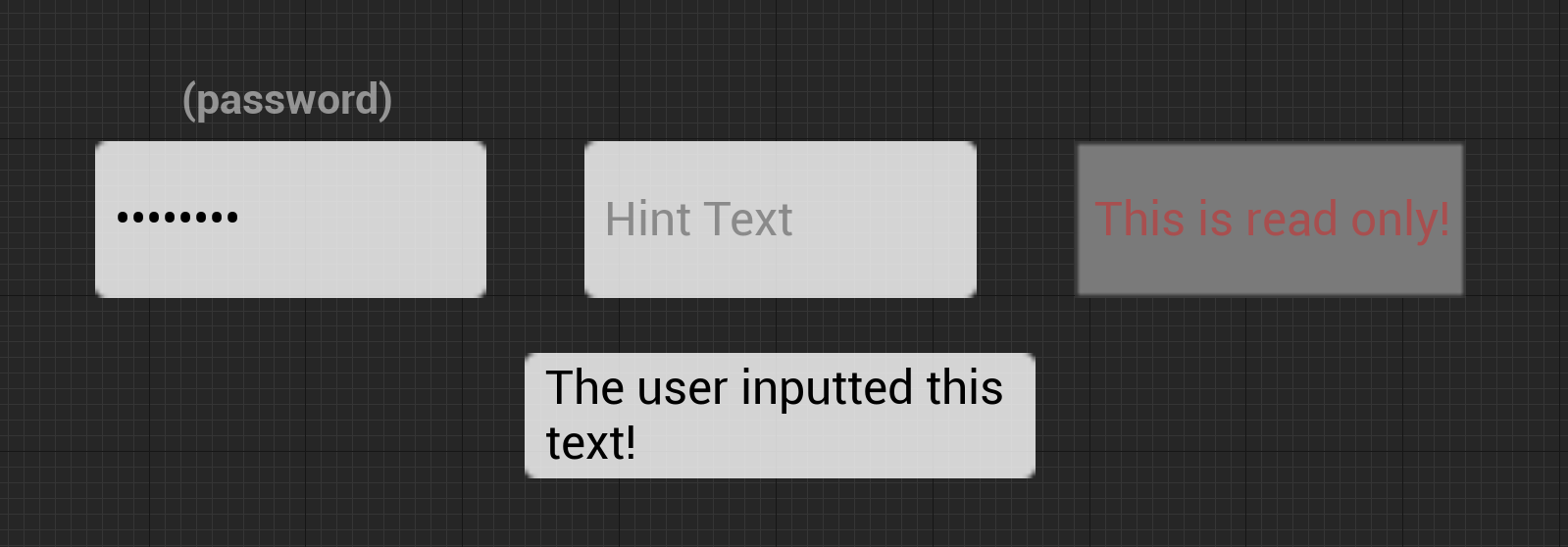
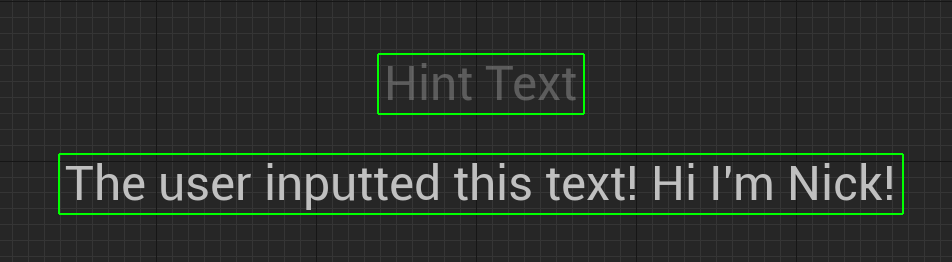
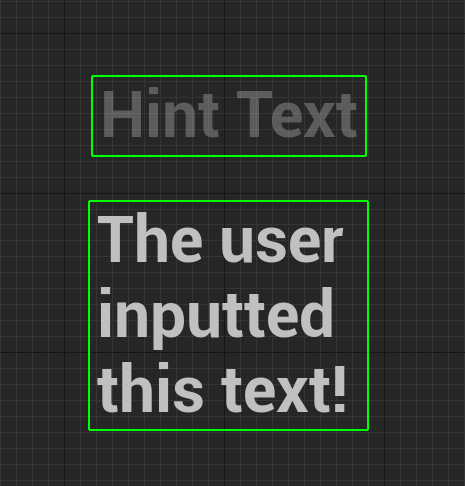
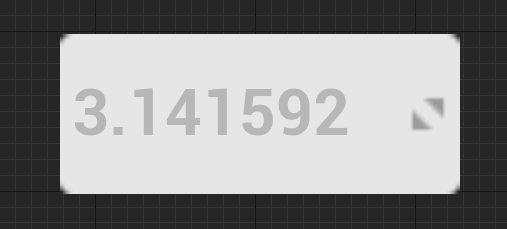
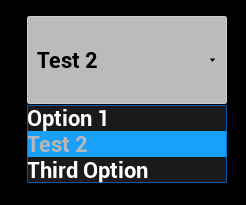
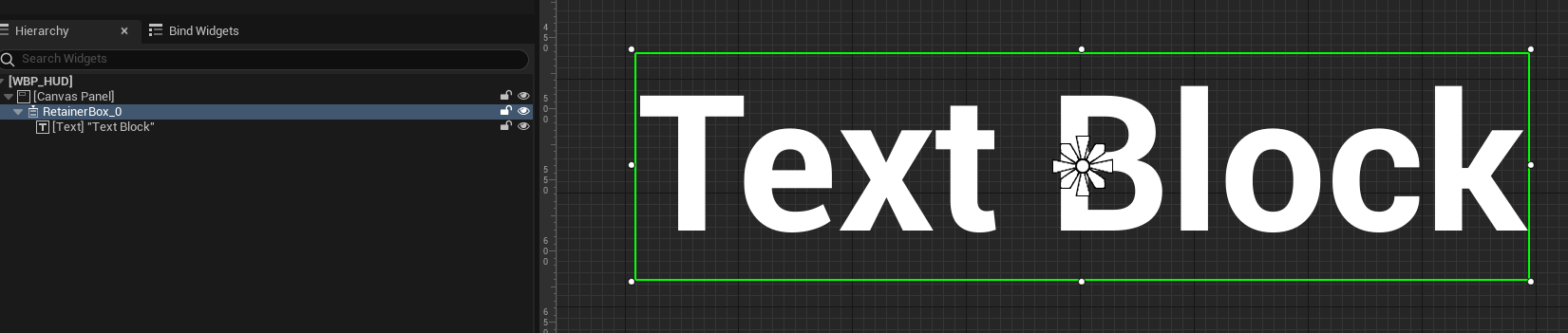
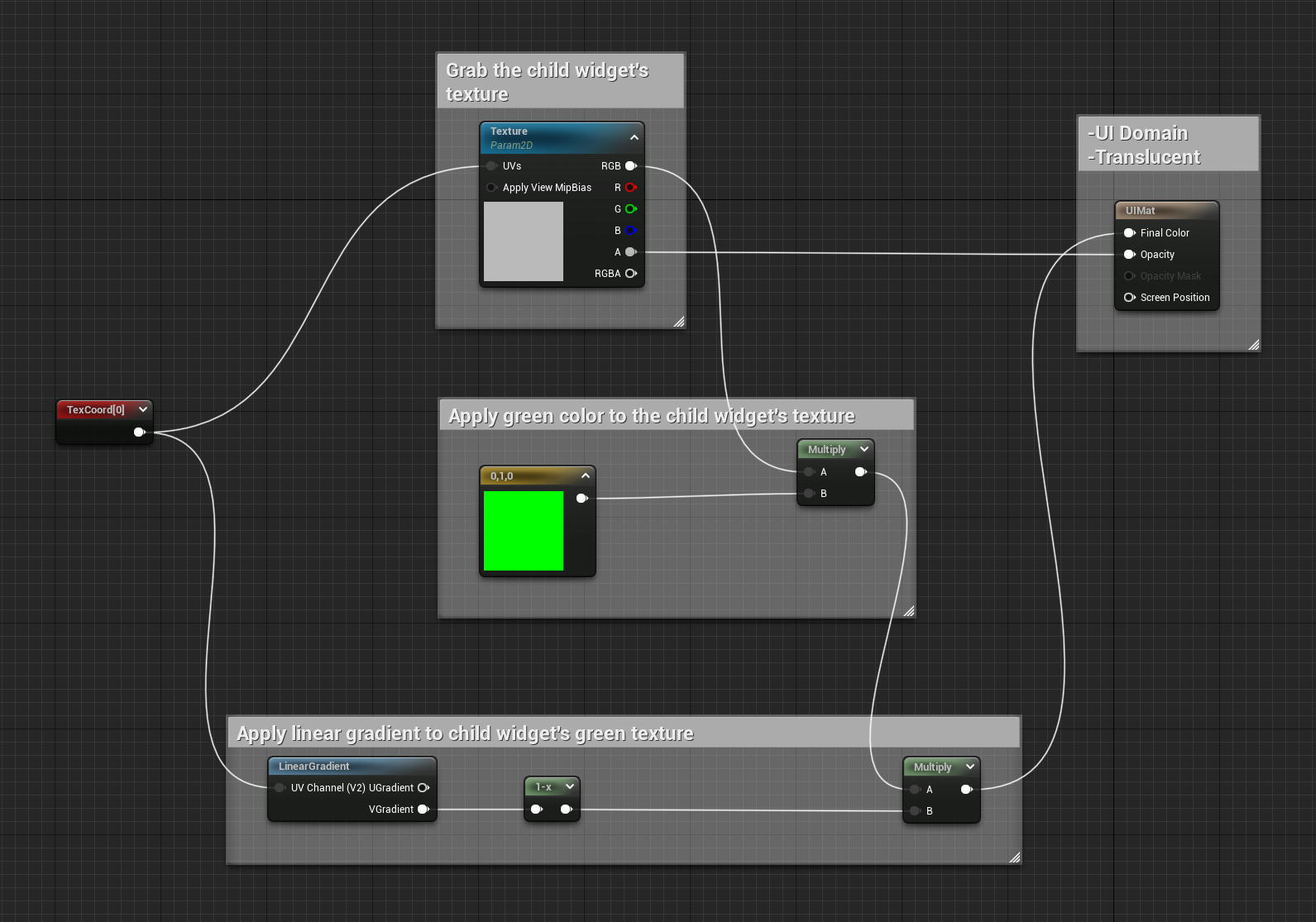
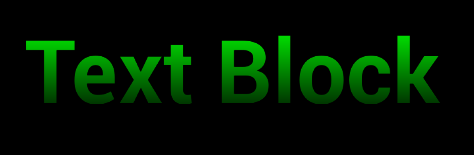
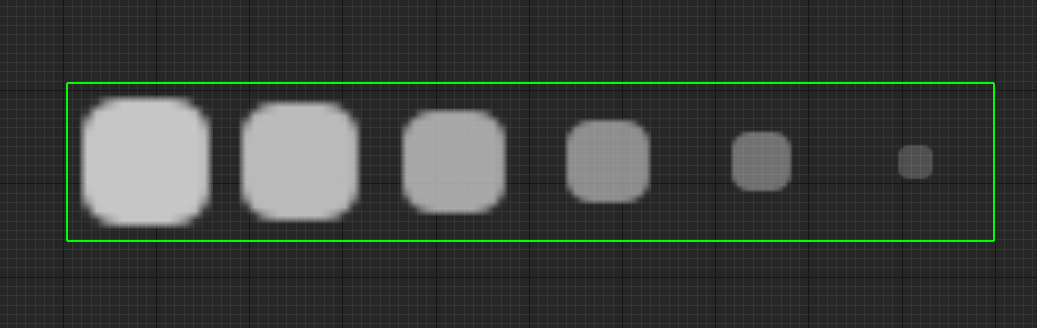
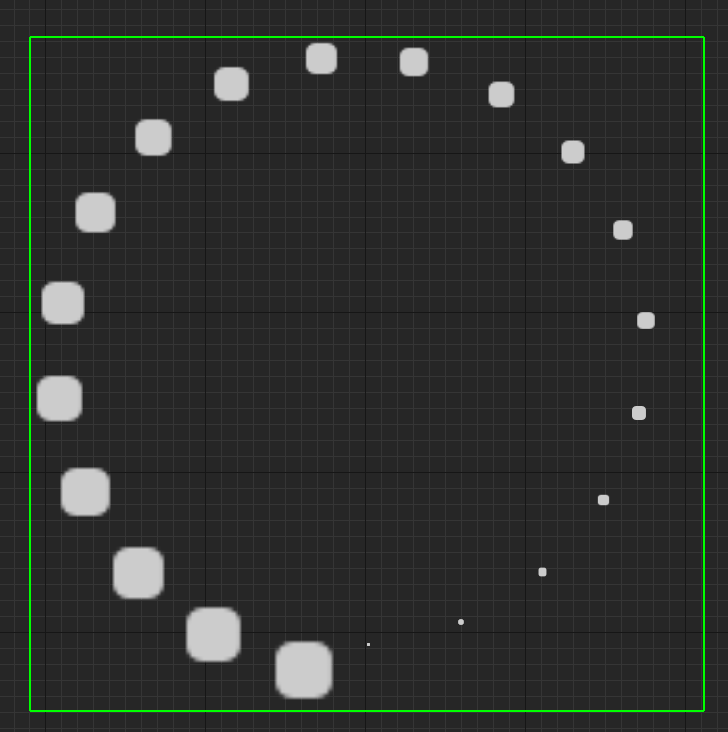
A note from the author; “Please change the throbber’s image with something other than the default image in your final products if possible. I'm tired of seeing the default throbber in full release products, you can do better! Thank you.”
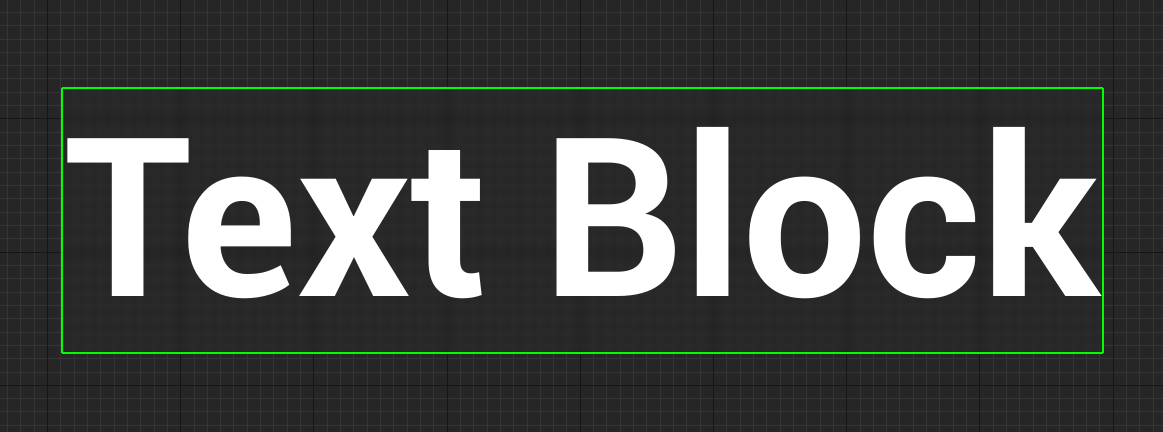
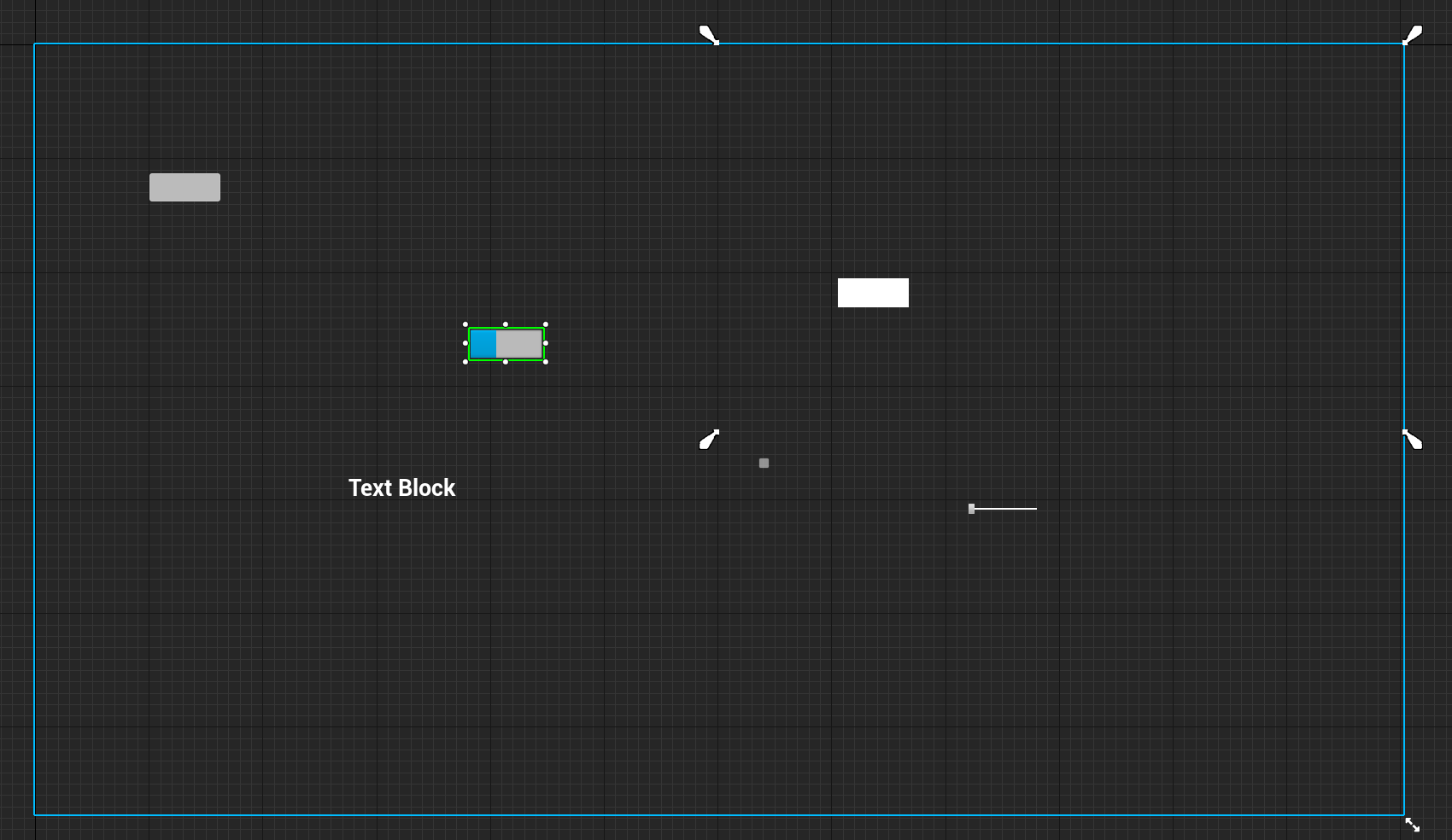
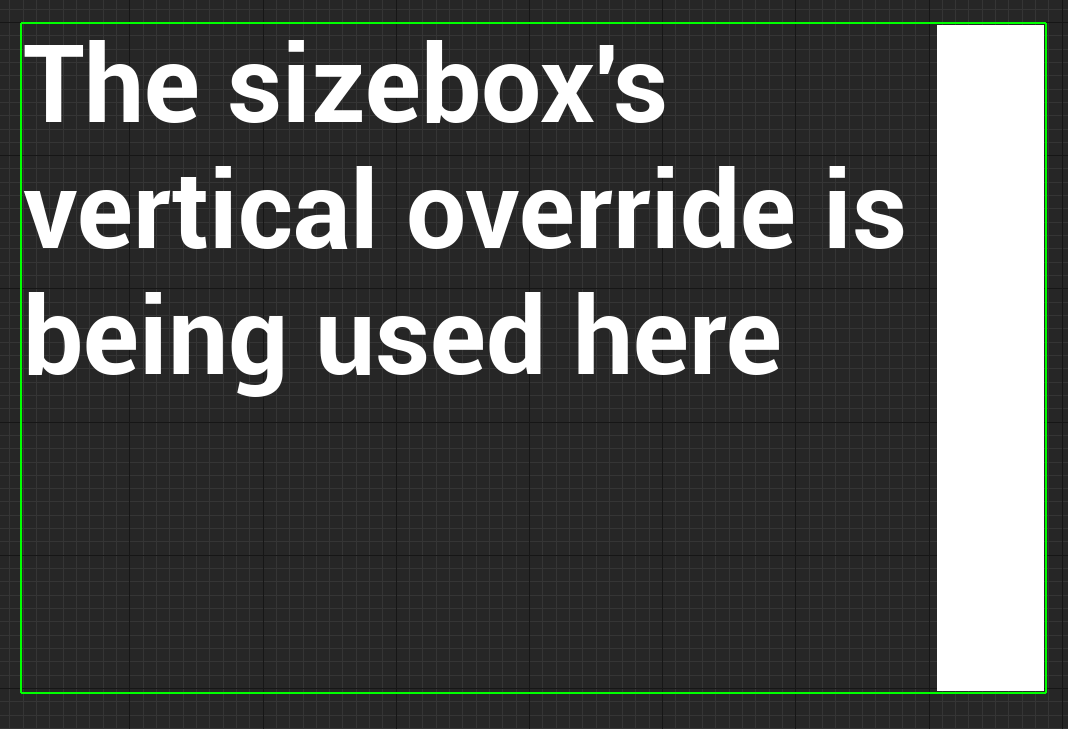
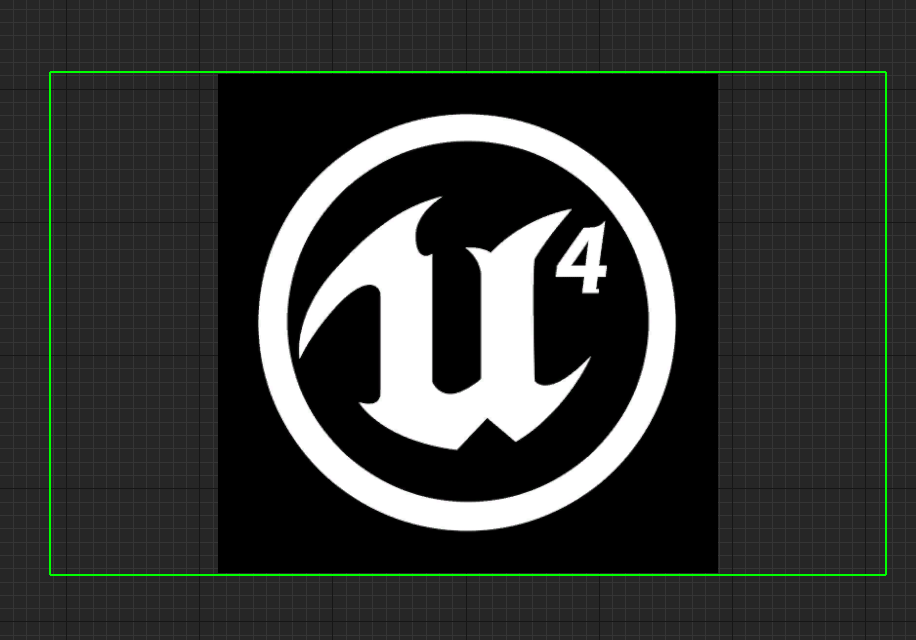
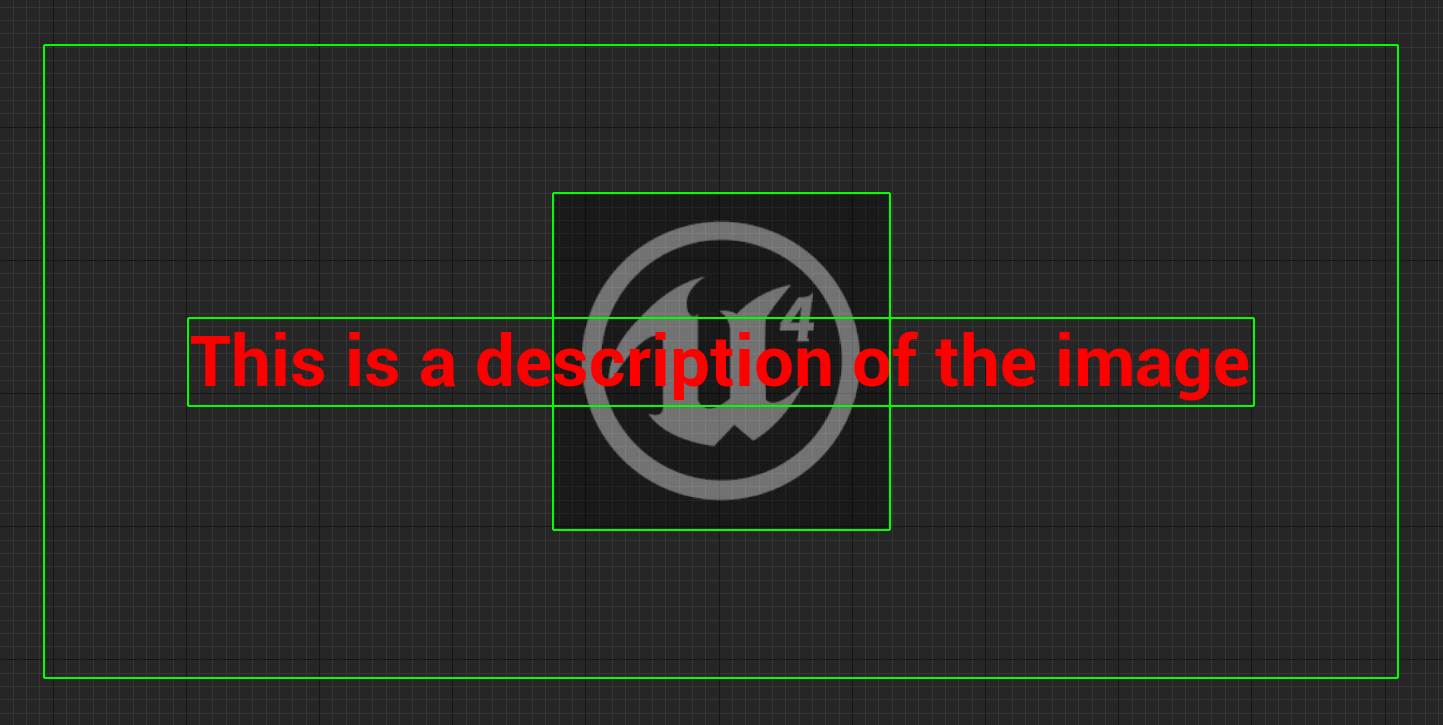
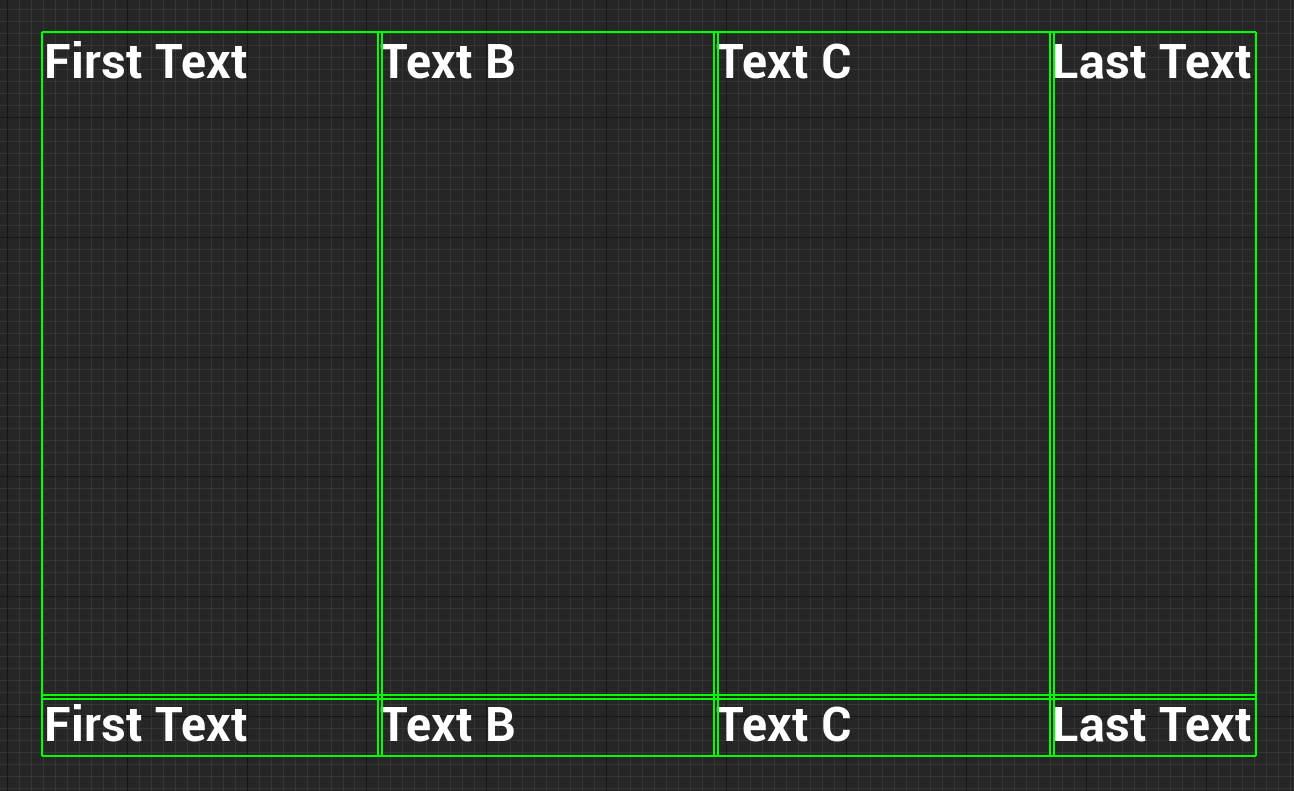 This grid has been configured to fill the space between each column and row, yours may look different depending on how you configured it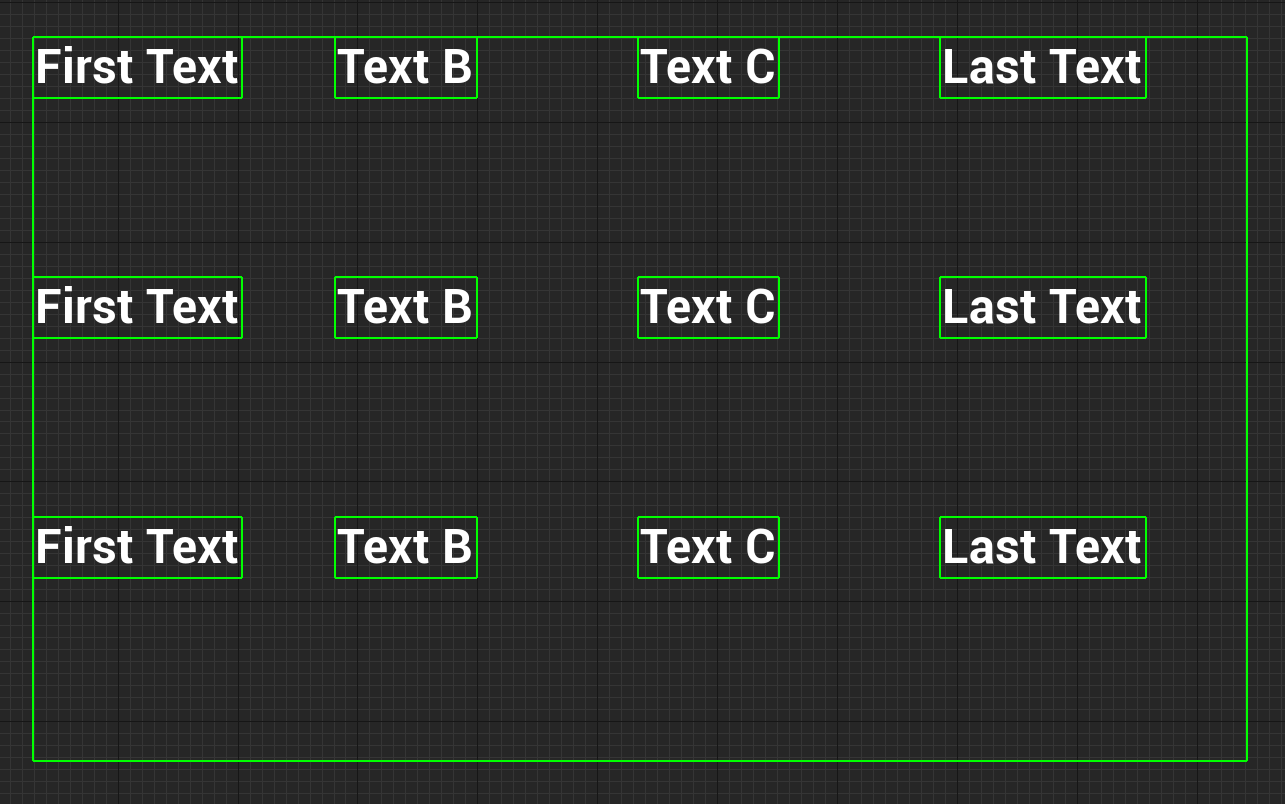
You can also use some helpful debug console commands for simulating the safe zone on PC in the editor located in Debug Console Commands of the Development & Debug Tools for UMG/Slate section.
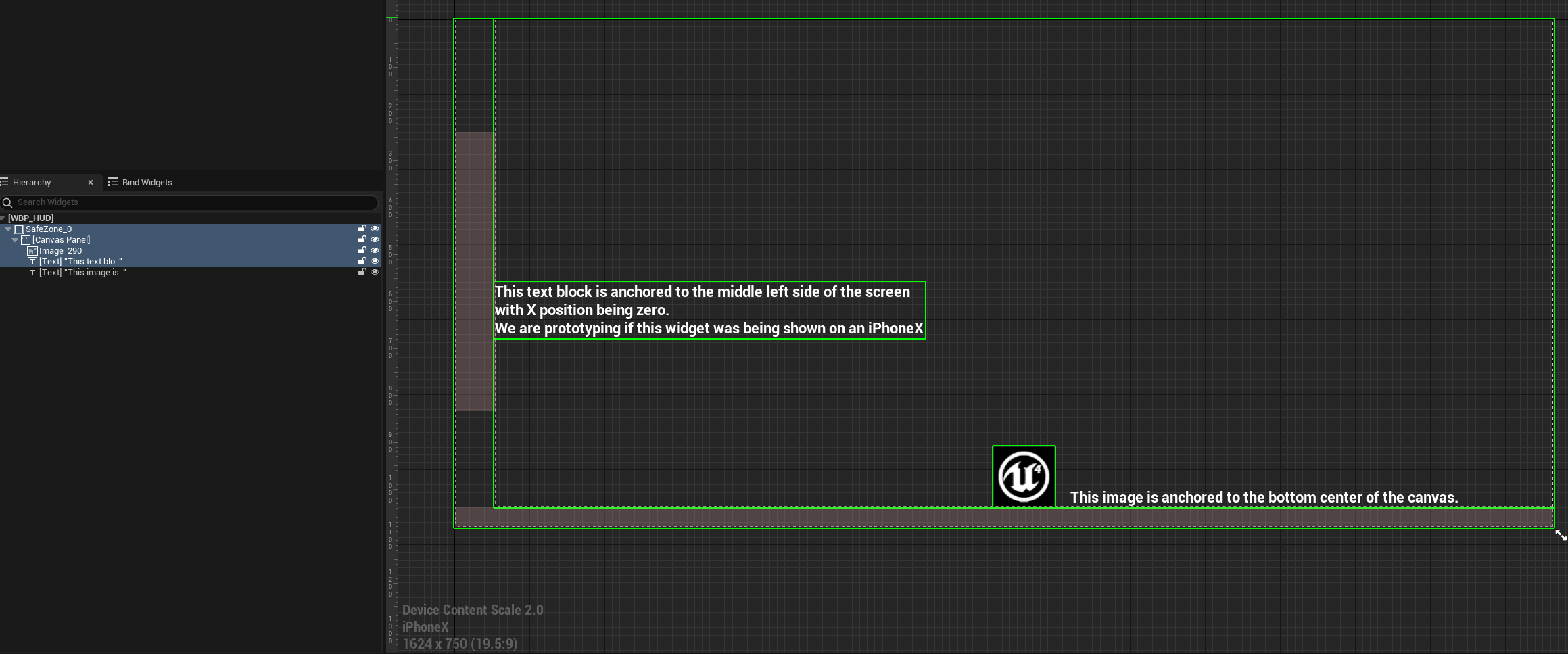
In this example we wrapped a canvas panel with a save zone so it pushes the canvas away from the area of the screen that would be inaccessible due to the screen's notch or operating system
Each widget has its own functionality and use while still containing a common functionality across all the widgets such as:
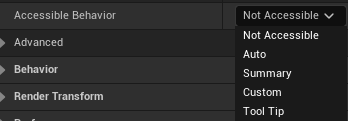
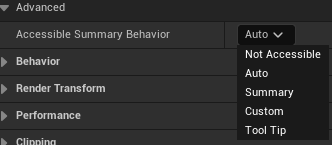


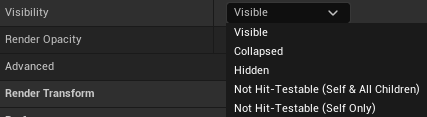

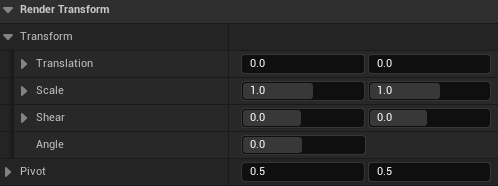

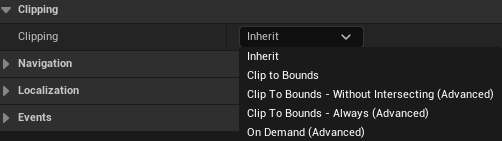
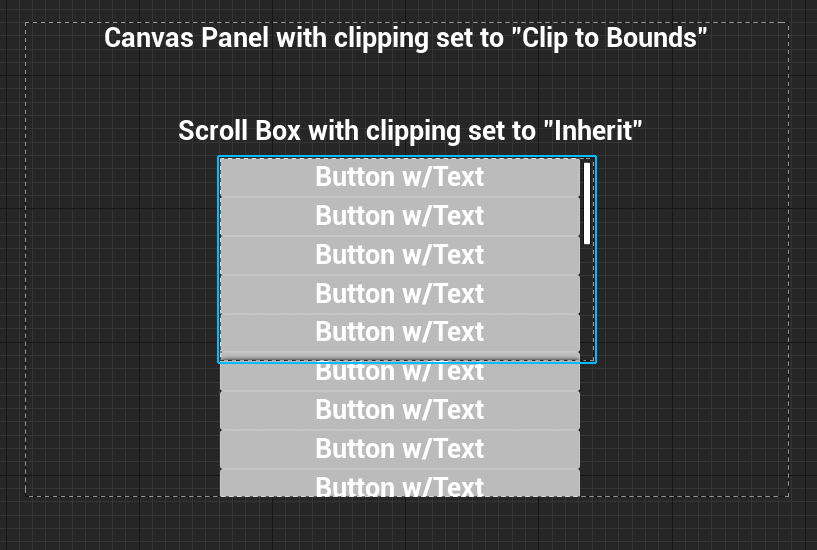
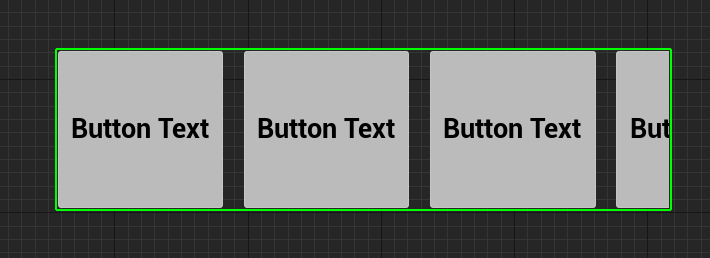
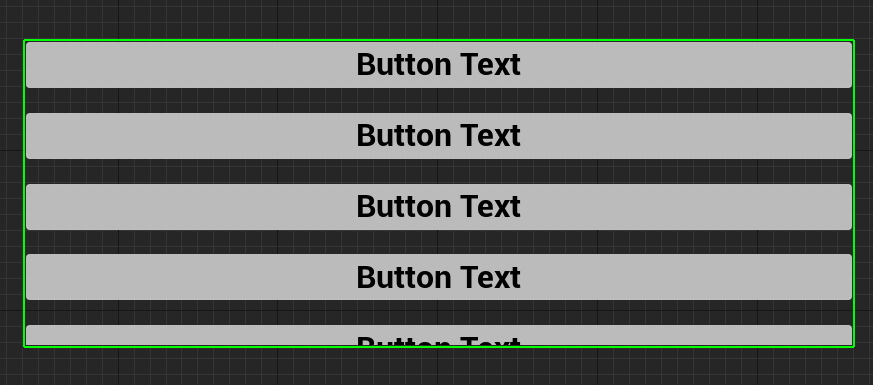
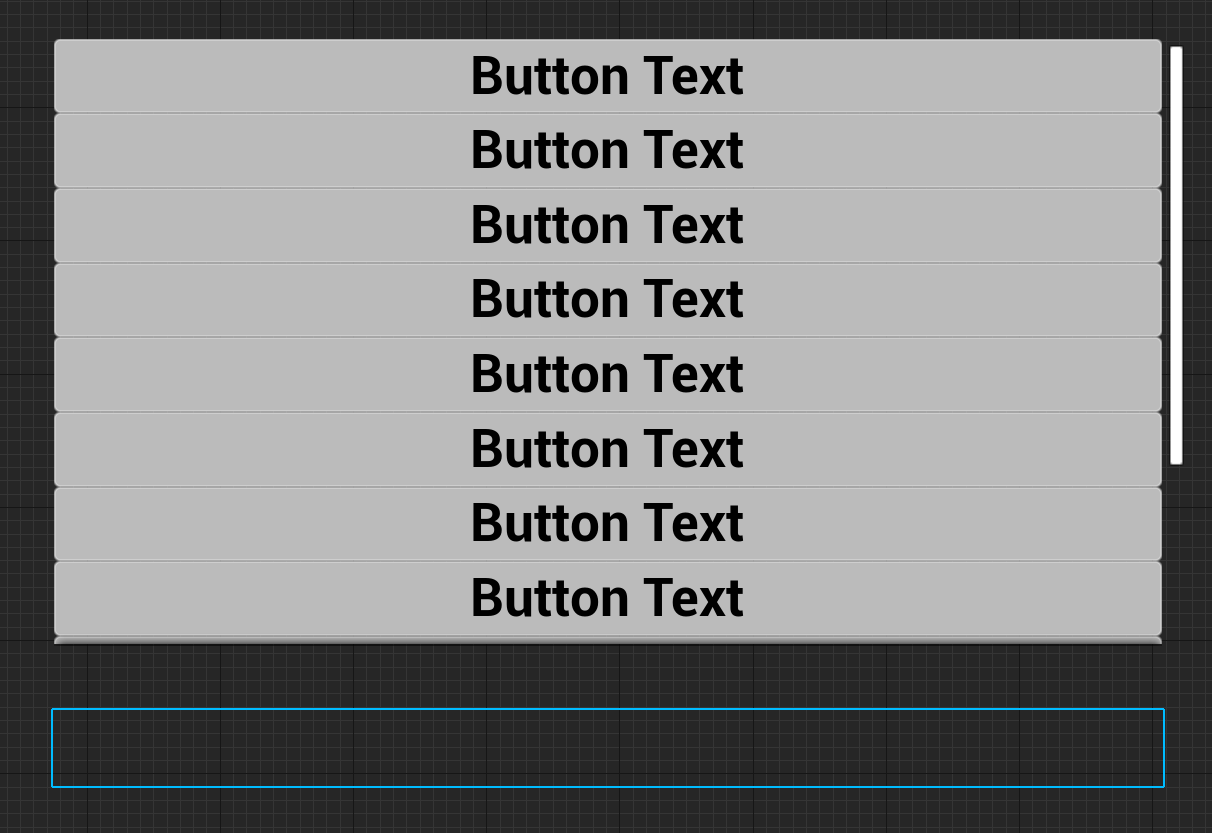
Scroll Box widget with its clipping set to Inherit and it is a child of a Canvas Panel widget that has its clipping set to Clip to Bounds.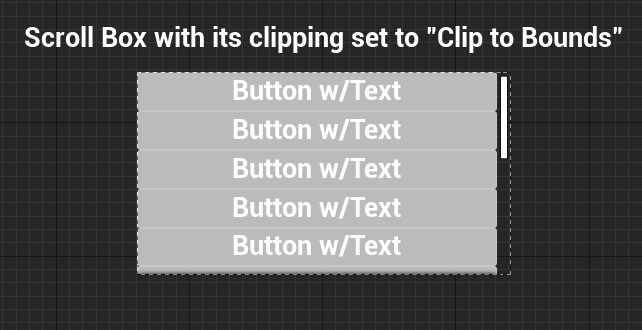
Scroll Box widget with its clipping set to Clip to Bounds so its child widgets which are Button's will be intersected when they go out of bounds of the Scroll Box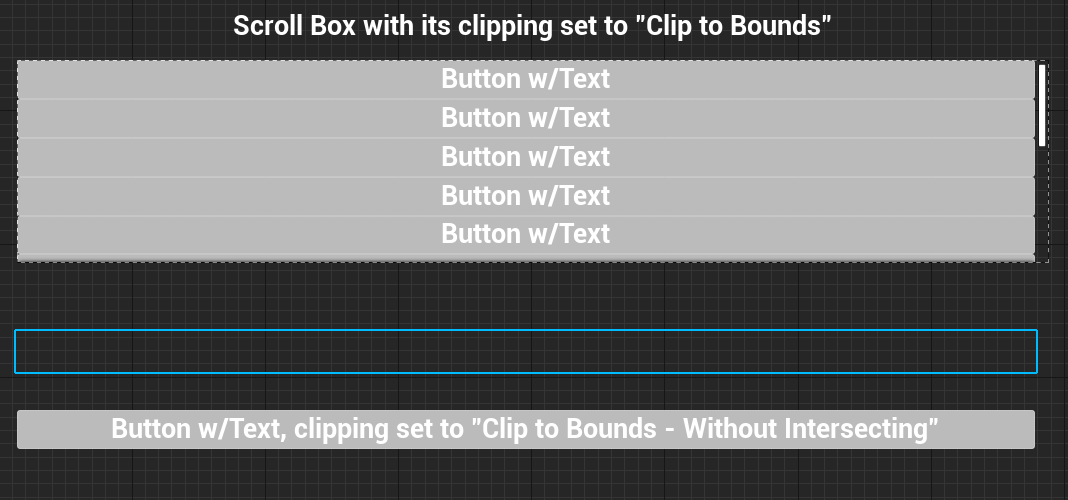
Scroll Box widget with its clipping set to Clip to Bounds and one of its child widgets has its clipping set to Clip to Bounds - Without Intersecting(Advanced)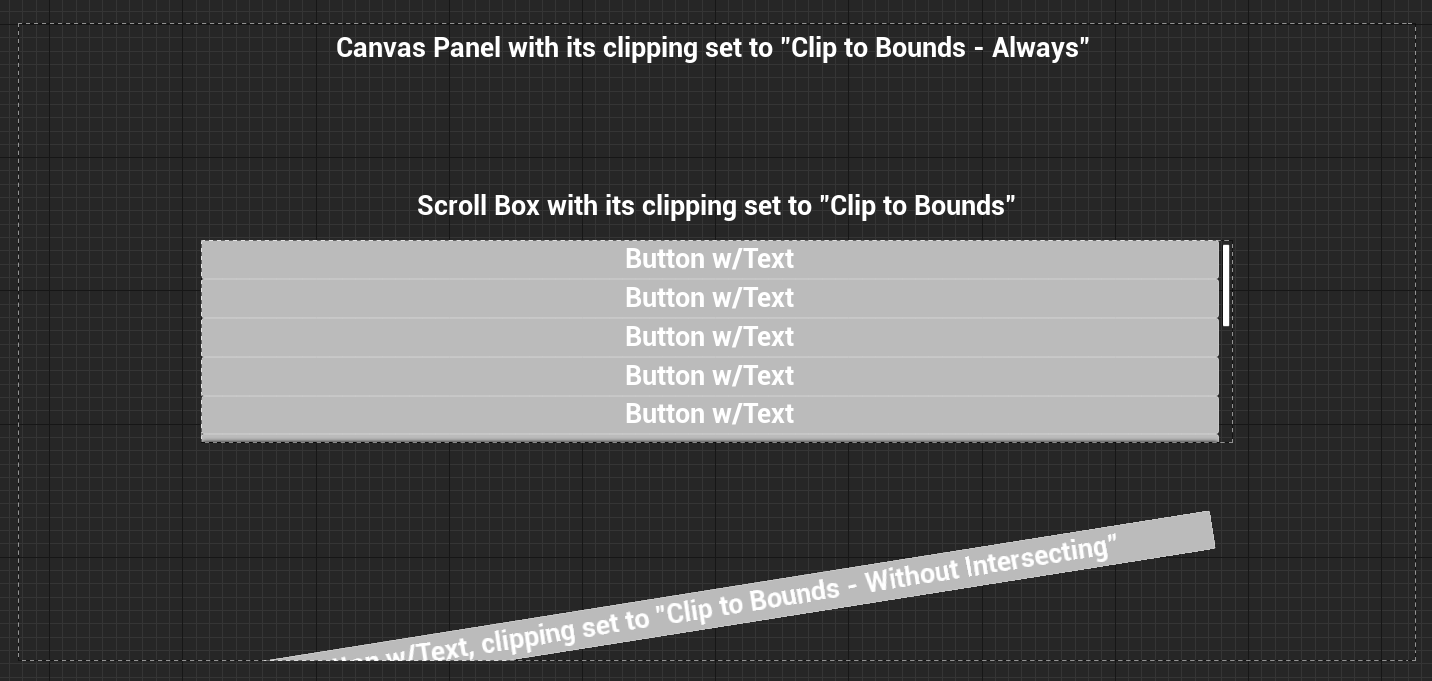
Canvas Panel with its clipping set to Clip to Bounds - Always(Advanced) Scroll Box within Canvas Panel with its clipping set to Clip to Bounds Button within Scroll Box with its clipping set to Clip to Bounds - Without Intersecting(Advanced)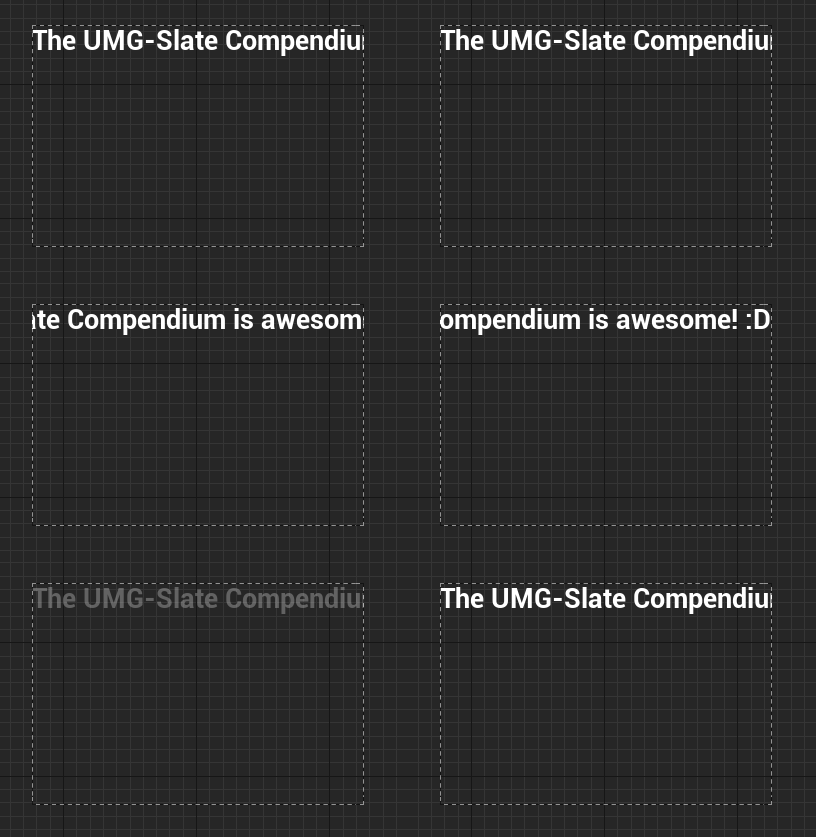
Vertical Box widget with clipping set to Inherit and a custom Textblock widget from Epic's Common UI Plugin that has its clipping set to On Demand(Advanded) so the text can scroll and be clipped properly(this example is also found in Epic's Context Examples project in the Common UI example map)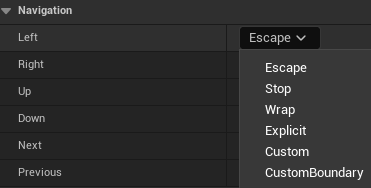




HUD Actors are actors that are only spawned into the level by the Game Mode(I do not recommend spawning them manually unless you are overriding Game Mode functionality and know what you're doing). These actors do not replicate, are hidden by default, and are only spawned per local player controller(to account for split screen) and does not spawn on dedicated servers.
The purpose of HUD Actors has changed with the release of Unreal Engine 4(it has stayed the same for Unreal Engine 5) from how it was in Unreal Engine 3 where it used to be the main source of functionality for UI elements in a level for a player, but with the release of UMG and Slate this caused HUD actors to become manager objects for UMG/Slate UI elements rather than driving every aspect of the UI's functionality but they are completely optional to how you want to architect your code.
HUD Actors are tied to a specific player controller and have debug mode information, as well as the functionality to manually draw UI elements to the screen. Here is the list of drawable UI elements:
A important note is that the way that the HUD Actor draws images and other UI elements is by skipping a few steps of how UMG does it by directly getting the canvas and telling it to draw items.
An interesting feature that HUD Actors have is they have the ability to know if portions of the screen are moused over/clicked/pressed and released.
The way they do this is by using a class called FHUDHitBox.
FHUDHitBox is a C++ only class that has these properties:
FVector2D: Coordinates of top left of the hit box.FVector2D: Size of the hit box.FName: The name of the hit box.boolean: Does not consume actual input from the game.
int32: The priority of the hit box(could also be considered the Z-Order). Higher hit boxes are given priority first.The benefits of using a FHUDHitBox is that the HUD has mouse events that work with it, each event provides the name of the HitBox:
The HUD Actor essentially has an array of HUD HitBoxes that can be added/removed at runtime. The array is a public variable in all HUD Actors but can only be accessed in C++:
HitBoxMap(I know it says map but its not a map array).
There is two ways of adding a HitBox:
AddHitBox and feeding in the parameters to create a FHUDHitBox class inside the function.FHUDHitBox class and adding it to the HitBoxMap array.To remove a HitBox you can simply remove it from the HitBoxMap array.
Widget Components are UMeshComponent's(actor components that are primitive components that can render a mesh)
that basically creates a procedural static mesh in the world with its texture being the widget's drawn texture(you can access that render target using GetRenderTarget).
Widget Components DO NOT TICK on Dedicated Servers.
This is obvious since most of the functionality of the component is updating rendering of the User Widget.
The component also deals with collision based on the User Widget, so if the widget is not spawning on Dedicated Servers then the component's collision will not work properly.
An important performance impact of using widget component's is that each widget component is a render target being updated on the component's tick.
So if you have 100 widget component's at high resolutions then that's 100 render targets being updated every frame(you can have the component tick when drawn but that still takes up GPU memory).
To avoid these kinds of GPU memory impacts, here are some common situations and solutions(THESE ARE NOT THE ONLY WAY TO SOLVE THESE ISSUES, THESE ARE JUST RECOMMENDATIONS FROM MY OWN EXPERIENCE):
For building materials to work with Widget Components, here are texture parameters that work automatically with Widget Components:
SlateUI: Inputs the widget's Render Target.TintColorAndOpacity: Inputs the widget component's TintColorAndOpacity property.OpacityFromTexture: Inputs the widget component's OpacityFromTexture property.An important aspect to remember is that while this is a component it does actually create a User Widget.
To access the User Widget you can use GetUserWidgetObject(you can also use GetSlateWidget to get the SWidget that it is tied to).
You cannot use
GetUserWidgetObjectin an actor's construction script due to the widget only being valid fromBeginPlay.
By default it gets the first local player from the game instance:
if (UWorld* LocalWorld = GetWorld())
{
	UGameInstance* GameInstance = LocalWorld->GetGameInstance();
	check(GameInstance);

	return GameInstance->GetFirstGamePlayer();
}
This can be changed by calling SetOwnerPlayer and inputting a ULocalPlayer.
For getting the 2D plane widget space location from a world location on the widget component you can use GetLocalHitLocation which calculates it out by doing these math operations:
- By converting the world location into relative space of the widget component using
InverseTransformPosition- Builds a simple 2D location with X-axis being the relative location's negative Y-axis and relative location's negative Z-axis for the 2D Y-axis.
- Offsets(adds) the 2D X-axis by the current draw size's X-axis * Pivot's X-axis.
- Offsets(adds) the 2D Y-axis by the current draw size's Y-axis * Pivot's Y-axis.
- Caches a normalized location of the 2D location divided by the current draw size.
- Updates the 2D location's Y-axis to be the current draw size's Y-axis * normalized location's Y-axis, this is to account parabola distortion.
For being able to interact with widget component's there is the Widget Interaction Component that is
meant to simulate user inputs and mouse pointer(or virtual finger tip) inputs as a laser pointer style of interacting with widget.
Each widget interaction component has a virtual user associated with it that handles providing input to slate widgets.
When activated the component will create an actual FSlateUser to simulate input and such.
By default the engine will use Slate User index 8(the maximum allowed amount of slate users) instead of 0 and increments up from there,
allowing for slate users and virtual users to not have conflicts.
Widget Interaction Components will trace on tick to determine what widget its interacting with.
Here is the order of the tick frame for the component to figure out the component its line tracing against in UWidgetInteractionComponent::TickComponent:
UWidgetInteractionComponent::SimulatePointerMovement
- Check if we can even hit test by checking
bEnableHitTesting- Check if the component is able to send input in
CanSendInput
- If the slate application is initialized & if the virtual user has been setup.
UWidgetInteractionComponent::DetermineWidgetUnderPointer
- Cache the previously hovered widget component.
UWidgetInteractionComponent::PerformTrace
- Line trace based on the type of
InteractionSource:
- World: Multi-Line Trace by
TraceChannelin the forward direction of the interaction component's location,
ignores any components in the owning actor so it doesn't hit itself(excluding widget components).- Mouse: Multi-Line Trace by
TraceChannelfrom the mouse position deprojected from screen to world.- Center Screen: Multi-Line Trace by
TraceChannelfrom the viewport's center position deprojected from screen to world.- Custom: Uses
CustomHitResult's properties which can be set at runtime.
An important note about this struct is in the first tick frame it might not have been set yet since Blueprint tick might occur after this is called.
You can set it in BeginPlay and will have been setup ahead of time for that first tick frame.
- If we're not using the custom
InteractionSourcetype then filter through invisible widgets.- Gets the hit widget component and feeds in the hit result, from there the widget component will return the 2D hit location in widget space.
- Finds the
FWidgetPathfrom the returned widget space hit location.- Returns the trace result of
PerformTrace.- Tell the newly hovered widget component to redraw.
- Iterate through an arranged list of widgets from the retrieved widget path from the trace and update these flags based on the final widget:
bIsHoveredWidgetInteractable: If the widget is interactable.bIsHoveredWidgetFocusable: If the widget is keyboard focusable.bIsHoveredWidgetHitTestVisible: If the widget is hit testable.- If the newly hovered widget component is different from the previously hovered widget component then tell that previous component to redraw. And broadcast
OnHoveredWidgetChangedfor other systems.- Return widget path from the trace.
- Notify the slate application(to send to the rest of the engine) that an input is being simulated on that widget or if we're not hovering anything anymore then tell it that the pointer has moved off that old widget.
For drawing a user widget to a UTextureRenderTarget2D the general process of it that Widget Component's do(along with extra work because it is a component and thus has to provide a scene proxy and such);
is by creating a FWidgetRenderer and then getting the slate widget from the user widget and having the widget renderer draw it as a texture.
Here is example code of using the widget renderer to create a texture from a UUserWidget(there are multiple implementations of FWidgetRenderer::DrawWindow & FWidgetRenderer::DrawWidgetso this is one of the ways):
bool UExampleFunctionLibrary::DrawWidgetToTarget(UTextureRenderTarget2D*& DrawnWidgetRenderTarget,
    UUserWidget* WidgetToRender, const FVector2D DrawSize, const float DeltaTime)
{
    // Reset the variable for Blueprint users to avoid reusing previous calls
    DrawnWidgetRenderTarget = nullptr;
    // Are we using a valid widget to grab from for the render target
    if(!IsValid(WidgetToRender))
    {
        UE_LOG(LogExampleFunctionLibrary, Error, TEXT("UExampleFunctionLibrary::DrawWidgetToTarget: Inputted NULL WidgetToRender"));
    	return false;
    }
    // Make sure we're using a valid draw size
    if(DrawSize.X <= 0 || DrawSize.Y <= 0)
    {
        UE_LOG(LogExampleFunctionLibrary, Error, TEXT("UExampleFunctionLibrary::DrawWidgetToTarget: Inputted INVALID DrawSize(%s)"), *DrawSize.ToString());
    	return false;
    }
    // Create the render target object using the user widget as the outer object(as a safety measure)
    DrawnWidgetRenderTarget = NewObject<UTextureRenderTarget2D>(WidgetToRender);
    // Setup the render target's size and formatting
    DrawnWidgetRenderTarget->InitCustomFormat(DrawSize.X, DrawSize.Y,
    	FSlateApplication::Get().GetRenderer()->GetSlateRecommendedColorFormat(),
    	true); // If we set this to false then it will not use linear gamma, but then we wouldn't get accurate coloring

    // This is the object that handles talking with the slate renderer to draw widgets as textures
    FWidgetRenderer* WidgetRenderer = new FWidgetRenderer(true, false); // FWidgetRenderer(bool bUseGammaCorrection = false, bool bInClearTarget = true)
    WidgetRenderer->DrawWidget(DrawnWidgetRenderTarget,
        WidgetToRender->TakeWidget(),
        DrawSize,
        DeltaTime,
        false); // THIS PARAMETER IS EXTREMELY IMPORTANT, this is for if you want to immediately update the render target.
    // bDeferRenderTargetUpdate: Whether or not the update is deferred until the end of the frame when it is potentially less expensive to update the render target.

    // Flush any queued rendering commands to immediately have the GPU draw the widget and get the texture information filled out
    FlushRenderingCommands(); // This is ANOTHER way of forcing the GPU to update the render target.

    // HINT HINT ^^^
    // Deferred cleanup of the widget renderer to be deleted AFTER the render command queue has been flushed
    BeginCleanup(WidgetRenderer);
    return true;
}
For drawing the widget in world space it uses the above approach but instead of DrawWidget it uses DrawWindow directly.
For drawing the widget in screen space it will add the user widget to a second game layer widget that is meant to only handle widget components called FWorldWidgetScreenLayer that talks directly to SWorldWidgetScreenLayer.
Unreal Engine has development and debug tools for UMG & Slate that assist with creating UI and can be used in both editor and packaged development builds(including consoles).
Some of the community has also created incredible debug tools for the engine that are open source & free, here are some recommended ones:
Official Documentation for Console Slate Debugger(Also linked in External Links Page).
Slate.HitTestGridDebugging [0/1]: Flag for showing UMG/Slate focusing hit test grid.SlateDebugger.Invalidate.[Disable/Enable]: Enables or disables the invalidation debugger visualizer.r.DebugSafeZone.TitleRatio 0.96: Default is 1.0. The safe zone ratio that will be returned by FDisplayMetrics::GetDisplayMetrics on platforms that don't have a defined safe zone between 0-1.r.DebugActionZone.ActionRatio 0.96: Default is 1.0. The action zone ratio that will be returned by FDisplayMetrics::GetDisplayMetrics on platforms that don't have a defined safe zone between 0-1.r.DebugSafeZone.Mode [integer between 0 and 2]
0: Do not display the safe zone overlay1: Display the overlay for the title safe zone2: Display the overlay for the action safe zoneSlate.ThrottleWhenMouseIsMoving [0/1]: Default is false. Whether to attempt to increase UI responsiveness based on mouse cursor movement.
True: Allow throttling based on mouse movement activity.Slate.TargetFrameRateForResponsiveness [integer]: Default is 35 frames per second. Minimum sustained average frame rate required before we consider the editor to be "responsive" for a smooth UI experience.Slate.AllowSlateToSleep [0/1]: Whether Slate should go to sleep when there are no active timers and the user is idle.Slate.SleepBufferPostInput [float]: Default is 0.0. The amount of time that must pass without any user action before Slate is put to sleep (provided that there are no active timers).Slate.RequireFocusForGamepadInput [0/1]: Default is false. Whether gamepad input should be ignored by the engine if the application is not currently active.Slate.Transform.FullscreenMouseInput [0/1]: Default is true. Set true to transform mouse input to account for viewport stretching at fullscreen resolutions not natively supported by the monitor.Slate.EnableTooltips [0/1]: Default is true if the platform needs UI tooltips, defaults to false if otherwise. Whether to allow tooltips to spawn at all.Slate.TriggerInvalidate: Triggers a global invalidate of all widgets. Does not run on Shipping Builds.Slate.ShowTextDebugging [0/1]: Show debugging painting for text rendering. Does not run on Shipping Builds.Official Documentation for Widget Reflector(Also located in External Links Page).
To open the widget reflector, you can navigate to
Tools/Debug/Widget Reflectoror build the widget reflector as a separate application when using the Source version of Unreal Engine.
The widget reflector tool is intended to help developers optimize and debug UI that allows the developers to debug:
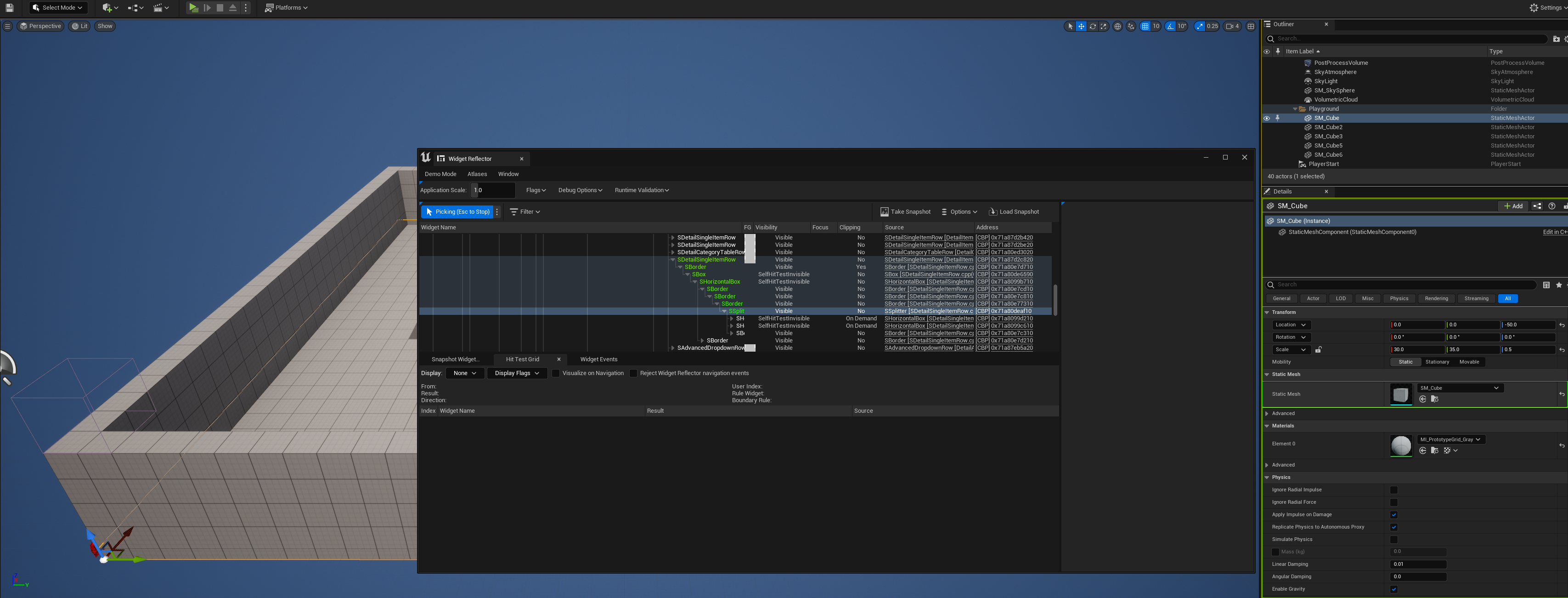
For debugging devices such as consoles or phones, you can use the "Remote Session" plugin(formally named "Slate Remote") within the engine to connect the debugger to the device to live debug Slate & UMG with the widget reflector.
The Slate Console Debugger is a list of console commands that can be used to debug different parts of Slate for debugging purposes.
Each console command is prefixed with SlateDebugger., when enabling an option this will cause it's debug information to be printed to the output log.
The good news is that you can enable these flags from the widget reflector so you don't have to type in the difference debug commands.
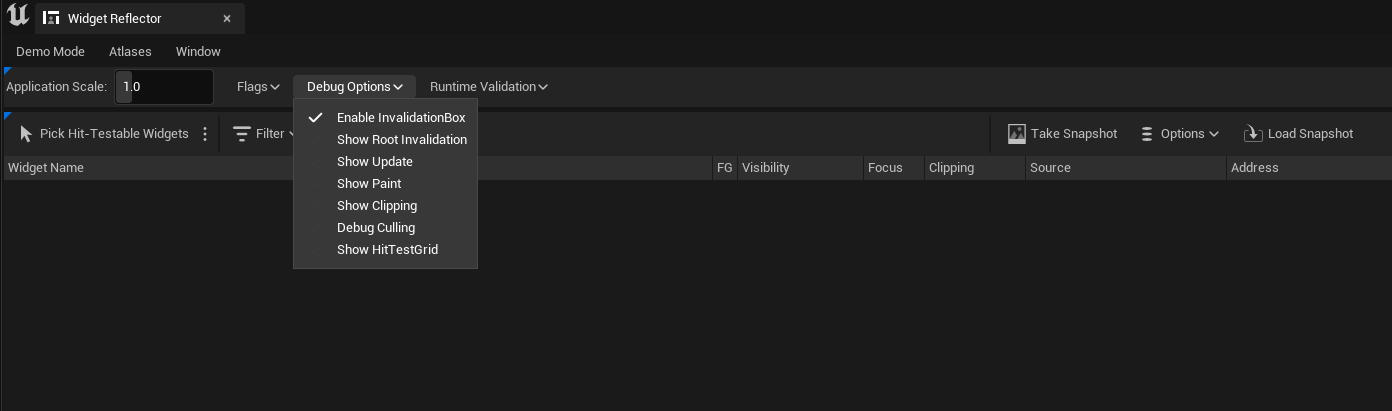
Below is the list of each Slate Debugger console command:
SlateTrace.cpp:
SlateDebugger.bCaptureRootInvalidationCallstacks [0/1]: Whenever a widget is the root cause of an invalidation, capture the callstack for slate insights(another debugging tool that's a part of Unreal Insights).ConsoleSlateDebugger.cpp:
SlateDebugger.Event.Start OR SlateDebugger.Start: Starts the debugger for events.SlateDebugger.Event.Stop OR SlateDebugger.Stop: Stops the debugger for events.SlateDebugger.Event.LogWarning: Logs warning events.SlateDebugger.Event.LogInputEvent: Logs input events.SlateDebugger.Event.LogFocusEvent: Logs focus events.SlateDebugger.Event.LogAttemptNavigationEvent: Logs attempted navigation events.SlateDebugger.Event.LogExecuteNavigationEvent: Logs executed navigation events.SlateDebugger.Event.LogCaptureStateChangeEvent: Logs when input capture state change events.SlateDebugger.Event.LogCursorChangeEvent: Logs cursor changed events.SlateDebugger.Event.CaptureStack: This toggles capturing and logging the callstack when there is an event.SlateDebugger.Event.InputRoutingModeEnabled: This toggles logging the route that an input event took.SlateDebugger.Event.SetInputFilter [Filter]: Toggles specific input filters:
MouseMoveMouseEnterMouseLeavePreviewMouseButtonDownMouseButtonDownMouseButtonUpMouseButtonDoubleClickMouseWheelTouchStartTouchEndTouchForceChangedTouchFirstMoveTouchMovedDragDetectedDragEnterDragLeaveDragOverDragDropDropMessagePreviewKeyDownKeyDownKeyUpKeyCharAnalogInputTouchGestureMotionDetectedSlateDebugger.Event.DisableAllInputFilters: Disables all enabled input filters.SlateDebugger.Event.EnableAllInputFilters: Enables all input filters.SlateDebugger.Event.SetFocusFilter [Filter]: Toggles specific focus filters:
FocusChangingFocusLostFocusReceivedSlateDebugger.Event.ClearFocusFilters: Disables all enabled focus filters.SlateDebugger.Event.EnableAllFocusFilters: Enables all focus filters.ConsoleSlateDebuggerBreak.cpp:
SlateDebugger.Break.OnWidgetInvalidation Reason=[Reason][WidgetPtr][WidgetId]: Break when the inputted widget gets invalidated.
LayoutPaintVolatilityChildOrderRenderTransformVisibilityAttributeRegistrationPrepassPaintAndVolatilityLayoutAndVolatilitySlateDebugger.Break.OnWidgetBeginPaint [WidgetPtr][WidgetId]: Break before the widget starts being painted.SlateDebugger.Break.OnWidgetEndPaint [WidgetPtr][WidgetId]: Break when the widget was just painted.SlateDebugger.Break.RemoveAll: Removes all the requests to break.ConsoleSlateDebuggerPaint.cpp:
SlateDebugger.Paint.Start: Start the painted widget debug tool. Use to show widgets that have been painted this frame.SlateDebugger.Paint.Stop: Stops the painted widget debug tool.SlateDebugger.Paint.Enable: Toggles(Start/Stop) the painted widget debug tool to show widgets that are painted.SlateDebugger.Paint.LogOnce: Logs the names of all widgets that were painted during the last update in the tool.SlateDebugger.Paint.MaxNumberOfWidgetDisplayedInList [MaxNumberOfWidgetsInList]: The max number of widgets that will be displayed when DisplayWidgetNameList is active in the tool.SlateDebugger.Paint.ToggleWidgetNameList: Toggleable option to display the name of the widgets that have been painted in the tool.SlateDebugger.Paint.LogWarningIfWidgetIsPaintedMoreThanOnce: Toggles logging a warning if a widget is painted more than once in a single frame in the tool.SlateDebugger.Paint.OnlyGameWindow: Toggles only debugging the game window's widgets in the tool.ConsoleSlateDebuggerUpdate.cpp:
SlateDebugger.Update.Start: Start the update widget debug tool to show when widgets are updated.SlateDebugger.Update.Stop: Stops the update widget debug tool.SlateDebugger.Update.Enable: Toggles(Start/Stop) the update widget debug tool to show when widgets are updated.SlateDebugger.Update.ToggleLegend: Toggle to display the color legend in the tool.SlateDebugger.Update.ToggleWidgetNameList: Toggle to display the name of the widgets that have been updated in the tool.SlateDebugger.Update.ToggleUpdateFromPaint: Toggle to also display the widgets that do not have an update flag but are updated as a side effect of an other widget.SlateDebugger.Update.SetWidgetUpdateFlagsFilter: Enable/Disable specific widget update flag filters.
WidgetUpdateFlags.h:
NoneTick: Widget has a tick function.ActiveTimer: Widget has an active timer that needs to update.Repaint: Needs repaint because the widget is dirty.VolatilePaint: Needs repaint because the widget is volatile.AnySlateDebugger.Update.SetInvalidationRootIdFilter: Toggle to show only the widgets that are part of an invalidation root.SlateDebugger.Update.OnlyGameWindow: Toggle to only show the debug info for the game window.ConsoleSlateDebuggerInvalidate.cpp:
SlateDebugger.InvalidationRoot.Start: Starts the invalidation widget debug tool. It shows widgets that are invalidated.SlateDebugger.InvalidationRoot.Stop: Stops the invalidation widget debug tool.SlateDebugger.InvalidationRoot.Enabled: Toggles(Start/Stop) the invalidation widget debug tool to show widgets that are invalidated.SlateDebugger.InvalidationRoot.bShowLegend: Toggle to display the color legend.SlateDebugger.InvalidationRoot.bShowWidgetList: Toggle to display the names of the invalidation widgets.SlateDebugger.InvalidationRoot.bLogInvalidatedWidget: Toggle to log the invalidated widget to the console.SlateDebugger.InvalidationRoot.ThresholdPerformanceMS: For bUsePerformanceThreshold, threshold in milliseconds to reach before logging and/or displaying the invalidated widgets.SlateDebugger.InvalidationRoot.bUsePerformanceThreshold: Only display the invalidated widgets and/or log them if performance is worst than the threshold in milliseconds.SlateDebugger.InvalidationRoot.SetInvalidateRootReasonFilter: Enable/Disable specific invalidate root reason filters.
SlateDebugging.h:
NoneChildOrderRootScreenPositionConsoleSlateDebuggerInvalidationRoot.cpp:
SlateDebugger.InvalidationRoot.Start: Starts the invalidation root widget debug tool. It shows when invalidation roots are using the slow or the fast path.SlateDebugger.InvalidationRoot.Stop: Stops the invalidation root widget debug tool.SlateDebugger.InvalidationRoot.Enable: Toggles(Start/Stop) the invalidation root widget debug tool to show when invalidation roots are using teh slow or the fast path.SlateDebugger.InvalidationRoot.ToggleLegend: Toggle to display the color legend.SlateDebugger.InvalidationRoot.ToggleWidgetNameList: Toggle to display the name of the invalidation root.This is a high level overview flow of input from the lowest level to the highest level is listed in order below in the order that an input is routed for each user (each stage calls to the next stage of the input flow of Unreal Engine):
FEngineLoop: Unreal Engine’s heartbeat tick that notifies the platform SDKs to tick/update every frame.GenericApplication & FGenericApplicationMessageHandler: SDK for Windows/Mac/Xbox/Playstation/etc which creates the Slate Application on engine initialization and sends inputs to it every frame per user.FSlateApplication: Handles routing that input between Input Processors, Slate UI and the game engine for game code to receive that input.IInputProcessor: These are C++ objects that can be dynamically added/removed from a list of Input Pre Processors within the Slate Application and receive input before anything else does and controls whether input is consumed or continues to be routed down.
It’s recommended you make one for your project because it gives you full control of your inputs before anything else in the engine gets them, there’s even an Epic made example in the engine called AnalogCursor!
This will also get input even if you're using Input Mode UI Only and receive inputs in the editor!SWidget: Any focused UI elements on screen that should be receiving input and can consume that input.
UWidget will receive input since UMG Widgets are just UObject based wrappers for Slate Widgets.UGameViewportClient: When looking through the code it may seem a little confusing for figuring out where the input is routed to the Game Viewport Client but basically at its core level,
if the Slate Application sent it to the Slate elements and it did not get consumed then it gets routed down through to the viewport widget which is a Slate widget(which is also the visual representation of the game’s final rendered image) that is then routed to the Game Viewport Client,
which handles propagating that input to the rest of the game engine and connecting with the game code. This is the point where depending on which input mode you’re using, Input Mode Game/Input Mode Game and UI will allow pawn’s to receive input.APlayerController: Once the Game Viewport receives an input, it has to go through some checks to make sure it's usable for game code and then tells the player controller to add it to its Input Stack inside ProcessPlayerInput which is called on from the player controller’s Tick.UPlayerInput: A player input object that Player Controllers have for routing input to pawns and other objects that are on its Input Stack.UInputComponent: This is the commonly used method to receive input for game code that is also found in Epic's official documentation, it is an object that is on every actor that connects with the Player Controller’s Input Stack to receive input that is routed through the engine for the game code to listen to and receive inputs.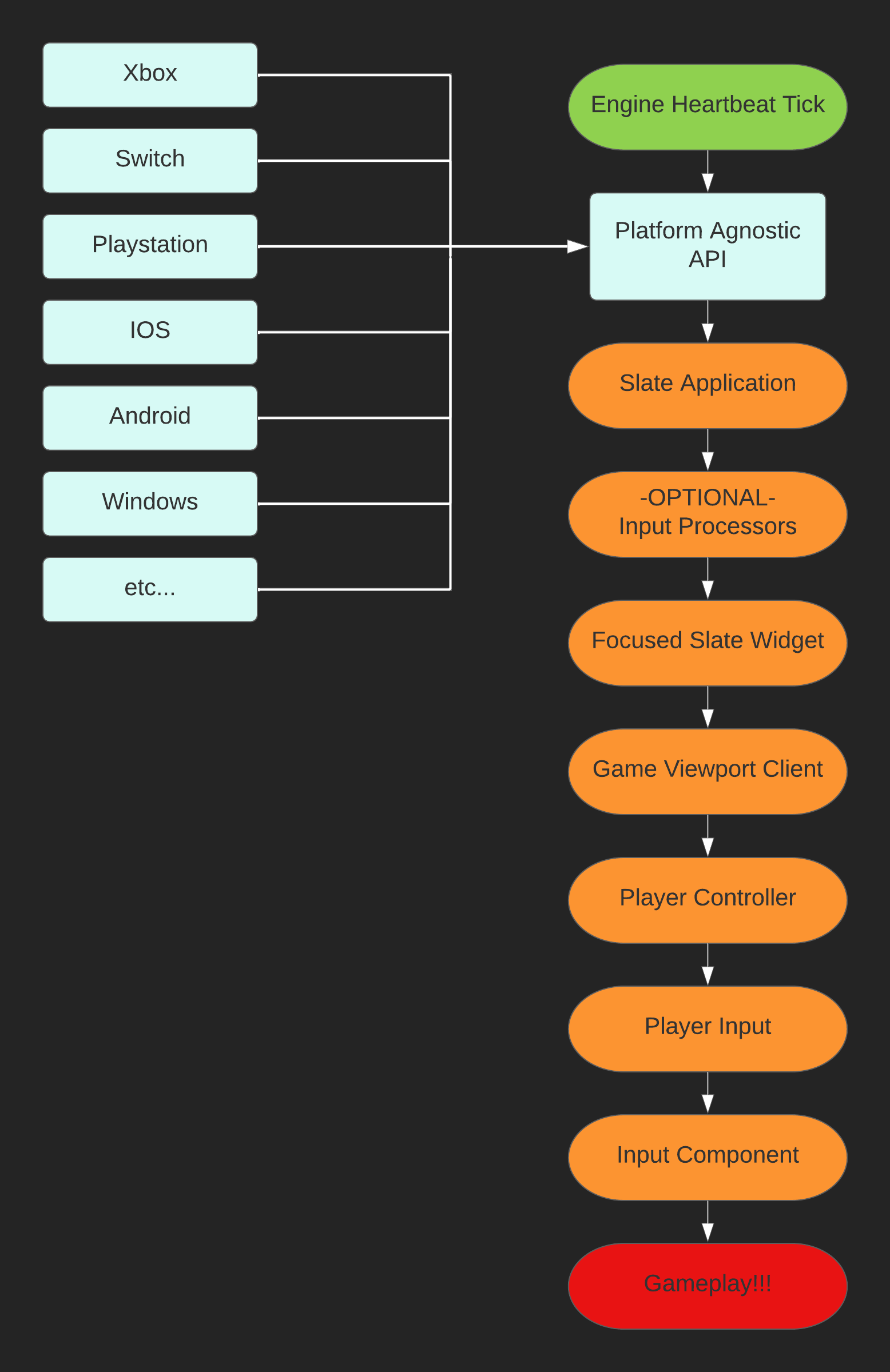
Input Flow Diagram
Input Component's are UActorComponent's that are present in all actors(AActor).
These components will link with AxisMappings and ActionMappings as bindings in your project to run functionality.
Each binding can consume input events which prevents other components on the input stack from processing that same input event.
Input Components enable an actor to bind input events to delegate functions that are automatically handled by two classes:
APlayerController:: Handles building the input stack and controls the order and prioritization.UPlayerInput:: Handles broadcasting those delegate functions and handles figuring out if an binding is being used or not.Here is the actual order of operations for input components every frame. Diagram Below
- [
APlayerController::TickPlayerInput]
- [
UPlayerInput::Tick]- Collects mouse over events.
- Collects touch over events.
- [
APlayerController::ProcessPlayerInput]
- [
APlayerController::BuildInputStack]: Builds the stack of input components and the order that they will be processed. Can be overriden to control the order.- [
UPlayerInput::ProcessInputStack]: Actually start processing input.
- [
APlayerController::PreProcessInput]- Copies the state of non-axis key's.
- Starts going through the stack of input components from top to bottom; one by one(now consider we're working with a single input component but in a loop until there's no more input components).
- Builds the keymap for this input component to know what actions/axis work with specific key bindings to create input cords.
- Looks for touch bindings and decide if an input action binding has occured. If that's the case then track it.
- Looks for gesture bindings and decide if an input action binding has occurred. If that's the case then track it.
- Looks for axis bindings and decide if an input axis binding has occured. If that's the case then track it.
- Decide whether to consume key or not(based off book-keeping done in between building the keymap and reaching this point).
- Resets each input component's axis bindings to zero.
- Broadcasts Input Actions to the input components that should have functionality run.
- Broadcasts Input Axis to the input components that should have functionality run.
- [
APlayerController::PostProcessInput]- [
UPlayerInput::FinishProcessingPlayerInput]: Finishes processing input for this frame by saving if inputs are now being held. Cleaning up values for next frame.- Clears all the bindings that were broadcast.
- Resets the input stack for next frame.
- [
APlayerController::ProcessForceFeedbackAndHaptics]
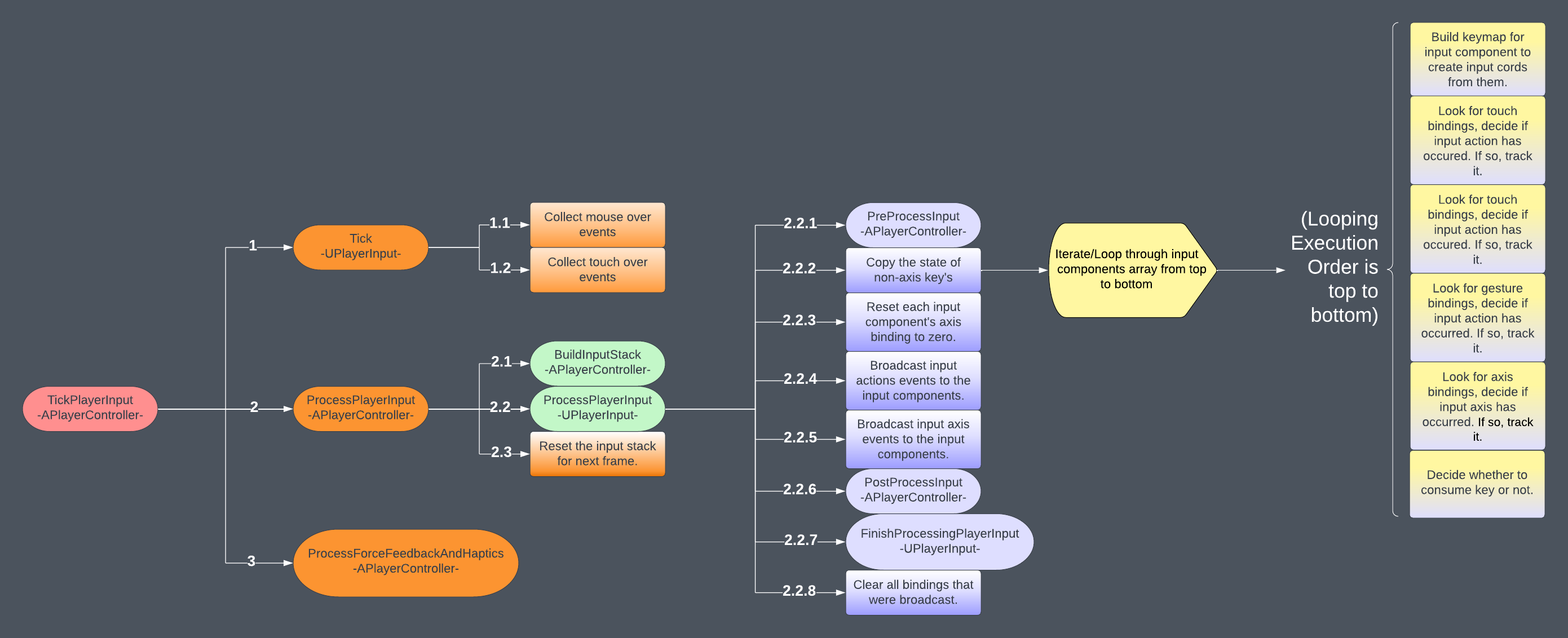
The order of operations for how Input is ticked and processed in levels starting from TickPlayerInput inside APlayerController
Input Components can also have a priority stack so that input can be consumed by the higher priority actors.
The priority stack for input components are as follows(highest priority first):
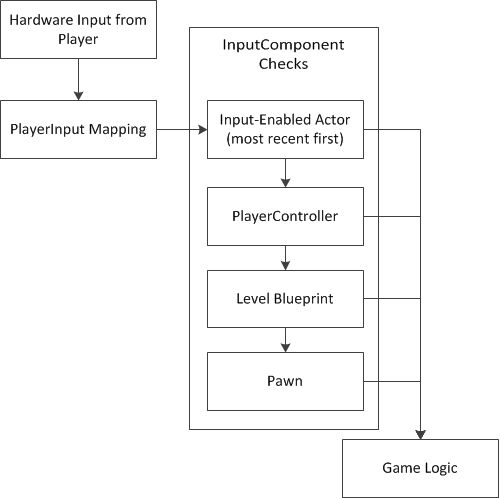
Input Component Stack, courtesy of Epic's Documentation
Each time an input occurs a struct is used for each type of input that all inherit from FInputEvent:
FModiferKeysState: State of modifier keys when this event happened during this frame.bool: Flag to know if this input event was auto-repeated(held and then repeatedly fired).uint32: The integer index of the Slate User that caused this event.const FWidgetPath*: The path of events that are sent along with this event.Every other event type comes from FInputEvent:
FInputEvent: A key action for Keyboard/Gamepad being Pressed/Released. It is passed to event handlers dealing with this key input.
FKey: The name of the key that was pressed.uint32: The character code that's the Unreal friendly version of the key that was pressed. If it’s not accounted for then the character key returns zero.uint32: The original character code received from hardware/SDK.FKeyEvent: Describes an analog key value to account for thumbsticks.
float: 0-1 value to represent the thumbstick axis, 0 = not being pressed & 1 being fully pressed.FInputEvent: A keyboard action where a UTF-16 code(Unicode 16 bit encoding) is inputted, used for OnKeyChar functionality.
TCHAR: The character that was pressed.FInputEvent: A Mouse/Touch input(since Touch is considered as Mouse inputs as well where they only use the Left Mouse Button as the Touch input) used for Press/Release/Move/etc. Some of these values you may not even need to use, but it provides a lot of helpful information.
FVector2D: The current screen space position of this pointer event.FVector2D: The last frame’s screen space position of this pointer event.FVector2D: The distance between current and last screen space positions.const TSet<FKey>*: The currently pressed mouse buttons that this pointer event is using.FKey: The mouse button that this pointer event is representing(touch events will always use Left Mouse Button).uint32: Which pointer(finger) index is for this Slate User.uint32: Which pointer(finger) index is for this Slate User when on laptops with touchpad mouse’.float: How much force is being applied on this touchpad/pointer input.bool: Is this a touch(including trackpad) based pointer event or mouse based.EGestureType: Which type of gesture this pointer event is using such as a swipe, scroll, magnify, rotate, long press, etc.FVector2D: The change in gesture value since the last gesture event of the same type.bool: Is the gesture delta inverted.bool: Is this event a special force-change touch event.bool: Is this event a special first-move touch event.FInputEvent: Describes a touch pad event using the internal gyroscope such as it being Pressed/Moved/Lifted/Rotated/etc.
FVector: The current tilt of the device/controller.FVector: The rotation speed of the device/controller.FVector: The direction of gravity in the real world(pointing down towards the ground) that was reported by the device/controller.FVector: The 3D acceleration of the device/controller.FInputEvent: The focus navigation event for Left/Right/Up/Down which is passed around for User Focus.
EUINavigation: The navigation direction of this event, if it was Up/Down/Left/Right/etc.ENavigationGenesis: Enum for knowing where this navigation event came from(was caused by) such as Keyboard/Controller/User.WidgetBlueprintLibrary has 3 functions for setting something called Input Mode on Player Controllers, the three states explain what’s actually happening in the input flow in relation to step 6; Game Viewport Client. It is important to understand that there is no dedicated Input Mode, but these are shortcuts for changing values on the Game Viewport Client via the Player Controller.
Any changes done to input the modes values will persist between level/map travel, regardless of if you used the default Unreal Engine functionality to change it or if you manually changed those values yourself in the Game Viewport Client.
Mouse Lock ModeEMouseLockMode is how the mouse cursor is locked(meaning the cursor cannot move out of the bounds) to the viewport depending on the mode it is in:
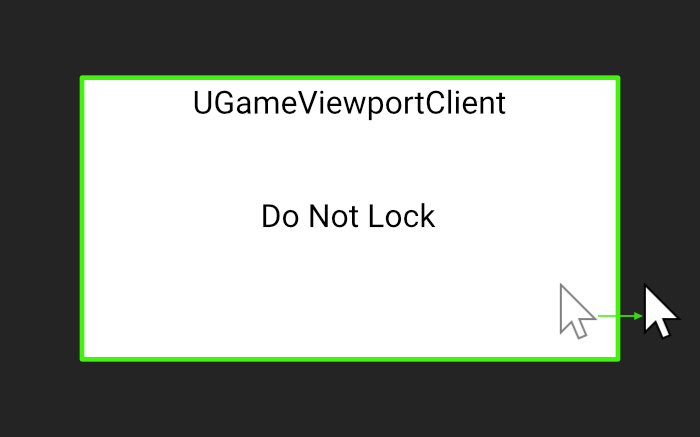
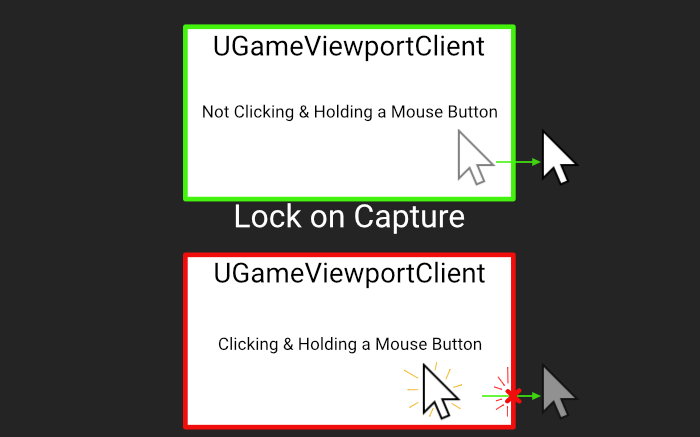
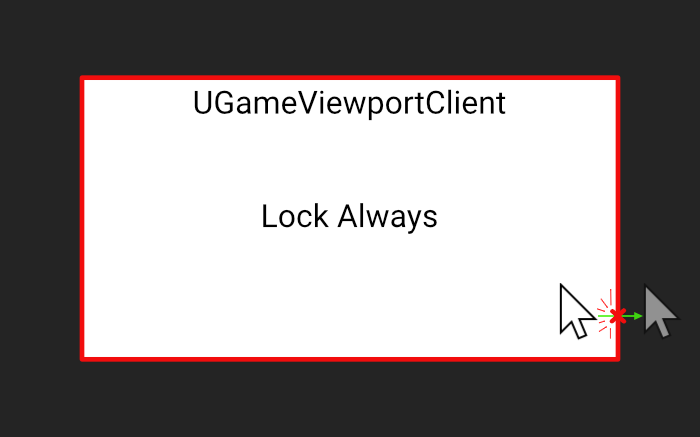
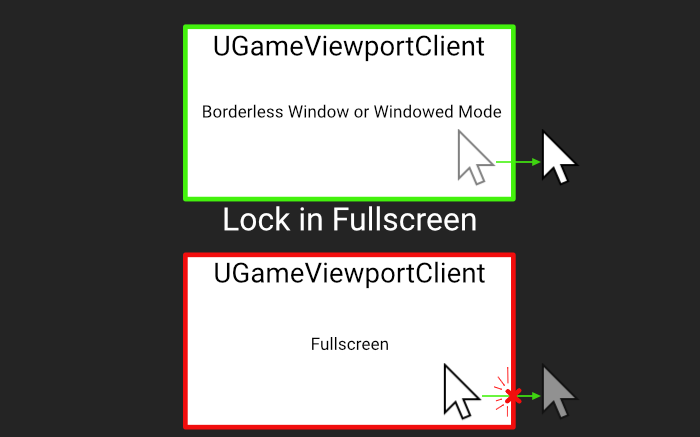
I want to specify that Mouse Lock Mode is on a per viewport basis which accounts for split screen for each player's viewport while window would account for the entire window all of the viewports.
Unreal Engine’s focusing system in regards to Slate/UMG is the concept of User Focus where only one Slate Widget can be focused at a time by a specific user known as a Slate User.
Multiple Slate Users can focus on the same widget but a user cannot focus on two widgets at once (to do so would require you to have to build that functionality out on your own but at that point you’re probably fighting with it rather than working with it and saving time having to manage both the game you’re building and your custom focusing system).
User Focus is tracked by the Slate Application using an integer index for each Slate User and the widget focus path for which Slate Widget that user is currently focusing on, these are the local users on this application to account for split screen players. Focus will persist between level/map travel so its good practice to reset it by sending focus back to the game's viewport.
Unreal Engine’s focusing system is built from 4 key elements:
OnKeyDown: When a key is pressed and focus is on this widget, this is the functionality for what this widget should do.OnNavigation: When the widget is focused/loses focus, etc.To visualize the hit test grid, the console command is
Slate.HitTestGridDebugging [0/1]also located in the Debug Console Commands of the Development & Debug Tools for UMG/Slate section.
The hit test grid is basically how it handles navigation, and it will facilitate which widget to navigate to per use(so each user has their own Hittest Grid), navigation is calculated only along the direction specified along a grid(at a resolution of 128, there is no reason to change it since it checks if the widget is within that evenly spaced grid in a straight line) made up of the collidable bounding boxes of each opted in widget (thus desired size and geometry come into play here) and this grid is populated based on specific widgets that have opted into this hit test grid.
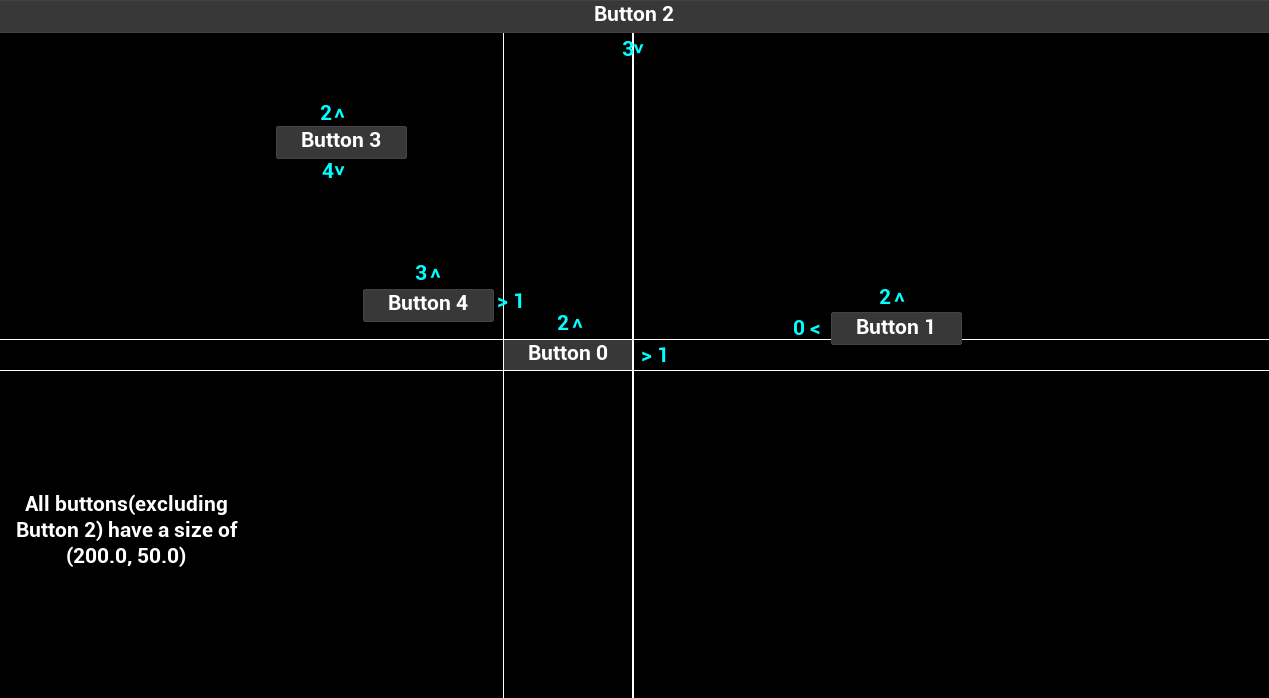 | 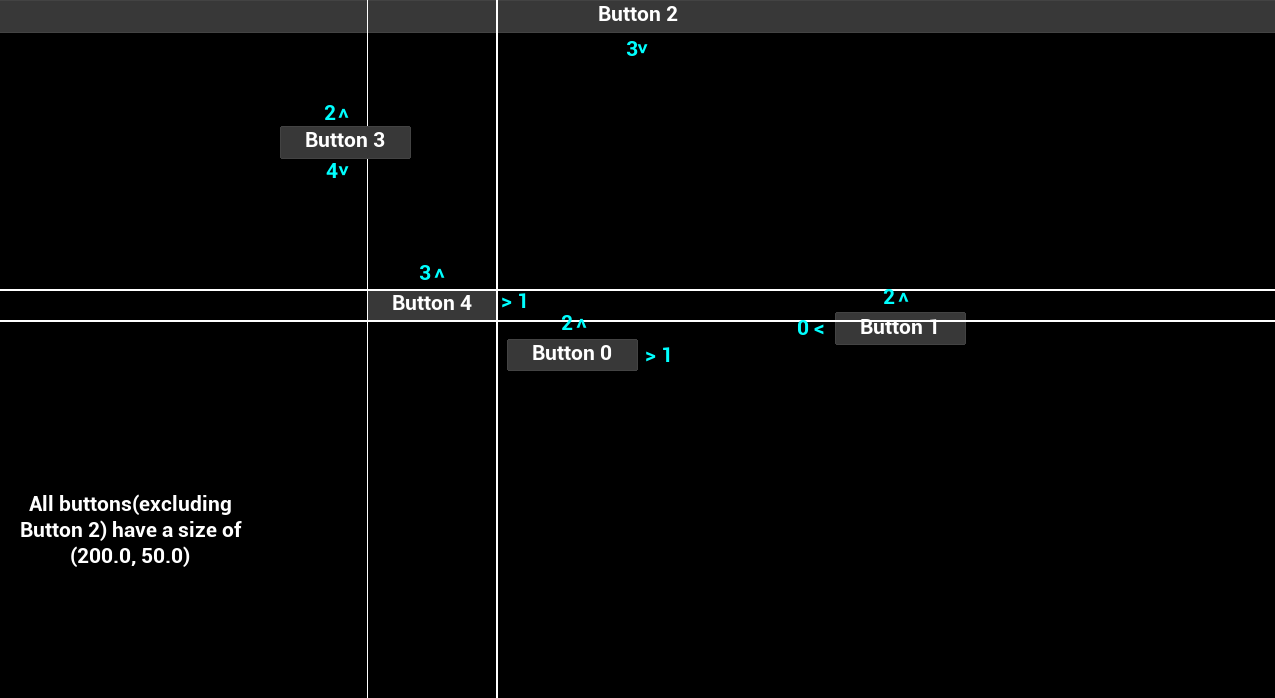 |
|---|
In this example we show what buttons we can navigate to on navigation direction press. Button 2 in this case will always navigate to the closest widget because it can navigate to any widget below it.
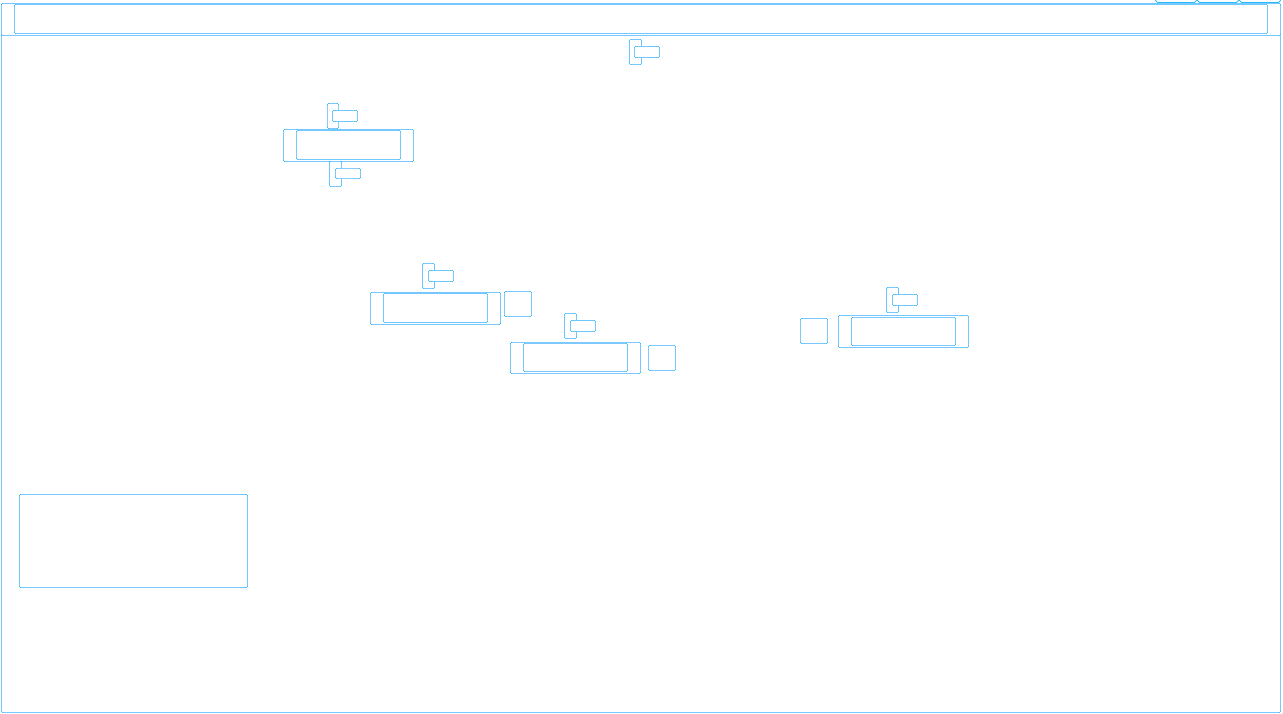
This is what the navigation grid actually looks like in the example when using the Slate.HitTestGridDebugging 1 console command.
When an Navigation Genesis occurs it basically gets the cells that the currently focused widget is at and then based off the navigation direction the hit test grid check in a straight line to find the focusable widget by sweeping in each cell to see if there is a widgets bounding box within it and running through a series of checks in the specified order, if they fail these checks then we return a debug result for it and skip it:
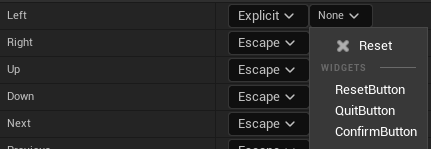
After the widget has passed these tests it is saved as the Best Widget and saves its Slate Rect(to be used for navigation later) and then it checks what that widgets boundary navigation rule is (Explicit, Custom, CustomBoundary, Stop, Wrap) and handles for each one that isn’t Escape. Once the sweep reaches the window edge of the screen, it will send focus to the best widget.
You can also know when focus changes for any user(be sure to filter for specific users!) by getting the Slate Application and getting its FocusChangingDelegate using the OnFocusChanging() accessor function
(depending on your version of Unreal you may just be able to get the delegate variable itself)and listening for focus changes.
You can filter which user changed focus via the FFocusEvent that the delegate outputs that has the user index that changed focus(it also has the cause for the focus change in case you need to know that for a specific use case).
Scroll to the right for the header file ->
| Source File(.cpp) | Header File(.h) |
|
|
Navigation can be caused by 3 types, known as Navigation Genesis:
Split Screen works where it has a Game Layer Manager that manages the viewport slate widget, which player that’s using that slate widget and how to shape that slate widget.
The game layer manager is instanced by the game engine on initialization inside GameEngine.cpp(UGameEngine) and in PlayLevel.cpp(UEditorEngine) using a hard coded class so to build your own it would require modifying the engine’s source code
in UGameEngine::CreateGameViewportWidget & UEditorEngine::GeneratePIEViewportWindow (Epic if you see this, please change this to be a configurable class that can be specified in the project settings, you have it setup for the Game Viewport Client so it's already halfway there!).
One possible route depending on your use case would be to call
UGameViewportClient::SetGameLayerManagerbut be aware this could have downstream effects and could require some workarounds from non-overridable engine code.
When displaying a widget to the screen you have two options:
The Game Layer Manager is an interface that has the barebones information for getting the geometry of the viewport, getting the local player using this widget,
adding layers of widgets(not recommended unless you know what you’re doing) which holds all slate widgets that have been added to that specific viewport, and for holding the actual game viewport slate widget.
The Game Layer Manager is located in SGameLayerManager.h/cpp and you can find the interface (IGameLayerManager) and a compound widget that is the SGameLayerManager which handles displaying the game viewport widget(also useful as a basic example implementation of the interface)
using a simple rectangle layout that is retrieved from the game viewport client. The SGameLayerManager also routes changes to DPI scale and for scaling the viewport based on the DPI scale value including all of its widget layers.
By default the layout design is a rectangle shape that is customized via its X/Y size and its X/Y position on the screen in a 0-1 ratio for the center of it.
This is set in the default UGameViewportClient’s constructor.
If you want to create your own custom viewport shapes; you would have to create your own Game Layer Manager class to have it calculate out a custom shape and apply it to the viewport widget.
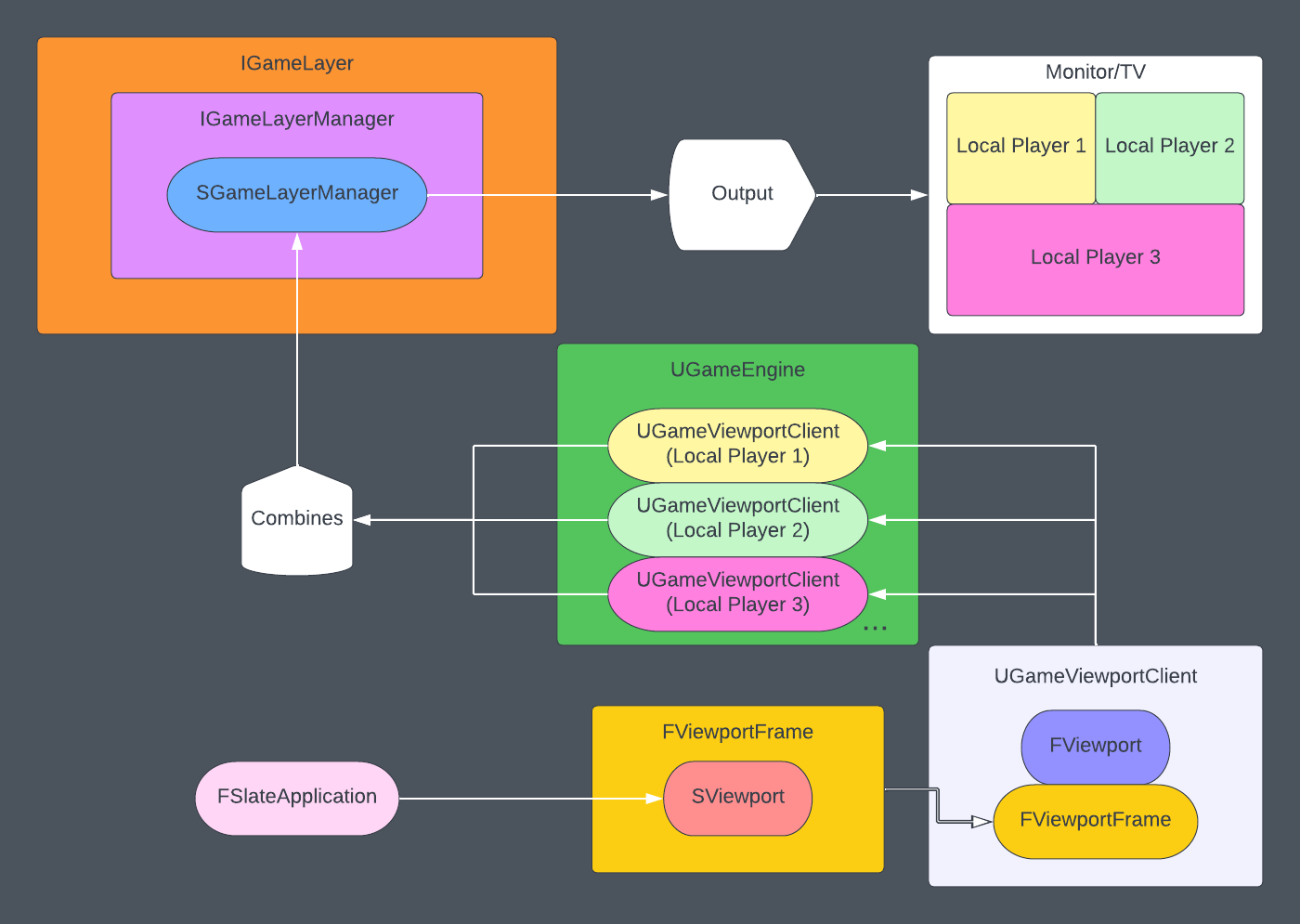
This is a general overview of how the game layer manager works with some visual explanation of how the Slate Application talks to these systems.
Each local player on a single machine has a ULocalPlayer object that can exist between levels. This is the literal representation of the player as a UObject type,
each local player is useful for knowing which gamepad that this player is using, which viewport client this player is using, getting its Slate User, getting online subsystem information, etc.
Local Players are tracked using different ID's for different elements of the application, they are listed below:
Gamepad ID is really Controller ID, but to avoid confusion we will be saying Gamepad ID from this point onward. Also none of the gamepad ID functionality is exposed to Blueprint so you would need to do this yourself but they are all publicly accessible values and functions in
ULocalPlayer.
Local Players are able to know which gamepad ID they're using by calling ULocalPlayer::GetControllerId().
For changing it to another gamepad you would call ULocalPlayer::SetControllerId(), if another player is using that ID then it will force-ably swap that player's gamepad ID and it will update the platform user ID as well.
For getting the delegates for when the gamepad ID is changed you can use ULocalPlayer::OnControllerIdChanged().
Why is it Controller ID and not Gamepad ID? I honestly don't know, I do hope Epic fixes this naming convention because this can be confused to be talking about Player Controller and not Gamepad Controller (honestly just saying gamepad would 100% clear up confusion). The code comments do not explain this clearly either because they refer to it as physical ControllerID, which again could be confused with Player Controllers.
Here is a list(in no particular order) of important/helpful C++ files within Unreal Engine that it’s recommended you should look at, some might not even be talked about in this compendium.
You don’t need to understand it immediately but this helps with knowing helpful files to refer back to.
| Object Name | Header | Source | Notes |
|---|---|---|---|
FEngineLoopDocumentation | LaunchEngineLoop.h | LaunchEngineLoop.cpp | This is the heart of the entire Unreal Engine application, recommend only looking but not touching. |
| [Multiple] | SharedPointer.h | SharedPointerInternals.h | This is where Epic's Shared(Smart) Pointer Framework is located, also recommend taking a look at SharedPointerTesting.inl for example's of using Shared Pointers. |
FSlateApplicationDocumentation | SlateApplication.h | SlateApplication.cpp | |
FHittestGridDocumentation | HittestGrid.h | HittestGrid.cpp | |
SWidgetDocumentation | SWidget.h | SWidget.cpp | |
UWidgetDocumentation | Widget.h | Widget.cpp | |
| [Multiple] | DeclarativeSyntaxSupport.h | [None] | Holds all the declarative syntax macros for Slate to use such as SNew, SLATE_ARGUMENT, etc. Extremely important file to study. |
SUserWidgetDocumentation | SUserWidget.h | SUserWidget.cpp | |
UUserWidgetDocumentation | UserWidget.h | UserWidget.cpp | |
FNavigationConfigDocumentation | NavigationConfig.h | NavigationConfig.cpp | This is where most of the Navigation related types are, this includes structs and enums. |
| [Multiple] | SlateEnums.h | [None] | This is where most of the Slate related Enum Types are. |
TAttributeDocumentation | Attribute.h | [None] | |
TSlateAttributeDocumentation | SWidget.h & SlateAttribute.h | While this is declared in SWidget.h, it is actually explained in SlateAttribute.h | |
| [Multiple] | InputCoreTypes.h | InputCoreTypes.cpp | This is where most of the Input related types are, this includes structs and enums. |
FInputEventDocumentation | Events.h | Events.cpp | This is where the hierarchy of FInputEvent types are located. |
SGameLayerManagerDocumentation | SGameLayerManager .h | SGameLayerManager .cpp | |
UGameViewportClientDocumentation | GameViewportClient.h | GameViewportClient.cpp | |
| [Multiple] | UnrealClient.h | UnrealClient.cpp | This one is interesting because it holds manager objects for the viewport's rendering and some of its functionality at the same time. This is also where screenshots are processed(including ones with/without UI). |
FSceneViewportDocumentation | SceneViewport.h | SceneViewport.cpp | This is where our viewport's slate widget is essentially housed. |
IInputProcessorDocumentation | IInputProcessor.h | [None] | This is the base interface class for Input Pre Processors, you would inherit from this class if you were making one. For an example of how to set one up, lookup FAnalogCursor. |
FAnalogCursorDocumentation | AnalogCursor.h | AnalogCursor.cpp | |
FSlateUserDocumentation | SlateUser.h | SlateUser.cpp | |
ULocalPlayerDocumentation | LocalPlayer.h | LocalPlayer.cpp | This also holds FLocalPlayerContext which is useful for passing around to UI and other objects to have context to the local player, its player controller, game instance, world, etc. |
UWidgetLayoutLibraryDocumentation | WidgetLayoutLibrary.h | WidgetLayoutLibrary.cpp | |
USlateBlueprintLibraryDocumentation | SlateBlueprintLibrary.h | SlateBlueprintLibrary.cpp | As a heads up, the script name is also written as "SlateLibrary" in case you have trouble finding it. |
UWidgetBlueprintLibraryDocumentation | WidgetBlueprintLibrary.h | WidgetBlueprintLibrary.cpp | As a heads up, the script name is also written as "WidgetLibrary" in case you have trouble finding it. |
UUserinterfaceSettingsDocumentation | UserinterfaceSettings.h | UserinterfaceSettings.cpp | This is also where the render focus rule and a few other data types that you find in those settings are declared. |
458 followers · starred May 2023
6 followers · starred May 2023
81 followers · starred Apr 2023
A Compendium Information Guide for UMG and Slate in Unreal Engine.
1,048
63 commits
updated Mar 27, 2026
Localized via GitLocalize (Please read the FAQ page about becoming a translator!)
0.7.0
Sub-Page Links
1.0 Introduction
2.0 Performance & Design Considerations
2.1 CPU Considerations
2.1.1 Performance regarding Animations
2.1.2 Performance regarding Widget Components
2.2 GPU Considerations
3.0 Slate & UMG in Unreal
4.0 Slate
4.1 Slate Widget Casting & Storing
4.2 Slate Units & DPI Scaling
4.3 Slate Users
4.4 Widget Layout
4.5 On Paint
4.6 Widget Ticking
4.7 Widget Hierarchy
4.8 Invalidation
4.9 Slate Attributes and Events
4.10 Slate Widget Examples(Slate Test Suite/Starship)
4.11 Helpful Console Commands for Slate
5.0 UMG (Unreal Motion Graphics)
5.1 User Widget Hierarchy
5.2 User Widget Animation
5.3 User Widget Events
6.0 Common Widgets
7.0 Common Widget Functionality
8.0 UMG in relation to Levels/Worlds
8.1 HUD Actors
8.1.1 HUD Drawing
8.1.2 HUD HitBoxes
8.2 Widget Components
8.2.1 Widget Interaction Components
8.2.2 How Widget Components are Rendered
9.0 Development & Debug Tools for UMG/Slate
9.1 Debug Console Commands
9.2 Widget Reflector
9.3 Slate Console Debugger
10.0 Input Framework of Unreal Engine(relating to UMG/Slate)
10.1 Input Flow of Unreal Engine
10.2 Input Components
10.3 Input Event Types
10.4 Input Modes
11.0 Unreal's Focusing System
11.1 Navigation Grid Explanation
11.2 Navigation Genesis
12.0 Split Screen
12.1 Game Layer Manager
12.2 Viewport Layout
12.3 Local Players
12.3.1 Gamepad ID(Controller ID)
13.0 Important File Names
This compendium is intended to teach the basics of UMG & Slate and to provide a base understanding of how to work with Unreal Engine’s UI framework. PLEASE let me know if there is anything about this document that can be improved upon because this is meant to help the community!
Please refer to the FAQ Page(also linked at the top of the document) if you have further questions regarding the document(or anything relating to the document).
There is also a sample project that is used in relation to this compendium linked here:
Unreal Engine template project for the UMG/Slate Compendium
An important note about skill level in programming and how its used in this document: usually when somebody refers to a concept as “high level” they mean its very complicated and requires a high skill level or a lot of experience, BUT in programming its flipped; where a “high level” concept is actually extremely easy to use and is a simple concept with little to no experience and the more “low level” it gets, the more complicated the concept becomes and requires a larger amount of experience. For example; Blueprint is a “high level” coding language, C++ is a “low level” coding language.
GeeksForGeeks has a great and simple article explaining the difference:
https://www.geeksforgeeks.org/difference-between-high-level-and-low-level-languages/
An important note about the two types of Unreal Engine:
- Launcher Version: The version of the engine that you would download from the Epic Games Launcher; the engine is exposed to view but is not able to be modified, and is not able to submit code changes to Epic via GitHub.
- Source Code Version: The version of the engine that you would clone/download from GitHub; this gives full modifiable access to Unreal Engine as well as being able to submit code changes to Epic via GitHub Pull Request's for them to integrate into Unreal Engine’s future releases.
All pictures of the editor in this document are from the launcher version of the engine.
What this compendium covers:
It is NOT intended to teach beginners how to use Unreal Engine in general, just this specific aspect of the engine which encompasses a lot of the engine.
This compendium requires you to have a basic understanding of these areas of Unreal Engine:
This compendium will contain information that is taken from official documentation but is intended to shed light on what some of the official documentation means BUT it is not a redefinition of something that is already explained.
At the bottom of the document is a list of helpful links and files for you to refer back to
(you can reach them easily using the External Links Page link at the top of the file).
Epic's Official Documentation on Performance and Optimization Guidelines for Slate & UMG
UMG & Slate are extremely performant frameworks for both the rendering (GPU) and computation (CPU) aspects. But both aspects should be considered when building out you're UI to have the best experience for the User.
This is not a "how to improve performance" guide, these are considerations to be aware of when building your application with UMG/Slate and possible avenues to help improve performance.
UI Complexity is usually in relation to the number of active and visible widgets (so offscreen widgets don’t tick and should not run functionality if not on screen). A common technical design with UI is to be reactive to gameplay code(it is also suggested if you're game isn't UI dependent) but not to drive the gameplay code so it is performant and reusable, normally its fine for the UI to be the entry point for executing the gameplay code but then it should listen to how the gameplay code responded and to react to it.
Slate/UMG use the concept of Invalidation and caching rather than constantly polling the data. The reason for this is because sometimes polling is either not performant or functionally incorrect(for example when using multi-threaded code). Typically performant UI in Unreal is intended to be event based. UMG has Property Binds but they should not be used because they will be updated every frame which is significantly more taxing on the CPU than using an event based framework.
| CPU Technical Design Scenario |
|---|
| In an RTS you need to have a UI marker for seeing where to place a squad of soldiers in the world, the player selects a valid spot in the world for where to place the UI marker and then the troops will move to it. |
| Good Example | Bad Example |
|---|---|
| A player manager object creates the UI marker widget and manages where to move the troops. The world position that is chosen by the player is fed into the UI marker’s widget(from the player manager object) and the widget itself handles positioning itself in screen space. | The player picks a world position and feeds that directly to the UI marker, the UI marker then directly tells the troops where to move to and handles their movement. |
Invalidating the desired size of multiple widgets by animating a large amount of widgets can have downstream effects of spending a lot of CPU time re-calculating the Widget Layout.
Why should I use volatile?
Honestly it's not the answer everytime, what happens when you animate a UMG widget or change its visual state it will invalidate the widget for this frame and re-cache its new state until it is invalided again later on. Setting it to volatile will not invalidate or cache the widget, it goes through a separate code path for volatile widgets which is a case-by-case basis of improving performance. Some avenues to use volatile for is by turning it on for a period of time and then turning it off when you no longer need it to be volatile.
Widget Components are great for prototyping and for in world VR/AR UI. They are not great when trying to have the UI be within the world while still respecting screen size, logic controlling layout, etc.
Typically its good to use widget component if you have available texture budget because each widget component is really a static mesh plane with a render target texture applied to its material slot zero.
Each widget component will create the UMG widget object and then render it out to a texture to show it in the world.
It is recommended to not use Widget Components heavily(excluding VR/AR) due to texture memory use.
An alternative(which is more complicated) is to create a custom Slate Widget to handle rendering multiple "Widgets" at once you can do this using
SMeshWidget which is 1 draw call per widget but it requires competent technical art skills to be able to draw multiple widget elements as 1 texture.
What is a SMeshWidget?
It is a widget that has rendering capability of 1 draw call, it was used in Paragon to draw each status bar and icon on screen.
It is extremely powerful but also requires a good understanding of how to draw these elements in code which is why you don't see it oftenly used,
this is intended to not be exclusive to just textures or particles but can be used with 3D models/meshes or anything you want to render.
Nick Darnell actually put together an example of using SMeshWidget to draw particles in UE4:
Carey Hickling gave an Unreal Fest talk "Optimizing and Building UI for AAA Games" and talks about the Pros/Cons of SMeshWidget:
YouTube Link
For another possible avenue, recommend taking a look at Epic's Lyra example project and at the indicator system, related files in that project:
SActorCanvas.h/.cppIndicatorLayer.h/.cppIActorIndicatorWidget.h/.cppIndicatorDescription.h/.cppIndicatorLibrary.h./cppLyraIndicatorManagerComponent.h/.cppMost of the general GPU considerations you would have to worry about are the same when working in 3D space, such as:
If your framework is built out properly, GPU optimization wouldn’t be an issue when it comes to Slate/UMG due to it using some of Unreal’s 3D rendering features to unify some of the work.
An important gotcha with Unreal Engine is that it does not have a robust method of swapping between different textures depending on platform type.
For example; switching from Mobile to PC, you will have to build those systems out yourself so that unused textures are not cooked, loaded,
referenced, or even stored on the hard disk on the platform that you do not want them to be on.
Unreal Engine uses Slate; its custom UI Programming Framework. It is used
for both game and non-game applications using Slate Widgets.
Some examples include:
Slate is entirely used only within C++ using declarative syntax and is NOT derived from the UObject hierarchy.
Pros of Slate:
Cons of Slate:
Slate Test Suite (In UE5 its called Starship Gallery)
UMG (Unreal Motion Graphics) is derived from the UObject hierarchy but aren't Actor’s and
is used to create & display Slate Widgets (basically a Unreal Engine friendly wrapper for Slate to work with Blueprint).
Pros of UMG:
Cons of UMG:
The Slate Framework has two core parts:
Since Slate Widgets are NOT derived from UObject, that means you can’t use Unreal’s object casting system to get specific Slate
types as well as not being able to take advantage of UObject's garbage collection.
Instead Slate uses Unreal's Shared Pointers(also known as Smart Pointers) Framework for its memory management of Widgets.
There are three shared pointer template types:
TSharedRef: Non-nullable, reference counted, non-intrusive authoritative smart pointer.TSharedPtr: Reference counted, non-intrusive authoritative smart pointer.TWeakPtr: Reference counted, non-intrusive weak pointer reference.An important note is that when all reference counts are gone for a shared reference; the object will be deleted and a limitation is that it will only call the default destructor so custom destructors with parameters are not usable.
Using shared pointers allows you to assume ownership of these slate widgets without having to call delete on them.
I recommend taking a look at Epic's Documentation on Smart Pointers
An important note that when casting Slate Widget's it is totally fine to use standard casting such as
static_castandconst_cast, but I do recommend using Unreal's templated cast versions listed below to save time.
There are also helper classes and functions to make life easier regarding using Unreal's Shared Pointers framework and this includes working with Slate.
MakeShareable: Used to initialize shared pointers from C++ pointers.
TSharedPtr<FMyCustomCalculator> calculator = MakeShareable(new FMyCustomCalculator());
TSharedFromThis: Used with custom C++ classes as something you inherit from to allow it to be used with Unreal's Shared Pointers framework.
/** Special class to handle custom calculations */
class FMyCustomCalculator : public TSharedFromThis<FMyCustomCalculator>
{
public:
  FMyCustomCalculator()
  { }
  // ...
};
StaticCastSharedRef: Static cast utility function, typically used to downcast to a derived type when getting a smart reference.
void MyFunction(FMySubCalculator& CalculatorItem)
{
  TWeakPtr<FMyCustomCalculator> calculator = StaticCastSharedRef<FMyCustomCalculator>(CalculatorItem.AsShared());
  // ...
}
ConstCastSharedRef: Converts a const reference to mutable smart reference.
void MyFunction(TSharedRef<const FMyCustomCalculator> CalculatorItem)
{
  TSharedRef<FMyCustomCalculator> calculator = ConstCastSharedRef<FMyCustomCalculator>(CalculatorItem);
  // ...
}
StaticCastSharedPtr: Dynamic cast utility function, typically used to downcast to a derived type. This is what you would use instead of static_cast(its not a requirement but it requires less typing).
void MyFunction(TWeakPtr<FMyCustomCalculator> CalculatorItem)
{
  TSharedPtr<FMyCustomCalculator> calculator = StaticCastSharedPtr<FMyCustomCalculator>(CalculatorItem.Pin());
  // ...
}
ConstCastSharedPtr: Converts a const smart pointer to mutable smart pointer. This is what you would use instead of const_cast<>(its not a requirement but it requires less typing).
void MyFunction(TSharedPtr<const FMyCustomCalculator> CalculatorItem)
{
  TWeakPtr<FMyCustomCalculator> calculator = ConstCastSharedPtr<FMyCustomCalculator>(CalculatorItem);
  // ...
}
For more information please refer to these files:
Engine/Source/Runtime/Core/Public/Templates/SharedPointerTesting.inlEngine/Source/Runtime/Core/Public/Templates/SharedPointer.hWhy do we use Slate Units and DPI Scaling? Primarily to solve the problem of text, it does not automatically scale based on DPI. That is something software developers and game developers have always had to implement to solve the problem of different resolutions. You can read more about text in the text section of the compendium: Text Widget Overview
Epic themselves admits it’s not perfect but it works well for most-all use cases.
Epic's AnswerHub explaining Slate Units
Slate Users are classes that represent that a local individual input-providing user (for example; in split screen co-op with 3 players then there are 3 Slate Users, but in an online game with 32 players and no split screen then the only local player is the only Slate User on this device). Each Platform’s SDK will tell the Slate Application to register (create) a new Slate User when a new connection is added (for example when a new controller is plugged in). When a new connection is added, a new Slate User is created but not when a connection is removed to account for a controller disconnecting accidentally (to keep the settings for that controller just in case they reconnect). When a connection is removed, that Slate User is just not updated. The Slate User instance keeps track of the widget that the user is currently focusing on, and controls the cursor/has pointer information to account for gestures (this is only for the first Slate User because you can’t plug in multiple mouses and if you are… why?).
You can access the Slate User via 2 primary ways:
ULocalPlayer object which you can get from any Player Controller.An important thing to note is that Local Player’s can exist before the Player Controller is spawned (there’s functions in Player Controllers for when their Local Player is set that you can override), and Local Player’s exist between levels instead of per level like Player Controllers since they are UObjects and not Actors.
// The way you get the local player is dependent on your own needs
// This is meant to be an example,
// NOT INTENDED FOR FINAL/RELEASE CODE
ULocalPlayer* localPlayer = nullptr;
if(UWorld* const world = GetWorld())
{
    if(APlayerController* const pc = world->GetFirstPlayerController())
    {
        localPlayer = pc->GetLocalPlayer();
    }
}
// Valid check the local player pointer
if(!IsValid(localPlayer))
{
    // If its not valid then exit the function
    return;
}
// Make sure Slate is initialized and working properly
if(FSlateApplication::IsInitialized())
{
    // This function will return the Slate User that this local player is tied to
    FSlateApplication::Get().GetUser(localPlayer->GetControllerId());
}
Code example for how to get the Slate User using the player controller's local player object
The way a Slate Widgets layout is calculated is done in two passes (listed in order of execution):
Example of Desired Size for a Horizontal Box with Textblock and Image widget's
For the desired size example we have a horizontal box holding a text block and an image widget. In this case we compute the desired size for the text block (which is measured by the string that is displaying) and the image widget (which is measured based on the image data that is shown). Then the horizontal box is computed by combining the text block and image widget’s(we are assuming that the text block is 14 slate units and the image widget is 8 slate units) desired sizes, so for this example 14 slate units + 8 slate units = 22 Slate Units.
Example of Arranged Children using Allotted Size for a Horizontal Box with Textblock and Image widget’s
For the arranged children example the horizontal box was allotted 25 slate units by its parent widget (not shown to keep things simple). The first horizontal box slot indicates that it wants the desired size of the child which is 14 slate units from the text block, while the second slot wants to fill the available width which is 11 slate units remaining for the image widget.
Drawing Slate is the process where Slate will iterate over all visible widgets and create a list of Draw Elements to send to the rendering system, this list is created every frame.
This occurs in an On Paint function where it will do two things:
Slate Widget's(which also means UMG widget's) themselves do not tick, they do not have tick components and do not have tick groups. The order that Slate Widget's tick occurs is during the Paint pass with these calls originating from the Slate Application, so that a widget's tick function will only be called when it is on screen and being rendered:
FSlateApplication::TickFSlateApplication::TickAndDrawWidgets...SWidget::PaintSWidget::OnPaint...SObjectWidget::TickUUserWidget::NativeTick(this is when Blueprint will receive tick too)The concept of the Widget Hierarchy is done using child slots, which are optional objects that can be tied to a Slate Widget (because some Widgets are not designed to have children such as the Image widget(Leaf Widget)) but requires the slot to be custom build for tracking each widgets child such as how the Button widget(Compound Widget) only accepts 1 child widget meanwhile an Overlay widget can have multiple child widgets.
Widgets usually come in 3 main types:
The key elements of any Slate Widget (also known as an SWidget, where every Slate Widget is prefixed with a capital ‘S’ in C++) are a mix of functions and values:
Epic's Official Documentation on Invalidation with Slate & UMG
To avoid having to calculate the desired size of the widget every frame (which can tax the CPU if it’s happening to a lot of Widgets at once), Widgets have the concept of caching their desired size, but at runtime if the size of the widget changes (either through an animation or through game code) then it will Invalidate the widget to tell Slate that this widget needs to recalculate its Desired Size and then Rearrange the Layout that widget is in (or has). This is an optimization to avoid polling for each widget's desired size every frame when it doesn’t need to recalculate it.
There are different types of invalidation reasons that you can specify when invalidating a widget located in InvalidateWidgetReason.h:
Slate(and through Slate; UMG) support the usage of Attribute's for binding properties/functions/lambdas to a widget's property(s). Widget Attributes are only updated if the widget is visible/not collapsed, so setting its visibility to hidden will cause it not to update.
Attributes are particularly useful with widget styling where you can specify the different visual styles of widgets across the project as general theme. Which improves productivity across the project for both engineering and art teams.
TAttribute: Base attribute type of Unreal Engine, do not use for member properties in SWidget's.
TAttribute to change state of an SWidget then you need to override ComputeVolatility(this is not needed for TSlateAttribute & TSlateManagedAttribute).TSlateAttribute: Should be used with SWidget member properties, allows the property to work with Slate's invalidation system and is more performant for Slate specific code while keeping attributes safe across the engine.
TAttribute, this inherits from FSlateAttributeBase/TSlateMemberAttribute.TSlateManagedAttribute instead.TSlateManagedAttribute: Should be used with SWidget member properties that are inside arrays OR other moving data structures.
TAttribute, this inherits from FSlateAttributeBase/TSlateMemberAttribute.
TAttributeshave a high memory overhead and are not cache friendly. So use at your own discretion.- All slate attributes are saved inside
SlateAttributeMetaDatafor easy access in each SWidget.
When declaring event and attribute macros inside an SWidget you need to have them be between two other macros:
SLATE_BEGIN_ARGS OR SLATE_USER_ARGS: The difference is that SLATE_USER_ARGS requires the user to have all widget implementation within the source file,
so the header can only hold declaration information where all handlers are essentially truly private and can be inlined(so less boilerplate code).SLATE_END_ARGSUsing these macros allows the widget authors to add support for widget construction via SNew and SAssignNew.
Attributes in Slate also have specific macros that must be used when declaring them and must be used if you want to expose these properties when creating a Slate Widget at runtime.
SLATE_ATTRIBUTE:
SLATE_ARGUMENT:
SLATE_ARGUMENT_DEFAULT: Same as SLATE_ARGUMENT but also supports default values, syntax: SLATE_ARGUMENT_DEFAULT(float, WheelScrollMultiplier) = 1.0f;SLATE_STYLE_ARGUMENT: Same as SLATE_ARGUMENT but they can only be used with types that inherit from FSlateWidgetStyle for a widget's visual styling purposes.Here is an example where we're making a custom button widget using these macros.
class SMyButtonWidget : public SMyParentWidget
{
    SLATE_DECLARE_WIDGET(SMyButtonWidget, SMyParentWidget)
public:

    /** Setup default values for these arguments, underscore is to avoid shadowing of member names */
    SLATE_BEGIN_ARGS( SMyButtonWidget )
        : _Style(&FCoreStyle::Get().GetWidgetStyle< FButtonStyle >( "Button" ))
        , _AdditionalPadding(FMargine(4.0f, 2.0f))
        , _CanBounce(true)
    { }

    /** Scaling for after the button is customized */
    SLATE_ARGUMENT_DEFAULT( float, CustomizedScaling ) = 1.0f;

    /** Visual style of the button */
    SLATE_STYLE_ARGUMENT( FButtonStyle, Style )

    /** Additional padding for what this button needs to display its visuals. */
    SLATE_ATTRIBUTE( FMargin, AdditionalPadding )

    /** For knowing if the button should be able to bounce when clicked. */
    SLATE_ARGUMENT( bool, CanBounce )

    SLATE_END_ARGS()

    /**
	 * Construct this widget
	 *
	 * @param	InArgs	The declaration data for this widget
	 */
	void Construct( const FArguments& InArgs )
	{
	    // Order does not matter here but to get the property we need the underscore infront of the value we're getting.
	    bCanBounce = InArgs._CanBounce;
	    Style = InArgs._Style;
	    AdditionalPadding = InArgs._AdditionalPadding;
	    CustomizedScaling = InArgs._CustomizedScaling;
	}

private:

    /** Scaling for after the button is customized */
    float CustomizedScaling;

    /** Style resource for this custom button. */
    const FButtonStyle* Style;

    /** Additional padding for what this button needs to display its visuals. */
	TSlateAttribute<FMargin> AdditionalPadding;

    /** Flag to know if this button can be bounced when clicked. */
    TSlateAttribute<bool> bCanBounce;
}
Slate Events are basically delegates in SWidgets for binding on widget creation, you would declare your delegate in C++ with this macro in the Arguments range macro declaration.
SLATE_EVENT: Adds event handler support for this widget with a specific member variable, this exposes delegates for binding on creation. Expects that the widget has a delegate of the EventDelegateType that is named the same as the event's name that was inputted in.Here is an example widget that is using the event macro for when it is hovered.
class SMyWidget : public SMyParentWidget
{
    SLATE_DECLARE_WIDGET(SMyWidget, SMyParentWidget)
public:

    SLATE_USER_ARGS( SMyWidget )
    { }

    /** Called when this widget is hovered. */
    SLATE_EVENT( FSimpleDelegate, OnHovered)

    SLATE_END_ARGS()

private:

    /** Called when this widget is hovered. */
    FSimpleDelegate OnHovered; // FSimpleDelegate is within the engine BTW
}
The Slate Widget Examples (also known as Slate Test Suite if using UE4/ Starship Suite if using UE5) is a collection of Slate built examples such as radio buttons, responsive grid, color wheel, etc.
In 5.3 its location was changed to have to access only through Unreal Insight's Somebody was kind enough to share a quick tutorial of how to easily access it here: https://hyaniner.com/en/blog/slate-test-suite-location-changed-UE5.3-20240122/
You can access the test suite within the Unreal Editor by going to:
Window>Developer Tools>Debug ToolsTools/Debug/Debug Tools Test Suite You can also run the Test Suite as its own application without the Unreal Editor open if you have the source code version of the engine
and build the Test Suite program(which will create the executable in [EnginePath]/Engine/Binaries/Win64/).
[EnginePath]/Engine/Source/Runtime/AppFramework/Public/Widgets/Testing/STestSuite.h[EnginePath]/Engine/Source/Runtime/AppFramework/Private/Widgets/Testing/STestSuite.cpp[EnginePath]/Engine/Source/Runtime/AppFramework/Public/Widgets/Testing/SStarshipSuite.h[EnginePath]/Engine/Source/Runtime/AppFramework/Private/Widgets/Testing/SStarshipSuite.cpp
Test Suite from UE4, currently the UE4 version of the test suite is more feature rich than Starship Suite in UE5.
For debug console commands please navigate to Debug Console Commands of the Development & Debug Tools for UMG/Slate section.
Slate.GlobalScrollAmount [float value] (default = 32.0): The amount used for scrolling for each click of the mouse wheel(in Slate Units).The UMG framework are UObject’s that have to be tied to a specific Player Controller known as the Owning Player(to account for split screen), if nothing is inputted for the owning player then it will automatically be connected to the first local player in the level.
The hierarchy of UMG’s object types is laid out below:
User Widgets are built out of Widgets except how a User Widget does not require a root widget, basically like how Actors are built out of multiple Actor Components and require a root Actor Component(known as Root Component).
User Widgets cannot inherit their Widget Hierarchy like how Actors do with Components but they can inherit class functionality (so making a User Widget abstract will allow for other classes to inherit from it or creating the class in C++ will allow for inheritance).
Each User Widget is the root UWidget by design, so a User Widget can have no widgets inside it and is by default a Compound Widget that can only have 1 child,
but that child can have other children under it and causes the cascading effect of child widgets within each User Widget's Tree Hierarchy.
| Designer/Hierarchy Editor View | Runtime Result |
|---|---|
Health_Bar and Health_Text are bold because they have their Is Variable flag enabled | |
Example of that hierarchy as a diagram
Every User Widget is able to create custom animations using the widgets within that User Widget via Sequencer. You can create these animations inside the Widget Designer and you’re able to modify things relating to that widget specifically such as render transform, widget visibility, etc. You can also modify properties of widgets such as material parameters, runtime values within the widget, etc.
Example of the animation designer in UMG
If a User Widgets Tick Frequency is set to Never instead of Auto in the class defaults then it will never run animation’s because for an animation to play at all, the user widget needs to be able to tick that animation and if the user widgets ability to tick is turned off(by setting its tick frequency to never) then it will not tick the animation object.
Every user widget has built in events that you can implement and add your own functionality from;
virtual void UUserWidget::NativePreConstruct()
{
    // Call BP version
    PreConstruct(IsDesignTime());
}
virtual void UUserWidget::NativeOnInitialized()
{
    // Bind any input delegates that may be on this widget to its owning player controller
    if(APlayerController* PC = GetOwningPlayer())
    {
    	UInputDelegateBinding::BindInputDelegates(GetClass(), PC->InputComponent, this);
    }

    OnInitialized();
}
virtual void UUserWidget::NativeConstruct()
{
    // Call BP version
    Construct();
    UpdateCanTick();
}
virtual void UUserWidget::NativeDestruct()
{
    StopListeningForAllInputActions();
    // Call BP version
    Destruct();
}
virtual int32 UUserWidget::NativePaint(const FPaintArgs& Args, const FGeometry& AllottedGeometry, const FSlateRect& MyCullingRect, FSlateWindowElementList& OutDrawElements, int32 LayerId, const FWidgetStyle& InWidgetStyle, bool bParentEnabled ) const
{
    // If BP implemented the function
    if ( bHasScriptImplementedPaint )
    {
    	FPaintContext Context(AllottedGeometry, MyCullingRect, OutDrawElements, LayerId, InWidgetStyle, bParentEnabled);
    	// Call BP version
    	OnPaint( Context );

    	return FMath::Max(LayerId, Context.MaxLayer);
    }

    return LayerId;
}
virtual void UUserWidget::NativeTick(const FGeometry& MyGeometry, float InDeltaTime)
{
    //...

    // If BP implemented the function in the event graph
    if (bHasScriptImplementedTick)
    {
        // Call BP version
    	Tick(MyGeometry, InDeltaTime);
    }
}
virtual void UUserWidget::OnAnimationStartedPlaying(UUMGSequencePlayer& Player)
{
    // Call BP version
    OnAnimationStarted(Player.GetAnimation());

    BroadcastAnimationStateChange(Player, EWidgetAnimationEvent::Started);
}
virtual void UUserWidget::OnAnimationFinishedPlaying(UUMGSequencePlayer& Player)
{
    // This event is called directly by the sequence player when the animation finishes.

    // Call BP version
    OnAnimationFinished(Player.GetAnimation());

    BroadcastAnimationStateChange(Player, EWidgetAnimationEvent::Finished);

    if ( Player.GetPlaybackStatus() == EMovieScenePlayerStatus::Stopped )
    {
    	StoppedSequencePlayers.Add(&Player);

    	if (AnimationTickManager)
    	{
    		AnimationTickManager->AddLatentAction(FMovieSceneSequenceLatentActionDelegate::CreateUObject(this, &UUserWidget::ClearStoppedSequencePlayers));
    	}
    }

    UpdateCanTick();
}
virtual FReply UUserWidget::NativeOnFocusReceived( const FGeometry& InGeometry, const FFocusEvent& InFocusEvent )
{
    // Call BP version and return what BP returns
    return OnFocusReceived( InGeometry, InFocusEvent ).NativeReply;
}
virtual void UUserWidget::NativeOnAddedToFocusPath(const FFocusEvent& InFocusEvent)
{
    // Call BP version
    OnAddedToFocusPath(InFocusEvent);
}
virtual void UUserWidget::NativeOnFocusLost( const FFocusEvent& InFocusEvent )
{
    // Call BP version
    OnFocusLost( InFocusEvent );
}
virtual void UUserWidget::NativeOnRemovedFromFocusPath(const FFocusEvent& InFocusEvent)
{
    // Call BP version
    OnRemovedFromFocusPath(InFocusEvent);
}
More detailed explanations of these widgets was split into multiple pages to make it easier to learn and understand:
There is a large amount of commonly used widgets in Unreal Engine, at its basic core elements.
Most/All of your UI that used UMG/Slate will probably be built from a combination of these widgets:
A note from the author; “Please change the throbber’s image with something other than the default image in your final products if possible. I'm tired of seeing the default throbber in full release products, you can do better! Thank you.”
This grid has been configured to fill the space between each column and row, yours may look different depending on how you configured itYou can also use some helpful debug console commands for simulating the safe zone on PC in the editor located in Debug Console Commands of the Development & Debug Tools for UMG/Slate section.
In this example we wrapped a canvas panel with a save zone so it pushes the canvas away from the area of the screen that would be inaccessible due to the screen's notch or operating system
Each widget has its own functionality and use while still containing a common functionality across all the widgets such as:
Scroll Box widget with its clipping set to Inherit and it is a child of a Canvas Panel widget that has its clipping set to Clip to Bounds. Scroll Box widget with its clipping set to Clip to Bounds so its child widgets which are Button's will be intersected when they go out of bounds of the Scroll Box Scroll Box widget with its clipping set to Clip to Bounds and one of its child widgets has its clipping set to Clip to Bounds - Without Intersecting(Advanced) Canvas Panel with its clipping set to Clip to Bounds - Always(Advanced) Scroll Box within Canvas Panel with its clipping set to Clip to Bounds Button within Scroll Box with its clipping set to Clip to Bounds - Without Intersecting(Advanced) Vertical Box widget with clipping set to Inherit and a custom Textblock widget from Epic's Common UI Plugin that has its clipping set to On Demand(Advanded) so the text can scroll and be clipped properly(this example is also found in Epic's Context Examples project in the Common UI example map)
HUD Actors are actors that are only spawned into the level by the Game Mode(I do not recommend spawning them manually unless you are overriding Game Mode functionality and know what you're doing). These actors do not replicate, are hidden by default, and are only spawned per local player controller(to account for split screen) and does not spawn on dedicated servers.
The purpose of HUD Actors has changed with the release of Unreal Engine 4(it has stayed the same for Unreal Engine 5) from how it was in Unreal Engine 3 where it used to be the main source of functionality for UI elements in a level for a player, but with the release of UMG and Slate this caused HUD actors to become manager objects for UMG/Slate UI elements rather than driving every aspect of the UI's functionality but they are completely optional to how you want to architect your code.
HUD Actors are tied to a specific player controller and have debug mode information, as well as the functionality to manually draw UI elements to the screen. Here is the list of drawable UI elements:
A important note is that the way that the HUD Actor draws images and other UI elements is by skipping a few steps of how UMG does it by directly getting the canvas and telling it to draw items.
An interesting feature that HUD Actors have is they have the ability to know if portions of the screen are moused over/clicked/pressed and released.
The way they do this is by using a class called FHUDHitBox.
FHUDHitBox is a C++ only class that has these properties:
FVector2D: Coordinates of top left of the hit box.FVector2D: Size of the hit box.FName: The name of the hit box.boolean: Does not consume actual input from the game.
int32: The priority of the hit box(could also be considered the Z-Order). Higher hit boxes are given priority first.The benefits of using a FHUDHitBox is that the HUD has mouse events that work with it, each event provides the name of the HitBox:
The HUD Actor essentially has an array of HUD HitBoxes that can be added/removed at runtime. The array is a public variable in all HUD Actors but can only be accessed in C++:
HitBoxMap(I know it says map but its not a map array).
There is two ways of adding a HitBox:
AddHitBox and feeding in the parameters to create a FHUDHitBox class inside the function.FHUDHitBox class and adding it to the HitBoxMap array.To remove a HitBox you can simply remove it from the HitBoxMap array.
Widget Components are UMeshComponent's(actor components that are primitive components that can render a mesh)
that basically creates a procedural static mesh in the world with its texture being the widget's drawn texture(you can access that render target using GetRenderTarget).
Widget Components DO NOT TICK on Dedicated Servers.
This is obvious since most of the functionality of the component is updating rendering of the User Widget.
The component also deals with collision based on the User Widget, so if the widget is not spawning on Dedicated Servers then the component's collision will not work properly.
An important performance impact of using widget component's is that each widget component is a render target being updated on the component's tick.
So if you have 100 widget component's at high resolutions then that's 100 render targets being updated every frame(you can have the component tick when drawn but that still takes up GPU memory).
To avoid these kinds of GPU memory impacts, here are some common situations and solutions(THESE ARE NOT THE ONLY WAY TO SOLVE THESE ISSUES, THESE ARE JUST RECOMMENDATIONS FROM MY OWN EXPERIENCE):
For building materials to work with Widget Components, here are texture parameters that work automatically with Widget Components:
SlateUI: Inputs the widget's Render Target.TintColorAndOpacity: Inputs the widget component's TintColorAndOpacity property.OpacityFromTexture: Inputs the widget component's OpacityFromTexture property.An important aspect to remember is that while this is a component it does actually create a User Widget.
To access the User Widget you can use GetUserWidgetObject(you can also use GetSlateWidget to get the SWidget that it is tied to).
You cannot use
GetUserWidgetObjectin an actor's construction script due to the widget only being valid fromBeginPlay.
By default it gets the first local player from the game instance:
if (UWorld* LocalWorld = GetWorld())
{
	UGameInstance* GameInstance = LocalWorld->GetGameInstance();
	check(GameInstance);

	return GameInstance->GetFirstGamePlayer();
}
This can be changed by calling SetOwnerPlayer and inputting a ULocalPlayer.
For getting the 2D plane widget space location from a world location on the widget component you can use GetLocalHitLocation which calculates it out by doing these math operations:
- By converting the world location into relative space of the widget component using
InverseTransformPosition- Builds a simple 2D location with X-axis being the relative location's negative Y-axis and relative location's negative Z-axis for the 2D Y-axis.
- Offsets(adds) the 2D X-axis by the current draw size's X-axis * Pivot's X-axis.
- Offsets(adds) the 2D Y-axis by the current draw size's Y-axis * Pivot's Y-axis.
- Caches a normalized location of the 2D location divided by the current draw size.
- Updates the 2D location's Y-axis to be the current draw size's Y-axis * normalized location's Y-axis, this is to account parabola distortion.
For being able to interact with widget component's there is the Widget Interaction Component that is
meant to simulate user inputs and mouse pointer(or virtual finger tip) inputs as a laser pointer style of interacting with widget.
Each widget interaction component has a virtual user associated with it that handles providing input to slate widgets.
When activated the component will create an actual FSlateUser to simulate input and such.
By default the engine will use Slate User index 8(the maximum allowed amount of slate users) instead of 0 and increments up from there,
allowing for slate users and virtual users to not have conflicts.
Widget Interaction Components will trace on tick to determine what widget its interacting with.
Here is the order of the tick frame for the component to figure out the component its line tracing against in UWidgetInteractionComponent::TickComponent:
UWidgetInteractionComponent::SimulatePointerMovement
- Check if we can even hit test by checking
bEnableHitTesting- Check if the component is able to send input in
CanSendInput
- If the slate application is initialized & if the virtual user has been setup.
UWidgetInteractionComponent::DetermineWidgetUnderPointer
- Cache the previously hovered widget component.
UWidgetInteractionComponent::PerformTrace
- Line trace based on the type of
InteractionSource:
- World: Multi-Line Trace by
TraceChannelin the forward direction of the interaction component's location,
ignores any components in the owning actor so it doesn't hit itself(excluding widget components).- Mouse: Multi-Line Trace by
TraceChannelfrom the mouse position deprojected from screen to world.- Center Screen: Multi-Line Trace by
TraceChannelfrom the viewport's center position deprojected from screen to world.- Custom: Uses
CustomHitResult's properties which can be set at runtime.
An important note about this struct is in the first tick frame it might not have been set yet since Blueprint tick might occur after this is called.
You can set it in BeginPlay and will have been setup ahead of time for that first tick frame.
- If we're not using the custom
InteractionSourcetype then filter through invisible widgets.- Gets the hit widget component and feeds in the hit result, from there the widget component will return the 2D hit location in widget space.
- Finds the
FWidgetPathfrom the returned widget space hit location.- Returns the trace result of
PerformTrace.- Tell the newly hovered widget component to redraw.
- Iterate through an arranged list of widgets from the retrieved widget path from the trace and update these flags based on the final widget:
bIsHoveredWidgetInteractable: If the widget is interactable.bIsHoveredWidgetFocusable: If the widget is keyboard focusable.bIsHoveredWidgetHitTestVisible: If the widget is hit testable.- If the newly hovered widget component is different from the previously hovered widget component then tell that previous component to redraw. And broadcast
OnHoveredWidgetChangedfor other systems.- Return widget path from the trace.
- Notify the slate application(to send to the rest of the engine) that an input is being simulated on that widget or if we're not hovering anything anymore then tell it that the pointer has moved off that old widget.
For drawing a user widget to a UTextureRenderTarget2D the general process of it that Widget Component's do(along with extra work because it is a component and thus has to provide a scene proxy and such);
is by creating a FWidgetRenderer and then getting the slate widget from the user widget and having the widget renderer draw it as a texture.
Here is example code of using the widget renderer to create a texture from a UUserWidget(there are multiple implementations of FWidgetRenderer::DrawWindow & FWidgetRenderer::DrawWidgetso this is one of the ways):
bool UExampleFunctionLibrary::DrawWidgetToTarget(UTextureRenderTarget2D*& DrawnWidgetRenderTarget,
    UUserWidget* WidgetToRender, const FVector2D DrawSize, const float DeltaTime)
{
    // Reset the variable for Blueprint users to avoid reusing previous calls
    DrawnWidgetRenderTarget = nullptr;
    // Are we using a valid widget to grab from for the render target
    if(!IsValid(WidgetToRender))
    {
        UE_LOG(LogExampleFunctionLibrary, Error, TEXT("UExampleFunctionLibrary::DrawWidgetToTarget: Inputted NULL WidgetToRender"));
    	return false;
    }
    // Make sure we're using a valid draw size
    if(DrawSize.X <= 0 || DrawSize.Y <= 0)
    {
        UE_LOG(LogExampleFunctionLibrary, Error, TEXT("UExampleFunctionLibrary::DrawWidgetToTarget: Inputted INVALID DrawSize(%s)"), *DrawSize.ToString());
    	return false;
    }
    // Create the render target object using the user widget as the outer object(as a safety measure)
    DrawnWidgetRenderTarget = NewObject<UTextureRenderTarget2D>(WidgetToRender);
    // Setup the render target's size and formatting
    DrawnWidgetRenderTarget->InitCustomFormat(DrawSize.X, DrawSize.Y,
    	FSlateApplication::Get().GetRenderer()->GetSlateRecommendedColorFormat(),
    	true); // If we set this to false then it will not use linear gamma, but then we wouldn't get accurate coloring

    // This is the object that handles talking with the slate renderer to draw widgets as textures
    FWidgetRenderer* WidgetRenderer = new FWidgetRenderer(true, false); // FWidgetRenderer(bool bUseGammaCorrection = false, bool bInClearTarget = true)
    WidgetRenderer->DrawWidget(DrawnWidgetRenderTarget,
        WidgetToRender->TakeWidget(),
        DrawSize,
        DeltaTime,
        false); // THIS PARAMETER IS EXTREMELY IMPORTANT, this is for if you want to immediately update the render target.
    // bDeferRenderTargetUpdate: Whether or not the update is deferred until the end of the frame when it is potentially less expensive to update the render target.

    // Flush any queued rendering commands to immediately have the GPU draw the widget and get the texture information filled out
    FlushRenderingCommands(); // This is ANOTHER way of forcing the GPU to update the render target.

    // HINT HINT ^^^
    // Deferred cleanup of the widget renderer to be deleted AFTER the render command queue has been flushed
    BeginCleanup(WidgetRenderer);
    return true;
}
For drawing the widget in world space it uses the above approach but instead of DrawWidget it uses DrawWindow directly.
For drawing the widget in screen space it will add the user widget to a second game layer widget that is meant to only handle widget components called FWorldWidgetScreenLayer that talks directly to SWorldWidgetScreenLayer.
Unreal Engine has development and debug tools for UMG & Slate that assist with creating UI and can be used in both editor and packaged development builds(including consoles).
Some of the community has also created incredible debug tools for the engine that are open source & free, here are some recommended ones:
Official Documentation for Console Slate Debugger(Also linked in External Links Page).
Slate.HitTestGridDebugging [0/1]: Flag for showing UMG/Slate focusing hit test grid.SlateDebugger.Invalidate.[Disable/Enable]: Enables or disables the invalidation debugger visualizer.r.DebugSafeZone.TitleRatio 0.96: Default is 1.0. The safe zone ratio that will be returned by FDisplayMetrics::GetDisplayMetrics on platforms that don't have a defined safe zone between 0-1.r.DebugActionZone.ActionRatio 0.96: Default is 1.0. The action zone ratio that will be returned by FDisplayMetrics::GetDisplayMetrics on platforms that don't have a defined safe zone between 0-1.r.DebugSafeZone.Mode [integer between 0 and 2]
0: Do not display the safe zone overlay1: Display the overlay for the title safe zone2: Display the overlay for the action safe zoneSlate.ThrottleWhenMouseIsMoving [0/1]: Default is false. Whether to attempt to increase UI responsiveness based on mouse cursor movement.
True: Allow throttling based on mouse movement activity.Slate.TargetFrameRateForResponsiveness [integer]: Default is 35 frames per second. Minimum sustained average frame rate required before we consider the editor to be "responsive" for a smooth UI experience.Slate.AllowSlateToSleep [0/1]: Whether Slate should go to sleep when there are no active timers and the user is idle.Slate.SleepBufferPostInput [float]: Default is 0.0. The amount of time that must pass without any user action before Slate is put to sleep (provided that there are no active timers).Slate.RequireFocusForGamepadInput [0/1]: Default is false. Whether gamepad input should be ignored by the engine if the application is not currently active.Slate.Transform.FullscreenMouseInput [0/1]: Default is true. Set true to transform mouse input to account for viewport stretching at fullscreen resolutions not natively supported by the monitor.Slate.EnableTooltips [0/1]: Default is true if the platform needs UI tooltips, defaults to false if otherwise. Whether to allow tooltips to spawn at all.Slate.TriggerInvalidate: Triggers a global invalidate of all widgets. Does not run on Shipping Builds.Slate.ShowTextDebugging [0/1]: Show debugging painting for text rendering. Does not run on Shipping Builds.Official Documentation for Widget Reflector(Also located in External Links Page).
To open the widget reflector, you can navigate to
Tools/Debug/Widget Reflectoror build the widget reflector as a separate application when using the Source version of Unreal Engine.
The widget reflector tool is intended to help developers optimize and debug UI that allows the developers to debug:
For debugging devices such as consoles or phones, you can use the "Remote Session" plugin(formally named "Slate Remote") within the engine to connect the debugger to the device to live debug Slate & UMG with the widget reflector.
The Slate Console Debugger is a list of console commands that can be used to debug different parts of Slate for debugging purposes.
Each console command is prefixed with SlateDebugger., when enabling an option this will cause it's debug information to be printed to the output log.
The good news is that you can enable these flags from the widget reflector so you don't have to type in the difference debug commands.
Below is the list of each Slate Debugger console command:
SlateTrace.cpp:
SlateDebugger.bCaptureRootInvalidationCallstacks [0/1]: Whenever a widget is the root cause of an invalidation, capture the callstack for slate insights(another debugging tool that's a part of Unreal Insights).ConsoleSlateDebugger.cpp:
SlateDebugger.Event.Start OR SlateDebugger.Start: Starts the debugger for events.SlateDebugger.Event.Stop OR SlateDebugger.Stop: Stops the debugger for events.SlateDebugger.Event.LogWarning: Logs warning events.SlateDebugger.Event.LogInputEvent: Logs input events.SlateDebugger.Event.LogFocusEvent: Logs focus events.SlateDebugger.Event.LogAttemptNavigationEvent: Logs attempted navigation events.SlateDebugger.Event.LogExecuteNavigationEvent: Logs executed navigation events.SlateDebugger.Event.LogCaptureStateChangeEvent: Logs when input capture state change events.SlateDebugger.Event.LogCursorChangeEvent: Logs cursor changed events.SlateDebugger.Event.CaptureStack: This toggles capturing and logging the callstack when there is an event.SlateDebugger.Event.InputRoutingModeEnabled: This toggles logging the route that an input event took.SlateDebugger.Event.SetInputFilter [Filter]: Toggles specific input filters:
MouseMoveMouseEnterMouseLeavePreviewMouseButtonDownMouseButtonDownMouseButtonUpMouseButtonDoubleClickMouseWheelTouchStartTouchEndTouchForceChangedTouchFirstMoveTouchMovedDragDetectedDragEnterDragLeaveDragOverDragDropDropMessagePreviewKeyDownKeyDownKeyUpKeyCharAnalogInputTouchGestureMotionDetectedSlateDebugger.Event.DisableAllInputFilters: Disables all enabled input filters.SlateDebugger.Event.EnableAllInputFilters: Enables all input filters.SlateDebugger.Event.SetFocusFilter [Filter]: Toggles specific focus filters:
FocusChangingFocusLostFocusReceivedSlateDebugger.Event.ClearFocusFilters: Disables all enabled focus filters.SlateDebugger.Event.EnableAllFocusFilters: Enables all focus filters.ConsoleSlateDebuggerBreak.cpp:
SlateDebugger.Break.OnWidgetInvalidation Reason=[Reason][WidgetPtr][WidgetId]: Break when the inputted widget gets invalidated.
LayoutPaintVolatilityChildOrderRenderTransformVisibilityAttributeRegistrationPrepassPaintAndVolatilityLayoutAndVolatilitySlateDebugger.Break.OnWidgetBeginPaint [WidgetPtr][WidgetId]: Break before the widget starts being painted.SlateDebugger.Break.OnWidgetEndPaint [WidgetPtr][WidgetId]: Break when the widget was just painted.SlateDebugger.Break.RemoveAll: Removes all the requests to break.ConsoleSlateDebuggerPaint.cpp:
SlateDebugger.Paint.Start: Start the painted widget debug tool. Use to show widgets that have been painted this frame.SlateDebugger.Paint.Stop: Stops the painted widget debug tool.SlateDebugger.Paint.Enable: Toggles(Start/Stop) the painted widget debug tool to show widgets that are painted.SlateDebugger.Paint.LogOnce: Logs the names of all widgets that were painted during the last update in the tool.SlateDebugger.Paint.MaxNumberOfWidgetDisplayedInList [MaxNumberOfWidgetsInList]: The max number of widgets that will be displayed when DisplayWidgetNameList is active in the tool.SlateDebugger.Paint.ToggleWidgetNameList: Toggleable option to display the name of the widgets that have been painted in the tool.SlateDebugger.Paint.LogWarningIfWidgetIsPaintedMoreThanOnce: Toggles logging a warning if a widget is painted more than once in a single frame in the tool.SlateDebugger.Paint.OnlyGameWindow: Toggles only debugging the game window's widgets in the tool.ConsoleSlateDebuggerUpdate.cpp:
SlateDebugger.Update.Start: Start the update widget debug tool to show when widgets are updated.SlateDebugger.Update.Stop: Stops the update widget debug tool.SlateDebugger.Update.Enable: Toggles(Start/Stop) the update widget debug tool to show when widgets are updated.SlateDebugger.Update.ToggleLegend: Toggle to display the color legend in the tool.SlateDebugger.Update.ToggleWidgetNameList: Toggle to display the name of the widgets that have been updated in the tool.SlateDebugger.Update.ToggleUpdateFromPaint: Toggle to also display the widgets that do not have an update flag but are updated as a side effect of an other widget.SlateDebugger.Update.SetWidgetUpdateFlagsFilter: Enable/Disable specific widget update flag filters.
WidgetUpdateFlags.h:
NoneTick: Widget has a tick function.ActiveTimer: Widget has an active timer that needs to update.Repaint: Needs repaint because the widget is dirty.VolatilePaint: Needs repaint because the widget is volatile.AnySlateDebugger.Update.SetInvalidationRootIdFilter: Toggle to show only the widgets that are part of an invalidation root.SlateDebugger.Update.OnlyGameWindow: Toggle to only show the debug info for the game window.ConsoleSlateDebuggerInvalidate.cpp:
SlateDebugger.InvalidationRoot.Start: Starts the invalidation widget debug tool. It shows widgets that are invalidated.SlateDebugger.InvalidationRoot.Stop: Stops the invalidation widget debug tool.SlateDebugger.InvalidationRoot.Enabled: Toggles(Start/Stop) the invalidation widget debug tool to show widgets that are invalidated.SlateDebugger.InvalidationRoot.bShowLegend: Toggle to display the color legend.SlateDebugger.InvalidationRoot.bShowWidgetList: Toggle to display the names of the invalidation widgets.SlateDebugger.InvalidationRoot.bLogInvalidatedWidget: Toggle to log the invalidated widget to the console.SlateDebugger.InvalidationRoot.ThresholdPerformanceMS: For bUsePerformanceThreshold, threshold in milliseconds to reach before logging and/or displaying the invalidated widgets.SlateDebugger.InvalidationRoot.bUsePerformanceThreshold: Only display the invalidated widgets and/or log them if performance is worst than the threshold in milliseconds.SlateDebugger.InvalidationRoot.SetInvalidateRootReasonFilter: Enable/Disable specific invalidate root reason filters.
SlateDebugging.h:
NoneChildOrderRootScreenPositionConsoleSlateDebuggerInvalidationRoot.cpp:
SlateDebugger.InvalidationRoot.Start: Starts the invalidation root widget debug tool. It shows when invalidation roots are using the slow or the fast path.SlateDebugger.InvalidationRoot.Stop: Stops the invalidation root widget debug tool.SlateDebugger.InvalidationRoot.Enable: Toggles(Start/Stop) the invalidation root widget debug tool to show when invalidation roots are using teh slow or the fast path.SlateDebugger.InvalidationRoot.ToggleLegend: Toggle to display the color legend.SlateDebugger.InvalidationRoot.ToggleWidgetNameList: Toggle to display the name of the invalidation root.This is a high level overview flow of input from the lowest level to the highest level is listed in order below in the order that an input is routed for each user (each stage calls to the next stage of the input flow of Unreal Engine):
FEngineLoop: Unreal Engine’s heartbeat tick that notifies the platform SDKs to tick/update every frame.GenericApplication & FGenericApplicationMessageHandler: SDK for Windows/Mac/Xbox/Playstation/etc which creates the Slate Application on engine initialization and sends inputs to it every frame per user.FSlateApplication: Handles routing that input between Input Processors, Slate UI and the game engine for game code to receive that input.IInputProcessor: These are C++ objects that can be dynamically added/removed from a list of Input Pre Processors within the Slate Application and receive input before anything else does and controls whether input is consumed or continues to be routed down.
It’s recommended you make one for your project because it gives you full control of your inputs before anything else in the engine gets them, there’s even an Epic made example in the engine called AnalogCursor!
This will also get input even if you're using Input Mode UI Only and receive inputs in the editor!SWidget: Any focused UI elements on screen that should be receiving input and can consume that input.
UWidget will receive input since UMG Widgets are just UObject based wrappers for Slate Widgets.UGameViewportClient: When looking through the code it may seem a little confusing for figuring out where the input is routed to the Game Viewport Client but basically at its core level,
if the Slate Application sent it to the Slate elements and it did not get consumed then it gets routed down through to the viewport widget which is a Slate widget(which is also the visual representation of the game’s final rendered image) that is then routed to the Game Viewport Client,
which handles propagating that input to the rest of the game engine and connecting with the game code. This is the point where depending on which input mode you’re using, Input Mode Game/Input Mode Game and UI will allow pawn’s to receive input.APlayerController: Once the Game Viewport receives an input, it has to go through some checks to make sure it's usable for game code and then tells the player controller to add it to its Input Stack inside ProcessPlayerInput which is called on from the player controller’s Tick.UPlayerInput: A player input object that Player Controllers have for routing input to pawns and other objects that are on its Input Stack.UInputComponent: This is the commonly used method to receive input for game code that is also found in Epic's official documentation, it is an object that is on every actor that connects with the Player Controller’s Input Stack to receive input that is routed through the engine for the game code to listen to and receive inputs.
Input Flow Diagram
Input Component's are UActorComponent's that are present in all actors(AActor).
These components will link with AxisMappings and ActionMappings as bindings in your project to run functionality.
Each binding can consume input events which prevents other components on the input stack from processing that same input event.
Input Components enable an actor to bind input events to delegate functions that are automatically handled by two classes:
APlayerController:: Handles building the input stack and controls the order and prioritization.UPlayerInput:: Handles broadcasting those delegate functions and handles figuring out if an binding is being used or not.Here is the actual order of operations for input components every frame. Diagram Below
- [
APlayerController::TickPlayerInput]
- [
UPlayerInput::Tick]- Collects mouse over events.
- Collects touch over events.
- [
APlayerController::ProcessPlayerInput]
- [
APlayerController::BuildInputStack]: Builds the stack of input components and the order that they will be processed. Can be overriden to control the order.- [
UPlayerInput::ProcessInputStack]: Actually start processing input.
- [
APlayerController::PreProcessInput]- Copies the state of non-axis key's.
- Starts going through the stack of input components from top to bottom; one by one(now consider we're working with a single input component but in a loop until there's no more input components).
- Builds the keymap for this input component to know what actions/axis work with specific key bindings to create input cords.
- Looks for touch bindings and decide if an input action binding has occured. If that's the case then track it.
- Looks for gesture bindings and decide if an input action binding has occurred. If that's the case then track it.
- Looks for axis bindings and decide if an input axis binding has occured. If that's the case then track it.
- Decide whether to consume key or not(based off book-keeping done in between building the keymap and reaching this point).
- Resets each input component's axis bindings to zero.
- Broadcasts Input Actions to the input components that should have functionality run.
- Broadcasts Input Axis to the input components that should have functionality run.
- [
APlayerController::PostProcessInput]- [
UPlayerInput::FinishProcessingPlayerInput]: Finishes processing input for this frame by saving if inputs are now being held. Cleaning up values for next frame.- Clears all the bindings that were broadcast.
- Resets the input stack for next frame.
- [
APlayerController::ProcessForceFeedbackAndHaptics]
The order of operations for how Input is ticked and processed in levels starting from TickPlayerInput inside APlayerController
Input Components can also have a priority stack so that input can be consumed by the higher priority actors.
The priority stack for input components are as follows(highest priority first):
Input Component Stack, courtesy of Epic's Documentation
Each time an input occurs a struct is used for each type of input that all inherit from FInputEvent:
FModiferKeysState: State of modifier keys when this event happened during this frame.bool: Flag to know if this input event was auto-repeated(held and then repeatedly fired).uint32: The integer index of the Slate User that caused this event.const FWidgetPath*: The path of events that are sent along with this event.Every other event type comes from FInputEvent:
FInputEvent: A key action for Keyboard/Gamepad being Pressed/Released. It is passed to event handlers dealing with this key input.
FKey: The name of the key that was pressed.uint32: The character code that's the Unreal friendly version of the key that was pressed. If it’s not accounted for then the character key returns zero.uint32: The original character code received from hardware/SDK.FKeyEvent: Describes an analog key value to account for thumbsticks.
float: 0-1 value to represent the thumbstick axis, 0 = not being pressed & 1 being fully pressed.FInputEvent: A keyboard action where a UTF-16 code(Unicode 16 bit encoding) is inputted, used for OnKeyChar functionality.
TCHAR: The character that was pressed.FInputEvent: A Mouse/Touch input(since Touch is considered as Mouse inputs as well where they only use the Left Mouse Button as the Touch input) used for Press/Release/Move/etc. Some of these values you may not even need to use, but it provides a lot of helpful information.
FVector2D: The current screen space position of this pointer event.FVector2D: The last frame’s screen space position of this pointer event.FVector2D: The distance between current and last screen space positions.const TSet<FKey>*: The currently pressed mouse buttons that this pointer event is using.FKey: The mouse button that this pointer event is representing(touch events will always use Left Mouse Button).uint32: Which pointer(finger) index is for this Slate User.uint32: Which pointer(finger) index is for this Slate User when on laptops with touchpad mouse’.float: How much force is being applied on this touchpad/pointer input.bool: Is this a touch(including trackpad) based pointer event or mouse based.EGestureType: Which type of gesture this pointer event is using such as a swipe, scroll, magnify, rotate, long press, etc.FVector2D: The change in gesture value since the last gesture event of the same type.bool: Is the gesture delta inverted.bool: Is this event a special force-change touch event.bool: Is this event a special first-move touch event.FInputEvent: Describes a touch pad event using the internal gyroscope such as it being Pressed/Moved/Lifted/Rotated/etc.
FVector: The current tilt of the device/controller.FVector: The rotation speed of the device/controller.FVector: The direction of gravity in the real world(pointing down towards the ground) that was reported by the device/controller.FVector: The 3D acceleration of the device/controller.FInputEvent: The focus navigation event for Left/Right/Up/Down which is passed around for User Focus.
EUINavigation: The navigation direction of this event, if it was Up/Down/Left/Right/etc.ENavigationGenesis: Enum for knowing where this navigation event came from(was caused by) such as Keyboard/Controller/User.WidgetBlueprintLibrary has 3 functions for setting something called Input Mode on Player Controllers, the three states explain what’s actually happening in the input flow in relation to step 6; Game Viewport Client. It is important to understand that there is no dedicated Input Mode, but these are shortcuts for changing values on the Game Viewport Client via the Player Controller.
Any changes done to input the modes values will persist between level/map travel, regardless of if you used the default Unreal Engine functionality to change it or if you manually changed those values yourself in the Game Viewport Client.
Mouse Lock ModeEMouseLockMode is how the mouse cursor is locked(meaning the cursor cannot move out of the bounds) to the viewport depending on the mode it is in:
I want to specify that Mouse Lock Mode is on a per viewport basis which accounts for split screen for each player's viewport while window would account for the entire window all of the viewports.
Unreal Engine’s focusing system in regards to Slate/UMG is the concept of User Focus where only one Slate Widget can be focused at a time by a specific user known as a Slate User.
Multiple Slate Users can focus on the same widget but a user cannot focus on two widgets at once (to do so would require you to have to build that functionality out on your own but at that point you’re probably fighting with it rather than working with it and saving time having to manage both the game you’re building and your custom focusing system).
User Focus is tracked by the Slate Application using an integer index for each Slate User and the widget focus path for which Slate Widget that user is currently focusing on, these are the local users on this application to account for split screen players. Focus will persist between level/map travel so its good practice to reset it by sending focus back to the game's viewport.
Unreal Engine’s focusing system is built from 4 key elements:
OnKeyDown: When a key is pressed and focus is on this widget, this is the functionality for what this widget should do.OnNavigation: When the widget is focused/loses focus, etc.To visualize the hit test grid, the console command is
Slate.HitTestGridDebugging [0/1]also located in the Debug Console Commands of the Development & Debug Tools for UMG/Slate section.
The hit test grid is basically how it handles navigation, and it will facilitate which widget to navigate to per use(so each user has their own Hittest Grid), navigation is calculated only along the direction specified along a grid(at a resolution of 128, there is no reason to change it since it checks if the widget is within that evenly spaced grid in a straight line) made up of the collidable bounding boxes of each opted in widget (thus desired size and geometry come into play here) and this grid is populated based on specific widgets that have opted into this hit test grid.
| |
|---|
In this example we show what buttons we can navigate to on navigation direction press. Button 2 in this case will always navigate to the closest widget because it can navigate to any widget below it.
This is what the navigation grid actually looks like in the example when using the Slate.HitTestGridDebugging 1 console command.
When an Navigation Genesis occurs it basically gets the cells that the currently focused widget is at and then based off the navigation direction the hit test grid check in a straight line to find the focusable widget by sweeping in each cell to see if there is a widgets bounding box within it and running through a series of checks in the specified order, if they fail these checks then we return a debug result for it and skip it:
After the widget has passed these tests it is saved as the Best Widget and saves its Slate Rect(to be used for navigation later) and then it checks what that widgets boundary navigation rule is (Explicit, Custom, CustomBoundary, Stop, Wrap) and handles for each one that isn’t Escape. Once the sweep reaches the window edge of the screen, it will send focus to the best widget.
You can also know when focus changes for any user(be sure to filter for specific users!) by getting the Slate Application and getting its FocusChangingDelegate using the OnFocusChanging() accessor function
(depending on your version of Unreal you may just be able to get the delegate variable itself)and listening for focus changes.
You can filter which user changed focus via the FFocusEvent that the delegate outputs that has the user index that changed focus(it also has the cause for the focus change in case you need to know that for a specific use case).
Scroll to the right for the header file ->
| Source File(.cpp) | Header File(.h) |
|
|
Navigation can be caused by 3 types, known as Navigation Genesis:
Split Screen works where it has a Game Layer Manager that manages the viewport slate widget, which player that’s using that slate widget and how to shape that slate widget.
The game layer manager is instanced by the game engine on initialization inside GameEngine.cpp(UGameEngine) and in PlayLevel.cpp(UEditorEngine) using a hard coded class so to build your own it would require modifying the engine’s source code
in UGameEngine::CreateGameViewportWidget & UEditorEngine::GeneratePIEViewportWindow (Epic if you see this, please change this to be a configurable class that can be specified in the project settings, you have it setup for the Game Viewport Client so it's already halfway there!).
One possible route depending on your use case would be to call
UGameViewportClient::SetGameLayerManagerbut be aware this could have downstream effects and could require some workarounds from non-overridable engine code.
When displaying a widget to the screen you have two options:
The Game Layer Manager is an interface that has the barebones information for getting the geometry of the viewport, getting the local player using this widget,
adding layers of widgets(not recommended unless you know what you’re doing) which holds all slate widgets that have been added to that specific viewport, and for holding the actual game viewport slate widget.
The Game Layer Manager is located in SGameLayerManager.h/cpp and you can find the interface (IGameLayerManager) and a compound widget that is the SGameLayerManager which handles displaying the game viewport widget(also useful as a basic example implementation of the interface)
using a simple rectangle layout that is retrieved from the game viewport client. The SGameLayerManager also routes changes to DPI scale and for scaling the viewport based on the DPI scale value including all of its widget layers.
By default the layout design is a rectangle shape that is customized via its X/Y size and its X/Y position on the screen in a 0-1 ratio for the center of it.
This is set in the default UGameViewportClient’s constructor.
If you want to create your own custom viewport shapes; you would have to create your own Game Layer Manager class to have it calculate out a custom shape and apply it to the viewport widget.
This is a general overview of how the game layer manager works with some visual explanation of how the Slate Application talks to these systems.
Each local player on a single machine has a ULocalPlayer object that can exist between levels. This is the literal representation of the player as a UObject type,
each local player is useful for knowing which gamepad that this player is using, which viewport client this player is using, getting its Slate User, getting online subsystem information, etc.
Local Players are tracked using different ID's for different elements of the application, they are listed below:
Gamepad ID is really Controller ID, but to avoid confusion we will be saying Gamepad ID from this point onward. Also none of the gamepad ID functionality is exposed to Blueprint so you would need to do this yourself but they are all publicly accessible values and functions in
ULocalPlayer.
Local Players are able to know which gamepad ID they're using by calling ULocalPlayer::GetControllerId().
For changing it to another gamepad you would call ULocalPlayer::SetControllerId(), if another player is using that ID then it will force-ably swap that player's gamepad ID and it will update the platform user ID as well.
For getting the delegates for when the gamepad ID is changed you can use ULocalPlayer::OnControllerIdChanged().
Why is it Controller ID and not Gamepad ID? I honestly don't know, I do hope Epic fixes this naming convention because this can be confused to be talking about Player Controller and not Gamepad Controller (honestly just saying gamepad would 100% clear up confusion). The code comments do not explain this clearly either because they refer to it as physical ControllerID, which again could be confused with Player Controllers.
Here is a list(in no particular order) of important/helpful C++ files within Unreal Engine that it’s recommended you should look at, some might not even be talked about in this compendium.
You don’t need to understand it immediately but this helps with knowing helpful files to refer back to.
| Object Name | Header | Source | Notes |
|---|---|---|---|
FEngineLoopDocumentation | LaunchEngineLoop.h | LaunchEngineLoop.cpp | This is the heart of the entire Unreal Engine application, recommend only looking but not touching. |
| [Multiple] | SharedPointer.h | SharedPointerInternals.h | This is where Epic's Shared(Smart) Pointer Framework is located, also recommend taking a look at SharedPointerTesting.inl for example's of using Shared Pointers. |
FSlateApplicationDocumentation | SlateApplication.h | SlateApplication.cpp | |
FHittestGridDocumentation | HittestGrid.h | HittestGrid.cpp | |
SWidgetDocumentation | SWidget.h | SWidget.cpp | |
UWidgetDocumentation | Widget.h | Widget.cpp | |
| [Multiple] | DeclarativeSyntaxSupport.h | [None] | Holds all the declarative syntax macros for Slate to use such as SNew, SLATE_ARGUMENT, etc. Extremely important file to study. |
SUserWidgetDocumentation | SUserWidget.h | SUserWidget.cpp | |
UUserWidgetDocumentation | UserWidget.h | UserWidget.cpp | |
FNavigationConfigDocumentation | NavigationConfig.h | NavigationConfig.cpp | This is where most of the Navigation related types are, this includes structs and enums. |
| [Multiple] | SlateEnums.h | [None] | This is where most of the Slate related Enum Types are. |
TAttributeDocumentation | Attribute.h | [None] | |
TSlateAttributeDocumentation | SWidget.h & SlateAttribute.h | While this is declared in SWidget.h, it is actually explained in SlateAttribute.h | |
| [Multiple] | InputCoreTypes.h | InputCoreTypes.cpp | This is where most of the Input related types are, this includes structs and enums. |
FInputEventDocumentation | Events.h | Events.cpp | This is where the hierarchy of FInputEvent types are located. |
SGameLayerManagerDocumentation | SGameLayerManager .h | SGameLayerManager .cpp | |
UGameViewportClientDocumentation | GameViewportClient.h | GameViewportClient.cpp | |
| [Multiple] | UnrealClient.h | UnrealClient.cpp | This one is interesting because it holds manager objects for the viewport's rendering and some of its functionality at the same time. This is also where screenshots are processed(including ones with/without UI). |
FSceneViewportDocumentation | SceneViewport.h | SceneViewport.cpp | This is where our viewport's slate widget is essentially housed. |
IInputProcessorDocumentation | IInputProcessor.h | [None] | This is the base interface class for Input Pre Processors, you would inherit from this class if you were making one. For an example of how to set one up, lookup FAnalogCursor. |
FAnalogCursorDocumentation | AnalogCursor.h | AnalogCursor.cpp | |
FSlateUserDocumentation | SlateUser.h | SlateUser.cpp | |
ULocalPlayerDocumentation | LocalPlayer.h | LocalPlayer.cpp | This also holds FLocalPlayerContext which is useful for passing around to UI and other objects to have context to the local player, its player controller, game instance, world, etc. |
UWidgetLayoutLibraryDocumentation | WidgetLayoutLibrary.h | WidgetLayoutLibrary.cpp | |
USlateBlueprintLibraryDocumentation | SlateBlueprintLibrary.h | SlateBlueprintLibrary.cpp | As a heads up, the script name is also written as "SlateLibrary" in case you have trouble finding it. |
UWidgetBlueprintLibraryDocumentation | WidgetBlueprintLibrary.h | WidgetBlueprintLibrary.cpp | As a heads up, the script name is also written as "WidgetLibrary" in case you have trouble finding it. |
UUserinterfaceSettingsDocumentation | UserinterfaceSettings.h | UserinterfaceSettings.cpp | This is also where the render focus rule and a few other data types that you find in those settings are declared. |
458 followers · starred May 2023
6 followers · starred May 2023
81 followers · starred Apr 2023



