This repository is designed to help developers learn how to get started with Unreal Engine and C++.
Markdown
1,445
393 commits
updated Jul 26, 2025








Are you interested in creating games with Unreal Engine using C++?
In this repo, we'll guide you through the basics of getting started with Unreal Engine and C++. We'll cover the fundamentals of C++ programming, such as data types and pointers, and show you how to use these concepts in the context of game development with Unreal Engine. We'll also introduce you to the Unreal Engine module system, which is an important aspect of organizing your game code into smaller, more manageable pieces.
[!IMPORTANT] If you want to use another language for Unreal Engine, like C#, then highly recommend checking out this repo by Oscar Olsson.
[!NOTE] This repository was created in conjunction with ChatGPT to assist in writing and formulating each sentence. While it provides valuable information, it may not be entirely accurate. If you detect any errors or false statements, please feel free to create a new issue to report them for further improvement and clarification.
You can also send a new pull request to make correct changes to codebase.
Your contributions and feedback are appreciated!
[!NOTE] Examples and documentation are intended to work on UE 5.0 version and upwards. Some code may or may not work on previous versions!
[!IMPORTANT] If you want to see the newest changes, you can check out the dev branch. However, be aware of experimental changes and work in progress text.
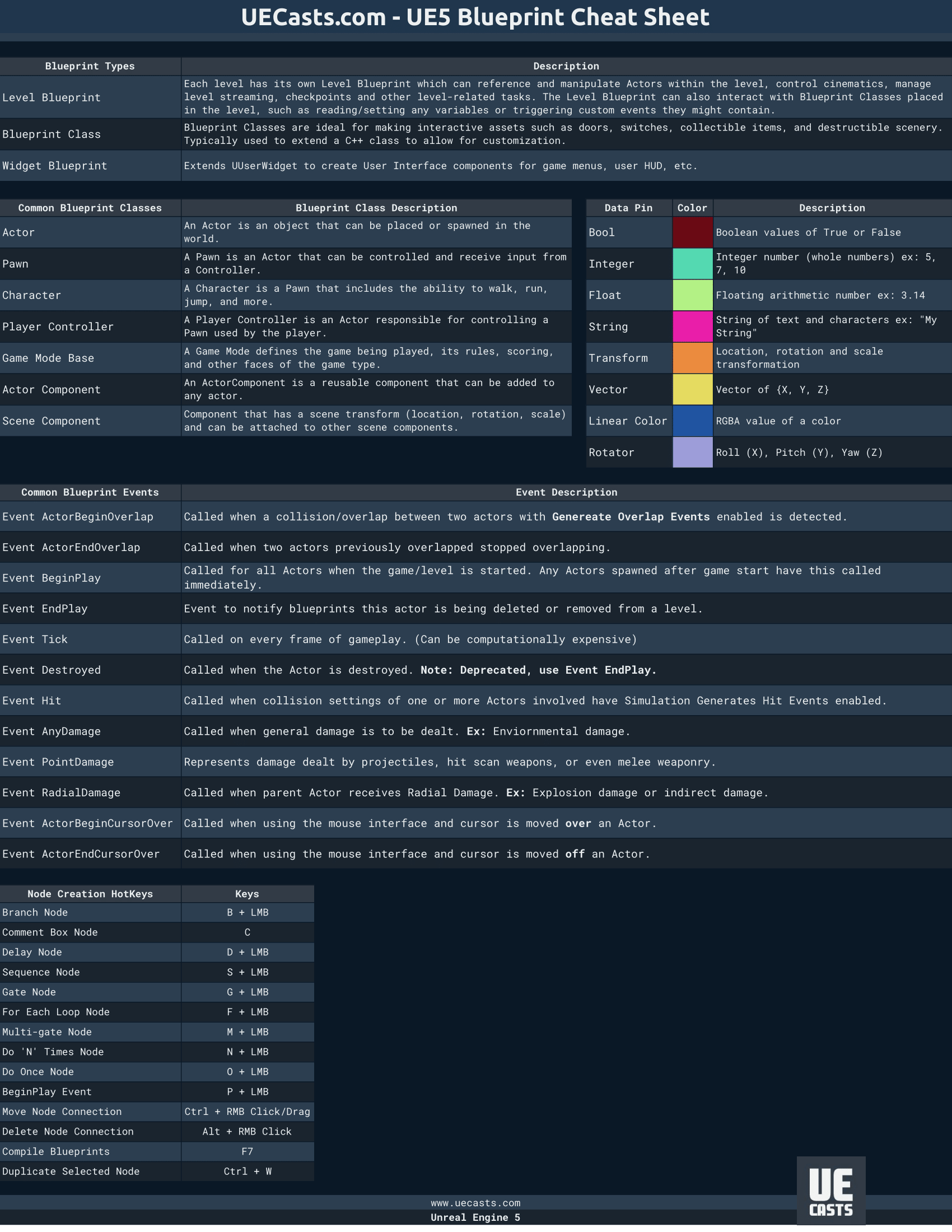 Winslow - Unreal Engine 5 Blueprint CheatSheet Dark Theme
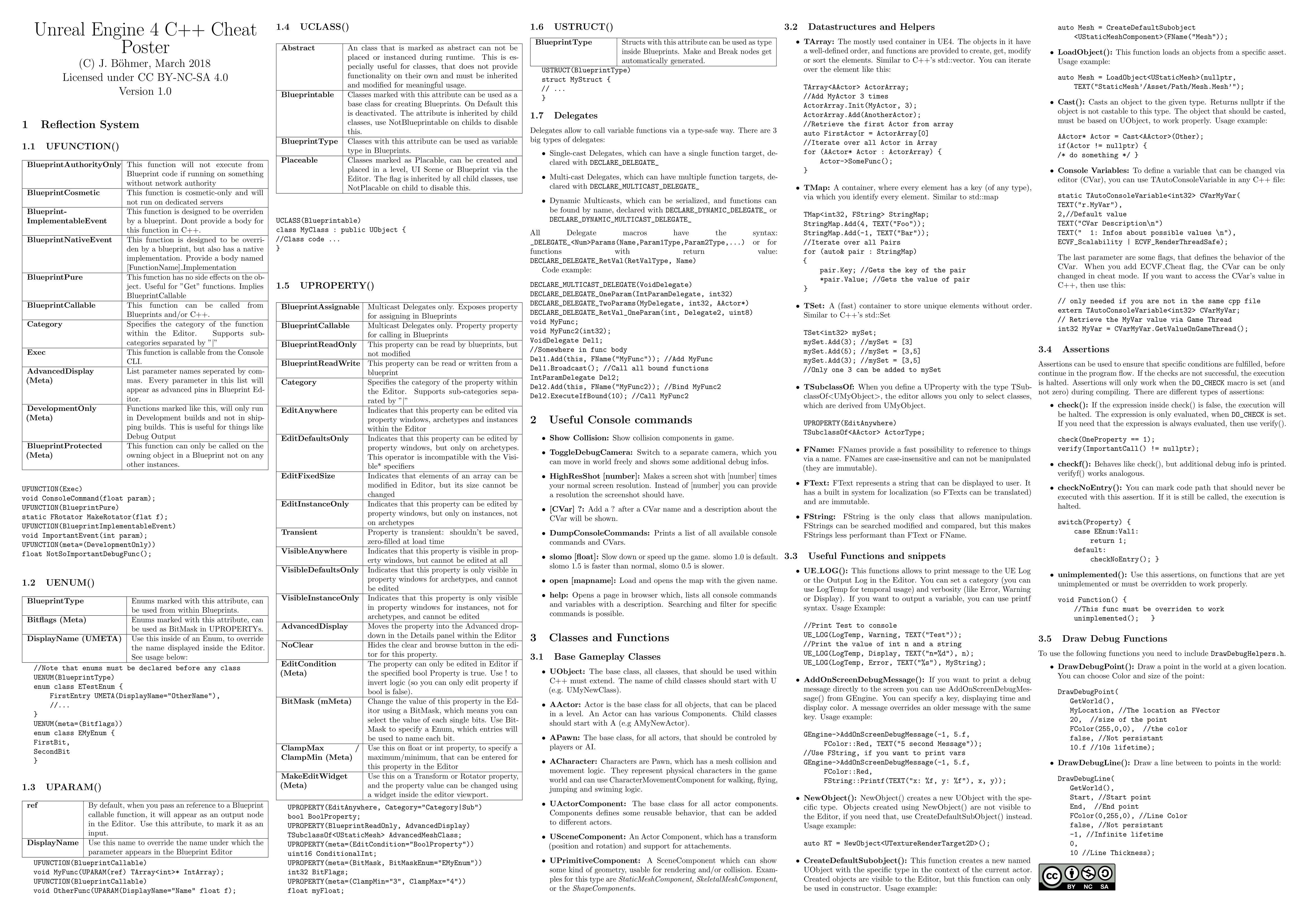
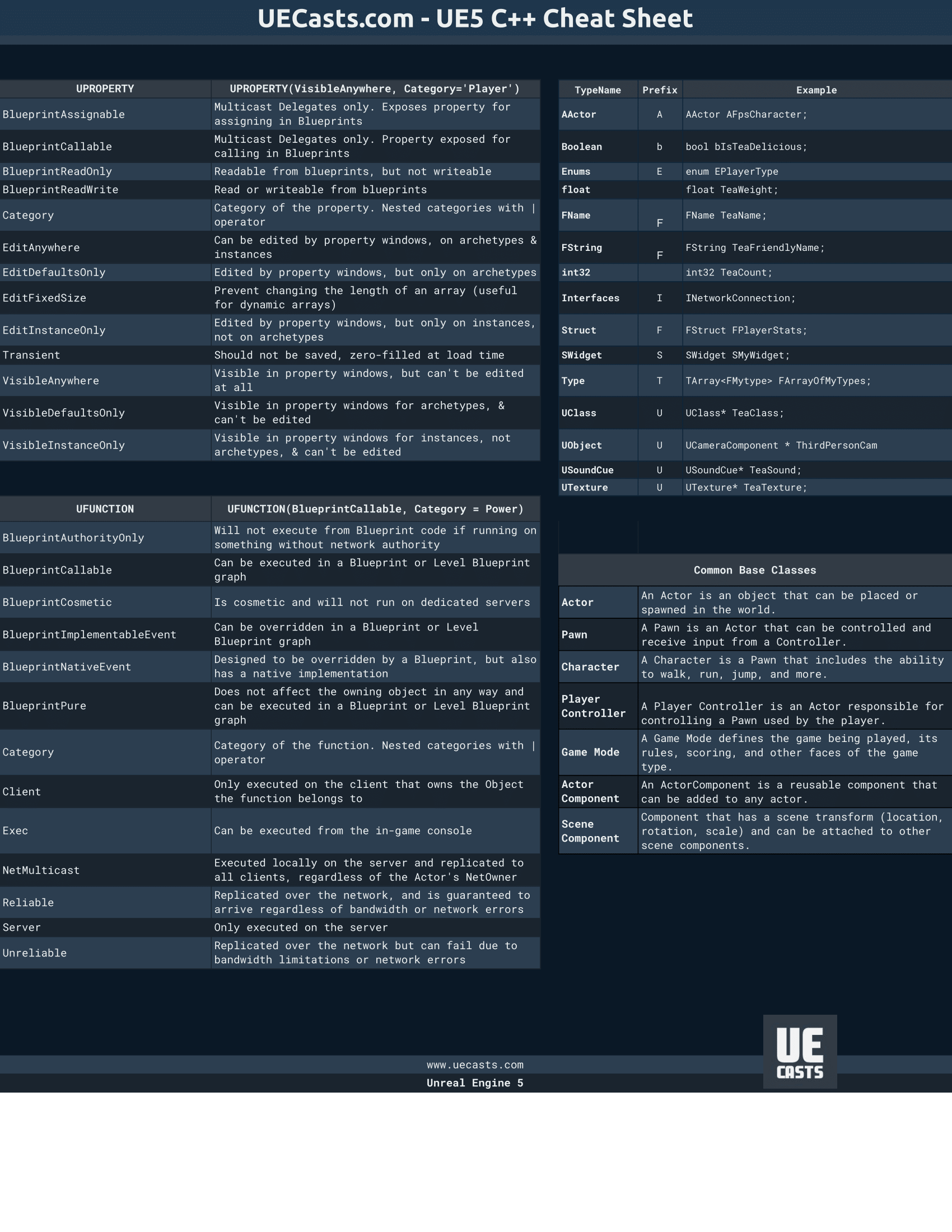 Winslow - Unreal Engine 5 C++ CheatSheet Dark Theme
Over these years, I found some awesome and helpful plugins for extending and improving my productivity.
The plugins that I recommend the most are: Advanced Renamer, Game Input, Common Maps, Quick Actions, ActorLocker, FlatNodes, CrystalNodes, ALS and Audio Meters.
And here is a full list of plugins that I discovered so far:
UDeveloperSettings).I am planning to make more plugins, which you can find me on Github.
| This section was NOT written in conjunction with ChatGPT. |
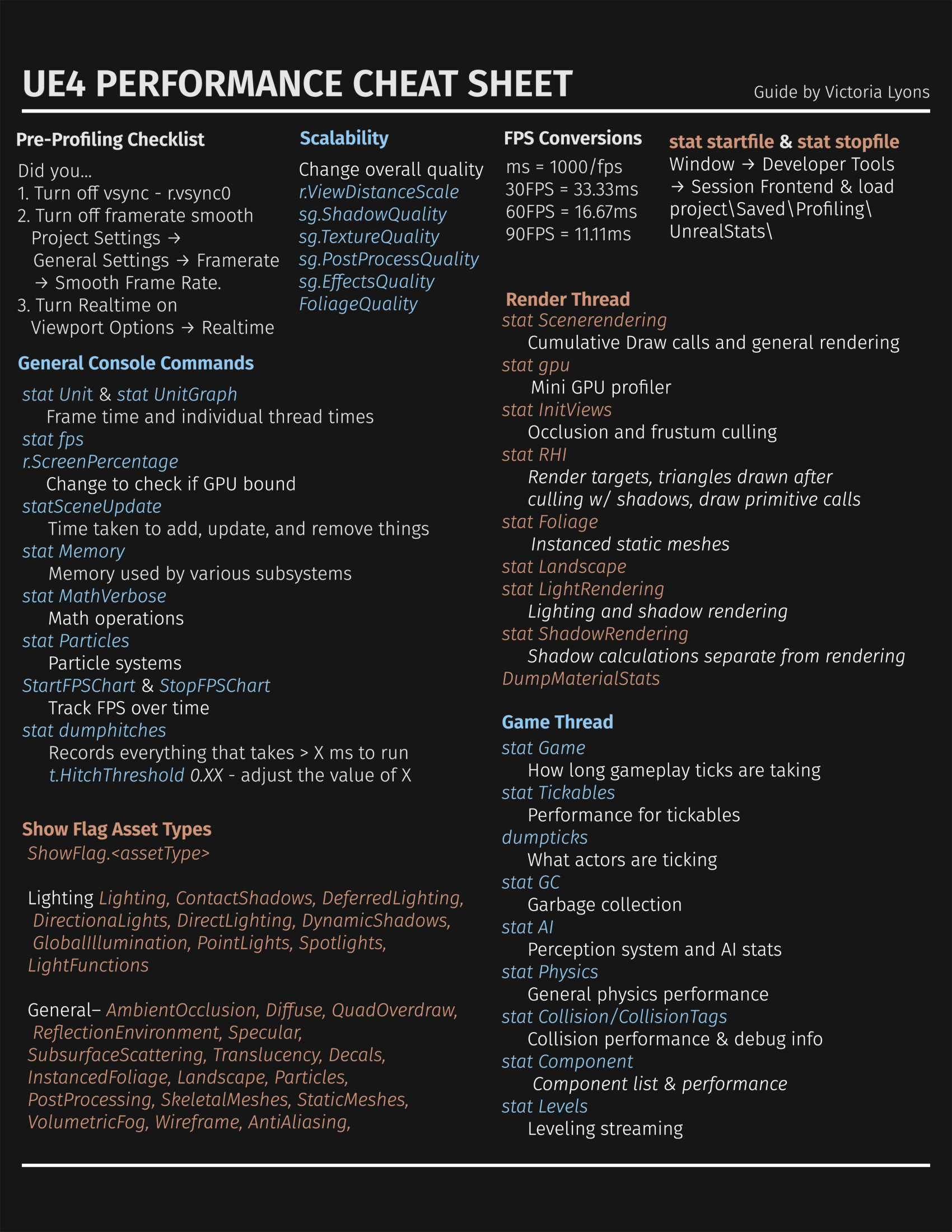
stat fps: Display FPS.stat unit: Display frame time.stat game: Display a general idea on how long the various gameplay ticks are taking.dumpticks: Display a list of current actors, which currently ticks in the level.slomo: To speed up or slow down the game time.obj list: Display a list of current loaded objects.obj list class=BP_PlayerCharacter_C: Same as obj list but with a filter.obj gc: Collect all objects with GC (Garbage Collector).au.Debug.AudioSoloSoundWave: Takes a sound wave name as an additional input, and toggles whether that sound wave is solo (the only audible sound).Here is also a website by Pongrit, which showcase all of Unreal Engine's console commands.
| This section was NOT written in conjunction with ChatGPT. |
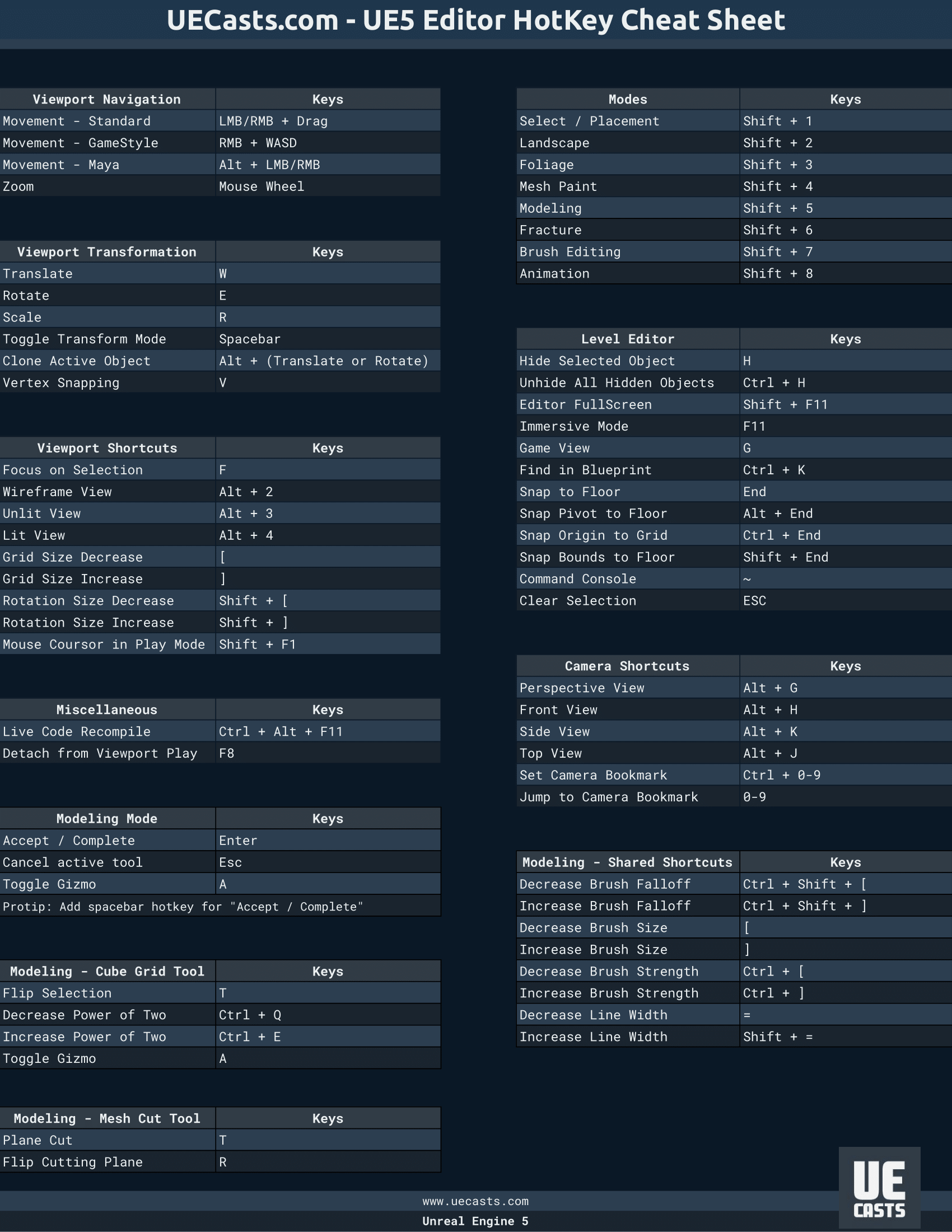
To change any of the shortcuts, you can access the keyboard shortcut settings via Editor Preferences, then under General select Keyboard Shortcuts.
Basic
Outliner
Blueprint editor
Level editing
Camera/transformation
Tools
| This section was written in conjunction with ChatGPT. |
Highly recommend taking a short class of native C++. Here is a video link to ~1h long video tutorial from Mosh.
You can also watch a playlist from GGameDev about getting started with Unreal Engine C++.
C++ is a statically typed, compiled, general-purpose programming language that offers a combination of high-level and low-level features. It was developed by Bjarne Stroustrup at Bell Labs in 1979 as an enhancement to the C language, originally named C[^10] with Classes and later renamed C++ in 1983.
You can read more about C++ Language Reference from Microsoft Learn.
Using C++ with Unreal Engine unlocks the engine's full feature set, allowing developers to harness advanced graphics rendering, physics simulations, networking, and AI capabilities. C++ provides a level of control, customization, and performance optimization that complements visual scripting.
Developing with C++ in Unreal Engine enables better debugging, profiling, and performance optimization through techniques such as multithreading and memory management. It also facilitates integration with third-party libraries, expanding the range of functionality and flexibility available to developers.
You can read more about it on their docs.
To use C++ effectively in Unreal Engine, it is crucial to have a strong foundation in programming principles and understanding of Unreal Engine's architecture and conventions. Leveraging resources like the Unreal Engine documentation, community forums, and collaboration with other developers helps to gain knowledge and best practices.
By combining the power of C++ and Unreal Engine, developers can create immersive experiences and unlock the full potential of the engine's capabilities.
| This section was written in conjunction with ChatGPT. |
An Integrated Development Environment (IDE) is a software application that provides comprehensive tools for writing, debugging, and managing code. IDEs offer a streamlined and feature-rich environment for software development, making it easier for developers to work on their projects efficiently.
Popular IDEs used in Unreal Engine and C++ development include:
Visual Studio: The Visual Studio IDE for Unreal Engine development. It offers a powerful set of C++ tools and seamless integration with Unreal Engine, providing a robust development environment. Free.
Visual Studio Code (VSCode): Visual Studio Code is a lightweight, cross-platform code editor with a rich ecosystem of extensions, including ones for Unreal Engine development. Free.
Rider: Rider is a popular IDE developed by JetBrains, designed for game development, and it offers solid integration with Unreal Engine projects. Cost.
| This section was NOT written in conjunction with ChatGPT. |
Here are some tools that can be integrated into your IDE's for better performance, debugging or writing good code practices.
Visual Assist: A productivity tool for refactoring, reading, writing, navigating and generating C/C++/C# code. Cost and for VS.
UnrealMacroGenerator: Provides a macro editor used by Unreal C ++ of Unreal Engine. You can create macros and edit already written macros. Free and for VS.
| This section was written in conjunction with ChatGPT. |
High performance: C++ allows you to write code that can run directly on the CPU and GPU, making it possible to achieve very high performance levels in your game or application.
Integration with existing codebases: If you have existing C++ code that you want to integrate with your Unreal Engine project, using C++ allows you to do so more easily.
Access to low-level functionality: C++ gives you access to lower-level functionality than other programming languages, which can be especially useful in game development where fine-grained control over memory, data structures, and algorithms is often necessary.
Garbage Collection and Memory Management: While C++ demands manual memory management, Unreal Engine provides a garbage collector that efficiently clears out UObject classes from memory. With the control over manual memory handling, you can precisely dictate when to allocate and deallocate memory as necessary.
| This section was NOT written in conjunction with ChatGPT. |
More prone to errors: C++ is a strongly typed language, requiring the precise use of semicolons, braces and accurate syntax to ensure successful compilation. Rectifying these issues can be time-consuming. On the contrary, the Blueprint's node-based graph system operates without the need for "correct" syntax, offering a more "forgiving" environment.
Tied to Unreal's API: Throughout the evolution of Unreal Engine, Epic Games may modify the source code, rendering certain functions and members as obsolete/deprecated. Consequently, Unreal might recommend the need to update the codebase with the latest API changes. Failure to do so can lead to compilation errors, in the future.
Updating your codebase: When working with C++ and Unreal Engine, your C++ code is compiled into a .DLL (in Windows OS) file that Unreal Engine can read and use within Blueprint graphs. However, this necessitates Unreal Engine to reload to incorporate your code changes. Epic Games has introduced Hot Reload, allowing for code reloading without editor restart, streamlining the development process. While Hot Reload often works for a while, it is unreliable and frequently causes blueprint corruption or other issues.
Requires more storage: When working with C++ within Unreal Engine, it often involves using "Editor Symbols for debugging," consuming approximately 60 GB of storage. Similarly, if you opt to build Unreal Engine from its source code (on their github page), you'll require around 200 GB of storage space.
If you wish to extend your knowledge about C++ and general programming principles and ideology, I highly recommend reading about this section.
| This section was written in conjunction with ChatGPT. |

Choose C++ when you anticipate the need for interaction with other C++ code or require extensive control over low-level optimizations and memory management. C++ is well-suited for classes that require direct access to engine internals and efficient execution.
Use Blueprint as an inherited class when you want to benefit from the visual scripting capabilities and quick prototyping offered by Blueprint, while still having the option to incorporate C++ code in the future. This allows for a flexible approach where you can leverage the power of Blueprint while having the ability to extend functionality with C++ when needed.
| This section was NOT written in conjunction with ChatGPT. |
graph TD;
    UObjectBase-->UObjectBaseUtility;
    UObjectBaseUtility-->UObject;
    UObject-->USubsystem;
    USubsystem-->UDynamicSubsystem;
    USubsystem-->UGameInstanceSubsystem;
    USubsystem-->ULocalPlayerSubsystem;
    USubsystem-->UWorldSubsystem;
    UObject-->UBlueprintFunctionLibrary;
    UObject-->UEngine;
    UEngine-->UEditorEngine;
    UEngine-->UGameEngine;
    UObject-->UPlayer;
    UPlayer-->ULocalPlayer;
    UPlayer-->UNetConnection;
    UObject-->UScriptViewportClient;
    UScriptViewportClient-->UGameViewportClient;
    UObject-->UGameInstance;
    UGameInstance-->UPlatformGameInstance;
    UObject-->UWorld;
    UObject-->UPackage;
    UObject-->ULevel;
    UObject-->UInterface;
    UObject-->USoundBase;
    USoundBase-->USoundCue;
    USoundBase-->USoundWave;
    UObject-->UFXSystemAsset;
    UFXSystemAsset-->UParticleSystem;
    UObject-->UAnimationAsset;
    UAnimationAsset-->UAnimSequenceBase;
    UAnimSequenceBase-->UAnimSequence;
    UObject-->UTexture;
    UTexture-->UTexture2D;
    UTexture-->UMediaTexture;
    UObject-->UMaterial;
    UObject-->UVisual;
    UVisual-->UWidget;
    UWidget-->UUserWidget;
    UUserWidget-->UEditorUtilityWidget;
    UObject-->UDataAsset;
    UDataAsset-->UPrimaryDataAsset;
    UObject-->AActor;
    AActor-->AInfo;
    AInfo-->AGameSession;
    AInfo-->AGameModeBase;
    AGameModeBase-->AGameMode;
    AInfo-->AGameStateBase;
    AGameStateBase-->AGameState;
    AInfo-->AGameNetworkManager;
    AInfo-->AWorldSettings;
    AInfo-->APlayerState;
    AActor-->ALevelScriptActor;
    AActor-->AHUD;
    AActor-->APlayerCameraManager;
    AActor-->AController;
    AController-->AAIController;
    AController-->APlayerController;
    AActor-->APawn;
    APawn-->ADefaultPawn;
    APawn-->ACharacter;
    UObject-->UActorComponent;
    UActorComponent-->UMovementComponent;
    UActorComponent-->USceneComponent;
    USceneComponent-->UAudioComponnent;
    USceneComponent-->UCameraComponent;
    USceneComponent-->ULightComponentBase;
    USceneComponent-->UPrimitiveComponent;
    UPrimitiveComponent-->UMeshComponent;
    UMeshComponent-->UStaticMeshComponent;
    UMeshComponent-->USkinnedMeshComponent;
    USkinnedMeshComponent-->USkeletalMeshComponent;
    UMeshComponent-->UWidgetComponent;
    UPrimitiveComponent-->UShapeComponent;
    UShapeComponent-->UBoxComponent;
    UShapeComponent-->UCapsuleComponent;
    UShapeComponent-->USphereComponent;
When getting started with Unreal Engine and their workflow, it can be intimidating to a class, since there are so many and with different purpose. However, I would argue it too helps grow your skills and experience by learning Unreal's architecture.
Not only do gain knowledge about Unreal, but also how a game engine could work under the hood. Compare to Unity, which is a closed source engine and their "architecture" is quite open to interpretation.
Unreal Engine was also built for creating an FPS multiplayer game. You can find some classes, which were intentionally designed for that FPS game, such as AGameState and APlayerState classes. Which are classes that keep track of match points and health points.
However, you can still use Unreal's architecture for different game genres. Unreal Engine works both for multiplayer and single player games.
Unreal has too many classes, which would take a very long time to explain each one of them. However, there are a couple of important classes, that I should mention:
UClass inherit UStruct
UObject inherit UObjectBaseUtility
UClass.AActor inherit UObject
AActor itself doesn't have a transform (i.e. position in the world), it depends on the transform of the root component.void PreInitializeComponents() - Called before InitializeComponent is called on the actor's components. This is only called during gameplay and in certain editor preview windows.void InitializeComponent() - This will be called only if the component has bWantsInitializeComponentSet. This only happens once per gameplay session.void PostInitializeComponents() - Called after the actor's components have been initialized, only during gameplay and some editor previews.´void BeginPlay() - Called when the level starts ticking, only during actual gameplay. This normally happens right after PostInitializeComponents but can be delayed for networked or child actors.void Tick(float DeltaSeconds) - Function called every frame on this Actor.void EndPlay(const EEndPlayReason::Type EndPlayReason) - Overridable function called whenever this actor is being removed from a levelvoid SetLifeSpan(float InLifespan) - Set the lifespan of actor.void Destroy(bool bNetForce, bool bShouldModifyLevel) - Destroy the actor.void SetActorTickEnabled(bool bEnabled) - Set this actor's tick functions to be enabled or disabled.void SetActorTickInterval(float TickInterval) - Sets the tick interval of this actor's primary tick function.APawn inherit AActor
APawn provides basic possession mechanisms and support for input handling, as well as collision detection and physics simulation.void BeginPlay() - Called when the level starts ticking, only during actual gameplay.void Tick(float DeltaSeconds) - Update function, called every frame on Actor.void EndPlay(const EEndPlayReason::Type EndPlayReason) - Whenever actor is being removed from a levelvoid SetLifeSpan(float InLifespan) - Set the lifespan of actor.void Destroy(bool bNetForce, bool bShouldModifyLevel) - Destroy actor.AHUD inherit AActor
ACharacter inherit APawn
APawn) that have a mesh, collision, and built-in movement logic.UCharacterMovementComponent.ACharacter can be used as a base class for player characters, enemies, and other types of characters in the game.AController inherit AActor
Possess() method, and relinquish control of the pawn by calling UnPossess().GetControlRotation()), determines the viewing/aiming direction of the controlled Pawn and is affected by input such as from a mouse or gamepad.UActorComponent inherit UObject
USceneComponent) and those that can be rendered are PrimitiveComponents (UPrimitiveComponent).UActorComponent doesn't appear in the world.void BeginPlay() - Begins Play for component.void TickComponent(float DeltaTime, enum ELevelTick TickType, FActorComponentTickFunction* ThisTickFunction) - Function called every frame on ActorComponent.void EndPlay(const EEndPlayReason::Type EndPlayReason) - Ends gameplay for component.UMovementComponent inherit UActorComponent
USceneComponent inherit UActorComponent
UAudioComponnent, UCameraComponent.UPrimitiveComponent inherit USceneComponent
USubsystem inherit UObject
UWorld.UWorld and are ticking along with it.UBlueprintFunctionLibrary inherit UObject
UEngine, UEditorEngine and UGameEngine inherit UObject
UGameEngine manages core systems that enable a game.UEditorEngine drives the Editor. Separate from UGameEngine because it may have much different functionality than desired for an instance of a game itself.UGameViewportClient inherit UScriptViewportClient
ULocalPlayer inherit UObject
APlayerController, to manage local player interactions with the game.TSubsystemClass* GetSubsystem() const - Get a Subsystem of specified typeUWorld inherit UObject
void SpawnActor() or void SpawnActorDeferred() - Spawn an actor from it's class. Deferred method will allow you to set actor properties before it's spawned into the world.UGameInstance inherit UObject
AGameMode inherit AGameModeBase
ULevel) in a game can have its own AGameMode, allowing for different game modes to be used in different levels.AGameState inherit AGameStateBase
AGameState can also be used to synchronize game state across multiple clients in a networked game, ensuring that all players have an accurate view of the game world.APlayerState inherit AInfo
UWidget inherit UVisual
UUserWidget inherit UWidget
UUserWidget provides a flexible framework for creating UI elements such as buttons, text fields, and images, and can be customized to implement complex UI behaviors such as animations, transitions, and data binding.UAssetManager inherit UObject
UObject that is responsible for loading and unloading PrimaryAssets, and maintaining game-specific asset references Games should override this class and change the class referenceUDataAsset inherit UObject
UPrimaryDataAsset inherit UDataAsset
GetPrimaryAssetId() and has asset bundle support, which allows it to be manually loaded/unloaded from the AssetManager (UAssetManager).UPrimaryDataAsset provides a base class for creating custom data assets that can be loaded and used by the game at runtime.UPrimaryDataAsset can be used to manage and organize game content, and can be customized to provide additional functionality such as data validation and metadata management.USoundBase inherit UObject
USoundBase can be used to play sound effects, music, and other audio in the game world.USoundBase provides a number of features for controlling the playback of audio, including volume, pitch, and spatialization effects such as 3D sound and reverb.UMaterial inherit UMaterialInterface
UMaterialInstance inherit UMaterialInterface
UMaterialInstanceDynamic inherit UMaterialInstance
UTexture inherit UObject
UTexture2D inherit UTexture
You can read more about Unreal Architecture at their docs.
And for more information about Unreal's Architecture. Then I highly recommend, you can watch underscore about Unreal Engine Architecture video.
You can also watch a video discussion about Multiplayer Framework of Unreal Engine from Kekdot.
[!NOTE] This architecture is based on a multiplayer game setup. However, if you are making a singleplayer game, then you can ignore some of classes. Mainly
APlayerStateandAGameState(as well as their base classes).
You can also watch The Unreal Engine Game Framework: From int main() to BeginPlay by Alex Forsythe, which he talks how Unreal starts your game/editor from the source code. And how these classes work with each other.
You can find more information about Unreal Engine's guideline, both for inside the editor (asset creation), but also their coding standard.
| This section was written in conjunction with ChatGPT. |
There is a github repo, which talks about Unreal's naming convention. The repo is very detailed and explains how you should name your assets, as well as your code. Repo is called Unreal Engine's style guide by Michael Allar.
Unreal Engine follows a specific naming convention that helps maintain consistency and readability in the codebase. When using Naming Conventions, all code and comments should use U.S. English spelling and grammar.
Pascal case is a naming convention used in programming and other contexts where compound words or phrases are created by capitalizing the first letter of each word and joining them without spaces. In Unreal Engine, pascal case is commonly used for naming classes, member variables, functions, and other constructs.
In Unreal Engine, the use of pascal case for classes is part of the naming convention for user-defined classes. When you create a new class in Unreal Engine, it is recommended to use pascal case for the class name. For example:
class AMyPlayerCharacter : public ACharacter
{
    // Class definition here
};
Similarly, pascal case is used for member variables and functions in Unreal Engine to maintain consistency and improve code readability. For example:
class AMyPlayerCharacter : public ACharacter
{
public:
    UPROPERTY()
    float MovementSpeed;

    UFUNCTION()
    void Jump();
};
Boolean variables, which uses a prefix of b followed by a descriptive name in pascal case.
For example, a boolean variable that controls whether a character is running might be named: bIsRunning.
Variable, method, and class names should be:
The greater the scope of the name, the greater the importance of a good, descriptive name. Avoid over-abbreviation.
// what does true mean?
bool CheckTea(FTea Tea);

// name makes it clear true means tea is fresh
bool IsTeaFresh(FTea Tea);
| This section was written in conjunction with ChatGPT. |
|
Common Language features
Unreal Engine features
Networking
Tools/Frameworks
Math
Misc
|
| Prefix | Class | Subclasses |
|---|---|---|
| U | UObject | UActorComponent, UPrimaryDataAsset, UEngine, UGameplayStatics |
| A | AActor | APawn, ACharaacter, AController, AHUD, AGameMode |
| F | Struct | FHitResult, FVector, FRotator, FTableRowBase |
| E | Enum | EEnvQueryStatus, EConstraintType, EEndPlayReason |
| I | Inteface | IInputDevice, IHapticDevice, ITargetPlatform |
| T | Template | TSubclassOf<T>, TArray<T>, TSet<T>, TMap<T>, TMultiMap<T> |
| G | Global Class | GEngine, GConfig, GWorld, GEngineLoop, GIsEditor |
[!TIP] Did you know that
Fprefix actually stands forFloat(floating point). but it was inadvertently spread throughout and has lost its original meaning.
Coding conventions are a set of guidelines for a specific programming language that recommend programming style, practices, and methods for each aspect of a program written in that language.
These are guidelines for software structural quality. Software programmers are highly recommended to follow these guidelines to help improve the readability of their source code and make software maintenance easier.
-- Wikipedia
Enumerated (Enum) classes are a replacement for old-style namespaced enums, both for regular enums and UENUMs. For example:
// Old enum
UENUM()
namespace EThing
{
    enum Type
    {
        Thing1,
        Thing2
    };
}

// New enum
UENUM()
enum class EThing : uint8
{
    Thing1,
    Thing2
}
Enums are supported as UPROPERTYs, and replace the old TEnumAsByte<> workaround. Enum properties can also be any size, not just bytes:
// Old property
UPROPERTY()
TEnumAsByte<EThing::Type> MyProperty;

// New property
UPROPERTY()
EThing MyProperty;
| This section was written in conjunction with ChatGPT. |
Unreal Header Tool (UHT[^2]) is a code generator and reflection system in Unreal Engine. It processes special macros and meta tags in C++ header files and generates additional code to support Unreal Engine's reflection system, which enables various engine features like Blueprint integration, serialization, networking, and more.
Layout:
UPROPERTY([specifier1=setting1, specifier2, ...], [meta=(key1="value1", key2="value2", ...))])
UFUNCTION([specifier1=setting1, specifier2, ...], [meta=(key1="value1", key2="value2", ...))])
UCLASS([specifier1=setting1, specifier2, ...], [meta=(key1="value1", key2="value2", ...))])
USTRUCT([specifier1=setting1, specifier2, ...], [meta=(key1="value1", key2="value2", ...))])
UENUM([specifier1=setting1, specifier2, ...])
UPARAM([specifier1=setting1, specifier2, ...])
UMETA([specifier1=setting1, specifier2, ...])
| Macro | Description | Use Case |
|---|---|---|
| UPROPERTY | Specifies properties of a class member, such as replication, serialization, editability, and blueprint visibility. | Used to define properties of variables within a class to control how they are handled by Unreal Engine systems. |
| UFUNCTION | Identifies a C++ function that can be accessed and called from Blueprint visual scripting or other systems in Unreal Engine. | Used to expose C++ functions to Blueprint for easy use in visual scripting and integration with Unreal Engine. |
| UCLASS | Defines a C++ class that is exposed to Unreal Engine's reflection system, allowing it to be used in Blueprint and other engine features. | Used to define classes that can be used in Blueprint and integrated into Unreal Engine systems like the Editor. |
| USTRUCT | Specifies a C++ struct that can be used with Unreal Engine's reflection system, making it usable in Blueprint and other engine features. | Used to define structs that can be used in Blueprint and integrated into Unreal Engine systems like the Editor. |
| UENUM | Defines a C++ enumeration that can be used with Unreal Engine's reflection system, making it usable in Blueprint and other engine features. | Used to define enumerations that can be used in Blueprint and integrated into Unreal Engine systems like the Editor. |
| UPARAM | Specifies how a function parameter should be treated when used in Blueprint or other Unreal Engine systems. | Used to define parameter properties, such as Blueprint read/write access, in C++ functions exposed to Blueprint. |
| UMETA | Provides additional metadata for UPROPERTY, UFUNCTION, UCLASS, USTRUCT, and UENUM, allowing customization of their behavior in Unreal Engine's reflection system. | Used to attach additional information or customizations to C++ entities exposed to Unreal Engine reflection. |
UPROPERTY is a macro used to declare a property within a class that needs to be exposed to the Unreal Engine's reflection system. It allows the property to be accessed and modified by the engine and Blueprint scripts.
EditAnywhere: Allows the property to be edited in the editor and during runtime for all instances of the class.
EditDefaultsOnly: Permits editing the property only for the class's default object in the editor.
EditInstanceOnly: Enables editing the property only for instances of the class during runtime.
VisibleAnywhere: Displays the property value in the editor for all instances of the class.
VisibleDefaultsOnly: Shows the property value in the editor for the class's default object.
VisibleInstanceOnly: Displays the property value in the editor only for instances of the class.
BlueprintReadOnly: Exposes the property to Blueprint scripts, but only for reading, not writing.
BlueprintReadWrite: Exposes the property to Blueprint scripts for both reading and writing.
Category: Organizes properties into named categories in the editor for better organization and readability.
EditFixedSize: Specifies that an TArray or TMap property should be editable in the Details Panel of the editor with a fixed number of elements, preventing addition or removal.
Transient: Indicates that a property should not be serialized, making it non-persistent and not saved when saving the state of the object.
Replicated: Automatically replicates the property's value to clients in a multiplayer environment when the property changes on the server.
ReplicatedUsing: Specifies a custom function that should be called on both the server and clients to handle replication of the property's value.
SimpleDisplay: Indicates that the property's value should be displayed in a simple and concise manner in editor UI.
AdvancedDisplay: Indicates that the property's value should be displayed with advanced options in editor UI.
Config: Marks the property to be serialized to the project configuration file for external customization.
GlobalConfig: Marks the property to be serialized to the global configuration file for external customization across all projects.
DisplayName: Sets a custom display name for the property in the editor.
Tooltip: Provides a tooltip description for the property in the editor.
ClampMin: Sets the minimum allowed value for the property in the editor.
ClampMax: Sets the maximum allowed value for the property in the editor.
AllowPrivateAccess: Allows access to private members within the class it belongs to.
Units: Provides a human-readable unit label for the property in the editor.
ForceUnits: Forces the units to be set. Rather than the editor deciding on what it wants instead.
UPROPERTY(EditAnywhere, Category="Hello|Cruel|World")
int32 EditAnywhereNumber;
UPROPERTY(Transient, Replicated)
int32 CurrentHealth;

UPROPERTY(Transient, ReplicatedUsing=OnArmorChanged)
int32 CurrentArmor;

UFUNCTION()
void OnArmorChanged();
UPROPERTY(EditAnywhere, SimpleDisplay)
int32 MaxHealth = 100;

UPROPERTY(EditAnywhere, AdvancedDisplay)
float HealthRegenerationTime = 5.0f;
// Must mark UCLASS with Config specifier

// Config can be overriden from the base class.
UPROPERTY(Config, BlueprintReadOnly)
bool bRegenerateHealth;

// GlobalConfig CANNOT be overridden from the base class.
UPROPERTY(GlobalConfig, BlueprintReadOnly)
bool bEnableHealthSimulation;
UPROPERTY(EditAnywhere, EditFixedSize)
TArray<FName> Usernames = { TEXT("JohnDoe"), TEXT("MrRobin"), TEXT("JaneDoe") };
UPROPERTY(EditAnywhere, meta=(Units="Celsius"))
float CookingTemperature;

UPROPERTY(EditAnywhere, meta=(Units="Kilograms"))
float TigerWeight;

UPROPERTY(EditAnywhere, meta=(Units="GB"))
float DiskSpace;

UPROPERTY(EditAnywhere, meta=(Units="Percent"))
float Happiness;

UPROPERTY(EditAnywhere, meta=(Units="times"))
float Deliciousness;
You can read more about UPROPERTY by BenUi.
UFUNCTION is a macro used to declare a function within a class that needs to be exposed to the Unreal Engine's reflection system. It allows the function to be used in Blueprint scripts and network replication.
BlueprintCallable: Exposes the function to Blueprint scripts, allowing it to be called from within Blueprint graphs.
BlueprintPure: Indicates that the function is a pure computation and does not modify any state, making it safe to use in Blueprint graphs without side effects.
BlueprintImplementableEvent: Serves as a placeholder function in C++ that can be overridden and implemented in Blueprint.
BlueprintNativeEvent: Similar to BlueprintImplementableEvent, but it also provides a C++ implementation that can be optionally overridden in Blueprint.
Category: Organizes properties into named categories in the editor for better organization and readability.
DisplayName: Sets a custom display name for the function in the editor.
Tooltip: Provides a tooltip description for the function in the editor.
ShortToolTip: Provides a short tooltip description for the function in the editor.
AllowPrivateAccess: Allows access to private members within the class it belongs to.
HideSelfPin: Hides the "self" pin, which indicates the object on which the function is being called. The "self" pin is automatically hidden on BlueprintPure functions that are compatible with the calling Blueprint's Class. Functions that use the HideSelfPin Meta Tag frequently also use the DefaultToSelf Specifier.
BlueprintInternalUseOnly: This function is an internal implementation detail, used to implement another function or node. It is never directly exposed in a Blueprint graph.
BlueprintProtected: This function can only be called on the owning Object in a Blueprint. It cannot be called on another instance.
DeprecatedFunction: Any Blueprint references to this function will cause compilation warnings telling the user that the function is deprecated. You can add to the deprecation warning message (for example, to provide instructions on replacing the deprecated function) using the DeprecationMessage metadata specifier.
UFUNCTION(BlueprintPure)
int32 BlueprintPureFunction();

UFUNCTION(BlueprintCallable)
int32 BlueprintCallableFunction();

UFUNCTION(BlueprintCallable)
int32 BlueprintCallableConstFunction() const;

UFUNCTION(BlueprintPure=false)
int32 BlueprintPureFalseFunction() const;
UFUNCTION(BlueprintCallable, Category = "Doggy Daycare", meta=(ReturnDisplayName = "Success"))
bool TryPetDog(const FName Name);
You can read more about UPROPERTY by BenUi.
UCLASS is a macro used to declare a class that is intended to be used in Unreal Engine's reflection system. It allows the class to be instantiated, exposed to Blueprint, and used in various engine systems.
Blueprintable: Allows the class to be used as a blueprint in the editor.
BlueprintType: Specifies that the class can be instantiated and manipulated in Blueprint scripts.
Abstract: Indicates that the class is an abstract class and cannot be instantiated directly.
Transient: Excludes the class from being serialized and saved in the game's persistent data.
MinimalAPI: Restricts the class's visibility for export, making it more suitable for engine internal use.
NotBlueprintType: Prevents the class from being used as a blueprint.
DisplayName: Sets a custom display name for the class in the editor.
ToolTip: Provides a tooltip description for the class in the editor.
HideCategories: Hides specific property categories from being displayed in the editor.
ClassGroup: Assigns the class to a specific group in the editor's class picker.
IncludePath: Specifies the include path for the generated code of the class.
BlueprintSpawnableComponent: Marks a class derived from USceneComponent as spawnable in Blueprint.
UCLASS(Blueprintable)
class MyActor : public AActor
{
    GENERATED_BODY()

public:
    UPROPERTY(EditAnywhere, BlueprintReadWrite, Category = "MyActor")
    int32 MyIntProperty;

    UPROPERTY(EditAnywhere, BlueprintReadWrite, Category = "MyActor")
    float MyFloatProperty;

    UPROPERTY(EditAnywhere, BlueprintReadWrite, Category = "MyActor")
    FString MyStringProperty;

    UPROPERTY(EditAnywhere, BlueprintReadWrite, Category = "MyActor")
    FMyStruct MyStructProperty;
};
You can read more about UCLASS by BenUi.
USTRUCT is a macro used to declare a C++ struct that is intended to be used in Unreal Engine's reflection system. It enables the struct to be used as a property within UCLASSes and exposed to Blueprint.
BlueprintType: Specifies that the structure can be used in Blueprint scripts.
Atomic: Ensures that the structure is treated as an atomic type for replication in multiplayer games.
NotReplicated: Excludes the structure from being replicated across the network.
DisplayName: Sets a custom display name for the structure in the editor.
ToolTip: Provides a tooltip description for the structure in the editor.
Category: Specifies the category in which the structure will appear in the editor.
USTRUCT(BlueprintType)
struct FMyStruct
{
    GENERATED_BODY()

    UPROPERTY(BlueprintReadWrite, Category = "MyStruct")
    int32 Value1;

    UPROPERTY(BlueprintReadWrite, Category = "MyStruct")
    FString Value2;
};
You can read more about USTRUCT by BenUi.
UENUM is a macro used to declare an enumeration that is intended to be used in Unreal Engine's reflection system. It allows the enumeration to be exposed to Blueprint and used within UCLASSes.
BlueprintType: Specifies that the enumeration can be used in Blueprint scripts.
DisplayNames: Specifies a list of custom display names for each enumeration value in the editor.
DisplayName: Sets a custom display name for the enumeration in the editor.
ToolTip: Provides a tooltip description for the enumeration in the editor.
Hidden: Hides the enumeration from being displayed in the editor.
Bitflags: Indicates that the enumeration represents a set of bit flags.
EnumRange: Specifies the minimum and maximum values for the enumeration.
UENUM(BlueprintType)
enum class EWeaponType
{
    Sword         UMETA(DisplayName = "Sword Weapon"),
    Axe           UMETA(DisplayName = "Axe Weapon"),
    Bow           UMETA(DisplayName = "Bow Weapon"),
    Wand          UMETA(DisplayName = "Magic Wand"),
};
You can read more about UENUM by BenUi.
UPARAM is a macro used to provide additional information to the Unreal Header Tool. It is used with parameters of UFUNCTION and UPROPERTY to specify how the engine should handle the data.
UPARAM(Ref): Used to mark a parameter that is passed by reference. It ensures that the parameter is treated as a reference during code generation, which may affect how the engine handles the parameter.
UPARAM(DisplayName): Used to set a custom display name for a function parameter when it appears in the editor's Blueprint node graph.
UPARAM(BlueprintCallable, BlueprintPure): Used to apply multiple specifiers to a function parameter. For example, to mark a parameter as both BlueprintCallable and BlueprintPure.
UPARAM(meta = (CustomMetaTag)): Allows developers to create custom meta tags and use them in function parameters to provide additional information to the Unreal Header Tool.
UCLASS()
class MyActor : public AActor
{
    GENERATED_BODY()

public:
    // A function that takes a parameter passed by reference
    UFUNCTION(BlueprintCallable, Category = "MyActor")
    void ModifyValue(UPARAM(Ref) int32& ValueToModify)
    {
        // Modify the value passed by reference
        ValueToModify *= 2;
    }
};
You can read more about UPARAM by BenUi.
UMETA is a macro used to specify additional metadata for an UENUM entry. It allows adding custom information to enum values for use in Blueprint, UI, and other engine systems.
DisplayName: Sets a custom display name for the enumeration value in the editor.
ToolTip: Provides a tooltip description for the enumeration value in the editor.
Hidden: Hides the enumeration value from being displayed in the editor.
DisplayPriority: Specifies the display priority for the enumeration value in the editor.
DisplayThumbnail: Allows attaching a custom thumbnail image to the enumeration value in the editor.
CustomMetaData: Specifies custom metadata that developers can define and use as needed.
UENUM(BlueprintType)
enum class EMyEnum
{
    Value1 UMETA(DisplayName = "First Value", ToolTip = "This is the first value"),
    Value2 UMETA(DisplayName = "Second Value", ToolTip = "This is the second value"),
    Value3 UMETA(Hidden),
};
You can read more about UMETA by BenUi.
| This section was written in conjunction with ChatGPT. |

In C++ native, you write a character by using char data type:
char myChar = 'a';
In Unreal, there are couples or char data types:
ANSICHAR - An ANSI character. Normally a signed type.WIDECHAR - A wide character. Normally a signed type.TCHAR - Either ANSICHAR or WIDECHAR, depending on whether the platform supports wide characters or the requirements of the licensee.UTF8CHAR - An 8-bit character containing a UTF8 (Unicode, 8-bit, variable-width) code unit.UTF16CHAR - An 16-bit character containing a UTF16 (Unicode, 16-bit, variable-width) code unit.UTF32CHAR - An 32-bit character containing a UTF32 (Unicode, 32-bit, fixed-width) code unit.When working with Unreal, you are typical going to work with TCHAR data type as a char type.
Define TCHAR:
TCHAR MyChar = 'A';
And to use the extra functions for these data types, you must use:
FChar for TCHARFCharWide for WIDECHARFCharAnsi for ANSICHARHere's a list of functions, you can access from FChar:
ToUpper() - Only converts ASCII characters.ToLower() - Only converts ASCII characters.IsUpper() - Returns a boolean if the character is an uppercase letter.IsLower() - Returns a boolean if the character is a lowercase letter.IsAlpha() - Returns a boolean if the character is an alphabetic letter.IsGraph() - Returns a boolean if the character is a graphic character (printable and not a space).IsPrint() - Returns a boolean if the character is a printable character (including whitespace).IsPunct() - Returns a boolean if the character is a punctuation character (neither alphanumeric nor a whitespace).IsAlnum() - Returns a boolean if the character is an alphanumeric character (a letter or a digit).IsDigit() - Returns a boolean if the character is a hexadecimal digit (0-9, a-f or A-f).IsHexDigit() - Returns a boolean if the character is a decimal digit (0-9).IsWhitespace() - Returns a boolean if the character is a whitespace character (space, tab, newline, carriage return, vertical tab or form feed).IsControl() - Returns a boolean if the character is a control character (non-printing).IsOctDigit() - Returns a boolean if the character is an octal digit (0-7).ConvertCharDigitToInt() - Converts a character representing a decimal digit to an integer.IsIdentifier() - Returns a boolean if the character is an alphanumeric or underscore character.IsUnderscore() - Returns a boolean if the character is an underscore.ToUnsigned() - Convert a character to an unsigned integer to avoid sign extension problems with signed characters smaller than int.Include the header file:
#include "Misc/Char.h"
Here's an example, of using these functions from FChar:
TCHAR MyChar = 'a';

MyChar = FChar::ToUpper(MyChar); // MyChar: A

bool bIsDigit = FChar::IsDigit(MyChar); // false
bool bIsDigit = FChar::IsAlpha(MyChar); // true
You can read more about TCHAR on Unreal's docs.
// Unreal uses a 'b' prefix for booleans (always in lowercase).
bool bIsDead = true;
In C++ native, you write a integer by using int data type:
int health = 10;
In Unreal, you write a integer by using int32:
int32 Health = 10;
In Unreal, the availability of different integer types such as int8, int16, and int64 alongside the standard int32 provides developers with a range of options tailored to specific needs in terms of both data size and numerical range.
int8 NumberA = 0;       // -128                             ->      127
int16 NumberB = 0;      // -32,768                           ->      32,767
int32 NumberC = 0;      // -2,147,483,648                   ->      2,147,483,647
int64 NumberD = 0;      // 9,223,372,036,854,775,808        ->      9,223,372,036,854,775,807
You also have unsigned (positive-only) integers as well:
uint8 NumberA = 0;      // 0    ->      255
uint16 NumberB = 0;     // 0    ->      65,535
uint32 NumberC = 0;     // 0    ->      4,294,967,295
uint64 NumberD = 0;     // 0    ->      18,446,744,073,709,551,615
// C++ always uses 'f' or 'F' literal for defining a float variable.
float SpeedInMetersPerSecond = 5.5f;
// C++ never uses a literal for defining a double variable.
double SpeedInMetersPerSecond = 5.5;
It is generally recommended to use Unreal's typedefs, such as int32 instead of int for representing 32-bit signed integers. This is because the exact size of int is not defined by the C++ standard.
C++ implementation can define the size of a data type in bytes (sizeof(type)) to be any value, as long as:
sizeof(type) * CHAR_BIT evaluates to a number of bits high enough to contain required ranges.sizeof(int) <= sizeof(long)).The CHAR_BIT is the number of bits in char. It is declared in “limits.h” header file in C++ language. It is of 8-bits per byte.
You can read more about data ranges in this section.
So, the summary data sizes would be:
|
You can read more in-depth about this from Alex on Stack Overflow.
Here's a full list of Unreal's data type sizes:
| Data Type | Signed | Size (bytes) |
|---|---|---|
bool | - | NEVER assume the size |
TCHAR | - | NEVER assume the size |
uint8 | false | 1 |
int8 | true | 1 |
uint16 | false | 2 |
int16 | true | 2 |
uint32 | false | 4 |
int32 | true | 4 |
uint64 | false | 8 |
int64 | true | 8 |
float | true | 4 |
double | true | 8 |
In Unreal Engine, instead of writing signed long long for a 64-bit integer, you can now write int64 instead. These aliases are called typedefs, which you can read more about typedef keyword in C++ docs.
You can read more about C++ typedefs in this section.
Here is a full list of Unreal Engine's typedefs:
//~ Unsigned base types.
/// An 8-bit unsigned integer.
typedef FPlatformTypes::uint8		uint8;
/// A 16-bit unsigned integer.
typedef FPlatformTypes::uint16		uint16;
/// A 32-bit unsigned integer.
typedef FPlatformTypes::uint32		uint32;
/// A 64-bit unsigned integer.
typedef FPlatformTypes::uint64		uint64;

//~ Signed base types.
/// An 8-bit signed integer.
typedef	FPlatformTypes::int8		int8;
/// A 16-bit signed integer.
typedef FPlatformTypes::int16		int16;
/// A 32-bit signed integer.
typedef FPlatformTypes::int32		int32;
/// A 64-bit signed integer.
typedef FPlatformTypes::int64		int64;

//~ Character types.
/// An ANSI character. Normally a signed type.
typedef FPlatformTypes::ANSICHAR	ANSICHAR;
/// A wide character. Normally a signed type.
typedef FPlatformTypes::WIDECHAR	WIDECHAR;
/// Either ANSICHAR or WIDECHAR, depending on whether the platform supports wide characters or the requirements of the licensee.
typedef FPlatformTypes::TCHAR		TCHAR;
/// An 8-bit character containing a UTF8 (Unicode, 8-bit, variable-width) code unit.
typedef FPlatformTypes::UTF8CHAR	UTF8CHAR;
/// A 16-bit character containing a UCS2 (Unicode, 16-bit, fixed-width) code unit, used for compatibility with 'Windows TCHAR' across multiple platforms.
typedef FPlatformTypes::CHAR16		UCS2CHAR;
/// A 16-bit character containing a UTF16 (Unicode, 16-bit, variable-width) code unit.
typedef FPlatformTypes::CHAR16		UTF16CHAR;
/// A 32-bit character containing a UTF32 (Unicode, 32-bit, fixed-width) code unit.
typedef FPlatformTypes::CHAR32		UTF32CHAR;

/// An unsigned integer the same size as a pointer
typedef FPlatformTypes::UPTRINT UPTRINT;
/// A signed integer the same size as a pointer
typedef FPlatformTypes::PTRINT PTRINT;
/// An unsigned integer the same size as a pointer, the same as UPTRINT
typedef FPlatformTypes::SIZE_T SIZE_T;
/// An integer the same size as a pointer, the same as PTRINT
typedef FPlatformTypes::SSIZE_T SSIZE_T;

/// The type of the NULL constant.
typedef FPlatformTypes::TYPE_OF_NULL	TYPE_OF_NULL;
/// The type of the C++ nullptr keyword.
typedef FPlatformTypes::TYPE_OF_NULLPTR	TYPE_OF_NULLPTR;
[!WARNING]
uint16,uint32,uint64,int8,int16anddoubleare not supported with UHT[^2]. Meaning, can't expose to Blueprint.
String in programming languages are fundamental data types used to represent and manipulate sequences of characters, such as words, sentences, or even binary data. They are extensively used in various programming tasks, including input/output operations, text processing, data serialization, and more.
In Unreal Engine, strings play a crucial role in handling text-based information within the game or application. Unreal Engine provides several string-related classes to cater to different use cases and requirements.
You can read more about string handling from the docs.
|
In Unreal Engine, FName is a specialized type used for identifying objects within the Unreal Engine object system. It is optimized for fast comparison and storage and is commonly used for referencing actors, components, or assets in a performance-efficient manner.
The FName class stores strings as hashed indices, making it a lightweight and fast alternative to regular strings. Because of this, FName are immutable string class.
Here's an example:
Include the header file:
#include "UObject/NameTypes.h"
Declare FName:
FName MyName = FName(TEXT("PlayerName"));
| This section was NOT written in conjunction with ChatGPT. |
FText is a specialized string class designed for localization support in Unreal Engine. Because of this, FText are immutable string class. FText provides the ability to represent text in different languages and cultures, making it a crucial component for building multi-language games or applications.
You can read more about it on Unreal's docs.
Here's an example:
Include the header file:
#include "Internationalization/Text.h"
Declare FText from a string literal (non-localized):
// Avoid this! Since this cost more performance than initializing directly as FText.
FText NewGameText = FText::FromString(TEXT("New Game"));
To use a multi-line FText inside Unreal Editor, you can specify UPROPERTY with meta tag of Multiline:
UPROPERTY(EditAnywhere, Category = "Details", meta = (MultiLine = "true"))
FText Description;
Declare FText from INVTEXT() macro. Which creates a culture invariant FText from a string literal:
FText TooltipText = INVTEXT("Tooltip Text");

/*
    Inside Unreal Engine source code:

    // Creates a culture invariant FText from the given string literal.
    #define INVTEXT(InTextLiteral) FText::AsCultureInvariant(TEXT(InTextLiteral))
*/

// So, FText::AsCultureInvariant does the same thing as INVTEXT() macro.
FText NewTooltipText = FText::AsCultureInvariant(TEXT("This is another tooltip text"));
// Define the namespace to use with LOCTEXT
// This is only valid within a single file, and must be undefined before the end of the file
#define LOCTEXT_NAMESPACE "MyNamespace"
// Create text literals
FText PlayGameText = LOCTEXT("PlayGame", "Spiel beginnen"); // German langauge

// Helpful in the editor to localize the text into another language.
FText QuitGameText = NSLOCTEXT("StartMenu", "QuitGame", "Avsluta spelet"); // Swedish language

uint32 VersionNumber = 1405476850;
FText MachineOS = INVTEXT("Windows 11 Pro, 22H2, 22621.2215");
FText UserName = INVTEXT("MrRobin");
int32 UserAge = 22;
int32 SpeedInKph = 30;
int32 FuelInPercentage = 80;

// Formatting with FText. The supported types is: int32, uint32, float, double, FText, ETextGender.
FText VersionMessageText = FText::Format(
    LOCTEXT("VersionMessage", "You current version is {0} and is running on {1}"),
    VersionNumber,
    MachineOS
);

// FString also has FString::Prinf() function for formatting. FString::Prinf() is also similar to the native C++ sprintf() function.

// Use FFormatNamedArguments for organizing the FText::Format function.
FFormatNamedArguments Args;
Args.Add(TEXT("Name"), UserName);
Args.Add(TEXT("Age"), UserAge);
FText UserText = FText::Format(LOCTEXT("UserData", "User's name is {UserName} and is {Age} years old."), Args);

// You can also use FText::FormatNamed() function for formatting as well. Great for inlining the code.
FText CarMessageText = FText::FormatNamed(
    LOCTEXT("VehicleMessage", "You current speed is {Speed} and the fuel is at {Fuel}%"),
    TEXT("Speed"), SpeedInKph,
    TEXT("Fuel"), FuelInPercentage
);

#undef LOCTEXT_NAMESPACE // Undefine the current namespace
You can convert specific data type into FText format. For an example, can you use FText::AsNumber() to convert a number into FText with specific FNumberFormattingOptions formatting options.
Here's an example:
float Health = 99.8999f; // We want to round this up, like this: 100.00

bool bIncludeLeadingZero = true;
int32 Precision = 2; // Number of decimals after decimal point. (0.00)

FNumberFormattingOptions NumberFormat;
NumberFormat.MinimumIntegralDigits = (bIncludeLeadingZero) ? 1 : 0;
NumberFormat.MaximumIntegralDigits = 10000;
NumberFormat.MinimumFractionalDigits = Precision;
NumberFormat.MaximumFractionalDigits = Precision;

FText NumberText = FText::AsNumber(Health, &NumberFormat);
NumberText = FText::AsCultureInvariant(NumberText); // Disable the culture formatting
[!NOTE] By default, Unreal will use local culture when doing this format. If you wish to disable culture formatting, use
FText::AsCultureInvariantfunction.
FString is a dynamic, mutable string type in Unreal Engine, which provides a more flexible approach to string manipulation. Unlike FName, FString allows for modifications, such as appending, inserting, or removing characters, making it suitable for general string operations. It is widely used for various tasks, such as displaying messages, concatenating text, or formatting output strings.
Example usage:
#include "Containers/UnrealString.h"

FString MyString = FString("Hello, World!");
Replace a substring with another in a FString:
FString OriginalString = FString("Hello, my friend.");
OriginalString.ReplaceInline(TEXT("friend"), TEXT("buddy")); // Output: "Hello, my buddy."
Split a FString into an array of substrings using a delimiter:
FString Sentence = FString("This is a sentence.");
TArray<FString> Words;
Sentence.ParseIntoArray(Words, TEXT(" "), true); // Output: ["This", "is", "a", "sentence."]
Reverse a FString:
FString Text = FString("abcde");
Text.ReverseString(); // Output: "edcba"
| Data Type | Description | Use Case |
|---|---|---|
FName | A fast and lightweight name identifier for objects in Unreal Engine. | Best used for identifying assets and objects within the engine to save memory and improve performance. |
FText | A localized string that supports text localization and provides text display features. | Ideal for displaying text to users in the game, supporting multiple languages and localization. |
FString | A dynamic string that can be modified and used for general-purpose string manipulation. | Suitable for general text handling and string operations within the game code. |
[!NOTE] In Unreal Engine 5.0+, by default, all math related data types are using
doubleas backend data type. This allows Unreal to support large world coordinates (LWC).
A struct representing a 4D vector, consisting of four float values for the X, Y, Z, and W components.
Declare and initialize a FVector4:
FVector4 MyVector = FVector(1.0f, 2.0f, 3.0f, 4.0f);
You can also initalize by an pre-made vector:
FVector4 OldLocation = FVector4::ZeroVector; // (0, 0, 0)
FVector4 NewLocation = FVector4::OneVector; // (1, 1, 1)
[!NOTE] Use
FVector4fforfloatandFVector4dfordouble, as explicit data type for the backend conversion.
To use the integer version of FVector4:
FIntVector4 IntVector4; // Default to 32-bit
FInt32Vector4 Int32Vector4; // 32-bit
FInt64Vector4 Int64Vector4; // 64-bit

FUintVector4 UintVector4; // Default to unsigned 32-bit
FUint32Vector4 Uint32Vector4; // Unsigned 32-bit
FUint64Vector4 FUint64Vector4; // Unsigned 64-bit
A struct representing a 3D vector, consisting of three float values for the X, Y, and Z components. It is often used to represent position or direction in 3D space, and provides many useful functions such as vector addition, subtraction, normalization, and dot and cross products.
Declare and initialize a FVector:
FVector MyVector = FVector(1.0f, 2.0f, 3.0f);
You can also initalize by an pre-made vector:
FVector OldLocation = FVector::ZeroVector; // (0, 0, 0)
FVector NewLocation = FVector::OneVector; // (1, 1, 1)
You can select each component separately:
FVector Vec = FVector::OneVector;

double X = Vec.X;
double Y = Vec.Y;
double Z = Vec.Z;

// or

double& X = Vec[0];
double& Y = Vec[1];
double& Z = Vec[2];
[!NOTE] Use
FVector3fforfloatandFVector3dfordouble, as explicit data type for the backend conversion.
Common static functions to use:
FVector::Cross() - Calculate cross product this and another vector.FVector::CrossProduct() - Calculate the cross product of two vectors.FVector::Dot() - Calculate the dot product between this and another vector.FVector::DotProduct() - Calculate the dot product of two vectors.FVector::Dist() or FVector::Distance() - Euclidean distance between two points.FVector::Dist2D() or FVector::DistXY() - Euclidean distance between two points in the XY plane (ignoring Z).FVector::DistSquared() - Squared distance between two points.FVector::DistSquared2D() or FVector::DistSquaredXY() - Squared distance between two points in the XY plane only.FVector::AllComponentsEqual() - Check whether all components of this vector are the same, within a tolerance.[!TIP] You can use
|operator for calling the dot product.
[!TIP] You can use
^operator for calling the cross product.
Common local functions to use:
GetComponentForAxis() - Get a specific component of the vector, given a specific axis by enum.SetGetComponentForAxis() - Set a specified component of the vector, given a specific axis by enum.Set() - Set the values of the vector directly.GetMax() - Get the maximum value of the vector's components.GetAbsMax() - Get the maximum absolute value of the vector's components.GetMin() - Get the minimum absolute value of the vector's components.GetAbsMin() - Get the minimum absolute value of the vector's components.GetAbs() - Get a copy of this vector with absolute value of each component.Size() or Length() - Get the length (magnitude) of this vector.SizeSquared() or SquaredLength() - Get the squared length of this vector.Size2D() - Get the length of the 2D components of this vector.SizeSquared2D() - Get the squared length of the 2D components of this vector.HeadingAngle() - Convert a direction vector into a 'heading' angle.IsNearlyZero() - Check whether vector is near to zero within a specified tolerance.IsZero() - Check whether all components of the vector are exactly zero.IsUnit() - Check if the vector is of unit length, with specified tolerance.IsNormalized() - Checks whether vector is normalized.Normalize() - Normalize this vector in-place if it is larger than a given tolerance. Leaves it unchanged, if not.GetSignVector() - Get a copy of the vector as sign only. Each component is set to +1 or -1, with the sign of zero treated as +1.Projection() - Projects 2D components of vector based Z.GridSnap() - Get a copy of this vector snapped to a grid.IsUniform() - Check whether X, Y and Z are nearly equal.ConstainsNaN() - Utility to check if there are any non-finite values (NaN or Inf) in this vector.ToString() - Get a textural representation of this vector.ToCompactString() - Get a short textural representation of this vector, for compact, readable logging.ToText() - Get a locale aware textural representation of this vector.ToCompactText() - Get a short locale aware textural representation of this vector, for compact, readable logging.To use the integer version of FVector:
FIntVector IntVector = FIntVector(5, 10, -25); // Default to 32-bit
FUintVector UintVector = FUintVector(5, 10, 25); // Default to unsigned 32-bit
Here's the more explicit versions:
FIntVector3 IntVector3; // Default to 32-bit
FInt32Vector3 Int32Vector3; // 32-bit
FInt64Vector3 Int64Vector3; // 64-bit

FUintVector3 UintVector3; // Default to unsigned 32-bit
FUint32Vector3 Uint32Vector3; // Unsigned 32-bit
FUint64Vector3 FUint64Vector3; // Unsigned 64-bit
A struct representing a 2D vector, consisting of two float values for the X and Y components.
Declare and initialize a FVector2D:
FVector2D MyVector = FVector2D(1.0f, 2.0f, 3.0f);
You can also initalize by an pre-made vector:
FVector2D OldLocation = FVector2D::ZeroVector; // (0, 0, 0)
FVector2D NewLocation = FVector2D::OneVector; // (1, 1, 1)
[!NOTE] Use
FVector2fforfloatandFVector2dfordouble, as explicit data type for the backend conversion.
To use the integer version of FVector2D:
FIntVector2 IntVector2; // Default to 32-bit
FInt32Vector2 Int32Vector2; // 32-bit
FInt64Vector2 Int64Vector2; // 64-bit

FUintVector2 UintVector2; // Default to unsigned 32-bit
FUint32Vector2 Uint32Vector2; // Unsigned 32-bit
FUint64Vector2 FUint64Vector2; // Unsigned 64-bit
A struct representing a 2D integer points, consisting of two int values for the X and Y components.
Declare and initialize a FIntPoint:
FIntPoint MinPoint = FIntPoint(-127, -127);
FIntPoint MaxPoint = FIntPoint(128, 128);
Declare and initialize a FUIntPoint:
FUIntPoint UnsignedMinPoint = FUIntPoint(0, 0);
FUIntPoint UnsignedMaxPoint = FUIntPoint(255, 255);
[!NOTE] Use
FInt32Pointforint32,FUint32Pointforuint32,FInt64Pointforint64andFUint64Pointforuint64, as explicit data type for the backend conversion.
A struct representing a 2D integer rectangles, consisting of two IntPoint values for the Min and Max components.
Declare and initialize a FIntRect:
FIntPoint MinPoint = FIntPoint(-127, -127);
FIntPoint MaxPoint = FIntPoint(128, 128);
FIntReact Rect = FIntRect(MinPoint, MaxPoint);
Declare and initialize a FUIntReact:
FUIntPoint UnsignedMinPoint = FUIntPoint(0, 0);
FUIntPoint UnsignedMaxPoint = FUIntPoint(255, 255);
FUIntReact UnsignedRect = FIntRect(UnsignedMinPoint, UnsignedMaxPoint);
[!NOTE] Use
FInt32Rectforint32,FUint32Rectforuint32,FInt64Rectforint64andFUint64Rectforuint64, as explicit data type for the backend conversion.
A struct representing a rotation in 3D space, consisting of three float values for the Pitch, Yaw, and Roll angles. It is often used to represent the orientation of an object, and provides many useful functions such as conversion to and from quaternions, and rotation of other vectors and rotators.
Declare and initialize a FRotator:
FRotator MyRotator = FRotator(0.0f, 90.0f, 0.0f);
You can also initalize by an pre-made rotator:
FRotator MyRotator = FRotator::ZeroRotator; // (0, 0, 0)
[!NOTE] Use
FRotator3fforfloatandFRotator3dfordouble, as explicit data type for the backend conversion.
Common static functions to use:
FRotator::Vector() - Convert a rotation into a unit vector facing in its direction.Common local functions to use:
GetInverse() - Returns the inverse of the rotator.GridSnap() - Get the rotation, snapped to specified degree segments.A struct representing a quaternion in 3D space, consisting of three float values for the X, Y, Z, and W components. Quaternion a mathematical concept used to represent 3D rotations. It is commonly used in conjunction with FVector to represent orientations and rotations in 3D space.
Declare and initialize a FQuat:
FQuat MyQuaternion = FQuat(0.0f, 90.0f, 0.0f, 0.0f);
You can also initalize by an pre-made quaternion:
FQuat MyQuaternion = FQuat::Identify; // (0, 0, 0, 0)
[!NOTE] Use
FQuat4fforfloatandFQuat4dfordouble, as explicit data type for the backend conversion.
A struct representing a 3D transformation, consisting of a FVector for translation, a FQuat for rotation, and a FVector for scale. It is often used to represent the position, orientation, and size of an object in 3D space, and provides many useful functions for transforming other vectors and transforms.
Declare and initialize a FTransform:
FVector Location = FVector::ZeroVector;
FRotator Rotation = FRotator::ZeroRotator;
FVector Scale = FVector::OneVector;

// Note! Unreal will convert FRotator into FQuat in the backend.
FTransform MyTransform = FTransform(Rotation, Location, Scale);
You can also initalize by an pre-made transform:
FTransform MyTransform = FTransform::Identify; // NaN
[!NOTE] Use
FTransform3fforfloatandFTransform3dfordouble, as explicit data type for the backend conversion.
A struct representing a 3D plane.
Here's an example:
float X = 0.0f;
float Y = 0.0f;
float X = 0.0f;

FPlane Plane = FVector(X, Y, Z);
Here's another way to initialize FPlane:
FPlane Plane = FVector(FVector(0.0f, 0.0f, 0.0f));
[!NOTE] Use
FPlane4fforfloatandFPlane4dfordouble, as explicit data type for the backend conversion.
A struct representing a 4x4 matrix of loating point values.
Here's an example:
FPlane XPlane = FPlane(1.0f, 0.0f, 0.0f, 0.0f);
FPlane YPlane = FPlane(0.0f, 1.0f, 0.0f, 0.0f);
FPlane ZPlane = FPlane(0.0f, 0.0f, 1.0f, 0.0f);
FPlane WPlane = FPlane(0.0f, 0.0f, 0.0f, 1.0f);

FMatrix Matrix = FMatrix(XPlane, YPlane, ZPlane, WPlane);
FVector XVector = FVector(1.0f, 0.0f, 0.0f);
FVector YVector = FVector(0.0f, 1.0f, 0.0f);
FVector ZVector = FVector(0.0f, 0.0f, 1.0f);
FVector WVector = FVector(0.0f, 0.0f, 0.0f);

FMatrix Matrix = FMatrix(XVector, YVector, ZVector, WVector);
FMatrix Matrix;

int32 RowIndex = 0;
int32 ColumnIndex = 0;

double Element = Matrix[RowIndex][ColumnIndex];
[!NOTE] Use
FMatrix44fforfloatandFMatrix44dfordouble, as explicit data type for the backend conversion.
A struct representing a 3D sphere.
Here's an example:
FVector Center = FVector::ZeroVector;
float Radius = 500.0f;

FSphere Sphere = FSphere(Center, Radius);
[!NOTE] Use
FSphere3fforfloatandFSphere3dfordouble, as explicit data type for the backend conversion.
A struct representing a 3D box.
Here's an example:
FVector MinPoint = FVector(15.5f, 15.5f);
FVector MaxPoint = FVector(25.0f, 25.0f);

FBox Box2D = FBox(MinPoint, MaxPoint);
[!NOTE] Use
FBox3fforfloatandFBox3dfordouble, as explicit data type for the backend conversion.
A struct representing a 2D box.
Here's an example:
FVector2D MinPoint = FVector2D(10, 10);
FVector2D MaxPoint = FVector2D(20, 20);

FBox2D Box2D = FBox2D(MinPoint, MaxPoint);
[!NOTE] Use
FBox2fforfloatandFBox2dfordouble, as explicit data type for the backend conversion.
A struct representing a 3D ray, consisting of two vector values for the Origin and Direction components.
Here's an example:
FVector Origin = FVector::ZeroVector;
FVector Direction = FVector::ForwardVector;
bool bDirectionIsNormalized = false;

FRay Ray = FRay(Origin, Direction, bDirectionIsNormalized);
Functions to use with FRay:
FVector Point = FVector::ZeroVector;

FVector ClosestPoint = Ray.ClosestPoint(Point);
double MinDistance = Ray.Dist(Point);
double MinSqrtDistance = Ray.DistSquared(Point);

double ScalarDistance = 0.5; // Along the ray
FVector PointAt = Ray.PointAt(ScalarDistance);
double CalcScalarDistance = Ray.GetParameter(PointAt); // Will convert back to 'ScalarDistance'
[!NOTE] Use
FRay3fforfloatandFRay3dfordouble, as explicit data type for the backend conversion.
FColor stores a color with 8 bits (byte) of precision per channel.
FLinearColor stores a linear color with 32-bit/component floating point RGBA color.
Here's an example, how to initialize them:
FLinearColor LinearColor = FLinearColor(0.5f, 1.0f, 0.3f);
FColor Color = FColor(150, 200, 50);

// or

// Supported formats are: RGB, RRGGBB, RRGGBBAA, RGB, #RRGGBB, #RRGGBBAA
FColor HexColor = FColor::FromHex(TEXT("#9fd99e"));
FString HexString = HexColor.ToHex(); // Convert it back to a string. The format of the string is RRGGBBAA.
List of common colors of FLinearColor:
FLinearColor::WhiteFLinearColor::GrayFLinearColor::BlackFLinearColor::TransparentFLinearColor::RedFLinearColor::GreenFLinearColor::BlueFLinearColor::YellowList of common colors of FColor:
FColor::WhiteFColor::BlackFColor::TransparentFColor::RedFColor::GreenFColor::BlueFColor::YellowFColor::CyanFColor::MagentaFColor::OrangeFColor::PurpleFColor::TurquoiseFColor::SilverFColor::EmeraldYou can read more about linear color at Unreal's docs.
You can also read more about color at Unreal's docs.
| This section was NOT written in conjunction with ChatGPT. |
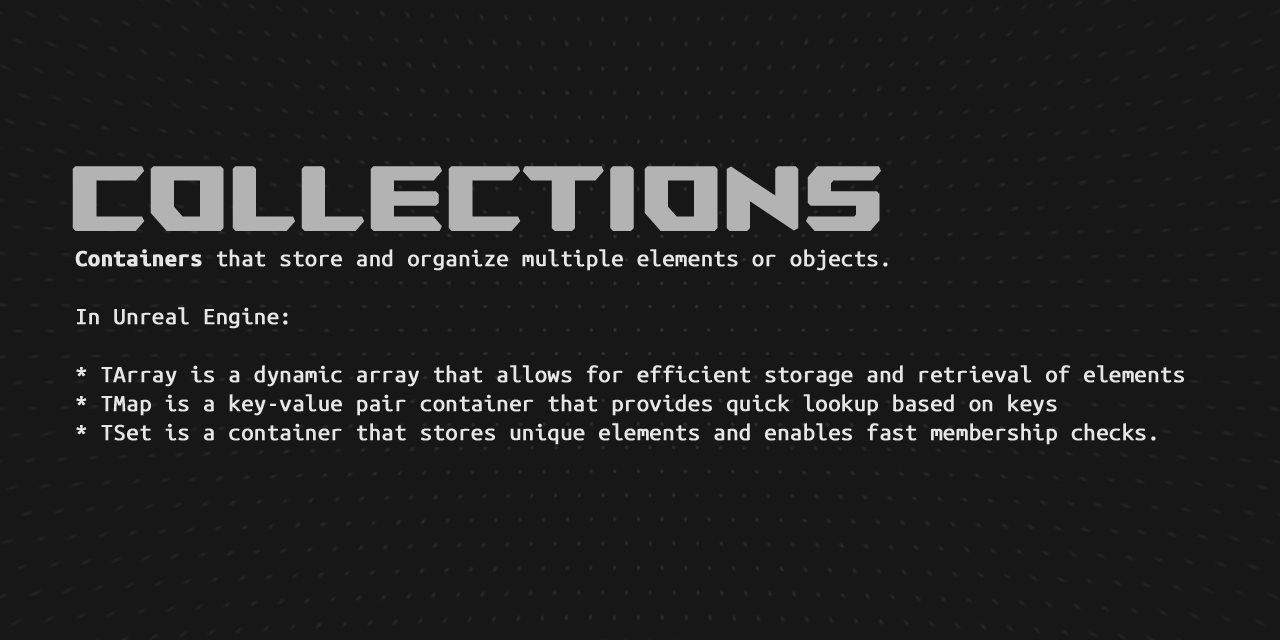
| Data Container | Description | Use Case |
|---|---|---|
| TArray | A dynamic array that can grow or shrink in size at runtime, supporting random access and iteration. | Suitable for storing and managing a collection of elements where the size may change frequently and quick access to elements is required. |
| TSet | A set data structure that stores unique elements in no particular order, efficiently supporting element insertion, deletion, and membership checks. | Ideal for maintaining a collection of distinct elements and performing fast membership checks without duplicates. |
| TMap | An associative container that stores key-value pairs, allowing efficient lookup and retrieval based on keys. | Used for creating dictionaries or associative arrays, where data is organized based on unique keys for quick and efficient access. |
A dynamic array that can store a variable number of elements of the same type. It provides many useful functions, such as adding, removing, sorting, and searching for elements, as well as iterating over them.
Here's an example:
Include the header file:
#include "Containers/Array.h"
Declare a TArray of int32 (integers)
TArray<int32> MyArray { 1, 2, 3 };
Add an element to the array:
MyArray.Add(4);

// MyArray: { 1, 2, 3, 4 }
Add multiple elements to the array:
MyArray.Append({10, 15, 20});

// MyArray: { 1, 2, 3, 4, 10, 15, 20 }
Remove elements from the array:
MyArray.RemoveAt(0);
MyArray.RemoveAt(0);

// MyArray: { 3, 4, 10, 15, 20 }
Get the number of elements from the array:
int32 NumOfElements = MyArray.Num(); // 5
Loop through the array and log each element:
for (const int32& Element : MyArray)
{
    UE_LOG(LogTemp, Log, TEXT("Element: %i"), Element);
}
You can either allocate an array on the stack or on the heap. Without specifying, you are creating the array allocation on the heap, while the array returns a data container on the stack.
If you don't know about what the difference between stack and heap allocation, highly suggest reading upon the subject in this section.
Here is a way to allocate an array on the stack:
TArray<int32, TInlineAllocator<4>> StackArray; // Allocate 4 elements on the stack

StackArray.Add(1);
StackArray.Add(2);
StackArray.Add(3);
StackArray.Add(4);

// Now we added the same amount of elements, to our buffer size (which has been allocated on the stack).
// If we try to add more elements than allocated, Unreal will default TArray to use heap allocation for the rest of elements.

StackArray.Add(5); // Will be allocated on the heap!
[!WARNING] If you're trying to allocate a heap object on the stack with
TInlineAllocator, Unreal will default to a heap allocation.
[!WARNING] If you add more elements than have been allocated for, Unreal will default to a heap allocation instead.
[!NOTE] Unreal will treat as stack allocated array as a different data type, compare to a regular array. To accommodate this, use
TArrayViewinstead.
If you want to avoid filling up the rest of elements with heap allocation, then use TFixedAllocator:
TArray<int32, TFixedAllocator<4>> StackArray; // Allocate 4 elements on the stack

StackArray.Add(1);
StackArray.Add(2);
StackArray.Add(3);
StackArray.Add(4);

StackArray.Add(5); // Unreal calls an assertion, which will CRASH Unreal in runtime mode!

// If you're continuing on with the assertion, using Visual Studio Debugger, Unreal will call Reset() function.
// Clearing out all elements, but keeping the current allocation size.

// Same thing happens with brace initialization.
TArray<int32, TFixedAllocator<4>> StackArray{ 1, 2, 3, 4, 5 }; // Allocate 4 elements on the stack, but we got 5 elements!
A set of unique elements of a single type, implemented as a hash table. It provides many of the same functions as TArray, but with faster lookup times for large collections of elements.
Here's an example:
Include the header file:
#include "Containers/Set.h"
Declare a TSet of FName (names):
TSet<FName> MySet;
Add elements to the set:
// Add single element to the set
MySet.Add(TEXT("hello"));

// Add multiple elements to the set
MySet.Append({TEXT("cruel"), TEXT("world"), TEXT("hello")});

// MySet: { "hello", "cruel", "world" }
Get number of elements from the set:
int32 NumOfElements = MySet.Num(); // 4
Check if an element exists in the set:
if (MySet.Contains(TEXT("cruel")))
{
    UE_LOG(LogTemp, Log, TEXT("'Cruel' element is in the set"));
}
Remove an element from the set:
MySet.Remove(TEXT("cruel"));

// MySet: { "hello", "world" }
Iterate through the set and log each element:
for (const FName& Name : MySet)
{
    UE_LOG(LogTemp, Log, TEXT("Name: %s"), *Name.ToString());
}
Convert the set to an array:
TArray<FName> CopyOfSet = MySet.Array();
CopyOfSet[0] = TEXT("goodbye");

// CopyOfSet: { "goodbye", "world" }
A map of key-value pairs, implemented as a hash table. It allows fast lookup of a value given a key, and supports adding, removing, and iterating over key-value pairs.
Here's an example:
Include the header file:
#include "Containers/Map.h"
Declare a TMap of FName (names) to int32 (integers):
TMap<FName, int32> MyMap = { { TEXT("player_id"), 457865 }, { TEXT("player_age"), 35 } };

// MyMap: { { "player_id", 457865 }, { "player_age", 35 } }
Add elements to the map:
int32& PlayerRankRef = MyMap.Add(TEXT("player_rank"));
PlayerRankRef = 420;

MyMap.Add(TEXT("player_speed"), 15);

// MyMap: { { "player_id", 457865 }, { "player_age", 35 }, { "player_rank", 420 }, { "player_speed", 15 } }
Finds the value in the map from the key. Otherwise, create and add the key to the map (with default value):
int32& PlayerIDRef = MyMap.FindOrAdd(TEXT("player_id"));
PlayerIDRef = 001100;

// MyMap: { { "player_id", 001100 }, { "player_age", 35 }, { "player_rank", 420 }, { "player_speed", 15 } }
Get number of elements from the map:
int32 NumOfElements = MyMap.Num(); // 4
Iterate through the map and log key-value pairs:
for (const TPair<FName, int32>& KeyValuePair : MyMap)
{
    UE_LOG(LogTemp, Log, TEXT("Key: %s, Value: %i"), *KeyValuePair.Key.ToString(), KeyValuePair.Value);
}
Check if "player_rank" exists in the map and log its value if found:
if (int32* PlayerRankPtr = MyMap.Find(TEXT("player_rank")))
{
    UE_LOG(LogTemp, Log, TEXT("Player rank is: %i"), *PlayerRankPtr);
}
Access an element in the map:
int32 OutSpeed;

if (MyMap.TryGetValue(TEXT("player_speed"), OutSpeed))
{
    UE_LOG(LogTemp, Log, TEXT("Player's speed: %i [m/s]"), OutSpeed);
}
Modify an element in the map:
MyMap[TEXT("player_age")] = -1;

// MyMap: { { "player_id", 001100 }, { "player_age", -1 }, { "player_rank", 420 }, { "player_speed", 15 } }
Remove an element from the map:
MyMap.Remove(TEXT("player_age")); // Reference variables (such as PlayerRankRef and PlayerIDRef) become unsafe since the map size and elements have changed.

// MyMap: { { "player_id", 001100 }, { "player_rank", 420 }, { "player_speed", 15 } }
Convert the map to an array of key-value pairs:
TArray<TPair<FName, int32>> KeyValueArray = MyMap.Array();
int32 PlayerID = KeyValueArray[0].Value; // 001100
With these containers, you can use a couple of helpful functions.
Empty() - Clears out the store elements (as well as resizing the buffer to zero).Reset() - Clears out the store elements (without resizing the buffer).GetSlack() - Gets the number of store elements minus it's buffer size. Slack = NumOfElements - BufferCapacity.GetAllocationSize() - Gets the buffer capacity.Shrink() - It will reset the buffer size to the number of elements, currently being stored.Reserve() - It will expand buffer size to that amount. Note, buffer size can change later on.RemoveAll - Will remove all elements with prediction as an argument.RemoveAllSwap - Same as RemoveAll() function, but doesn't preserve the order.Here's an example:
#include "Containers/Array.h"

TArray<int32> Array = { 1, 2, 2, 3, 4, 4, 5 };

// Create a lamba function (which is a temporary function, which takes this class as reference parameter)
Array.RemoveAll([&](const int32& Item)
{
    // Removes all item, if the item is equal to: 2
    return Item == 2;
});

// Current elements: { 1, 3, 4, 4, 5 }

Array.RemoveAllSwap([&](const int32& Item)
{
    // Removes all item, if the item is equal to: 2
    return Item == 4;
});

// Current elements: { 5, 3, 1 }
#include "Containers/Array.h"

TArray<int32> Array;
Array.Add(1);
Array.Add(2);

// Current element count: 2
// Current buffer size: 4

Array.Empty();

// Current element count: 0
// Current buffer size: 0

Array.Add(1);
Array.Add(2);

// Current element count: 2
// Current buffer size: 4

Array.Reset();

// Current element count: 0
// Current buffer size: 4
TArray<int32> Array;
Array.Add(1);
Array.Add(2);
Array.Add(3);
Array.Add(4);
Array.Add(5);

// Current element count: 5
// Current buffer size: 22

int32 SlackAmount = Array.GetSlack(); // 22 - 5 = 17 (Slack = BufferCapacity - NumOfElements)

Array.RemoveAt(0);
Array.RemoveAt(1);

// Current element count: 3
// Current buffer size: 22

Array.Shrink();

// Current element count: 3
// Current buffer size: 4
In order to remove an element without allowing the container to shrink, you can use these arguments:
#include "Containers/Array.h"

TArray<int32> Array { 1, 2, 3 };

// Removes the last element, without enable the container to shrink itself.
int32 LastElementIndex = Array.Num() - 1;
int32 NumToRemove = 1;
bool bAllowShrinking = false;
Array.RemoveAt(LastElementIndex, NumToRemove, bAllowShrinking)
When and how much does the container allocated memory for future use cases?
If you run a for-loop and running the debugger, we can analyze the allocation size and where the container has its breakpoints for requesting more memory.
#include "Containers/Array.h"

void UpdatingAllocationSize()
{
    TArray<int32> Array;

    int32 PreviousAllocatedSize = Array.GetAllocatedSize();

    for (int32 i = 0; i < 100; ++i)
    {
        Array.Add(69);

        int32 NewAllocatedSize = Array.GetAllocatedSize();

        if (PreviousAllocatedSize != NewAllocatedSize)
        {
            UE_LOG(LogTemp, Log, TEXT("[%s - %s]: Allocation size has changed from: %i to: %i. Current number of elements: %i and current max size: %i"), ANSI_TO_TCHAR(__FUNCTION__), TEXT("Adding"), PreviousAllocatedSize, NewAllocatedSize, Array.Num(), NewAllocatedSize / sizeof(int32));

            PreviousAllocatedSize = NewAllocatedSize;
        }
    }

    // Allocation size is data size times buffer size.

    // Int32 is 4 bytes in size
    // And the buffer size is currently at 4.

    // Allocation size = 4 * 4 = 16 bytes

    /*
        LogTemp: Allocation size has changed from: 0 to: 16. Current number of elements: 1 and current max size: 4
        LogTemp: Allocation size has changed from: 16 to: 88. Current number of elements: 5 and current max size: 22
        LogTemp: Allocation size has changed from: 88 to: 188. Current number of elements: 23 and current max size: 47
        LogTemp: Allocation size has changed from: 188 to: 328. Current number of elements: 48 and current max size: 82
        LogTemp: Allocation size has changed from: 328 to: 520. Current number of elements: 83 and current max size: 130
    */

    for (int32 i = 0; Array.Num() != 0; ++i)
    {
        Array.RemoveAt(Array.Num() - 1);

        int32 NewAllocatedSize = Array.GetAllocatedSize();

        if (PreviousAllocatedSize != NewAllocatedSize)
        {
            UE_LOG(LogTemp, Log, TEXT("[%s - %s]: Allocation size has changed from: %i to: %i. Current number of elements: %i and current max size: %i"), ANSI_TO_TCHAR(__FUNCTION__), TEXT("Removing"), PreviousAllocatedSize, NewAllocatedSize, Array.Num(), NewAllocatedSize / sizeof(int32));

            PreviousAllocatedSize = NewAllocatedSize;
        }
    }

    /*
        LogTemp: Allocation size has changed from: 520 to: 260. Current number of elements: 65 and current max size: 65
        LogTemp: Allocation size has changed from: 260 to: 0. Current number of elements: 0 and current max size: 0
    */
}
Algo is a namespace containing a lot of helper functions for container.
Here is common functions:
Algo::Accumulate() - Sums a range.Algo::AllOf() - Checks if every projection of the elements in the range is truthy.Algo::AnyOf() - Checks if any projection of the elements in the range is truthy.Algo::BinarySearch() - Returns index to the first found element matching a value in a range, the range must be sorted by <Algo::BinarySearchBy() - Same as Algo::BinarySearch(), but with custom logic.Algo::Compare() - Compares two contiguous containers using operator== to compare pairs of elements.Algo::CompareByPredicate() - Compares two contiguous containers using a predicate to compare pairs of elements.Algo::Copy() - Copies a range into a container.Algo::CopyIf() - Conditionally copies a range into a container.Algo::Count() - Counts elements of a range that equal the supplied value.Algo::CountBy() - Counts elements of a range whose projection equals the supplied value.Algo::CountIf() - Counts elements of a range that match a given predicate.Algo::Find() - Returns a pointer to the first element in the range which is equal to the given value.Algo::FindBy() - Returns a pointer to the first element in the range whose projection is equal to the given value.Algo::FindLast() - Returns a pointer to the last element in the range which is equal to the given value.Algo::FindLastBy() - Returns a pointer to the last element in the range whose projection is equal to the given value.Algo::FindSequence() - Searches for the first occurrence of a sequence of elements in another sequence.Algo::ForEach() - Invokes a callable to each element in a range.Algo::Includes() - Checks if one sorted contiguous container is a subsequence of another sorted contiguous container by comparing pairs of elements.Algo::IndexOf() - Returns the index of the first element in the range which is equal to the given value.Algo::IndexOfByPredicate() - Returns the index of the first element in the range which matches the predicate.Algo::IsSorted() - Tests if a range is sorted by its element type's operator <.Algo::MaxElement() - Returns a pointer to the maximum element in a range.Algo::MinElement() - Returns a pointer to the minimum element in a range.Algo::NoneOf() - Checks if no element in the range is truthy.Algo::Sort() - Sort the range. It will default to < operator (ascending order). However, custom logic can be added.Algo::SortBy() - Same as Algo::Sort, but uses a projection method. Projections are transformations but for values.Algo::RandomShuffle() - Randomly shuffle a range of elements.Algo::RemoveIf() - Moves all elements which do not match the predicate to the front of the range, while leaving all other elements is a constructed but unspecified state.Algo::Replace() - Replaces all elements that compare equal to one value with a new value.Algo::ReplaceIf() - Replaces all elements that satisfy the predicate with the given value.Algo::Reverse() - Reverses a range.Algo::Transform() - Applies a transform to a range and stores the results into a container.You can read more about Algo on Unreal's docs.
Here's an example of using them:
#include "Algo/ForEach.h"
#include "Algo/Accumulate.h"
#include "Algo/IndexOf.h"

TArray<FString> Array;
Array.Add(TEXT("hello"));
Array.Add(TEXT("cRuEL"));
Array.Add(TEXT("WORLD"));

const int32 FoundIndex = Algo::IndexOf(Array, FString(TEXT("cRuEL")));

if (FoundIndex != INDEX_NONE)
{
    // Successfully found the index
}

const int32 FoundIndexPred = Algo::IndexOfByPredicate(Array,
    [&](const FString& Arg)
    {
        return TEXT("hello") == Arg.ToLower();
    });

if (FoundIndexPred != INDEX_NONE)
{
    // Successfully found the index with prediction
}

TArray<FString> TransformArray;

Algo::Transform(Array, TransformArray, [](const FString& Item) { return Item.ToUpper(); });

// { "HELLO", "CRUEL", "WORLD" }

Algo::Reverse(TransformArray);

// { "WORLD", "CRUEL", "HELLO" }

TArray<int32> SortArray { 1, 5, 3, -4, 2, -1 };
Algo::Sort(SortArray);

// { -4, -1, 1, 2, 3, 5 }

// Create a lambda function for this projection
auto AbsProjection = [](int32 Value) { return FMath::Abs(Value); };

// Will sort based on this projection. But will still reserve the original values.
Algo::SortBy(SortArray, AbsProjection);

// { -1, 1, 2, 3, -4, 5 }

Algo::ForEach(SortArray, [](int32& Value)
{
    Value *= 2;
});

// { -2, 2, 4, 6, -8, 10 }

// Will sort based on descending order
auto ReverseSortPredicate = [](int32 A, int32 B) { return A > B; };
Algo::SortBy(SortArray, AbsProjection, ReverseSortPredicate);

// { 10, -8, 6, 4, 2, -2 }
Similar to TMap, but allows multiple values to be associated with the same key. It also provides functions for iterating over all the values associated with a particular key.
Here's an example:
Include the header file:
#include "Containers/Map.h"
Declare a TMultiMap of FName (names) to floats:
TMultiMap<FName, float> MyMultiMap = { { TEXT("X"), 10.0f }, { TEXT("Y"), 69.0f }, { TEXT("Z"), 0.0f } }
Add elements to the map:
MyMultiMap.Add(TEXT("X"), -10.0f);
MyMultiMap.Add(TEXT("Y"), 69.0f);
MyMultiMap.AddUnique(TEXT("Y"), 69.0f); // Will not add if both key and value match an existing association in the map!

// MyMultiMap: { { TEXT("X"), 10.0f }, { TEXT("Y"), 69.0f }, { TEXT("Z"), 0.0f }, { TEXT("Y"), 69.0f }, { TEXT("X"), -10.0f } }
Get all values for a key in the map:
TArray<float> OutValues;
MyMultiMap.MultiFind(TEXT("Y"), OutValues);

// OutValues: { 69.0f, 69.0f }
Get number of elements from the multi-map:
int32 NumOfElements = MyMultiMap.Num(); // 5
Loop through the values and log each one:
for (const float& Value : OutValues)
{
    UE_LOG(LogTemp, Log, TEXT("Value: %f"), Value);
}
Remove all values for a key in the map:
MyMultiMap.Remove(TEXT("Y"));

// MyMultiMap: { { TEXT("X"), 10.0f }, { TEXT("Z"), 0.0f }, { TEXT("X"), -10.0f } }
Remove the first association between the specified key and value from the map:
MyMultiMap.RemoveSingle(TEXT("X"), 10.0f);

// MyMultiMap: { { TEXT("Z"), 0.0f }, { TEXT("X"), -10.0f } }
You can read more about it on Unreal's docs.
[!WARNING] Unreal doesn't support
TMultiMapwith UHT[^2]. Meaning, you can't expose to Blueprint.
An array with a static number of elements.
You cannot add or remove any of the entries of the static array. But you can still alter each element's data.
Here's an example:
Include the header file:
#include "Containers/StaticArray.h"
Declare a TStaticArray of int32 (integers) with 4 elements pre-allocated:
// Allocate 4 elements of type 'FVector'
TStaticArray<FVector, 4> StaticArray;

// StaticArray: { (0, 0, 0), (0, 0, 0), (0, 0, 0), (0, 0, 0) }
You CANNOT use brace initialization with TStaticArray:
TStaticArray<int32, 4> StaticArray { 1, 2, 3, 4 }; // Won't compile!
Update each element's value:
StaticArray[0] = FVector::OneVector;
StaticArray[1] = FVector::ZeroVector;
StaticArray[2] = FVector::OneVector;
StaticArray[3] = FVector::ZeroVector;

// StaticArray: { (1, 1, 1), (0, 0, 0), (1, 1, 1), (0, 0, 0) }
Get number of elements from the static array:
int32 NumOfElements = StaticArray.Num(); // 4
Loop through the values and log each one:
for (const FVector& Vec : StaticArray)
{
    UE_LOG(LogTemp, Log, TEXT("Value: %s"), *Vec.ToString());
}
You can read more about it on Unreal's docs.
[!WARNING] Unreal Engine doesn't support
TStaticArraywith UHT[^2]. Meaning, you can't expose to Blueprint. To use a static array with Blueprint, useFixedSizedspecifier for UPROPERTY onTArrayproperty.
Dynamically sized hash table, used to index another data structure.
Vastly simpler and faster than TMap.
Here's an example:
Include the header file:
#include "Containers/HashTable.h"
Define a FHashTable:
FHashTable HashTable;
Add a new hash element to the table:
const uint16 Hash = 50u;
const uint16 Index = 10u;

HashTable.Add(Hash, Index);
You can read more about it on Unreal's docs.
Statically sized hash table, used to index another data structure.
Vastly simpler and faster than TMap.
Here's an example:
Include the header file:
#include "Containers/HashTable.h"
Define a TStaticHashTable:
static const uint32 Capacity = 16u;
TStaticHashTable<1024u, Capacity> StaticHashTable;
Add a new hash element to the table:
const uint16 Hash = 50u;
const uint16 Index = 10u;

StaticHashTable.Add(Hash, Index);
You can read more about it on Unreal's docs.
A Map of keys to value, implemented as a sorted TArray of TPairs.
It has a mostly identical interface to TMap and is designed as a drop in replacement. Keys must be unique, there is no equivalent sorted version of TMultiMap. It uses half as much memory as TMap, but adding and removing elements is O(n), and finding is O(Log n). In practice it is faster than TMap for low element counts, and slower as n increases, This map is always kept sorted by the key type so cannot be sorted manually.
Here's an example:
Include the header file:
#include "Containers/SortedMap.h"
Create a TSortedMap of FName (names) to int32 (integers):
TSortedMap<FName, int32> MyMap;
Add some elements to the map:
MyMap.Add(TEXT("One"), 1);
MyMap.Add(TEXT("Two"), 2);
MyMap.Add(TEXT("Three"), 3);
Get the value associated with a key:
int32 Value = MyMap[TEXT("One")];
Check if a key exists in the map:
bool Exists = MyMap.Contains(TEXT("One"));
Iterate over the map and log each one:
for (const TPair<FName, int32>& Element : MyMap)
{
    UE_LOG(LogTemp, Log, TEXT("Key: %s, Value: %i"), *Element.Key.ToString(), Element.Value);
}
You can read more about it on Unreal's docs.
Simple single-linked list template.
It only stores two things:
ElementType			Element; // Value
TList<ElementType>* Next; // Pointer to the next node
Helpful for scenarios like: Pathfinding, binary tree searching or dialogue tree system.
A linked list have some benefits compare to TArray, mainly it has O(1) in time complexity, for adding and removing elements in the list. This is because, every node has a pointer to the next node in the list. Thus giving TList a time complexity to O(1).
You can read more about time complexity by Joel Olawanle.
There is a couple of downsides of using TList compare to TArray:
|
Cache misses When the computer reads the memory, it reads from RAM (Random-access memory). Hence, the name it will access the memory at random location. With However, if But what With linked lists, there is no contiguous memory. Meaning, the CPU needs to find each node in different location. Which doesn't allow the CPU to cache previous result into its memory. And this called a cache miss. 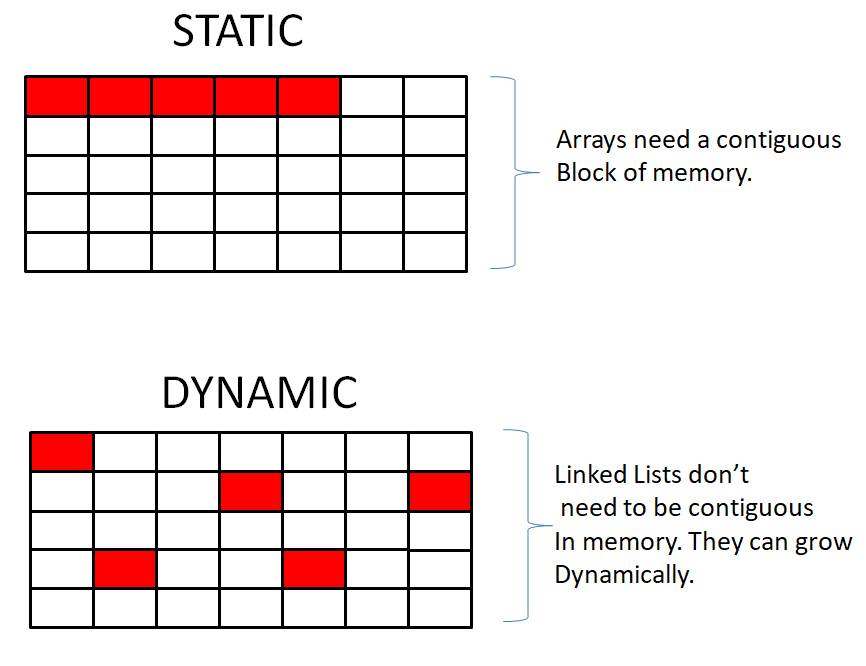 Image from Dhathri Vupparapalli's blog.
Here is a video from SimonDev about cache misses and hits. You can also read more about the CPU's cache on Wikipedia. Memory space
Since every node needs to keep track of the next node in the list. And the next variable is a pointer, which takes up 4 bytes in 32-bit and 8 bytes in 64-bit computers. And if you just want to use primary data types, such as ( No helper functions
If you wish to have these functions, then you can just use Only goes forward With This is becuase there is no previous node per node. Meaning, you cannot go backwards in the list. If you wish to go backwards, then you can just use |
Here's an example:
Include the header file:
#include "Containers/List.h"
// Create the head of the list with data value of 69
TList<int32> Head(69);

// Create a new node with data 1337 and link it to the head
Head.Next = new TList<int32>(1337);

// Create another node with data 3 and link it to the previous node
Head.Next->Next = new TList<int32>(3);

// Re-assign the data value
Head.Next->Next->Next.Element = 420;

// Print the elements in the linked list
TList<int32>* CurrentNode = &Head;

while (CurrentNode != nullptr)
{
    UE_LOG(LogTemp, Log, TEXT("Element: %i"), CurrentNode->Element);
    CurrentNode = CurrentNode->Next;
}
[!NOTE]
TListdoesn't offer an insert nor a remove function for each node. If you wish to use those function, then useTLinkedList.
[!NOTE] As a rule of thumb, you should almost always use
TArray, unless you have specific reasons to use a linked list.
You can read more about it on Unreal's docs.
Encapsulates a link in a single linked list with constant access time.
This linked list is non-intrusive, i.e. it stores a copy of the element passed to it (typically a pointer)
Here's an example:
Include the header file:
#include "Containers/List.h"
Define a TLinkedList of int32 (integer):
TLinkedList<int32> HeadNode;
Iterate over the linked list using TIterator:
for (TLinkedList<int32>::TIterator It(&HeadNode); It; It.Next())
{
    // Get the value at the current position of the iterator
    int32 Value = *It;

    // Log the value.
    UE_LOG(LogTemp, Log, TEXT("Value: %i"), Value);
}
You can read more about it on Unreal's docs.
It only stores three things:
ElementType            Value;
TDoubleLinkedListNode* NextNode;
TDoubleLinkedListNode* PrevNode;
Here's an example:
Include the header file:
#include "Containers/List.h"
Define a TDoubleLinkedList of int32 (integers):
TDoubleLinkedList<int32> A;
Add node to the head/tail of the list:
A.AddHead(69);
A.AddTail(1337);
Get the number of elements in the list:
int32 NumOfElements = A.Num();
Check if the list contains the value 5:
bool bContains = A.Contains(5);
Find a node with value 1 in the list:
TDoubleLinkedList<int32>::TDoubleLinkedListNode* Node = A.FindNode(1);

// Log the value of the found node
if (Node != nullptr)
{
    UE_LOG(LogTemp, Log, TEXT("Value of the node: %i"), Node->GetValue());
}
else
{
    UE_LOG(LogTemp, Log, TEXT("Node with value 1 not found."));
}
Get the next node and previous node in the list:
TDoubleLinkedList<int32>::TDoubleLinkedListNode* NextNode = Node->GetNextNode();
TDoubleLinkedList<int32>::TDoubleLinkedListNode* PrevNode = Node->GetPrevNode();

// Log the values of the next and previous nodes
if (NextNode != nullptr)
{
    UE_LOG(LogTemp, Log, TEXT("Value of the next node: %i"), NextNode->GetValue());
}
else
{
    UE_LOG(LogTemp, Log, TEXT("Next node is null."));
}

if (PrevNode != nullptr)
{
    UE_LOG(LogTemp, Log, TEXT("Value of the previous node: %i"), PrevNode->GetValue());
}
else
{
    UE_LOG(LogTemp, Log, TEXT("Previous node is null."));
}
You can read more about it on Unreal's docs.
This template implements an unbounded non-intrusive queue using a lock-free linked list that stores copies of the queued items. The template can operate in two modes: Multiple-producers single-consumer (MPSC) and Single-producer single-consumer (SPSC).
The queue is thread-safe in both modes. The Dequeue() method ensures thread-safety by writing it in a way that does not depend on possible instruction reordering on the CPU. The Enqueue() method uses an atomic compare-and-swap in multiple-producers scenarios.
Here's an example:
Include the header file:
#include "Containers/Queue.h"
Define a TQueue of FHitResult (hit results):
TQueue<FHitResult> MyQueue;
Add some elements to the queue:
AActor* TargetActor = this;
UPrimitiveComponent* TargetComponent = this;
FVector HitLocation = FVector(900.0f, 0.0f, 500.0f);
FVector HitNormal = FVector(0.0f, 0.0f, 1.0f);

MyQueue.Enqueue(FHitResult(TargetActor, TargetComponent, HitLocation, HitNormal));
MyQueue.Enqueue(FHitResult(nullptr, nullptr, FVector::ZeroVector, FVector::OneVector.GetSafeNormal()));
Dequeue the first element in the queue:
FHitResult DequeuedElement = MyQueue.Dequeue();
Check if the queue is empty:
bool IsEmpty = MyQueue.IsEmpty();
Iterate over the queue:
while (!MyQueue.IsEmpty())
{
    FHitResult HitResult = MyQueue.Dequeue();

    UE_LOG(LogTemp, Log, TEXT("Hit Target: %s"), *HitResult.GetActor()->GetName());
}
You can read more about it on Unreal's docs.
When you want to reuse an array without copying or referencing the base class, you can use TArrayView.
A statically sized view of an array of typed elements. Designed to allow functions to take either a fixed C-style array or a TArray with an arbitrary allocator as an argument when the function neither adds nor removes elements.
You can read more about from Unreal's docs.
Here's an example:
#include "Containers/Array.h"
#include "Containers/ArrayView.h"

#include "Algo/ForEach.h"
#include "Algo/Accumulate.h"

int32 SumArray(TArrayView<const int32> ArrayView)
{
    // Sum the array
    return Algo::Accumulate(ArrayView, 0);
}

// Allocates on heap, but returns an array on the stack
TArray<int32> RegularArray = { 1, 2, 3 };

 // Allocates on the stack
TArray<int32, TInlineAllocator<4>> StackAllocatedArray = { 1, 2, 3 };

 // Allocates on the stack
int32 CArray[4] = { 1, 2, 3 };

UE_LOG(LogTemp, Log, TEXT("Sum=%i"), SumArray(RegularArray));

UE_LOG(LogTemp, Log, TEXT("Sum=%i"), SumArray(StackAllocatedArray));

UE_LOG(LogTemp, Log, TEXT("Sum=%i"), SumArray(CArray));
[!WARNING]
TArrayViewis a fixed size and independent array. Meaning, it will not affect from its original assignment, nor does it support Add() or Remove() functions.
[!NOTE] It's still possible to use Algo library, which offers functions to use for TArrayView and TArray. Such as Algo::Reverse() and Algo::ForEach().
[!CAUTION] Avoid using
TArrayViewwith a temporary array variable. Since, the array can go out of scope, which then will makeTArrayViewvariable invalid and point to a different memory block. This is because the view is relying on the array's memory block.
#include "Containers/ArrayView.h"

// Note how to mark an ArrayView const!
void ConstArrayView()
{
    TArray<int32> MutableArray;
    TArrayView<int32> ArrayView = MutableArray;
    TArrayView<const int32> ConstArrayView = MutableArray;

    ArrayView[0] = 1337; // Allowed!
    ConstArrayView[0] = 69; // Compiling error!
}

// Do not create an array view to a temporary variable, as this can cause issues!
void UnsafeArrayView()
{
    // Create Array view with temporary TArray
    TArrayView<const int32> UnsafeArray = TArray<int32> { 1, 2, 3 };

    // This memory block has likely been freed, but the array view doesn't know about it!
    int32 Value = UnsafeArray[0]; // This will cause a crash!
}

// Do not modify the array while the array view is in scope! Array view is independent from the array.
void ModifyArrayView()
{
    TArray<int32> Array { 1, 2, 3 };
    TArrayView<int32> ArrayView = Array;

    int32 PreviousValue = ArrayView[0];

    Array.RemoveAt(0); // Will not update array view!

    int32 NewValue = ArrayView[0];

    bool bIsSame = PreviousValue == NewValue; // Will return true!
}
FStringView is a lightweight, non-owning view of the string data, and copying the view itself is efficient and does not affect the underlying data. However, when you copy the FStringView, the new instance of the view still refers to the same original string data.
Same concept with TArrayView but with FString instead.
Here's an example:
#include "Containers/UnrealString.h"

void ProcessString(FStringView StringView)
{
    // Use FStringView to read the string data without copying it.
    UE_LOG(LogTemp, Log, TEXT("String: %s"), *StringView);
}

FString MyString = TEXT("Hello, FStringView!");

// Pass FString as FStringView to the function without copying the data.
ProcessString(MyString);

// Copy FStringView to another variable.
FStringView CopiedStringView = MyString;

// Modifying the original FString does not affect the copied FStringView.
MyString = TEXT("Modified String");

// Print the contents of the copied FStringView.
UE_LOG(LogTemp, Log, TEXT("Copied StringView: %s"), *CopiedStringView);
You can read more about it on Unreal's docs.
When working strings, you might have to concatenate a lot of string together. Sometimes, this can create complex and messy code to read. Whilst, FString is mutable and allows the developer to alter its data without copy a new instance. A string builder can still be a very helpful tool.
The string builder allocates a buffer space which is used to hold the constructed string. The intent is that the builder is allocated on the stack as a function local variable to avoid heap allocations.
The buffer is always contiguous, and the class is not intended to be used to construct extremely large strings.
This is not intended to be used as a mechanism for holding on to strings for a long time. The use case is explicitly to aid in constructing strings on the stack and subsequently passing the string into a function call or a more permanent string storage mechanism like FString et al.
The amount of buffer space to allocate is specified via a template parameter and if the constructed string should overflow this initial buffer, a new buffer will be allocated using regular dynamic memory allocations.
There are two ways to construct a string builder. Either with initialize buffer size or with unknown buffer size.
Here's an example:
Include the header file:
#include "Containers/StringFwd.h"
To create a string builder with an unknown buffer size:
FStringBuilderBase StringBuilder; // Note! This is using a regular dynamic memory allocation.
To create a string builder with initialize buffer size:
int32 BufferSize = 12; // 12 characters of TCHAR
TStringBuilder<BufferSize> StringBuilder;
Append characters to the string builder:
StringBuilder.Appendchar('H');
StringBuilder.Appendchar('e');
StringBuilder.Appendchar('l');
StringBuilder.Appendchar('l');
StringBuilder.Appendchar('o');
StringBuilder.Appendchar(',');
StringBuilder.Appendchar(' ');
StringBuilder.Appendchar('W');
StringBuilder.Appendchar('o');
StringBuilder.Appendchar('r');
StringBuilder.Appendchar('l');
StringBuilder.Appendchar('d');

// StringBuilder: { 'H', 'e', 'l', 'l', 'o', ',', ' ', 'W', 'o', 'r', 'l', 'd' }
In order to get the string either call ToString() or ToView() functions:
FString Str = StringBuilder.ToString();
FStringView StrView = StringBuilder.ToView();
You can also append a string as well:
// Note! The string builder will allocate more memory, if necessary.

// We only allocated 12 characters, and this call will make it go over bound.
// Causing to allocate more memory on heap.
StringBuilder.Append(TEXT(" and welcome!"));

// StringBuilder: { 'H', 'e', 'l', 'l', 'o', ',', ' ', 'W', 'o', 'r', 'l', 'd', ' ', 'a', 'n', 'd', ' ', 'w', 'e', 'l', 'c', 'o', 'm', 'e', '!' }
[!WARNING] The string builder will allocate more memory, if necessary.
Here's an another example:
TStringBuilder<256> MessageBuilder;

float PlayerHealth = 110.5285f;
MessageBuilder << TEXTVIEW("Player's health: ") << FString::SanitizeFloat(PlayerHealth);

return FString { MessageBuilder };
You can read more about it on Unreal's docs.
Template to store enumeration values as bytes in a type-safe way.
Here's an example:
Include the header file:
#include "Containers/EnumAsByte.h"
Declare a TEnumAsByte with the enumeration type ECollisionChannel:
TEnumAsByte<ECollisionChannel> Channel;
Get the value of the TEnumAsByte:
ECollisionChannel Val = Channel.GetValue();
Get the integer value of the TEnumAsByte:
int32 IntVal = Channel.GetIntValue();
Assign a new value to the TEnumAsByte
Channel = ECollisionChannel::ECC_Camera;
Log the values:
UE_LOG(LogTemp, Log, TEXT("Value of the: %i"), UEnum::GetValueAsName(Val));
UE_LOG(LogTemp, Log, TEXT("Integer value of the: %i"), IntVal);
[!NOTE] That regular enums are supported by
UPROPERTYand replaces the need of usingTEnumAsByteanymore.
You can read more about it on Unreal's docs.
| This section was written in conjunction with ChatGPT. |
Let's talk about what value type and reference types.
In various programming languages like Python[^11], Java[^13], and C#[^12], you may have encountered both value types and reference types.
A value type creates a copy when initialized from another variable. For instance, let's consider variable A, and when we initialize variable B with the value of A, a separate copy of the value is created in B. Essentially, B is an independent entity that holds its own value.
int A = 69;
int B = A; // A copy
On the other hand, a reference type directly references the memory location of the variable. In this case, when variable B is initialized by variable A, B becomes a reference to the same memory location as A. Consequently, any changes made to B will also affect A since B essentially points to the same underlying value as A.
int A = 69;
int& B = A; // A reference
Everything in C++ is value type by default. Even classes, which differ from C#[^12].
You can watch this video about references in C++ from Low Level Learning.
Here's an example:
// Test struct and class
struct Coords
{
    // Constructor: Initialize X and Y with given values
    Coords(int x, int y) : X(x), Y(y) {}

public:
    int X; // X coordinate
    int Y; // Y coordinate

public:
    // Return a string representation of this Coords struct
    std::string toString() const
    {
        // Use stringstream to concatenate strings
        std::stringstream ss;
        ss << "(" << X << ", " << Y << ")";
        return ss.str();
    }
};

int main()
{
    Coords A(1, 2); // Create struct A
    Coords& B = A; // B is a reference to A
    Coords* C = &B; // C is a pointer to A
    Coords* D = new Coords(5, 10); // Create a new Coords struct with new
    Coords* E = &(*C); // E is a pointer to what C points to

    B.X = 69; // Modify X of A through B
    C->Y = 1337; // Modify Y of A through C
    D->Y = D->Y * 2; // Modify Y of dynamically allocated struct

    E = &*D; // Make E point to what D points to
    E->X = 10; // Modify X of dynamically allocated struct

    // Print statements
    std::cout << A.toString() << std::endl;
    std::cout << B.toString() << std::endl;
    std::cout << C->toString() << std::endl;
    std::cout << D->toString() << std::endl;
    std::cout << E->toString() << std::endl;

    delete D; // Deallocate memory of dynamically allocated struct

    return 0;
}
With references, you can only assign them once, and they cannot be changed throughout the code. For example, you can have a direct reference to an argument passed into a function. This argument can then be modified within the function, similar to how an out parameter works in C#[^12].
Here's an example:
bool DamageHealth(int& Health)
{
   Health -= 100; // Modifying the value through the reference
   return Health <= 0;
}

int PlayerHealth = 100;

if (DamageHealth(PlayerHealth)) // Passing the `PlayerHealth` as a direct reference
{
   // Player just died!
}
| This section was written in conjunction with ChatGPT. |

And lastly, we have pointers. This section, will go over about raw pointers and smart pointers. If you have no clue about pointers, highly recommend watching Cherno about pointers.
Pointers and references are similar in that they both refer to variables, but there's one key difference. Pointers are indirect references, meaning they can change throughout the code, pointing to different variables. On the other hand, regular references are direct and can only refer to the specific variable they were initialized with.
In a short summary, a pointer is like writing down the address of a building on a piece of paper. The address on the paper tells you where the building is located, just as the memory address stored in the pointer variable tells you where a variable is located in memory. Similarly, you can also pass the address on the paper to someone else, allowing them to find the building too, just as you can pass a pointer variable to a function or another part of your code, allowing it to access the variable in memory.
Pointers are valuable tools in programming as they allow us to store memory addresses, enabling dynamic memory allocation and manipulation of data structures. By using pointers, we can create more flexible and efficient code that can adapt to changing data requirements during program execution.
Additionally, pointers are essential in scenarios like data structures, linked lists, and passing data to functions by reference, providing a level of control and precision that enhances the capabilities of the program. However, it's important to handle pointers with care, as incorrect usage can lead to memory leaks or segmentation faults.
A raw pointer can be sometime dangerous, because there is no validation when accessing this pointer. And when the pointer is pointing to nothing (meaning, the pointer is a nullptr). The program will throw a null pointer exception, also known as a segmentation fault (segfault).
A segmentation fault occurs when a program tries to access a memory location that it does not have permission to access, which can happen when the program tries to dereference a null pointer. When this happens, the operating system will usually terminate the program and generate an error message.
You can read more about raw pointers from Microsoft Learn.
To avoid this, you must check before if the pointer is valid, before using it.
[!CAUTION] Use the function called
IsValid()for raw pointers, which doing any operations with it.
Here's an example:
UPROPERTY()
AActor* ActorPtr = nullptr;

// Use UPROPERTY() macro, in order to tell the UHT[^2] (Unreal Header Tool), this pointer must be release into GC (garbage collector).
// If not, then this will cause a memory leak. Meaning, the pointer is still alive, even tough we are not using this memory block.

void KillActor()
{
  // IsValid() function also check if the pointer is not already destroyed by the GC (garbage collector).

  if (!IsValid(ActorPtr)) // The pointer has value of 'nullptr', therfore is NOT valid!
      return;

  ActorPtr->Destroy();
}
[!NOTE]
ActorPtris marked withUPROPERTY()in order to tell UHT[^2], that this pointer exists. When the pointer is unused, the garbage collector then marks it and deletes its memory. Also note, that this process can take a couple frames and is not instantaneously. Therefore, always useIsValid()function, which also checks if the pointer is not marked for the garbage collector. Avoid using manual checking, like this:PlayerCharacter != nullptr(since it will not work with GC system).
[!WARNING] If something else is referencing
ActorPtr, the pointer will not be destroyed via garbage collection (unless if it's a weak pointer).
After Unreal Engine (5.0) version, is now recommending to use TObjectPtr instead of * to mark raw pointers. TObjectPtr class contains some optimization for the editor.
Here is the updated code:
UPROPERTY()
TObjectPtr<AActor> ActorPtr = nullptr;
In Unreal Engine, the Smart Pointer's library provides a set of template classes to manage memory and object ownership more efficiently and safely. These smart pointers automatically handle memory management, such as allocating and deallocating memory, and help prevent memory leaks and null pointer dereferences.
The key smart pointers in Unreal Engine's library include TSharedPtr, TWeakPtr, and TUniquePtr. They are designed to handle various ownership scenarios and provide a safer alternative to raw pointers.
You can read more about Unreal Smart Pointer Library on their docs.
TSharedPtr is a smart pointer that manages shared ownership of a dynamically allocated object. It uses reference counting to keep track of the number of shared references to the object and automatically releases the memory when the last reference goes out of scope.
Example:
TSharedPtr<int32> sharedPtr = MakeShared<int32>(42);
TWeakPtr is a smart pointer that represents a weak reference to a dynamically allocated object. It allows accessing the object as long as it exists but does not affect the object's reference count. It is commonly used to avoid circular reference issues.
Example:
TSharedPtr<int32> sharedPtr = MakeShared<int32>(42);
TWeakPtr<int32> weakPtr = sharedPtr;
TUniquePtr is a smart pointer that represents sole ownership of a dynamically allocated object. It ensures that only one pointer can own the object, and when the owning TUniquePtr goes out of scope, the memory is automatically deallocated.
Example:
TUniquePtr<int32> uniquePtr = MakeUnique<int32>(42);
UObject pointersUnreal Engine's Smart Pointers, such as TSharedPtr, TWeakPtr, and TUniquePtr, are generic smart pointers that can be used with any C++ classes or types, not limited to Unreal Engine's UObject-derived classes.
On the other hand, UObject Smart Pointers are specific to Unreal Engine's UObject-derived classes. These smart pointers, such as TWeakObjectPtr, TWeakInterfacePtr, TSoftObjectPtr and TSoftClassPtr, are designed to handle UObject ownership and management within the Unreal Engine ecosystem.
This smart pointer is used to hold a weak reference to an UObject subclass. It allows you to safely reference an object without affecting its lifespan. It is commonly used to prevent strong references that could potentially create circular dependencies.
Example usage:
TWeakObjectPtr<UObject> WeakPtr;

if (SomeObject.IsValid())
{
    WeakPtr = SomeObject;  // Assign weak reference to an object
}

if (WeakPtr.IsValid())
{
    // Access the object if it still exists
    WeakPtr->DoSomething();
}
This smart pointer is used to hold a weak reference to an interface implemented by an UObject. It allows you to safely reference the interface without affecting its lifespan.
Example usage:
TWeakInterfacePtr<IMyInterface> WeakPtr;

if (SomeObject->Implements<IMyInterface>())
{
    WeakPtr = SomeObject;  // Assign weak reference to the interface
}

if (WeakPtr.IsValid())
{
    // Access the interface if the object still implements it
    WeakPtr->InterfaceFunction();
}
This smart pointer is used to hold a soft reference to an UObject subclass. It is used for referencing assets that can be loaded and unloaded during runtime. Soft references do not prevent the asset from being garbage collected.
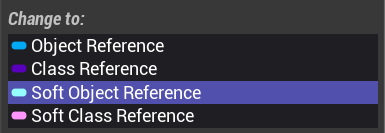
Example usage:
TSoftObjectPtr<UTexture2D> SoftPtr; // Assign soft reference to a texture asset

if (SoftPtr.IsValid())
{
    UTexture2D* Texture = SoftPtr.LoadSynchronous(); // This will cause a lag spike (if the asset is heavily chained or large in size)

    if (Texture)
    {
        // Use the loaded texture
    }
}
Asynchronous Solution:
TSoftObjectPtr<UTexture2D> SoftPtr; // Assign soft reference to a texture asset

if (SoftPtr.IsValid())
{
    OnTextureLoadedDelegate.BindLambda([]()
    {
        // Called when the texture is loaded and ready to use
        UTexture2D* Texture = SoftPtr.Get();

        if (Texture)
        {
            // Use the loaded texture as needed
        }
    });

    StreamableManager.RequestAsyncLoad(SoftPtr.ToSoftObjectPath(), OnTextureLoadedDelegate);
}
[!WARNING] Don't use
FSoftObjectPathorFSoftObjectPtr. Used for internal purpose.
This smart pointer is used to hold a soft reference to a UClass subclass. It is used for referencing blueprint classes or other classes that can be loaded and unloaded during runtime.
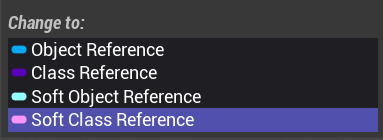
Example usage:
TSoftClassPtr<AMyBlueprintClass> SoftPtr; // Assign soft reference to a blueprint class

if (SoftPtr.IsValid())
{
    UClass* Class = SoftPtr.LoadSynchronous(); // This will cause a lag spike (if the asset is heavily chained or large in size)

    if (Class)
    {
        // Use the loaded class
    }
}
Asynchronous Solution:
TSoftClassPtr<AMyBlueprintClass> SoftPtr; // Assign soft reference to a blueprint class

if (SoftPtr.IsValid())
{
    OnBlueprintLoadedDelegate.BindLambda([]()
    {
        // Called when the blueprint class is loaded and ready to use
        UClass* BlueprintClass = SoftPtr.Get();

        if (BlueprintClass)
        {
            // Use the loaded blueprint class as needed
            AMyBlueprintClass* NewActor = GetWorld()->SpawnActor<AMyBlueprintClass>(BlueprintClass);

            if (NewActor)
            {
                // Successfully spawned the actor based on the loaded blueprint class
            }
        }
    });

    StreamableManager.RequestAsyncLoad(SoftPtr.ToSoftObjectPath(), OnBlueprintLoadedDelegate);
}
[!WARNING] Don't use
FSoftClassPath. Legacy code.
| Smart Pointer | Type Based On | Description |
|---|---|---|
| TSharedPtr | Regular C++ Classes | Shared pointer for managing ownership of dynamically allocated objects. Allows multiple pointers to share ownership. |
| TWeakPtr | Regular C++ Classes | Weak pointer for non-owning references to dynamically allocated objects. |
| TUniquePtr | Regular C++ Classes | Unique pointer for exclusive ownership of dynamically allocated objects. Ensures only one pointer owns the object. |
| TWeakObjectPtr | UObject Classes | Weak pointer for non-owning references to UObject-derived objects. |
| TWeakInterfacePtr | UObject Classes | Weak pointer for non-owning references to objects implementing a specific interface. |
| TSoftObjectPtr | UObject Classes | Soft pointer for non-owning references to UObject-derived objects. Allows loading the object when needed, but won't prevent it from being garbage collected. |
| TSoftClassPtr | UObject Classes | Soft pointer for non-owning references to UClass-derived objects. Allows loading the class when needed, but won't prevent it from being garbage collected. |
In C++, a keyword is a reserved word that has a special meaning to the compiler. Keywords cannot be used as the names of variables, functions, or any other identifiers in your code.
The keywords in C++ are used to define the structure and behavior of your program. They are used to declare variables, functions, classes, and other types of identifiers. They also control the flow of execution of your program, such as with the if, for, and switch statements.
const - Specifies that an object or member is read-only and cannot be modified. Meaning, they are immutable.
constexpr - Specifies that a function or member can be evaluated at compile-time. constexpr can be used for inlining variables, without using macros[^4]. NOTE, the compiler does not guarantee compile-time evaluation (only it CAN be evaluated at compile-time).
consteval - Specifies that a function must be evaluated at compile-time. NOTE, it works only on functions and the compiler has to evaluated at compile-time.
constinit - Specifies that a variable should be initialized only with constant expressions.
int Add(const int& a, const int& b)
{
    a++; // Compiling error!
    return a + b;
}
// Will be compiled at runtime
const float PI = 3.14f;

// Can be compiled at compile-time
constexpr double PI_DOUBLE = 3.14159265359;
You can also use constexpr keyword for a function, which then can be directly used inside other operations as well (as it can be compiled at compile-time):
What is the difference between a constexpr and macro then?
A macro doesn't give you any protection against syntax incorrectness, nor any highlighting support for the code. Meaning, is more dangerous to track down bugs and issue, as well as maintaining the code. Therefore, it is more recommend to use
constexprkeyword for members and functions, which will generated a "truly" constant value.
constexpr int getSizeOfAnArray()
{
    return 5;
}

int array[getSizeOfAnArray()]; // array has 5 elements
[!NOTE] If you want a "truly" constant value at compile-time with no expectations from the compiler, you can use
constevalkeyword instead. This forces the compiler to compile your code at compile-time.
consteval int getSizeOfAnArray()
{
    return 10;
}

int array[getSizeOfAnArray()]; // array has 10 elements

// Will be compiled at compile-time
// NOTE! It is also context-sensitive.
constinit int sizeOfAnArray = getSizeOfAnArray();
[!WARNING] The
constevalandconstinitkeywords are only supported on C++ version 20. Meaning, if your compiler doesn't support, you can't use these keywords.
[!NOTE] Unreal Engine is now supporting C++ version 20.
// Example of using constinit keyword
struct Data
{
    constinit const int i = 10;
    constinit static int j = 20;
};

static_assert(Data::j == 20);
Here is a video, explaining what constants keywords does in C++ by Cazz
public - The member is accessible from any code that can see the class.protected - The member is accessible from the class in which it is declared, and from any derived classes.private - The member is only accessible from within the class where it is declared.Here's an example implementation of access modifiers:
class VehicleBase
{
public:
    int public_member = 10;

protected:
    int protected_member = 20;

private:
    int private_member = 30;
};

class Car : public VehicleBase
{
    public:
        void Access()
        {
            std::cout << "public_member: " << public_member << std::endl;
            std::cout << "protected_member: " << protected_member << std::endl;
            std::cout << "private_member: " << private_member << std::endl; // Will not compile
        }
};

int main()
{
    VehicleBase vehicle;
    std::cout << "public_member: " << vehicle.public_member << std::endl;
    std::cout << "protected_member: " << vehicle.protected_member << std::endl; // Will not compile
    std::cout << "private_member: " << vehicle.private_member << std::endl; // Will not compile

    Car car;
    car.Access();

    return 0;
}
class and struct - Used to define user-defined types that encapsulate data and functions. In regular C++, both class and struct are both the same thing. Exposes struct exposes members are public by default.new - Allocates memory for an object (on the heap memory) and calls its constructor.delete - Deallocates memory that was allocated with new keyword./**
* Struct to represent a person.
*/
struct Person
{
/** The person's name. */
std::string name;
/** The person's age. */
int age;
};
// Allocate memory for a Person object and initialize its members.
Person* person = new Person;
person->name = "John Doe";
person->age = 30;
// Print out the person's name and age.
std::cout << "Name: " << person->name << std::endl;
std::cout << "Age: " << person->age << std::endl;
// Deallocate memory for the Person object.
delete person;
[!CAUTION] In Unreal Engine, it's recommended to use the built-in memory management functions like
NewObject()andMakeShared()to allocate memory for objects, rather than usingnewanddelete. Usingnewanddeletecan interfere with the garbage collector and cause memory leaks or crashes in your game.
What is the difference between a class and struct then?
In native C++, the main difference between a struct and a class is that struct members are public by default, whereas class members are private by default. However, this difference is largely syntactic, and struct and class can be used interchangeably to define custom types.
However, Unreal Engine structs are used to represent data types that are typically used for data storage and manipulation, whereas classes are used to represent objects that have behavior and state.
// Code here
virtual - Specifies that a function should be polymorphic, meaning that it can be overridden by a derived class.override - Indicates that a function in a derived class is intended to override a function in the base class.static - Specifies that a variable or function is associated with a class rather than with a specific instance of the class.inline - Specifies that a function should be inlined (i.e., its code should be inserted directly into the calling code rather than calling the function).force_inline - Instructs the compiler to inline a function, regardless of whether it would normally do so./**
* @brief Struct used to store vehicle details.
*/
struct Details
{
/**
* @brief Unique identifier for the vehicle.
*/
int id;
};
/**
* @brief Abstract base class for vehicles.
*/
class VehicleBase
{
public:
/**
* @brief Honk the vehicle.
*
* This function should be implemented by derived classes to provide a way for
* the vehicle to make a noise.
*/
virtual void Honk() = 0;
/**
* @brief Get the type of the vehicle.
*
* @return The type of the vehicle as a string.
*/
virtual std::string GetVehicleType() = 0;
/**
* @brief Get the details of the vehicle.
*
* This function is a static member function and can be called without an
* instance of the class.
*
* @return The vehicle details.
*/
static Details GetDetails()
{
return Details
{
id = 0
};
}
};
/**
* @brief Class representing a car.
*/
class Car : public VehicleBase
{
public:
/**
* @brief Overridden implementation of the Honk() function.
*
* This function calls the base implementation of Honk() and then does
* some additional work.
*/
void Honk() override
{
// Calls the base function from the class's derived type.
VehicleBase::Honk();
}
/**
* @brief Overridden implementation of the GetVehicleType() function.
*
* This function returns a string representing the type of the vehicle.
*
* @return The type of the vehicle as a string.
*/
std::string GetVehicleType() override
{
return "Car";
}
};
/**
* @brief Class representing a bike.
*/
class Bike : public VehicleBase
{
public:
/**
* @brief Overridden implementation of the Honk() function.
*
* This function does not call the base implementation of Honk() and
* therefore can overwrite the logic.
*/
void Honk() override
{
// Does not call the base function, therefore can overwrite the logic.
// Some other code
}
/**
* @brief Overridden implementation of the GetVehicleType() function.
*
* This function returns a string representing the type of the vehicle.
*
* @return The type of the vehicle as a string.
*/
std::string GetVehicleType() override
{
return "Bike";
}
};
// Static member function call
Details details = VehicleBase::GetDetails();
Microsoft docs“In theory, using inline functions can make your program faster because they eliminate the overhead associated with function calls. Calling a function requires pushing the return address on the stack, pushing arguments onto the stack, jumping to the function body, and then executing a return instruction when the function finishes. This process is eliminated by inlining the function. The compiler also has different opportunities to optimize functions expanded inline versus those that aren't. A tradeoff of inline functions is that the overall size of your program can increase.”
When inlining functions, you have the option to force or give the decision up to the compiler. By using inline, you are telling the compiler, that they are allowed to inline this function. However, it doesn't grant for an inline function.
To force an inline function, you must use force_inline keyword.
[!NOTE] In Unreal Engine, it is more common to use a macro called
FORCEINLINE, which is essentially expands toforce_inlinekeyword.
inline int CalcNewHealth(int Health)
{
    return Health - 10;
}

const int Health = 10;
Health = CalcNewHealth(Health); // Compiles to: Health = 10 - 10;
dynamic_cast - Performs a runtime check to determine whether an object can be cast to a different type.static_cast - Performs a static cast, which allows an expression to be converted to a different data type at compile time.const_cast - Performs a cast but removes the const from the variable, which it has been declared on.reinterpret_cast - Performs a cast that allows converting a pointer to any other type of pointer. Meaing, that this cast will allow you to reinterpretation of the bits representing the value without changing them.// Performs a runtime check to determine whether an object can be cast to a different type.
Parent* parentPtr = dynamic_cast<Parent*>(childPtr); // NOTE! Must have asterisk inside the cast operation as well. Something that we don't need in Unreal Engine.
if (parentPtr)
{
// Casting successful, handle parentPtr
}
else
{
// Casting failed, handle accordingly
}
// Performs a static cast, allowing an expression to be converted to a different data type at compile time.
int num = 10;
double result = static_cast<double>(num);
// Removes the const from a variable, which it has been declared on.
const int x = 5;

int* y = const_cast<int*>(&x);

// Modifying the value of x through y
*y = 10; // Will be changed to 10 instead 5.
// Converting a pointer to any other type of pointer, reinterpreting the bits representing the value without changing them.
int* ptr = new int(65);
char* charPtr = reinterpret_cast<char*>(ptr); // Will be casted to char pointer, with the value of 'A'.
[!CAUTION] Don't use C++ version of casts in Unreal Engine project. Instead, use
Cast()provide by the engine. This cast is optimized for UE specific.
[!NOTE] If you wish to use
static_cast()in Unreal, then useStaticCast()provided by the engine. It will result in the same code, but fixes some issue with Visual Studio.
ACharacter* MyCharacter = GetPlayerCharacter();

// This will perform a dynamic cast at runtime
auto* MyActor = Cast<AActor>(MyCharacter);

// Same as Cast<>, but will do a assertion (check) as well.
// Meaning, if the cast was unsuccessful, then a crash will occur.
auto* MyPlayer = CastChecked<APlayerCharacter>(MyCharacter);
// This will perform either a static or dynamic cast
// Which is compile either at compile-time or at runtime.
int32 Value = StaticCast<int32>(3.14159265359);
if, else if and else - Used for conditional execution in a program. if checks a condition and executes a block of code if the condition is true. else if provides an alternative condition to check if the first condition is false. else executes a block of code if none of the previous conditions are true.
switch - A control flow statement used to select one of many code blocks to be executed based on the value of an expression.
for - A loop statement that repeatedly executes a block of code as long as a condition is true. It consists of initialization, condition, and increment/decrement expression.
while - Another loop statement that executes a block of code as long as a specified condition is true.
do and while - Similar to the while loop, but the do while loop will execute the block of code at least once before checking the condition.
break - Used to exit a loop or switch statement prematurely, transferring the program control to the statement immediately following the loop or switch.
continue - Causes the program to skip the rest of the current iteration of a loop and proceed to the next iteration.
try, catch and finally - Implements exception handling by trying a block of code that may throw an exception, catching the exception if it is thrown, and executing cleanup code in the finally block regardless of whether an exception is thrown or not.
int num = 10;

if (num > 10)
{
    // do something
}
else if (num < 10)
{
    // do something else
}
else
{
    // do something different
}
int option = 2;

switch (option)
{
    case 1:
        // case 1 actions
        break;

    case 2:
        // case 2 actions
        break;

    default:
        // default actions
        break;
}
for (int i = 0; i < 5; ++i)
{
    // loop body
}
int i = 0;

while (i < 5)
{
    // loop body
    ++i;
}
int j = 0;

do
{
    // loop body
    ++j;
}
while (j < 5);
for (int i = 0; i < 10; ++i)
{
    if (i == 5)  break; // exits the loop when i equals 5

    // loop body
}
for (int i = 0; i < 5; ++i)
{
    if (i == 2)  continue; // skips the rest of the loop body for i equals 2

    // loop body
}
try
{
    // block of code that may throw an exception
    throw 20; // example of throwing an exception
}
catch (int e)
{
    // handle exception
    // e contains the thrown value
}
finally
{
    // clean-up code that executes whether an exception is thrown or not
}
template - Allows generic programming by defining a type or function with parameters that are specified at compile time.template <typename T>
void PrintArray(T* arr, size_t size)
{
for (size_t i = 0; i < size; ++i)
std::cout << arr[i] << ", ";
std::cout << std::endl;
}
int arr1[5] = { 1, 2, 3, 4, 5 };
double arr2[5] = { 1.1, 2.2, 3.3, 4.4, 5.5 };
std::string arr3[5] = { "one", "two", "three", "four", "five" };

PrintArray(arr1, sizeof(arr1) / sizeof(arr1[0])); // 1, 2, 3, 4, 5,
PrintArray(arr2, sizeof(arr2) / sizeof(arr2[0])); // 1.1, 2.2, 3.3, 4.4, 5.5,
PrintArray(arr3, sizeof(arr3) / sizeof(arr3[0])); // one, two, three, four, five,
auto - Allows the compiler to deduce the type of a variable based on its initializer. Similar to C# version of var keyword.namespace - Defines a scope for identifiers to avoid naming conflicts.operator - Declares a function as an overloaded operator.explicit - Specifies that a constructor or conversion operator cannot be used for implicit type conversions.namespace MyNamespace
{
/**
* @brief This is an example class that shows how to use the `auto` keyword
* and overloaded operators.
*/
class MyClass
{
public:
/**
* @brief Returns the current value of the class.
* @return The current value.
*/
int GetValue() const { return value; }
private:
int value;
public:
/**
* @brief Adds the given number to the current value.
* @param number The number to add.
* @return The result of the addition.
*/
int Add(const int& number)
{
// The compiler will figure out what type it should be
auto result = value + number;
return result;
}
/**
* @brief Updates the value of the class.
*
* This function is an example of bad practices.
* As the other developers who might read code,
* doesn't understand the return value type is.
*/
void ExampleOfBadPractice()
{
auto result = Add(5);
}
/**
* @brief Overloaded `+` operator.
* @param other The number to add to the current value.
* @return A reference to the current object (to allow chaining).
*/
void operator+(const int& other)
{
value = Add(other);
}
};
}
[!TIP] It's recommended to
autokeyword where a variable is declared twice during a single line. For an example, during a cast operation. If you use theautokeyword on a function return value, it can be extremely difficult for other developers to see what the return value type is.
[!CAUTION] UHT[^2] doesn't support
operatorornamespacekeyword. Meaning, you can't have a C++ class with a namespace, nor use the operations function for Blueprint.
| This section was written in conjunction with ChatGPT. |
Constructors are special member functions in C++ that are automatically called when an object is created. They are used to initialize the object's data members and set up its initial state. Constructors have the same name as the class and can be overloaded to take different sets of parameters, allowing for object initialization in various ways.
Here's an example:
/**
 * This is a simple C++ class that demonstrates how to define a constructor.
 * Constructors are special member functions in C++ that are automatically
 * called when an object is created. They are used to initialize the object's
 * data members and set up its initial state.
 *
 * In Unreal Engine, you can define constructors and destructors in C++ classes
 * just like in standard C++. Constructors are useful for initializing
 * properties and setting up components when an object is created, while
 * destructors can be used for cleanup tasks like releasing resources or
 * stopping background processes when an object is destroyed.
 *
 * NOTE; Don't clean up UObject memory! As Unreal's garbage collector does this for you. Interfering with Unreal's GC can cause issue and even crashes.
 */
class RegularClass
{
    RegularClass()
    {
        // This constructor is called automatically,
        // when an instance of RegularClass is created.

        // It is used to initialize the object's data members,
        // and set up its initial state.
    }
};
Destructors are another type of special member function in C++ that is automatically called when an object is destroyed or goes out of scope. They are used to perform cleanup tasks, release resources, and deallocate memory allocated during the object's lifetime. Like constructors, destructors have the same name as the class, preceded by a tilde (~).
Here's an example:
/**
 * The destructor is a special member function in C++ that is automatically called
 * when an object is destroyed or goes out of scope. It is used to perform cleanup
 * tasks, release resources, and deallocate memory allocated during the object's
 * lifetime.
 *
 * In Unreal Engine, it is generally advised not to use destructors explicitly
 * for memory cleanup. Instead, Unreal Engine provides other mechanisms, such as
 * `BeginDestroy` and `EndPlay`, to handle object cleanup and resource release when
 * an object is destroyed or removed from the game world.
 */
class RegularClass
{
public:

    ~RegularClass()
    {
        // Destructor called when an instance of RegularClass is destroyed.
        // Or goes out of scope (curly brackets).
    }
};
In Unreal Engine, you can define constructors and destructors in C++ classes just like in standard C++. Constructors are useful for initializing properties and setting up components when an object is created, while destructors can be used for cleanup tasks like releasing resources or stopping background processes when an object is destroyed.
However, Unreal Engine has its own garbage collection system that automatically manages memory and deallocation of objects. This means that using destructors for memory deallocation or resource cleanup may interfere with the garbage collection process and lead to unexpected behavior or crashes.
Due to the automatic garbage collection in Unreal Engine, it is generally advised not to use destructors explicitly for memory cleanup. Instead, Unreal Engine provides other mechanisms, such as BeginDestroy and EndPlay, to handle object cleanup and resource release when an object is destroyed or removed from the game world.
Here's an ex
Truncated — view the full README on GitHub.
132 followers · starred Jan 2024
22 followers · starred Jun 2024
53 followers · starred Aug 2023
6 followers · starred Nov 2023
This repository is designed to help developers learn how to get started with Unreal Engine and C++.
Markdown
1,445
393 commits
updated Jul 26, 2025
Are you interested in creating games with Unreal Engine using C++?
In this repo, we'll guide you through the basics of getting started with Unreal Engine and C++. We'll cover the fundamentals of C++ programming, such as data types and pointers, and show you how to use these concepts in the context of game development with Unreal Engine. We'll also introduce you to the Unreal Engine module system, which is an important aspect of organizing your game code into smaller, more manageable pieces.
[!IMPORTANT] If you want to use another language for Unreal Engine, like C#, then highly recommend checking out this repo by Oscar Olsson.
[!NOTE] This repository was created in conjunction with ChatGPT to assist in writing and formulating each sentence. While it provides valuable information, it may not be entirely accurate. If you detect any errors or false statements, please feel free to create a new issue to report them for further improvement and clarification.
You can also send a new pull request to make correct changes to codebase.
Your contributions and feedback are appreciated!
[!NOTE] Examples and documentation are intended to work on UE 5.0 version and upwards. Some code may or may not work on previous versions!
[!IMPORTANT] If you want to see the newest changes, you can check out the dev branch. However, be aware of experimental changes and work in progress text.
Winslow - Unreal Engine 5 Blueprint CheatSheet Dark Theme
Winslow - Unreal Engine 5 C++ CheatSheet Dark Theme
Over these years, I found some awesome and helpful plugins for extending and improving my productivity.
The plugins that I recommend the most are: Advanced Renamer, Game Input, Common Maps, Quick Actions, ActorLocker, FlatNodes, CrystalNodes, ALS and Audio Meters.
And here is a full list of plugins that I discovered so far:
UDeveloperSettings).I am planning to make more plugins, which you can find me on Github.
| This section was NOT written in conjunction with ChatGPT. |
stat fps: Display FPS.stat unit: Display frame time.stat game: Display a general idea on how long the various gameplay ticks are taking.dumpticks: Display a list of current actors, which currently ticks in the level.slomo: To speed up or slow down the game time.obj list: Display a list of current loaded objects.obj list class=BP_PlayerCharacter_C: Same as obj list but with a filter.obj gc: Collect all objects with GC (Garbage Collector).au.Debug.AudioSoloSoundWave: Takes a sound wave name as an additional input, and toggles whether that sound wave is solo (the only audible sound).Here is also a website by Pongrit, which showcase all of Unreal Engine's console commands.
| This section was NOT written in conjunction with ChatGPT. |
To change any of the shortcuts, you can access the keyboard shortcut settings via Editor Preferences, then under General select Keyboard Shortcuts.
Basic
Outliner
Blueprint editor
Level editing
Camera/transformation
Tools
| This section was written in conjunction with ChatGPT. |
Highly recommend taking a short class of native C++. Here is a video link to ~1h long video tutorial from Mosh.
You can also watch a playlist from GGameDev about getting started with Unreal Engine C++.
C++ is a statically typed, compiled, general-purpose programming language that offers a combination of high-level and low-level features. It was developed by Bjarne Stroustrup at Bell Labs in 1979 as an enhancement to the C language, originally named C[^10] with Classes and later renamed C++ in 1983.
You can read more about C++ Language Reference from Microsoft Learn.
Using C++ with Unreal Engine unlocks the engine's full feature set, allowing developers to harness advanced graphics rendering, physics simulations, networking, and AI capabilities. C++ provides a level of control, customization, and performance optimization that complements visual scripting.
Developing with C++ in Unreal Engine enables better debugging, profiling, and performance optimization through techniques such as multithreading and memory management. It also facilitates integration with third-party libraries, expanding the range of functionality and flexibility available to developers.
You can read more about it on their docs.
To use C++ effectively in Unreal Engine, it is crucial to have a strong foundation in programming principles and understanding of Unreal Engine's architecture and conventions. Leveraging resources like the Unreal Engine documentation, community forums, and collaboration with other developers helps to gain knowledge and best practices.
By combining the power of C++ and Unreal Engine, developers can create immersive experiences and unlock the full potential of the engine's capabilities.
| This section was written in conjunction with ChatGPT. |
An Integrated Development Environment (IDE) is a software application that provides comprehensive tools for writing, debugging, and managing code. IDEs offer a streamlined and feature-rich environment for software development, making it easier for developers to work on their projects efficiently.
Popular IDEs used in Unreal Engine and C++ development include:
Visual Studio: The Visual Studio IDE for Unreal Engine development. It offers a powerful set of C++ tools and seamless integration with Unreal Engine, providing a robust development environment. Free.
Visual Studio Code (VSCode): Visual Studio Code is a lightweight, cross-platform code editor with a rich ecosystem of extensions, including ones for Unreal Engine development. Free.
Rider: Rider is a popular IDE developed by JetBrains, designed for game development, and it offers solid integration with Unreal Engine projects. Cost.
| This section was NOT written in conjunction with ChatGPT. |
Here are some tools that can be integrated into your IDE's for better performance, debugging or writing good code practices.
Visual Assist: A productivity tool for refactoring, reading, writing, navigating and generating C/C++/C# code. Cost and for VS.
UnrealMacroGenerator: Provides a macro editor used by Unreal C ++ of Unreal Engine. You can create macros and edit already written macros. Free and for VS.
| This section was written in conjunction with ChatGPT. |
High performance: C++ allows you to write code that can run directly on the CPU and GPU, making it possible to achieve very high performance levels in your game or application.
Integration with existing codebases: If you have existing C++ code that you want to integrate with your Unreal Engine project, using C++ allows you to do so more easily.
Access to low-level functionality: C++ gives you access to lower-level functionality than other programming languages, which can be especially useful in game development where fine-grained control over memory, data structures, and algorithms is often necessary.
Garbage Collection and Memory Management: While C++ demands manual memory management, Unreal Engine provides a garbage collector that efficiently clears out UObject classes from memory. With the control over manual memory handling, you can precisely dictate when to allocate and deallocate memory as necessary.
| This section was NOT written in conjunction with ChatGPT. |
More prone to errors: C++ is a strongly typed language, requiring the precise use of semicolons, braces and accurate syntax to ensure successful compilation. Rectifying these issues can be time-consuming. On the contrary, the Blueprint's node-based graph system operates without the need for "correct" syntax, offering a more "forgiving" environment.
Tied to Unreal's API: Throughout the evolution of Unreal Engine, Epic Games may modify the source code, rendering certain functions and members as obsolete/deprecated. Consequently, Unreal might recommend the need to update the codebase with the latest API changes. Failure to do so can lead to compilation errors, in the future.
Updating your codebase: When working with C++ and Unreal Engine, your C++ code is compiled into a .DLL (in Windows OS) file that Unreal Engine can read and use within Blueprint graphs. However, this necessitates Unreal Engine to reload to incorporate your code changes. Epic Games has introduced Hot Reload, allowing for code reloading without editor restart, streamlining the development process. While Hot Reload often works for a while, it is unreliable and frequently causes blueprint corruption or other issues.
Requires more storage: When working with C++ within Unreal Engine, it often involves using "Editor Symbols for debugging," consuming approximately 60 GB of storage. Similarly, if you opt to build Unreal Engine from its source code (on their github page), you'll require around 200 GB of storage space.
If you wish to extend your knowledge about C++ and general programming principles and ideology, I highly recommend reading about this section.
| This section was written in conjunction with ChatGPT. |
Choose C++ when you anticipate the need for interaction with other C++ code or require extensive control over low-level optimizations and memory management. C++ is well-suited for classes that require direct access to engine internals and efficient execution.
Use Blueprint as an inherited class when you want to benefit from the visual scripting capabilities and quick prototyping offered by Blueprint, while still having the option to incorporate C++ code in the future. This allows for a flexible approach where you can leverage the power of Blueprint while having the ability to extend functionality with C++ when needed.
| This section was NOT written in conjunction with ChatGPT. |
graph TD;
    UObjectBase-->UObjectBaseUtility;
    UObjectBaseUtility-->UObject;
    UObject-->USubsystem;
    USubsystem-->UDynamicSubsystem;
    USubsystem-->UGameInstanceSubsystem;
    USubsystem-->ULocalPlayerSubsystem;
    USubsystem-->UWorldSubsystem;
    UObject-->UBlueprintFunctionLibrary;
    UObject-->UEngine;
    UEngine-->UEditorEngine;
    UEngine-->UGameEngine;
    UObject-->UPlayer;
    UPlayer-->ULocalPlayer;
    UPlayer-->UNetConnection;
    UObject-->UScriptViewportClient;
    UScriptViewportClient-->UGameViewportClient;
    UObject-->UGameInstance;
    UGameInstance-->UPlatformGameInstance;
    UObject-->UWorld;
    UObject-->UPackage;
    UObject-->ULevel;
    UObject-->UInterface;
    UObject-->USoundBase;
    USoundBase-->USoundCue;
    USoundBase-->USoundWave;
    UObject-->UFXSystemAsset;
    UFXSystemAsset-->UParticleSystem;
    UObject-->UAnimationAsset;
    UAnimationAsset-->UAnimSequenceBase;
    UAnimSequenceBase-->UAnimSequence;
    UObject-->UTexture;
    UTexture-->UTexture2D;
    UTexture-->UMediaTexture;
    UObject-->UMaterial;
    UObject-->UVisual;
    UVisual-->UWidget;
    UWidget-->UUserWidget;
    UUserWidget-->UEditorUtilityWidget;
    UObject-->UDataAsset;
    UDataAsset-->UPrimaryDataAsset;
    UObject-->AActor;
    AActor-->AInfo;
    AInfo-->AGameSession;
    AInfo-->AGameModeBase;
    AGameModeBase-->AGameMode;
    AInfo-->AGameStateBase;
    AGameStateBase-->AGameState;
    AInfo-->AGameNetworkManager;
    AInfo-->AWorldSettings;
    AInfo-->APlayerState;
    AActor-->ALevelScriptActor;
    AActor-->AHUD;
    AActor-->APlayerCameraManager;
    AActor-->AController;
    AController-->AAIController;
    AController-->APlayerController;
    AActor-->APawn;
    APawn-->ADefaultPawn;
    APawn-->ACharacter;
    UObject-->UActorComponent;
    UActorComponent-->UMovementComponent;
    UActorComponent-->USceneComponent;
    USceneComponent-->UAudioComponnent;
    USceneComponent-->UCameraComponent;
    USceneComponent-->ULightComponentBase;
    USceneComponent-->UPrimitiveComponent;
    UPrimitiveComponent-->UMeshComponent;
    UMeshComponent-->UStaticMeshComponent;
    UMeshComponent-->USkinnedMeshComponent;
    USkinnedMeshComponent-->USkeletalMeshComponent;
    UMeshComponent-->UWidgetComponent;
    UPrimitiveComponent-->UShapeComponent;
    UShapeComponent-->UBoxComponent;
    UShapeComponent-->UCapsuleComponent;
    UShapeComponent-->USphereComponent;
When getting started with Unreal Engine and their workflow, it can be intimidating to a class, since there are so many and with different purpose. However, I would argue it too helps grow your skills and experience by learning Unreal's architecture.
Not only do gain knowledge about Unreal, but also how a game engine could work under the hood. Compare to Unity, which is a closed source engine and their "architecture" is quite open to interpretation.
Unreal Engine was also built for creating an FPS multiplayer game. You can find some classes, which were intentionally designed for that FPS game, such as AGameState and APlayerState classes. Which are classes that keep track of match points and health points.
However, you can still use Unreal's architecture for different game genres. Unreal Engine works both for multiplayer and single player games.
Unreal has too many classes, which would take a very long time to explain each one of them. However, there are a couple of important classes, that I should mention:
UClass inherit UStruct
UObject inherit UObjectBaseUtility
UClass.AActor inherit UObject
AActor itself doesn't have a transform (i.e. position in the world), it depends on the transform of the root component.void PreInitializeComponents() - Called before InitializeComponent is called on the actor's components. This is only called during gameplay and in certain editor preview windows.void InitializeComponent() - This will be called only if the component has bWantsInitializeComponentSet. This only happens once per gameplay session.void PostInitializeComponents() - Called after the actor's components have been initialized, only during gameplay and some editor previews.´void BeginPlay() - Called when the level starts ticking, only during actual gameplay. This normally happens right after PostInitializeComponents but can be delayed for networked or child actors.void Tick(float DeltaSeconds) - Function called every frame on this Actor.void EndPlay(const EEndPlayReason::Type EndPlayReason) - Overridable function called whenever this actor is being removed from a levelvoid SetLifeSpan(float InLifespan) - Set the lifespan of actor.void Destroy(bool bNetForce, bool bShouldModifyLevel) - Destroy the actor.void SetActorTickEnabled(bool bEnabled) - Set this actor's tick functions to be enabled or disabled.void SetActorTickInterval(float TickInterval) - Sets the tick interval of this actor's primary tick function.APawn inherit AActor
APawn provides basic possession mechanisms and support for input handling, as well as collision detection and physics simulation.void BeginPlay() - Called when the level starts ticking, only during actual gameplay.void Tick(float DeltaSeconds) - Update function, called every frame on Actor.void EndPlay(const EEndPlayReason::Type EndPlayReason) - Whenever actor is being removed from a levelvoid SetLifeSpan(float InLifespan) - Set the lifespan of actor.void Destroy(bool bNetForce, bool bShouldModifyLevel) - Destroy actor.AHUD inherit AActor
ACharacter inherit APawn
APawn) that have a mesh, collision, and built-in movement logic.UCharacterMovementComponent.ACharacter can be used as a base class for player characters, enemies, and other types of characters in the game.AController inherit AActor
Possess() method, and relinquish control of the pawn by calling UnPossess().GetControlRotation()), determines the viewing/aiming direction of the controlled Pawn and is affected by input such as from a mouse or gamepad.UActorComponent inherit UObject
USceneComponent) and those that can be rendered are PrimitiveComponents (UPrimitiveComponent).UActorComponent doesn't appear in the world.void BeginPlay() - Begins Play for component.void TickComponent(float DeltaTime, enum ELevelTick TickType, FActorComponentTickFunction* ThisTickFunction) - Function called every frame on ActorComponent.void EndPlay(const EEndPlayReason::Type EndPlayReason) - Ends gameplay for component.UMovementComponent inherit UActorComponent
USceneComponent inherit UActorComponent
UAudioComponnent, UCameraComponent.UPrimitiveComponent inherit USceneComponent
USubsystem inherit UObject
UWorld.UWorld and are ticking along with it.UBlueprintFunctionLibrary inherit UObject
UEngine, UEditorEngine and UGameEngine inherit UObject
UGameEngine manages core systems that enable a game.UEditorEngine drives the Editor. Separate from UGameEngine because it may have much different functionality than desired for an instance of a game itself.UGameViewportClient inherit UScriptViewportClient
ULocalPlayer inherit UObject
APlayerController, to manage local player interactions with the game.TSubsystemClass* GetSubsystem() const - Get a Subsystem of specified typeUWorld inherit UObject
void SpawnActor() or void SpawnActorDeferred() - Spawn an actor from it's class. Deferred method will allow you to set actor properties before it's spawned into the world.UGameInstance inherit UObject
AGameMode inherit AGameModeBase
ULevel) in a game can have its own AGameMode, allowing for different game modes to be used in different levels.AGameState inherit AGameStateBase
AGameState can also be used to synchronize game state across multiple clients in a networked game, ensuring that all players have an accurate view of the game world.APlayerState inherit AInfo
UWidget inherit UVisual
UUserWidget inherit UWidget
UUserWidget provides a flexible framework for creating UI elements such as buttons, text fields, and images, and can be customized to implement complex UI behaviors such as animations, transitions, and data binding.UAssetManager inherit UObject
UObject that is responsible for loading and unloading PrimaryAssets, and maintaining game-specific asset references Games should override this class and change the class referenceUDataAsset inherit UObject
UPrimaryDataAsset inherit UDataAsset
GetPrimaryAssetId() and has asset bundle support, which allows it to be manually loaded/unloaded from the AssetManager (UAssetManager).UPrimaryDataAsset provides a base class for creating custom data assets that can be loaded and used by the game at runtime.UPrimaryDataAsset can be used to manage and organize game content, and can be customized to provide additional functionality such as data validation and metadata management.USoundBase inherit UObject
USoundBase can be used to play sound effects, music, and other audio in the game world.USoundBase provides a number of features for controlling the playback of audio, including volume, pitch, and spatialization effects such as 3D sound and reverb.UMaterial inherit UMaterialInterface
UMaterialInstance inherit UMaterialInterface
UMaterialInstanceDynamic inherit UMaterialInstance
UTexture inherit UObject
UTexture2D inherit UTexture
You can read more about Unreal Architecture at their docs.
And for more information about Unreal's Architecture. Then I highly recommend, you can watch underscore about Unreal Engine Architecture video.
You can also watch a video discussion about Multiplayer Framework of Unreal Engine from Kekdot.
[!NOTE] This architecture is based on a multiplayer game setup. However, if you are making a singleplayer game, then you can ignore some of classes. Mainly
APlayerStateandAGameState(as well as their base classes).
You can also watch The Unreal Engine Game Framework: From int main() to BeginPlay by Alex Forsythe, which he talks how Unreal starts your game/editor from the source code. And how these classes work with each other.
You can find more information about Unreal Engine's guideline, both for inside the editor (asset creation), but also their coding standard.
| This section was written in conjunction with ChatGPT. |
There is a github repo, which talks about Unreal's naming convention. The repo is very detailed and explains how you should name your assets, as well as your code. Repo is called Unreal Engine's style guide by Michael Allar.
Unreal Engine follows a specific naming convention that helps maintain consistency and readability in the codebase. When using Naming Conventions, all code and comments should use U.S. English spelling and grammar.
Pascal case is a naming convention used in programming and other contexts where compound words or phrases are created by capitalizing the first letter of each word and joining them without spaces. In Unreal Engine, pascal case is commonly used for naming classes, member variables, functions, and other constructs.
In Unreal Engine, the use of pascal case for classes is part of the naming convention for user-defined classes. When you create a new class in Unreal Engine, it is recommended to use pascal case for the class name. For example:
class AMyPlayerCharacter : public ACharacter
{
    // Class definition here
};
Similarly, pascal case is used for member variables and functions in Unreal Engine to maintain consistency and improve code readability. For example:
class AMyPlayerCharacter : public ACharacter
{
public:
    UPROPERTY()
    float MovementSpeed;

    UFUNCTION()
    void Jump();
};
Boolean variables, which uses a prefix of b followed by a descriptive name in pascal case.
For example, a boolean variable that controls whether a character is running might be named: bIsRunning.
Variable, method, and class names should be:
The greater the scope of the name, the greater the importance of a good, descriptive name. Avoid over-abbreviation.
// what does true mean?
bool CheckTea(FTea Tea);

// name makes it clear true means tea is fresh
bool IsTeaFresh(FTea Tea);
| This section was written in conjunction with ChatGPT. |
|
Common Language features
Unreal Engine features
Networking
Tools/Frameworks
Math
Misc
|
| Prefix | Class | Subclasses |
|---|---|---|
| U | UObject | UActorComponent, UPrimaryDataAsset, UEngine, UGameplayStatics |
| A | AActor | APawn, ACharaacter, AController, AHUD, AGameMode |
| F | Struct | FHitResult, FVector, FRotator, FTableRowBase |
| E | Enum | EEnvQueryStatus, EConstraintType, EEndPlayReason |
| I | Inteface | IInputDevice, IHapticDevice, ITargetPlatform |
| T | Template | TSubclassOf<T>, TArray<T>, TSet<T>, TMap<T>, TMultiMap<T> |
| G | Global Class | GEngine, GConfig, GWorld, GEngineLoop, GIsEditor |
[!TIP] Did you know that
Fprefix actually stands forFloat(floating point). but it was inadvertently spread throughout and has lost its original meaning.
Coding conventions are a set of guidelines for a specific programming language that recommend programming style, practices, and methods for each aspect of a program written in that language.
These are guidelines for software structural quality. Software programmers are highly recommended to follow these guidelines to help improve the readability of their source code and make software maintenance easier.
-- Wikipedia
Enumerated (Enum) classes are a replacement for old-style namespaced enums, both for regular enums and UENUMs. For example:
// Old enum
UENUM()
namespace EThing
{
    enum Type
    {
        Thing1,
        Thing2
    };
}

// New enum
UENUM()
enum class EThing : uint8
{
    Thing1,
    Thing2
}
Enums are supported as UPROPERTYs, and replace the old TEnumAsByte<> workaround. Enum properties can also be any size, not just bytes:
// Old property
UPROPERTY()
TEnumAsByte<EThing::Type> MyProperty;

// New property
UPROPERTY()
EThing MyProperty;
| This section was written in conjunction with ChatGPT. |
Unreal Header Tool (UHT[^2]) is a code generator and reflection system in Unreal Engine. It processes special macros and meta tags in C++ header files and generates additional code to support Unreal Engine's reflection system, which enables various engine features like Blueprint integration, serialization, networking, and more.
Layout:
UPROPERTY([specifier1=setting1, specifier2, ...], [meta=(key1="value1", key2="value2", ...))])
UFUNCTION([specifier1=setting1, specifier2, ...], [meta=(key1="value1", key2="value2", ...))])
UCLASS([specifier1=setting1, specifier2, ...], [meta=(key1="value1", key2="value2", ...))])
USTRUCT([specifier1=setting1, specifier2, ...], [meta=(key1="value1", key2="value2", ...))])
UENUM([specifier1=setting1, specifier2, ...])
UPARAM([specifier1=setting1, specifier2, ...])
UMETA([specifier1=setting1, specifier2, ...])
| Macro | Description | Use Case |
|---|---|---|
| UPROPERTY | Specifies properties of a class member, such as replication, serialization, editability, and blueprint visibility. | Used to define properties of variables within a class to control how they are handled by Unreal Engine systems. |
| UFUNCTION | Identifies a C++ function that can be accessed and called from Blueprint visual scripting or other systems in Unreal Engine. | Used to expose C++ functions to Blueprint for easy use in visual scripting and integration with Unreal Engine. |
| UCLASS | Defines a C++ class that is exposed to Unreal Engine's reflection system, allowing it to be used in Blueprint and other engine features. | Used to define classes that can be used in Blueprint and integrated into Unreal Engine systems like the Editor. |
| USTRUCT | Specifies a C++ struct that can be used with Unreal Engine's reflection system, making it usable in Blueprint and other engine features. | Used to define structs that can be used in Blueprint and integrated into Unreal Engine systems like the Editor. |
| UENUM | Defines a C++ enumeration that can be used with Unreal Engine's reflection system, making it usable in Blueprint and other engine features. | Used to define enumerations that can be used in Blueprint and integrated into Unreal Engine systems like the Editor. |
| UPARAM | Specifies how a function parameter should be treated when used in Blueprint or other Unreal Engine systems. | Used to define parameter properties, such as Blueprint read/write access, in C++ functions exposed to Blueprint. |
| UMETA | Provides additional metadata for UPROPERTY, UFUNCTION, UCLASS, USTRUCT, and UENUM, allowing customization of their behavior in Unreal Engine's reflection system. | Used to attach additional information or customizations to C++ entities exposed to Unreal Engine reflection. |
UPROPERTY is a macro used to declare a property within a class that needs to be exposed to the Unreal Engine's reflection system. It allows the property to be accessed and modified by the engine and Blueprint scripts.
EditAnywhere: Allows the property to be edited in the editor and during runtime for all instances of the class.
EditDefaultsOnly: Permits editing the property only for the class's default object in the editor.
EditInstanceOnly: Enables editing the property only for instances of the class during runtime.
VisibleAnywhere: Displays the property value in the editor for all instances of the class.
VisibleDefaultsOnly: Shows the property value in the editor for the class's default object.
VisibleInstanceOnly: Displays the property value in the editor only for instances of the class.
BlueprintReadOnly: Exposes the property to Blueprint scripts, but only for reading, not writing.
BlueprintReadWrite: Exposes the property to Blueprint scripts for both reading and writing.
Category: Organizes properties into named categories in the editor for better organization and readability.
EditFixedSize: Specifies that an TArray or TMap property should be editable in the Details Panel of the editor with a fixed number of elements, preventing addition or removal.
Transient: Indicates that a property should not be serialized, making it non-persistent and not saved when saving the state of the object.
Replicated: Automatically replicates the property's value to clients in a multiplayer environment when the property changes on the server.
ReplicatedUsing: Specifies a custom function that should be called on both the server and clients to handle replication of the property's value.
SimpleDisplay: Indicates that the property's value should be displayed in a simple and concise manner in editor UI.
AdvancedDisplay: Indicates that the property's value should be displayed with advanced options in editor UI.
Config: Marks the property to be serialized to the project configuration file for external customization.
GlobalConfig: Marks the property to be serialized to the global configuration file for external customization across all projects.
DisplayName: Sets a custom display name for the property in the editor.
Tooltip: Provides a tooltip description for the property in the editor.
ClampMin: Sets the minimum allowed value for the property in the editor.
ClampMax: Sets the maximum allowed value for the property in the editor.
AllowPrivateAccess: Allows access to private members within the class it belongs to.
Units: Provides a human-readable unit label for the property in the editor.
ForceUnits: Forces the units to be set. Rather than the editor deciding on what it wants instead.
UPROPERTY(EditAnywhere, Category="Hello|Cruel|World")
int32 EditAnywhereNumber;
UPROPERTY(Transient, Replicated)
int32 CurrentHealth;

UPROPERTY(Transient, ReplicatedUsing=OnArmorChanged)
int32 CurrentArmor;

UFUNCTION()
void OnArmorChanged();
UPROPERTY(EditAnywhere, SimpleDisplay)
int32 MaxHealth = 100;

UPROPERTY(EditAnywhere, AdvancedDisplay)
float HealthRegenerationTime = 5.0f;
// Must mark UCLASS with Config specifier

// Config can be overriden from the base class.
UPROPERTY(Config, BlueprintReadOnly)
bool bRegenerateHealth;

// GlobalConfig CANNOT be overridden from the base class.
UPROPERTY(GlobalConfig, BlueprintReadOnly)
bool bEnableHealthSimulation;
UPROPERTY(EditAnywhere, EditFixedSize)
TArray<FName> Usernames = { TEXT("JohnDoe"), TEXT("MrRobin"), TEXT("JaneDoe") };
UPROPERTY(EditAnywhere, meta=(Units="Celsius"))
float CookingTemperature;

UPROPERTY(EditAnywhere, meta=(Units="Kilograms"))
float TigerWeight;

UPROPERTY(EditAnywhere, meta=(Units="GB"))
float DiskSpace;

UPROPERTY(EditAnywhere, meta=(Units="Percent"))
float Happiness;

UPROPERTY(EditAnywhere, meta=(Units="times"))
float Deliciousness;
You can read more about UPROPERTY by BenUi.
UFUNCTION is a macro used to declare a function within a class that needs to be exposed to the Unreal Engine's reflection system. It allows the function to be used in Blueprint scripts and network replication.
BlueprintCallable: Exposes the function to Blueprint scripts, allowing it to be called from within Blueprint graphs.
BlueprintPure: Indicates that the function is a pure computation and does not modify any state, making it safe to use in Blueprint graphs without side effects.
BlueprintImplementableEvent: Serves as a placeholder function in C++ that can be overridden and implemented in Blueprint.
BlueprintNativeEvent: Similar to BlueprintImplementableEvent, but it also provides a C++ implementation that can be optionally overridden in Blueprint.
Category: Organizes properties into named categories in the editor for better organization and readability.
DisplayName: Sets a custom display name for the function in the editor.
Tooltip: Provides a tooltip description for the function in the editor.
ShortToolTip: Provides a short tooltip description for the function in the editor.
AllowPrivateAccess: Allows access to private members within the class it belongs to.
HideSelfPin: Hides the "self" pin, which indicates the object on which the function is being called. The "self" pin is automatically hidden on BlueprintPure functions that are compatible with the calling Blueprint's Class. Functions that use the HideSelfPin Meta Tag frequently also use the DefaultToSelf Specifier.
BlueprintInternalUseOnly: This function is an internal implementation detail, used to implement another function or node. It is never directly exposed in a Blueprint graph.
BlueprintProtected: This function can only be called on the owning Object in a Blueprint. It cannot be called on another instance.
DeprecatedFunction: Any Blueprint references to this function will cause compilation warnings telling the user that the function is deprecated. You can add to the deprecation warning message (for example, to provide instructions on replacing the deprecated function) using the DeprecationMessage metadata specifier.
UFUNCTION(BlueprintPure)
int32 BlueprintPureFunction();

UFUNCTION(BlueprintCallable)
int32 BlueprintCallableFunction();

UFUNCTION(BlueprintCallable)
int32 BlueprintCallableConstFunction() const;

UFUNCTION(BlueprintPure=false)
int32 BlueprintPureFalseFunction() const;
UFUNCTION(BlueprintCallable, Category = "Doggy Daycare", meta=(ReturnDisplayName = "Success"))
bool TryPetDog(const FName Name);
You can read more about UPROPERTY by BenUi.
UCLASS is a macro used to declare a class that is intended to be used in Unreal Engine's reflection system. It allows the class to be instantiated, exposed to Blueprint, and used in various engine systems.
Blueprintable: Allows the class to be used as a blueprint in the editor.
BlueprintType: Specifies that the class can be instantiated and manipulated in Blueprint scripts.
Abstract: Indicates that the class is an abstract class and cannot be instantiated directly.
Transient: Excludes the class from being serialized and saved in the game's persistent data.
MinimalAPI: Restricts the class's visibility for export, making it more suitable for engine internal use.
NotBlueprintType: Prevents the class from being used as a blueprint.
DisplayName: Sets a custom display name for the class in the editor.
ToolTip: Provides a tooltip description for the class in the editor.
HideCategories: Hides specific property categories from being displayed in the editor.
ClassGroup: Assigns the class to a specific group in the editor's class picker.
IncludePath: Specifies the include path for the generated code of the class.
BlueprintSpawnableComponent: Marks a class derived from USceneComponent as spawnable in Blueprint.
UCLASS(Blueprintable)
class MyActor : public AActor
{
    GENERATED_BODY()

public:
    UPROPERTY(EditAnywhere, BlueprintReadWrite, Category = "MyActor")
    int32 MyIntProperty;

    UPROPERTY(EditAnywhere, BlueprintReadWrite, Category = "MyActor")
    float MyFloatProperty;

    UPROPERTY(EditAnywhere, BlueprintReadWrite, Category = "MyActor")
    FString MyStringProperty;

    UPROPERTY(EditAnywhere, BlueprintReadWrite, Category = "MyActor")
    FMyStruct MyStructProperty;
};
You can read more about UCLASS by BenUi.
USTRUCT is a macro used to declare a C++ struct that is intended to be used in Unreal Engine's reflection system. It enables the struct to be used as a property within UCLASSes and exposed to Blueprint.
BlueprintType: Specifies that the structure can be used in Blueprint scripts.
Atomic: Ensures that the structure is treated as an atomic type for replication in multiplayer games.
NotReplicated: Excludes the structure from being replicated across the network.
DisplayName: Sets a custom display name for the structure in the editor.
ToolTip: Provides a tooltip description for the structure in the editor.
Category: Specifies the category in which the structure will appear in the editor.
USTRUCT(BlueprintType)
struct FMyStruct
{
    GENERATED_BODY()

    UPROPERTY(BlueprintReadWrite, Category = "MyStruct")
    int32 Value1;

    UPROPERTY(BlueprintReadWrite, Category = "MyStruct")
    FString Value2;
};
You can read more about USTRUCT by BenUi.
UENUM is a macro used to declare an enumeration that is intended to be used in Unreal Engine's reflection system. It allows the enumeration to be exposed to Blueprint and used within UCLASSes.
BlueprintType: Specifies that the enumeration can be used in Blueprint scripts.
DisplayNames: Specifies a list of custom display names for each enumeration value in the editor.
DisplayName: Sets a custom display name for the enumeration in the editor.
ToolTip: Provides a tooltip description for the enumeration in the editor.
Hidden: Hides the enumeration from being displayed in the editor.
Bitflags: Indicates that the enumeration represents a set of bit flags.
EnumRange: Specifies the minimum and maximum values for the enumeration.
UENUM(BlueprintType)
enum class EWeaponType
{
    Sword         UMETA(DisplayName = "Sword Weapon"),
    Axe           UMETA(DisplayName = "Axe Weapon"),
    Bow           UMETA(DisplayName = "Bow Weapon"),
    Wand          UMETA(DisplayName = "Magic Wand"),
};
You can read more about UENUM by BenUi.
UPARAM is a macro used to provide additional information to the Unreal Header Tool. It is used with parameters of UFUNCTION and UPROPERTY to specify how the engine should handle the data.
UPARAM(Ref): Used to mark a parameter that is passed by reference. It ensures that the parameter is treated as a reference during code generation, which may affect how the engine handles the parameter.
UPARAM(DisplayName): Used to set a custom display name for a function parameter when it appears in the editor's Blueprint node graph.
UPARAM(BlueprintCallable, BlueprintPure): Used to apply multiple specifiers to a function parameter. For example, to mark a parameter as both BlueprintCallable and BlueprintPure.
UPARAM(meta = (CustomMetaTag)): Allows developers to create custom meta tags and use them in function parameters to provide additional information to the Unreal Header Tool.
UCLASS()
class MyActor : public AActor
{
    GENERATED_BODY()

public:
    // A function that takes a parameter passed by reference
    UFUNCTION(BlueprintCallable, Category = "MyActor")
    void ModifyValue(UPARAM(Ref) int32& ValueToModify)
    {
        // Modify the value passed by reference
        ValueToModify *= 2;
    }
};
You can read more about UPARAM by BenUi.
UMETA is a macro used to specify additional metadata for an UENUM entry. It allows adding custom information to enum values for use in Blueprint, UI, and other engine systems.
DisplayName: Sets a custom display name for the enumeration value in the editor.
ToolTip: Provides a tooltip description for the enumeration value in the editor.
Hidden: Hides the enumeration value from being displayed in the editor.
DisplayPriority: Specifies the display priority for the enumeration value in the editor.
DisplayThumbnail: Allows attaching a custom thumbnail image to the enumeration value in the editor.
CustomMetaData: Specifies custom metadata that developers can define and use as needed.
UENUM(BlueprintType)
enum class EMyEnum
{
    Value1 UMETA(DisplayName = "First Value", ToolTip = "This is the first value"),
    Value2 UMETA(DisplayName = "Second Value", ToolTip = "This is the second value"),
    Value3 UMETA(Hidden),
};
You can read more about UMETA by BenUi.
| This section was written in conjunction with ChatGPT. |
In C++ native, you write a character by using char data type:
char myChar = 'a';
In Unreal, there are couples or char data types:
ANSICHAR - An ANSI character. Normally a signed type.WIDECHAR - A wide character. Normally a signed type.TCHAR - Either ANSICHAR or WIDECHAR, depending on whether the platform supports wide characters or the requirements of the licensee.UTF8CHAR - An 8-bit character containing a UTF8 (Unicode, 8-bit, variable-width) code unit.UTF16CHAR - An 16-bit character containing a UTF16 (Unicode, 16-bit, variable-width) code unit.UTF32CHAR - An 32-bit character containing a UTF32 (Unicode, 32-bit, fixed-width) code unit.When working with Unreal, you are typical going to work with TCHAR data type as a char type.
Define TCHAR:
TCHAR MyChar = 'A';
And to use the extra functions for these data types, you must use:
FChar for TCHARFCharWide for WIDECHARFCharAnsi for ANSICHARHere's a list of functions, you can access from FChar:
ToUpper() - Only converts ASCII characters.ToLower() - Only converts ASCII characters.IsUpper() - Returns a boolean if the character is an uppercase letter.IsLower() - Returns a boolean if the character is a lowercase letter.IsAlpha() - Returns a boolean if the character is an alphabetic letter.IsGraph() - Returns a boolean if the character is a graphic character (printable and not a space).IsPrint() - Returns a boolean if the character is a printable character (including whitespace).IsPunct() - Returns a boolean if the character is a punctuation character (neither alphanumeric nor a whitespace).IsAlnum() - Returns a boolean if the character is an alphanumeric character (a letter or a digit).IsDigit() - Returns a boolean if the character is a hexadecimal digit (0-9, a-f or A-f).IsHexDigit() - Returns a boolean if the character is a decimal digit (0-9).IsWhitespace() - Returns a boolean if the character is a whitespace character (space, tab, newline, carriage return, vertical tab or form feed).IsControl() - Returns a boolean if the character is a control character (non-printing).IsOctDigit() - Returns a boolean if the character is an octal digit (0-7).ConvertCharDigitToInt() - Converts a character representing a decimal digit to an integer.IsIdentifier() - Returns a boolean if the character is an alphanumeric or underscore character.IsUnderscore() - Returns a boolean if the character is an underscore.ToUnsigned() - Convert a character to an unsigned integer to avoid sign extension problems with signed characters smaller than int.Include the header file:
#include "Misc/Char.h"
Here's an example, of using these functions from FChar:
TCHAR MyChar = 'a';

MyChar = FChar::ToUpper(MyChar); // MyChar: A

bool bIsDigit = FChar::IsDigit(MyChar); // false
bool bIsDigit = FChar::IsAlpha(MyChar); // true
You can read more about TCHAR on Unreal's docs.
// Unreal uses a 'b' prefix for booleans (always in lowercase).
bool bIsDead = true;
In C++ native, you write a integer by using int data type:
int health = 10;
In Unreal, you write a integer by using int32:
int32 Health = 10;
In Unreal, the availability of different integer types such as int8, int16, and int64 alongside the standard int32 provides developers with a range of options tailored to specific needs in terms of both data size and numerical range.
int8 NumberA = 0;       // -128                             ->      127
int16 NumberB = 0;      // -32,768                           ->      32,767
int32 NumberC = 0;      // -2,147,483,648                   ->      2,147,483,647
int64 NumberD = 0;      // 9,223,372,036,854,775,808        ->      9,223,372,036,854,775,807
You also have unsigned (positive-only) integers as well:
uint8 NumberA = 0;      // 0    ->      255
uint16 NumberB = 0;     // 0    ->      65,535
uint32 NumberC = 0;     // 0    ->      4,294,967,295
uint64 NumberD = 0;     // 0    ->      18,446,744,073,709,551,615
// C++ always uses 'f' or 'F' literal for defining a float variable.
float SpeedInMetersPerSecond = 5.5f;
// C++ never uses a literal for defining a double variable.
double SpeedInMetersPerSecond = 5.5;
It is generally recommended to use Unreal's typedefs, such as int32 instead of int for representing 32-bit signed integers. This is because the exact size of int is not defined by the C++ standard.
C++ implementation can define the size of a data type in bytes (sizeof(type)) to be any value, as long as:
sizeof(type) * CHAR_BIT evaluates to a number of bits high enough to contain required ranges.sizeof(int) <= sizeof(long)).The CHAR_BIT is the number of bits in char. It is declared in “limits.h” header file in C++ language. It is of 8-bits per byte.
You can read more about data ranges in this section.
So, the summary data sizes would be:
|
You can read more in-depth about this from Alex on Stack Overflow.
Here's a full list of Unreal's data type sizes:
| Data Type | Signed | Size (bytes) |
|---|---|---|
bool | - | NEVER assume the size |
TCHAR | - | NEVER assume the size |
uint8 | false | 1 |
int8 | true | 1 |
uint16 | false | 2 |
int16 | true | 2 |
uint32 | false | 4 |
int32 | true | 4 |
uint64 | false | 8 |
int64 | true | 8 |
float | true | 4 |
double | true | 8 |
In Unreal Engine, instead of writing signed long long for a 64-bit integer, you can now write int64 instead. These aliases are called typedefs, which you can read more about typedef keyword in C++ docs.
You can read more about C++ typedefs in this section.
Here is a full list of Unreal Engine's typedefs:
//~ Unsigned base types.
/// An 8-bit unsigned integer.
typedef FPlatformTypes::uint8		uint8;
/// A 16-bit unsigned integer.
typedef FPlatformTypes::uint16		uint16;
/// A 32-bit unsigned integer.
typedef FPlatformTypes::uint32		uint32;
/// A 64-bit unsigned integer.
typedef FPlatformTypes::uint64		uint64;

//~ Signed base types.
/// An 8-bit signed integer.
typedef	FPlatformTypes::int8		int8;
/// A 16-bit signed integer.
typedef FPlatformTypes::int16		int16;
/// A 32-bit signed integer.
typedef FPlatformTypes::int32		int32;
/// A 64-bit signed integer.
typedef FPlatformTypes::int64		int64;

//~ Character types.
/// An ANSI character. Normally a signed type.
typedef FPlatformTypes::ANSICHAR	ANSICHAR;
/// A wide character. Normally a signed type.
typedef FPlatformTypes::WIDECHAR	WIDECHAR;
/// Either ANSICHAR or WIDECHAR, depending on whether the platform supports wide characters or the requirements of the licensee.
typedef FPlatformTypes::TCHAR		TCHAR;
/// An 8-bit character containing a UTF8 (Unicode, 8-bit, variable-width) code unit.
typedef FPlatformTypes::UTF8CHAR	UTF8CHAR;
/// A 16-bit character containing a UCS2 (Unicode, 16-bit, fixed-width) code unit, used for compatibility with 'Windows TCHAR' across multiple platforms.
typedef FPlatformTypes::CHAR16		UCS2CHAR;
/// A 16-bit character containing a UTF16 (Unicode, 16-bit, variable-width) code unit.
typedef FPlatformTypes::CHAR16		UTF16CHAR;
/// A 32-bit character containing a UTF32 (Unicode, 32-bit, fixed-width) code unit.
typedef FPlatformTypes::CHAR32		UTF32CHAR;

/// An unsigned integer the same size as a pointer
typedef FPlatformTypes::UPTRINT UPTRINT;
/// A signed integer the same size as a pointer
typedef FPlatformTypes::PTRINT PTRINT;
/// An unsigned integer the same size as a pointer, the same as UPTRINT
typedef FPlatformTypes::SIZE_T SIZE_T;
/// An integer the same size as a pointer, the same as PTRINT
typedef FPlatformTypes::SSIZE_T SSIZE_T;

/// The type of the NULL constant.
typedef FPlatformTypes::TYPE_OF_NULL	TYPE_OF_NULL;
/// The type of the C++ nullptr keyword.
typedef FPlatformTypes::TYPE_OF_NULLPTR	TYPE_OF_NULLPTR;
[!WARNING]
uint16,uint32,uint64,int8,int16anddoubleare not supported with UHT[^2]. Meaning, can't expose to Blueprint.
String in programming languages are fundamental data types used to represent and manipulate sequences of characters, such as words, sentences, or even binary data. They are extensively used in various programming tasks, including input/output operations, text processing, data serialization, and more.
In Unreal Engine, strings play a crucial role in handling text-based information within the game or application. Unreal Engine provides several string-related classes to cater to different use cases and requirements.
You can read more about string handling from the docs.
|
In Unreal Engine, FName is a specialized type used for identifying objects within the Unreal Engine object system. It is optimized for fast comparison and storage and is commonly used for referencing actors, components, or assets in a performance-efficient manner.
The FName class stores strings as hashed indices, making it a lightweight and fast alternative to regular strings. Because of this, FName are immutable string class.
Here's an example:
Include the header file:
#include "UObject/NameTypes.h"
Declare FName:
FName MyName = FName(TEXT("PlayerName"));
| This section was NOT written in conjunction with ChatGPT. |
FText is a specialized string class designed for localization support in Unreal Engine. Because of this, FText are immutable string class. FText provides the ability to represent text in different languages and cultures, making it a crucial component for building multi-language games or applications.
You can read more about it on Unreal's docs.
Here's an example:
Include the header file:
#include "Internationalization/Text.h"
Declare FText from a string literal (non-localized):
// Avoid this! Since this cost more performance than initializing directly as FText.
FText NewGameText = FText::FromString(TEXT("New Game"));
To use a multi-line FText inside Unreal Editor, you can specify UPROPERTY with meta tag of Multiline:
UPROPERTY(EditAnywhere, Category = "Details", meta = (MultiLine = "true"))
FText Description;
Declare FText from INVTEXT() macro. Which creates a culture invariant FText from a string literal:
FText TooltipText = INVTEXT("Tooltip Text");

/*
    Inside Unreal Engine source code:

    // Creates a culture invariant FText from the given string literal.
    #define INVTEXT(InTextLiteral) FText::AsCultureInvariant(TEXT(InTextLiteral))
*/

// So, FText::AsCultureInvariant does the same thing as INVTEXT() macro.
FText NewTooltipText = FText::AsCultureInvariant(TEXT("This is another tooltip text"));
// Define the namespace to use with LOCTEXT
// This is only valid within a single file, and must be undefined before the end of the file
#define LOCTEXT_NAMESPACE "MyNamespace"
// Create text literals
FText PlayGameText = LOCTEXT("PlayGame", "Spiel beginnen"); // German langauge

// Helpful in the editor to localize the text into another language.
FText QuitGameText = NSLOCTEXT("StartMenu", "QuitGame", "Avsluta spelet"); // Swedish language

uint32 VersionNumber = 1405476850;
FText MachineOS = INVTEXT("Windows 11 Pro, 22H2, 22621.2215");
FText UserName = INVTEXT("MrRobin");
int32 UserAge = 22;
int32 SpeedInKph = 30;
int32 FuelInPercentage = 80;

// Formatting with FText. The supported types is: int32, uint32, float, double, FText, ETextGender.
FText VersionMessageText = FText::Format(
    LOCTEXT("VersionMessage", "You current version is {0} and is running on {1}"),
    VersionNumber,
    MachineOS
);

// FString also has FString::Prinf() function for formatting. FString::Prinf() is also similar to the native C++ sprintf() function.

// Use FFormatNamedArguments for organizing the FText::Format function.
FFormatNamedArguments Args;
Args.Add(TEXT("Name"), UserName);
Args.Add(TEXT("Age"), UserAge);
FText UserText = FText::Format(LOCTEXT("UserData", "User's name is {UserName} and is {Age} years old."), Args);

// You can also use FText::FormatNamed() function for formatting as well. Great for inlining the code.
FText CarMessageText = FText::FormatNamed(
    LOCTEXT("VehicleMessage", "You current speed is {Speed} and the fuel is at {Fuel}%"),
    TEXT("Speed"), SpeedInKph,
    TEXT("Fuel"), FuelInPercentage
);

#undef LOCTEXT_NAMESPACE // Undefine the current namespace
You can convert specific data type into FText format. For an example, can you use FText::AsNumber() to convert a number into FText with specific FNumberFormattingOptions formatting options.
Here's an example:
float Health = 99.8999f; // We want to round this up, like this: 100.00

bool bIncludeLeadingZero = true;
int32 Precision = 2; // Number of decimals after decimal point. (0.00)

FNumberFormattingOptions NumberFormat;
NumberFormat.MinimumIntegralDigits = (bIncludeLeadingZero) ? 1 : 0;
NumberFormat.MaximumIntegralDigits = 10000;
NumberFormat.MinimumFractionalDigits = Precision;
NumberFormat.MaximumFractionalDigits = Precision;

FText NumberText = FText::AsNumber(Health, &NumberFormat);
NumberText = FText::AsCultureInvariant(NumberText); // Disable the culture formatting
[!NOTE] By default, Unreal will use local culture when doing this format. If you wish to disable culture formatting, use
FText::AsCultureInvariantfunction.
FString is a dynamic, mutable string type in Unreal Engine, which provides a more flexible approach to string manipulation. Unlike FName, FString allows for modifications, such as appending, inserting, or removing characters, making it suitable for general string operations. It is widely used for various tasks, such as displaying messages, concatenating text, or formatting output strings.
Example usage:
#include "Containers/UnrealString.h"

FString MyString = FString("Hello, World!");
Replace a substring with another in a FString:
FString OriginalString = FString("Hello, my friend.");
OriginalString.ReplaceInline(TEXT("friend"), TEXT("buddy")); // Output: "Hello, my buddy."
Split a FString into an array of substrings using a delimiter:
FString Sentence = FString("This is a sentence.");
TArray<FString> Words;
Sentence.ParseIntoArray(Words, TEXT(" "), true); // Output: ["This", "is", "a", "sentence."]
Reverse a FString:
FString Text = FString("abcde");
Text.ReverseString(); // Output: "edcba"
| Data Type | Description | Use Case |
|---|---|---|
FName | A fast and lightweight name identifier for objects in Unreal Engine. | Best used for identifying assets and objects within the engine to save memory and improve performance. |
FText | A localized string that supports text localization and provides text display features. | Ideal for displaying text to users in the game, supporting multiple languages and localization. |
FString | A dynamic string that can be modified and used for general-purpose string manipulation. | Suitable for general text handling and string operations within the game code. |
[!NOTE] In Unreal Engine 5.0+, by default, all math related data types are using
doubleas backend data type. This allows Unreal to support large world coordinates (LWC).
A struct representing a 4D vector, consisting of four float values for the X, Y, Z, and W components.
Declare and initialize a FVector4:
FVector4 MyVector = FVector(1.0f, 2.0f, 3.0f, 4.0f);
You can also initalize by an pre-made vector:
FVector4 OldLocation = FVector4::ZeroVector; // (0, 0, 0)
FVector4 NewLocation = FVector4::OneVector; // (1, 1, 1)
[!NOTE] Use
FVector4fforfloatandFVector4dfordouble, as explicit data type for the backend conversion.
To use the integer version of FVector4:
FIntVector4 IntVector4; // Default to 32-bit
FInt32Vector4 Int32Vector4; // 32-bit
FInt64Vector4 Int64Vector4; // 64-bit

FUintVector4 UintVector4; // Default to unsigned 32-bit
FUint32Vector4 Uint32Vector4; // Unsigned 32-bit
FUint64Vector4 FUint64Vector4; // Unsigned 64-bit
A struct representing a 3D vector, consisting of three float values for the X, Y, and Z components. It is often used to represent position or direction in 3D space, and provides many useful functions such as vector addition, subtraction, normalization, and dot and cross products.
Declare and initialize a FVector:
FVector MyVector = FVector(1.0f, 2.0f, 3.0f);
You can also initalize by an pre-made vector:
FVector OldLocation = FVector::ZeroVector; // (0, 0, 0)
FVector NewLocation = FVector::OneVector; // (1, 1, 1)
You can select each component separately:
FVector Vec = FVector::OneVector;

double X = Vec.X;
double Y = Vec.Y;
double Z = Vec.Z;

// or

double& X = Vec[0];
double& Y = Vec[1];
double& Z = Vec[2];
[!NOTE] Use
FVector3fforfloatandFVector3dfordouble, as explicit data type for the backend conversion.
Common static functions to use:
FVector::Cross() - Calculate cross product this and another vector.FVector::CrossProduct() - Calculate the cross product of two vectors.FVector::Dot() - Calculate the dot product between this and another vector.FVector::DotProduct() - Calculate the dot product of two vectors.FVector::Dist() or FVector::Distance() - Euclidean distance between two points.FVector::Dist2D() or FVector::DistXY() - Euclidean distance between two points in the XY plane (ignoring Z).FVector::DistSquared() - Squared distance between two points.FVector::DistSquared2D() or FVector::DistSquaredXY() - Squared distance between two points in the XY plane only.FVector::AllComponentsEqual() - Check whether all components of this vector are the same, within a tolerance.[!TIP] You can use
|operator for calling the dot product.
[!TIP] You can use
^operator for calling the cross product.
Common local functions to use:
GetComponentForAxis() - Get a specific component of the vector, given a specific axis by enum.SetGetComponentForAxis() - Set a specified component of the vector, given a specific axis by enum.Set() - Set the values of the vector directly.GetMax() - Get the maximum value of the vector's components.GetAbsMax() - Get the maximum absolute value of the vector's components.GetMin() - Get the minimum absolute value of the vector's components.GetAbsMin() - Get the minimum absolute value of the vector's components.GetAbs() - Get a copy of this vector with absolute value of each component.Size() or Length() - Get the length (magnitude) of this vector.SizeSquared() or SquaredLength() - Get the squared length of this vector.Size2D() - Get the length of the 2D components of this vector.SizeSquared2D() - Get the squared length of the 2D components of this vector.HeadingAngle() - Convert a direction vector into a 'heading' angle.IsNearlyZero() - Check whether vector is near to zero within a specified tolerance.IsZero() - Check whether all components of the vector are exactly zero.IsUnit() - Check if the vector is of unit length, with specified tolerance.IsNormalized() - Checks whether vector is normalized.Normalize() - Normalize this vector in-place if it is larger than a given tolerance. Leaves it unchanged, if not.GetSignVector() - Get a copy of the vector as sign only. Each component is set to +1 or -1, with the sign of zero treated as +1.Projection() - Projects 2D components of vector based Z.GridSnap() - Get a copy of this vector snapped to a grid.IsUniform() - Check whether X, Y and Z are nearly equal.ConstainsNaN() - Utility to check if there are any non-finite values (NaN or Inf) in this vector.ToString() - Get a textural representation of this vector.ToCompactString() - Get a short textural representation of this vector, for compact, readable logging.ToText() - Get a locale aware textural representation of this vector.ToCompactText() - Get a short locale aware textural representation of this vector, for compact, readable logging.To use the integer version of FVector:
FIntVector IntVector = FIntVector(5, 10, -25); // Default to 32-bit
FUintVector UintVector = FUintVector(5, 10, 25); // Default to unsigned 32-bit
Here's the more explicit versions:
FIntVector3 IntVector3; // Default to 32-bit
FInt32Vector3 Int32Vector3; // 32-bit
FInt64Vector3 Int64Vector3; // 64-bit

FUintVector3 UintVector3; // Default to unsigned 32-bit
FUint32Vector3 Uint32Vector3; // Unsigned 32-bit
FUint64Vector3 FUint64Vector3; // Unsigned 64-bit
A struct representing a 2D vector, consisting of two float values for the X and Y components.
Declare and initialize a FVector2D:
FVector2D MyVector = FVector2D(1.0f, 2.0f, 3.0f);
You can also initalize by an pre-made vector:
FVector2D OldLocation = FVector2D::ZeroVector; // (0, 0, 0)
FVector2D NewLocation = FVector2D::OneVector; // (1, 1, 1)
[!NOTE] Use
FVector2fforfloatandFVector2dfordouble, as explicit data type for the backend conversion.
To use the integer version of FVector2D:
FIntVector2 IntVector2; // Default to 32-bit
FInt32Vector2 Int32Vector2; // 32-bit
FInt64Vector2 Int64Vector2; // 64-bit
FUintVector2 UintVector2; // Default to unsigned 32-bit
FUint32Vector2 Uint32Vector2; // Unsigned 32-bit
FUint64Vector2 FUint64Vector2; // Unsigned 64-bit
A struct representing a 2D integer points, consisting of two int values for the X and Y components.
Declare and initialize a FIntPoint:
FIntPoint MinPoint = FIntPoint(-127, -127);
FIntPoint MaxPoint = FIntPoint(128, 128);
Declare and initialize a FUIntPoint:
FUIntPoint UnsignedMinPoint = FUIntPoint(0, 0);
FUIntPoint UnsignedMaxPoint = FUIntPoint(255, 255);
[!NOTE] Use
FInt32Pointforint32,FUint32Pointforuint32,FInt64Pointforint64andFUint64Pointforuint64, as explicit data type for the backend conversion.
A struct representing a 2D integer rectangles, consisting of two IntPoint values for the Min and Max components.
Declare and initialize a FIntRect:
FIntPoint MinPoint = FIntPoint(-127, -127);
FIntPoint MaxPoint = FIntPoint(128, 128);
FIntReact Rect = FIntRect(MinPoint, MaxPoint);
Declare and initialize a FUIntReact:
FUIntPoint UnsignedMinPoint = FUIntPoint(0, 0);
FUIntPoint UnsignedMaxPoint = FUIntPoint(255, 255);
FUIntReact UnsignedRect = FIntRect(UnsignedMinPoint, UnsignedMaxPoint);
[!NOTE] Use
FInt32Rectforint32,FUint32Rectforuint32,FInt64Rectforint64andFUint64Rectforuint64, as explicit data type for the backend conversion.
A struct representing a rotation in 3D space, consisting of three float values for the Pitch, Yaw, and Roll angles. It is often used to represent the orientation of an object, and provides many useful functions such as conversion to and from quaternions, and rotation of other vectors and rotators.
Declare and initialize a FRotator:
FRotator MyRotator = FRotator(0.0f, 90.0f, 0.0f);
You can also initalize by an pre-made rotator:
FRotator MyRotator = FRotator::ZeroRotator; // (0, 0, 0)
[!NOTE] Use
FRotator3fforfloatandFRotator3dfordouble, as explicit data type for the backend conversion.
Common static functions to use:
FRotator::Vector() - Convert a rotation into a unit vector facing in its direction.Common local functions to use:
GetInverse() - Returns the inverse of the rotator.GridSnap() - Get the rotation, snapped to specified degree segments.A struct representing a quaternion in 3D space, consisting of three float values for the X, Y, Z, and W components. Quaternion a mathematical concept used to represent 3D rotations. It is commonly used in conjunction with FVector to represent orientations and rotations in 3D space.
Declare and initialize a FQuat:
FQuat MyQuaternion = FQuat(0.0f, 90.0f, 0.0f, 0.0f);
You can also initalize by an pre-made quaternion:
FQuat MyQuaternion = FQuat::Identify; // (0, 0, 0, 0)
[!NOTE] Use
FQuat4fforfloatandFQuat4dfordouble, as explicit data type for the backend conversion.
A struct representing a 3D transformation, consisting of a FVector for translation, a FQuat for rotation, and a FVector for scale. It is often used to represent the position, orientation, and size of an object in 3D space, and provides many useful functions for transforming other vectors and transforms.
Declare and initialize a FTransform:
FVector Location = FVector::ZeroVector;
FRotator Rotation = FRotator::ZeroRotator;
FVector Scale = FVector::OneVector;
// Note! Unreal will convert FRotator into FQuat in the backend.
FTransform MyTransform = FTransform(Rotation, Location, Scale);
You can also initalize by an pre-made transform:
FTransform MyTransform = FTransform::Identify; // NaN
[!NOTE] Use
FTransform3fforfloatandFTransform3dfordouble, as explicit data type for the backend conversion.
A struct representing a 3D plane.
Here's an example:
float X = 0.0f;
float Y = 0.0f;
float X = 0.0f;
FPlane Plane = FVector(X, Y, Z);
Here's another way to initialize FPlane:
FPlane Plane = FVector(FVector(0.0f, 0.0f, 0.0f));
[!NOTE] Use
FPlane4fforfloatandFPlane4dfordouble, as explicit data type for the backend conversion.
A struct representing a 4x4 matrix of loating point values.
Here's an example:
FPlane XPlane = FPlane(1.0f, 0.0f, 0.0f, 0.0f);
FPlane YPlane = FPlane(0.0f, 1.0f, 0.0f, 0.0f);
FPlane ZPlane = FPlane(0.0f, 0.0f, 1.0f, 0.0f);
FPlane WPlane = FPlane(0.0f, 0.0f, 0.0f, 1.0f);
FMatrix Matrix = FMatrix(XPlane, YPlane, ZPlane, WPlane);
FVector XVector = FVector(1.0f, 0.0f, 0.0f);
FVector YVector = FVector(0.0f, 1.0f, 0.0f);
FVector ZVector = FVector(0.0f, 0.0f, 1.0f);
FVector WVector = FVector(0.0f, 0.0f, 0.0f);
FMatrix Matrix = FMatrix(XVector, YVector, ZVector, WVector);
FMatrix Matrix;
int32 RowIndex = 0;
int32 ColumnIndex = 0;
double Element = Matrix[RowIndex][ColumnIndex];
[!NOTE] Use
FMatrix44fforfloatandFMatrix44dfordouble, as explicit data type for the backend conversion.
A struct representing a 3D sphere.
Here's an example:
FVector Center = FVector::ZeroVector;
float Radius = 500.0f;
FSphere Sphere = FSphere(Center, Radius);
[!NOTE] Use
FSphere3fforfloatandFSphere3dfordouble, as explicit data type for the backend conversion.
A struct representing a 3D box.
Here's an example:
FVector MinPoint = FVector(15.5f, 15.5f);
FVector MaxPoint = FVector(25.0f, 25.0f);
FBox Box2D = FBox(MinPoint, MaxPoint);
[!NOTE] Use
FBox3fforfloatandFBox3dfordouble, as explicit data type for the backend conversion.
A struct representing a 2D box.
Here's an example:
FVector2D MinPoint = FVector2D(10, 10);
FVector2D MaxPoint = FVector2D(20, 20);
FBox2D Box2D = FBox2D(MinPoint, MaxPoint);
[!NOTE] Use
FBox2fforfloatandFBox2dfordouble, as explicit data type for the backend conversion.
A struct representing a 3D ray, consisting of two vector values for the Origin and Direction components.
Here's an example:
FVector Origin = FVector::ZeroVector;
FVector Direction = FVector::ForwardVector;
bool bDirectionIsNormalized = false;
FRay Ray = FRay(Origin, Direction, bDirectionIsNormalized);
Functions to use with FRay:
FVector Point = FVector::ZeroVector;
FVector ClosestPoint = Ray.ClosestPoint(Point);
double MinDistance = Ray.Dist(Point);
double MinSqrtDistance = Ray.DistSquared(Point);
double ScalarDistance = 0.5; // Along the ray
FVector PointAt = Ray.PointAt(ScalarDistance);
double CalcScalarDistance = Ray.GetParameter(PointAt); // Will convert back to 'ScalarDistance'
[!NOTE] Use
FRay3fforfloatandFRay3dfordouble, as explicit data type for the backend conversion.
FColor stores a color with 8 bits (byte) of precision per channel.
FLinearColor stores a linear color with 32-bit/component floating point RGBA color.
Here's an example, how to initialize them:
FLinearColor LinearColor = FLinearColor(0.5f, 1.0f, 0.3f);
FColor Color = FColor(150, 200, 50);
// or
// Supported formats are: RGB, RRGGBB, RRGGBBAA, RGB, #RRGGBB, #RRGGBBAA
FColor HexColor = FColor::FromHex(TEXT("#9fd99e"));
FString HexString = HexColor.ToHex(); // Convert it back to a string. The format of the string is RRGGBBAA.
List of common colors of FLinearColor:
FLinearColor::WhiteFLinearColor::GrayFLinearColor::BlackFLinearColor::TransparentFLinearColor::RedFLinearColor::GreenFLinearColor::BlueFLinearColor::YellowList of common colors of FColor:
FColor::WhiteFColor::BlackFColor::TransparentFColor::RedFColor::GreenFColor::BlueFColor::YellowFColor::CyanFColor::MagentaFColor::OrangeFColor::PurpleFColor::TurquoiseFColor::SilverFColor::EmeraldYou can read more about linear color at Unreal's docs.
You can also read more about color at Unreal's docs.
| This section was NOT written in conjunction with ChatGPT. |
| Data Container | Description | Use Case |
|---|---|---|
| TArray | A dynamic array that can grow or shrink in size at runtime, supporting random access and iteration. | Suitable for storing and managing a collection of elements where the size may change frequently and quick access to elements is required. |
| TSet | A set data structure that stores unique elements in no particular order, efficiently supporting element insertion, deletion, and membership checks. | Ideal for maintaining a collection of distinct elements and performing fast membership checks without duplicates. |
| TMap | An associative container that stores key-value pairs, allowing efficient lookup and retrieval based on keys. | Used for creating dictionaries or associative arrays, where data is organized based on unique keys for quick and efficient access. |
A dynamic array that can store a variable number of elements of the same type. It provides many useful functions, such as adding, removing, sorting, and searching for elements, as well as iterating over them.
Here's an example:
Include the header file:
#include "Containers/Array.h"
Declare a TArray of int32 (integers)
TArray<int32> MyArray { 1, 2, 3 };
Add an element to the array:
MyArray.Add(4);
// MyArray: { 1, 2, 3, 4 }
Add multiple elements to the array:
MyArray.Append({10, 15, 20});
// MyArray: { 1, 2, 3, 4, 10, 15, 20 }
Remove elements from the array:
MyArray.RemoveAt(0);
MyArray.RemoveAt(0);
// MyArray: { 3, 4, 10, 15, 20 }
Get the number of elements from the array:
int32 NumOfElements = MyArray.Num(); // 5
Loop through the array and log each element:
for (const int32& Element : MyArray)
{
UE_LOG(LogTemp, Log, TEXT("Element: %i"), Element);
}
You can either allocate an array on the stack or on the heap. Without specifying, you are creating the array allocation on the heap, while the array returns a data container on the stack.
If you don't know about what the difference between stack and heap allocation, highly suggest reading upon the subject in this section.
Here is a way to allocate an array on the stack:
TArray<int32, TInlineAllocator<4>> StackArray; // Allocate 4 elements on the stack
StackArray.Add(1);
StackArray.Add(2);
StackArray.Add(3);
StackArray.Add(4);
// Now we added the same amount of elements, to our buffer size (which has been allocated on the stack).
// If we try to add more elements than allocated, Unreal will default TArray to use heap allocation for the rest of elements.
StackArray.Add(5); // Will be allocated on the heap!
[!WARNING] If you're trying to allocate a heap object on the stack with
TInlineAllocator, Unreal will default to a heap allocation.
[!WARNING] If you add more elements than have been allocated for, Unreal will default to a heap allocation instead.
[!NOTE] Unreal will treat as stack allocated array as a different data type, compare to a regular array. To accommodate this, use
TArrayViewinstead.
If you want to avoid filling up the rest of elements with heap allocation, then use TFixedAllocator:
TArray<int32, TFixedAllocator<4>> StackArray; // Allocate 4 elements on the stack
StackArray.Add(1);
StackArray.Add(2);
StackArray.Add(3);
StackArray.Add(4);
StackArray.Add(5); // Unreal calls an assertion, which will CRASH Unreal in runtime mode!
// If you're continuing on with the assertion, using Visual Studio Debugger, Unreal will call Reset() function.
// Clearing out all elements, but keeping the current allocation size.
// Same thing happens with brace initialization.
TArray<int32, TFixedAllocator<4>> StackArray{ 1, 2, 3, 4, 5 }; // Allocate 4 elements on the stack, but we got 5 elements!
A set of unique elements of a single type, implemented as a hash table. It provides many of the same functions as TArray, but with faster lookup times for large collections of elements.
Here's an example:
Include the header file:
#include "Containers/Set.h"
Declare a TSet of FName (names):
TSet<FName> MySet;
Add elements to the set:
// Add single element to the set
MySet.Add(TEXT("hello"));
// Add multiple elements to the set
MySet.Append({TEXT("cruel"), TEXT("world"), TEXT("hello")});
// MySet: { "hello", "cruel", "world" }
Get number of elements from the set:
int32 NumOfElements = MySet.Num(); // 4
Check if an element exists in the set:
if (MySet.Contains(TEXT("cruel")))
{
UE_LOG(LogTemp, Log, TEXT("'Cruel' element is in the set"));
}
Remove an element from the set:
MySet.Remove(TEXT("cruel"));
// MySet: { "hello", "world" }
Iterate through the set and log each element:
for (const FName& Name : MySet)
{
UE_LOG(LogTemp, Log, TEXT("Name: %s"), *Name.ToString());
}
Convert the set to an array:
TArray<FName> CopyOfSet = MySet.Array();
CopyOfSet[0] = TEXT("goodbye");
// CopyOfSet: { "goodbye", "world" }
A map of key-value pairs, implemented as a hash table. It allows fast lookup of a value given a key, and supports adding, removing, and iterating over key-value pairs.
Here's an example:
Include the header file:
#include "Containers/Map.h"
Declare a TMap of FName (names) to int32 (integers):
TMap<FName, int32> MyMap = { { TEXT("player_id"), 457865 }, { TEXT("player_age"), 35 } };
// MyMap: { { "player_id", 457865 }, { "player_age", 35 } }
Add elements to the map:
int32& PlayerRankRef = MyMap.Add(TEXT("player_rank"));
PlayerRankRef = 420;
MyMap.Add(TEXT("player_speed"), 15);
// MyMap: { { "player_id", 457865 }, { "player_age", 35 }, { "player_rank", 420 }, { "player_speed", 15 } }
Finds the value in the map from the key. Otherwise, create and add the key to the map (with default value):
int32& PlayerIDRef = MyMap.FindOrAdd(TEXT("player_id"));
PlayerIDRef = 001100;
// MyMap: { { "player_id", 001100 }, { "player_age", 35 }, { "player_rank", 420 }, { "player_speed", 15 } }
Get number of elements from the map:
int32 NumOfElements = MyMap.Num(); // 4
Iterate through the map and log key-value pairs:
for (const TPair<FName, int32>& KeyValuePair : MyMap)
{
UE_LOG(LogTemp, Log, TEXT("Key: %s, Value: %i"), *KeyValuePair.Key.ToString(), KeyValuePair.Value);
}
Check if "player_rank" exists in the map and log its value if found:
if (int32* PlayerRankPtr = MyMap.Find(TEXT("player_rank")))
{
UE_LOG(LogTemp, Log, TEXT("Player rank is: %i"), *PlayerRankPtr);
}
Access an element in the map:
int32 OutSpeed;
if (MyMap.TryGetValue(TEXT("player_speed"), OutSpeed))
{
UE_LOG(LogTemp, Log, TEXT("Player's speed: %i [m/s]"), OutSpeed);
}
Modify an element in the map:
MyMap[TEXT("player_age")] = -1;
// MyMap: { { "player_id", 001100 }, { "player_age", -1 }, { "player_rank", 420 }, { "player_speed", 15 } }
Remove an element from the map:
MyMap.Remove(TEXT("player_age")); // Reference variables (such as PlayerRankRef and PlayerIDRef) become unsafe since the map size and elements have changed.
// MyMap: { { "player_id", 001100 }, { "player_rank", 420 }, { "player_speed", 15 } }
Convert the map to an array of key-value pairs:
TArray<TPair<FName, int32>> KeyValueArray = MyMap.Array();
int32 PlayerID = KeyValueArray[0].Value; // 001100
With these containers, you can use a couple of helpful functions.
Empty() - Clears out the store elements (as well as resizing the buffer to zero).Reset() - Clears out the store elements (without resizing the buffer).GetSlack() - Gets the number of store elements minus it's buffer size. Slack = NumOfElements - BufferCapacity.GetAllocationSize() - Gets the buffer capacity.Shrink() - It will reset the buffer size to the number of elements, currently being stored.Reserve() - It will expand buffer size to that amount. Note, buffer size can change later on.RemoveAll - Will remove all elements with prediction as an argument.RemoveAllSwap - Same as RemoveAll() function, but doesn't preserve the order.Here's an example:
#include "Containers/Array.h"
TArray<int32> Array = { 1, 2, 2, 3, 4, 4, 5 };
// Create a lamba function (which is a temporary function, which takes this class as reference parameter)
Array.RemoveAll([&](const int32& Item)
{
// Removes all item, if the item is equal to: 2
return Item == 2;
});
// Current elements: { 1, 3, 4, 4, 5 }
Array.RemoveAllSwap([&](const int32& Item)
{
// Removes all item, if the item is equal to: 2
return Item == 4;
});
// Current elements: { 5, 3, 1 }
#include "Containers/Array.h"
TArray<int32> Array;
Array.Add(1);
Array.Add(2);
// Current element count: 2
// Current buffer size: 4
Array.Empty();
// Current element count: 0
// Current buffer size: 0
Array.Add(1);
Array.Add(2);
// Current element count: 2
// Current buffer size: 4
Array.Reset();
// Current element count: 0
// Current buffer size: 4
TArray<int32> Array;
Array.Add(1);
Array.Add(2);
Array.Add(3);
Array.Add(4);
Array.Add(5);
// Current element count: 5
// Current buffer size: 22
int32 SlackAmount = Array.GetSlack(); // 22 - 5 = 17 (Slack = BufferCapacity - NumOfElements)
Array.RemoveAt(0);
Array.RemoveAt(1);
// Current element count: 3
// Current buffer size: 22
Array.Shrink();
// Current element count: 3
// Current buffer size: 4
In order to remove an element without allowing the container to shrink, you can use these arguments:
#include "Containers/Array.h"
TArray<int32> Array { 1, 2, 3 };
// Removes the last element, without enable the container to shrink itself.
int32 LastElementIndex = Array.Num() - 1;
int32 NumToRemove = 1;
bool bAllowShrinking = false;
Array.RemoveAt(LastElementIndex, NumToRemove, bAllowShrinking)
When and how much does the container allocated memory for future use cases?
If you run a for-loop and running the debugger, we can analyze the allocation size and where the container has its breakpoints for requesting more memory.
#include "Containers/Array.h"
void UpdatingAllocationSize()
{
TArray<int32> Array;
int32 PreviousAllocatedSize = Array.GetAllocatedSize();
for (int32 i = 0; i < 100; ++i)
{
Array.Add(69);
int32 NewAllocatedSize = Array.GetAllocatedSize();
if (PreviousAllocatedSize != NewAllocatedSize)
{
UE_LOG(LogTemp, Log, TEXT("[%s - %s]: Allocation size has changed from: %i to: %i. Current number of elements: %i and current max size: %i"), ANSI_TO_TCHAR(__FUNCTION__), TEXT("Adding"), PreviousAllocatedSize, NewAllocatedSize, Array.Num(), NewAllocatedSize / sizeof(int32));
PreviousAllocatedSize = NewAllocatedSize;
}
}
// Allocation size is data size times buffer size.
// Int32 is 4 bytes in size
// And the buffer size is currently at 4.
// Allocation size = 4 * 4 = 16 bytes
/*
LogTemp: Allocation size has changed from: 0 to: 16. Current number of elements: 1 and current max size: 4
LogTemp: Allocation size has changed from: 16 to: 88. Current number of elements: 5 and current max size: 22
LogTemp: Allocation size has changed from: 88 to: 188. Current number of elements: 23 and current max size: 47
LogTemp: Allocation size has changed from: 188 to: 328. Current number of elements: 48 and current max size: 82
LogTemp: Allocation size has changed from: 328 to: 520. Current number of elements: 83 and current max size: 130
*/
for (int32 i = 0; Array.Num() != 0; ++i)
{
Array.RemoveAt(Array.Num() - 1);
int32 NewAllocatedSize = Array.GetAllocatedSize();
if (PreviousAllocatedSize != NewAllocatedSize)
{
UE_LOG(LogTemp, Log, TEXT("[%s - %s]: Allocation size has changed from: %i to: %i. Current number of elements: %i and current max size: %i"), ANSI_TO_TCHAR(__FUNCTION__), TEXT("Removing"), PreviousAllocatedSize, NewAllocatedSize, Array.Num(), NewAllocatedSize / sizeof(int32));
PreviousAllocatedSize = NewAllocatedSize;
}
}
/*
LogTemp: Allocation size has changed from: 520 to: 260. Current number of elements: 65 and current max size: 65
LogTemp: Allocation size has changed from: 260 to: 0. Current number of elements: 0 and current max size: 0
*/
}
Algo is a namespace containing a lot of helper functions for container.
Here is common functions:
Algo::Accumulate() - Sums a range.Algo::AllOf() - Checks if every projection of the elements in the range is truthy.Algo::AnyOf() - Checks if any projection of the elements in the range is truthy.Algo::BinarySearch() - Returns index to the first found element matching a value in a range, the range must be sorted by <Algo::BinarySearchBy() - Same as Algo::BinarySearch(), but with custom logic.Algo::Compare() - Compares two contiguous containers using operator== to compare pairs of elements.Algo::CompareByPredicate() - Compares two contiguous containers using a predicate to compare pairs of elements.Algo::Copy() - Copies a range into a container.Algo::CopyIf() - Conditionally copies a range into a container.Algo::Count() - Counts elements of a range that equal the supplied value.Algo::CountBy() - Counts elements of a range whose projection equals the supplied value.Algo::CountIf() - Counts elements of a range that match a given predicate.Algo::Find() - Returns a pointer to the first element in the range which is equal to the given value.Algo::FindBy() - Returns a pointer to the first element in the range whose projection is equal to the given value.Algo::FindLast() - Returns a pointer to the last element in the range which is equal to the given value.Algo::FindLastBy() - Returns a pointer to the last element in the range whose projection is equal to the given value.Algo::FindSequence() - Searches for the first occurrence of a sequence of elements in another sequence.Algo::ForEach() - Invokes a callable to each element in a range.Algo::Includes() - Checks if one sorted contiguous container is a subsequence of another sorted contiguous container by comparing pairs of elements.Algo::IndexOf() - Returns the index of the first element in the range which is equal to the given value.Algo::IndexOfByPredicate() - Returns the index of the first element in the range which matches the predicate.Algo::IsSorted() - Tests if a range is sorted by its element type's operator <.Algo::MaxElement() - Returns a pointer to the maximum element in a range.Algo::MinElement() - Returns a pointer to the minimum element in a range.Algo::NoneOf() - Checks if no element in the range is truthy.Algo::Sort() - Sort the range. It will default to < operator (ascending order). However, custom logic can be added.Algo::SortBy() - Same as Algo::Sort, but uses a projection method. Projections are transformations but for values.Algo::RandomShuffle() - Randomly shuffle a range of elements.Algo::RemoveIf() - Moves all elements which do not match the predicate to the front of the range, while leaving all other elements is a constructed but unspecified state.Algo::Replace() - Replaces all elements that compare equal to one value with a new value.Algo::ReplaceIf() - Replaces all elements that satisfy the predicate with the given value.Algo::Reverse() - Reverses a range.Algo::Transform() - Applies a transform to a range and stores the results into a container.You can read more about Algo on Unreal's docs.
Here's an example of using them:
#include "Algo/ForEach.h"
#include "Algo/Accumulate.h"
#include "Algo/IndexOf.h"
TArray<FString> Array;
Array.Add(TEXT("hello"));
Array.Add(TEXT("cRuEL"));
Array.Add(TEXT("WORLD"));
const int32 FoundIndex = Algo::IndexOf(Array, FString(TEXT("cRuEL")));
if (FoundIndex != INDEX_NONE)
{
// Successfully found the index
}
const int32 FoundIndexPred = Algo::IndexOfByPredicate(Array,
[&](const FString& Arg)
{
return TEXT("hello") == Arg.ToLower();
});
if (FoundIndexPred != INDEX_NONE)
{
// Successfully found the index with prediction
}
TArray<FString> TransformArray;
Algo::Transform(Array, TransformArray, [](const FString& Item) { return Item.ToUpper(); });
// { "HELLO", "CRUEL", "WORLD" }
Algo::Reverse(TransformArray);
// { "WORLD", "CRUEL", "HELLO" }
TArray<int32> SortArray { 1, 5, 3, -4, 2, -1 };
Algo::Sort(SortArray);
// { -4, -1, 1, 2, 3, 5 }
// Create a lambda function for this projection
auto AbsProjection = [](int32 Value) { return FMath::Abs(Value); };
// Will sort based on this projection. But will still reserve the original values.
Algo::SortBy(SortArray, AbsProjection);
// { -1, 1, 2, 3, -4, 5 }
Algo::ForEach(SortArray, [](int32& Value)
{
Value *= 2;
});
// { -2, 2, 4, 6, -8, 10 }
// Will sort based on descending order
auto ReverseSortPredicate = [](int32 A, int32 B) { return A > B; };
Algo::SortBy(SortArray, AbsProjection, ReverseSortPredicate);
// { 10, -8, 6, 4, 2, -2 }
Similar to TMap, but allows multiple values to be associated with the same key. It also provides functions for iterating over all the values associated with a particular key.
Here's an example:
Include the header file:
#include "Containers/Map.h"
Declare a TMultiMap of FName (names) to floats:
TMultiMap<FName, float> MyMultiMap = { { TEXT("X"), 10.0f }, { TEXT("Y"), 69.0f }, { TEXT("Z"), 0.0f } }
Add elements to the map:
MyMultiMap.Add(TEXT("X"), -10.0f);
MyMultiMap.Add(TEXT("Y"), 69.0f);
MyMultiMap.AddUnique(TEXT("Y"), 69.0f); // Will not add if both key and value match an existing association in the map!
// MyMultiMap: { { TEXT("X"), 10.0f }, { TEXT("Y"), 69.0f }, { TEXT("Z"), 0.0f }, { TEXT("Y"), 69.0f }, { TEXT("X"), -10.0f } }
Get all values for a key in the map:
TArray<float> OutValues;
MyMultiMap.MultiFind(TEXT("Y"), OutValues);
// OutValues: { 69.0f, 69.0f }
Get number of elements from the multi-map:
int32 NumOfElements = MyMultiMap.Num(); // 5
Loop through the values and log each one:
for (const float& Value : OutValues)
{
UE_LOG(LogTemp, Log, TEXT("Value: %f"), Value);
}
Remove all values for a key in the map:
MyMultiMap.Remove(TEXT("Y"));
// MyMultiMap: { { TEXT("X"), 10.0f }, { TEXT("Z"), 0.0f }, { TEXT("X"), -10.0f } }
Remove the first association between the specified key and value from the map:
MyMultiMap.RemoveSingle(TEXT("X"), 10.0f);
// MyMultiMap: { { TEXT("Z"), 0.0f }, { TEXT("X"), -10.0f } }
You can read more about it on Unreal's docs.
[!WARNING] Unreal doesn't support
TMultiMapwith UHT[^2]. Meaning, you can't expose to Blueprint.
An array with a static number of elements.
You cannot add or remove any of the entries of the static array. But you can still alter each element's data.
Here's an example:
Include the header file:
#include "Containers/StaticArray.h"
Declare a TStaticArray of int32 (integers) with 4 elements pre-allocated:
// Allocate 4 elements of type 'FVector'
TStaticArray<FVector, 4> StaticArray;
// StaticArray: { (0, 0, 0), (0, 0, 0), (0, 0, 0), (0, 0, 0) }
You CANNOT use brace initialization with TStaticArray:
TStaticArray<int32, 4> StaticArray { 1, 2, 3, 4 }; // Won't compile!
Update each element's value:
StaticArray[0] = FVector::OneVector;
StaticArray[1] = FVector::ZeroVector;
StaticArray[2] = FVector::OneVector;
StaticArray[3] = FVector::ZeroVector;
// StaticArray: { (1, 1, 1), (0, 0, 0), (1, 1, 1), (0, 0, 0) }
Get number of elements from the static array:
int32 NumOfElements = StaticArray.Num(); // 4
Loop through the values and log each one:
for (const FVector& Vec : StaticArray)
{
UE_LOG(LogTemp, Log, TEXT("Value: %s"), *Vec.ToString());
}
You can read more about it on Unreal's docs.
[!WARNING] Unreal Engine doesn't support
TStaticArraywith UHT[^2]. Meaning, you can't expose to Blueprint. To use a static array with Blueprint, useFixedSizedspecifier for UPROPERTY onTArrayproperty.
Dynamically sized hash table, used to index another data structure.
Vastly simpler and faster than TMap.
Here's an example:
Include the header file:
#include "Containers/HashTable.h"
Define a FHashTable:
FHashTable HashTable;
Add a new hash element to the table:
const uint16 Hash = 50u;
const uint16 Index = 10u;
HashTable.Add(Hash, Index);
You can read more about it on Unreal's docs.
Statically sized hash table, used to index another data structure.
Vastly simpler and faster than TMap.
Here's an example:
Include the header file:
#include "Containers/HashTable.h"
Define a TStaticHashTable:
static const uint32 Capacity = 16u;
TStaticHashTable<1024u, Capacity> StaticHashTable;
Add a new hash element to the table:
const uint16 Hash = 50u;
const uint16 Index = 10u;
StaticHashTable.Add(Hash, Index);
You can read more about it on Unreal's docs.
A Map of keys to value, implemented as a sorted TArray of TPairs.
It has a mostly identical interface to TMap and is designed as a drop in replacement. Keys must be unique, there is no equivalent sorted version of TMultiMap. It uses half as much memory as TMap, but adding and removing elements is O(n), and finding is O(Log n). In practice it is faster than TMap for low element counts, and slower as n increases, This map is always kept sorted by the key type so cannot be sorted manually.
Here's an example:
Include the header file:
#include "Containers/SortedMap.h"
Create a TSortedMap of FName (names) to int32 (integers):
TSortedMap<FName, int32> MyMap;
Add some elements to the map:
MyMap.Add(TEXT("One"), 1);
MyMap.Add(TEXT("Two"), 2);
MyMap.Add(TEXT("Three"), 3);
Get the value associated with a key:
int32 Value = MyMap[TEXT("One")];
Check if a key exists in the map:
bool Exists = MyMap.Contains(TEXT("One"));
Iterate over the map and log each one:
for (const TPair<FName, int32>& Element : MyMap)
{
UE_LOG(LogTemp, Log, TEXT("Key: %s, Value: %i"), *Element.Key.ToString(), Element.Value);
}
You can read more about it on Unreal's docs.
Simple single-linked list template.
It only stores two things:
ElementType Element; // Value
TList<ElementType>* Next; // Pointer to the next node
Helpful for scenarios like: Pathfinding, binary tree searching or dialogue tree system.
A linked list have some benefits compare to TArray, mainly it has O(1) in time complexity, for adding and removing elements in the list. This is because, every node has a pointer to the next node in the list. Thus giving TList a time complexity to O(1).
You can read more about time complexity by Joel Olawanle.
There is a couple of downsides of using TList compare to TArray:
|
Cache misses When the computer reads the memory, it reads from RAM (Random-access memory). Hence, the name it will access the memory at random location. With However, if But what With linked lists, there is no contiguous memory. Meaning, the CPU needs to find each node in different location. Which doesn't allow the CPU to cache previous result into its memory. And this called a cache miss.
Image from Dhathri Vupparapalli's blog.
Here is a video from SimonDev about cache misses and hits. You can also read more about the CPU's cache on Wikipedia. Memory space
Since every node needs to keep track of the next node in the list. And the next variable is a pointer, which takes up 4 bytes in 32-bit and 8 bytes in 64-bit computers. And if you just want to use primary data types, such as ( No helper functions
If you wish to have these functions, then you can just use Only goes forward With This is becuase there is no previous node per node. Meaning, you cannot go backwards in the list. If you wish to go backwards, then you can just use |
Here's an example:
Include the header file:
#include "Containers/List.h"
// Create the head of the list with data value of 69
TList<int32> Head(69);
// Create a new node with data 1337 and link it to the head
Head.Next = new TList<int32>(1337);
// Create another node with data 3 and link it to the previous node
Head.Next->Next = new TList<int32>(3);
// Re-assign the data value
Head.Next->Next->Next.Element = 420;
// Print the elements in the linked list
TList<int32>* CurrentNode = &Head;
while (CurrentNode != nullptr)
{
UE_LOG(LogTemp, Log, TEXT("Element: %i"), CurrentNode->Element);
CurrentNode = CurrentNode->Next;
}
[!NOTE]
TListdoesn't offer an insert nor a remove function for each node. If you wish to use those function, then useTLinkedList.
[!NOTE] As a rule of thumb, you should almost always use
TArray, unless you have specific reasons to use a linked list.
You can read more about it on Unreal's docs.
Encapsulates a link in a single linked list with constant access time.
This linked list is non-intrusive, i.e. it stores a copy of the element passed to it (typically a pointer)
Here's an example:
Include the header file:
#include "Containers/List.h"
Define a TLinkedList of int32 (integer):
TLinkedList<int32> HeadNode;
Iterate over the linked list using TIterator:
for (TLinkedList<int32>::TIterator It(&HeadNode); It; It.Next())
{
// Get the value at the current position of the iterator
int32 Value = *It;
// Log the value.
UE_LOG(LogTemp, Log, TEXT("Value: %i"), Value);
}
You can read more about it on Unreal's docs.
It only stores three things:
ElementType Value;
TDoubleLinkedListNode* NextNode;
TDoubleLinkedListNode* PrevNode;
Here's an example:
Include the header file:
#include "Containers/List.h"
Define a TDoubleLinkedList of int32 (integers):
TDoubleLinkedList<int32> A;
Add node to the head/tail of the list:
A.AddHead(69);
A.AddTail(1337);
Get the number of elements in the list:
int32 NumOfElements = A.Num();
Check if the list contains the value 5:
bool bContains = A.Contains(5);
Find a node with value 1 in the list:
TDoubleLinkedList<int32>::TDoubleLinkedListNode* Node = A.FindNode(1);
// Log the value of the found node
if (Node != nullptr)
{
UE_LOG(LogTemp, Log, TEXT("Value of the node: %i"), Node->GetValue());
}
else
{
UE_LOG(LogTemp, Log, TEXT("Node with value 1 not found."));
}
Get the next node and previous node in the list:
TDoubleLinkedList<int32>::TDoubleLinkedListNode* NextNode = Node->GetNextNode();
TDoubleLinkedList<int32>::TDoubleLinkedListNode* PrevNode = Node->GetPrevNode();
// Log the values of the next and previous nodes
if (NextNode != nullptr)
{
UE_LOG(LogTemp, Log, TEXT("Value of the next node: %i"), NextNode->GetValue());
}
else
{
UE_LOG(LogTemp, Log, TEXT("Next node is null."));
}
if (PrevNode != nullptr)
{
UE_LOG(LogTemp, Log, TEXT("Value of the previous node: %i"), PrevNode->GetValue());
}
else
{
UE_LOG(LogTemp, Log, TEXT("Previous node is null."));
}
You can read more about it on Unreal's docs.
This template implements an unbounded non-intrusive queue using a lock-free linked list that stores copies of the queued items. The template can operate in two modes: Multiple-producers single-consumer (MPSC) and Single-producer single-consumer (SPSC).
The queue is thread-safe in both modes. The Dequeue() method ensures thread-safety by writing it in a way that does not depend on possible instruction reordering on the CPU. The Enqueue() method uses an atomic compare-and-swap in multiple-producers scenarios.
Here's an example:
Include the header file:
#include "Containers/Queue.h"
Define a TQueue of FHitResult (hit results):
TQueue<FHitResult> MyQueue;
Add some elements to the queue:
AActor* TargetActor = this;
UPrimitiveComponent* TargetComponent = this;
FVector HitLocation = FVector(900.0f, 0.0f, 500.0f);
FVector HitNormal = FVector(0.0f, 0.0f, 1.0f);
MyQueue.Enqueue(FHitResult(TargetActor, TargetComponent, HitLocation, HitNormal));
MyQueue.Enqueue(FHitResult(nullptr, nullptr, FVector::ZeroVector, FVector::OneVector.GetSafeNormal()));
Dequeue the first element in the queue:
FHitResult DequeuedElement = MyQueue.Dequeue();
Check if the queue is empty:
bool IsEmpty = MyQueue.IsEmpty();
Iterate over the queue:
while (!MyQueue.IsEmpty())
{
FHitResult HitResult = MyQueue.Dequeue();
UE_LOG(LogTemp, Log, TEXT("Hit Target: %s"), *HitResult.GetActor()->GetName());
}
You can read more about it on Unreal's docs.
When you want to reuse an array without copying or referencing the base class, you can use TArrayView.
A statically sized view of an array of typed elements. Designed to allow functions to take either a fixed C-style array or a TArray with an arbitrary allocator as an argument when the function neither adds nor removes elements.
You can read more about from Unreal's docs.
Here's an example:
#include "Containers/Array.h"
#include "Containers/ArrayView.h"
#include "Algo/ForEach.h"
#include "Algo/Accumulate.h"
int32 SumArray(TArrayView<const int32> ArrayView)
{
// Sum the array
return Algo::Accumulate(ArrayView, 0);
}
// Allocates on heap, but returns an array on the stack
TArray<int32> RegularArray = { 1, 2, 3 };
// Allocates on the stack
TArray<int32, TInlineAllocator<4>> StackAllocatedArray = { 1, 2, 3 };
// Allocates on the stack
int32 CArray[4] = { 1, 2, 3 };
UE_LOG(LogTemp, Log, TEXT("Sum=%i"), SumArray(RegularArray));
UE_LOG(LogTemp, Log, TEXT("Sum=%i"), SumArray(StackAllocatedArray));
UE_LOG(LogTemp, Log, TEXT("Sum=%i"), SumArray(CArray));
[!WARNING]
TArrayViewis a fixed size and independent array. Meaning, it will not affect from its original assignment, nor does it support Add() or Remove() functions.
[!NOTE] It's still possible to use Algo library, which offers functions to use for TArrayView and TArray. Such as Algo::Reverse() and Algo::ForEach().
[!CAUTION] Avoid using
TArrayViewwith a temporary array variable. Since, the array can go out of scope, which then will makeTArrayViewvariable invalid and point to a different memory block. This is because the view is relying on the array's memory block.
#include "Containers/ArrayView.h"
// Note how to mark an ArrayView const!
void ConstArrayView()
{
TArray<int32> MutableArray;
TArrayView<int32> ArrayView = MutableArray;
TArrayView<const int32> ConstArrayView = MutableArray;
ArrayView[0] = 1337; // Allowed!
ConstArrayView[0] = 69; // Compiling error!
}
// Do not create an array view to a temporary variable, as this can cause issues!
void UnsafeArrayView()
{
// Create Array view with temporary TArray
TArrayView<const int32> UnsafeArray = TArray<int32> { 1, 2, 3 };
// This memory block has likely been freed, but the array view doesn't know about it!
int32 Value = UnsafeArray[0]; // This will cause a crash!
}
// Do not modify the array while the array view is in scope! Array view is independent from the array.
void ModifyArrayView()
{
TArray<int32> Array { 1, 2, 3 };
TArrayView<int32> ArrayView = Array;
int32 PreviousValue = ArrayView[0];
Array.RemoveAt(0); // Will not update array view!
int32 NewValue = ArrayView[0];
bool bIsSame = PreviousValue == NewValue; // Will return true!
}
FStringView is a lightweight, non-owning view of the string data, and copying the view itself is efficient and does not affect the underlying data. However, when you copy the FStringView, the new instance of the view still refers to the same original string data.
Same concept with TArrayView but with FString instead.
Here's an example:
#include "Containers/UnrealString.h"
void ProcessString(FStringView StringView)
{
// Use FStringView to read the string data without copying it.
UE_LOG(LogTemp, Log, TEXT("String: %s"), *StringView);
}
FString MyString = TEXT("Hello, FStringView!");
// Pass FString as FStringView to the function without copying the data.
ProcessString(MyString);
// Copy FStringView to another variable.
FStringView CopiedStringView = MyString;
// Modifying the original FString does not affect the copied FStringView.
MyString = TEXT("Modified String");
// Print the contents of the copied FStringView.
UE_LOG(LogTemp, Log, TEXT("Copied StringView: %s"), *CopiedStringView);
You can read more about it on Unreal's docs.
When working strings, you might have to concatenate a lot of string together. Sometimes, this can create complex and messy code to read. Whilst, FString is mutable and allows the developer to alter its data without copy a new instance. A string builder can still be a very helpful tool.
The string builder allocates a buffer space which is used to hold the constructed string. The intent is that the builder is allocated on the stack as a function local variable to avoid heap allocations.
The buffer is always contiguous, and the class is not intended to be used to construct extremely large strings.
This is not intended to be used as a mechanism for holding on to strings for a long time. The use case is explicitly to aid in constructing strings on the stack and subsequently passing the string into a function call or a more permanent string storage mechanism like FString et al.
The amount of buffer space to allocate is specified via a template parameter and if the constructed string should overflow this initial buffer, a new buffer will be allocated using regular dynamic memory allocations.
There are two ways to construct a string builder. Either with initialize buffer size or with unknown buffer size.
Here's an example:
Include the header file:
#include "Containers/StringFwd.h"
To create a string builder with an unknown buffer size:
FStringBuilderBase StringBuilder; // Note! This is using a regular dynamic memory allocation.
To create a string builder with initialize buffer size:
int32 BufferSize = 12; // 12 characters of TCHAR
TStringBuilder<BufferSize> StringBuilder;
Append characters to the string builder:
StringBuilder.Appendchar('H');
StringBuilder.Appendchar('e');
StringBuilder.Appendchar('l');
StringBuilder.Appendchar('l');
StringBuilder.Appendchar('o');
StringBuilder.Appendchar(',');
StringBuilder.Appendchar(' ');
StringBuilder.Appendchar('W');
StringBuilder.Appendchar('o');
StringBuilder.Appendchar('r');
StringBuilder.Appendchar('l');
StringBuilder.Appendchar('d');
// StringBuilder: { 'H', 'e', 'l', 'l', 'o', ',', ' ', 'W', 'o', 'r', 'l', 'd' }
In order to get the string either call ToString() or ToView() functions:
FString Str = StringBuilder.ToString();
FStringView StrView = StringBuilder.ToView();
You can also append a string as well:
// Note! The string builder will allocate more memory, if necessary.
// We only allocated 12 characters, and this call will make it go over bound.
// Causing to allocate more memory on heap.
StringBuilder.Append(TEXT(" and welcome!"));
// StringBuilder: { 'H', 'e', 'l', 'l', 'o', ',', ' ', 'W', 'o', 'r', 'l', 'd', ' ', 'a', 'n', 'd', ' ', 'w', 'e', 'l', 'c', 'o', 'm', 'e', '!' }
[!WARNING] The string builder will allocate more memory, if necessary.
Here's an another example:
TStringBuilder<256> MessageBuilder;
float PlayerHealth = 110.5285f;
MessageBuilder << TEXTVIEW("Player's health: ") << FString::SanitizeFloat(PlayerHealth);
return FString { MessageBuilder };
You can read more about it on Unreal's docs.
Template to store enumeration values as bytes in a type-safe way.
Here's an example:
Include the header file:
#include "Containers/EnumAsByte.h"
Declare a TEnumAsByte with the enumeration type ECollisionChannel:
TEnumAsByte<ECollisionChannel> Channel;
Get the value of the TEnumAsByte:
ECollisionChannel Val = Channel.GetValue();
Get the integer value of the TEnumAsByte:
int32 IntVal = Channel.GetIntValue();
Assign a new value to the TEnumAsByte
Channel = ECollisionChannel::ECC_Camera;
Log the values:
UE_LOG(LogTemp, Log, TEXT("Value of the: %i"), UEnum::GetValueAsName(Val));
UE_LOG(LogTemp, Log, TEXT("Integer value of the: %i"), IntVal);
[!NOTE] That regular enums are supported by
UPROPERTYand replaces the need of usingTEnumAsByteanymore.
You can read more about it on Unreal's docs.
| This section was written in conjunction with ChatGPT. |
Let's talk about what value type and reference types.
In various programming languages like Python[^11], Java[^13], and C#[^12], you may have encountered both value types and reference types.
A value type creates a copy when initialized from another variable. For instance, let's consider variable A, and when we initialize variable B with the value of A, a separate copy of the value is created in B. Essentially, B is an independent entity that holds its own value.
int A = 69;
int B = A; // A copy
On the other hand, a reference type directly references the memory location of the variable. In this case, when variable B is initialized by variable A, B becomes a reference to the same memory location as A. Consequently, any changes made to B will also affect A since B essentially points to the same underlying value as A.
int A = 69;
int& B = A; // A reference
Everything in C++ is value type by default. Even classes, which differ from C#[^12].
You can watch this video about references in C++ from Low Level Learning.
Here's an example:
// Test struct and class
struct Coords
{
// Constructor: Initialize X and Y with given values
Coords(int x, int y) : X(x), Y(y) {}
public:
int X; // X coordinate
int Y; // Y coordinate
public:
// Return a string representation of this Coords struct
std::string toString() const
{
// Use stringstream to concatenate strings
std::stringstream ss;
ss << "(" << X << ", " << Y << ")";
return ss.str();
}
};
int main()
{
Coords A(1, 2); // Create struct A
Coords& B = A; // B is a reference to A
Coords* C = &B; // C is a pointer to A
Coords* D = new Coords(5, 10); // Create a new Coords struct with new
Coords* E = &(*C); // E is a pointer to what C points to
B.X = 69; // Modify X of A through B
C->Y = 1337; // Modify Y of A through C
D->Y = D->Y * 2; // Modify Y of dynamically allocated struct
E = &*D; // Make E point to what D points to
E->X = 10; // Modify X of dynamically allocated struct
// Print statements
std::cout << A.toString() << std::endl;
std::cout << B.toString() << std::endl;
std::cout << C->toString() << std::endl;
std::cout << D->toString() << std::endl;
std::cout << E->toString() << std::endl;
delete D; // Deallocate memory of dynamically allocated struct
return 0;
}
With references, you can only assign them once, and they cannot be changed throughout the code. For example, you can have a direct reference to an argument passed into a function. This argument can then be modified within the function, similar to how an out parameter works in C#[^12].
Here's an example:
bool DamageHealth(int& Health)
{
Health -= 100; // Modifying the value through the reference
return Health <= 0;
}
int PlayerHealth = 100;
if (DamageHealth(PlayerHealth)) // Passing the `PlayerHealth` as a direct reference
{
// Player just died!
}
| This section was written in conjunction with ChatGPT. |
And lastly, we have pointers. This section, will go over about raw pointers and smart pointers. If you have no clue about pointers, highly recommend watching Cherno about pointers.
Pointers and references are similar in that they both refer to variables, but there's one key difference. Pointers are indirect references, meaning they can change throughout the code, pointing to different variables. On the other hand, regular references are direct and can only refer to the specific variable they were initialized with.
In a short summary, a pointer is like writing down the address of a building on a piece of paper. The address on the paper tells you where the building is located, just as the memory address stored in the pointer variable tells you where a variable is located in memory. Similarly, you can also pass the address on the paper to someone else, allowing them to find the building too, just as you can pass a pointer variable to a function or another part of your code, allowing it to access the variable in memory.
Pointers are valuable tools in programming as they allow us to store memory addresses, enabling dynamic memory allocation and manipulation of data structures. By using pointers, we can create more flexible and efficient code that can adapt to changing data requirements during program execution.
Additionally, pointers are essential in scenarios like data structures, linked lists, and passing data to functions by reference, providing a level of control and precision that enhances the capabilities of the program. However, it's important to handle pointers with care, as incorrect usage can lead to memory leaks or segmentation faults.
A raw pointer can be sometime dangerous, because there is no validation when accessing this pointer. And when the pointer is pointing to nothing (meaning, the pointer is a nullptr). The program will throw a null pointer exception, also known as a segmentation fault (segfault).
A segmentation fault occurs when a program tries to access a memory location that it does not have permission to access, which can happen when the program tries to dereference a null pointer. When this happens, the operating system will usually terminate the program and generate an error message.
You can read more about raw pointers from Microsoft Learn.
To avoid this, you must check before if the pointer is valid, before using it.
[!CAUTION] Use the function called
IsValid()for raw pointers, which doing any operations with it.
Here's an example:
UPROPERTY()
AActor* ActorPtr = nullptr;
// Use UPROPERTY() macro, in order to tell the UHT[^2] (Unreal Header Tool), this pointer must be release into GC (garbage collector).
// If not, then this will cause a memory leak. Meaning, the pointer is still alive, even tough we are not using this memory block.
void KillActor()
{
// IsValid() function also check if the pointer is not already destroyed by the GC (garbage collector).
if (!IsValid(ActorPtr)) // The pointer has value of 'nullptr', therfore is NOT valid!
return;
ActorPtr->Destroy();
}
[!NOTE]
ActorPtris marked withUPROPERTY()in order to tell UHT[^2], that this pointer exists. When the pointer is unused, the garbage collector then marks it and deletes its memory. Also note, that this process can take a couple frames and is not instantaneously. Therefore, always useIsValid()function, which also checks if the pointer is not marked for the garbage collector. Avoid using manual checking, like this:PlayerCharacter != nullptr(since it will not work with GC system).
[!WARNING] If something else is referencing
ActorPtr, the pointer will not be destroyed via garbage collection (unless if it's a weak pointer).
After Unreal Engine (5.0) version, is now recommending to use TObjectPtr instead of * to mark raw pointers. TObjectPtr class contains some optimization for the editor.
Here is the updated code:
UPROPERTY()
TObjectPtr<AActor> ActorPtr = nullptr;
In Unreal Engine, the Smart Pointer's library provides a set of template classes to manage memory and object ownership more efficiently and safely. These smart pointers automatically handle memory management, such as allocating and deallocating memory, and help prevent memory leaks and null pointer dereferences.
The key smart pointers in Unreal Engine's library include TSharedPtr, TWeakPtr, and TUniquePtr. They are designed to handle various ownership scenarios and provide a safer alternative to raw pointers.
You can read more about Unreal Smart Pointer Library on their docs.
TSharedPtr is a smart pointer that manages shared ownership of a dynamically allocated object. It uses reference counting to keep track of the number of shared references to the object and automatically releases the memory when the last reference goes out of scope.
Example:
TSharedPtr<int32> sharedPtr = MakeShared<int32>(42);
TWeakPtr is a smart pointer that represents a weak reference to a dynamically allocated object. It allows accessing the object as long as it exists but does not affect the object's reference count. It is commonly used to avoid circular reference issues.
Example:
TSharedPtr<int32> sharedPtr = MakeShared<int32>(42);
TWeakPtr<int32> weakPtr = sharedPtr;
TUniquePtr is a smart pointer that represents sole ownership of a dynamically allocated object. It ensures that only one pointer can own the object, and when the owning TUniquePtr goes out of scope, the memory is automatically deallocated.
Example:
TUniquePtr<int32> uniquePtr = MakeUnique<int32>(42);
UObject pointersUnreal Engine's Smart Pointers, such as TSharedPtr, TWeakPtr, and TUniquePtr, are generic smart pointers that can be used with any C++ classes or types, not limited to Unreal Engine's UObject-derived classes.
On the other hand, UObject Smart Pointers are specific to Unreal Engine's UObject-derived classes. These smart pointers, such as TWeakObjectPtr, TWeakInterfacePtr, TSoftObjectPtr and TSoftClassPtr, are designed to handle UObject ownership and management within the Unreal Engine ecosystem.
This smart pointer is used to hold a weak reference to an UObject subclass. It allows you to safely reference an object without affecting its lifespan. It is commonly used to prevent strong references that could potentially create circular dependencies.
Example usage:
TWeakObjectPtr<UObject> WeakPtr;
if (SomeObject.IsValid())
{
WeakPtr = SomeObject; // Assign weak reference to an object
}
if (WeakPtr.IsValid())
{
// Access the object if it still exists
WeakPtr->DoSomething();
}
This smart pointer is used to hold a weak reference to an interface implemented by an UObject. It allows you to safely reference the interface without affecting its lifespan.
Example usage:
TWeakInterfacePtr<IMyInterface> WeakPtr;
if (SomeObject->Implements<IMyInterface>())
{
WeakPtr = SomeObject; // Assign weak reference to the interface
}
if (WeakPtr.IsValid())
{
// Access the interface if the object still implements it
WeakPtr->InterfaceFunction();
}
This smart pointer is used to hold a soft reference to an UObject subclass. It is used for referencing assets that can be loaded and unloaded during runtime. Soft references do not prevent the asset from being garbage collected.
Example usage:
TSoftObjectPtr<UTexture2D> SoftPtr; // Assign soft reference to a texture asset
if (SoftPtr.IsValid())
{
UTexture2D* Texture = SoftPtr.LoadSynchronous(); // This will cause a lag spike (if the asset is heavily chained or large in size)
if (Texture)
{
// Use the loaded texture
}
}
Asynchronous Solution:
TSoftObjectPtr<UTexture2D> SoftPtr; // Assign soft reference to a texture asset
if (SoftPtr.IsValid())
{
OnTextureLoadedDelegate.BindLambda([]()
{
// Called when the texture is loaded and ready to use
UTexture2D* Texture = SoftPtr.Get();
if (Texture)
{
// Use the loaded texture as needed
}
});
StreamableManager.RequestAsyncLoad(SoftPtr.ToSoftObjectPath(), OnTextureLoadedDelegate);
}
[!WARNING] Don't use
FSoftObjectPathorFSoftObjectPtr. Used for internal purpose.
This smart pointer is used to hold a soft reference to a UClass subclass. It is used for referencing blueprint classes or other classes that can be loaded and unloaded during runtime.
Example usage:
TSoftClassPtr<AMyBlueprintClass> SoftPtr; // Assign soft reference to a blueprint class
if (SoftPtr.IsValid())
{
UClass* Class = SoftPtr.LoadSynchronous(); // This will cause a lag spike (if the asset is heavily chained or large in size)
if (Class)
{
// Use the loaded class
}
}
Asynchronous Solution:
TSoftClassPtr<AMyBlueprintClass> SoftPtr; // Assign soft reference to a blueprint class
if (SoftPtr.IsValid())
{
OnBlueprintLoadedDelegate.BindLambda([]()
{
// Called when the blueprint class is loaded and ready to use
UClass* BlueprintClass = SoftPtr.Get();
if (BlueprintClass)
{
// Use the loaded blueprint class as needed
AMyBlueprintClass* NewActor = GetWorld()->SpawnActor<AMyBlueprintClass>(BlueprintClass);
if (NewActor)
{
// Successfully spawned the actor based on the loaded blueprint class
}
}
});
StreamableManager.RequestAsyncLoad(SoftPtr.ToSoftObjectPath(), OnBlueprintLoadedDelegate);
}
[!WARNING] Don't use
FSoftClassPath. Legacy code.
| Smart Pointer | Type Based On | Description |
|---|---|---|
| TSharedPtr | Regular C++ Classes | Shared pointer for managing ownership of dynamically allocated objects. Allows multiple pointers to share ownership. |
| TWeakPtr | Regular C++ Classes | Weak pointer for non-owning references to dynamically allocated objects. |
| TUniquePtr | Regular C++ Classes | Unique pointer for exclusive ownership of dynamically allocated objects. Ensures only one pointer owns the object. |
| TWeakObjectPtr | UObject Classes | Weak pointer for non-owning references to UObject-derived objects. |
| TWeakInterfacePtr | UObject Classes | Weak pointer for non-owning references to objects implementing a specific interface. |
| TSoftObjectPtr | UObject Classes | Soft pointer for non-owning references to UObject-derived objects. Allows loading the object when needed, but won't prevent it from being garbage collected. |
| TSoftClassPtr | UObject Classes | Soft pointer for non-owning references to UClass-derived objects. Allows loading the class when needed, but won't prevent it from being garbage collected. |
In C++, a keyword is a reserved word that has a special meaning to the compiler. Keywords cannot be used as the names of variables, functions, or any other identifiers in your code.
The keywords in C++ are used to define the structure and behavior of your program. They are used to declare variables, functions, classes, and other types of identifiers. They also control the flow of execution of your program, such as with the if, for, and switch statements.
const - Specifies that an object or member is read-only and cannot be modified. Meaning, they are immutable.
constexpr - Specifies that a function or member can be evaluated at compile-time. constexpr can be used for inlining variables, without using macros[^4]. NOTE, the compiler does not guarantee compile-time evaluation (only it CAN be evaluated at compile-time).
consteval - Specifies that a function must be evaluated at compile-time. NOTE, it works only on functions and the compiler has to evaluated at compile-time.
constinit - Specifies that a variable should be initialized only with constant expressions.
int Add(const int& a, const int& b)
{
a++; // Compiling error!
return a + b;
}
// Will be compiled at runtime
const float PI = 3.14f;
// Can be compiled at compile-time
constexpr double PI_DOUBLE = 3.14159265359;
You can also use constexpr keyword for a function, which then can be directly used inside other operations as well (as it can be compiled at compile-time):
What is the difference between a constexpr and macro then?
A macro doesn't give you any protection against syntax incorrectness, nor any highlighting support for the code. Meaning, is more dangerous to track down bugs and issue, as well as maintaining the code. Therefore, it is more recommend to use
constexprkeyword for members and functions, which will generated a "truly" constant value.
constexpr int getSizeOfAnArray()
{
return 5;
}
int array[getSizeOfAnArray()]; // array has 5 elements
[!NOTE] If you want a "truly" constant value at compile-time with no expectations from the compiler, you can use
constevalkeyword instead. This forces the compiler to compile your code at compile-time.
consteval int getSizeOfAnArray()
{
return 10;
}
int array[getSizeOfAnArray()]; // array has 10 elements
// Will be compiled at compile-time
// NOTE! It is also context-sensitive.
constinit int sizeOfAnArray = getSizeOfAnArray();
[!WARNING] The
constevalandconstinitkeywords are only supported on C++ version 20. Meaning, if your compiler doesn't support, you can't use these keywords.
[!NOTE] Unreal Engine is now supporting C++ version 20.
// Example of using constinit keyword
struct Data
{
constinit const int i = 10;
constinit static int j = 20;
};
static_assert(Data::j == 20);
Here is a video, explaining what constants keywords does in C++ by Cazz
public - The member is accessible from any code that can see the class.protected - The member is accessible from the class in which it is declared, and from any derived classes.private - The member is only accessible from within the class where it is declared.Here's an example implementation of access modifiers:
class VehicleBase
{
public:
int public_member = 10;
protected:
int protected_member = 20;
private:
int private_member = 30;
};
class Car : public VehicleBase
{
public:
void Access()
{
std::cout << "public_member: " << public_member << std::endl;
std::cout << "protected_member: " << protected_member << std::endl;
std::cout << "private_member: " << private_member << std::endl; // Will not compile
}
};
int main()
{
VehicleBase vehicle;
std::cout << "public_member: " << vehicle.public_member << std::endl;
std::cout << "protected_member: " << vehicle.protected_member << std::endl; // Will not compile
std::cout << "private_member: " << vehicle.private_member << std::endl; // Will not compile
Car car;
car.Access();
return 0;
}
class and struct - Used to define user-defined types that encapsulate data and functions. In regular C++, both class and struct are both the same thing. Exposes struct exposes members are public by default.new - Allocates memory for an object (on the heap memory) and calls its constructor.delete - Deallocates memory that was allocated with new keyword./**
* Struct to represent a person.
*/
struct Person
{
/** The person's name. */
std::string name;
/** The person's age. */
int age;
};
// Allocate memory for a Person object and initialize its members.
Person* person = new Person;
person->name = "John Doe";
person->age = 30;
// Print out the person's name and age.
std::cout << "Name: " << person->name << std::endl;
std::cout << "Age: " << person->age << std::endl;
// Deallocate memory for the Person object.
delete person;
[!CAUTION] In Unreal Engine, it's recommended to use the built-in memory management functions like
NewObject()andMakeShared()to allocate memory for objects, rather than usingnewanddelete. Usingnewanddeletecan interfere with the garbage collector and cause memory leaks or crashes in your game.
What is the difference between a class and struct then?
In native C++, the main difference between a struct and a class is that struct members are public by default, whereas class members are private by default. However, this difference is largely syntactic, and struct and class can be used interchangeably to define custom types.
However, Unreal Engine structs are used to represent data types that are typically used for data storage and manipulation, whereas classes are used to represent objects that have behavior and state.
// Code here
virtual - Specifies that a function should be polymorphic, meaning that it can be overridden by a derived class.override - Indicates that a function in a derived class is intended to override a function in the base class.static - Specifies that a variable or function is associated with a class rather than with a specific instance of the class.inline - Specifies that a function should be inlined (i.e., its code should be inserted directly into the calling code rather than calling the function).force_inline - Instructs the compiler to inline a function, regardless of whether it would normally do so./**
* @brief Struct used to store vehicle details.
*/
struct Details
{
/**
* @brief Unique identifier for the vehicle.
*/
int id;
};
/**
* @brief Abstract base class for vehicles.
*/
class VehicleBase
{
public:
/**
* @brief Honk the vehicle.
*
* This function should be implemented by derived classes to provide a way for
* the vehicle to make a noise.
*/
virtual void Honk() = 0;
/**
* @brief Get the type of the vehicle.
*
* @return The type of the vehicle as a string.
*/
virtual std::string GetVehicleType() = 0;
/**
* @brief Get the details of the vehicle.
*
* This function is a static member function and can be called without an
* instance of the class.
*
* @return The vehicle details.
*/
static Details GetDetails()
{
return Details
{
id = 0
};
}
};
/**
* @brief Class representing a car.
*/
class Car : public VehicleBase
{
public:
/**
* @brief Overridden implementation of the Honk() function.
*
* This function calls the base implementation of Honk() and then does
* some additional work.
*/
void Honk() override
{
// Calls the base function from the class's derived type.
VehicleBase::Honk();
}
/**
* @brief Overridden implementation of the GetVehicleType() function.
*
* This function returns a string representing the type of the vehicle.
*
* @return The type of the vehicle as a string.
*/
std::string GetVehicleType() override
{
return "Car";
}
};
/**
* @brief Class representing a bike.
*/
class Bike : public VehicleBase
{
public:
/**
* @brief Overridden implementation of the Honk() function.
*
* This function does not call the base implementation of Honk() and
* therefore can overwrite the logic.
*/
void Honk() override
{
// Does not call the base function, therefore can overwrite the logic.
// Some other code
}
/**
* @brief Overridden implementation of the GetVehicleType() function.
*
* This function returns a string representing the type of the vehicle.
*
* @return The type of the vehicle as a string.
*/
std::string GetVehicleType() override
{
return "Bike";
}
};
// Static member function call
Details details = VehicleBase::GetDetails();
Microsoft docs“In theory, using inline functions can make your program faster because they eliminate the overhead associated with function calls. Calling a function requires pushing the return address on the stack, pushing arguments onto the stack, jumping to the function body, and then executing a return instruction when the function finishes. This process is eliminated by inlining the function. The compiler also has different opportunities to optimize functions expanded inline versus those that aren't. A tradeoff of inline functions is that the overall size of your program can increase.”
When inlining functions, you have the option to force or give the decision up to the compiler. By using inline, you are telling the compiler, that they are allowed to inline this function. However, it doesn't grant for an inline function.
To force an inline function, you must use force_inline keyword.
[!NOTE] In Unreal Engine, it is more common to use a macro called
FORCEINLINE, which is essentially expands toforce_inlinekeyword.
inline int CalcNewHealth(int Health)
{
return Health - 10;
}
const int Health = 10;
Health = CalcNewHealth(Health); // Compiles to: Health = 10 - 10;
dynamic_cast - Performs a runtime check to determine whether an object can be cast to a different type.static_cast - Performs a static cast, which allows an expression to be converted to a different data type at compile time.const_cast - Performs a cast but removes the const from the variable, which it has been declared on.reinterpret_cast - Performs a cast that allows converting a pointer to any other type of pointer. Meaing, that this cast will allow you to reinterpretation of the bits representing the value without changing them.// Performs a runtime check to determine whether an object can be cast to a different type.
Parent* parentPtr = dynamic_cast<Parent*>(childPtr); // NOTE! Must have asterisk inside the cast operation as well. Something that we don't need in Unreal Engine.
if (parentPtr)
{
// Casting successful, handle parentPtr
}
else
{
// Casting failed, handle accordingly
}
// Performs a static cast, allowing an expression to be converted to a different data type at compile time.
int num = 10;
double result = static_cast<double>(num);
// Removes the const from a variable, which it has been declared on.
const int x = 5;
int* y = const_cast<int*>(&x);
// Modifying the value of x through y
*y = 10; // Will be changed to 10 instead 5.
// Converting a pointer to any other type of pointer, reinterpreting the bits representing the value without changing them.
int* ptr = new int(65);
char* charPtr = reinterpret_cast<char*>(ptr); // Will be casted to char pointer, with the value of 'A'.
[!CAUTION] Don't use C++ version of casts in Unreal Engine project. Instead, use
Cast()provide by the engine. This cast is optimized for UE specific.
[!NOTE] If you wish to use
static_cast()in Unreal, then useStaticCast()provided by the engine. It will result in the same code, but fixes some issue with Visual Studio.
ACharacter* MyCharacter = GetPlayerCharacter();
// This will perform a dynamic cast at runtime
auto* MyActor = Cast<AActor>(MyCharacter);
// Same as Cast<>, but will do a assertion (check) as well.
// Meaning, if the cast was unsuccessful, then a crash will occur.
auto* MyPlayer = CastChecked<APlayerCharacter>(MyCharacter);
// This will perform either a static or dynamic cast
// Which is compile either at compile-time or at runtime.
int32 Value = StaticCast<int32>(3.14159265359);
if, else if and else - Used for conditional execution in a program. if checks a condition and executes a block of code if the condition is true. else if provides an alternative condition to check if the first condition is false. else executes a block of code if none of the previous conditions are true.
switch - A control flow statement used to select one of many code blocks to be executed based on the value of an expression.
for - A loop statement that repeatedly executes a block of code as long as a condition is true. It consists of initialization, condition, and increment/decrement expression.
while - Another loop statement that executes a block of code as long as a specified condition is true.
do and while - Similar to the while loop, but the do while loop will execute the block of code at least once before checking the condition.
break - Used to exit a loop or switch statement prematurely, transferring the program control to the statement immediately following the loop or switch.
continue - Causes the program to skip the rest of the current iteration of a loop and proceed to the next iteration.
try, catch and finally - Implements exception handling by trying a block of code that may throw an exception, catching the exception if it is thrown, and executing cleanup code in the finally block regardless of whether an exception is thrown or not.
int num = 10;
if (num > 10)
{
// do something
}
else if (num < 10)
{
// do something else
}
else
{
// do something different
}
int option = 2;
switch (option)
{
case 1:
// case 1 actions
break;
case 2:
// case 2 actions
break;
default:
// default actions
break;
}
for (int i = 0; i < 5; ++i)
{
// loop body
}
int i = 0;
while (i < 5)
{
// loop body
++i;
}
int j = 0;
do
{
// loop body
++j;
}
while (j < 5);
for (int i = 0; i < 10; ++i)
{
if (i == 5) break; // exits the loop when i equals 5
// loop body
}
for (int i = 0; i < 5; ++i)
{
if (i == 2) continue; // skips the rest of the loop body for i equals 2
// loop body
}
try
{
// block of code that may throw an exception
throw 20; // example of throwing an exception
}
catch (int e)
{
// handle exception
// e contains the thrown value
}
finally
{
// clean-up code that executes whether an exception is thrown or not
}
template - Allows generic programming by defining a type or function with parameters that are specified at compile time.template <typename T>
void PrintArray(T* arr, size_t size)
{
for (size_t i = 0; i < size; ++i)
std::cout << arr[i] << ", ";
std::cout << std::endl;
}
int arr1[5] = { 1, 2, 3, 4, 5 };
double arr2[5] = { 1.1, 2.2, 3.3, 4.4, 5.5 };
std::string arr3[5] = { "one", "two", "three", "four", "five" };
PrintArray(arr1, sizeof(arr1) / sizeof(arr1[0])); // 1, 2, 3, 4, 5,
PrintArray(arr2, sizeof(arr2) / sizeof(arr2[0])); // 1.1, 2.2, 3.3, 4.4, 5.5,
PrintArray(arr3, sizeof(arr3) / sizeof(arr3[0])); // one, two, three, four, five,
auto - Allows the compiler to deduce the type of a variable based on its initializer. Similar to C# version of var keyword.namespace - Defines a scope for identifiers to avoid naming conflicts.operator - Declares a function as an overloaded operator.explicit - Specifies that a constructor or conversion operator cannot be used for implicit type conversions.namespace MyNamespace
{
/**
* @brief This is an example class that shows how to use the `auto` keyword
* and overloaded operators.
*/
class MyClass
{
public:
/**
* @brief Returns the current value of the class.
* @return The current value.
*/
int GetValue() const { return value; }
private:
int value;
public:
/**
* @brief Adds the given number to the current value.
* @param number The number to add.
* @return The result of the addition.
*/
int Add(const int& number)
{
// The compiler will figure out what type it should be
auto result = value + number;
return result;
}
/**
* @brief Updates the value of the class.
*
* This function is an example of bad practices.
* As the other developers who might read code,
* doesn't understand the return value type is.
*/
void ExampleOfBadPractice()
{
auto result = Add(5);
}
/**
* @brief Overloaded `+` operator.
* @param other The number to add to the current value.
* @return A reference to the current object (to allow chaining).
*/
void operator+(const int& other)
{
value = Add(other);
}
};
}
[!TIP] It's recommended to
autokeyword where a variable is declared twice during a single line. For an example, during a cast operation. If you use theautokeyword on a function return value, it can be extremely difficult for other developers to see what the return value type is.
[!CAUTION] UHT[^2] doesn't support
operatorornamespacekeyword. Meaning, you can't have a C++ class with a namespace, nor use the operations function for Blueprint.
| This section was written in conjunction with ChatGPT. |
Constructors are special member functions in C++ that are automatically called when an object is created. They are used to initialize the object's data members and set up its initial state. Constructors have the same name as the class and can be overloaded to take different sets of parameters, allowing for object initialization in various ways.
Here's an example:
/**
* This is a simple C++ class that demonstrates how to define a constructor.
* Constructors are special member functions in C++ that are automatically
* called when an object is created. They are used to initialize the object's
* data members and set up its initial state.
*
* In Unreal Engine, you can define constructors and destructors in C++ classes
* just like in standard C++. Constructors are useful for initializing
* properties and setting up components when an object is created, while
* destructors can be used for cleanup tasks like releasing resources or
* stopping background processes when an object is destroyed.
*
* NOTE; Don't clean up UObject memory! As Unreal's garbage collector does this for you. Interfering with Unreal's GC can cause issue and even crashes.
*/
class RegularClass
{
RegularClass()
{
// This constructor is called automatically,
// when an instance of RegularClass is created.
// It is used to initialize the object's data members,
// and set up its initial state.
}
};
Destructors are another type of special member function in C++ that is automatically called when an object is destroyed or goes out of scope. They are used to perform cleanup tasks, release resources, and deallocate memory allocated during the object's lifetime. Like constructors, destructors have the same name as the class, preceded by a tilde (~).
Here's an example:
/**
* The destructor is a special member function in C++ that is automatically called
* when an object is destroyed or goes out of scope. It is used to perform cleanup
* tasks, release resources, and deallocate memory allocated during the object's
* lifetime.
*
* In Unreal Engine, it is generally advised not to use destructors explicitly
* for memory cleanup. Instead, Unreal Engine provides other mechanisms, such as
* `BeginDestroy` and `EndPlay`, to handle object cleanup and resource release when
* an object is destroyed or removed from the game world.
*/
class RegularClass
{
public:
~RegularClass()
{
// Destructor called when an instance of RegularClass is destroyed.
// Or goes out of scope (curly brackets).
}
};
In Unreal Engine, you can define constructors and destructors in C++ classes just like in standard C++. Constructors are useful for initializing properties and setting up components when an object is created, while destructors can be used for cleanup tasks like releasing resources or stopping background processes when an object is destroyed.
However, Unreal Engine has its own garbage collection system that automatically manages memory and deallocation of objects. This means that using destructors for memory deallocation or resource cleanup may interfere with the garbage collection process and lead to unexpected behavior or crashes.
Due to the automatic garbage collection in Unreal Engine, it is generally advised not to use destructors explicitly for memory cleanup. Instead, Unreal Engine provides other mechanisms, such as BeginDestroy and EndPlay, to handle object cleanup and resource release when an object is destroyed or removed from the game world.
Here's an ex
Truncated — view the full README on GitHub.
132 followers · starred Jan 2024
22 followers · starred Jun 2024
53 followers · starred Aug 2023
6 followers · starred Nov 2023