Xinyuan-LilyGO/TTGO-T-Display

C

1,197

53 commits

updated Feb 20, 2025

See the code

README

TTGO T-Display

Quick start

  1. Install USB driver, CHxxx Series MAC driver , CHxxx Series Windows driver,CP21xx Series driver
  2. Copy TFT_eSPI to the <C:\Users\Your User Name\Documents\Arduino\libraries> directory
  3. Open Arduino IDE, find TFT_eSPI in the file and example, the T-Display factory test program is located at TFT_eSPI -> FactoryTest, you can also use other sample programs provided by TFT_eSPI
  4. In the Arduino IDE tool options, select the development board ESP32 Dev Module, select Disable in the PSRAM option, select 4MB in the Flash Size option, Other keep the default
  5. Select the corresponding serial port. If you are not sure, please remove all the serial ports, leaving the board in the USB connection state, just select that one
  6. Finally, click upload, the right arrow next to the tick
  7. Please note that the highest version currently supported by TFT_eSPI is 2.0.14. Compiling with a version higher than 2.0.14 will result in an error. Please pay attention to the selection of esp32 version. Tools -> Board -> Boards Manage -> Search esp32 -> 2.0.14 -> Install

  1. 安装 USB 驱动, CHxxx Series MAC driver , CHxxx Series Windows driver, CP21xx Series driver
  2. 拷贝 TFT_eSPI 到 <C:\Users\你的用户名\Documents\Arduino\libraries> 目录内
  3. 打开ArduinoIDE , 在文件,示例中找到TFT_eSPI, T-Display出厂测试程序位于TFT_eSPI -> FactoryTest,你也可以使用其他TFT_eSPI提供的示例程序
  4. 在Arduino IDE 工具选项中 , 开发板选择 ESP32 Dev Module,在PSRAM选项中选择Disable, Flash Size 选项中选择4MB ,其它保持默认
  5. 选择对应的串行端口,如果不清楚请移除所有串行端口,之保留板子处于USB连接状态,选择那一个即可
  6. 最后可点击上传即可,勾号旁边的向右箭头
  7. 请注意,TFT_eSPI 目前支持最高版本为2.0.14 ,高于 2.0.14 编译则会报错,请注意esp32 版本的选择:Tools -> Board -> Boards Manage ->Search esp32 -> 2.0.14 -> Install
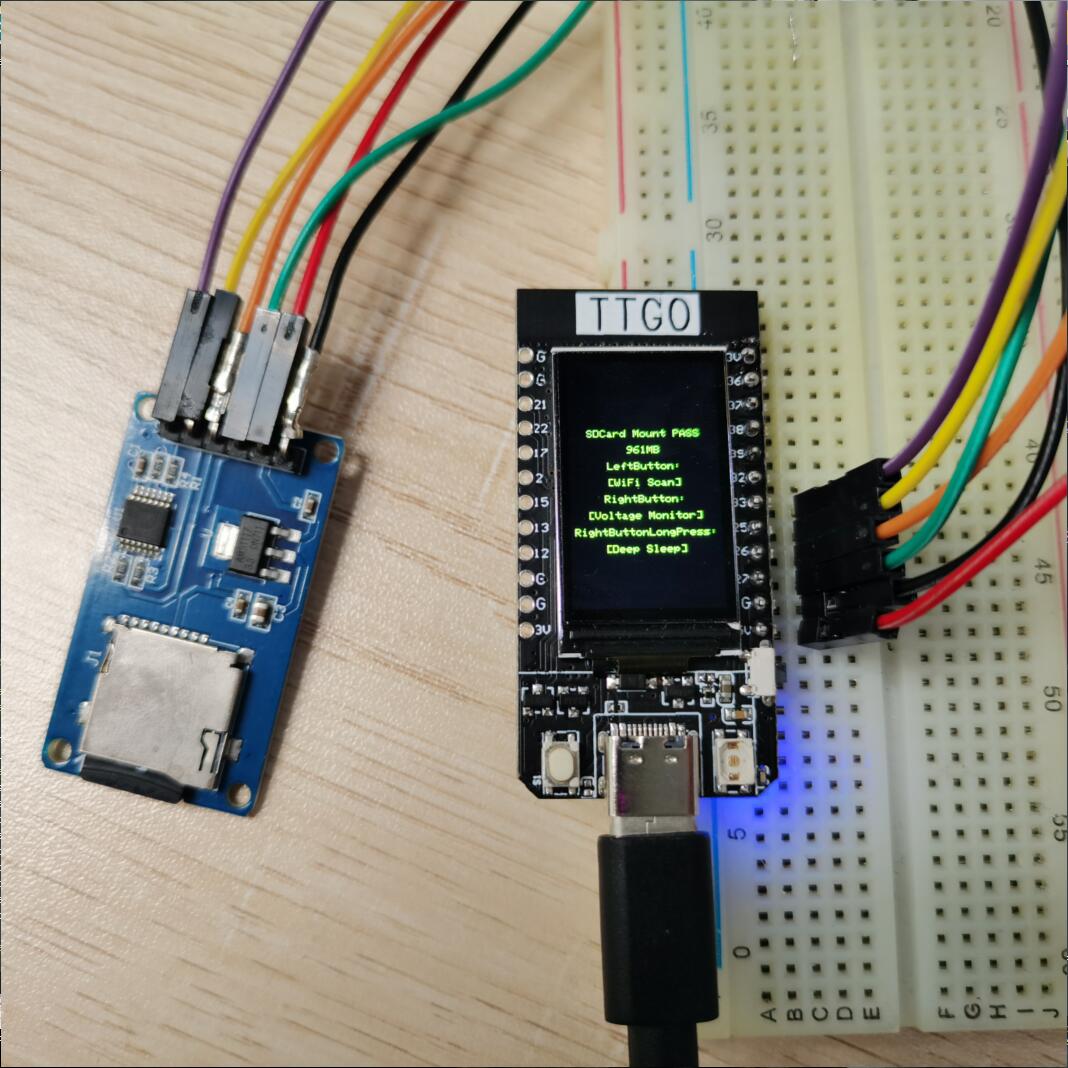
SD card connection

  • Demonstrate how to use the second SPI device, using the SD card as a demonstration device
  • 使用SD卡作为演示设备,演示如何使用第二个SPI设备

Pinout

NameV18
TFT DriverST7789
TFT_MISON/A
TFT_MOSI19
TFT_SCLK18
TFT_CS5
TFT_DC16
TFT_RST23
TFT_BL4
I2C_SDA21
I2C_SCL22
ADC_IN34
BUTTON135
BUTTON20
ADC Power14

Xinyuan-LilyGO/TTGO-T-Display

C

1,197

53 commits

updated Feb 20, 2025

See the code

README

TTGO T-Display

Quick start

  1. Install USB driver, CHxxx Series MAC driver , CHxxx Series Windows driver,CP21xx Series driver
  2. Copy TFT_eSPI to the <C:\Users\Your User Name\Documents\Arduino\libraries> directory
  3. Open Arduino IDE, find TFT_eSPI in the file and example, the T-Display factory test program is located at TFT_eSPI -> FactoryTest, you can also use other sample programs provided by TFT_eSPI
  4. In the Arduino IDE tool options, select the development board ESP32 Dev Module, select Disable in the PSRAM option, select 4MB in the Flash Size option, Other keep the default
  5. Select the corresponding serial port. If you are not sure, please remove all the serial ports, leaving the board in the USB connection state, just select that one
  6. Finally, click upload, the right arrow next to the tick
  7. Please note that the highest version currently supported by TFT_eSPI is 2.0.14. Compiling with a version higher than 2.0.14 will result in an error. Please pay attention to the selection of esp32 version. Tools -> Board -> Boards Manage -> Search esp32 -> 2.0.14 -> Install

  1. 安装 USB 驱动, CHxxx Series MAC driver , CHxxx Series Windows driver, CP21xx Series driver
  2. 拷贝 TFT_eSPI 到 <C:\Users\你的用户名\Documents\Arduino\libraries> 目录内
  3. 打开ArduinoIDE , 在文件,示例中找到TFT_eSPI, T-Display出厂测试程序位于TFT_eSPI -> FactoryTest,你也可以使用其他TFT_eSPI提供的示例程序
  4. 在Arduino IDE 工具选项中 , 开发板选择 ESP32 Dev Module,在PSRAM选项中选择Disable, Flash Size 选项中选择4MB ,其它保持默认
  5. 选择对应的串行端口,如果不清楚请移除所有串行端口,之保留板子处于USB连接状态,选择那一个即可
  6. 最后可点击上传即可,勾号旁边的向右箭头
  7. 请注意,TFT_eSPI 目前支持最高版本为2.0.14 ,高于 2.0.14 编译则会报错,请注意esp32 版本的选择:Tools -> Board -> Boards Manage ->Search esp32 -> 2.0.14 -> Install

SD card connection

  • Demonstrate how to use the second SPI device, using the SD card as a demonstration device
  • 使用SD卡作为演示设备,演示如何使用第二个SPI设备

Pinout

NameV18
TFT DriverST7789
TFT_MISON/A
TFT_MOSI19
TFT_SCLK18
TFT_CS5
TFT_DC16
TFT_RST23
TFT_BL4
I2C_SDA21
I2C_SCL22
ADC_IN34
BUTTON135
BUTTON20
ADC Power14

Significant stargazers

Lukas Wöhrl

47 followers · starred Jan 2020

Daniel Hochman

50 followers · starred Apr 2021
