Kinetik Stats: free Windows 11/10 taskbar system monitor and FPS overlay, part of the Kinetik apps. CPU/GPU temperature, usage and power, network speed, RAM, screen time, 1% lows, frame-time graph and base FPS with DLSS frame generation. Lightweight, portable, open source.
See the code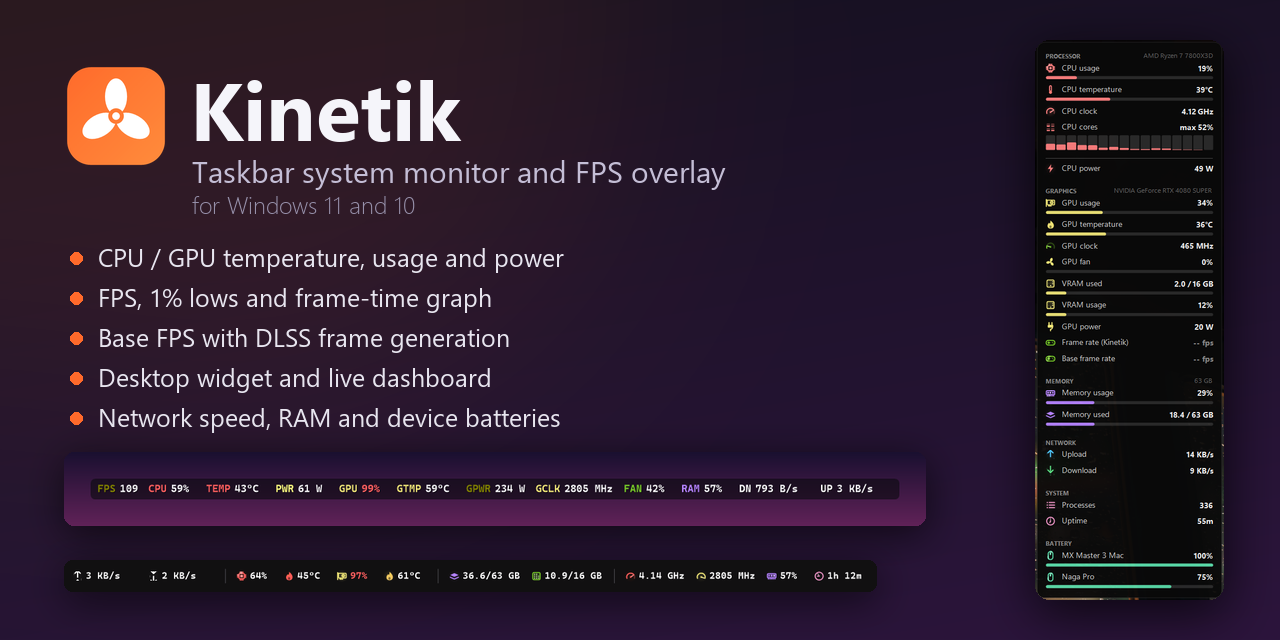



Kinetik is a free, open-source system monitor for the Windows 11 and Windows 10 taskbar, with a game overlay and an FPS counter. It shows live CPU and GPU temperature, usage, clock speed and power draw, RAM, network upload and download speed, ping, disk activity, and Bluetooth headphone and controller battery levels, right next to the system tray.
For gaming, its always-on-top FPS overlay shows the frame rate with 1% lows, a frame-time graph, render latency and the base frame rate before DLSS or FSR frame generation, for DirectX, Vulkan and OpenGL games, without hooking into them. There's also a desktop widget with live graphs, notifications when your PC runs hot, and benchmark recording to CSV.
Every stat can be switched on or off, reordered, restyled and grouped with dividers. It's a small portable app with no installer.
About this project: I originally made this for my own personal use and decided to share it in case anyone else finds it useful. If you run into a bug or have an idea for a feature, please open an issue. I'll do my best to look into it and implement what I can.

Latest version: v3.1.3. Download it from Releases.
Each one can be turned on or off. There are 44 in total.
| Category | What it shows |
|---|---|
| Network | Upload speed, download speed, total speed (upload + download), the app using the most network*, ping to any website or IP address, Wi-Fi signal strength, VPN status, public IP address |
| CPU | Usage, per-core usage bars, clock speed (GHz), temperature*, package power* |
| Memory | RAM usage %, RAM used / total (GB), committed memory % (includes the page file), RAM temperature* |
| GPU (NVIDIA, AMD, Intel) | Usage, temperature, hot spot temperature, memory temperature, clock speed (MHz), fan speed (% or RPM), VRAM used / total (GB), VRAM usage %, power draw. If you have more than one GPU, you can choose which one to show |
| Gaming* | FPS of the game or app in front (DirectX, OpenGL and Vulkan), base FPS before DLSS / FSR frame generation, 1% and 0.1% lows, frame time with a graph, render latency |
| Storage | Disk activity %, read speed, write speed, free space on any drive, drive temperature* |
| System | Running processes, uptime, time, date |
| Batteries | Laptop battery % (with a + while charging), laptop battery time left, and Bluetooth headphones, mice, keyboards and controllers (each with an icon for its device type) |
* These need the app to run as administrator (see below). CPU power also works without admin on most PCs. Base FPS and render latency come from NVIDIA Reflex, which every DLSS frame generation game has.
The same bar can look very different. Here it is in the compact two-line layout:

And with text labels instead of icons and dot-style dividers:

CPU, GPU or RAM.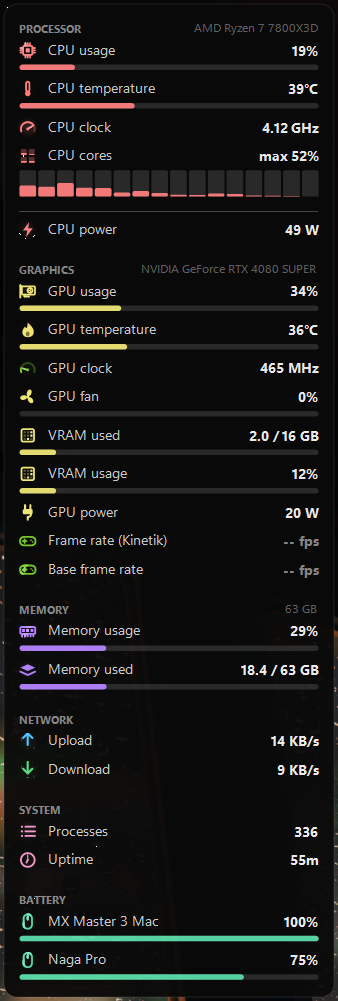
Alongside the taskbar bar, Kinetik can show a floating panel on your desktop, similar to LibreHardwareMonitor's gadget but more polished. Turn it on from the bar's right-click menu (Desktop widget) or in Settings → Widget.
The widget costs nothing while it's switched off. Stats are only measured when the bar or the widget shows them.
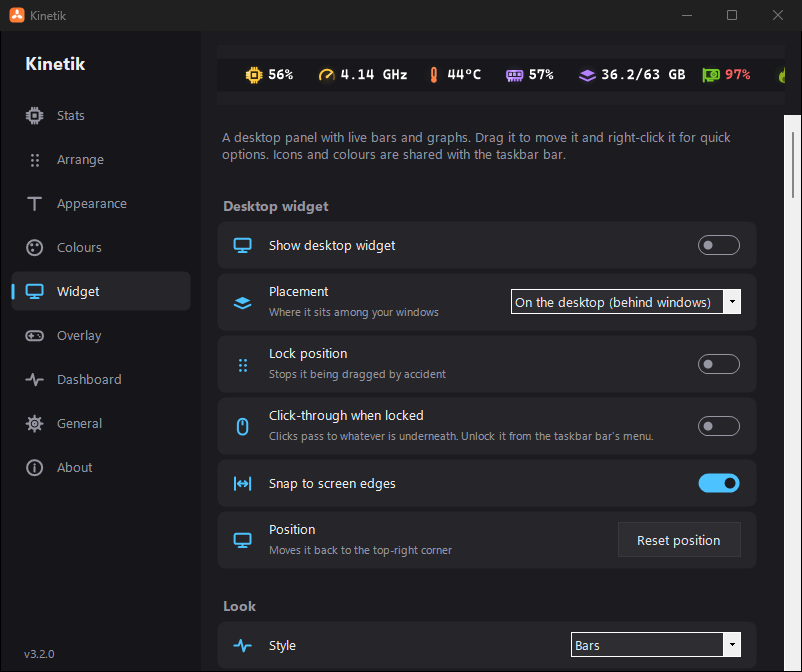
Everything about the widget is set on the Widget page in Settings:
C:\Program Files\Kinetik, so there's no UAC prompt at login.A slim strip that stays on top of your game so you can watch your stats while you play.

The same overlay with icons instead of text labels:

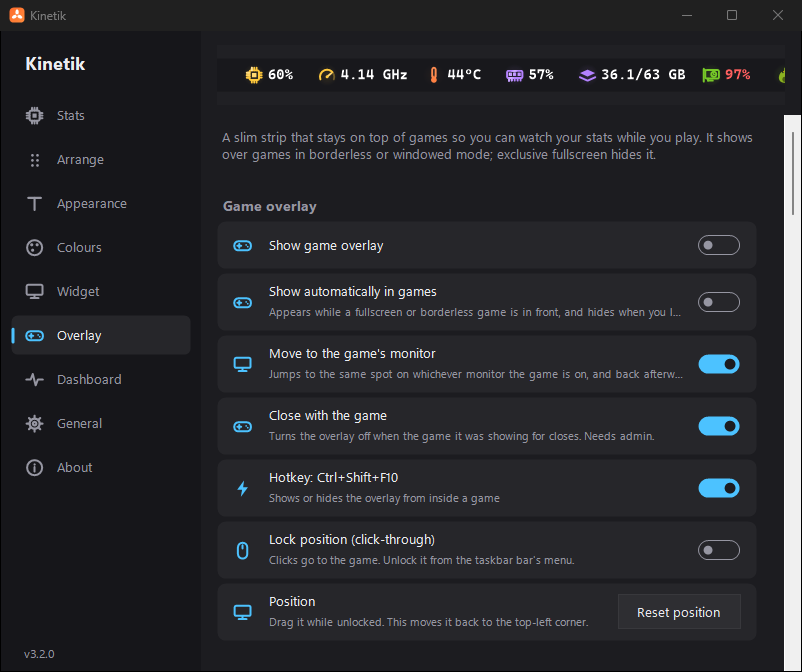
Turn it on from the bar's right-click menu (Game overlay), in Settings → Overlay, or with Ctrl+Shift+F10, which also works from inside a game.
CPU, GPU, FPS…) or icons, size, and background opacity. Text has a soft shadow so it stays readable over bright scenes.Documents\Kinetik\Sessions.csv.Documents\Kinetik\Benchmarks, for comparing settings or drivers.Everything about the overlay is set on the Overlay page in Settings:
A full-screen view of everything Kinetik measures, as a window or a web page. Both are off by default, and the extra readings are only measured while the window is open or a browser is showing the page.
Kinetik.exe --dashboard. The grid fits the window and scales its text, gauges and graphs to match.Shows what's playing in Spotify, browsers and media players, with its cover art, read from Windows' media controls. By default it sits on its own in the taskbar's left corner, and it can also join the bar, the widget and the game overlay.
Kinetik can tell you when something needs attention, using Windows' own notifications (so Focus assist and Do not disturb apply). Pick them in Settings → General → Notifications:
Kinetik.zip from the Releases page and extract it to a folder of your choice. It contains Kinetik.exe and a lib folder.Kinetik.exe. The bar appears on your taskbar next to the tray icons.It's portable, with no installer. Keep the lib folder next to Kinetik.exe: it holds the LibreHardwareMonitor library that reads CPU temperature and AMD / Intel GPUs. Kinetik checks each DLL in it against the version it was built with and won't load one that's been changed. (If you turn on Run at startup as administrator, Kinetik copies itself to C:\Program Files\Kinetik along with its lib folder, so the elevated startup task runs a copy only admins can change.) Settings are saved in the registry at HKCU\Software\Kinetik.
Updating: from v3.0.0 on, use Settings → About → Check for updates, which installs the new version for you. Or right-click the bar, choose Exit, extract the new zip over your old folder (replacing Kinetik.exe and lib) and run it again. Your settings carry over. Versions up to v2.0.3 were a single exe; for those, put the new Kinetik.exe and lib folder where the old exe was.
Windows SmartScreen may warn you because the exe isn't code-signed. Click More info → Run anyway.
| Page | What's on it |
|---|---|
| Stats | Switch each stat on or off, grouped by Network, Processor, Memory, Graphics, Storage, System and Batteries. Also: the ping address, which GPU to show, which drive to measure free space on, and whether to show Bluetooth device names. |
| Arrange | The order of everything on the bar. Drag rows, click an icon to change it or its colour, + Add divider, remove dividers with ✕, and Reset order. Turn off Show switched-off stats to list only what's on your taskbar. |
| Appearance | Font and size, one or two lines, spacing sliders (with Reset spacing), divider style and height, hover graphs, animated icons and their frame rate, and the background pill's opacity and corner roundness. |
| Colours | Match the taskbar theme, text and warning colours, a colour for each icon group, and the background colour. |
| Overlay | Turn the game overlay on, show it automatically in games, move it to the game's monitor, close it with the game, the Ctrl+Shift+F10 hotkey, lock (click-through), position, session summaries, benchmark recording (Ctrl+Shift+F11), text labels or icons, size, background opacity, and its own Contents list. |
| Dashboard | Turn the dashboard window and web dashboard on, share the web dashboard on your network, New link, theme, graph length, and the Layout editor for cards and their stats. |
| Widget | Turn the desktop widget on, and set its placement, lock, click-through and snapping, style, theme, colours, size, width, roundness, shadow, animated icons, title, headings and graph history. Its Contents list works like the Arrange page. |
| General | Settings window background colour, update interval, shift left, left-click action, hide in fullscreen, show on all taskbars, tray icon (spinning, with a choice of backgrounds), taskbar button, desktop shortcut, warning limits, notifications, profiles and backup, run at startup, restart as administrator, and restore default settings. |
| About | Version number, Check for updates (installs a newer version for you), Include test versions, and copyright. |
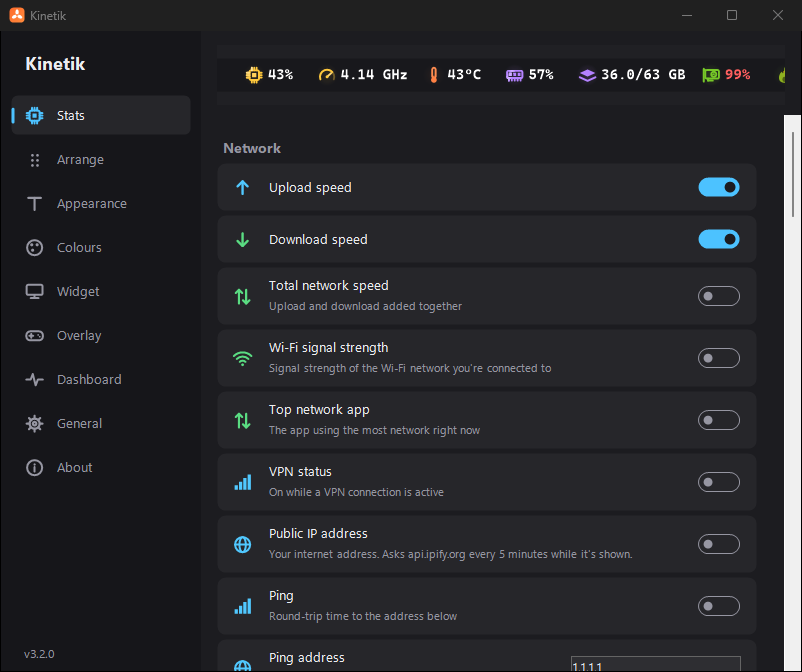 Stats | 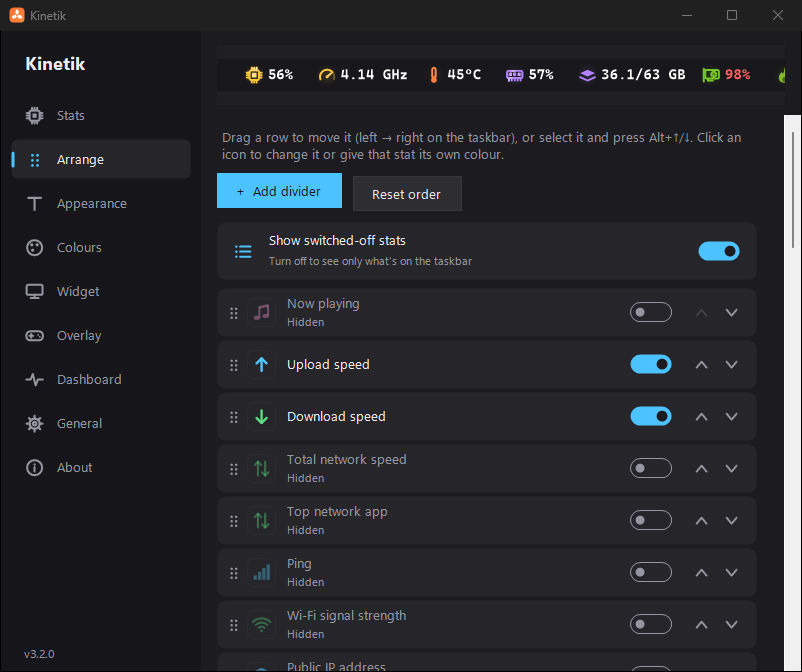 Arrange |
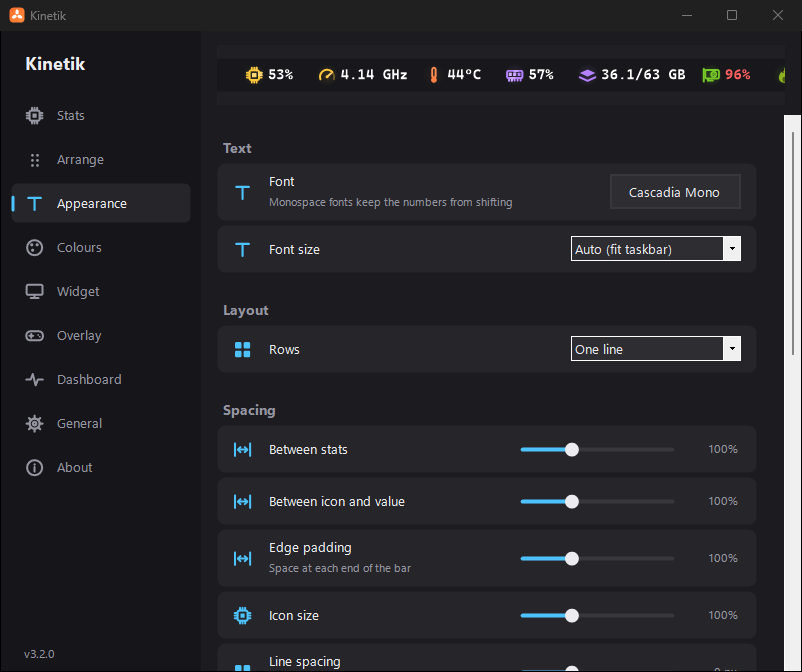 Appearance | 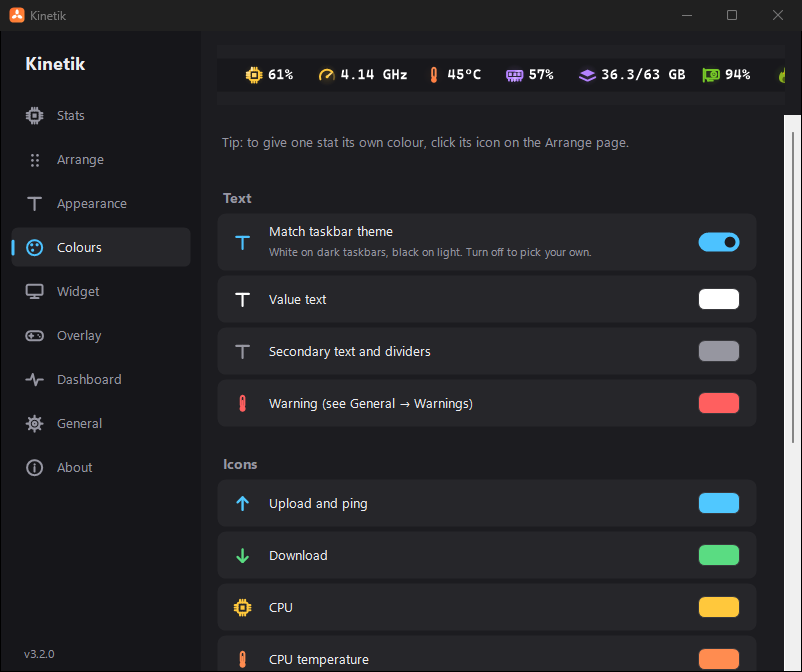 Colours |
Widget | Overlay |
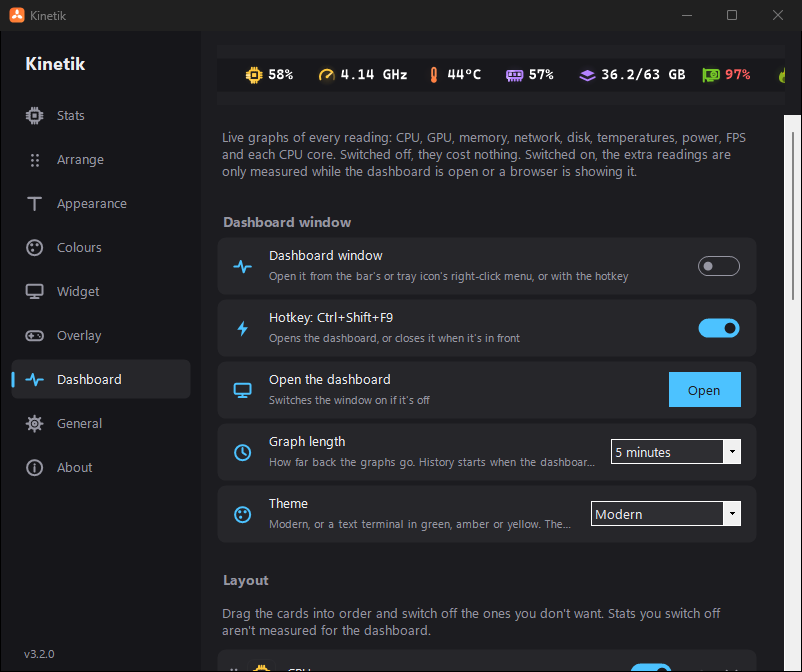 Dashboard | 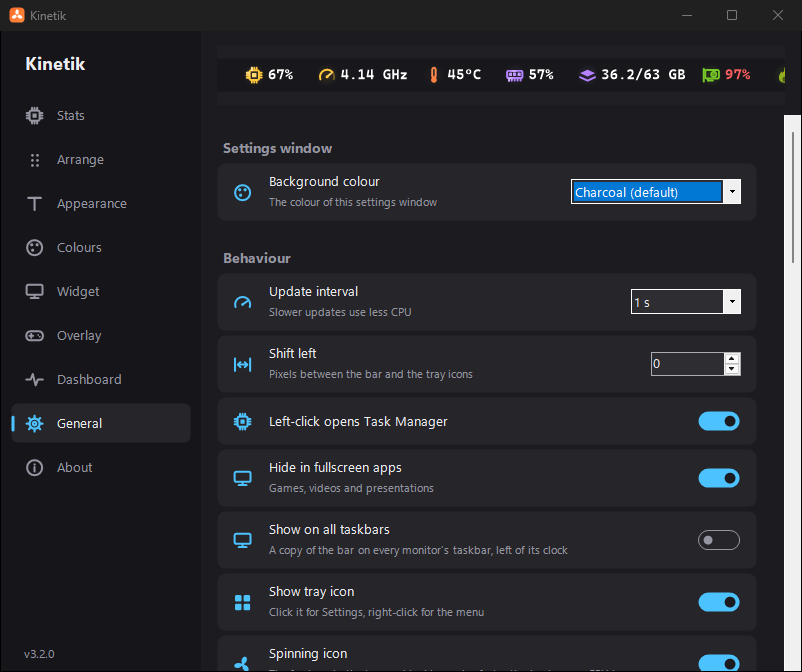 General |
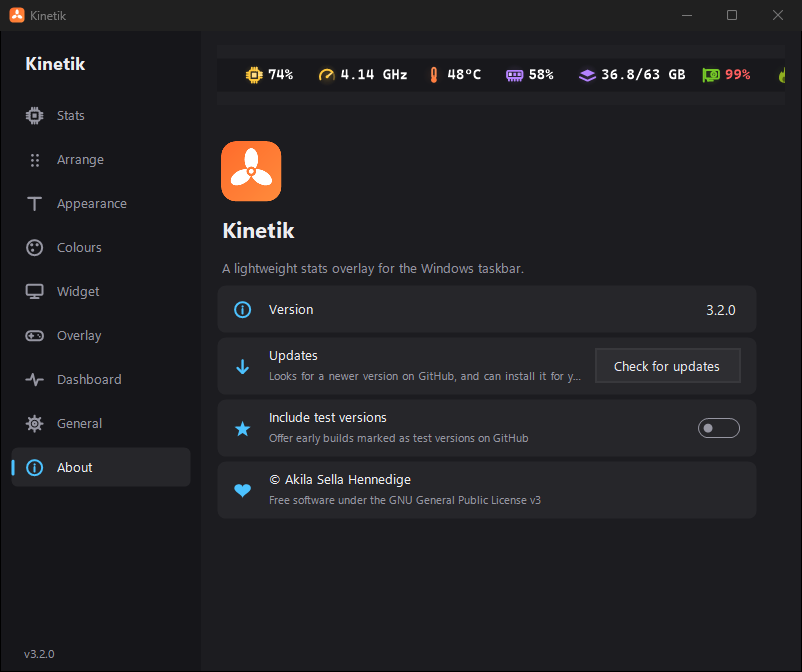 About |
Kinetik.exe --settings Arrange opens Settings on a specific page (Stats, Arrange, Appearance, Colours, Widget, Overlay, General or About)Windows doesn't provide CPU temperatures to normal apps, so Kinetik reads them through LibreHardwareMonitor's library, which ships in the lib folder next to the exe. This requires:
Without these, Kinetik falls back to what Windows provides itself:
Hover over the bar to see what's missing if the temperature shows --°C.
The FPS counter, its lows, frame times and latency, game detection, the top network app, and drive and RAM temperatures also need administrator rights. The gaming stats come from Windows' graphics event tracing, the same data PresentMon uses.
While Base FPS or render latency is shown, games with NVIDIA Reflex measure their own latency a few times a second, as they do with NVIDIA FrameView.
nvml.dll, and AMD / Intel cards through LibreHardwareMonitor. Neither needs admin rights.On PCs with more than one GPU (for example, a desktop card plus the processor's built-in graphics), go to Settings → Stats → Graphics card. Auto picks the NVIDIA card if there is one, and otherwise the card with the most video memory.
-- on the desktop or in apps that aren't drawing new frames. Browsers draw in a separate process, so they show -- too.-- for them.8.8.8.8.Kinetik.zip, with Kinetik.exe and a lib folder. The LibreHardwareMonitor DLLs are no longer packed inside the exe, a pattern antivirus software is wary of.lib is checked against the version Kinetik was built with before it loads.C:\Program Files\Kinetik, so other programs can't swap the exe to gain admin rights. Run Kinetik once as administrator after updating to move an existing startup entry over.schtasks tool, so antivirus programs (such as Bitdefender) no longer flag it as suspicious. It works the same as before: it starts elevated at sign-in with no UAC prompt, runs on battery, and has no time limit. If you already had Run at startup on, you don't need to change anything.Icon and colour picker
Dividers
Spacing and shape
A better Arrange page
11 new stats
Warning limits
Lower memory use
Other
No Visual Studio or SDK needed. It compiles with the .NET Framework compiler that's built into Windows.
Put the LibreHardwareMonitorLib 0.9.6 NuGet package's .NET Framework DLLs (runtimes/win-x64/lib/net472), along with its dependencies' DLLs, into a lib\ folder next to the source. The dependencies are DiskInfoToolkit, BlackSharp.Core, HidSharp, RAMSPDToolkit-NDD, System.Memory, System.Buffers, System.Numerics.Vectors, System.Runtime.CompilerServices.Unsafe, System.CodeDom, System.Threading.AccessControl, System.Security.AccessControl and System.Security.Principal.Windows.
Run:
build.bat
This produces Kinetik.exe with the app icon embedded. It loads the DLLs from the lib\ folder next to it, so it runs straight from the source folder. build.bat package also makes Kinetik.zip (the exe, lib\*.dll and the license) for a release.
Kinetik only loads DLLs whose SHA-256 matches the list in LibHashes in Kinetik.cs. If you use different versions of the DLLs, update that list.
Found a bug or want a feature? Open an issue and include your Windows version, CPU/GPU, and a screenshot if possible. Pull requests are welcome too.
python tests/run-tests.py runs the regression checks (no window opens). build.bat package builds the exe and makes the release zip, checking every file in it against its SHA-256 hash. The shared support code (SuiteSupport.cs) is compiled into the exe, so there's no extra DLL.
Copyright © 2026 Akila Sella Hennedige.
Released under the GNU General Public License v3.0 (GPL-3.0-or-later). You're free to use, study, modify and share it, including commercially, as long as anything you distribute that's based on it is also released under the GPL with its source code available.
Versions up to and including v1.2.1 were released under the MIT License.
Third-party components bundled in the release exe keep their own licenses. LibreHardwareMonitorLib is licensed under MPL-2.0, and HidSharp under Apache-2.0.
Kinetik Stats: free Windows 11/10 taskbar system monitor and FPS overlay, part of the Kinetik apps. CPU/GPU temperature, usage and power, network speed, RAM, screen time, 1% lows, frame-time graph and base FPS with DLSS frame generation. Lightweight, portable, open source.
See the code
Kinetik is a free, open-source system monitor for the Windows 11 and Windows 10 taskbar, with a game overlay and an FPS counter. It shows live CPU and GPU temperature, usage, clock speed and power draw, RAM, network upload and download speed, ping, disk activity, and Bluetooth headphone and controller battery levels, right next to the system tray.
For gaming, its always-on-top FPS overlay shows the frame rate with 1% lows, a frame-time graph, render latency and the base frame rate before DLSS or FSR frame generation, for DirectX, Vulkan and OpenGL games, without hooking into them. There's also a desktop widget with live graphs, notifications when your PC runs hot, and benchmark recording to CSV.
Every stat can be switched on or off, reordered, restyled and grouped with dividers. It's a small portable app with no installer.
About this project: I originally made this for my own personal use and decided to share it in case anyone else finds it useful. If you run into a bug or have an idea for a feature, please open an issue. I'll do my best to look into it and implement what I can.
Latest version: v3.1.3. Download it from Releases.
Each one can be turned on or off. There are 44 in total.
| Category | What it shows |
|---|---|
| Network | Upload speed, download speed, total speed (upload + download), the app using the most network*, ping to any website or IP address, Wi-Fi signal strength, VPN status, public IP address |
| CPU | Usage, per-core usage bars, clock speed (GHz), temperature*, package power* |
| Memory | RAM usage %, RAM used / total (GB), committed memory % (includes the page file), RAM temperature* |
| GPU (NVIDIA, AMD, Intel) | Usage, temperature, hot spot temperature, memory temperature, clock speed (MHz), fan speed (% or RPM), VRAM used / total (GB), VRAM usage %, power draw. If you have more than one GPU, you can choose which one to show |
| Gaming* | FPS of the game or app in front (DirectX, OpenGL and Vulkan), base FPS before DLSS / FSR frame generation, 1% and 0.1% lows, frame time with a graph, render latency |
| Storage | Disk activity %, read speed, write speed, free space on any drive, drive temperature* |
| System | Running processes, uptime, time, date |
| Batteries | Laptop battery % (with a + while charging), laptop battery time left, and Bluetooth headphones, mice, keyboards and controllers (each with an icon for its device type) |
* These need the app to run as administrator (see below). CPU power also works without admin on most PCs. Base FPS and render latency come from NVIDIA Reflex, which every DLSS frame generation game has.
The same bar can look very different. Here it is in the compact two-line layout:
And with text labels instead of icons and dot-style dividers:
CPU, GPU or RAM.
Alongside the taskbar bar, Kinetik can show a floating panel on your desktop, similar to LibreHardwareMonitor's gadget but more polished. Turn it on from the bar's right-click menu (Desktop widget) or in Settings → Widget.
The widget costs nothing while it's switched off. Stats are only measured when the bar or the widget shows them.
Everything about the widget is set on the Widget page in Settings:
C:\Program Files\Kinetik, so there's no UAC prompt at login.A slim strip that stays on top of your game so you can watch your stats while you play.
The same overlay with icons instead of text labels:
Turn it on from the bar's right-click menu (Game overlay), in Settings → Overlay, or with Ctrl+Shift+F10, which also works from inside a game.
CPU, GPU, FPS…) or icons, size, and background opacity. Text has a soft shadow so it stays readable over bright scenes.Documents\Kinetik\Sessions.csv.Documents\Kinetik\Benchmarks, for comparing settings or drivers.Everything about the overlay is set on the Overlay page in Settings:
A full-screen view of everything Kinetik measures, as a window or a web page. Both are off by default, and the extra readings are only measured while the window is open or a browser is showing the page.
Kinetik.exe --dashboard. The grid fits the window and scales its text, gauges and graphs to match.Shows what's playing in Spotify, browsers and media players, with its cover art, read from Windows' media controls. By default it sits on its own in the taskbar's left corner, and it can also join the bar, the widget and the game overlay.
Kinetik can tell you when something needs attention, using Windows' own notifications (so Focus assist and Do not disturb apply). Pick them in Settings → General → Notifications:
Kinetik.zip from the Releases page and extract it to a folder of your choice. It contains Kinetik.exe and a lib folder.Kinetik.exe. The bar appears on your taskbar next to the tray icons.It's portable, with no installer. Keep the lib folder next to Kinetik.exe: it holds the LibreHardwareMonitor library that reads CPU temperature and AMD / Intel GPUs. Kinetik checks each DLL in it against the version it was built with and won't load one that's been changed. (If you turn on Run at startup as administrator, Kinetik copies itself to C:\Program Files\Kinetik along with its lib folder, so the elevated startup task runs a copy only admins can change.) Settings are saved in the registry at HKCU\Software\Kinetik.
Updating: from v3.0.0 on, use Settings → About → Check for updates, which installs the new version for you. Or right-click the bar, choose Exit, extract the new zip over your old folder (replacing Kinetik.exe and lib) and run it again. Your settings carry over. Versions up to v2.0.3 were a single exe; for those, put the new Kinetik.exe and lib folder where the old exe was.
Windows SmartScreen may warn you because the exe isn't code-signed. Click More info → Run anyway.
| Page | What's on it |
|---|---|
| Stats | Switch each stat on or off, grouped by Network, Processor, Memory, Graphics, Storage, System and Batteries. Also: the ping address, which GPU to show, which drive to measure free space on, and whether to show Bluetooth device names. |
| Arrange | The order of everything on the bar. Drag rows, click an icon to change it or its colour, + Add divider, remove dividers with ✕, and Reset order. Turn off Show switched-off stats to list only what's on your taskbar. |
| Appearance | Font and size, one or two lines, spacing sliders (with Reset spacing), divider style and height, hover graphs, animated icons and their frame rate, and the background pill's opacity and corner roundness. |
| Colours | Match the taskbar theme, text and warning colours, a colour for each icon group, and the background colour. |
| Overlay | Turn the game overlay on, show it automatically in games, move it to the game's monitor, close it with the game, the Ctrl+Shift+F10 hotkey, lock (click-through), position, session summaries, benchmark recording (Ctrl+Shift+F11), text labels or icons, size, background opacity, and its own Contents list. |
| Dashboard | Turn the dashboard window and web dashboard on, share the web dashboard on your network, New link, theme, graph length, and the Layout editor for cards and their stats. |
| Widget | Turn the desktop widget on, and set its placement, lock, click-through and snapping, style, theme, colours, size, width, roundness, shadow, animated icons, title, headings and graph history. Its Contents list works like the Arrange page. |
| General | Settings window background colour, update interval, shift left, left-click action, hide in fullscreen, show on all taskbars, tray icon (spinning, with a choice of backgrounds), taskbar button, desktop shortcut, warning limits, notifications, profiles and backup, run at startup, restart as administrator, and restore default settings. |
| About | Version number, Check for updates (installs a newer version for you), Include test versions, and copyright. |
Stats | Arrange |
Appearance | Colours |
Widget | Overlay |
Dashboard | General |
About |
Kinetik.exe --settings Arrange opens Settings on a specific page (Stats, Arrange, Appearance, Colours, Widget, Overlay, General or About)Windows doesn't provide CPU temperatures to normal apps, so Kinetik reads them through LibreHardwareMonitor's library, which ships in the lib folder next to the exe. This requires:
Without these, Kinetik falls back to what Windows provides itself:
Hover over the bar to see what's missing if the temperature shows --°C.
The FPS counter, its lows, frame times and latency, game detection, the top network app, and drive and RAM temperatures also need administrator rights. The gaming stats come from Windows' graphics event tracing, the same data PresentMon uses.
While Base FPS or render latency is shown, games with NVIDIA Reflex measure their own latency a few times a second, as they do with NVIDIA FrameView.
nvml.dll, and AMD / Intel cards through LibreHardwareMonitor. Neither needs admin rights.On PCs with more than one GPU (for example, a desktop card plus the processor's built-in graphics), go to Settings → Stats → Graphics card. Auto picks the NVIDIA card if there is one, and otherwise the card with the most video memory.
-- on the desktop or in apps that aren't drawing new frames. Browsers draw in a separate process, so they show -- too.-- for them.8.8.8.8.Kinetik.zip, with Kinetik.exe and a lib folder. The LibreHardwareMonitor DLLs are no longer packed inside the exe, a pattern antivirus software is wary of.lib is checked against the version Kinetik was built with before it loads.C:\Program Files\Kinetik, so other programs can't swap the exe to gain admin rights. Run Kinetik once as administrator after updating to move an existing startup entry over.schtasks tool, so antivirus programs (such as Bitdefender) no longer flag it as suspicious. It works the same as before: it starts elevated at sign-in with no UAC prompt, runs on battery, and has no time limit. If you already had Run at startup on, you don't need to change anything.Icon and colour picker
Dividers
Spacing and shape
A better Arrange page
11 new stats
Warning limits
Lower memory use
Other
No Visual Studio or SDK needed. It compiles with the .NET Framework compiler that's built into Windows.
Put the LibreHardwareMonitorLib 0.9.6 NuGet package's .NET Framework DLLs (runtimes/win-x64/lib/net472), along with its dependencies' DLLs, into a lib\ folder next to the source. The dependencies are DiskInfoToolkit, BlackSharp.Core, HidSharp, RAMSPDToolkit-NDD, System.Memory, System.Buffers, System.Numerics.Vectors, System.Runtime.CompilerServices.Unsafe, System.CodeDom, System.Threading.AccessControl, System.Security.AccessControl and System.Security.Principal.Windows.
Run:
build.bat
This produces Kinetik.exe with the app icon embedded. It loads the DLLs from the lib\ folder next to it, so it runs straight from the source folder. build.bat package also makes Kinetik.zip (the exe, lib\*.dll and the license) for a release.
Kinetik only loads DLLs whose SHA-256 matches the list in LibHashes in Kinetik.cs. If you use different versions of the DLLs, update that list.
Found a bug or want a feature? Open an issue and include your Windows version, CPU/GPU, and a screenshot if possible. Pull requests are welcome too.
python tests/run-tests.py runs the regression checks (no window opens). build.bat package builds the exe and makes the release zip, checking every file in it against its SHA-256 hash. The shared support code (SuiteSupport.cs) is compiled into the exe, so there's no extra DLL.
Copyright © 2026 Akila Sella Hennedige.
Released under the GNU General Public License v3.0 (GPL-3.0-or-later). You're free to use, study, modify and share it, including commercially, as long as anything you distribute that's based on it is also released under the GPL with its source code available.
Versions up to and including v1.2.1 were released under the MIT License.
Third-party components bundled in the release exe keep their own licenses. LibreHardwareMonitorLib is licensed under MPL-2.0, and HidSharp under Apache-2.0.





