
Edge-docked sticky notes for Windows. Hover your screen edge and notes appear instantly. Free, open source, offline.
See the codeSee what people are saying
README
Tabbin
A lightweight hover-activated dock for your notes — always on top, never in the way.




Screenshots
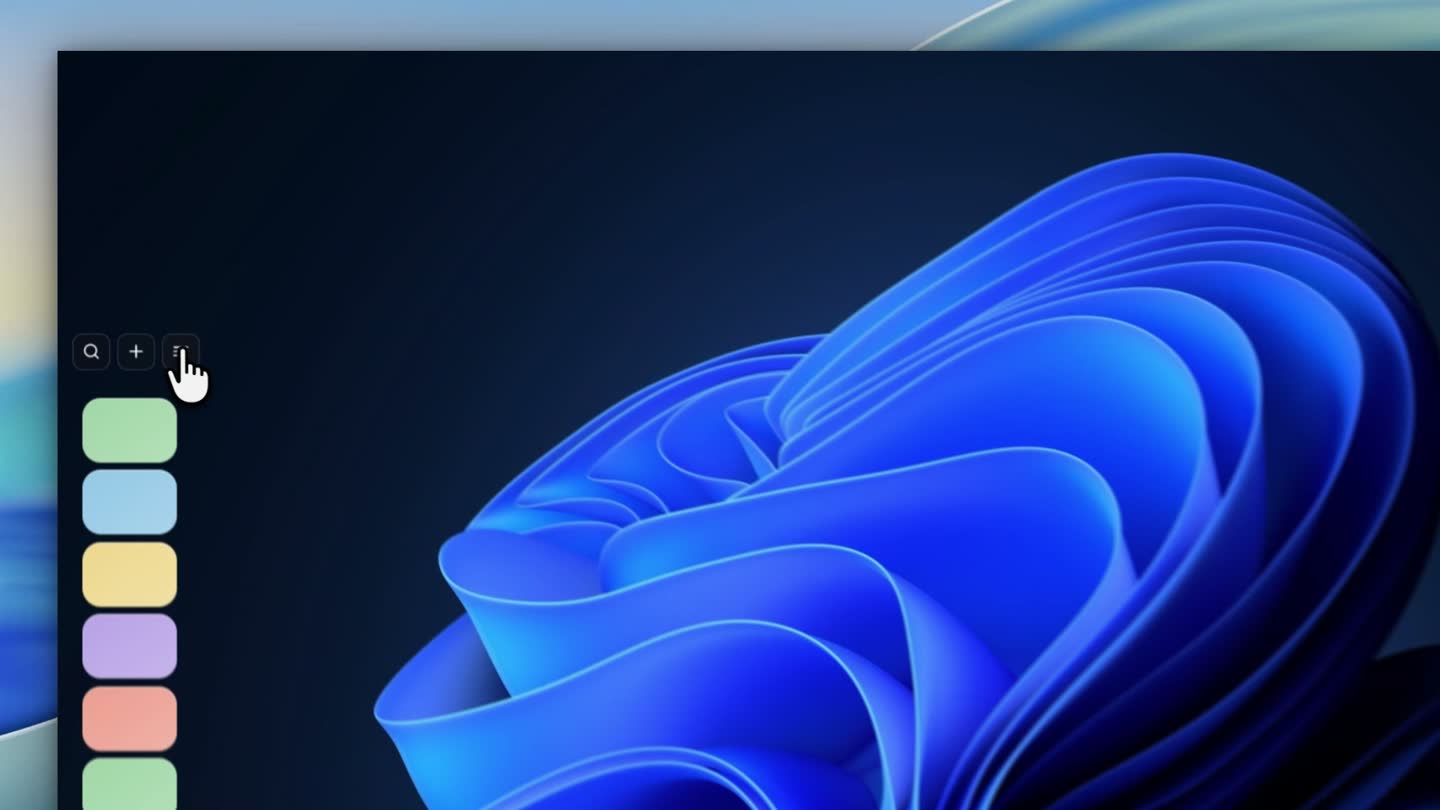
The dock, revealed on hover
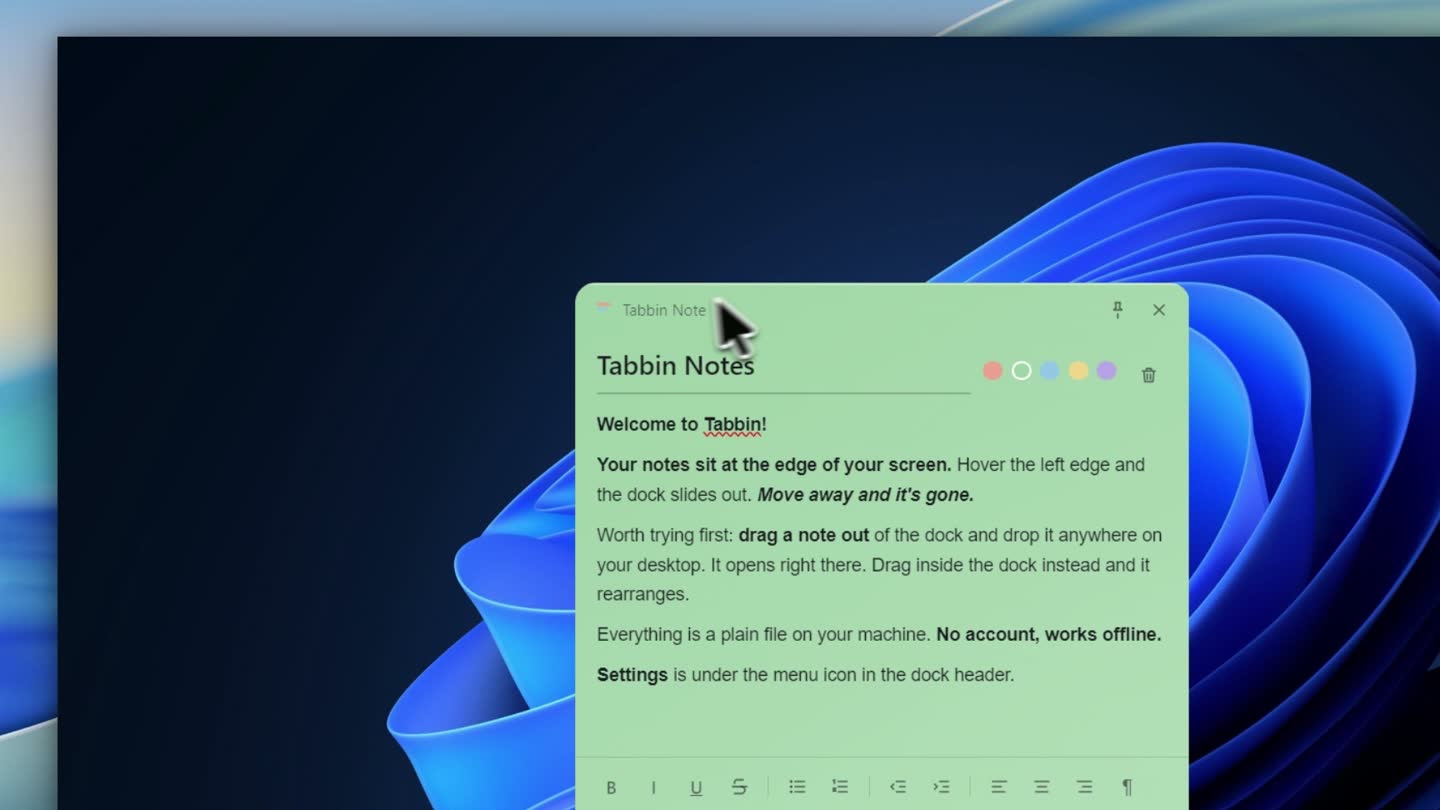
A note, opened and resized
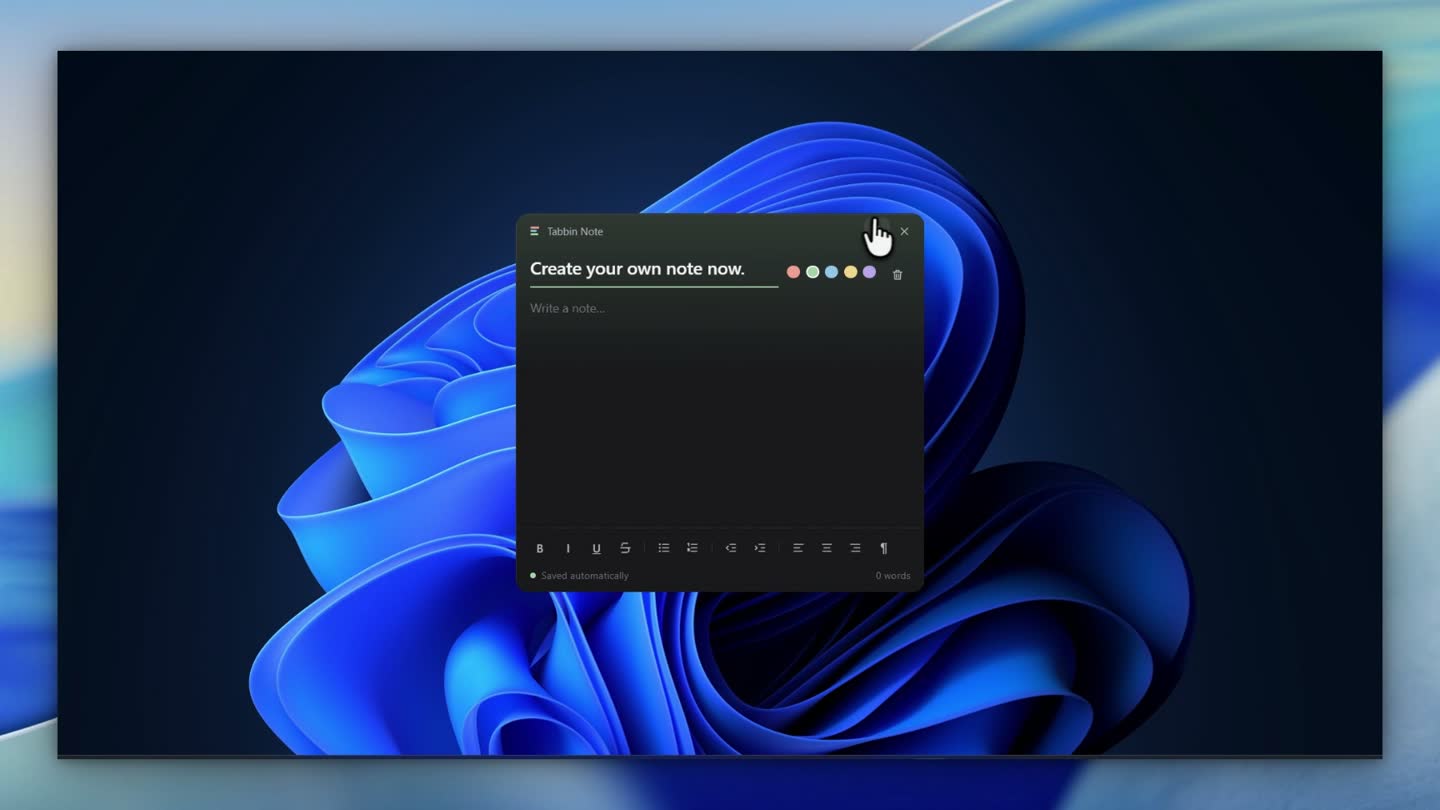
Writing a new note
Overview
Tabbin is a hover-activated dock for quick notes that stays out of your way. It parks on the edge of your primary display and hides itself until you reach for it. Notes open in native-resizable windows with rich-text editing. Drag one out of the dock to open it where you drop it, or drag around inside the dock to reorder.
[!NOTE] v2.2.3 fixes your note order resetting on restart, a lost note when creating one during a save, and an internal error on every drag-out. v2.2.2 added editor keyboard shortcuts — align, strikethrough, indent, and automatic lists — and fixed the Save location row so it shows the folder your notes are actually in. v2.2.1 brought back the classic coloured-note look and lets you drag a note out of the dock to open it. v1.0.1 remains available on the releases page if you prefer the older tab-based dock.
Features
- Two dock appearances — classic (coloured tiles that expand on hover) or glass (premium look of the tiles)
- Drag a note out to open it — pull a tile off the dock and it opens where you drop it; drag around inside the dock to reorder instead
- Settings panel — dock side, appearance, auto-hide, dock width, launch-on-startup, save location, and clear-all-notes, behind one menu
- Find your notes — Settings shows the folder your notes live in, with one button to open it and another to move them
- Right-edge docking — the layout mirrors, so notes grow away from the edge and the header aligns to it
- Content-sized dock — sized to the notes it shows and centred vertically, rather than filling the screen
- Concise header — search, add, and menu; search expands in place when you want it
- Note windows match the dock — classic opens a solid sheet of the note colour with dark text, glass keeps the dark window
- Bundled Geist typeface — no CDN fetch at runtime, so the UI renders identically offline
- Always on top — stays above fullscreen and maximized windows via
setAlwaysOnTop(true, 'screen-saver'), andsetFullScreenable(false)keeps it reachable inside fullscreen apps - Rich-text editing — bold, italic, underline, strikethrough, lists, indent/outdent, alignment, and format blocks, with the toolbar reflecting the caret's current formatting
- Keyboard shortcuts —
Ctrl+L/Ctrl+E/Ctrl+Rto align,Ctrl+Alt+Sfor strikethrough,TabandShift+Tabto indent and outdent inside a list, and automatic lists when you type1.or- - Native-resizable windows — note windows remember their size across sessions
- Per-note pinning — keep an individual note above other windows, with a per-note colour drawn from a five-tone palette
- Single instance — relaunching focuses the running dock instead of starting a second copy
- Auto-updates — checks GitHub releases at launch, every 6 hours, and on system resume; downloads in the background and installs when you quit
- Portable and installer builds — NSIS installer for Windows, DMG/ZIP for macOS
Install
Tabbin is Windows-only, x64. The setup file installs it and receives updates automatically.
- Download Tabbin-Setup.exe (about 68 MB). The link always serves the newest release, so you never need to check the version first.
- Windows will warn you that the publisher is unknown. Tabbin is not code signed and never will be without a certificate, so this warning is expected. Click More info, then Run anyway.
- Pick where to install it. The default is fine for most people.
- Finish the installer. It adds a Start Menu entry and a Desktop shortcut.
- Launch Tabbin from either.
That is the whole install. Nothing to configure, no account, no internet needed after the download — your notes are stored locally in your user profile.
[!TIP] Want to try it without installing? There is a portable build on the releases page. It cannot update itself, since it runs from a temporary folder.
Using it
- Launch the executable. A splash screen (~900ms) fades to the dock.
- Hover the screen edge to bring the dock out.
- The header holds three icons: search, add, and menu. Search
expands in place; click the magnifier again or press
Escapeto close it. - The menu opens Settings, Hide dock, and Exit.
- Click a card to open the full note window, or drag it out of the dock and release to open it wherever you drop it. Dragging within the dock reorders instead.
- Move the pointer away and the dock hides after 400ms.
First run creates three notes: Welcome to Tabbin (instructions), Ideas, and Today (a task list).
The dock shows six tiles in classic mode, or four cards in glass, and scrolls beyond that. It is sized to fit and centred vertically, so switching appearance does not change its height much.
Everything above is adjustable from the menu: dock side, appearance, auto-hide, dock width (compact 268px, the default, or roomy 320px), launch-on-startup, save location, and clearing all notes.
The dock's bottom status row reports update state — available, download progress, restart to install, or a retry option after a failure. It stays hidden when there is nothing to report.
Support
If Tabbin is useful to you, a GitHub star goes a long way. Stars are what make a repository show up in searches and recommendations, so it is the one thing that helps other people find it.

The badge shows the real count, so right now it is a small project with a small number. That is fine. Every star here is from someone who actually installed it.
Other things that help just as much:
- Open an issue if something is broken or a feature is missing. It is the only way I find out.
- Tell me how you use it. Real workflows tell me what to build next far better than I can guess.
- Share it with someone who keeps a messy desktop. That is genuinely how a small app finds its users.
Development
Prerequisites
Node.js 18+ and npm. Electron 32.3.3 installs itself via devDependencies.
npm install
npm start
Tests
npm test
| Suite | Covers |
|---|---|
test_sticky_dock.js | Dock behavior, reduced IPC bridge, packaging config |
test_v2_features.js | Rich-text commands, drag reorder, resizing, pinning, installer config |
test_updater.js | Update state machine transitions, rejected events, portable guard, renderer wiring |
test_release_body_checksums.js | Release-body checksum guard across stale, malformed, truncated and CRLF cases |
test_editor_repaint.js | Editor repaint guards — echo writes nothing, real changes apply |
test_palette_migration.js | Legacy colour mapping, idempotence, unparseable values |
test_save_location.js | Save folder resolution, validation, and note migration |
These run on plain Node with no dependencies. Many assert on the text of
source files, which catches regressions but is not behavioral coverage. Two
suites genuinely execute code: updater-state.js is a pure module and the
checksum guard is imported directly.
test_v2_features.js also parses the dock renderer and checks stylesheet brace
balance, markup nesting, and settings-row structure. Those guards exist because
a dropped brace or a missing </div> renders an empty dock or a sideways
settings panel while every content assertion still passes.
Verifying a release
npm run verify:feed
Release-time only, and needs network access. It confirms that:
- the published
latest.ymldeclares the version the tag claims - every file it references is attached to the release
- declared sizes and SHA-512 digests match the stored artifacts
- any SHA-256 advertised in the release body matches GitHub's per-asset digest
[!IMPORTANT] Take checksums for the release body from GitHub's asset digests after publishing, never from a local
dist/.electron-builder --publish alwaysrebuilds before uploading, so the bytes that reach GitHub differ from the ones on disk. v1.0.0, v1.0.1 and v1.0.2 all shipped stale checksums before this was caught.
Upload the feed last, and do not replace assets on a published release.
Architecture
| File | Role |
|---|---|
main.js | Main process — windows, IPC handlers, note storage, edge-hover detection, drag-out drop resolution, crash handlers |
updater.js | Update wiring — electron-updater events, build guards, re-check cadence, file logging |
updater-state.js | Pure update state machine (no Electron imports), so transitions are unit testable |
preload.js | Context bridge exposing window.tabbin; context isolation on, nodeIntegration off |
dock.html | Dock renderer — transparent overlay, note cards, header, overflow menu, settings panel, update row |
note.html | Note editor — contenteditable with rich-text toolbar and pin toggle |
loading.html | Splash screen |
scripts/verify-feed.js | Release-time feed and checksum verification |
icon.ico / icon.png | Application icons |
Update flow
updater.js owns a state machine and pushes a full snapshot to the dock on
every transition, which the dock both subscribes to and pulls on load. A
snapshot rather than an event stream, so an update found before the dock
finishes loading is not lost.
States resolve to one dock row: available → downloading → ready, plus
error (retryable) and unsupported. install() refuses to run for a portable
build or an unpackaged dev run, so a test can never replace a real install.
IPC API
| Method | Description |
|---|---|
list() / get(id) | Read notes, newest first |
create() | Create a note and open its window |
update(note) | Save title, content, color, pinning |
reorder(ids) | Persist drag-and-drop order |
remove(id) | Delete a note |
open(id) | Open a note window |
dropNote(id) | A tile drag finished — the main process opens the note if the cursor is off the dock, and does nothing if it was a reorder |
hide() / cursorLeft() | Hide the dock, or arm its hide timer |
reportContentHeight(h) | Tell the main process how tall the note list is, so the window can hug and centre it |
quit() | Quit the app |
config() / setConfig(patch) | Read or change dock configuration |
pickFolder() | Choose a save location |
clear(confirm) | Delete every note |
toggleNoteAlwaysOnTop(id) | Pin a note |
updateStatus() | Current update snapshot |
checkForUpdates() / downloadUpdate() / installUpdate() | Drive an update |
dismissUpdateNudge() | Dismiss the portable-build notice |
onChanged(cb) / onConfigChanged(cb) / onUpdateState(cb) | Subscribe to changes |
Data storage
Stored in the Electron user data directory (app.getPath('userData')):
| File | Contents |
|---|---|
notes.json | Notes — id, title, content, color, pinning, timestamp |
config.json | Dock edge (left/right), dockBg (classic/glass), dockWidth (compact/roomy), edgeHover, launchOnStartup, saveLocation, note window noteWidth/noteHeight |
update-state.json | Last check timestamp, portable-notice dismissal |
update.log | Updater diagnostics, since packaged Windows builds discard stdout |
crash.log | Uncaught exceptions and unhandled rejections |
Notes are written atomically with a backup rollback and serialized through a write queue, so concurrent saves cannot lose data.
A dockBg written by 2.1.0 or earlier is migrated on first launch rather than
reset, so upgrading never costs you your chosen appearance: clear becomes
classic, and both bare and glass become glass.
Build
npm run build:win    # Windows: portable + NSIS installer
npm run build:mac    # macOS: DMG + ZIP
npm run build:all    # both
npm run build:dir    # unpacked directory, for debugging
Output lands in dist/.
[!NOTE] Builds are not code signed, so Windows SmartScreen may warn on install or update. Signing is planned for a future release.
Acknowledgements
- Electron — cross-platform desktop framework
- electron-builder — packaging and installation
- electron-updater — auto-updating
Similar repos


Edge-docked sticky notes for Windows. Hover your screen edge and notes appear instantly. Free, open source, offline.
See the codeSee what people are saying
README
Tabbin
A lightweight hover-activated dock for your notes — always on top, never in the way.
Screenshots
The dock, revealed on hover
A note, opened and resized
Writing a new note
Overview
Tabbin is a hover-activated dock for quick notes that stays out of your way. It parks on the edge of your primary display and hides itself until you reach for it. Notes open in native-resizable windows with rich-text editing. Drag one out of the dock to open it where you drop it, or drag around inside the dock to reorder.
[!NOTE] v2.2.3 fixes your note order resetting on restart, a lost note when creating one during a save, and an internal error on every drag-out. v2.2.2 added editor keyboard shortcuts — align, strikethrough, indent, and automatic lists — and fixed the Save location row so it shows the folder your notes are actually in. v2.2.1 brought back the classic coloured-note look and lets you drag a note out of the dock to open it. v1.0.1 remains available on the releases page if you prefer the older tab-based dock.
Features
- Two dock appearances — classic (coloured tiles that expand on hover) or glass (premium look of the tiles)
- Drag a note out to open it — pull a tile off the dock and it opens where you drop it; drag around inside the dock to reorder instead
- Settings panel — dock side, appearance, auto-hide, dock width, launch-on-startup, save location, and clear-all-notes, behind one menu
- Find your notes — Settings shows the folder your notes live in, with one button to open it and another to move them
- Right-edge docking — the layout mirrors, so notes grow away from the edge and the header aligns to it
- Content-sized dock — sized to the notes it shows and centred vertically, rather than filling the screen
- Concise header — search, add, and menu; search expands in place when you want it
- Note windows match the dock — classic opens a solid sheet of the note colour with dark text, glass keeps the dark window
- Bundled Geist typeface — no CDN fetch at runtime, so the UI renders identically offline
- Always on top — stays above fullscreen and maximized windows via
setAlwaysOnTop(true, 'screen-saver'), andsetFullScreenable(false)keeps it reachable inside fullscreen apps - Rich-text editing — bold, italic, underline, strikethrough, lists, indent/outdent, alignment, and format blocks, with the toolbar reflecting the caret's current formatting
- Keyboard shortcuts —
Ctrl+L/Ctrl+E/Ctrl+Rto align,Ctrl+Alt+Sfor strikethrough,TabandShift+Tabto indent and outdent inside a list, and automatic lists when you type1.or- - Native-resizable windows — note windows remember their size across sessions
- Per-note pinning — keep an individual note above other windows, with a per-note colour drawn from a five-tone palette
- Single instance — relaunching focuses the running dock instead of starting a second copy
- Auto-updates — checks GitHub releases at launch, every 6 hours, and on system resume; downloads in the background and installs when you quit
- Portable and installer builds — NSIS installer for Windows, DMG/ZIP for macOS
Install
Tabbin is Windows-only, x64. The setup file installs it and receives updates automatically.
- Download Tabbin-Setup.exe (about 68 MB). The link always serves the newest release, so you never need to check the version first.
- Windows will warn you that the publisher is unknown. Tabbin is not code signed and never will be without a certificate, so this warning is expected. Click More info, then Run anyway.
- Pick where to install it. The default is fine for most people.
- Finish the installer. It adds a Start Menu entry and a Desktop shortcut.
- Launch Tabbin from either.
That is the whole install. Nothing to configure, no account, no internet needed after the download — your notes are stored locally in your user profile.
[!TIP] Want to try it without installing? There is a portable build on the releases page. It cannot update itself, since it runs from a temporary folder.
Using it
- Launch the executable. A splash screen (~900ms) fades to the dock.
- Hover the screen edge to bring the dock out.
- The header holds three icons: search, add, and menu. Search
expands in place; click the magnifier again or press
Escapeto close it. - The menu opens Settings, Hide dock, and Exit.
- Click a card to open the full note window, or drag it out of the dock and release to open it wherever you drop it. Dragging within the dock reorders instead.
- Move the pointer away and the dock hides after 400ms.
First run creates three notes: Welcome to Tabbin (instructions), Ideas, and Today (a task list).
The dock shows six tiles in classic mode, or four cards in glass, and scrolls beyond that. It is sized to fit and centred vertically, so switching appearance does not change its height much.
Everything above is adjustable from the menu: dock side, appearance, auto-hide, dock width (compact 268px, the default, or roomy 320px), launch-on-startup, save location, and clearing all notes.
The dock's bottom status row reports update state — available, download progress, restart to install, or a retry option after a failure. It stays hidden when there is nothing to report.
Support
If Tabbin is useful to you, a GitHub star goes a long way. Stars are what make a repository show up in searches and recommendations, so it is the one thing that helps other people find it.
The badge shows the real count, so right now it is a small project with a small number. That is fine. Every star here is from someone who actually installed it.
Other things that help just as much:
- Open an issue if something is broken or a feature is missing. It is the only way I find out.
- Tell me how you use it. Real workflows tell me what to build next far better than I can guess.
- Share it with someone who keeps a messy desktop. That is genuinely how a small app finds its users.
Development
Prerequisites
Node.js 18+ and npm. Electron 32.3.3 installs itself via devDependencies.
npm install
npm start
Tests
npm test
| Suite | Covers |
|---|---|
test_sticky_dock.js | Dock behavior, reduced IPC bridge, packaging config |
test_v2_features.js | Rich-text commands, drag reorder, resizing, pinning, installer config |
test_updater.js | Update state machine transitions, rejected events, portable guard, renderer wiring |
test_release_body_checksums.js | Release-body checksum guard across stale, malformed, truncated and CRLF cases |
test_editor_repaint.js | Editor repaint guards — echo writes nothing, real changes apply |
test_palette_migration.js | Legacy colour mapping, idempotence, unparseable values |
test_save_location.js | Save folder resolution, validation, and note migration |
These run on plain Node with no dependencies. Many assert on the text of
source files, which catches regressions but is not behavioral coverage. Two
suites genuinely execute code: updater-state.js is a pure module and the
checksum guard is imported directly.
test_v2_features.js also parses the dock renderer and checks stylesheet brace
balance, markup nesting, and settings-row structure. Those guards exist because
a dropped brace or a missing </div> renders an empty dock or a sideways
settings panel while every content assertion still passes.
Verifying a release
npm run verify:feed
Release-time only, and needs network access. It confirms that:
- the published
latest.ymldeclares the version the tag claims - every file it references is attached to the release
- declared sizes and SHA-512 digests match the stored artifacts
- any SHA-256 advertised in the release body matches GitHub's per-asset digest
[!IMPORTANT] Take checksums for the release body from GitHub's asset digests after publishing, never from a local
dist/.electron-builder --publish alwaysrebuilds before uploading, so the bytes that reach GitHub differ from the ones on disk. v1.0.0, v1.0.1 and v1.0.2 all shipped stale checksums before this was caught.
Upload the feed last, and do not replace assets on a published release.
Architecture
| File | Role |
|---|---|
main.js | Main process — windows, IPC handlers, note storage, edge-hover detection, drag-out drop resolution, crash handlers |
updater.js | Update wiring — electron-updater events, build guards, re-check cadence, file logging |
updater-state.js | Pure update state machine (no Electron imports), so transitions are unit testable |
preload.js | Context bridge exposing window.tabbin; context isolation on, nodeIntegration off |
dock.html | Dock renderer — transparent overlay, note cards, header, overflow menu, settings panel, update row |
note.html | Note editor — contenteditable with rich-text toolbar and pin toggle |
loading.html | Splash screen |
scripts/verify-feed.js | Release-time feed and checksum verification |
icon.ico / icon.png | Application icons |
Update flow
updater.js owns a state machine and pushes a full snapshot to the dock on
every transition, which the dock both subscribes to and pulls on load. A
snapshot rather than an event stream, so an update found before the dock
finishes loading is not lost.
States resolve to one dock row: available → downloading → ready, plus
error (retryable) and unsupported. install() refuses to run for a portable
build or an unpackaged dev run, so a test can never replace a real install.
IPC API
| Method | Description |
|---|---|
list() / get(id) | Read notes, newest first |
create() | Create a note and open its window |
update(note) | Save title, content, color, pinning |
reorder(ids) | Persist drag-and-drop order |
remove(id) | Delete a note |
open(id) | Open a note window |
dropNote(id) | A tile drag finished — the main process opens the note if the cursor is off the dock, and does nothing if it was a reorder |
hide() / cursorLeft() | Hide the dock, or arm its hide timer |
reportContentHeight(h) | Tell the main process how tall the note list is, so the window can hug and centre it |
quit() | Quit the app |
config() / setConfig(patch) | Read or change dock configuration |
pickFolder() | Choose a save location |
clear(confirm) | Delete every note |
toggleNoteAlwaysOnTop(id) | Pin a note |
updateStatus() | Current update snapshot |
checkForUpdates() / downloadUpdate() / installUpdate() | Drive an update |
dismissUpdateNudge() | Dismiss the portable-build notice |
onChanged(cb) / onConfigChanged(cb) / onUpdateState(cb) | Subscribe to changes |
Data storage
Stored in the Electron user data directory (app.getPath('userData')):
| File | Contents |
|---|---|
notes.json | Notes — id, title, content, color, pinning, timestamp |
config.json | Dock edge (left/right), dockBg (classic/glass), dockWidth (compact/roomy), edgeHover, launchOnStartup, saveLocation, note window noteWidth/noteHeight |
update-state.json | Last check timestamp, portable-notice dismissal |
update.log | Updater diagnostics, since packaged Windows builds discard stdout |
crash.log | Uncaught exceptions and unhandled rejections |
Notes are written atomically with a backup rollback and serialized through a write queue, so concurrent saves cannot lose data.
A dockBg written by 2.1.0 or earlier is migrated on first launch rather than
reset, so upgrading never costs you your chosen appearance: clear becomes
classic, and both bare and glass become glass.
Build
npm run build:win    # Windows: portable + NSIS installer
npm run build:mac    # macOS: DMG + ZIP
npm run build:all    # both
npm run build:dir    # unpacked directory, for debugging
Output lands in dist/.
[!NOTE] Builds are not code signed, so Windows SmartScreen may warn on install or update. Signing is planned for a future release.
Acknowledgements
- Electron — cross-platform desktop framework
- electron-builder — packaging and installation
- electron-updater — auto-updating