
See what people are saying
README
ProgressCove for Home Assistant
Home Assistant integration for ProgressCove, a task management platform with web, iOS and Android clients. While the integration is MIT licensed and open, access to read and write data requires an active subscription. Fully functional 14 day trial is available to test features, no card required.
Quick HACS Install:
- In HACS, open the ⋮ menu and choose Custom repositories.
- Add
https://github.com/Twenty-Shores/progresscove-homeassistantas an Integration. - Find ProgressCove in the list, install it, and restart Home Assistant.
Integration adds the following to Home Assistant:
- To-do list entities for any part of the to-do tree, which show up as a standard to-do list, usable by the built-in card, integrations, voice assistants and ProgressCove's own list card.
- Tasks as buttons or switches, usable in integrations, and best for ProgressCove's own repeating tasks card.
- Progress sensors, so project states can be tracked as a numeric value.
- New Dashboard cards: - My Day: Similar to the widget on mobile apps, shows due and ongoing tasks and reminders for the day. - Project card: Shows list view of any selected point in the task tree two descendants deep. - Icon card: This will show selected tasks as buttons that are clickable when due.
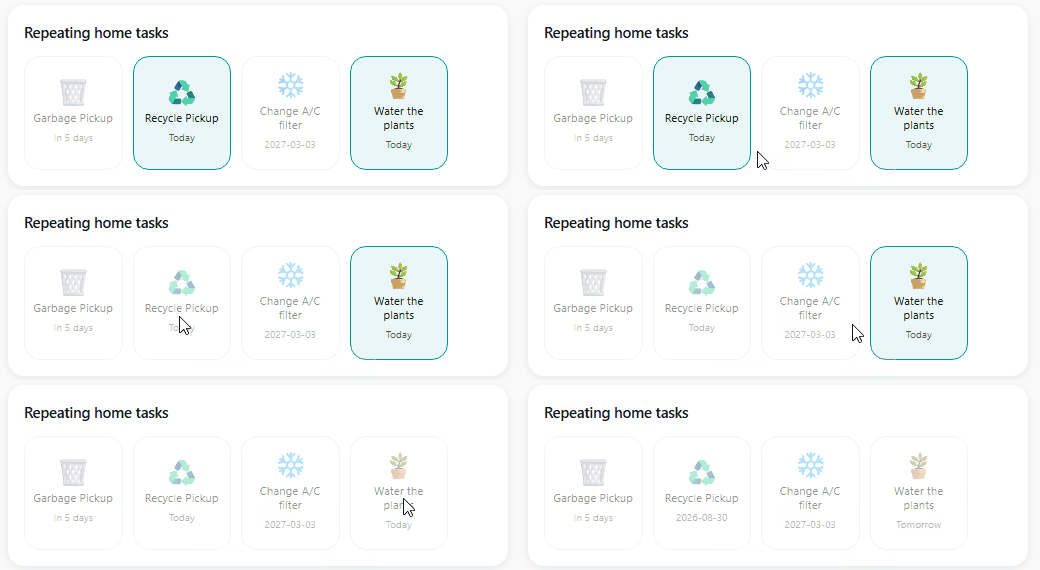
A tile is lit and active when due and dimmed and inactive when not, aimed at tracking repeating chores.
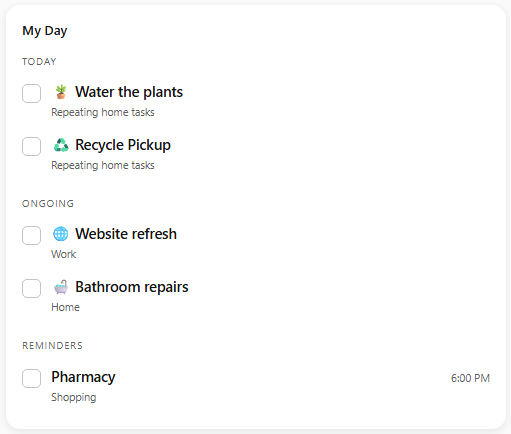
My Day shows the day's due tasks, ongoing tasks and any reminders set for the day.
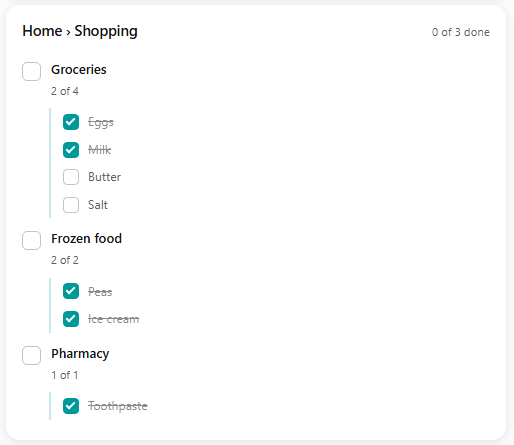
Project card shows a tree view of any project, its tasks and subtasks and is interactive. Alternative to Home Assistant's built-in to-do card, which flattens the view.
Status
The integration is stable and in daily use, quick add (adding tasks to 'Unsorted' bucket, aka Inbox) with a custom card, is being worked on. HACS inclusion is pending, and it's installed as a custom repo for now.
Please post bugs and feature requests on GitHub Issues.
Requirements
- Home Assistant 2026.3 or newer.
- Active ProgressCove subscription. Fully functional 14 day trial is available to test features, no card required.
Additional technical details are below, generated from the source code.
Installation
Not in the HACS default store yet, so add it as a custom repository:
- In HACS, open the ⋮ menu and choose Custom repositories.
- Add
https://github.com/Twenty-Shores/progresscove-homeassistantas an Integration. - Find ProgressCove in the list, install it, and restart Home Assistant.
Or by hand: copy custom_components/progresscove/ into your config/custom_components/ and
restart.
Setup
You need an API token from ProgressCove. The web app is the easier place to make one, since the token is shown only once and the pairing code is a copy/paste.
- In ProgressCove, go to Settings → Advanced → API Tokens and create a token. Copy it now; you will not see it again.
- In Home Assistant, go to Settings → Devices & Services → Add Integration → ProgressCove.
- Paste the token and leave the server address alone.
- Home Assistant shows a pairing code. Type it back into ProgressCove to activate the token. Until you do, the token opens nothing.
- Pick your lists (see below).
The server address is prefilled because there is no self-hostable ProgressCove server today. The field exists for developing against a local backend, and so the integration does not assume there never will be one.
You can point it at a plain http:// address, and it will ask you to confirm first. Your token and
your task names cross the network in the clear over http. On a LAN you control that is your call;
over the internet it is not something you want.
What counts as a list
Whatever you say is. Not a tier, not a "project", and not only the nodes that happen to have subtasks today. Any node in your tree can be a list.
That matters because a list is wherever you keep the checkable things, and that differs by branch:
Home                          ← a list (its projects are the items)
└── Shopping                  ← a list (its sections are the items)
    ├── Groceries             ← a list (its items are the items)  ← usually what you want
    │   ├── Milk
    │   └── Bread
    └── Frozen food           ← a list
Both Shopping and Groceries are real lists in the same account, at different depths. A rule like
"projects are lists" would put Groceries on a card as a single line to tick and leave the milk
unreachable.
So pick the level you actually shop from. For most shopping lists that is the store section, not the trip.
The picker offers every node, and pre-ticks the ones that already hold items. A task with no subtasks yet is still on the list. Pick it and you get an empty list that fills itself the moment you add the first subtask, no return trip to this screen. What is pre-ticked is a starting point, not a rule: tick a task you are about to break down, untick a branch you never want on the wall.
Change the selection any time under Configure. Unpicking a list removes its entity and touches nothing in your data.
What you get
| Entity | What it is |
|---|---|
todo.<list_name> | One per list you picked. Its direct children are the items. |
todo.my_day | Today, decided by the server: the same "today" your phone shows. Always present. |
button.<task> | A task you added as a wall button. Press to complete today's occurrence. |
switch.<task> | A task as a switch: readable in automations, off to complete. |
sensor.<project> | How far through its items a project is, as a percentage. |
Buttons, switches and sensors are added one at a time from the integration card, never automatically. One per task would be hundreds of entities nobody asked for.
Button or switch?
Both complete a task. Pick by what you want back from it.
A button is a press with no state. Use it for a recurring job on a wall tablet, where the only question is "done", and there is nothing to read afterwards. A button never claims to be reversible, which suits a repeat.
A switch is readable as well as pressable, so use it when something needs to ASK whether a task
is done: a template, a condition, or a trigger on to: "off". The cost is that a repeat's switch
does not stay off, since completing one reopens it on a later day.
Add either from the integration page; a task can have both.
Automations
A task switch is on while the task is open and off once it is done, so "when I finish the bins"
is a state trigger to off. For "when this project is finished", trigger on the list's own
items_complete attribute, which is a boolean and needs no threshold. A progress sensor is for
the other question: it reports percent as a recorded measurement, so progress can go on a graph or a
gauge.
Triggers only see a list's own items. To act on something deeper, such as a task inside a section,
either add that section as its own list, or call progresscove.complete with the task's node_id,
which works at any depth and is the only way to reach a subtask.
Subtasks
A to-do item has no room for children, and the Home Assistant frontend cannot nest them. Rather than
flatten subtasks in beside their parents as though they were peers, they are read with
progresscove.get_nested_items (see below). Their counts stay on the entity as nested_items_done
and nested_items_total, so an automation can ask "how much is left underneath" without a call.
Completing things
A repeating task gives you ten seconds to change your mind. Ticking one marks it done straight away and tells the server only once the window closes. Tap again inside it and nothing was ever sent. Touchscreens get mistapped, and the task next to the one you meant is one finger-width away.
Only repeats wait. Completing a repeat rolls it to its next occurrence and nothing puts that back, so the window is the one chance to undo it. An ordinary task is sent immediately, since it reopens perfectly well afterwards.
A task that is not due yet is refused. Completing an occurrence before it arrives moves a repeat past the one you were waiting for, so the button and the switch both say no and tell you the date it is next due. If you would rather decide that for yourself, turn on Allow completing before the due date in the integration's options.
A repeat's switch does not stay off. Once the ten seconds pass it rolls to its next occurrence and
the switch returns to on, because the task is open again, just on a later day. A trigger on to: "off" still fires; a condition like "only while the bins are off" will not hold, because off lasts
about ten seconds. The switch also stays on on days the task is not due: it reports whether the
task is open, not whether today is its day. For that, read its due_date attribute, or use a
button, whose icon-card tile dims until the next occasion it is due.
A task switch therefore draws as two buttons rather than a slider: off is a command, not a claim that it can be put back.
Cards
Three cards ship with the integration and register themselves as dashboard resources, so they are in the card picker as soon as it is set up. Nothing to copy and nothing to add by hand: search for "ProgressCove" under Edit → Add card, or paste one of these under Edit → Add card → Manual.
Their urls carry a digest of the card files, so an upgrade that changes a card retires the copy your browser is holding on its own.
My Day
type: custom:progresscove-myday-card
title: My Day
Reads todo.my_day and renders the server's three sections, with the parent name under each task so
a nested one is not stranded without context. Tapping ticks it off; the integration holds the write
for ten seconds, so tapping again inside that window undoes it.
Icons
type: custom:progresscove-icon-card
title: Recurring chores
columns: 3
entities:
  - button.water_the_plants
  - button.take_garbage_out
One tile per task, drawn as its emoji. A tile is lit and pressable only on the day it is due; every other tile is dimmed and shows when it is next due.
Projects
type: custom:progresscove-card
entities:
  - todo.home_shopping_groceries
Or demo: true to preview with sample data.
Switches in stock cards
A task switch works in Entities, Tile or Button cards. assumed_state makes Home Assistant draw two
buttons rather than a toggle, because completing a repeat goes one way. Turning one off completes
the task after the ten-second window; turning it back on inside that window undoes it.
The stock To-do list card works on any of these entities too; it just shows one flat list with no sections or nested items.
Refresh interval
The integration checks every minute, so a change made in the app, on the web, or on your phone shows up within a minute. The interval is adjustable under Configure, from 1 to 60 minutes.
That interval governs inbound changes only. Anything you do from Home Assistant is sent immediately and never waits for it.
Reading a list's items
Items come from todo.get_items, the same service every to-do integration uses, so anything
that can read a stock list can read ours at any size:
action: todo.get_items
target:
  entity_id: todo.home_shopping_groceries
They are deliberately NOT entity attributes. Home Assistant rewrites an attribute payload in full on
every change and truncates it past 16 KB, so a list of a couple of hundred tasks broke the entity
outright. The stock to-do entity publishes 33 bytes for the same reason. What stays on the
attributes are the counts (items_done, items_total, items_percent, items_complete,
nested_items_total, nested_items_done): fixed-size, and what an automation actually asks for.
Subtasks are one level below what get_items returns, since a to-do item has no children. For
those, progresscove.get_nested_items takes a node_id and returns them keyed by their parent:
action: progresscove.get_nested_items
data:
  node_id: "{{ state_attr('todo.home_shopping', 'node_id') }}"
Because the attributes are now counts only, recording a list's history costs about 230 bytes per
change whatever its size. If you want even that gone, exclude the entity under recorder:; the
cards read live state and never history.
Scopes
A token is read-only or read and write, chosen when you create it. A read-only token can show your tasks and complete nothing, which suits a dashboard you do not want to tap by accident. The choice is fixed for the life of the token; to change it, create a new one.
A token can be revoked whenever you like, from the same API Tokens screen that created it. Revoking cuts off that Home Assistant instance immediately and touches nothing else, so a lost or retired box is one tap rather than a password change.
License
MIT. See LICENSE.
Similar repos


Languages
Python
76.7%
JavaScript
23.3%
See what people are saying
README
ProgressCove for Home Assistant
Home Assistant integration for ProgressCove, a task management platform with web, iOS and Android clients. While the integration is MIT licensed and open, access to read and write data requires an active subscription. Fully functional 14 day trial is available to test features, no card required.
Quick HACS Install:
- In HACS, open the ⋮ menu and choose Custom repositories.
- Add
https://github.com/Twenty-Shores/progresscove-homeassistantas an Integration. - Find ProgressCove in the list, install it, and restart Home Assistant.
Integration adds the following to Home Assistant:
- To-do list entities for any part of the to-do tree, which show up as a standard to-do list, usable by the built-in card, integrations, voice assistants and ProgressCove's own list card.
- Tasks as buttons or switches, usable in integrations, and best for ProgressCove's own repeating tasks card.
- Progress sensors, so project states can be tracked as a numeric value.
- New Dashboard cards: - My Day: Similar to the widget on mobile apps, shows due and ongoing tasks and reminders for the day. - Project card: Shows list view of any selected point in the task tree two descendants deep. - Icon card: This will show selected tasks as buttons that are clickable when due.
A tile is lit and active when due and dimmed and inactive when not, aimed at tracking repeating chores.
My Day shows the day's due tasks, ongoing tasks and any reminders set for the day.
Project card shows a tree view of any project, its tasks and subtasks and is interactive. Alternative to Home Assistant's built-in to-do card, which flattens the view.
Status
The integration is stable and in daily use, quick add (adding tasks to 'Unsorted' bucket, aka Inbox) with a custom card, is being worked on. HACS inclusion is pending, and it's installed as a custom repo for now.
Please post bugs and feature requests on GitHub Issues.
Requirements
- Home Assistant 2026.3 or newer.
- Active ProgressCove subscription. Fully functional 14 day trial is available to test features, no card required.
Additional technical details are below, generated from the source code.
Installation
Not in the HACS default store yet, so add it as a custom repository:
- In HACS, open the ⋮ menu and choose Custom repositories.
- Add
https://github.com/Twenty-Shores/progresscove-homeassistantas an Integration. - Find ProgressCove in the list, install it, and restart Home Assistant.
Or by hand: copy custom_components/progresscove/ into your config/custom_components/ and
restart.
Setup
You need an API token from ProgressCove. The web app is the easier place to make one, since the token is shown only once and the pairing code is a copy/paste.
- In ProgressCove, go to Settings → Advanced → API Tokens and create a token. Copy it now; you will not see it again.
- In Home Assistant, go to Settings → Devices & Services → Add Integration → ProgressCove.
- Paste the token and leave the server address alone.
- Home Assistant shows a pairing code. Type it back into ProgressCove to activate the token. Until you do, the token opens nothing.
- Pick your lists (see below).
The server address is prefilled because there is no self-hostable ProgressCove server today. The field exists for developing against a local backend, and so the integration does not assume there never will be one.
You can point it at a plain http:// address, and it will ask you to confirm first. Your token and
your task names cross the network in the clear over http. On a LAN you control that is your call;
over the internet it is not something you want.
What counts as a list
Whatever you say is. Not a tier, not a "project", and not only the nodes that happen to have subtasks today. Any node in your tree can be a list.
That matters because a list is wherever you keep the checkable things, and that differs by branch:
Home                          ← a list (its projects are the items)
└── Shopping                  ← a list (its sections are the items)
    ├── Groceries             ← a list (its items are the items)  ← usually what you want
    │   ├── Milk
    │   └── Bread
    └── Frozen food           ← a list
Both Shopping and Groceries are real lists in the same account, at different depths. A rule like
"projects are lists" would put Groceries on a card as a single line to tick and leave the milk
unreachable.
So pick the level you actually shop from. For most shopping lists that is the store section, not the trip.
The picker offers every node, and pre-ticks the ones that already hold items. A task with no subtasks yet is still on the list. Pick it and you get an empty list that fills itself the moment you add the first subtask, no return trip to this screen. What is pre-ticked is a starting point, not a rule: tick a task you are about to break down, untick a branch you never want on the wall.
Change the selection any time under Configure. Unpicking a list removes its entity and touches nothing in your data.
What you get
| Entity | What it is |
|---|---|
todo.<list_name> | One per list you picked. Its direct children are the items. |
todo.my_day | Today, decided by the server: the same "today" your phone shows. Always present. |
button.<task> | A task you added as a wall button. Press to complete today's occurrence. |
switch.<task> | A task as a switch: readable in automations, off to complete. |
sensor.<project> | How far through its items a project is, as a percentage. |
Buttons, switches and sensors are added one at a time from the integration card, never automatically. One per task would be hundreds of entities nobody asked for.
Button or switch?
Both complete a task. Pick by what you want back from it.
A button is a press with no state. Use it for a recurring job on a wall tablet, where the only question is "done", and there is nothing to read afterwards. A button never claims to be reversible, which suits a repeat.
A switch is readable as well as pressable, so use it when something needs to ASK whether a task
is done: a template, a condition, or a trigger on to: "off". The cost is that a repeat's switch
does not stay off, since completing one reopens it on a later day.
Add either from the integration page; a task can have both.
Automations
A task switch is on while the task is open and off once it is done, so "when I finish the bins"
is a state trigger to off. For "when this project is finished", trigger on the list's own
items_complete attribute, which is a boolean and needs no threshold. A progress sensor is for
the other question: it reports percent as a recorded measurement, so progress can go on a graph or a
gauge.
Triggers only see a list's own items. To act on something deeper, such as a task inside a section,
either add that section as its own list, or call progresscove.complete with the task's node_id,
which works at any depth and is the only way to reach a subtask.
Subtasks
A to-do item has no room for children, and the Home Assistant frontend cannot nest them. Rather than
flatten subtasks in beside their parents as though they were peers, they are read with
progresscove.get_nested_items (see below). Their counts stay on the entity as nested_items_done
and nested_items_total, so an automation can ask "how much is left underneath" without a call.
Completing things
A repeating task gives you ten seconds to change your mind. Ticking one marks it done straight away and tells the server only once the window closes. Tap again inside it and nothing was ever sent. Touchscreens get mistapped, and the task next to the one you meant is one finger-width away.
Only repeats wait. Completing a repeat rolls it to its next occurrence and nothing puts that back, so the window is the one chance to undo it. An ordinary task is sent immediately, since it reopens perfectly well afterwards.
A task that is not due yet is refused. Completing an occurrence before it arrives moves a repeat past the one you were waiting for, so the button and the switch both say no and tell you the date it is next due. If you would rather decide that for yourself, turn on Allow completing before the due date in the integration's options.
A repeat's switch does not stay off. Once the ten seconds pass it rolls to its next occurrence and
the switch returns to on, because the task is open again, just on a later day. A trigger on to: "off" still fires; a condition like "only while the bins are off" will not hold, because off lasts
about ten seconds. The switch also stays on on days the task is not due: it reports whether the
task is open, not whether today is its day. For that, read its due_date attribute, or use a
button, whose icon-card tile dims until the next occasion it is due.
A task switch therefore draws as two buttons rather than a slider: off is a command, not a claim that it can be put back.
Cards
Three cards ship with the integration and register themselves as dashboard resources, so they are in the card picker as soon as it is set up. Nothing to copy and nothing to add by hand: search for "ProgressCove" under Edit → Add card, or paste one of these under Edit → Add card → Manual.
Their urls carry a digest of the card files, so an upgrade that changes a card retires the copy your browser is holding on its own.
My Day
type: custom:progresscove-myday-card
title: My Day
Reads todo.my_day and renders the server's three sections, with the parent name under each task so
a nested one is not stranded without context. Tapping ticks it off; the integration holds the write
for ten seconds, so tapping again inside that window undoes it.
Icons
type: custom:progresscove-icon-card
title: Recurring chores
columns: 3
entities:
  - button.water_the_plants
  - button.take_garbage_out
One tile per task, drawn as its emoji. A tile is lit and pressable only on the day it is due; every other tile is dimmed and shows when it is next due.
Projects
type: custom:progresscove-card
entities:
  - todo.home_shopping_groceries
Or demo: true to preview with sample data.
Switches in stock cards
A task switch works in Entities, Tile or Button cards. assumed_state makes Home Assistant draw two
buttons rather than a toggle, because completing a repeat goes one way. Turning one off completes
the task after the ten-second window; turning it back on inside that window undoes it.
The stock To-do list card works on any of these entities too; it just shows one flat list with no sections or nested items.
Refresh interval
The integration checks every minute, so a change made in the app, on the web, or on your phone shows up within a minute. The interval is adjustable under Configure, from 1 to 60 minutes.
That interval governs inbound changes only. Anything you do from Home Assistant is sent immediately and never waits for it.
Reading a list's items
Items come from todo.get_items, the same service every to-do integration uses, so anything
that can read a stock list can read ours at any size:
action: todo.get_items
target:
  entity_id: todo.home_shopping_groceries
They are deliberately NOT entity attributes. Home Assistant rewrites an attribute payload in full on
every change and truncates it past 16 KB, so a list of a couple of hundred tasks broke the entity
outright. The stock to-do entity publishes 33 bytes for the same reason. What stays on the
attributes are the counts (items_done, items_total, items_percent, items_complete,
nested_items_total, nested_items_done): fixed-size, and what an automation actually asks for.
Subtasks are one level below what get_items returns, since a to-do item has no children. For
those, progresscove.get_nested_items takes a node_id and returns them keyed by their parent:
action: progresscove.get_nested_items
data:
  node_id: "{{ state_attr('todo.home_shopping', 'node_id') }}"
Because the attributes are now counts only, recording a list's history costs about 230 bytes per
change whatever its size. If you want even that gone, exclude the entity under recorder:; the
cards read live state and never history.
Scopes
A token is read-only or read and write, chosen when you create it. A read-only token can show your tasks and complete nothing, which suits a dashboard you do not want to tap by accident. The choice is fixed for the life of the token; to change it, create a new one.
A token can be revoked whenever you like, from the same API Tokens screen that created it. Revoking cuts off that Home Assistant instance immediately and touches nothing else, so a lost or retired box is one tap rather than a password change.
License
MIT. See LICENSE.
Similar repos
Languages
Python
76.7%
JavaScript
23.3%