
README

plwm - An X11 window manager written in Prolog
Table of Contents
- About
- Feature highlights
- Installation
- Usage
- Screenshots
- Project status
- Contribution
- FAQ
- Similar projects
About
plwm is a highly customizable X11 dynamic tiling window manager written in Prolog.
Main goals of the project are: high code & documentation quality; powerful yet easy customization; covering most common needs of tiling WM users; and to stay small, easy to use and hack on.
Powered by SWI-Prolog
Porting to Scryer Prolog, a Rust-powered ISO Prolog implementation, is underway too! (discussion, PR)
2025.11.14: plwm was presented at Scryer Prolog Meetup 2025. Slides are uploaded in ODP and PDF.
Feature highlights
- Easy to hack on, great way to introduce yourself to the logic programming paradigm and Prolog
- Easy to configure: Prolog is declarative, so even though the config is source code, it feels like a dedicated format
- Tiling is dynamic, with various layouts included by default: monocle, vertical/horizontal stacks, grid, left/right/top/bottom/centered master-stack, nrows(N), ncols(N)
- Floating windows are also supported (move/resize with mouse)
- Support for external bars, e.g. polybar, lemonbar
- Nice level of EWMH compilance - partially still work-in-progress
- Performance: plwm is fast and light as a feather when it comes to resource usage (10-15 MB memory)
- Dynamic workspace operations: create, rename, reindex or delete workspaces on the fly
- Other features: multi-monitor support, inner/outer gaps, menu integrations with dmenu/rofi, rules, hooks, animations, command fifo and more
- You can say: "My window manager is a semantic consequence of a set of axioms and implications which my computer is deducing/proving from an infinitely branching proof-tree"
Installation
From release
Download the latest version from the releases, extract and run sudo ./install.sh.
plwm nightly is auto-generated each time main gets updated.
From source
Run make && sudo make install
Dependencies:
xorgwithlibx11-dev,libxft-dev,libxrandr-dev
(exact package names may vary,devversions are only needed when building from source)- SWI-Prolog (most likely also packaged by your distro)
E.g. on Ubuntu 22.04, easiest way to install them is:
sudo apt install xorg-dev swi-prolog
Minimal environment
Add the following line to the end of your ~/.xinitrc:
exec plwm
Then simply use the command startx in tty.
For example, to automate this after logging in, put these lines in ~/.bash_profile (or to whatever shell startup that matches your setup):
# Start X from login shell on tty1 if not already started
if [ -z "$DISPLAY" -a $(tty) = "/dev/tty1" ]; then
	exec startx
fi
Using a display manager
Please refer to the documentation of your display manager on how to set up sessions for custom WMs.
Here you can find good references for this.
For most modern display managers, you'll have to create a /usr/share/xsessions/plwm.desktop file with content like:
[Desktop Entry]
Name=plwm
Comment=This session logs you into plwm
Exec=plwm
Icon=path-to-this-repo/plwm/img/logo.png
Type=Application
Usage
Basics
Command-line options are listed by running plwm -h. The manual plwm(1) also contains them as well as the default keybindings.
If you have already used dynamic tiling WMs like dwm, then nothing should be too surprising in this section.
All windows are managed by default. This means that whenever a window spawns, it will be added to a list. We call this list the stack. Also, the placement and the size of the windows are automatically calculated and set. This is determined by the currently active layout (stack, horizontal stack, grid, etc.).
Some layouts are called "master-stack" layouts (the ones which have "master" in their names, e.g., lmaster). With these layouts the first nmaster number of windows (1 by default) in the stack go to a dedicated area. These are the master windows, which usually have the most space allocated for them. All other windows go to the remaining screen space.
For example, if you start plwm with the default config, you have: layout = lmaster, nmaster = 1, mfact = 2/3, which means that the stack's top window will always be on the left side and occupy 2/3 of the screen width, while the other windows will be in a secondary stack on the right having 1/3 of the screen width.
Some base promises of this approach:
- Declarative window management: you only tell your system what window arrangement you want and don't do the movement/resizing (don't need to care about the how)
- When new windows are spawned or old ones close, the layout will adapt automatically
- Playing with the
layout,nmaster,mfacttrio, one can cook up mostly any kind of arrangement a situation may need, just with a few keystrokes. - 100% of the screen space is utilized at all times, 99% if you use gaps :)
Default keybindings
| Keybind | Predicate | Description |
|---|---|---|
| super + j | shift_focus(down) | Focus next window in stack |
| super + k | shift_focus(up) | Focus previous window in stack |
| super + shift + j | move_focused(down) | Swap focused window with the next |
| super + shift + k | move_focused(up) | Swap focused window with the preceding |
| super + Return | focused_to_top | Move focused window to top of the stack |
| super + q | close_focused | Close focused window |
| super + shift + space | toggle_floating | Toggle between manual and automatic management of focused window |
| super + f | toggle_fullscreen | Toggle fullscreen of focused window |
| super + shift + q | quit | Quit plwm |
| super + i | change_nmaster(+1) | Increase number of master windows by 1 |
| super + d | change_nmaster(-1) | Decrease number of master windows by 1 |
| super + h | change_mfact(-0.05) | Remove 5% from the space of master area |
| super + l | change_mfact(+0.05) | Add 5% to the space of master area |
| super + shift + f | layout:set_layout(floating) | Switch to floating layout (all windows unmanaged) |
| super + shift + m | layout:set_layout(monocle) | Switch to monocle layout (all maximized, one visible at a time) |
| super + shift + s | layout:set_layout(stack) | Switch to stack layout |
| super + shift + h | layout:set_layout(hstack) | Switch to hstack (horizontal stack) layout |
| super + shift + g | layout:set_layout(grid) | Switch to grid layout |
| super + shift + l | layout:set_layout(lmaster) | Switch to lmaster (left master) layout |
| super + shift + r | layout:set_layout(rmaster) | Switch to rmaster (right master) layout |
| super + shift + t | layout:set_layout(tmaster) | Switch to tmaster (top master) layout |
| super + shift + b | layout:set_layout(bmaster) | Switch to bmaster (bottom master) layout |
| super + shift + c | layout:set_layout(cmaster) | Switch to cmaster (central master) layout |
| super + Tab | toggle_workspace | Switch between last two workspaces |
| super + shift + Tab | toggle_hide_empty_workspaces | Toggle the hide_empty_workspaces setting |
| super + 1 | switch_workspace('1') | Go to workspace '1' |
| ... | ... | ... |
| super + 9 | switch_workspace('9') | Go to workspace '9' |
| super + p | switch_workspace(prev) | Go to previous workspace |
| super + n | switch_workspace(next) | Go to next workspace |
| super + shift + 1 | move_focused_to_workspace('1') | Move focused window to workspace '1' |
| ... | ... | ... |
| super + shift + 9 | move_focused_to_workspace('9') | Move focused window to workspace '9' |
| super + shift + p | move_focused_to_workspace(prev) | Move focused window to previous workspace |
| super + shift + n | move_focused_to_workspace(next) | Move focused window to next workspace |
| super + , | switch_monitor(prev) | Switch to previous monitor |
| super + . | switch_monitor(next) | Switch to next monitor |
| super + shift + , | move_focused_to_monitor(prev) | Move focused window to previous monitor |
| super + shift + . | move_focused_to_monitor(next) | Move focused window to next monitor |
Tip: change_nmaster/1 and change_mfact/1 can not only take deltas, but also exact values to assign. Omit the the + and - prefixes for this behavior.
Tip: For both switch_workspace/1 and move_focused_to_workspace/1, you can also pass prev_nonempty and next_nonempty for switching/moving to the next non-empty workspace. The former can be nice for cycling through only the relevant workspaces. The latter can also work well when using the hide_empty_workspaces setting. You can also pass workspace indices instead of names. Use numbers starting from 1 without single quotes for this (of course, this only makes sense if you use different workspace names than the default '1'...'9').
Tip: There are two parametric layouts which have no default keybindings: nrows(N) and ncols(N). You can use them if you wish to have layouts with fixed number of rows or columns. For example, you can add a line like:
super + shift + "T" -> layout:set_layout(ncols(3))
then you'll have a triple stack layout where your windows will be evenly spread and sized among the three columns (can be nice with wide monitors).
Tip: you can bind multiple (consecutive) actions to a single keystroke by writing a comma separated list of predicates enclosed in parentheses, i.e., Keyes -> (Act1, Act2,...)
Configuration
sudo make install installs the default configuration to /etc/plwm/config.pl. This file can be copied to user config directories.
plwm attempts reading configuration when it starts from the first file among
$XDG_CONFIG_HOME/plwm/config.pl$HOME/.config/plwm/config.pl/etc/plwm/config.pl
A custom path can be specified with the -c flag.
Note: a reinstall will overwrite /etc/plwm/config.pl, however a backup is always created if there is any difference.
While cooking your config, you can use the -C flag to quickly and easily check its validity.
config.pl is self-documenting with lots of comments, but here is a quick reference:
| Setting | Values (default value) | Description |
|---|---|---|
default_nmaster | 0<= integer Default: 1 | Initial number of master windows |
default_mfact | 0.05 .. 0.95 Default: 2/3 | Initial space percentage given to master area |
default_layout | floating, monocle, stack, hstack, nrows(N), ncols(N), grid, lmaster, rmaster, tmaster, bmaster, cmaster Default: lmaster | Layout to use by default |
attach_bottom | true or false Default: false | Put new windows to bottom of the stack instead |
border_width | 0<= integer Default: 1 | Border width in pixels |
border_width_focused | 0<= integer Default: 1 | Border width for focused window in pixels |
border_color | hexa code or color name Default: "white" | Border color |
border_color_focused | hexa code or color name Default: "blue" | Border color for focused window |
snap_threshold | 0<= integer Default: 32 | Snap to screen border threshold in pixels while dragging windows |
outer_gaps | 0<= integer Default: 0 | Space reserved around screen edge in pixels |
inner_gaps | 0<= integer Default: 0 | Space between adjacent tiled windows in pixels |
workspaces | list of atoms in UTF-8, at least 1 Default: ['1','2','3','4,'5','6','7','8','9'] | Workspace names |
starting_workspace | an element from workspaces Default: '1' | Starting workspace |
hide_empty_workspaces | true or false Default: false | Hide names of inactive and empty workspaces from bars |
ws_format | string with a ~w or string with a ~d followed by a ~w Default: "~w" | Format of empty workspaces on bars (~d = index, ~w = name) |
ws_format_occupied | string with a ~w or string with a ~d followed by a ~w Default: "▘~w" | Format of occupied workspaces on bars |
layout_default_overrides | list of (Monitor, Workspace -> Nmaster, Mfact, Layout) Default: [] | Overrides of the 3 values to specific monitors and/or workspaces (explained here) |
bar_classes | list of string pairs from bar's WM_CLASS, query with xprop(1) Default: ["polybar"-"Polybar"] | Space will be reserved for matching windows and they cannot be focused, resized, etc. |
bar_placement | follow_focus, static Default: follow_focus | Determines placement of external bars (explained here) |
fifo_enabled | true or false Default: false | Whether to spawn a command FIFO (explained here) |
fifo_path | string Default: "/tmp/plwm_fifo" | Path of command FIFO |
menucmd | list of strings Default: ["dmenu", "-i", "-l", "20", "-p"] | Command and its arguments to use for menu operations |
animation_enabled | true or false Default: false | Whether to animate window move/resize |
animation_time | 0.0< float Default: 0.2 | Time of the animation |
animation_granularity | 1<= integer Default: 30 | Number of steps in animation interpolations |
modkey | shift, lock, ctrl, alt, mod2, mod3, super, mod5 Default: super | Key you must hold for mouse operations |
scroll_up_action | callable term or 'none' Default: switch_workspace(next) | Action to perform on modkey + scroll up |
scroll_down_action | callable term or 'none' Default: switch_workspace(prev) | Action to perform on modkey + scroll down |
keymaps | list of (Modifiers + Key -> Action) Default: see here | Modifiers: see values at modkeyKey: keycode, usual X11 names, or special key Action: callable term |
rules | list of (Name, Class, Title -> Monitor, Workspace, Mode) Default: [] | Auto place and configure matching windows (explained here) |
hooks | list of (Event -> Action) Default: [start -> writeln("plwm starting"), quit -> writeln("plwm quitting")] | Run custom logic on certain events (explained here) |
Tips
- You can safely remove any setting from your config file, plwm will use the default value for those.
- In
keymaps/1, the callback predicates can be arbitrary shell commands usingshellcmd/1, even whole commandlines (some examples are included in the default config). - If you wish to stick to default keymaps mostly, with only a few changes and feel redundant to list the whole table in your config, you can simply omit the
keymaps/1setting and add your changes as astarthook like this:
hooks([
  start -> (
    add(keymaps, super + g -> shellcmd("gcolor2")),    % add new
    add(keymaps, super + l -> switch_workspace(next)), % overwrite existing
    add(keymaps, super + f -> none)                    % remove existing
  )
]).
Changing settings during runtime
set/2andadd/2can be used to overwrite or append to existing settings, respectively. You can invoke them via a keymap, the command fifo or the command menu.- The whole configuration file can be reloaded by calling
reload_config/0. - You can use
dump_settings(Path, false)to dump all current settings anddump_settings(Path, true)to dump only those that differ from the defaults to a file. Both are available in the command menu.
External bars
First, you must specify bar_classes/1 based on the WM_CLASS properties of your bars, which you can find out using xprop(1). Then you can both:
- manually start/close bars while plwm is already running
- automatically start bars using
hooks/1and itsstartevent in the config
bar_placement/1 can take two values:
follow_focus: space will be reserved for bars on all monitors and bars will always be moved to the focused monitor (this is the default behavior)static: space will only be reserved for bars in their respective monitors they occupy and no bar will be moved automatically. Placing bars to desired monitors is the responsibility of the user/external bar
Some bars (e.g., polybar) already support different labels for empty and occupied workspaces. The advantages of plwm's built-in ws_format/1 and ws_format_occupied/1 are:
- it works on more primitive bars as well
- it respects multi-monitor scenarios, i.e., it only considers the set of workspaces that belong to the active monitor - this is relevant only with
bar_placement(follow_focus)
You can toggle your external bars with the following hacks (again, some bars may have their own IPC mechanizm for this, but these are bar agnostic solutions):
alt + b -> shellcmd("pkill polybar || polybar")
or if you use multiple bars (a top and a bottom polybar called "top" and "bot", for example), you can:
alt + b -> shellcmd("pkill polybar || (polybar top & polybar bot)")
or if you want the ability to separately toggle the bars, use something like:
alt + b         -> shellcmd("pkill -fx 'polybar top' || polybar top"),
alt + shift + b -> shellcmd("pkill -fx 'polybar bot' || polybar bot")
Note: if you are using polybar, do not enable its override-redirect = true setting (it can even crash plwm in some cases)! Reasoning: plwm itself handles all bars (anything that matches bar_classes, not just polybar) the intended way: bars cannot be focused, grabbed, moved or resized; tiling windows will never cover them (but you can drag floating windows above them); fullscreen windows will always cover them.
Multi-monitor
The multi-monitor concept in plwm is similar to dwm's: the set of workspaces is cloned for each monitor. So if you're using the default config with two monitors, then you'll have two times nine unique workspaces: M1/1, M1/2,..., M2/9.
The switch_monitor/1 and move_focused_to_monitor/1 predicates can take many different values:
prev/nextwill go to the previous/next monitor (these will wrap) - only these have keymaps by defaultprev_nonempty/next_nonemptywill go to the previous/next non-empty monitor (a monitor is considered empty if its currently displayed workspace is empty). If you use a lot of monitors, say six, it could be convenient to cycle through only the relevant, i.e., non-empty ones (these will wrap)left/right/up/downwill go to the specified direction relative to the active monitor calculated from x/y screen coordinates (these won't wrap)- An output name, shown by
xrandr(1), e.g. "eDP-1" or "HDMI-1". If you have a consistent xrandr(1) setup, then you can refer them to move to arbitrary monitors - Index of managed monitor
You can also switch monitors by moving with the mouse between them. Likewise, windows can be dragged and dropped between monitors using the mouse.
Layout overrides
The default_nmaster, default_mfact and default_layout settings can each be overridden for specific monitors and/or workspaces using layout_default_overrides/5.
Underscore at the monitor column means "all monitors" for that workspace, while underscore at the workspace column means "all workspaces" on that monitor.
Underscores at the nmaster, mfact and layout columns mean not to alter the default settings for those.
Note: a later override will overrule values of previous ones if there is an overlap.
Some examples:
layout_default_overrides([
%  monitor      workspace     nmaster  mfact   layout
  ( _        ,  '2'       ->  _     ,  _    ,  grid    ),
  ( "eDP-1"  ,  _         ->  2     ,  1/2  ,  tmaster ),
  ( "HDMI-1" ,  '3'       ->  _     ,  0.90 ,  _       )
]).
Rules
You can apply custom rules to newly spawned windows that match one or more criteria. You can match the window's name, class and title. These are substring matches by default, but you can wrap them in exact() to force an exact match, or can write any of them as _ to ignore those particular checks.
The monitor column takes an output name, or you can leave it as _, which implies opening on the currently active monitor.
The workspace column takes a workspace name (use single quotes), an index (from 1) or you can leave it as _, which implies opening on the currently active workspace.
The mode column can take the following values:
managed: Window will be managed (_also implies this)floating: Window will be unmanaged, i.e., floating[X, Y, W, H]: Same asfloating, but also apply this geometry:Xcan beleft,right,center, an integer coordinate, a percent (0.0..1.0) of x axisYcan betop,bottom,center, an integer coordinate, a percent (0.0..1.0) of y axisWcan be an integer size or a percent (0.0..1.0) of screen widthHcan be an integer size or a percent (0.0..1.0) of screen height- also, any of them can be left as
_to keep the value the window spawned with
fullscreen: Window will open in fullscreen mode
Note: if a window matches multiple rules, the first will be applied.
Some examples:
rules([
%  name      class     title                 monitor     wspace    mode
  (_      ,  _      ,  exact("gcolor2")  ->  _        ,  _      ,  [center, center, 1/3, 1/3]),
  (_      ,  _      ,  "Firefox"         ->  "eDP-1"  ,  'www'  ,  fullscreen                ),
  ("Bar"  ,  "Baz"  ,  _                 ->  "HDMI-1" ,  '1'    ,  [700, 250, _, _]          )
])
You can find out the name, class and title values of windows using xprop(1):
WM_CLASS(STRING) = name , class
WM_NAME(STRING) = title
Tip: if you want to apply a rule to a terminal application, then you'll need to use a terminal emulator that allows you to predefine the window class or title (most of them do). For example, alacritty has the --class and st has the -c flag for this:
shellcmd("alacritty --class cmus -e cmus")
then you can match it with with a rule like:
("cmus", "cmus", _ -> "eDP-1", '9', managed)
Menus
The menu module also has default keybindings:
Navigation/window placement
| Keybind | Predicate | Description |
|---|---|---|
| alt + w | menu:goto_window | List windows from all monitors/workplaces, go to monitor/workspace of selected, then raise and focus the window |
| alt + shift + w | menu:goto_workspace | List monitors/workspaces, except current, then go to selected |
| alt + p | menu:pull_from | List windows from all monitors/workspaces, except current, then pull selected ones to the active monitor/workspace and focus it |
| alt + shift + p | menu:push_to | List monitors/workspaces, except current, then push the focused window to the selected |
| alt + q | menu:close_windows | Close selected windows |
| alt + shift + q | menu:keep_windows | Close all windows other than the selected |
Dynamic workspace operations
| Keybind | Predicate | Description |
|---|---|---|
| alt + c | menu:create_workspace | Prompt for a name and append it to the list of workspaces |
| alt + r | menu:rename_workspace | Prompt for a name and rename the active workspace to it |
| alt + i | menu:reindex_workspace | List possible workspace indices and move the active one to the selected index |
| alt + d | menu:delete_workspaces | List workspaces and delete the selected ones (its windows, if any, will be moved to the next workspace) - Note: deleting is not allowed if only one workspace is left |
Extras
| Keybind | Predicate | Description |
|---|---|---|
| alt + shift + k | menu:list_keymaps | List all defined keymaps, their mapped actions, descriptions of said actions and execute the selected. Useful for early discoverability or running forgotten or rarely used mappings |
| alt + shift + c | menu:list_cmds | List all available commands (i.e., predicates intended to be called by the user) and their descriptions, then execute the selected. Again, adds discoverability for new users. Can also be useful to run rare commands which have no mappings defined or even custom logic hacked into plwm (you'll need to add your predicates to menu:list_cmds/0 and menu:cmd_desc/2) |
These predicates need menucmd/1 set in the config to a program like dmenu or rofi. For example:
menucmd(["dmenu", "-i", "-l", "20", "-p"]).
or
menucmd(["rofi", "-dmenu"]).
Note: A prompt name will be written as last argument for menucmd/1, so if you are using dmenu, you should add -p as final argument.
Note: pull_from, delete_workspaces, close_windows and keep_windows can operate on multiple selections. Use Ctrl+Enter in dmenu, or Shift+Enter with -dmenu -multi-select in rofi.
Hooks
You can run custom logic on certain events with the hooks/1 configuration. If you wish to execute multiple predicates, list them inside a parantheses, separated by commas.
An example:
hooks([
  start -> (
    shellcmd("xrandr --output HDMI-1 --left-of eDP-1"), % setup 2nd monitor
    shellcmd("picom"),                                  % compositor
    shellcmd("polybar"),                                % status bar
    switch_monitor("HDMI-1")
  ),

  switch_workspace_post -> (   % display different wallpaper on each workspace
    active_mon_ws(_, Ws),
    (Ws = '1' -> shellcmd("feh --bg-fill ~/pic/bg/lake.jpg")
    ;Ws = '2' -> shellcmd("feh --bg-fill ~/pic/bg/forest.jpg")
    ;Ws = '3' -> shellcmd("feh --bg-fill ~/pic/bg/mountain.jpg")
    ;true)
  ),
]).
Supported events:
| Event | Description |
|---|---|
start | after all initialization, but before main X event loop |
quit | before quitting, also before calling XCloseDisplay(3) |
switch_workspace_pre | before switching workspace |
switch_workspace_post | after switching workspace |
switch_monitor_pre | before switching monitor |
switch_monitor_post | after switching monitor |
window_create_pre | before a window is mapped (won't run for bars) |
window_create_post | after a window is mapped (won't run for bars) |
window_destroy_pre | before a window is unmapped (won't run for bars) |
window_destroy_post | after a window is unmapped (won't run for bars) |
If you would like to hook to some other event, feel free to submit a GitHub issue for it.
Scriptability
If fifo_enabled/1 and fifo_path/1 are both set (disabled by default), then a named pipe will be created (with mkfifo(1)).
The user can execute any term or list of terms by writing their code to this pipe.
For most usecases, predicates listed by menu:list_cmds/0 are the ones users would be interested in calling, but note that this mechanizm can execute arbitrary terms. Even internal ones, or custom ones the user hacks together. There is no limit.
In case of an issue (e.g. syntax error, predicate does not exist,...), the error will be written to the plwm log.
Examples:
Switch to the next workspace.
echo "switch_workspace(next)." > /tmp/plwm_fifo
Create a new workspace 'temp', switch to it and set its layout.
echo "create_workspace(temp),
      switch_workspace(temp),
      layout:set_layout(grid)." > /tmp/plwm_fifo
Use conjunction (comma) if you need to share variables between terms.
echo "Ws = temp. create_workspace(Ws). switch_workspace(Ws)." > /tmp/plwm_fifo # doesn't work
echo "Ws = temp, create_workspace(Ws), switch_workspace(Ws)." > /tmp/plwm_fifo # works
You can write reusable script files like:
% switch to other monitor
switch_monitor("HDMI-1"),

% create some workspaces
Workspaces = [a, b, c],
forall(member(Ws, Workspaces), (
    create_workspace(Ws)
)).
and simply execute them with:
cat myscript.pl > /tmp/plwm_fifo
Create workspaces '1'..'9'.
# this may yield inconsistent results (terms missing or in wrong order)
for i in {1..9}; do
    echo "create_workspace($i)." > /tmp/plwm_fifo
done

# instead send the whole input at once like before
for i in {1..9}; do
    echo "create_workspace($i)."
done > /tmp/plwm_fifo
Screenshots
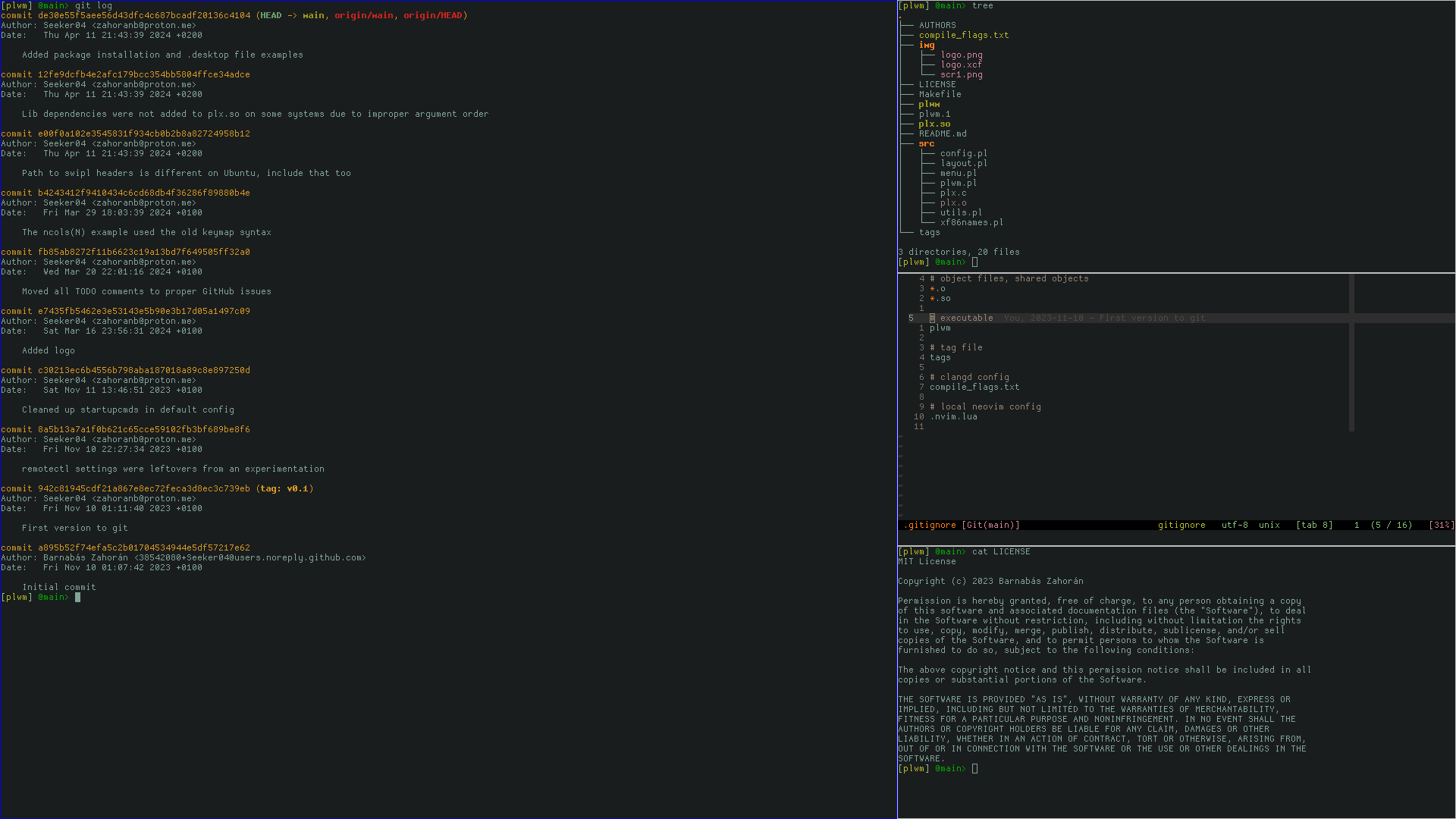 |
|---|
| default appearance |
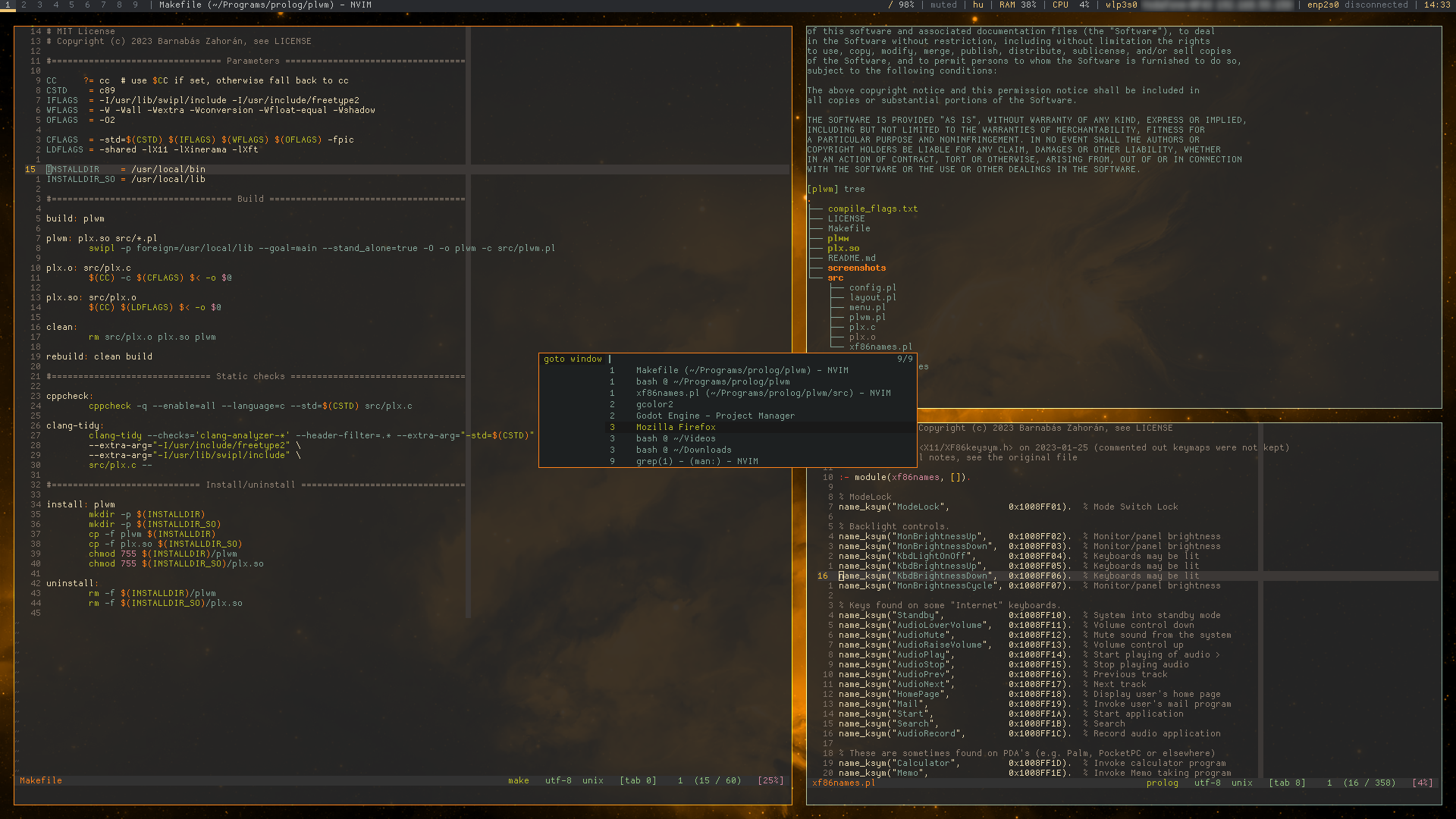 |
|---|
| lmaster / nmaster=1 / mfact=2/3 / 1px borders / 18px inner & outer gaps / goto window menu / polybar / picom / gruvbox colors |
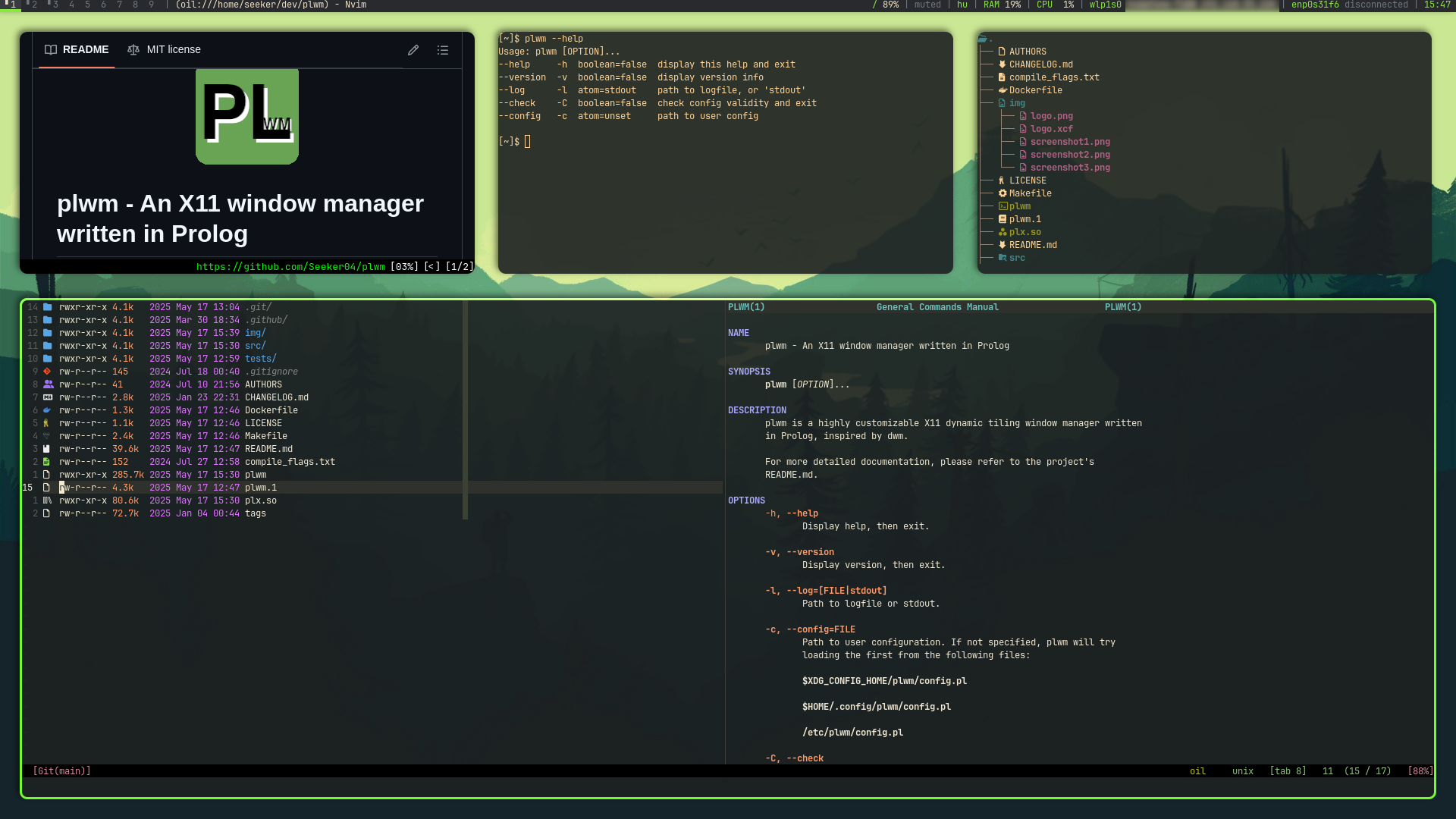 |
|---|
| bmaster / nmaster=1 / mfact=2/3 / 3px focused border / 26px inner & outer gaps / polybar / picom /w rounded corners & shadows |
| layout demonstration with animations enabled / time 0.2 / granularity 30 |
Project status
!!! Disclaimer: plwm is still in an experimental state. First stable release will be v1.0.0. While crashes or other major bugs don't really occur, it's good to keep this in mind !!!
Also, this means that breaking changes (e.g. renaming of settings) are to be expected before reaching v1.0.0. We plan on switching to semantic versioning from that point onwards.
For known problems, see the Issues with bug labels.
Contribution
First and foremost, if you find any bugs, please create a GitHub issue, preferably, with all details you can provide. (First, please check if it's not reported already).
If you have a feature request or questions, feel free to open discussions.
Any code contribution is also welcome. Especially if it solves some known issue. For brand new ideas, I recommend creating a discussion first.
Please read the Development Guide.
FAQ
Why workplaces instead of tags?
Tags is a cool generalization of workspaces, but I never actually utilized them in dwm for more than simple workspace usage. That's why I went with the simpler approach.
What about performance? Isn't Prolog slow?
Compared to what? C? Yes. Does it matter? No. I've been using dwm for 6 years, so I have a good idea of its speed, and when I switch to plwm, it feels exactly as snappy... on my 10 years old laptop. So I don't think, anyone will see a notable difference.
Isn't SWI-Prolog non-ISO compliant?
Interoperability between different Prolog implementations was never really on the table. Their C FFIs are also different, so plx.c would also need to be rewritten for each kind of Prolog. SWI-Prolog is arguably one of the most popular free and community-driven Prolog implementations, is easily accessible, has good documentation, some LSP support and a lot of libraries. Though, to be honest, plwm's code mostly sticks to fundamentals, so if someone really wanted to, it shouldn't be too hard to port this to another Prolog system...
Why not Wayland?
A Wayland port some day is not out of the realm of possibilities...
Some windows display all grey without contents!
It is a known issue for Java applications which use the XToolkit/XAWT backend (e.g., UMLet). There is an excerpt from dwm's manual about it in plwm(1). Adding
export _JAVA_AWT_WM_NONREPARENTING=1
to your .xinitrc should solve this problem.
My configuration doesn't work!
Run plwm --check, then you should see the problem. Consult the table here to see the proper type for each setting. E.g. make sure you use double quotes for strings and single quotes for atoms.
If you don't see any error, then please report it as an issue by attaching your config and any message plwm dumps to stderr or to its logfile with -l.
Something is missing...
tl;dr plwm is a window manager, not a full-fledged desktop environment.
plwm is minimal in the sense that it doesn't try to solve problems outside of a wm's domain, especially if they are easily served by other programs (see here):
- Don't want a status bar? You're set. Want one (or more)? Here are a few: polybar, lemonbar, xmobar
- Want transparent windows or other effects? Use a compositor like picom
- Want tabbed windows? Use tabbed
- Program launcher? dmenu or rofi will get you covered
- Auto hide cursor? Try unclutter
- Wallpaper? Many image viewers can set it, feh for example
- Screen locker? Check out slock
- plwm offers some basic rule based automation, but if you want more scriptability, try xdotool and devilspie
Similar projects
- tinywm: plwm's very first working version was basically tinywm, but in Prolog.
- dwm: Later, features and even implementation tricks were taken from dwm.
Thanks to both of these projects for inspiration and code to learn from!
Some other similar projects:
and here's a longer list.
Contributors

8 commits
Similar repos


Languages
Prolog
79.6%
C
15.0%
Shell
4.5%
README
plwm - An X11 window manager written in Prolog
Table of Contents
- About
- Feature highlights
- Installation
- Usage
- Screenshots
- Project status
- Contribution
- FAQ
- Similar projects
About
plwm is a highly customizable X11 dynamic tiling window manager written in Prolog.
Main goals of the project are: high code & documentation quality; powerful yet easy customization; covering most common needs of tiling WM users; and to stay small, easy to use and hack on.
Powered by SWI-Prolog
Porting to Scryer Prolog, a Rust-powered ISO Prolog implementation, is underway too! (discussion, PR)
2025.11.14: plwm was presented at Scryer Prolog Meetup 2025. Slides are uploaded in ODP and PDF.
Feature highlights
- Easy to hack on, great way to introduce yourself to the logic programming paradigm and Prolog
- Easy to configure: Prolog is declarative, so even though the config is source code, it feels like a dedicated format
- Tiling is dynamic, with various layouts included by default: monocle, vertical/horizontal stacks, grid, left/right/top/bottom/centered master-stack, nrows(N), ncols(N)
- Floating windows are also supported (move/resize with mouse)
- Support for external bars, e.g. polybar, lemonbar
- Nice level of EWMH compilance - partially still work-in-progress
- Performance: plwm is fast and light as a feather when it comes to resource usage (10-15 MB memory)
- Dynamic workspace operations: create, rename, reindex or delete workspaces on the fly
- Other features: multi-monitor support, inner/outer gaps, menu integrations with dmenu/rofi, rules, hooks, animations, command fifo and more
- You can say: "My window manager is a semantic consequence of a set of axioms and implications which my computer is deducing/proving from an infinitely branching proof-tree"
Installation
From release
Download the latest version from the releases, extract and run sudo ./install.sh.
plwm nightly is auto-generated each time main gets updated.
From source
Run make && sudo make install
Dependencies:
xorgwithlibx11-dev,libxft-dev,libxrandr-dev
(exact package names may vary,devversions are only needed when building from source)- SWI-Prolog (most likely also packaged by your distro)
E.g. on Ubuntu 22.04, easiest way to install them is:
sudo apt install xorg-dev swi-prolog
Minimal environment
Add the following line to the end of your ~/.xinitrc:
exec plwm
Then simply use the command startx in tty.
For example, to automate this after logging in, put these lines in ~/.bash_profile (or to whatever shell startup that matches your setup):
# Start X from login shell on tty1 if not already started
if [ -z "$DISPLAY" -a $(tty) = "/dev/tty1" ]; then
	exec startx
fi
Using a display manager
Please refer to the documentation of your display manager on how to set up sessions for custom WMs.
Here you can find good references for this.
For most modern display managers, you'll have to create a /usr/share/xsessions/plwm.desktop file with content like:
[Desktop Entry]
Name=plwm
Comment=This session logs you into plwm
Exec=plwm
Icon=path-to-this-repo/plwm/img/logo.png
Type=Application
Usage
Basics
Command-line options are listed by running plwm -h. The manual plwm(1) also contains them as well as the default keybindings.
If you have already used dynamic tiling WMs like dwm, then nothing should be too surprising in this section.
All windows are managed by default. This means that whenever a window spawns, it will be added to a list. We call this list the stack. Also, the placement and the size of the windows are automatically calculated and set. This is determined by the currently active layout (stack, horizontal stack, grid, etc.).
Some layouts are called "master-stack" layouts (the ones which have "master" in their names, e.g., lmaster). With these layouts the first nmaster number of windows (1 by default) in the stack go to a dedicated area. These are the master windows, which usually have the most space allocated for them. All other windows go to the remaining screen space.
For example, if you start plwm with the default config, you have: layout = lmaster, nmaster = 1, mfact = 2/3, which means that the stack's top window will always be on the left side and occupy 2/3 of the screen width, while the other windows will be in a secondary stack on the right having 1/3 of the screen width.
Some base promises of this approach:
- Declarative window management: you only tell your system what window arrangement you want and don't do the movement/resizing (don't need to care about the how)
- When new windows are spawned or old ones close, the layout will adapt automatically
- Playing with the
layout,nmaster,mfacttrio, one can cook up mostly any kind of arrangement a situation may need, just with a few keystrokes. - 100% of the screen space is utilized at all times, 99% if you use gaps :)
Default keybindings
| Keybind | Predicate | Description |
|---|---|---|
| super + j | shift_focus(down) | Focus next window in stack |
| super + k | shift_focus(up) | Focus previous window in stack |
| super + shift + j | move_focused(down) | Swap focused window with the next |
| super + shift + k | move_focused(up) | Swap focused window with the preceding |
| super + Return | focused_to_top | Move focused window to top of the stack |
| super + q | close_focused | Close focused window |
| super + shift + space | toggle_floating | Toggle between manual and automatic management of focused window |
| super + f | toggle_fullscreen | Toggle fullscreen of focused window |
| super + shift + q | quit | Quit plwm |
| super + i | change_nmaster(+1) | Increase number of master windows by 1 |
| super + d | change_nmaster(-1) | Decrease number of master windows by 1 |
| super + h | change_mfact(-0.05) | Remove 5% from the space of master area |
| super + l | change_mfact(+0.05) | Add 5% to the space of master area |
| super + shift + f | layout:set_layout(floating) | Switch to floating layout (all windows unmanaged) |
| super + shift + m | layout:set_layout(monocle) | Switch to monocle layout (all maximized, one visible at a time) |
| super + shift + s | layout:set_layout(stack) | Switch to stack layout |
| super + shift + h | layout:set_layout(hstack) | Switch to hstack (horizontal stack) layout |
| super + shift + g | layout:set_layout(grid) | Switch to grid layout |
| super + shift + l | layout:set_layout(lmaster) | Switch to lmaster (left master) layout |
| super + shift + r | layout:set_layout(rmaster) | Switch to rmaster (right master) layout |
| super + shift + t | layout:set_layout(tmaster) | Switch to tmaster (top master) layout |
| super + shift + b | layout:set_layout(bmaster) | Switch to bmaster (bottom master) layout |
| super + shift + c | layout:set_layout(cmaster) | Switch to cmaster (central master) layout |
| super + Tab | toggle_workspace | Switch between last two workspaces |
| super + shift + Tab | toggle_hide_empty_workspaces | Toggle the hide_empty_workspaces setting |
| super + 1 | switch_workspace('1') | Go to workspace '1' |
| ... | ... | ... |
| super + 9 | switch_workspace('9') | Go to workspace '9' |
| super + p | switch_workspace(prev) | Go to previous workspace |
| super + n | switch_workspace(next) | Go to next workspace |
| super + shift + 1 | move_focused_to_workspace('1') | Move focused window to workspace '1' |
| ... | ... | ... |
| super + shift + 9 | move_focused_to_workspace('9') | Move focused window to workspace '9' |
| super + shift + p | move_focused_to_workspace(prev) | Move focused window to previous workspace |
| super + shift + n | move_focused_to_workspace(next) | Move focused window to next workspace |
| super + , | switch_monitor(prev) | Switch to previous monitor |
| super + . | switch_monitor(next) | Switch to next monitor |
| super + shift + , | move_focused_to_monitor(prev) | Move focused window to previous monitor |
| super + shift + . | move_focused_to_monitor(next) | Move focused window to next monitor |
Tip: change_nmaster/1 and change_mfact/1 can not only take deltas, but also exact values to assign. Omit the the + and - prefixes for this behavior.
Tip: For both switch_workspace/1 and move_focused_to_workspace/1, you can also pass prev_nonempty and next_nonempty for switching/moving to the next non-empty workspace. The former can be nice for cycling through only the relevant workspaces. The latter can also work well when using the hide_empty_workspaces setting. You can also pass workspace indices instead of names. Use numbers starting from 1 without single quotes for this (of course, this only makes sense if you use different workspace names than the default '1'...'9').
Tip: There are two parametric layouts which have no default keybindings: nrows(N) and ncols(N). You can use them if you wish to have layouts with fixed number of rows or columns. For example, you can add a line like:
super + shift + "T" -> layout:set_layout(ncols(3))
then you'll have a triple stack layout where your windows will be evenly spread and sized among the three columns (can be nice with wide monitors).
Tip: you can bind multiple (consecutive) actions to a single keystroke by writing a comma separated list of predicates enclosed in parentheses, i.e., Keyes -> (Act1, Act2,...)
Configuration
sudo make install installs the default configuration to /etc/plwm/config.pl. This file can be copied to user config directories.
plwm attempts reading configuration when it starts from the first file among
$XDG_CONFIG_HOME/plwm/config.pl$HOME/.config/plwm/config.pl/etc/plwm/config.pl
A custom path can be specified with the -c flag.
Note: a reinstall will overwrite /etc/plwm/config.pl, however a backup is always created if there is any difference.
While cooking your config, you can use the -C flag to quickly and easily check its validity.
config.pl is self-documenting with lots of comments, but here is a quick reference:
| Setting | Values (default value) | Description |
|---|---|---|
default_nmaster | 0<= integer Default: 1 | Initial number of master windows |
default_mfact | 0.05 .. 0.95 Default: 2/3 | Initial space percentage given to master area |
default_layout | floating, monocle, stack, hstack, nrows(N), ncols(N), grid, lmaster, rmaster, tmaster, bmaster, cmaster Default: lmaster | Layout to use by default |
attach_bottom | true or false Default: false | Put new windows to bottom of the stack instead |
border_width | 0<= integer Default: 1 | Border width in pixels |
border_width_focused | 0<= integer Default: 1 | Border width for focused window in pixels |
border_color | hexa code or color name Default: "white" | Border color |
border_color_focused | hexa code or color name Default: "blue" | Border color for focused window |
snap_threshold | 0<= integer Default: 32 | Snap to screen border threshold in pixels while dragging windows |
outer_gaps | 0<= integer Default: 0 | Space reserved around screen edge in pixels |
inner_gaps | 0<= integer Default: 0 | Space between adjacent tiled windows in pixels |
workspaces | list of atoms in UTF-8, at least 1 Default: ['1','2','3','4,'5','6','7','8','9'] | Workspace names |
starting_workspace | an element from workspaces Default: '1' | Starting workspace |
hide_empty_workspaces | true or false Default: false | Hide names of inactive and empty workspaces from bars |
ws_format | string with a ~w or string with a ~d followed by a ~w Default: "~w" | Format of empty workspaces on bars (~d = index, ~w = name) |
ws_format_occupied | string with a ~w or string with a ~d followed by a ~w Default: "▘~w" | Format of occupied workspaces on bars |
layout_default_overrides | list of (Monitor, Workspace -> Nmaster, Mfact, Layout) Default: [] | Overrides of the 3 values to specific monitors and/or workspaces (explained here) |
bar_classes | list of string pairs from bar's WM_CLASS, query with xprop(1) Default: ["polybar"-"Polybar"] | Space will be reserved for matching windows and they cannot be focused, resized, etc. |
bar_placement | follow_focus, static Default: follow_focus | Determines placement of external bars (explained here) |
fifo_enabled | true or false Default: false | Whether to spawn a command FIFO (explained here) |
fifo_path | string Default: "/tmp/plwm_fifo" | Path of command FIFO |
menucmd | list of strings Default: ["dmenu", "-i", "-l", "20", "-p"] | Command and its arguments to use for menu operations |
animation_enabled | true or false Default: false | Whether to animate window move/resize |
animation_time | 0.0< float Default: 0.2 | Time of the animation |
animation_granularity | 1<= integer Default: 30 | Number of steps in animation interpolations |
modkey | shift, lock, ctrl, alt, mod2, mod3, super, mod5 Default: super | Key you must hold for mouse operations |
scroll_up_action | callable term or 'none' Default: switch_workspace(next) | Action to perform on modkey + scroll up |
scroll_down_action | callable term or 'none' Default: switch_workspace(prev) | Action to perform on modkey + scroll down |
keymaps | list of (Modifiers + Key -> Action) Default: see here | Modifiers: see values at modkeyKey: keycode, usual X11 names, or special key Action: callable term |
rules | list of (Name, Class, Title -> Monitor, Workspace, Mode) Default: [] | Auto place and configure matching windows (explained here) |
hooks | list of (Event -> Action) Default: [start -> writeln("plwm starting"), quit -> writeln("plwm quitting")] | Run custom logic on certain events (explained here) |
Tips
- You can safely remove any setting from your config file, plwm will use the default value for those.
- In
keymaps/1, the callback predicates can be arbitrary shell commands usingshellcmd/1, even whole commandlines (some examples are included in the default config). - If you wish to stick to default keymaps mostly, with only a few changes and feel redundant to list the whole table in your config, you can simply omit the
keymaps/1setting and add your changes as astarthook like this:
hooks([
  start -> (
    add(keymaps, super + g -> shellcmd("gcolor2")),    % add new
    add(keymaps, super + l -> switch_workspace(next)), % overwrite existing
    add(keymaps, super + f -> none)                    % remove existing
  )
]).
Changing settings during runtime
set/2andadd/2can be used to overwrite or append to existing settings, respectively. You can invoke them via a keymap, the command fifo or the command menu.- The whole configuration file can be reloaded by calling
reload_config/0. - You can use
dump_settings(Path, false)to dump all current settings anddump_settings(Path, true)to dump only those that differ from the defaults to a file. Both are available in the command menu.
External bars
First, you must specify bar_classes/1 based on the WM_CLASS properties of your bars, which you can find out using xprop(1). Then you can both:
- manually start/close bars while plwm is already running
- automatically start bars using
hooks/1and itsstartevent in the config
bar_placement/1 can take two values:
follow_focus: space will be reserved for bars on all monitors and bars will always be moved to the focused monitor (this is the default behavior)static: space will only be reserved for bars in their respective monitors they occupy and no bar will be moved automatically. Placing bars to desired monitors is the responsibility of the user/external bar
Some bars (e.g., polybar) already support different labels for empty and occupied workspaces. The advantages of plwm's built-in ws_format/1 and ws_format_occupied/1 are:
- it works on more primitive bars as well
- it respects multi-monitor scenarios, i.e., it only considers the set of workspaces that belong to the active monitor - this is relevant only with
bar_placement(follow_focus)
You can toggle your external bars with the following hacks (again, some bars may have their own IPC mechanizm for this, but these are bar agnostic solutions):
alt + b -> shellcmd("pkill polybar || polybar")
or if you use multiple bars (a top and a bottom polybar called "top" and "bot", for example), you can:
alt + b -> shellcmd("pkill polybar || (polybar top & polybar bot)")
or if you want the ability to separately toggle the bars, use something like:
alt + b         -> shellcmd("pkill -fx 'polybar top' || polybar top"),
alt + shift + b -> shellcmd("pkill -fx 'polybar bot' || polybar bot")
Note: if you are using polybar, do not enable its override-redirect = true setting (it can even crash plwm in some cases)! Reasoning: plwm itself handles all bars (anything that matches bar_classes, not just polybar) the intended way: bars cannot be focused, grabbed, moved or resized; tiling windows will never cover them (but you can drag floating windows above them); fullscreen windows will always cover them.
Multi-monitor
The multi-monitor concept in plwm is similar to dwm's: the set of workspaces is cloned for each monitor. So if you're using the default config with two monitors, then you'll have two times nine unique workspaces: M1/1, M1/2,..., M2/9.
The switch_monitor/1 and move_focused_to_monitor/1 predicates can take many different values:
prev/nextwill go to the previous/next monitor (these will wrap) - only these have keymaps by defaultprev_nonempty/next_nonemptywill go to the previous/next non-empty monitor (a monitor is considered empty if its currently displayed workspace is empty). If you use a lot of monitors, say six, it could be convenient to cycle through only the relevant, i.e., non-empty ones (these will wrap)left/right/up/downwill go to the specified direction relative to the active monitor calculated from x/y screen coordinates (these won't wrap)- An output name, shown by
xrandr(1), e.g. "eDP-1" or "HDMI-1". If you have a consistent xrandr(1) setup, then you can refer them to move to arbitrary monitors - Index of managed monitor
You can also switch monitors by moving with the mouse between them. Likewise, windows can be dragged and dropped between monitors using the mouse.
Layout overrides
The default_nmaster, default_mfact and default_layout settings can each be overridden for specific monitors and/or workspaces using layout_default_overrides/5.
Underscore at the monitor column means "all monitors" for that workspace, while underscore at the workspace column means "all workspaces" on that monitor.
Underscores at the nmaster, mfact and layout columns mean not to alter the default settings for those.
Note: a later override will overrule values of previous ones if there is an overlap.
Some examples:
layout_default_overrides([
%  monitor      workspace     nmaster  mfact   layout
  ( _        ,  '2'       ->  _     ,  _    ,  grid    ),
  ( "eDP-1"  ,  _         ->  2     ,  1/2  ,  tmaster ),
  ( "HDMI-1" ,  '3'       ->  _     ,  0.90 ,  _       )
]).
Rules
You can apply custom rules to newly spawned windows that match one or more criteria. You can match the window's name, class and title. These are substring matches by default, but you can wrap them in exact() to force an exact match, or can write any of them as _ to ignore those particular checks.
The monitor column takes an output name, or you can leave it as _, which implies opening on the currently active monitor.
The workspace column takes a workspace name (use single quotes), an index (from 1) or you can leave it as _, which implies opening on the currently active workspace.
The mode column can take the following values:
managed: Window will be managed (_also implies this)floating: Window will be unmanaged, i.e., floating[X, Y, W, H]: Same asfloating, but also apply this geometry:Xcan beleft,right,center, an integer coordinate, a percent (0.0..1.0) of x axisYcan betop,bottom,center, an integer coordinate, a percent (0.0..1.0) of y axisWcan be an integer size or a percent (0.0..1.0) of screen widthHcan be an integer size or a percent (0.0..1.0) of screen height- also, any of them can be left as
_to keep the value the window spawned with
fullscreen: Window will open in fullscreen mode
Note: if a window matches multiple rules, the first will be applied.
Some examples:
rules([
%  name      class     title                 monitor     wspace    mode
  (_      ,  _      ,  exact("gcolor2")  ->  _        ,  _      ,  [center, center, 1/3, 1/3]),
  (_      ,  _      ,  "Firefox"         ->  "eDP-1"  ,  'www'  ,  fullscreen                ),
  ("Bar"  ,  "Baz"  ,  _                 ->  "HDMI-1" ,  '1'    ,  [700, 250, _, _]          )
])
You can find out the name, class and title values of windows using xprop(1):
WM_CLASS(STRING) = name , class
WM_NAME(STRING) = title
Tip: if you want to apply a rule to a terminal application, then you'll need to use a terminal emulator that allows you to predefine the window class or title (most of them do). For example, alacritty has the --class and st has the -c flag for this:
shellcmd("alacritty --class cmus -e cmus")
then you can match it with with a rule like:
("cmus", "cmus", _ -> "eDP-1", '9', managed)
Menus
The menu module also has default keybindings:
Navigation/window placement
| Keybind | Predicate | Description |
|---|---|---|
| alt + w | menu:goto_window | List windows from all monitors/workplaces, go to monitor/workspace of selected, then raise and focus the window |
| alt + shift + w | menu:goto_workspace | List monitors/workspaces, except current, then go to selected |
| alt + p | menu:pull_from | List windows from all monitors/workspaces, except current, then pull selected ones to the active monitor/workspace and focus it |
| alt + shift + p | menu:push_to | List monitors/workspaces, except current, then push the focused window to the selected |
| alt + q | menu:close_windows | Close selected windows |
| alt + shift + q | menu:keep_windows | Close all windows other than the selected |
Dynamic workspace operations
| Keybind | Predicate | Description |
|---|---|---|
| alt + c | menu:create_workspace | Prompt for a name and append it to the list of workspaces |
| alt + r | menu:rename_workspace | Prompt for a name and rename the active workspace to it |
| alt + i | menu:reindex_workspace | List possible workspace indices and move the active one to the selected index |
| alt + d | menu:delete_workspaces | List workspaces and delete the selected ones (its windows, if any, will be moved to the next workspace) - Note: deleting is not allowed if only one workspace is left |
Extras
| Keybind | Predicate | Description |
|---|---|---|
| alt + shift + k | menu:list_keymaps | List all defined keymaps, their mapped actions, descriptions of said actions and execute the selected. Useful for early discoverability or running forgotten or rarely used mappings |
| alt + shift + c | menu:list_cmds | List all available commands (i.e., predicates intended to be called by the user) and their descriptions, then execute the selected. Again, adds discoverability for new users. Can also be useful to run rare commands which have no mappings defined or even custom logic hacked into plwm (you'll need to add your predicates to menu:list_cmds/0 and menu:cmd_desc/2) |
These predicates need menucmd/1 set in the config to a program like dmenu or rofi. For example:
menucmd(["dmenu", "-i", "-l", "20", "-p"]).
or
menucmd(["rofi", "-dmenu"]).
Note: A prompt name will be written as last argument for menucmd/1, so if you are using dmenu, you should add -p as final argument.
Note: pull_from, delete_workspaces, close_windows and keep_windows can operate on multiple selections. Use Ctrl+Enter in dmenu, or Shift+Enter with -dmenu -multi-select in rofi.
Hooks
You can run custom logic on certain events with the hooks/1 configuration. If you wish to execute multiple predicates, list them inside a parantheses, separated by commas.
An example:
hooks([
  start -> (
    shellcmd("xrandr --output HDMI-1 --left-of eDP-1"), % setup 2nd monitor
    shellcmd("picom"),                                  % compositor
    shellcmd("polybar"),                                % status bar
    switch_monitor("HDMI-1")
  ),

  switch_workspace_post -> (   % display different wallpaper on each workspace
    active_mon_ws(_, Ws),
    (Ws = '1' -> shellcmd("feh --bg-fill ~/pic/bg/lake.jpg")
    ;Ws = '2' -> shellcmd("feh --bg-fill ~/pic/bg/forest.jpg")
    ;Ws = '3' -> shellcmd("feh --bg-fill ~/pic/bg/mountain.jpg")
    ;true)
  ),
]).
Supported events:
| Event | Description |
|---|---|
start | after all initialization, but before main X event loop |
quit | before quitting, also before calling XCloseDisplay(3) |
switch_workspace_pre | before switching workspace |
switch_workspace_post | after switching workspace |
switch_monitor_pre | before switching monitor |
switch_monitor_post | after switching monitor |
window_create_pre | before a window is mapped (won't run for bars) |
window_create_post | after a window is mapped (won't run for bars) |
window_destroy_pre | before a window is unmapped (won't run for bars) |
window_destroy_post | after a window is unmapped (won't run for bars) |
If you would like to hook to some other event, feel free to submit a GitHub issue for it.
Scriptability
If fifo_enabled/1 and fifo_path/1 are both set (disabled by default), then a named pipe will be created (with mkfifo(1)).
The user can execute any term or list of terms by writing their code to this pipe.
For most usecases, predicates listed by menu:list_cmds/0 are the ones users would be interested in calling, but note that this mechanizm can execute arbitrary terms. Even internal ones, or custom ones the user hacks together. There is no limit.
In case of an issue (e.g. syntax error, predicate does not exist,...), the error will be written to the plwm log.
Examples:
Switch to the next workspace.
echo "switch_workspace(next)." > /tmp/plwm_fifo
Create a new workspace 'temp', switch to it and set its layout.
echo "create_workspace(temp),
      switch_workspace(temp),
      layout:set_layout(grid)." > /tmp/plwm_fifo
Use conjunction (comma) if you need to share variables between terms.
echo "Ws = temp. create_workspace(Ws). switch_workspace(Ws)." > /tmp/plwm_fifo # doesn't work
echo "Ws = temp, create_workspace(Ws), switch_workspace(Ws)." > /tmp/plwm_fifo # works
You can write reusable script files like:
% switch to other monitor
switch_monitor("HDMI-1"),

% create some workspaces
Workspaces = [a, b, c],
forall(member(Ws, Workspaces), (
    create_workspace(Ws)
)).
and simply execute them with:
cat myscript.pl > /tmp/plwm_fifo
Create workspaces '1'..'9'.
# this may yield inconsistent results (terms missing or in wrong order)
for i in {1..9}; do
    echo "create_workspace($i)." > /tmp/plwm_fifo
done

# instead send the whole input at once like before
for i in {1..9}; do
    echo "create_workspace($i)."
done > /tmp/plwm_fifo
Screenshots
|
|---|
| default appearance |
|
|---|
| lmaster / nmaster=1 / mfact=2/3 / 1px borders / 18px inner & outer gaps / goto window menu / polybar / picom / gruvbox colors |
|
|---|
| bmaster / nmaster=1 / mfact=2/3 / 3px focused border / 26px inner & outer gaps / polybar / picom /w rounded corners & shadows |
| layout demonstration with animations enabled / time 0.2 / granularity 30 |
Project status
!!! Disclaimer: plwm is still in an experimental state. First stable release will be v1.0.0. While crashes or other major bugs don't really occur, it's good to keep this in mind !!!
Also, this means that breaking changes (e.g. renaming of settings) are to be expected before reaching v1.0.0. We plan on switching to semantic versioning from that point onwards.
For known problems, see the Issues with bug labels.
Contribution
First and foremost, if you find any bugs, please create a GitHub issue, preferably, with all details you can provide. (First, please check if it's not reported already).
If you have a feature request or questions, feel free to open discussions.
Any code contribution is also welcome. Especially if it solves some known issue. For brand new ideas, I recommend creating a discussion first.
Please read the Development Guide.
FAQ
Why workplaces instead of tags?
Tags is a cool generalization of workspaces, but I never actually utilized them in dwm for more than simple workspace usage. That's why I went with the simpler approach.
What about performance? Isn't Prolog slow?
Compared to what? C? Yes. Does it matter? No. I've been using dwm for 6 years, so I have a good idea of its speed, and when I switch to plwm, it feels exactly as snappy... on my 10 years old laptop. So I don't think, anyone will see a notable difference.
Isn't SWI-Prolog non-ISO compliant?
Interoperability between different Prolog implementations was never really on the table. Their C FFIs are also different, so plx.c would also need to be rewritten for each kind of Prolog. SWI-Prolog is arguably one of the most popular free and community-driven Prolog implementations, is easily accessible, has good documentation, some LSP support and a lot of libraries. Though, to be honest, plwm's code mostly sticks to fundamentals, so if someone really wanted to, it shouldn't be too hard to port this to another Prolog system...
Why not Wayland?
A Wayland port some day is not out of the realm of possibilities...
Some windows display all grey without contents!
It is a known issue for Java applications which use the XToolkit/XAWT backend (e.g., UMLet). There is an excerpt from dwm's manual about it in plwm(1). Adding
export _JAVA_AWT_WM_NONREPARENTING=1
to your .xinitrc should solve this problem.
My configuration doesn't work!
Run plwm --check, then you should see the problem. Consult the table here to see the proper type for each setting. E.g. make sure you use double quotes for strings and single quotes for atoms.
If you don't see any error, then please report it as an issue by attaching your config and any message plwm dumps to stderr or to its logfile with -l.
Something is missing...
tl;dr plwm is a window manager, not a full-fledged desktop environment.
plwm is minimal in the sense that it doesn't try to solve problems outside of a wm's domain, especially if they are easily served by other programs (see here):
- Don't want a status bar? You're set. Want one (or more)? Here are a few: polybar, lemonbar, xmobar
- Want transparent windows or other effects? Use a compositor like picom
- Want tabbed windows? Use tabbed
- Program launcher? dmenu or rofi will get you covered
- Auto hide cursor? Try unclutter
- Wallpaper? Many image viewers can set it, feh for example
- Screen locker? Check out slock
- plwm offers some basic rule based automation, but if you want more scriptability, try xdotool and devilspie
Similar projects
- tinywm: plwm's very first working version was basically tinywm, but in Prolog.
- dwm: Later, features and even implementation tricks were taken from dwm.
Thanks to both of these projects for inspiration and code to learn from!
Some other similar projects:
and here's a longer list.
Similar repos
Contributors
8 commits
Languages
Prolog
79.6%
C
15.0%
Shell
4.5%