The power-user desktop client for YouTube Music.
See the code
Your YouTube Music library, with more control over how you listen.
Adaptive mixes · Best Mix queues · Synced lyrics · Lossless audio · Orchard Connect




Download · Features · Android app · Getting started · Build
Orchard is an open-source music player for Windows, Linux, and Android. Browse your YouTube Music recommendations, library, and playlists, shape the sound, and move playback between your computer and phone. The desktop app uses a native Qt interface and Rust audio core.
Orchard is an independent project and is not affiliated with or endorsed by Google, YouTube, or Qobuz.
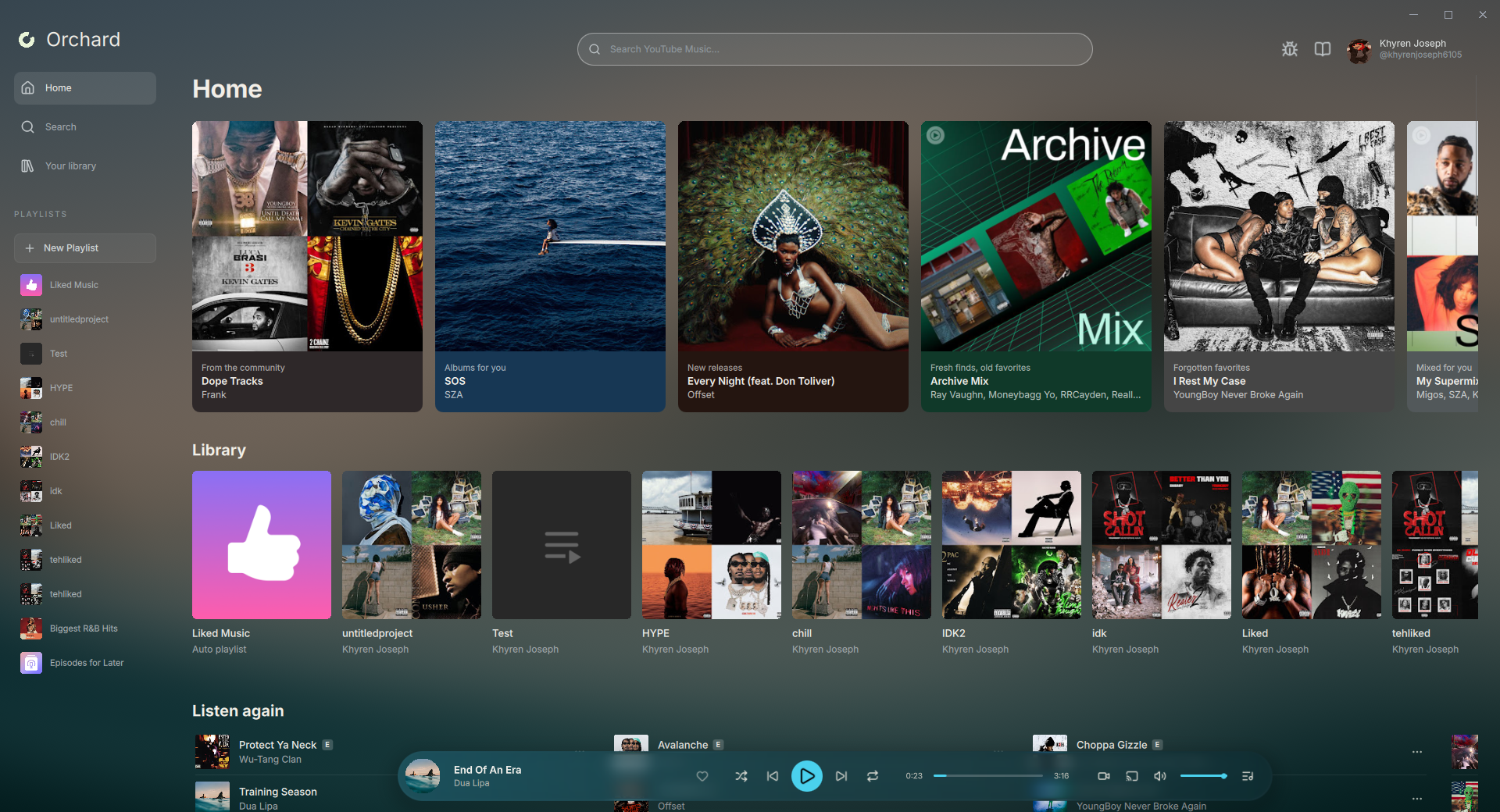
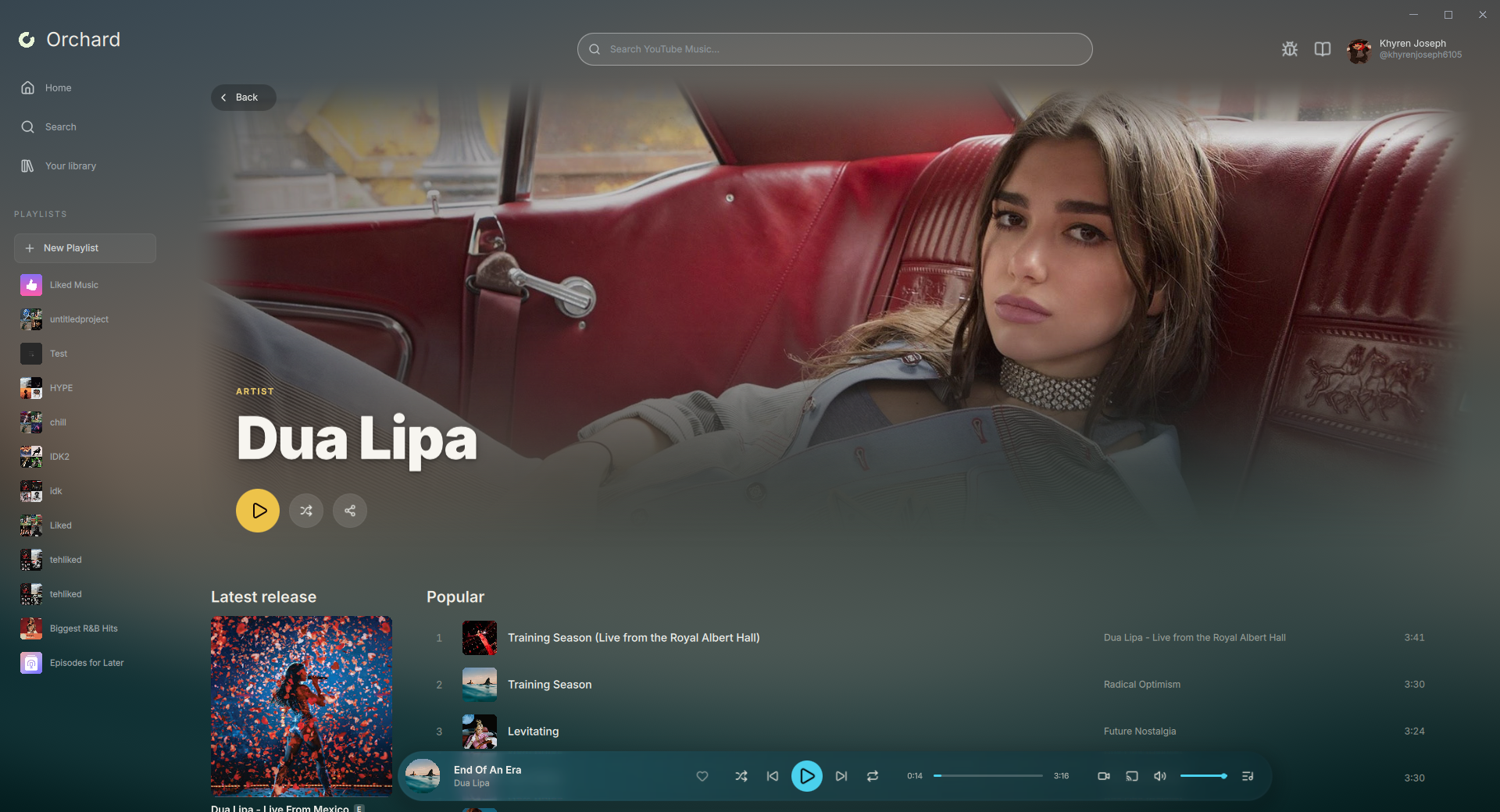 | 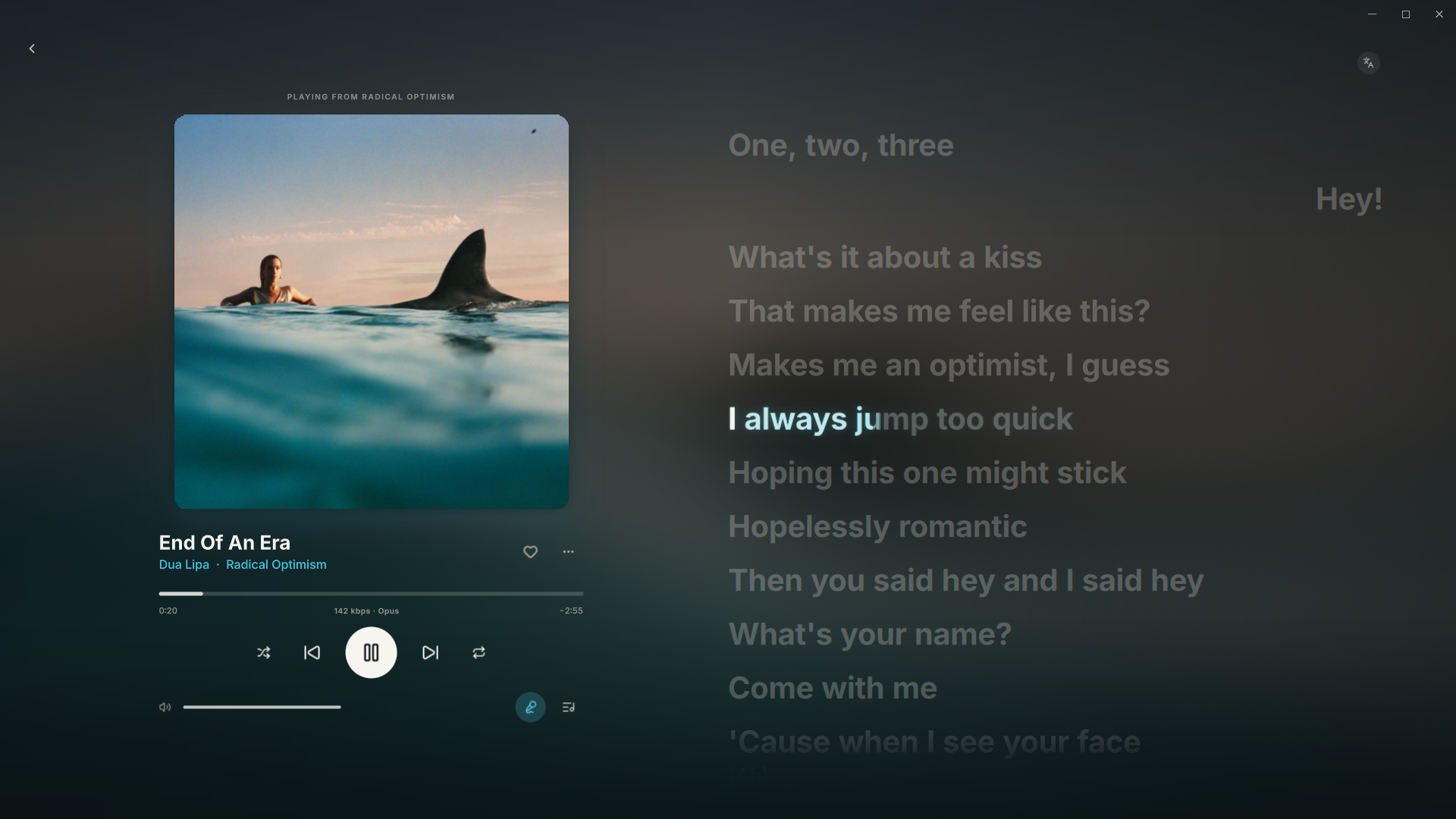 |
| Explore artists and their music | Follow along with synced lyrics |
Download Orchard for your device.
| Platform | Available packages |
|---|---|
| Windows | Setup installer (.exe) or portable archive (.7z), x64 |
| Linux | AppImage (.AppImage) or native Orchard launcher, x64 |
| Android | Standalone app (.apk), Android 12 or later |
The desktop installer downloads the app and its required components on first install. Managed desktop installs check for updates automatically and download the files that changed. See Updates for update settings and repair options.
To try desktop canary builds, turn on Canary builds under Settings → General → Updates. Canary builds follow active development and can have bugs. Turn the switch off to return to stable.
Desktop Adaptive mix requires a GPU with WebGPU support and FFmpeg. Turn the Audio Engine off to enable it, and choose a streaming quality other than MAX. See Crossfade and gapless playback and Manage the queue for setup and requirements.
https://github.com/user-attachments/assets/983fb4b1-e0ff-4f90-9ff5-b92702664a3d
See Audio Engine and equalizer and Streaming quality.
See Offline mode and downloads, Local files, Lyrics, and AI-generated music.
See Orchard Connect, Integrations, and Keyboard shortcuts.
Orchard Mobile plays music directly on your phone. It includes on-device Smart Crossfade, synced lyrics, animated artwork, Android Auto, Chromecast, and Orchard Connect.
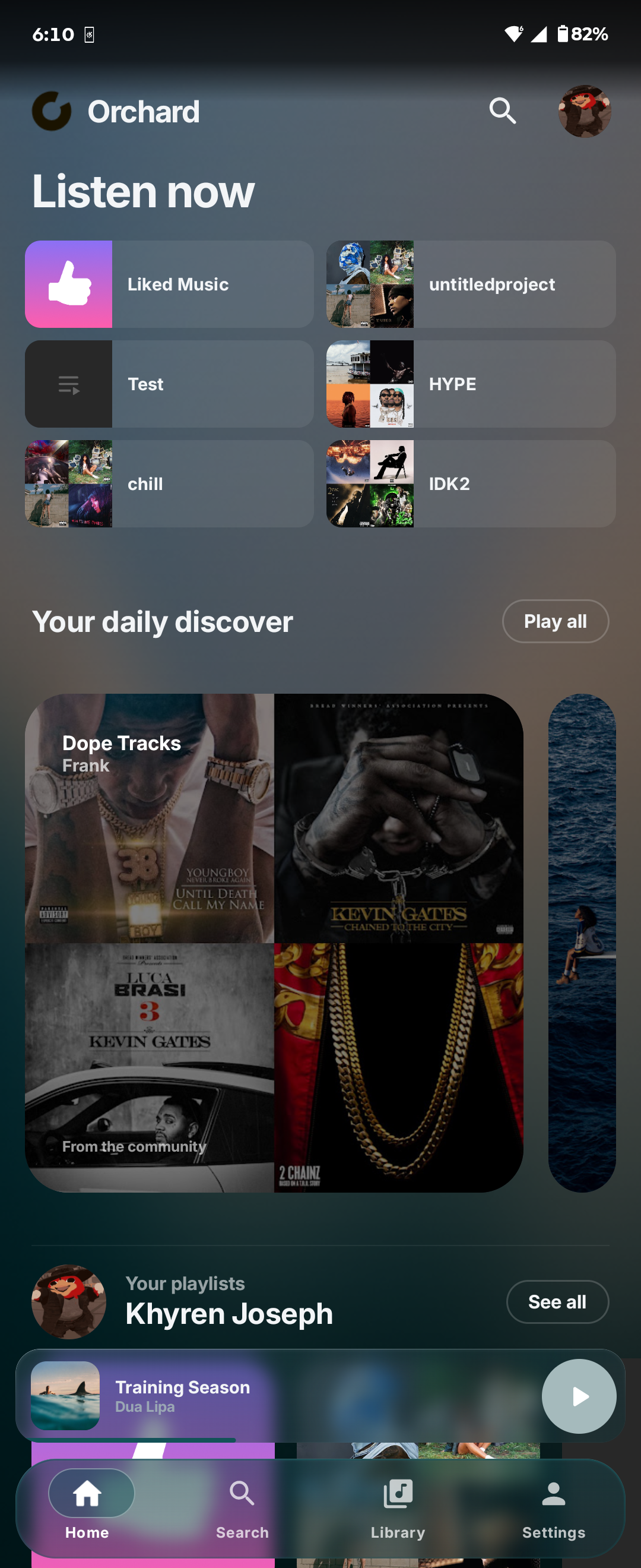
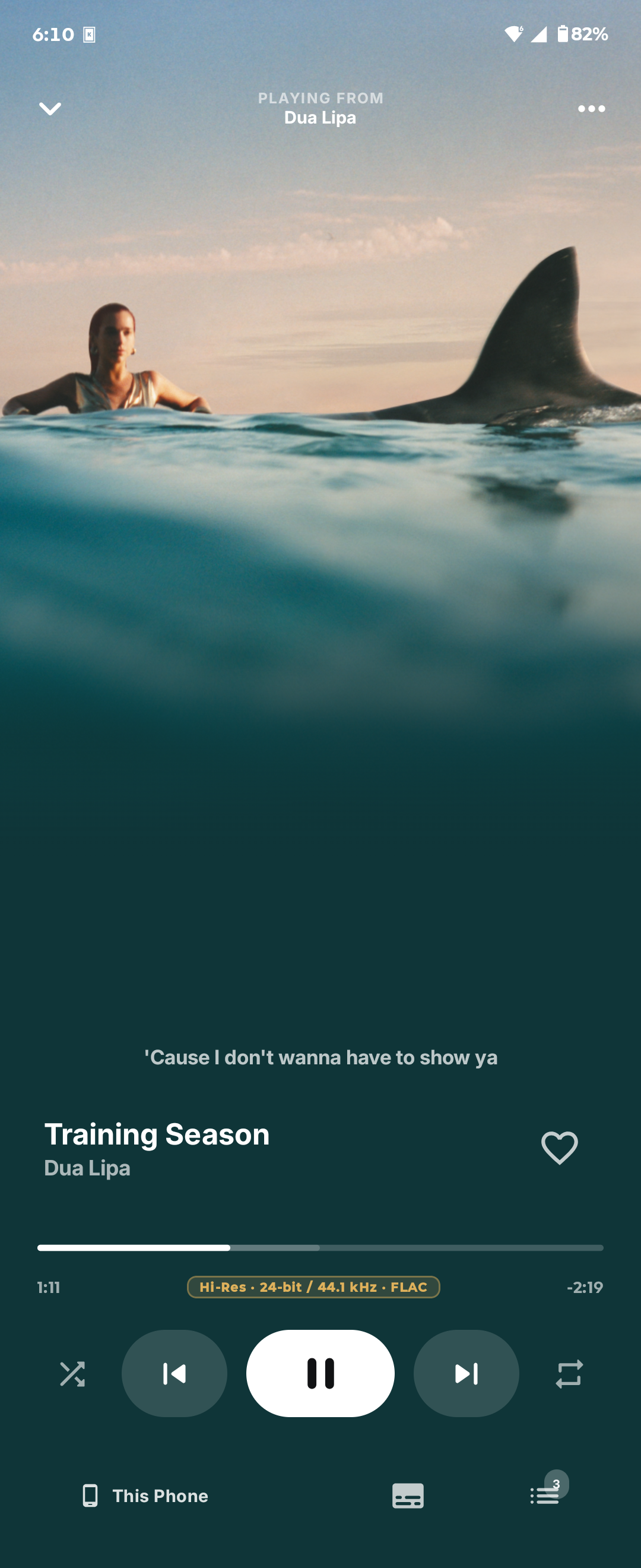
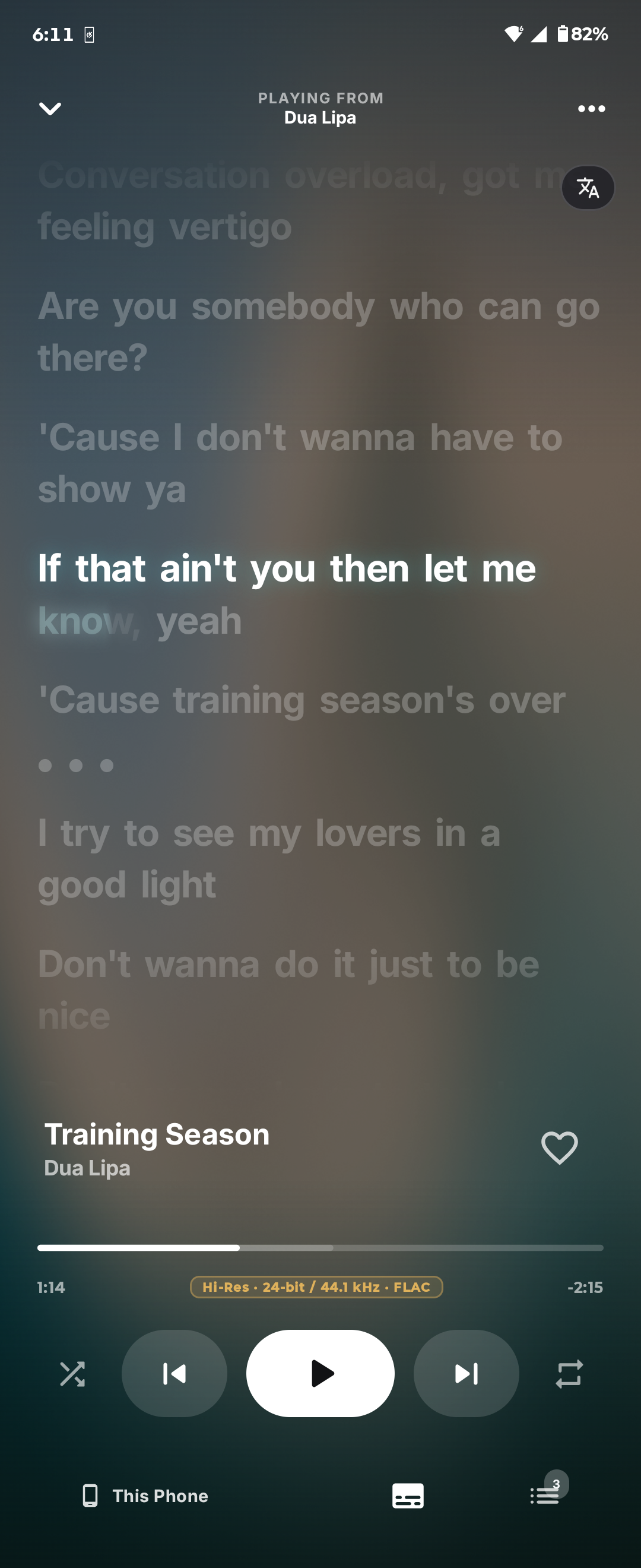
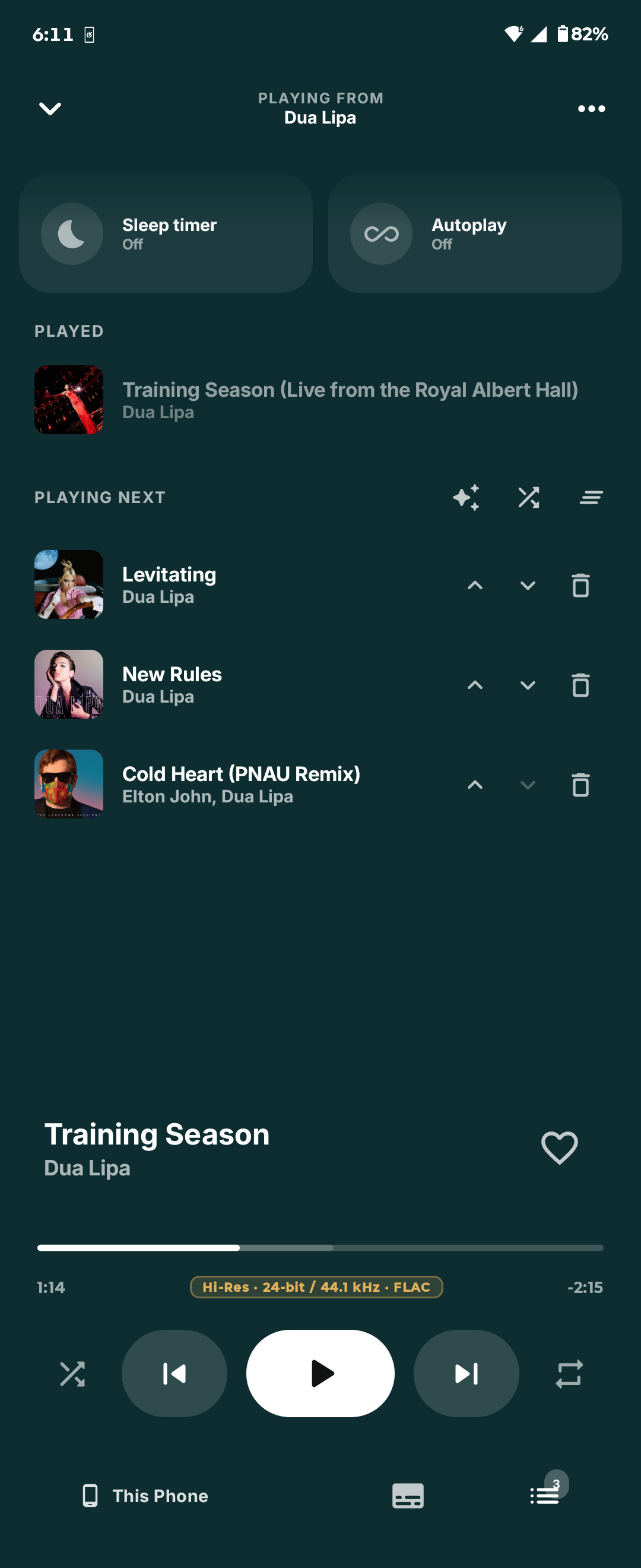
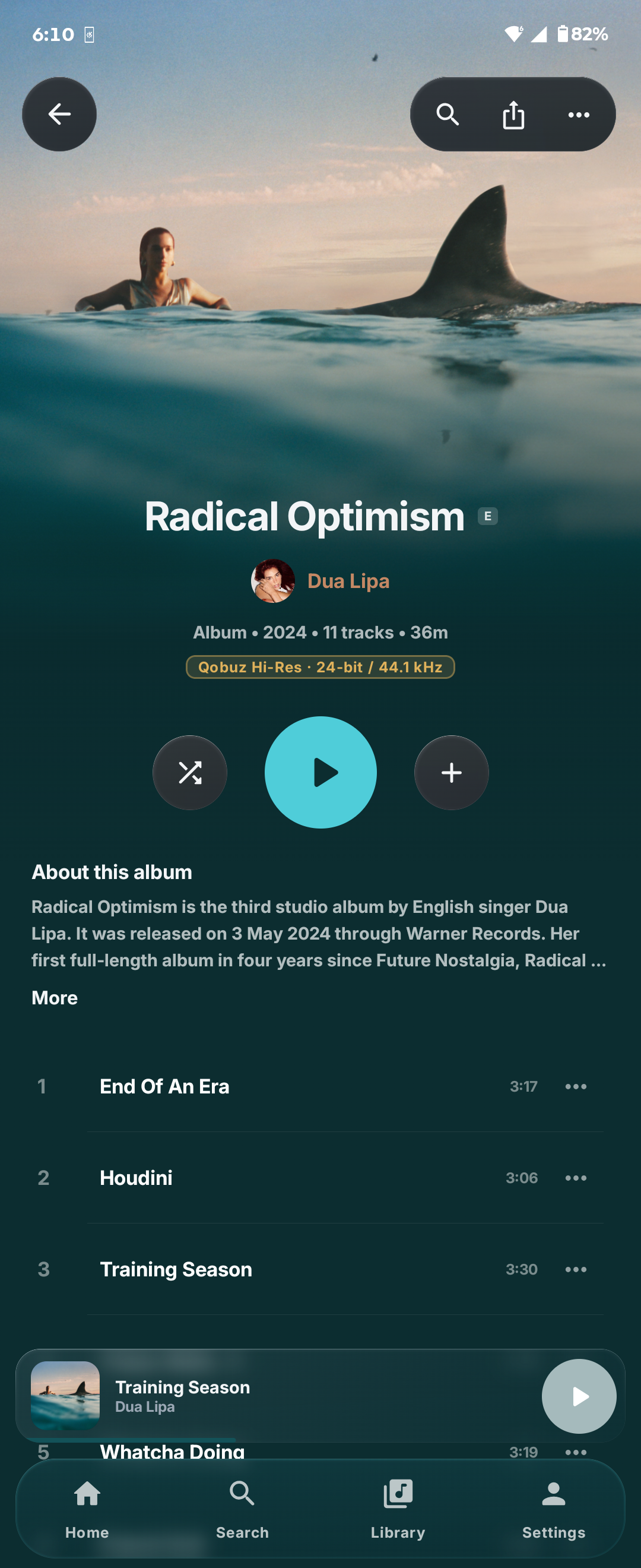
Download for Android · Mobile features and build instructions
To connect your phone and computer:
Your Orchard account connects the devices. Your YouTube Music and Qobuz sign-ins stay on their own device. See Orchard Connect for playback handoff and troubleshooting.
On desktop, click the cover art in the player bar, or press F, to open the fullscreen player. Press Space to play or pause, and Esc to close it.
Select the book icon in the top bar to open the searchable in-app docs. You can also read the guides here:
| I want to… | Guide |
|---|---|
| Find my way around | Getting started |
| Find songs or open Settings quickly | Search and Spotlight |
| Manage my library and playlists | Library and playlists |
| Change the sound or transitions | Audio Engine · Crossfade |
| Fix a playback or sign-in problem | Troubleshooting |
| Report a bug | Report a bug |
Desktop builds require Meson 1.12+, CMake 3.24+, Ninja, Qt 6.8+, a C++20 toolchain, Node.js/npm, and Rust 1.96+. Qt must include the Quick, QML, Network, Multimedia, WebView, and WebEngine modules. Platform dependencies and sign-in backend setup are in the development guide.
git clone --recurse-submodules https://github.com/SFG5453/orchard-v4.git
cd orchard-v4
npm ci --prefix providers/youtube
meson setup build/dev --buildtype debug
meson compile -C build/dev
./build/dev/orchard
Run the desktop tests with:
meson test -C build/dev --print-errorlogs
For cross compilation, provider checks, release publishing, and in-app documentation rules, see Development. Android build instructions are in the mobile README.
Bug reports, feature requests, and contributions are welcome. Use the in-app bug-report button or GitHub Issues, and include your Orchard version, operating system, and steps to reproduce the problem.
For code changes, follow Contributing and AGENTS.md, and run the checks relevant to your changes.
If you would like to support development, buy me a coffee on Ko-fi.
Orchard is free software under the GNU Affero General Public License v3.0 or later, with an additional permission for linking the engine.
The adaptive mix engine is not covered by the AGPL. Earmark, the transition core and planner, the adaptive mix worker, the Android mix code, the C++ mix controllers and the crossfade planner scripts are under the PolyForm Shield License 1.0.0. Each of those files carries a PolyForm Shield header, and each Rust crate has its own LICENSE. The license allows using, building, modifying and sharing the engine for any purpose except providing a product that competes with Orchard.
Orchard uses open-source libraries and models for playback, analysis, artwork, and connected listening. See Third-party notices, Adaptive mix, and the mobile credits for licenses and model provenance.
The power-user desktop client for YouTube Music.
See the code
Your YouTube Music library, with more control over how you listen.
Adaptive mixes · Best Mix queues · Synced lyrics · Lossless audio · Orchard Connect
Download · Features · Android app · Getting started · Build
Orchard is an open-source music player for Windows, Linux, and Android. Browse your YouTube Music recommendations, library, and playlists, shape the sound, and move playback between your computer and phone. The desktop app uses a native Qt interface and Rust audio core.
Orchard is an independent project and is not affiliated with or endorsed by Google, YouTube, or Qobuz.
| |
| Explore artists and their music | Follow along with synced lyrics |
Download Orchard for your device.
| Platform | Available packages |
|---|---|
| Windows | Setup installer (.exe) or portable archive (.7z), x64 |
| Linux | AppImage (.AppImage) or native Orchard launcher, x64 |
| Android | Standalone app (.apk), Android 12 or later |
The desktop installer downloads the app and its required components on first install. Managed desktop installs check for updates automatically and download the files that changed. See Updates for update settings and repair options.
To try desktop canary builds, turn on Canary builds under Settings → General → Updates. Canary builds follow active development and can have bugs. Turn the switch off to return to stable.
Desktop Adaptive mix requires a GPU with WebGPU support and FFmpeg. Turn the Audio Engine off to enable it, and choose a streaming quality other than MAX. See Crossfade and gapless playback and Manage the queue for setup and requirements.
https://github.com/user-attachments/assets/983fb4b1-e0ff-4f90-9ff5-b92702664a3d
See Audio Engine and equalizer and Streaming quality.
See Offline mode and downloads, Local files, Lyrics, and AI-generated music.
See Orchard Connect, Integrations, and Keyboard shortcuts.
Orchard Mobile plays music directly on your phone. It includes on-device Smart Crossfade, synced lyrics, animated artwork, Android Auto, Chromecast, and Orchard Connect.
Download for Android · Mobile features and build instructions
To connect your phone and computer:
Your Orchard account connects the devices. Your YouTube Music and Qobuz sign-ins stay on their own device. See Orchard Connect for playback handoff and troubleshooting.
On desktop, click the cover art in the player bar, or press F, to open the fullscreen player. Press Space to play or pause, and Esc to close it.
Select the book icon in the top bar to open the searchable in-app docs. You can also read the guides here:
| I want to… | Guide |
|---|---|
| Find my way around | Getting started |
| Find songs or open Settings quickly | Search and Spotlight |
| Manage my library and playlists | Library and playlists |
| Change the sound or transitions | Audio Engine · Crossfade |
| Fix a playback or sign-in problem | Troubleshooting |
| Report a bug | Report a bug |
Desktop builds require Meson 1.12+, CMake 3.24+, Ninja, Qt 6.8+, a C++20 toolchain, Node.js/npm, and Rust 1.96+. Qt must include the Quick, QML, Network, Multimedia, WebView, and WebEngine modules. Platform dependencies and sign-in backend setup are in the development guide.
git clone --recurse-submodules https://github.com/SFG5453/orchard-v4.git
cd orchard-v4
npm ci --prefix providers/youtube
meson setup build/dev --buildtype debug
meson compile -C build/dev
./build/dev/orchard
Run the desktop tests with:
meson test -C build/dev --print-errorlogs
For cross compilation, provider checks, release publishing, and in-app documentation rules, see Development. Android build instructions are in the mobile README.
Bug reports, feature requests, and contributions are welcome. Use the in-app bug-report button or GitHub Issues, and include your Orchard version, operating system, and steps to reproduce the problem.
For code changes, follow Contributing and AGENTS.md, and run the checks relevant to your changes.
If you would like to support development, buy me a coffee on Ko-fi.
Orchard is free software under the GNU Affero General Public License v3.0 or later, with an additional permission for linking the engine.
The adaptive mix engine is not covered by the AGPL. Earmark, the transition core and planner, the adaptive mix worker, the Android mix code, the C++ mix controllers and the crossfade planner scripts are under the PolyForm Shield License 1.0.0. Each of those files carries a PolyForm Shield header, and each Rust crate has its own LICENSE. The license allows using, building, modifying and sharing the engine for any purpose except providing a product that competes with Orchard.
Orchard uses open-source libraries and models for playback, analysis, artwork, and connected listening. See Third-party notices, Adaptive mix, and the mobile credits for licenses and model provenance.



