
Drive a phone with a model that never writes a word. TypeSafe's Jev picks each action, phone-use runs it on iOS and Android.
TypeScript
1
27 commits
updated Sep 24, 2026
See what people are saying
README
jev-phone



Drive a phone with a model that never writes a word.
Search Maps for a coffee shop and get walking directions. Find an article in Wikipedia and save it for later. Open Contacts, create a contact, save it. Turn on Airplane mode. Each step is one call to Jev, TypeSafe's System One model, which looks at the screen's elements and picks what to tap. A small LLM types when something needs typing. phone-use runs it on an iOS Simulator, an Android device, or a cloud phone.
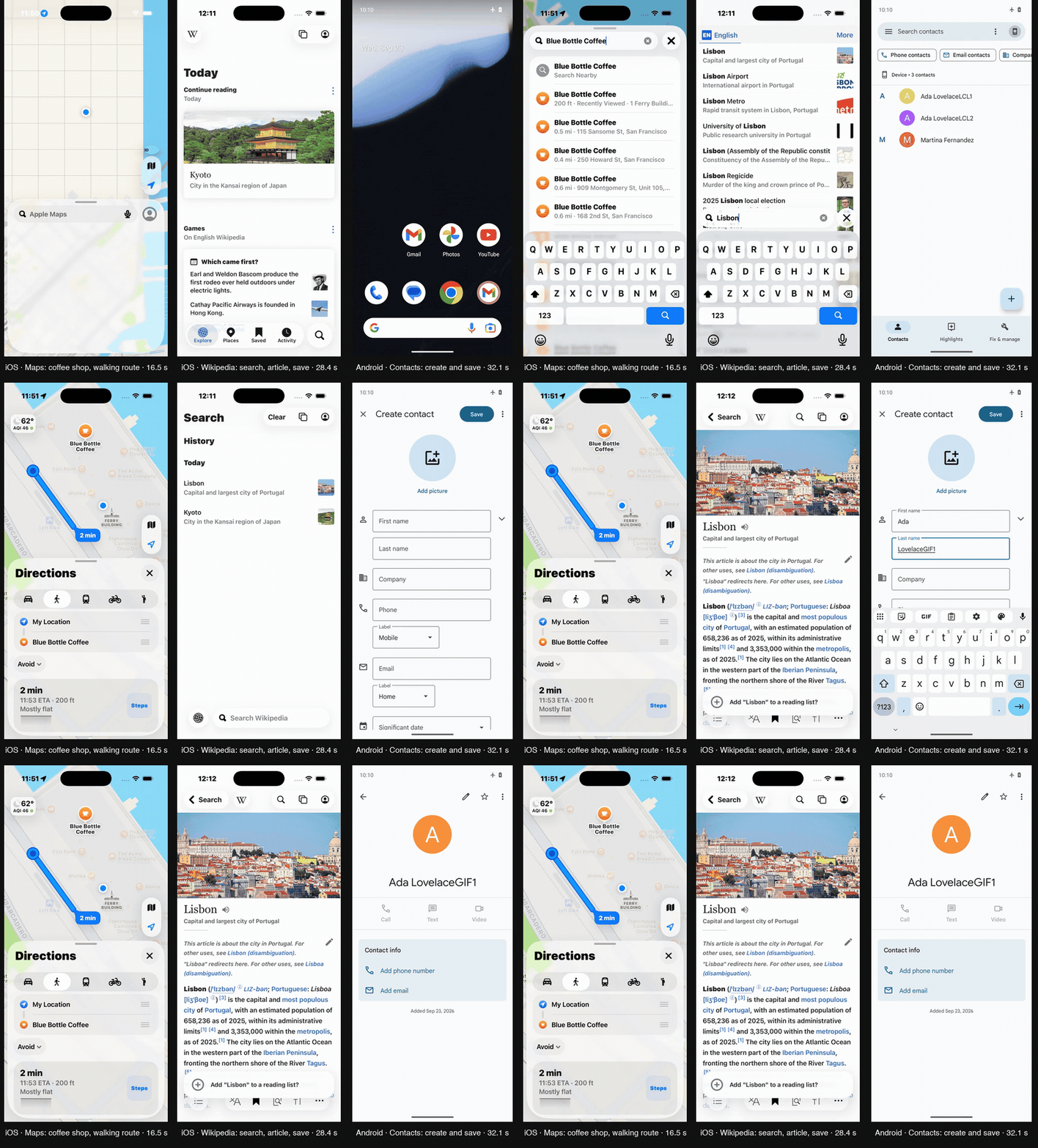
Three goals, recorded speed, side by side. Left: Apple Maps, find Blue Bottle Coffee and get walking directions, 16.5 s. Middle: Wikipedia, search Lisbon, open the article, save it, 28.4 s. Right: Android Contacts, create and save a contact, 32.1 s. Each was checked afterwards by reading the phone: the route in the tree, the article in the Saved tab, the row in the contacts database.
Jev is in early access, but the Vercel AI Gateway serves it today, and everything here ran on a free-tier gateway key and cost nothing: Jev and the text helper both. One key, no waitlist.
Quickstart
You need Bun, a phone, and a gateway key.
git clone https://github.com/Rajmeet/jev-phone.git
cd jev-phone
bun install
cp .env.example .env     # AI_GATEWAY_API_KEY=...
iOS Simulator (macOS, Xcode, a booted simulator):
bun examples/run.ts "Open Settings and go to General, then About"
Android (any emulator or device adb can see):
bun examples/run.ts --device android "In Settings, turn on Airplane mode"
No Mac or emulator? Use a cloud phone from phone-use. phone-use login opens the console in your browser to create an account or sign in, then:
npm i -g phone-use && phone-use login
phone-use create ios            # or: phone-use create android
eval "$(phone-use env <id>)"
bun examples/run.ts --device cloud "Create a contact named Ada Lovelace and save it"
You get one line per decision:
phone: iPhone 17 Pro
 1.   2.5s  TYPE "Apple Maps" ← "Blue Bottle Coffee"   conf 0.95   527ms  → screen changed
 2.   8.9s  TAP "Blue Bottle Coffee, 200 ft · 1 Ferry Building"  conf 0.97   999ms  → screen changed
 3.  12.6s  TAP "Directions"                            conf 0.83  1027ms  → stale, decided again
 4.  13.9s  TAP "2 min, walking"                        conf 0.87   467ms  → screen changed
 5.  16.5s  DONE                                        done 0.76   268ms
Add --debug to see every probability Jev returned, --screenshots <dir> to save a frame per step.
Four scripts run a fixed goal and then check the phone themselves: examples/directions.ts (the demo above; give the simulator a location first with xcrun simctl location <udid> set 37.7955,-122.3937), examples/wiki-save.ts, examples/bold-text.ts and examples/new-contact.ts.
How it works
Every step reads the accessibility tree once and turns it into a numbered menu:
controls      [1] Cell   General          [2] Cell  Accessibility   [3] Button  Search
switches      [1] Switch Bold Text  value 0
text_fields   [1] SearchField  Search
apps          Contacts, Calendar, Maps, ...
That menu goes to Jev in one request with several questions: which operation (TAP, TOGGLE, TYPE, SCROLL, BACK, OPEN_APP, WAIT, DONE, BLOCKED), which target if it's a tap, which if it's a toggle, which if it's a type, and, separately, whether the goal already looks done. Only operations the screen supports are offered, and each target list only holds elements that fit the operation. Jev answers with a label and a probability distribution for every question, in a few hundred milliseconds.
screen → numbered elements → ┌ operation      ┐
                             │ tap_target     │  one request
                             │ toggle_target  │
                             │ type_target    │
                             │ goal_done      │
                             └────────────────┘
                                  ↓ the head that matches the operation
                             TAP [2] → phone
                             TYPE [1] → small LLM writes the text → phone
Then the pick becomes a phone-use verb. A few rules keep it honest:
- The chosen element is looked up again on a fresh read before it's pressed. If it moved, it's pressed where it is now. If it's gone, Jev decides again.
DONEonly counts when the separate done-check agrees. When it doesn't,DONEis removed from the next menu, and so is the last thing tapped, so the retry can't undo it. In every contact run so far Jev said done with the form unsaved, the check said 0.07, and Jev tapped Save on the next step. If Jev insists a second time and the check isn't clearly against it, that counts.- Switches are pressed at the knob, not the middle of the row, and the value is read back.
- Taps on Delete, Pay, Send and the like are refused unless you pass
allowDestructive. - The same action failing twice ends the run. Nothing is ever retried on the device.
The model never produces a selector, a coordinate, or code. The text helper must return exactly {"text": "..."} or {"text": null}; anything else types nothing.
Results
Every number below comes from a run whose log is in docs/runs/, and every run was checked by reading the phone afterwards: a switch value, a database row, a route on screen. Details, and the runs that were thrown out with the reasons, are in docs/performance.md.
| Phone | Goal | Decisions | Time |
|---|---|---|---|
| iOS Simulator | Maps: Blue Bottle Coffee, place card, walking route | 5 | 16.5 s |
| iOS Simulator | Wikipedia: search Lisbon, open the article, save it | 8 | 28.4 s |
| iOS Simulator | Settings: turn on Bold Text | 4 | 5.7 s |
| iOS Simulator | Contacts: create and save a contact | 6 | 17.9 s |
| Android emulator | Settings: turn on Airplane mode | 4 | 15.4 s |
| Android emulator | Contacts: create and save a contact | 7 | 29.7 s |
Jev takes 250–650 ms per decision. The rest is the phone: each step reads the accessibility tree twice, about 0.7 s a read on the simulator and 2 s on Android. Android's figures are slower for that reason alone; the decisions are the same.
On the iOSWorld benchmark, run through phone-use's harness with no LLM: 15 of the 27 single-app tasks were graded (the rest were lost to cloud infrastructure), one full pass, 52 of 101 rubric points. Not a full evaluation. Many of the rubric items ask the agent to report a value, which this agent can't do.
What it can't do
- Answer questions. There is no text output. "Tell me the iOS version" can be navigated to, not answered.
- Confirm. A
SendorPayneeds a yes from someone. That's the harness's job, or an LLM's. - Tell unlabeled things apart. A spreadsheet cell with no label is just "cell" to Jev.
- Handle prompts. Permission dialogs and alerts are outside the action space. Clear them first.
- Go home.
HOMEisn't offered;OPEN_APPswitches apps directly, and the simulator's home press was a no-op anyway.
If you need those, pair it with an LLM. run() stops with a reason, and the trail of what it already did, whenever it can't continue.
Use it as a library
import { connectDevice, run } from 'jev-phone';

const phone = await connectDevice('connect'); // 'launch' | 'android' | 'cloud' | '<udid>'
for await (const step of run(phone.core, 'Turn on Bold Text in Settings')) {
  console.log(step.decision.op, step.decision.element?.label, step.jevMs);
}
await phone.close();
run() is an async generator: an event per decision, the result as its return value. runGoal() runs to completion. Options: maxSteps (25), doneThreshold (0.6), minConfidence (0), text (your own helper, or null to disable typing), allowDestructive, screenshotDir. Not on npm yet; bun add github:Rajmeet/jev-phone or copy src/.
Configuration
| Variable | Purpose |
|---|---|
AI_GATEWAY_API_KEY | Jev and the text helper through the Vercel AI Gateway |
TYPESAFE_API_KEY | Jev through TypeSafe's API instead |
TEXT_MODEL, TEXT_MODEL_BASE_URL, TEXT_MODEL_API_KEY | Any OpenAI-compatible text model. Default meta/llama-4-scout on the gateway |
JEV_PHONE_DEVICE | Default device: connect, launch, android, cloud, or a udid |
Reading the code
| File | Lines | What it does |
|---|---|---|
src/agent.ts | 355 | The loop, the done veto, the text handoff, execution |
src/jev.ts | 244 | Jev client, two transports, strict validation of every answer |
src/screen.ts | 172 | Accessibility tree → numbered menu; re-finding an element |
src/policy.ts | 153 | Builds the one request and reads the answer |
src/device.ts | 82 | Simulator, adb, or cloud phone |
src/apps.ts | 80 | What OPEN_APP may open, on iOS and Android |
src/text.ts | 78 | The text helper and its contract |
One runtime dependency. bun run check runs the linter, the type checker, and the tests; the tests use a fake phone and a scripted Jev, so they don't call anything.
Related
- jev-ultrafast, the browser agent this design follows.
- phone-use, the SDK underneath, its CLI, and the cloud phones. npm
- mobile-jev, droidrun's Jev agent for Android.
- TypeSafe: System One models
MIT.
Contributors

27 commits
Similar repos


Languages
TypeScript
100.0%
Drive a phone with a model that never writes a word. TypeSafe's Jev picks each action, phone-use runs it on iOS and Android.
TypeScript
1
27 commits
updated Sep 24, 2026
See what people are saying
README
jev-phone
Drive a phone with a model that never writes a word.
Search Maps for a coffee shop and get walking directions. Find an article in Wikipedia and save it for later. Open Contacts, create a contact, save it. Turn on Airplane mode. Each step is one call to Jev, TypeSafe's System One model, which looks at the screen's elements and picks what to tap. A small LLM types when something needs typing. phone-use runs it on an iOS Simulator, an Android device, or a cloud phone.
Three goals, recorded speed, side by side. Left: Apple Maps, find Blue Bottle Coffee and get walking directions, 16.5 s. Middle: Wikipedia, search Lisbon, open the article, save it, 28.4 s. Right: Android Contacts, create and save a contact, 32.1 s. Each was checked afterwards by reading the phone: the route in the tree, the article in the Saved tab, the row in the contacts database.
Jev is in early access, but the Vercel AI Gateway serves it today, and everything here ran on a free-tier gateway key and cost nothing: Jev and the text helper both. One key, no waitlist.
Quickstart
You need Bun, a phone, and a gateway key.
git clone https://github.com/Rajmeet/jev-phone.git
cd jev-phone
bun install
cp .env.example .env     # AI_GATEWAY_API_KEY=...
iOS Simulator (macOS, Xcode, a booted simulator):
bun examples/run.ts "Open Settings and go to General, then About"
Android (any emulator or device adb can see):
bun examples/run.ts --device android "In Settings, turn on Airplane mode"
No Mac or emulator? Use a cloud phone from phone-use. phone-use login opens the console in your browser to create an account or sign in, then:
npm i -g phone-use && phone-use login
phone-use create ios            # or: phone-use create android
eval "$(phone-use env <id>)"
bun examples/run.ts --device cloud "Create a contact named Ada Lovelace and save it"
You get one line per decision:
phone: iPhone 17 Pro
 1.   2.5s  TYPE "Apple Maps" ← "Blue Bottle Coffee"   conf 0.95   527ms  → screen changed
 2.   8.9s  TAP "Blue Bottle Coffee, 200 ft · 1 Ferry Building"  conf 0.97   999ms  → screen changed
 3.  12.6s  TAP "Directions"                            conf 0.83  1027ms  → stale, decided again
 4.  13.9s  TAP "2 min, walking"                        conf 0.87   467ms  → screen changed
 5.  16.5s  DONE                                        done 0.76   268ms
Add --debug to see every probability Jev returned, --screenshots <dir> to save a frame per step.
Four scripts run a fixed goal and then check the phone themselves: examples/directions.ts (the demo above; give the simulator a location first with xcrun simctl location <udid> set 37.7955,-122.3937), examples/wiki-save.ts, examples/bold-text.ts and examples/new-contact.ts.
How it works
Every step reads the accessibility tree once and turns it into a numbered menu:
controls      [1] Cell   General          [2] Cell  Accessibility   [3] Button  Search
switches      [1] Switch Bold Text  value 0
text_fields   [1] SearchField  Search
apps          Contacts, Calendar, Maps, ...
That menu goes to Jev in one request with several questions: which operation (TAP, TOGGLE, TYPE, SCROLL, BACK, OPEN_APP, WAIT, DONE, BLOCKED), which target if it's a tap, which if it's a toggle, which if it's a type, and, separately, whether the goal already looks done. Only operations the screen supports are offered, and each target list only holds elements that fit the operation. Jev answers with a label and a probability distribution for every question, in a few hundred milliseconds.
screen → numbered elements → ┌ operation      ┐
                             │ tap_target     │  one request
                             │ toggle_target  │
                             │ type_target    │
                             │ goal_done      │
                             └────────────────┘
                                  ↓ the head that matches the operation
                             TAP [2] → phone
                             TYPE [1] → small LLM writes the text → phone
Then the pick becomes a phone-use verb. A few rules keep it honest:
- The chosen element is looked up again on a fresh read before it's pressed. If it moved, it's pressed where it is now. If it's gone, Jev decides again.
DONEonly counts when the separate done-check agrees. When it doesn't,DONEis removed from the next menu, and so is the last thing tapped, so the retry can't undo it. In every contact run so far Jev said done with the form unsaved, the check said 0.07, and Jev tapped Save on the next step. If Jev insists a second time and the check isn't clearly against it, that counts.- Switches are pressed at the knob, not the middle of the row, and the value is read back.
- Taps on Delete, Pay, Send and the like are refused unless you pass
allowDestructive. - The same action failing twice ends the run. Nothing is ever retried on the device.
The model never produces a selector, a coordinate, or code. The text helper must return exactly {"text": "..."} or {"text": null}; anything else types nothing.
Results
Every number below comes from a run whose log is in docs/runs/, and every run was checked by reading the phone afterwards: a switch value, a database row, a route on screen. Details, and the runs that were thrown out with the reasons, are in docs/performance.md.
| Phone | Goal | Decisions | Time |
|---|---|---|---|
| iOS Simulator | Maps: Blue Bottle Coffee, place card, walking route | 5 | 16.5 s |
| iOS Simulator | Wikipedia: search Lisbon, open the article, save it | 8 | 28.4 s |
| iOS Simulator | Settings: turn on Bold Text | 4 | 5.7 s |
| iOS Simulator | Contacts: create and save a contact | 6 | 17.9 s |
| Android emulator | Settings: turn on Airplane mode | 4 | 15.4 s |
| Android emulator | Contacts: create and save a contact | 7 | 29.7 s |
Jev takes 250–650 ms per decision. The rest is the phone: each step reads the accessibility tree twice, about 0.7 s a read on the simulator and 2 s on Android. Android's figures are slower for that reason alone; the decisions are the same.
On the iOSWorld benchmark, run through phone-use's harness with no LLM: 15 of the 27 single-app tasks were graded (the rest were lost to cloud infrastructure), one full pass, 52 of 101 rubric points. Not a full evaluation. Many of the rubric items ask the agent to report a value, which this agent can't do.
What it can't do
- Answer questions. There is no text output. "Tell me the iOS version" can be navigated to, not answered.
- Confirm. A
SendorPayneeds a yes from someone. That's the harness's job, or an LLM's. - Tell unlabeled things apart. A spreadsheet cell with no label is just "cell" to Jev.
- Handle prompts. Permission dialogs and alerts are outside the action space. Clear them first.
- Go home.
HOMEisn't offered;OPEN_APPswitches apps directly, and the simulator's home press was a no-op anyway.
If you need those, pair it with an LLM. run() stops with a reason, and the trail of what it already did, whenever it can't continue.
Use it as a library
import { connectDevice, run } from 'jev-phone';

const phone = await connectDevice('connect'); // 'launch' | 'android' | 'cloud' | '<udid>'
for await (const step of run(phone.core, 'Turn on Bold Text in Settings')) {
  console.log(step.decision.op, step.decision.element?.label, step.jevMs);
}
await phone.close();
run() is an async generator: an event per decision, the result as its return value. runGoal() runs to completion. Options: maxSteps (25), doneThreshold (0.6), minConfidence (0), text (your own helper, or null to disable typing), allowDestructive, screenshotDir. Not on npm yet; bun add github:Rajmeet/jev-phone or copy src/.
Configuration
| Variable | Purpose |
|---|---|
AI_GATEWAY_API_KEY | Jev and the text helper through the Vercel AI Gateway |
TYPESAFE_API_KEY | Jev through TypeSafe's API instead |
TEXT_MODEL, TEXT_MODEL_BASE_URL, TEXT_MODEL_API_KEY | Any OpenAI-compatible text model. Default meta/llama-4-scout on the gateway |
JEV_PHONE_DEVICE | Default device: connect, launch, android, cloud, or a udid |
Reading the code
| File | Lines | What it does |
|---|---|---|
src/agent.ts | 355 | The loop, the done veto, the text handoff, execution |
src/jev.ts | 244 | Jev client, two transports, strict validation of every answer |
src/screen.ts | 172 | Accessibility tree → numbered menu; re-finding an element |
src/policy.ts | 153 | Builds the one request and reads the answer |
src/device.ts | 82 | Simulator, adb, or cloud phone |
src/apps.ts | 80 | What OPEN_APP may open, on iOS and Android |
src/text.ts | 78 | The text helper and its contract |
One runtime dependency. bun run check runs the linter, the type checker, and the tests; the tests use a fake phone and a scripted Jev, so they don't call anything.
Related
- jev-ultrafast, the browser agent this design follows.
- phone-use, the SDK underneath, its CLI, and the cloud phones. npm
- mobile-jev, droidrun's Jev agent for Android.
- TypeSafe: System One models
MIT.
Similar repos
Contributors
27 commits
Languages
TypeScript
100.0%