Boot operating systems directly from ISO/WIM images
PowerShell
1,132
234 commits
updated Oct 12, 2026
One device with multiple ISO/WIM files. Easy to use: install once, add ISO/WIM files and boot computers from it
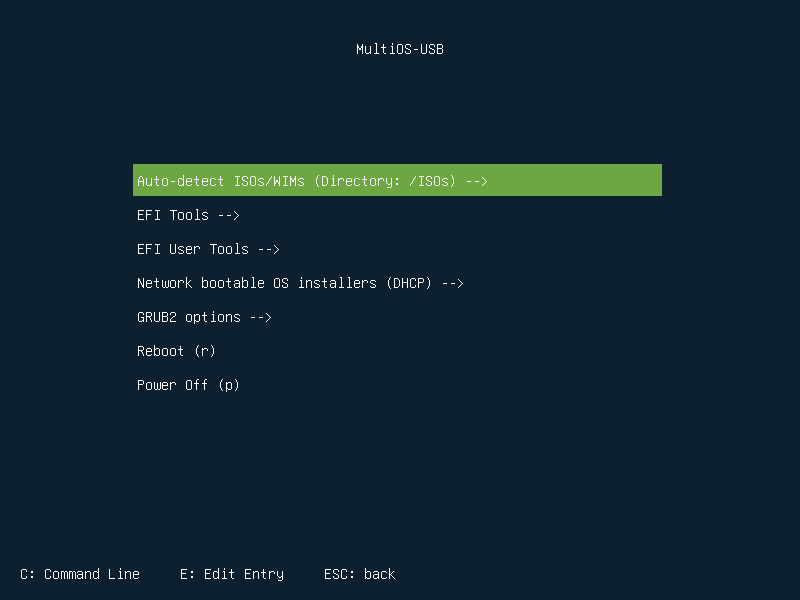
A list of tested ISO images can be found here
SparkyLinux
# Refresh the package list and install MultiOS-USB
sudo apt update
sudo apt install multios-usb

# Display available USB devices
multios-usb -l

# Install to the selected device (replace sdX with your target device)
sudo multios-usb /dev/sdX
Nix/NixOS
# run without permanent install (flakes must be enabled)
sudo nix run github:Mexit/MultiOS-USB -- /dev/sdX

# create shell with MultiOS-USB available
nix shell github:Mexit/MultiOS-USB
Arch Linux
# install using AUR helper like yay or aura
yay -S multios-usb-bin

# or install by cloning and executing makepkg -si
git clone https://aur.archlinux.org/multios-usb-bin.git
cd multios-usb-bin/
makepkg -si

# for usage instructions see SparkyLinux (usage is the same)
From GitHub - Linux console
Go to Releases, download and unpack the downloaded archive.
Check and install the required packages (in most cases they should be installed by default):
Go to the directory where you extracted the files and run the following at the console
./multios-usb.sh -l
This command will show you the USB devices available on your system.
To install MultiOS-USB, type the following command, replacing /dev/sdX with your chosen device path.
For example:
sudo ./multios-usb.sh /dev/sdX
From GitHub - PowerShell installer or manual installation (UEFI only)
Recommended installation method for Windows. Installation details can be found here and in the downloaded archive.
From GitHub - Windows: image based installation (BIOS + UEFI - experimental)
Required external tools. Installation details can be found here and in the downloaded archive.
After installation, copy your ISO files to the /ISOs directory and boot your computer from USB.
You can also add your own configuration files to the /MultiOS-USB/config_priv directory. They will not be deleted during the automatic MultiOS-USB update.
If you want to change the configuration for a given ISO - copy the one you have chosen from the config folder, paste into config_priv and update it according to your needs.
The updated configuration will be detected automatically.
On the first boot with Secure Boot enabled on each new computer, a MultiOS USB certificate must be installed.
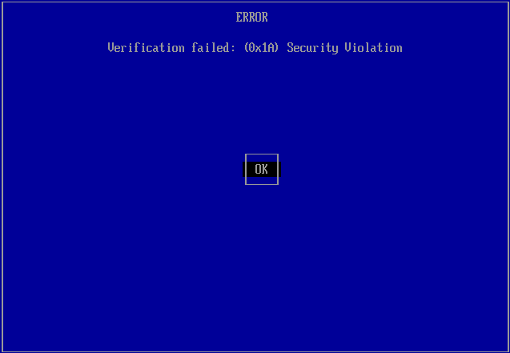
Press Enter
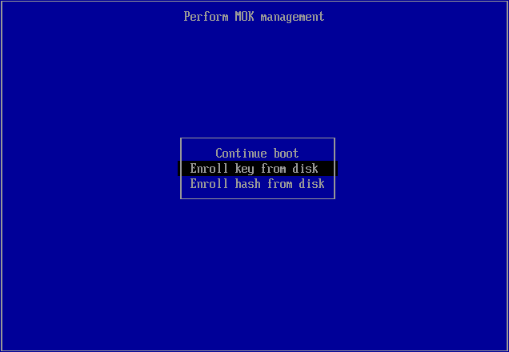
Select: Enroll key from disc
Select MultiOS-EFI as partition, then browse to the EFI/cert directory and select MultiOS-USB.cer, Continue and confirm (Yes) key enrolling.
You can also immediately add certificates (keys) from popular distributions in the same way.
If you want to add a certificate later, you can do it by selecting in the Main Menu:
EFI Tools --> and then Add UEFI key or hash.
You can add support for new operating systems. No need to reinstall.
Download zip or tar.gz archive and unpack MultiOS-USB repository
To update configuration files, simply type the following command, replacing /dev/sdX with your chosen device path.
./multios-usb.sh -u /dev/sdX
/MultiOS-USB/config/config to the above directory.470 followers · starred Jan 2026
33 followers · starred Apr 2026
148 followers · starred Apr 2026
62 followers · starred Dec 2025
Boot operating systems directly from ISO/WIM images
PowerShell
1,132
234 commits
updated Oct 12, 2026
One device with multiple ISO/WIM files. Easy to use: install once, add ISO/WIM files and boot computers from it
A list of tested ISO images can be found here
SparkyLinux
# Refresh the package list and install MultiOS-USB
sudo apt update
sudo apt install multios-usb

# Display available USB devices
multios-usb -l

# Install to the selected device (replace sdX with your target device)
sudo multios-usb /dev/sdX
Nix/NixOS
# run without permanent install (flakes must be enabled)
sudo nix run github:Mexit/MultiOS-USB -- /dev/sdX

# create shell with MultiOS-USB available
nix shell github:Mexit/MultiOS-USB
Arch Linux
# install using AUR helper like yay or aura
yay -S multios-usb-bin

# or install by cloning and executing makepkg -si
git clone https://aur.archlinux.org/multios-usb-bin.git
cd multios-usb-bin/
makepkg -si

# for usage instructions see SparkyLinux (usage is the same)
From GitHub - Linux console
Go to Releases, download and unpack the downloaded archive.
Check and install the required packages (in most cases they should be installed by default):
Go to the directory where you extracted the files and run the following at the console
./multios-usb.sh -l
This command will show you the USB devices available on your system.
To install MultiOS-USB, type the following command, replacing /dev/sdX with your chosen device path.
For example:
sudo ./multios-usb.sh /dev/sdX
From GitHub - PowerShell installer or manual installation (UEFI only)
Recommended installation method for Windows. Installation details can be found here and in the downloaded archive.
From GitHub - Windows: image based installation (BIOS + UEFI - experimental)
Required external tools. Installation details can be found here and in the downloaded archive.
After installation, copy your ISO files to the /ISOs directory and boot your computer from USB.
You can also add your own configuration files to the /MultiOS-USB/config_priv directory. They will not be deleted during the automatic MultiOS-USB update.
If you want to change the configuration for a given ISO - copy the one you have chosen from the config folder, paste into config_priv and update it according to your needs.
The updated configuration will be detected automatically.
On the first boot with Secure Boot enabled on each new computer, a MultiOS USB certificate must be installed.
Press Enter
Select: Enroll key from disc
Select MultiOS-EFI as partition, then browse to the EFI/cert directory and select MultiOS-USB.cer, Continue and confirm (Yes) key enrolling.
You can also immediately add certificates (keys) from popular distributions in the same way.
If you want to add a certificate later, you can do it by selecting in the Main Menu:
EFI Tools --> and then Add UEFI key or hash.
You can add support for new operating systems. No need to reinstall.
Download zip or tar.gz archive and unpack MultiOS-USB repository
To update configuration files, simply type the following command, replacing /dev/sdX with your chosen device path.
./multios-usb.sh -u /dev/sdX
/MultiOS-USB/config/config to the above directory.470 followers · starred Jan 2026
33 followers · starred Apr 2026
148 followers · starred Apr 2026
62 followers · starred Dec 2025



