The Minecraft Grub Theme Trio:
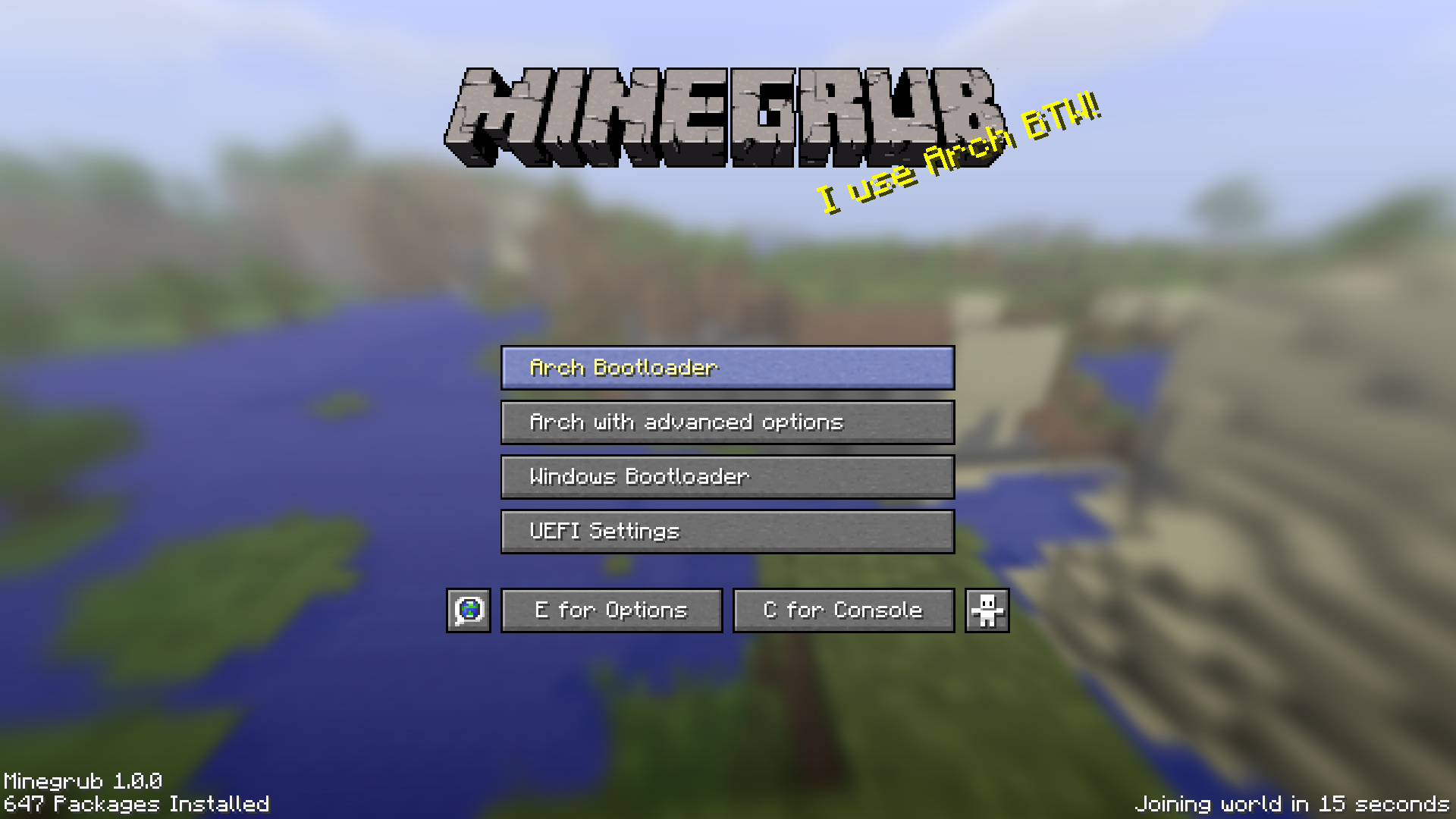
| > Minecraft Main Menu < | Minecraft World Selection Menu | Using both themes together |
|---|
Also check out these other projects:
| Minecraft SDDM Theme by Davi-S | Minecraft Plymouth Theme by nikp123 | Minecraft World Loading KDE Splash by Samsu-F |
|---|
There is also a Spanish translation!
A Grub Theme in the style of Minecraft!
Run the interactive installation script as root and at your own risk (It's run as sudo after all)
sudo ./install_theme.sh
Note: grub vs grub2
- If you have a
/boot/grub2folder instead of a/boot/grubfolder , you need to adjust the file paths mentioned here and in theminegrub-update.servicefile- Also if you're not sure, run
grub-mkconfig -Vto check if you have grub version 2 (you should have)
git clone https://github.com/Lxtharia/minegrub-theme.git
cd ./minegrub-theme
./choose_background.sh # or just copy a custom image to minegrub/background.png
If you want to use the update script, copy an arbitrary number of images you would like to use to minegrub/backgrounds/. You can find some options in background_options/ but you can also use your own images.
If you do not want to use the update script or if you always want to use the same background, you can use ./choose_background.sh or just copy a custom image to minegrub/background.png
Copy the folder to your boot partition: (for your interest: -ruv = recursive, update, verbose)
sudo cp -ruv ./minegrub /boot/grub/themes/
/etc/default/grub with your text editor and change/uncomment this line:GRUB_THEME=/boot/grub/themes/minegrub/theme.txt
sudo grub-mkconfig -o /boot/grub/grub.cfg
Configuration section if you want to auto-update the splash text, the background and the packages display after every boot# flake.nix
{
inputs.minegrub-theme.url = "github:Lxtharia/minegrub-theme";
# ...
outputs = {nixpkgs, ...} @ inputs: {
nixosConfigurations.HOSTNAME = nixpkgs.lib.nixosSystem {
modules = [
./configuration.nix
inputs.minegrub-theme.nixosModules.default
];
};
}
}
# configuration.nix
{ pkgs, ... }: {
boot.loader.grub = {
minegrub-theme = {
enable = true;
splash = "100% Flakes!";
background = "background_options/1.8 - [Classic Minecraft].png";
boot-options-count = 4;
};
# ...
};
}
Make sure to check the following lines are set in /etc/defaults/grub:
GRUB_TIMEOUT_STYLE=menu, so it immediately shows the menu (or else you would need to press ESC first)GRUB_TERMINAL_OUTPUT="console" (by placing a # in front) because this would disable the graphical terminal.
GRUB_TERMINAL_OUTPUT="gfxterm" to overwrite a possible default value.Make sure to set the right resolution for your screen in /etc/default/grub like GRUB_GFXMODE=2560x1440,1920x1080,auto. You can see which resolutions your PC supports while pressing c while in the real grub menu and running the videoinfo command.
Secure boot prevents grub from loading the Minecraft-fonts so it falls back on the grub default font. The easiest solution is to disable secure boot in your BIOS. For the more adventurous, a successful attempt to get both working was documented in this issue.
/boot/grub/themes/minegrub/theme.txt
cp -r))theme.txt, so you should be able to easily change it to the correct value.The update_theme.py script can make the theme more dynamic: It...
assets/splashes.txt (and then generates and replaces the logo.png which holds the splash text)
./minegrub/assets/splashes.txt and add them to the file.backgrounds/ (ignoring hidden files beginning with a dot) as the background image.
./minegrub/backgrounds/. Hidden files (i.e. filenames beginning with a dot) will be ignored. You can also add your own images.1.15 and newer use a white outline with white text, while older or non-versioned backgrounds use the classic blue highlight and yellow text.python update_theme.py [BACKGROUND_FILE [SPLASH]] (e.g. python update_theme.py 'backgrounds/1.15 - [Buzzy Bees].png' 'Splashing!')
python update_theme.py '' 'Splashing!' for a random background and the splash Splashing!.Dependencies:
fastfetch or neofetch is installedsudo -H pip3 install pillowsudo -H, because it needs to be available for the root userpython /boot/grub/themes/minegrub/update_theme.py (from anywhere) after boot using whatever method works for you./minegrub-SysVinit.sh under /etc/init.d as minecraft-grub then run update-rc.d minecraft-grub defaults as root privileges:sudo cp -v "./minegrub-SysVinit.sh" "/etc/init.d/minecraft-grub"
sudo chmod u+x "/etc/init.d/minecraft-grub" # Just to be sure the permissions are set correctly.
sudo update-rc.d minecraft-grub defaults
./minegrub-update.service to use /boot/grub2/ on line 5 if applicable./minegrub-update.service to /etc/systemd/systemsystemctl enable minegrub-update.servicesystemctl status minegrub-update.service for any errors (for example if pillow isn't installed in the correct scope)When in grub, pressing 'c' opens the grub console.
A background you can be specified with GRUB_BACKGROUND=<path> in /etc/defaults/grubthough this doesn't work if a theme is set
For this, you need to patch a line in a specific grub file. The installation script will do this for you, or you can use this pretty looking sed command:
# Create a backup of the file first
cp /etc/grub.d/00_header ./00_header.bak
# replace the elif in that line with an fi; if
sed --in-place -E 's/(.*)elif(.*"x\$GRUB_BACKGROUND" != x ] && [ -f "\$GRUB_BACKGROUND" ].*)/\1fi; if\2/' /etc/grub.d/00_header
Now you can set
GRUB_BACKGROUND="/boot/grub/themes/minegrub/dirt.png"
And don't forget to regenerate the grub.cfg :)
Font downloaded from https://www.fontspace.com/minecraft-font-f28180 and used for non-commercial use.
(top 24 of 62)
95 followers · starred Jul 2023
553 followers · starred Jul 2023
949 followers · starred Aug 2023
412 followers · starred Jul 2023
The Minecraft Grub Theme Trio:
| > Minecraft Main Menu < | Minecraft World Selection Menu | Using both themes together |
|---|
Also check out these other projects:
| Minecraft SDDM Theme by Davi-S | Minecraft Plymouth Theme by nikp123 | Minecraft World Loading KDE Splash by Samsu-F |
|---|
There is also a Spanish translation!
A Grub Theme in the style of Minecraft!
Run the interactive installation script as root and at your own risk (It's run as sudo after all)
sudo ./install_theme.sh
Note: grub vs grub2
- If you have a
/boot/grub2folder instead of a/boot/grubfolder , you need to adjust the file paths mentioned here and in theminegrub-update.servicefile- Also if you're not sure, run
grub-mkconfig -Vto check if you have grub version 2 (you should have)
git clone https://github.com/Lxtharia/minegrub-theme.git
cd ./minegrub-theme
./choose_background.sh # or just copy a custom image to minegrub/background.png
If you want to use the update script, copy an arbitrary number of images you would like to use to minegrub/backgrounds/. You can find some options in background_options/ but you can also use your own images.
If you do not want to use the update script or if you always want to use the same background, you can use ./choose_background.sh or just copy a custom image to minegrub/background.png
Copy the folder to your boot partition: (for your interest: -ruv = recursive, update, verbose)
sudo cp -ruv ./minegrub /boot/grub/themes/
/etc/default/grub with your text editor and change/uncomment this line:GRUB_THEME=/boot/grub/themes/minegrub/theme.txt
sudo grub-mkconfig -o /boot/grub/grub.cfg
Configuration section if you want to auto-update the splash text, the background and the packages display after every boot# flake.nix
{
inputs.minegrub-theme.url = "github:Lxtharia/minegrub-theme";
# ...
outputs = {nixpkgs, ...} @ inputs: {
nixosConfigurations.HOSTNAME = nixpkgs.lib.nixosSystem {
modules = [
./configuration.nix
inputs.minegrub-theme.nixosModules.default
];
};
}
}
# configuration.nix
{ pkgs, ... }: {
boot.loader.grub = {
minegrub-theme = {
enable = true;
splash = "100% Flakes!";
background = "background_options/1.8 - [Classic Minecraft].png";
boot-options-count = 4;
};
# ...
};
}
Make sure to check the following lines are set in /etc/defaults/grub:
GRUB_TIMEOUT_STYLE=menu, so it immediately shows the menu (or else you would need to press ESC first)GRUB_TERMINAL_OUTPUT="console" (by placing a # in front) because this would disable the graphical terminal.
GRUB_TERMINAL_OUTPUT="gfxterm" to overwrite a possible default value.Make sure to set the right resolution for your screen in /etc/default/grub like GRUB_GFXMODE=2560x1440,1920x1080,auto. You can see which resolutions your PC supports while pressing c while in the real grub menu and running the videoinfo command.
Secure boot prevents grub from loading the Minecraft-fonts so it falls back on the grub default font. The easiest solution is to disable secure boot in your BIOS. For the more adventurous, a successful attempt to get both working was documented in this issue.
/boot/grub/themes/minegrub/theme.txt
cp -r))theme.txt, so you should be able to easily change it to the correct value.The update_theme.py script can make the theme more dynamic: It...
assets/splashes.txt (and then generates and replaces the logo.png which holds the splash text)
./minegrub/assets/splashes.txt and add them to the file.backgrounds/ (ignoring hidden files beginning with a dot) as the background image.
./minegrub/backgrounds/. Hidden files (i.e. filenames beginning with a dot) will be ignored. You can also add your own images.1.15 and newer use a white outline with white text, while older or non-versioned backgrounds use the classic blue highlight and yellow text.python update_theme.py [BACKGROUND_FILE [SPLASH]] (e.g. python update_theme.py 'backgrounds/1.15 - [Buzzy Bees].png' 'Splashing!')
python update_theme.py '' 'Splashing!' for a random background and the splash Splashing!.Dependencies:
fastfetch or neofetch is installedsudo -H pip3 install pillowsudo -H, because it needs to be available for the root userpython /boot/grub/themes/minegrub/update_theme.py (from anywhere) after boot using whatever method works for you./minegrub-SysVinit.sh under /etc/init.d as minecraft-grub then run update-rc.d minecraft-grub defaults as root privileges:sudo cp -v "./minegrub-SysVinit.sh" "/etc/init.d/minecraft-grub"
sudo chmod u+x "/etc/init.d/minecraft-grub" # Just to be sure the permissions are set correctly.
sudo update-rc.d minecraft-grub defaults
./minegrub-update.service to use /boot/grub2/ on line 5 if applicable./minegrub-update.service to /etc/systemd/systemsystemctl enable minegrub-update.servicesystemctl status minegrub-update.service for any errors (for example if pillow isn't installed in the correct scope)When in grub, pressing 'c' opens the grub console.
A background you can be specified with GRUB_BACKGROUND=<path> in /etc/defaults/grubthough this doesn't work if a theme is set
For this, you need to patch a line in a specific grub file. The installation script will do this for you, or you can use this pretty looking sed command:
# Create a backup of the file first
cp /etc/grub.d/00_header ./00_header.bak
# replace the elif in that line with an fi; if
sed --in-place -E 's/(.*)elif(.*"x\$GRUB_BACKGROUND" != x ] && [ -f "\$GRUB_BACKGROUND" ].*)/\1fi; if\2/' /etc/grub.d/00_header
Now you can set
GRUB_BACKGROUND="/boot/grub/themes/minegrub/dirt.png"
And don't forget to regenerate the grub.cfg :)
Font downloaded from https://www.fontspace.com/minecraft-font-f28180 and used for non-commercial use.
(top 24 of 62)
95 followers · starred Jul 2023
553 followers · starred Jul 2023
949 followers · starred Aug 2023
412 followers · starred Jul 2023