Your own lecture library. Record a lecture, and it's transcribed on your computer, filed under the right class, and turned into study notes — next to your Canvas assignments, and ready to ask about. Free and open source, for Mac and Windows, and everything stays on your own computers.
C#
6
1,026 commits
updated Oct 17, 2026

Your own lecture library. Record a lecture, and it's transcribed on your computer, filed under the right class, and turned into study notes — next to your Canvas assignments, and ready to ask about. Free and open source, for Mac and Windows, and your recordings never leave your own computers.
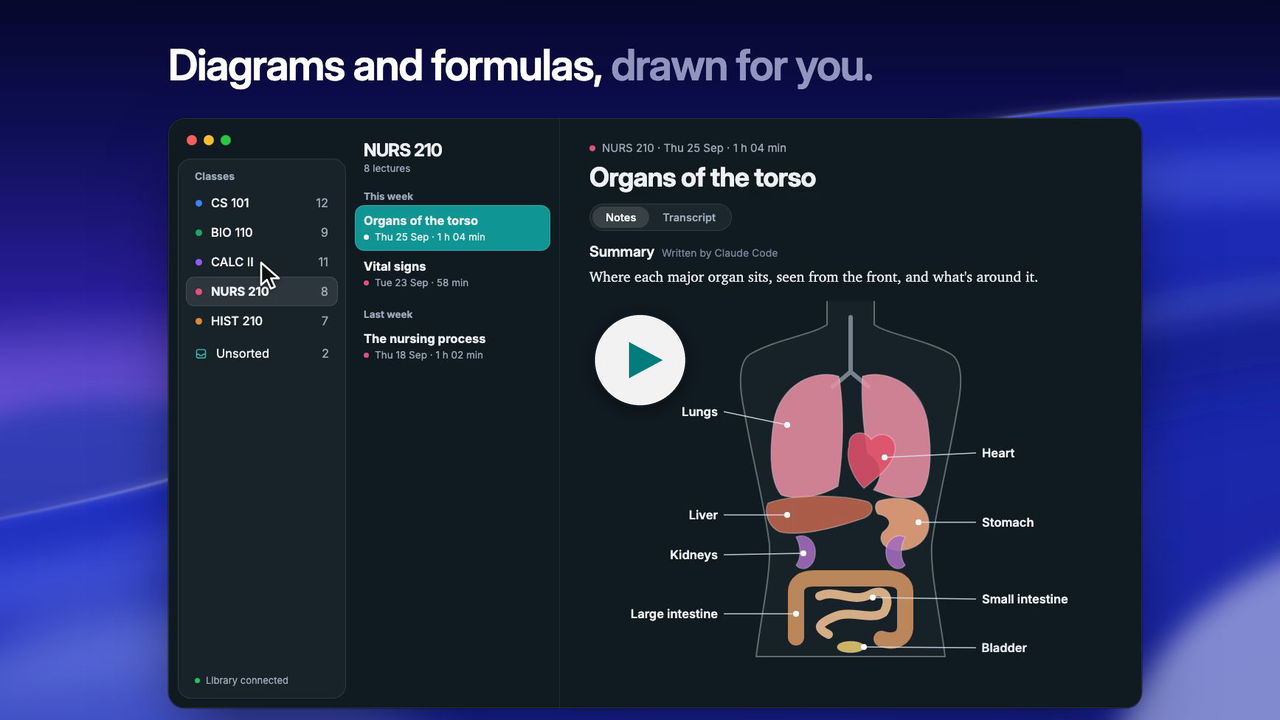
Watch the 50-second demo (it's narrated, so turn the sound on).
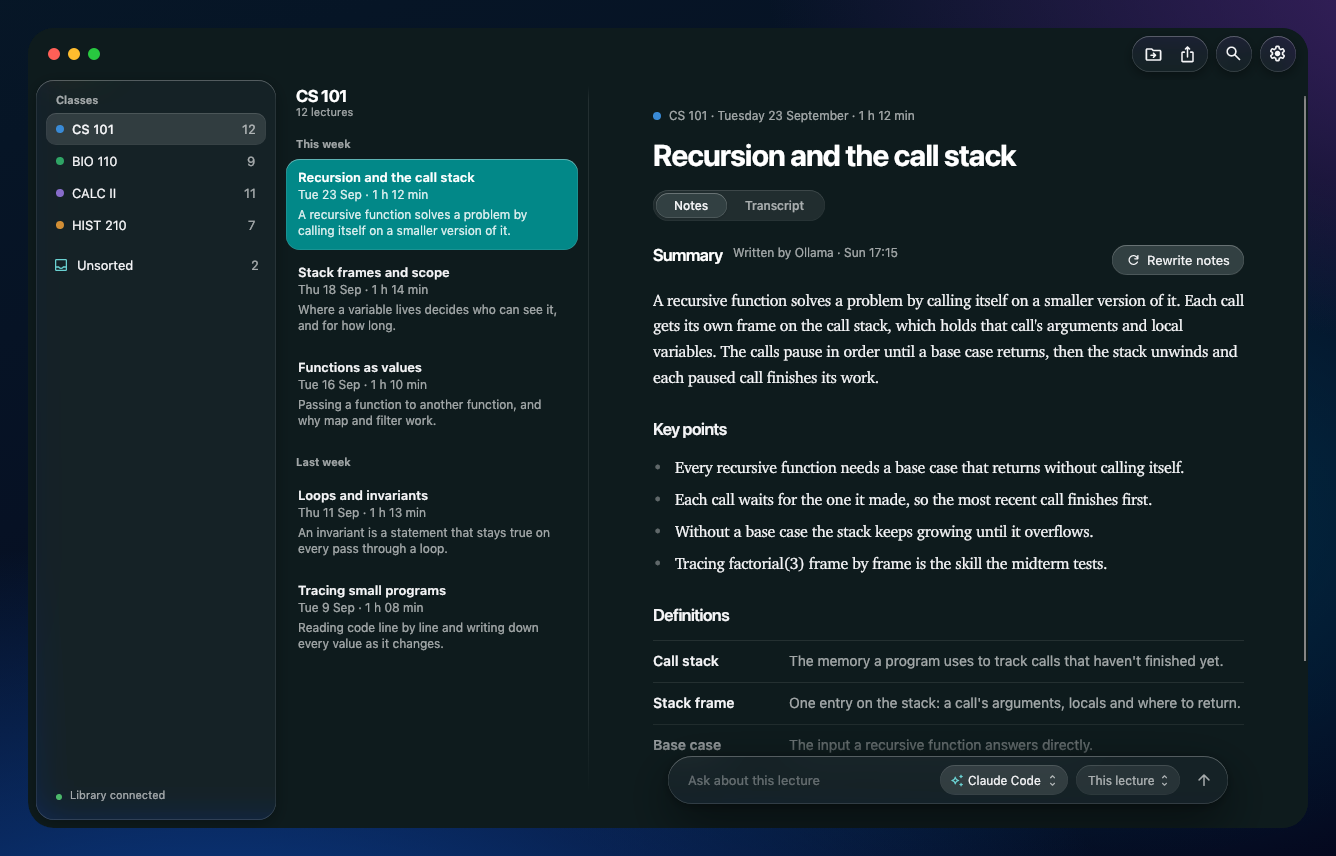
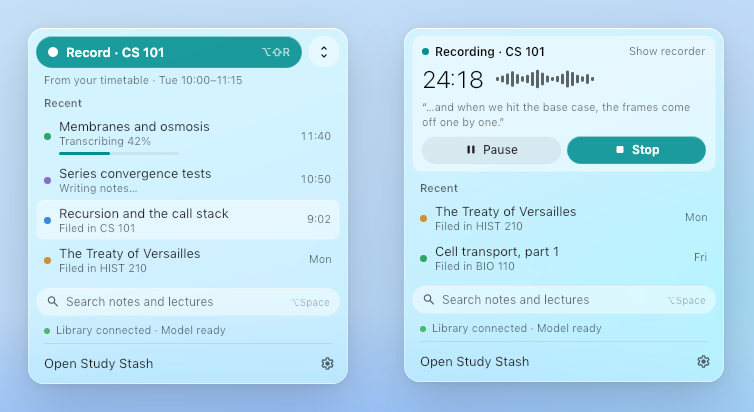
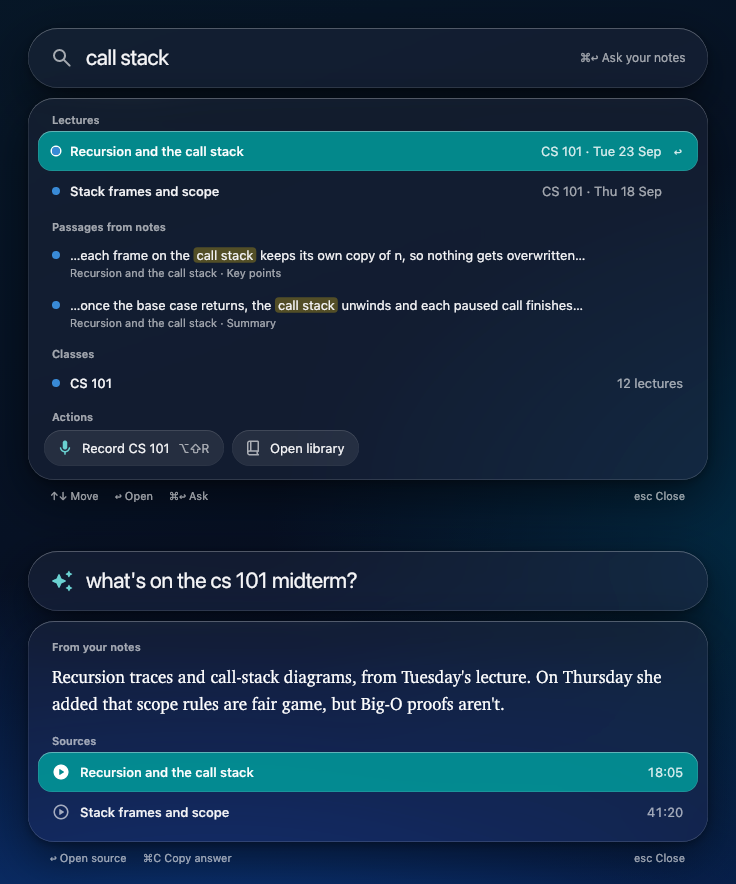
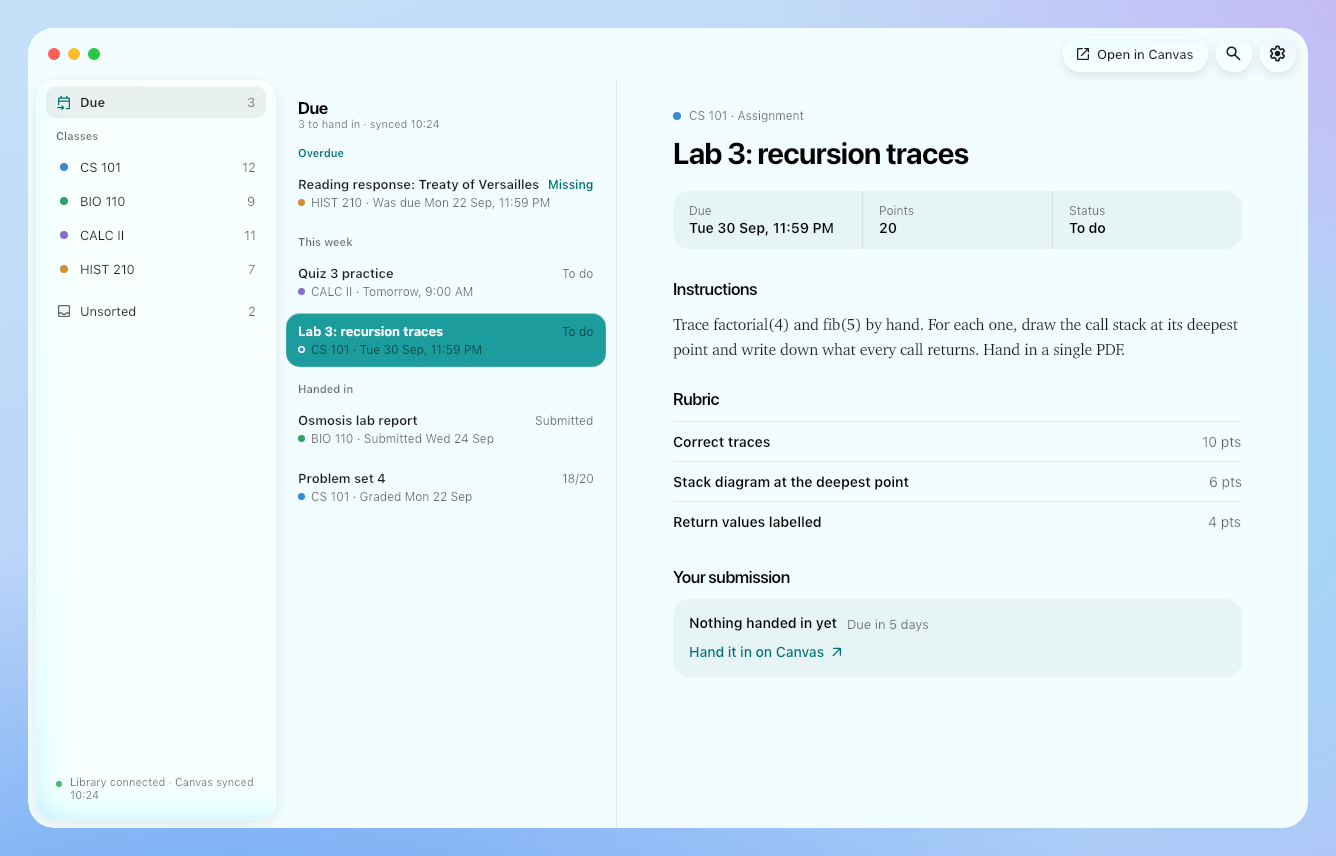
Study Stash is one app with two jobs, so you can use it the way that suits you:
your laptop                                  your library (this laptop, or a computer at home)
┌────────────────────────────┐   lectures   ┌──────────────────────────────────────────────┐
│ record → Whisper (local)   │ ───────────▶ │ study notes (your AI) → filed under its class │
│ ask, search, Canvas, notes │ ◀─────────── │ Canvas mirror · Claude/MCP · search           │
└────────────────────────────┘              └──────────────────────────────────────────────┘
One download for every computer, on the latest release:
| Mac | Windows |
|---|---|
| Study-Stash.dmg | Study-Stash-Setup.exe |
It's the same app either way; what a computer is for is chosen when you first open it, not when you download it. The Mac app needs macOS 15 (Sequoia) or later, on Apple silicon or Intel; the Windows one, Windows 10 or 11.
Then open Study Stash. See Setting up.
The first time Study Stash opens, it asks which AI you have. An AI sets Study Stash up with you, writes your notes and answers your questions:
If you already have the ChatGPT app or the Claude app on a Mac, there's nothing to install. The ChatGPT app carries Codex inside it, signed in with the app, and the Claude app keeps its own Claude Code once its Code tab has been opened. Study Stash finds those copies: the one you have starts picked, and Continue goes straight to the chat.
Otherwise: pick the one you pay for, press Download and set up (Study Stash runs its maker's own installer, for your account only, no admin password; nothing is downloaded until you press it), then Open sign-in page to sign in on Claude's or ChatGPT's own page. Study Stash never sees your password or your sign-in. A tiny test message then checks your plan includes it.
After that your AI walks you through the rest in a chat, with a checklist beside it: one computer or two, the microphone, the transcription model, your classes, Canvas, letting your ChatGPT or Claude app read your lectures (one Connect, if you have the app), and starting at login. It can only use Study Stash's own setup tools (no commands, files or web), and anything that changes your computer happens only when you press the button in its card. Close the window part-way and the chat picks up where it left off. The chat uses a little of your plan, and your AI then writes your notes and answers your questions (you can switch to a free local model in Settings any time).
No paid plan? That's the first screen's third answer, I don't have a paid plan. It goes to setup by hand, a few plain steps. Its notes step starts on No AI for now: lectures are recorded and transcribed, and notes can be switched on later in Settings. Free AI on this Mac is there too, marked Advanced, with one button, Set it up: Study Stash downloads a free AI (Ollama, with a model sized for your computer), installs and starts it, and shows how far along it is, with nothing to do in a browser or a terminal. You can carry on with setup while it downloads. Set up by hand is on every screen too, and Settings → General → Run setup runs either again.
Setup by hand asks how you'll use it:
Changed your mind, or your plans changed? Switch any time in Settings → Connection → This computer: a laptop can also become your library (bringing over whatever it was connected to before), and a library can become a laptop, sending its own lectures to the new one first so nothing is left behind. Nothing to reinstall or redownload.
Or install from a terminal:
# Mac (Terminal)
curl -fsSL https://raw.githubusercontent.com/Joseph-Rus/study-stash/main/install.sh | sh
# Windows (PowerShell)
irm https://raw.githubusercontent.com/Joseph-Rus/study-stash/main/install.ps1 | iex
Pick who writes your notes and who answers your questions in setup or in Settings → Your library → Your AI — one engine for everything, or a different one for each job. The same page switches the rich notes (below) and sets how fast Claude Code works. The engines run on your library's computer (with one computer, that's your laptop). Without an engine, lectures are still filed and keep their transcripts. With Claude Code, Codex or Gemini, a lecture's transcript (and, for its diagrams, its notes) goes to that AI under your own account; with Ollama nothing leaves your computer.
In setup, each one is a button. Setup's notes step lists them as Free AI on this Mac, Claude and ChatGPT, each with Set it up. The free one downloads Ollama and a model that fits your computer's memory (about 1.4 GB on a small laptop, 10 GB on one with 14 GB of memory or more, 24 GB on a big machine), installs and starts it, and says first if the disk has no room. Claude and ChatGPT get their maker's own installer and their own sign-in page. Nothing is typed into a terminal. The commands below are for doing it yourself, or on a library you set up another way.
Ollama — free, and nothing leaves your computer. Install it from ollama.com, and Study Stash offers to download a model.
Claude Code — uses your Claude plan. Install it, then run claude once in Terminal and sign in:
curl -fsSL https://claude.ai/install.sh | bash # Mac (or: brew install --cask claude-code)
irm https://claude.ai/install.ps1 | iex # Windows (PowerShell)
Codex — uses your ChatGPT plan. Install it, then run codex once and choose Sign in with
ChatGPT:
npm install -g @openai/codex # Mac or Windows (or on a Mac: brew install --cask codex)
Gemini — the Gemini CLI, signed in with your Google account.
On a Mac, Study Stash also uses the Codex inside the ChatGPT app and the Claude Code the Claude app keeps, when there's no copy installed on its own: nothing to install.
Where setup can't do it with buttons (a library you reach from another computer), its notes step shows these commands with a Copy button, opens Terminal for you, and has Check again to pick the engine up once it's installed and signed in.
Rich notes are the diagrams, formula plots and drawings a lecture's notes get after they're written. They're on, as they always were; Settings → Your AI → Rich notes switches them off (plain notes only, and no second call to your AI at all) or one kind at a time: Diagrams (flowcharts, state and sequence diagrams, timelines, mind maps), Formula plots and Drawings (labelled figures of what a lecture describes). A kind that's switched off is never asked of the AI — its part of the designer's brief isn't even sent — and one the designer draws anyway is left out. Switching off the last kind switches rich notes off. Drawn by (below) is their pick of who designs them; the old Off choice is the Rich notes switch now. Your notes never wait for it: a lecture is filed, readable in the app, on your phone and in Ask, the moment its notes are written, and its diagrams arrive a few minutes later, put into the notes where they go (an open lecture's byline says Adding diagrams… meanwhile, then Diagrams added; the page stays where you're reading). Once a lecture's notes are filed, a stronger model reads its timed transcript and the notes, decides whether the lecture teaches anything a picture makes clearer (a process, a cycle, a pathway, a decision rule, a hierarchy, a structure, states and what moves between them, an exchange between parties, a timeline, a topic's themes, a comparison, or something spatial like the forces on an object), and if it does, designs it from what the lecturer said and puts it at the end of the section it illustrates, with a title, a caption that says what to notice, and the moment of the lecture it comes from. It picks the kind that fits: a flowchart (a big topic as up to 36 boxes in groups, each box carrying the lecture's numbers and conditions in smaller words), a state diagram (an automaton's accepting states double-circled), a sequence diagram, a timeline or a mind map — or, when the lecturer gave a formula whose shape is the point (a sigmoid, a loss curve, a distribution and its parameters, how running times grow, gradient descent on a loss surface, what a matrix does to the plane), a plot of it. A lecture gets one per idea worth drawing — up to four for a long one — one under about three minutes gets none, and so does a lecture of discussion, admin or definitions.
A lecture that describes a physical thing at length — a drone's frame, motors and battery, the bones and tendons of the hand, the heart cut open, a circuit board, a robot arm, a cell, a titration set-up, a server rack — can also get an illustration: a detailed, labelled drawing of the thing itself, like a figure in a textbook. The designer plans it (the view, where things go, and the parts the lecturer named, each with a line from what was said). Then, most of the time, it's composed from ready-made parts in seconds: Study Stash ships a library of about 300 professionally drawn, openly licensed parts (Servier Medical Art's hearts, organs, organelles and glassware, DBCLS's bones, public-domain cells, Wokwi's Arduino boards and modules, and Study Stash's own drone, robot-arm and server-rack parts), finds the ones that fit the plan by its words, and a fast model (Claude Code's Sonnet) answers with a small plan of which parts go where; Study Stash draws the parts, any simple shapes nothing in the library shows (a tendon, a wire, a white tile) and the labels itself, in the house style. The same plan again (a class that comes back to the drone) is drawn at once from the last one. When the library has nothing for the subject, the same engine draws it shape by shape instead, as before: soft flat colours by material, gentle shading, labels in columns with leader lines, sent back once if it looks wrong. That takes 6 to 20 minutes with Claude Code's Opus, so the diagrams of a lecture whose illustration is drawn can arrive up to 18 minutes after its notes (the notes themselves are never held up). Either way its labels must be the lecture's words or it's left out, and only an engine that draws well is asked (Claude Code, Codex, Gemini — never a local Ollama model). A lecture gets one, two for a long one. Parts under a CC BY licence are credited under the figure.
Claude Code speed sets how fast Claude Code writes the notes and designs the rich notes (the engine's other jobs, sorting and answers, never change). It's the same Claude Code run as before, told one thing more, so a library's other engines aren't touched:
claude -p --settings '{"fastMode":true}', for that run
only; it needs Claude Code 2.1.205 or later). It's the same Opus (5.5) with up to 2.5 times faster
output, so the notes and the diagrams are as deep as ever, only sooner, but it's billed at a higher
rate (Claude Code's own estimate came to about twice a standard run's) and, on a Pro, Max, Team or Enterprise plan, only from your
Claude account's usage credits, which must be turned on (Settings → Usage on claude.ai) and are used
even while your plan has usage left. A Claude account that can't use it (no usage credits, an
organization that hasn't turned it on) just runs at its normal speed. A notes model you picked
as Sonnet or Haiku stays as picked: fast mode is Opus's. The composer (Sonnet) never needs it.On a 3,300-character test lecture on a Mac with Claude Code 2.1.289, the notes took 29.7 s (3,475 tokens out) in standard speed and 12.3 s (3,757) in fast mode, and the designer 26.2 s (2,476) and 6.5 s (1,533): 56 s for both, down to 19 s. Claude Code estimated the cost at $0.33 and $0.66 for the notes, and $0.21 and $0.37 for the designer.
A diagram that doesn't draw goes back once to be fixed and is otherwise left out, as is one with too many boxes or words the lecture never said. Each one kept is laid out at the notes' width and looked over; one that would look wrong (too wide to read, arrows crossing, a sentence in a box, a big chart with no groups) goes back once with what's wrong, while there's time, and its redesign is used only when it's better; a plot is worked out at its sliders' starting values and ends, and one that's flat, undefined, off its axes or has a slider that changes nothing goes back the same way. If the diagrams can't be designed (the engine is busy, over its limit, or takes longer than 8 minutes, 18 with an illustration that has to be drawn), the notes stay exactly as filed. The library's log says what was drawn and redesigned, or why nothing was.
The diagrams are designed one lecture at a time, never while notes are being written (a pass on the library's own Ollama model steps aside for new notes and starts again after), and they survive a restart: a pass cut off part-way runs again, three tries at most. They go in safely. If you (or an AI in a chat) edit a lecture's note file while its diagrams are being designed, every edit is kept and the diagrams go into its summary under their headings; a diagram whose heading has gone is left out rather than put somewhere it doesn't belong; notes written again (Rewrite notes with, or written afresh) get diagrams of their own instead, and a second pass replaces the first one's diagrams rather than adding more. Rewrite notes with goes the same way: the new notes are ready as soon as their words are, and their diagrams follow once you use them.
A lecture's notes write formulas and diagrams as their own engine can, and the app draws them, in the notes, in a quick answer and in the Ask chat:
$...$ inline, $$...$$ on their own line), typeset in the app's own
type, light or dark. One CSharpMath can't typeset shows its plain source instead, calmly.```mermaid) and is drawn natively, in the theme's colours — a big one in groups, laid out as
columns of its groups with square arrows between them; Mermaid state diagrams (automata too),
sequence diagrams, timelines and mind maps are drawn natively as well; something spatial (a
structure, a physics setup, a circuit) comes back as a sanitised SVG. They're designed after the notes by the
engine that draws them (Rich notes → Drawn by, see Your AI), each under a bold title with a
caption and the moment of the lecture it comes from; rewriting a lecture's notes designs them
again rather than adding more. Either kind opens larger on a click, and a diagram Study Stash
can't draw shows its source with a plain reason instead of failing.```plot, exactly from the formula
itself (the AI only writes the formula as the lecturer gave it, its ranges, sliders and labels;
the app does the maths, so a curve is never drawn freehand): curves, parametric curves, bars for a
distribution or a recurrence, shaded probabilities with their area, tangents with their slope,
vectors and fields, a two-variable function as a heat map with contours and gradient descent
across it, and a 2×2 matrix's map of the plane with its eigenvectors. Each parameter gets a slider
(with a play button that sweeps it), the pointer reads every curve's value under a crosshair and a
click pins it (with Explain this, Quiz me and Where was this said?), a point that's a
slider can be dragged (a tangent along its curve), ⌘ or Ctrl and the wheel zoom (worked out again,
so it stays exact), a click on the legend hides a curve, and Predict hides the curve for you to
sketch first, then reveals it and says how close you came. A formula on its own line in the notes
offers Show what this looks like, which asks the Ask bar for it as a plot. Paper and the PDF
show it at its sliders' starting values; the Markdown download keeps its ```plot source with
its picture saved beside it, and the phone shows the picture..md file that
Obsidian, Typora and VS Code all open well — formulas stay LaTeX, a Mermaid diagram is saved
again as an SVG beside it, and an SVG diagram becomes an image link to its own sanitised file.
"Download as PDF…" saves the notes as the app draws them, ready to print: headings, tables, typeset
formulas and diagrams as sharp vector drawings with the text selectable, light on white whatever
the app's look, on Letter paper where that's the local size and A4 elsewhere, with page numbers.Study Stash reads Canvas through your browser with your own sign-in — no Canvas password or token — and only reads; nothing on Canvas changes. It works in Chrome and the browsers built on it (Edge, Brave, Arc, Opera, Vivaldi). The extension runs in Firefox too, but its add-on isn't published yet: docs/firefox-add-on.md. On your library's computer:
~/Study Stash/Chrome extension), where the browser's window can see it; on Windows it's
chrome-extension in %USERPROFILE%\.study-stash.Canvas then syncs about once an hour while that browser is open (it can stay minimized): what's due, assignments with rubrics, your submissions and feedback, modules, files, pages and announcements, filed into each class's folder.
Your library speaks MCP, so AI apps can read your lectures, notes and Canvas work (read-only). Set it up in Settings → Your library → AI apps.
….study-stash-backup). The app has to be quit and opened
again to load it: on a Mac the row has a Reopen button that does that for you. The row then
turns to Connected by itself (ChatGPT's, once you start a chat in Codex).
Disconnect takes only Study Stash back out. The ChatGPT row is the ChatGPT desktop app
(the one with Codex built in) and Codex in the terminal or your editor: they share one settings file. The app starts Study Stash itself and reads your library through this
computer, so this works on a computer on its own: no Tailscale, no internet address, and no
password goes into the app's settings. Another MCP app: Copy setup and paste it into its settings.https://<your library's name>.<your tailnet>.ts.net/mcp: in Claude under Settings → Connectors,
in ChatGPT at chatgpt.com/plugins (+ → Add custom MCP server). On a computer without Tailscale the
card says so, and links to Tailscale (free); nothing is put on the internet until you turn it on.docs/claude-connector.md has the details: each app's settings file, what each can read, the web connector, troubleshooting, and how Claude's and ChatGPT's connector requirements are met and tested.
Installed copies update themselves: they check for a new release a few minutes after starting and
every 6 hours, and install it when nothing is recording or being transcribed. To update right
away, click Update now in Settings → Your library → Library (on a laptop that updates your
library). A laptop has its own Check now, Update now and Update automatically under
Settings → General → Updates, apart from the library's. On a Mac an update swaps in the
new Study Stash.app; on Windows it runs the new Setup.exe quietly. Every download is checked against the release's
SHA256SUMS.txt first.
Mac: if you turned on Open when you log in (Settings → General), turn it off first, so no login item is left behind; then quit Study Stash and drag it from Applications to the Trash. Windows: Settings → Apps → Study Stash → Uninstall. Your lectures and settings stay where they are; only the app goes. To remove them too, delete the folders under Where your data lives.
Your settings, the lecture database and the recordings are under ~/.study-stash (or --home, or
the STUDYSTASH_HOME environment variable). The notes themselves are plain Markdown files in a
folder per class, by default in Documents/Study Stash on the library's computer (Settings → Your library →
Library → Notes folder shows where), which you can open, back up or sync however you like. On a Mac
the browser extension's folder is ~/Study Stash/Chrome extension, because a browser's Load
unpacked window doesn't show folders whose names start with a dot.
You need the .NET 10 SDK, and Node (22 or later) for the
phone app in web/.
dotnet build engine/StudyStash.slnx
dotnet test engine/StudyStash.slnx
dotnet run --project engine/src/StudyStash.App -- --home /some/temp/dir
(cd web && npm ci && npm test && npm run build)   # the phone app, into web/dist, which the app then carries
macos/build-app.sh builds "Study Stash.app" and Study-Stash.dmg (with Xcode's command line tools), and
windows/build.ps1 Study-Stash-Setup.exe; both build the phone app into it first. engine/README.md has more on the projects and tests.
Releases come from CI (.github/workflows/ci.yml), at two speeds. A change that reaches main is
tested once: the engine's tests on macOS, Linux and Windows (side by side), and both apps built and
self-tested for real. No installer is kept, installed or published for it. A release is a push to main with a new
StudyStashVersion in engine/Directory.Build.props (no tag yet): CI also builds the installers,
proves them (the Mac app natively on an Intel Mac; Setup.exe installed, updated in place and
uninstalled), and publishes Study-Stash.dmg, Study-Stash-Setup.exe (and copies under the old
installers' names, so older copies still update) and SHA256SUMS.txt. A version already released is
never published again. Code that already passed isn't tested twice: a push that only changes the
version (or the docs) on top of a commit that passed, or a merge of a branch whose run passed on the
very same code, skips the tests, and a release then only builds and proves its installers. Branches
and pull requests aren't tested on their own: to prove one first (say, Windows-only code), start a
run by hand with Actions → ci → Run workflow or gh workflow run ci --ref <branch>. On a release
branch (a version with no tag yet) that run rehearses the whole release, installers included, down to
the checksums and short of publishing; merging that branch unchanged then publishes those very
installers, with no rebuild, within a minute. Add -f installers=true to rehearse it on any branch.
Study Stash is free and open source, and two students build it with Claude. If it saves you time, you can buy us more Claude usage on Ko-fi, and it goes into building the next version.
MIT. No warranty: check your notes against the lecture before relying on them, since AI makes mistakes. Record only where you're allowed to — many schools and places require everyone's consent. See SECURITY.md to report a security problem.
Lectures are written down by Whisper models (MIT, from OpenAI, run with Whisper.net) or, if you choose it, by NVIDIA Parakeet TDT 0.6B v3 (CC BY 4.0), converted to ONNX by the sherpa-onnx project (Apache-2.0), which runs it. To tell voices apart, when you turn that on, it uses pyannote's segmentation 3.0 (MIT) and NVIDIA's TitaNet small (CC BY 4.0), also converted by sherpa-onnx. The models are downloaded when you pick them, except the live words' models, which come inside the app unchanged with their licences: on ARM, Cactus Whistle and the needle engine that runs it (both Apache-2.0, by Cactus Compute; needle/LICENSE.txt beside the app); on x64, Whisper tiny (MIT, OpenAI; whisper.cpp's ggml-tiny-q8_0 file; models/live-whisper-LICENSE.txt beside the app). Study Stash calls needle's library directly: the anonymous usage counts that Cactus's Python package sends aren't part of it, and nothing either model hears leaves the computer.
Illustrations are composed from parts drawn by Servier Medical Art (CC BY 3.0, via Bioicons), the DBCLS Togo Picture Gallery (© 2016 DBCLS TogoTV / CC-BY-4.0), Bioicons' CC0 artists, Mariana Ruiz Villarreal (LadyofHats; public domain, via Wikimedia Commons) and Wokwi elements (© 2020 Uri Shaked, MIT), every part recoloured to Study Stash's palette and simplified, and from Study Stash's own parts. Every part and its licence is listed in docs/parts-credits.md; where they come from and why, in docs/parts-sources.md.
Notes and diagrams are drawn with CSharpMath (MIT, bundling the Latin Modern Math font under the GUST font licence), Svg.Skia (MIT), and Microsoft Automatic Graph Layout (MIT).
Your own lecture library. Record a lecture, and it's transcribed on your computer, filed under the right class, and turned into study notes — next to your Canvas assignments, and ready to ask about. Free and open source, for Mac and Windows, and everything stays on your own computers.
C#
6
1,026 commits
updated Oct 17, 2026
Your own lecture library. Record a lecture, and it's transcribed on your computer, filed under the right class, and turned into study notes — next to your Canvas assignments, and ready to ask about. Free and open source, for Mac and Windows, and your recordings never leave your own computers.
Watch the 50-second demo (it's narrated, so turn the sound on).
Study Stash is one app with two jobs, so you can use it the way that suits you:
your laptop                                  your library (this laptop, or a computer at home)
┌────────────────────────────┐   lectures   ┌──────────────────────────────────────────────┐
│ record → Whisper (local)   │ ───────────▶ │ study notes (your AI) → filed under its class │
│ ask, search, Canvas, notes │ ◀─────────── │ Canvas mirror · Claude/MCP · search           │
└────────────────────────────┘              └──────────────────────────────────────────────┘
One download for every computer, on the latest release:
| Mac | Windows |
|---|---|
| Study-Stash.dmg | Study-Stash-Setup.exe |
It's the same app either way; what a computer is for is chosen when you first open it, not when you download it. The Mac app needs macOS 15 (Sequoia) or later, on Apple silicon or Intel; the Windows one, Windows 10 or 11.
Then open Study Stash. See Setting up.
The first time Study Stash opens, it asks which AI you have. An AI sets Study Stash up with you, writes your notes and answers your questions:
If you already have the ChatGPT app or the Claude app on a Mac, there's nothing to install. The ChatGPT app carries Codex inside it, signed in with the app, and the Claude app keeps its own Claude Code once its Code tab has been opened. Study Stash finds those copies: the one you have starts picked, and Continue goes straight to the chat.
Otherwise: pick the one you pay for, press Download and set up (Study Stash runs its maker's own installer, for your account only, no admin password; nothing is downloaded until you press it), then Open sign-in page to sign in on Claude's or ChatGPT's own page. Study Stash never sees your password or your sign-in. A tiny test message then checks your plan includes it.
After that your AI walks you through the rest in a chat, with a checklist beside it: one computer or two, the microphone, the transcription model, your classes, Canvas, letting your ChatGPT or Claude app read your lectures (one Connect, if you have the app), and starting at login. It can only use Study Stash's own setup tools (no commands, files or web), and anything that changes your computer happens only when you press the button in its card. Close the window part-way and the chat picks up where it left off. The chat uses a little of your plan, and your AI then writes your notes and answers your questions (you can switch to a free local model in Settings any time).
No paid plan? That's the first screen's third answer, I don't have a paid plan. It goes to setup by hand, a few plain steps. Its notes step starts on No AI for now: lectures are recorded and transcribed, and notes can be switched on later in Settings. Free AI on this Mac is there too, marked Advanced, with one button, Set it up: Study Stash downloads a free AI (Ollama, with a model sized for your computer), installs and starts it, and shows how far along it is, with nothing to do in a browser or a terminal. You can carry on with setup while it downloads. Set up by hand is on every screen too, and Settings → General → Run setup runs either again.
Setup by hand asks how you'll use it:
Changed your mind, or your plans changed? Switch any time in Settings → Connection → This computer: a laptop can also become your library (bringing over whatever it was connected to before), and a library can become a laptop, sending its own lectures to the new one first so nothing is left behind. Nothing to reinstall or redownload.
Or install from a terminal:
# Mac (Terminal)
curl -fsSL https://raw.githubusercontent.com/Joseph-Rus/study-stash/main/install.sh | sh
# Windows (PowerShell)
irm https://raw.githubusercontent.com/Joseph-Rus/study-stash/main/install.ps1 | iex
Pick who writes your notes and who answers your questions in setup or in Settings → Your library → Your AI — one engine for everything, or a different one for each job. The same page switches the rich notes (below) and sets how fast Claude Code works. The engines run on your library's computer (with one computer, that's your laptop). Without an engine, lectures are still filed and keep their transcripts. With Claude Code, Codex or Gemini, a lecture's transcript (and, for its diagrams, its notes) goes to that AI under your own account; with Ollama nothing leaves your computer.
In setup, each one is a button. Setup's notes step lists them as Free AI on this Mac, Claude and ChatGPT, each with Set it up. The free one downloads Ollama and a model that fits your computer's memory (about 1.4 GB on a small laptop, 10 GB on one with 14 GB of memory or more, 24 GB on a big machine), installs and starts it, and says first if the disk has no room. Claude and ChatGPT get their maker's own installer and their own sign-in page. Nothing is typed into a terminal. The commands below are for doing it yourself, or on a library you set up another way.
Ollama — free, and nothing leaves your computer. Install it from ollama.com, and Study Stash offers to download a model.
Claude Code — uses your Claude plan. Install it, then run claude once in Terminal and sign in:
curl -fsSL https://claude.ai/install.sh | bash # Mac (or: brew install --cask claude-code)
irm https://claude.ai/install.ps1 | iex # Windows (PowerShell)
Codex — uses your ChatGPT plan. Install it, then run codex once and choose Sign in with
ChatGPT:
npm install -g @openai/codex # Mac or Windows (or on a Mac: brew install --cask codex)
Gemini — the Gemini CLI, signed in with your Google account.
On a Mac, Study Stash also uses the Codex inside the ChatGPT app and the Claude Code the Claude app keeps, when there's no copy installed on its own: nothing to install.
Where setup can't do it with buttons (a library you reach from another computer), its notes step shows these commands with a Copy button, opens Terminal for you, and has Check again to pick the engine up once it's installed and signed in.
Rich notes are the diagrams, formula plots and drawings a lecture's notes get after they're written. They're on, as they always were; Settings → Your AI → Rich notes switches them off (plain notes only, and no second call to your AI at all) or one kind at a time: Diagrams (flowcharts, state and sequence diagrams, timelines, mind maps), Formula plots and Drawings (labelled figures of what a lecture describes). A kind that's switched off is never asked of the AI — its part of the designer's brief isn't even sent — and one the designer draws anyway is left out. Switching off the last kind switches rich notes off. Drawn by (below) is their pick of who designs them; the old Off choice is the Rich notes switch now. Your notes never wait for it: a lecture is filed, readable in the app, on your phone and in Ask, the moment its notes are written, and its diagrams arrive a few minutes later, put into the notes where they go (an open lecture's byline says Adding diagrams… meanwhile, then Diagrams added; the page stays where you're reading). Once a lecture's notes are filed, a stronger model reads its timed transcript and the notes, decides whether the lecture teaches anything a picture makes clearer (a process, a cycle, a pathway, a decision rule, a hierarchy, a structure, states and what moves between them, an exchange between parties, a timeline, a topic's themes, a comparison, or something spatial like the forces on an object), and if it does, designs it from what the lecturer said and puts it at the end of the section it illustrates, with a title, a caption that says what to notice, and the moment of the lecture it comes from. It picks the kind that fits: a flowchart (a big topic as up to 36 boxes in groups, each box carrying the lecture's numbers and conditions in smaller words), a state diagram (an automaton's accepting states double-circled), a sequence diagram, a timeline or a mind map — or, when the lecturer gave a formula whose shape is the point (a sigmoid, a loss curve, a distribution and its parameters, how running times grow, gradient descent on a loss surface, what a matrix does to the plane), a plot of it. A lecture gets one per idea worth drawing — up to four for a long one — one under about three minutes gets none, and so does a lecture of discussion, admin or definitions.
A lecture that describes a physical thing at length — a drone's frame, motors and battery, the bones and tendons of the hand, the heart cut open, a circuit board, a robot arm, a cell, a titration set-up, a server rack — can also get an illustration: a detailed, labelled drawing of the thing itself, like a figure in a textbook. The designer plans it (the view, where things go, and the parts the lecturer named, each with a line from what was said). Then, most of the time, it's composed from ready-made parts in seconds: Study Stash ships a library of about 300 professionally drawn, openly licensed parts (Servier Medical Art's hearts, organs, organelles and glassware, DBCLS's bones, public-domain cells, Wokwi's Arduino boards and modules, and Study Stash's own drone, robot-arm and server-rack parts), finds the ones that fit the plan by its words, and a fast model (Claude Code's Sonnet) answers with a small plan of which parts go where; Study Stash draws the parts, any simple shapes nothing in the library shows (a tendon, a wire, a white tile) and the labels itself, in the house style. The same plan again (a class that comes back to the drone) is drawn at once from the last one. When the library has nothing for the subject, the same engine draws it shape by shape instead, as before: soft flat colours by material, gentle shading, labels in columns with leader lines, sent back once if it looks wrong. That takes 6 to 20 minutes with Claude Code's Opus, so the diagrams of a lecture whose illustration is drawn can arrive up to 18 minutes after its notes (the notes themselves are never held up). Either way its labels must be the lecture's words or it's left out, and only an engine that draws well is asked (Claude Code, Codex, Gemini — never a local Ollama model). A lecture gets one, two for a long one. Parts under a CC BY licence are credited under the figure.
Claude Code speed sets how fast Claude Code writes the notes and designs the rich notes (the engine's other jobs, sorting and answers, never change). It's the same Claude Code run as before, told one thing more, so a library's other engines aren't touched:
claude -p --settings '{"fastMode":true}', for that run
only; it needs Claude Code 2.1.205 or later). It's the same Opus (5.5) with up to 2.5 times faster
output, so the notes and the diagrams are as deep as ever, only sooner, but it's billed at a higher
rate (Claude Code's own estimate came to about twice a standard run's) and, on a Pro, Max, Team or Enterprise plan, only from your
Claude account's usage credits, which must be turned on (Settings → Usage on claude.ai) and are used
even while your plan has usage left. A Claude account that can't use it (no usage credits, an
organization that hasn't turned it on) just runs at its normal speed. A notes model you picked
as Sonnet or Haiku stays as picked: fast mode is Opus's. The composer (Sonnet) never needs it.On a 3,300-character test lecture on a Mac with Claude Code 2.1.289, the notes took 29.7 s (3,475 tokens out) in standard speed and 12.3 s (3,757) in fast mode, and the designer 26.2 s (2,476) and 6.5 s (1,533): 56 s for both, down to 19 s. Claude Code estimated the cost at $0.33 and $0.66 for the notes, and $0.21 and $0.37 for the designer.
A diagram that doesn't draw goes back once to be fixed and is otherwise left out, as is one with too many boxes or words the lecture never said. Each one kept is laid out at the notes' width and looked over; one that would look wrong (too wide to read, arrows crossing, a sentence in a box, a big chart with no groups) goes back once with what's wrong, while there's time, and its redesign is used only when it's better; a plot is worked out at its sliders' starting values and ends, and one that's flat, undefined, off its axes or has a slider that changes nothing goes back the same way. If the diagrams can't be designed (the engine is busy, over its limit, or takes longer than 8 minutes, 18 with an illustration that has to be drawn), the notes stay exactly as filed. The library's log says what was drawn and redesigned, or why nothing was.
The diagrams are designed one lecture at a time, never while notes are being written (a pass on the library's own Ollama model steps aside for new notes and starts again after), and they survive a restart: a pass cut off part-way runs again, three tries at most. They go in safely. If you (or an AI in a chat) edit a lecture's note file while its diagrams are being designed, every edit is kept and the diagrams go into its summary under their headings; a diagram whose heading has gone is left out rather than put somewhere it doesn't belong; notes written again (Rewrite notes with, or written afresh) get diagrams of their own instead, and a second pass replaces the first one's diagrams rather than adding more. Rewrite notes with goes the same way: the new notes are ready as soon as their words are, and their diagrams follow once you use them.
A lecture's notes write formulas and diagrams as their own engine can, and the app draws them, in the notes, in a quick answer and in the Ask chat:
$...$ inline, $$...$$ on their own line), typeset in the app's own
type, light or dark. One CSharpMath can't typeset shows its plain source instead, calmly.```mermaid) and is drawn natively, in the theme's colours — a big one in groups, laid out as
columns of its groups with square arrows between them; Mermaid state diagrams (automata too),
sequence diagrams, timelines and mind maps are drawn natively as well; something spatial (a
structure, a physics setup, a circuit) comes back as a sanitised SVG. They're designed after the notes by the
engine that draws them (Rich notes → Drawn by, see Your AI), each under a bold title with a
caption and the moment of the lecture it comes from; rewriting a lecture's notes designs them
again rather than adding more. Either kind opens larger on a click, and a diagram Study Stash
can't draw shows its source with a plain reason instead of failing.```plot, exactly from the formula
itself (the AI only writes the formula as the lecturer gave it, its ranges, sliders and labels;
the app does the maths, so a curve is never drawn freehand): curves, parametric curves, bars for a
distribution or a recurrence, shaded probabilities with their area, tangents with their slope,
vectors and fields, a two-variable function as a heat map with contours and gradient descent
across it, and a 2×2 matrix's map of the plane with its eigenvectors. Each parameter gets a slider
(with a play button that sweeps it), the pointer reads every curve's value under a crosshair and a
click pins it (with Explain this, Quiz me and Where was this said?), a point that's a
slider can be dragged (a tangent along its curve), ⌘ or Ctrl and the wheel zoom (worked out again,
so it stays exact), a click on the legend hides a curve, and Predict hides the curve for you to
sketch first, then reveals it and says how close you came. A formula on its own line in the notes
offers Show what this looks like, which asks the Ask bar for it as a plot. Paper and the PDF
show it at its sliders' starting values; the Markdown download keeps its ```plot source with
its picture saved beside it, and the phone shows the picture..md file that
Obsidian, Typora and VS Code all open well — formulas stay LaTeX, a Mermaid diagram is saved
again as an SVG beside it, and an SVG diagram becomes an image link to its own sanitised file.
"Download as PDF…" saves the notes as the app draws them, ready to print: headings, tables, typeset
formulas and diagrams as sharp vector drawings with the text selectable, light on white whatever
the app's look, on Letter paper where that's the local size and A4 elsewhere, with page numbers.Study Stash reads Canvas through your browser with your own sign-in — no Canvas password or token — and only reads; nothing on Canvas changes. It works in Chrome and the browsers built on it (Edge, Brave, Arc, Opera, Vivaldi). The extension runs in Firefox too, but its add-on isn't published yet: docs/firefox-add-on.md. On your library's computer:
~/Study Stash/Chrome extension), where the browser's window can see it; on Windows it's
chrome-extension in %USERPROFILE%\.study-stash.Canvas then syncs about once an hour while that browser is open (it can stay minimized): what's due, assignments with rubrics, your submissions and feedback, modules, files, pages and announcements, filed into each class's folder.
Your library speaks MCP, so AI apps can read your lectures, notes and Canvas work (read-only). Set it up in Settings → Your library → AI apps.
….study-stash-backup). The app has to be quit and opened
again to load it: on a Mac the row has a Reopen button that does that for you. The row then
turns to Connected by itself (ChatGPT's, once you start a chat in Codex).
Disconnect takes only Study Stash back out. The ChatGPT row is the ChatGPT desktop app
(the one with Codex built in) and Codex in the terminal or your editor: they share one settings file. The app starts Study Stash itself and reads your library through this
computer, so this works on a computer on its own: no Tailscale, no internet address, and no
password goes into the app's settings. Another MCP app: Copy setup and paste it into its settings.https://<your library's name>.<your tailnet>.ts.net/mcp: in Claude under Settings → Connectors,
in ChatGPT at chatgpt.com/plugins (+ → Add custom MCP server). On a computer without Tailscale the
card says so, and links to Tailscale (free); nothing is put on the internet until you turn it on.docs/claude-connector.md has the details: each app's settings file, what each can read, the web connector, troubleshooting, and how Claude's and ChatGPT's connector requirements are met and tested.
Installed copies update themselves: they check for a new release a few minutes after starting and
every 6 hours, and install it when nothing is recording or being transcribed. To update right
away, click Update now in Settings → Your library → Library (on a laptop that updates your
library). A laptop has its own Check now, Update now and Update automatically under
Settings → General → Updates, apart from the library's. On a Mac an update swaps in the
new Study Stash.app; on Windows it runs the new Setup.exe quietly. Every download is checked against the release's
SHA256SUMS.txt first.
Mac: if you turned on Open when you log in (Settings → General), turn it off first, so no login item is left behind; then quit Study Stash and drag it from Applications to the Trash. Windows: Settings → Apps → Study Stash → Uninstall. Your lectures and settings stay where they are; only the app goes. To remove them too, delete the folders under Where your data lives.
Your settings, the lecture database and the recordings are under ~/.study-stash (or --home, or
the STUDYSTASH_HOME environment variable). The notes themselves are plain Markdown files in a
folder per class, by default in Documents/Study Stash on the library's computer (Settings → Your library →
Library → Notes folder shows where), which you can open, back up or sync however you like. On a Mac
the browser extension's folder is ~/Study Stash/Chrome extension, because a browser's Load
unpacked window doesn't show folders whose names start with a dot.
You need the .NET 10 SDK, and Node (22 or later) for the
phone app in web/.
dotnet build engine/StudyStash.slnx
dotnet test engine/StudyStash.slnx
dotnet run --project engine/src/StudyStash.App -- --home /some/temp/dir
(cd web && npm ci && npm test && npm run build)   # the phone app, into web/dist, which the app then carries
macos/build-app.sh builds "Study Stash.app" and Study-Stash.dmg (with Xcode's command line tools), and
windows/build.ps1 Study-Stash-Setup.exe; both build the phone app into it first. engine/README.md has more on the projects and tests.
Releases come from CI (.github/workflows/ci.yml), at two speeds. A change that reaches main is
tested once: the engine's tests on macOS, Linux and Windows (side by side), and both apps built and
self-tested for real. No installer is kept, installed or published for it. A release is a push to main with a new
StudyStashVersion in engine/Directory.Build.props (no tag yet): CI also builds the installers,
proves them (the Mac app natively on an Intel Mac; Setup.exe installed, updated in place and
uninstalled), and publishes Study-Stash.dmg, Study-Stash-Setup.exe (and copies under the old
installers' names, so older copies still update) and SHA256SUMS.txt. A version already released is
never published again. Code that already passed isn't tested twice: a push that only changes the
version (or the docs) on top of a commit that passed, or a merge of a branch whose run passed on the
very same code, skips the tests, and a release then only builds and proves its installers. Branches
and pull requests aren't tested on their own: to prove one first (say, Windows-only code), start a
run by hand with Actions → ci → Run workflow or gh workflow run ci --ref <branch>. On a release
branch (a version with no tag yet) that run rehearses the whole release, installers included, down to
the checksums and short of publishing; merging that branch unchanged then publishes those very
installers, with no rebuild, within a minute. Add -f installers=true to rehearse it on any branch.
Study Stash is free and open source, and two students build it with Claude. If it saves you time, you can buy us more Claude usage on Ko-fi, and it goes into building the next version.
MIT. No warranty: check your notes against the lecture before relying on them, since AI makes mistakes. Record only where you're allowed to — many schools and places require everyone's consent. See SECURITY.md to report a security problem.
Lectures are written down by Whisper models (MIT, from OpenAI, run with Whisper.net) or, if you choose it, by NVIDIA Parakeet TDT 0.6B v3 (CC BY 4.0), converted to ONNX by the sherpa-onnx project (Apache-2.0), which runs it. To tell voices apart, when you turn that on, it uses pyannote's segmentation 3.0 (MIT) and NVIDIA's TitaNet small (CC BY 4.0), also converted by sherpa-onnx. The models are downloaded when you pick them, except the live words' models, which come inside the app unchanged with their licences: on ARM, Cactus Whistle and the needle engine that runs it (both Apache-2.0, by Cactus Compute; needle/LICENSE.txt beside the app); on x64, Whisper tiny (MIT, OpenAI; whisper.cpp's ggml-tiny-q8_0 file; models/live-whisper-LICENSE.txt beside the app). Study Stash calls needle's library directly: the anonymous usage counts that Cactus's Python package sends aren't part of it, and nothing either model hears leaves the computer.
Illustrations are composed from parts drawn by Servier Medical Art (CC BY 3.0, via Bioicons), the DBCLS Togo Picture Gallery (© 2016 DBCLS TogoTV / CC-BY-4.0), Bioicons' CC0 artists, Mariana Ruiz Villarreal (LadyofHats; public domain, via Wikimedia Commons) and Wokwi elements (© 2020 Uri Shaked, MIT), every part recoloured to Study Stash's palette and simplified, and from Study Stash's own parts. Every part and its licence is listed in docs/parts-credits.md; where they come from and why, in docs/parts-sources.md.
Notes and diagrams are drawn with CSharpMath (MIT, bundling the Latin Modern Math font under the GUST font licence), Svg.Skia (MIT), and Microsoft Automatic Graph Layout (MIT).



