





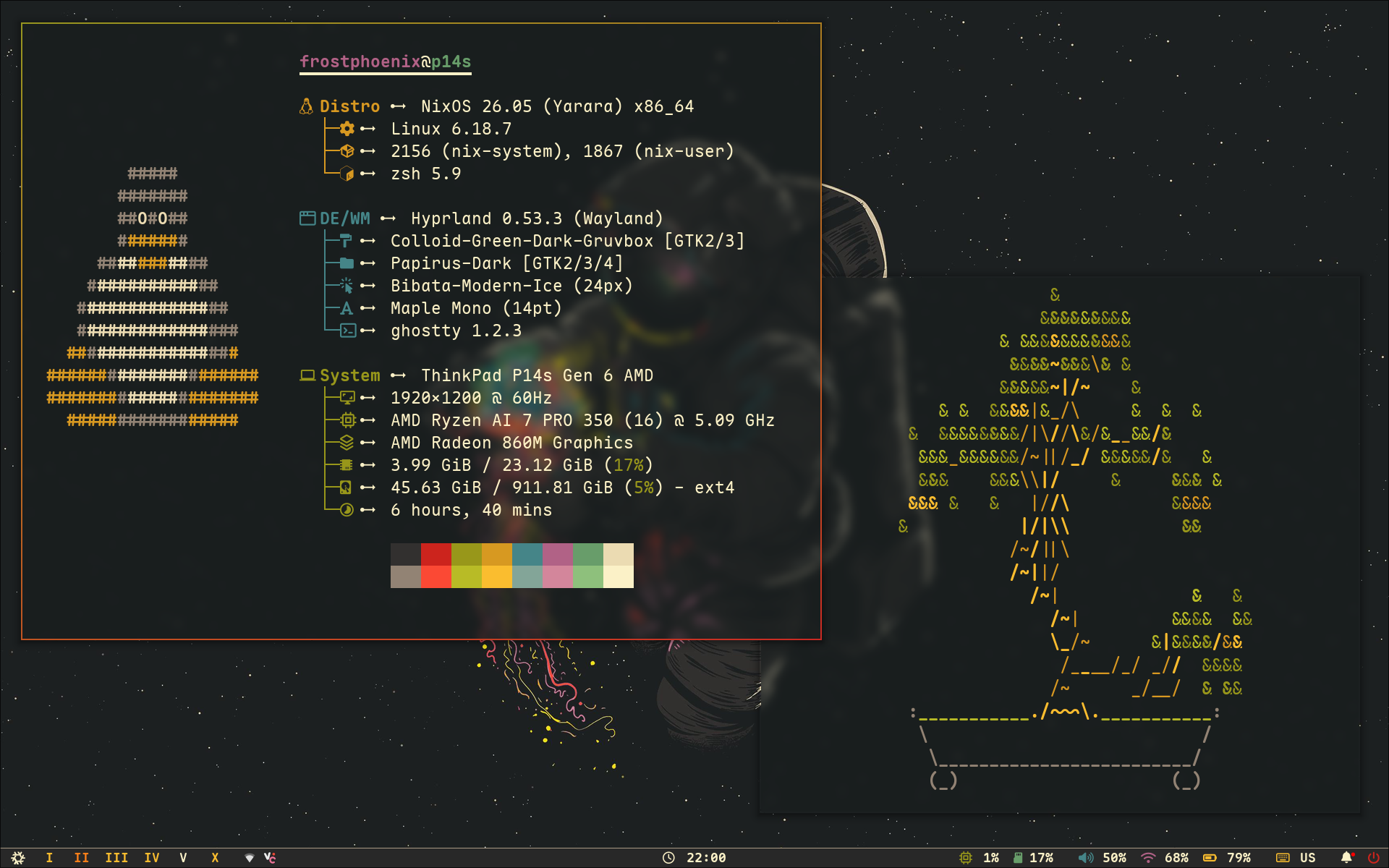
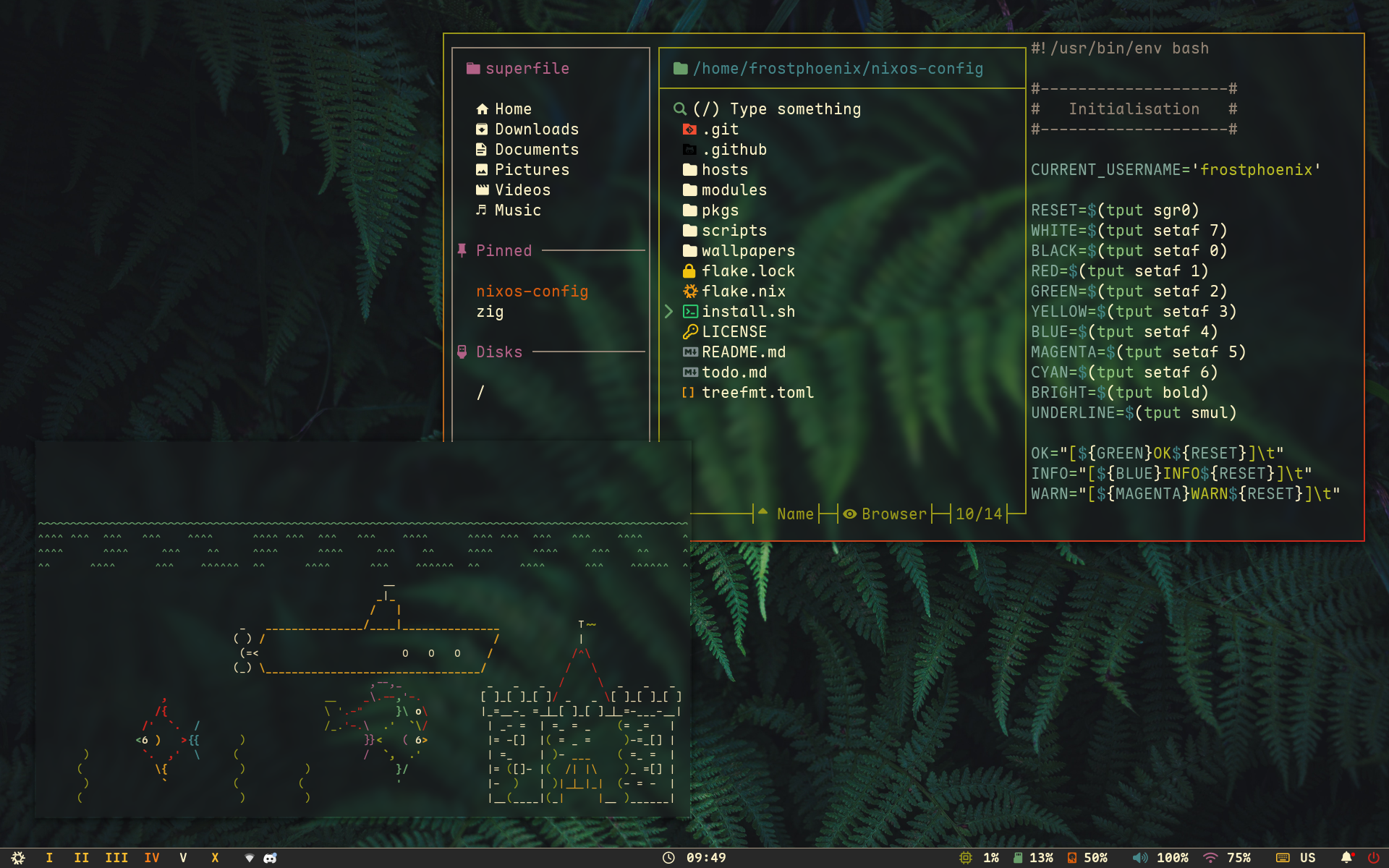
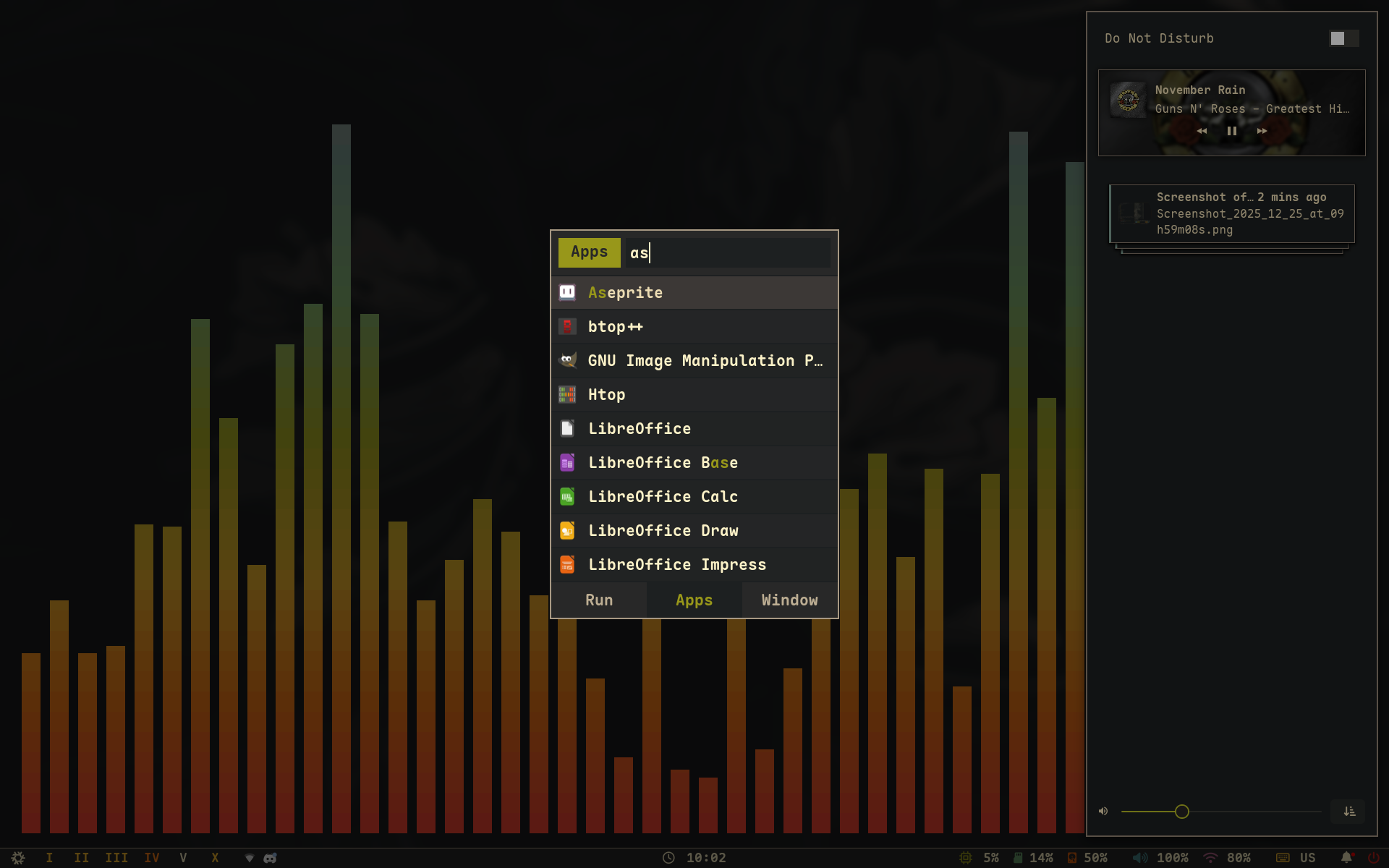
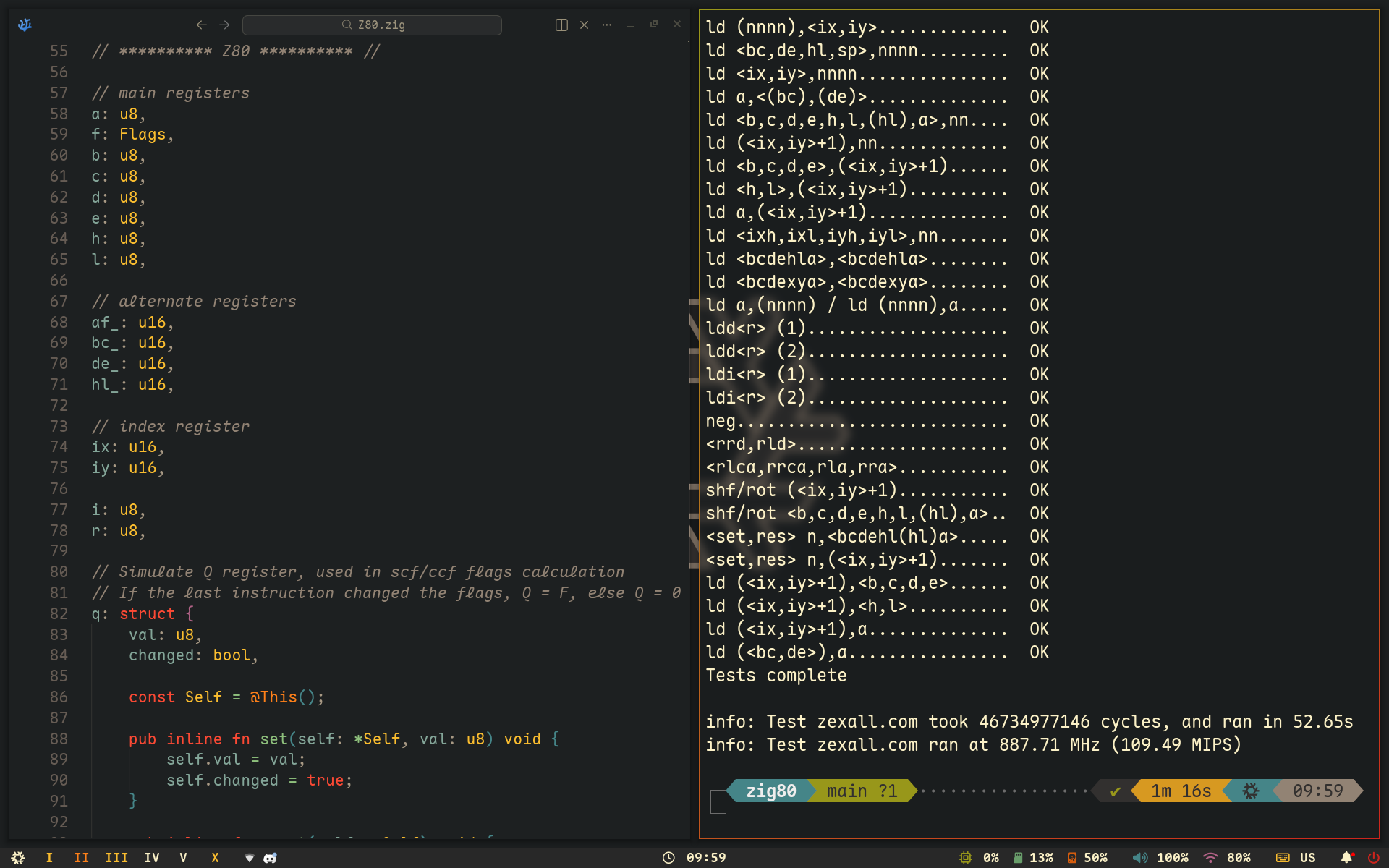
Screenshots last updated 2025-12-25

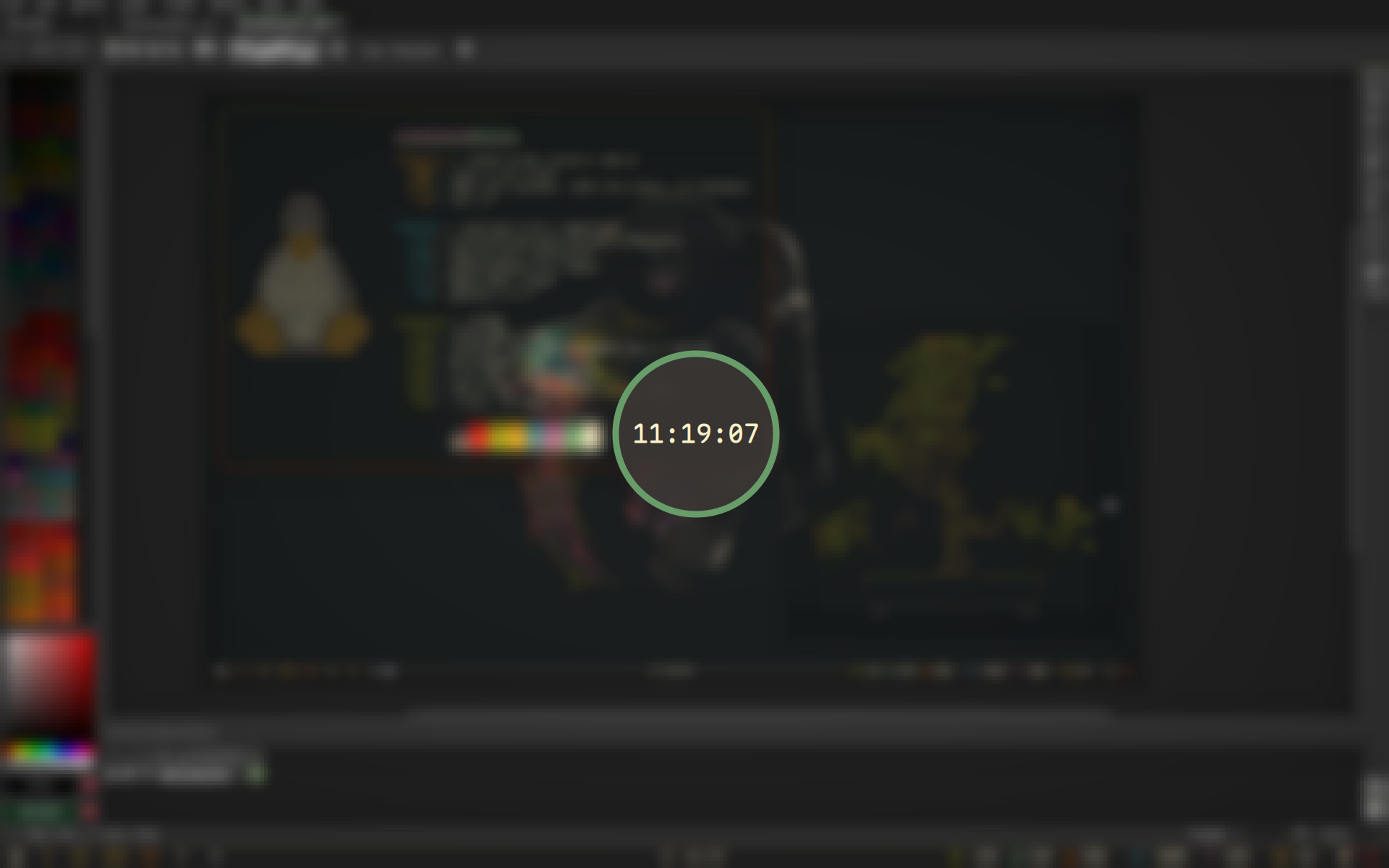
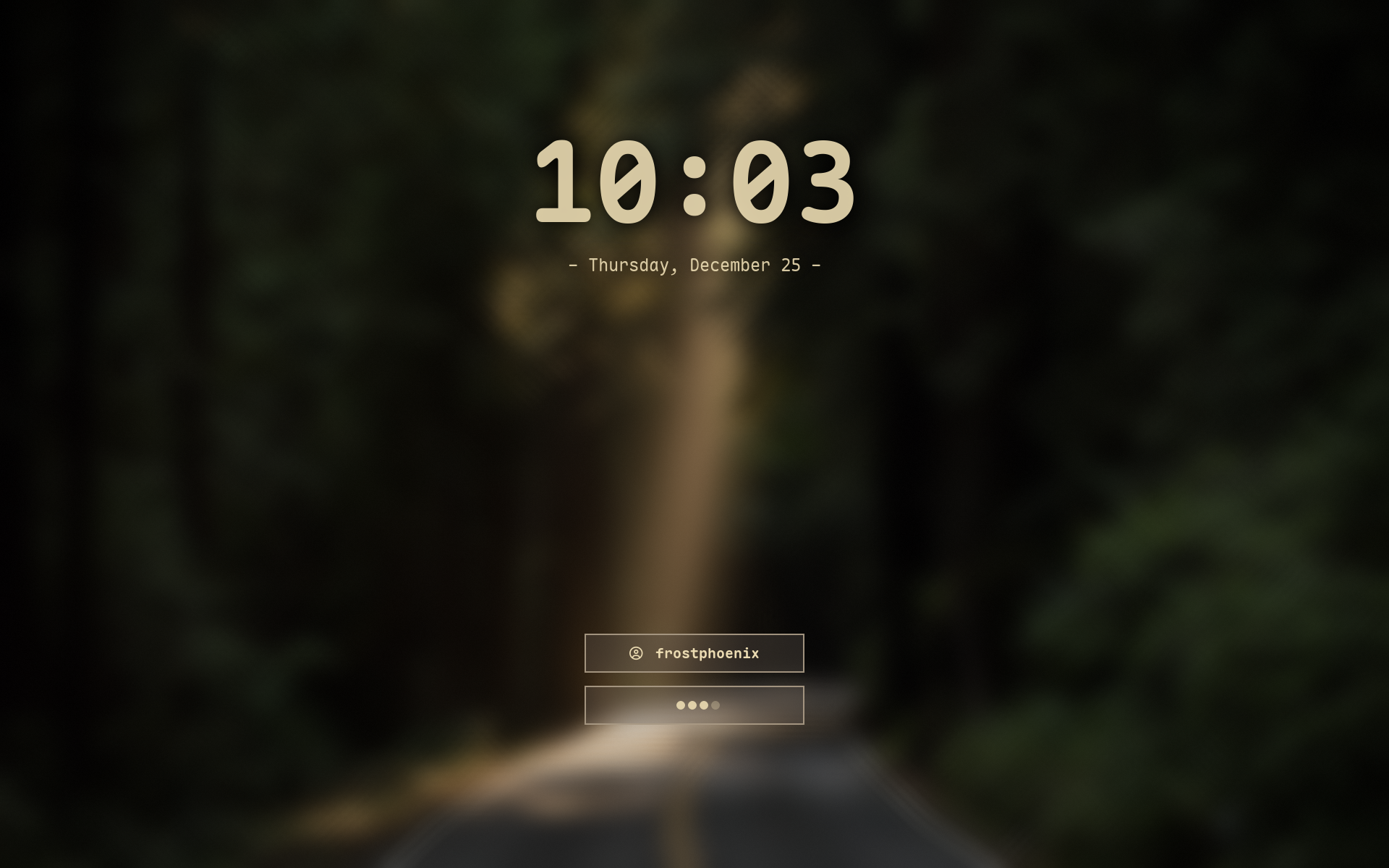
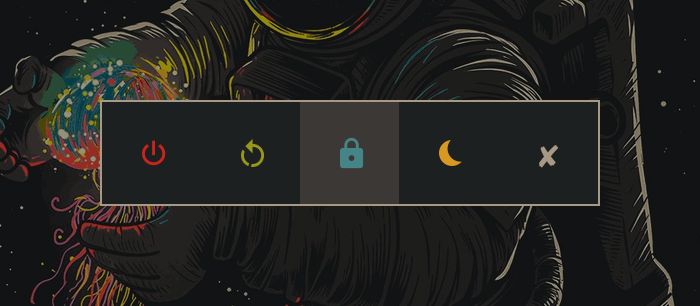
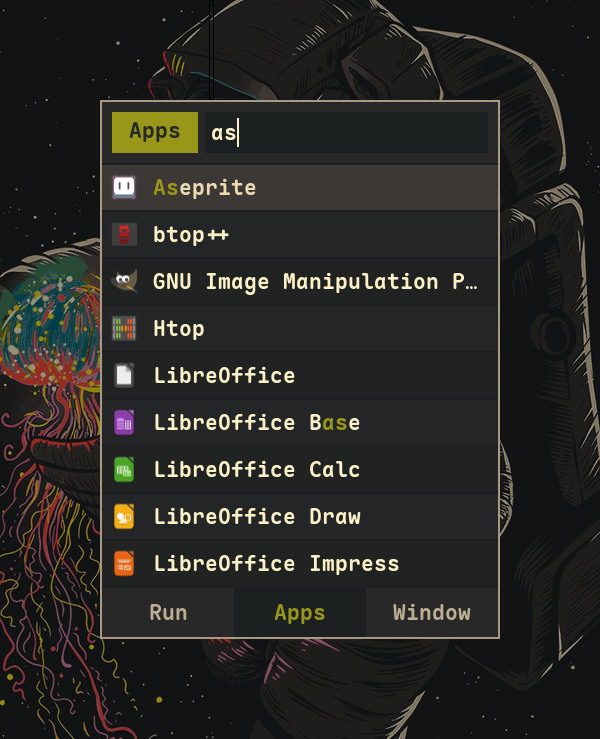
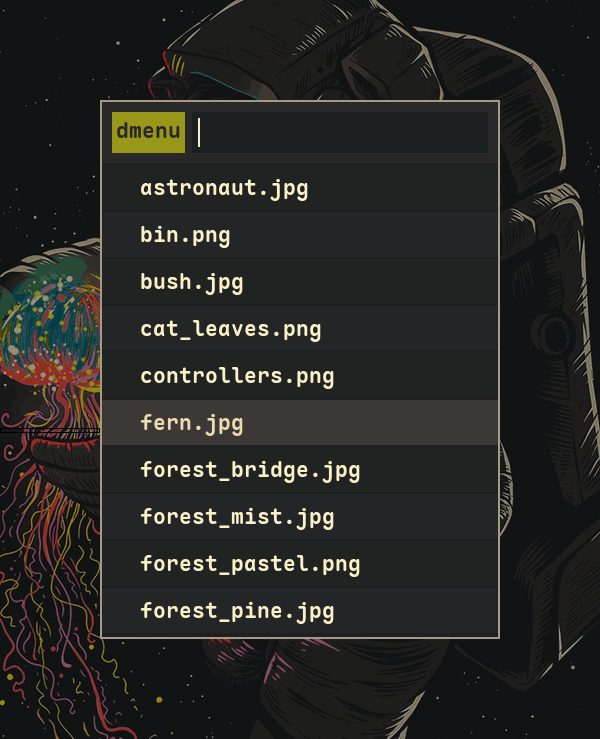
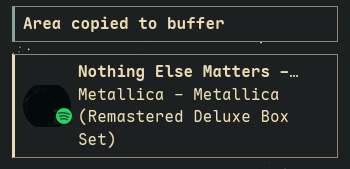
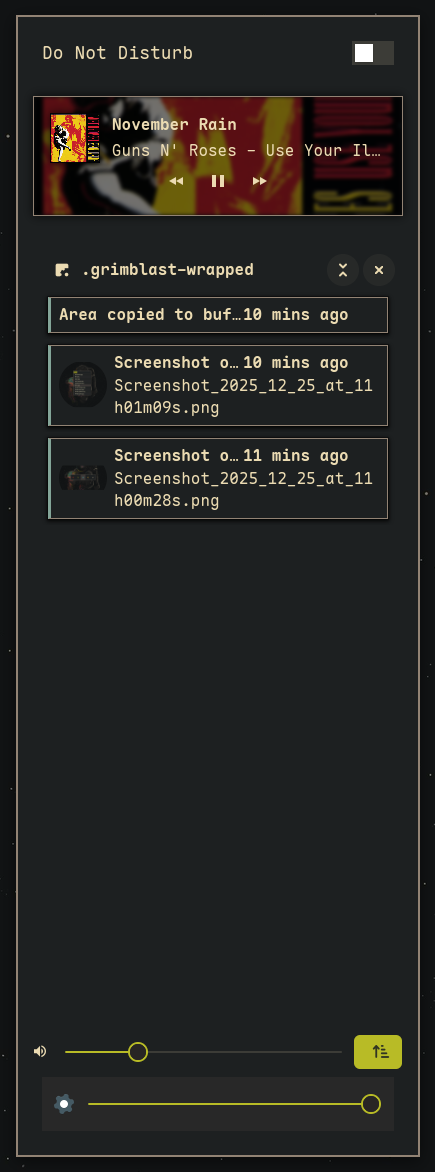
You can find my previous Catppuccin rice here (outdated).
[!IMPORTANT] This is my personal NixOS configuration, shared for reference and inspiration.
Please be aware:
- This configuration is constantly evolving - expect breaking changes
- The README and documentation are most likely outdated
- Features may be partially implemented or broken
- I provide no guarantees of stability
Before using any part of this configuration:
- Review the code thoroughly
- Understand what each module does
- And adapt it to your specific needs
| Component | Software |
|---|---|
| Window Manager | Hyprland |
| Bar | Waybar |
| Application Launcher | Rofi |
| Notification Daemon | swaync |
| Terminal Emulator | Ghostty |
| Shell | zsh + powerlevel10k |
| Text Editor | VSCodium + Neovim |
| network management tool | NetworkManager + network-manager-applet |
| System resource monitor | Btop |
| File Manager | superfile + nemo |
| Fonts | Maple Mono |
| Color Scheme | Gruvbox Dark Hard |
| GTK theme | Colloid gtk theme |
| Cursor | Bibata-Modern-Ice |
| Icons | Papirus-Dark |
| Lockscreen | Hyprlock + Swaylock-effects |
| Image Viewer | imv |
| Media Player | mpv |
| Music Player | audacious |
| Screenshot Software | grimblast |
| Screen Recording | wf-recorder + OBS |
| Clipboard | wl-clip-persist |
| Color Picker | hyprpicker |
Shell aliases are defined in two places. You can find git related aliases in git.nix, and all the others in zsh_alias.nix.
Some notable ones that can help you are:
| Alias | Command | Purpose |
|---|---|---|
nft | nh-notify nh os test | Test configuration changes without modifying the bootloader |
nfs | nh-notify nh os switch | Rebuild and activate the new system configuration |
nfu | nh-notify nh os switch --update | Update all flake inputs and rebuild/activate the new configuration (system update) |
ns | nom-shell --run zsh | Enter a nix shell |
nd | nom develop --command zsh | Enter a development environment from a flake.nix file |
nb | nom build | Build packages exported by a flake |
nc | nh-notify nh clean all --keep 5 | Clean up old Nix generations, keeping only the 5 most recent |
nsearch | nh search | Search nixpkgs for available packages |
All of the scripts are in the ./scripts/scripts/ folder and are exported as packages in ./scripts/scripts.nix.
Shell scripts are automatically discovered and exported as standalone packages. The package name becomes the script base name without its extension (i.e., ascii.sh will become the ascii command).
Note: Scripts must have names that end with .sh and be tracked by git to be automatically detected.
Since scripts are exposed as packages, you can:
ascii)To add your own script:
.sh file to ./scripts/scripts/./scripts/scripts/<name>.sh)nfs or nft)Location: ./scripts/
scripts/
├── scripts/            # All shell scripts are here
│   └── <script>.sh
└── scripts.nix         # Automatic scripts packaging
Keybindings are defined in binds.nix.
Quick access: Press $mod F1 to view all keybinds.
Here are some of the main keybinds:
| Category | Key Examples | Purpose |
|---|---|---|
| Navigation | $mod + 0-9/arrow keys | workspace & window navigation |
| Applications | $mod + return/d/b/e | terminal, launcher, browser, file manager |
| Window Control | $mod + q/f/space | close, fullscreen, float windows |
| Media & Tools | Print, $mod + c/w | screenshots, color picker, wallpaper picker |
| System | $mod + escape/shift escape | lockscreen, power menu |
[!CAUTION] This is a personal configuration. Use at your own risk. I am not responsible for any issues that may arise from using this setup. Always review and adapt the configuration to your needs before installation.
[!WARNING] VM Usage Notice: Hyprland does not officially support virtual machines. While it often works, you may encounter graphical issues, performance problems, or complete incompatibility depending on your VM configuration.
If you wish to test this configuration in a VM, please review Hyprland's VM guide for setup recommendations and known limitations.
First, install NixOS using any graphical ISO.
Tested with the GNOME installer using the "No desktop" option
nix-shell -p git
git clone https://github.com/Frost-Phoenix/nixos-config
cd nixos-config
The configuration expects the repo to be located at $HOME/nixos-config.
[!TIP] As it is better to know what a script does before running it, you are advised to read and understand it. You can find the install script here
./install.sh
The script will guide you through host selection and apply the configuration.
The installation phase can take quite some time depending on your machine.
[!NOTE] If the build gets stuck , due to RAM constraints (see PR #30), you may need to edit the script to limit CPU cores:
# Change in install.sh:
- sudo nixos-rebuild switch --flake .#${HOST}
+ sudo nixos-rebuild switch --cores 4 --flake .#${HOST}
After the installation completes, reboot your system. If the installation was successful, you should be greeted by Hyprlock.
Some manual configuration is still required:
programs.git = {
   ...
   userName = "<your_name>";
   userEmail = "<your_email>";
   ...
};
Other dotfiles that I copied learned from:
Nix Flakes
README
And many others I probably forgot to mention.
This project is licensed under the MIT License - see the LICENSE file for details.

54 followers · starred Jan 2025
60 followers · starred Jun 2024
31 followers · starred Aug 2026
20 followers · starred Apr 2025
Screenshots last updated 2025-12-25
You can find my previous Catppuccin rice here (outdated).
[!IMPORTANT] This is my personal NixOS configuration, shared for reference and inspiration.
Please be aware:
- This configuration is constantly evolving - expect breaking changes
- The README and documentation are most likely outdated
- Features may be partially implemented or broken
- I provide no guarantees of stability
Before using any part of this configuration:
- Review the code thoroughly
- Understand what each module does
- And adapt it to your specific needs
| Component | Software |
|---|---|
| Window Manager | Hyprland |
| Bar | Waybar |
| Application Launcher | Rofi |
| Notification Daemon | swaync |
| Terminal Emulator | Ghostty |
| Shell | zsh + powerlevel10k |
| Text Editor | VSCodium + Neovim |
| network management tool | NetworkManager + network-manager-applet |
| System resource monitor | Btop |
| File Manager | superfile + nemo |
| Fonts | Maple Mono |
| Color Scheme | Gruvbox Dark Hard |
| GTK theme | Colloid gtk theme |
| Cursor | Bibata-Modern-Ice |
| Icons | Papirus-Dark |
| Lockscreen | Hyprlock + Swaylock-effects |
| Image Viewer | imv |
| Media Player | mpv |
| Music Player | audacious |
| Screenshot Software | grimblast |
| Screen Recording | wf-recorder + OBS |
| Clipboard | wl-clip-persist |
| Color Picker | hyprpicker |
Shell aliases are defined in two places. You can find git related aliases in git.nix, and all the others in zsh_alias.nix.
Some notable ones that can help you are:
| Alias | Command | Purpose |
|---|---|---|
nft | nh-notify nh os test | Test configuration changes without modifying the bootloader |
nfs | nh-notify nh os switch | Rebuild and activate the new system configuration |
nfu | nh-notify nh os switch --update | Update all flake inputs and rebuild/activate the new configuration (system update) |
ns | nom-shell --run zsh | Enter a nix shell |
nd | nom develop --command zsh | Enter a development environment from a flake.nix file |
nb | nom build | Build packages exported by a flake |
nc | nh-notify nh clean all --keep 5 | Clean up old Nix generations, keeping only the 5 most recent |
nsearch | nh search | Search nixpkgs for available packages |
All of the scripts are in the ./scripts/scripts/ folder and are exported as packages in ./scripts/scripts.nix.
Shell scripts are automatically discovered and exported as standalone packages. The package name becomes the script base name without its extension (i.e., ascii.sh will become the ascii command).
Note: Scripts must have names that end with .sh and be tracked by git to be automatically detected.
Since scripts are exposed as packages, you can:
ascii)To add your own script:
.sh file to ./scripts/scripts/./scripts/scripts/<name>.sh)nfs or nft)Location: ./scripts/
scripts/
├── scripts/            # All shell scripts are here
│   └── <script>.sh
└── scripts.nix         # Automatic scripts packaging
Keybindings are defined in binds.nix.
Quick access: Press $mod F1 to view all keybinds.
Here are some of the main keybinds:
| Category | Key Examples | Purpose |
|---|---|---|
| Navigation | $mod + 0-9/arrow keys | workspace & window navigation |
| Applications | $mod + return/d/b/e | terminal, launcher, browser, file manager |
| Window Control | $mod + q/f/space | close, fullscreen, float windows |
| Media & Tools | Print, $mod + c/w | screenshots, color picker, wallpaper picker |
| System | $mod + escape/shift escape | lockscreen, power menu |
[!CAUTION] This is a personal configuration. Use at your own risk. I am not responsible for any issues that may arise from using this setup. Always review and adapt the configuration to your needs before installation.
[!WARNING] VM Usage Notice: Hyprland does not officially support virtual machines. While it often works, you may encounter graphical issues, performance problems, or complete incompatibility depending on your VM configuration.
If you wish to test this configuration in a VM, please review Hyprland's VM guide for setup recommendations and known limitations.
First, install NixOS using any graphical ISO.
Tested with the GNOME installer using the "No desktop" option
nix-shell -p git
git clone https://github.com/Frost-Phoenix/nixos-config
cd nixos-config
The configuration expects the repo to be located at $HOME/nixos-config.
[!TIP] As it is better to know what a script does before running it, you are advised to read and understand it. You can find the install script here
./install.sh
The script will guide you through host selection and apply the configuration.
The installation phase can take quite some time depending on your machine.
[!NOTE] If the build gets stuck , due to RAM constraints (see PR #30), you may need to edit the script to limit CPU cores:
# Change in install.sh:
- sudo nixos-rebuild switch --flake .#${HOST}
+ sudo nixos-rebuild switch --cores 4 --flake .#${HOST}
After the installation completes, reboot your system. If the installation was successful, you should be greeted by Hyprlock.
Some manual configuration is still required:
programs.git = {
   ...
   userName = "<your_name>";
   userEmail = "<your_email>";
   ...
};
Other dotfiles that I copied learned from:
Nix Flakes
README
And many others I probably forgot to mention.
This project is licensed under the MIT License - see the LICENSE file for details.
54 followers · starred Jan 2025
60 followers · starred Jun 2024
31 followers · starred Aug 2026
20 followers · starred Apr 2025