
Automatically organize your files on Windows and Linux using customizable rules.
See the codeSee what people are saying
README

FolderOrganizer
Keep your files organized automatically on Windows and Linux.
A lightweight, open-source application that automatically sorts your files using customizable rules on Windows and Linux.
🇺🇸 English | 🇲🇽 Español
⬇ Download latest · 📖 Installation · 💖 Sponsor





✨ What is FolderOrganizer?
Files downloaded from the internet, chats, or email often end up accumulating in a single folder such as Downloads.
Over time, finding documents, images, installers, or other important files becomes increasingly difficult.
FolderOrganizer automates this task by monitoring the directory you configure and moving files into categorized folders according to their extensions and the rules you define.
It can run:
- 🔄 Automatically as a Windows Service or systemd service on Linux.
- 💻 Manually whenever you want to organize your files.
- ⚙️ With a predefined folder structure.
- 🛠️ With custom rules.
🎬 See it in action
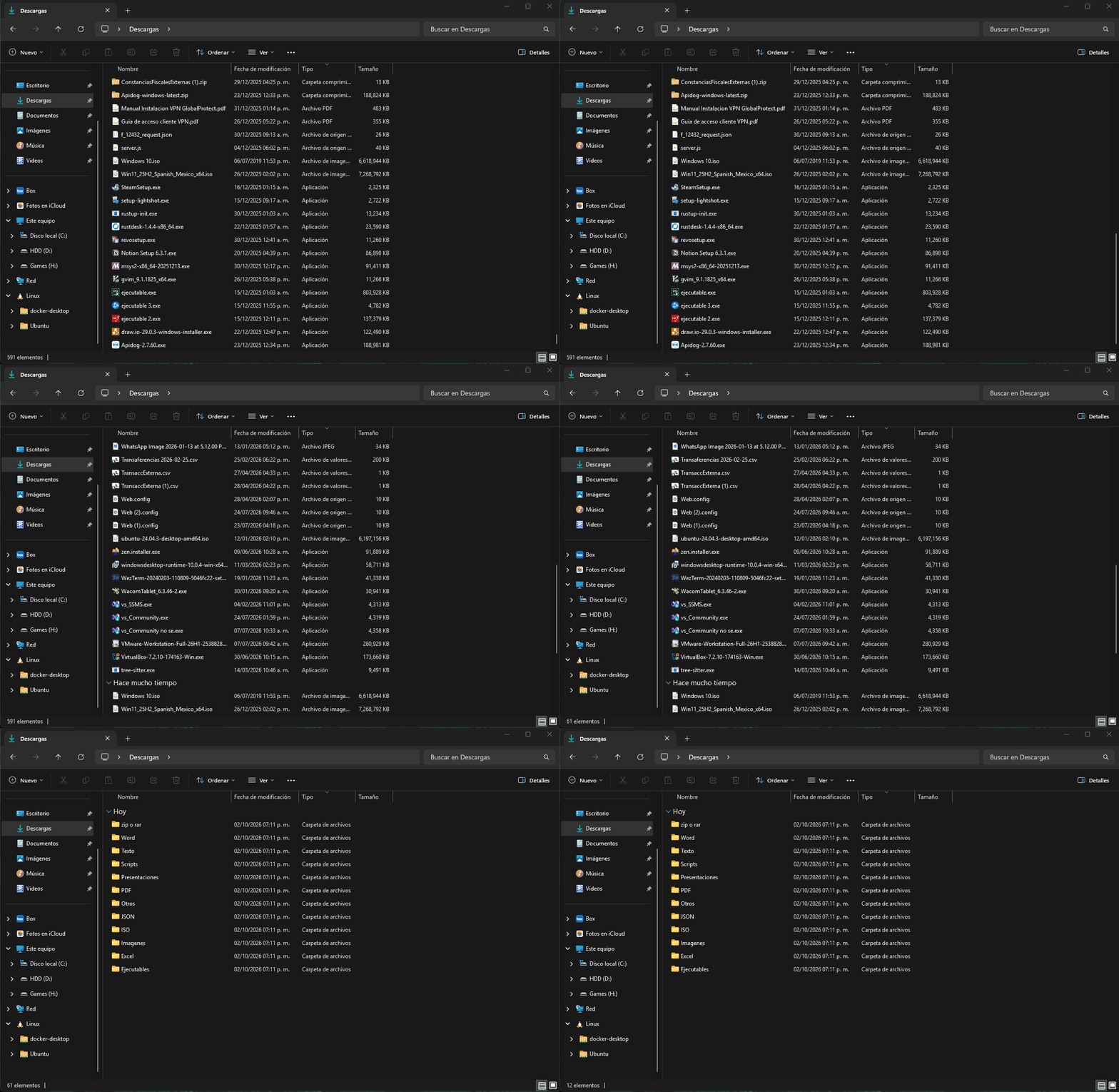
👀 Before and after
Before
Downloads/
├── archive.zip
├── photo.jpg
├── document.docx
├── notes.txt
├── setup_installer.exe
├── report.xlsx
├── unknown.file
├── Windows10.iso
├── data.json
├── invoice.pdf
├── presentation.pptx
└── script.js
After
Downloads/
├── zip o rar/
├── Imagenes/
├── Word/
├── Texto/
├── Ejecutables/
├── Excel/
├── Otros/
├── ISO/
├── JSON/
├── PDF/
├── Presentaciones/
└── Scripts/
The example reflects the default FolderOrganizer categories. With custom rules, the final structure can be adapted to your preferred folders and extensions.
⭐ Features
- 📁 Automatic file organization.
- ⚙️ Customizable rules.
- 🗂️ File classification by extension.
- 🔄 Automatic execution through a Windows Service.
- 💻 Manual execution whenever needed.
- 🧙 Interactive configuration wizard.
- 🗣️ Language selection.
- 💾 Reuse of previous configurations.
- 📦 Validated Windows installer and Linux-compatible runtime.
- 🔓 Open source.
📥 Quick installation
Windows
The recommended and validated installation for v1.2.0 is the official Windows installer available from GitHub Releases.
- Go to Releases.
- Download
FolderOrganizer_Installer.exe. - Run the installer.
- Follow the installation wizard.
- Open FolderOrganizer from the Windows Start menu.
⬇ Download the latest version
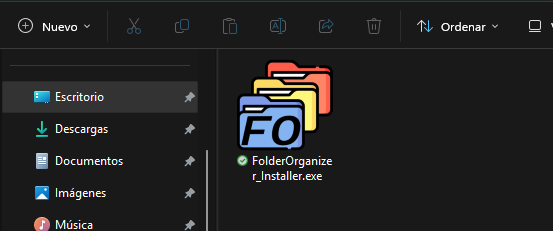
[!NOTE] Administrator permissions: FolderOrganizer requires administrator privileges to register or manage the Windows Service when this option is used.
After installation, find FolderOrganizer in the Windows Start menu.
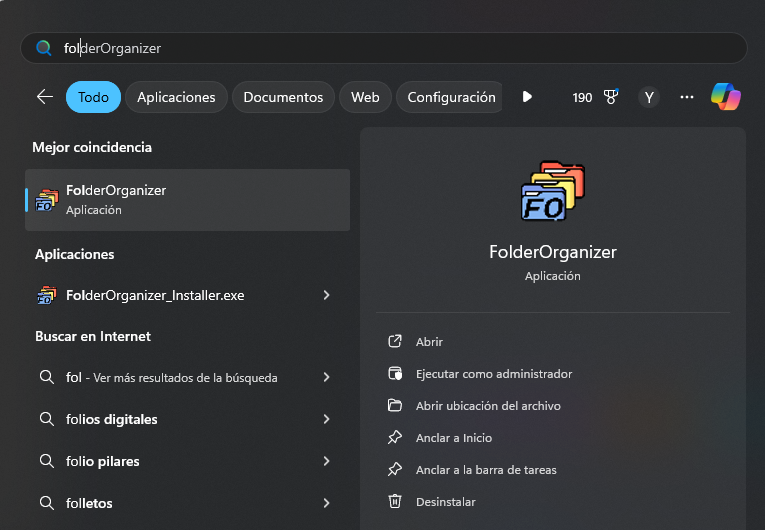
The interactive application runs with normal user permissions. Administrator elevation is requested only when FolderOrganizer needs to register or manage the Windows Service.
Linux
Linux support is included in the codebase and can run with systemd, but it has not yet completed the same real-world distribution validation as the Windows installer. For v1.2.0, Windows remains the primary validated distribution.
⚙️ Configuration
FolderOrganizer includes an interactive wizard that lets you configure how your files should be organized.
🗣️ Language selection
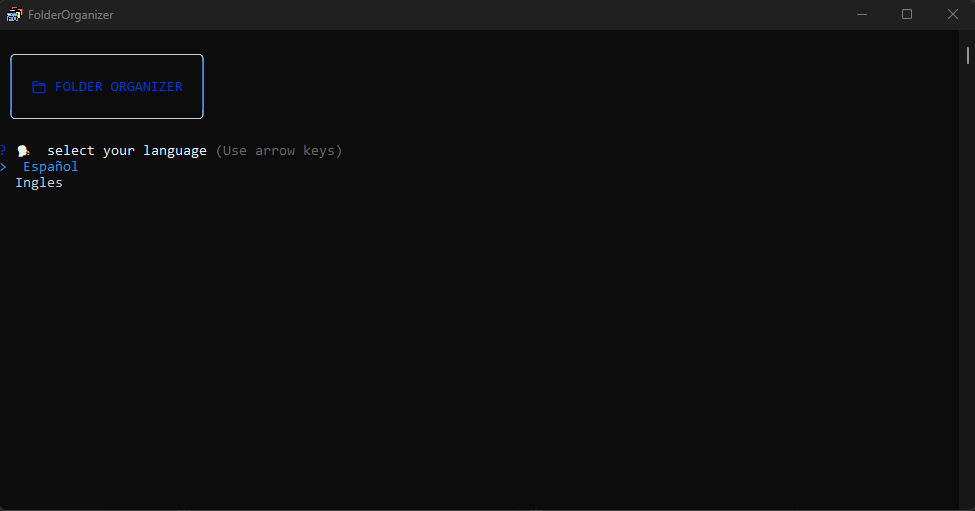
Choose your preferred language for the configuration process.
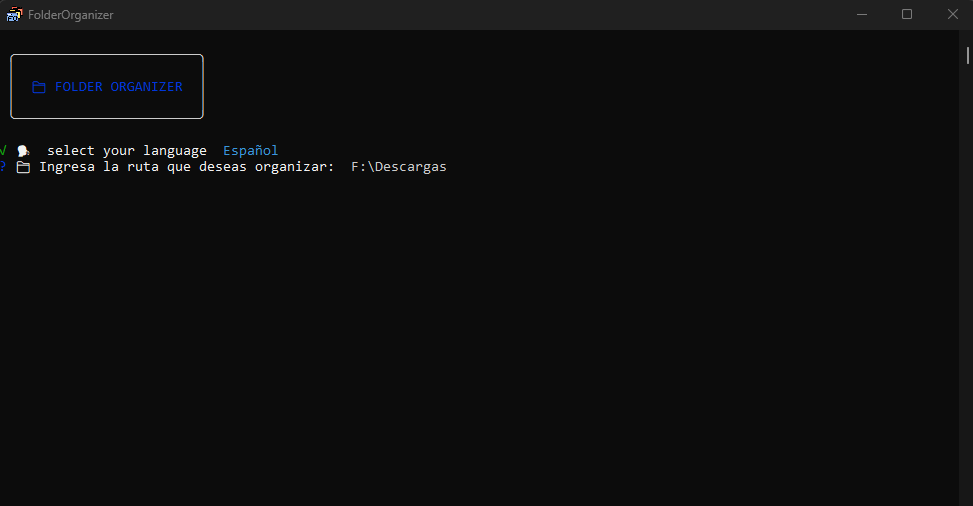
The application lets you choose between:
- Default: uses a predefined organization structure.
- Custom: lets you choose the folders and file extensions you want to use.
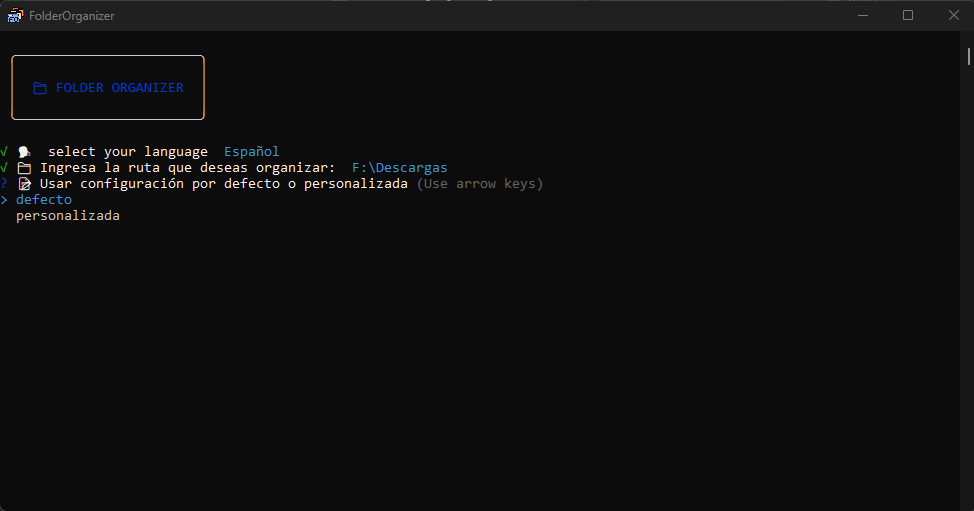
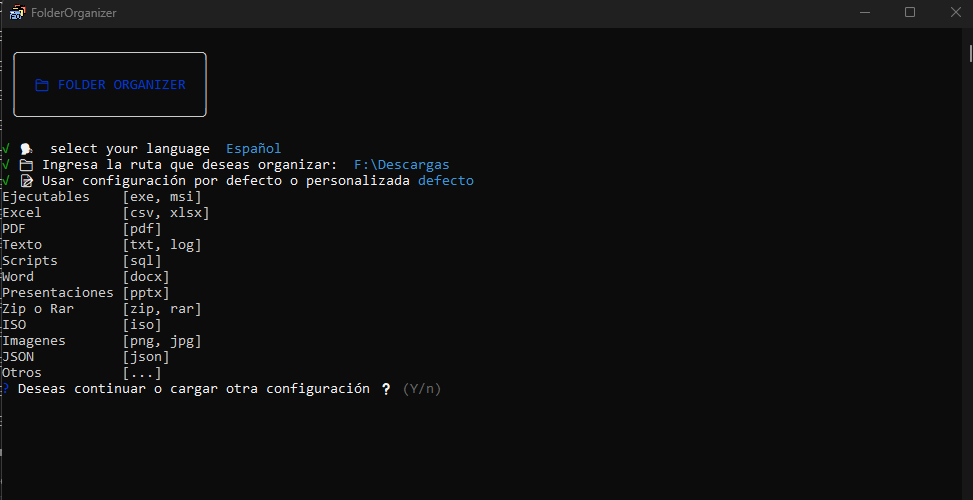
📁 Default configuration
The default configuration displays the standard folders that will be created along with the file extensions FolderOrganizer will use for automatic classification.
🛠️ Custom configuration
Custom configuration gives you greater control by allowing you to specify which folders and extensions should be included in the organization process.
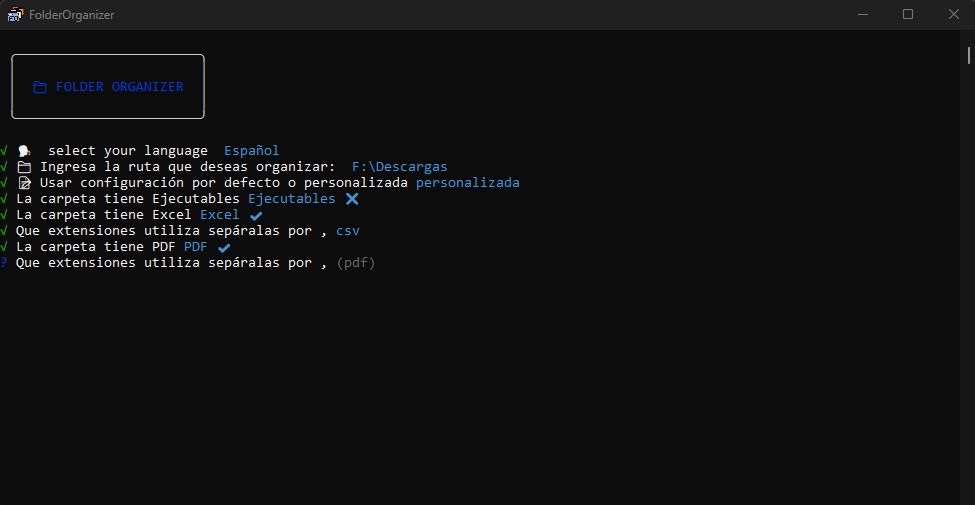
At the end of either configuration flow, FolderOrganizer asks you to confirm the settings before saving your preferences.
🔄 Windows Service automation
The recommended way to use FolderOrganizer is through a Windows Service.
When the service is active, FolderOrganizer runs silently in the background and automatically organizes files that arrive in the configured directory.
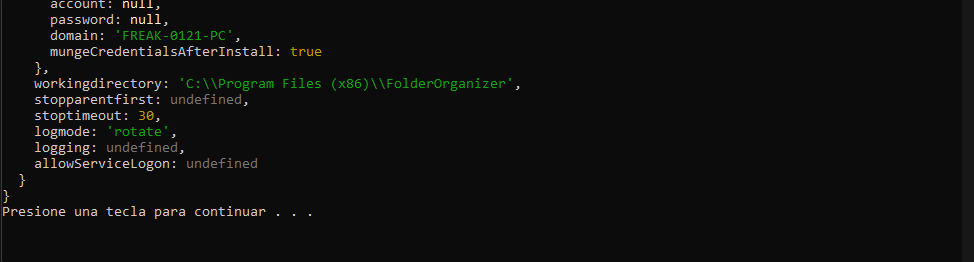
Once the service has been created successfully, the console displays a confirmation message.
[!TIP] Using the Windows Service fully automates the process and removes the need to run FolderOrganizer manually.
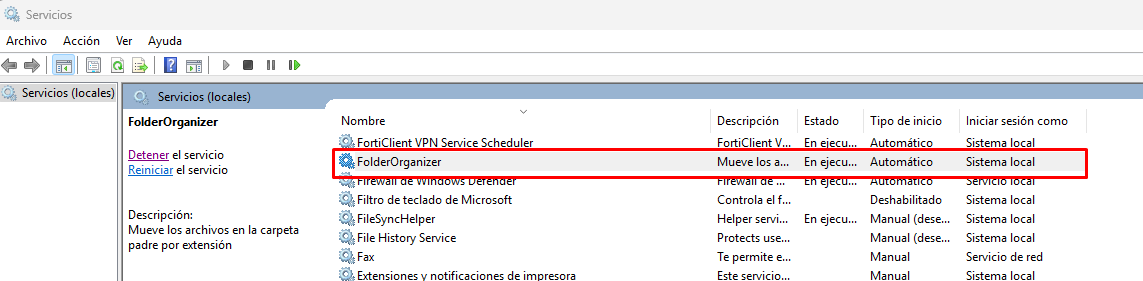
You can verify the service status from the Windows Services management tool. The service is registered as:
FolderOrganizer
💻 Manual execution
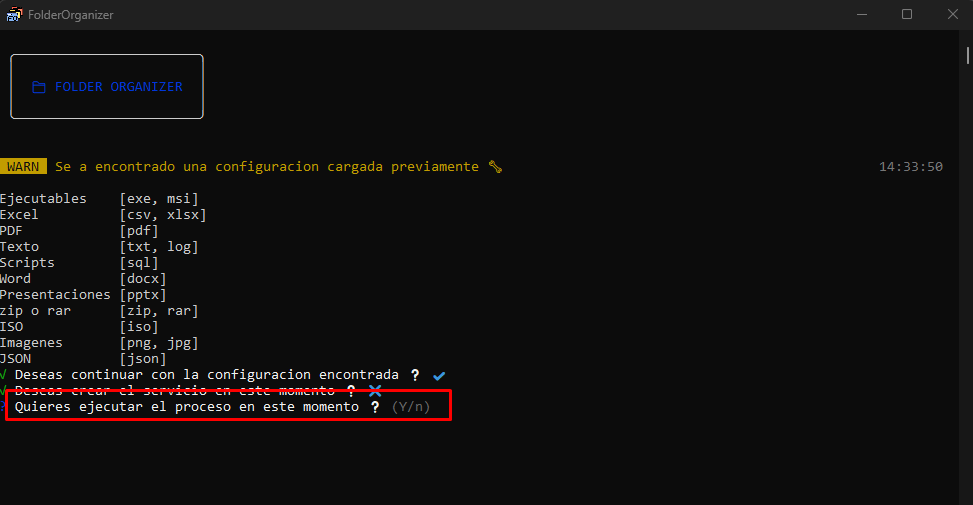
If you prefer not to install the Windows Service, FolderOrganizer can also be run manually.
During configuration, choose not to create the service. The application will ask whether you want to organize the files immediately.
📝 Previous configuration
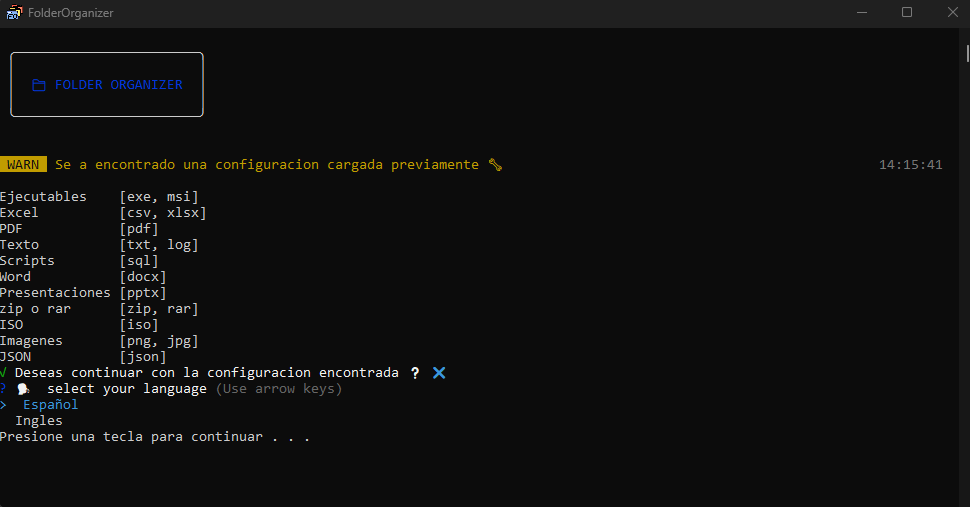
From the second run onward, FolderOrganizer detects whether a previous configuration exists.
You can keep using the existing configuration or create a new one.
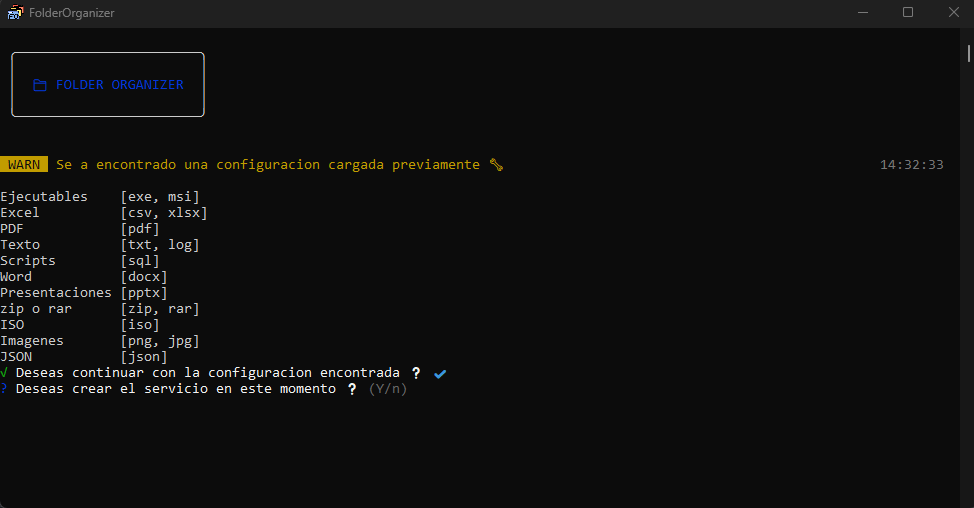
If you need to modify the organization rules, select n to start the wizard again.
👨💻 For developers
FolderOrganizer is open source. You can inspect the code, modify it, and build your own installer.
🔧 Build the installer
You will need:
- Node.js
- Inno Setup 6
From the project root, run:
pnpm run build:installer
The process prepares the application files in:
dist/FolderOrganizer-build
and generates the installer at:
dist/FolderOrganizer-Installer/FolderOrganizer_Installer.exe
If Inno Setup is installed in a custom directory, define ISCC_PATH before building:
$env:ISCC_PATH = 'C:\path\to\ISCC.exe'
pnpm run build:installer
🛠️ Technologies
Application logic and core
- Node.js — JavaScript runtime.
- Inquirer — interactive command-line configuration wizard.
- node-windows — Windows Service integration and installation.
- systemd — background service integration on Linux.
- Color — visual formatting for the CLI.
- ESLint — code quality tooling.
- cross-env — environment variable management.
Packaging
- Inno Setup Compiler — Windows installer generation.
- Inkscape — used to create the FolderOrganizer icon.
🗺️ Roadmap
Development priorities and planned improvements are tracked in ROADMAP.md. Release history is available in CHANGELOG.md.
Linux support is included in the codebase, but Windows remains the primary validated distribution for v1.2.0.
🤝 Contributing
Contributions are welcome.
If you would like to report a bug, suggest a feature, or contribute code, please read our contribution guide.
You can also support the project by leaving a ⭐ on the repository.
💖 Support the project
FolderOrganizer is an open-source tool developed and maintained independently.
If you find it useful and would like to support its maintenance and future development:
Your support helps fund maintenance, bug fixes, documentation, and new features.
📄 License
FolderOrganizer is distributed under the MIT License.
See LICENSE for more information.
Developed by FrEaKAlL.
If FolderOrganizer is useful to you, consider leaving a ⭐ on the repository.
Similar repos


Automatically organize your files on Windows and Linux using customizable rules.
See the codeSee what people are saying
README
FolderOrganizer
Keep your files organized automatically on Windows and Linux.
A lightweight, open-source application that automatically sorts your files using customizable rules on Windows and Linux.
🇺🇸 English | 🇲🇽 Español
⬇ Download latest · 📖 Installation · 💖 Sponsor
✨ What is FolderOrganizer?
Files downloaded from the internet, chats, or email often end up accumulating in a single folder such as Downloads.
Over time, finding documents, images, installers, or other important files becomes increasingly difficult.
FolderOrganizer automates this task by monitoring the directory you configure and moving files into categorized folders according to their extensions and the rules you define.
It can run:
- 🔄 Automatically as a Windows Service or systemd service on Linux.
- 💻 Manually whenever you want to organize your files.
- ⚙️ With a predefined folder structure.
- 🛠️ With custom rules.
🎬 See it in action
👀 Before and after
Before
Downloads/
├── archive.zip
├── photo.jpg
├── document.docx
├── notes.txt
├── setup_installer.exe
├── report.xlsx
├── unknown.file
├── Windows10.iso
├── data.json
├── invoice.pdf
├── presentation.pptx
└── script.js
After
Downloads/
├── zip o rar/
├── Imagenes/
├── Word/
├── Texto/
├── Ejecutables/
├── Excel/
├── Otros/
├── ISO/
├── JSON/
├── PDF/
├── Presentaciones/
└── Scripts/
The example reflects the default FolderOrganizer categories. With custom rules, the final structure can be adapted to your preferred folders and extensions.
⭐ Features
- 📁 Automatic file organization.
- ⚙️ Customizable rules.
- 🗂️ File classification by extension.
- 🔄 Automatic execution through a Windows Service.
- 💻 Manual execution whenever needed.
- 🧙 Interactive configuration wizard.
- 🗣️ Language selection.
- 💾 Reuse of previous configurations.
- 📦 Validated Windows installer and Linux-compatible runtime.
- 🔓 Open source.
📥 Quick installation
Windows
The recommended and validated installation for v1.2.0 is the official Windows installer available from GitHub Releases.
- Go to Releases.
- Download
FolderOrganizer_Installer.exe. - Run the installer.
- Follow the installation wizard.
- Open FolderOrganizer from the Windows Start menu.
⬇ Download the latest version
[!NOTE] Administrator permissions: FolderOrganizer requires administrator privileges to register or manage the Windows Service when this option is used.
After installation, find FolderOrganizer in the Windows Start menu.
The interactive application runs with normal user permissions. Administrator elevation is requested only when FolderOrganizer needs to register or manage the Windows Service.
Linux
Linux support is included in the codebase and can run with systemd, but it has not yet completed the same real-world distribution validation as the Windows installer. For v1.2.0, Windows remains the primary validated distribution.
⚙️ Configuration
FolderOrganizer includes an interactive wizard that lets you configure how your files should be organized.
🗣️ Language selection
Choose your preferred language for the configuration process.
The application lets you choose between:
- Default: uses a predefined organization structure.
- Custom: lets you choose the folders and file extensions you want to use.
📁 Default configuration
The default configuration displays the standard folders that will be created along with the file extensions FolderOrganizer will use for automatic classification.
🛠️ Custom configuration
Custom configuration gives you greater control by allowing you to specify which folders and extensions should be included in the organization process.
At the end of either configuration flow, FolderOrganizer asks you to confirm the settings before saving your preferences.
🔄 Windows Service automation
The recommended way to use FolderOrganizer is through a Windows Service.
When the service is active, FolderOrganizer runs silently in the background and automatically organizes files that arrive in the configured directory.
Once the service has been created successfully, the console displays a confirmation message.
[!TIP] Using the Windows Service fully automates the process and removes the need to run FolderOrganizer manually.
You can verify the service status from the Windows Services management tool. The service is registered as:
FolderOrganizer
💻 Manual execution
If you prefer not to install the Windows Service, FolderOrganizer can also be run manually.
During configuration, choose not to create the service. The application will ask whether you want to organize the files immediately.
📝 Previous configuration
From the second run onward, FolderOrganizer detects whether a previous configuration exists.
You can keep using the existing configuration or create a new one.
If you need to modify the organization rules, select n to start the wizard again.
👨💻 For developers
FolderOrganizer is open source. You can inspect the code, modify it, and build your own installer.
🔧 Build the installer
You will need:
- Node.js
- Inno Setup 6
From the project root, run:
pnpm run build:installer
The process prepares the application files in:
dist/FolderOrganizer-build
and generates the installer at:
dist/FolderOrganizer-Installer/FolderOrganizer_Installer.exe
If Inno Setup is installed in a custom directory, define ISCC_PATH before building:
$env:ISCC_PATH = 'C:\path\to\ISCC.exe'
pnpm run build:installer
🛠️ Technologies
Application logic and core
- Node.js — JavaScript runtime.
- Inquirer — interactive command-line configuration wizard.
- node-windows — Windows Service integration and installation.
- systemd — background service integration on Linux.
- Color — visual formatting for the CLI.
- ESLint — code quality tooling.
- cross-env — environment variable management.
Packaging
- Inno Setup Compiler — Windows installer generation.
- Inkscape — used to create the FolderOrganizer icon.
🗺️ Roadmap
Development priorities and planned improvements are tracked in ROADMAP.md. Release history is available in CHANGELOG.md.
Linux support is included in the codebase, but Windows remains the primary validated distribution for v1.2.0.
🤝 Contributing
Contributions are welcome.
If you would like to report a bug, suggest a feature, or contribute code, please read our contribution guide.
You can also support the project by leaving a ⭐ on the repository.
💖 Support the project
FolderOrganizer is an open-source tool developed and maintained independently.
If you find it useful and would like to support its maintenance and future development:
Your support helps fund maintenance, bug fixes, documentation, and new features.
📄 License
FolderOrganizer is distributed under the MIT License.
See LICENSE for more information.
Developed by FrEaKAlL.
If FolderOrganizer is useful to you, consider leaving a ⭐ on the repository.