A (TUI/CLI) markdown navigator with tree-based structural navigation.
Rust
703
346 commits
updated Oct 18, 2026



A markdown navigator with tree-based structural navigation. Like the tree command, but interactive—navigate markdown documents using an expandable/collapsible heading tree with a synchronized content view.
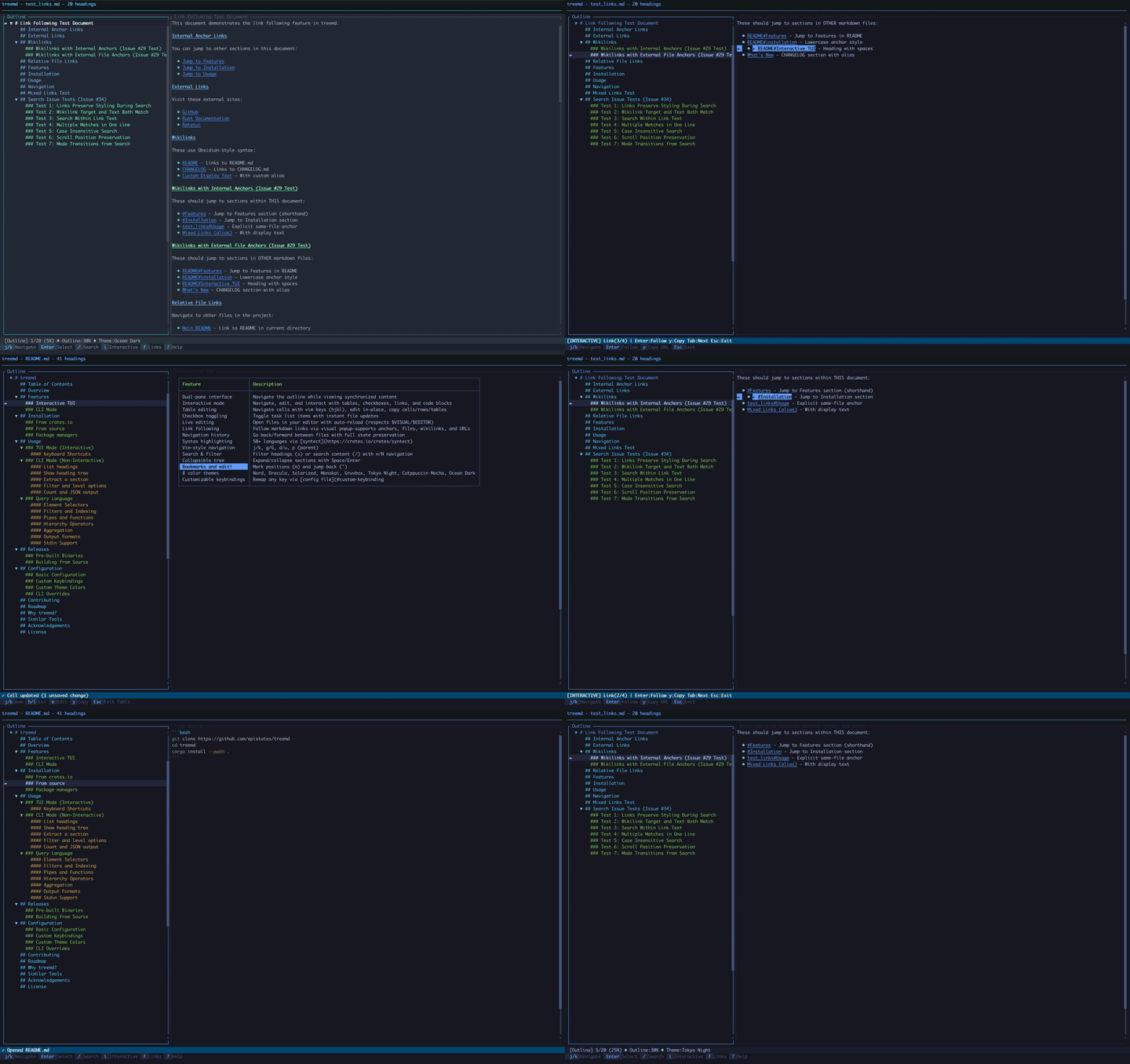
treemd is a modern markdown viewer that combines the structural clarity of the tree command with powerful interactive navigation. Whether you're exploring large documentation files, analyzing markdown structure, or reading comfortably in your terminal, treemd provides both CLI tools for scripting and a beautiful TUI for interactive exploration.
Use it to:
| Feature | Description |
|---|---|
| Dual-pane interface | Navigate the outline while viewing synchronized content |
| Interactive mode | Navigate, edit, and interact with tables, checkboxes, links, and code blocks |
| Table editing | Navigate cells with vim keys (hjkl), edit in-place, copy cells/rows/tables |
| Checkbox toggling | Toggle task list items with instant file updates |
| Live editing | Open files in your editor with auto-reload (respects $VISUAL/$EDITOR) |
| Link following | Follow markdown links via visual popup—supports anchors, files, wikilinks, and URLs |
| Navigation history | Go back/forward between files with full state preservation |
| Syntax highlighting | 50+ languages via syntect |
| Vim-style navigation | j/k, g/G, d/u, p (parent) |
| Search & filter | Filter headings (s) or search the current section (/) with n/N navigation |
| Command palette | Fuzzy-search every command with :—no need to memorize keys |
| Collapsible tree | Expand/collapse sections with Space/Enter |
| Bookmarks | Mark positions (m) and jump back (') |
| Callouts | GFM alerts and Obsidian callouts (> [!NOTE], > [!WARNING], …) rendered with icons and accent colors |
| Remote documents | Open URLs directly: treemd https://… or treemd github:owner/repo |
| 8 color themes | Nord, Dracula, Solarized, Monokai, Gruvbox, Tokyo Night, Catppuccin Mocha, Ocean Dark |
| Customizable keybindings | Remap any key via config file |
| Feature | Description |
|---|---|
| Query language | jq-like syntax for extracting markdown elements |
| List headings | Quick overview with -l |
| Tree visualization | Hierarchical display with --tree |
| Section extraction | Extract by heading name with -s |
| Smart filtering | Filter by text or level (--filter, -L) |
| Line ranges | Append each heading's [start-end] line range with -n |
| Multiple formats | Plain text or JSON output (-o json) |
| Statistics | Count headings by level (--count) |
| Stdin support | Pipe markdown content (cat doc.md | treemd -q '.h') |
Pro tip: --tree -n shows each section's line range, so you can read just the lines you need from a large file, or pull one out whole with --section. The query language brings jq-like power to markdown extraction.
cargo install treemd
git clone https://github.com/epistates/treemd
cd treemd
cargo install --path .
Homebrew (macOS/Linux):
brew install treemd
Arch Linux (extra repo):
pacman -S treemd
pkgin install treemd
treemd --setup-completions   # Interactive tab-completion setup (bash/zsh/fish)
treemd --man-page > treemd.1 # Generate the man page (for packagers)
Completions are context-aware: they only offer .md/.markdown files and directories.
treemd README.md                  # Open a file
treemd github:rust-lang/rust      # Read a GitHub repo's README, whatever it is named
treemd https://example.com/doc.md # Open any markdown URL
Launch the interactive interface by running treemd with a file:
treemd README.md        # Open specific file
treemd .                # Open file picker in current directory
treemd docs/            # Open file picker in specified directory
| Key | Action |
|---|---|
j / k or ↓ / ↑ | Move down/up |
g / G or Home / End | Jump to top/bottom |
p | Jump to parent heading |
Ctrl+e / Ctrl+y | Scroll the content a line, keeping the selection |
d / u or PageDown / PageUp | Page down/up |
Tab / Shift+Tab | Switch focus between outline and content |
5j etc. | Repeat motion with a vim count prefix (digits 1-9 start a count, shown in the status bar) |
| Key | Action |
|---|---|
Enter / Space | Toggle expand/collapse |
h / l or ← / → | Collapse/expand heading |
w | Toggle outline visibility |
[ / ] | Adjust outline width (20%, 30%, 40%) |
# | Toggle heading level markers in outline |
T | Filter outline by open todos |
| Key | Action |
|---|---|
s | Search/filter headings in outline |
/ | Search the current section |
Tab (in search) | Toggle between outline and content search |
n / N | Next/previous match |
Esc | Exit search mode |
| Key | Action |
|---|---|
f | Enter link follow mode |
Tab / Shift+Tab | Navigate links |
1-9 | Jump to link by number |
Enter | Follow selected link |
p | List the parent section's links |
Esc | Exit link mode |
After following a link, b / Backspace and F go back and forward from the main view.
| Key | Action |
|---|---|
i | Enter interactive mode |
j / k | Navigate elements |
g / G | First / last element |
d / u | Page down / up |
Tab / Shift+Tab | Next/previous link within element |
Enter | Activate element |
Space | Toggle checkboxes/details |
y | Copy the selected element (link target, code, table, image source) |
e | Open the editor at the element's line |
Esc | Exit interactive mode |
| Key | Action |
|---|---|
h / j / k / l | Navigate cells |
y | Copy cell |
Y | Copy row |
r | Copy table as markdown |
Enter | Edit cell |
Esc | Exit table mode |
Enter on an image)| Key | Action |
|---|---|
Space | Play or pause an animated GIF |
h / l or ← / → | Previous / next frame |
Esc / q / Ctrl+c | Close the viewer |
| Key | Action |
|---|---|
: | Open command palette (fuzzy-search commands) |
o / Ctrl+o | Open file picker |
b / Backspace | Go back in file history |
F (Shift+F) | Go forward in file history |
r | Toggle raw markdown source |
M | Toggle mouse capture (turn off to select text) |
e | Edit file in $VISUAL or $EDITOR |
t | Open theme picker (live preview) |
y | Copy current section |
Y | Copy anchor link |
m | Set bookmark |
' | Jump to bookmark |
? | Toggle help overlay |
q / Ctrl+c | Quit (Esc backs out of searches/modes; in a search or prompt, Ctrl+c cancels it) |
Ctrl+z | Suspend to the shell (fg to return) |
treemd captures the mouse for scroll-wheel navigation, which by default suppresses your terminal's native click-drag selection. To grab an arbitrary substring:
Shift while dragging — most terminals (iTerm2, kitty, GNOME Terminal, Konsole, Windows Terminal) bypass application mouse capture and select natively.M to release mouse capture entirely, then select and copy as usual; press M again to restore scroll-wheel navigation.For whole sections, y copies the current section straight to the clipboard without leaving treemd.
treemd -l README.md
treemd --tree README.md
treemd -s "Installation" README.md
treemd -l --filter "usage" README.md    # Filter by text
treemd -l -L 2 README.md                # Only ## headings
treemd --count README.md                # Count by level
treemd -l -o json README.md             # JSON output
treemd -l -n README.md                  # Each heading with its [start-end] line range
treemd --tree -n README.md              # Same, in tree form
Useful for LLM-driven workflows: read the heading list first, then fetch only the line range for the section that matters instead of the whole file.
treemd includes a powerful jq-like query language for extracting markdown elements. Use -q to execute queries and --query-help for full documentation.
treemd -q '.h' doc.md         # All headings
treemd -q '.h2' doc.md        # Level 2 headings
treemd -q '.code' doc.md      # Code blocks
treemd -q '.link' doc.md      # Links
treemd -q '.img' doc.md       # Images
treemd -q '.table' doc.md     # Tables
treemd -q '.h2[Features]' doc.md       # Text contains "Features" (any case)
treemd -q '.h2["Installation"]' doc.md # Whole text is "Installation" (any case)
treemd -q '.h2[0]' doc.md              # First h2
treemd -q '.h2[-1]' doc.md             # Last h2
treemd -q '.h2[1:3]' doc.md            # Slice
treemd -q '.code[rust]' doc.md         # By language
treemd -q '.h2 | text' doc.md                    # Get text (strips ##)
treemd -q '.h2 | count' doc.md                   # Count elements
treemd -q '.h | limit(5)' doc.md                 # First 5
treemd -q '.h | select(contains("API"))' doc.md  # Filter
treemd -q '.h2 | text | slugify' doc.md          # URL slug
treemd -q '.link | url' doc.md                   # Extract URLs
treemd -q '.h2[Install] | .code' doc.md          # Code inside one section
Functions like count, first, sort_by and join see everything a selector returns at once, and a selector piped from a heading looks only inside that heading's section.
treemd -q '.h1 > .h2' doc.md           # Direct children
treemd -q '.h1 >> .code' doc.md        # All descendants
treemd -q '.h1[Features] > .h2' doc.md # Combined
treemd -q '. | stats' doc.md           # Document statistics
treemd -q '. | levels' doc.md          # Heading counts by level
treemd -q '. | langs' doc.md           # Code blocks by language
treemd -q '.h2' --query-output json doc.md        # JSON array
treemd -q '.h2' --query-output json-pretty doc.md # Pretty JSON array
treemd -q '.h2' --query-output jsonl doc.md       # JSON Lines
json and json-pretty always print an array, even for a single result,
and [] when nothing matches.
A query that matches nothing exits 0, as jq does. Add -e to exit 1 instead,
so a script can tell:
treemd -q '.h2[Install]' -e README.md || echo "no install section"
A query that does not parse exits 3, and one that fails while running (such
as "a" - 1) exits 5, as in jq.
cat doc.md | treemd -q '.h2'
curl -s https://raw.githubusercontent.com/.../README.md | treemd -q '.h'
tree | treemd                          # Pipe tree output to TUI
A piped document could come from anywhere, so in the TUI its links and images stay inside the working directory, and it loads no image by absolute path. A document opened by URL reaches nothing on this machine at all. To treat piped documents like local files:
[security]
trust_piped_documents = true
Run treemd --query-help for complete documentation.
Download from the releases page:
| Platform | Archive |
|---|---|
| Linux x86_64 | treemd-x86_64-unknown-linux-gnu.tar.gz |
| Linux x86_64, static (musl, Alpine) | treemd-x86_64-unknown-linux-musl.tar.gz |
| Linux ARM64 | treemd-aarch64-unknown-linux-gnu.tar.gz |
| Linux ARM64, static (musl, Alpine) | treemd-aarch64-unknown-linux-musl.tar.gz |
| macOS x86_64 | treemd-x86_64-apple-darwin.tar.gz |
| macOS ARM64 (Apple Silicon) | treemd-aarch64-apple-darwin.tar.gz |
| Windows x86_64 | treemd-x86_64-pc-windows-msvc.exe.zip |
Each archive holds the binary, named as above without the extension, and LICENSE; the .tar.gz archives also hold the man page, treemd.1. SHA256SUMS lists the hash of every archive, and each treemd-<target>.sha256 is the hash of the binary inside it. The archives are reproducible: the same binaries, packaged by scripts/package-release.sh with the same versions of tar, gzip and zip, give byte-identical archives. Each archive also has signed build provenance, checkable with gh attestation verify <archive> --repo Epistates/treemd. The Linux glibc builds need glibc 2.28 or newer (RHEL 8, Debian 10, Ubuntu 18.10); the musl builds need no glibc at all.
Each archive also has a signed build provenance attestation, which shows it was built by this repository's release workflow from the tagged commit:
sha256sum --check --ignore-missing SHA256SUMS
gh attestation verify treemd-x86_64-unknown-linux-gnu.tar.gz --repo Epistates/treemd
macOS binaries are signed with Developer ID and notarized by Apple.
cargo build --release --locked # target/release/treemd
The release binaries for every platform are built by .github/workflows/release.yml, which is the reference for each target's build.
treemd stores configuration in a TOML file:
| Platform | Location |
|---|---|
| Linux/Unix | ~/.config/treemd/config.toml |
| macOS | ~/.config/treemd/config.toml if it exists, otherwise ~/Library/Application Support/treemd/config.toml |
| Windows | %APPDATA%\treemd\config.toml |
The file is created automatically when you change settings (theme with t, outline width with [/]).
[ui]
theme = "Nord"                  # OceanDark, Nord, Dracula, Solarized, Monokai, Gruvbox, TokyoNight, CatppuccinMocha
outline_width = 30              # 20, 30, or 40
tree_style = "compact"          # "compact" (default, gapless box characters) or "spaced"; used by --tree
outline_heading_markers = true  # Show #/##/### level markers in outline sidebar

[terminal]
color_mode = "auto"    # "auto", "rgb", or "256"

[content]
hide_frontmatter = true  # Hide YAML frontmatter (---\n...\n---) in content view
hide_latex = true        # Hide LaTeX math expressions ($...$, $$...$$, \begin{...})
code_fences = "full"     # "full", "label", or "none" (see below)
slug_style = "treemd"    # "treemd" or "github" (see below)
slug_style decides how a heading becomes an anchor: the one Y copies, the
id and slug in -l -o json, and .slug and slugify in queries.
treemd, the default, drops _ and gives repeated headings the same anchor.
github makes them the way github.com does: snake_case keeps its _, and
the second ## Setup is #setup-1. Following a link finds the heading with
either kind of anchor, whichever is set.
code_fences controls how a fenced code block is delimited in the content pane.
The rows are removed rather than hidden, so they take no vertical space.
| Value | Result |
|---|---|
full | Both fence rows, as written in the source: ```rust and ``` |
label | A dim language name above the block, and no closing row |
none | No fence rows at all |
With label, a block with no language gets no label row either. The name sits
on its own row rather than on the first line of code, so selecting the block
with the mouse does not drag it in.
The code block background comes from the code theme by default, so it agrees with the syntax colors. Override or disable it:
[theme]
code_block_bg = { rgb = [40, 40, 50] }  # explicit color
# code_block_bg = "none"                # leave code on the terminal background
The background covers the full width of the block, including padding, so short lines do not leave a ragged edge.
Remap any key for any mode using intuitive TOML syntax. Multi-key sequences are supported.
[keybindings.Normal]
"j" = "Next"
"k" = "Previous"
"Ctrl+c" = "Quit"
"g g" = "First"          # Multi-key sequence

[keybindings.Interactive]
"Escape" = "ExitInteractiveMode"
"Tab" = "InteractiveNext"

[keybindings.Search]
"Ctrl+n" = "NextMatch"
"Ctrl+p" = "PrevMatch"
Available modes: Normal, Help, ThemePicker, Interactive, InteractiveTable, LinkFollow, LinkSearch, Search, DocSearch, CommandPalette, ConfirmDialog, CellEdit, FilePicker, FileSearch, ImageViewer
A binding that names an unknown key or action is skipped, and the rest of the file still applies; the status bar says which entries were skipped.
See the built-in defaults in src/keybindings/defaults.rs for all available actions.
Override any color from your base theme. Colors can be specified as:
"Red", "Cyan", "White", "DarkGray"{ rgb = [255, 128, 0] }{ indexed = 235 } (256-color palette)[ui]
theme = "Nord"
[theme]
background = { rgb = [25, 25, 35] }
heading_1 = { rgb = [120, 200, 255] }
heading_2 = "LightBlue"
border_focused = "Cyan"
search_match_bg = { rgb = [100, 100, 50] }
search_match_fg = "White"
[theme]
# Background and text
background = { rgb = [25, 25, 35] }
foreground = { rgb = [220, 220, 230] }

# Headings (5 levels)
heading_1 = { rgb = [120, 200, 255] }
heading_2 = "LightBlue"
heading_3 = { indexed = 114 }
heading_4 = "Yellow"
heading_5 = "Gray"

# Borders and UI
border_focused = "Cyan"
border_unfocused = "DarkGray"
selection_bg = { rgb = [45, 45, 60] }
selection_fg = "White"

# Status bar
status_bar_bg = { rgb = [30, 30, 45] }
status_bar_fg = { rgb = [200, 200, 210] }

# Code
inline_code_fg = { rgb = [255, 200, 100] }
inline_code_bg = { rgb = [40, 40, 50] }
code_fence = { rgb = [150, 180, 200] }

# Text formatting
bold_fg = "White"
italic_fg = { rgb = [180, 140, 200] }
list_bullet = "Cyan"

# Blockquotes
blockquote_border = { rgb = [100, 100, 120] }
blockquote_fg = { rgb = [150, 150, 170] }

# Search highlighting
search_match_bg = { rgb = [100, 100, 50] }
search_match_fg = "White"
search_current_bg = "Yellow"
search_current_fg = "Black"
Customize syntax highlighting in code blocks using Sublime Text .tmTheme files.
[ui]
code_theme = "base16-ocean.dark"  # Default theme
Built-in themes: base16-ocean.dark, base16-ocean.light, base16-eighties.dark, base16-mocha.dark, InspiredGitHub, Solarized (dark), Solarized (light)
Using custom themes:
Create the code-themes directory next to your config.toml file
Add your .tmTheme files to the directory
Reference the theme by name (filename without extension):
[ui]
code_theme = "MyCustomTheme"
Override settings for a single session:
treemd --theme Dracula README.md
treemd --color-mode 256 README.md
treemd --color-mode rgb README.md
Contributions are welcome! Please feel free to submit a Pull Request.
Completed:
Planned:
| Feature | treemd | less | glow | bat |
|---|---|---|---|---|
| Tree-based navigation | Yes | No | No | No |
| Interactive exploration | Yes | Limited | No | No |
| Syntax highlighting | Yes | No | Yes | Yes |
| Markdown-aware | Yes | No | Yes | No |
| Query language | Yes | No | No | No |
| Edit tables/checkboxes | Yes | No | No | No |
treemd understands markdown structure. Navigate documents like a file tree, drill into sections, search content, edit tables, and follow links—all from your terminal.
tree — File tree explorer (inspiration for outline navigation)glow — Beautiful markdown rendering (presentation-focused)mdcat — Markdown rendering to terminalbat — Syntax highlighting pagerless — Classic pagertreemd combines the best of these: tree-based exploration + interactive navigation + comfortable reading + CLI scriptability.
308 followers · starred Dec 2025
1,062 followers · starred Dec 2025
1,136 followers · starred Dec 2025
739 followers · starred Dec 2025
A (TUI/CLI) markdown navigator with tree-based structural navigation.
Rust
703
346 commits
updated Oct 18, 2026
A markdown navigator with tree-based structural navigation. Like the tree command, but interactive—navigate markdown documents using an expandable/collapsible heading tree with a synchronized content view.
treemd is a modern markdown viewer that combines the structural clarity of the tree command with powerful interactive navigation. Whether you're exploring large documentation files, analyzing markdown structure, or reading comfortably in your terminal, treemd provides both CLI tools for scripting and a beautiful TUI for interactive exploration.
Use it to:
| Feature | Description |
|---|---|
| Dual-pane interface | Navigate the outline while viewing synchronized content |
| Interactive mode | Navigate, edit, and interact with tables, checkboxes, links, and code blocks |
| Table editing | Navigate cells with vim keys (hjkl), edit in-place, copy cells/rows/tables |
| Checkbox toggling | Toggle task list items with instant file updates |
| Live editing | Open files in your editor with auto-reload (respects $VISUAL/$EDITOR) |
| Link following | Follow markdown links via visual popup—supports anchors, files, wikilinks, and URLs |
| Navigation history | Go back/forward between files with full state preservation |
| Syntax highlighting | 50+ languages via syntect |
| Vim-style navigation | j/k, g/G, d/u, p (parent) |
| Search & filter | Filter headings (s) or search the current section (/) with n/N navigation |
| Command palette | Fuzzy-search every command with :—no need to memorize keys |
| Collapsible tree | Expand/collapse sections with Space/Enter |
| Bookmarks | Mark positions (m) and jump back (') |
| Callouts | GFM alerts and Obsidian callouts (> [!NOTE], > [!WARNING], …) rendered with icons and accent colors |
| Remote documents | Open URLs directly: treemd https://… or treemd github:owner/repo |
| 8 color themes | Nord, Dracula, Solarized, Monokai, Gruvbox, Tokyo Night, Catppuccin Mocha, Ocean Dark |
| Customizable keybindings | Remap any key via config file |
| Feature | Description |
|---|---|
| Query language | jq-like syntax for extracting markdown elements |
| List headings | Quick overview with -l |
| Tree visualization | Hierarchical display with --tree |
| Section extraction | Extract by heading name with -s |
| Smart filtering | Filter by text or level (--filter, -L) |
| Line ranges | Append each heading's [start-end] line range with -n |
| Multiple formats | Plain text or JSON output (-o json) |
| Statistics | Count headings by level (--count) |
| Stdin support | Pipe markdown content (cat doc.md | treemd -q '.h') |
Pro tip: --tree -n shows each section's line range, so you can read just the lines you need from a large file, or pull one out whole with --section. The query language brings jq-like power to markdown extraction.
cargo install treemd
git clone https://github.com/epistates/treemd
cd treemd
cargo install --path .
Homebrew (macOS/Linux):
brew install treemd
Arch Linux (extra repo):
pacman -S treemd
pkgin install treemd
treemd --setup-completions   # Interactive tab-completion setup (bash/zsh/fish)
treemd --man-page > treemd.1 # Generate the man page (for packagers)
Completions are context-aware: they only offer .md/.markdown files and directories.
treemd README.md                  # Open a file
treemd github:rust-lang/rust      # Read a GitHub repo's README, whatever it is named
treemd https://example.com/doc.md # Open any markdown URL
Launch the interactive interface by running treemd with a file:
treemd README.md        # Open specific file
treemd .                # Open file picker in current directory
treemd docs/            # Open file picker in specified directory
| Key | Action |
|---|---|
j / k or ↓ / ↑ | Move down/up |
g / G or Home / End | Jump to top/bottom |
p | Jump to parent heading |
Ctrl+e / Ctrl+y | Scroll the content a line, keeping the selection |
d / u or PageDown / PageUp | Page down/up |
Tab / Shift+Tab | Switch focus between outline and content |
5j etc. | Repeat motion with a vim count prefix (digits 1-9 start a count, shown in the status bar) |
| Key | Action |
|---|---|
Enter / Space | Toggle expand/collapse |
h / l or ← / → | Collapse/expand heading |
w | Toggle outline visibility |
[ / ] | Adjust outline width (20%, 30%, 40%) |
# | Toggle heading level markers in outline |
T | Filter outline by open todos |
| Key | Action |
|---|---|
s | Search/filter headings in outline |
/ | Search the current section |
Tab (in search) | Toggle between outline and content search |
n / N | Next/previous match |
Esc | Exit search mode |
| Key | Action |
|---|---|
f | Enter link follow mode |
Tab / Shift+Tab | Navigate links |
1-9 | Jump to link by number |
Enter | Follow selected link |
p | List the parent section's links |
Esc | Exit link mode |
After following a link, b / Backspace and F go back and forward from the main view.
| Key | Action |
|---|---|
i | Enter interactive mode |
j / k | Navigate elements |
g / G | First / last element |
d / u | Page down / up |
Tab / Shift+Tab | Next/previous link within element |
Enter | Activate element |
Space | Toggle checkboxes/details |
y | Copy the selected element (link target, code, table, image source) |
e | Open the editor at the element's line |
Esc | Exit interactive mode |
| Key | Action |
|---|---|
h / j / k / l | Navigate cells |
y | Copy cell |
Y | Copy row |
r | Copy table as markdown |
Enter | Edit cell |
Esc | Exit table mode |
Enter on an image)| Key | Action |
|---|---|
Space | Play or pause an animated GIF |
h / l or ← / → | Previous / next frame |
Esc / q / Ctrl+c | Close the viewer |
| Key | Action |
|---|---|
: | Open command palette (fuzzy-search commands) |
o / Ctrl+o | Open file picker |
b / Backspace | Go back in file history |
F (Shift+F) | Go forward in file history |
r | Toggle raw markdown source |
M | Toggle mouse capture (turn off to select text) |
e | Edit file in $VISUAL or $EDITOR |
t | Open theme picker (live preview) |
y | Copy current section |
Y | Copy anchor link |
m | Set bookmark |
' | Jump to bookmark |
? | Toggle help overlay |
q / Ctrl+c | Quit (Esc backs out of searches/modes; in a search or prompt, Ctrl+c cancels it) |
Ctrl+z | Suspend to the shell (fg to return) |
treemd captures the mouse for scroll-wheel navigation, which by default suppresses your terminal's native click-drag selection. To grab an arbitrary substring:
Shift while dragging — most terminals (iTerm2, kitty, GNOME Terminal, Konsole, Windows Terminal) bypass application mouse capture and select natively.M to release mouse capture entirely, then select and copy as usual; press M again to restore scroll-wheel navigation.For whole sections, y copies the current section straight to the clipboard without leaving treemd.
treemd -l README.md
treemd --tree README.md
treemd -s "Installation" README.md
treemd -l --filter "usage" README.md    # Filter by text
treemd -l -L 2 README.md                # Only ## headings
treemd --count README.md                # Count by level
treemd -l -o json README.md             # JSON output
treemd -l -n README.md                  # Each heading with its [start-end] line range
treemd --tree -n README.md              # Same, in tree form
Useful for LLM-driven workflows: read the heading list first, then fetch only the line range for the section that matters instead of the whole file.
treemd includes a powerful jq-like query language for extracting markdown elements. Use -q to execute queries and --query-help for full documentation.
treemd -q '.h' doc.md         # All headings
treemd -q '.h2' doc.md        # Level 2 headings
treemd -q '.code' doc.md      # Code blocks
treemd -q '.link' doc.md      # Links
treemd -q '.img' doc.md       # Images
treemd -q '.table' doc.md     # Tables
treemd -q '.h2[Features]' doc.md       # Text contains "Features" (any case)
treemd -q '.h2["Installation"]' doc.md # Whole text is "Installation" (any case)
treemd -q '.h2[0]' doc.md              # First h2
treemd -q '.h2[-1]' doc.md             # Last h2
treemd -q '.h2[1:3]' doc.md            # Slice
treemd -q '.code[rust]' doc.md         # By language
treemd -q '.h2 | text' doc.md                    # Get text (strips ##)
treemd -q '.h2 | count' doc.md                   # Count elements
treemd -q '.h | limit(5)' doc.md                 # First 5
treemd -q '.h | select(contains("API"))' doc.md  # Filter
treemd -q '.h2 | text | slugify' doc.md          # URL slug
treemd -q '.link | url' doc.md                   # Extract URLs
treemd -q '.h2[Install] | .code' doc.md          # Code inside one section
Functions like count, first, sort_by and join see everything a selector returns at once, and a selector piped from a heading looks only inside that heading's section.
treemd -q '.h1 > .h2' doc.md           # Direct children
treemd -q '.h1 >> .code' doc.md        # All descendants
treemd -q '.h1[Features] > .h2' doc.md # Combined
treemd -q '. | stats' doc.md           # Document statistics
treemd -q '. | levels' doc.md          # Heading counts by level
treemd -q '. | langs' doc.md           # Code blocks by language
treemd -q '.h2' --query-output json doc.md        # JSON array
treemd -q '.h2' --query-output json-pretty doc.md # Pretty JSON array
treemd -q '.h2' --query-output jsonl doc.md       # JSON Lines
json and json-pretty always print an array, even for a single result,
and [] when nothing matches.
A query that matches nothing exits 0, as jq does. Add -e to exit 1 instead,
so a script can tell:
treemd -q '.h2[Install]' -e README.md || echo "no install section"
A query that does not parse exits 3, and one that fails while running (such
as "a" - 1) exits 5, as in jq.
cat doc.md | treemd -q '.h2'
curl -s https://raw.githubusercontent.com/.../README.md | treemd -q '.h'
tree | treemd                          # Pipe tree output to TUI
A piped document could come from anywhere, so in the TUI its links and images stay inside the working directory, and it loads no image by absolute path. A document opened by URL reaches nothing on this machine at all. To treat piped documents like local files:
[security]
trust_piped_documents = true
Run treemd --query-help for complete documentation.
Download from the releases page:
| Platform | Archive |
|---|---|
| Linux x86_64 | treemd-x86_64-unknown-linux-gnu.tar.gz |
| Linux x86_64, static (musl, Alpine) | treemd-x86_64-unknown-linux-musl.tar.gz |
| Linux ARM64 | treemd-aarch64-unknown-linux-gnu.tar.gz |
| Linux ARM64, static (musl, Alpine) | treemd-aarch64-unknown-linux-musl.tar.gz |
| macOS x86_64 | treemd-x86_64-apple-darwin.tar.gz |
| macOS ARM64 (Apple Silicon) | treemd-aarch64-apple-darwin.tar.gz |
| Windows x86_64 | treemd-x86_64-pc-windows-msvc.exe.zip |
Each archive holds the binary, named as above without the extension, and LICENSE; the .tar.gz archives also hold the man page, treemd.1. SHA256SUMS lists the hash of every archive, and each treemd-<target>.sha256 is the hash of the binary inside it. The archives are reproducible: the same binaries, packaged by scripts/package-release.sh with the same versions of tar, gzip and zip, give byte-identical archives. Each archive also has signed build provenance, checkable with gh attestation verify <archive> --repo Epistates/treemd. The Linux glibc builds need glibc 2.28 or newer (RHEL 8, Debian 10, Ubuntu 18.10); the musl builds need no glibc at all.
Each archive also has a signed build provenance attestation, which shows it was built by this repository's release workflow from the tagged commit:
sha256sum --check --ignore-missing SHA256SUMS
gh attestation verify treemd-x86_64-unknown-linux-gnu.tar.gz --repo Epistates/treemd
macOS binaries are signed with Developer ID and notarized by Apple.
cargo build --release --locked # target/release/treemd
The release binaries for every platform are built by .github/workflows/release.yml, which is the reference for each target's build.
treemd stores configuration in a TOML file:
| Platform | Location |
|---|---|
| Linux/Unix | ~/.config/treemd/config.toml |
| macOS | ~/.config/treemd/config.toml if it exists, otherwise ~/Library/Application Support/treemd/config.toml |
| Windows | %APPDATA%\treemd\config.toml |
The file is created automatically when you change settings (theme with t, outline width with [/]).
[ui]
theme = "Nord"                  # OceanDark, Nord, Dracula, Solarized, Monokai, Gruvbox, TokyoNight, CatppuccinMocha
outline_width = 30              # 20, 30, or 40
tree_style = "compact"          # "compact" (default, gapless box characters) or "spaced"; used by --tree
outline_heading_markers = true  # Show #/##/### level markers in outline sidebar

[terminal]
color_mode = "auto"    # "auto", "rgb", or "256"

[content]
hide_frontmatter = true  # Hide YAML frontmatter (---\n...\n---) in content view
hide_latex = true        # Hide LaTeX math expressions ($...$, $$...$$, \begin{...})
code_fences = "full"     # "full", "label", or "none" (see below)
slug_style = "treemd"    # "treemd" or "github" (see below)
slug_style decides how a heading becomes an anchor: the one Y copies, the
id and slug in -l -o json, and .slug and slugify in queries.
treemd, the default, drops _ and gives repeated headings the same anchor.
github makes them the way github.com does: snake_case keeps its _, and
the second ## Setup is #setup-1. Following a link finds the heading with
either kind of anchor, whichever is set.
code_fences controls how a fenced code block is delimited in the content pane.
The rows are removed rather than hidden, so they take no vertical space.
| Value | Result |
|---|---|
full | Both fence rows, as written in the source: ```rust and ``` |
label | A dim language name above the block, and no closing row |
none | No fence rows at all |
With label, a block with no language gets no label row either. The name sits
on its own row rather than on the first line of code, so selecting the block
with the mouse does not drag it in.
The code block background comes from the code theme by default, so it agrees with the syntax colors. Override or disable it:
[theme]
code_block_bg = { rgb = [40, 40, 50] }  # explicit color
# code_block_bg = "none"                # leave code on the terminal background
The background covers the full width of the block, including padding, so short lines do not leave a ragged edge.
Remap any key for any mode using intuitive TOML syntax. Multi-key sequences are supported.
[keybindings.Normal]
"j" = "Next"
"k" = "Previous"
"Ctrl+c" = "Quit"
"g g" = "First"          # Multi-key sequence

[keybindings.Interactive]
"Escape" = "ExitInteractiveMode"
"Tab" = "InteractiveNext"

[keybindings.Search]
"Ctrl+n" = "NextMatch"
"Ctrl+p" = "PrevMatch"
Available modes: Normal, Help, ThemePicker, Interactive, InteractiveTable, LinkFollow, LinkSearch, Search, DocSearch, CommandPalette, ConfirmDialog, CellEdit, FilePicker, FileSearch, ImageViewer
A binding that names an unknown key or action is skipped, and the rest of the file still applies; the status bar says which entries were skipped.
See the built-in defaults in src/keybindings/defaults.rs for all available actions.
Override any color from your base theme. Colors can be specified as:
"Red", "Cyan", "White", "DarkGray"{ rgb = [255, 128, 0] }{ indexed = 235 } (256-color palette)[ui]
theme = "Nord"
[theme]
background = { rgb = [25, 25, 35] }
heading_1 = { rgb = [120, 200, 255] }
heading_2 = "LightBlue"
border_focused = "Cyan"
search_match_bg = { rgb = [100, 100, 50] }
search_match_fg = "White"
[theme]
# Background and text
background = { rgb = [25, 25, 35] }
foreground = { rgb = [220, 220, 230] }

# Headings (5 levels)
heading_1 = { rgb = [120, 200, 255] }
heading_2 = "LightBlue"
heading_3 = { indexed = 114 }
heading_4 = "Yellow"
heading_5 = "Gray"

# Borders and UI
border_focused = "Cyan"
border_unfocused = "DarkGray"
selection_bg = { rgb = [45, 45, 60] }
selection_fg = "White"

# Status bar
status_bar_bg = { rgb = [30, 30, 45] }
status_bar_fg = { rgb = [200, 200, 210] }

# Code
inline_code_fg = { rgb = [255, 200, 100] }
inline_code_bg = { rgb = [40, 40, 50] }
code_fence = { rgb = [150, 180, 200] }

# Text formatting
bold_fg = "White"
italic_fg = { rgb = [180, 140, 200] }
list_bullet = "Cyan"

# Blockquotes
blockquote_border = { rgb = [100, 100, 120] }
blockquote_fg = { rgb = [150, 150, 170] }

# Search highlighting
search_match_bg = { rgb = [100, 100, 50] }
search_match_fg = "White"
search_current_bg = "Yellow"
search_current_fg = "Black"
Customize syntax highlighting in code blocks using Sublime Text .tmTheme files.
[ui]
code_theme = "base16-ocean.dark"  # Default theme
Built-in themes: base16-ocean.dark, base16-ocean.light, base16-eighties.dark, base16-mocha.dark, InspiredGitHub, Solarized (dark), Solarized (light)
Using custom themes:
Create the code-themes directory next to your config.toml file
Add your .tmTheme files to the directory
Reference the theme by name (filename without extension):
[ui]
code_theme = "MyCustomTheme"
Override settings for a single session:
treemd --theme Dracula README.md
treemd --color-mode 256 README.md
treemd --color-mode rgb README.md
Contributions are welcome! Please feel free to submit a Pull Request.
Completed:
Planned:
| Feature | treemd | less | glow | bat |
|---|---|---|---|---|
| Tree-based navigation | Yes | No | No | No |
| Interactive exploration | Yes | Limited | No | No |
| Syntax highlighting | Yes | No | Yes | Yes |
| Markdown-aware | Yes | No | Yes | No |
| Query language | Yes | No | No | No |
| Edit tables/checkboxes | Yes | No | No | No |
treemd understands markdown structure. Navigate documents like a file tree, drill into sections, search content, edit tables, and follow links—all from your terminal.
tree — File tree explorer (inspiration for outline navigation)glow — Beautiful markdown rendering (presentation-focused)mdcat — Markdown rendering to terminalbat — Syntax highlighting pagerless — Classic pagertreemd combines the best of these: tree-based exploration + interactive navigation + comfortable reading + CLI scriptability.
308 followers · starred Dec 2025
1,062 followers · starred Dec 2025
1,136 followers · starred Dec 2025
739 followers · starred Dec 2025