
Windows network monitoring app with live ping charts, an interactive host map, Telegram alerts, traffic tracking, and a desktop widget. Supports English, Russian, and Kazakh.
0
4 commits
updated Sep 29, 2026
See what people are saying
README
SuperPinger Desktop
Your network at a glance.
Host monitoring, ping history and network diagnostics for Windows.
Windows 10/11 x64 · Python + PySide6 · SQLite · Version 0.3
What is SuperPinger Desktop?
SuperPinger Desktop brings the monitoring features of the mobile SuperPinger project to Windows. Place your hosts on a map, track their availability, review ping charts and receive Telegram alerts when a host goes down or recovers. Monitoring continues while the application is minimized to the system tray.
Features
| Feature | What you can do |
|---|---|
| Host monitoring | Ping IPv4, IPv6 or DNS names automatically or on demand. Configure the ICMP payload, timeout and failure threshold for each host. |
| Interactive map | Choose a location on OpenStreetMap and attach a host name and address. Green means up; red means down. Every point also appears in Favorites. |
| History and charts | Store ping measurements, outages and recoveries in SQLite. Review charts and export history to CSV. |
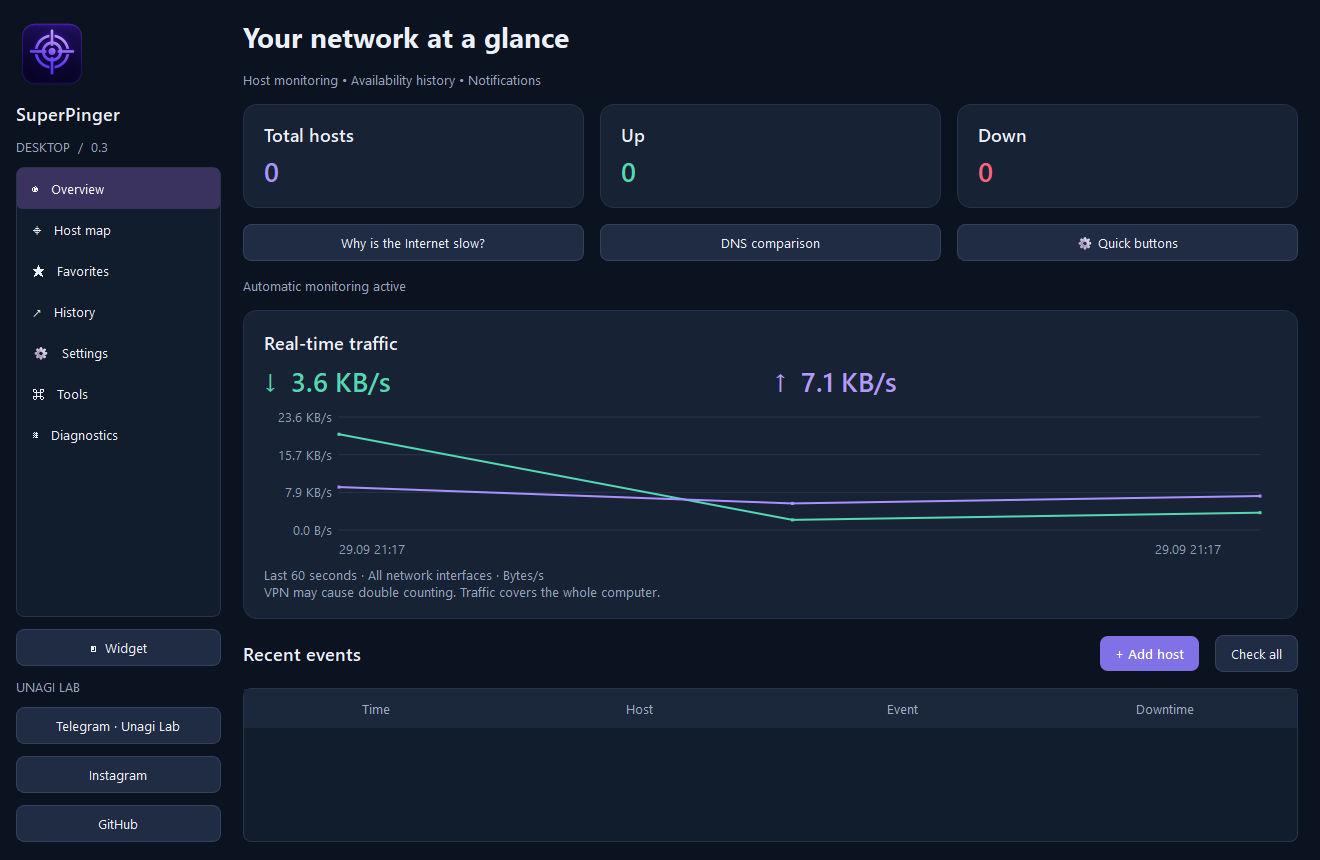
| Live traffic | View incoming and outgoing traffic for the computer, a rolling 60-second chart and recorded traffic usage. |
| Telegram alerts | Connect your bot, enable notifications per host and receive outage/recovery messages. Failed deliveries stay in a retry queue. |
| Tray and widget | Keep monitoring in the background. Use a movable widget with selected hosts or traffic, optional charts and an always-on-top mode. |
| Network tools | One-off ping, traceroute, DNS queries/comparison, WHOIS, TCP port and LAN scans, HTTPS checks, public IP and interface information. |
| Diagnostics | Save profiles, run connection-quality sessions, inspect loss and jitter, compare reports and export a support ZIP. |
| Personalization | English, Russian and Kazakh; dark, light or Windows appearance; quiet mode and a monitoring stop timer. |
Polling intervals: 1, 5, 15 or 30 minutes; 1 or 3 hours. ICMP payload: 1–65,000 bytes. Timeout: 250–10,000 ms.
Run on Windows
- Download the Windows release archive
SuperPingerDesktop-v0.3-Windows-x64.zip, when supplied with the release. - Extract the entire archive to a folder.
- Run
SuperPingerDesktop.exe. Keep_internalnext to the executable.
Python is not required for the packaged application. The release includes a source/ folder. The current build is unsigned.
To update, exit the old version through the tray menu and extract the new version into a separate folder. Existing hosts, history and settings use the same local database.
Add your first host
- Open Host map and click a location, or add a host by coordinates.
- Enter a name and an IP address or DNS name.
- Choose the polling interval, packet size, timeout and failure threshold.
- Save. The host appears on the map and in Favorites.
- Double-click the host to open its chart and events, or choose Ping now for a manual check.
Map coordinates are chosen by you; the IP address does not determine the marker location. By default, two consecutive failures mark a host as down. Manual checks also affect its status.
Interface language
Open Settings → Interface language and select English / Русский / Қазақша. English is the default. The choice is saved immediately and applied after a full restart: tray menu → Exit, then reopen the app. Closing the window to the tray is not a restart.
User-defined names and previously saved results keep their original text. System command output, Windows dialogs and map labels may use their own language.
Connect Telegram
- Create a bot using @BotFather.
- Send
/startto your bot, or add it to a group where it can send messages. - In Settings, enter the bot token and destination chat ID, enable notifications and save.
- Use Send test to verify the connection.
- Enable Telegram notifications in the settings of each host you want to monitor.
The token is protected with Windows DPAPI for the current Windows user. Messages that fail delivery are retried up to five times; Retry queue allows another attempt. This integration sends notifications; it does not accept remote-control commands.
Data and behavior
- Database:
%LOCALAPPDATA%\SuperPingerDesktop\monitor.sqlite3. - Create a consistent SQLite backup using Settings → Back up database.
- The app must be running. Monitoring does not operate while the PC is asleep or shut down; this version is not a Windows service and has no built-in Windows autostart.
- Packet loss can also mean ICMP filtering or a timeout. It does not prove that a device is powered off.
- Traffic is summed across network interfaces while the app runs. VPNs may cause double counting; this is not per-host traffic or ISP billing data.
- New map areas require Internet access. Map availability does not affect ping monitoring.
Run from source
Use Windows and Python 3.12 x64. Open PowerShell in the repository root:
py -3.12 -m venv .venv
.\.venv\Scripts\python.exe -m pip install -r requirements.txt
.\.venv\Scripts\python.exe app.py
Build a Windows distribution:
.\.venv\Scripts\python.exe -m PyInstaller --noconfirm SuperPingerDesktop.spec
Output: dist/SuperPingerDesktop/. The repository also includes build.ps1 for creating an environment and building the app.
Run the tests:
.\.venv\Scripts\python.exe -m unittest discover -p "test_*.py" -v
Version 0.3 passed 33 automated tests and packaged-app startup checks in all three languages. Real Telegram delivery and DPAPI token storage still need verification under a normal Windows account with a real bot; the build sandbox could not validate that flow.
Project structure
app.py                  Main window, settings and tray
core.py                 SQLite, host ping and protected credentials
monitor.py              Scheduled checks and notification delivery
mapview.py              OpenStreetMap view and host markers
widgets.py              Charts, host dialogs and desktop widget
nettools.py              Network utilities
diagnostics.py          Diagnostic sessions and reports
extras_ui.py            Tools and diagnostics interface
i18n.py / translations.py  Language loading and message catalog
docs/                   Detailed guide, poster and screenshot
Documentation and credits
Map data © OpenStreetMap contributors. Built with Python, PySide6/Qt and psutil; packaged with PyInstaller. The poster is promotional artwork; the overview image is an actual application screenshot.
Similar repos


Windows network monitoring app with live ping charts, an interactive host map, Telegram alerts, traffic tracking, and a desktop widget. Supports English, Russian, and Kazakh.
0
4 commits
updated Sep 29, 2026
See what people are saying
README
SuperPinger Desktop
Your network at a glance.
Host monitoring, ping history and network diagnostics for Windows.
Windows 10/11 x64 · Python + PySide6 · SQLite · Version 0.3
What is SuperPinger Desktop?
SuperPinger Desktop brings the monitoring features of the mobile SuperPinger project to Windows. Place your hosts on a map, track their availability, review ping charts and receive Telegram alerts when a host goes down or recovers. Monitoring continues while the application is minimized to the system tray.
Features
| Feature | What you can do |
|---|---|
| Host monitoring | Ping IPv4, IPv6 or DNS names automatically or on demand. Configure the ICMP payload, timeout and failure threshold for each host. |
| Interactive map | Choose a location on OpenStreetMap and attach a host name and address. Green means up; red means down. Every point also appears in Favorites. |
| History and charts | Store ping measurements, outages and recoveries in SQLite. Review charts and export history to CSV. |
| Live traffic | View incoming and outgoing traffic for the computer, a rolling 60-second chart and recorded traffic usage. |
| Telegram alerts | Connect your bot, enable notifications per host and receive outage/recovery messages. Failed deliveries stay in a retry queue. |
| Tray and widget | Keep monitoring in the background. Use a movable widget with selected hosts or traffic, optional charts and an always-on-top mode. |
| Network tools | One-off ping, traceroute, DNS queries/comparison, WHOIS, TCP port and LAN scans, HTTPS checks, public IP and interface information. |
| Diagnostics | Save profiles, run connection-quality sessions, inspect loss and jitter, compare reports and export a support ZIP. |
| Personalization | English, Russian and Kazakh; dark, light or Windows appearance; quiet mode and a monitoring stop timer. |
Polling intervals: 1, 5, 15 or 30 minutes; 1 or 3 hours. ICMP payload: 1–65,000 bytes. Timeout: 250–10,000 ms.
Run on Windows
- Download the Windows release archive
SuperPingerDesktop-v0.3-Windows-x64.zip, when supplied with the release. - Extract the entire archive to a folder.
- Run
SuperPingerDesktop.exe. Keep_internalnext to the executable.
Python is not required for the packaged application. The release includes a source/ folder. The current build is unsigned.
To update, exit the old version through the tray menu and extract the new version into a separate folder. Existing hosts, history and settings use the same local database.
Add your first host
- Open Host map and click a location, or add a host by coordinates.
- Enter a name and an IP address or DNS name.
- Choose the polling interval, packet size, timeout and failure threshold.
- Save. The host appears on the map and in Favorites.
- Double-click the host to open its chart and events, or choose Ping now for a manual check.
Map coordinates are chosen by you; the IP address does not determine the marker location. By default, two consecutive failures mark a host as down. Manual checks also affect its status.
Interface language
Open Settings → Interface language and select English / Русский / Қазақша. English is the default. The choice is saved immediately and applied after a full restart: tray menu → Exit, then reopen the app. Closing the window to the tray is not a restart.
User-defined names and previously saved results keep their original text. System command output, Windows dialogs and map labels may use their own language.
Connect Telegram
- Create a bot using @BotFather.
- Send
/startto your bot, or add it to a group where it can send messages. - In Settings, enter the bot token and destination chat ID, enable notifications and save.
- Use Send test to verify the connection.
- Enable Telegram notifications in the settings of each host you want to monitor.
The token is protected with Windows DPAPI for the current Windows user. Messages that fail delivery are retried up to five times; Retry queue allows another attempt. This integration sends notifications; it does not accept remote-control commands.
Data and behavior
- Database:
%LOCALAPPDATA%\SuperPingerDesktop\monitor.sqlite3. - Create a consistent SQLite backup using Settings → Back up database.
- The app must be running. Monitoring does not operate while the PC is asleep or shut down; this version is not a Windows service and has no built-in Windows autostart.
- Packet loss can also mean ICMP filtering or a timeout. It does not prove that a device is powered off.
- Traffic is summed across network interfaces while the app runs. VPNs may cause double counting; this is not per-host traffic or ISP billing data.
- New map areas require Internet access. Map availability does not affect ping monitoring.
Run from source
Use Windows and Python 3.12 x64. Open PowerShell in the repository root:
py -3.12 -m venv .venv
.\.venv\Scripts\python.exe -m pip install -r requirements.txt
.\.venv\Scripts\python.exe app.py
Build a Windows distribution:
.\.venv\Scripts\python.exe -m PyInstaller --noconfirm SuperPingerDesktop.spec
Output: dist/SuperPingerDesktop/. The repository also includes build.ps1 for creating an environment and building the app.
Run the tests:
.\.venv\Scripts\python.exe -m unittest discover -p "test_*.py" -v
Version 0.3 passed 33 automated tests and packaged-app startup checks in all three languages. Real Telegram delivery and DPAPI token storage still need verification under a normal Windows account with a real bot; the build sandbox could not validate that flow.
Project structure
app.py                  Main window, settings and tray
core.py                 SQLite, host ping and protected credentials
monitor.py              Scheduled checks and notification delivery
mapview.py              OpenStreetMap view and host markers
widgets.py              Charts, host dialogs and desktop widget
nettools.py              Network utilities
diagnostics.py          Diagnostic sessions and reports
extras_ui.py            Tools and diagnostics interface
i18n.py / translations.py  Language loading and message catalog
docs/                   Detailed guide, poster and screenshot
Documentation and credits
Map data © OpenStreetMap contributors. Built with Python, PySide6/Qt and psutil; packaged with PyInstaller. The poster is promotional artwork; the overview image is an actual application screenshot.